Logo

The PrintNightmare vulnerability finally fixed

PrintNightmare vulnerability has been a struggling issue for Microsoft in the past weeks, each time it seems to be addressed and fixed something new popped up and it still had issues.

Microsoft finally addressed the issue but with a price. The default behavior of Point and Print is changed. From this fix onward, the Point and Print driver installation and update behavior will require administrator privileges, which should prevent the exploit to the Windows Print Spooler that could be used by malicious individuals to gain administrative privileges in Windows.

The drawback of this fix from Microsoft is that non-elevated users may have difficulty adding or updating printers. Microsoft feels that the security risks caused by PrintNightmare are worth the tradeoff, though.

If you really want to let non-elevated users add printers, you can follow the instructions in this Microsoft Support article to disable this mitigation with a registry key. However, doing so will expose you to this known vulnerability and isn’t recommend.

Do You Need Help with Your Device?

Our Team of Experts May Help
Troubleshoot.Tech Experts are There for You!
Replace damaged files
Restore performance
Free disk space
Remove Malware
Protects WEB browser
Remove Viruses
Stop PC freezing
GET HELP
Troubleshoot.Tech experts work with all versions of Microsoft Windows including Windows 11, with Android, Mac, and more.

Share this article:

You might also like

"Stop Running This Script" Error - How to Fix It

Stop Running This Script Error - What is it?

"Stop Running This Script" Error is a Windows Internet Explorer error message that is displayed in the following format with a yes and a no button:
Stop running this script?
A Script on this page is causing your web browser to run slowly.  If it continues to run, your computer might become unresponsive. This occurs when some scripts take an excessive amount of time to run. To be precise, there are some websites that use JavaScript, JQuery, and Active X scripts to run. These scripts are notorious for taking too much time to run. So, if you use the Internet Explorer as your web browser, then by default if the website takes a long time to load, the ‘Stop running this script error will be triggered. Other than this, if you are scripting an Active X control on the web page to transfer a very heavy file or run a huge database query, this may cause delays and lead to the error display. However, if you use Firefox, then the ‘Stop running this script error code will be promoted as ‘Unresponsive Script’ error.

Solution

Restoro box imageError Causes

The ‘Stop running this script error code’ is triggered due to multiple reasons. These include:
  • Webpage programming errors
  • Running a pop-up killer
  • Spyware and viral infection
  • Active X control errors

Further Information and Manual Repair

Here are some of the best methods that you can try to resolve Internet Explorer’s ‘stop running this script error’ on your PC:

1. Change the Internet Explorer Settings

This can be done by opening Internet Explorer and in the top menu, click on Tools, and then go to Internet Options. Now click on the Advanced Tab option. Locate where it says ‘Disable Script Debugging’. Once you find it uncheck the box beside it. Now close the browser and restart your PC. Access the same website on your IE web browser and see if the website opens. If it does, then the error is resolved. However, if it doesn’t, then you the underlying causes for the stop running this script error message could either be spyware or ActiveX control error.

2. Download Restoro

Whether the error occurs due to spyware invasion of Active X control error, it is advisable to download Restoro on your PC. This is a next-generation, innovative, and multi-functional PC repair tool that has several powerful utilities deployed together in one program. Plus you don’t have to get into the technicalities of resolving Active X control issues. Restoro is safe, bug-free, and efficient. It has a user-friendly interface and simple navigation which makes it quite easy for all levels of users to operate. It is compatible with all Windows versions including Windows 7, 8, XP, Vista, 8.1, and 10. This PC repair tool is a one-stop solution for all your script error repair needs. It includes the following utilities: a registry cleaner, a system stability detector, and an ActiveX control error scanner. It simultaneously scans for ActiveX control errors too. So, if the IE script error is triggered by ActiveX control issues, it resolves them too. To fix the ‘stop running this script’ error code on your PC, click here to download Restoro
Read More
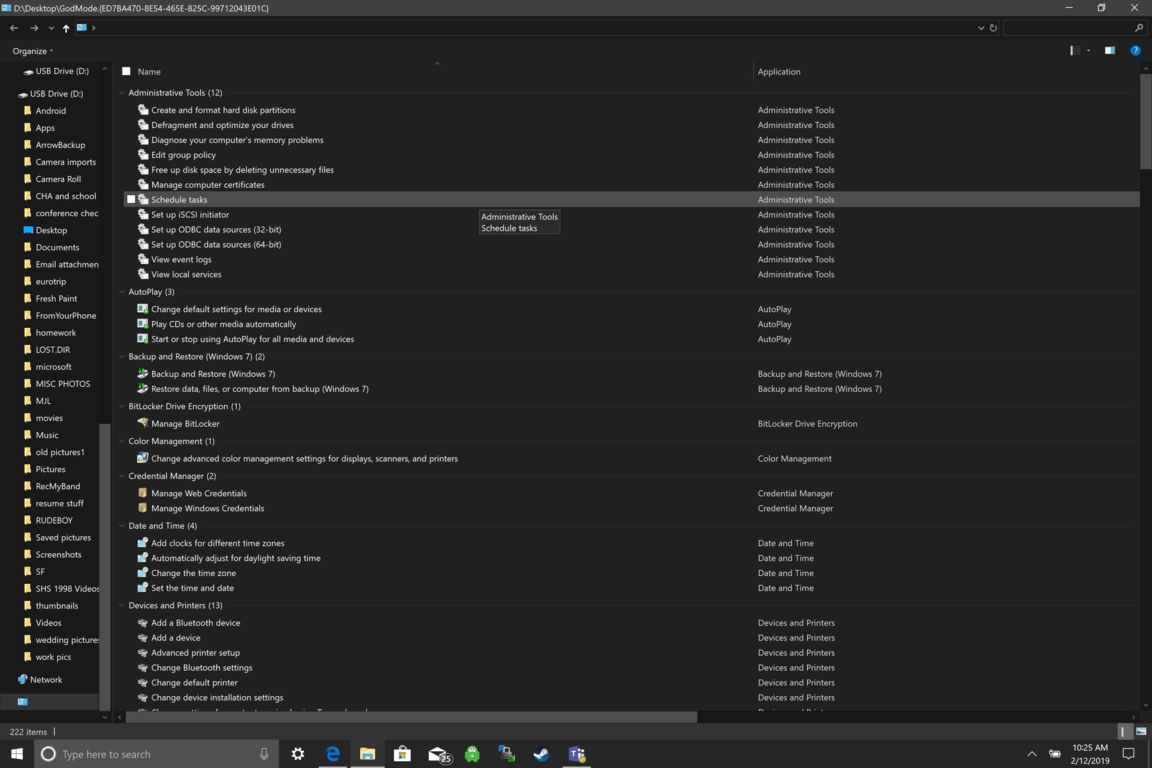
How to enable God mode inside Windows 11
God mode windows 11Like in Windows 10, Windows 11 will also support God mode to be enabled and used. For those readers that do know what God mode is, let me explain it in simple terms. God mode is the icon on the desktop that once clicked will open and let you adjust every option in the control panel and some hidden features for Windows inside one application. There are a lot of advantages to having this one-click fast access to features, especially if you are a power user. Luckily creating such an awesome icon and enabling God mode is very easy to accomplish, all you have to do is:
  1. Create a new folder where you want to have the God mode icon
  2. Rename folder exactly: {ED7BA470-8E54-465E-825C-99712043E01C}
  3. Enjoy God mode
As you can see creating and accessing all settings at your fingertips is much easier than most people think. Enjoy your ultimate access to Windows 11 features and if you wish you can drag and drop sections from it into the desktop or anywhere for easy access to that specific topic.
Read More
How to Fix Remote Computer requires network level authentication Error in Windows 10
A couple of Windows 10 users have reported an error on domain-connected systems when they tried accessing their computer systems remotely. This occurs when the network level authentication or NLA is enabled on the computer. If you are one of these users, you better keep reading as this post will guide you on how you can fix this error. To resolve this issue, there are several workarounds you can try. You can either disable this option directly via properties or you can also modify some registry entries or sub-keys and restart the system. When you encounter this problem, an error message pops up that states:
“The remote computer that you are trying to connect to requires network level authentication (NLA), but your windows domain controller cannot be contacted to perform NLA. If you are an administrator on the remote computer, you can disable NLA by using the options on the Remote tab of the System Properties dialog box.”
Or you could also see this error message instead:
“The remote computer requires Network Level Authentication, which your computer does not support. For assistance, contact your system administrator or technical support.”
Before you proceed in troubleshooting the problem using the options provided below, you need to create a backup for your data or system restore point as well as make a copy of any registry entries you are going to modify.

Option 1 – Disable Network Level Authentication via Properties

The NLA is a useful tool that provides your computer with extra security and helps network administrators in controlling who can log into the system with just a click of a single box. However, there are times when it can become a disadvantage and could prevent you from accessing your system remotely. Thus, you need to disable it using Properties.
  • Tap the Win + R keys to open the Run dialog box.
  • After that, type in “sysdm.cpl” and tap Enter to open System Properties.
  • Next, go to the remote tab and uncheck the checkbox for the “Allow connections only from computers running Remote Desktop with Network Level Authentication (recommended)” option.
  • Now click the Apply button to save the changes made and exit System Properties and then try logging into the remote computer again and see if the problem is fixed or not.

Option 2 – Disable NLA via Registry Editor

Note that you can only use this option if the first one didn’t work for you. Take note that this option will require you to restart your PC completely which could mean some downtime if your computer is running a production server. So make sure to save all your work.
  • Tap the Win + R keys to open the Run dialog box and then type in “Regedit” in the field and tap Enter to open the Registry Editor.
  • From there, click on File > Connect Network Registry and input the details of the remote computer and then try to connect.
  • Navigate to the path below after you’re connected:
HKLM >SYSTEM > CurrentControlSet > Control >Terminal Server > WinStations > RDP-Tcp
  • After that, change the values given below to “0”
    • SecurityLayer
    • UserAuthentication
  • The navigate to PowerShell and execute this command – restart-computer

Option 3 – Disable NLA via PowerShell

PowerShell allows you to tap into the remote computer and once you’ve targeted the machine, you can execute the commands given below to disable NLA.
  • Tap the Win + S to open Search and then type in “PowerShell” in the field. Right-click on the related result and select the “Run as administrator” option.
  • After opening PowerShell, execute the command below:
  1. Once in the PowerShell, execute the following command:
$TargetMachine = “Target-Machine-Name” (Get-WmiObject -class “Win32_TSGeneralSetting” -Namespace rootcimv2terminalservices -ComputerName $TargetMachine -Filter “TerminalName=’RDP-tcp'”).SetUserAuthenticationRequired(0) Note: In the command given, the “Target-Machine-Name” is the name of the machine you are targeting.

Option 4 – Use the Group Policy Editor to disable NLA

Another option you can use to disable NLA is via the Group Policy Editor. This is ideal for you if you are blanket disabling. Just take note that the Group Policy Editor is a powerful tool and that if you make some mistakes by changing values you have no clue about, you can render your computer useless so make sure that you create a backup for all the values before you proceed.
  • Tap the Win + R keys to open the Run dialog box.
  • Then type in “gpedit.msc” and tap Enter to open the Group Policy Editor.
  • From there, go to this path – Computer Configuration > Administrative Templates > Windows Components > Remote Desktop Services > Remote Desktop Session Host > Security
  • After that, search for “Require user authentication for remote connections by using Network Level Authentication” and set it to disabled.
  • Now check if the error is fixed or not.
Read More
How to Repair Error Code 0xC190010, 0x30018 in Windows 10

Error Code 0xC1900101, 0x30018? - What is it?

Users, when upgrading to Windows 10 from Windows 7 or Windows 8/8.1, or when upgrading to a new version, build, service pack, or major update of Windows 10, can encounter error code 0xC1900101, 0x30018. Windows 10 installation fails and stops or hangs. During the installation process, it will reach a certain maximum limit (normally at 6% or 32%) then reverts back to the previous version of the operating system and displays the following message:

We couldn’t install Windows 10. We’ve set your PC back to the way it was right before you started installing Windows 10.

0xC1900101 – 0x30018 The installation failed in the FIRST_BOOT phase with the error during the SYSPREP operation.

Solution

Restoro box imageError Causes

In attempting to fix Error Code 0xC1900101-0x30018, it is vital to know what causes this issue. The most probable causes of this error are:

  • Incompatible hardware or driver
  • Incompatible security programs or antivirus or incompatible utility software
  • A device driver possibly stopped responding to setup.exe while on the installation process.
In some cases, you might be opened to other error messages when attempting to update to Windows 10, including error code 8007002c.

Further Information and Manual Repair

In fixing issues related to error codes, it is best to employ manual repair methods. Using these methods helps users pinpoint the root causes of the issue and apply solutions permanently to fix the issues. While most manual repair methods can be done by every Windows user, even those without technical abilities, there are certain cases where help from a Windows professional is needed. If you’re not up to facing risks in implementing manual methods yourself, consider getting help from a professional Windows technician or you can use a powerful automated tool. In fixing Error Code 0xC1900101-0x30018, you can repeat the same steps used for 0xc000021a (Method One) or you can try doing the following:
  • Disable or uninstall your Antivirus program before proceeding to upgrade the system
  • Ensure that the machine name is simple (having at least 8 characters) with no special characters like hyphens or dashes.
  • Restart the device a few times then try again.
  • Disable General USB Devices such as the Smart Card Reader.
  • If you use an SCSI hard disk, ensure that you have available drivers you can use for your storage such as a thumb drive and make sure that it is connected. During the Windows 10 setup, select the Custom Advanced Option and use the Load Driver command to be able to load the suitable driver for the SCSI drive. If this fails, try switching to an IDE-based hard disk.
  • You can now perform a clean boot. Restart your device then try again.
  • If you are using the .ISO file for upgrading the system, you need to disconnect from the Internet first before proceeding to the setup. If you are connected to Wi-Fi or by Ethernet (LAN), make sure to disable both connections then you can proceed to set up again.
  • If you’re performing the update through Windows Update, once the download reaches 100%, disconnect from the Internet, and then proceed with the installation.

NOTE: If this fails, if possible, you can try using the .ISO file in upgrading.

  • Switch to a local account if the device is connected to a domain.
  • Disconnect all external devices attached to the computer such as gaming controllers, printers, or USB keys.

If you’re using Windows Update in installing Windows 10, you can implement the following:

  1. Open the Command Prompt window by pressing Windows Key + X. Select Command Prompt (Admin) from the menu.
  2. Stop the BITS, Cryptographic, MSI Installer, and the Windows Update Services. In order to do this, Type or Copy and Paste the following commands one at a time:

NOTE: Don’t forget to hit Enter after every command.

net stop wuauserv

net stop cryptSvc

net stop bits

net stop msiserver

  1. Rename the Catroot2 and SoftwareDistribution In order to do this, Type or Copy and Paste the following commands one at a time:

NOTE: Don’t forget to hit Enter after every command.

                        ren

C:WindowsSoftwareDistribution SoftwareDistribution.old

                          ren

C:WindowsSystem32catroot2 Catroot2.old

  1. Restart the BITS, Cryptographic, MSI Installer, and the Windows Update Services. In order to do this, Type or Copy and Paste the following commands one at a time:

NOTE: Don’t forget to hit Enter after every command.

net start wuauserv

net start cryptSvc

net start bits

net start msiserver

  1. Type Exit in the Command Prompt then close the Command Prompt window then restart the computer.
Can’t seem to put up with the long and technical manual repair process? You can still fix this error by downloading and installing a powerful automated tool that will surely get the job done in a jiffy!
Read More
Troubleshooting Error 106

What Is Error 106?

Error 106 is a common error experienced by Windows 7 users. Generating as a result of Misconfigured, damaged or corrupt system files on the computer, this is not a critical error. However, troubleshooting this error is important to keep any undesired inconvenience at bay. Essentially, error 106 is one of the error codes employed by Windows and other compatible driver and software vendors. The 106 in this error is essentially the memory address or location where the instructions reside when the error was generated.

Solution

Restoro box imageError Causes

Primarily, error 106 is caused by the damaged, Misconfigured or corrupt system files. The error may appear harmless at first. However, if allowed to persist, it can lead to grave consequences. Allowing an error to thrive on your system is synonymous with putting the well-being of your system at risk. As far as the events, conditions, or scenarios are concerned that lead to the generation of error 106, they are listed below as follows. It is important to understand that these conditions lead to the corruption of system files in most cases.
  • An improper or incomplete installation or uninstallations
  • Improper or incomplete deletion of hardware or applications
  • Improper, unintentional or sudden system shutdown
  • Existence of adware, spyware, malware, or virus on your computer
It is worth mentioning that any of the conditions listed above can lead to the corruption of system files or registry entries in the system. Since the system needs correct and complete files for proper functioning which the system will be unable to find, it will result in unexplained behavior. This also happens because the system will be lead to wrongly linked or missing information.

Further Information and Manual Repair

There are different ways to rectify this error but two of the most useful ones are briefly listed below as follows.
  • This solution is for the advanced user. First and foremost, turn on your system. Log on to it as the Administrator. Now click on the start button and follow this sequence: All Programs -> Accessories -> System Tools -> System Restore.A new window will appear in front of you. On this window, choose the option, ‘Restore my computer to an earlier time’. Now click Next.A list of restore points will appear in front of you. From this list, choose the most recent Restore Point and click Next. Click Next on the confirmation windows. Restart the computer when the restoration is complete.
  • This solution for the novice user. Download an error 106 windows repair utility. Now install this program on your computer and use it to scan your computer. Try to locate the option for fixing errors as soon as the scan complete. Make use of this option. Once all the errors have been fixed, restart your computer once again. You will now realize that the error has vanished and your computer is now free of error 106.
Use any of the solutions listed above according to your skill level.
Read More
Assigning Multiple IP Addresses to Adapter
There are times when an IT admin has to set up multiple IP addresses to the same network adapter. Setting up multiple IP addresses in scenarios like hosting various SSL sites, speed up traffic exchanges can help in avoiding being blacklisted in the SPAM filters, and so on. So in this post, you will be guided on how exactly you can assign multiple IP addresses to the network adapter in your Windows 10 computer. There are several ways to assign multiple IP addresses in a network adapter. You can do it using the Network Adapter settings or using the Netsh utility, as well as the Windows PowerShell utility. To get started, refer to each one of the options provided below.

Option 1 – Assign multiple IP addresses via Network Adapter settings

  • Go to Settings first and from there, select Network & Internet, and then click on the Change adapter options. This will show you a list of both the physical and virtual network adapters in your computer.
  • Next, double click on the Ethernet adapter where you want to assign the multiple IP addresses and then click on the Properties button.
  • After that, you should see the Ethernet properties where you have to select the “TCP/IPv4” or “TCP/IPv6”.
  • Once done, click on the Properties button and then select the “Use the following IP address” option under the General tab.
  • Now you have to add an IP address, subnet, and default gateway to the network adapter and then click on the Advanced button.
  • This will open the Advanced TCP/IP settings where you have to click on the Add button so you can add an IP address. From here, you can keep adding multiple IP addresses to the network adapter. You also have the option to add multiple gateways or DNS IP addresses.
  • Once done, if you execute the “ipconfig” command, you should see all the secondary IP addresses listed.

Option 2 – Assign multiple IP addresses using the Netsh command

Another way to assign multiple IP addresses to your network adapter is via the Netsh command.
  • In the Start Search, type “command prompt” and from the search results that appear, right-click on Command Prompt and then select the “Run as administrator” to open it with admin privileges.
  • If a User Account Control or UAC prompt pops up, just click on Yes.
  • After that, run this command: Netsh int ipv4 add address name="Local Area Connection" 192.168.100.100 255.255.255.0 SkipAsSource=True
Note: You have the option to set “SkepAsSource” since it depends on your needs using the Netsh command. When it is configured as true, the IP address won’t be used by the OS for outbound connections.

Option 3 – Assign multiple IP addresses via Windows PowerShell

  • Tap the Win + X key combination and click on the “Windows PowerShell (Admin)” option.
  • After opening Windows PowerShell as admin, use the NetIPAddress command so you can add more IP addresses. Execute this command: Get-NetIPAddress | ft IPAddress, InterfaceAlias, SkipAsSource
  • Next, assign an IP address to a network adapter by executing this command: New-NetIPAddress –IPAddress 192.168.100.100 –PrefixLength 24 –InterfaceAlias “vEthernet” –SkipAsSource $True
  • Now to modify the “SkipAsSource” parameter, use this command: Get-NetIPAddress 192.168.100.100 | Set-NetIPAddress -SkipAsSource $False
Read More
How to remove GetCouponsFast.com from PC

The Get Coupons Fast Toolbar is a Browser Extension for Google Chrome developed by Mindspark Inc. This extension allows quick access to the most popular coupon websites available. While this might look like a good useful idea, keep in mind that it has been classified as a Browser Hijacker by Several anti-virus applications.

When installed this extension will hijack your new tab page, changing it to a customized version of Search.MyWay.com. While active It records user browser activity, this data is later used to better target ads. While browsing the internet with this extension installed you will see additional pop-up ads, sponsored content, and injected ads into your browser search results and pages. GetCouponsFast usually comes bundled with other PUP-s or Browser Hijackers that may harm your computer and it is recommended you remove it from your PC.

About Browser Hijackers

Browser hijacking means that a malicious code has taken control over and altered the settings of your internet browser, without your permission. They are created to disrupt browser functions for various reasons. It redirects you to the sponsored sites and inserts ads on your internet browser that assists its developer to generate revenue. While it might seem harmless, these tools were created by malicious people who always look to take advantage of you, so that they could make money from your naivety and distraction. They did not just ruin your browsers, but browser hijackers can also modify the system registry, making your computer or laptop susceptible to various other types of attacks.

Signs of browser hijacker infection

There are plenty of signs that indicate the web browser has been highjacked: 1. you notice unauthorized modifications to your web browser’s home-page 2. you find re-directed to internet sites you never intended to visit 3. the default browser configurations have been modified and/or your default web engine is altered 4. you’ll see many toolbars on your browser 5. you might see never-ending pop-up adverts on your computer screen 6. your browser has become unstable or starts running slowly 7. you are blocked to access the websites of antivirus solution providers.

How does a computer get infected with a browser hijacker?

Browser hijackers might use drive-by downloads or file-sharing networks or an email attachment in order to reach a targeted computer system. They could also come from add-on applications, also known as browser helper objects (BHO), web browser extensions, or toolbars. Some internet browser hijackers spread in user’s computers using a deceptive software distribution method called “bundling” (often through freeware and shareware). Browser hijackers will affect the user’s web browsing experience severely, monitor the websites visited by users and steal sensitive information, cause difficulty in connecting to the web, and eventually create stability problems, making programs and systems freeze.

Removal

Some hijackers can be simply removed by deleting the free software they were included with or by deleting any add-ons you have recently added to your browser. Unluckily, the majority of the software applications utilized to hijack an internet browser are deliberately designed to be difficult to detect or get rid of. And there is no denying the very fact that manual repairs and removal can certainly be a difficult task for a novice PC user. Moreover, there are various risks connected with tinkering around with the system registry files. Installing and running anti-malware software on the affected computer will automatically erase browser hijackers as well as other unwanted programs. In order to get rid of persistent browser hijackers effectively, install the award-winning Anti-Malware tool Safebytes Anti-Malware. Employ a pc optimizer (such as Total System Care) along with your anti-malware to repair various computer registry problems, remove computer vulnerabilities, and improve your computer performance.

How To Get Eliminate Virus That Is Blocking Antivirus Downloads?

Malware could cause all sorts of damage once they invade your computer, starting from stealing your private details to erasing data files on your computer system. Some malware is created to hinder or block things that you wish to do on your PC. It may not permit you to download anything from the net or it will prevent you from accessing a few or all of the websites, in particular the anti-virus sites. If you are reading this article right now, you may have perhaps realized that a malware infection is a reason for your blocked internet connectivity. So what to do if you want to download and install an anti-virus application like Safebytes? There are some steps you can take to circumvent this problem.

Boot Windows in Safe Mode

Safe Mode is actually a unique, simplified version of Windows in which just bare minimum services are loaded to prevent malware and also other troublesome programs from loading. If the malicious software is set to load automatically when the PC starts, shifting into this mode may prevent it from doing so. In order to enter into Safe Mode or Safe Mode with Networking, press the F8 key while the system is booting up or run MSCONFIG and find the “Safe Boot” options under the “Boot” tab. Once you are in safe mode, you can attempt to install your anti-malware program without the hindrance of the malicious software. Right after installation, run the malware scanner to remove standard infections.

Use an alternate web browser to download security software

Web-based malware can be environment-specific, aiming for a particular browser or attacking particular versions of the browser. The best solution to avoid this issue is to choose an internet browser that is known for its security features. Firefox contains built-in Malware and Phishing Protection to keep you secure online.

Run anti-virus from a pen drive

Another option would be to make a portable anti-malware program onto your USB flash drive. To run anti-virus using a pen drive, follow these simple measures: 1) Download Safebytes Anti-Malware or Windows Defender Offline onto a virus-free PC. 2) Plug the USB drive into the clean computer. 3) Double-click the Setup icon of the anti-malware program to run the Installation Wizard. 4) Select thumb drive as the place when the wizard asks you where you wish to install the application. Follow the directions to complete the installation process. 5) Unplug the flash drive. Now you can utilize this portable anti-virus on the infected computer. 6) Double click the Safebytes Anti-malware icon on the pen drive to run the application. 7) Click the “Scan Now” button to start the virus scan.

SafeBytes Anti-Malware Overview

Want to download the best anti-malware application for your desktop? There are many applications on the market that comes in free and paid versions for Windows systems. Some are very good ones, some are ok types, while some are just fake anti-malware programs that will damage your personal computer themselves! While looking for an antimalware program, pick one that offers reliable, efficient, and total protection against all known viruses and malware. On the list of recommended software is SafeBytes AntiMalware. SafeBytes has a good history of quality service, and customers appear to be happy with it. Safebytes is among the well-established PC solutions companies, which provide this all-inclusive anti-malware application. With its outstanding protection system, this tool will automatically detect and remove most of the security threats, which include adware, viruses, browser hijackers, PUPs, trojans, worms, and ransomware.

SafeBytes possesses a variety of wonderful features that can help you protect your computer from malware attacks and damage. Listed below are a few of the great ones:

Real-time Protection: SafeBytes provides round-the-clock protection for your computer restricting malware intrusions in real-time. They are very efficient in screening and getting rid of numerous threats because they’re regularly improved with new updates and alerts. Robust Anti-malware Protection: Built on a highly acclaimed antivirus engine, this malware removal tool has the capacity to find and remove various stubborn malware threats such as browser hijackers, PUPs, and ransomware that other common antivirus programs will miss. Web protection: SafeBytes checks the hyperlinks present on a webpage for possible threats and tells you if the website is safe to explore or not, through its unique safety rating system. Minimal CPU and Memory Usage: SafeBytes is a lightweight and simple to use antivirus and anti-malware solution. As it utilizes very low computer resources, this software leaves the computer power exactly where it belongs: with you. 24/7 Customer Service: Support service is available 24 x 7 x 365 days via chat and email to answer your queries. Overall, SafeBytes Anti-Malware is a solid program since it has lots of features and could identify and remove any potential threats. Now you may realize that this tool does more than just scan and delete threats on your computer. So when you need advanced forms of protection features and threat detections, purchasing SafeBytes Anti-Malware could be well worth the dollars!

Technical Details and Manual Removal (Advanced Users)

If you don’t want to use malware removal software and prefer to eliminate GetCouponsFast manually, you could do so by going to the Windows Add/Remove Programs menu in the control panel and deleting the offending program; in cases of browser extensions, you can remove it by visiting the browser’s Add-on/Extension manager. Additionally, it is advised to reset your web browser settings to their default state. Lastly, check your hard disk for all of the following and clean your registry manually to remove leftover application entries after uninstallation. Please keep in mind that only advanced users should attempt to manually edit the system files since deleting any single vital registry entry results in a serious problem or even a PC crash. Moreover, certain malicious programs are capable to defend against its removal. It is recommended that you do the removal process in Windows Safe Mode.
Files: %LOCALAPPDATA%\Google\Chrome\User Data\Default\Extensions\iadmakoacmnjmcacmhlcjcameijgcopj %UserProfile%\Local Settings\Application Data\Google\Chrome\User Data\Default\Extensions\iadmakoacmnjmcacmhlcjcameijgcopj %UserProfile%\Local Settings\Application Data\GetCouponsFastTooltab %LOCALAPPDATA%\GetCouponsFastTooltab Registry: HKEY_LOCAL_MACHINE\Software\[APPLICATION]\Microsoft\Windows\CurrentVersion\Uninstall..Uninstaller

Read More
Malware Guide: How to Remove WidgiToolbar

What is WidgiToolbar?

The WidgiToolbar is an unscrupulous application designed to advertise other applications as a part of a bundle, steal financial information and penetrate the security of a computer system, making it open to other threats. In most cases, WidgiToolbar claims to center its installs on toolbars but that’s not always the case. Technical details about WidgiToolbar Malware include:
Digital Publisher: GreenTree Applications srl Product Version: YTD Video Downloader 4.8.9.7 Original File Name: YTDStub.exe Entry Point:  0x0000323C

Assessment of WidgiToolbar

Created by GreenTree Applications/ Spigot Inc., the WidgiToolbar is a list of nested toolbars. This application was in fact a bundle, installing several other applications upon installation. For this installation, WidgiToolbar installed only the YouTube Downloader toolbar and several other applications. Thereafter, the application appeared pretty harmless but is intended on distributing advertisements over the user’s computer, often without the user’s discretion. It’s all in the ads. Additionally, based on evaluations made by Security Analysts, the WidgiToolbar application is used for extracting personal and financial information from a user’s computer system. Financial information encapsulates banking and credit card details. Your passwords and other highly confidential information might be detected by the WidgiToolbar application if care is not taken. Overall, the WidgiToolbar installs and collects information from your computer system without your knowledge and permission. Furthermore, WidgiToolbar leaves a computer system vulnerable and susceptible to other threats and malware. The application is known for opening a portal or door into your computer system. This implies that other software can be installed on your computer via this avenue, once again without your knowledge. Responsible for wreaking havoc on your computer, it’s then pertinent that you remove it altogether. Manually removing the WidgiToolbar is not an option. Why? A manual removal procedure will not be able to remove the software in its entirety. An automated tool is the best option. Like all other programs offered as a bundle, several other programs were installed. These include:
  1. MS Build
  2. Reference Assemblies
  3. PRO PC Cleaner
Soon after the installation of WidgiToolbar was completed, there were a total of four (4) new applications installed on the computer. These were all found in the computer's Local Drive. After WidgiToolbar was installed, the application attempted to change the default search provider to search.yahoo.com. This was a clear indication that this was a promotion to get more Internet users to use the Yahoo search engine.

Why Use Spyhunter to Remove WidgiToolbar?

As a result of its nature, the WidgiToolbar is difficult to remove. You might be able to remove other programs that were manually installed within the bundle, but to remove WidgiToolbar completely; an automated tool is a necessity. This is to ensure that specific registry keys installed by WidgiToolbar are found and removed. To completely remove WidgiToolbar from your computer, click here to download and install Spyhunter. After a scan was done with Spyhunter, there were 330 threats detected. Spyhunter was able to remove all 330 threats with ease and success.
Read More
How to Repair Error Code 31

What is Error Code 31?

Device Manager Error Code 31 pops up when Windows prevents the driver for a particular hardware device from loading. The error code 31 is almost always presented in the following format:

“This device is not working properly because Windows cannot load the drivers required for this device.” Code 31

This error can occur with any hardware device; however, in most cases, it occurs with Ethernet cards. The good news is that it belongs in the easy-to-resolve category. So repairing it should not be difficult.

Solution

driverfix boxError Causes

Error code 31 is related to driver problems, and the most common causes include:
  • Outdated drivers
  • Missing drivers
  • Mis-configured drivers
  • Corrupt drivers

Further Information and Manual Repair

To resolve error code 31 on your system, try the methods given below. We have listed down some of the most effective and easy-to-perform DIY methods for fixing Device Manager code 31 on your PC.

Method 1 - Rollback the Driver to its Previous State

This simply means to return the driver back to its previous state - to the version last installed. Try this method to resolve error code 31. This is probably the easiest way to return your PC to its previous working state.

However, by doing so, you will not be able to update your drivers and run new driver versions on your system. In other words, this is a temporary method to fix this issue.

You may still want to try other methods given below to ensure you have the latest drivers installed on your system.

You can roll back the driver to its previous version by accessing the Driver Rollback feature located in the driver settings within the Device Manager. Or another way to perform a rollback is to use the Windows System Restore Utility.

It is a recovery tool built-in the new Windows versions. To access it, simply go to the start menu and type System Restore Utility in the search menu.

Access it and pick a point in the past, also referred to as the restore point, to return your PC to its previous state before the error code 31 occurred.

However, to resolve the problem permanently, try method 2.

Method 2 - Update the Driver

Error code 31, as discussed above, may occur due to outdated, misconfigured, or corrupted drivers. Whatever the reason may be, to ensure the proper functioning of your hardware device, it is important to update the drivers on your system frequently.

To start driver updates, first, it is important to find out and identify problematic drivers. You need to identify the drivers that are corrupt, misconfigured, and outdated. For this, go to the Device Manager and then look for devices with yellow exclamation marks.

The yellow exclamation marks next to the devices show that these device drivers are problematic. Once you’ve identified the problematic drivers, simply update them by finding the latest and compatible versions on the manufacturer’s website.

This process is time-consuming and can be frustrating at times, especially when doing it for the first time.

Also, once you’ve updated the drivers, you need to update them from time to time to ensure they don’t get outdated, or else you will have to encounter Device Manager error codes again.

Method 3 - Download DriverFIX to Update Drivers Automatically

To avoid the hassle and stress involved in updating drivers manually, it is advisable to download and install DriverFIX.

DriverFIX is a smart, innovative, and feature-filled software embedded with an intelligent algorithm that quickly detects problematic drivers, matches them with the latest and compatible versions, and updates them immediately and automatically in just a few seconds and a couple of clicks.

It’s as simple as it can be. Furthermore, with this software installed on your PC, you don’t have to stress and worry about when your drivers need to be updated again.

DriverFIX ensures all drivers are continuously and regularly updated before they become outdated.

Click here to download DriverFIX to repair Device Manager error code 31 and update drivers automatically and regularly.

Read More
Sites for COVID-19 information
Living in today's world sadly is still living in the COVID-19 pandemic. It has been more than a year and sadly pandemic is still very strong and we are battling it on a daily basis. Governments all over the world are trying to battle pandemics in their own way with their own ideas and prevention measures. We as individuals can not very much influence how will the pandemic itself go but fortunately in this modern age of information we can at least follow and be in the loop at the current state of the situation regarding it. Today instead of having a troubleshooting article or tips and trick for your PC we are doing something else but in the domain of internet technology, you know, just to keep everything still IT related ???? Below you will find websites with small descriptions of what they do to keep yourself informed and hope to get over this dreadful pandemic.
  1. The WHO’s COVID-19 Dashboard

    If you are interested in real-time COVID-19 information about active cases, death tool so far, new cases and the number of vaccines administrated so far I would recommend WHO's dashboard. How WHO is a non-government institution composed of doctors from all over the world with just a single goal in mind, to help and put an end to this pandemic is a great non-biased source of information on the current state of virus spread.
  2. Vaccine Finder

    Please be aware that Vaccinefinder is working only on the territory of the United States of America. The reason why it was included in this list is that basically it is a great idea and I hope to see this site expand on other world regions or at least that inspires the emergence of another worldwide website with this type of content. If you live in the USA, this site will be a great help since you can track where and how many shots are distributed to states and even towns in America.
  3. COVID tracking project

    This site is also for U.S. residents, this time it is about tracking cases in each state with details and statistics. If you are interested in more detailed statistics of hospitalized patients per state or overall you are just interested in statistics about the pandemic in the U.S. this site might provide all the information about your needs.
  4. NPR

    On national public radio or NPR for short, there is a special section devoted to the coronavirus where new articles about pandemic are released daily with new information and new findings on how to battle it and the current state of things. A great informational site to keep up with the current state of things.
  5. Google's COVID-19 page

    Google has not been inactive during this pandemic and on its page specially dedicated to the COVID-19 virus you can find a lot of free information updated daily. From safety and prevention tips to data about pandemics there is a lot of ground covered on-page and we recommend at least going through the prevention section to inform yourself how to keep yourself and others safe.
  6. Coronavirus tracker

    This daily updated chart can show how many cases and deaths are from chosen time period all in form of a chart, you can see charts for each country in the world how COVID cases rose or dropped along with the death tool it brought.
There you go, 6 websites to track and inform yourself about this dreaded pandemic which has managed to change the world and people's lives forever, sadly on the bad side.
Read More
1 2 3 171
Logo
Copyright © 2023, ErrorTools. All Rights Reserved
Trademark: Microsoft Windows logos are registered trademarks of Microsoft. Disclaimer: ErrorTools.com is not affiliated with Microsoft, nor claims direct affiliation.
The information on this page is provided for information purposes only.
DMCA.com Protection Status