Logo

Business Email Etiquette

Hello and welcome to our Business Email Etiquette. Most people have experience in writing emails at some point before in their lives. However, the emails an average person writes are probably personal emails and not mails for work purposes.

Emails you send to friends are incredibly different in content and context to business emails you would send to customers or employers or even other colleagues in your workforce.

So, if you have a job that involves you writing emails to people in business style, learning business email etiquette is an absolute must for you.

 1. Heading layouts

When you are sending emails to friends, you generally lay them out like a memo. This means there is very little detail in the layout besides basic greetings and paragraphs, usually starting with the greetings.

However, with a business email, it is best to lay it out exactly like you would lay out a formal letter. You need to put the company’s address in the right-hand corner and the date as well. Only then must you go on to the greetings.

This will make your email look more formal, making you seem like a professional who knows what they are doing as opposed to someone who just couldn’t be bothered spending the extra time to get the layout right.

 2. Proper greetings

 When you are sending an email to a friend, you usually greet them informally. If their name was Mary Johnson, you’d probably start your letter with a ‘Hey Mary’ or a ‘Hello Mary.’

However, this is not considered a professional way to write an email to a customer or other important person in your business. Again, you must use the proper method that you would greet someone with were you writing them a formal letter instead.

If your customer is Mary Johnson again, you should greet her with respect. ‘Dear Ms. Johnson’ would be the most appropriate way to start off your letter’s actual body in this case. If you do not know the recipient’s name, then you should start with a simple ‘Dear Sir or Madam.’

Politeness will always get you incredibly far, no matter what line of work you are in.

 3. Informal language

 You should get straight to the point with your email. Don’t dawdle on with it like you would if chatting to a friend and don’t write it how you would speak either.

You use language that sounds impressive and smart while not using such obscure language that your recipient doesn’t know what you are saying. All the time, you must keep it informal where possible, possibly even impersonal as well.

It will make you seem very professional in the long run.

 4. Signing off

When you are sending your email, you must end it as you would with a letter also. Don’t just say ‘Bye’ and your first name; that is too personal.

You need to say ‘yours sincerely if you know the name of the recipient and ‘yours faithfully’ if you do not. Then you should end with your full name and whatever position you have at the company. (CEO, technical staff etc.)

So there you have it! All you need to do now is to show your boss that you can handle the emails from now on!

Do You Need Help with Your Device?

Our Team of Experts May Help
Troubleshoot.Tech Experts are There for You!
Replace damaged files
Restore performance
Free disk space
Remove Malware
Protects WEB browser
Remove Viruses
Stop PC freezing
GET HELP
Troubleshoot.Tech experts work with all versions of Microsoft Windows including Windows 11, with Android, Mac, and more.

Share this article:

You might also like

How to Fix Jp2klib.dll Error Code

Jp2klib.dll Error - What is it?

Jp2klib.dll is a type of Dynamic Link Library. This file is developed by Adobe Systems Inc and associated with CS2 (Creative Suite 2 Premium). Like all DLL files, this file also contains small programs that support programs developed by Adobe Systems on your PC. The function of Jp2klib.dll is to load and run programs. Jp2klib.dll error occurs when it fails to do so. It occurs during program startup. Jp2klib.dll error is displayed in several different formats depending on the cause of the error. Here are some common error messages that you may come across:
  • "JP2KLib.dll not found."
  • "Cannot find C:\WindowsSystem32\JP2KLib.dll."
  • "Cannot start Creative Suite 2 Premium. A required component is missing: JP2KLib.dll. Please install Creative Suite 2 Premium again."
  • "Cannot register JP2KLib.dll."
  • "The file JP2KLib.dll is missing."
  • "This application failed to start because JP2KLib.dll was not found. Re-installing the application may fix this problem."
  • JP2KLib.dll Access Violation."

Solution

Restoro box imageError Causes

There are several causes for the Jp2klib.dll error code pop-up. These include:
  • Hardware failure
  • Jp2klib.dll file not properly registered
  • Viral infection
  • Deleted, missing, or corrupted Jp2klib.dll file
  • Registry problems
  • Another program overwrote the Jp2klib.dll file
The good news is that this is not a fatal error code like the blue screen of death errors. However, it is still advisable to resolve it right away to avoid inconvenience.  This error may limit your ability to access your desired program.

Further Information and Manual Repair

Follow these methods to resolve Jp2klib.dll error code on your PC in a few minutes without any professional assistance or technical know-how:

Method 1 - Re-register the Jp2klib.dll file

Sometimes Jp2klib.dll error may occur if the DLL file is not registered properly. In such a situation "JP2KLib.dll not registered" error message will pop on your computer screen. To resolve, all you need to do is register this file. Follow these steps to register the Jp2klib.dll file on your PC:
  1. Go to the start menu, type the command in the search box. Don’t press enter yet.
  2. First, hold CTRL-SHIFT and then press it. This action will prompt a permission dialog box. Click yes to proceed.
  3. You will be asked to enter a command, here simply type regsvr32 /u JP2KLib.dll and then press enter.
  4. This will first unregister the previous Jp2klib.dll file. Now type regsvr32 /i JP2KLib.dll and press enter to re-register the same file.
  5. After this, close the command window and reboot your PC to activate changes.

Method 2 - Check the Recycle Bin and Restore the Jp2klib.dll file

If you come across this error message "JP2KLib.dll not found”, this indicates a missing Jp2klib.dll file. This usually happens if you recently uninstalled a program on your system which was also supported by the Jp2klib.dll file due to which the file was also deleted. But don’t worry! Check your recycle bin to retrieve the accidentally deleted file on your system. If you find it restore, but if you don’t then simply download it from a reliable DLL website.

Method 3 - Scan for Viruses

Install and run an antivirus to detect viruses. Viruses are malicious programs that damage and corrupt DLL files like the Jp2klib.dll file. Scan for all viruses on your PC and remove them to fix the problem.

Method 4 - Repair the Registry

If you don’t clean the registry often it becomes accumulated with obsolete files like bad and broken entries, cookies, and junk files. These files corrupt the registry and damage system and DLL files also stored in the same location. It then leads to such error message pop-ups. To resolve, download Restoro. This is an advanced PC Fixer deployed with a registry cleaner. It is easy to use and in just a few clicks can repair the Jp2klib.dll error on your PC. The registry cleaner scans and removes all obsolete files. It cleans the registry and repairs the damaged system and DLL files. Click here to download Total System Care and fix the Jp2klib.dll error.
Read More
How to change system font in Windows 11

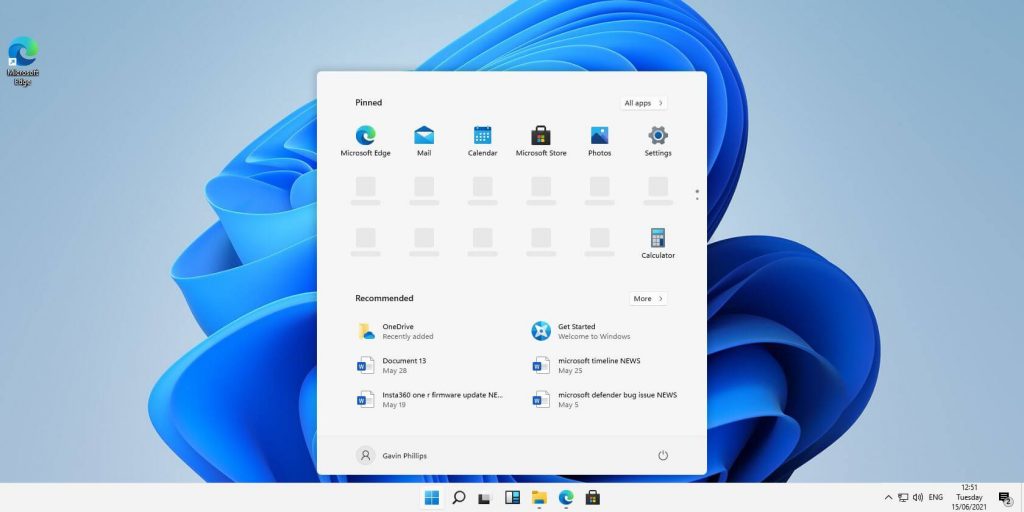
Windows 11 is a good-looking operating system but people love to make things personal and to their liking so we decided to help you in this mission with small customization of changing default system fonts inside Windows 11.

Since there is no really easy way to just switch the font windows is using for itself we will have to tweak a registry a little so before we start please do make a backup of the registry file and follow the steps as they are presented in order to avoid any errors and break the system.

windows 11 transparency off

So, if all precautions are made and you are ready to change your Windows appearance let's dive right into it:

Find and/or install the font that you wish to use

There are vast free font sites on the internet where you can find fonts that you like and wish to use but be very careful with your desired font selection. The font that you choose needs to be a complete typeface, meaning that it has to contain all glyphs, large and small font sizes, all special characters, etc or you will experience that in certain areas nothing will be displayed.

Once you have found the font that you like and made sure it is a complete font, install it on your system (you can skip this step if you just want to change the system font with one already installed on your system)

Create REG file

Open notepad or a similar plain text editor in order to create a file that will apply changes directly into the registry and create a new file. Inside the file paste this text:

Windows Registry Editor Version 5.00

[HKEY_LOCAL_MACHINE\SOFTWARE\Microsoft\Windows NT\CurrentVersion\Fonts]
"Segoe UI (TrueType)"=""
"Segoe UI Bold (TrueType)"=""
"Segoe UI Bold Italic (TrueType)"=""
"Segoe UI Italic (TrueType)"=""
"Segoe UI Light (TrueType)"=""
"Segoe UI Semibold (TrueType)"=""
"Segoe UI Symbol (TrueType)"=""

[HKEY_LOCAL_MACHINE\SOFTWARE\Microsoft\Windows NT\CurrentVersion\FontSubstitutes]

"Segoe UI"="NEW-FONT"

All the way to the bottom where it says: "Segoe UI"="NEW-FONT", change NEW-FONT with the font name that you have chosen or installed in the previous step. For example: "Segoe UI"="Ubuntu".

Now go to File > Save As and name your file however you want but give it REG extension so it looks like: my_new_windows_font.REG

Apply changes

Now that you have your registry entry saved, locate it and double-click on it, at this stage Windows warning will probably pop up, you can just ignore it and click on YES since you wrote the file and know what it is. After registry entry is applied reboot your PC in order for changes to take effect.

Rolling back

If you want to change the font to another one, just repeat this procedure again. If you want to roll back to using the default Windows font, repeat the process but with this code instead of the one provided in the REG file:

Windows Registry Editor Version 5.00

[HKEY_LOCAL_MACHINE\SOFTWARE\Microsoft\Windows NT\CurrentVersion\Fonts]
"Segoe UI (TrueType)"="segoeui.ttf"
"Segoe UI Black (TrueType)"="seguibl.ttf"
"Segoe UI Black Italic (TrueType)"="seguibli.ttf"
"Segoe UI Bold (TrueType)"="segoeuib.ttf"
"Segoe UI Bold Italic (TrueType)"="segoeuiz.ttf"
"Segoe UI Emoji (TrueType)"="seguiemj.ttf"
"Segoe UI Historic (TrueType)"="seguihis.ttf"
"Segoe UI Italic (TrueType)"="segoeuii.ttf"
"Segoe UI Light (TrueType)"="segoeuil.ttf"
"Segoe UI Light Italic (TrueType)"="seguili.ttf"
"Segoe UI Semibold (TrueType)"="seguisb.ttf"
"Segoe UI Semibold Italic (TrueType)"="seguisbi.ttf"
"Segoe UI Semilight (TrueType)"="segoeuisl.ttf"
"Segoe UI Semilight Italic (TrueType)"="seguisli.ttf"
"Segoe UI Symbol (TrueType)"="seguisym.ttf"
"Segoe MDL2 Assets (TrueType)"="segmdl2.ttf"
"Segoe Print (TrueType)"="segoepr.ttf"
"Segoe Print Bold (TrueType)"="segoeprb.ttf"
"Segoe Script (TrueType)"="segoesc.ttf"
"Segoe Script Bold (TrueType)"="segoescb.ttf"

[HKEY_LOCAL_MACHINE\SOFTWARE\Microsoft\Windows NT\CurrentVersion\FontSubstitutes]
"Segoe UI"=-
Read More
Software review series: Freeplane
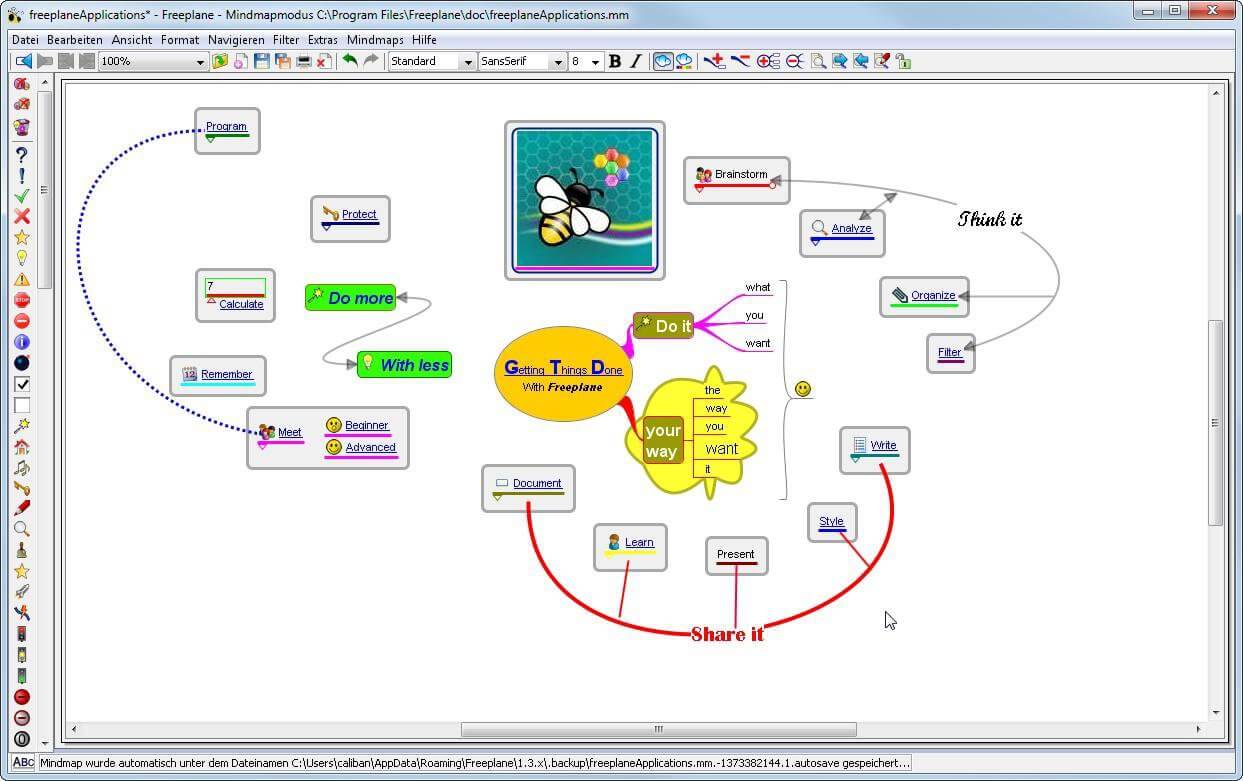
There are not many applications for creating mind maps, even fewer that are completely free, so it is with great pleasure to present you with Freeplane. Freeplane is mind mapping, Knowledge Management, and Project Management software completely free and open source. freeplaneYou can it here: https://sourceforge.net/projects/freeplane/files/latest/download

And from developers git page and I quote:

Freeplane is a free and open-source software application that supports thinking, sharing information, and getting things done at work, in school, and at home. The core of the software is tools for mind mapping (also known as concept mapping or information mapping) and using mapped information. Freeplane is written in Java using OSGi and Java Swing. It runs on any operating system that has a current version of Java installed. It can be run locally or portably from removable storage like a USB drive. We use Github only as of the main code repository, all other project parts are hosted at the source forge. So all bugs and feature requests are managed in a separate issue tracker. There is a drop-down box for selecting different types of issues. Other sources of inspiration are our new forum and old forum. Some users write their ideas there. Every contributor and every team member freely decides what task he is going to work on, but for making the best decision we can communicate our self-set goals in the above forum. It is supposed to enable early discussions and community feedback and also to motivate you and other people.

How to start hacking and contributing

People new to the project can start with implementing a new small feature or doing some refactoring or documentation and not with the bug fixing. Not all bug reports seem to be equally important, and if there are important bugs they usually get fixed by people who broke the functionality. I think you should first get there :). For internal developer discussions, there is a private mailing list. It is held private to avoid spam mails. If you want to be subscribed let us know what mail address you are going to use with it. This list is the preferred way to ask all code-related questions because they usually get answered soon and by the most competent team member. Some documentation for new developers is available in Freeplane wiki https://www.freeplane.org/wiki/index.php/How_to_build_Freeplane and also here and here. It is written for new guys and should also be maintained by the new guys to stay up to date. Looking forward to any questions and contributions, Freeplane development team
Read More
How to Repair Windows 10 Error 0x800ccc13

Error Code 0x800ccc13– What is it?

0x800ccc13 is an error message related to sending email using Outlook. Many people are receiving this error after making an upgrade from Windows 7 or Windows 8.1 to Windows 10. The error message appears when you try to send an email message with the use of a POP3 account or an IMAP account in an Outlook profile that has an Exchange Server 2010 mailbox configured. A common complaint would be: Since upgrading to Windows 10 I cannot send email from Outlook 2013. Mail stays in the Outbox, and I get: Error 0x800CCC13. Cannot connect to the network.

Symptoms

This problem may arise under the following situations:
  • You are using Microsoft Office Outlook in online mode to connect to a Microsoft Exchange Server 2010 mailbox
  • When you add an additional POP3 or IMAP account in the same Microsoft Outlook profile
  • You are sending an attachment through email.
  • You try sending an email by selecting POP3 or IMAP account as the sender
During these circumstances, the email message stays in the Outbox and you receive the following error message: Task '<the POP3 account or the IMAP account> - Sending' reported error (0x800CCC13): 'Unable to connect to the network. Check your network connection or modem.'

Solution

Restoro box imageError Causes

Error Code 0x800ccc13 occurs because the system files in Windows 10 during the upgrade became corrupted and most likely caused authentication issues. It can happen with any version of Outlook. Damaged data files will also cause error code 0x800ccc13 to manifest. Overall, the corruption of the Microsoft Windows System could be a result of an installation partially done (or an incomplete one), deletion of any application or hardware erroneously, and or malware or adware infestation.

Further Information and Manual Repair

Method 1:

Use the Windows System File Checker to repair corrupted files Verify that your SMTP, username, and password settings are correct. Now, in order to correct missing or corrupt Windows System files, try the following solution by running a command. This is known as the System File Checker. Follow the steps below to invoke the program using a command prompt command:
  1. At first, you need to open the command prompt. To do so, right-click the Windows button in the bottom left of the screen, and select Command Prompt (Admin).
  2. Now, enter the following command
sfc/scannow
When it is done, a message will confirm that Windows found some corrupt or missing files and it has successfully repaired those. Check the Outlook and see if your emails are sending. If the problem persists, don’t worry there is another way to solve this. Users have found another command helpful is using the NetShell utility from the command prompt, which is similar to the above solution.
  1. Open the Command prompt by Right-clicking the Windows button in the bottom left of the screen and select Command Prompt (Admin).
  2. Enter the following command
netshwinsosk reset
This helpful command will reset the network adapter to its default settings. Hope this will solve your problem. If not, you may want to try the Method 2 listed below.

Method 2:

For this method, you need to consider the following things:
  • Are you using POP3, IMAP, or Exchange server for your email account?
  • How many email accounts have you configured in your Outlook?
  • Is there an undelivered email stuck in your Outbox?
  • If you are trying to send an attachment, what is the size of the attachment?
Try the following:
  1. Move or delete any undelivered email that is stuck in the Outbox folder, and then try sending an email and verify the result
  2. Start Outlook in Safe Mode by following the instructions below
Hold down Windows key + R. Copy this command Outlook /safe Note, there is a space between Outlook and / Paste it in the open box and press Enter If Outlook in Safe Mode works, disable the add-ins by following the steps below and determine if the problem is caused by add-ins.
  • Click File menu, click Options, Add-ins, Go button beside Manage Com-in Add.
  • If there are add-ins listed, clear the checkbox.
  • Close Microsoft Office and restart it.
  • Disable the add-ins one at a time. Now, restart Outlook and repeat the procedure once more. If the problem appears again, it will help you find which add-in is causing the problem.
  1. Start the computer using the clean boot. Now, try to send an email and see the result.
  2. If the problem still lingers, create a new profile and configure the email account.
If you do not possess the technical expertise required to accomplish this yourself or do not feel comfortable doing so, download and install a powerful automated tool to get the job done.
Read More
Choosing default browser in Windows 11
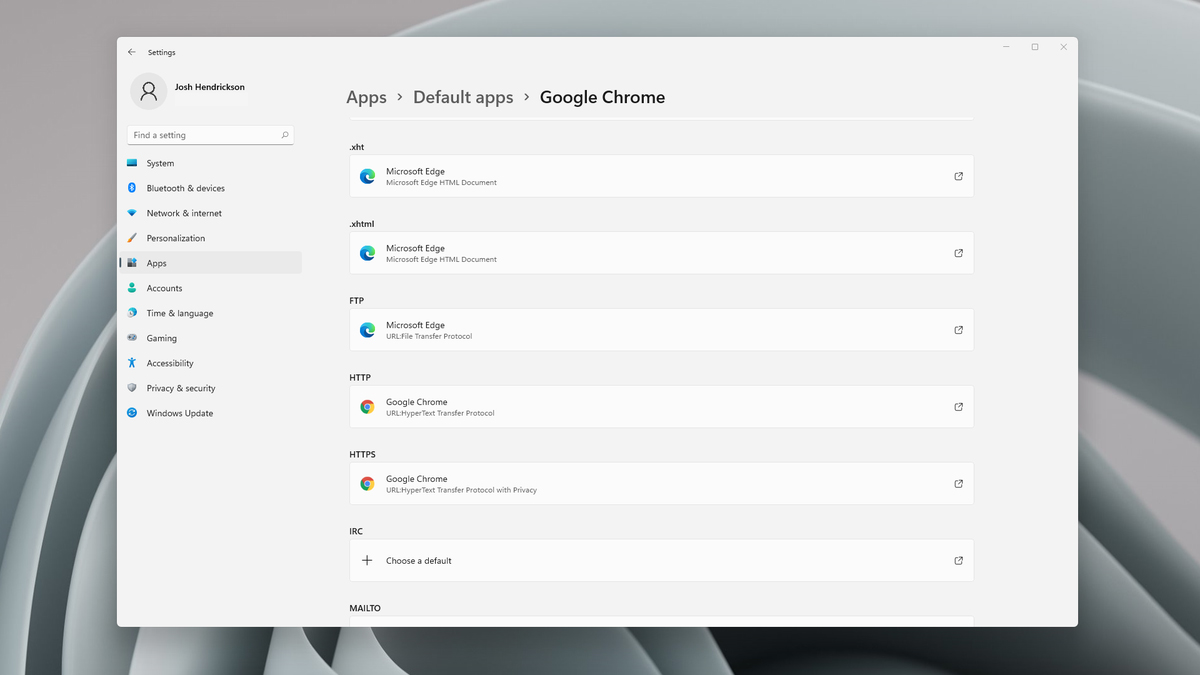
Default applications in previous Windows versions were a pretty straightforward process. The user went to the settings application and picked for each category which application he would like to choose from the list of installed ones. In Windows 11 things are little changed. In this article, we will show you how to choose the default internet browser inside Windows 11, and sadly it is a more tedious task than in previous versions.

windows 11 default browserChoosing default browser in settings

As in previous versions of the Windows operating system you will need to use the settings application in order to change your default Internet browser. Previously, in Windows 10, a variety of general categories like email, web browser, and photo viewer were all listed under the Default Apps section of the Settings panel. It was easy to click on one of those categories and click on the option you like best from the small pop-up suggestion window. In the Windows 11 Insider Build, you’ll see a gauche list of an individual file or link types that you’ll need to specify your preferred browser for. The types include: HTM, HTML, PDF, SHTML, SVG, WEBP, SHT, FTP, HTTP, and HTTPS. There are additional optional types you can specify your preferred browser for as well. The issue here is in order to use a single browser which most users do you will have to go through each file type and set your preferred one. I am really not sure why this was introduced or why it has to be this way, all I can do is hope that in the final release of Windows 11 this feature will be rolled back as it used to be and that you could set your default browser in just one simple click.
Read More
Fix NMI_HARDWARE_FAILURE in Windows
If you encounter the NMI_HARDWARE_FAILURE Blue Screen error while using your Windows 10 computer, then read on as this post will guide you in resolving this kind of Blue Screen of Death error. NMI HARDWARE FAILURE or “Non-Maskable Interrupt” Blue Screen error occurs when there is some hardware malfunction in your computer. When you encounter this Blue Screen error, you may get a stop code of 0x00000080 which can randomly occur while you use your computer. However, a lot of users reported encountering this error while they were trying to update or install their Graphics Card drivers. The stop code that you may get for this BSOD error is 0x00000080. The error can occur randomly during your usage of the computer – but a large number of users have reported this error while they are updating or installing their Graphics Card drivers. In this post, we will be covering all the possible fixes for this error. NMI_HARDWARE_FAILURE error on Windows The NMI_HARDWARE_FAILURE bug check has a value of 0x00000080. This bug check indicates that a hardware malfunction has occurred. There are various hardware malfunctions that can cause this kind of Blue Screen error. However, pinpointing the exact cause is quite difficult. Worry no more for the following fixes provided below can help you resolve the NMI_HARDWARE_FAILURE Blue Screen error no matter what the cause of the problem is.

Option 1 – Try removing hardware or drivers that you’ve installed recently

If you have recently installed some hardware or drivers, you might want to disable or remove them since external devices are proven to be one of the factors that trigger Blue Screen errors like NMI_HARDWARE_FAILURE. All you have to do is physically disconnect any external devices that are connected to your computer and then check if it fixes the BSOD error or not.

Option 2 – Try to rollback, update, or disable the Graphics card drivers

Since the NMI_HARDWARE_FAILURE Blue Screen error has something to do with Graphics card drivers, you can either roll back, update or disable them depending on your preference in order to resolve the error.
  • First, boot your computer into Safe Mode.
  • After that, tap the Win + R keys to launch Run.
  • Type in devmgmt.msc into the box and tap Enter or click OK to open the Device Manager.
  • After that, a list of device drivers will be displayed. From there, look for the Display Adapters and click on them.
  • After that, right-click on each entry under the Display Adapters and select the “Uninstall Device” option from the menu.
  • Now restart your computer.
  • After restarting your computer, go to the Settings app and Check for Updates in the Windows Update section.
Note: You also have the option to go directly to the website of your graphics card manufacturers like NVIDIA, Intel, or AMD and go to the section called Drivers then check if there’s a new available update – if there is, download and install it.

Option 3 – Make sure that all memory modules have the same type

This third option is quite technical and tricky. If you often use multiple physical RAMS on your Windows 10 computer, then you have to check first if they are of the same frequency. After that, the first thing you should verify is if the chip is properly compatible or not. And if the sockets are attached using some kind of adapter or non-recommended device, it could cause some issues while giving a performance hit to your computer.  If you were able to find such a setup, you have to undo it or install the proper and recommended as well as compatible hardware.

Option 4 – Try to run the Blue Screen Troubleshooter

As you know, the Blue Screen troubleshooter is a built-in tool in Windows 10 that helps users in fixing BSOD errors like the NMI_HARDWARE_FAILURE error. It can be found on the Settings Troubleshooters page. To use it, refer to these steps:
  • Tap the Win + I keys to open the Settings panel.
  • Then go to Update & Security > Troubleshoot.
  • From there, look for the option called “Blue Screen” on your right-hand side and then click the “Run the troubleshooter” button to run the Blue Screen Troubleshooter and then follow the next on-screen options. Note that you might have to boot your PC into Safe Mode.
Read More
Fix Boot Configuration Data error 0xc0000185
This post will guide you in fixing a particular problem where your Windows 10 computer does not even let you turn it on and it appears as soon as it starts to boot the operating system and it displays an error message that says, “The Boot Configuration Data for your PC is missing or contains errors, Error code 0xc0000185”. On the other hand, it may also display a different error message saying, “The operating system couldn’t be loaded because a required file is missing or contains errors”. There are various suggestions you can try to resolve this error. You could check the physical status of your hardware or rebuild the Boot Configuration Data, use the Automatic Startup Repair or System Restore, or better yet, reset your Windows 10 computer. Since your computer will not boot, you will have to either try to get into the Advanced Startup Options screen, boot Windows 10 in Safe Mode, or use a bootable Windows 10 media to boot your computer.

Option 1 – Try to rebuild the BCD files

The first thing you can do to resolve the issue is to Rebuild Boot Configuration Data or BCD files.
  • You can start by booting into the installation environment for Windows 10 from an installation media.
  • After that, click on Repair your computer and on the blue screen, select Troubleshoot and then select the Advanced options menu.
  • From there, select Command Prompt and once you open it, enter each one of the commands given below by sequence.
    • bootrec /FixMbr
    • bootrec /FixBoot
    • bootrec /ScanOS
    • bootrec /RebuildBcd
  • Once you’re done executing the commands given above, type “exit” to close the Command Prompt window and then restart your computer and see if it fixed error code 0xc000014c.

Option 2 – Try to run Automatic Startup Repair

In this option, you need to boot your computer into the Advanced Startup Options and from there, run the Automatic Startup Repair and then wait until the process is completed.

Option 3 – Try running System Restore in Advanced Startup Options

Since you probably can’t boot into your Windows 10 computer, you can try to run System Restore again in the Advanced Startup Options.
  • Boot your computer into the Advanced Startup Options screen.
  • From there, you will see some options to troubleshoot when you can’t log in to Windows in the usual way.
  • Now select Troubleshoot > Advanced Options > Command Prompt.
  • After that, type “rstrui” and hit Enter to execute the command which will start the System Restore process.

Option 4 – Try to perform repair install by creating a Windows 10 installation media

  • Click this link and then click the Download Tool Now button.
  • Next, click the “Use the tool to create installation media (USB flash drive, DVD, or ISO file)…” option and follow the next given instructions on the screen.
  • Now select the ISO file option in step 5.
  • After that, you should now have an ISO file.
  • Next, go to the location where you’ve downloaded the ISO file.
  • Then right-click on the Windows 10 ISO file and select the Open with option and then select File Explorer.
  • Now click on “setup.exe” and follow the next instructions that appear on the screen. When asked, you have to select either Nothing (clean install) or Keep personal files only option. Take note that you must not select the “Keep personal files, apps, and Windows settings since it doesn’t really work.

Option 5 – Try to physically check the hardware

You should also check the physical status of the hardware in your computer. You can clean the dust off the hardware components like the Network Card of the computer. You might want to use a small blower or you could also use a soft cloth and run the components gently. Make sure that you don’t damage any parts with moisture or cause harm to any circuits while you carry out this task.
Read More
Microsoft blocking Office users
Microsoft Office 365 banerMicrosoft starting as of today will block its Office 365 users if they are using Internet Explorer or early versions of Edge browsers. So if you are using older non Chromium Edge versions of Microsoft browsers you can no longer access Office services until you switch. Now normally I would fully support this kind of decision since Internet explorer is a slow and vulnerable browser and the edge is similar in that regard. The new edge browser is great and it should be used but the issue I have is that Office 365 is not free, it is a premium feature and I am wondering how Microsoft plans to deal with people that have already paid for service but suddenly cannot access it anymore.
Read More
Error occurred while checking for updates in VLC
There is no doubt that the VLC media player is one of the best kinds of media players available today. However, it is not without any issues and one of the common issues encountered by users is VLC’s inability to be updated. And when you try to update VLC, you only get an error message saying, “An error occurred while checking for updates”. This inability to update VLC can be quite a headache for many users especially the ones who are facing other issues in VLC and has to update it in order to resolve them. So how will you update VLC and fix its issues when you can’t even update it in the first place? Worry not as this post will help you out. Refer to the suggestions laid out below to resolve the issue in updating VLC.

Option 1 – Check if VLC is not being blocked by the Firewall

There are instances when the Firewall like the Windows Defender Firewall blocks VLC for some unknown reason without your knowledge. Thus, you need to allow VLC to get past the Firewall in order for you to fix the issue else you won’t be able to send out a network communication. To do that, follow the steps below.
  • Tap the Windows key + I to open the Settings app.
  • Then click on the Update & Security option.
  • After that, click on Windows Security and click the Open Windows Defender Security Center option. This will open the Windows Defender antivirus and antimalware program.
  • From there, click on Firewall & network protection.
  • Next, click on Allow an app through Firewall. You should see a list of programs. Scroll down until you see VLC and make sure that all the boxes are ticked including the Public and Private ones.
  • Once you’re done, restart your PC and then try updating VLC again.
  • Just open VLC and select the Help menu and click on Check for Updates.

Option 2 – Try running the VLC media player as an administrator

There are programs designed for Windows 10 that won’t work fully unless some parameters are met. In most cases, starting the program as an admin should resolve the problem, thus, that’s what you have to do to try and fix the “An error occurred while checking for updates” in VLC.
  • First, right-click on the VLC Media Player desktop icon and then select the “Run as administrator” option or you could also right-click on the icon and click on Properties.
  • After that, click the Compatibility tab and then tick the box labeled “Run this program as an administrator”.
  • Next, click the OK button and then open VLC again and try updating it. That should fix the problem.
Read More
A Guide to Fix Error Code 0x80070004 on Windows 10

Error Code 0x80070004 on Windows 10 – What Is It?

Some users trying to upgrade from Windows 7 or Windows 8/8.1 reported experiencing installation rollback with error code 0x80070004. This error normally appears when the Computer Name is set to names that can’t be used for the computer. It’s also possible this error occurs if users or program files folder were redirected to a different partition.

Solution

Restoro box imageError Causes

The Error code 0x80070004 on Windows 10 is normally caused if any of the following were used as the Computer Name and the user tried to upgrade to Windows 10:

  • System (or SYSTEM)
  • SELF
  • LOCAL
  • Network
Failure to fix this error message might result in others, including error code  0xc0000001

Further Information and Manual Repair

If you don’t solve this error, you won’t be able to upgrade from Windows 7 or Windows 8/8.1 to Windows 10. Note that this error will continuously bring you back to the original OS unless fixed.

Please note that if you’re not confident in doing these steps, you might want to consider seeking the help of an expert or using an automated tool that will help fix this.

Here are a few methods to try.

Method 1: Check and Change the Computer Name

The most common cause of this error is if your computer uses any of the following reserved names:

  • LOCAL
  • System (or SYSTEM)
  • Network
  • SELF

These reserved names are not meant to be used as computer names. If this is what your computer uses and you try to upgrade to Windows 10, you will surely get this error. Check your computer name and if you see any of the reserved names, change it right away.

Changing Computer Name in Windows 8.1

If you’re trying to upgrade from Windows 8.1, you can change the name of the computer by following these steps:

  • Step 1: Open the Start menu then simply type “rename computer”. After that, choose “Rename this computer”
  • Step 2: A dialog box will open. Just click the “Change” button
  • Step 3: A new dialog box will open. Type the new name. Click Apply then Ok.

Changing Computer Name in Windows 7

If you’re trying to upgrade from Windows, you can follow the steps below to change the name of your computer.

  • Step 1: Go to the Start menu then on the Computer section, right-click the mouse and choose “Properties”.
  • Step 2: A new dialog box will appear. Go to “Computer name, domain, and workgroup settings” then click “Change settings”. In case you’re asked for administrative access, make sure to grant it.
  • Step 3: Find the “Computer Name” tab then click “Change”
  • Step 4: Change the computer name and click Ok.

Method 2: Fix the “Users” directory issue

If the first method doesn't work, it probably means the computer name isn’t the cause of this error. Another reason why users experience Error code 0x80070004 when upgrading to Windows 10 is if the “Users” directory was relocated. So, when you try upgrading to Windows 10, the installer wasn’t able to find the user profiles on the “%systemdrive%”, where the current operating system is installed.

If you changed or moved any of the Users, Program Data, or Program Files folders, this will cause the error. Before you upgrade to Windows 10, you might be required to reset or reinstall your current operating system (Windows 7 or Windows 8.1).

If you haven’t made any changes or haven’t moved any of the mentioned folders, there’s a great chance that your users' profiles are corrupted. You can also reinstall your current operating system. However, you might want to check for the corrupter user profile first. To do this, follow the steps below:

  • Step 1: Go to the Start menu and type System
  • Step 2: Click System  then go to the Advanced tab
  • Step 3: Go to Settings, which you’ll find under User Profiles

On the Users Profiles, make a copy of all the accounts somewhere. Sign out from the current user account then try logging in back using the accounts you’ve copied. For each account, you get an error, delete it. However, make sure that you don’t delete the UpdateUser and Administrator account ever.

After this is done, try upgrading your operating system to windows 10 again.

Method 3: Try a trusted and secured Automated Tool

If the above methods still not useful, you might want to rely on an automated tool. Find a secured and trusted tool. It will help fix this issue.


Read More
1 2 3 171
Logo
Copyright © 2023, ErrorTools. All Rights Reserved
Trademark: Microsoft Windows logos are registered trademarks of Microsoft. Disclaimer: ErrorTools.com is not affiliated with Microsoft, nor claims direct affiliation.
The information on this page is provided for information purposes only.
DMCA.com Protection Status