Logo

Troubleshooting Fortnite Connection Issues

It is no secret that Fortnite is one of the most played games in the world. Epic has done a great job offering it to plenty of other platforms with cross-play feature meaning that you can play with your friends no matter on what platform they are on.

But how Fortnite is a piece of software which is constantly updated and maintained it is pretty normal to have some bugs or issues from time to time.

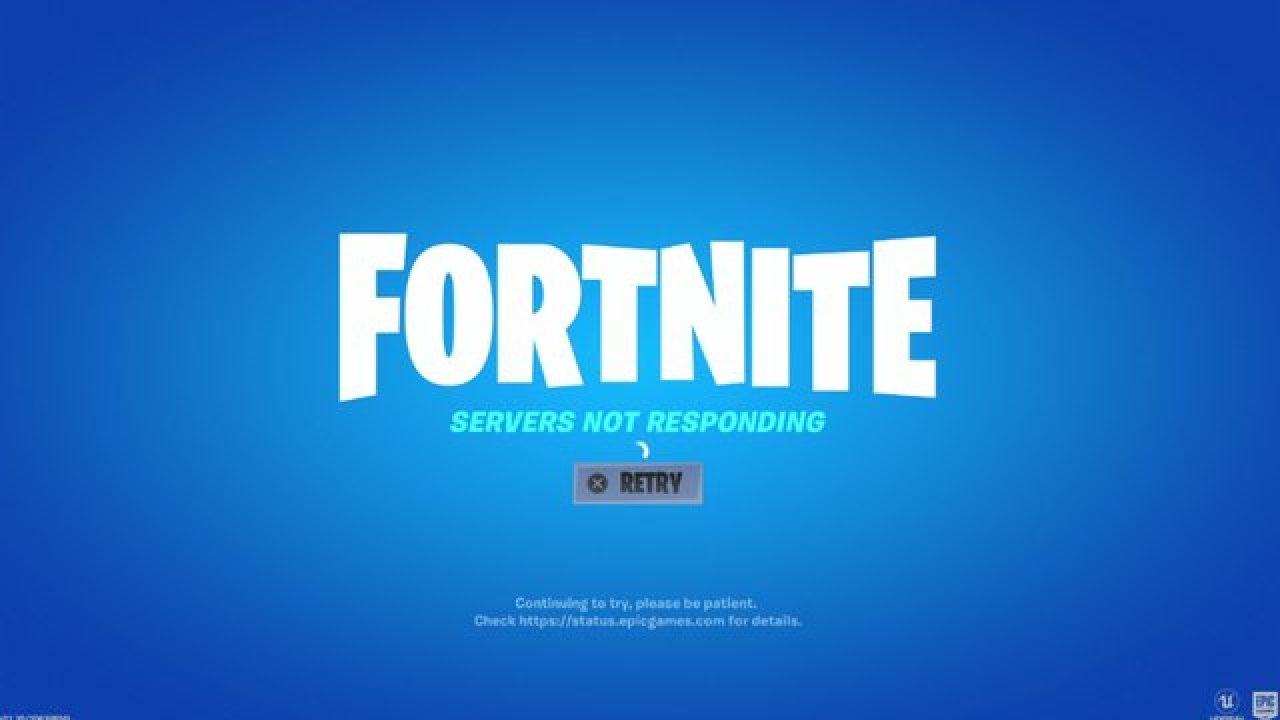
One of the before-mentioned issues is a connection issue or unable to connect to game servers.

In our article, we will go through common fixes and solutions in order to get you back in-game as fast as possible. Keep on reading.

fortnite cannot connectCheck the Epic Games Status page

Check the Epic Games Server Status page to make sure all systems are operational. If the issue you’re experiencing is related to an outage or system-wide issue, you won’t be able to connect to the Epic Games Launcher or Fortnite until it's resolved.

Use a wired connection

Wireless connections are not as stable as wired connections. This means that the signal can be unreliable and result in packet loss, connection problems, or higher latency or ping. Connect directly to your modem or router with an Ethernet cable to eliminate this possibility and have the fastest connection possible.

Disable your firewalls

Often the quickest way to fix connection problems due to firewalls is to temporarily uninstall and/or disable it.

Windows Firewall disable guide:

  1. Click on Start.
  2. Click on Control Panel.
  3. Click on System and Security.
  4. Click on Windows Firewall.
  5. Click on Turn Windows Firewall on or off (You might need to provide the Administrator password at this step)
  6. Under each Network location, select the Turn off Windows Firewall option

Uninstall any other firewalls

Using a third-party firewall may prevent you from being able to connect to the Epic Games Launcher, Fortnite, or another Epic Games product. We recommend removing any third party firewalls temporarily to see if this resolves your issue. If it does resolve the problem, make sure to add the following executables as exceptions to your firewall:

Epic Games Launcher

  • C:\Program Files (x86)\Epic Games\Launcher\Engine\Binaries\Win64\EpicGamesLauncher.exe
  • C:\Program Files (x86)\Epic Games\Launcher\Engine\Binaries\Win32\EpicGamesLauncher.exe

Fortnite

  • C:\Program Files\Epic Games\Fortnite\FortniteGame\Binaries\Win64\FortniteClient-Win64-Shipping.exe
  • C:\Program Files\Epic Games\Fortnite\FortniteGame\Binaries\Win64\FortniteClient-Win64-Shipping_BE.exe
  • C:\Program Files\Epic Games\Fortnite\FortniteGame\Binaries\Win64\FortniteClient-Win64-Shipping_EAC.exe
  • C:\Program Files\Epic Games\Fortnite\FortniteGame\Binaries\Win64\FortniteLauncher.exe

Contact your firewall manufacturer for instructions on how to add these as exceptions to it as this varies between them.

Unblock your network ports

Network ports allow certain types of data to be successfully sent over a network that is used by our services. If you have any of these blocked, it may result in you being unable to connect to our games or use our services properly. To unblock your ports on your router do the following:

Windows

First, you will need to get your default gateway and internal IP address:

  1. Click on Start.
  2. Type cmd and press Enter.
  3. Type ipconfig and press Enter.
  4. Take note of your Default Gateway and IPv4.

Configuring your router to unblock the ports

  1. Open your web browser.
  2. Type your Default Gateway into the address bar and press Enter. (A common Default Gateway is 192.168.1.1)
  3. You may be asked for a username and password. This varies for each router. Before entering anything, try just hitting OK. If that doesn't work, try the common default username and password below:
    Username: admin
    Password: password
    If these don't work, you can check this website for a list of usernames and passwords based on your router model.
  4. Locate the Port Forwarding page in the administration tool and click on it.
  5. Make sure you have Port Forwarding selected and not Port Triggering as this is completely different.
  6. On this screen, you will need to enter the ports and port ranges below with the correct protocol and local IP of which you took note of above: 80 (TCP/UDP), 433 (TCP), 443 (TCP), 3478 (TCP/UDP), 3479 (TCP/UDP), 5060 (TCP/UDP), 5062 (TCP/UDP), 5222 (TCP), 6250 (TCP/UDP), and12000-65000 (TCP/UDP).

If you have any trouble doing the above on your router, make sure to check out the router manufacturer's support site for additional instructions as these will vary from router to router.

VPN and Proxy Servers

Do NOT use VPN or Proxy Servers. These cause issues that can't be resolved by us without having you disable them. Check out this article for information on how to disable your proxy server.

Switch Domain Name Systems (DNS)

Switching your DNS can result in better connectivity and performance for your internet connection. There are two different DNS services we recommend to have you try if you are having issues with your connection. Below are the followings links with instructions on how to change your DNS:

Epic Games Launcher: Edit your Engine.ini file (Windows only)

Editing these settings can result in better download speeds using the Epic Games Launcher:

  1. Click on Start.
  2. Type %localappdata% and press Enter.
  3. Open the EpicGamesLauncher
  4. Open the Saved
  5. Open the Config
  6. Open the Windows
  7. Open ini and add the following lines to it:
    [HTTP]
    HttpTimeout=10
    HttpConnectionTimeout=10
    HttpReceiveTimeout=10
    HttpSendTimeout=10[Portal.BuildPatch]
    ChunkDownloads=3
    ChunkRetries=20
    RetryTime=0.5
  8. Save the file and open the Epic Games Launcher.

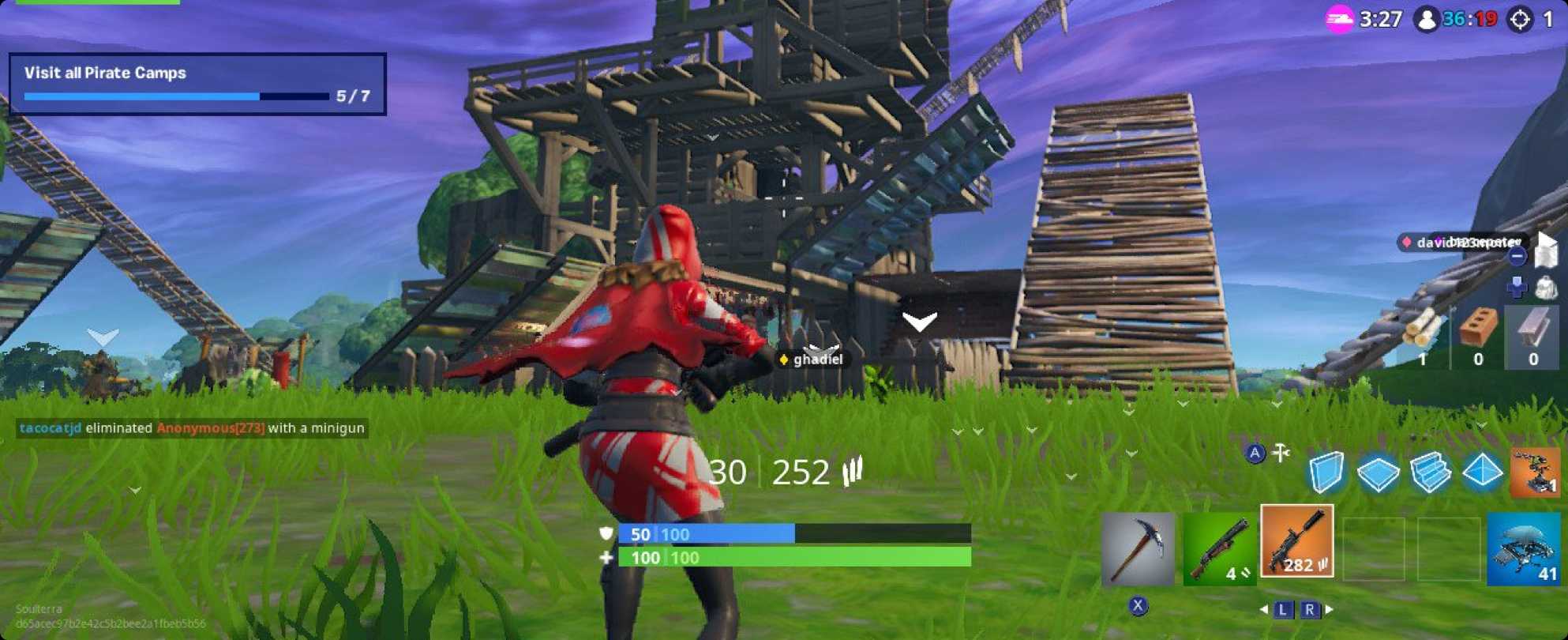
fortnite gameplay

Do You Need Help with Your Device?

Our Team of Experts May Help
Troubleshoot.Tech Experts are There for You!
Replace damaged files
Restore performance
Free disk space
Remove Malware
Protects WEB browser
Remove Viruses
Stop PC freezing
GET HELP
Troubleshoot.Tech experts work with all versions of Microsoft Windows including Windows 11, with Android, Mac, and more.

Share this article:

You might also like

Proton Drive, privacy-first cloud storage

In 2014 Proton mail started as an end-to-end encrypted email service offering secure and private email services. Proton mail is still live and going with the same dedication to privacy and security but the company has expanded its offering into cloud storage drive services.

Starting as a public beta at the end of 2020, Proton Drive is keeping its privacy and security policy philosophy with the new service. Proton Drive is the newest service besides Proton Calendar, Proton VPN, and Proton Mail.

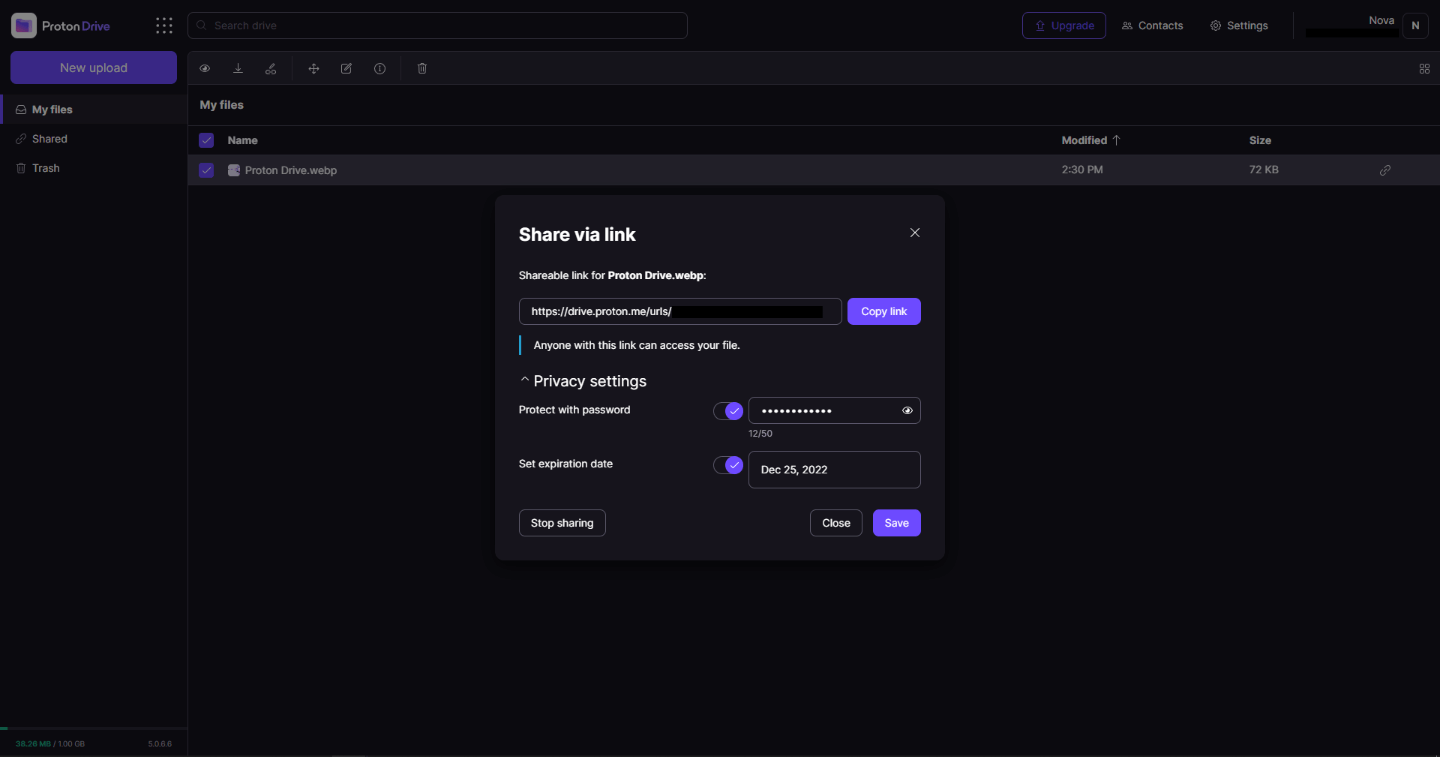
proton drive

Drive has end-to-end encryption for everything on it including files themselves, filenames, folder structure, folder names, extensions, and file sizes. This means that you and only you can access your files. Servers are located in Geneva, Switzerland and they are under Swiss privacy laws making sure that your files are protected. Proton services in general are all open source so anyone can take a look at them to be sure that nothing is lurking under the hood. For now, sync is done either via the android app or web interface but the desktop client will come soon since currently, it is under development.

Sadly free plan of Proton Drive will give you only 1GB of storage which is much less than other services and sadly payments plans are also not so jaw-dropping going for $4 USD per month for a 200GB plan or with Proton ultimate subscription that will set you $10 behind but you will get 500GB of drive storage. Of course, if you value privacy for your files these options are good but if you do not mind that part other services have much better options.

All in all Proton Drive is a great cloud storage solution if you need privacy and well worth the investment. With the ultimate subscription, you will get enough space for most people and company needs with other services and guaranteed privacy and security, on the other hand, if you just need a large amount of cloud storage not caring too much about privacy other options are better.

Read More
Personalize Windows 11 Start menu
Windows 11 is released and its adoption goes slower than Microsoft would like but nevertheless, it is slowly getting adopted, especially among new computers. Windows 11 has brought us a new modern look of OS but if you would like to personalize it a little more you can. Follow the guide on various things that you can change inside Windows 11.

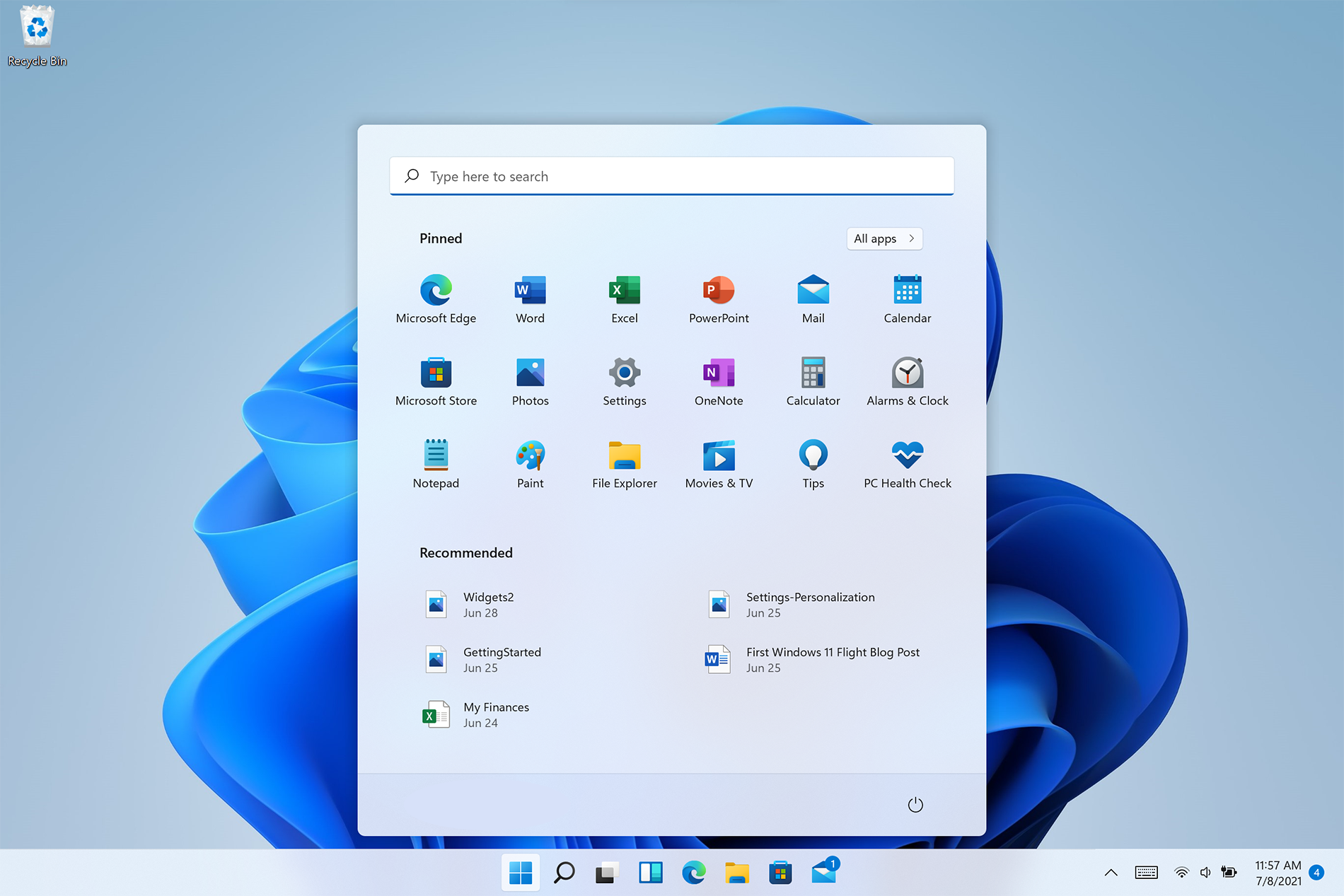
windows 11 desktop iconsPersonalize list of recently added apps, opened items, folders

The recommended section that shows recently added apps and recently open items can be turned off and hidden now to be shown. In order to do this follow these steps:
  1. Open Windows Settings by pressing WINDOWS + I
  2. Click on personalization in the sidebar
  3. Click on START and go through the options
  4. Turn OFF switch beside recently accessed files
  5. Additionally, you can also change which folders appear on the Start menu.

Remove apps or change app order on the Start Menu

To remove application not to be shown in the Start menu at all follow this simple guide:
  1. Right-click on app
  2. Choose unpin
  3. To place the application on Start click on All Apps, right-click on the app and choose Pin to Start
  4. To drag and rearrange apps, simply click on them and drag them to the new place.

Change the Start Menu location

When Windows 11 was first released Start Menu could only be located in the middle of the screen but thanks to plenty of backlash from users now it is possible to move it on a more traditional left side.
  1. Press WINDOWS + I to open the settings app
  2. Click on Personalization
  3. Look for taskbar behaviors
  4. Inside taskbar behaviors look for Taskbar alignment
  5. Change alignment to left

Change the Start Menu color

In order to change the color of the Start Menu follow the next steps:
  1. Open Settings app
  2. Go to personalization settings
  3. Go to Colors
  4. Switch to custom
  5. Under accent color pick a color you like or make your custom one.
Read More
Setting up Logitech C922 in Windows 10
Being a streamer altho popular is a very demanding call, there is a lot of technical knowledge involved and one of this knowledge is setting your web camera equipment. On the internet, you can find how to install certain devices and register them in Windows but with little to no information on how to set everything for streaming. In this article, we will try to address as many of this as we can so you can start using your camera right away.

Features of the Logitech C922 Pro Stream Webcam

In the package of your Logitech C922 Pro Stream Webcam, you should have the camera itself with a USB hookup, tripod, and user manual. Tripod, of course, is meant to stabilize the camera for recording using high zoom values so visual shaking of the picture is eliminated. The camera itself captures natural light without any distortion in full HD and if placed on top of the monitor it can accommodate the field of view to capture two people. Also when in a low-light room, autofocus will correct light and it will sharpen an image in order to compensate for lack of light. The camera also features a dual microphone for clarity of sound.

Assembling the Logitech C922 Webcam

Of course, the first thing when the camera is unpacked is to assemble it. Basically, there are two ways for the camera to be assembled:
  1. On top of monitor and
  2. On tripod
The next section will cover both assemblings

Mounting camera on the monitor:

The Logitech C922 Pro Stream Webcam can be used to capture up-close images or video from the top of any computer monitor or TV. To set up your Logitech C922 Webcam on top of a monitor or TV:
  • Completely extend the mounting stand until it reaches the top width of your monitor or TV
  • Turn the bottom piece of the mounting stand, so it matches the angle of the back of your monitor or TV
  • Place the mounting stand on top of your monitor or TV and tighten the bars until they’re flush with each surface
  • Pivot the webcam up, down, or to the sides to center the camera angle
After you have securely mounted the C922 to your monitor or TV, it’s ready to be plugged in and used with any recording application on your computer.

Mounting camera on the tripod

You can set up your Logitech C922 Pro Stream Webcam to record a 78-degree view of a room for presentations or live streams by attaching it to the tripod. To set up your Logitech C922 Webcam with a tripod:
  • Unfold and extend the legs of your tripod
  • Place the webcam on top of the tripod, aligning the swivel bolt with the webcam mounting hole
  • Swivel the bolt by turning a small knob on the tripod
Once you have assembled your Logitech C922 Pro Stream Webcam on your tripod, plug it into your computer and load up your favorite recording application.

How can you use your Logitech C922 Pro Stream Camera?

Altho this camera is designed and built to be used in a live stream environment it can also be used to record video offline to a file. In this next segment, we will explore further applications in which the camera is meant to be used.

Live video

The Logitech C922 Pro Stream Webcam allows content creators to share content in high definition with thousands of viewers in real-time. Stream full 1080p at 30 frames per second and 720p at 60 frames per second live on platforms such as Twitch or YouTube.
  • Stream video games or entertainment in real-time
  • Create live presentations for work, customers, or followers
  • Discuss matters of interest in live talk shows or podcasts
  • Video call family or friends on Skype, Facetime, or Google Hangouts
  • Capture crystal-clear, 78-degree video with the Logitech C922 autofocus lens. With two microphones attached on each end, you can stream any live video with little to no audio drops.

Offline recordings

The Logitech C922 Pro Stream Webcam can be used with desktop recording software to create professional videos or snapshots. After you’ve finished recording, you can edit specific spots in the video and add custom presentation details.
  • Product demonstrations and tutorials
  • Educational or promotional presentations
  • Video game or entertainment videos
  • Personal vlogs
  • Talk shows or podcasts
  • Desktop or laptop technical walkthroughs
  • Complete offline recording in high definition at 1080p. Use QuickTime Player (Mac) or Microsoft Camera App (Windows) to take photos or record videos offline.

Setting up Logitech C922 Pro Stream Camera using XSplit Broadcaster

XSplit Broadcaster offers live stream support for several platforms, which include Facebook Live, YouTube Live, and Twitch. After you hook up your webcam and create profiles for each platform, you can begin a live stream with XSplit Broadcaster.

Twitch Streaming

  • Enable Two-Factor Authentication on Twitch: Navigate to the settings of your profile and the Security and Privacy tab. Before you can start broadcasting with XSplit, you must set up Two-Factor Authentication.
  • Set Up Twitch Streaming Profile in XSplit: In XSplit Broadcaster, navigate to Broadcast > Set up a new output > Twitch. Select an account to authorize with XSplit and proceed.
  • XSplit automatically chooses a resolution to record based on target server connection quality.
  • A settings window opens before you complete the setup, which allows you to customize the server and video recording options. Once you have completed the setup, your Twitch profile is set up in XSplit. You can begin a stream by navigating back to Broadcast and clicking on the new Twitch profile.

YouTube Streaming

  • Enable YouTube Streaming Live: Click on your YouTube profile picture to open a dropdown and click on YouTube Studio Beta.
  • On the left side of the page, navigate to Other features and click on Live events in the dropdown.
  • Click on Enable live streaming to set up live streaming for your YouTube profile.
  • Set Up YouTube Streaming Profile in XSplit: In XSplit Broadcaster, navigate to Broadcast > Set up a new output > YouTube. Select an account to authorize with XSplit and proceed.
  • Once YouTube Live Properties window pops up, click Authorize to connect your Google account. You can also change any settings as needed before you begin a live stream. Once you’re ready to broadcast live with XSplit, navigate back to Broadcast and click your new YouTube Live profile.

Facebook Live Streaming

  • Set Up Facebook Live Streaming Profile in XSplit: In XSplit Broadcaster, navigate to Broadcast > Set up a new output > Facebook Live.
  • A prompt opens in XSplit to log in to your Facebook profile.
  • Log in and set up permissions and posting options as you’d like them to appear whenever you stream live on Facebook. After you’ve completed the permission process, your Facebook Live profile is ready to use in XSplit. You can navigate anytime back to Broadcast and select your new Facebook Live profile in XSplit to begin a live stream.

Using OBS with Logitech C922 Pro Stream Webcam

OBS live streaming application offers high-quality audio and video performance and video capturing in real-time. This application offers full control over every detail and it is a very good choice for both cases.

Setting up Logitech C922 with OBS

  • Add Logitech C922 as a Capture Device: Click the + under the Sources section. Once you are in the drop-menu, select Video Capture Device.
  • When this menu pops up, click Create New and hit OK.
  • From the Device bar, you can select your Logitech C922 as a default Video Capture Device. Set any configurations up how you want them and click OK before exiting.
  • Changing Resolution or Frames Per Second: With OBS open, click on Settings in the bottom-right portion of the screen and then on the Video tab on the next page. Here you can set up the screen resolution, downscale filter, and frames per second defaults for all videos recorded with OBS. Click Apply before exiting.
  • After you’ve finished applying the initial settings, you can begin recording or streaming in the bottom right-hand corner of the main menu.
Read More
REvil vanishes over night without trace
REvilREevil is one of the most active and successful hacking groups connected to Russia and operating all over the world. The group recently demanded a huge bitcoin ransom for an attack targeting IT firm Kaseya in the USA. Since Tuesday blog and payment site run by REvil group cannot be longer reached without any kind of explanation or why. The reason behind the disappearance is unknown but has sparked speculation that the group may have been targeted deliberately by authorities. US President Joe Biden said he raised the issue with Vladimir Putin during a phone call on Friday, after discussing the subject during a summit with the Russian president in Geneva last month. Mr. Biden told reporters that he had "made it very clear to him...we expect them to act" on information and also hinted the US could take direct digital retaliation on servers used for intrusions. The timing of Tuesday's outage has sparked speculation that either the US or Russian officials may have taken action against REvil - though officials have so far declined to comment and cyber experts say sudden disappearances of groups are not necessarily uncommon. The development comes after a series of high-profile ransomware attacks which have hit major US businesses this year. The FBI accused REvil - also known as Sodinokibi - of being behind a ransomware attack on the world's largest meat processing company JBS last month.
Read More
Capture screen with Windows 10
if you were following our articles you are aware that Windows 10 has a build-in-game mode that you can summon by pressing ⊞ WINDOWS + G. But did you know that you can use this to capture and record your screen? Hello and welcome to another great tutorial about how to get the maximum out of your Windows 10, today our topic will be recording your screen using Windows 10 game mode.
  • In order to start recording first, we need to bring game mode by pressing ⊞ WINDOWS + G
  • In the Game Bar overlay screen, look for the “Capture” window.
  • If you don’t see it, click the Widget menu icon on the left. It looks like several lines with bullet points to their left.
  • A drop-down list will appear; click “Capture.” The “Capture” shortcut may also be in the Game Bar toolbar.
  • Look for the “Capture” widget window in the overlay. There are four buttons on the Capture widget (from left to right):
    • Screenshot: Takes a screenshot of the active window.
    • Record last 30 seconds: Creates a recording of the previous 30 seconds.
    • Start recording: Starts recording your active window.
    • Turn on the mic while recording: If this option is enabled, Windows 10 will capture audio from your computer’s microphone and include it in the recording.
  • You’ll notice text underneath the buttons. This is how you’ll know what the active window is, aka what will be recorded. For example, if you’re browsing the web, it will show the title of the open tab.
  • To start recording your screen, you must first decide whether you want to use your mic, which is useful if you’re trying to explain something on the screen.
  • Next, simply click the Start Recording button.
  • The screen recording will begin, and you’ll see a little toolbar appear in the corner of the screen. It will show the running time of the recording, and it also has buttons to stop recording and toggle the microphone.
  • When you’re finished, click the Stop icon to end the recording.
  • From the Capture widget, click “Show All Captures” to see your recording.
  • Your recording will be at the top of the list. Click the folder icon to see all recordings and screenshots in File Explorer.
  • These recordings are stored under your Windows user folder at C:\Users\NAME\Videos\Captures by default.
Read More
How to Fix Windows 8 Error Code 0xd0000272

Error Code 0xd0000272 – What is it?

Error code 0xd0000272 occurs when Windows users are unable to activate their operating system. This usually occurs due to activation servers being busy or unavailable and affects Windows 8, Windows 8.1, and Windows 10 users. Common symptoms of the error code include the following:
  • Inability to activate Windows operating system
  • Message box with error code 0xd0000272

Solution

Restoro box imageError Causes

Windows users affected by error code 0xd0000272 usually receive a message stating that the “activation server is busy or unavailable”. Some users report the error is resolved on its own after a few hours, while others experience activation issues that resolve only after manual repair methods are implemented.

Further Information and Manual Repair

To improve your chances of resolving issues related to Windows activation error codes, use manual repair methods and procedures. These are often successful as they address the issues causing the error codes to occur, whether there be missing or corrupted system files, network connectivity issues, or invalid product keys.

Error code 0xd0000272 may be resolved by simply waiting until later – a few hours at most – to reattempt activation. If, however, the activation process fails, proceed with the methods suggested below or contact a Windows repair technician.

  1. Method One: Verify Internet Connection to Activate Windows

Are network connectivity issues preventing your machine from activating Windows? Check for this issue by verifying whether or not you are connected. Once you’ve been able to check your connection via your Internet settings and troubleshoot your network where necessary, proceed to the Product Activation Wizard.

The Product Activation Wizard will check if you have permission or authorized access to the version of Windows you are attempting to activate. This process usually involves the use of a product key. Once you enter the 25-character code – in the correct order, of course – proceed by selecting the activation option.

If the process is successful, you will be able to complete the activation and access all the features of the Windows edition you have activated. You will also notice the absence of the error code 0xd0000272 message. In cases where this manual repair method is unable to successfully resolve the issue, however, move to the next manual repair procedure on this list.

  1. Method Two: Run Windows Update Troubleshooter

Another tool available to Windows users is the Windows Update Troubleshooter. You may access the Windows Update Troubleshooter offered on Windows 8 since it does not require an internet connection and runs most of the functions required. To do so, follow the steps below.
  • Step one: Swipe to the right of the screen and click Search
  • Step two: Type Troubleshooting
  • Step three: Click Settings then select Troubleshooting
  • Step four: Under System & Security, click Fix Problems with Windows Update
  • Step five: Select Next

You can also visit Microsoft’s website to access a more comprehensive Windows Update Troubleshoot tool. Download the troubleshooter and run it to fix problems related to Windows Update. Afterward, restart your computer then check the Product Activation Wizard to verify whether or not you can activate Windows 8 or 8.1.  If the problem persists, however, and error code 0xd0000272 reoccurs, proceed to the third manual repair method.

  1. Method Three: Disable Proxy Settings

Your computer’s proxy settings may in some cases interfere with the activation process, resulting in issues like error code 0xd0000272. To fix this problem, first, disable your proxy setting then reattempt the activation process using the Product Activation Wizard.

  • Step one: Press Win + C keyboard combination
  • Step two: Select Settings
  • Step three: Click Change PC Settings
  • Step four: Select Network, then Proxy
  • Step six: Switch proxy server settings to Off

Open the Product Activation Wizard once you’ve disabled the proxy settings. Complete the activation process based on the instructions provided. If you are successful, you will no longer be bothered by error code 0xd0000272 as the symptoms of the error code will not occur.

If, however, this manual repair method fails to resolve the error code, you may need to consider other alternatives. These may include the use of a powerful automated tool. You can also consider getting help from a Windows repair technician as such professionals are able to assess your computer and provide solutions as needed.

Read More
Fix MOZILLA_PKIX_ERROR_MITM_DETECTED
If you’re having some problem browsing multiple websites on the Firefox browser on your Windows 10 computer, then this post might be of help. One of the most common problems you could encounter in Firefox is mostly related to HTTPS and one of them is the MOZILLA PKIX ERROR MITM DETECTED or ERROR SELF SIGNED CERT or SEC ERROR UNKNOWN ISSUER error which means that Firefox was unable to trust certificates issued on secured websites. If you encounter the MOZILLA_PKIX_ERROR_MITM_DETECTED error in Firefox, this indicates that something in your network or system is interrupting your connection and injecting certificates and when that happens, Firefox won’t trust it. In such cases, one of the culprits is malware. Malware will try to replace a legitimate certificate with its certificate. Another cause is security software where it keeps a tab on a secure connection and creates a false positive, for instance:
“In Microsoft Windows accounts protected by Family Safety settings, secure connections on popular websites like Google, Facebook and YouTube might be intercepted and their certificates replaced by a certificate issued by Microsoft in order to filter and record search activity.”
And if you are connected to a corporate network, there might be a monitoring/filtering product that could be replacing certificates. Moreover, there are also users who reported getting this issue when they use the Nightly version of Firefox. And if that’s the case, you have to try accessing secure websites using only the stable build especially when it comes to payments. However, if you are not doing that, then here are some options you need to check out.

Option 1 – Try turning off HTTPS Scanning on your security and antivirus programs

Each security-based software has a security option that allows you to turn off the HTTPS scanning functionality. They may be available under different names such as HTTPS Scanning, Scan SSL, Show safe result, Do not scan encrypted connections, etc. Find what is applicable for your security or antivirus software and then try turning it off temporarily and see if it helps in fixing the MOZILLA_PKIX_ERROR_MITM_DETECTED error in Firefox.

Option 2 – Try to disable security.enterprise_roots.enabled

The next thing you can do if the first option didn’t work is to disable security.enterprise_roots.enabled which is an HTTPS certificate check on Firefox. Note that this is not recommended but you have to at least try in order to fix the error.
  • Open Firefox and then type “about: config” in the Firefox address bar and hit Enter.
  • After that, if an info message appears, confirm it.
  • Next, search for the security.enterprise_roots.enabled preference and once you found it, double click on it.
  • Then change its value to true and restart the Firefox browser once. This will import all the custom certificates from the other security software into Firefox. As a result, it will make sure to mark those sources as trusted and you won’t get the MOZILLA_PKIX_ERROR_MITM_DETECTED error.
Read More
Windows 10 is stuck on Checking for updates
Over the years, the Windows 10 updates have smoothened but that does not mean that it no longer encounter some issues. One of these issues is when it gets stuck. As you know, Windows automatically checking for updates regularly or when you click the “Check for updates” button. However, if the Windows 10 update is taking forever and seems to be stuck, then you’ve come to the right place as this post will guide you on what you can do to resolve the problem. This kind of scenario in Windows Updates can be quite confusing especially since there is no response or any indication of what is really happening since you don’t know if the update is still downloading or if it’s already getting installed. To resolve this problem, there are several options you can check out. You can try to exit settings and restart your computer. You could also try to restart the services related to Windows Update or clear both the Software Distribution and Catroot2 folders, as well as run a System File Checker scan. For more details follow each one of the given steps below.

Option 1 – Restart your computer

The most basic thing you can do to fix the problem is to restart your computer. It usually works in fixing common issues like the Windows Update getting stuck at the “Checking for updates” screen. However, if it didn’t work, proceed to the next given options below.

Option 2 – Reset Windows Update components

If the first two options did not work then you might want to reset the Windows Update components manually. Follow the steps below to reset them.
  • Open Command Prompt with admin privileges.
  • After that, type each one of the following commands and hit Enter after you key in one after the other.
    • net stop wuauserv
    • net stop cryptsvc
    • net stop bits
    • net stop msiserver
Note: The commands you entered will stop the Windows Update components such as Windows Update service, Cryptographic services, BITS, and MSI Installer.
  • After disabling WU components, you need to rename both the SoftwareDistribution and Catroot2 folders. To do that, type each one of the following commands below, and don’t forget to hit Enter after you type one command after the other.
    • ren C:WindowsSoftwareDistribution SoftwareDistribution.old
    • ren C:WindowsSystem32catroot2 Catroot2.old
  • Next, restart the services you’ve stopped by entering another series of commands. Don’t forget to hit Enter after you key in one command after the other.
    • net start wuauserv
    • net start cryptsvc
    • net start bits
    • net start msiserver
  • Close Command Prompt and reboot your PC.

Option 3 – Try checking Services Dependencies

Dependencies of a Windows Service in Windows 10 are when windows services depend on other services. Such is the case with the Windows Update service – it also depends on three different services such as the Remote Procedure Call or RPC service, DCOM Server Process Launcher, and the RPC Endpoint Mapper. Meaning to say, if two of these services are not working as expected, then the dependent service will also be affected. This could be the reason why the Windows Update service could not start.
  • Tap the Win + R keys to open the Run dialog box.
  • Next, type “services.msc” in the field and hit Enter to open Windows Services.
  • From the list of Services, look for the following services:
    • Remote Procedure Call (RPC) Service
    • DCOM Server Process Launcher
    • RPC Endpoint Mapper
  • After you find these services, double click on each one of them and check whether the Startup type for all is set to Automatic and the Service status is set to Running or not.
  • If the service status is not running, then click the Start button. Afterward, check if you can now run the Windows Update service.

Option 4 – Check the Background Intelligent Service and the Cryptographic Service

  • Tap the Win + R keys to open the Run dialog box.
  • Next, type “services.msc” in the field and hit Enter or click OK to open Services.
  • From the list of Services, look for the following services and make sure that their Startup type is as follows:
    • Background Intelligent Transfer Service – Manual
    • Cryptographic Service ­– Automatic
  • After that, check if the Service status of the listed services above is set to Running. If they’re not, click on the Start button to start these services and then check if you can now enable the Windows Update service or not.

Option 5 – Try running the System File Checker

System File Checker or SFC is a built-in command utility that helps in restoring corrupted files as well as missing files. It replaces bad and corrupted system files to good system files that might be the cause why your screen is stuck at “Checking for updates”. To run the SFC command, follow the steps given below.
  • Tap Win + R to launch Run.
  • Type in cmd in the field and tap Enter.
  • After opening Command Prompt, type in sfc /scannow
The command will start a system scan which will take a few whiles before it finishes. Once it’s done, you could get the following results:
  1. Windows Resource Protection did not find any integrity violations.
  2. Windows Resource Protection found corrupt files and successfully repaired them.
  3. Windows Resource Protection found corrupt files but was unable to fix some of them.
  • Restart your computer.
Read More
Win 11 update brings one click browser change
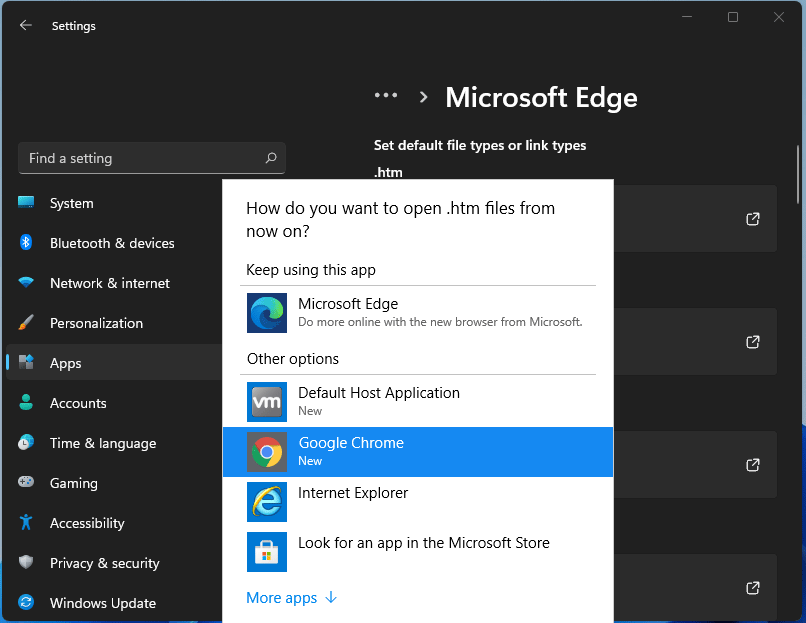
After a lot of backlash about choosing the default Windows browser, Microsoft has officially backed up and brought back a one-click browser change into Windows 11. default browser inside windows 11For anyone who is not aware, when Windows 11 was released if you wanted to switch to another browser you had to go into the settings app and choose the default browser for different types of file extensions like HTML, HTM, PDF for opening on the web, etc. Of course, this was completely unnecessary and it was not well received by users. So after some time, Microsoft backpedaled to standard one click, choose your default browser solution that existed in the previous version of Windows OS. Altho sometimes Microsoft knows how to irritate its users base, it is good to know that they can also listen and fix things that are required.

Read More
Fix Windows doesn’t have a network profile
A number of users reported that they encountered an error that says, “Windows doesn’t have a network profile for this device” while they tried to connect Network devices such as printers and speakers to their Windows 10 computers. On the other hand, this kind of issue is reported for non-network devices as well. This kind of error might be due to incompatibility between the device and your operating system or it could be that the network drivers in your computer need to be updated in order to recognize the new device. Whatever the cause is here are a couple of suggestions you can try to resolve the “Windows doesn’t have a network profile for this device” error.

Option 1 – Check if the network device is compatible with your operating system

As mentioned, the error could be due to incompatibility between the device and the system. To verify, just go to the website of the device’s manufacturer since you can find all the information about the device there.

Option 2 – Make sure that your computer is discoverable

  • Click on the Start button.
  • Then click on the gear-like icon to open Settings.
  • After that, select Network & Internet >> Wi-Fi.
  • Next, change the Network Profile to Private.
  • Now restart your computer and then connect the device again and see if the error is gone or not.

Option 3 – Try to update or rollback or uninstall the Network drivers

You might also want to update or roll back or disable your Network drivers to fix the “This operation failed as no adapter is in the state permissible for this operation” error.
  • Tap the Win + R keys to launch the Run window and then type in the “devmgmt.msc” command and hit Enter to open the Device Manager window.
  • Under the Device Manager, you will see a list of drivers. From there, look for the Network Adapters and expand it.
  • Then right-click on each one of the Network drivers and depending on your preference, you can either select “Update driver”, “Disable device” or “Uninstall device”.
  • After that, restart your PC and see if it helped in fixing the “Windows doesn’t have a network profile for this device” error.

Option 4 – Try to check the SNMP status

  • Tap the Win + R keys to open the Run dialog box and type “services.msc” in the field and tap Enter to open the Service Manager window.
  • After opening the Service Manager, look for the SNMP Service from the list of services.
  • Once you’ve found the SNMP Service, make sure that its Service Status is set to “Running”. If the service is not running, just right-click on it and select Properties.
  • From there, change the Service Status to Automatic and then click on the Apply and OK buttons.
  • After that, click on the Start button again and check if the error is now fixed.
Note: If your printer is the one that triggers the error, refer to these steps:
  • You have to go to Control Panel > Devices & Printers.
  • From there, right-click on the printer which is the one that causes the error, and then select Printer Properties.
  • Next, click the Configure Port button under the Ports tab and select SNMP Status Enabled.
  • Now click the OK button and check if it fixes the error or not.

Option 5 – Run the Hardware and Devices Troubleshooters

You could also run this troubleshooter to fix the “Windows doesn’t have a network profile for this device” error.
  • The first thing you need to do is click on Start and then on the gear-like icon to pull up the window for Settings.
  • After opening Settings, look for the Update and Security option and select it.
  • From there, go to the Troubleshoot option located on the left-hand side of the list.
  • Next, select Hardware and Devices from the list and open the Troubleshooter and run it. Once it is doing its job, wait for it to complete the process and then restart the system.
  • After the system restarts, check if the problem’s now fixed. If not, refer to the advanced guide given below.
Read More
1 2 3 171
Logo
Copyright © 2023, ErrorTools. All Rights Reserved
Trademark: Microsoft Windows logos are registered trademarks of Microsoft. Disclaimer: ErrorTools.com is not affiliated with Microsoft, nor claims direct affiliation.
The information on this page is provided for information purposes only.
DMCA.com Protection Status