Logo

Reversing Mouse & Touchpad scrolling direction

As you know, aside from making computing a lot easier, mouse and touchpad, it also makes computing more efficient and less time-consuming. And so life is unimaginable without these useful devices. However, it is a known fact that you can’t customize these devices since all touchpads and mice come with their own default scrolling direction but worry not for in this post you will be guided on how you can reverse their default scrolling directions.

Every user has their own different preferences when it comes to scrolling directions. You might want the scrolling directions to look like the page is being scrolled in the same direction in where you move your fingers over the touchpad or you might prefer it in an inverted way. Reversing the scroll direction for your device’s touchpad is really easy as Windows by default offers this customization. So if you are trying to find a way to reverse the scrolling direction of your mouse, then you have to follow a tricky little method which will be provided in this post.

It is apparent from the number of settings the touchpad is available that it has become more customizable. You can configure everything, from its gestures, taps, sensitivity, and even its scrolling direction. And now, if you want to reverse its scrolling direction, here’s what you have to do:

Step 1: Tap the Win + I keys to open Settings.

Step 2: From there, go to Devices and select Touchpad from the menu.

Step 3: Next, look for the Scrolling Direction setting.

Step 4: Then click on the drop-down and select your preferred setting.  If you want the same direction scrolling, just select the “Downwards motion scrolls down” option, and if you want the opposite select the other one.

After you carry out these steps, the settings will be applied right away and you will see the changes. On the other hand, if you want to change the scrolling direction for your mouse, the procedure is not as simple as it was for the touchpad.

To reverse the scrolling direction for a mouse, refer to these steps:

Step 1: In the Start Search, type “device manager” and click on the appropriate result to open the Device Manager.

Step 2: After opening the Device Manager, look for your Mouse under the “Mice and other pointing devices” section. It is mostly listed as an “HID-compliant mouse”.

Step 3: Right-click on your mouse and click Properties.

Step 4: From there, go to the Details tab and from the drop-down menu, select Device Instance Path.

Step 5: Now take note of the value displayed on its value field and then tap the Win + R keys to open the Run dialog box.

Step 6: Type in “Regedit” in the field and hit Enter to open the Registry Editor.

Step 7: Next, navigate to the following location:

HKEY_LOCAL_MACHINESYSTEMCurrentControlSetEnumHID

Step 8: From this folder, you have to start matching the values in the first part of the value you’ve taken note of.

Step 9: Open the folder which has the same value and repeat this for the second part of the value.

Step 10: Afterwards, click on the Device Parameters and look for a property named “FlipFlopWheel” and invert its value from 0 to 1 or 1 to 0 to reverse the scrolling direction. And then restart your PC to apply the changes made.

After you restart your PC, you should see the changes in the scrolling direction of your mouse. Note that you can change the value back to its original value or just use the registry backup to undo the changes you’ve made.


Do You Need Help with Your Device?

Our Team of Experts May Help
Troubleshoot.Tech Experts are There for You!
Replace damaged files
Restore performance
Free disk space
Remove Malware
Protects WEB browser
Remove Viruses
Stop PC freezing
GET HELP
Troubleshoot.Tech experts work with all versions of Microsoft Windows including Windows 11, with Android, Mac, and more.

Share this article:

You might also like

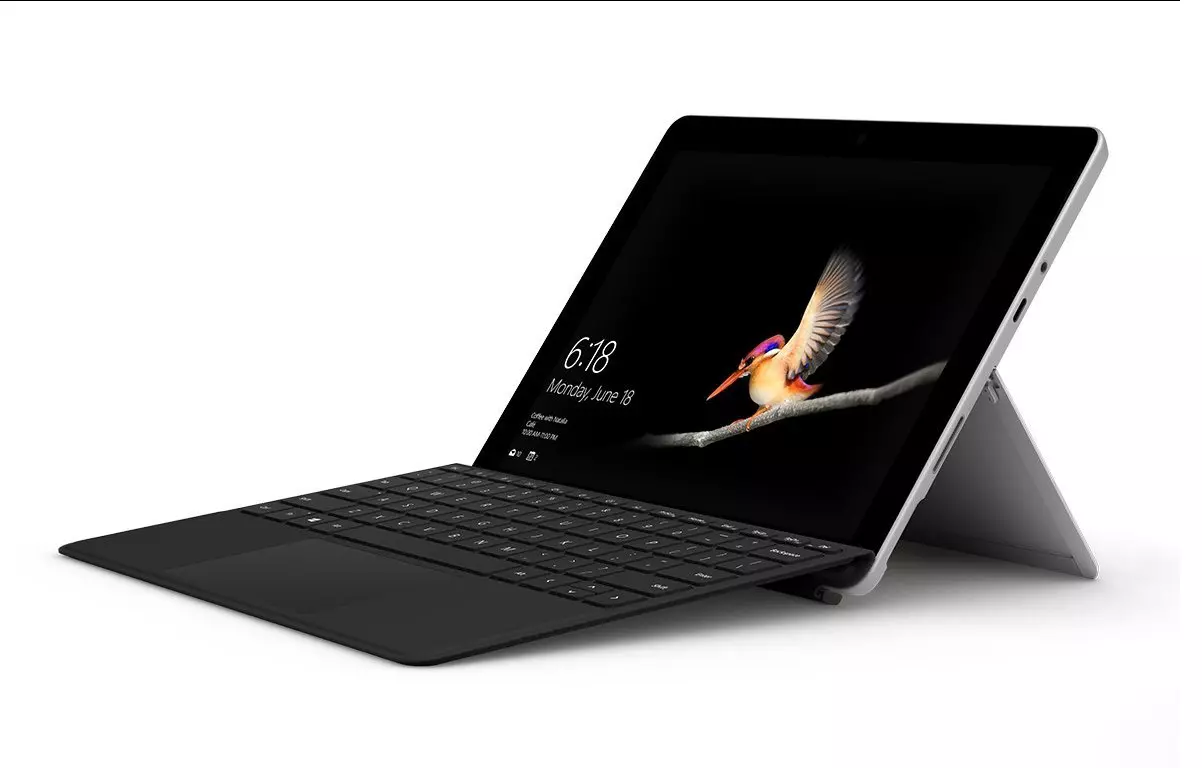
Microsoft Surface Go 2 review

The new upgraded Surface Laptop Go 2 is the new iteration of the affordable original Surface Laptop Go aimed to offer good performance at a lower price of under $1000. The new version is not anything vastly different from the original but it comes with much-needed upgrades.

microsoft surface go 2 laptop

The biggest and main upgrade is the CPU, the Surface Laptop Go 2 is packing now Intel Core i5 1135G7, an Intels 11th generation CPU that should increase battery life. The laptop is also coming with an improved WEB camera and the cheapest one comes now with 128GB of storage instead of 64GB. Price went up from $550 to $599 which is not a big increase considering what was upgraded.

The bad news of new models is that sadly they are still packing only 4GB of RAM, that's really not enough for most applications released in 2022 and the screen is having a relatively low resolution of 1536 X 1024.

Microsoft is still offering all the color variations as in its first offering but added as well a new Sage color that is muted green in tint.

When we look at hardware it seems a little weak but for this price, there is not much competition in the field, and after all this line of models is aimed to provide good performance for an affordable price. If you really need something better you will go with a standard Surface or MAC book instead.

The new laptops are available to pre-order at Best Buy and Microsoft’s online store, and they’ll start shipping on June 7.

Read More
How to Fix Windows 10 Error 0x800488AB

Code 0x800488AB – What is it?

The Error Code 0x800488AB will appear when a user is in the Windows 10 Mail app and has provided an Outlook.com e-mail address. The mail app will give a message that the “account information is out of date” and it does provide an option to fix the issue. After clicking the Fix button, this error code will show up to the user. Common symptoms include:
  • A dialog box will appear with the Error Code 0x800488AB
  • Microsoft Windows 10 Mail App will not retrieve (or subsequently send) mail
  • User cannot delete and re-add the Outlook email account in the Windows 10 Mail app
  • User can still access and log in to various Microsoft websites, including logging into the Outlook Mail website

Solution

Restoro box imageError Causes

This error can be caused by a few different actions of the user when they have changed a password or a PIN number to access their Outlook mail. This error does have a relatively easy fix after the cause is determined and where the break-in information has occurred. A few of the causes may be:
  • If the user changes their password on the Microsoft website and uses the alternative PIN login method to access the Mail App.
  • The log-in information on the Microsoft website does not match the login information on the Windows 10 App.
  • The login information was changed on the Microsoft website and was not updated to reflect on the Windows 10 Mail app.
The Microsoft website and Microsoft Mail app do not share the knowledge of the change in login credentials, therefore the log-in credentials appear to be incorrect when trying to access the Microsoft Mail app. It should be noted that a user may bypass the password option if they log in to the Microsoft Mail app while using the alternative PIN log-in method, thus still leaving the password undetected.

Further Information and Manual Repair

As is the case with all new technology and having a few wrinkles, the release of Microsoft Windows 10 is not left out. There have been a few discussions of errors and bugs, including Error Code 0x800488AB. As of right now, there are three different methods that can be utilized by any at-home user. These methods are rather simple and make sense when the problem has been identified.

Method 1:

Run the built-in Windows Store Apps troubleshooter:
  1. Press the Windows Key and then type ‘troubleshoot’ and hit Enter
  2. Select “View all” on the left panel and run the “Windows Store Apps” troubleshooter from the list displayed and see if it works.

Method 2:

Use the System File Checker tool to repair corrupted or missing system files:
  1. Click Start.
  2. Type cmd, and then press CTRL+SHIFT+ENTER to open the elevated command prompt (I.e. Command prompt with administrative rights).
  3. The User Account Control window should appear, be sure that the action it exhibits is correct, and then press the Continue button.
  4. Type or copy-paste the below command line into it without quotes:
“Sfc /scannow”

Method 3:

  1. Press the Windows Key
  2. Search for "Credentials Manager"
  3. Click on Windows Credentials
  4. Look for any reference to your windows account (generally your @outlook.com is listed)
  5. Delete them.
  6. Then select your account at the top of the start menu and select Log Out.
  7. If using a Pin Code, switch to type input and put your password into the box.
When you go to Mail, and select "Fix Issues" it will detect your password and your account should sync with new emails. In some cases, depending on why this particular error code was caused, you may have to use a powerful automated tool to have it resolved.
Read More
A Quick Guide to Fixing the Stop C00002lA Fatal System Error

Stop C00002lA Fatal System Error- What is it?

C00002lA Fatal System Error is a blue screen of death error that may occur when you start your Windows NT 4.0 based computer. This error causes the screen to turn blue and the system also shuts down. The stop C000021A error message is displayed in the following format:

Stop c000021a {Fatal System Error} The session manager initialization system process terminated unexpectedly with a status of 0xc0000017 (0x00000000, 0x0000000) The system has been shut down.

Error Causes

The stop C000021A error occurs when either Crsrss.exe or Winlogon.exe fails. When the Windows NT kernel identifies that either of these processes has failed, it stops and the error code stop C000021A appears on the computer screen. Here are some of the underlying causes for the stop C0000021A error:
  • The incompatible third-party program
  • Hard disk issues
  • Service pack installation has failed
  • Mismatched system files have been installed
  • Bad and invalid registry keys

Further Information and Manual Repair

To resolve the stop C000021A Fatal System Error on your PC try the following solutions:
  • Remove Incompatible Third Party Programs

If the error occurred after you recently installed a new program, then it is advisable to remove that program. The error occurs due to the incompatibility of the program. To remove the program go to the start menu and click on the control panel. Now click on Add/Remove Program tab and double click on the program name that you recently installed and remove it from the list. Once removed, not reboot your PC. Reinstall a compatible program and run it. It is most likely to resolve the issue. However, if the stop C000021A error still occurs, then it means the problem is critical. It is related to the registry.
  • Repair and Restore the Registry

This procedure is slightly long and tricky. To try it, you need to be technically sound. Here’s what you have to do: first create a parallel installation of Windows NT. Start your PC to the parallel installation and then open the Registry Editor. On the Registry Editor’s Windows menu click HKEY_LOCAL_MACHINE on Local Machine and then click Load Hive. Now type the path %systemroot%system32configsystem into the System hive of the prior installation. Then click open. Here you will be prompted to enter the name of the key, type TEST. Note the setting for the current DWord value in the preceding registry key. This is 0x1 and is denoted by CURRENT:Reg_Dword: 0x1. This value indicated that the Current Control Set for your original Windows NT installation corresponds to ControlSet001 in this window. Now if the value is 2, it indicated that the Current Control Set corresponds to ControlSet002. Now locate the following registry key: HKEY_LOCAL_MACHINETESTControlSetXXXControlSession Manager. XXX is the Current Control Set Value. And delete any pending file rename operation entries. Then click TEST hive and then click Unload Hive. After that again repeat the process, open the registry menu and click load hive, here type the path %systemroot%system32configSoftware to the Software hive of the prior installation and then click open. Now you type TEST 2 when you are prompted for the name of the key. Remove any pending file rename operations entries in the following registry keys: HKEY_LOCAL_MACHINETEST2MicrosoftWindowsCurrentVersionRunOnce HKEY_LOCAL_MACHINETEST2MicrosoftWindowsCurrentVersionRunOnceEx Now click TEST2 hive and then click unload hive. Quit the Registry Editor and then restart your original installation. This will resolve the stop C000021A error.
Read More
Disable Windows insider in Windows 10
In their search for making Windows, a better operating system Microsoft has come up with an insider program that will collect telemetry and send it to Microsoft in order to provide enough information to make a better OS. Being in an insider program is per choice basis and it is not forced to anyone. This guide will cover how to turn off the insider program since its constant updates and telemetry can slow down the internet. So if you decided that you no longer want to be part of this program here is how to turn it off.
  • Press ⊞ WINDOWS + R to open the run dialog keyboard with windows and r marked
  • Type in dialog gpedit.msc and press ENTER
  • You will find yourself in the Local Group Policy Editor Window. Inside windows find: Computer Configuration > Administrative Templates > Windows Component > Windows Update > Windows Update for Business
  • Move to the right pane and double-click on the Manage Preview Builds option
  • Inside the Manage Preview Builds window, check the Enabled radio button
  • Go to the Options section, and using the drop-down menu, set the preferred release channel
  • Select Apply and then OK
Read More
Fix PAGE_FAULT_IN_NONPAGED_AREA 0x00000050
If you suddenly encounter the PAGE_FAULT_IN_NONPAGED_AREA Blue Screen error then it means that your computer is under a heavy load. And if you look closely, you’ll see that it has a bug check value of 0x00000050. This kind of Blue Screen error also indicates that invalid system memory has been referenced. It could be that the memory address is wrong, or that it is pointing at freed memory. The PAGE_FAULT_IN_NONPAGED_AREA Blue Screen error occurs when the requested data is not found in the memory. As a result, the system generates a fault which normally indicates that the system is looking for data in the paging file. However, in this case, the missing data is identified as being located within an area of memory that cannot be paged out to the disk. This Stop error might be caused by a buggy system service, antivirus program, a corrupted NTFS volume, or faulty hardware. So if you’ve recently added hardware, you can try removing it and then check. If the problem still persists, refer to the suggestions given below to fix the problem.

Option 1 – Run Memory Check to test your memory

  • Tap the Win + R keys to open Run and type exe and hit Enter to open the Windows Memory Diagnostic Tool.
  • After that, it will give two options such as:
    • Restart now and check for problems (Recommended)
    • Check for problems the next time I start my computer
  • Select the option you prefer and afterward, check if the Blue Screen error is now fixed.

Option 2 – Run a System File Checker scan

You can also try to run a System File Checker or SFC scan in order to scan your computer for corrupted files that might be the cause behind the PAGE_FAULT_IN_NONPAGED_AREA Blue Screen error. Once it finds any corrupted system files, it will automatically fix them. To run System File Checker, here’s what you have to do:
  • Tap Win + R to launch Run.
  • Type in cmd in the field and tap Enter.
  • After opening Command Prompt, type in sfc /scannow
The command will start a system scan which will take a few whiles before it finishes. Once it’s done, you could get the following results:
  1. Windows Resource Protection did not find any integrity violations.
  2. Windows Resource Protection found corrupt files and successfully repaired them.
  3. Windows Resource Protection found corrupt files but was unable to fix some of them.
  • Restart your computer after the scan is completed.

Option 3 – Disable Automatic Paging File Size Management

  • Right-click on This PC located on your desktop.
  • Next, click on Properties and then click on the Advanced System Settings.
  • Go to the Advanced tab and then click on the Settings button under the Performance section.
  • Afterward, a new mini window will appear and from there, go to the Advanced tab.
  • Then click the Change button under the Virtual Memory section. Once you do, another mini window will appear.
  • Now uncheck the “Automatically manage paging file size for all drives” option.
  • After that, you have to increase the Page File size by doubling the amount of memory allocated by default in the text field. For instance, the paging size given is a minimum of 16MB and so you have to change it to 32MB. And since the recommended value is 1907MB, you can make its maximum size around 4000MB. By doing so, it will allocate more space for paging into individual drivers.
  • Now click OK, close all the open windows and then restart your PC.

Option 4 – Update the Device Drivers

Updating the Device drivers can also help you fix the PAGE_FAULT_IN_NONPAGED_AREA Blue Screen error. To do so, follow the steps below.
  • Tap the Win + R keys to launch Run.
  • Type in devmgmt.msc into the box and tap Enter or click OK to open the Device Manager.
  • After that, a list of device drivers will be displayed. If you see a red or yellow sign that shows up against the driver, right-click on the driver and select “Update Driver Software”.
  • Select the “Search automatically for updated driver software” option and then follow the instructions to complete the process.
  • Restart your PC and then check if the Blue Screen error is now fixed or not.

Option 5 – Perform a System Restore

Performing System Restore might help you in fixing the PAGE_FAULT_IN_NONPAGED_AREA error. You can do this option either by booting into Safe Mode or in System Restore. If you are already in the Advanced Startup Options, just directly select System Restore and proceed with the next steps. And if you have just booted your PC into Safe Mode, refer to the steps below.
  • Tap the Win + R keys to open the Run dialog box.
  • After that, type in “sysdm.cpl” in the field and tap Enter.
  • Next, go to the System Protection tab then click the System Restore button. This will open a new window where you have to select your preferred System Restore point.
  • After that, follow the on-screen instructions to finish the process and then restart your computer and check if the problem is fixed or not.

Option 6 – Try disabling your antivirus programs

There are instances when antivirus programs trigger Stop errors like PAGE_FAULT_IN_NONPAGED_AREA. Thus, you can try disabling your antivirus programs like Windows Defender or other third-party programs if you’re using one.

Option 7 – Use the Blue Screen Troubleshooter

The Blue Screen troubleshooter is a built-in tool in Windows 10 that helps users in fixing BSOD errors like PAGE_FAULT_IN_NONPAGED_AREA error. It can be found on the Settings Troubleshooters page. To use it, refer to these steps:
  • Tap the Win + I keys to open the Settings panel.
  • Then go to Update & Security > Troubleshoot.
  • From there, look for the option called “Blue Screen” on your right-hand side and then click the “Run the troubleshooter” button to run the Blue Screen Troubleshooter and then follow the next on-screen options. Note that you might have to boot your PC into Safe Mode.

Option 8 – Disable Memory caching in the BIOS

You can also disable memory caching in the BIOS to fix the PAGE_FAULT_IN_NONPAGED_AREA error.
  • Open the BIOS Setup screen.
  • Next, go to Advanced > Cache Memory and then disable it.
  • Tap the F10 key to save the changes made and restart your computer.
Read More
Prevent screen from shutting down in Windows
You left your computer to go to the bathroom or to fetch something to eat, maybe you have to answer the phone or open door to a friend and after some time you get back to your computer see the black screen, you move the mouse and it starts to come from sleep slowly. I am the kind of person who gets annoyed by this kind of behavior, I like my PC to be ON all time when I want it to be ON and my power plan on best performance so naturally, I have turned this sleep feature OFF. If you are interested to see how you to can turn off your screen sleeping follow this easy guide.
  1. Press ⊞ WINDOWS to open the start menu and click on the settings Windows 10 Start menu with marked settings icon
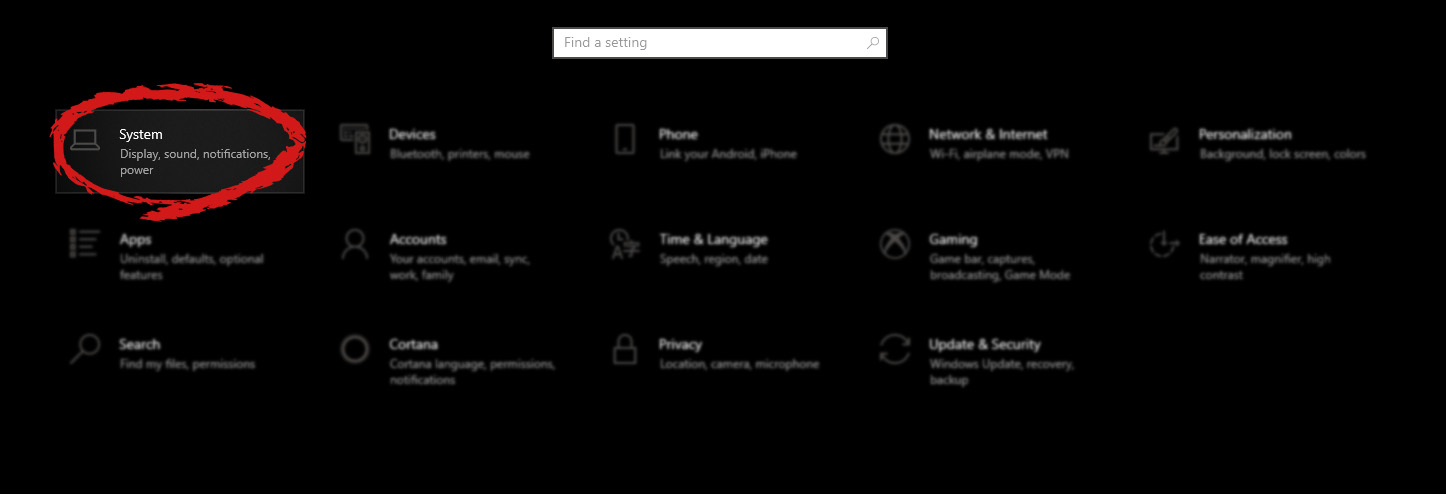
  2. On settings, screen click on system Windows settings with System section selected
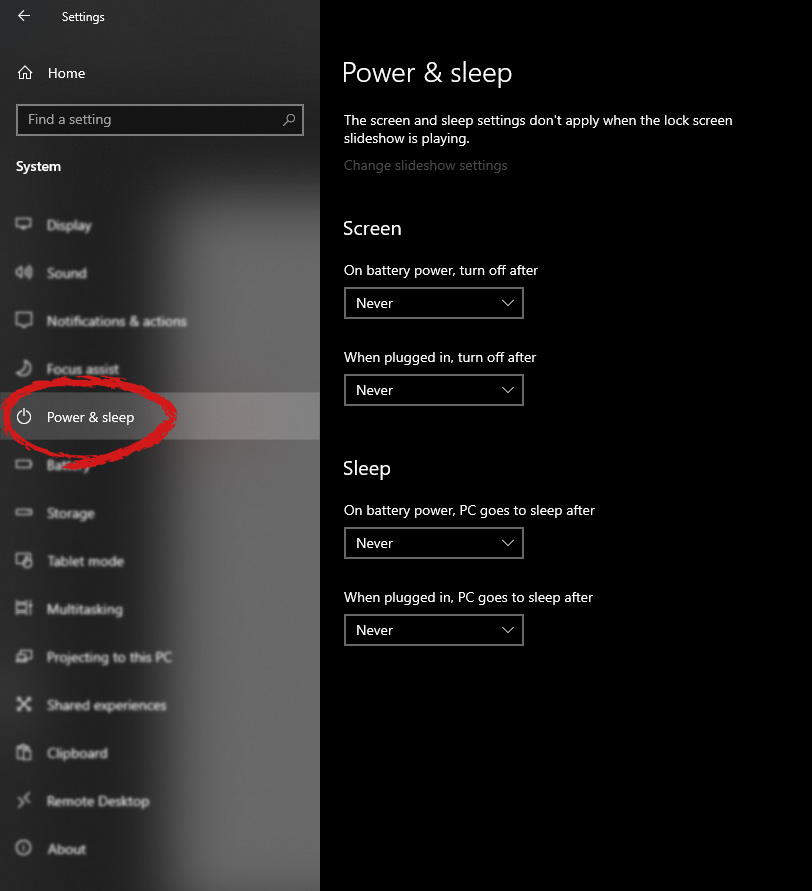
  3. When the system dialog opens go to Power & Sleep and on the right side change all values to never. windows settings power and sleep
Please note that after each update Windows tend to reset these settings so you will sadly have to return to this after each major update.
Read More
How to save google DOC as a PDF

Google Docs has cemented itself as a great free alternative to Microsoft Office Word. Most of the time people just share links to google Docs among themselves but sometimes you need to save and download files.

PDF

Luckily Google docs let you download easily files in various formats including PDF as well. In this short tutorial we will explain how can you download your Google document as a PDF file.

Saving Google Docs as a PDF

Open the Google document inside the browser and click on the File drop-down menu. In the file drop-down menu go to Download and choose PDF document. Next, choose the location where you would like your file to be saved and click on SAVE.

And that's all that needs to be done. Also, you can edit PDF files as well in google docs if you need to.

Read More
A Quick Guide to Resolving Error Code 707

Error Code 707 - What is it?

Error code 707 is a typical Gmail error. Gmail is an email service provided by the largest internet giant Google Inc. It is an email service that is most widely used by web-based email providers with more than 425 million active users worldwide. The error code 707 is usually displayed in any one of the following formats:
“Oops... the system encountered a problem (#707)” “Server error occurred and your email was not sent (error 707)”

Solution

Restoro box imageError Causes

The error code 707 may be triggered due to many reasons. These include:
  • Enabled Lab ‘Background Send’ feature on Gmail
  • Web browser history and cache is full of junk content
  • Outdated browser
Though this error code is not fatal it is advisable to fix it right away to avoid inconvenience and to ensure your email is sent right away without any delays.

Further Information and Manual Repair

Here are some of the easy DIY methods to repair and fix the error code 707 on your PC. These methods are simple and do not require any kind of technical expertise. So, even if you are not technically sound, you can repair the error code 707 on your system in no time.

Method 1

Sometimes you may experience error code 707 while sending email via Gmail because of the enabled Background send labs feature. To fix this error here’s what you must do: Log in to your Gmail account, click on the Gear Box, and select settings. Now simply switch to the lab tab under the settings. Here search for Background Send. If you can’t locate it, then scroll down and insert background Send in the find box. Once you find this lab feature, disable it. After disabling this feature, try resending the email. Hopefully, this will resolve the issue. Nonetheless, if the error 707 still persists, then try method 2 given below.

Method 2

The error 707 may also be triggered if your web browser becomes outdated. If so, then it is advisable to update the browser to resolve the issue. Simply download the latest browser version from a reliable website. After the installation is complete, log on to your Gmail account and then try to send an email. If the email is sent successfully, then the issue is fixed.

Method 3

Try clearing cache and web browser history.  When the web browser history and cache are full of junk files, then you might experience this error on your system. Sometimes this can also lead to registry issues. To remove the error and repair the registry immediately, download Restoro. This is a multi-functional and user-friendly PC Fixer compatible with all Windows versions and embedded with multiple powerful scanners including a registry cleaner. It scans your entire PC for such errors. It clears the registry, removes all obsolete and unnecessary files including cookies, web browser history, junk files, and invalid entries, and cleans it right away thereby fixing the error immediately. Click here to download Restoro and resolve error code 707.
Read More
Fix Dism.exe error 1392 in Windows 10
Dism.exe error 1392 is usually displayed whenever a file or directory is corrupted, and unreadable. The location specified in the error message states that some temporary files are corrupt. Since the files are only temporary, you could delete the mentioned file in the error message and check if the issue persists. The error is caused by missing system files or broken corrupt data, which should be fixed as soon as possible. Taking action should prevent further hardware and app damage, as this can lead to system crashes, data loss, or hardware failure in most cases.
  1. Temporarily disable the antivirus program

    Antivirus applications are well known that they can detect certain things as false positives and quarantine them or cut their system access, to make sure that this is not the case in this situation, disable your antivirus and try the operation again.
  2. Perform an SFC scan

    Press ⊞ WINDOWS + X to open the windows menu Click on Command prompt (admin) In the command prompt window type: sfc /scannnow and press ENTER Wait for the operation to complete Reboot
  3. Run Check disk to check and fix disk errors

    Press ⊞ WINDOWS + X to open the windows menu Click on Command prompt (admin) In the command prompt window type: chkdsk /f c: where c: is hard drive with issue and press ENTER
  4. Scan your computer for malware

    Malware and other malicious software can be a problem for this type of behavior, run your security's software scan on the whole system and remove any found malware.
  5. Perform a system restore

    If anything else failed run system restore and bring Windows back to a date when everything was working fine.
Read More
Fix Setup has failed Error in Windows
If you encounter the “Setup has failed to determine supported install choices” error when trying to downgrade or upgrade your Windows 10 computer, this signifies that there are some compatibility issues with the installation process and that Windows was not able to either downgrade or upgrade to another version. Usually, this error occurs when you are using the built-in options in Windows 10 upgrade or downgrade to another version of Windows. This option is mostly used as it keeps the user settings as well as data intact. Thus, you need to keep in mind a lot of parameters before you proceed with the installation because if there is any conflict in the process, you certainly won’t be able to downgrade or upgrade your Windows computer. To resolve the issue, here are some suggestions that might help.

Option 1 – Try running in Compatibility mode

This is the first thing you can try to resolve the issue instead of going right ahead on making a bootable device. So if you are downgrading Windows, you can try to run the installer in the compatibility mode for that specific Windows version.
  • Look for the setup file.
  • Once you find it, right-click on it and select Properties from the context menu.
  • After that, go to the Compatibility tab and mark the checkbox for “Run this program in compatibility mode for:” and from the drop-down list, select either Windows 7 or Windows 8.
  • You also have to check the “Run as administrator” option.
  • Now click the Apply button and then click OK to save the changes made and check if it has resolved the issue or not.

Option 2 – Option 2 – Try troubleshooting compatibility

This option is almost the same as the first one except it is an alternative way of fixing the “Setup has failed to determine supported install choices” error in case the first one didn’t work. In this option, you will troubleshoot the compatibility issue.
  • Look for the setup file.
  • Then right-click on it and select the “Troubleshoot compatibility” from the context menu.
  • After that, click on the “Try recommended setting” option. Once the process is done, the error message should be gone.

Option 3 – Try to use the setup file instead of an image

If you are running the Windows ISO image for the installation, you can try running the setup file instead. This is because when you try to install Windows from an image file directly, it has to be loaded into a virtual CD drive first, and then from there, further operations are carried out. And so, you can just bypass this mechanism to avoid getting the “Setup has failed to determine supported install choices” error.
  • First, you need to extract the disk file to an accessible location.
  • After that, go to Sources > Setup.exe.
  • Now run the setup file to upgrade or downgrade the Windows version. Just make sure that you do run the setup file as an administrator.

Option 4 – Try to do the upgrade or downgrade in a Clean Boot state

Putting your PC in a Clean Boot state can also help when you want to upgrade or downgrade your version of Windows without any trouble because, during this state, you can start the system with a minimum number of drivers and startup programs that will surely help you in isolating the root cause of the issue.
  • Log onto your PC as an administrator.
  • Type in MSConfig in the Start Search to open the System Configuration utility.
  • From there, go to the General tab and click “Selective startup”.
  • Clear the “Load Startup items” checkbox and make sure that the “Load System Services” and “Use Original boot configuration” options are checked.
  • Next, click the Services tab and select the “Hide All Microsoft Services” checkbox.
  • Click Disable all.
  • Click on Apply/OK and restart your PC. (This will put your PC into a Clean Boot State. And configure Windows to use the usual startup, just simply undo the changes.)
  • After that, try to install the Windows Updates or upgrade again.

Option 5 – Try to use the Media Creation tool

The Media Creation tool in Windows allows you to use the ISO installation file to make a bootable device that you can use to install Windows on your PC. Note that this is kind of different from the usual installation process as it could erase your computer’s current settings and data on the primary drive. Thus, before you proceed, you need to backup all your data into some removable drive and then use the Media Creation Tool to make a bootable drive.
  • After making the bootable drive, you need to plug it into your computer and then reboot.
  • Next, tap the F10 or Esc key to open the boot options.
  • Now set the boot priority of the removable drive the highest. Once the setup comes forth, follow the next onscreen instructions and install Windows without any problems.
Read More
1 2 3 171
Logo
Copyright © 2023, ErrorTools. All Rights Reserved
Trademark: Microsoft Windows logos are registered trademarks of Microsoft. Disclaimer: ErrorTools.com is not affiliated with Microsoft, nor claims direct affiliation.
The information on this page is provided for information purposes only.
DMCA.com Protection Status