Logo

Fix 0xC03A0005 error in Windows 10

When performing a Windows Backup to the NAS device (backup to a network share) that is running Samba, fails with an error message The backup failed, The version does not support this version of the file format (0xC03A0005). The problem occurs because of a conflict with the VHD file that is created by Windows Backup and is mounted during the process. There are three types of VHD files:

  1. Fixed,
  2. Expandable
  3. Differencing

If the VHD file is a sparse file that is not supported by the native VHD driver, the mounting will fail, and you will get this error. An example VHD file is one that keeps expanding depending on the backup size. The problem occurs only in the case of  File Level backup (file/folders in a volume) but not on the block level backup as the vhd file is never mounted. However, in the case of File Level Backup, the vhd is mounted, created by Windows Backup, which does not support the mounting of sparse files.

The solution is to use Strict Allocate: option in the smb.conf file

Login to SMB using SSH. Open the configuration file using the VI editor located at /etc/samba/smb.conf. If the option is not there, you can manually add strict allocate = yes which will make sure there are no sparse file that is created.

Do You Need Help with Your Device?

Our Team of Experts May Help
Troubleshoot.Tech Experts are There for You!
Replace damaged files
Restore performance
Free disk space
Remove Malware
Protects WEB browser
Remove Viruses
Stop PC freezing
GET HELP
Troubleshoot.Tech experts work with all versions of Microsoft Windows including Windows 11, with Android, Mac, and more.

Share this article:

You might also like

Fix The drive is not a valid backup location
USB storage devices are used to store small and even big files, depending on their sizes. Usually, the sizes of the USB vary from 2GB up to 16GB. And as time passes, they have advanced quite a bit and now it’s common to find USB sticks with a capacity of 32GB, 64GB, or even 128GB. And since they now have large capacities, USB storage devices are often used for storing backups of system data as well as creating an image. However, there are times when you might encounter an error message while trying to create a backup or image on your USB device. The error message states:
“The drive is not a valid backup location.”
One of the causes of this problem is that Windows was not able to recognize the USB drives as a valid backup location since USB storage devices weren’t previously large enough to store system images. To fix this error, here are some possible solutions that might help.

Option 1 – Try creating a sub-folder in the USB drive and backup all the images there

The first thing you can try to do is to create a sub-folder on your USB device. This is one good way you can bypass the USB drive limitation. How? Refer to the steps below.
  • First, right-click on the USB storage device and select Format.
  • Next, select NTFS as the File System and check the box next to Quick Format.
  • After that, click on Start to initiate the formatting process.
  • Once the formatting process is completed, open the USB drive and right-click anywhere inside its main drive window, and then select New > Folder.
  • Then name the folder to be created as “Image (or anything you please)”.
  • Afterward, right-click on the folder and select Properties.
  • From there, go to the Sharing tab and click on Share.
  • Now check if the Permission level on the System owner which should be your username is labeled as “Owner”.
  • Then try to back up your files again using your USB drive while keeping the sub-folder as the backup location.

Option 2 – Update the USB Controller Drivers

  • First, click the Start button and type “device manager”.
  • Then click on the “Device Manager” from the search results to open it.
  • From there, look for the “Universal Serial Bus controllers” option and then right-click on each one of the USB drivers and select the Update Driver from the menu.
  • Restart your PC and then click the “Search automatically for updated driver software” option.
You also have the option to update the motherboard and the USB driver from the manufacturer’s official website.

Option 3 – Run CHKDSK utility to check the drive for errors

When it comes to some issues concerning the hard drive or removable devices, there is a utility in Windows that might help which is called “chkdsk”. To use it, follow the steps below.
  • Tap the Win + S keys to open the Search box.
  • Then type “command prompt” in the field and from the search results that appear, right-click on Command Prompt and select “Run as administrator”.
  • After opening an elevated command prompt, copy and paste the following command and hit Enter:
CHKDSK [volume [[path] filename]] [/F] [/V] [/R] [/X] [/C] [: size]]
Note: In the command given above, “[/F]” will try to fix the system errors while “[/R]” will be the one to fix the bad sectors.
  • Now if you are prompted to run CHKDSK after your reboot your PC, just tap Y and reboot your PC.
  • If CHKDSK is not able to find any errors, tap the Win + E keys and navigate the access window. From there, right-click on the concerned drive and click on Properties.
  • After opening Properties, click on the tab Tools and then click on the “Check” button under the Error-checking section.
  • Wait until the process is completed and then restart your computer.
Read More
RAC Manager not working, Error 0xc0000005
If the Diagnostic Data level in your Windows 10 computer is configured manually to the non-default security setting of zero and you’ve encountered an error code of 0xc0000005, read on as this post will guide you in fixing the problem with the Remote Access Connection Manager Service. In relation to error 0xc0000005, you might also encounter an error in the Application section of Windows Logs in the Event Viewer, along with the Event ID 1000 which would most likely have a reference of “svchost.exe_RasMan” and “rasman.dll”. Before you troubleshoot the problem, keep in mind that the Remote Access Connection Manager or RasMan service is the one that manages dial-up and VPN connections from the computer to the internet as well as other remote networks. Each time you connect, the Services dials the connection or sends out a request for a VPN connection. However, the error 0xc0000005, only occurs when a VPN profile is configured as “Always On VPN or “AOVPN” connection with or without a device tunnel. There are several options you can check out to resolve this error, you can try to install the KB Update 4505903 or fix it via Group Policy. You could also try to enable Telemetry from the Settings app or enable it via Registry Editor. For more information, make sure to check out the provided options below.

Option 1 – Try installing the KB Update 4505903

The first thing you can do to fix the problem is to make sure that you’ve already installed the KB Update 4505903 in your computer. If not, then you have to go to Settings > Update & Security > Windows Update and from there select the Check for updates link. You need to get the standalone package if you are using the Microsoft Update Catalog to update your computer and for that, you have to the website of the Microsoft Update Catalog. On the other hand, if you are using the Windows Server Update Services or WSUS, then you can just manually import the KB Update 4505903 into WSUS.

Option 2 – Try to enable Telemetry in the Group Policy and run the RASMAN service

The next thing you can do to fix the problem is to enable Telemetry via Group Policy and then run the RASMAN service. To do that, follow these steps:
  • Tap the Win + R keys to open the Run dialog box and type “gpedit.msc” in the field and hit Enter to open the Group Policy Editor.
  • Next, navigate to Computer Configuration > Administrative Templates > Windows Components > Data Collection and Preview Builds > Allow Telemetry.
  • After that, open the policy and select one of the security levels like Basic, Enhanced, and Full.
  • Then click on the Apply and OK buttons to save the changes made and close the Group Policy Editor.
  • Once one, open the Run dialog box again and type “services.msc” in the field, and hit Enter to open the Windows Services Manager.
  • From there, look for the Remote Access Connection Manager Service and restart it. And then check if it resolved the problem or not...

Option 3 – Try enabling Telemetry via Settings

  • Tap the Win + I keys to open the Settings app.
  • Next, go to Privacy > Diagnostics and Feedback and select Basic or Enhanced under the Diagnostic data.
  • After that, tap the Win + R keys to launch Run and type “services.msc” in the field, and hit Enter to open the Services Manager.
  • From there, look for the Remote Access Connection Manager Service and restart it.

Option 4 – Try to enable Telemetry via Registry Editor

  • Launch the Run utility and type “regedit” in the field and tap Enter to open the Registry Editor.
  • Then navigate to this path: HKEY_LOCAL_MACHINESOFTWAREPoliciesMicrosoftWindowsDataCollection
  • From this path, look for “AllowTelemetry” and double click on it.
  • Now enter the values, 1, 2, 3 for Basic, Enhanced, Full, respectively.
  • If you can’t find AllowTelemetry, then just create a DWORD (32-bit) and name it “AllowTelemetry” and edit its value.
  • Once done, exit the Registry Editor and restart the Remote Access Connection Manager Service from the Services Manager.
Read More
How to Repair Error Code 33

Code 33 - What is it?

Code 33 is a typical Device Manager error. This error code occurs when Windows is unable to start a device that you are trying to use on your PC. The error code 33 is usually displayed in the following format:

“Windows cannot determine which resources are required for this device. Code 33”

Solution

driverfix boxError Causes

Error code 33 may be triggered due to two reasons. One reason can be the translator's failure to find the correct resource for the device driver.

And since this error code is associated with the Device Manager, another reason can be an outdated or corrupted device driver. In most cases, the underlying problem for Device Manager error code is outdated/corrupted drivers.

The good news is that Device Manager error code 33 is not detrimental. However, if the error is not resolved timely, it can lower the functionality and the performance of your PC. You may not be able to use the hardware device.

Further Information and Manual Repair

To resolve code 33, you don’t need to be technically sound or hire a professional computer programmer. Just like any other Device Manager error code, code 33 is also easy to repair.

To help you fix this issue on your system, below are some of the best, easy, and effective DIY solutions.

Method 1 - Configure Hardware Device

Properly configure the problematic hardware device to fix error code 33. It is important to understand that when you install a device that is not plug-and-play, the resource settings are not configured automatically.

This means for such devices you will have to perform device configuration manually.

For device configuration, here’s what you should do:

  1. Go to the start menu
  2. Click Control Panel, then click Performance and Maintenance, and then System
  3. Now on the hardware tab, click on Device Manager and then double click the device you wish to configure
  4. Click the resources tab and then click on the check box next to the Use Automatic Setting
  5. After that click, the ‘Setting Based On’ and then click the hardware configuration you wish to change
  6. Press the ‘Resource Type’ you will like to configure in the ‘Resource Settings’ box
  7. Now go to the Change Settings tab and type a new value for the Resource Type

Method 2 - Update the Problematic Drivers

Code 33 can also be generated due to driver problems. In such a scenario, it is recommended to update the outdated or corrupted drivers.

Identifying all problematic drivers and updating them individually can be frustrating and time-consuming. Therefore to save time and avoid the hassle involved in updating drivers manually, it is advisable to download DriverFIX.

Method 3 - Download DriverFIX to Update Drivers Automatically

DriverFIX is a next-generation and user-friendly program compatible with all Windows versions.

This software is exclusively designed to repair and resolve device driver-related problems and error codes.

Once installed, its intelligent and intuitive programming system detects all outdated, corrupted, and misconfigured device drivers on your PC. It automatically updates all the problematic drivers in a few seconds. It makes sure that the driver versions are the latest and compatible with your operating system.

Furthermore, it also ensures that drivers are continuously updated whenever new versions are available. So, you don’t have to worry about keeping device drivers up to date.

Click here to download DriverFIX to resolve Device Manager error code 33 today!

Read More
Fix Device requires further installation Error
If you are trying to connect an external device to your computer but you suddenly encounter an error that says, “Device requires further installation”, then you’ve come to the right place as this post will guide you on how exactly you can fix this error. In most cases, USB sticks, headphones, speakers, and other external devices, install drivers automatically once you connect them to your computer which means that the drivers are downloaded and installed in the system as soon as the external device is plugged in. However, if the driver has become corrupted or outdated, you might encounter an error like the
“Device requires further installation”
Aside from corrupted or outdated drivers, the error could also be caused by pending updates, an incorrect version of the Intel PROSet Wireless driver, or checking the wrong event. Whatever the cause is, this post will provide you with some potential fixes that can help you resolve the problem. But before you troubleshoot the problem, ensure that your Windows 10 computer is updated to its latest version and you must also not forget to check that you’re checking the correct event on the Event Viewer. Once you have these things covered, proceed to the instructions below.

Option 1 – Try to update the device drivers to the latest version

One of the most likely root causes of the “Device requires further installation” error is either outdated or corrupted drivers in your computer. This kind of problem is more common on several devices like scanners and printers for which the drivers are provided with them.
  • First, boot your computer into Safe Mode.
  • After that, tap the Win + R keys to launch Run.
  • Type in devmgmt.msc into the box and tap Enter or click OK to open the Device Manager.
  • After that, a list of device drivers will be displayed. From there, look for any outdated device drivers and click on each one of them.
  • After that, right-click on each entry of the device drivers and select the “Uninstall Device” option from the menu.
  • Now restart your computer.
  • After restarting your computer, go to the Settings app and Check for Updates in the Windows Update section.
Note: You also opt to download the latest versions of the device drivers directly from the website of the manufacturer. Once you’ve downloaded them, you can install them into your computer right away and then try connecting the external device again. On the other hand, you can also try to reinstall the device drivers.

Option 2 – Try to install the latest version of the Intel PROSet Wireless driver

A lot of users who experience the problem reported that their wireless driver wasn’t also working properly and it was then found that it was caused by the outdated Intel PROSet wireless driver. Thus, to fix the problem, you need to install the latest version of this driver from the intel.com website and install it on your computer. When you download the driver, make sure that your computer is running an Intel system and then download the correct driver depending on whether your computer is a 64-bit system or a 32-bit one.
Read More
Step By Step Guide to Fixing Regsvr32.exe Error On Windows

What is Regsvr32.exe Error?

Regsvr32 (Microsoft Register Server) is a command-line utility in Microsoft Windows Operating System. This is used for registering and unregistering OLE controls such as ActiveX controls and DLLs in the Windows Registry. This is executed as Regsvr32.exe.  The filename extension .exe is the abbreviation for executable.   It is installed in the %systemroot%System32 folder in Windows XP and new Windows versions. The Regsvr32.exe is an error that occurs when you attempt to run Regsvr32.exe to register a 32 bit DLL (Dynamic Link Library) on a 64-bit version of Windows. The error message is displayed as the following:
  • Filename.dll is not an executable file and no registration helper is registered for this file type.
  • Unrecognized flag: /invalid_flag
  • No DLL name specified
  • Dll_Name is not an executable file and no registration helper is registered for this file type.
  • The module "%1" failed to load.

Solution

Restoro box imageError Causes

There are multiple causes for the Regsvr32.exe error code. These include:
  • Invalid entry (command) path
  • Active X control errors
  • Missing or Damaged .dll files
  • Viral infection (Trojans) (.exe can easily get infected by viruses)
  • Registry issues
If you come across the Regsvr32.exe error code, it is advisable to repair it immediately before the damage sets in. Since this may occur due to viral infection, it can pose privacy and data security risks to your PC.

Further Information and Manual Repair

Here are solutions that you can implement to resolve the Regsvr32.exe error code on your system:
  1. If an invalid entry point is the cause of the error, then simply open an elevated command prompt. If the 32-bit DLL is in the %systemroot%System32 folder, then move it to the %systemroot%SysWoW64 folder. After that run the following command: %systemroot%SysWoW64regsvr32 <full path of the DLL>. This will help resolve the Regsvr32.exe error.
  2. If the cause of the error is a viral infection, then you will need to run a powerful antivirus to detect and remove viruses from your system to resolve the Regsvr32.exe error on your system.
  3. Nonetheless, if the causes for Regsvr32.exe are either Active X controls or registry corruption, then you will need to scan your computer with different tools to resolve each issue separately.
This can be time-consuming and too many program installations at one time can also slow down your system’s performance. This means you’ll also have to compromise on your PC’s speed.

Repair Regsvr32.exe Error With Restoro

To avoid all this hassle yet repair the Regsvr32.exe error, download Restoro. This is a multi-functional and innovative PC repair tool deployed with multiple utilities in one program including features like a registry cleaner and an Active X controls error fixer. It also functions as a system optimizer. It is a one-stop solution for all your PC-related errors including the Regsvr32.dll error. It is safe, efficient, and user-friendly. It is compatible with all Windows versions. When the RAM overloads it leads to damaged dlls and registry corruption. The registry cleaner utility repairs the damaged dll files and the corrupt registry. It wipes out all the unnecessary files cluttering the RAM including the junk files, invalid registry entries, and temporary files. Restoro also has an Active X controls scanning utility. This utility can be of great use if the Regsvr32.exe error is triggered by Active X control-related issues. Click here to download Restoro and resolve Regsvr32.exe on your computer right away.
Read More
How to Fix Runtime Error 713
Runtime Error 713 is an error that occurs during the distribution of a Visual Basic application that includes a data report. The error is displayed on the screen when you try to open the data report from your desired application.

Error Causes

The reason why computer users often experience the Runtime Error 713 is that the data report run-time file also referred to as Msdbrptr.dll is not included in your setup package. Though this error does not pose any big threat to your computer, however, it is recommended to fix the error because the Runtime error 713 may hamper your ability to install and access new programs.

Further Information and Manual Repair

Don’t you panic if you see Runtime Error 713 message pop up on your PC? This error is rated easy to repair and can be fixed in a couple of minutes. There are two ways to fix Runtime Error 713. You can choose whichever 2 alternatives suit you best.
  • Method 1
First, open your project and include a reference to the data report file, the Msdbrptr.dll file. Locating this file is not difficult. It is listed as Microsoft Data Report Designer v6.0 in the reference dialog box. Sometimes you may see this file listed more than once. Now when this happens be sure to select the file that is associated with Msdbrptr.dll. After you select it, the reference will be verified. Once verification is complete, you are good to go. Now you can try rebuilding your setup package again.
  • Method 2
The second alternative is to add the Msdbrptr.dll file manually in PDW (the Package and Deployment Wizard). Simply add the file in the Included Files dialog box window and run the PDW. Now you are all set to rebuild your setup package. Whether you follow method 1 or 2 after you rebuild the setup package and the installation is complete, you will see the following files in the indicated folders:
  • <windows system>Msdbrptr.dll
  • <program files>Common Files\Designers\Msderun.dll
  • <windows system>Msstdfmt.dll
The presence of these files indicates successful installation and now you can easily try opening the data report. If you’ve noticed, all you have to do to fix Runtime Error 713 was to include the Msdbrptr.dll file. So, next time if you or your friends experience Runtime Error 713, you know exactly what to do and how to fix it.
Read More
How to Use and Configure Active Hours
The issue with the abrupt system reboots to force Windows 10 updates on a computer has been lessened with Active Hours. This feature keeps a record of the hours during which a system remains active and prevents the installation of updates during such hours. For example, when a system restart is needed to complete the installation of an update, Active Hours delays the update and allows you to finish what you’re doing on your computer. Thus, if you haven’t heard of this feature, then now is the time you do, read this post to configure and use Active Hours in your Windows 10 computer. There are three ways you can configure Active Hours. The first one is for general users, whereas the rest of the two methods are for users who knows their way about the Windows Registry and Group Policy. To get started, refer to every given option below.

Option 1 – Configure Active Hours via Windows 10 Settings

  • Go to Settings > Update & Security. From there, click on the “Change active hours” option under the Windows Update section.
  • Next, you can select a time (“Start time” and “End time”) during which the restart can occur.
  • After that, click on the Save button and exit.
Note: Keep in mind that the values you’ve entered indicate the hours during which your system is in use, namely, ACTIVE. It is important for your active hour’s interval period and it can be anything between 1 and 18 hours since you can’t go beyond 18 hours. In addition, there is no option to configure different active hours on different days and you can’t specify different active hours for weekends and weekdays as well. On the other hand, Windows 10 also offer users an option to override Active Hours. All you have to do is go to Settings > Update & Security > Windows Update > Restart Options. From there, you can choose a custom restart time when your computer will restart to install the updates but this is only a one-time setting.

Option 2 – Configure Active Hours via Registry Editor

  • Tap the Win + R keys to open the Run utility and type “Regedit” in the field and tap Enter or click OK to open the Registry Editor.
  • Next, navigate to this registry path: HKEY_LOCAL_MACHINESOFTWAREMicrosoftWindowsUpdateUXSettings
  • In the given registry path, you can choose to change “ActiveHoursStart” and “ActiveHoursEnd”.
Note: There are no extra settings available in the Registry Editor but you can change the remote computer’s Active hours settings using the Registry Editor.

Option 3 – Configure Active Hours via Group Policy

Note that this option is available for the Windows 10 Pro and Educational or Enterprise versions. It is mostly used by computers in Business or through remote access. To get started, follow these steps:
  • Tap the Win + R keys to launch Run and type “gpedit.msc” in the field and tap Enter or click OK to open the Group Policy Editor.
  • Next, navigate to this group policy setting: Local Computer Policy > Computer Configuration > Administrative Templates > Windows Components > Windows Updates.
  • From there, look for a policy labeled “Turn off auto-restart for updates during active hours” and double click on it. This will open a new window.
  • Click on the Enabled radio button to enable Active Hours. You also have the option to choose active hours just like in the first given option above. It works just fine except when the following policies don’t override:
    • No Auto-restart with logged-on users for scheduled automatic updates installations.
    • Always automatically restart at the scheduled time.
  • Since Group Policy allows you to reduce the range of active hours, you can configure it if you want it to be less than 18 hours. Just find the policy setting labeled “Specify Active hours range for auto -restarts. The minimum is 8 hours”.
  • After you set the Active Hours, click the Apply and OK buttons to save the changes made.
Read More
Fix ERR_UNSAFE_PORT error on Chrome
As you know, one of the most useful web browsers all over the globe is Google Chrome. However, it is not without flaws as you could encounter errors while using it. One of these errors is the ERR_UNSAFE_PORT error. This kind of error is caused by the data being accessed using a port that isn’t recommended. When you encounter this kind of error in Chrome, you will see the following error message on your screen:
“The webpage is not available, The webpage at <Address> might be temporarily down or it may have moved permanently to a new address. Error code: ERR_UNSAFE_PORT”
In this post, you will be guided on how you can fix the ERR_UNSAFE_PORT error in Google Chrome on your Windows 10 computer. You can try to set allowed ports or reset or reinstall Google Chrome. For more details, refer to the given options below.

Option 1 – Try to set allowed ports

  • To get started, open Google Chrome.
  • After that, go to the Shortcut tab and type the following after the whole address in the field named Target: --explicitly-allowed-ports=xxx
  • It should look like this “C:/Documents and Settings/User/Local Settings/Application Data/Google/Chrome/Applicationchrome.exe --explicitly-allowed-ports=6666”.
  • Now click on Apply and click OK to save the changes made.

Option 2 – Reset Chrome

Resetting Chrome can also help you fix the error. This means that you will be restoring its default settings, disabling all the extensions, add-ons, and themes. Aside from that, the content settings will be reset as well and the cookies, cache, and site data will also be deleted. To reset Chrome, here’s what you have to do:
  • Open Google Chrome, then tap the Alt + F keys.
  • After that, click on Settings.
  • Next, scroll down until you see the Advanced option, once you see it, click on it.
  • After clicking the Advanced option, go to the “Restore and clean up option and click on the “Restore settings to their original defaults” option to reset Google Chrome.
  • Now restart Google Chrome

Option 3 – Try to clean reinstall Chrome

There are instances when programs leave files behind after you’ve uninstalled them and the same thing can happen to Chrome so before you reinstall Chrome, you have to make sure that you have deleted the User Data folder. To do so, refer to the following steps:
  • Hit the Win + R keys to open the Run dialog box.
  • Next, type “%USERPROFILE%AppDataLocalGoogleChromeUser Data” in the field and hit Enter to open the User Data folder.
  • From there, rename the default folder and name it something else, e.g. “Default.old”.
  • After that, install Google Chrome again and check if the issue is now fixed.
Read More
Fix DRIVER_IRQL_NOT_LESS_OR_EQUAL in Windows
DRIVER_IRQL_NOT_LESS_OR_EQUAL will cause your computer to go to the blue screen of death but do not worry there are solutions around this and we are here to instruct you on how to solve this.
  1.  Uninstall and install network drivers

    DRIVER_IRQL_NOT_LESS_OR_EQUAL is most commonly tied to bad network drivers, whatever that be a corruption of the driver files or their incompatibility. So first thing is to check if this is the case. Press ⊞ WINDOWS + X to open the hidden menu in Windows and click on Device Manager. keyboard with windows and x marked Windows menu device manager In the Device Manager expand Network adapters, choose adapter, right-click on it and choose Uninstall. network device manager Install latest driver or reboot so Windows will install the driver automatically
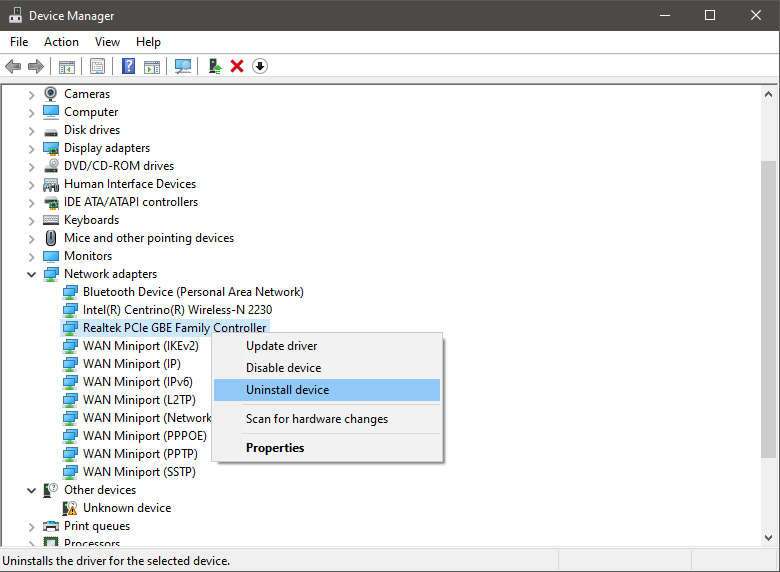

  2. Update driver

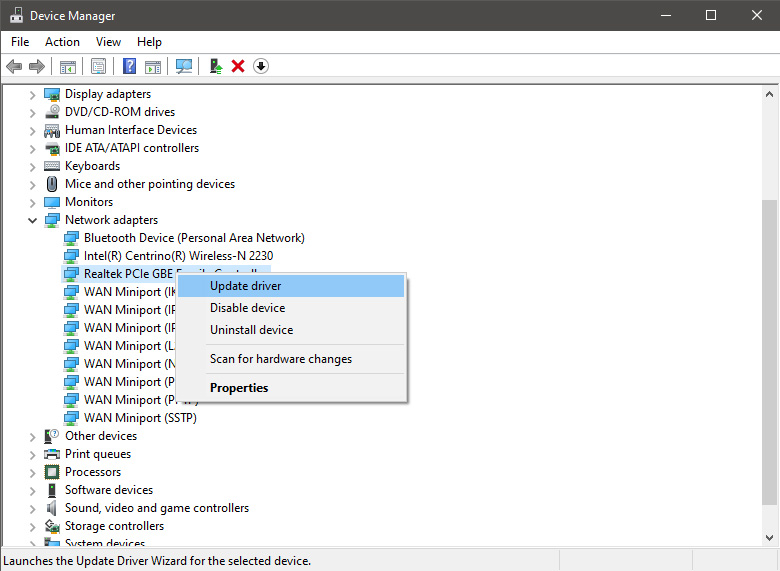
    If you do not want to reinstall the driver or you are unable to for whatever reason updating the driver might do the trick. To update driver: Press ⊞ WINDOWS + X to open the hidden menu in Windows and click on Device Manager. keyboard with windows and x markedWindows menu device manager In the Device Manager expand Network adapters, choose adapter, right-click on it and choose Update Driver. network device manager update
  3. Fix via Command prompt

    If both of the beforementioned solutions fail, try running the command prompt and fix the issue from there. Press ⊞ WINDOWS + X to open the hidden menu in Windows and click on Command Prompt (administrator) keyboard with windows and x markedWindows menu command prompt admin In command prompt type next line and press ENTERDEL /F /S /Q /A “C:\Windows\System32\drivers\mfewfpk.sys Reboot the system

  4. Scan your PC for malware

    Sometimes corruption in the system is caused by malware, Scan your system for malware, viruses, etc.
  5. Check connections or other hardware issues

    If all methods fail, open your PC case and check to see if connections everywhere are properly connected and tight. Clean your PC and turn it back ON
  6. Use system restore

    If anything fails, use Windows system restore and bring back computer into a state where everything was working fine.
Read More
Adaptive Brightness is not working
The Adaptive Brightness setting in Windows 10 is a useful setting you can use in adjusting your computer’s brightness. It helps you get the brightness automatically based on the light around your computer. However, there are times when it does not work or it doesn’t turn off when you want it to. If this issue happened right after you update or install Windows 10, then read on as this post will give you a couple of options you can try to resolve the problem.

Option 1 – Try to run the Power Troubleshooter

The first thing you can do to resolve the issue with Adaptive Brightness is to run the Power Troubleshooter as the problem could occur due to some conflicted power settings. To use it, refer to the following steps:
  • Open the Windows 10 Settings panel and go to Update & Security and then to Troubleshoot.
  • After that, scroll down to your left-hand side and click the Power option.
  • From there, you should see the “Run the troubleshooter” button. Click on it to fix the problem.
  • Afterward, follow the next on-screen instructions that follow.

Option 2 – Try disabling or turning off the corresponding options in GPU settings

The problem might be due to the Graphics card settings. If you are using either an AMD graphics card or the HD graphics of Intel, you may have to disable the power-related options in the GPU settings. To be specific, you have to disable the Vari-Bright in AMD graphics card settings or the Display Power Saving Technology under Intel’s Graphics panel.
  • AMD users:
    • Open the AMD Radeon settings panel.
    • Then go to Preferences. From there, select Radeon Additional Settings.
    • Next, go to the Power tab and click the PowerPlay option.
    • You should find an option called “Enable Vari-Bright” located on your right-hand side. Remove the mark from its checkbox and then save the changes you’ve made.
  • Intel users:
    • Open the Intel Graphics and Media Control Panel from your Desktop.
    • Then select the Basic mode and go to the Power tab.
    • From there, select “On battery” as Power Source and then you’ll get the Display Power Saving Technology option. It should be set to enabled by default.
    • Now remove the mark from the checkbox and then save the changes you’ve made.

Option 3 – Try resetting the Power Plan defaults

You might also want to use a command-line tool to resolve the problem. This command-line tool is known as PowerCfg. It is a command utility tool that will scan your computer for 60 seconds to know its power. This tool gives detailed results in the form of an HTML report that will help you in evaluating the real cause of the battery drain issues. You can also use this tool to reset the Power Plan defaults of your computer. To use it, follow the steps below.
  • Open the Command Prompt as administrator.
  • Then type in the following command and tap Enter to execute it:
powercfg –restoredefaultschemes
  • After the command has been executed, restart your computer.

Option 4 – Try updating your Graphics drivers

  • First, boot your computer into Safe Mode.
  • After that, tap the Win + R keys to launch Run.
  • Type in devmgmt.msc into the box and tap Enter or click OK to open the Device Manager.
  • After that, a list of device drivers will be displayed. From there, look for the Display Adapters and click on them.
  • After that, right-click on each entry under the Display Adapters and select the “Uninstall Device” option from the menu.
  • Now restart your computer.
  • After restarting your computer, go to the Settings app and Check for Updates in the Windows Update section.
Note: You also have the option to go directly to the website of your graphics card manufacturers like NVIDIA, Intel, or AMD and go to the section called Drivers then check if there’s a new available update – if there is, download and install it.

Option 5 – Try disabling adaptive brightness via Registry Editor

Since you will be dealing with Registry files in this post, you need to create a System Restore point first. Once you have that covered, proceed to the following steps:
  • Tap the Win + R keys to open the Run dialog box.
  • Next, type “regedit” in the field and hit Enter to open the Registry Editor.
  • After that, navigate to this path: HKEY_LOCAL_MACHINESOFTWAREIntelDisplayigfxcuiprofilesMediaBrighten Movie
  • Now double click on the “ProcAmpBrightness” and set its value to “0”.
  • Now go to this path: HKEY_LOCAL_MACHINESOFTWAREIntelDisplayigfxcuiprofilesMediaDarken Movie
  • From there, double click on “ProcAmpBrightness” and set the value to “0”.
  • Then close the Registry Editor and restart your PC and then see if the problem’s fixed or not.
Read More
1 2 3 171
Logo
Copyright © 2023, ErrorTools. All Rights Reserved
Trademark: Microsoft Windows logos are registered trademarks of Microsoft. Disclaimer: ErrorTools.com is not affiliated with Microsoft, nor claims direct affiliation.
The information on this page is provided for information purposes only.
DMCA.com Protection Status






