Logo

Disable Telemetry & Data Collection in Windows

The Windows 10 Telemetry and Data Collection features are auto-enabled and they collect all sorts of user activity and sends it to Microsoft. Microsoft says that the data collected only enhances the overall user experience and Windows functionality better but the number of data breaches happening across the globe has forced users to be extra cautious about their data privacy. So naturally, from stronger passwords and other services management, it is only logical to turn off Windows data gathering.

To do so:

  • Press ⊞ WINDOWS + R to open the run dialog.
  • In the Run dialog type: taskschd.msc
  • Press CTRL + SHIFT + ENTER key combo to open Task Scheduler in admin mode.
  • On the left pane, navigate to the: Task Scheduler Library > Microsoft > Windows > Customer Experience Improvement Program
  • At the location, on the middle pane, right-click on the task named Consolidator and select Disable from the context menu...
  • Repeat the process with all other tasks listed in the middle pane.
  • Exit Task Scheduler.

Do You Need Help with Your Device?

Our Team of Experts May Help
Troubleshoot.Tech Experts are There for You!
Replace damaged files
Restore performance
Free disk space
Remove Malware
Protects WEB browser
Remove Viruses
Stop PC freezing
GET HELP
Troubleshoot.Tech experts work with all versions of Microsoft Windows including Windows 11, with Android, Mac, and more.

Share this article:

You might also like

Error 0x80004001 Quick Fix Guide

What Is 0x80004001 Error Code?

0x80004001 is an error code that Windows users encounter quite commonly.

This error usually occurs when users try to update an old Windows application or attempt to run a certain application. When this error appears on the screen, the system automatically restarts to stop further processing. The error results in a blue screen after the system boots.

This blue screen is known as the Blue Screen of Death.

Error Causes

There are different files in the Windows operating system responsible for its smooth functioning. Sometimes problems like viruses or incorrect register entries corrupt or damage these files. This is when this 0x80004001 error appears.

Simply put, some of the most common causes that trigger 0x80004001 error are listed below as follows.

  • Corrupt or damaged EXE, VXD, DLL files of Windows
  • Incorrect entry of registry files
  • Presence of viruses or malware in the system
  • Corrupt or damaged system files
  • Unfinished application installation

Irrespective of what causes this error, it is of utmost importance to troubleshoot it as soon as possible.

Further Information and Manual Repair

While there are several ways of troubleshooting this error, the two most useful approaches have been listed below as follows.

  • This solution is for advanced users. Start your system and log on to it as the administrator. Click on the Start button. Now select All Programs->Accessories->System Tools. Finally, click on System Restore. In a new window, select the option “Restore My Computer to an Earlier Time”. Now click on Next. A list of restore points will be displayed. Choose the most recent restore point from this list and click “Next”. Now click next on the confirmation Window again. Once the restoration is finished, the computer will restart itself and you will observe that the error no longer appears.
  • This solution is for beginner or novice users. Download a 0x80004001 error repair utility available online. Install this program on your computer and use it to scan for the error in your system. When the scan completes, find if any feature allows you to fix errors. If yes, click on it. Now restart your computer again. You will notice that the virus has disappeared. It is a good idea to use error repair utilities because they scan the system, diagnose the error and then perform the repair.

Use any of the methods listed above to get rid of the 0x80004001 error once and for all.
Read More
How to Use and Configure Active Hours
The issue with the abrupt system reboots to force Windows 10 updates on a computer has been lessened with Active Hours. This feature keeps a record of the hours during which a system remains active and prevents the installation of updates during such hours. For example, when a system restart is needed to complete the installation of an update, Active Hours delays the update and allows you to finish what you’re doing on your computer. Thus, if you haven’t heard of this feature, then now is the time you do, read this post to configure and use Active Hours in your Windows 10 computer. There are three ways you can configure Active Hours. The first one is for general users, whereas the rest of the two methods are for users who knows their way about the Windows Registry and Group Policy. To get started, refer to every given option below.

Option 1 – Configure Active Hours via Windows 10 Settings

  • Go to Settings > Update & Security. From there, click on the “Change active hours” option under the Windows Update section.
  • Next, you can select a time (“Start time” and “End time”) during which the restart can occur.
  • After that, click on the Save button and exit.
Note: Keep in mind that the values you’ve entered indicate the hours during which your system is in use, namely, ACTIVE. It is important for your active hour’s interval period and it can be anything between 1 and 18 hours since you can’t go beyond 18 hours. In addition, there is no option to configure different active hours on different days and you can’t specify different active hours for weekends and weekdays as well. On the other hand, Windows 10 also offer users an option to override Active Hours. All you have to do is go to Settings > Update & Security > Windows Update > Restart Options. From there, you can choose a custom restart time when your computer will restart to install the updates but this is only a one-time setting.

Option 2 – Configure Active Hours via Registry Editor

  • Tap the Win + R keys to open the Run utility and type “Regedit” in the field and tap Enter or click OK to open the Registry Editor.
  • Next, navigate to this registry path: HKEY_LOCAL_MACHINESOFTWAREMicrosoftWindowsUpdateUXSettings
  • In the given registry path, you can choose to change “ActiveHoursStart” and “ActiveHoursEnd”.
Note: There are no extra settings available in the Registry Editor but you can change the remote computer’s Active hours settings using the Registry Editor.

Option 3 – Configure Active Hours via Group Policy

Note that this option is available for the Windows 10 Pro and Educational or Enterprise versions. It is mostly used by computers in Business or through remote access. To get started, follow these steps:
  • Tap the Win + R keys to launch Run and type “gpedit.msc” in the field and tap Enter or click OK to open the Group Policy Editor.
  • Next, navigate to this group policy setting: Local Computer Policy > Computer Configuration > Administrative Templates > Windows Components > Windows Updates.
  • From there, look for a policy labeled “Turn off auto-restart for updates during active hours” and double click on it. This will open a new window.
  • Click on the Enabled radio button to enable Active Hours. You also have the option to choose active hours just like in the first given option above. It works just fine except when the following policies don’t override:
    • No Auto-restart with logged-on users for scheduled automatic updates installations.
    • Always automatically restart at the scheduled time.
  • Since Group Policy allows you to reduce the range of active hours, you can configure it if you want it to be less than 18 hours. Just find the policy setting labeled “Specify Active hours range for auto -restarts. The minimum is 8 hours”.
  • After you set the Active Hours, click the Apply and OK buttons to save the changes made.
Read More
Fixing errors, manually vs automatic

Encountering errors is never a pleasant experience and fixing errors can sometimes take a large amount of time. Also depending on your expertise and knowledge about computers and the operating systems themselves could be determining factor would you try to wrestle with error.

error fixing on computer

We will explore and analyze the advantages of both methods so you can choose and know when to apply one and when to reach for the other.

Advantages of manual method

Full control is the main advantage of manually solving errors, when you go deep dive into manually fixing problematic issues you are one that has control. Complete freedom is also another, sometimes fixing things can be done in several different ways and when you are the man behind the wheel, you are the one that can choose how to approach and what solution to apply in order to solve the issue.

Disadvantages of using manual method

The main disadvantage that some users might encounter is that they will need to know ins and outs of computer and operating systems' workings. Of course, the more complicated errors, the more knowledge it will require in order to apply the proper fix. There is also a risk to break something else if the person that is doing the fixing is not fully competent so this is also something to think about.

Another thing that goes against manual fixing is the time it will require in order to actually fix it, some more complex stuff will probably depend on searching for some external resources like searching for compatible drivers for example, or navigating complex registry keys inside Windows.

Advantages of automatic solutions

If you are a user that has no knowledge about how the operating system works, if you do not know what is a registry or how to properly navigate through the Windows folder then the automated solution is for you. The main advantage of automated systems is that you can easily fix errors without any kind of technical knowledge and usually with just one click of a button.

Saving time is also one of the advantages of fully automated solutions because they will work much faster than manually locating the problem and then fixing it. Also, most of these systems will have in place active monitoring that will check always if your system is in top form and alert you when something is not right.

Disadvantages of one-click solutions

Automated solutions are great, they can solve various issues and errors without any knowledge from the user, but they are not perfect. Like security suites sometimes an automated system can misinterpret something as an error when in fact it is not and fixing it could mean some apps not working anymore, luckily you can choose would you like to apply the suggested solution. So if you are using one do not just click fix without looking at what it is trying to fix and maintain.

Another problem with this is the price it is carrying, manually solving your computer error will cost you your time and knowledge but good automated software will come with a price tag. Some people might not be too happy to pay for this kind of application but at the end of the day, it will still be cheaper than a professional technician. The last thing that you should be aware of is that in order for the app to do its work properly it will need to be active all the time, now for modern computers, this is not the issue but for some older ones with a small amount of memory might lead to some slowing them down. This is a price to be paid in order to have your system always errors free.

Should you use an automated solution at all?

This depends on your knowledge and time available, professional IT technicians will not need this type of solution nor will power users but for most common people this will offer computers free of errors for an affordable price.

Read More
How to Fix Windows Update Error 0x80070103

What is error code 0x80070103?

When visiting the Windows Update Website or the Microsoft Update Website to download the latest update for hardware drives, you could possibly receive Error Code 0x80070103 when clicking on the update driver. This error code occurs when Windows tries to download a piece of identical hardware for a second time. It could also occur when Windows tries to update a currently installed driver to an unsuitable version of that driver.

Solution

Restoro box imageFurther Information and Manual Repair

There aren’t many ways to handle this issue. Below are two methods of fixing Error Code 0x80070103.

Method 1:

  • Visit the Microsoft Update Website
  • After the "scan for updates" is complete, click the Welcome or Custom page.
  • Next, click Hardware, in the navigation panel, and then on the tab for "optional hardware Updates", the Update client will display the available updates.
  • For the graphics card, scan the second update after which you'll click to select the option that says "do not show this update again".
  • Hit the "Review and install updates" button.
  • Confirm that the second update for the graphics card is not present, then move on the installing the updates.
  • Click on the start button, go to All Programs, and then click on Windows Update.
  • Hit the "Check for updates" tab.
  • After the "scan for updates" is over, click the"Optional updates" link.
  • In the "Select the updates you want to install" section, right-click the update that is not needed and hide them.
  • Hit the OK button.
  • To install any additional updates that are selected, click "Install Updates". Close Windows Update if no other updates are selected,
  • For touch screens, swipe in from the right edge of the screen, tap Search (or point to the upper-right corner of the screen if you're using a mouse, moving the pointer down, before clicking Search). Enter "Windows Updates" in the search box, click Settings, and then click "Check for updates".
  • After the scan is complete, click the"Optional updates are available" link.
  • Right-click or Tap and hold the update you want to hide, select"Hide update", and then select OK.
  • If any other updates are available, save all work in "other programs", then restart the computer to the install updates; otherwise, opt out of the Windows Update window.
Open the search window and type “Windows Update” in the search box.

Method 2:

When trying to repair error code 0x80070103, if you find method one hard to follow, can contact Microsoft directly. Call up the help center number listed on their website, and a technician will be able to walk you through the process of ensuring the updater is not attempting to download multiple copies of hardware or trying to install unusable updates on your computer. Because the Windows Updater is set to a generic method of searching for updates, it may not be set to optimize the personal computer's settings. This is why you must select all of the optional update options and why this process is so long. It may be made easier by having a computer repairs technician walk you through it. However, if you want to automate the process of getting that problem solved, you can use a powerful tool to get the job done.
Read More
Fix igfxem.exe application error in Windows 10
When you get an igfxem.exe error in Windows, it is not really clear what does this means, usually, Windows throw us some code or we get a DLL error, rarely we get an EXE error. So what does this error means? Intel Graphics Executable Main Module, shortly called as IgfxEM module is a part of the Windows operating system. When you run Microsoft .NET Framework applications that use the AS/400 Data Queue ActiveX control (Mseigdq.dll) to read from and to write to IBM iSeries (AS/400) data queues, you may experience this error. In order to overcome this error and cope with it try the following things:
  1. Increase Virtual Memory

    Go to the Start Menu and click on Settings. Type performance. Choose Adjust the appearance and performance of Windows. In the new window, go to the Advanced tab and under the Virtual memory section, click on Change. At the bottom of the new window, check what the Recommended value is and how it compares to Currently allocated. If the current setting is significantly less than the recommended, uncheck the Automatically manage paging file size for all drives box at the top of the same windows and then click on Custom size. Enter the Recommended value in the Initial Size box, and a larger figure in the Maximum size box. Click OK to save the new settings.
  2. Download and update .NET framework

    Go to the Microsoft website and download the latest .NET framework. Once the download is complete, install the package following onscreen instructions.
  3. Reinstall INTEL graphic drivers

    Go to the intel website and download the latest graphic drivers for your graphic card model. Once the download is complete, install the package following onscreen instructions.
  4. Run SCF scan

    If all else fails, run command prompt and inside type sfc /scannow
Read More
Cannot Create User Account During Out Of Box Experience or Sign In, Non-Responsive Behavior (Welcome Back) Page

When you upgrade your Windows 7 or Windows 8.1 system to Windows 10, you’ll undergo a phase called Out of Box Experience, or simply OOBE. This phase is intended to allow users to customize their Windows 10 experience, which includes defining personal settings, creating user accounts, and more. Some users reported having issues when creating their user account during the Out of Box Experience (OOBE) on Windows 10 upgrade. Some also reported issues about non-responsive behavior (Welcome Back) page.

Solution

Restoro box imageError Causes

Unfortunately, there’s no known cause for this error. However, some users reported that this occurs when:

  • There’s a problem with the ISO or CD used to install Windows 10
  • There’s hardware malfunctioning on the computer

Further Information and Manual Repair

Your Windows 10 upgrade will not be successful if you’re not able to create a user account or finish the Out of the Box (OOBE) phase of the installation. Here are some methods that will help you fix this manually.

Method 1 – Wait and retry

Some users reported that waiting for about an hour and retrying the process again will solve this problem. It’s also recommended that you keep your computer in a ventilated place while you wait to retry the process.

Method 2 – Load default user manually

This method has 2 requirements in order to work.

  1. You need to be upgrading from a previous Windows version, and
  2. Your Windows was originally configured to automatically boot to desktop

If you meet these two requirements, you can solve the error by following the steps below:

  1. Hold CTRL+ESC keys. Windows should load the default user after doing this step.
  2. Press the Windows key + X. Then, click the Computer Management icon
  3. Choose “Local Users and Groups”
  4. Double click on Users
  5. Right-click on the right pane, and then choose “New User”
  6. Create a new user account and password

Method 3 – Power down your laptop

This method only applies if you’re a laptop user.

  1. Power down your laptop
  2. Remove the battery of your laptop
  3. Wait for about 10 minutes
  4. Connect your laptop using direct current
  5. Turn on your laptop again
  6. Create a new user account and log in

Method 4 – Create a local account if you’re trying to set up a Microsoft account

Instead of connecting to a Microsoft Account after the set-up, you might want to try creating a local account. To do this, follow the steps below:

  1. Power down your computer if you are to set up a Local Account.
  2. Disconnect your computer from the Internet, either Wired or Wireless
  3. Unplug your computer, and wait for about 10 minutes.
  4. Reconnect your computer and start Windows. Do NOT connect to the Internet and make sure you’re disconnected to any devices you don’t need.
  5. Try creating a user account again

 If the steps above don’t work, you might want to try Startup repair.

Method 5 – Boot your computer from Windows 10 media

In order to do this step, you need to have official Windows 10 ISO files.

  1. Go to the “Install Now” screen
  2. Choose Repair your computer
  3. Click Advanced Options
  4. Click Safe Mode

After doing the steps above, there’s a chance you get an error message that says “installation cannot be completed in safe mode”. When you see this, just press Shift+F10. This will execute and open the command prompt of your computer.

 From the command prompt, you can try and create a new user account.

 For example, net user Username Password /add

 The username here should be replaced with the account name you want to add, and the Password here should be replaced with the password you want to use for the account.

 After replacing the username and password on the text, press the Enter button on your keyboard. You’ll know if the command is successful once you see the message, “The command completed successfully.”

You can now close the command prompt. Restart your computer and try to log in using the account you just created.

Method 6 – Use a powerful automated software

If all the above methods still don’t work, it might be best to try automated software to help you fix this problem.

Read More
How to Fix Error Code 1627

Error Code 1627 - What is it?

Error Code 1627 is a type of HP printer installation error. It usually occurs when you try to install an HP printer on your PC. The error code 1627 pop-up hampers your ability to install an HP printer successfully. This error code is usually displayed in the following format:
Installation Error: Call to Driver Package Install returned error 1627 for package C:ProgramFilersHPHP deskjet 2510 seriesDriver storePipelinehpvplog.inf

Solution

Restoro box imageError Causes

Like every device installed on your PC, printers also need software called drivers to function on Windows Operating System. Although Windows supports several computer devices since many drivers are already installed in Windows but there are some devices that do need additional software to get started and operate smoothly on Windows such as Hewlett-Packard HP printers. Installing a Hewlett-Packard printer driver is slightly more time-consuming and complex than any other driver. Causes for HP printer installation usually include:
  • Driver issues
  • Bad Registry Keys
Though this is not a fatal error, it is still advisable to fix it right away to avoid inconvenience.

Further Information and Manual Repair

To resolve this error on your PC, you don’t necessarily have to hire a professional and spend hundreds of dollars in repair. The good news is that HP Installation error code 1627 is quite easy to fix. Here are some of the best and proven DIY methods to resolve error code 1627:

Method 1 - Uninstall and then Reinstall HP Printer Driver

HP printer installation errors can occur due to driver issues.  If the driver is not installed properly or is outdated, you will never be able to install an HP printer on your PC successfully. Therefore to solve this issue, first, make sure the driver used for printer installation is up to date. If it is outdated, then update it. On the other hand, if the printer driver is up to date but not installed properly then reinstall it. In both situations, first, you must uninstall the driver. Uninstalling the previous installation will help you clean the system. Once the system is clean you can reinstall the HP drivers again. To uninstall, go to the start menu and then the control panel. Now go to the Add/Remove program option and uninstall the driver. To activate changes, reboot your PC. Now install the updated version again.

Method 2 - Clean the Registry

If the printer software installation fails while updating, then this means the removal of the failed software was not successful. It may not show up in the Control Panel program list. This means the entries of the failed software are still present in the registry of your PC. In this scenario, you need to clean the registry and remove the bad entries from there to successfully install the HP printer driver on your system. Though this can be done manually this can be both time-consuming and slightly challenging if you are not technically sound. Therefore, to remove bad entries from the registry in seconds in just a few clicks download Restoro. This is a user-friendly PC Repair Tool deployed with a powerful registry cleaner. The registry cleaner scans your entire PC, detects and removes all bad entries and files corrupting the registry right away. Once the registry is cleaned, you can try installing the printer driver again. This is most likely to resolve the issue. Click here to download Restoro.

Method 3: Locate and Install the Driver

As was pointed out, you might need to reinstall the printer driver again. Using DriverFIX, you'll be able to automatically update your computer system and install the drivers your computer needs to operate smoothly.
Read More
Can’t type in Win apps, Search, Cortana, etc.
If you are typing inside the Search bar, Cortana, Taskbar, Windows 10 apps, etc., and then everything seems invisible then read on as this post will guide you in fixing this issue. At first, you might think that something is wrong with your keyboard but it really has nothing to do with it. The problem actually lies with the apps from Microsoft Store. Thus, if you can’t type anything in any of the apps from Microsoft Store in Windows 10, refer to the options given below to fix them.

Option 1 – Ensure that ctfmon.exe is running

Ctfmon.exe is a Microsoft process in Windows 10 that controls the Alternative User Input as well as the Office Language bar. In other words, it enables end-users to control the computer using on-screen keyboard inputs, speech, and even pen for various languages. It would be better if you launch the program once by going to the C:/Windows/system32 folder. Doing so will ensure that whatever API is needed for the keyboard typing to work properly again. You also have to make sure that its startup status is not disabled. In addition, you can also try the following steps, alternatively.
  • Open the Task Scheduler.
  • Then go to Microsoft > Windows > TextServicesFramework.
  • And on the MsCtfMonitor, right-click and enable the task.
  • Now restart your computer.
This will ensure that all the text boxes will start to work again. And if the task MsCtfMonitor is missing from the list of tasks, you can import it with the XML file from basics.net. Then download and create a task to run it each time you log in to your PC.

Option 2 – Use the Windows Store Apps Troubleshooter

You might also try running the Windows Store Apps Troubleshooter as it can help in resolving issues with the Windows Store apps. This built-in tool can resolve most of the app-related problems. To use it, go to Settings > Update & Security > Troubleshooting > Windows Store Apps and from there, click the start the troubleshooter button. The Windows Store Apps Troubleshooter will scan the computer for any issues with the Windows store apps and will automatically fix them if it finds any.

Option 3 – Re-register all the Windows 10 UWP apps using PowerShell

  • First, make sure to close all the running applications on your computer.
  • Next, in the Start search, type in PowerShell and right click on the result, and select the “Run as administrator” option.
  • After that, type the following commands to re-register the Windows 10 apps. Make sure to hit Enter on each line:
    • reg delete "HKCUSoftwareMicrosoftWindows NTCurrentVersionTileDataModelMigrationTileStore" /va /f
    • get-appxpackage -packageType bundle |% {add-appxpackage -register -disabledevelopmentmode ($_.installlocation + "appxmetadataappxbundlemanifest.xml")}
    • $bundlefamilies = (get-appxpackage -packagetype Bundle).packagefamilyname
    • get-appxpackage -packagetype main |? {-not ($bundlefamilies -contains $_.packagefamilyname)} |% {add-appxpackage -register -disabledevelopmentmode ($_.installlocation + "appxmanifest.xml")}

Option 4 – Try to run the DISM tool

You can also run the DISM Tool as it helps in repairing the Windows System Image as well as the Windows Component Store in Windows 10. Using this built-in tool, you have various options such as the “/ScanHealth”, “/CheckHealth”, and “/RestoreHealth” which could help in fixing the problem.
  • Open the Command Prompt with admin privileges.
  • Then type in the following commands and make sure to hit Enter right after you type each one of them:
    • Dism /Online /Cleanup-Image /CheckHealth
    • Dism /Online /Cleanup-Image /ScanHealth
    • exe /Online /Cleanup-image /Restorehealth
  • Do not close the window if the process takes a while as it will probably take a few minutes to finish.

Option 5 – Run the System File Checker Scan

System File Checker or SFC is a built-in command utility that helps in restoring corrupted files as well as missing files. It replaces bad and corrupted system files to good system files. To run the SFC command, follow the steps given below.
  • Tap Win + R to launch Run.
  • Type in cmd in the field and tap Enter.
  • After opening Command Prompt, type in sfc /scannow
The command will start a system scan which will take a few whiles before it finishes. Once it’s done, you could get the following results:
  1. Windows Resource Protection did not find any integrity violations.
  2. Windows Resource Protection found corrupt files and successfully repaired them.
  3. Windows Resource Protection found corrupt files but was unable to fix some of them.
  • Restart your PC.
Read More
Logitech G Cloud gaming handheld

Logitech announced the Logitech G CLOUD gaming handheld, somewhat of a STEAM Deck competitor. Somewhat, because the reason is that not like Deck this device is not packing huge power in order to run locally PC games, instead it is made with one goal in mind to connect to Cloud gaming and let you play games in that way.

Logitech G cloud gaming handheld

The device is packed with a 7-inch display featuring 1080p resolution in a 16:9 ratio with a refresh rate of 60Hz, an analog thumbstick, a D-pad, 4 action buttons, and triggers. Inside the device beats Snapdragon 720G (CPU used in most Android phones), 4GB of LPDDR4X RAM & 64GB of internal storage. As seen hardware is way less impressive than one that is packed inside the STEAM deck but as stated this handheld is not meant to run natively PC games so this hardware will suffice for its purpose.

Logitech has partnered with both Nvidia and Microsoft to add GeForce now and Xbox Cloud Gaming access to its device. If you have an account on either one of these services you can fully use them on the Logitech G Cloud gaming handheld. You can also play some Android games via the Google play store but the main goal is Cloud gaming.

The price of 350$ USD is not very impressive since STEAM Deck which is a way more capable device is running for 400$ USD, for the difference of only 50$ USD Deck has an advantage, and the price itself is a hard point for selling and if we place into this mix som retro handhelds that go as low as 100$ USD Logitech is in an awkward position. Note that Nintendo Switch is 300$ USD.

Read More
Remove login screen in Windows 10
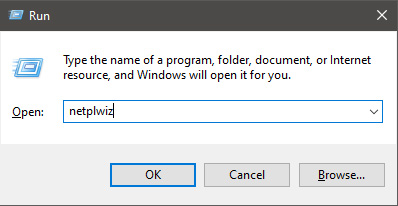
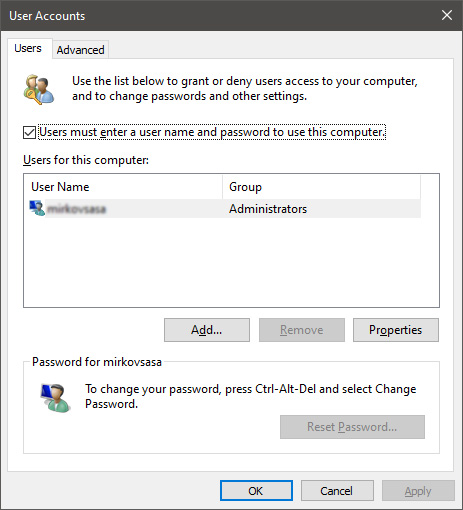
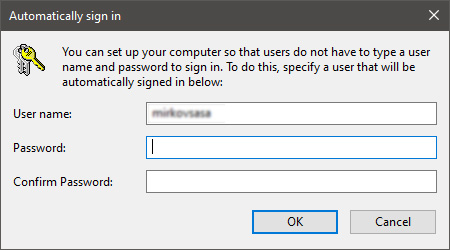
Each time we turn ON our computer or wake it from hibernation we are greeted with a Windows login screen where we need to provide login credentials in order to get into Windows itself and start working. This method of preserving data and privacy is perfectly fine and as a matter of fact, it is recommended for mobile computers but if you have a home computer in a safe environment where no one will try to look at your data or rummage through your personal stuff then removing login screen is safe enough action and can cause you a lot piece, from time-saving to less frustration on every restart or sleep action. In previous Windows versions, it was much easier to turn off this feature but it seems Microsoft has determined that our privacy and security are important and somewhat removed the ability to turn OFF the lock screen. In this guide, we will show you how you can still remove the lock screen and automatically log in with your account like in the good old days. The first thing you need to do is to press ⊞ WINDOWS + R  to bring up the Run dialog keyboard with windows and r markedIn the dialog, type in netplwiz and press ENTER. run dialog with netplwiz typed inYou will find yourself in the User Accounts window, inside deselect Users must enter a user name and password to use this computer. Press OK user accounts windowSign in the window will pop up where you will have to type in your password and confirm it in order to start the feature. automatically sign in dialogAfter typing in your password and confirming it, press OK. That's it, next time you wake your computer from hibernation or turn it ON, you will automatically be greeted with a desktop instead of a Windows login screen.

Read More
1 2 3 171
Logo
Copyright © 2023, ErrorTools. All Rights Reserved
Trademark: Microsoft Windows logos are registered trademarks of Microsoft. Disclaimer: ErrorTools.com is not affiliated with Microsoft, nor claims direct affiliation.
The information on this page is provided for information purposes only.
DMCA.com Protection Status