Logo

Fix Broadcom BCM20702A0 driver error

In recent times, some Windows 10 users have seen an error code BCM20702A0, when using Bluetooth and they are concerned as to what it is all about. We can say for certain that it has something to do with your Bluetooth driver. The error message in question is:

The drivers for this device are not installed. There are no compatible drivers for this device.

The problem here tends to no longer allow specific Bluetooth components to properly communicate with your Windows 10 operating system. It also affects laptops that do not have native Bluetooth support; therefore, the manufacturer installed a dongle on the inside to deliver the service. This is not the best way to do things because native support is always better. On the other hand, maybe you’re using a Broadcom USB Bluetooth dongle that is acting up, and as such, the error is showing.

Below are solutions provided for this particular error and how to eliminate it.

  1. Run the Bluetooth Troubleshooter

    Press ⊞ WINDOWS to open the menu and select settings
    In settings choose Update & Security
    Go to troubleshoot and on the right panel click on additional troubleshooters
    Click on Bluetooth
    Select Run the troubleshooter, then sit back and allow the tool to do its thing. Once you’ve completed the task, click on Apply this fix if any repairs are needed
    Reboot your computer

  2. Install Broadcom driver from official website

    Windows drivers for Broadcom Bluetooth devices are no longer posted on their website. They should be available through Microsoft’s Windows Update service. If drivers were not downloaded automatically by Windows Update, use Device Manager to refresh the driver from Windows Update.
    However, the Broadcom Bluetooth drivers seem to be available here on the Lenovo website. To fix the BCM20702A0 driver error, you may download and install them.
    After downloading it, right-click on the downloaded item, and select Run as administrator. After installation, restart your computer, then check again if it works.

  3. Remove all Bluetooth drivers and USB controllers

    If previous solutions did not work, go to device manager and remove all Bluetooth devices along with all USB controllers.
    Reboot your computer and Windows will automatically reinstall and set all devices.

Do You Need Help with Your Device?

Our Team of Experts May Help
Troubleshoot.Tech Experts are There for You!
Replace damaged files
Restore performance
Free disk space
Remove Malware
Protects WEB browser
Remove Viruses
Stop PC freezing
GET HELP
Troubleshoot.Tech experts work with all versions of Microsoft Windows including Windows 11, with Android, Mac, and more.

Share this article:

You might also like

There’s no Incognito Mode in Chrome
As you know, just like other web browsers, Google Chrome offers Incognito Mode or private browsing which you can use to make sure that your browsing activities are not being tracked by any websites you visit and it also keeps targeted ads at bay. On the other hand, signing in to a website, even when in Incognito Mode is a different thing since that website can track your browsing activities. Thus, Incognito Mode is still useful especially if you want to browse the web safely and without getting tracked except when you log in to some site. However, there have been reports recently that Incognito Mode is missing in Chrome and users are clueless as to how or why it happened. If you are one of them, worry not for this post will walk you through what you can do if there’s no Incognito Mode in Chrome on your Windows 10 computer. This is an unusual and strange issue since the Incognito Mode in Chrome is available by default and you don’t have to do anything to enable it. It is possible that there might be corruption in the Windows Registry which caused the disappearance of Incognito Mode, worry not though for there are some tweaks you can apply to restore the missing Incognito Mode. To apply these tweaks, you need to create first a System Restore point, and then once you’re done, follow the instructions provided below carefully. Step_1: Tap the Win + R keys to open the Run dialog box and type “Regedit” in the field and then hit Enter to open the Registry Editor. Step_2: Next, after opening the Registry Editor, navigate to this path – ComputerHKEY_LOCAL_MACHINESOFTWAREPolicies Step_3: From there, look for ChromePolicies and locate the DWORD named “IncognitoModeAvailability” and double click on it. Step_4: Edit the value of the “IncognitoModeAvailability” DWORD by changing its value from 1 to 0 so you can enable Incognito Mode in Chrome. Step_5: Once done, exit the Registry Editor and restart your computer and then check if you can now see Incognito Mode in Chrome. On the other hand, there is also another option that allows you to force open your Chrome browser in Incognito Mode. All you have to do is set the value of the “IncognitoModeAvailability” key to “2” instead of 0. This can be useful especially if you always browse the web in this mode. But you need to remember that you won’t be able to go back to the normal mode once you do this. Here are what the values of the IncognitoModeAvailability DWORD actually mean:
  • 0 – Incognito mode is enabled by default
  • 1 – Incognito mode is disabled
  • 2 – Chrome is forced to always open in Incognito mode

Read More
How to Fix Dxgkrnl.sys Error Code

Dxgkrnl.sys Error - What is it?

To understand Dxgkrnl.sys error code, it is important to develop an understanding about Dxgkrnl.sys file. Dxgkrnl.sys is a type of system file associated with Windows 8 Consumer Preview ISO images that are developed by Microsoft for the Windows OS. System files like Dxgkrnl.sys are third-party device drivers, critical system files. These files enable attached PC hardware such as a printer to communicate with 3rd party software programs like web browsers and Windows 8 Consumer Preview ISO images. Dxgkrnl.sys error code is a blue screen of death error. It occurs when the Dxgkrnl.sys files are unable to function properly. This is a critical error. It can cause system failure, crash, and data loss. Therefore, it must be resolved immediately before the damage is done. The error may pop up in any one of the following formats
"STOP 0×00000050: PAGE_FAULT_IN_NONPAGED_AREA – dxgkrnl.sys"
A problem has been detected and Windows has been shut down to prevent damage to your computer. The problem seems to be caused by the following file: Dxgkrnl.sys."
"STOP 0x0000000A: IRQL_NOT_LESS_EQUAL – dxgkrnl.sys"
"Your PC ran into a problem and needs to restart. We’re just collecting some info, and then we’ll restart for you. If you would like to know more, you can search online later for this error: dxgkrnl.sys."
"STOP 0x0000001E: KMODE_EXCEPTION_NOT_HANDLED – dxgkrnl.sys"
Some of the common symptoms of this error code include

  • Blue screen
  • System freeze
  • And sudden shutdown

Solution

Restoro box imageError Causes

Dxgkrnl.sys error code may be triggered due to several reasons. These include:
  • Incorrectly configured or corrupted Windows 8 Consumer Preview ISO images device drivers
  • Windows registry issues
  • Malware infection
  • Hardware conflict
  • Damaged hard disk

Further Information and Manual Repair

To resolve Dxgkrnl.sys error code on your PC, here are some effective and easy DIY methods that you can try:

Method 1 - Scan and Remove Viruses

Dxgkrnl.sys error may occur due to malware and viral infection. If this is the cause, then it is advisable to download a powerful antivirus and scan your entire PC. Remove all viruses from your system to resolve the error.

Method 2 - Utilize Windows System Restore to Undo Recent System Changes

Windows System Restore is an in-built powerful tool that enables Windows Operating System users to restore previous your PC to its former state. To repair Dxgkrnl.sys error, use this tool. It can help you avoid hours of troubleshooting headaches associated with SYS errors. To get started, simply go to the start menu, type System Restore in the search box and press Enter. Now click on System Restore to proceed. If you are prompted for an administrator password, insert it to move to the next step. Now to bring your computer to its former state, simply choose a restore point. To activate these changes, reboot the PC. This is most likely to resolve the issue.

Method 3 - Clean the Registry

The registry is a collection of databases. It stores much of the information and activities you perform on your system including unnecessary and obsolete files like junk files, cookies, internet history, bad and invalid registry entries. These files accumulate in the registry and damages and corrupt the registry itself. Due to this runtime and BSoD errors are triggered. To repair and clean the registry manually can be time consuming and technical, therefore it is advisable to download Restoro. This is a user-friendly PC Fixer embedded with a powerful registry cleaner. The registry cleaner scans your entire PC, wipes out all bad entries, cookies and unnecessary files, cleans the registry and repairs the damaged system files in seconds. Click here to download Restoro and resolve Dxgkrnl.sys error today!
Read More
Where can you get computer viruses & malware
From their infant stages to modern days, computer viruses were always kind of here. From simple ones that were annoying with playing speaker sounds and throwing messages on screen to more malicious ones capable of deleting and encrypting files. In today's modern world it is very important to protect yourself, modern viruses are not a joke anymore and they are aimed to create serious damage to computer systems. Where can you get computer viruses & malwareThey can encrypt files in order to make you pay for a decrypter, they can straight up delete files or even cause some hardware damage. Like mentioned before protecting yourself is important, but protecting does not mean only having antivirus software installed, information, where are common places in which they lurk and could be picked up, is also very important. That is why we are exploring in this article the most common place where you can pick viruses or other malware.

Downloading Programs

Programs that contain the downloadable files are the commonest source of malware such as freeware, worms, and other executable files. Whether you download an image editing software, a music file, or an e-book, it is important to ensure the reliability of the source of the media. Unknown, new, or less popular sources should be avoided.

Pirated or Cracked Software

Are you aware of software cracking? Well, every time you open cracked software, your antivirus software might flag it as malware as the cracks consist of malicious scripts. Always say “No” to cracks as they can inject malicious script into your PC.

Email Attachments

Anyone can send you an email attachment whether you know them or not. Clicking on unknown links or attachments can harm your device. Think twice before clicking anything and make sure that file type is not ‘.exe’.

Internet

One of the easiest ways to get a virus on your device is through the Internet. Make sure to check the URL before accessing any website. For a secured URL always look for ‘HTTPS in it. For example, when you click videos published on social media websites, they may require you to install a particular type of plug-in to watch that video. But in reality, these plug-ins might be malicious software that can steal your sensitive information.

Booting Data from Unknown CDs

Malicious software can get into your device through an unknown CD. A good practice to be safe from malicious infection is to remove CD when your device is not working at all. Your system could reboot the CD if it is not removed before switching off the computer.

Bluetooth

Bluetooth transfers can also infect your system, so it is crucial to know what type of media file is being sent to your computer whenever a transfer takes place. An effective armor would be to allow Bluetooth connectivity with only known devices and activate it only when required.

Unpatched Software

Often overlooked, unpatched software is also a leading source of virus infection. Security holes in software are exploited by attackers and are unknown to software makers until the attackers release them in the form of zero-day attacks. It is therefore recommended to install software updates as soon as they are available on your PC.
Read More
How to Fix Error Code 0xc004f210 in Windows 8

Error Code 0xc004f210 – What is it?

Error code 0xc004f210 occurs when Windows 8 users fail to activate their Windows operating system. Users will be able to identify error code 0xc004f210 because of the following common symptoms which occur:

Solution

Restoro box imageError Causes

If you enter an invalid product key or do not have a digital entitlement for the edition of Windows you are attempting to activate, you may experience error code 0xc004f210. Since this error usually occurs due to these main reasons, you will most likely find success resolving this issue by ensuring you use a valid product key or activate an appropriate edition of Windows based on the edition of your digital entitlement.

Further Information and Manual Repair

Error codes can be resolved through manual repair procedures that seek to fix the underlying issues causing the error. In the case of error code 0xc004f210, you should be able to resolve this error by using the methods below. You may also consider contacting a Windows repair technician if you have difficulty resolving the error code.

Method One: Enter Valid Product Key

To successfully activate your operating system and resolve error code 0xc004f210, you will need to enter a valid product key in the Update & security section of Windows. Follow the instructions below to enter the product key.

  • Step one: Click the Start button then select Settings
  • Step two: Select Update & security then Activation
  • Step three: Click the Change product key
  • Step four: Enter a valid product key

If the issue causing error code 0xc004f210 is related to the use of an invalid product key, you should be able to successfully activate your Windows operating system. Should the problem persist, however, you will need to attempt the next manual repair method explained below? Note: Failure to fix this error code might result in other Windows 10 error messages.

Method Two: Ensure Edition of Windows Matches Your Digital Entitlement

Digital entitlement allows Windows users to access activation without using a product key. This digital entitlement only affects Windows 8 users who are attempting to activate versions of Windows 10 that include Windows 10 Pro. Once you are using a genuine copy of Windows 8.1 and your edition of Windows matches your entitlement, you may proceed with the instructions below.

  • Step one: Click the Start button then select Settings
  • Step two: After selecting Settings, click Update & Security
  • Step three: Select Windows Update then the Check for updates tab
  • Step four: Click activate Windows 10 update

You should be able to activate your Windows update once you follow the instructions above. Remember error code 0xc004f210 is an activation code related to product keys or your digital entitlement so once these issues are rectified, you should have no problem activating your operating system of choice and enjoying the benefits it offers. If, however, the problem remains unresolved after you have attempted both manual repair methods, there may be unusual issues affecting your system. Contact Microsoft to rectify the issue or get help from a Windows repair technician.

Method Three: Download an Automated Tool

If you wish to always have at your disposal a utility tool to fix these Windows 8 and other related issues when they do arise, download and install a powerful automated tool.

Read More
DownSpeedTest Removal Guide

DownSpeedTest is a Browser Toolbar Extension for Google Chrome that allows users to test their internet speed and convert files, however this speed test does not show proper values, nor even close.

Upon installation DownSpeedTest will replace your default New Tab page with its own Search Engine “MyWay.com” or “Search.MyWay.com”. This Search Engine camouflages itself as a “Enhanced Google Search Engine”, but all it does is allow more room for easier ad injection. In the background, this extension monitors user browsing behavior and records visited links, viewed products, clicked links and time spend on websites. This information is later used for Ad targeting.

While browsing the internet with this extension enabled you will experience additional ads, sponsored content, and even pop-up ads on some occasions. Due to its information mining behavior and aggressive ad placement, DownSpeedTest had been marked as a Browser Hijacker and it is recommended for removal.

About Browser Hijackers

Browser hijacking is a type of unwanted program, commonly a web browser add-on or extension, which causes modifications in the browser’s settings. There are lots of reasons why you may experience a browser hijack; but commercial, advertising and marketing are the major reasons for their creation. These are typically used to force hits to a specific site, manipulating web-traffic to generate ad-revenue. Even though it might appear naive, these tools are made by malicious people who always try to take full advantage of you, so that hackers could earn money from your naive and distraction. In a worst-case scenario, your browser could be hi-jacked to download malicious software that can do a lot of damage to your laptop or computer.

How one can know whether the browser is hijacked?

When your web browser is hijacked, the following might happen: your browser’s homepage has been reset to some unknown webpage; new bookmarks pointing to porn websites have been added to your bookmarks; the default browser configurations are modified and/or your default web engine is altered; you see unwanted new toolbars added; unstoppable flurries of pop-up ads show up on your computer screen; your browser gets slow, buggy, crashes regularly; you can’t navigate to specific internet pages, such as security software related websites.

How does a browser hijacker infect a computer?

Browser hijackers infect computers via malicious e-mail attachments, downloaded infected documents or by visiting infected internet sites. They can be included with toolbars, add-ons, BHO, plugins or browser extensions. Also, some freeware and shareware can put the hijacker in your PC through “bundling”. Browser hijackers could record user keystrokes to collect potentially important information leading to privacy concerns, cause instability on computers, significantly disrupt user’s browsing experience, and ultimately slow down the system to a point where it becomes unusable.

How you can fix a browser hijack

One thing you could try to eradicate a browser hijacker is to find the malware in the “Add or Remove Programs” list of the Microsoft Windows Control Panel. It might or might not be there. When it is, uninstall it. However, most browser hijackers are difficult to eliminate manually. Regardless of how much you attempt to get rid of it, it might come back over and over. Amateur PC users should never try for the manual form of removal methods, since it demands in-depth system knowledge to perform fixes on the system registry and HOSTS file. Anti-malware software is really effective when it comes to picking up and eliminating browser hijackers that regular anti-virus application has overlooked. If you’d like to get rid of persistent hijackers effectively, install the top-rated Anti-Malware software Safebytes Anti-Malware. Use a system optimizer (like Total System Care) along with your anti-malware software to fix various registry issues, remove system vulnerabilities, and improve your computer performance.

What To Do If You Cannot Install Any Anti-Malware?

Practically all malware is bad and the consequences of the damage could differ according to the specific kind of malicious software. Some malware is created to interfere with or block things that you’d like to do on your PC. It may not permit you to download anything from the web or prevent you from accessing a few or all of the internet sites, especially the anti-malware websites. So what you should do if malware prevents you from downloading or installing Anti-Malware? There are a few actions you can take to circumvent this problem.

Install the anti-virus in Safe Mode

Safe Mode is a unique, simplified version of Microsoft Windows in which only essential services are loaded to counteract viruses and also other problematic applications from loading. If the malware is set to load immediately when computer starts, switching into this mode may prevent it from doing so. To start the computer into Safe Mode, press the “F8” key on the keyboard just before the Windows logo screen shows up; Or after normal Windows boot up, run MSConfig, look over “Safe Boot” under the Boot tab, and then click Apply. Once you are in Safe Mode, you can try to install your antivirus application without the hindrance of the malicious software. Following installation, run the malware scanner to get rid of most standard infections.

Download the anti-malware program using a different browser

Web-based malware could be environment-specific, aiming for a particular web browser or attacking particular versions of the browser. If you’re not able to download the security program using Internet Explorer, it means virus is targeting IE’s vulnerabilities. Here, you should switch over to an alternative web browser such as Chrome or Firefox to download Safebytes Anti-malware software.

Install anti-malware on a thumb drive

Another solution is to save and operate antivirus software tool completely from a Pen drive. Follow these steps to use a USB flash drive to clean your infected PC. 1) Make use of another virus-free computer to download Safebytes Anti-Malware. 2) Insert the USB drive on the same system. 3) Double click on the downloaded file to run the installation wizard. 4) Choose the USB flash drive as the location for saving the software file. Follow the instructions to complete the installation process. 5) Now, plug the USB drive into the corrupted computer. 6) Double-click the Safebytes Anti-malware icon on the pen drive to run the application. 7) Run Full System Scan to identify and clean-up of all types of malware.

Protect Your Computer & Privacy With SafeBytes Anti-Malware

If you’re planning to purchase anti-malware for your computer, there are lots of brands and utilities for you to consider. A few of them do a good job in getting rid of threats while many will harm your PC by themselves. You need to select one that is trustworthy, practical and has a good reputation for its malware source protection. While thinking about the dependable programs, Safebytes Anti-Malware is certainly the strongly recommended one. SafeBytes anti-malware is a reliable software that not only secures your system permanently but is also very user friendly for people of all skill levels. Through its cutting-edge technology, this software will help you protect your PC against infections brought on by different kinds of malware and other threats, including spyware, adware, viruses, worms, trojans, keyloggers, potentially unwanted program (PUPs), and ransomware.

SafeBytes has great features when compared with other anti-malware programs. The following are some of the features you might like in SafeBytes Anti-Malware.

Live Protection: SafeBytes provides complete and real-time security for your computer system. This tool will continuously monitor your PC for any suspicious activity and updates itself regularly to keep abreast of the latest threats. World-class AntiMalware Protection: With a critically acclaimed anti-malware engine, SafeBytes offers multilayered protection which is made to find and remove threats which are hidden deep in your computer’s operating system. Safe Browsing: Safebytes assigns all sites a unique safety ranking that helps you to have an idea of whether the webpage you’re just about to visit is safe to view or known to be a phishing site. Lightweight: This program is light-weight and will work quietly in the background, and will not affect your computer efficiency. 24/7 Online Technical Support: Support service is available for 24 x 7 x 365 days via email and chats to answer your queries. SafeBytes can keep your PC safe from latest malware threats automatically with very little input needed from you again. Once you have installed this software, you no longer have to worry about malware or any other security worries. You will get the very best all-around protection for the money you pay on SafeBytes anti-malware subscription, there’s no question about it.

Technical Details and Manual Removal (Advanced Users)

To get rid of DownSpeedTest manually, go to the Add or Remove programs list in the Control Panel and select the offending program you want to get rid of. For internet browser extensions, go to your browser’s Addon/Extension manager and choose the plug-in you intend to disable or remove. You’ll likely also want to reset your web browser. To ensure the complete removal, manually check your hard disk and computer registry for all the following and remove or reset the values as needed. Please be aware that this is for skilled users only and might be challenging, with incorrect file removal causing additional system errors. In addition, some malware is capable of replicating itself or preventing deletion. You’re suggested to do this procedure in Safe Mode.
Files: %USERPROFILE%\Microsoft\Windows\Start Menu\Programs\DownSpeedTest %ALLUSERSPROFILE%\Microsoft\Windows\Start Menu\Programs\DownSpeedTest %ALLUSERSPROFILE%\Application Data\Microsoft\Windows\Start Menu\Programs\DownSpeedTest %LOCALAPPDATA%\Google\Chrome\User Data\Default\Sync Extension Settings\maoffpmgdffbgbncadalkhfhmlfihkgk %UserProfile%\Local Settings\Application Data\Google\Chrome\User Data\Default\Sync Extension Settings\maoffpmgdffbgbncadalkhfhmlfihkgk %LOCALAPPDATA%\Google\Chrome\User Data\Default\Extensions\maoffpmgdffbgbncadalkhfhmlfihkgk %UserProfile%\Local Settings\Application Data\Google\Chrome\User Data\Default\Extensions\maoffpmgdffbgbncadalkhfhmlfihkgk Registry: HKEY_CURREN_USER\SOFTWARE\Wow6432Node\Microsoft\Windows\CurrentVersion\explorer\Browser Helper Objects\5818CEA7-889D-459A-9A75-889E1298A892 HKEY_LOCAL_MACHINE\Software\Microsoft\Windows\CurrentVersion\Ext\Stats\5818CEA7-889D-459A-9A75-889E1298A892 HKEY_LOCAL_MACHINE\Software\Microsoft\Windows\CurrentVersion\Ext\Stats\481F6B47-2AD8-4C6A-8554-A2897E6CF900 HKEY_LOCAL_MACHINE\Software\Microsoft\Windows\CurrentVersion\Ext\Stats\1AAB982B-77D7-44F1-B305-8909DAC045F2 HKEY_LOCAL_MACHINE\Software\Microsoft\Windows\CurrentVersion\Ext\Settings\5818CEA7-889D-459A-9A75-889E1298A892 HKEY_LOCAL_MACHINE\Software\Microsoft\Windows\CurrentVersion\Ext\Settings\481F6B47-2AD8-4C6A-8554-A2897E6CF900 HKEY_LOCAL_MACHINE\Software\Microsoft\Windows\CurrentVersion\Ext\Settings\1AAB982B-77D7-44F1-B305-8909DAC045F2 HKEY_LOCAL_MACHINE\Software\Microsoft\Internet Explorer\Approved Extensions, value: 1AAB982B-77D7-44F1-B305-8909DAC045F2 HKEY_LOCAL_MACHINE\Software\Microsoft\Internet Explorer\SearchScopes\CA6A7AB9-F4B5-4D50-B5D2-33E996549AE3 HKEY_CURREN_USER\SOFTWARE\Wow6432Node\Microsoft\Internet Explorer\Toolbar, value: 1AAB982B-77D7-44F1-B305-8909DAC045F2 HKEY_CURREN_USER\SOFTWARE\Microsoft\Internet Explorer\Toolbar, value: 1AAB982B-77D7-44F1-B305-8909DAC045F2 HKEY_CURREN_USER\SOFTWARE\Wow6432Node\Microsoft\Tracing\DownSpeedTest_RASMANCS HKEY_CURREN_USER\SOFTWARE\Microsoft\Tracing\DownSpeedTest_RASMANCS HKEY_CURREN_USER\SOFTWARE\Wow6432Node\Microsoft\Tracing\DownSpeedTest_RASAPI32 HKEY_CURREN_USER\SOFTWARE\Microsoft\Tracing\DownSpeedTest_RASAPI32 HKEY_CURREN_USER\SOFTWARE\Microsoft\Internet Explorer\LowRegistry\DOMStorage\downspeedtest.dl.myway.com
Read More
Fix Windows Update Error 0x80244019
Updating your computer does not always end up successfully as there are a number of things that could go wrong with the Windows Update module in your Windows 10 computer. One of the issues you could face when you update your computer is error 0x80244019. This error could be caused by a number of factors. If you are currently having problems fixing this Windows Update error, read on as this post will help you resolve this problem. Here’s the full content of the error:
“There were some problems installing updates, but we’ll try again later. If you keep seeing this and want to search the web or contact support for information, this may help: (0x80244019).”
In this kind of Windows Update error, you might not be able to get the download file of the requested update started to your computer and this could be due to some third-party application or the overall internal components that contribute to the functioning of the Windows Update module. Refer to each one of the following options to fix the Windows Update error 0x80244019.

Option 1 – Restart your computer

The most basic thing you can do to fix the problem is to restart your computer. It usually works in fixing common issues like the Windows Update error 0x80244019. However, if it didn’t work, proceed to the next given options below.

Option 2 – Try to run the Windows Update Troubleshooter

The Windows Update Troubleshooter will help you in fixing error 0x80244019. This is a great built-in tool from Microsoft that helps users fix any issues with Windows Update. So this is worth a try to solve the problem. To use the Windows Update Troubleshooter, follow the steps below.
  • Tap Win + I keys again to open the Windows Settings panel.
  • Go to Update & Security and then go to Troubleshoot.
  • Under the Troubleshoot section, on your left-hand side, scroll down to find Windows Update and then click on Run the troubleshooter option and follow the on-screen instructions and then see if it fixes the problem.

Option 3 – Try configuring the Windows Update-related Services

Configuring all the Windows Update-related services could also help in fixing the error as it makes sure that all the required services are available.
  • Tap the Win + R keys to open the Run dialog box.
  • Then type “cmd” in the field and tap Enter to open an elevated Command Prompt.
  • Next, execute the following commands. Note that you have to type and enter each command one after the other.
    • SC config wuauserv start= auto
    • SC config bits start= auto
    • SC config cryptsvc start= auto
    • SC config trustedinstaller start= auto
  • The commands you executed will make sure that the Windows Update-related services are available. Once it’s done, restart your computer and see if the Windows Update error is now fixed.

Option 4 – Run Windows Update in a Clean Boot State

It could be that some third-party application is the one that’s causing the problem so it’s best if you put your computer in a Clean Boot state. During this state, you can start the system with a minimum number of drivers and startup programs that will surely help you in isolating the root cause of the issue.
  • Log onto your PC as an administrator.
  • Type in MSConfig in the Start Search to open the System Configuration utility.
  • From there, go to the General tab and click “Selective startup”.
  • Clear the “Load Startup items” check box and make sure that the “Load System Services” and “Use Original boot configuration” options are checked.
  • Next, click the Services tab and select “Hide All Microsoft Services” check box.
  • Click Disable all.
  • Click on Apply/OK and restart your PC. (This will put your PC into a Clean Boot State. And configure Windows to use the usual startup, just simply undo the changes.)
  • After that, try to run Windows Update again.
Note: If you are able to install the app without any trouble at all then it means that the error is caused by some third-party application on your computer. You need to look for the culprit and uninstall it once you found it.

Option 5 – Try to fix the Proxy Settings

  • In the Cortana search box, search for Internet Explorer and then click on the related search result.
  • After that, tap the Win + T keys on your keyboard and click on Internet Options.
  • Next, navigate to the Connections tab and click on LAN Settings.
  • Then click on the Advanced button and delete all the entries in the list generated in the Exceptions section. And if the Advanced button is disabled because the “Use a proxy server for your LAN (These settings will not apply to dial-up or VPN connections)” option is disabled then you are good to go. Now proceed to the next step.
  • Tap the Win + X keys or right-click on the Start button and select Command Prompt (Admin) or you could also search for “cmd” in the Cortana search box and right-click on Command Prompt from the search results and select the “Run as administrator” option.
  • If a User Account Control appears, click on Yes to proceed. After that, type each one of the commands listed below, and don’t forget to hit Enter after you type each one of them.
    • netsh winhttp reset proxy
    • net stop wuauserv
    • net start wuauserv
  • Now restart your computer and check if the problem is fixed or not by checking for Windows Updates again.
Read More
Fix error code 16 in Windows 10
Access denied error code 16 is tied to websites, it is an error which you will encounter when trying to visit some specific website or if you are unlucky on all of the websites. Lucky for us this error is fixable and in order for us to do this, follow this guide for possible solutions.
  1. Check Date and Time, Incorrect date and time can often interfere with services in your Windows, browsers are not different and this can cause some websites not to be shown. Check your date and time and set it correctly if needed.
  2. Try to access the website from another device. If you manage to open a website on another PC or some other device then keep reading in order to find the solution, if you can not, then the problem is on the website itself.
  3. Turn off Firewall or antivirus. New antivirus and firewall applications can sometimes mark certain websites as malicious and will cut contact with them rendering them unable to be accessed or opened. Try turning the firewall and antivirus temporarily off and then try to access the website.
  4. Try opening web site in another browser. To eliminate browser-specific issues and their configuration, try opening the website in another browser.
  5. Disable PROXI server. Some applications, especially malicious ones can change your proxi setting in LAN. go to your LAN settings and turn off proxi if it is enabled.
  6. Reset your Browser. If this issue is caused by bad data in your browser or by its settings and preferences, resetting the complete browser will solve the issue.
  7. Use VPN. Sometimes the reason for you was not able to access some website might be because the site is not available for your region, to bypass this issue use VPN and reroute your location.
Read More
Mapped network drives are not working
When you have to connect to a drive that’s on a different computer or on external storage, that’s where the mapped network drives come in. Mapped network drives make accessing files a lot easier. However, there are times when it won’t work for some reason. Windows will notify you about the unavailability of mapped network drives in several ways. For one, Windows might display a red X on the network drives or it could be that its status will be unavailable when you try to use it from the Command Prompt or via a notification. It is recommended that you run a few scripts when you log in to your PC as it may so happen that the network drive takes more than usual to connect. Before you start troubleshooting the problem using the given options below, keep in mind that some workouts might only work under certain scenarios. You might need some network access at logon or you might need access to the Group Policy settings. So you need to choose what you prefer more. You can try the given workarounds below if the mapped network drives are not showing or connecting or working on your Windows 10 computer. These workarounds use scripts to make sure that you are connected to them as soon as you start to use your PC. As mentioned, before you can troubleshoot, you need to create scripts first. There are two scripts here namely MapDrives.ps1 which is executed by the second script named MapDrives.cmd and is done at a regular and non-elevated Command Prompt. Follow the steps below to get started.
  • You have to create a script file named “MapDrives.cmd” first and then save it on a place where the files are safe. To do that, open a text editor like Notepad and then copy and paste the following script:
PowerShell -Command "Set-ExecutionPolicy -Scope CurrentUser Unrestricted" >> "%TEMP%StartupLog.txt" 2>&1 PowerShell -File "%SystemDrive%ScriptsMapDrives.ps1" >> "%TEMP%StartupLog.txt" 2>&1
  • After that, save the file and name it “MapDrives.cmd”.
  • Next, create a script file named “MapDrives.ps1” and then copy and paste the following content. Just make sure to save both scripts in the same folder.
$i=3 while($True){     $error.clear()     $MappedDrives = Get-SmbMapping |where -property Status -Value Unavailable -EQ | select LocalPath,RemotePath     foreach( $MappedDrive in $MappedDrives)     {         try {             New-SmbMapping -LocalPath $MappedDrive.LocalPath -RemotePath $MappedDrive.RemotePath -Persistent $True         } catch {             Write-Host "There was an error mapping $MappedDrive.RemotePath to $MappedDrive.LocalPath"         }     }     $i = $i - 1     if($error.Count -eq 0 -Or $i -eq 0) {break}     Start-Sleep -Seconds 30 } Note: Now that you’ve created the script files, it’s time for you to proceed to the options given below.

Option 1 – Try creating a startup item

Note that this option only works on devices that have network access at login. So if it’s not there, the script will fail to reconnect the network drivers automatically. To create a startup item, here’s what you have to do:
  • Open the Startup folder located at %ProgramData%MicrosoftWindowsStart MenuProgramsStartUp.
  • From there, copy and paste the MapDrives.cmd.
  • After that, open the Scripts folder located at %SystemDrive%Scripts copy-paste MapDrives.ps1 and then copy and paste MapDrives.ps1 in there.
Note: After you complete the steps above, a log file named “StartupLog.txt” will be created in the %TEMP% folder. Now all that’s left for you to do is to log out of your computer and then log back in. This will ensure that the mapped drives are open.

Option 2 – Create a scheduled task

It is possible to create a scheduled task that runs as soon as you log in to your computer. To create a scheduled task, follow the steps below.
  • You have to copy the MapDrives.ps1 script file to the scripts folder of Windows located at %SystemDrive%Scripts.
  • After that, open the Task Scheduler and select Action > Create Task.
  • Next, type a name and description of the task in the General tab.
  • Then click on the Change User or Group button and select a local user group and click OK.
  • Now check the box labeled “Run with highest privileges” and switch to the Triggers tab.
  • From there, create a new trigger with the “At Logon” option in the Begin the task drop-down menu and then click OK.
  • After that, switch to the Actions tab and create a new action then choose to Start a program.
  • Next, type “Powershell.exe” in the Program/Script field, and in the Add arguments (optional) field, type the following:
-windowsstyle hidden -command .MapDrives.ps1 >> %TEMP%StartupLog.txt 2>&1
  • And in the Start in the (optional) field, type “%SystemDrive%Scripts” as the location of the script file.
  • Now under the Conditions tab, select the “Start only if the following network connection is available” option and then select Any connection and click OK.
  • Restart your computer or log off from your account and then log back in so that the task will be executed.

Option 3 – Use the Group Policy settings

You need this option if the mapped network drives are defined via Group Policy settings. You have to update the action of the drive maps to Replace. As a result, it will delete the existing mapped drive and create the mapping on each logon again. However, any settings on the mapped drive that are changed from the Group Policy settings will be gone on each logon. So if the changes don’t work, you need to run the gpupdate command together with the /force parameter in order to refresh the Group Policy setting quickly.
Read More
What is USB Kill Kit

USB Kill, a USB device is able to fry and damage your computer, mobile phone, router, etc. This device is quite dangerous and can kill electronics the moment it is inserted into an available port. By now people should know that they should not put unknown USB sticks into their devices because of potential virus and malware threats but this raises using unknown sticks to a whole new level.
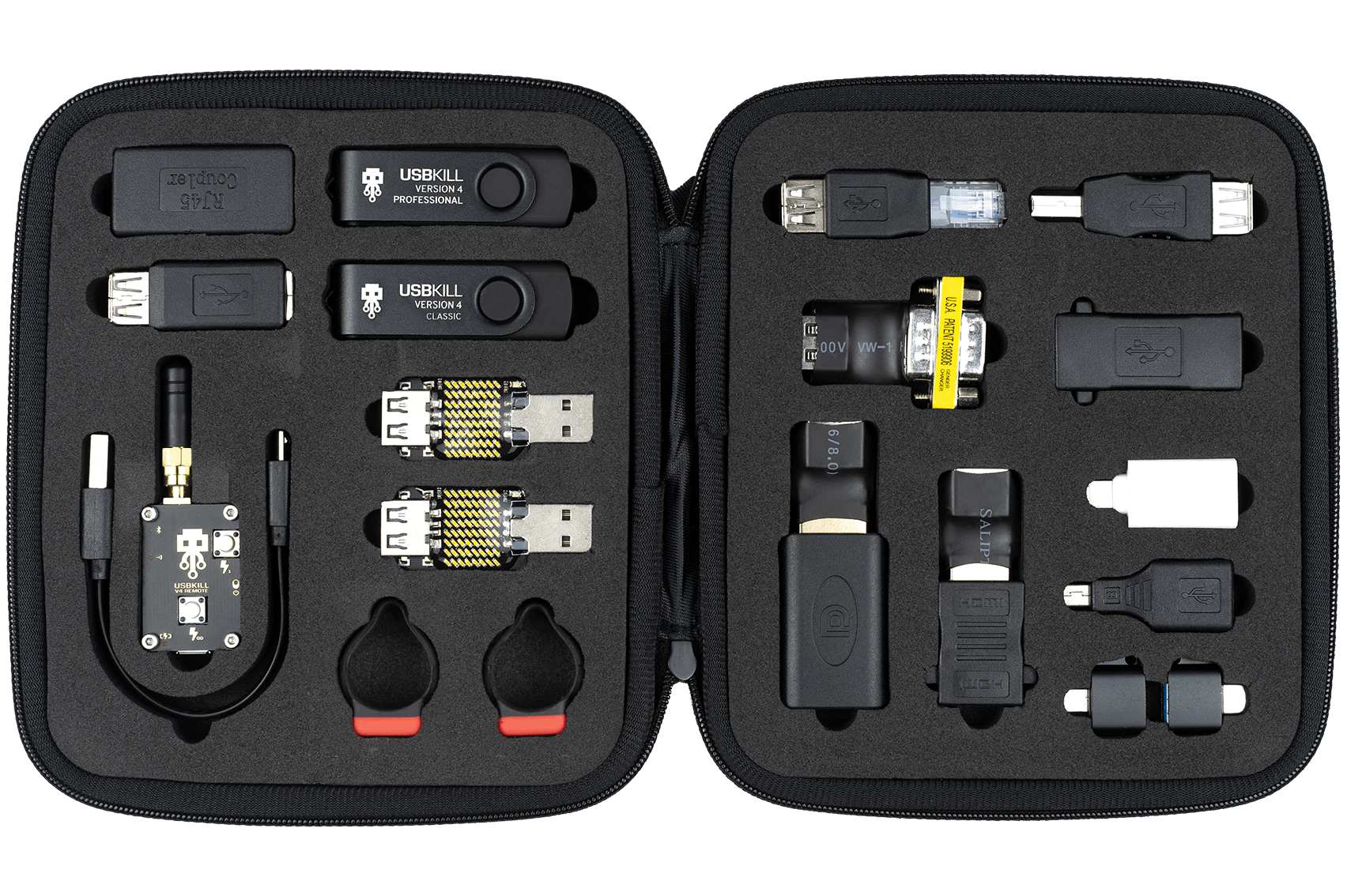
usb kill kit

Kill kits are not really new to the market, they have existed before but lately, technology really progressed and the latest USB sticks are really good, their success rate is around 95% which is pretty high and should not be taken lightly.

The second thing that you really should not play with strange USB sticks is that they dropped in price really hard, although top Kill kits will still go as high as around 300 USD, there are really cheap ones lurking in Ali Express that are just 6 USD!!! that makes them affordable devices for the mass market.

The device is made to take energy and current from the port it is plugged in, multiply it and release its charge back into the device, successfully frying some components immediately. Some more professional Kill sticks can even fry devices even when the device itself is not powered and can be even started remotely.

The point of this article is to make you aware that you should not in any kind of circumstances use and plug-in USB sticks into your devices that you do not know where they come from, especially from the mail!!

Read More
How to Fix ntdll.dll crash Error on Windows
DLL files, also known as Dynamic Link Libraries are external parts of applications that run on Windows as well as other operating systems. Almost all applications are not complete in themselves and store code in different files. In this post, we will be discussing one DLL file called ntdll.dll. It is described as “NT Layer DLL” which means that it contains some Kernel functions that help in the normal functioning of the Windows operating system. It is created by Windows in the System32 folder when the OS gets installed. This file can serve different programs simultaneously by providing them with different Kernel functions which support the programs’ performance. However, if you encounter the ntdll.dll file error on your Windows 10 computer, read on as this post will guide you in fixing the problem.

Option 1 – Try to re-register the ntdll.dll file

You may have to re-register the ntdll.dll file using the regsvr32.exe before you can successfully install the program and fix ntdll.dll file crash error. The Regsvr32 tool is a command-line utility that can be used to register and un-register the OLE controls like DLL and ActiveX (OCX) control in the Windows operating system. Follow the steps below to use it.
  • Open Command Prompt as admin from the WinX menu.
  • Next, type the following commands in the elevated Command Prompt and hit Enter to execute the command. This will re-register the affected DLL file using the Windows operating system tool, regsvr32.exe.
    • exe /u ntdll.dll
    • exe ntdll.dll
  • You should see a message saying, “DllRegisterServer in vbscript.dll succeeded” if the Regsvr32 tool was able to run successfully. After that, try to install the program again and see if it now works.

Option 2 – Disable problematic Internet Explorer add-ons

There are instances when some add-ons in the Internet Explorer browser can cause the ntdll.dll file crash error. Thus, you need to disable some add-ons in Internet Explorer and then check if it fixes the problem.

Option 3 – Try running the DISM tool

You might want to repair potentially corrupted files in your system as having them could also trigger the ntdll.dll file crash error. To repair these corrupted system files, you can run the DISM commands:
  • Tap the Win + X keys and click on the “Command Prompt (Admin)” option.
  • After that, input each one of the commands listed below sequentially to execute them:
    • Dism /Online /Cleanup-Image /CheckHealth
    • Dism /Online /Cleanup-Image /ScanHealth
    • Dism /Online /Cleanup-Image /RestoreHealth
  • Once you’ve executed the commands given above, restart your computer and check if the DCOM error is now fixed.

Option 4 – Try to run the Program Compatibility Troubleshooter

You might also want to run the Program Compatibility Troubleshooter. This built-in troubleshooter is available in the Windows Update & Security section. From there, select Troubleshoot. This will find a list of programs for you and since you have already downloaded the driver files, just click on Not Listed located at the top of the program list. After that, browse and select the driver files and then let the program do its job.

Option 5 – Try to replace the DLL file with a trusted source

  • First, you need to get the new DLL file from another computer with preferably the same file version number.
  • After that, you need to boot your PC into Safe Mode and navigate to the paths listed below and then replace the file using a USB drive or other external storage devices.
    • x86: This PC > C:WindowsSystem32
    • x64: This PC > C:WindowsSysWOW64
  • Next, type “cmd” in the Cortana search box and right-click on Command Prompt, and select “Run as administrator” to open it with administrator privileges.
  • Now type the “regsvr32 ntdll.dll” command and hit Enter.
  • Restart your PC and check if the error is now fixed.

Option 6 – Try scanning your computer using Windows Defender

The ntdll.dll file crash error might also be infected with malware or virus and to eliminate it, you have to scan your computer using security programs like Windows Defender.
  • Tap the Win + I keys to open Update & Security.
  • Then click on the Windows Security option and open Windows Defender Security Center.
  • Next, click on Virus & threat protection > Run a new advanced scan.
  • Now make sure that Full Scan is selected from the menu and then click the Scan Now button to get started.
Read More
1 2 3 171
Logo
Copyright © 2023, ErrorTools. All Rights Reserved
Trademark: Microsoft Windows logos are registered trademarks of Microsoft. Disclaimer: ErrorTools.com is not affiliated with Microsoft, nor claims direct affiliation.
The information on this page is provided for information purposes only.
DMCA.com Protection Status