Logo

Software review series: BitWarden

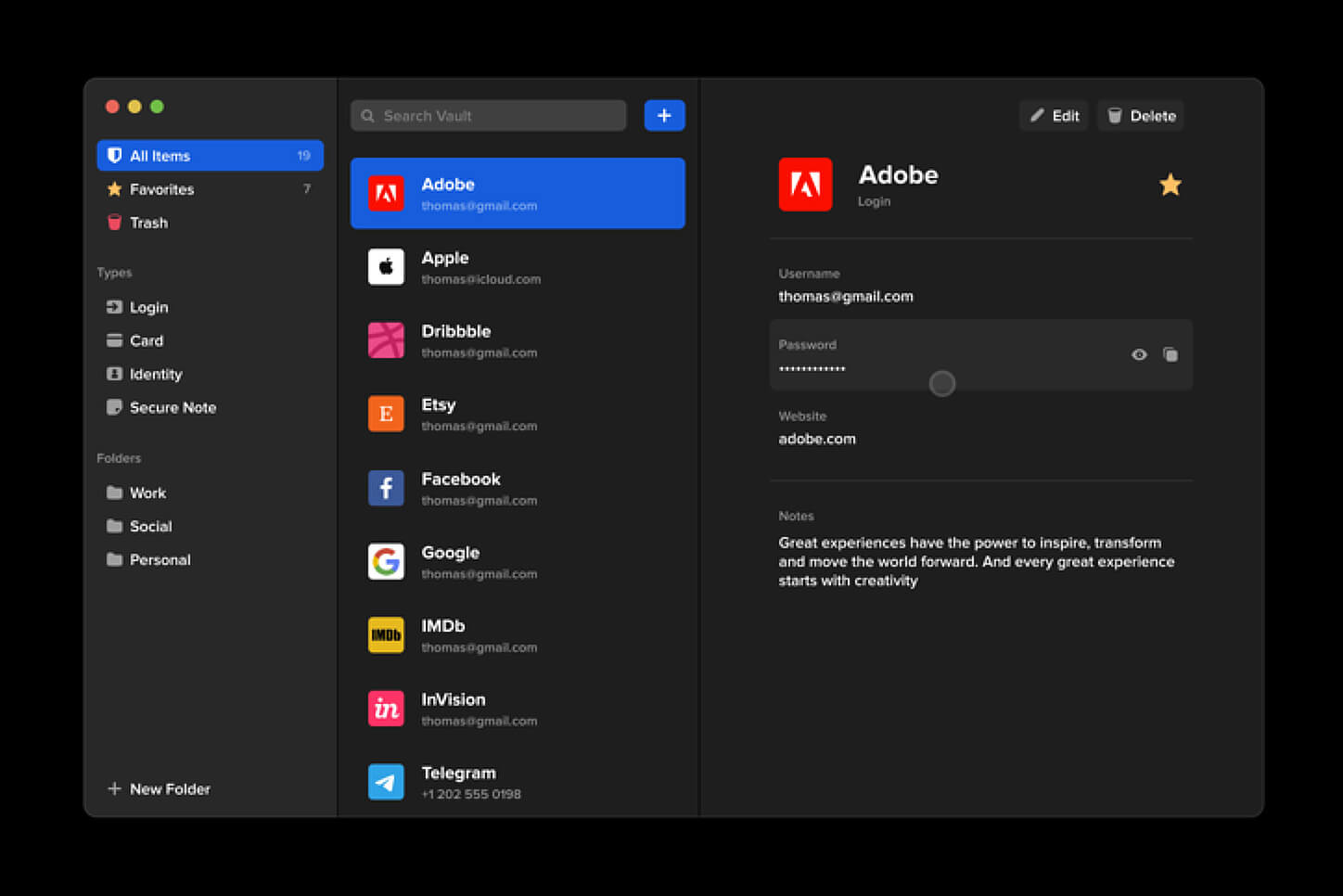
BitWardenMany times we were talking and writing here on Errortools.com about security, privacy, hacking, identity theft, etc. We tried to raise important security questions and I hope I have managed to at least shed some light and change maybe some bad behaviors for some, helping them embrace better routines about their security on their PC.

In this light, I will today present you with one neat and awesome piece of software, a password manager worth your time and money (if you want premium features): BitWarden.

What BitWarden offers?

The first thing that it offers is the completely free basic plan, granted BitWarden is not an open-source project nor completely free but it has an unlimited free basic plan that will cover 90% of user needs. There is also a free basic unlimited plan for Organizations letting you and one more user share files and other stuff via BitWarden making it a cool option if you need it.

Premium features offer you encrypted sharing of files, two-step login, 1GB file attachments (encrypted), Bitwarden Authenticator (TOTP), Vault Health Reports, Emergency Access, and Priority Support. The cost for all of these additional features is 10 USD per year for an individual plan or 40 USD per year for organizations where you will get an increase of maximum users from 2 to 6. Yes, you read that correctly, only 10 USD per YEAR for the whole set of features. Granted if you do not need any of them, enjoy the free version forever.

Besides very low premium cost BitWarden will offer you compatibility with all major browsers and devices including both Android and iOS platforms making it a great cross-platform solution to login and maintain your passwords anywhere with just one click.

Once installed all you need to do is set one master password and be very careful not to lose or forget this one, if you do all of your other generated passwords will be lost forever.

Features

Secure Password Sharing

Share your encrypted data quickly and easily, and only with the users or teams who need access

Cross-Platform Accessibility

Access critical data in your Bitwarden vault from any location, browser, and device

Cloud-Based or Self-Host

Get up and running in minutes in the cloud or you can self-host Bitwarden for complete data control

Security Audit & Compliance

Open source and third-party audited, Bitwarden complies with Privacy Shield, GDPR, CCPA regulations

Vault Health Reports

Access insightful reports to reveal weak, reused passwords, and other helpful data security metrics

Directory Sync

Our powerful Directory Connector streamlines user and group onboarding and keeps them in sync

Always-On Support

Our Customer Success agents are available to support you around the clock

Detailed Event Logs

Bitwarden creates audit trails to help you keep track of user and group access to sensitive data

Flexible Integrations

Unite your existing systems with Bitwarden using SSO authentication, Directory services, or powerful APIs

Conclusion

There are many password managers out there but via recommendation I have tried BitWarden and truth to be told, I really never felt the need to try anything else, it is great at what it does and it is moving forward with features and it is constantly updated and maintained.

Do You Need Help with Your Device?

Our Team of Experts May Help
Troubleshoot.Tech Experts are There for You!
Replace damaged files
Restore performance
Free disk space
Remove Malware
Protects WEB browser
Remove Viruses
Stop PC freezing
GET HELP
Troubleshoot.Tech experts work with all versions of Microsoft Windows including Windows 11, with Android, Mac, and more.

Share this article:

You might also like

How to Fix Windows 10 Error 0xC1900200, 0x20008

Error Code 0xC1900200, 0x20008 (Code 0xC1900202 – 0x20008)   – What is it?

Error Code 0xC1900200, 0x20008 (Code 0xC1900202 – 0x20008)  is an error that occurs when you attempt to upgrade to Microsoft Windows 10, but the minimum requirements have not been met by your computer. You will therefore be unable to upgrade to Microsoft Windows 10 until your computer is updated or upgraded to meet those requirements. Common symptoms include:
  • When attempting to upgrade a dialog box with Code 0xC1900200 – 0x20008 (Code 0xC1900202 – 0x20008) is displayed.
  • Your computer is unable to begin the Microsoft Windows 10 upgrade process.

Solution

Restoro box imageError Causes

Error Code 0xC1900200 – 0x20008 (Code 0xC1900202 – 0x20008)  occurs when you are unable to begin the Microsoft Windows 10 upgrade because your computer does not meet the minimum requirements to run Microsoft Windows 10.
  • You are unable to begin the upgrade because your computer does not meet the required system or hardware specifications.
  • You are not running the correct version of Microsoft Windows to be able to begin the upgrade.
  • You are not running the latest updated version of Microsoft Windows 7 SP1 or Microsoft Windows 8.1.
Error Code 0xC1900200 – 0x20008 (Code 0xC1900202 – 0x20008) as stated, simply means your computer does not meet the requirements to update and does not indicate a permanent problem or inability to continue to use your computer. This error only means that you will not be able to upgrade to Microsoft Windows 10 until your computer is made to meet these requirements.

Further Information and Manual Repair

There are several solutions that the user can complete at home that should fix the problem resulting in a manifestation of Error Code 0xC1900200 – 0x20008 (Code 0xC1900202 – 0x20008). Below are several options that should resolve this error.

Method 1:

Verify what version of Microsoft Windows you are currently running, older, outdated, or no longer supported versions of Microsoft Windows are not able to upgrade to Microsoft Windows 10. If you are not running one of the following versions you will have to update before being able to upgrade.
  • The most current version of Microsoft Windows 7 SP1
  • The most current version of Microsoft Windows 8.1

Method 2:

Your computer's system specifications do not meet the requirements to be able to upgrade to and run Microsoft Windows 10. To check your system specifications do the following.
  1. Click on the start button in the bottom left corner, then locate the control panel on the menu, click on it to open.
  2. Once it opens, locate system and security on the menu and click to open, click on system and this will show you your amount of RAM and processor speed.
  3. Find device manager on the left-hand side click this then select display adapter, and it will show you your current video card.
  4. Click on the start button again, then click on the computer in the menu, this will show you your hard drive size, and available space.
If you have the option available you can simply run the get Microsoft Windows 10 app to check compatibility. Once you have your system specs make sure they meet or exceed the following.
  • 1 GHz or higher processor or SoC
  • 1 gig of RAM for 32 bit and 2 gigs of RAM for 64 bit
  • 16 GB available hard drive space for 32 bit, 20 GB for 64 bit
  • Minimum of DirectX9 that has 1.0 WDDM
  • At least an 800x600display
If your computer does not meet these minimum requirements, upgrade the components necessary to meet them. If you do not possess the technical expertise required to accomplish this yourself or do not feel comfortable doing so, download and install a powerful automated tool to get the job done.

Method 3:

Your computer might not meet the aforementioned requirements to make an upgrade because of insufficient hard drive space or resources. Learn how to create or make space on your computer here.

Method 4:

Many people hold on to and use the same computer for a very long time. It is possible that your computer cannot be upgraded to meet the requirements, or that the cost to do so would be so high that a new computer would be cheaper. If that is the case, your only option may be to replace your computer.
Read More
Stop the Hotspot from Turning off
As you know, Windows 10 is equipped with a Mobile Hotspot feature that allows users to share the existing internet connections to other devices over Wi-Fi. However, one of the downsides to this feature is that it does not stay on if there are no devices connected to it for over five minutes. In other words, if there are no devices connected to the mobile hotspot for five minutes, it will turn off automatically. Thus, if you want the mobile hotspot to stay turned on, then you’ve come to the right place as this post will walk you through how to stop the Mobile Hotspot from turning off in Windows 10. There are two scenarios tackled in this post wherein the Mobile Hotspot feature turns off automatically and where the hotspot disables when there is no internet connection. To remedy these scenarios, you can try turning off the power saving feature or use a PowerShell command to change the “PeerlessTimeoutEnabled” settings or increase the Mobile Hotspot idle timeout settings. You could also increase the timeout period when a cellular connection is not available or disable the Wi-Fi and network adapter power management options. For detailed instructions, refer to each one of the given options below.

Option 1 – Try turning off the power saving feature

The first solution you can check out is to turn off the power-saving feature. To do so, follow these steps:
  • Open the Settings app and go to Network & Internet and from there, click on the Mobile Hotspot option.
  • Next, toggle the “Share my Internet connection with other devices” option.
  • After that, toggle the “When no devices are connected, automatically turn off mobile hotspot” option.

Option 2 – Execute a command in PowerShell

The next option you can try to keep the mobile hotspot turned on is through a command in PowerShell. To get started, follow these steps:
  • Tap the Win + X keys and select the “Windows PowerShell (Admin)” option.
  • Next, execute the following command to make sure that the Mobile Hotspot stays on even when no devices are connected to it:
powershell -windowstyle hidden -command "Start-Process cmd -ArgumentList '/s,/c,net stop "icssvc" & REG ADD "HKLMSYSTEMCurrentControlSetServicesicssvcSettings" /V PeerlessTimeoutEnabled /T REG_DWORD /D 0 /F & net start "icssvc"' -Verb runAs"
  • After the command is executed, here is what the script is doing in the background:
    • It stops the Mobile Hotspot service (icssvc).
    • It navigates to this registry path (HKEY_LOCAL_MACHINESYSTEMCurrentControlSetServicesicssvcSettings) and creates a DWORD key named “PeerlessTimeoutEnabled” which has a value of 0.
  • It then restarts the Mobile Hotspot Service (icssvc).

Option 3 – Try increasing the Mobile Hotspot idle timeout settings

Another option you can try is to increase the idle timeout settings of the mobile hotspot. In case you don’t know, the default timeout when there’s no active connection is about five minutes. So if you don’t want to keep it on always but want to keep it on longer than five minutes, then this option is for you. All you have to do is change the same key (PeerlessTimeout) as mentioned above, at a different location. In fact, you can change it to a maximum of 120 minutes. To give this a try, follow these steps:
  • Tap the Win + R keys to open the Run dialog box and type “Regedit” in the field and then tap Enter to open the Registry Editor.
  • Next, navigate to this registry path: HKLMSystemControlSet001ServicesICSSVCSettingsPeerlessTimeout
  • From there, change its value to anywhere between 1 up to 120.
  • Once done, exit the Registry Editor and restart your computer.

Option 4 – Try increasing the timeout period when a cellular connection is not available

There are many times when you want to connect devices so it becomes part of the network. And as pointed out, the Mobile Hotspot turns off automatically when there is no internet or mobile data but when you use a registry setting, you can change any value between 1 and 60 inclusive.
  • Tap the Win + R keys to open the Run dialog box and type “Regedit” in the field and then tap Enter to open the Registry Editor.
  • Next, navigate to this registry path: HKLMSystemControlSet001ServicesICSSVCSettingsPublicConnectionTimeout
  • From there, set the value of the “Timeout” key between 1 and 60.
  • After that, close the Registry Editor and restart your PC.

Option 5 – Try to disable the Wi-Fi and Network adapter in Power Management options

As you know, the Wi-Fi adapter and the network devices have properties that will turn off when on battery and when it’s not used for a long time so you can try to disable these options.
  • Tap the Win + X + M keys to open the Device Manager.
  • Next, expand the list of Network devices and select the Wi-Fi adapter.
  • After that, go to the Power Management tab and make sure that anything related to power saving should be turned off. This will ensure that none of the network devices will turn off the Mobile Hotspot or trigger anything that will do that.
Read More
Fix 0x800F0825 update error in Windows 10
Windows updates have become a regular occurrence in our digital lives. They are frequent and have become quite necessary. Most of the time they bring us quality content like fixed security, resolved bugs, and even new features but from time to time update itself can be not downloaded properly or it can have some issues when installing. Windows Update Error 0x800F0825 is one of these update errors that will be reported seemingly after applying the update. Altho annoying error it is nothing system breaking and can be easily resolved. Hello and welcome everyone, today we will provide you with solutions on how to resolve error 0x800F0825 when trying to complete a Windows update.

Run Windows troubleshooter

Built-in Windows troubleshooter can help a lot in resolving these issues and we will try it as a first solution because of its simplicity and ease of use.
  • Click on START
  • Click on settings Windows 10 Start menu with marked settings icon
  • Navigate to Update & Security > Troubleshoot > Additional Troubleshooter > Windows Update
  • Click on Run the troubleshooter
  • Follow onscreen instructions and let the troubleshooter try to solve the issue

Clear contents of SoftwareDistribution & Catroot2 folders

Altho SoftwareDistribution and Catroot2 folders are essential for the update process it can happen that badly downloaded updates or similar corruption can be stored there and thus producing this error.
  • Open file explorer and locate these two folders, go inside and delete content inside them
  • Try updating again to see if corruption inside folders was the issue.

Update manually

If the previous two solutions have not produced a result and the error is still present then go to the official Microsoft Update Catalog and download the update manually The catalog is here. Search for updates from the Windows Update Catalog In the Search box, type your search terms. You can carry out a full-text search, using a keyword, KB article, MSRC bulletin, driver manufacturer, driver model, driver version, product, and a classification. Select the appropriate version of Windows. Search or click on Advanced Search if you want to refine your search. A list will be displayed. Select the updates that you want to download. Click Add for each selection to add it to the download basket.
  • Download the updates. You may be asked to install an Active-X download control to be able to download files from this site
  • Double-click on the downloaded updates to install them
Administrators can download updates from the Microsoft Download Center or the Windows Update Catalog to deploy to multiple computers If you are running Windows Server Update Services (WSUS) 3.0, System Center Essentials (SCE), or System Center Configuration Manager (SCCM) you can import updates directly into these applications. Security updates, critical updates, service packs, update rollups, definition updates, and critical drivers can be configured to synchronize with your server automatically. You can still import these updates into your application by using Microsoft Update Catalog; however, depending on how you configure WSUS, SCE, and SCCM, you may not need to import the updates.

Disable system protection

In some rare cases, antivirus or firewall could interfere with both downloads and execution of certain files. If each previous solution failed disable temporarily your security software and try executing the update again.
Read More
How to Remove FileShareFanatic

FileShareFanatic is a browser extension developed by Mindspark Inc. This extension offers users the ability to quickly access some of the most popular file-sharing websites. While this may sound tempting and useful at start, using this extension might prove more annoying then useful.

When installed FileShareFanatic hijacks your new tab page changing your default search engine to search.myway.com. Additionally it monitors user activity, recording visited websites, clicked links, viewed products, and whatever other information that can be used by the Ad network to display targeted Ads.

While browsing the internet with this extension you will notice an increase of ads on pages, especially in search results. This extension injects additional ads, sponsored links, and even displays pop-up ads in order to gain revenue.

FileShareFanatic has been marked as a Browser Hijacker by several top anti-virus scanners, and is scheduled for deletion.

About Browser Hijackers

Browser hijacking is considered the web’s constant danger that targets browsers. It is a kind of malicious software that modifies your internet browser’s configuration settings so that you are redirected to websites or pages that you had no intention of visiting. Browser hijackers can do more than simply modifying homepages. It redirects you to the sponsored sites and inserts advertisements on your browser which helps its developer generate earnings. It might appear naive, but most of these websites are not legitimate and will pose a major risk to your online safety. Browser hijackers can even let other vicious programs without your knowledge to further damage your PC.

Symptoms of browser hijack

There are numerous symptoms of browser hijacking: 1. you see unauthorized modifications to your internet browser’s homepage 2. you get re-directed to internet sites you never meant to visit 3. default online search engine is modified 4. discover new toolbars which you did not add 5. you observe lots of pop-ups on your screen 6. your web browser gets slow, buggy, and crashes frequently 7. Inability to navigate to certain sites, especially anti-malware as well as other security software webpages.

How they infect computers

Browser hijackers attack computers via malicious email attachments, downloaded infected documents, or by visiting infected internet sites. Many internet browser hijackings originate from add-on software, i.e., browser helper objects (BHO), toolbars, or extensions added to browsers to give them extra features. A browser hijacker could also be installed as a part of freeware, demoware, shareware and pirated programs. Browser hijackers can interrupt the user’s web browsing experience significantly, track the websites visited by users and steal sensitive information, cause difficulty in connecting to the internet, and eventually create stability problems, making software programs and computer to crash.

Removal

The one thing you can try to get rid of a browser hijacker is to find the malware within the “Add or Remove Programs” list in the Microsoft Windows Control Panel. It may or may not be there. If it is, try to uninstall it. But, most hijacking codes aren’t very easy to eliminate manually, as they go deeper into your operating system. Besides, browser hijackers could modify the Computer registry so that it could be very hard to repair manually, especially when you’re not a very tech-savvy individual. You can choose automatic browser hijacker removal by just installing and running reliable anti-malware software. If you need to get rid of persistent browser hijackers effectively, install the top-rated Anti-Malware software Safebytes Anti-Malware.

Find Out How To Install Safebytes Anti-Malware On An Infected PC

Malware can cause a lot of damage to your PC. Some malware types alter internet browser settings by including a proxy server or change the PC’s DNS configuration settings. When this happens, you’ll be unable to visit certain or all of the sites, and thus unable to download or install the required security software to remove the infection. If you are reading this, you may have infected by a virus that prevents you from downloading a security program such as Safebytes Antimalware on your PC. There are some actions you can take to circumvent this issue.

Download the application in Safe Mode with Networking

If the virus is set to load immediately when Microsoft Windows starts, entering Safe Mode could very well block the attempt. Since only the bare minimum programs and services launch in safe mode, there are hardly any reasons for conflicts to occur. To start your Windows XP, Vista or 7 computer in Safe Mode with Networking, please do as instructed below. 1) At power on, hit the F8 key before the Windows splash screen starts to load. This will bring up the Advanced Boot Options menu. 2) Choose Safe Mode with Networking with arrow keys and hit ENTER. 3) Once this mode loads, you will have the internet. Now, utilize your browser to download and install Safebytes Anti-malware. 4) As soon as the application is installed, allow the scan run to eliminate viruses and other malware automatically.

Switch to an alternate internet browser

Web-based viruses can be environment-specific, aiming for a particular web browser or attacking specific versions of the browser. The best solution to avoid this problem is to opt for a browser that is known for their security measures. Firefox comprises built-in Phishing and Malware Protection to keep you safe online.

Run antivirus from a USB drive

Another option is to make a portable antivirus program onto your USB thumb drive. To run antivirus from a thumb drive, follow these simple steps: 1) Download Safebytes Anti-Malware or Microsoft Windows Defender Offline onto a clean computer system. 2) Plug the Thumb drive into the uninfected computer. 3) Double-click the Setup icon of the anti-malware software to run the Installation Wizard. 4) Select the drive letter of the USB drive as the place when the wizard asks you exactly where you would like to install the anti-virus. Follow the directions to finish the installation process. 5) Unplug the pen drive. Now you can utilize this portable antivirus on the affected computer. 6) Double-click the anti-malware program EXE file on the thumb drive. 7) Simply click “Scan Now” to run a complete scan on the infected computer for malware.

SafeBytes Anti-Malware Features

To protect your personal computer from many different internet-based threats, it’s important to install an anti-malware application on your computer system. However, with countless numbers of anti-malware companies in the marketplace, nowadays it is challenging to decide which one you should purchase for your PC. Some are good ones, some are decent, and some are simply just fake anti-malware applications that could harm your personal computer themselves! You should choose one that is trustworthy, practical and has a strong reputation for its malware source protection. On the list of strongly recommended software by industry analysts is SafeBytes Anti-Malware, the most dependable program for Windows computers. SafeBytes anti-malware is a powerful, very effective protection application made to help users of all levels of computer literacy in finding and eliminating malicious threats from their computer. Once you’ve installed this program, SafeBytes state-of-the-art protection system will ensure that absolutely no viruses or malware can seep through your PC.

SafeBytes anti-malware takes PC protection to a totally new level with its enhanced features. These are some of the highlighted features included in the software.

World-class AntiMalware Protection: Built on a greatly acclaimed anti-virus engine, this malware removal tool can identify and get rid of several obstinate malware threats such as browser hijackers, potentially unwanted programs, and ransomware that other typical antivirus programs will miss. Real-time Threat Response: Malware programs attempting to get into the computer are discovered and stopped as and when detected by the SafeBytes active protection shields. It’ll examine your PC for suspicious activity at all times and its unrivaled firewall protects your computer from unauthorized access by the outside world. Safe Browsing: Safebytes assigns all sites a unique safety ranking that helps you to get an idea of whether the webpage you’re just about to visit is safe to browse or known to be a phishing site. Lowest Memory/CPU Usage: SafeBytes is a lightweight tool. It consumes a really small amount of processing power as it operates in the background therefore you will not see any computer performance difficulties. 24/7 Guidance: SafeBytes provides 24/7 technical support, automatic maintenance and updates for best user experience. All in all, SafeBytes Anti-Malware is a solid program as it has lots of features and could identify and remove any potential threats. Once you have downloaded and installed this software, you no longer need to worry about malware or any other security worries. So if you’re searching for the best anti-malware subscription for your Windows-based computer, we recommend SafeBytes Anti-Malware tool.

Technical Details and Manual Removal (Advanced Users)

If you wish to carry out the removal of FileShareFanatic manually instead of using an automated software tool, you may follow these measures: Proceed to the Windows Control Panel, click the “Add or Remove Programs” and there, choose the offending application to uninstall. In cases of suspicious versions of web browser plug-ins, you can easily get rid of it via your web browser’s extension manager. You’ll probably also want to reset your browser. To be certain of complete removal, find the following registry entries on your computer and remove it or reset the values appropriately. Having said that, editing the registry can be a complicated job that only advanced users and professionals should try to fix it. Furthermore, some malware is capable of replicating or preventing removal. It is advisable that you carry out the removal process in Windows Safe Mode.
Files: %UserProfile%\Local Settings\Application Data\FileShareFanaticTooltab %LOCALAPPDATA%\FileShareFanaticTooltab Registry: HKEY_LOCAL_MACHINE\Software\Microsoft\Internet Explorer\Approved Extensions, value: FB8C7587-6C03-425D-821D-65339B3E249E HKEY_CURRENT_USER\SOFTWARE\Wow6432Node\Microsoft\Windows\CurrentVersion\explorer\Browser Helper Objects\FB8C7587-6C03-425D-821D-65339B3E249E HKEY_CURRENT_USER\SOFTWARE\Microsoft\Windows\CurrentVersion\explorer\Browser Helper Objects\FB8C7587-6C03-425D-821D-65339B3E249E HKEY_CURRENT_USER\SOFTWARE\Wow6432Node\Microsoft\Windows\CurrentVersion\explorer\Browser Helper Objects\EA89EC10-2255-42A6-9AA7-84B4441C2DCA HKEY_CURRENT_USER\SOFTWARE\Microsoft\Windows\CurrentVersion\explorer\Browser Helper Objects\EA89EC10-2255-42A6-9AA7-84B4441C2DCA HKEY_LOCAL_MACHINE\Software\Microsoft\Windows\CurrentVersion\Ext\Stats\FB8C7587-6C03-425D-821D-65339B3E249E HKEY_LOCAL_MACHINE\Software\Microsoft\Windows\CurrentVersion\Ext\Stats\EA89EC10-2255-42A6-9AA7-84B4441C2DCA HKEY_LOCAL_MACHINE\Software\Microsoft\Windows\CurrentVersion\Ext\Settings\6E4DF5E6-A1D8-48E0-BA5A-91C5DBD6AAF1 HKEY_CURRENT_USER\SOFTWARE\Wow6432Node\Microsoft\Internet Explorer\SearchScopes\BDF4A303-E4F0-42F0-B235-351F6C8F6C1A HKEY_LOCAL_MACHINE\Software\Microsoft\Internet Explorer\SearchScopes\BDF4A303-E4F0-42F0-B235-351F6C8F6C1A HKEY_CURRENT_USER\SOFTWARE\Wow6432Node\Microsoft\Tracing\FileShareFanatic_RASMANCS HKEY_CURRENT_USER\SOFTWARE\Microsoft\Tracing\FileShareFanatic_RASMANCS HKEY_CURRENT_USER\SOFTWARE\Wow6432Node\Microsoft\Tracing\FileShareFanatic_RASAPI32 HKEY_CURRENT_USER\SOFTWARE\Microsoft\Tracing\FileShareFanatic_RASAPI32 HKEY_CURRENT_USER\SOFTWARE\Microsoft\Internet Explorer\DOMStorage\filesharefanatic.dl.myway.com HKEY_LOCAL_MACHINE\Software\FileShareFanatic

Read More
Diablo 3 lost connection to the game server
Diablo has changed how action RPG games are made and has placed homework for many developers. Diablo 3 is 3rd continuation in the series and to the joy of many players worldwide it has brought some interesting things in the genre like teaming up with other friends to slay demon hordes together introducing much needed multiplayer element. Sadly sometimes we get the error that Diablo 3 can not connect or that the connection to the game server has been lost. Keep reading and try provided solutions as they are presented to fix this issue and continue gaming.
Read More
Backup and Restore pinned Taskbar Items
Pinned Windows 10 Taskbar Items. One of the most used interfaces in the Windows environment is the Taskbar. It is where users like to pin their most-used programs as well as shortcuts with extra privileges and automated tasks. In fact, it’s a lot better than the Start Menu. So if any Windows Update messes up with your computer, or if you’ve just switched to a different computer, setting up the Taskbar with the very same set of programs you used to have is definitely not an easy task. But worry not as this post will guide you on how you can backup and restore the items on your Taskbar either manually or automatically.

Manual Backup:

  • Tap the Win + R keys to open the Run prompt.
  • Then type “%AppData%MicrosoftInternet ExplorerQuick LaunchUser PinnedTaskBar” in the field and hit Enter to open the folder where you can see all the shortcuts or pinned items in the Taskbar.
  • After that, copy all the files in the folder and paste them somewhere else as a backup. For instance, E:\Pinned Items Backuppinnedshortcuts.
  • Next, tap the Win + R keys to open the Run prompt once more, and then type “Regedit” in the field and hit Enter to open the Registry Editor. When the User Account Control dialog box appears, click Yes.
  • After opening the Registry Editor, navigate to this key – HKEY_CURRENT_USERSoftwareMicrosoftWindowsCurrentVersionExplorerTaskband
  • Then right-click on the Taskbar folder and select Export.
  • Now save the file with the .reg extension to another location like the E:\Pinned Items Backup folder and then name it.
  • Close the Registry Editor.

Manual Restore:

Make sure to copy all the files to one of the drives if you are using another computer and then refer to the following steps.
  • Tap the Win + R keys to open the Run prompt.
  • Then type “%AppData%MicrosoftInternet ExplorerQuick LaunchUser PinnedTaskBar” in the field and hit Enter to open the same folder where you just copied all the shortcuts. Make sure to keep it open.
  • Then open the backup folder where you saved all the pinned items and copy all the files there.
  • Next, go to the Taskbar folder (%AppData%MicrosoftInternet ExplorerQuick LaunchUser PinnedTaskBar) and then paste your files in there. If you encounter a problem while doing so, just replace it with your own set of files.
  • After that, go to E:\Pinned Items Backuppinnedshortcuts and then double click on tb-pinned-items.reg. If a User Account Control prompt appears, click Yes. This will add the registry file into the main registry hub. You will also get a dialog box that will confirm that data has been added to the registry successfully. Click OK.
  • You should now see the items on the Taskbar. You have to restart Windows Explorer. To do so, end its process in the Task Manager.

Automatic Backup:

Backing up and restoring the pinned Taskbar items in your Windows 10 computer can be done automatically as well. But before you get started on the process, you need to understand what’s going on behind the hood first. First, you need to create two bat files and name them “Backup Pinned Taskbar Items” and “Restore Pinned Taskbar Items”. After you have that covered, refer to the following steps:
  • Open the Notepad app and paste the following details and save it as “Backup Pinned Taskbar Items.bat.
REG EXPORT HKEY_CURRENT_USERSoftwareMicrosoftWindowsCurrentVersionExplorerTaskband “E:\Pinned Items Backuptb-pinned-items.reg” xcopy “%AppData%MicrosoftInternet ExplorerQuick LaunchUser PinnedTaskBar” “E:\Pinned Items Backuppinnedshortcuts” /E /C /H /R /K /Y
  • After that, run the newly created bat file with admin privileges.

Automatic Restore:

  • Open the Notepad app and paste the following details and save it as “Restore Pinned Taskbar Items.bat”.
REGEDIT /S “E:Pinned Items Backuptb-pinned-items.reg” xcopy “E:Pinned Items Backuppinnedshortcuts” “%AppData%MicrosoftInternet ExplorerQuick LaunchUser PinnedTaskBar” /E /C /H /R /K /Y
  • After that, run the bat file with admin privileges.
Note: Just so you know, there is a drawback to this process as we’ve noticed that any pinned apps that were downloaded from the Windows Store don’t appear in these places and any items downloaded and installed separately from the internet and then pinned.
Read More
DirectX function GetDeviceRemovedReason
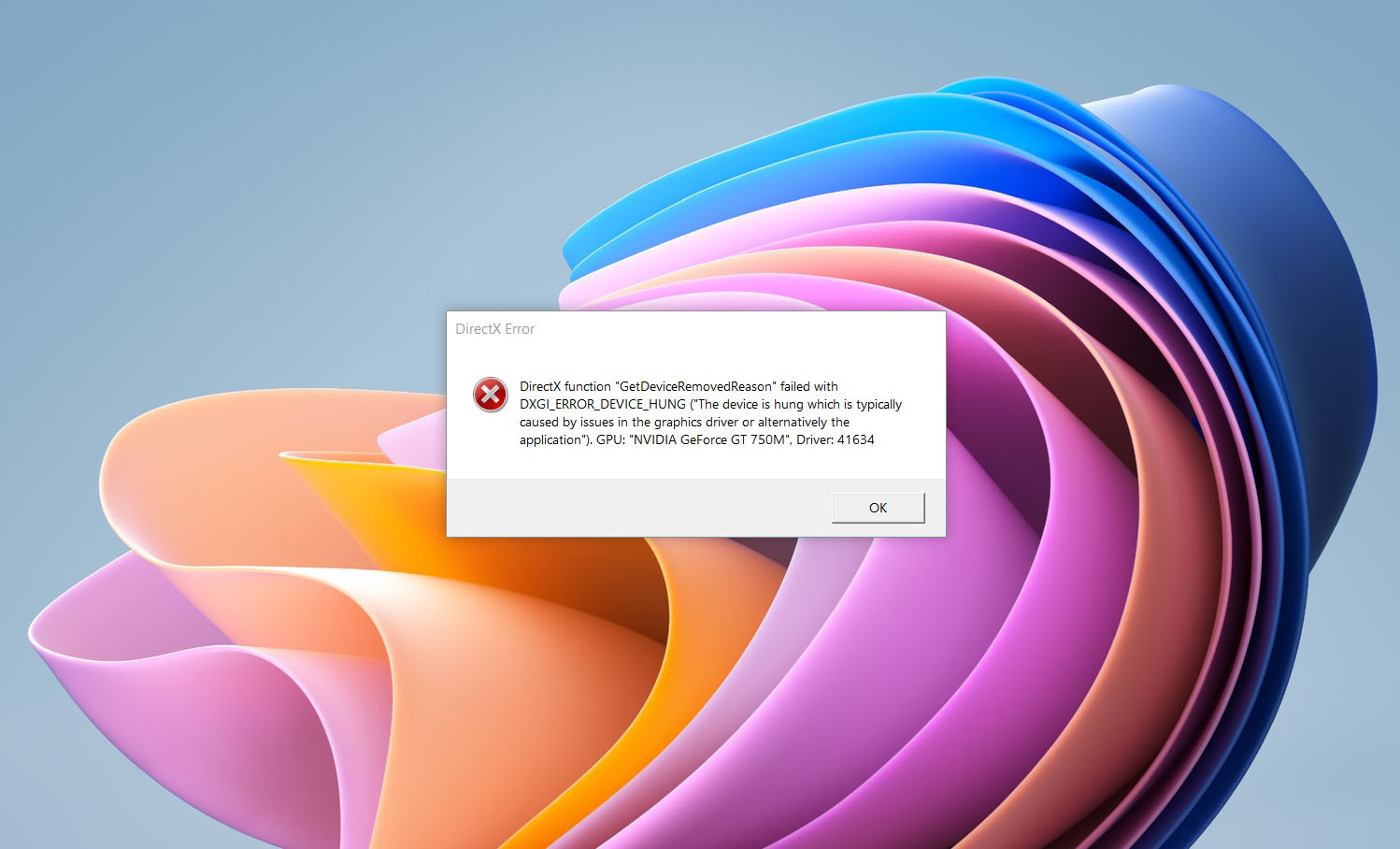
DirectX function GetDeviceRemovedReason error is a DirectX error that comes up during playing games on Windows 11 operating system. Usually, the error occurs in gaming systems powered by AMD and very rarely if any times at all on Nvidia or intel platforms. DirectX function GetDeviceRemovedReason errorIf you are one of the gamers affected by this error, fear not because we have a solution for you. Follow provided fix guide in order to correct this error and get back to gaming asap.

1. Update drivers

The first thing of course is to update your graphic card driver, you can do this with your graphic cards panel software or directly in Windows itself but the best practice and one that I would recommend is to go to your graphic card manufacturer’s website and download the latest driver there, and then install it inside Windows 11.

2. Change power mode

Changing power mode inside Windows 11 can solve this issue since sometimes Windows power manager if it is set to anything except best performance can interfere with the proper functioning of the graphic adapter, and because of this error. To change the power setting do the following:
  1. Press ⊞ WINDOWS + I to open settings
  2. Click on the System tab
  3. Select power & battery on the right part
  4. Click on the menu beside power mode
  5. Select the best performance

3. Run SFC scan

Corrupted system files can also cause this error and if previous steps have not resolved it we will use Windows built-in tool SFC scan to find and repair all bad files in windows.
  1. Press ⊞ WINDOWS + S to open the search menu
  2. Type in Windows terminal and run it as administrator
  3. If prompted click on YES on UAC
  4. Press CTRL + SHIFT + 2 to run command prompt
  5. Type in sfc /scannow and press ENTER
  6. Wait for the whole process to finish and then reboot your system

4. Reinstall the problematic game

Sometimes game files can get corrupt and maybe even overwritten, try with game reinstallation if the problem still persists.
Read More
How to Fix Windows 10 Error Code 0xC004E003

What is Error Code 0xC004E003?

Error code 0xC004E003 almost always appears when there are damaged files in the Windows operating system. These files could be corrupt for a number of reasons and are usually a serious danger to the life of the computer system. These file errors may be caused by a number of things. Incomplete installation setup, incorrect deletion of hardware or utilities, or an unfinished file erasure. The trigger might also be in the event that the computer system is contaminated with a virus or adware or spyware, or even by the improper shut down of the computer. Any of these scenarios have the possibility to result in the removal or corruption of data of the Windows system data files.

The data system files that are damaged will give linked data and archives that are missing or wrongly linked. These are needed for the proper functioning of the software. This can also happen when or after installing third-party software that might have changed the system files. If it is suspected that a program installation will need to be stopped, it is best to let it run through the setup and then delete it later. While it installs, it is altering program files, and likely rearranging them. Stopping this in the middle can scramble files associated with the program and files vital to the usage of the computer.

Solution

Restoro box imageError Causes

This error will pop up after installing third-party software that has changed the system files. These system files are necessary to finish the activation process. A restore point will be necessary if it is ultimately determined that a system restore is necessary, to bring the computer back to the state it was in previous to the failed installation.

  • Error code “0xC004E003” appears and does not allow the system to continue the install.
  • The computer will not allow any further access or installation of the program.
  • The computer may crash.
  • The third-party program will not have installed completely or successfully.
  • The system will not start up correctly.
  • Personal files are corrupt or missing.

Further Information and Manual Repair

There are several steps that can be taken when the error code 0xC004E003 appears. It is helpful to know that this can occur from trying to install third party software. Going forward, do not attempt to install third-party software that is not trusted, and does not attempt to abruptly stop the third-party software from installing. This may cause the program to corrupt the files or delete important files. Recovering from this error can be easy if there is a recent restore point already backed up in the recovery portion of the system's files.

  • Method One

Run an error scan. The problem should be resolved after rebooting the computer once these steps have been completed.

  1. Download and save an error code fix utility.
  2. Setup the program and then click the Scan button.
  3. Click the Repair Errors button when the diagnostic has been completed successfully.
  4. Reboot the computer.
  • Method Two

Best when utilized by an expert.

  1. Start the system up and sign in as the admin.
  2. Click on Get Started, then select Programs, Accessories, Tools, and then System Restore.
  3. On the next screen, click on Restore my PC to an Earlier Period, and then click Next.
  4. Select the most recent system restore date within the drop-down menu of “select restore point”.
  5. Click Next.
  6. Click Next on the confirmation window.
  7. Reboot the system after the system has finished restoring.
  • Method Three

Another option for restoring. This method can be used by a novice.

  1. Right-click on the Start button, then select Control Panel.
  2. Look for the Control Panel for Recovery.
  3. Select Recovery, then Open System Restore, then Next.
  4. Choose the restore point right before the problematic installation.
  5. Click Next, click Finish.

NOTE: If there are no restore points available, the system recovery may not be turned on. To check this, go to Control Panel, and select Recovery. Configure System Restore, Configure. Then, select Turn on system protection. Having a current restore point for a computer ensures the ease of recovery if any problems with the computer arise.

If you wish to always have at your disposal a utility tool to fix these Windows 10 and other related issues when they do arise, download and install a powerful automated tool.

Read More
Fix High CPU usage by IAStorDataSvc in Windows
If your Windows 10 computer is currently experiencing high CPU usage because of the IAStorDataSvc, read on as this post will show you what you can do to resolve the issue. The high CPU usage of IAStorDataSvc is because of the Intel Rapid Storage Technology. It appears as a Service that may not only result in high CPU usage but also high disk and memory usage, as well as slow computer performance and overheating of your PC. This problem usually occurs on HP computers and on any computers that are using the Intel Rapid Storage Technology. You might also notice that your fan runs at high speed each time this issue occurs with the average CPU usage spiking up to 50%. Take note that this service is used to speed up file access. However, if you are not using an SSD on your computer, then it’s not really necessary for you to have the IAStorDataSvc installed. To resolve this issue, here are some options you can try.

Option 1 – Update or reinstall or remove the IAStorDataSvc driver

Before you proceed, you need to decide first if you want to update, reinstall or remove the IAStorDataSvc driver. To make things easier for you, you can try downloading the latest driver from the Intel Download Centre and then install it on your computer. If it works, good, but if not, you might want to consider removing the driver completely and just let the Windows Update look for the right driver for your computer after you restart it. There are times when the drivers installed are incompatible with the latest Windows update which results in issues like high CPU usage.
  • Tap the Win + X + M combination on your keyboard to open the Device Manager.
  • After that, look for the Intel Rapid Storage Technology driver, right-click on it and then select Uninstall.
  • Now restart your computer for the changes to take effect.
Note: You might also have to go to the list of installed programs and uninstall a program that is listed as “Intel Rapid Storage Technology driver”. To do so, refer to these steps:
  • In the Cortana Search box, type “control panel” and from the search results that appear, click on Control Panel.
  • After opening Control Panel, select Programs > Programs and Features which will open the list of installed programs on your computer.
  • From there, look for Intel Rapid Storage Technology and uninstall it.

Option 2 – Try to disable the IAStorDataSvc via Services Manager

  • Tap the Win + R keys to open the Run dialog box.
  • Then type “services.msc” in the field and hit Enter to open Services.
  • Next, look for the Intel Rapid Storage Technology services from the list of services and then double-click it.
  • Then change its Startup type to “Disabled”.
  • After that click on the Apply button and then OK to save the changes made.
  • Now exit the Services window and check if the problem’s resolved.
Read More
How to Fix Entry Point not Found Dll Errors

What is ‘Entry Point not found dll’ Error?

Entry Point not found dll errors are common in Windows PC. These errors indicate poor PC maintenance. An entry point is basically the memory address inside the dynamic link library. It contains the call being made. A dynamic link library on the other hand is a collection of small programs which use and request this call to run and load programs successfully on your PC. However, when this process is unable to be executed successfully, you come across ‘entry point not found dll’ error messages.

Solution

Restoro box imageError Causes

Generally speaking, some of the typical causes of ‘entry point not found dll’ errors are:
  • Missing, corrupted, and damaged dll files
  • Registry overloaded with invalid entries
  • Disk fragmentation
  • Viral infection
It is advisable to resolve these ‘entry point not found dll’ errors on your PC immediately because dll errors can cause you a great deal of inconvenience as you may be locked out and unable to access your desired programs. Furthermore, if dll errors are left unresolved, such errors can expose your PC to serious threats like system failure, system damage, corruption, and crash.

Further Information and Manual Repair

Though ‘entry point not found dll’ errors are critical errors but the good news is that these can be easily resolved. To fix dll errors on your PC, you don’t always have to hire a professional technician or be a computer programmer yourself. Here are some of the best DIY (do it yourself) ways to resolve ‘entry point not found dll’ errors on your system:

1. Reinstall the Deleted Program

This method to resolve ‘entry point not found dll’ error code is very basic. It is advisable to uninstall and then reinstall the deleted program to retrieve the missing or deleted dll files. Here’s why: dll files are shared files. There are multiple programs on your PC that may be using one type of dll file to load. Now when you uninstall a program that you no more need on your PC, chances are that it may also delete that particular dll file. And when this happens the other programs supported by the deleted dll file are unable to load. Therefore, in such an event the best way to retrieve the missing dll file is to uninstall the program that displays the errors message and then reinstall it. This will help you restore the missing dll file and run the program successfully.

2. Install an Antivirus and a Registry Cleaner

As mentioned above, ‘entry point not found dll’ errors indicate poor PC maintenance. If you don’t maintain your system, the registry overloads with bad and invalid entries, redundant and obsolete files, junk files and cookies. These files acquire a lot of space which damages dll files and the registry. Furthermore, due to data volume overload and less storage space, files are then saved in different places. This is also known as disk fragmentation. When these files are called, it takes a lot of time for the disk to consolidate fragmented data and execute the function successfully. To resolve these issues, you need to clean and restore the registry. Though this can be done manually it may be slightly complicated and time consuming therefore it is advisable to install and run a registry cleaner.

Restoro.

In addition to this, due to poor PC maintenance, viruses and malware can also enter your system unknowingly through file downloads and phishing emails. These can also damage dll files. To remove viruses and malware from your PC it is important to run an anti-virus. Instead of downloading both tools separately on your system, we recommend Restoro. This is a multi-functional and advanced PC fixer embedded with an intuitive algorithm and a user-friendly interface. It includes multiple utilities including a powerful antivirus, a high functional registry cleaner, and Active X controls and class scanner. It also functions as a system optimizer. By running this software on your system, you can easily scan all registry issues and viruses simultaneously. It repairs the damaged registry and dll files, removes unnecessary files and all types of malicious software. It is compatible with all Windows versions. It is easy to use and high on performance. It is a one-stop solution for all ‘entry point not found dll’ errors on your PC. In just a few clicks you can resolve system errors and optimize your PC performance dramatically. Click here to download Restoro and resolve ‘entry point not found dll’ errors.
Read More
1 2 3 171
Logo
Copyright © 2023, ErrorTools. All Rights Reserved
Trademark: Microsoft Windows logos are registered trademarks of Microsoft. Disclaimer: ErrorTools.com is not affiliated with Microsoft, nor claims direct affiliation.
The information on this page is provided for information purposes only.
DMCA.com Protection Status