Logo

Turn On or Off the Recommended Troubleshooting

For a while now, Microsoft has been working hard to add various built-in troubleshooters in Windows 10. In fact, there is a troubleshooter for almost every standard or common error in Windows 10. And now with the newly released Windows 10 v1903, Microsoft has added the Recommended Troubleshooting which allows Windows 10 to automatically fix a lot of critical issues on your computer, and in this post, you will be guided on how you can turn on or off the Recommended Troubleshooting in Windows 10.

The Microsoft Diagnostic & Feedback data only provides two settings – Basic and Full. So if you want to turn off the Recommended Troubleshooting for some reason, the only way to do so is to stop it from collecting complete data from your PC. And to turn it on or off, you can choose to switch between them. To do that, navigate to Settings > Privacy > Diagnostics & feedback and from there, select Basic under the Diagnostic Data section. After that, go back to Settings and go to Update & security > Troubleshoot. Once you’re there, you should see a warning message saying, “Share Full Diagnostic data to get additional troubleshooting recommendations”. Based on the message, Microsoft will only offer the recommended troubleshooting based on the Full Diagnostic data which it collects from your computer.

On the other hand, if you know how to navigate and use the Windows Registry, then you can enable or disable the Recommended Troubleshooting via Registry Editor but before you proceed, make sure that you create a System Restore point. Once that’s covered, follow these steps:

  • Tap the Win + R keys to open the Run dialog box and type “regedit” in the field and tap Enter to open the Registry Editor.
  • Next, navigate to this registry path: HKEY_LOCAL_MACHINESOFTWAREMicrosoft
  • From there, look for the key named “WindowsMigration”. If you can’t find it, just right-click on the left pane and create a new key and then name it “WindowsMigration”.
  • After that, create a DWORD “UserPreference” and double click on it to set its value to “0” if you want to turn it off or “1” if you want to turn it on.
  • Exit the Registry Editor and restart your computer to apply the changes made.

Note: The Recommended Troubleshooting functionality can look into the error logs sent back to the Microsoft team and use an algorithm to set up a solution for you and they’re nothing but Diagnostics and Feedback data that Windows collects and sends back to Microsoft. Moreover, the recommendations are only visible if you are connected to the internet, else it will show the same message.

Do You Need Help with Your Device?

Our Team of Experts May Help
Troubleshoot.Tech Experts are There for You!
Replace damaged files
Restore performance
Free disk space
Remove Malware
Protects WEB browser
Remove Viruses
Stop PC freezing
GET HELP
Troubleshoot.Tech experts work with all versions of Microsoft Windows including Windows 11, with Android, Mac, and more.

Share this article:

You might also like

Folder shortcuts in Windows 11 on Start menu
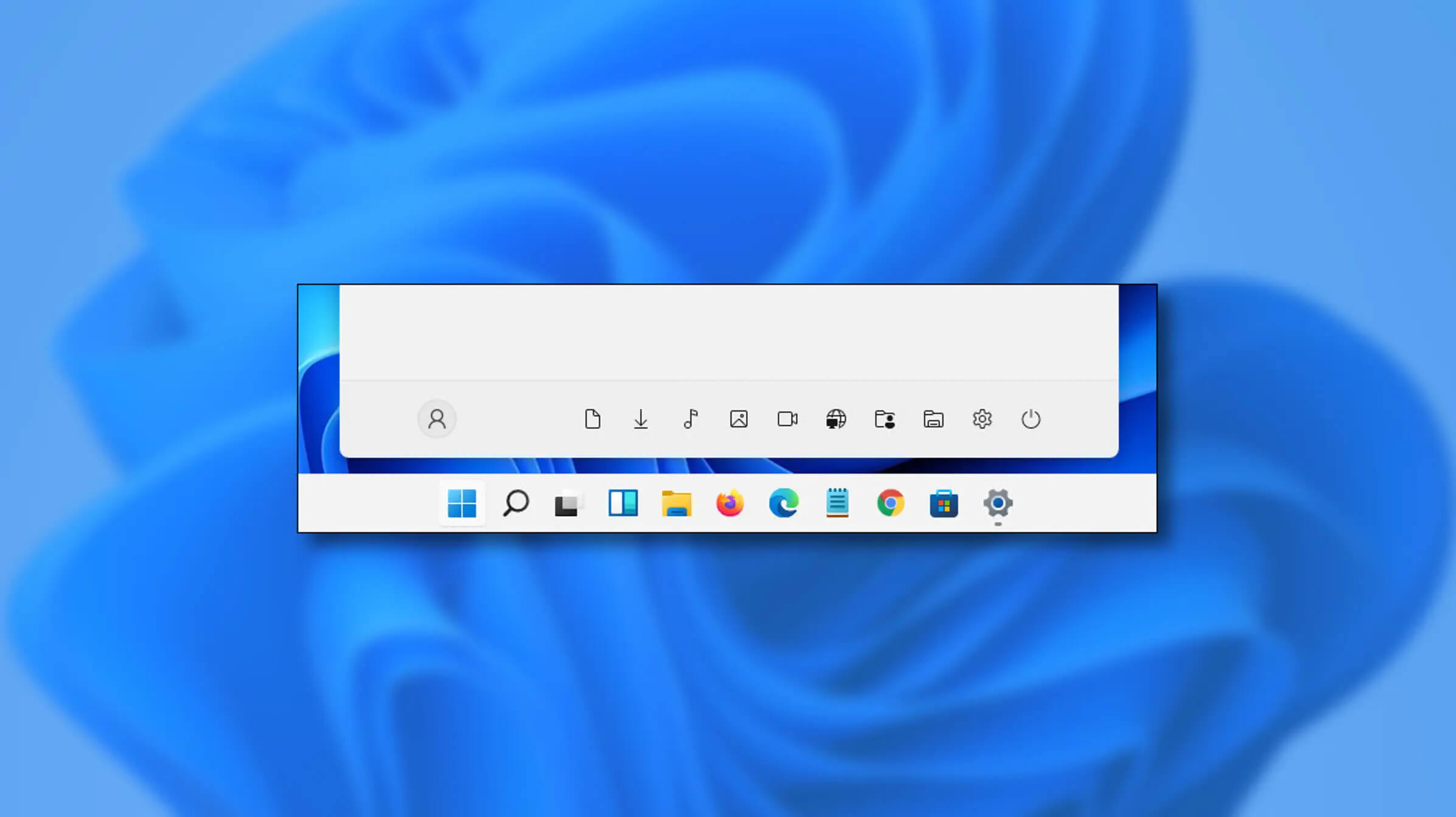
Special folders like music, pictures, download, videos, etc, can be placed as shortcuts in the start menu inside Windows 11 for easy access. Shortcuts will appear in the start menu on the bottom as simple glyphs. They are not present in the start menu by default so it needs to be turned ON first. Folder shortcutsIf you want to place these icons in your Star menu follow this step-by-step guide and you will have them in no time.
  1. Open Windows settings
  2. In settings go to Personalization > Start
  3. In Start click on Folders
  4. On the given list of Settings, File Explorer, Documents, Downloads, Music, Pictures, Videos, Network, and Personal folder click on the switch beside them if you want them as shortcuts in the Start menu. You can choose whichever you want.
  5. Close settings
You can revisit the settings menu to add more icons or remove some of them later if you wish so.
Read More
How to Rectify Error 0xC1900101, 0x20017 in Windows 10

Error Code 0xC1900101, 0x20017 – What is it?

Error code 0xC1900101, 0x20017 in Windows 10 occurs when Windows users attempt to upgrade to Windows 10 but fail to complete the installation process. This Windows error code may occur due to issues with a third-party antivirus program or problems related to a driver or hardware. When this occurs users will receive an error message and their machine will automatically revert to the original operating system on the device. Common symptoms of the error code include the following:

  • Error code 0xC1900101-0x20017 message box
  • Inability to complete Windows 10 upgrade

Solution

Restoro box imageError Causes

Like many other error codes affecting Windows 10 users, 0xC1900101-0x20017 may result due to several different reasons. Oftentimes, error code 0xC1900101 -0x20017 affects users who attempt to upgrade their operating system but have incompatible drivers or hardware as well as antivirus or other security systems which prevent the upgrade from occurring. If this error message is not resolved, it could give birth to other error messages such as error code 0x80070652

Further Information and Manual Repair

To fix this particular error code affecting Windows 10 devices, you will need to employ at least one manual repair method mentioned within this article. Manual repair methods offer effective solutions as they seek to address the root causes related to Windows error codes. When the manual repair methods are implemented correctly, users are usually able to quickly overcome issues that cause Windows error codes and can thereafter access all the benefits Windows has to offer to its users.

Note, however, that in a few cases where technical skills are required, the need for a Windows repair technician may present itself. In such a case, resort to Windows forums and other resources to access help from a certified Windows professional. Also, consider using an automated tool where necessary.

Method One: Temporarily Disable or Uninstall Third-party Security Software

Some third-party security programs or antivirus software may interfere with the installation process when Windows users attempt to upgrade to Windows 10. To verify if this is the issue causing error code 0xC1900101-0x20017 on your device, temporarily uninstall or disable these applications. You may easily do so by checking the settings of these programs or visiting Settings within the Windows Start Menu.

Once you have disabled these programs on your device, reboot your machine and attempt to update to Windows 10. If the issue was caused by a third-party app, error code 0xC1900101-0x20017 will no longer occur and your machine will successfully upgrade to the version of Windows 10 you attempt to download.

However, in the case where error code 0xC1900101-0x20017 in Windows 10 reoccurs during the installation process, you will need to resort to another manual repair method listed below.

Method Two: Disable Firewall Software

Like method one, this manual repair method can be effective in combating issues related to 0xC1900101-0x20017. This is of course, dependent on whether or not the error code is due to an incompatible security program.

Temporarily disable your firewall by adjusting its settings. Once this step is complete, reboot your machine and attempt to install the latest version of Windows 10. If you are able to complete the process, this means the problem was due to an issue with your firewall. You can then enable the firewall you previously disabled or download another program as its replacement.

If the error code reoccurs, however, consider implementing the next manual repair method on this list.

Method Three: Use Command Prompt to Check for Damaged System Files

Command Prompt can be very effective in helping regular as well as technically skilled users repair issues with their PC. In the case of error code 0xC1900101-0x20017 in Windows 10, access Command Prompt using the following instructions.

  • Step one: Right-click Start Menu
  • Step two: Select Command Prompt (Admin)
  • Step three: Type sfc /scannow

Be sure to enter the command as it is written above, with a space between “sfc” and “/scannow”. Wait until the scan is complete. If there are any errors related to system files, i.e. if any system files are damaged, corrupted, or missing, your machine will begin to fix it. Once the process is complete, reboot your PC then reattempt the Windows 10 upgrade process via Windows Update. If you are successful, it means that you have rectified error code 0xC1900101-0x20017. Otherwise, you may need to contact a Windows repair technician.

Method Four: Download an Automated Tool

If you wish to always have at your disposal a utility tool to fix these Windows 10 and other related issues when they do arise, download and install a powerful automated tool.

Read More
Fix DRIVER_POWER_STATE_FAILURE error
There are times when you suddenly encounter a Blue Screen error like DRIVER_POWER_STATE_FAILURE error when resuming from Sleep or right after you shut down or restart as well as switch from Hibernate mode. This kind of Blue Screen error is due to some issue with the driver state. Moreover, the bug check “0x0000009F” in the error also indicates that a driver is in an inconsistent or invalid power state. The DRIVER POWER STATE FAILURE Blue Screen error usually occurs during events that involve power state transitions like shutting down, moving in or out of standby mode, or hibernate mode. To resolve this error, you can check out the suggestions given below.

Option 1 – Update the Device drivers

The device driver installed in your computer might be incompatible with your operating system which is the reason why the DRIVER POWER STATE FAILURE Blue Screen error occurs. To fix that, you have to update your device drivers.
  • Reboot your computer into Safe Mode with networking support.
  • Tap the Win + R keys on your keyboard to open the Run dialog box.
  • After that, type “msc” in the field and hit Enter or click OK to open the Device Manager.
  • After opening the Device Manager, update all the outdated Device drivers on your computer.
  • Next, right-click on all the driver entries that are appropriately labeled, and then click the Update driver option.
  • Now restart your PC and check if the BSOD error is fixed or not.

Option 2 – Uninstall any faulty device drivers

  • Tap the Win + R keys on your keyboard to open the Run dialog box.
  • After that, type “msc” in the field and hit Enter or click OK to open the Device Manager.
  • From there, look for any device driver which has a yellow exclamation mark which indicates that something is wrong with them.
  • And then right-click on each one of them and click on Uninstall.
  • Once you’re done uninstalling the faulty drivers, restart your computer and allow your computer to reinstall the drivers you just uninstalled.

Option 3 – Run the Blue Screen Troubleshooter

The Blue Screen troubleshooter is a built-in tool in Windows 10 that helps users in fixing BSOD errors like rtwlane.sys Blue Screen error. It can be found on the Settings Troubleshooters page. To use it, refer to these steps:
  • Tap the Win + I keys to open the Settings panel.
  • Then go to Update & Security > Troubleshoot.
  • From there, look for the option called “Blue Screen” on your right-hand side and then click the “Run the troubleshooter” button to run the Blue Screen Troubleshooter and then follow the next on-screen options. Note that you might have to boot your PC into Safe Mode.

Option 4 – Try to remove external hardware

If there is any external hardware plugged into your computer especially the new ones, you can try removing it and then check if the Blue Screen error persists. If the problem gets solved, you might want to update the driver of that particular hardware. On the other hand, if you’re still getting the error, then proceed to the next given options below.

Option 5 – Try resetting Windows 10

To fix this BSOD error, you can try resetting Windows 10. Doing so won’t get rid of any file in your system – instead of erasing all your media files and documents, this reset option resets all the system settings and files.

Option 6 – Try running the System File Checker Scan

The SFC or System File Checker scan could detect and automatically repair damaged system files that could be causing the DRIVER POWER STATE FAILURE Blue Screen error. SFC is a built-in command utility that helps in restoring corrupted files as well as missing files. It replaces bad and corrupted system files to good system files. To run the SFC command, follow the steps given below.
  • Tap Win + R to launch Run.
  • Type in cmd in the field and tap Enter.
  • After opening Command Prompt, type in sfc /scannow
The command will start a system scan which will take a few whiles before it finishes. Once it’s done, you could get the following results:
  1. Windows Resource Protection did not find any integrity violations.
  2. Windows Resource Protection found corrupt files and successfully repaired them.
  3. Windows Resource Protection found corrupt files but was unable to fix some of them.
Read More
Best games of 2022

Steam Autumn sale is still raging and other storefronts like EPIC and GOG have also had their go, and as the year slowly closes we reflect on the best games released this year.

The games presented are not in any particular order and as sales are still raging pick one for you for a good time.

F1 Manager 22

f1 manager 22

If you are into formula racing this new manager is something we will wholeheartedly recommend. How it has been a very long time since a good F1 manager has been released this one is breath of fresh air. Masterfully done and fun to play, also licensed with real teams and cars get it here: https://store.steampowered.com/app/1708520/F1_Manager_2022/

Stray

stray

I like cats, but this game is on another level from its competitors. Unique approach, great storyline, and of course orange cat as the main character! Set in a cyberpunk environment following the story of some unfortunate androids you can do most cat things like playing in boxes, etc but essentially the game is a puzzle platformer which in my opinion is a great thing. Meow your things and get the game while it is discounted: https://store.steampowered.com/app/1332010/Stray/

Neon White

neon white

Mirror's Edge was the very unique game when it was released introducing parkour into the gaming world, and Neon white brings it one level up. With competitive parkour FPS gameplay this game is great for killing some time and competing with your friends but most of all it is fun to play experience. Get it here: https://store.steampowered.com/app/1533420/Neon_White/

Teenage mutant ninja turtles: Shredder's revenge

Teenage mutant ninja turtles: Shredder's revenge

Shredder's revenge is a love letter to classic beat-them-up games found in old dusty arcades back in old times. Fast frenzy action, pixel art graphics, and tons of fun!!! Get it now and start partying like it was 1980: https://store.steampowered.com/app/1361510/Teenage_Mutant_Ninja_Turtles_Shredders_Revenge/

Tiny Tina's Wonderlands

Tiny Tina's Wonderlands

This game needs to be experienced in order to fully grasp its magnitude and quirkiness. From the creators of borderlands comes a new IP fusion of fantasy, guns, and crazy ideas all wrapped into an action RPG looter shooter with a recognizable borderlands style of graphics. https://store.steampowered.com/app/1286680/Tiny_Tinas_Wonderlands/

Norco

Norco

Winner of multiple awards, Norco is a classic point-and-click adventure game with a great sci-fi story with a lot of environmental focus. Story and atmosphere are the main selling points for the game and if you enjoy good stories with interesting characters give this one a go: https://store.steampowered.com/app/1221250/NORCO/

Final Fantasy 14: Endwalker

Final Fantay 14: Endwalker

Expansion for Massive multiplayer online roleplaying game brings so much to the table that we just could not oversee it and place it aside. Technically not full standing game since it is the expansion it still delivers on many fronts and since it is supposedly the last expansion now is the best time to pick it up and give a final fantasy 14 a go: https://store.steampowered.com/app/1592500/FINAL_FANTASY_XIV_Endwalker/

Elden Ring

Elden ring

Of course, the list would not be complete if we did not include Elden ring, a great example of how a difficult but well-executed game can go over and beyond. With a story on par with great epics and compact as in dark souls, this title will provide you with many hours of gameplay and content. https://store.steampowered.com/app/1245620/ELDEN_RING/

Read More
Make START menu full screen in Windows 10
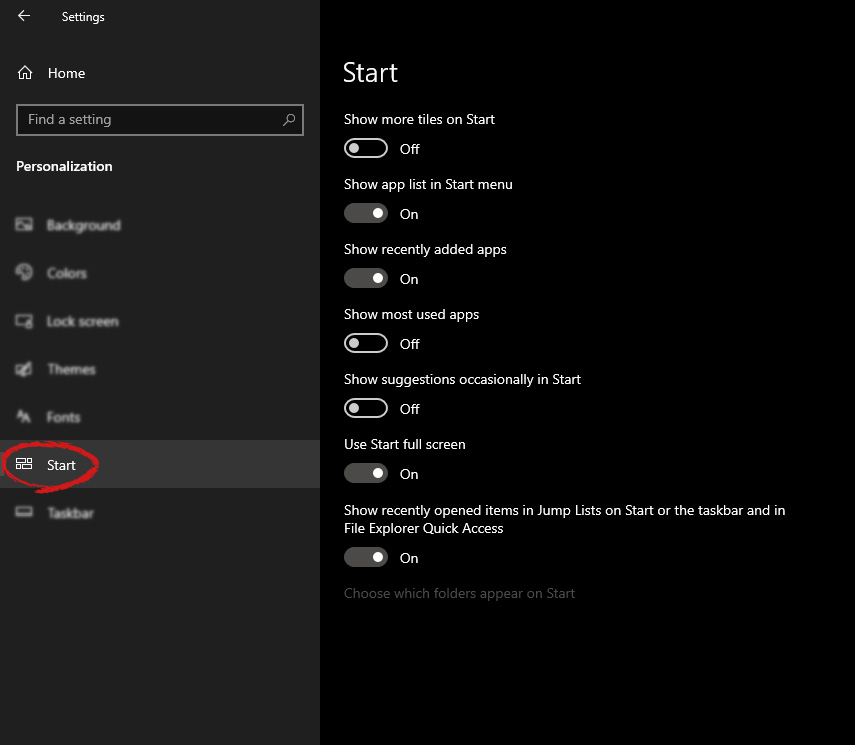
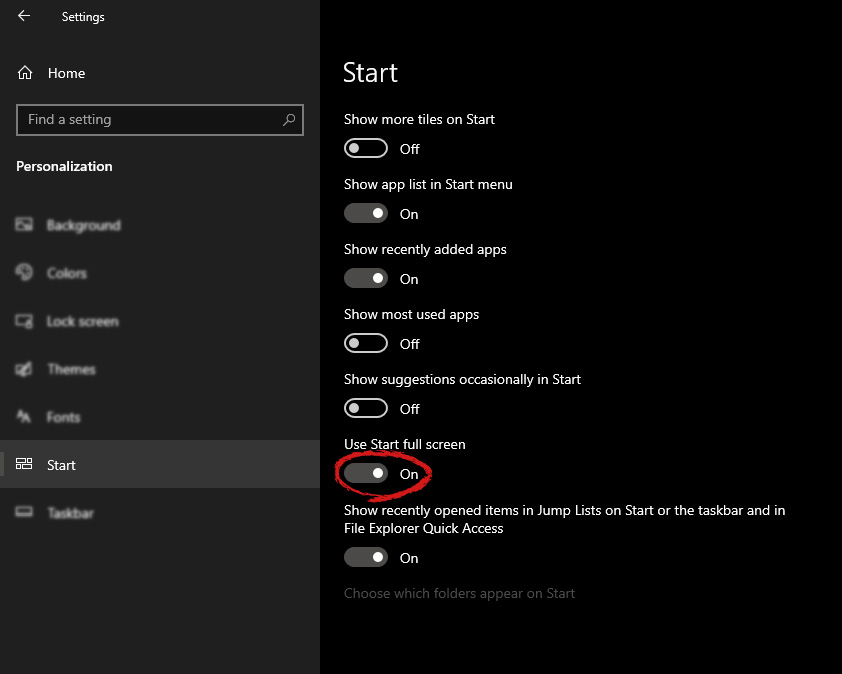
Hello and welcome to another great tutorial from errortools.com. Today we will be making Windows START menu full screen. First introduced in Windows 8.1, the start menu has been shifted from full screen to gadget like in Windows 10 but if you prefer to have it over the entire screen with all of its glory and large icons you can do so and we will be happy to show you how. Press ⊞ WINDOWS and choose settings. Windows 10 Star menu with marked settings iconFrom the settings screen, choose Personalization. Windows 10 settings menu with marked Personalization groupUnder personalization options click on START. windows settings start screen sectionAnd then on the right part click on the button under Use Start full screen to turn it ON windows settings start screen switch for full screenThat's it, your start menu is now full screen.
Read More
How to Fix Error Code 0xc004f210 in Windows 8

Error Code 0xc004f210 – What is it?

Error code 0xc004f210 occurs when Windows 8 users fail to activate their Windows operating system. Users will be able to identify error code 0xc004f210 because of the following common symptoms which occur:

Solution

Restoro box imageError Causes

If you enter an invalid product key or do not have a digital entitlement for the edition of Windows you are attempting to activate, you may experience error code 0xc004f210. Since this error usually occurs due to these main reasons, you will most likely find success resolving this issue by ensuring you use a valid product key or activate an appropriate edition of Windows based on the edition of your digital entitlement.

Further Information and Manual Repair

Error codes can be resolved through manual repair procedures that seek to fix the underlying issues causing the error. In the case of error code 0xc004f210, you should be able to resolve this error by using the methods below. You may also consider contacting a Windows repair technician if you have difficulty resolving the error code.

Method One: Enter Valid Product Key

To successfully activate your operating system and resolve error code 0xc004f210, you will need to enter a valid product key in the Update & security section of Windows. Follow the instructions below to enter the product key.

  • Step one: Click the Start button then select Settings
  • Step two: Select Update & security then Activation
  • Step three: Click the Change product key
  • Step four: Enter a valid product key

If the issue causing error code 0xc004f210 is related to the use of an invalid product key, you should be able to successfully activate your Windows operating system. Should the problem persist, however, you will need to attempt the next manual repair method explained below? Note: Failure to fix this error code might result in other Windows 10 error messages.

Method Two: Ensure Edition of Windows Matches Your Digital Entitlement

Digital entitlement allows Windows users to access activation without using a product key. This digital entitlement only affects Windows 8 users who are attempting to activate versions of Windows 10 that include Windows 10 Pro. Once you are using a genuine copy of Windows 8.1 and your edition of Windows matches your entitlement, you may proceed with the instructions below.

  • Step one: Click the Start button then select Settings
  • Step two: After selecting Settings, click Update & Security
  • Step three: Select Windows Update then the Check for updates tab
  • Step four: Click activate Windows 10 update

You should be able to activate your Windows update once you follow the instructions above. Remember error code 0xc004f210 is an activation code related to product keys or your digital entitlement so once these issues are rectified, you should have no problem activating your operating system of choice and enjoying the benefits it offers. If, however, the problem remains unresolved after you have attempted both manual repair methods, there may be unusual issues affecting your system. Contact Microsoft to rectify the issue or get help from a Windows repair technician.

Method Three: Download an Automated Tool

If you wish to always have at your disposal a utility tool to fix these Windows 8 and other related issues when they do arise, download and install a powerful automated tool.

Read More
DigiSmirkz Removal Tutorial For Windows

DigiSmirkz is a Browser Extension by Mindspark Inc. This extension offers users the ability to enrich their emails or chats with tons of new emojis. When installed it will replace your default new tab page with a variety of search.myway.com, hosted at hp.myway.com. This search engine uses information about you, collected by the extension to display unwanted targeted ads by Mindspark Partners and Ad Networks.

While surfing the internet with this extension installed and enabled, you will see additional pop-up ads, inserted ads into search results and sponsored content on web pages.

Several anti-virus applications have marked this extension as a Browser Hijacker and is therefore recommended to be removed from the Computer.

About Browser Hijackers

Browser hijackers (sometimes referred to as hijackware) are a kind of malicious software that modifies web browser settings without the computer owner’s knowledge or consent. These hijacks appear to be rising at an alarming rate worldwide, and it could be really nefarious and often harmful too. Browser hijacker malware is created for a variety of reasons. Typically, hijackers will force hits to sites of their choice either to get more traffic generating higher ad earnings or to obtain a commission for every user visiting there. Although it may seem harmless, these tools were created by vicious people who always look to take advantage of you, so that they can easily make money from your naive and distraction. They not only ruin your internet browsers, but browser hijackers can even modify the computer registry, making your PC vulnerable to other types of attacks.

Major signs that an internet browser has been hijacked

There are many symptoms that indicate your browser is highjacked: 1. your homepage is reset to some unfamiliar webpage 2. your internet browser is constantly being redirected to porn websites 3. the default web engine and/or the default browser settings are modified 4. unsolicited new toolbars are added to your web browser 5. your internet browser will display constant pop-up windows 6. your web browser starts running slowly or presents frequent errors 7. you can’t navigate to particular webpages, like security software-related websites.

How they get into your PC

Browser hijackers can enter a PC by some means or other, for example via file sharing, downloads, and e-mail too. They may also come from any BHO, extension, add-on, toolbar or plug-in with malicious purpose. A browser hijacker could also be installed as a part of freeware, shareware, demoware and fake programs. Some of the most popular hijackers are DigiSmirkz, Conduit Search, Babylon Toolbar, Sweet Page, OneWebSearch, and CoolWebSearch. Browser hijackers can interrupt the user’s web surfing experience severely, track the websites frequented by users and steal private information, cause difficulty in connecting to the web, and eventually create stability issues, causing applications and system to crash.

How you can fix a browser hijack

Certain hijackers could be removed simply by uninstalling the related freeware or add-ons through the Add or Remove Programs in the Windows control panel. But, many browser hijackers are hard to get rid of manually. Irrespective of how much you attempt to get rid of it, it may keep returning over and over again. You should think of undertaking manual repairs only if you are a tech-savvy person, as there are possible risks associated with tinkering around with the computer registry and HOSTS file. Industry experts always suggest users remove any malicious software including browser hijacker by using an automatic malware removal tool, which is better, safer, and faster than the manual removal method. To remove any type of browser hijacker from your system, you can download this particular top-notch malware removal software – SafeBytes Anti-Malware.

Virus Blocking Internet And All Antivirus Software? Do This!

Practically all malware is bad and the degree of the damage will vary greatly with regards to the type of infection. Certain malware types alter internet browser settings by adding a proxy server or change the PC’s DNS configurations. When this happens, you will be unable to visit some or all sites, and thus not able to download or install the necessary security software to clear out the computer virus. If you are reading this article, chances are you’re stuck with a malware infection which is preventing you to download and/or install Safebytes Anti-Malware program on your system. Follow the instructions below to get rid of malware by alternate ways.

Make use of Safe Mode to resolve the issue

If any malware is set to load immediately when Windows starts, stepping into safe mode may block this attempt. Since only the bare minimum programs and services start-up in Safe Mode, there are rarely any reasons for issues to happen. Below are the steps you should follow to take out viruses in Safemode. 1) Tap the F8 key repeatedly as soon as your system boots, however, before the big Windows logo or black screen with white texts appears. This should bring up the Advanced Boot Options menu. 2) Use the arrow keys to choose Safe Mode with Networking and press ENTER. 3) When you are into this mode, you will have an internet connection once again. Now, get the malware removal software you want by utilizing the browser. To install the software, follow the guidelines in the installation wizard. 4) Once the software is installed, let the scan run to eliminate viruses and other malware automatically.

Switch to an alternative browser

Malicious program code might exploit vulnerabilities in a specific internet browser and block access to all anti-virus software sites. The most effective solution to avoid this problem is to choose a web browser that is renowned for their security measures. Firefox has built-in Malware and Phishing Protection to keep you safe online.

Run anti-virus from a pen drive

Another solution is to create a portable anti-malware program on your USB stick. Adopt these measures to run the anti-malware on the affected computer. 1) Use another virus-free PC to download Safebytes Anti-Malware. 2) Mount the USB drive on the same system. 3) Run the setup program by double-clicking the executable file of the downloaded software, which has an .exe file format. 4) Select USB flash drive as the location when the wizard asks you where you want to install the application. Follow the on-screen instructions to complete the installation process. 5) Transfer the USB drive from the clean PC to the infected computer. 6) Run the Safebytes Anti-malware directly from the USB drive by double-clicking the icon. 7) Click the “Scan” button to run a full system scan and remove viruses automatically.

Protect Your Computer Against Malware and Viruses With SafeBytes Anti-Malware

If you are looking to purchase anti-malware for your computer system, there are lots of brands and packages for you to consider. Some of them are great while some are scamware applications that pretend as legitimate anti-malware software waiting around to wreak havoc on the computer. You need to select a company that creates industry-best anti-malware and it has got a reputation as reliable. On the list of highly recommended software programs is SafeBytes Anti-Malware. SafeBytes has a good track record of excellent service, and clients are very happy with it. SafeBytes anti-malware is a trustworthy software that not only secures your computer system completely but is also very user-friendly for people of all ability levels. Through its cutting-edge technology, this software protects your PC against infections brought on by various kinds of malware and similar internet threats, including spyware, adware, trojans, worms, computer viruses, keyloggers, potentially unwanted program (PUPs), and ransomware.

There are many wonderful features you will get with this particular security product. These are some of the highlighted features included in the product.

World-class AntiMalware Protection: This deep-cleaning antimalware application goes much deeper than most antivirus tools to clean out your personal computer. Its critically acclaimed virus engine detects and disables hard to remove malware that conceals deep inside your personal computer. Live Protection: SafeBytes provides real-time active checking and protection against all of known viruses and malware. This utility will always monitor your PC for any suspicious activity and updates itself regularly to keep current with the latest threats. Web Protection: Safebytes allots all sites a unique safety rating that helps you to have an idea of whether the webpage you are going to visit is safe to view or known to be a phishing site. Faster Scanning: SafeBytes’s very fast malware scanning engine reduces scan times and extends battery life. Simultaneously, it will effectively detect and remove infected files or any online threat. Low CPU and RAM Usage: SafeBytes gives you total protection from internet threats at a fraction of the CPU load because of its advanced detection engine and algorithms. Fantastic Tech Support Team: You can obtain absolutely free 24/7 technical assistance from their computer experts on any product queries or PC security issues. SafeBytes will keep your computer safe from latest malware threats automatically with hardly any input needed from you again. You now may realize that this particular tool does more than just scan and eliminate threats from your PC. You will get the very best all-around protection for the money you spend on SafeBytes Anti-Malware subscription, there is no doubt about it.

Technical Details and Manual Removal (Advanced Users)

If you want to do the removal of DigiSmirkz manually rather than employing an automated software tool, you can follow these simple steps: Go to the Windows Control Panel, click on the “Add or Remove Programs” and there, select the offending program to remove. In case of suspicious versions of web browser extensions, you can actually remove it through your browser’s extension manager. You may also want to reset your home page and search engine providers, and also clear your web browser cache and cookies. In order to ensure complete removal, manually examine your hard drive and registry for all of the following and remove or reset the values accordingly. Please note that only advanced computer users should try to manually edit the registry because removing any single critical system file leads to a serious problem or perhaps a computer crash. Moreover, certain malware keeps replicating which makes it tough to remove. Doing this malware-removal process in Safe Mode is suggested.
Files: %UserProfile%\Local Settings\Application Data\Google\Chrome\User Data\Default\Extensions\fhibenoomgnppdhbjaephephkddnokof %LOCALAPPDATA%\DigiSmirkzTooltab Registry: HKEY_CURRENT_USER\SOFTWARE\DigiSmirkz HKEY_CURRENT_USER\SOFTWARE\Wow6432Node\DigiSmirkz HKEY_CURRENT_USER\SOFTWARE\Microsoft\Internet Explorer\LowRegistry\DOMStorage\digismirkz.dl.myway.com HKEY_LOCAL_MACHINE\Software\Microsoft\Internet Explorer\DOMStorage\digismirkz.dl.myway.com HKEY_LOCAL_MACHINE\Software\[APPLICATION]\Microsoft\Windows\CurrentVersion\Uninstall..Uninstaller DigiSmirkzTooltab Uninstall Internet Explorer

Read More
Fix Unable to terminate the process Error in Windows 10
There are times when you may find it hard to kill a particular process in the Windows Task Manager and every time you try to do so, you will only get an error message saying, “Unable to terminate the process, The operation could not be completed, Access is denied”. If you are one of the users who is constantly getting this error, read on as this post will provide you with a couple of options you can try to resolve the problem. Refer to the given instructions below if you are unable to terminate a process in the Task Manager but before you proceed you need to restart your PC and then try killing the process again, if you’re still not able to do it, you need to follow the options laid out below.

Option 1 – Try using Taskkill

  • Open the Command Prompt as admin from the WinX Menu.
  • After opening Command Prompt, type in the following command and tap Enter to execute it:
taskkill /IM "processname" /T /F processname – it is the name of the process which you can see on the Details tab of the Windows Task Manager. /IM – it is the one that specifies the image name of the process, which follows, that is to be terminated. /T – it is the one that kills not just the main process but also the child process. /F – it is the one that terminates the process forcefully.

Option 2 – Try using the WMIC

  • Open Command Prompt as admin from the WinX Menu.
  • From the Command Prompt window that opens, type in the following command and hit Enter to execute it:
wmic process where name='processname.exe' delete
Note: In the given command, you need to replace “processname.exe” with the name of the particular process you want to terminate which is found in the Details tab of the Windows Task Manager.

Option 3 – Try using PowerShell

  • The first thing you have to do is open an elevated PowerShell prompt.
  • From there, type in the following command and hit Enter to execute it:
kill -id pid
Note: In the given command above, “pid” is the Process ID number of the process you want to terminate. And for you to identify this number, you need to open the Details tab of the Windows Task Manager once again and take note of the number against the process you want to get rid of. Alternatively, you can also run the following command in the PowerShell prompt that you’ve pulled up to get the process ID number:
Get-Process
For example, “5364” is the process ID number for the DimScreen.exe process which is the process you want to terminate. In order for you to kill this process, you need to type in this command:
kill -id 5364
Read More
nslookup works but ping fails in Windows
nslookup is a command-line tool that helps in finding the DNS records of a website. It sends a name server query to the DNS and obtains the corresponding IP address. Aside from that, it can also perform some complex functionality such as finding details about FTP server, Mail server and many more but most of them are used by administrators. The best thing about nslookup is that it queries the DNS server directly and it does not rely on the cache. On the other hand, there is another tool called PING that is used to verify connectivity. PING sends a packet of information to the IP address or Domain and gets back a response in the form of packets. So if everything goes well, all packets are received but if not, it will help you find out where the delay in the network exactly is. However, the ping command does not always attempt a DNS lookup which means that it might be using the DNS cache and use the IP address available in that table. Although both nslookup and PING help you in identifying the host or IP address, however, they don’t always work and sometimes fail. So if your nslookup works but ping fails on your Windows 10 PC when querying the IP address of a website then it could be caused by many reasons. It could be that the nslookup queries work for you but when you try to use PING, it fails. For instance, if you open the abc.com website, here’s how it will look like:
nslookup xyz.com Server: dns.company.com Address: 192.168.1.38 C:> ping xyz.com Ping request could not find host xyz.com. Please check the name and try again.
The domain is converted into an IP address and then data is sent to that IP address when you use PING. So when a reply comes back it means that the data is going back and forth to that domain without any problem. However, if the DNS fails to resolve the IP address of the website or if your PC does not attempt a DNS lookup, you will receive a similar error message that says, “Could not find host” and so on. To resolve this issue, here are some options that might help.

Option 1 – Reset Winsock, TCP/IP & Flush DNS

Resetting Winsock, TCP/IP, and flushing DNS might help you resolve the issue with nslookup and PING. To do so, follow these steps:
  • Right-click on the Start button and click on Command Prompt (administrator) so you can pull up an elevated Command Prompt.
  • After that, execute each one of the commands listed below. And after you typed in one after the other, you have to hit Enter.
  1. netsh winsock reset – type in this command to reset Winsock
  2. netsh int ip reset resettcpip.txt – type in this command to reset TCP/IP
  3. ipconfig /flushdns – type in this command to flush the DNS cache
  • Next, restart your PC and check if the problem’s fixed.

Option 2 – Force Windows to do a DNS lookup using FQDN

  • Go to Settings > Network & Internet > Status > Change adapter options.
  • From there, right-click on the network and select Properties.
  • Next, in case you’re using IPv6, from the list of connections available in the list, select Internet Protocol Version 4.
  • Then click on Properties and click Advanced.
  • After that, switch to the DNS tab and select “Append these DNS suffixes (in order)” and click on the Add button and then add “.” as a suffix so that each time you query using PING and another tool, it will add a “.” at the end and will force the lookup.

Option 3 – Make sure that there is only one default gateway

If your computer has more than one NIC connected and there are multiple default gateways, then it will most likely create confusion which is why you need to remove the default gateway from the configuration of all NICs and make sure that there is only one default gateway.

Option 4 – Use the Google Public DNS

You might want to change your DNS to Google Public DNS as it could also help you in fixing the nslookup and PING issues. To do so, follow the steps below.
  • The first thing you have to do is right-click on the network icon in the Taskbar and select Network and Sharing Center.
  • Next, click on the “Change Adapter Settings” option.
  • After that, search for the network connection that you are using to connect to the internet. Note that the option might be “Wireless Connection” or “Local Area Connection”.
  • Right-click on your network connection and click on Properties.
  • Then select the new window to choose the “Internet Protocol 4 (TCP/IPv4)” option.
  • After that, click on the Properties button and click the checkbox in the new window for the option “Use the following DNS server addresses”.
  • Type in “8.8.8.8” and “8.8.4.4” and click OK and exit.

Option 5 – Check the Windows Host file

You can also try to cross-check the Windows Hosts file to find out if the website you are trying to open has been blocked, because if it is, then it’s no wonder why PING fails even when nslookup works. There are instances when some third-party application modifies the file and adds some websites to the blocklists. So if the website is indeed blocked, you need to remove it from the list.

Option 6 – Delete the WLAN Profiles

Deleting the WLAN Profiles might be a good idea if you are not able to connect to the internet on your computer and if you’re using Wi-Fi. It could be that the networks that were connected previously have gone rogue which is why it is not connecting properly. And so deleting the WLAN profiles might help you in fixing the issue with nslookup and PING.

Option 7 – Reinstall the Network Adapter Drivers

  • Tap the Win + R keys to launch the Run window and then type in the “msc” command and hit Enter to open the Device Manager window.
  • Under the Device Manager, you will see a list of drivers. From there, look for the Network Adapters and expand it.
  • Then right-click on each one of the Network drivers and select “Uninstall device”.
  • Restart your PC.
Read More
Change default name for New Folder in Windows
Anytime when a new folder is created in Windows name "New Folder" is offered and set as the default name. If by any chance you would like to change this and set your own default name instead of the standard one, follow this guide. Please be aware that this guide will require you to change the registry of Windows, it is common practice to make a backup of your registry each time you want to manually change any values in it, just in case something goes wrong.
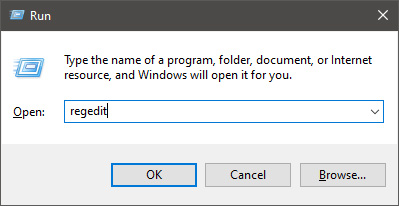
  • In order to change the default new folder name first press ⊞ WINDOWS + R to open the run dialog, type in it RegEdit, and press ENTER run dialog with regedit
  • In registry editor find the key:
HKEY_CURRENT_USER\SOFTWARE\Microsoft\Windows\CurrentVersion\Explorer
  • Select the NamingTemplates key. If it is not present, you’ll need to create one.
  • Right-click the NamingTemplates key to add a String Value.
  • Assign it the following name: RenameNameTemplate.
  • Double-click on the RenameNameTemplate data value to open the Edit String dialog box.
  • In the Value Data field enter the new text you want to appear when you create a new folder. You have to make sure you are not using any of the following characters: \ / ? : * " > < |
  • Close the Registry Editor and Exit.
  • Now, when you create a new folder, it will be named Whatever you chose instead of the New folder.
And that is all to it, you now have your own personal new folder naming template.
Read More
1 2 3 171
Logo
Copyright © 2023, ErrorTools. All Rights Reserved
Trademark: Microsoft Windows logos are registered trademarks of Microsoft. Disclaimer: ErrorTools.com is not affiliated with Microsoft, nor claims direct affiliation.
The information on this page is provided for information purposes only.
DMCA.com Protection Status