There are times when we delete a system files without meaning to on your Windows 10 computer. This happens a lot for users sometimes mistake a system file for a malware-laden file or junk file when it’s actually a system file from the System32 or SysWOW64 folder. In such cases, it could affect your computer. For instance, you might not be able to reboot your PC or open Settings.
If you have removed system files from any of these folders by accident and you desperately want to restore them, read on, as this post will guide you in resolving the problem. Restoring them isn’t actually hard, just make sure that you have system admin access.
The good thing is that there exists Windows Resource Protection which protects registry keys and folders and even critical system files. So if there are any detected changes to a protected system file, the modified file is restored from a cached copy located in the Windows folder. However, if the Windows Resource Protection program fails to restore these files, you need to check out the given fixes below.
Option 1 – Run System File Checker scan
To restore the system files you deleted, you can try running System File Checker or SFC scan. System File Checker is a command utility built into your computer that helps restore corrupted files and missing files. Refer to the following steps to run it:
Boot your PC into Safe Mode.
Hit the Win + R keys to launch Run.
Type in cmd in the field and tap Enter.
After opening Command Prompt, type in sfc /scannow
The command will start a system scan which will take a few while before it finishes. Once it’s done, you could get the following results:
Windows Resource Protection did not find any integrity violations.
Windows Resource Protection found corrupt files and successfully repaired them.
Windows Resource Protection found corrupt files but was unable to fix some of them.
Reboot your computer.
Option 2 – Try to run the DISM tool
Aside from System File Checker, you can also run the DISM or Deployment Imaging and Servicing Management Tool as it could help in restoring the system files on your Windows 10 computer. Using this built-in tool, you have various options such as the “/ScanHealth”, “/CheckHealth”, and “/RestoreHealth” which could help you resolve the problem.
Open the Command Prompt with admin privileges.
Then type in the following commands and make sure to hit Enter right after you type each one of them:
Dism /Online /Cleanup-Image /CheckHealth
Dism /Online /Cleanup-Image /ScanHealth
exe /Online /Cleanup-image /Restorehealth
Do not close the window if the process takes a while as it will probably take a few minutes to finish.
Option 3 – Try performing a System Restore
Running System Restore can also help you bring back the system files. You can do this option either by booting into Safe Mode or in System Restore. If you are already in the Advanced Startup Options, just directly select System Restore and proceed with the next steps. And if you have just booted your PC into Safe Mode, refer to the steps below.
Tap the Win + R keys to open the Run dialog box.
After that, type in “sysdm.cpl” in the field and tap Enter.
Next, go to the System Protection tab then click the System Restore button. This will open a new window where you have to select your preferred System Restore point.
After that, follow the on-screen instructions to finish the process and then restart your computer and check if the problem is fixed or not.
Option 4 – Try to run Automatic or Startup Repair
Startup Repair, previously known as Automatic Repair, is an advanced tool in Windows that can help you diagnose various system issues, including this one. This tool will scan system files, configuration settings, registry settings, and so on in order to fix the problem on its own. To run Startup Repair, all you have to do is boot into the Advanced Startup Options and then go to Troubleshoot > Advanced option > Startup Repair and then run it. This will resolve the problem if you have deleted any system file that’s essential to your Windows 10 PC.
Option 5 – Reset your computer
Tap the Win key or click on the Start button located in the Taskbar.
Then click on the Power button at the bottom right portion of the screen.
Next, press and hold the Shift key on your keyboard and then click on Restart. This will restart your Pc into the Advanced Startup options.
Note: Once you have access to the Advanced Startup options, you have to go to the setting which allows you to Reset your Windows 10 PC. All you have to do is select Troubleshoot > Reset this PC to reach the following screen
Afterward, select either the “Keep my files” option and then proceed to the next on-screen instructions that follow to reset your Windows 10 computer without losing your files.
Each time you open an application inside your Windows 11 operating system, it is opened with standard privileges. Now, please note that your account privileges and application privileges are two different things, you might be the administrator of the system but when you open the app, it still opens with standard privilege.
Most of the time running applications with typical settings is fine but from time to time we might have some applications that will require running with administrator privilege in order to work properly. In this case, it is very easy to do it, you just right-click and choose run as administrator.
Although a very easy solution, it can be quite annoying if running the app is on a daily basis or even more times per day. If this is the case then right-clicking and choosing to run as administrator can be a daunting task, sometimes you can even forget to run it like this in heat of work and some unforeseen consequences might occur.
Luckily there is an easy hack so you can open the chosen application each time as an administrator with a simple double click each time.
Setting application to run as administrator always
Locate application executable file
Right-click on in and choose properties
Click on the Compatibility tab
Check the box next to Run this Program as an Administrator
Click on Apply
Click on OK
From now on each time you open an application normally with a double click, it will be opened as administrator privileges.
One of the most basic and commonly used features in the Windows operating system is the copy and paste feature that helps users accomplish tasks in a faster and easier way. However, if you notice that it’s not working properly for some reason, then this post might be of help as it will provide you with options you can check out to resolve the problem.
You can encounter this kind of problem with the copy and paste feature if some system files are corrupted or if there’s some third-party application or process that interferes with this function. Worry not though for there are some options you can check out to fix this. You can try to restart the
rdpclip.exe process or the explorer.exe process. You could also try to reinstall the program where you encountered the issue with the Copy and Paste function. In addition, you could try clearing the clipboard history or run the built-in tools like the DISM tool and SFC scan. You could also troubleshoot the problem in a Clean Boot State or use the Refresh Windows tool. For more information, refer to each one of the options below.
Option 1 – Try to restart the rdpclip.exe and the explorer.exe processes
The first thing you can do to resolve the problem is to restart certain processes namely, the rdpclip.exe process and the explorer.exe process via Task Manager.
First, right-click on your Taskbar and select the Task Manager.
Next, look for the rdpclip.exe process and right-click on it, and select the End process option.
After that, click on the File tab > Run new task and then type “rdpclip.exe” and tap Enter.
This should help fix the problem. If not, you could also try to restart the explorer.exe process – just look for the explorer.exe process in the Task Manager and right-click on it, and then select the Restart option.
Option 2 – Try reinstalling the concerned program
If you only experience this issue on a particular program, you might want to uninstall this program and install it back again, and then see if it fixed the problem or not.
Option 3 – Try to clear the clipboard history
You could also try clearing the clipboard history as it has been known to help in fixing this kind of issue. You can clear the clipboard history using the command line.
Tap the Win + R keys to launch the Run dialog box and type “cmd” in the field and hit Enter to open Command Prompt.
Next, execute this command: echo off | clip
After that, check if the Copy and Paste function is now working properly or not.
Option 4 – Try running the DISM tool
You can run the DISM tool as well to help fix the “Tile Database is corrupt” error. Using this built-in tool, you have various options such as the “/ScanHealth”, “/CheckHealth”, and “/RestoreHealth”.
Open the Command Prompt with admin privileges.
Then type in the following commands and make sure to hit Enter right after you type each one of them:
Dism /Online /Cleanup-Image /CheckHealth
Dism /Online /Cleanup-Image /ScanHealth
DISM.exe /Online /Cleanup-image /Restorehealth
Do not close the window if the process takes a while as it will probably take a few minutes to finish.
Once it’s done, check if it was able to fix the corrupted Start Menu or not.
Option 5 – Try to run System File Checker or SFC scan
Tap Win + R to launch Run.
Type in cmd in the field and tap Enter.
After opening Command Prompt, type in sfc /scannow and hit Enter.
Once done, restart your computer.
Option 6 – Restart your computer in a Clean Boot State
If a third party program like antivirus is the one that’s causing the problem, you can try to put your computer in a Clean Boot State to isolate the issue by following these steps:
Log onto your PC as an administrator.
Type in msconfig in the Start Search to open the System Configuration utility.
From there, go to the General tab and click “Selective startup”.
Clear the “Load Startup items” check box and make sure that the “Load System Services” and “Use Original boot configuration” options are checked.
Next, click the Services tab and select the “Hide All Microsoft Services” check box.
Click Disable all.
Click on Apply/OK and restart your PC. (This will put your PC into a Clean Boot State. And configure Windows to use the usual startup, just simply undo the changes.)
Now try to connect your device or copy the files to your external device again and check if the problem with the Copy and Paste function is fixed.
Browsing the internet doesn’t always go smoothly, you might encounter ads, pop-ups, viruses, malware, and even errors. In this post, we’ll walk you through how you can fix the 502 Bad Gateway error that you might encounter in browsing the internet. This kind of error suggests the server which is the one that’s acting as a gateway to facilitate in taking your request to the server and bring some response back has received an invalid response or even no response at all. It could be that the connection is broken or that there is an issue on the server-side that returns an invalid response. Even though the 502 Bad Gateway error is a server-related error, there are still a few things you can try that might help resolve it, if tapping the Ctrl + F5 keys does not resolve the problem.
Keep in mind that it doesn’t matter what website you open as this error can appear on any website. To resolve the problem, you need to follow the options prepared below.
Option 1 – Check the network cable connections and restart your router
As with other connection problems, this is the most basic thing to do before you try other troubleshooting options because the root cause of the problem might be as simple as a cable not connected properly or a router that just needs to be restarted. Thus, checking the network cable connection to see if there is anything out of order can help as well as restarting your router.
Option 2 – Reset Winsock, TCP/IP & Flush DNS
Resetting Winsock, TCP/IP, and flushing DNS might help you resolve the issue. To do so, follow these steps:
Right-click on the Start button and click on Command Prompt (administrator) so you can pull up an elevated Command Prompt.
After that, execute each one of the commands listed below. And after you typed in one after the other, you have to hit Enter.
netsh winsock reset – type in this command to reset Winsock
netsh int ip reset resettcpip.txt – type in this command to reset TCP/IP
ipconfig /flushdns– type in this command to flush the DNS cache
Next, restart your PC and check if the problem’s fixed.
Option 3 – Change the DNS
Changing the DNS server for your network can also help you fix the 502 Bad Gateway error. You can use a public DNS like the Google Public DNS, Open DNS, Yandex DNS, Comodo Secure DNS, and many more. All you have to do is to override the default DNS settings on your PC so that you can specify which DNS server is used as well as which IP address should be used for a specific domain.
Option 4 – Try updating the Network Adapter Driver
Follow the steps below to update your Network Adapter Driver:
Tap the Win + R keys to launch the Run window and then type in the “devmgmt.msc” command and hit Enter to open the Device Manager window.
From there, expand the list of all the network drives and update each one of them.
Note: If updating the network drivers didn’t help in fixing the problem, you can also try to uninstall the very same drivers and restart your Windows 10 PC. After that, the system itself will reinstall the drivers you just uninstalled. Alternatively, you can also download and install the drivers from the manufacturer’s website directly.
Option 5 – Try a Network Reset
When all else fails, you might have to consider resetting your entire network settings. Simply follow the steps below to do so.
Click on the Start button and then click on the gear-like icon for Settings to open it.
Next, select Network and Internet.
Then scroll down and look for “Network Reset” – click on it and then click on the Reset now button.
0x00000050 is a type of stop error code. It is also known as a Blue Screen of Death error. It usually occurs when you try to start your PC or load a program. It can also occur while running a program.
This error may also pop up when you restart your PC after installing Windows XP Service Pack (SP1) on your computer. Unlike some PC related errors, 0x00000050 error code occurs without any warning.
The stop 0x00000050 error is displayed in a blue screen and interrupts you from carrying your desired activities on your PC smoothly. This error message is prompted in the following format:
Stop 0x00000050 error code may pop up on your Windows computer screen due to multiple causes. The most common causes for this error code include:
Poor PC maintenance
Registry issues- Bad registry keys, invalid entries, corrupt and damaged registry
Incompatible DLL files
Corruption of system files- Pool corruption in the Srvnet.sys file
Spyware and viruses
Overheating of PC components
The conflict between Windows XP SP1 and the display adapter drivers that are currently installed on your PC.
It is advisable to resolve 0x00000050 error code on your PC right away. BSOD errors are fatal errors and can pose serious threats to your PC. If not fixed timely it can lead to system crash, failure and valuable data loss.
Further Information and Manual Repair
To prevent data loss and system failure, there are some effective methods to resolve Stop 0x00000050 error code on your PC. To implement these solutions on your PC, you don’t need to be a technical whiz or a computer programmer.
Method One
If the error cause is the conflict between Windows XP SP1 and the display adapter drivers then here’s what you need to do to resolve it:
First start Windows in safe mode. To do this, restart your computer and press F8. On the Windows Advanced Options Menu, use the arrow keys to select Safe Mode.
Once you select it press enter. Now use the arrow keys to select the operating system, press enter to start your computer in safe mode.
Go to Start, click Run and then type ’msinfo32’ in the open box and press OK to continue. Then under the System Summary option, expand Components and then click Display to note the information that corresponds to the INF File Item. And then simply quit the utility.
After that, go to the start menu again and then the My Computer and Properties option.
Press the Hardware Tab and then click the Device Manager tab. Go to the ‘Display Adapters’ option and press the option ‘Uninstall. To confirm action press OK.
Once again, go to the start menu and run and then type the following commands as illustrated below and after each command press enter.
ren %systemroot%infINF file name from Step 5.inf *inf.old
ren %systemroot%infINF file name from Step 5.pnf *pnf.old
This procedure may look pretty lengthy but it is worth it. Once you insert the commands, close all open windows and then reboot your system. Now download the latest drivers for your display adapter and install them. This will hopefully resolve the 0x00000050 error code on your system.
Method Two
Sometimes 0x00000050 BSOD error may occur due to temporary issues like overheating PC components. In times like these, all you need to do to fix the issue is to switch off your computer and allow the components to cool down. Try starting your PC after a few hours.
Method Three
If the issue is triggered by malware, then it is advisable to download a powerful antivirus. Scan your entire PC to detect and remove viruses affecting your PC and generating BSOD errors on your system.
Method Four
However, if the error still persists after trying all the methods stated above, then this means the cause of the error is deep-rooted. It is related to the Windows registry. Registry stores all your system files and activities performed on your PC. It usually gets damaged and corrupt if it is not cleaned frequently.
The registry loads with unnecessary and obsolete files like junk files, cookies, internet history, bad registry keys and invalid entries. These files if not removed, accumulate and damage the registry, DLL files, and system files too thereby generate BSoD errors like 0x00000050 error messages.
You can clean and repair the registry manually but it requires a great deal of expertise.
The ideal and easiest way to clean it is to download Restoro. This is highly functional and easy-to-use software. It is embedded with multiple powerful utilities including such as a registry cleaner, an antivirus and a system optimizer.
The registry cleaning feature scans for all errors related to the registry. It removes obsolete files, invalid entries, restores damaged DLL and system files.
The antivirus feature simultaneously detects and removes all kinds of malware. These include viruses, Trojans, spyware, and adware affecting your PC. While the system optimizer feature ensures that your PC functions at its optimum speed.
It is a safe and powerful PC Fixer. It has a user-friendly interface and compatible with all Windows versions.
Click here to download Restoro and Fix Error 0x00000050
We have all experienced Windows errors over time and that can range from simple ones that will do very little to no harm and can be even system breaking making us lose our work or completely making the PC unusable. No one likes them but they happen, and usually, they happen once we least expect them.
No matter how frequent and unpleasant they might be there are ways to keep them at the minimum and even avoid them.
We will discuss steps that you can take in order to do this, simple tips and guides on how to keep your computer in top form and eliminate not just Windows, but any kind of errors altogether.
Keep your hardware clean
Believe it or not, some serious Windows errors like the dreaded blue screen of death can come from hardware issues not from the software at all. It is very important to keep your computer clean and with enough air flow so it can function properly.
Keeping applications on the drive might seem harmless but sadly that is not the case. Some applications have a certain impact on the system itself after all most of them are tweaking registry entries in Windows and sometimes having too many applications means an increased possibility of conflict over certain resources even when they are not running.
Some applications like adobe creative suite, for example, will have certain services always running in the background, and more of these kinds of applications you have, more services, more places for unexpected errors when they collide. Some of them will also install certain dependencies that could be problematic.
The general idea is: if you are not using it, uninstall it and you will be safer and more resilient to errors inside OS.
Do not use pirated or cracked software
Besides moral and law implications that using pirated or cracked software might bring you there are also certain other things that might be problematic. Certain "free" software might come packet with some problematic malware, for example, it is not uncommon for attackers to use some popular software to pack their malicious application with it.
Other things might be wrong and incomplete tweaking with application in order to bypass security and thus bringing some instability due to scripts needed to run in order to achieve this goal.
Keep your drivers updated
Errors can also come from old drivers or bad drivers, device manufacturers are not all-knowing and perfect, and sometimes drivers can wreak havoc on the system. Having updated drivers can minimize any kind of unexpected behaviors inside the operating system making it more stable and reliable.
You can check your driver version in the control panel inside the Windows OS and then compare it to the ones found on the manufacturer's site, if there are newer available it is recommended to download and install them,
Keep software updated
Applications can have bugs, and bugs can lead to certain errors both in the system and when using the app as well. It is in your best interest to get the latest patch or newer version of the software in order to avoid these unpleasant experiences.
Also, certain codecs and extensions that are installed directly in Windows can also have some unpredictable behavior, updating is the best solution to keep them in line.
Keep Windows updated
Same as with drivers and applications, Windows itself is not immune from bugs and some unpredictable issues. Luckily Microsoft is always working on fixes and features of Windows but in order to actually have benefited from that work, you will need to keep Windows updated. Sometimes a bad update can introduce some errors but you can always roll back to the previous and wait for them to fix everything and then download them all.
Check the health of your hardware regularly
Hardware components have their life cycle, more quality ones tend to last longer but eventually, they will reach the end of their lifecycle. There are a lot of testers for various components in your computer that can check different things and provide you with information about the state of your components.
If you are on Windows 11, Microsoft has included a basic health app inside OS, just type PC health check in search and start the app. For some more detailed information and advanced checks, you will have to use a custom application. There are plenty of them specialized for single components like RAM, SSD, etc. A simple google search with providing you with top results and most of them are free for personal use.
Remember, a faulty component or component that is reaching its life cycle can produce many errors inside the operating system.
0x80042109 is a Microsoft Outlook error. The 0x80042109 error code occurs mostly while sending emails. The error message is often displayed in the following format:
“Sending reported error (0×80042109): Outlook cannot connect to your outgoing (SMTP) e-mail server.”
Solution
Error Causes
It is not easy to narrow down the cause for the error code 0x80042109. This error can occur due to many reasons. This includes:
Corrupt emails and PST files
Incorrect Outlook account settings
Unavailability of the mail server
Incomplete Outlook installation
Spyware or viral infection
Further Information and Manual Repair
To resolve the 0x80042109 error code on your PC, here are some easy and effective DIY solutions you can try:
Method 1 - Check Mail Settings
Check your mail settings to see if your outgoing server SMTP is selected or not. If it is not, then it could be the reason for the issue. To check mail settings and select the option, here’s what you need to do:
Click Tools, select Account Settings, and then POP 3 account and click change.
Now check your name field and email address.
Check the incoming and outgoing mail server fields and make sure that it is correct.
Now click on the outgoing server and make sure that the option ‘My Outgoing Server (SMTP) requires Authentication is selected.
After that, click Advanced and tick the option that says ‘This server requires an encrypted connection (SSL).
Now click OK to confirm settings.
Method 2 - Reinstall Outlook on your PC
The error may also occur due to incorrect Outlook installation. Therefore reinstall it on your PC.
To do this first you will have to uninstall the software and then re-install it. Once the software is reinstalled try sending the email again. If it is sent successfully, then this means the error is related to incomplete installation.
However, if the error still persists then it is advisable to restore the points by going to the System Restore option and choosing the option ‘Restore My Computer to an Earlier Time’ point. This will revert the changes.
Method 3 - Try Disabling Firewall
If you have firewall program installed on your PC, then try disabling it and then send an email through your Outlook account.
Method 4 - Scan for Viruses
Another way to resolve the error code is to scan for viruses.
Viral infection and spyware and also affect your Outlook account and activities. However, installing an antivirus on your PC may slow down its performance as such programs are notorious for doing that. Therefore, it is advisable to download Restoro.
Restoro is a next generation and a highly advanced PC Fixer embedded with powerful and multiple utilities including an antivirus and a system optimizer.
Its intuitive algorithm enables it to scan your entire PC and remove all kinds of malicious software affecting your system including malware, adware, spyware, viruses and Trojans. The system optimizer utility works simultaneously and ensures your PC performs at its optimum speed.
It is safe, bug-free, and efficient. It has a user-friendly interface which makes it simple and very easy to operate. You can download it on all Windows versions.
Click here to download Restoro to resolve error 0x80042109 today!
The Winload.efi file is an Extensible Firmware Interface or EFI file. EFI files are executable files for the firmware of the computers that are mainly based on UEFI and execute the tasks of loading the files to the bootloader of the computer. They are used for a specific set of tasks such as turning on the computer, installing Windows, restarting the computer or resetting it, and so on. This is why the Winload.efi file is a significant file so if it gets corrupted, lost, or damaged, it would be impossible for the Windows operating system to proceed.
Here are some errors you can encounter that are related to the Winload.efi file:
efi is missing
efi cannot be found
efi is missing or contains errors
This program can’t start because winload.efi is missing from your computer
This application requires the file winload.efi, which was not found on this system.
There was a problem starting [path]winload.efi. The specified module could not be found.
In addition, the 0xc0000225 , 0xc00000e and 0xc0000001error codes are also associated with the Winload.efi file.
Before you start troubleshooting the problem, you can try to perform System Restore first. This will help undo any changes you’ve made in your computer that might have triggered the Blue Screen error. To perform System Restore, here’s what you have to do:
First, press the Win + R keys to open the Run dialog box.
After that, type in “sysdm.cpl” in the field and tap Enter.
Next, go to the System Protection tab then click the System Restore button. This will open a new window where you have to select your preferred System Restore point.
After that, follow the on-screen instructions to finish the process and then restart your computer and check if the problem is fixed or not.
If System Restore didn’t help in fixing the Blue Screen error, now’s the time for you to resort to the troubleshooting tips provided below but before you get started, make sure that your create a System Restore point first.
Option 1 – Try rebuilding the Boot Configuration Data (BCD) and repairing MBR
Once you get to the Welcome Screen part, click on Next.
Afterwards, click on the Repair your computer option located on the bottom-left part of the window.
Then click on Troubleshoot.
Next, select the Advanced Options and then Command Prompt.
Once Command Prompt has been pulled up, the following commands to rebuild BCD files and repair MBR. Don’t forget to hit Enter right after you type each command.
bootrec /repairbcd
bootrec /osscan
bootrec /repairmbr
Once the command line is successful in finding out a Windows installation, hit Y to let it boot from the list which will successfully rebuild BCD.
Now type “exit” to close Command Prompt and then restart your computer to successfully apply the changes made.
Option 2 – Disable the Secure Boot in the BIOS
Disabling the Secure Boot in the BIOS settings is definitely recommended to resolve errors related to the Winload.efi file. To disable Secure Boot, here’s what you have to do:
First, boot your computer into Windows 10.
Next, go to Settings > Windows Update. From there, check if there is anything that you have to download and install if you see any available updates. Usually, OEMs send and update the list of trusted hardware, drivers, and operating systems for your computer.
After that, go to the BIOS of your computer.
Then go to Settings > Update & Security > Advanced Startup options. If you click on Restart Now, it will restart your computer and give you all the advanced options.
Next, select Troubleshoot > Advanced Options. As you can see, this screen offers you further options including System restore, Startup repair, Go back to the previous version, Command Prompt, System Image Recovery and UEFI Firmware Settings.
Select the UEFI Firmware Settings which will take you to the BIOS.
From there, go to Security > Boot > Authentication tab where you should see Secure Boot. Note that every OEM has its own way of implementing the options so it varies.
Next, set Secure Boot to Disabled and set Legacy Support to On or Enabled.
Save the changes made and exit. Afterward, your computer will reboot.
Option 3 – Run System File Checker scan
You might also try running the System File Checker or SFC scan to fix the error. System File Checker is a command utility built into your computer that helps restore corrupted files and missing files. Refer to the following steps to run it:
Hit the Win + R keys to launch Run.
Type in cmd in the field and tap Enter.
After opening Command Prompt, type in sfc /scannow
The command will start a system scan which will take a few whiles before it finishes. Once it’s done, you could get the following results:
Windows Resource Protection did not find any integrity violations.
Windows Resource Protection found corrupt files and successfully repaired them.
Windows Resource Protection found corrupt files but was unable to fix some of them
Reboot your computer.
Option 4 – Disable the Early Launch Anti-Malware Protection
You need to restart your computer in the Start Menu first while holding down the Shift key on your keyboard.
After that, it will restart your computer to Startup Settings.
Now ensure that the 8th option is labeled as “Disable early launch anti-malware protection.
Then tap the F8 key since the aforementioned option above is listed at number 8. This should launch and load Windows on your PC with the Early Anti-malware protection disabled for that session only when you try to carry out the same task and then check if the error related to the Winload.efi file is now fixed.
Microsoft wants to escalate the situation from Australia to the EU, what a surprise.
Hello all and welcome to another news article, this time we are focusing on Microsoft pushing the EU to accept law proposition from Australia.
For all of you who are not familiar with the given situation let me quickly explain. The feud began when the Australian government proposed a new law that targeted Facebook and Google specifically. The government said that it believed that both of the tech giants were using content from news outlets without paying.
Have you ever seen the little news snippets that Google or Facebook sometimes show its users to keep them up to date? These are lifted directly from news websites, and the Australian government claimed that this practice meant that people didn't bother visiting the news website. This then staved news websites of revenue.
As such, the government put forward a new law that would mean Google and Facebook would have to pay the source website for every time they displayed a news snippet. Facebook responded by removing its Australian news coverage in light of the law.
Google, however, put up a fight. It argued that its snippets encouraged people to click on it to read more, thus driving more traffic to the news website. It also said that such a law would be too expensive to maintain in the long run.
As such, Google threatened to remove itself from Australia if the law passed. This was likely a scare tactic, as 95 percent of Australian web users use Google; however, it actually opened the door for its rival, Microsoft.
Microsoft saw how it could push its own search engine BING to replace google. It of course went and reached the Australian government to assure them that BING is more than capable to fulfill its needs and fully abide by the proposed law.
Now Microsoft knows that if this law passes it could see a similar situation happening in Europe and it is pushing it. US News reported on how Microsoft plans to encourage EU countries to adopt this new law too. The company has teamed up with the European Publishers Council and News Media Europe to make the following statement:
Publishers might not have the economic strength to negotiate fair and balanced agreements with these gatekeeper tech companies, who might otherwise threaten to walk away from negotiations or exit markets entirely
Error Code 46 is a device driver error that occurs when Windows fails to access the connected peripheral device to the computer as Windows is in a process of shutting down.
Users experience this error on any Windows 2000 and later operating system versions and usually see a pop-up with the following message:
“Windows cannot gain access to this hardware device because the operating system is in the process of shutting down. (Code 46)”
Solution
Error Causes
Error Code 46 is caused when there is a temporary problem with windows system files which prompts that the system is undergoing a shut down when in fact is it not.
This prevents access to the connected devices. This error may also be caused by a registry issue in which case it has either become corrupted or damaged.
Further Information and Manual Repair
Unlike all other Windows error codes, code 46 is relatively easy to fix with the right knowledge and does not pose any serious threat to the well-being of your PC. Here is how you can do it.
Method 1 – Restart your PC
The simplest method to resolve Error Code 46 is to run a restart of your computer.
The error is most commonly a temporary registry glitch that prevents you from accessing the device connected to your computer. Upon restarting your computer, it will resume working properly as before.
There is no need to run a troubleshooting wizard, use system restore, or run anti-virus software to scan and remove malware or spyware. A simple restart is all that is needed.
Method 2 – Install DriverFIX
Although the error code can be resolved upon restarting the computer, there’s a possibility of damaged or corrupted Windows registry files. This can be fixed by using a program like DriverFIX.
DriverFIX, with its user-friendly approach to help you fix your PC issues, comes with an integrated database that detects which drivers you need to reconfigure within just a few seconds and downloads it automatically.
It further ensures that your drivers are installed in their entirety leaving no room for any corrupted or damaged registry.
Error Code 46 may not be much of an issue, however, to prevent any risk of a Windows system corruption can be disastrous for your computer.
DriverFIX helps you fix your PC registry and device driver problems with user-friendly software and an integrated database. The database which consists of detailed information on what device driver needs to be installed will automatically download the required device driver without you need to refer to your hardware instruction manual.
Registry problems resulting from incomplete program installations and viruses such as malware and spyware damaged registry files. This affects your PC in serious ways.
DriverFIX further has an automatic backup and restoration system that helps create system ‘checkpoints’ which allow you to roll back to a healthier state and resume operations. This can help you avert any Windows error codes in the future.
So you just have turned your computer ON only to find out that your device which was working perfectly yesterday is not working anymore. This situation can be very stressful and disappointing but do not despair, before you toss your device through the window know that this kind of behavior can be traced back to a software issue.
In this article, we will give you hints on what to do and where to pay attention when something like this happens so you get the device back in working order.
Check if it not a hardware malfunction
To save yourself time and unnecessary frustration with juggling through Windows first inspect the device to be sure that indeed it is working properly, check all led lamps which could indicate that the device is working and receiving power, and if it is an internal device try opening the case and visually check if there are signs of working like rotating fans or led lamps on it.
Check Cables
If it is an external device that has stopped working try checking power cables and cables which go to your computer, see if they are tightly connected. If it is an internal device also check cables, nudge them and if possible disconnect and clean them.
Disconnect and reconnect the device
Try this solution to see will Windows register the device again and start it.
Update Windows
If there is a Windows update not installed, install it and see if the device will start working.
Update device drivers
Go to device manager and update the device driver to its latest version or go to the manufacturer's site and download the latest driver version.
Reinstall the device
In the device manager, uninstall the device driver and reboot Windows. When Windows boots it will recognize the device and install the necessary drivers for it.
Disable antivirus and firewall
Sometimes antivirus can prevent certain devices from working properly, especially if they rely on some system files to which antivirus or firewall has cut access. Try disabling your PC protection to see if this will resolve the issue.
Use dedicated error software
Use DRIVERFIX to automatically search and fix driver issues.







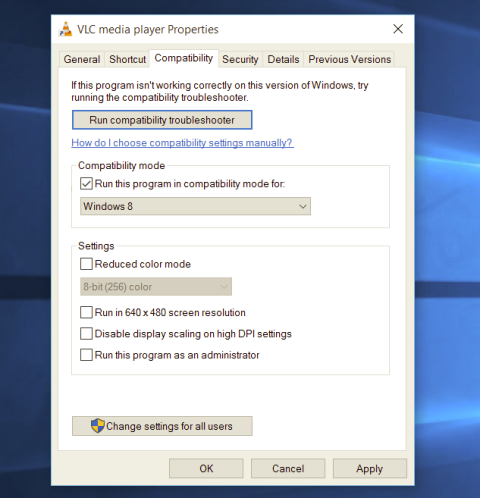 Most of the time running applications with typical settings is fine but from time to time we might have some applications that will require running with administrator privilege in order to work properly. In this case, it is very easy to do it, you just right-click and choose run as administrator.
Although a very easy solution, it can be quite annoying if running the app is on a daily basis or even more times per day. If this is the case then right-clicking and choosing to run as administrator can be a daunting task, sometimes you can even forget to run it like this in heat of work and some unforeseen consequences might occur.
Luckily there is an easy hack so you can open the chosen application each time as an administrator with a simple double click each time.
Most of the time running applications with typical settings is fine but from time to time we might have some applications that will require running with administrator privilege in order to work properly. In this case, it is very easy to do it, you just right-click and choose run as administrator.
Although a very easy solution, it can be quite annoying if running the app is on a daily basis or even more times per day. If this is the case then right-clicking and choosing to run as administrator can be a daunting task, sometimes you can even forget to run it like this in heat of work and some unforeseen consequences might occur.
Luckily there is an easy hack so you can open the chosen application each time as an administrator with a simple double click each time.


 Microsoft wants to escalate the situation from Australia to the EU, what a surprise.
Hello all and welcome to another news article, this time we are focusing on Microsoft pushing the EU to accept law proposition from Australia.
For all of you who are not familiar with the given situation let me quickly explain. The feud began when the Australian government proposed a new law that targeted Facebook and Google specifically. The government said that it believed that both of the tech giants were using content from news outlets without paying.
Have you ever seen the little news snippets that Google or Facebook sometimes show its users to keep them up to date? These are lifted directly from news websites, and the Australian government claimed that this practice meant that people didn't bother visiting the news website. This then staved news websites of revenue.
As such, the government put forward a new law that would mean Google and Facebook would have to pay the source website for every time they displayed a news snippet. Facebook responded by removing its Australian news coverage in light of the law.
Google, however, put up a fight. It argued that its snippets encouraged people to click on it to read more, thus driving more traffic to the news website. It also said that such a law would be too expensive to maintain in the long run.
As such, Google threatened to remove itself from Australia if the law passed. This was likely a scare tactic, as 95 percent of Australian web users use Google; however, it actually opened the door for its rival, Microsoft.
Microsoft saw how it could push its own search engine BING to replace google. It of course went and reached the Australian government to assure them that BING is more than capable to fulfill its needs and fully abide by the proposed law.
Now Microsoft knows that if this law passes it could see a similar situation happening in Europe and it is pushing it. US News reported on how Microsoft plans to encourage EU countries to adopt this new law too. The company has teamed up with the European Publishers Council and News Media Europe to make the following statement:
Publishers might not have the economic strength to negotiate fair and balanced agreements with these gatekeeper tech companies, who might otherwise threaten to walk away from negotiations or exit markets entirely
Microsoft wants to escalate the situation from Australia to the EU, what a surprise.
Hello all and welcome to another news article, this time we are focusing on Microsoft pushing the EU to accept law proposition from Australia.
For all of you who are not familiar with the given situation let me quickly explain. The feud began when the Australian government proposed a new law that targeted Facebook and Google specifically. The government said that it believed that both of the tech giants were using content from news outlets without paying.
Have you ever seen the little news snippets that Google or Facebook sometimes show its users to keep them up to date? These are lifted directly from news websites, and the Australian government claimed that this practice meant that people didn't bother visiting the news website. This then staved news websites of revenue.
As such, the government put forward a new law that would mean Google and Facebook would have to pay the source website for every time they displayed a news snippet. Facebook responded by removing its Australian news coverage in light of the law.
Google, however, put up a fight. It argued that its snippets encouraged people to click on it to read more, thus driving more traffic to the news website. It also said that such a law would be too expensive to maintain in the long run.
As such, Google threatened to remove itself from Australia if the law passed. This was likely a scare tactic, as 95 percent of Australian web users use Google; however, it actually opened the door for its rival, Microsoft.
Microsoft saw how it could push its own search engine BING to replace google. It of course went and reached the Australian government to assure them that BING is more than capable to fulfill its needs and fully abide by the proposed law.
Now Microsoft knows that if this law passes it could see a similar situation happening in Europe and it is pushing it. US News reported on how Microsoft plans to encourage EU countries to adopt this new law too. The company has teamed up with the European Publishers Council and News Media Europe to make the following statement:
Publishers might not have the economic strength to negotiate fair and balanced agreements with these gatekeeper tech companies, who might otherwise threaten to walk away from negotiations or exit markets entirely 
