Logo

INET_E_RESOURCE_NOT_FOUND

The previous Windows versions all came with Microsoft's browser Internet Explorer. A lot of users love it because not only that it is easy to use. It is also very fast. Users didn’t have to worry about compatibility because it is almost always compatible with its Windows Version.

When they introduced Windows 10, they changed the name of the browser from Internet Explorer to Microsoft Edge. It is faster and more user-friendly compared to its predecessors. But after the Creator Update, some experienced receiving the inet_e_resource_not_found error code.

In contrary to what everyone expects, you actually don’t have to uninstall and reinstall the Microsoft Edge App. What you can do is reset the browser in your Apps & Features Settings in your Microsoft Settings.

To reset the browser you can follow the steps below:

  1. Click on the Windows icon and go to settings.
  2. Click on Apps and this will bring you to the Apps & Features page. Look for Microsoft Edge from the list of Apps and click on it.
  3. Choose Advance Option
  4. Scroll down then Under Reset, click on repair or reset. When you repair it will fix the existing problem but the data that caused the problem may still be present and can still cause problems. If you click on reset, it will delete all the cache and cookies that are installed in your browser but it will save your Favorites as well as your bookmarks.

Another way to resolve this is by disabling the feature TCP Fast Open on Microsoft Edge. To disable this, go ahead and follow the steps below:

  1. Open the Microsoft Edge browser.
  2. Type in about: flags on the Address (URL) bar.
  3. Under Networking, uncheck the Enable TCP Fast Open.
  4. Close your Microsoft Edge browser and open a new one.

Flushing the DNS also worked for other Users. Sometimes, the error code the inet_e_resource_not_found is caused by a corrupted DNS cache. There are 2 ways to flush your DNS. The first option is to use the command prompt to run the command.

  1. To access the Command prompt or CMD, you can search for it on Cortana or you can click on the Windows icon to access the Programs, scroll down to the Windows System folder and click on it.
  2. A drop-down menu will show up, click on Command Prompt which is the first on the list.
  3. Type in the code ipconfig /flushdns and press enter.
  4. There will be a message that will show that says Windows IP configuration successfully flushed the DNS Resolver Cache
  5. Exit the CMD by typing exit and press enter.

The easiest way to do this is to Press the keys Window + R on your keyboard. Type in ipconfig /flushdns in the search box and hit enter or click on OK.

These are only some of the ways to resolve the inet_e_resource_not_found. There are other ways to further troubleshoot this issue such as reinstalling your Wifi Adapter Driver or adjusting the DNS Server Address. But most of the time, users are able to resolve the issue with the steps provided above.

Do You Need Help with Your Device?

Our Team of Experts May Help
Troubleshoot.Tech Experts are There for You!
Replace damaged files
Restore performance
Free disk space
Remove Malware
Protects WEB browser
Remove Viruses
Stop PC freezing
GET HELP
Troubleshoot.Tech experts work with all versions of Microsoft Windows including Windows 11, with Android, Mac, and more.

Share this article:

You might also like

RAC Manager not working, Error 0xc0000005
If the Diagnostic Data level in your Windows 10 computer is configured manually to the non-default security setting of zero and you’ve encountered an error code of 0xc0000005, read on as this post will guide you in fixing the problem with the Remote Access Connection Manager Service. In relation to error 0xc0000005, you might also encounter an error in the Application section of Windows Logs in the Event Viewer, along with the Event ID 1000 which would most likely have a reference of “svchost.exe_RasMan” and “rasman.dll”. Before you troubleshoot the problem, keep in mind that the Remote Access Connection Manager or RasMan service is the one that manages dial-up and VPN connections from the computer to the internet as well as other remote networks. Each time you connect, the Services dials the connection or sends out a request for a VPN connection. However, the error 0xc0000005, only occurs when a VPN profile is configured as “Always On VPN or “AOVPN” connection with or without a device tunnel. There are several options you can check out to resolve this error, you can try to install the KB Update 4505903 or fix it via Group Policy. You could also try to enable Telemetry from the Settings app or enable it via Registry Editor. For more information, make sure to check out the provided options below.

Option 1 – Try installing the KB Update 4505903

The first thing you can do to fix the problem is to make sure that you’ve already installed the KB Update 4505903 in your computer. If not, then you have to go to Settings > Update & Security > Windows Update and from there select the Check for updates link. You need to get the standalone package if you are using the Microsoft Update Catalog to update your computer and for that, you have to the website of the Microsoft Update Catalog. On the other hand, if you are using the Windows Server Update Services or WSUS, then you can just manually import the KB Update 4505903 into WSUS.

Option 2 – Try to enable Telemetry in the Group Policy and run the RASMAN service

The next thing you can do to fix the problem is to enable Telemetry via Group Policy and then run the RASMAN service. To do that, follow these steps:
  • Tap the Win + R keys to open the Run dialog box and type “gpedit.msc” in the field and hit Enter to open the Group Policy Editor.
  • Next, navigate to Computer Configuration > Administrative Templates > Windows Components > Data Collection and Preview Builds > Allow Telemetry.
  • After that, open the policy and select one of the security levels like Basic, Enhanced, and Full.
  • Then click on the Apply and OK buttons to save the changes made and close the Group Policy Editor.
  • Once one, open the Run dialog box again and type “services.msc” in the field, and hit Enter to open the Windows Services Manager.
  • From there, look for the Remote Access Connection Manager Service and restart it. And then check if it resolved the problem or not...

Option 3 – Try enabling Telemetry via Settings

  • Tap the Win + I keys to open the Settings app.
  • Next, go to Privacy > Diagnostics and Feedback and select Basic or Enhanced under the Diagnostic data.
  • After that, tap the Win + R keys to launch Run and type “services.msc” in the field, and hit Enter to open the Services Manager.
  • From there, look for the Remote Access Connection Manager Service and restart it.

Option 4 – Try to enable Telemetry via Registry Editor

  • Launch the Run utility and type “regedit” in the field and tap Enter to open the Registry Editor.
  • Then navigate to this path: HKEY_LOCAL_MACHINESOFTWAREPoliciesMicrosoftWindowsDataCollection
  • From this path, look for “AllowTelemetry” and double click on it.
  • Now enter the values, 1, 2, 3 for Basic, Enhanced, Full, respectively.
  • If you can’t find AllowTelemetry, then just create a DWORD (32-bit) and name it “AllowTelemetry” and edit its value.
  • Once done, exit the Registry Editor and restart the Remote Access Connection Manager Service from the Services Manager.
Read More
How to Fix Screen Flickering in Windows 10 Error

Screen flickering in Windows 10 - What Is It?

Screen flickering when you’re using Windows 10 is quite a common problem. It is often caused by apps that are not compatible with the operating system, or faulty display drivers.

There are a lot of possibilities for why this issue occurs. If you are one of the many users that encounter this kind of problem, you might want to check on your task manager to see if everything is working fine. One common sign that something wrong has happened is if the task manager flickers, as well. To fix this, you will need to update an app, uninstall an app, or update your display driver.

Solution

Restoro box imageError Causes

Common causes of the screen flickering when running on Windows 10 are software issues. This is most likely caused by the following:

  • Faulty display driver
  • You have an application installed that is not compatible with your operating system

Further Information and Manual Repair

In order to fix the issue of your screen flickering when you have Windows 10 as your operating system, follow these simple steps.

Note: It is very important to consult with an authorized computer technician if you are not highly confident in solving this issue by yourself. Furthermore, you can also use software to fix this problem.

  • The first method is by checking if your task manager is flickering. To open the task manager, all you have to do is right-click or press and hold the start button, then select task manager.

If you have confirmed that the task manager is the one causing the screen flickers, the display driver can possibly be your problem. To fix it, all you have to do is update your display driver.

How to update the display driver

  1. You have to reset your computer and boot it on Safe Mode.

      -In order to do this, you have to hold the Shift key while selecting Power>Restart. When your computer boots up, you will be greeted by a Choose an option screen. From there, you have to select Troubleshoot, then Advanced Options, then Startup Settings, and then Restart. When your computer restarts, select 4 or hit the F4 key to enter into Safe Mode.

  1. When your computer finally boots up in Safe Mode, right-click or press and hold the Start button. From there, click Device Manager.
  1. From the Device Manager screen, you have to expand the Display Drivers section, right-click on the driver that might be causing the problem then select Uninstall. Don’t forget to tick the Delete the driver software for this device box, press the OK button, and then restart your computer.

            - When you have two, or more, drivers installed on your computer, all you have to do is disable the other drivers. You can do this by right-clicking on the driver in the Device Manager and click the Yes box next to disable. Shut down your PC after this, disconnect the installation, and boot your computer back on.

  1. When your PC boots up after the restart, click on the Start button then click on Settings.
  1. You need to go to Update & Security, then Windows Update, and then check for updates.

            - If you are using multiple drivers and this technique doesn’t work, repeat the process in Step 3 and try to disable a different driver.

Remove an incompatible app

There are two ways to remove an incompatible app to fix the issue of a screen flicker on Windows 10. Apps like Norton AV, iCloud, and IDT Audio are usually the ones causing the problem. Uninstalling these apps could solve the problem. Uninstall the apps by using the methods below:

First Solution: Uninstall an app in Settings

  1. Click Start, and then click Settings.
  2. Click on System, and then click on Apps & Features.
  3. A window will pop up and from there you will need to select the application you wish to uninstall. Click the app, and then click uninstall. Follow the screen prompt to fully uninstall the program.

Second Solution: Uninstall an app in the Start Menu

  1. Click Start, and then click All Apps.
  2. Look for the application you will need to uninstall, right-click the said app, and then click Uninstall. Follow the screen prompt to fully uninstall the program.
[/section]
Read More
How to Fix Propsys.dll Error
Isn’t it annoying when you get an error message pop up stating ‘Cannot find propsys.dll” or “propsys.dll not found” when you start your computer or open a particular program? The propsys.dll file is crucial to the Windows operating system. This file is located in one of the following locations: "C:\Windows", C:\Program Files, C:\WINDOWS\system32, or C:\Program Files\Common Files". And the propsys.dll error indicates that the propsys digital library file is damaged and corrupt. The propsys.dll error may lead to a very unstable operating system. It may also hamper your ability to access many programs on your computer, lead to program and system crash and slow down the system’s performance. Therefore, to avoid these system threats, it is advisable to fix the error immediately.

Solution

Restoro box imageError Causes

The common causes of propsys.dll file error are:
  • Registry problem
  • The propsys.dll file is damaged due to a virus or spyware
  • Improper software removal
  • Hardware Failure
The propsys.dll error message is displayed in either of the following forms:
  • Propsys.dll not found
  • Cannot find [Path]propsys.dll
  • This application failed to start because propsys.dll was not found. Reinstalling the application may fix this problem
  • The propsys.dll file is missing

Further Information and Manual Repair

There are many ways to fix the propsys.dll error. However, for optimum results from the fix, you must first identify the cause of the error and then choose the solution accordingly.
  • Recommended Solution for Registry Issue
If you use your system daily the resulting wasted/invalid/junk entries may dilate the registries. This can result in registry malfunctioning which may result in a propsys.dll error on your screen. When this happens, it is advisable to use a registry cleaner to fix the problem. Registry cleaner helps clean up the junk entries and repairing the corrupted registries. For this, you will first have to download a registry cleaner repair tool. Download and install the software on your computer. After downloading it, click the start scan button to run. This helps scan and diagnose system errors on your computer in seconds. Once the scanning is complete, click on the fix button to repair the registry problem.
  • Recommended Solution for File Damage and Corruption
Use the ‘System Restore’ option to restore corrupt and damaged files.  The ‘System Restore’ function will help you get a fresh copy back and simultaneously help fix the error. Here’s how to use and access the ‘System Restore’ function on your computer: Simply go to the start menu and in the search box type restore. Once you type, it will show you the system restore option. Now select ‘choose a different restore point’. After this, you will be presented with a list of restore points. Choose a point that you believe happened before the propsys.dll error. Confirm your selection and restart. Another alternative solution for file damage is to run a virus scan of your entire system; the damage could be related to a virus or malware infection.
  • Recommended Solution for Hardware Failure
If a propsys.dll error occurs due to hardware failure, then it is advisable to update the drivers for hardware devices that you think are related to propsys.dll. For example, if you receive the propsys.dll error when you play a 3D video game, then try updating the driver for your video card.
Read More
HTTP Error 500 – Edge Installation or Update
If you are trying to install or update Microsoft Edge on your Windows 10 computer but ended up getting HTTP Error 500 or Error 0x8004xxxx or 0x8007xxxx, then you’ve come to the right place as this post will help you sort this problem out. The aforementioned errors when either installing or updating the Edge browser occur due to a Network issue. There is actually a range of error codes that are associated with the network connection issue. These error codes include Error 500 or 0x80010108, 0x80040801, 0x80042193, 0x80042194, 0x800421F4, 0x800421F6, 0x800421F7, 0x800421F8, 0x80072742, 0x80072EE2, 0x80072EE7, 0x80072EFD, and 0x80072EFE. To fix them, there are several options you can try. You can try to run the Network Adapter troubleshooter or update or reset the Network Adapter as well as check and the proxy configuration.

Option 1- Try updating the Network Adapter Driver

Follow the steps below to update your Network Adapter Driver:
  • Tap the Win + R keys to launch the Run window and then type in the “MSC” command and hit Enter to open the Device Manager window.
  • From there, expand the list of all the network drives and update each one of them.
Note: If updating the network drivers didn’t help in fixing the problem, you can also try to uninstall the very same drivers and restart your Windows 10 PC. After that, the system itself will reinstall the drivers you just uninstalled. Alternatively, you can also download and install the drivers from the manufacturer’s website directly.

Option 2 – Run the Network Adapter troubleshooter

To run the Network Troubleshooter, refer to these steps:
  • Open the Search bar on your computer and type in “troubleshoot” to open the Troubleshoot settings.
  • Next, scroll down and select the “Network Adapter” option from the right pane.
  • Then click on the Run Troubleshooter” button.
  • After that, your computer will check for any possible errors and will pinpoint the root cause of the problem if possible.
  • Restart your computer.

Option 3 – Try to reset the Network Adapter

You can also try to perform a Network Reset to resolve the problem. This will reset the entire network configuration including your IP address. To perform Network Reset, follow these steps:
  • Tap the Win + I keys to open Settings.
  • From there, go to the Network and Internet section.
  • Next, scroll down and look for “Network Reset” under the status pane.
  • After that, click on Network Reset and then on Reset now to start resetting the network configuration. Once done, check if it is able to fix the error or not.

Option 4 – Try to fix the Proxy Settings

  • In the Cortana search box, search for Internet Explorer and then click on the related search result.
  • After that, tap the Win + T keys on your keyboard and click on Internet Options.
  • Next, navigate to the Connections tab and click on LAN Settings.
  • Then click on the Advanced button and delete all the entries in the list generated in the Exceptions section. And if the Advanced button is disabled because the “Use a proxy server for your LAN (These settings will not apply to dial-up or VPN connections)” option is disabled then you are good to go. Now proceed to the next step.
  • Tap the Win + X keys or right-click on the Start button and select Command Prompt (Admin) or you could also search for “cmd” in the Cortana search box and right-click on Command Prompt from the search results and select the “Run as administrator” option.
  • If a User Account Control appears, click on Yes to proceed. After that, type each one of the commands listed below, and don’t forget to hit Enter after you type each one of them.
    • netsh winhttp reset proxy
    • net stop wuauserv
    • net start wuauserv
  • Now restart your computer and check if the problem is fixed or not by installing or updating Microsoft Edge again.
Read More
Signs that someone is spying on you via your phone

Spying via some malicious app on the target phone is not a new thing but it can be very uncomfortable and even against the law in some countries.

Infecting the target phone can be done in various ways, another person can intentionally download and install applications on it, and you can install them via some phishing attacks or by an online scam. Once installed this piece of software presents a very serious invasion of privacy since it can track text messages, track phone location in real-time, record calls in real-time, eavesdrop on calls, take control of the camera and microphone, and many other applications.

spy phone

Here are some common symptoms of mobile phones infected with spyware.

Symptoms of spyware

Random reboots
Slow performance
Strange text messages
Overheating
Unusual high data usage
Non-familiar apps in the app list
The fast drain of the battery
Long shutdown time
Strange interference and sounds during calls
Signs of activity during standby mode

If your phone exhibits any of these symptoms you might have a spyware app installed and running on it.

Common spy apps

There are many apps that have been designed to spy on people that can be downloaded in the app store or on Google Play today. Most of these spyware apps are aimed at parents wanting to keep an eye on and protect their children. However, these can be used by anyone in order to spy on a target person via their phone.

Below is a list of common apps that can be used to spy on you. Many spyware apps require a phone to be ‘jailbroken’ or ‘rooted’ before being installed, this is when the phone’s operating system is changed to allow the phone to become unlocked and customizable.

mSpy : An undetectable spying app for iOS devices. It can be used to read your chats, see your location, view your email, check your call history, record your keystrokes, and more.

Spyera : This app requires rooted and jail-broken iPhones to work. It can go undetected and monitors phone calls and your call history. It even allows call recording and eavesdropping on live calls.

Flexispy : Flexispy prides itself as the #1 phone monitor for parents and can monitor everything from calls to social texts.

Umobix : This powerful spyware app has a dashboard that allows users to easily monitor someone’s location, calls, texts, keystrokes, all major social media, and more. You can detect Umobix because it heats up the infected phone and greatly affects the battery life of the infected device.

Ikey Monitor : Although it requires the device to be rooted for Android or jailbroken for iPhones, this spy app captures keystrokes, passwords, and screenshots, allows for call recording and supports multiple languages.

Clevguard : Available for both iOS and Android, Clevguard allows users to track GPS and Wi-Fi locations, capture screenshots remotely, and more. Due to a recent update, the spy app drains the target phone’s battery significantly.

Remove spyware from your phone

If any of the beforementioned apps are present on your phone you need to remove them right away.

Go to your phone settings and remove the malicious applications, then download some protection suite and scan the whole phone for any other trace of software remains or other malware apps.

Read More
Steam updates including storage management
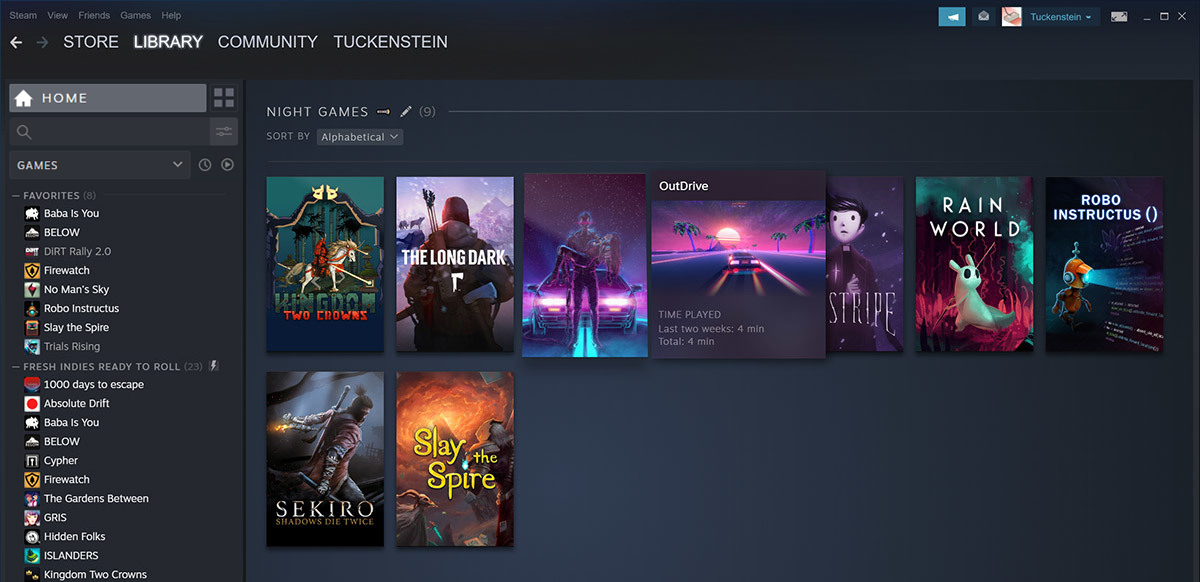
Valve has released a big update to its online store and distribution platform Steam. Among typical bugs fixing and making the user experience a little more fluid, we have received some major updates as well. Please take note that you need to update Steam itself to the latest version in order to get new features.

steam libraryStorage management Page update

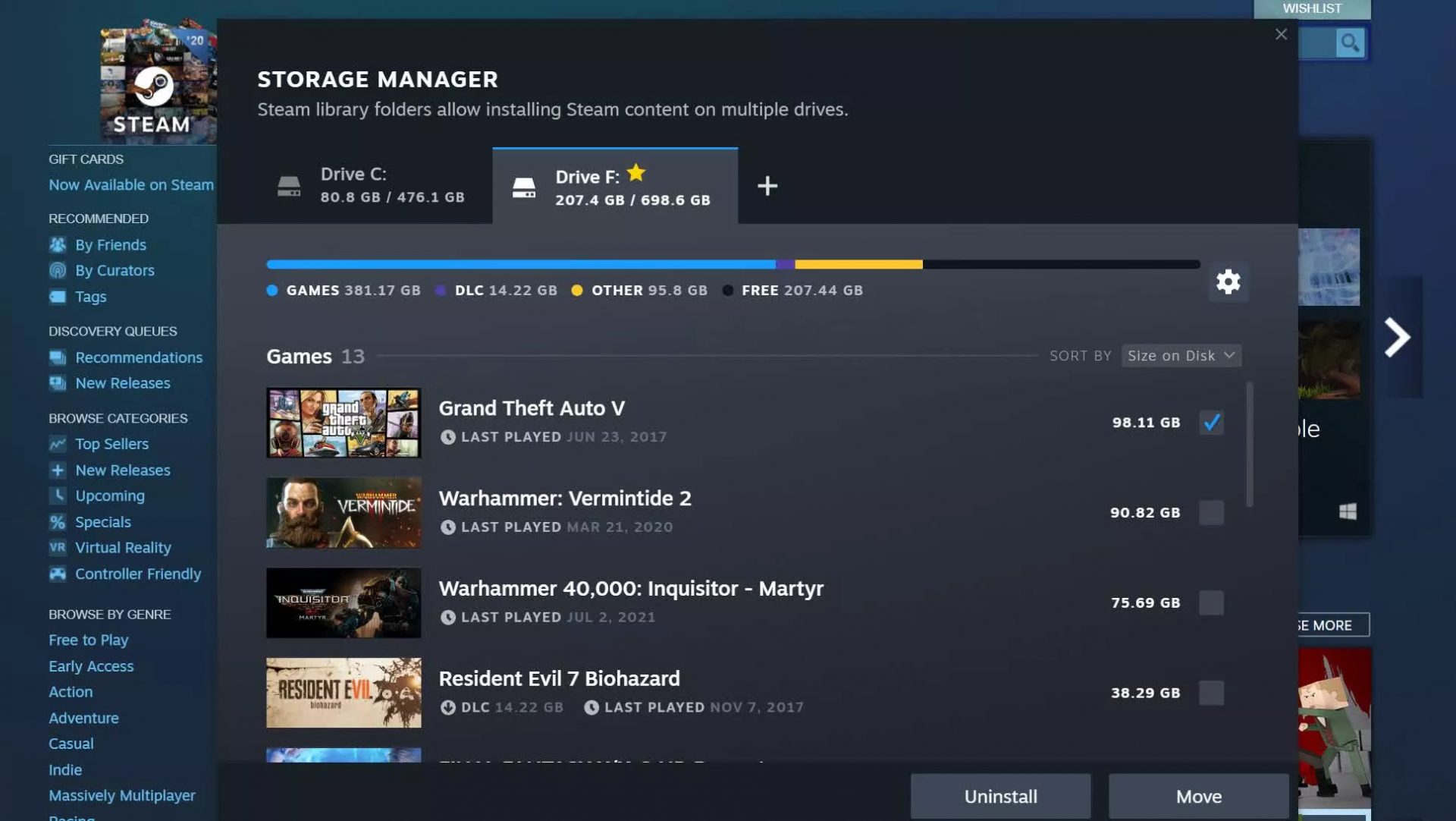
The storage management page has received a complete redesign and UX overhaul and it is now much easier to manage your game libraries and create new ones. The page itself looks and feels a little console more like but thanks to that it offers a much easier and clearer look and feel. steam storage managerAnother thing with the Steam store management page is the ability to move installation files from one location to another. Let’s say that you have two or more hard disk drivers in your machine and that you have SSD that you use for running stuff since it is fast and larger and slower one for storage. Now you can easily and quickly move one installation from one to another in order to take advantage of your faster SSD for quicker LOAD game times without making a new installation.

Steam Download page improvements

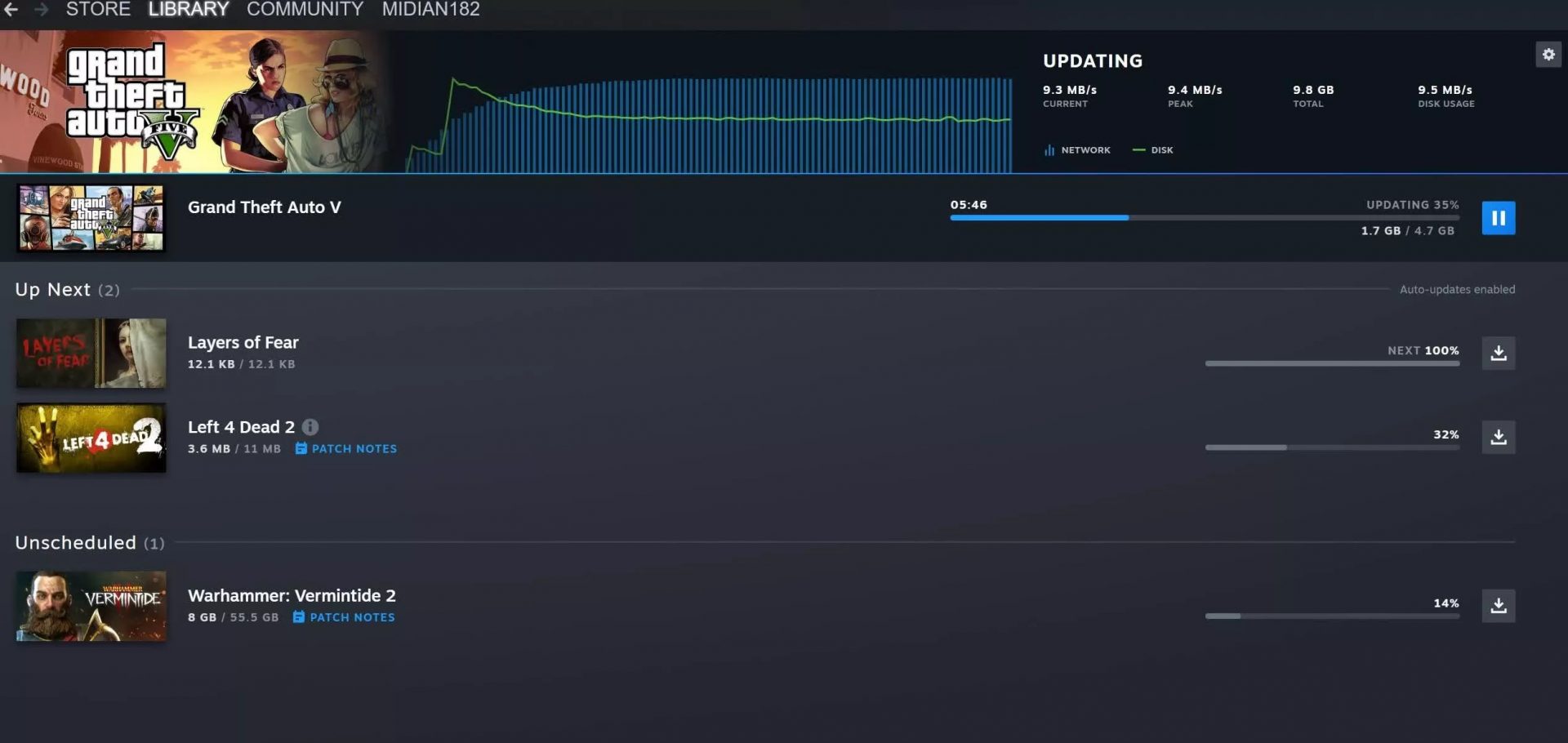
The download page has also received some love from Valve by enabling us to now see the installation progress. So far on the download page of Steam, you would only get download progress but it has been updated to show installation progress after download as well now making it more straightforward and giving you a general idea of how much more time there is to wait in order to start gaming. steam download pageAlso, you can now drag and drop items in the download bracket to reorder download orders or place them as active downloads to start downloading right away.
Read More
Windows is stuck in Airplane Mode
As of late, a number of users reported experiencing a problem where their Windows 10 computers get stuck on Airplane mode for some unknown reason. According to the affected users, they were unable to turn off the Airplane mode which means that their computers are also not able to connect to the internet. One of the possible reasons why this kind of issue occurs is that there could be a bug with the airplane mode or it could also be the doing of faulty network drivers or physical switch that’s turned on, and so on. If you are one of the few users who experience the same issue, then read on as this post will guide you on what to do if your Windows 10 computer gets stuck on Airplane mode. There are a couple of suggestions you can check out to resolve the problem. You can try to check the status of the Radio Management service, flush the DNS cache or you could turn off the airplane mode via system settings. You could also update the network drivers or turn off the physical switch for airplane mode or make some adjustments in the Windows Registry. For more details, refer to each one of the suggestions provided below.

Option 1 – Try to check the Radio Management Service status

  • First, tap the Win + R keys to open the Run dialog box and type “services.msc” in the field, and hit Enter to open the Windows Services Manager.
  • Next, look for the Radio Management service and select Properties.
  • From there, change its Startup type to Disabled and click on the Apply and OK buttons to save the changes made.
  • Once done, restart your computer and check if you can now turn off the airplane mode.

Option 2 – Flush the DNS cache

You could also try to flush the DNS cache to fix the “ERR_ICAN_NAME_COLLISION” error. All you have to do is open Command Prompt as an administrator and then execute each one of the following commands sequentially to flush the DNS cache:
  • ipconfig/release
  • ipconfig/renew
  • ipconfig/flushdns

Option 3 – Try turning off the airplane mode via System settings

If flushing the DNS cache did not help in fixing the problem, then you might want to turn off airplane mode via system settings.
  • In the Windows Search bar, type “airplane mode”.
  • From the search results that appear, click on Airplane mode.
  • After that, a window will appear where you have to turn off the toggle button for Airplane mode.

Option 4 – Try to update, rollback or reinstall the Network adapter drivers

The next thing you can do to resolve the problem is to update the Network Adapter drivers by following these steps:
  • Tap the Win + R keys to launch the Run window and then type in the “devmgmt.msc” command and hit Enter to open the Device Manager window.
  • Under the Device Manager, you will see a list of drivers. From there, look for the Network Adapters and expand them.
  • Look for the Broadcom Network Adapter and right-click on it, as well as other network adapters that have an exclamation icon, and update them all.
  • Restart your PC and see if it helped in fixing the problem.
Note: If updating the network drivers didn’t help in fixing the problem, you can also try to roll back the very same drivers from their previous versions and restart your Windows 10 PC. After that, the system itself will reinstall the drivers you just uninstalled. Alternatively, you can also download and install the drivers from the manufacturer’s website directly. To reinstall the network adapter drivers, refer to these steps:
  • Open the Devices Manager from the Win X Menu.
  • Then locate the device drivers and right-click on them to open the Properties.
  • After that, switch to the Driver tab and click on the Uninstall Device button.
  • Follow the screen option to completely uninstall it.
  • Finally, restart your computer. It will just reinstall the device drivers automatically.

Option 5 – Try to turn off the physical switch for Airplane mode

If your computer has a physical switch to turn on or off the airplane mode, then you might want to check that switch if you have one. Chances are, it could be the reason why you’re unable to turn off Airplane mode on your computer.

Option 6 – Try to make some adjustments in the Registry

  • Tap the Win + R keys to launch the Run utility.
  • Then type “Regedit” in the field and hit Enter to open the Registry Editor.
  • Next, navigate to this registry path: HKEY_LOCAL_MACHINESystemCurrentControlSetControlClass
  • From there, edit the registry value of “RadioEnable” to “1”.
  • Exit the Registry Editor once done, and restart your computer.
Read More
Remove Polimva from your PC

Polimva is a Browser Extension for Google Chrome. This extension offers users the ability to search for any recipe on the web.

From the Author:

Polimva will help you discover new content! You will be exposed to cool and fun content every day! You can search and find new articles, videos, and reviews on daily basis.

-Amazing search experience. -Access to new interesting articles and videos every hour. -Polimva Changes the default search. -Updated content every day. -Follow any channel and topic that you like. -Choose the interface and the design of the results you get every time.
This extension changes your default search engine to Yahoo, and while active it changes the displayed ads on your browser, allowing it to make revenue on every ad you click. While this is not malicious, the extension redirects your search to its servers first before forwarding it to yahoo and displaying search results. The information that is sent back to the servers contains your browsing data & visited web pages. As a result, Polimva is considered a potentially unwanted browser hijacker and if flagged for optional removal.

About Browser Hijackers

Browser hijackers (also known as hijackware) are a kind of malware that modifies internet browser settings without the computer owner’s knowledge or approval. These kinds of hijacks appear to be rising at an astonishing rate worldwide, and they could be truly nefarious and often harmful too. They are designed to disrupt browser functions for many different reasons. It redirects you to the sponsored websites and injects adverts on the browser which helps its developer generate ad revenue. Even though it might seem naive, all browser hijackers are damaging and therefore always regarded as security threats. What’s more, hijackers could make the entire infected system vulnerable – other destructive malware and viruses will grab these opportunities to get into your computer system effortlessly.

Indications of browser hijack

Here are some signs that suggest you’ve been hijacked: 1. your browser’s home page is reset to some unfamiliar webpage 2. bookmark and the new tab are also modified 3. the default web browser configurations have been changed and/or your default web engine is altered 4. you see multiple toolbars on your web browser 5. your internet browser displays endless pop-up windows 6. your internet browser starts running slowly or displays frequent errors 7. you’re disallowed access to certain websites, for example, the website of an antimalware software manufacturer like SafeBytes.

Exactly how browser hijacker infects PCs

Browser hijackers can enter a PC in some way or other, including via downloads, file sharing, and email also. They can also come from any BHO, extension, add-on, toolbar, or plug-in with malicious purpose. Some internet browser hijackers spread in user’s PC by using a deceptive software distribution method called “bundling” (generally through freeware and shareware). Some of the popular hijackers are Polimva, Conduit Search, Babylon Toolbar, OneWebSearch, Sweet Page, and CoolWebSearch.

The best ways to remove a browser hijacker

Some browser hijacking could be simply corrected by finding and removing the corresponding malware software from your control panel. Unluckily, many of the software applications used to hijack an internet browser are deliberately built to be difficult to remove or detect. You should think of doing manual fixes only if you’re a tech-savvy person since there are possible risks associated with tinkering around with the computer registry and HOSTS file. You can opt for automatic browser hijacker removal methods by simply installing and running an efficient anti-malware program. If you need to get rid of persistent hijackers effectively, install the top-rated, award-winning anti-malware software Safebytes Anti-Malware.

Malware Blocking Internet And All Anti-Malware Software? Do This!

Malware could cause many different types of damage to computer systems, networks, and data. Some malware variants alter browser settings by adding a proxy server or modify the PC’s DNS settings. In such cases, you will be unable to visit certain or all of the websites, and thus unable to download or install the required security software to eliminate the malware. So what to do when malicious software prevents you from downloading or installing Safebytes Anti-Malware? There are a few steps you can take to circumvent this issue.

Use Safe Mode to fix the issue

Safe Mode is a special, simplified version of Microsoft Windows where just bare minimum services are loaded to counteract viruses and also other troublesome applications from loading. In case the malware is set to load immediately when the computer starts, shifting into this mode may well prevent it from doing so. In order to get into Safe Mode or Safe Mode with Networking, press F8 while the computer is starting up or run MSConfig and find the “Safe Boot” options in the “Boot” tab. Once you are in safe mode, you can attempt to install your anti-malware software application without the hindrance of the malicious software. Now, you could run the anti-virus scan to eliminate viruses and malware without any interference from another application.

Switch over to a different browser

Certain malware might target vulnerabilities of a specific web browser that block the downloading process. In case you suspect that your Internet Explorer has been hijacked by a trojan or otherwise compromised by cybercriminals, the ideal thing to do would be to switch to an alternate browser such as Mozilla Firefox, Google Chrome, or Apple Safari to download your chosen computer security software – Safebytes Anti-Malware.

Install security software on a thumb drive

To successfully eliminate the malware, you might want to approach the issue of running an anti-malware software program on the affected computer system from a different angle. Follow these steps to run the anti-malware on the infected computer. 1) Download the anti-malware on a virus-free PC. 2) Plug in the pen drive to a USB slot on the clean computer. 3) Run the setup program by double-clicking the executable file of the downloaded software, with a .exe file format. 4) Choose a USB flash drive as the location when the wizard asks you exactly where you want to install the program. Follow the instructions on the computer screen to finish off the installation process. 5) Now, plug the pen drive into the corrupted computer. 6) Double-click the EXE file to run the Safebytes software from the thumb drive. 7) Click on “Scan Now” to run a scan on the infected computer for viruses.

A Look at the Best Anti-Malware Program

Want to install the very best anti-malware software for your desktop? There are numerous applications on the market that comes in free and paid versions for Microsoft Windows computers. Some of them are good, some are ok types, and some will destroy your computer themselves! You must be very careful not to choose the wrong product, particularly if you purchase a paid program. On the list of recommended software by industry experts is SafeBytes Anti-Malware, well-known security software for Windows computers. SafeBytes anti-malware is really a powerful, highly effective protection application created to assist end-users of all levels of IT literacy in identifying and removing malicious threats out of their PC. With its outstanding protection system, this software will automatically detect and eliminate most of the security threats, including adware, viruses, browser hijackers, ransomware, trojans, worms, and PUPs. There are plenty of wonderful features you will get with this particular security product. Listed below are a few of the great ones: Robust, Anti-malware Protection: By using a critically acclaimed malware engine, SafeBytes gives multilayered protection that is made to catch and remove viruses and malware that are hidden deep inside your PC. Live Protection: SafeBytes gives you round-the-clock protection for your personal computer limiting malware intrusions instantly. This software will constantly monitor your computer for suspicious activity and updates itself continuously to keep current with the constantly changing threat scenarios. Safe Web Browsing: Through its unique safety rating, SafeBytes tells you whether a website is safe or not to visit it. This will assure that you’re always certain of your safety when browsing the internet. Lightweight Tool: SafeBytes is a lightweight and easy-of-use anti-virus and anti-malware solution. As it utilizes very little computer resources, this application leaves the computer power exactly where it belongs to: with you. 24/7 Support: Expert technicians are at your disposal 24/7! They will quickly fix any technical issues you may be experiencing with your security software. Put simply, SafeBytes has formulated a meaningful anti-malware solution that is aimed to protect your computer against various malware. Malware problems can become a thing of the past when you put this application to use. So if you’re searching for the very best malware removal application out there, and when you don’t mind shelling out a few bucks for it, opt for SafeBytes Anti-Malware.

Technical Details and Manual Removal (Advanced Users)

To get rid of Polimva manually, navigate to the Add or Remove programs list in the Control Panel and choose the program you want to get rid of. For browser plug-ins, go to your browser’s Addon/Extension manager and select the plug-in you intend to disable or remove. You might even want to reset your home page and search engine providers, and also delete browsing history, temporary files, and internet cookies. If you choose to manually delete the system files and Windows registry entries, use the following checklist to make sure you know exactly what files to remove before undertaking any actions. However, this can be a complicated task and only computer experts can accomplish it safely. Furthermore, certain malware keeps replicating which makes it tough to eliminate. You are advised to do this process in Windows Safe Mode.
Files: %UserProfile%\Local Settings\Application Data\Google\Chrome\User Data\Default\Extensions\epngjnkooalbmphkdlahcdhnfondeicc Registry: HKEY_CURRENT_USER\Software\Microsoft\Windows\CurrentVersion\Run HKEY_LOCAL_MACHINE\SOFTWARE\Microsoft\Windows\CurrentVersion\Run HKEY_LOCAL_MACHINE\SOFTWARE\Wow6432Node\Microsoft\Windows\CurrentVersion\Run

Read More
An Easy Guide to Fixing Error D3dx9_43.dll on Your PC

D3dx9_43.dll Error - What is it?

D3dx9_43.dll is a type of Dynamic Link Library containing small programs. This file is associated with Microsoft DirectX software. It is used and utilized by most Windows-based games and DirectX advanced graphic programs. The error D3dx9_43.dll pops on your computer screen when there is some issue when running or loading Microsoft DirectX programs. This error is often displayed in any one of the following formats:
  • “D3dx9_43.DLL Not Found"
  • "D3dx9_43.dll not found. Reinstalling might help fix this."
  • "The file d3dx9_43.dll is missing"
  • "File d3dx9_43.dll not found"
The good news is that this error code is not fatal. This means it will not result in system crashes, failure, or data loss. But it may hamper your ability to access, run and load Windows-based games associated with DirectX therefore to avoid the inconvenience it is advisable to repair it immediately.

Solution

Restoro box imageError Causes

D3dx9_43.dll error code can occur due to several reasons. These include but are not limited to:
  • Missing or corrupt D3dx9_43.dll file
  • Outdated drivers
  • Corrupt registry
  • Viral infection

Further Information and Manual Repair

To fix the D3dx9_43.dll error on your PC, try the manual easy to do methods illustrated below. To perform these methods to repair the issue, you don’t need to be a technical whiz. These are simple methods and easy to perform.

Method 1 - Check Your Recycle Bin or Download D3dx9_43.dll File

If you just recently uninstalled a program from your PC, then there is a possibility that the D3dx9_43.dll file got accidentally deleted during the process. This happens because DLL is a shared file. The program you uninstalled might be running with the same file. In case of accidental deletion of the D3dx9_43.dll file, it is advisable to check your recycle bin to repair the issue. Simply go to the recycle bin and look for the deleted file; if you locate it simply reinstall. However, if you are unable to find it, then if you have access to an internet connection, simply download the D3dx9_43.dll file from a reliable DLL website.

Method 2 - Update Drivers

If the error code occurs due to outdated drivers, then it is recommended to update drivers on your system. For example, the D3dx9_43.dll file error indicates an outdated video card driver since this file is linked to video game software. Therefore, simply update the drivers for your video card. Drivers can be updated in Windows by using a driver update wizard from within Device Manager. The wizard will walk you through the entire driver update process, making the updating task a lot simple and hassle-free.

Method 3 - Install an Antivirus

In case of malware infection, it is advisable to install a powerful antivirus. Simply run it to scan your entire PC for viruses. Then remove them to resolve the issue.

Method 4 - Clean and Repair the Registry

D3dx9_43.dll error may also pop up due to registry corruption. This happens when the registry loads with unnecessary and obsolete files like cookies, junk files, internet history, and bad registry entries. These files take up all the space and damage the registry. It also results in DLL file corruption and disk fragmentation. To resolve this it is important to clean the registry and repair it. A quick way to perform registry clean-up is to download Restoro. This is an advanced PC Fixer embedded with a powerful registry cleaner. It scans for all registry-related errors instantly, removes them, cleans the registry, and repairs the damaged files. Click here to download Restoro on your PC and resolve error D3dx9_43.dll today!
Read More
Enable or disable Fast User Switching
When your computer is slow, you don’t have much choice but to wait until it gets done with a task at its own pace, albeit a slow one. So if you want to switch user accounts on your computer a couple of times daily, then a slow computer can get really irritating. What makes system processes slow is that the accounts have some programs or applications running and resources allocated to them. And besides, if your computer is already low on performance, it will kill the natural fluidic flow of the user. But worry not, for this post will guide you in switching user accounts with the help of some minor tweaks in your Windows 10 computer. To disable or enable Fast User Switching, you have two methods to do that using the Registry Editor and the Group Policy Editor. Either way, refer to the instructions laid out below.

Option 1 – Enable or disable Fast User Switching via Registry Editor

  • Tap the Win + R keys to open the Run dialog box.
  • After that, type “Regedit” in the field and tap Enter to open the Registry Editor.
  • Next, go to this registry key: HKEY_LOCAL_MACHINESOFTWAREMicrosoftWindowsCurrentVersionPoliciesSystem
  • Then right-click on System and select New > DWORD (32-bit) Value and name this newly created DWORD as “HideFastUserSwitching”.
  • Now double click on it. If you want to enable Fast User Switching, input “0” as the value, and if you want to disable it, input “1” as its value.
  • Restart your PC to successfully apply the changes made.

Option 2 – Enable or disable Fast User Switching via Group Policy Editor

Take note that this option will not work if you are using the Windows 10 Home edition since the Group Policy Editor does not come with Windows 10 Home. Refer to the steps below to enable or disable Fast User Switching using Group Policy Editor.
  • Tap the Win + R keys to open the Run dialog box and then type in “gpedit.msc” in the field and hit Enter to open the Group Policy Editor.
  • Next, navigate to this path inside the Group Policy Editor: Computer ConfigurationAdministrative TemplatesSystemLogon
  • Now double click on the configuration listing labeled as “Hide entry points for Fast User Switching” to open the configuration page.
Note: On the configuration page, you will see the following description:
“This policy setting allows you to hide the Switch User interface in the Logon UI, the Start menu, and the Task Manager. If you enable this policy setting, the Switch User interface is hidden from the user who is attempting to log on or is logged on to the computer that has this policy applied. The locations that the Switch User interface appears in the Logon UI, the Start menu, and the Task Manager. If you disable or do not configure this policy setting, the Switch User interface is accessible to the user in the three locations.”
  • From there, you can choose to enable or disable the Fast User Switching depending on your preferences. After you’ve selected, click OK and exit the Group Policy Editor.
  • Now restart your PC to apply the changes made successfully.
Read More
1 2 3 171
Logo
Copyright © 2023, ErrorTools. All Rights Reserved
Trademark: Microsoft Windows logos are registered trademarks of Microsoft. Disclaimer: ErrorTools.com is not affiliated with Microsoft, nor claims direct affiliation.
The information on this page is provided for information purposes only.
DMCA.com Protection Status