Hello and welcome everyone, today we will be talking about dreaded keyloggers, why they are dangerous, and how to know if you might have one in your system. Keylogger is a malicious application placed in your system and hidden with only one goal in mind, to get information about what are you typing and by that means for a person who infected you to get information about your credit card information or other sensitive data. They can be introduced into your systems in various ways and often can not be detected easily. Modern antivirus applications have ways of detecting them and removing but this tutorial aims to teach you how to spot them all by yourself since new keyloggers are produced daily and sometimes relying on antivirus alone is not enough.
Unlike viruses and trojans, keyloggers are not heavy on system resources and you will not feel slow down on your computer if you have one which makes them harder to sport with regular work. Some of them can be even tracking you on the website and not even be physically present on your computer. Generally, we could categorize keylogger into 4 categories:
Web browser-based keylogger. Some websites would have CSS scripts, input web forms, or so-called man in the middle keylogger. Lucky for us even Windows defenders with the latest update can detect this type of keylogger and successfully deal with it and how keylogger itself is not present on our system we are safe.
General spyware keylogger. This keylogger is present in your system, usually, it infected it via email attachment, social media download, torrent download, some malicious so-called fixer application, etc. Most antivirus applications and windows defenders can detect these types as well and remove them successfully.
Kernel-level keylogger. This keylogger is a more dangerous type they tend to operate underneath Windows as a rootkit and can go undetected by antivirus and windows defenders.
Hypervisor-based keylogger. This is the most dangerous keylogger, they use virtualization techniques to hide and mask themselves as a replica of the operating system and they scan all keystrokes by the user. These are very rare keyloggers but they do exist.
If you suspect that you have a keylogger or just want to check your system for precaution reasons follow these tips and guides and luckily you will solve your issue in no time and your data will be safe.
Use Task Manager to find suspicious entries.
Task manager is a great application implemented in Windows that is constantly monitoring and showing all services, applications, and processes currently running on your system and thus a great tool to monitor your system if you know how to use it.
First, open task manager by pressing CTRL + SHIFT + ESC
Then take a good look into it, try to find suspicious names, probably duplicate of running application, something like Windows logon application, or keylog or anything similar which seems out of ordinary. If you manage to find a suspicious running application right-click on it and close it. Also while you are in task manager jump into the startup tab and check to see are there some unusual applications starting with your Windows, if you find anything, disable it right away.
This is the most simple and quickest way to get some information right away if you suspect to have some simpler keylogger in your system.
Use the command prompt to monitor your network.
In order to check connections to your computer and find potential suspicious ones start the command prompt in administrator mode, press ⊞ Win + X, and choose command prompt (administrator).
type in netstat -b and press ENTER. All website and application connections to your computer are now visible. ignore svchost, edge browser, windows store, etc ad check the IP of the remaining ones using the internet.
Use keystroke encryption.
Install encrypting software and even if you have a keylogger, the application will encrypt each stroke and all that attacker will get is gibberish
Please remember to always download files from trusted sources, do not open unknown emails, and do not share your information publicly. Take common protection steps in order to protect yourself in the digital world.
Blizzard is one of the most beloved game company which brought some of the most and greatest titles in PC gaming. Blizzard has released its own launcher in which you can launch games, sadly sometimes launcher does not want to work and fails to connect.
If this happens to you be sure to:
Reset your network devices to make sure your router hasn't become flooded with data.
Power cycling your modem and router allows them to reset and re-establish a connection to your ISP. Follow these steps to completely power cycle the devices in your network connection:Note: If your modem has a battery backup, you will need to take the battery out or use the reset button on the modem.
Shut down all computers connected to the modem/router.
Power down and unplug the modem and the router if you're using one.
Allow to sit for 60 seconds unplugged.
Plug in and turn on the modem and router, and allow them to completely boot up until the front panel connection lights on the modem show a steady connection.
Start the computer and allow it to completely boot up.
If you're using a wireless connection, optimize your internet connection to rule out a connection issue.
If you're experiencing issues with your low-speed or wireless internet connection, follow the steps below to troubleshoot the problem.
Try plugging your computer directly into your modem.
Shut down other programs that access the internet, such as other games or download programs.
Satellite, mobile phone, and WiMax internet connections are not stable connections and may cause further connection issues when playing Blizzard games. If possible, consider switching to a more stable connection.
Update your drivers and operating system to resolve any compatibility issues.
Out-of-date drivers and operating systems can cause a variety of issues and are one of the first things to check when a game is having problems. The instructions below will help you check and update your drivers.
Even new computers can have out-of-date drivers and operating systems because updates are released routinely.
Some games and programs might run fine on a system with old drivers, but outdated drivers can still create technical issues with specific games or programs.
Check our supported video cards articles to make sure your hardware is compatible:
Refer to the steps below to update drivers and software for your operating system.
Release and renew your IP and flush your DNS to resolve any network conflicts.
While on the desktop, press Windows Key and type CMD.
Right-click Command Prompt and select Run as administrator.
Type ipconfig /release in the command prompt.
Wait a few seconds for a reply that the IP address has been released.
Type ipconfig /renew in the command prompt.
Wait a few seconds for a reply that the IP address has been re-established.
Type ipconfig /flushdns in the command prompt.
Close the command prompt and attempt to make a connection.
Close all other applications to resolve software conflicts and free up resources.
Before trying the steps below, close unnecessary programs and restart your computer.
Identify Problematic Startup Items
Press Ctrl+Shift+Esc to open the Task Manager.
Click More Details.
Select the Startup tab.
Right-click on each item and select Disable.
Restart the computer.
If this resolves the issue, enable the startup application one at a time to determine which one is causing the problem. You will need to restart between each application you enable.
Note: To re-enable startup applications, follow steps 1-4 and select Enable.
Delete the Battle.net Tools folder to automatically rebuild outdated or corrupt files.
Close Blizzard processes.
Press Ctrl + Shift + Esc to bring up the Task Manager.
Click the Processes tab.
Select all Agent, Blizzard Battle.net desktop app, and game processes, and click End Process.
Navigate to the folder containing the Battle.net directory:
Press Windows Key + R to open the Run dialogue.
Type C:\ProgramData\ into the Open field and press Enter.
Delete the Battle.net folder.
Run Battle.net and update the game to see if the issue persists.
If the error persists after you try these steps, another program may be causing the problem. Restart your computer and delete the Battle.net folder one more time.
Note: The above steps may cause the Blizzard Battle.net desktop app to forget game install locations. If your games can’t be found, you will see Install on the Blizzard Battle.net desktop app game tab instead of Play. To find your installation, click Locate this game or run the game launcher.
Pinned Windows 10 Taskbar Items. One of the most used interfaces in the Windows environment is the Taskbar. It is where users like to pin their most-used programs as well as shortcuts with extra privileges and automated tasks. In fact, it’s a lot better than the Start Menu. So if any Windows Update messes up with your computer, or if you’ve just switched to a different computer, setting up the Taskbar with the very same set of programs you used to have is definitely not an easy task. But worry not as this post will guide you on how you can backup and restore the items on your Taskbar either manually or automatically.
Manual Backup:
Tap the Win + R keys to open the Run prompt.
Then type “%AppData%MicrosoftInternet ExplorerQuick LaunchUser PinnedTaskBar” in the field and hit Enter to open the folder where you can see all the shortcuts or pinned items in the Taskbar.
After that, copy all the files in the folder and paste them somewhere else as a backup. For instance, E:\Pinned Items Backuppinnedshortcuts.
Next, tap the Win + R keys to open the Run prompt once more, and then type “Regedit” in the field and hit Enter to open the Registry Editor. When the User Account Control dialog box appears, click Yes.
After opening the Registry Editor, navigate to this key – HKEY_CURRENT_USERSoftwareMicrosoftWindowsCurrentVersionExplorerTaskband
Then right-click on the Taskbar folder and select Export.
Now save the file with the .reg extension to another location like the E:\Pinned Items Backup folder and then name it.
Close the Registry Editor.
Manual Restore:
Make sure to copy all the files to one of the drives if you are using another computer and then refer to the following steps.
Tap the Win + R keys to open the Run prompt.
Then type “%AppData%MicrosoftInternet ExplorerQuick LaunchUser PinnedTaskBar” in the field and hit Enter to open the same folder where you just copied all the shortcuts. Make sure to keep it open.
Then open the backup folder where you saved all the pinned items and copy all the files there.
Next, go to the Taskbar folder (%AppData%MicrosoftInternet ExplorerQuick LaunchUser PinnedTaskBar) and then paste your files in there. If you encounter a problem while doing so, just replace it with your own set of files.
After that, go to E:\Pinned Items Backuppinnedshortcuts and then double click on tb-pinned-items.reg. If a User Account Control prompt appears, click Yes. This will add the registry file into the main registry hub. You will also get a dialog box that will confirm that data has been added to the registry successfully. Click OK.
You should now see the items on the Taskbar. You have to restart Windows Explorer. To do so, end its process in the Task Manager.
Automatic Backup:
Backing up and restoring the pinned Taskbar items in your Windows 10 computer can be done automatically as well. But before you get started on the process, you need to understand what’s going on behind the hood first. First, you need to create two bat files and name them “Backup Pinned Taskbar Items” and “Restore Pinned Taskbar Items”. After you have that covered, refer to the following steps:
Open the Notepad app and paste the following details and save it as “Backup Pinned Taskbar Items.bat.
After that, run the bat file with admin privileges.
Note: Just so you know, there is a drawback to this process as we’ve noticed that any pinned apps that were downloaded from the Windows Store don’t appear in these places and any items downloaded and installed separately from the internet and then pinned.
If your Microsoft Edge browser encountered a Stop Error that says, “INVALID_POINTER_READ_c0000005 (atidxx64.dll)” in your Windows 10 computer, then this indicates that your Graphics card driver is outdated. According to security experts, Microsoft has already acknowledged the problem and stated that this issue exists with Windows 10 v1809, Windows Server 2019, and Windows Server version 1809.
Although there is no direct way to resolve the problem, there are still some workarounds you can try. If you are using a RadeonHD2000 or HD4000 series video card, the update will be blocked for you. Some users also claim to experience performance issues with the lock screen or the ShellExperienceHost. However, if you are using AMD, the problem is that it no longer supports Radeon HD2000 and HD4000 series graphics processing units or GPUs. Even though Microsoft is already working for a way to resolve the problem, here are some alternative solutions you can check out:
Option 1 – Update your Graphics card drivers
First, boot your computer into Safe Mode.
After that, tap the Win + R keys to launch Run.
Type in devmgmt.msc into the box and tap Enter or click OK to open the Device Manager.
After that, a list of device drivers will be displayed. From there, look for the Display Adapters and click on them.
After that, right-click on each entry under the Display Adapters and select the “Uninstall Device” option from the menu.
Now restart your computer.
After restarting your computer, go to the Settings app and Check for Updates in the Windows Update section.
Note: You also have the option to go directly to the website of your graphics card manufacturers like NVIDIA, Intel or AMD and go to the section called Drivers then check if there’s a new available update – if there is, download and install it.
Although this is not exactly a perfect solution, removing AMD drivers will make the operating system fall back to the default GPU available on your motherboard. You also have the option to completely disable the hardware.
Tap the Win + X + M keys to open the Device Manager.
Next, look for your Graphics card drive, and under Display Adapters, right click on them and click Uninstall device or Disable device.
After that, restart your computer. This will disable the AMD drivers so you won’t be able to find them. It will also release the Windows 10 v1809 update on your computer and in case your operating system tries to prompt you with the “New Device found” message, simply ignore it.
Option 3 – Try to use another browser
You might want to use another browser especially when you already updated your computer and Microsoft Edge still keeps on crashing. You can use Google Chrome, Mozilla Firefox, and other browsers as alternatives until you sort out the problem.
Option 4 – Try to remove the Graphics card physically
You might also want to try removing both AMD Radeon HD2000 and HD4000 as they are very old graphics cards. And since AMD is not going to roll out anything, at least on its own if your motherboard has an onboard GPU, it would be best to get rid of the cards. After that, install the Windows v1809 update and then put them back in. You also have the option to install the driver but just don’t use Microsoft Edge.
0x80040154 is a typical ‘class not registered’ error message. It occurs when PC users try to register and Run a 32-bit DLL (dynamic link library) Windows programs on a 64-bit version of Windows.
Solution
Error Causes
The 0x80040154 error causes include:
Incompatible software
Invalid entry command path
Damaged and corrupt DLL files
COM components not properly registered
Active X control and class issues
To avoid the inconvenience of running programs on your Windows PC, it is advisable to resolve the 0x80040154 error.
Further Information and Manual Repair
Here are some of the best methods that you can try to resolve the 0x80040154 error code on your PC:
# 1. Use Regsvr32.exe to Re-register the Failing COM Component
This is one way to resolve the 0x80040154 error code. Regsvr32.exe is a program that you can use to register DLLs (Dynamic Link Libraries) and ActiveX controls in the registry.
To use this file to re-register the failing COM components, simply open an elevated command prompt. If the 32-bit DLL is in the %systemroot%System32 folder, then move it to the %systemroot%SysWoW64 folder.
After that run the following command: %systemroot%SysWoW64regsvr32 <full path of the DLL>. This will help resolve the issue.
# 2. Install and Run Restoro PC Fixer.
Another alternative is to download Restoro. This is a new, advanced, and innovative PC repair tool deployed with multiple utilities like Active X control and class fixer, system optimizer, an antivirus, and a registry cleaner.
It has a user-friendly interface with simple navigation. This makes it quite easy to use for all levels of users. It is safe, fast, and compatible on all Windows versions.
The Active X control and class utility scans your entire PC, detects and resolves all errors like 0x80040154 triggering ActiveX and class ID issues in seconds.
Besides this, Restoro also offers other benefits. By running this software on your system you can also ensure good PC health and performance as it also removes anti-viruses, repairs registry issues, fixes damaged DLL files, and also boosts the speed of your PC.
DLL files often can get damaged and corrupt due to data overload. This is associated with the registry. If you don’t clean the registry frequently, it overloads with data and damages the DLL files.
However, with the help of the registry cleaner utility embedded inside this software, you can repair these files easily. The registry cleaner wipes out all the unnecessary files from your system occupying your disk space and simultaneously fixes the damaged DLL files and restores the registry.
However, if the DLL files are damaged due to a malware attack, the antivirus module takes care of them. It removes all the malicious software like adware, spyware, viruses, and Trojans and restores your files.
Click here to download Restoro on your PC and resolve the error 0x80040154 on your PC now!
The errors that are caused by the BIOS of your computer can get annoying as they can be hard to fix for they are really dangerous and won’t be resolved by simple fixes. This is because of the fact that these kinds of errors do not even allow you to load your operating system as it throws the error even before you can access your computer. One of these errors is the “Error 0199: System Security – Security password retry count exceeded”. Fixing this error can be quite tricky but you need not worry for you will be guided in doing so. Simply follow the given instructions below.
Option 1 – Try to update the BIOS
Updating the BIOS can help you fix the “Error 0199, Security password retry count exceeded” error but as you know, BIOS is a sensitive part of a computer. Even though it is a software component, the functioning of the hardware depends on it largely. Thus, you must be careful when modifying something in the BIOS. So if you don’t know much about it, it’s best if you skip on this option and try the other ones instead. However, if you are well-versed in navigating the BIOS, then follow the steps below.
Tap the Win + R keys to open the Run dialog box.
Next, type “msinfo32” in the field and press Enter to open System Information.
From there, you should find a search field on the bottom where you have to search for the BIOS version and then press Enter.
After that, you should see the developer and version of the BIOS installed on your PC.
Go to your manufacturer’s website and then download the latest version of BIOS on your computer.
If you are using a laptop, make sure that you keep it plugged in until you have updated the BIOS.
Now double click on the downloaded file and install the new BIOS version on your computer.
Now restart your computer to apply the changes made.
Option 2 – Try resetting the BIOS
If updating the BIOS didn’t help in fixing Error 0199, you can try to reset the BIOS instead.
Start your computer and tap the F10 key during the booting process to enter the BIOS. If it does not work, you can try tapping the F1 or F2 key as well as the Del key.
Once you’re already in the BIOS, tap the F9 key to get the prompt to RestoreLoad default configuration now for the BIOS.
Next, click on Yes and then follow the next on-screen instructions that appear to set the BIOS back to its default settings.
Once you’re done restoring the default settings of the BIOS, restart your computer and then check if it now boots properly.
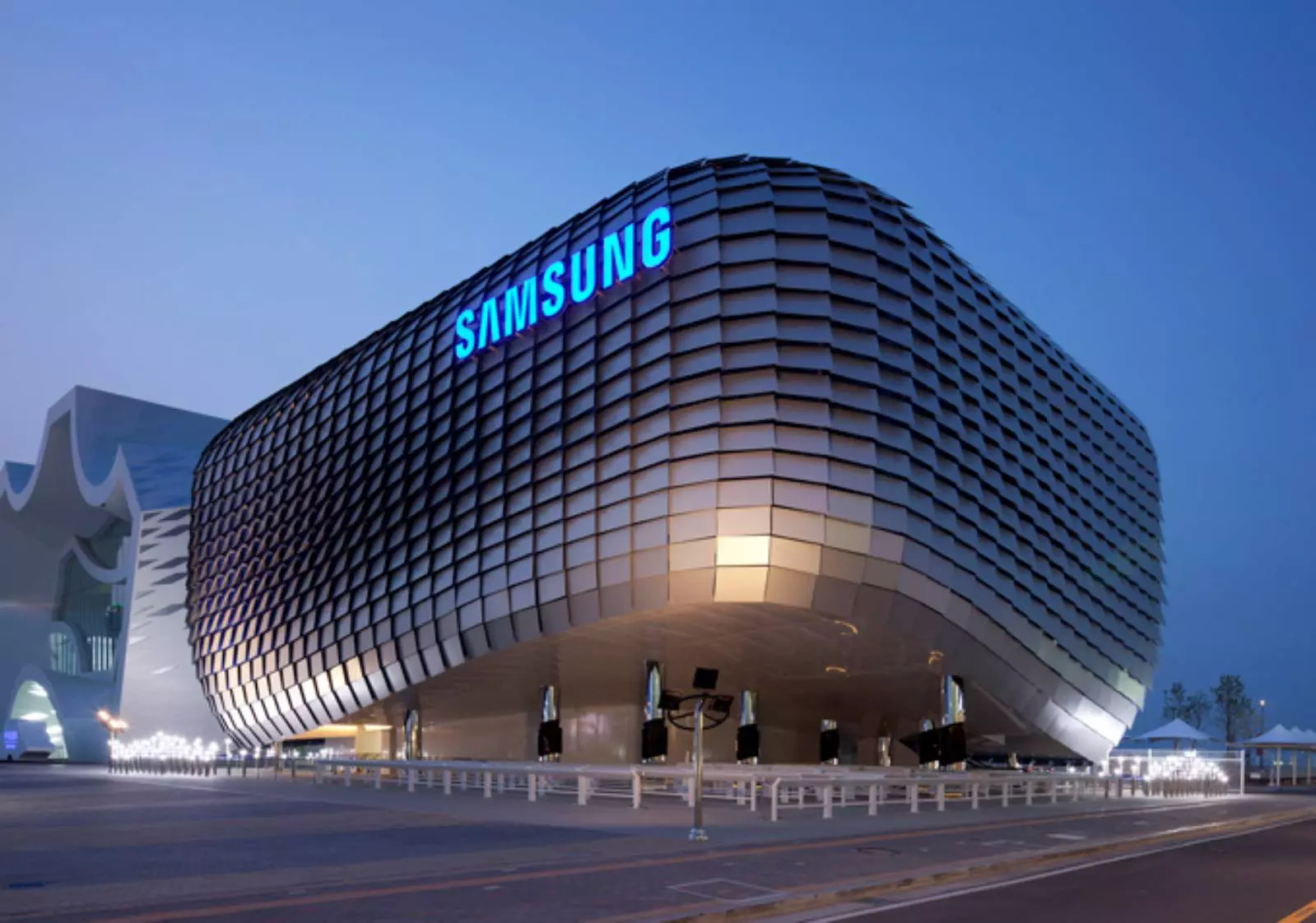
After Plex, DoorDash, and LastPass, Samsung has also confirmed that they also have experienced a data breach and that some customer data has been stolen.
On Friday, September 2nd Samsung announced that an unauthorized third party gained access to some of the company's U.S. systems in late July and that Samsung learned in August that some personal information was affected. It was also stated that affected information is: names, contact information, demographics, dates of birth, and product registration information. Also so far it was said that no Social Security numbers nor credit card number information have been compromised.
For now, Samsung is sending an email directly to anyone that has been affected by this data breach, however, they did not state what service or product has experienced this breach, we just know that it has happened at Samsung Electronics America which sells everything, from smartphones to debit cards. Also keep an eye on your inbox if you are a Samsung user since it took them a whole month in order to go public with this information and there is no justification for this, if it was reported on time people could change their information and take other steps.
Sadooma is a Browser Extension for Google Chrome. This extension offers users the ability to search for any trending news on the web.
This extension changes your default search engine to Yahoo, and while active it changes the displayed ads on your browser, allowing it to make revenue on every ad you click. While this is not inherently malicious, the extension redirects your search to its servers first before forwarding it to yahoo and displaying search results. The information that is sent back to the servers contains your browsing data & visited web pages. As this represents a security and privacy risk, Sadooma is classified as a browser hijacker for its potentially unwanted functions and poor user experience.
From the Author:
We’ve got what you need!If you are like us, addicted to interesting viral content, you’ve reached the best place for this.Sadooma will help you to find what is trending right now on the internet in an easy and immediate way.Privacy – We don’t share your information with others.Trending Content – New viral content every dayUp to Date – We update sources to keep things fresh.Made with Love – Our content is safe and suitable for all ages.
About Browser Hijackers
Browser hijacking is a type of unwanted software, commonly a browser add-on or extension, which then causes modifications in the web browser’s settings. Browser hijackers can do more than simply modifying home pages. It redirects you to the sponsored sites and inserts advertisements on the internet browser that helps its creator generate earnings. A lot of people think that these types of sites are legitimate and harmless but that is not true. Nearly all browser hijackers pose an existent threat to your online safety and it is vital to classify them under privacy dangers. In a much worst case, your web browser could be hijacked to download malicious software that will do a lot of damage to your computer.
Indications of browser hijack
There are many symptoms that point to a browser hijacking: you see unauthorized modifications to your web browser’s homepage; you get re-directed to sites you never intended to visit; default web engine is modified; you’re getting browser toolbars you haven’t noticed before; your internet browser will display constant pop-up windows; your web browser starts running slowly or presents frequent errors; You can’t access certain websites, particularly anti-virus websites.
How they get into your computer or laptop
Browser hijackers infect computers via malicious email attachments, downloaded infected computer files, or by visiting infected sites. Many web browser hijackings originate from add-on software, i.e., browser helper objects (BHO), toolbars, or extensions added to web browsers to give them extra features. Browser hijackers sneak to your computer along with free software application downloads that you unknowingly install alongside the original. An example of some well-known browser hijacker includes Conduit, Anyprotect, Babylon, SweetPage, DefaultTab, RocketTab, and Delta Search, but the names are regularly changing.
Removal
Certain browser hijacking could be quite easily stopped by finding and removing the corresponding malware application from your control panel. But, the majority of hijackers are really tenacious and require specialized applications to remove them. You should think about undertaking manual repairs only if you’re a tech-savvy individual, as potential risks are associated with fiddling with the system registry and HOSTS file.
You might opt for automatic browser hijacker removal methods by simply installing and running a reliable anti-malware application. One of the top tools for correcting browser hijacker malware is SafeBytes Anti-Malware. It can help you remove any pre-existing malware in your computer and gives you real-time monitoring and protection from the latest internet threats. Together with the anti-malware tool, a system optimizer will help you in removing all linked files and modifications in the computer registry automatically.
What To Do When You Cannot Install Any Antivirus?
All malware is inherently dangerous, but certain kinds of malware do a lot more damage to your computer than others. Some malware variants modify internet browser settings by including a proxy server or change the computer’s DNS configurations. In such cases, you’ll be unable to visit some or all websites, and thus unable to download or install the required security software to clear out the computer virus. If you are reading this, you may have infected by a virus that prevents you from downloading computer security software like Safebytes Anti-Malware. Although this sort of issue will be difficult to circumvent, there are some steps you can take.
Make use of Safe Mode to resolve the problem
In Safe Mode, you could adjust Windows settings, un-install or install some programs, and eliminate hard-to-delete malware. If the malicious software is set to load immediately when the computer starts, switching into this mode may well prevent it from doing so. In order to enter into Safe Mode or Safe Mode with Networking, press the F8 key while the computer is starting up or run MSCONFIG and locate the “Safe Boot” options under the “Boot” tab. Once you are in safe mode, you can try to download and install your anti-malware software program without the hindrance of malicious software. After installation, run the malware scanner to eliminate most standard infections.
Switch to some other browser
Malicious code may exploit vulnerabilities on a specific internet browser and block access to all anti-virus software websites. When you suspect that your Internet Explorer happens to be hijacked by a computer virus or otherwise compromised by hackers, the best plan of action is to switch to a different internet browser such as Google Chrome, Mozilla Firefox, or Apple Safari to download your chosen security application – Safebytes Anti-Malware.
Install and run anti-virus from your Thumb drive
Another solution is to save and run an antivirus program entirely from a USB drive. Try these simple actions to clear up your infected PC using a portable antivirus.
1) Make use of another virus-free PC to download Safebytes Anti-Malware.2) Plug the Flash drive into the clean computer.3) Double-click the Setup icon of the antivirus software to run the Installation Wizard.4) Select the drive letter of the flash drive as the location when the wizard asks you where you would like to install the anti-virus. Follow the on-screen instructions to finish the installation process.5) Remove the pen drive. You may now use this portable anti-malware on the infected computer.6) Double click the Safebytes Anti-malware icon on the flash drive to run the program.7) Run Full System Scan to identify and get rid of all kinds of malware.
Let's Talk About SafeBytes Anti-Malware!
If you are looking to download the anti-malware program for your computer, there are several tools in the market to consider however, you cannot trust blindly anyone, no matter whether it is paid or free program. Some of them do a great job in getting rid of malware threats while some will affect your PC themselves. You have to purchase a tool that has got a good reputation and detects not just viruses but other sorts of malware as well. One of the recommended tools by industry analysts is SafeBytes Anti-Malware, the safest program for Microsoft Windows.
SafeBytes anti-malware is a powerful, very effective protection software made to assist users of all levels of IT literacy in finding and removing malicious threats out of their personal computers. Using its cutting-edge technology, this application will help you get rid of several types of malware including computer viruses, PUPs, trojans, worms, ransomware, adware, and browser hijackers.
There are many great features you’ll get with this security product. Below are some of the highlighted features included in the tool.
Real-time Threat Response: SafeBytes provides round-the-clock protection for your PC restricting malware intrusions instantly. It will regularly monitor your laptop or computer for hacker activity and also provides users with advanced firewall protection.
World-class AntiMalware Protection: Safebytes is made on the best virus engine in the industry. These engines will find and get rid of threats even during the early phases of a malware outbreak.
Faster Scanning: This software has got one of the quickest and most effective virus scanning engines in the industry. The scans are very accurate and take a short amount of time to complete.
Safe Web Browsing: SafeBytes provides an instant safety rating on the web pages you are about to check out, automatically blocking unsafe sites and make sure that you’re certain of your online safety while browsing the net.
Lightweight Tool: SafeBytes is a lightweight and user-friendly anti-virus and antimalware solution. Since it uses minimal computer resources, this application leaves the computer’s power exactly where it belongs to: with you actually.
24/7 Online Technical Support: You could get high levels of support round the clock if you’re using their paid software.
To sum it up, SafeBytes Anti-Malware is pretty great for securing your laptop or computer against all sorts of malware threats. There is no doubt that your computer will be protected in real-time as soon as you put this software to use. So if you’re trying to find a comprehensive antivirus program that’s still simple enough to use, SafeBytes Anti-Malware is exactly what you will need!
Technical Details and Manual Removal (Advanced Users)
If you don’t want to use malware removal software and prefer to eliminate Sadooma manually, you could do so by going to the Add/Remove Programs menu in the Control Panel and removing the offending software; in cases of browser add-ons, you may uninstall it by visiting the browser’s Add-on/Extension manager. You might even want to reset your browser settings, as well as clear your web browser cache and cookies.
In order to ensure the complete removal, manually examine your hard disk and registry for all the following and eliminate or reset the values as needed. However, editing the Windows registry is actually a complicated job that only advanced users and professionals should try to fix it. In addition, certain malicious programs have the capability to defend against its deletion. You are encouraged to do this procedure in Safe Mode.
If your Windows 10 laptop suddenly turns off when you unplug its power cord, then you’ve come to the right place as this post will guide you on how you can fix this issue.
One of the most common causes for this kind of issue is that there is some problem with your laptop’s battery. It is possible that it might have gone bad or has been damaged. However, this couldn’t be the case especially if the laptop is new. The problem could have something to do with the system settings, connections, laptop hardware, and so on. To fix it, there are various suggestions you can check out such as follows:
Option 1 – Perform a hard reset on your laptop
This option works in most cases when the laptop with a removable battery is charging slowly as it is plugged in constantly. Refer to the steps below to do a hard reset on your laptop.
Switch off the power of your laptop.
Disconnect your laptop’s charger and then remove the battery.
Tap and hold the power button for at least 30 seconds – doing so will discharge the capacitors of the motherboard and reset the memory chips that were active constantly.
Plug the battery back and then charge the laptop again.
Check if the problem is fixed, if not, proceed to the next option below.
Option 2 – Try to change the Power Options
Tap the Win + R keys to open the Run utility.
Then type “powercfg.cpl” and tap Enter to open the Power Options window.
Next, go to your selected power plan and click the “Change plan settings” option to open a new page.
From there, click on the “Change advanced power settings” option. This will open a new window where you can see various power consumption options.
Now on the next window that appears, click on “Change advanced power settings”. This will open another window where you have to expand the Processor power management > Maximum processor state.
Then change the value for On battery mode to 25% and enable Adaptive brightness.
Now shut down your computer and try to boot it with the power cord unplugged.
Option 3 – Try to run the Power troubleshooter
The next thing you can do is to run the Power troubleshooter. To do so, follow these steps:
Go to Settings and navigate to Update & Security > Troubleshoot.
After that, look for the “Power” option from the given list of built-in troubleshooters and click on it.
Next, click on the “Run the troubleshooter” button to run the Power troubleshooter.
Once the troubleshooter is done identifying the problems, follow the next on-screen instructions to resolve the problem.
Option 4 – Try to run the Power Efficiency Diagnostics Report
You could also try to run the Power Efficiency Diagnostics Report to fix the problem. This tool is helpful and will help you analyze the status of the battery but note that this can be quite overwhelming especially if you’re not well-versed in this matter.
Option 5 – Try to uninstall or reinstall the Battery driver
You might also want to uninstall or reinstall the battery driver as it can also resolve the problem. But before you start, you have to shut down your computer and remove the power chord as well as the battery. Once you’re done, follow these steps:
Plug the power cord and restart your computer.
Once your computer has restarted, tap the Win + R keys to open the Run utility and type “devmgmt.msc” in the field and tap Enter to open the Device Manager.
After that, look for the “Batteries” driver from the list of drivers and expand it.
Then right-click on the “Microsoft ACPI-Compliant System” driver and click on the “Uninstall device” option.
Once it’s done, restart shut down your computer and remove the power cord and then attach the battery.
Now attach the power chord again and restart your computer to automatically install the driver.
Option 6 – Try to update the BIOS
Updating the BIOS can help you fix the problem but as you know, BIOS is a sensitive part of a computer. Even though it is a software component, the functioning of the hardware depends on it largely. Thus, you must be careful when modifying something in the BIOS. So if you don’t know much about it, it’s best if you skip on this option and try the other ones instead. However, if you are well-versed in navigating the BIOS, then follow the steps below.
Tap the Win + R keys to open the Run dialog box.
Next, type “msinfo32” in the field and press Enter to open System Information.
From there, you should find a search field on the bottom where you have to search for the BIOS version and then press Enter.
After that, you should see the developer and version of the BIOS installed on your PC.
Go to your manufacturer’s website and then download the latest version of BIOS on your computer.
If you are using a laptop, make sure that you keep it plugged in until you have updated the BIOS.
Now double click on the downloaded file and install the new BIOS version on your computer.
Now restart your computer to apply the changes made.
Note: If updating the BIOS didn’t help, you might want to consider resetting it instead.
Mozilla Firefox has introduced a new feature known as Restart with Windows which allows the browser to automatically start when your Windows 10 computer boots. This means that if you leave the Firefox browser opened while shutting down your computer, Firefox will re-open automatically along with the tabs that were opened right before you shut down your computer.
Although some users may find this feature convenient, there are others who do not approve at all as it could be a nuisance. So if you’re one of the latter, then read on as this post will show you how you can disable the Restart with Windows feature in the Firefox browser on your Windows 10 computer. Refer to the instructions laid out below to get started.
Step 1: Open Mozilla Firefox and if it’s opened already, just open a new tab and then type the following text in the address bar:
about:config
Step 2: After typing the text given above, hit Enter and if a prompt with a warning message pops up, simply click on the “I accept the risk!” button to proceed.
Step 3: Next, type “Restart” in the search filter which should display the following preference in the window:
“toolkit.winRegisterApplicationRestart”
Step 4: After that, check for the preference value and then see if it’s set to true or not. If it is set to true, then it means that the Restart with Windows feature is enabled so obviously, to disable it, you need to set its value to false.
Step 5: Now restart your computer without closing Firefox. After restarting your computer, you should no longer see Firefox starting automatically.
The Restart with Windows feature by default is disabled for most users. On the other hand, Mozilla will have this feature enabled as the default configuration in the coming weeks so it’s best that you now know what to do when that time comes since the newer versions of Mozilla Firefox are already being shipped with the Restart with Windows feature. However, if this post did not help you, then you might want to check if the feature has been added to the Startup folder, and from there, you can disable this startup program using the Task Manager > Startup tab.
Hello and welcome to our software series review. Weel this time we could say this is more of a service review since the application we are going through today is online and you can use it freely without ever needing to install it.
When we choose software that we are going to review and recommend we really try to recommend something that is worth your time and money, Cartoonize fits in both categories in my opinion.
First of all basic plan of this graphic software is completely free and as mentioned it is working online, also as one more feature basic plan does not even require you to have an account of any kind, all you need to do is go to the website of the application and you can start using it right away. There is also paid plan for extra features if you need them billed monthly or annually.
Features
First things first, this is not Photoshop or GIMP and it does not aim nor want to be. This is something else, directed and pointed at the different types of users. This application is aimed at people that want to make some quick graphics and post them on social media and it does that very well. Even without knowledge to use graphic software this one is so well designed and straightforward that even a complete newcomer can do something right away.
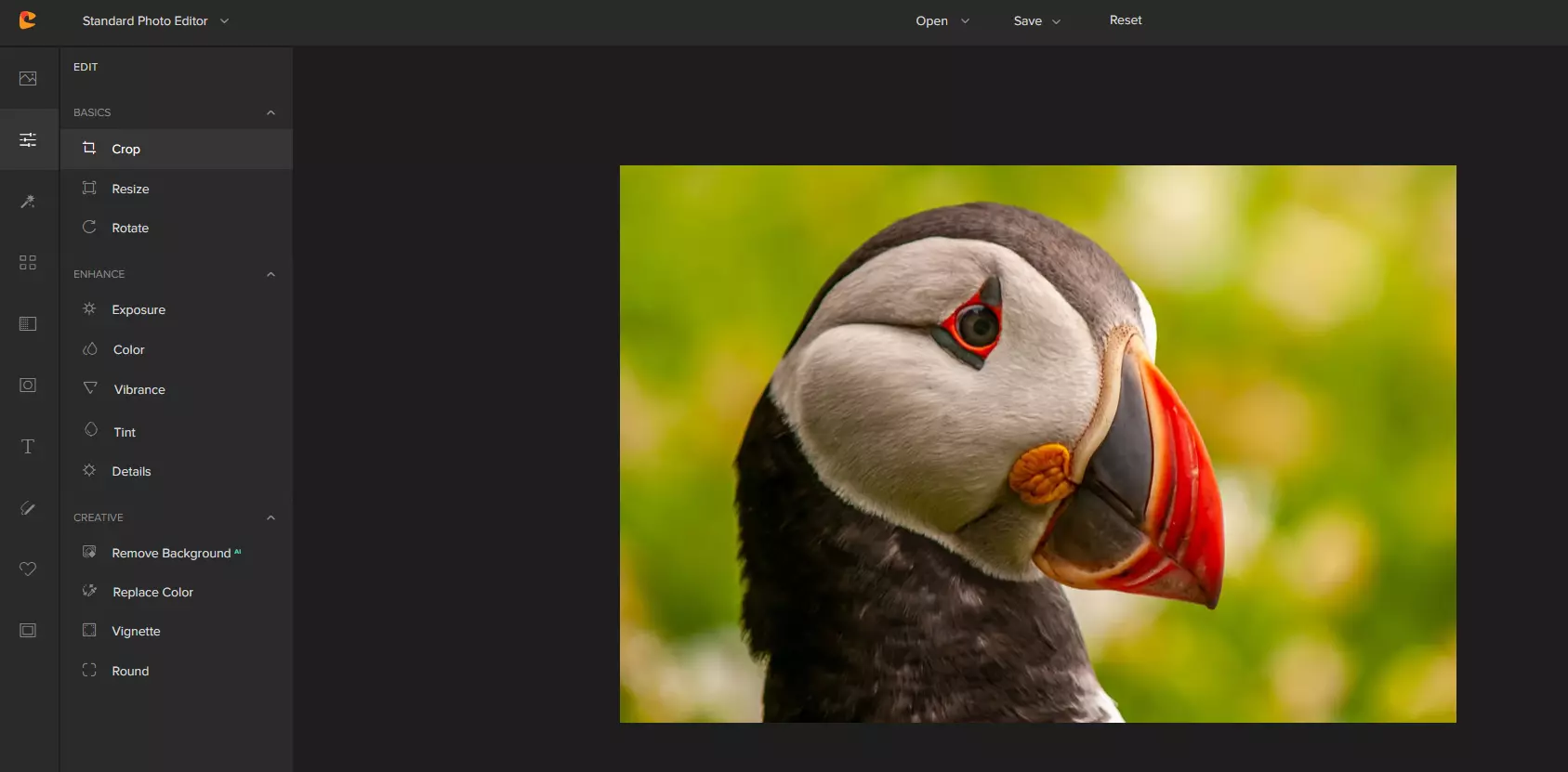
So as the application that wants to be used by people that want to place some cool pictures or ads on their social media what it offers. For starters simplicity and ease of use, every option that you can use is on the left side of the screen nicely packed into the vertical toolbox. Inside the toolbox, you have access to various tools, effects, and filters that you can apply to your image.
Tools explained
Image manager
The first section on the tool panel is the image manager, here you can upload your images, delete them, search stock images, and so forth. nothing more to say about this one as it is only a basic file manager.
Edit
In this tool panel, there are a lot of basic settings for your image manipulations divided into 3 sections: Basics, Enhance, and Creative. In the basic section, you can crop, resize and rotate your image. Enhance panel will let you set exposure, color, vibrance, tint, and details (sharpen). Finally, the Creative part will let you remove the background with AI in a single click, replace colors in the image, and add a vignette and round image.
Effects
In the effects panel, you will be given 4 options to choose from Cartoonizer, Digital art, Sketcher, and painting. Each option once clicked will open another set of options tied to chosen preset where you will be able to choose a different style from chosen template. Once you click on the desired template it will be applied to your image and in the upright corner, you will have edit options to tweak it to your liking. You can play around as much as you want because only once you click on the apply button, the effect will be applied to your image.
Filters
Same as in the effects tool panel here you will also get a series of different filters that you can apply to your image. As in the previous tool once clicked on the chosen filter, you will be given options for its variations and details edits. How there is really plenty of filters options and combined with its own presets I will not focus on explaining what each one is doing since picture thumbnails are pretty accurate and just one look at them will explain to you everything you need to know.
Overlays
In the overlays panel, you can as the name says overlay different kinds of effects on your image. You can add snow, fog, sun flares rain, and many more. Presets work identically to previous effects and filters.
Masks
If you want to place your image in a certain shape or in-text this is the section for you. You will be presented with sections as custom text, shapes, brushes, floral, animals, and patterns. Each section will once again lead to plenty of variations on the chosen subject where you can pick one that you like the most and tweak its options.
Text
As the name suggests, this section is to add text to your picture or design. If you are making some cool ad for Facebook, Instagram, or other social media I believe that you will spend most of your time in this section adding text and tweaking it so it looks best. You have all the tools that you will need to make a catchy title or smaller block of text and you can add multiple texts to your picture tweaking their own visual appearance, the font used, color, and some effects like a drop shadow.
Draw
In the draw section, you will be able to freely draw whatever you like with your mouse or pen if you have one. you have basic options for a brush and eraser so you can erase stuff. Pretty basic tool but it gives a nice touch to underline something, circle it, etc.
Graphics
This panel will let you place various already made graphic assets into a picture. You have hearts, hats, glasses, etc. There really are tons of premade graphics along with thematic ones like new year, st. Patric day and more.
Frames
As the name suggests this section will place a frame of your choice around your picture. You can choose the style of frame, position, color, and many more. There are various styles and each style has its own options.
Conclusion
Cartoonize is a great online application that will let you quickly and easily do cool and nice image edits. As mentioned you can also add various effects, text, and graphics and use this app to make some quick and nice ads for social media. You have the option to publish to your social media right from the app in the save dialog but you can also of course download your image or design to your local computer.
Please note that for this review we used the pro, paid version so all of the features were unlocked. We wanted to give you a full overview of the full potential of the app. In my opinion, the small monthly fee that they charge is well worth it when you see all things that you can do with it.
Go to the cartoonize website and check it out, basic option is completely free and it does not even require making an account. Have fun, be creative and take care, I hope to see you again tomorrow.