Logo

Fix Windows Update Error 0x80244019

If you are trying to update your Windows 10 computer but encounter the Windows update error 0x80244019 instead, read on as this post will help provide you some possible fixes to resolve the problem. This kind of Windows Update error is usually caused by your Windows Update settings or the Windows Update components. Many users who encountered this error reported that the update fails with the said error which keeps them from enjoying the latest features that the Windows Update brings.

In such cases, some of the common culprits for this Windows Update error are the Windows Update settings, Windows Update configuration, third-party antivirus programs, and so on. To resolve this error, you can check out the options provided below.

Option 1 – Restart your computer and try installing the Updates again

You can restart your computer and then try installing the updates once again. There are instances when a simple restart resolves Windows Update errors. Aside from that, it would also be better if you make sure that your internet connection is working and that it’s stable. And so after you restart your computer, check for updates once again and see if you’re still getting the error or not.

Option 2 – Try to change the Windows Update settings

You might also want to try tweaking the Windows Update settings. This will prevent other Microsoft products from being updated and besides, you can always turn the option back on afterward. To change Windows Update settings, follow these steps:

  • Tap the Win + I keys to open Settings.
  • Next, go to Updates and Security and click on the Advanced Options.
  • From there, turn off the “Get me updates for other Microsoft products when I update Windows” option.

Option 3 – Run the Windows Update Troubleshooter

Running the built-in Windows Update troubleshooter is one of the things you can first check out as it is known to automatically resolve any Windows Update errors like error code 0x80244019. To run it, Refer to these steps:

  • Tap the Win + I keys to open Settings.
  • From there, click Update and Security and go to the Troubleshoot section.
  • Next, select Windows Update and click the “Run the troubleshooter” button and wait until it’s finished, and then try to run Windows Update again.

Option 4 – Try to disable the third-party antivirus program

Disabling the antivirus program or any security software installed in your computer is always a good idea you can try when the Windows Update process does not go smoothly. There are times when you encounter Windows Update errors like 0x80244019 due to interference of third party antivirus programs. So before you try updating your computer again, make sure to disable the antivirus or security program and once the Windows Update is done, don’t forget to enable the antivirus program back again.

Option 5 – Try to manually install the Windows Updates

Windows Update Error 0x80244019 might be due to a Windows Update that has failed. So if it is not a feature update and only a cumulative update, you can download the Windows Update and install it manually. But first, you need to find out which update has failed, and to do so, refer to the following steps:

  • Go to Settings and from there go to Update and Security > View Update History.
  • Next, check which particular update has failed. Note that Updates that have failed to install will be displayed under the Status column which has a label of “Failed”.
  • After that, go to the Microsoft Download Center and look for that update using its KB number and once you find it, download and then install it manually.

Note: You can also use the Microsoft Update Catalog, a service from Microsoft that provides a list of software updates that can be distributed over a corporate network. With the help of this service, it can be easier for you to find Microsoft software updates, drivers as well as fixes.

Option 6 – Restart some Windows Update services

The first thing you have to do is to restart Windows Update-related services. Refer to the steps below to do so.

  • Open the WinX Menu.
  • From there, open Command Prompt as admin.
  • Then type in the following command – don’t forget to hit Enter right after typing each one of them.

net stop wuauserv

net stop bits

  • After entering these commands, it will stop the Windows Update Service and the Background Intelligent Transfer Service.
  • Next, go to the C:/Windows/SoftwareDistribution folder and get rid of all the folders and files thereby tapping the Ctrl + A keys to select them all and then click on Delete. Note that if the files are in use, you won’t be able to delete them.
  • Once all the contents in the Software Distribution folder are deleted, restart your PC and then go back to Command Prompt and input the following commands again.

net start wuauserv

net start bits

 Since the folder has already been flushed, it will be populated afresh the instant your restart your computer and open Windows Update. Now try to update your computer again and see if the error is fixed or not.

Do You Need Help with Your Device?

Our Team of Experts May Help
Troubleshoot.Tech Experts are There for You!
Replace damaged files
Restore performance
Free disk space
Remove Malware
Protects WEB browser
Remove Viruses
Stop PC freezing
GET HELP
Troubleshoot.Tech experts work with all versions of Microsoft Windows including Windows 11, with Android, Mac, and more.

Share this article:

You might also like

Repair Windows 10 Error Code C19000101 - 2000B

Error Code C19000101 - 2000B on Windows 10– What is it?

Error Code C19000101 - 2000B is a Blue Screen of Death (BSOD) error encountered by Windows users in an attempt to upgrade their operating system from Windows 7 or Windows 8/8.1 to Windows 10. The system upgrade does not successfully finish and when the installation is resurrected, it fails then reverts back to the original operating system. More and more Windows users come across this error that may have been triggered by a few reasons to be discussed in this article.

Solution

Restoro box imageError Causes

Microsoft users can experience the BSOD error C19000101-2000B due to the following reasons:

  • There’s an incompatibility with the drivers
  • Antivirus software

Further Information and Manual Repair

In fixing error code C19000101-2000B, you can try doing it manually. Manual repair methods can offer users solutions effectively and efficiently, having to address the root causes and issues in relation to a number of Windows error codes. If properly implemented, these manual repair methods can help Windows users resolve problems at hand immediately. However, there are cases where the help of a Windows professional is necessary. In such instances, it would be best to consult a certified Windows expert or you can also try using a powerful automated tool whenever needed.

To be able to fix error code C19000101-2000B, implement the first method used in resolving error code 0xc000021a, then you can proceed with this first method:

Method One: Perform Clean-Boot

  1. Prior to performing an upgrade, you need to disable your antivirus. Or, better yet, uninstall it.
  2. Ensure that your PC name is simple without hyphens, periods, or dashes.
  3. Restart your device several times, then try again.
  4. Disable all USB devices such as a smart card reader.
  5. If you are using a SCSI hard disk, be sure to have the drivers ready and available for a storage device like a thumb drive to be connected. While on the Windows 10 setup, select the Custom Advanced Option then use the Load Driver command to load the right driver for the SCSI drive. If the setup still fails, try switching to an IDE-based hard disk.
  6. Launch a clean boot, restart your device, then try again.
  7. If you are upgrading to Windows 10 using the .ISO file, make sure to disconnect from your internet connection during setup. If your device is connected by Wi-Fi or through LAN, you need to disable both before attempting to run a  system upgrade again.
  8. Switch to a local account if you are connected to a domain.
  9. Ensure that all external devices such as USB keys, external hard drives, gaming controllers, or printers are not attached to your device.

If you are upgrading to Windows 10 using Windows Update, you can perform a manual repair using the next method.

Method Two: Upgrading Via Windows Update

  1. Make sure to disconnect from the Wi-Fi or LAN once the download reaches 100% before you proceed with the system upgrade.
  2. Press Windows + X to open the command prompt window as an administrator.
  3. Stop the Windows Update service, BITS, MSI Installer, and Cryptographic by inputting the following commands one by one, hitting Enter after every command:

Net stop wuauserv

Net stop bits Net stop msiserver Net stop cryptSvc
  1. Restart both Software Distribution and Catroot2 folders. You can do this by typing Ren C: WindowsSoftwareDistribution SoftwareDistribution.old and Ren C: WindowsSystem32catroot2 Catroot2.old in the command prompt to change the names of both Software Distribution and Catroot2 files.
  2. Restart the Windows Update service, BITS, MSI Installer, and Cryptographic by inputting the following commands one by one, hitting Enter after every command:

Net start wuauserv

Net start bits Net start msiserver Net start cryptSvc
  1. Exit the command prompt then restart your device. You can now try to proceed with the system upgrade again.

Method Three: Disable or Uninstall Antivirus

  1. If you opt to just disable your antivirus, you just have to right-click on the antivirus’ icon from your toolbar then choose Disable.
  2. Press Ctrl + Alt + Del to open the Task Manager.
  3. Check if all the files or services linking to your antivirus are turned off.
  4. If you choose to uninstall your antivirus (which is recommended), open Control Panel.
  5. Once the Control Panel window is open, select Programs then Uninstall a Program.
  6. Look for your antivirus on the list, right-click it then choose Uninstall.

Read More
Fatal error occurred while trying to sysprep
There are several kinds of errors you could encounter when you are running Windows 10 on a virtual machine. The Windows OS knows the difference between booting up in a standalone computer or in a virtual machine. This is why some specific drivers and system capabilities are used while emulating the Windows OS on software and during this phase, there are times when the System Preparation may throw up an error that says, “A fatal error occurred while trying to sysprep the machine”. This kind of error arises due to a race condition wherein the Sysprep command tries to stop the Microsoft Distributed Transaction Coordinator or MSDTC service and the VMware tool tries to start the MSDTC service. You may also see the following messages logged in the Setuperr.log file:
  • [0x0f0082] SYSPRP LaunchDll:Failure occurred while executing ‘C:Windowssystem32msdtcprx.dll,SysPrepDtcCleanup’, returned error code -2146434815[gle=0x000000b7]
  • [0x0f0070] SYSPRP RunExternalDlls:An error occurred while running registry sysprep DLLs, halting sysprep execution. dwRet = -2146434815[gle=0x000000b7]
  • [0x0f00a8] SYSPRP WinMain:Hit failure while processing sysprep cleanup providers; hr = 0x80100101[gle=0x000000b7]
To fix the 0x0f0082, 0x0f0070, 0x0f00a8 Sysprep errors, you can check out two potential fixes. First, you have to check the status of the MSDTC service and the second one is to check the settings in the Windows Registry. Note that these fixes are proven to be effective on many users and apply to several versions of Windows, including Windows 10.

Option 1 – Check the status of the MSDTC service via Command Prompt

As mentioned, the error could be caused by the malfunctioning of the MSDTC service or it. Thus, you have to uninstall and reinstall the MSDTC service to resolve the problem and you can do that using Command Prompt. Follow the steps below.
  • In the Start Search, type “command prompt” and from the results, right-click on Command Prompt and then select the “Run as administrator” option to open it with admin privileges.
  • If a User Account Control or UAC prompt appears, just click on Yes to proceed.
  • Once you’ve opened Command Prompt, execute this command: msdtc –uninstall
  • The command you just entered will uninstall the MSDTC service. After that, you need to execute this second command to reinstall the service: msdtc –install
  • Now exit Command Prompt and check if the error is now fixed.

Option 2 – Check the Registry settings

  • Tap the Win + R keys to open the Run dialog box and type “Regedit” in the field and click OK or hit Enter to open the Registry Editor.
  • After opening the Registry Editor, navigate to this registry path: HKEY_LOCAL_MACHINESOFTWAREMicrosoftWindows NTCurrentVersionSoftwareProtectionPlatform
  • From there, look for a DWORD value that’s named “SkipRearm” and double click on it.
  • Then change its value data to “1”.
  • Restart your computer to apply successfully apply the changes made and check if it was able to fix the error.
Read More
Fix MS Store error code 0x80073d12 in Windows
The Microsoft Store error 0x80073d12 occurs when you try to download software from the store. In order to solve the issue follow the presented guide step by step in the order presented.
  1. Check do you have enough hard drive space for installation

    Store locates and assigned space on the hard drive before it installs the application, if there is not enough space available it will return the given error. Go to file explorer and check is there enough space available.
  2. Check that game is not expansion

    If you are trying to install expansion for the game without owning the required base game, you will receive the mentioned error. Check the store page to see if there are some prerequisites for the game like other games or packs.
  3. Install the game from my library

    Press Start. Open the Microsoft Store App. Click the See more button at the top right of the MS Store app’s window. Click Download and updates on the menu. Click Downloads on the left to open My library. Then click Ready to install to open a list of apps. Click the Install button for the game app that you need to install.
  4. Install on another partition

    It was reported that an error vanishes if installation is placed on another partition instead of the default C drive.
Read More
Rebuild Search Index in Windows 10
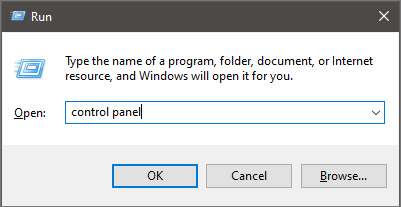
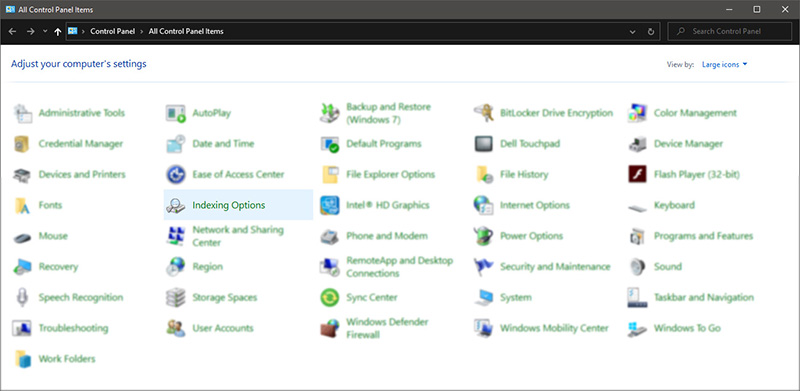
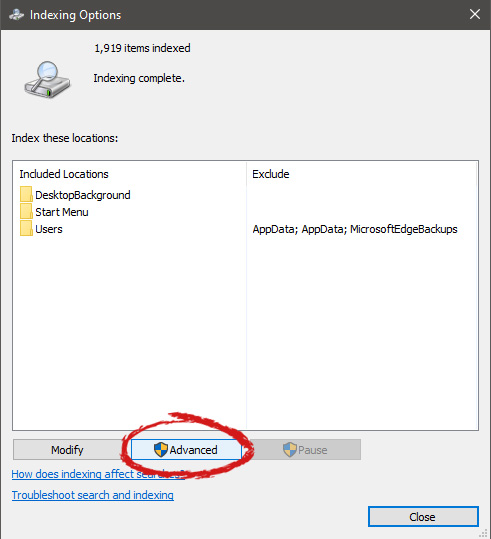
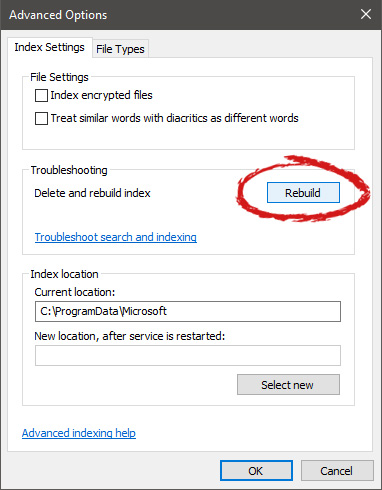
If by any chance your search result in Windows is misleading, missing, or incorrect then it is a high probability that your search index is out of date. To repair this issue follow this guide step by step. Please take note that rebuilding the whole search index can take a long time on some systems depending on the size of the index itself, CPU speed, HD speed, etc. Sometimes it can take even hours on large drives. First, press ⊞ WINDOWS + R to open the run dialog and type in it Control panel to open the control panel. keyboard with windows and r markedrun dialog with control panel typed in Once you are in the control panel, switch your view to large icons and locate Indexing options. Control panel with indexing options selectedInside indexing options, click on advanced. indexing options advanced button markedIn advanced options click on the rebuild and confirm. indexing options rebuild button markedLeave your computer to finish and your searches should be working fine now.
Read More
Can’t type in Win apps, Search, Cortana, etc.
If you are typing inside the Search bar, Cortana, Taskbar, Windows 10 apps, etc., and then everything seems invisible then read on as this post will guide you in fixing this issue. At first, you might think that something is wrong with your keyboard but it really has nothing to do with it. The problem actually lies with the apps from Microsoft Store. Thus, if you can’t type anything in any of the apps from Microsoft Store in Windows 10, refer to the options given below to fix them.

Option 1 – Ensure that ctfmon.exe is running

Ctfmon.exe is a Microsoft process in Windows 10 that controls the Alternative User Input as well as the Office Language bar. In other words, it enables end-users to control the computer using on-screen keyboard inputs, speech, and even pen for various languages. It would be better if you launch the program once by going to the C:/Windows/system32 folder. Doing so will ensure that whatever API is needed for the keyboard typing to work properly again. You also have to make sure that its startup status is not disabled. In addition, you can also try the following steps, alternatively.
  • Open the Task Scheduler.
  • Then go to Microsoft > Windows > TextServicesFramework.
  • And on the MsCtfMonitor, right-click and enable the task.
  • Now restart your computer.
This will ensure that all the text boxes will start to work again. And if the task MsCtfMonitor is missing from the list of tasks, you can import it with the XML file from basics.net. Then download and create a task to run it each time you log in to your PC.

Option 2 – Use the Windows Store Apps Troubleshooter

You might also try running the Windows Store Apps Troubleshooter as it can help in resolving issues with the Windows Store apps. This built-in tool can resolve most of the app-related problems. To use it, go to Settings > Update & Security > Troubleshooting > Windows Store Apps and from there, click the start the troubleshooter button. The Windows Store Apps Troubleshooter will scan the computer for any issues with the Windows store apps and will automatically fix them if it finds any.

Option 3 – Re-register all the Windows 10 UWP apps using PowerShell

  • First, make sure to close all the running applications on your computer.
  • Next, in the Start search, type in PowerShell and right click on the result, and select the “Run as administrator” option.
  • After that, type the following commands to re-register the Windows 10 apps. Make sure to hit Enter on each line:
    • reg delete "HKCUSoftwareMicrosoftWindows NTCurrentVersionTileDataModelMigrationTileStore" /va /f
    • get-appxpackage -packageType bundle |% {add-appxpackage -register -disabledevelopmentmode ($_.installlocation + "appxmetadataappxbundlemanifest.xml")}
    • $bundlefamilies = (get-appxpackage -packagetype Bundle).packagefamilyname
    • get-appxpackage -packagetype main |? {-not ($bundlefamilies -contains $_.packagefamilyname)} |% {add-appxpackage -register -disabledevelopmentmode ($_.installlocation + "appxmanifest.xml")}

Option 4 – Try to run the DISM tool

You can also run the DISM Tool as it helps in repairing the Windows System Image as well as the Windows Component Store in Windows 10. Using this built-in tool, you have various options such as the “/ScanHealth”, “/CheckHealth”, and “/RestoreHealth” which could help in fixing the problem.
  • Open the Command Prompt with admin privileges.
  • Then type in the following commands and make sure to hit Enter right after you type each one of them:
    • Dism /Online /Cleanup-Image /CheckHealth
    • Dism /Online /Cleanup-Image /ScanHealth
    • exe /Online /Cleanup-image /Restorehealth
  • Do not close the window if the process takes a while as it will probably take a few minutes to finish.

Option 5 – Run the System File Checker Scan

System File Checker or SFC is a built-in command utility that helps in restoring corrupted files as well as missing files. It replaces bad and corrupted system files to good system files. To run the SFC command, follow the steps given below.
  • Tap Win + R to launch Run.
  • Type in cmd in the field and tap Enter.
  • After opening Command Prompt, type in sfc /scannow
The command will start a system scan which will take a few whiles before it finishes. Once it’s done, you could get the following results:
  1. Windows Resource Protection did not find any integrity violations.
  2. Windows Resource Protection found corrupt files and successfully repaired them.
  3. Windows Resource Protection found corrupt files but was unable to fix some of them.
  • Restart your PC.
Read More
How to move Taskbar to the left in Windows 11
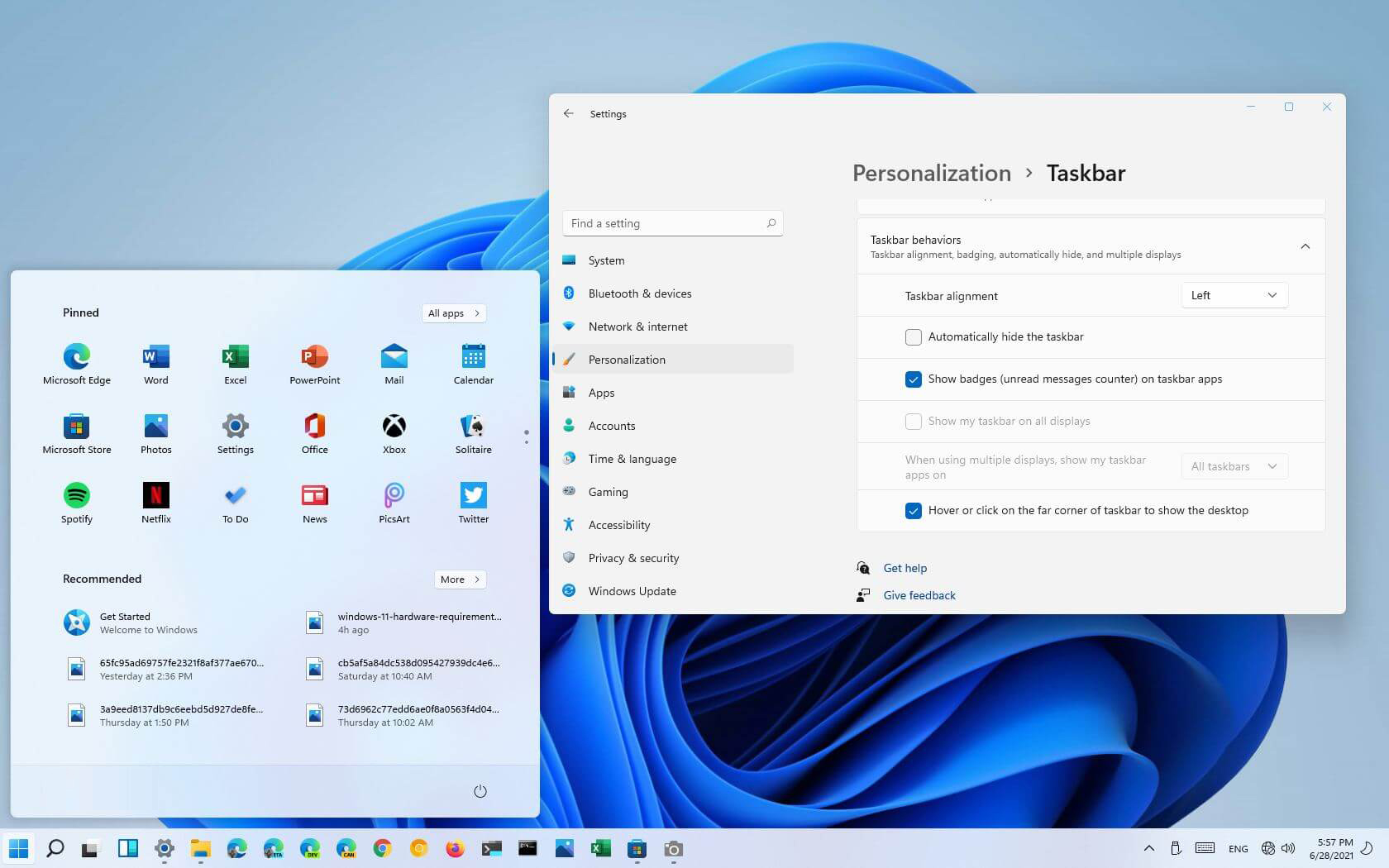
The standard icon place in the Taskbar inside Windows 11 is in the center. Some users welcomed this change, some not so much. If you are part of the user base that is not so much thrilled with this Microsoft’s idea of innovation, do not worry, there is an easy way to move all icons and start button on the left inside Taskbar.

Taskbar icons on leftMoving icons in Taskbar

  1. Open Windows settings by using ⊞ WINDOWS + I key combination
  2. Click on Personalization
  3. Select Taskbar
  4. Click on Taskbar Behaviors
  5. Click on the drop-down menu beside Taskbar Alignment
  6. Select your desired option of icon alignment
  7. Close settings
Your options will be active right away and you will see icons switching to the position of your choosing.
Read More
Perform System Restore when Windows won’t boot
System restore is usually the go-to tool when something goes bad in Windows, we fire it up and roll back Windows in the state when everything was working fine. But what if Windows does not want to boot? Can we use system restore in that case? The answer to that question would be yes, yes we can.
  1. Boot interrupt Windows 10 by starting your PC and as soon as you see the Windows logo; press and hold the power button to force a shutdown.
  2. Repeat this 2-4 times and Windows will open up the Advanced Startup Options menu for you.
  3. At the Advanced Startup Options screen, select Advanced Options.
  4. Select Troubleshoot.
  5. Under the Advanced options screen, select System Restore.
or if you prefer, use Windows USB installation.
  1. Boot the faulty PC using the Windows 10 installation media.
  2. The Windows Setup dialog box will appear.
  3. Set the Time and currency format, Keyboard or input method, and the language to install.
  4. Click Next.
  5. Click on Repair your computer from the lower-left corner.
  6. From the Choose an option screen, click on Troubleshoot.
  7. Click Advanced Options in the Troubleshoot screen.
  8. In the Advanced Options screen, click System Restore.
  9. Windows will take some time to prepare System Restore. It may even restart your computer or device.
  10. When System Restore is ready, you will be prompted to choose a user account to continue.
  11. Select an account that is set as administrator on your Windows 10 computer or device.
  12. At the next screen, change the keyboard layout if you want and then input the password for that account.
  13. Click the Continue button.
Read More
Removing BEEP when adjusting volume in Windows
I often switch between my desktop speakers and headphones and because of this I very often use the volume adjustment bar to adjust sound levels so it is not too loud and each time when I set it I get annoying BEEP at the end. Now personally this might not bother you and you might want to leave it since it can be a useful feature to tell you how much volume is loud but if you are adjusting multiple times volume during the say it can become really frustrating to hear it each time, especially when switching to headphones and it beeps into your ears. In this guide, I will show you how to remove the beep so it is not heard anymore when you adjust the volume. Please know that beep is part of the Windows sound scheme and you can either remove specific sound with a completely silent wave or just turn off all windows alert sounds.
  • Open Windows settings and go to system > sound
  • in system sound, go to the right part of the screen and click on the sound control panel
  • In the sound control panel click on the Sounds tab
  • In the sounds, tab click on the drop-down menu under the sound scheme and choose no sounds.
There you go! You have successfully removed annoying BEEP each time you adjust the volume in Windows 10
Read More
Repairing or rebuilding the WMI Repository
There are times when the WMI Repository gets corrupted which results in the Provider Load Failure. To resolve this issue, you need to repair or rebuild the WMI Repository in your Windows 10 computer. In this post, you will be guided on how exactly you can do that. In case you don’t know, the WMI which stands for Windows Management Instrumentation is a set of specifications from Microsoft to consolidate the management of devices and applications in a network. The WMI is a database that stores meta-information and definitions for WMI classes. Using only these, the conditions of the systems can be known. You can find the WMI Repository in %windir%System32WbemRepository. It provides end-users with the status of the local or remote computer system. Keep in mind that you must not use this on the Server 2012 Cluster machine. Although there are command-line tools that can fix or restore the Windows Management Instrumentation repository. However, Microsoft suggests that it’s better if you verify if there is corruption. Here are a list of errors as well as permission issues you might encounter:
  • Unable to connect to root default or rootcimv2 namespaces. It fails with the error code “0x80041002” pointing to “WBEM_E_NOT_FOUND.”
  • 0x80041010 WBEM_E_INVALID_CLASS
  • When you open Computer Management and Right Click on Computer Management (Local) and select Properties, you get the following error: “ WMI: Not Found” or it hangs trying to connect
  • Trying to use wbemtest , and it hangs
  • Schemas/Objects missing
  • Strange connection/operation errors (0x8007054e)
To verify if there is corruption, you can try running the following command in an elevated Command Prompt:
winmgmt /verifyrepository
 After you enter the command, if there is a response saying, “repository is not consistent”, then the repository has an issue. If not, then something else is causing the problem. Since you are certain that corruption exists in the WMI repository, then here are some suggestions you need to check out to repair or rebuild the WMI repository.

Option 1 – Try to reset WMI Repository

  • Type “command prompt” in the Start Search and right-click on Command Prompt from the search results and then select “Run as administrator”.
  • After opening Command Prompt with admin privileges, type and enter this command: winmmgmt /salvagerepository
The command you entered is used when the winmmgmt command performs a consistency check. So if an inconsistency is detected, it will rebuild the repository.
  • Next, execute this command to see if the WMI repository now comes back as consistent: winmgmt /verifyrepository
This command will perform a consistency check on the WMI repository.
  • If it states that the WMI repository is not consistent, then you need to type and enter this command: winmgmt /resetrepository
This command is used to reset the repository to its initial state when the operating system was first installed.

Option 2 – Try to force recover the WMI Repository

The WMI Repository comes with a built-in self-recovery process so when the WMI service restarts or detects any corruption, it will automatically trigger the self-recovery procedure. This can happen in two ways:
  • AutoRestore: This will use the backup images if the Volume Shadow copy or VSS backup is turned on.
  • AutoRecovery: The rebuilding process will generate fresh images of the WMI repository based on the registered MOFs. The MOFs are available in the registry located at HKLMSoftwareMicrosoftWBEMCIMOM: Autorecover MOFs
Note: Autorecover MOFs is a key so double click on it to check its value. On the other hand, if the self-recovery procedure does not work, you can try to use the force-recovery process instead. How? Refer to these steps:
  • First, you need to check the reg key value is empty or not under this registry path: HKLMSoftwareMicrosoftWBEMCIMOMAutorecover MOFs
  • If the reg key value is empty, you have to copy-paste the reg key value from another computer. Just make sure that it’s from the System which is equivalent to the computer in question.
  • Next, type and enter this command: Winmgmt /resetrepository
  • After you enter the command, if you get an error that says, “WMI repository reset failed. Error code:0x8007041B. Facility: Win32”, then you have to stop all the Dependency Services on the WMI service by running the following commands:
    • net stop winmgmt /y
    • Winmgmt /resetrepository
This should fix the problem.
Read More
Find out bottlenecks in your PC easily
Building a custom PC is a great feeling but it can sometimes not be ideal and we are not talking about breaking or losing parts. What we mean is that choosing the right components can be sometimes a difficult task. Of course, picking a PC case can have its issues, choosing the right power supply can be tricky but pairing all components together, especially CPU and GPU can be tricky. bottlenecksBuilders with no depth knowledge and experience can sometimes choose improper CPU or GPU, picking one of them to be much more powerful than another thus not using it to its full potential because another component cannot handle stuff at the same speed. In order to not be trumped by this kind of stuff, there is a website that is completely free and you do not even need to be registered in order to use it. Bottlenet calculator link here What is even better, once you input your components you will get advice on what to change in order to tweak the system a little more to avoid bottlenecks even more. It is a very useful tool and we are advising you to use it in order to save money but not throwing it on some component that will be half used.

Read More
1 2 3 171
Logo
Copyright © 2023, ErrorTools. All Rights Reserved
Trademark: Microsoft Windows logos are registered trademarks of Microsoft. Disclaimer: ErrorTools.com is not affiliated with Microsoft, nor claims direct affiliation.
The information on this page is provided for information purposes only.
DMCA.com Protection Status