Logo

Fix NTOSKRNL.exe high CPU, Memory & Disk usage

This post will guide you in fixing high CPU, Memory, and Disk usage problems caused by NTOSKRNL.exe. NTOSKRNL stands for “NT Operating System Kernel. This file is a kernel image that is responsible for a lot of systems-based processes such as Hardware Virtualization, Process, and Memory. Aside from that, it is also the one that compresses the old pages of memory that reduces the overall amount of memory being used. If you notice that your computer is running slowly and you find that the NTOSKRNL.exe file is hogging your resources such as disk usage, CPU usage as well as memory usage, then read on as this post will guide you in fixing the problem caused by NTOSKRNL.exe.

Make use of the options given below to resolve the issues caused by NTOSKRNL.exe.

1] Scan your computer for potential malware

There might be a good chance that your computer might be infected with malware. And this malware might be associated with the NTOSKRNL.exe file and hence making it consume a lot of system resources. So, I would really recommend you to make sure that your Antivirus is up to date and then scan your computer with it specifically the C:/Windows/System32 folder because this is the location where the NTOSKRNL.exe file is located.

Option 1 – Put your computer in a Clean Boot State

The first thing you have to do is to put your computer in a Clean Boot State as this can help you in finding any incompatible programs that are causing the problem.

  • Log onto your PC as an administrator.
  • Type in MSConfig in the Start Search to open the System Configuration utility.
  • From there, go to the General tab and click “Selective startup”.
  • Clear the “Load Startup items” check box and make sure that the “Load System Services” and “Use Original boot configuration” options are checked.
  • Next, click the Services tab and select the “Hide All Microsoft Services” check box.
  • Click Disable all.
  • Click on Apply/OK and restart your PC. (This will put your PC into a Clean Boot State. And configure Windows to use the usual startup, just simply undo the changes.)
  • From there, start to isolate the problem by checking which one of the programs you installed recently is the root cause of the problem.

Once you’ve found any incompatible programs, you need to uninstall them. Refer to the steps below to do so.

  • In the search box, type in “control” and then click on Control Panel (desktop app) among the search results.
  • After that, select Programs and Features from the list which will give you a list of all the programs installed on your computer.
  • From there, look for the concerned program and select it and then uninstall it.

Note: If you have downloaded the app from the Windows Store, you can simply right-click on it from the application list and then uninstall it.

Option 2 – Update or rollback drivers

If the first option didn’t work for you, then it’s time to either update or roll back the device drivers. It is most likely that after you updated your Windows computer that your driver also needs a refresh. On the other hand, if you have just updated your device drivers then you need to roll back the drivers to their previous versions. Whichever applies to you, refer to the steps below.

  • Open the Devices Manager from the Win X Menu.
  • Then locate the device drivers and right-click on them to open the Properties.
  • After that, switch to the Driver tab and click on the Uninstall Device button.
  • Follow the screen option to completely uninstall it.
  • Finally, restart your computer. It will just reinstall the device drivers automatically.

Note: You can install a dedicated driver on your computer in case you have it or you could also look for it directly from the website of the manufacturer.

Option 3 – Try to run the DISM tool

If the first two options didn’t work, then running the Deployment Imaging and Servicing Management might. Using this built-in tool, you have various options such as the “/ScanHealth”, “/CheckHealth”, and “/RestoreHealth”.

  • Open the Command Prompt with admin privileges.
  • Then type in the following commands and make sure to hit Enter right after you type each one of them:
    • Dism /Online /Cleanup-Image /CheckHealth
    • Dism /Online /Cleanup-Image /ScanHealth
    • exe /Online /Cleanup-image /Restorehealth
  • Do not close the window if the process takes a while as it will probably take a few minutes to finish.

Option 4 – Try to stop the Runtime Broker process

The RuntimeBroker.exe or the Runtime Broker process is the one that monitors access to Windows APIs to make sure that the apps do not violate the core security of Windows. This process usually leaves a very small footprint. However, there are times when it consumes more resources than it’s supposed to and does not release memory after the work is done that results in a memory leak. As a result, it affects NTOSKRNL.exe which is why you have to stop the Runtime Broker process. To do so, refer to these steps:

  • Tap the Ctrl + Shift + Esc to open the Task Manager.
  • After opening Task Manager, go to the Processes tab and look for the Runtime Broker process.
  • Once you find it, check if it is using more than 15% of your memory. If it is, then you most likely have an issue with an app installed on your computer.
  • Select the Runtime Broker process and right-click on it and then click on the End Task option to end its process.

Option 5 – Try to run the Performance Troubleshooter

  • Tap the Win + R keys to open the Run dialog box.
  • Type “msdt.exe /id PerformanceDiagnostic” in the field and hit Enter to open the Performance troubleshooter.
  • Then click on Next to get started. Wait until the process is completed.

Option 6 – Try using the Windows Performance Toolkit

You can also use the Windows Performance Toolkit in finding the root cause of the problem. Just refer to the following steps to use this toolkit.

  • Search for “cmd” in the Cortana Search box and click on Command Prompt from the search results to open it.
  • Next, type in the command given below or copy and paste it and then hit Enter:

xperf -on latency -stackwalk profile -buffersize 1024 -MaxFile 256 -FileMode Circular && timeout -1 && xperf -d cpuusage.etl

  • After executing the command, wait for at least 60 seconds and then check the logs of the Windows Performance toolkit which is stored in a file named cpuusage.etl in the folder located at C:/Windows/System32. From there, you should see a list of all the causes of the System Resources being hogged.

Do You Need Help with Your Device?

Our Team of Experts May Help
Troubleshoot.Tech Experts are There for You!
Replace damaged files
Restore performance
Free disk space
Remove Malware
Protects WEB browser
Remove Viruses
Stop PC freezing
GET HELP
Troubleshoot.Tech experts work with all versions of Microsoft Windows including Windows 11, with Android, Mac, and more.

Share this article:

You might also like

Check Windows 11 UI inside your Browser
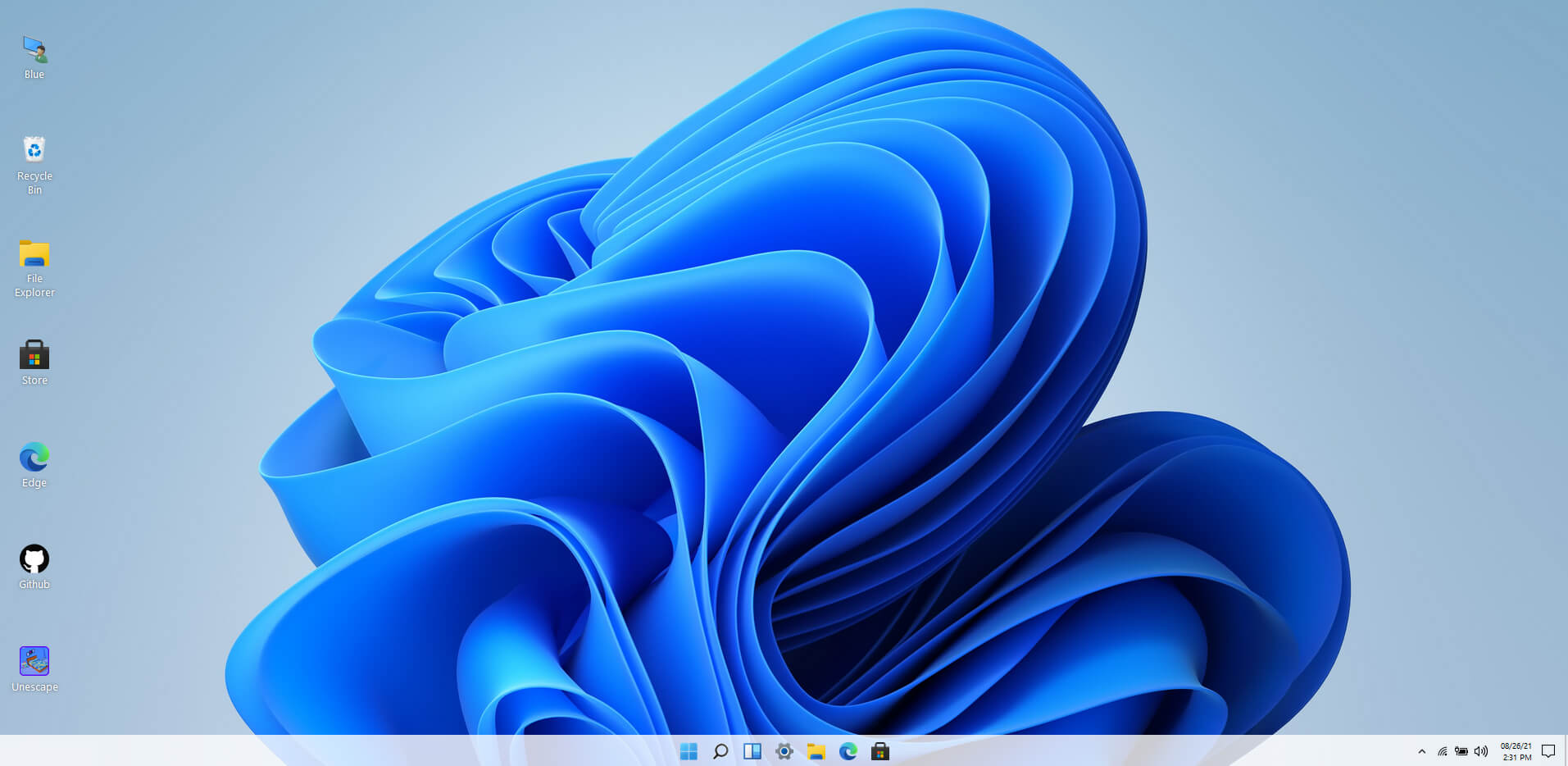
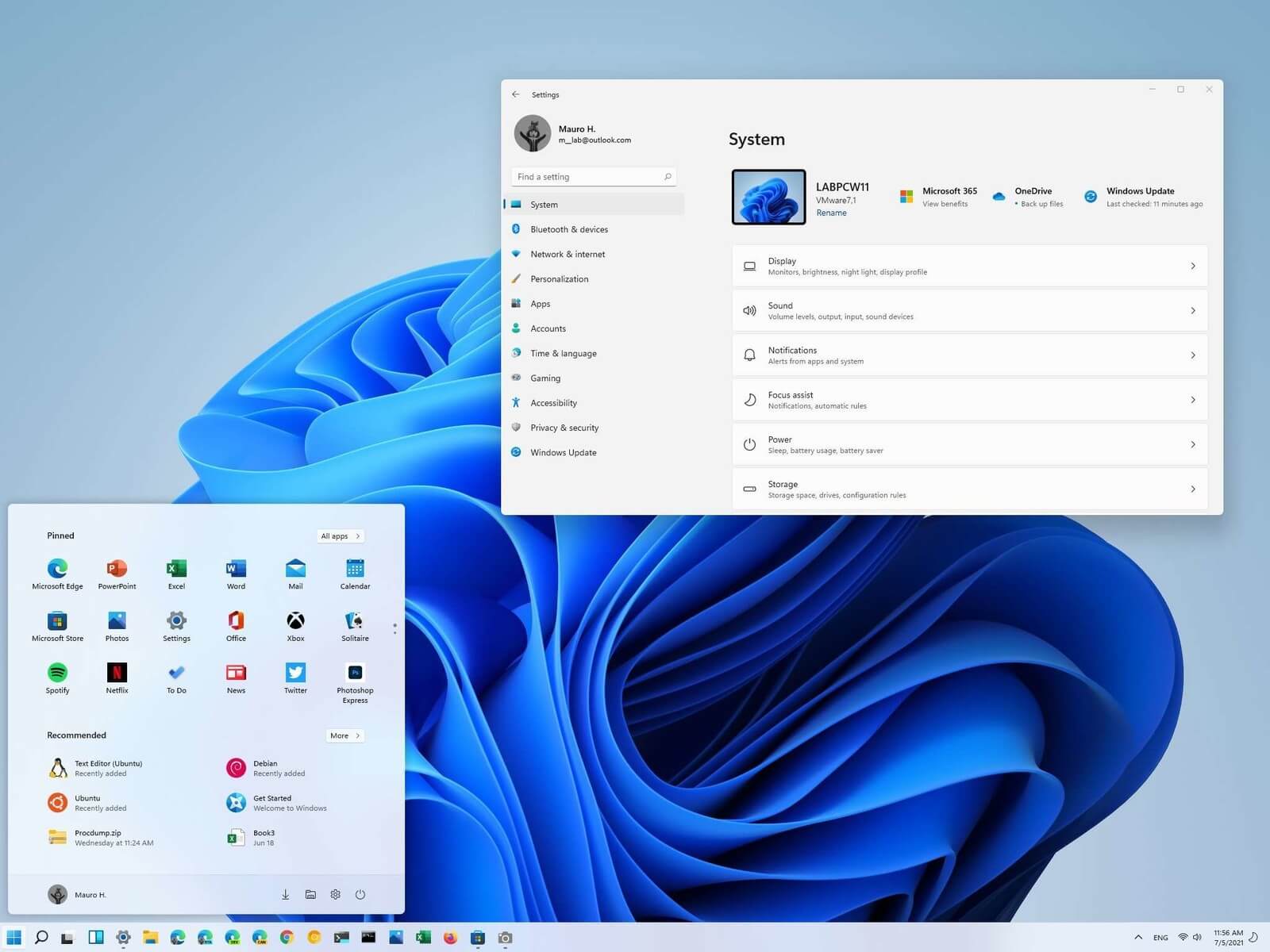
windows 11 websiteWindows 11 release date is closing in, some people have tried it via insider build, some have decided not to. It has come to our attention that there is a little website made by BlueEdge that offers a virtual Windows 11 desktop. Opening the Website will put you right inside Windows 11 desktop, now take note that this is not Windows 11, it is a simulation of Microsoft’s newest OS and therefore many things will not work like File Explorer, etc. One thing you can make sure it is working is UI itself, you can see how you do like the new Taskbar, start menu, widgets, and some other things. You can just pop up on the site and check how you do like the overall new look and feel of Windows 11 UI before installing it or trying it. We are sure that many more options will come in time but even now you can get a feel of the newest OS. Windows 11 BlueEdge site: https://win11.blueedge.me/
Read More
Making your own Minecraft server in Windows
Minecraft has taken the world like a storm and if you tried it, you could tell why, procedurally created worlds, various modifications available and fun gameplay are just some of the things this game offers and it is non wonder why kids and adults are enjoying it. Minecraft is even more fun when you play with your friends on dedicated servers, where you all can adventure and build together. Sadly as everything costs, so does the Minecraft servers as well. Lucky you can create your own Minecraft server on your computer so your friends can join and play with you free of charge with just a little time you need to spend reading this guide and building one for yourselves. Without further delay let's dive right into it.

1. Install the most recent Java version

In order to run your personal server, you will need to own and have Minecraft: JAVA edition, not Windows 10 one. If you have this version of the game and it is already running it means that you already have JAVA as well but we will need to check to see if it is the latest version of JAVA, to check this do the following:
  • Press Windows and type in configure java followed by ENTER
  • Under the update tab, click on the update now button
  • If you have the latest version you are all good, if not follow the onscreen instruction on how to update it.
If by any chance you do not have JAVA installed you can get it here.

2. Prepare a dedicated location for your Minecraft server files

You can use any folder you like for your Minecraft server folder but it is highly recommended to create a new folder whose sole purpose will be to hold and run Minecraft server files. this will be very beneficial in the future when server files need to be updated or configured. Having things in one isolated space is always a good idea and keeping things organized is also a good idea.

3. Download, install and start the Minecraft: Java Edition server file

It is now time to download server files, you can get them here. Download the server.jar file and place it inside your server folder. Once everything is downloaded and prepared do the following:
  • Run the server.jar file, the first time it runs, the file will create some configuration files.
  • After additional files appear, there should be a text document called eula.txt. Open it with a text editor then change eula=false to eula=true.

4. Enable port forwarding on your router

This sep is required if you want to have people to play with you that are outside your router network, for example, if you want them to connect to your server from their home. If you do not wish to do this and want only people on your serves from your router network you can skip this step. Unfortunately, to enable port forwarding, you’ll need to make your computer on your local network to be accessible by other computers over the internet via a router. This will effectively make your port to be an open portThis can make your system vulnerable to malicious attacks. Once you’ve enabled it, set the default server port to 25565. You’ll need the Server IP address, which you can get by opening Command Prompt or PowerShell and run ipconfig. Your IP address is usually listed as IPv4 or IPv6 Address.

5. Run the Minecraft server

Simply double-click the server.jar file to run the server. If you want to have more control over it, use the command line.
  • Navigate to your Minecraft server directory using file explorer.
  • We will be using PowerShell instead of Command Prompt to enter commands. Hit Shift + Right-click on the directory window and select “Open PowerShell window here.
  • Once you are in the right directory, write the following command:
java -Xms1024M -Xmx1024M -jar {server file name} nogui
  1. Replace the {server file name} with the full name of .jar file. The command above will make the server run with no Graphical User Interface (GUI) and use 1024MB of allocated RAM space.
  2. If you want to enable the GUI, remove the nogui command. Additionally, you can edit the memory allocation for the server by changing the Xms and Xmx value.
  3. After the server is up, invite your friends to play by sharing your local or public IP address, depending on whether you are using a local or public network. For a local network, you can give the IPv4 or IPv6 Address earlier. For public networks, go to Google and type “what is my ip” to get the address.
Read More
A Quick Guide to Fixing Error 2738

Error 2738 - What is it?

Error 2738 is associated with the VBScript engine. VBScript is the abbreviation for Visual Basic Scripting. It is an Active Scripting programming language developed by Microsoft and modeled on Visual Basic. It is used with a fast interpreter in a large variety of Microsoft environments. Error 2738 indicates that the VBScript engine is not registered properly on your PC. It occurs when you try to install or uninstall VBScript-supported applications on your system. The error message is displayed in the following format:
"Error 2738. Could not access VBScript run time for custom action."

Solution

Restoro box imageError Causes

There are several reasons for the error 2738 message pop up. These include: Incorrect or corrupt registry entries on your system. These entries interfere with VBScript support in Windows thereby generating such error codes.
  • Removal of McAfee Antivirus
  • Windows registry values are not updated accurately during the uninstallation of McAfee Software
  • The Visual Basic Script is registered in the registry under the local user instead of the local machine
No matter what the cause of the error may be, it is recommended that you resolve the issue immediately without any delay.

Further Information and Manual Repair

Here are some of the easy and proven DIY methods to repair error 2738 on your PC:

Method 1

If the error 2738 occurs because the VBScript is not registered correctly, then follow these steps to resolve.
  1. Go to the start menu, open Run, and type RegEdit in the box and then press OK. This will open the Windows Registry Editor.
  2. Now type KEY_LOCAL_MACHINESOFTWAREClassesCLSID{B54F3741-5B07-11cf-A4B0-00AA004A55E8}InprocServer32, if the key does not have a data value of C:\Windows\System32\vbscript.dll then simply add it.
  3. Now go to the All programs option and then Accessories.
  4. Here right-click on Command Prompt and then ‘Run as Administrator’.
  5. Now type egsvr32 vbscript.dll then press enter. After that type regsvr32 jscript.dll and then press enter.
  6. Restart your PC to activate changes.

Method 2

Sometimes error 2738 may occur when you uninstall preinstalled MacAfee antivirus software on your system. Un-installation usually leaves some trace components in the registry. These components must be removed completely otherwise error codes like 2738 may keep occurring on your computer screen. In such an event, the best way to resolve it is to download the McAfee Consumer Product Removal utility from McAfee's official website. Save this file on your desktop. Double click the file and follow the steps to remove this software completely and successfully from your PC. Proper removal of the McAfee program will resolve error 2738 right away. But if the error still persists then try other methods illustrated below.

Method 3

Download Restoro to remove incorrect and corrupt registry entries on your system that may be interfering with VBScript support. Restoro is a new and easy-to-use PC Repair Tool deployed with an intuitive interface and a powerful registry cleaner. The registry cleaner removes all entries corrupting the registry, cleans it, and resumes it to its normal state. Click here to download Restoro.
Read More
How to Fix Jp2klib.dll Error Code

Jp2klib.dll Error - What is it?

Jp2klib.dll is a type of Dynamic Link Library. This file is developed by Adobe Systems Inc and associated with CS2 (Creative Suite 2 Premium). Like all DLL files, this file also contains small programs that support programs developed by Adobe Systems on your PC. The function of Jp2klib.dll is to load and run programs. Jp2klib.dll error occurs when it fails to do so. It occurs during program startup. Jp2klib.dll error is displayed in several different formats depending on the cause of the error. Here are some common error messages that you may come across:
  • "JP2KLib.dll not found."
  • "Cannot find C:\WindowsSystem32\JP2KLib.dll."
  • "Cannot start Creative Suite 2 Premium. A required component is missing: JP2KLib.dll. Please install Creative Suite 2 Premium again."
  • "Cannot register JP2KLib.dll."
  • "The file JP2KLib.dll is missing."
  • "This application failed to start because JP2KLib.dll was not found. Re-installing the application may fix this problem."
  • JP2KLib.dll Access Violation."

Solution

Restoro box imageError Causes

There are several causes for the Jp2klib.dll error code pop-up. These include:
  • Hardware failure
  • Jp2klib.dll file not properly registered
  • Viral infection
  • Deleted, missing, or corrupted Jp2klib.dll file
  • Registry problems
  • Another program overwrote the Jp2klib.dll file
The good news is that this is not a fatal error code like the blue screen of death errors. However, it is still advisable to resolve it right away to avoid inconvenience.  This error may limit your ability to access your desired program.

Further Information and Manual Repair

Follow these methods to resolve Jp2klib.dll error code on your PC in a few minutes without any professional assistance or technical know-how:

Method 1 - Re-register the Jp2klib.dll file

Sometimes Jp2klib.dll error may occur if the DLL file is not registered properly. In such a situation "JP2KLib.dll not registered" error message will pop on your computer screen. To resolve, all you need to do is register this file. Follow these steps to register the Jp2klib.dll file on your PC:
  1. Go to the start menu, type the command in the search box. Don’t press enter yet.
  2. First, hold CTRL-SHIFT and then press it. This action will prompt a permission dialog box. Click yes to proceed.
  3. You will be asked to enter a command, here simply type regsvr32 /u JP2KLib.dll and then press enter.
  4. This will first unregister the previous Jp2klib.dll file. Now type regsvr32 /i JP2KLib.dll and press enter to re-register the same file.
  5. After this, close the command window and reboot your PC to activate changes.

Method 2 - Check the Recycle Bin and Restore the Jp2klib.dll file

If you come across this error message "JP2KLib.dll not found”, this indicates a missing Jp2klib.dll file. This usually happens if you recently uninstalled a program on your system which was also supported by the Jp2klib.dll file due to which the file was also deleted. But don’t worry! Check your recycle bin to retrieve the accidentally deleted file on your system. If you find it restore, but if you don’t then simply download it from a reliable DLL website.

Method 3 - Scan for Viruses

Install and run an antivirus to detect viruses. Viruses are malicious programs that damage and corrupt DLL files like the Jp2klib.dll file. Scan for all viruses on your PC and remove them to fix the problem.

Method 4 - Repair the Registry

If you don’t clean the registry often it becomes accumulated with obsolete files like bad and broken entries, cookies, and junk files. These files corrupt the registry and damage system and DLL files also stored in the same location. It then leads to such error message pop-ups. To resolve, download Restoro. This is an advanced PC Fixer deployed with a registry cleaner. It is easy to use and in just a few clicks can repair the Jp2klib.dll error on your PC. The registry cleaner scans and removes all obsolete files. It cleans the registry and repairs the damaged system and DLL files. Click here to download Total System Care and fix the Jp2klib.dll error.
Read More
Delete large System Error Reporting files
In case you don’t know, Windows contains a feedback mechanism that generates error reports from hardware and software problems. These reports are temporarily stored in the system and send them back to Microsoft so that it can find solutions to the reported problems and fix them in the upcoming updates.  However, as time goes by, these reports actually take a lot of space in your computer which is why end-users like you are free to delete them with the help of the new Free Up Space feature in Windows 10. As useful the Free Up Space feature may be, there are times when you won’t be able to use it for some reason which is why in this post, you will be guided on how to use alternative ways in deleting very large System queued Windows Error Reporting file, some of which may run in Gigabytes. Every time the Windows Error Reporting or WER sends out an error file and looks for a solution, the WER server at Microsoft sends out a solution instantly. And if the solution is under investigation or is unknown, then you will be notified about it right away and will be asked for more details. As mentioned, even though the Free Up Space feature in Settings will be able to clear the error reporting files, there are instances when it won’t be able to delete very large System queued Windows Error Reporting files. Alternatively, there is an option to delete these files using the Disk Cleanup Utility. Feel free to select which option you’d like to use to get rid of Windows Error Reporting Files.

Option 1 – Delete Windows Error Reporting Files via Settings

  • Go to Settings.
  • From there, go to System > Storage > Free Up Space and then click on it to launch it.
  • Afterward, give it some time to populate all the files and folders. Once it’s done, select “System created Windows Error Reporting files” to mark its checkbox while leaving the other options unchecked.
  • Next, click on the Remove files button to delete all the Windows Error Reporting files from your computer.

Option 2 – Manually delete the Windows Error Reporting Files

  • Tap the Win + E keys to open File Explorer.
  • Next, enable the Hidden Files view from the menu.
  • Then go to C:/ProgramData/MicrosoftWindowsWER.
  • From there, you will see various folders like LocalReportArchive, ReportArchive, ReportQueue, and Temp.
  • Open each one of the aforementioned folders and delete the archive files. Note that these files will have names similar to “00c58c1f-b836-4703-9bcf-c699ca24d285”.
Note: If you are not able to delete any of these files, you have to take ownership of the folder. To do so, refer to these steps:
  • Right-click on the folder and then select Properties.
  • Next, click on the Edit button in the Properties window and click OK to confirm if you got a User Account Control elevation request.
  • After that, select user/group from the permission windows or click on the Add button to add another user or group. It would be best if you add “Everyone” to give permission.
  • Then check “Full Control” under the “Allow” column to assign full access rights control permissions.
  • Now edit the permission to Full Control for “Everyone”.
  • Click OK to save the changes made and then exit.
On the other hand, if you do not want to go through all these troubles in deleting the Windows Error Reporting files, you can just disable it especially if it already becomes a daily annoyance as the files generate every day and their sizes are mostly gigabytes. And besides, there are times when these files do not make it to the Microsoft WER server and end up only occupying a lot of space for nothing.
Read More
Fix Print Spooler Service Error 1068
There is one service in the Windows operating system that is responsible for managing all the print jobs as well as handles the interaction with the printer. This service is known as the Print Spooler service. However, if it stops running, then you won’t be able to print anything on your computer. In such a case, you can try to restart the Print Spooler service, and to do that, you have to open the Windows Services Manager and look for the Print Spooler Service. Once you found it, right-click on it and select Restart. If it isn’t running, select Start and if the Service starts working again, then good but if not and you got an error message instead that says, “Windows could not start the Print Spooler service on Local Computer, Error 1068, The dependency service or group failed to start”, then read on as this post will give you a couple of suggestions you can try to resolve the issue. The reason why you could not start the service is most likely because the Print Spooler service is dependent on other services which might not be properly running. If the following services are not running then it’s no wonder why you’re getting the error.
  • HTTP Service
  • Remote Procedure Control (RPC) Service
You might not see the RPC service which means that the Print Spooler Service does not recognize its dependency on the RPC service. In such a case, you have to manually configure the dependency by following the options given below.

Option 1 – Try configuring the dependency via CMD

The first thing you have to do is to configure the dependency using CMD. Refer to the steps below to do so:
  • Open an elevated Command Prompt.
  • Then type in “sc config spooler depend= RPCSS” and hit Enter.
  • After the command has been executed, restart your computer and then check if it fixed the problem. If not, proceed to the next given option below.

Option 2 – Fix dependency via the Registry Editor

You can also resolve dependency using the Registry Editor. How? Refer to these steps:
  • Tap the Win + R keys to open the Run dialog box.
  • Then type “Regedit” in the field and hit Enter to open the Registry Editor.
  • After that, navigate to this key: HKEY_LOCAL_MACHINESYSTEMCurrentControlSetServicesSpooler
  • Next, right-click on the “DependOnService” entry located on the right pane and select Modify.
  • Now change its value data to “RPCSS” and click OK to save the changes made and then exit the Registry Editor.
  • Reboot your computer and see if the issue is resolved.

Option 3 – Try running the Printer Troubleshooter

Another option you can check out is the Printer Troubleshooter. This built-in troubleshooter in Windows 10 can help you fix most print issues. It checks if you have the latest printer drivers and then tries to fix and update them automatically. Aside from that, it also checks if you have connectivity issues or if the Print Spooler and the required Services are running fine. To run it, follow the steps below.
  • Tap the Win + R keys to open the Run dialog box.
  • Next, type “exe /id PrinterDiagnostic” in the field and click OK or hit Enter to open the Printer Troubleshooter.
  • Then click the Next button and follow the next on-screen instructions to fix the issue with the printer.
Read More
Windows computer doesn’t recognize second GPU
A lot of Windows users, use a second GPU for their computer systems, especially gamers above the dedicated graphics card. The operating system is set such that the dedicated high-end graphics card is set to default but there are times when the system does not recognize or detect the second graphics card. Even though every computer system comes with an integrated graphics card, for the most part, it is insufficient for graphics-intensive games and software which is why if you have an extra dedicated graphics card and your computer does not seem to detect or recognize it, then this post is for you. It could be that the dedicated graphics card has failed or it could also be an issue with the drivers and so on. Follow the suggested options below to resolve the problem.

Option 1 – Update your Graphics drivers

  • First, boot your computer into Safe Mode.
  • After that, tap the Win + R keys to launch Run.
  • Type in msc into the box and tap Enter or click OK to open the Device Manager.
  • After that, a list of device drivers will be displayed. From there, look for the Display Adapters and click on them.
  • After that, right-click on each entry under the Display Adapters and select the “Uninstall Device” option from the menu.
  • Now restart your computer.
  • After restarting your computer, go to the Settings app and Check for Updates in the Windows Update section.
Note: You also have the option to go directly to the website of your graphics card manufacturers like NVIDIA, Intel, or AMD and go to the section called Drivers then check if there’s a new available update – if there is, download and install it.

Option 2 – Update the BIOS

Take note that you have to be careful when modifying something in the BIOS. So if you don’t know much about it, it’s best if you skip on this option and try the other ones instead. However, if you are well-versed in navigating the BIOS, then follow the steps below.
  • Tap the Win + R keys to open the Run dialog box.
  • Next, type “msinfo32” in the field and press Enter to open System Information.
  • From there, you should find a search field on the bottom where you have to search for the BIOS version and then press Enter.
  • After that, you should see the developer and version of the BIOS installed on your PC.
  • Go to your manufacturer’s website and then download the latest version of BIOS on your computer.
  • If you are using a laptop, make sure that you keep it plugged in until you have updated the BIOS.
  • Now double click on the downloaded file and install the new BIOS version on your computer.
  • Now restart your computer to apply the changes made.

Option 3 – Try changing the GPU settings

  • Right-click on any empty space on your Desktop and select Graphics Properties. Note that the Graphics Properties screen depends on the graphics drivers installed on your computer and are system-specific as they may be different for other systems but they aren’t hard to find.
  • After that, make sure that the dedicated Graphics card is selected as Default under the Select Display drop-down.
  • If the Graphics card isn’t set as Default, set it and click Apply and Exit.

Option 4 – Try disabling the driver for the integrated Graphics card

  • Tap the Win + R keys to open the Run dialog box.
  • Next, type “devmgmt.msc” in the field and hit Enter to open the Device Manager.
  • From there, expand the list of Display Adapters and then right-click and select Disable device for the Integrated Graphics card. However, if the dedicated Graphics card fails, the display won’t work so you need to restart the system and enable it.
Read More
Fix Orange Screen of Death Error in Windows
The Windows 10 Orange Screen of Death, unlike Blue Screen of Errors, is quite an uncommon error where the hardware is the culprit which is mostly caused by some issues with the GPU. If you are currently facing this problem, then you’ve come to the right place as this post will guide you on what you can do to fix it. There have been reports from users that the Orange Screen of Death is caused by various reasons. Some users reported that they encountered Orange Screen of Death when they were watching a YouTube video, while some were not able to boot into their Windows 10 PCs and encountered an error instead of that either says, FAULTY_HARDWARE_CORRUPTED_PAGE or WHEA_UNCORRECTABLE_ERROR error. In addition, this error can also occur when your computer wakes up from Sleep or while using BitLocker, or while you use a second monitor. Whatever the case is, you can try updating your drivers or lower the clock speed of the GPU. You could also try to fix the DRIVER_IRQL issue in case it’s the one that triggers the error or performs Automatic Repair or uninstalls any recently installed software.

Option 1 – Update your Graphics card drivers

One of the possible reasons why you’re getting the Orange Screen of Death error is most likely related to the Graphics card drivers in your computer. Thus, the first thing you can do to resolve it is to update these drivers by following these steps:
  • First, boot your computer into Safe Mode.
  • After that, tap the Win + R keys to launch Run.
  • Type in msc into the box and tap Enter or click OK to open the Device Manager.
  • After that, a list of device drivers will be displayed. From there, look for the Display Adapters and click on them.
  • After that, right-click on each entry under the Display Adapters and select the “Uninstall Device” option from the menu.
  • Now restart your computer.
  • After restarting your computer, go to the Settings app and Check for Updates in the Windows Update section.
Note: You also have the option to go directly to the website of your graphics card manufacturers like NVIDIA, Intel, or AMD and go to the section called Drivers then check if there’s a new available update – if there is, download and install it.

Option 2 – Try to uninstall software you’ve installed recently

If you have installed a software or two recently and then suddenly encounter this Orange Screen of Death, then they are most likely the culprits. The best thing you can do is to first check the System Log in the Event Viewer for any additional information in case it’s not the GPU but some other driver or device that’s causing the error. Once you have identified the culprits, uninstall them and see if the error is fixed.

Option 3 – Try disabling Overclocking

If overclocking is enabled, you might have to disable it as some users reported that the WHEA_UNCORRECTABLE_ERROR 0x00000124 error started to appear right after overclocking. To disable it, follow the steps below.
  • Go to the Start Menu and open Settings.
  • Next, select Update and Security and go to the Recover tab.
  • From there, click on Restart now in Advanced startup. This will restart your computer.
  • Once you’re in the Advanced startup, go to Troubleshoot and then select Advanced Options.
  • From there, select the UEFU Firmware Settings.
  • Now click on Restart. Once your computer has restarted, it will automatically open BIOS.
  • From the BIOS, go to the Advanced tab and navigate to Performance and then look for Overclocking.
  • Once you’ve found Overclocking, make sure that it is disabled. If it’s not, then disable it and then save the changes made by tapping the F10 key.
  • Start your computer normally and check if the WHEA_UNCORRECTABLE_ERROR 0x00000124 error is now fixed.

Option 4 – Use the Driver Verifier Manager

The Driver Verifier Manager is another tool in Windows that could help you fix driver-related issues. And so if you want to fix the Wdf01000.sys Blue Screen error, you need to use the Driver Verifier Manager:
  • Type in the keyword “Verifier” in the Cortana search box to search for Verifier in Windows 10.
  • After that, select the option “Create custom settings”.
  • Make sure that you have checked everything except the options “DDI compliance checking” and “Randomized low resources simulation”.
  • Next, select the option “Select driver names from a list” option.
  • Afterward, you have to select all the drivers from any unofficial or third-party provider. To simply put it, you have to select all the drivers that are not supplied by Microsoft.
  • Then click on the Finish button.
  • Open Command Prompt as administrator and execute this command – verifier /querysettings
  • The command you just executed will display the Driver Verifier settings so if you see any of the flags enabled boot your Windows 10 PC into Safe Mode.
  • Open the Command Prompt as admin again and run this command – verifier /reset
  • The command will reset the Driver Verifier. Once the process is done, restart your PC and check.

Option 5 – Try to run the Automatic Repair Utility

You might also want to use Automatic Repair in fixing the error. To do so, follow the steps below.
  • You can start by creating and booting from a bootable Windows 10 USB Stick.
  • After that, click on Repair your computer located on the bottom left corner when you are on the initial Windows Startup screen.
  • Next, click on Troubleshoot, and then on the other screen, click the Startup Repair option.
  • Now select the operating system you want to repair. Once you do that, it will start to repair your operating system. Wait until the process is completed and then check if the problem’s now fixed.
Read More
How to Fix Windows 8 Error Code 0xd0000272

Error Code 0xd0000272 – What is it?

Error code 0xd0000272 occurs when Windows users are unable to activate their operating system. This usually occurs due to activation servers being busy or unavailable and affects Windows 8, Windows 8.1, and Windows 10 users. Common symptoms of the error code include the following:
  • Inability to activate Windows operating system
  • Message box with error code 0xd0000272

Solution

Restoro box imageError Causes

Windows users affected by error code 0xd0000272 usually receive a message stating that the “activation server is busy or unavailable”. Some users report the error is resolved on its own after a few hours, while others experience activation issues that resolve only after manual repair methods are implemented.

Further Information and Manual Repair

To improve your chances of resolving issues related to Windows activation error codes, use manual repair methods and procedures. These are often successful as they address the issues causing the error codes to occur, whether there be missing or corrupted system files, network connectivity issues, or invalid product keys.

Error code 0xd0000272 may be resolved by simply waiting until later – a few hours at most – to reattempt activation. If, however, the activation process fails, proceed with the methods suggested below or contact a Windows repair technician.

  1. Method One: Verify Internet Connection to Activate Windows

Are network connectivity issues preventing your machine from activating Windows? Check for this issue by verifying whether or not you are connected. Once you’ve been able to check your connection via your Internet settings and troubleshoot your network where necessary, proceed to the Product Activation Wizard.

The Product Activation Wizard will check if you have permission or authorized access to the version of Windows you are attempting to activate. This process usually involves the use of a product key. Once you enter the 25-character code – in the correct order, of course – proceed by selecting the activation option.

If the process is successful, you will be able to complete the activation and access all the features of the Windows edition you have activated. You will also notice the absence of the error code 0xd0000272 message. In cases where this manual repair method is unable to successfully resolve the issue, however, move to the next manual repair procedure on this list.

  1. Method Two: Run Windows Update Troubleshooter

Another tool available to Windows users is the Windows Update Troubleshooter. You may access the Windows Update Troubleshooter offered on Windows 8 since it does not require an internet connection and runs most of the functions required. To do so, follow the steps below.
  • Step one: Swipe to the right of the screen and click Search
  • Step two: Type Troubleshooting
  • Step three: Click Settings then select Troubleshooting
  • Step four: Under System & Security, click Fix Problems with Windows Update
  • Step five: Select Next

You can also visit Microsoft’s website to access a more comprehensive Windows Update Troubleshoot tool. Download the troubleshooter and run it to fix problems related to Windows Update. Afterward, restart your computer then check the Product Activation Wizard to verify whether or not you can activate Windows 8 or 8.1.  If the problem persists, however, and error code 0xd0000272 reoccurs, proceed to the third manual repair method.

  1. Method Three: Disable Proxy Settings

Your computer’s proxy settings may in some cases interfere with the activation process, resulting in issues like error code 0xd0000272. To fix this problem, first, disable your proxy setting then reattempt the activation process using the Product Activation Wizard.

  • Step one: Press Win + C keyboard combination
  • Step two: Select Settings
  • Step three: Click Change PC Settings
  • Step four: Select Network, then Proxy
  • Step six: Switch proxy server settings to Off

Open the Product Activation Wizard once you’ve disabled the proxy settings. Complete the activation process based on the instructions provided. If you are successful, you will no longer be bothered by error code 0xd0000272 as the symptoms of the error code will not occur.

If, however, this manual repair method fails to resolve the error code, you may need to consider other alternatives. These may include the use of a powerful automated tool. You can also consider getting help from a Windows repair technician as such professionals are able to assess your computer and provide solutions as needed.


Read More
Always show scrollbars in Windows 11

windows 11 scrollbarsMost scrollbars are hidden by default if they are not used in Windows 11. If you are not ok with this feature and want scrollbars to be always visible and available do not worry, turning them ON is very easy.

  • Press ⊞ WINDOWS + I to open Windows settings
  • Click on Accessibility in the sidebar
  • Select Visual Effects
  • Inside visual effects settings find Always show scrollbars and switch it ON

Windows 11 will save settings automatically and apply setting right away. Close settings and continue with work.

Read More
1 2 3 171
Logo
Copyright © 2023, ErrorTools. All Rights Reserved
Trademark: Microsoft Windows logos are registered trademarks of Microsoft. Disclaimer: ErrorTools.com is not affiliated with Microsoft, nor claims direct affiliation.
The information on this page is provided for information purposes only.
DMCA.com Protection Status