Logo

dxgkrnl.sys Blue Screen Error in Windows

Dxgkrnl.sys is a file related to the Microsoft DirectX driver – a suite of technologies developed by Microsoft to provide hardware acceleration for heavy multimedia applications like 3D games as well as HD videos. However, there are times when you encounter Blue Screen errors for this system file which is quite a lot. So when you encounter a Blue Screen error that’s related to this file, then it could be that the dxgkrnl.sys file is infected with some virus or malware and this might go unnoticed since antivirus programs regard dxgkrnl.sys as a system file. Here are some Blue Screen errors related to the dxgkrnl.sys file:

  • SYSTEM_SERVICE_EXCEPTION .
  • BAD_POOL_HEADER
  • STOP 0x0000000A: IRQL_NOT_LESS_OR_EQUAL.
  • STOP 0x0000001E:

KMODE_EXCEPTION_NOT_HANDLED

  • STOP 0x00000050:

PAGE_FAULT_IN_NONPAGED_AREA

To fix the dxgkrnl.sys Blue Screen error, here are some suggestions you have to check out.

Option 1 – Try running the DirectX Diagnostic Tool

Since the dxgkrnl.sys error has something to do with the DirectX Graphics APIs, you can run the DirectX Diagnostic tool to resolve the problem.

Option 2 – Try updating or re-installing DirectX

If the DirectX Diagnostic tool didn’t work, you can try to update or reinstall DirectX instead. This can help in fixing the problem because when you reinstall or update DirectX, it will replace the incompatible or corrupted components of DirectX from your computer.

Option 3 – Try to run the DISM commands

You might want to repair potentially corrupted files in your system as having them could also trigger the dxgkrnl.sys Blue Screen error. To repair these corrupted system files, you can run the DISM commands:

  • Tap the Win + X keys and click on the “Command Prompt (Admin)” option.
  • After that, input each one of the commands listed below sequentially to execute them:
    • Dism /Online /Cleanup-Image /CheckHealth
    • Dism /Online /Cleanup-Image /ScanHealth
    • Dism /Online /Cleanup-Image /RestoreHealth
  • Once you’ve executed the commands given above, restart your computer and check if the dxgkrnl.sys Blue Screen error is now fixed.

Option 4 – Try updating or reinstalling your Graphics drivers

Updating or reinstalling the Graphics drivers in your computer can also help in resolving compatibility issues between the operating system and the driver that also cause this kind of BSOD error.

  • First, boot your computer into Safe Mode.
  • After that, tap the Win + R keys to launch Run.
  • Type in devmgmt.msc into the box and tap Enter or click OK to open the Device Manager.
  • After that, a list of device drivers will be displayed. From there, look for the Display Adapters and click on them.
  • After that, right-click on each entry under the Display Adapters and select the “Uninstall Device” option from the menu.
  • Now restart your computer.
  • After restarting your computer, go to the Settings app and Check for Updates in the Windows Update section.

Note: You also have the option to go directly to the website of your graphics card manufacturers like NVIDIA, Intel, or AMD and go to the section called Drivers then check if there’s a new available update – if there is, download and install it.

Option 5 – Try to run the Blue Screen Troubleshooter

As you know, the Blue Screen troubleshooter is a built-in tool in Windows 10 that helps users in fixing BSOD errors like dxgkrnl.sys. It can be found on the Settings Troubleshooters page. To use it, refer to these steps:

  • Tap the Win + I keys to open the Settings panel.
  • Then go to Update & Security > Troubleshoot.
  • From there, look for the option called “Blue Screen” on your right-hand side and then click the “Run the troubleshooter” button to run the Blue Screen Troubleshooter and then follow the next on-screen options. Note that you might have to boot your PC into Safe Mode.

Option 6 – Try disabling the SLI Technology in NVIDIA Control Panel

In case you don’t know, there is a technology called SLI that comes with the NVIDIA graphics cards. With the help of this technology, the usage of various GPUs is allowed on a computer and hence helps in triggering the Alternate Frame Rendering and boosts the Graphics Performance directly. This is why this option to disable the SLI technology is suitable in fixing the problem if you are using an NVIDIA Graphics card.

  • Search for NVIDIA Control Panel in the Cortana Search box and then click on the related search result or you can also right-click on the NIVIA icon located in the system tray and then select the NVIDIA Control Panel to open it.
  • After that, navigate to the 3D settings section.
  • Then select the “Set SLI Configuration” option and click on the “Do Not Use SLI Technology” option.
  • Now click on Apply located at the bottom-right corner of the window to save the changes made.
  • Restart your computer.

Option 7 – Try turning off NVIDIA Surround

Note that this option is only applicable if your computer is using the NVIDIA Graphics card.

  • In the Cortana Search box, search for NVIDIA Control Panel and click on the related search result.
  • After opening the NVIDIA Control Panel, go to 3D Settings > Configure Surround, PhysX.
  • Now uncheck the “Span displays with Surround” option and then click on the Apply and OK buttons to save the changes made.
  • Restart your computer.

Do You Need Help with Your Device?

Our Team of Experts May Help
Troubleshoot.Tech Experts are There for You!
Replace damaged files
Restore performance
Free disk space
Remove Malware
Protects WEB browser
Remove Viruses
Stop PC freezing
GET HELP
Troubleshoot.Tech experts work with all versions of Microsoft Windows including Windows 11, with Android, Mac, and more.

Share this article:

You might also like

File Record Segment is Unreadable in Windows 10
If you suddenly encounter an error message saying, “ File Record Segment is Unreadable ” on a blue screen while booting your PC, it means that your hard drive is in an error state. This particular blue screen of death error might have a lot of bad sectors or might have reached its end. The workarounds you can try to resolve the issue is by locating the bad sectors or checking your hard drive for any discrepancies in the mapping and fix them. Follow the detailed instructions laid out below for these workarounds.

Option 1 – Try to check for any bad sectors and wrong configurations in your hard drive

The first thing you have to check is the boot files on your PC. As you know, your PC boots from these files and if there is anything wrong with any one of them or if one of them ends up getting corrupted, you will most likely see the blue screen of death error or a prompt with an error message saying, “File record segment is unreadable”. According to some users who reported this issue, new hard drives aren’t exempted from this error. That’s why it is recommended that you carry out this solution no matter what kind of scenario you are in. You will have to launch the Command Prompt in recovery mode and see if you can fix the problem by executing the check disk commands.
  • Upon booting, restart your PC and tap F11 to go to the recovery environment then select Troubleshoot.
  • Next, click Advanced from the given options and select Command Prompt.
  • After opening Command Prompt, execute the commands listed below, and don’t forget to hit Enter right after you type in each one of them and if you have installed Windows to some different directory, you must replace “C” with the name of the drive you’ve installed Windows with.
  • chkdsk C: /r /x
  • chkdsk C: /f
Note: The Chkdsk function might take a while before it finishes its operations so you need to be patient and wait until the entire process is completed. And depending on the situation, it might even take a day at most so patience is really the key here.

Option 2 – Try connecting the hard drive to a different computer

If option 1 didn’t work for you and you’re still seeing the error, you can try connecting the hard drive to a different computer and then copy the data first. Make it a priority to salvage the data just in case the hard drive won’t make it in the future. After replicating your hard drive, you can then try running the chkdsk commands that are listed in option 1 above in the new computer you’re connecting your hard drive to and make sure that you key in the correct drive letter that’s assigned to the hard drive you’re using. After executing the chkdsk commands, plug your hard drive back into the previous computer and then check if you can now boot it without any issues.

Option 4 – Replace the faulty hard drive

If none of the options provided above really worked out then maybe it’s time to consider getting a replacement for your hard drive. In about 50% of the cases about this error, some unfortunate users were left with no choice but to replace the hard drive since the problem is with the hard drive itself. Hard drives have a complex running mechanism which includes a head and the disk that rotates accordingly so you can check if the cables connected to the hard drive are connected properly and if it is in a correct position or not. In addition, you also have to make sure that the SATA adapters where the hard drive is connected are working properly. If the drive is showing problems in the I/O operation, there is little chance for you to use it as a normal hard drive. If the hard drive is in warranty, get it checked and replace it. If not, you might consider taking it to the service center for the specialists to take a look into it.
Read More
Quick Fix Guide for STOP 0x00000014 Error

What Is STOP 0x00000014 Error?

0x00000014 error is actually an error that is always displayed on a STOP message.

It is also known as Blue Screen of Death, abbreviated as BSOD. When this error occurs, the message that is displayed to the user either says ‘STOP: 0x00000014’ or states ‘CREATE_DELETE_LOCK_NOT_LOCKED’. It is crucial to fix this error to ensure your program is functioning appropriately. If this error message is not rectified, you might be opened to other error messages, such as error code 0x000000d1

Solution

Restoro box image Error Causes

As far as the causes of STOP 0x00000014 error are concerned, this error usually occurs when a device driver or hardware problem occurs. This error may also occur if users attempt to run some specific application or update or modify an existing application. When a 0x00000014 error occurs, the operating system restarts to disable the PC from performing any further.

Without taking into consideration the causes of its occurrence, it is crucial to make sure that the 0x00000014 error is fixed as soon as possible to eliminate any undesired inconvenience in the future.

Further Information and Manual Repair

A lot of times when an operating system tries to recover from the STOP 0x00000014 error, the user is prompted that Windows has recovered from an unexpected shutdown.

However, if Windows fails to recover on its own, manual repair has to be performed.

While there are several ways this error can be fixed, some of the most effective and efficient ways of troubleshooting the 0x00000014 error are listed below as follows.

  • Restart your computer. Often simply restarting the computer can help eliminate the problem.
  • If restarting the system doesn’t help, find if you have recently modified or altered any hardware or driver. It is possible that the 0x00000014 error has been caused by the recent modification. Undo the changes and find out if the error occurs again. If it doesn’t, it is highly likely the issue has been resolved.

However, if the error persists, some solutions that may work are outlined below.

  • Start your system using the Last Known Good Configuration. This will undo any changes in the driver and recent registry.
  • Another solution is to manually perform System Restore. This will also return the system back to its former state.
  • Another idea that my work is to use roll back the device driver. When the driver will return to its previous version, the problem will easily be resolved.

To keep the 0x00000014 error from occurring in the future, it is advised to unplug any newly installed hardware or reinstall any deleted software.

If you're not tech-savvy and wish to get this error code rectified in a jiffy, download a powerful automated tool and perform a computer scan.

Read More
How to Install SafeBytes Anti-Malware Software When Malware Blocks or Prevents the Process
All malware is detrimental and the magnitude of the damage will vary greatly depending on the type of infection. Some malware variants modify internet browser settings by adding a proxy server or modify the PC's DNS settings. When this happens, you'll be unable to visit certain or all the sites, and therefore not able to download or install the required security software to clear out the computer malware. If you’re reading this article, chances are, you’re stuck with a virus infection that is preventing you from downloading and/or installing the Safebytes Anti-Malware program on your computer. Refer to the instructions below to remove malware through alternate methods.

Method 1: Install Anti-Malware in Safe Mode with Networking

If the malware is set to load automatically when Microsoft Windows starts, entering safe mode may block the attempt. Since only the minimal applications and services start-up in safe mode, there are rarely any reasons for conflicts to happen. You will need to do the following to remove malware in Safe mode.
  • 1) Tap the F8 key continuously as soon as your computer boots, however, before the large Windows logo or black screen with white texts come up. This would invoke the Advanced Boot Options menu.
  • 2) Choose Safe Mode with Networking using arrow keys and press Enter.
  • 3) When you are into this mode, you will have access to the internet once again. Now, utilize your web browser normally and download Safebytes Anti-Malware.
  • 4) After installation, do a complete scan and allow the software to get rid of the threats it detects.

Method 2: Utilize An Alternate Internet Browser to Download Anti-Malware Software

Malicious program code may exploit vulnerabilities in a specific web browser and block access to all antivirus software sites. If you suspect that your Internet Explorer has been hijacked by computer malware or otherwise compromised by cybercriminals, the most effective plan of action is to switch to an alternate web browser such as Chrome, Firefox, or Safari to download your chosen security program - Safebytes Anti-Malware.

Download SafeBytes Anti-Malware for Malware Removal

Method 3: Install and Run Anti-Malware From a USB Drive

To effectively remove the malware, you might want to approach the problem of installing an antivirus software program on the affected computer from a different angle. Adopt these measures to employ a flash drive to fix your infected computer.
  • 1) Use another malware-free PC to download Safebytes Anti-Malware.
  • 2) Plug the thumb drive into the uninfected computer.
  • 3) Double click on the executable file to open the installation wizard.
  • 4) Choose the drive letter of the USB drive as the place when the wizard asks you exactly where you would like to install the anti-virus. Follow activation instructions.
  • 5) Now, transfer the thumb drive to the infected computer.
  • 6) Double-click the antivirus program EXE file on the USB flash drive.
  • 7) Click on the “Scan Now” button to start the malware scan.
If no other method of downloading and installing the antivirus software works, then you've no other option than to hit the last resort: a full Windows reinstallation, the only approach known to have a 100% rate of success at virus removal.
Read More
Windows Upgrade/Activation error 0xc03f6506
There are a lot of home users that often get a computer that comes installed with the Windows 10 Home. And since Windows 10 Pro offers more features and utilities compared to Windows 10 Home, a lot of users also prefer to upgrade their Windows 10 Home computers to Windows 10 Pro. However, while doing so, a number of users reported that they encountered error 0xc03f6506 and they were not able to proceed with the upgrade. If you are one of these users, when you encounter error 0xc03f6506, you will see the following error message on your screen:
“The last product key you entered can’t be used on this copy of Windows (0xc03f6506).”
This particular error tends to occur when you go on to activate Windows 10 although it can also appear during the upgrade process. In such cases, you will see the following error message:
“Unable to upgrade your edition, We can’t upgrade your edition of Windows. Try upgrading your edition of Windows again. (0xc03f6506).”
To fix the Activation Error Code 0xc03f6506 in Windows 10, use the options provided below as references but before you proceed, make sure that you create a System Restore point first.

Option 1 – Try to use the Registry Editor

If you have already upgraded from Windows 10 Home to Windows 10 Pro and you’re having trouble with its Activation, then you might want to apply some registry tweaks to fix the problem. How? Refer to these steps:
  • Tap the Win + R key combination to open the Run dialog box.
  • Then type “Regedit” in the field and click OK or tap Enter to open the Registry Editor.
  • Next, navigate to this registry key: ComputerHKEY_LOCAL_MACHINESOFTWAREMicrosoftWindows NTCurrentVersion
  • From there, look for a DWORD named “EditionID” and once you found it, double click on it and change its Value data to Windows 10 Professional.
  • After that, look for another DWORD named “ProductName” and double click on it to change its Value data to Windows 10 Professional.
  • Once you’re done, restart your computer to apply the changes made successfully.

Option 2 – Try to use Command Prompt

If the registry tweaks you applied didn’t fix the Activation error, then you can try using Command Prompt instead. Note that you can use this option in both scenarios pointed out above.
  • First, you have to insert a bootable drive of the Windows10 installer.
  • Next, tap the Win + X keys and select Command Prompt (Admin) from the menu.
  • After opening Command Prompt as admin, navigate to the root location of the bootable drive inside the Command Prompt command line.
  • Once you’re already there, type the following command and tap Enter:
setup.exe /auto upgrade /pkey <YOUR WINDOWS 10 PRO EDITION PRODUCT KEY>
After entering the command, check if it was able to fix the Windows Upgrade or Activation error 0xc03f6506. If not, refer to the next given option below.

Option 3 – Try to disable the Network Adapter

Just like the second option, you can also use this option for both the given scenarios above.
  • Tap the Win + X keys and select Network Connections from the menu.
  • This will open the settings for your network and on the left side panel, click on the “Change adapter settings” link. This will open Control Panel.
  • From there, click on the network your computer is connected to, and then right-click on the Network Adapter that you are using and select Disable.
  • After disabling the Network Adapter, try to switch to the edition of your copy of Windows 10 again and see if the problem is now fixed and don’t forget to double click on the disabled Network Adapter to get back on the Network.
Read More
Fixing PowerShell: File cannot be loaded ...
If you are using Windows PowerShell and it suddenly throws an error message saying, “File cannot be loaded because running scripts is disabled on this system”, then read on as this post will guide you on how you can fix this issue your Windows 10 computer. This kind of error in PowerShell is most likely due to the fact that your user account does not have the required permissions to execute the script. Although this does not mean that you need to have administrator-level permissions as it could also indicate that you have to be unrestricted to run these types of PowerShell scripts or cmdlets. Thus, to fix the error and carry out the task, you have to set the execution policy to be unrestricted. And to do that, you need to use the steps provided below as a reference. Step 1: To get started, you have to check what policies are set for the individual user groups on your computer by tapping the Win + X key combination or by right-clicking on the Start button and clicking on Windows PowerShell (Admin). You can also search for PowerShell in the Start Search and then right-click on Windows PowerShell and select Run as administrator. Step 2: If a User Account Control or UAC prompt appears, just click Yes to proceed. Once you’ve pulled up Windows PowerShell, type the following command to get the List of Execution Policy for all the scopes on your computer.
Get-ExecutionPolicy –List
Step 3: After you execute the command, it will give you a list of the User Groups as well as their Execution Policy status, and under the Scope column, look for “LocalMachine”. Once you find its Execution Policy you will notice that it’s either set to Undefined or Restricted. Step 4: Now that you’ve determined the Execution Policy, you need to set it to Unrestricted if it is set to Restricted. To do that, you have to enter the following command in the very same PowerShell window.
Set-ExecutionPolicy Unrestricted
Step 5: After you execute the command, you will see a message that asks for various permissions for which you either have to tap Y to say Yes to each one of the messages individually or tap the A key to say Yes to all the messages to once. However, if the command throws another error, you can just force the Execution Policy to change by executing the following command.
Set-ExecutionPolicy Unrestricted -Force
Step 6: Once you’re done, it will finally set the Execution Policy for the Windows PowerShell scripts as well as cmdlets to be Unrestricted and fix the “File cannot be loaded because running scripts is disabled on this system” error.
Read More
How to remove ConvertDocsOnline from Your PC

ConvertDocsOnline is a Browser Extension for Google Chrome developed by Mindspark Inc. This extension offers users a quick and easy way to convert documents without any additional applications installed on their computer, it also has quick access links to popular websites that the average user might find interesting. While all this may look appealing and nice, this extension injects itself into your browser.

While installed, ConvertDocsOnline will monitor your browsing activity and record visited websites, clicked links, downloads, and even viewed products. All this information is later used/sold to Mindsparks Ad network to better serve user-targeted ads.

Browsing the internet with this extension installed will result in ad placement throughout your browsing sessions. These ads might appear as normal links (sponsored content), ad links, or even pop-up ads.

ConvertDocsOnline has been marked as a Browser Hijacker by several Anti-Virus scanners and is therefore recommended for optional removal from your PC.

About Browser Hijackers

Browser hijackers (sometimes referred to as hijackware) are a type of malware that changes web browser settings without the user’s knowledge or permission. These types of hijacks are increasing at an alarming rate around the globe, and they can be truly nefarious and sometimes dangerous too. There are plenty of reasons why you may have a browser hijack; however commercial, marketing, and advertising are definitely the primary reasons for their creation. In most cases, browser hijacking is used for earning advertising revenue that comes from forced ad mouse clicks and site visits. It might appear naive, but the majority of these sites are not legitimate and may pose a significant threat to your online safety. In a much worst case, your internet browser could be hijacked to download malicious software that can do a lot of damage to your PC.

Symptoms of browser hijacker malware

Symptoms that a web browser is a hi-jacked include: 1. the browser’s homepage is modified 2. your internet browser is constantly being redirected to adult websites 3. the default online search engine and/or the default browser settings are altered 4. you see many toolbars in your internet browser 5. you might find endless pop-up adverts on your computer screen 6. your web browser gets slow, buggy crashes very often 7. you can’t navigate to certain web pages, such as computer security software-related websites.

How they infect computer systems

Browser hijackers can enter a PC in some way or other, for example via downloads, file sharing, and e-mail also. Many browser hijackings come from add-on software, i.e., toolbars, browser helper objects (BHO), or plug-ins added to browsers to give them extra functionality. Browser hijackers sneak to your computer in addition to free software downloads also that you unwittingly install alongside the original. Examples of popular browser hijackers are Fireball, CoolWebSearch. GoSave, Ask Toolbar, RocketTab, and Babylon Toolbar. The existence of any browser hijacker on your computer could drastically diminish the web browsing experience, record your internet activities that lead to critical privacy issues, degrade overall computer efficiency, and result in application instability also.

Removing browser hijackers

Certain hijackers could be removed by simply uninstalling the related freeware or add-ons from the Add or Remove Programs in the Windows control panel. But, many hijacking codes are certainly not very easy to get rid of manually, since they go deeper into your operating system. Beginner PC users should not try for the manual form of removal methods, as it calls for thorough system knowledge to perform fixes on the system registry and HOSTS file. Browser hijackers can be effectively removed by installing and running anti-malware software on the affected PC. To get rid of any browser hijacker from your laptop or computer, you should download this particular certified malware removal application – SafeBytes Anti-Malware. Along with the antivirus tool, a system optimizer, like SafeBytes’s Total System Care, will help you in getting rid of all related files and modifications in the computer registry automatically.

Virus Blocking Access To Safebytes Website And Preventing Anti-Malware Downloads - What You Should Do?

All malware is bad and the level of the damage will vary greatly in accordance with the type of infection. Some malware types modify browser settings by including a proxy server or modify the PC’s DNS configuration settings. In such cases, you’ll be unable to visit some or all of the websites, and thus unable to download or install the necessary security software to remove the malware. If you are reading this now, you may have probably realized that a malware infection is the cause of your blocked net traffic. So how to proceed when you want to install antivirus software such as Safebytes? Do as instructed below to remove malware through alternate ways.

Get rid of viruses in Safe Mode

The Windows operating system includes a special mode known as “Safe Mode” where just the bare minimum required programs and services are loaded. If the malicious software is set to load immediately when PC boots, switching into this particular mode can prevent it from doing so. In order to enter into Safe Mode or Safe Mode with Networking, press the F8 key while the PC is starting up or run MSConfig and look for the “Safe Boot” options under the “Boot” tab. Once you are in safe mode, you can try to download and install your antivirus software application without the hindrance of the malware. Now, you can actually run the antivirus scan to eliminate computer viruses and malware without hindrance from another malicious application.

Switch to an alternate internet browser

Some malware only targets certain internet browsers. If this is your situation, make use of another internet browser as it can circumvent the malware. If you’re not able to download the anti-virus program using Internet Explorer, this means the virus could be targeting IE’s vulnerabilities. Here, you need to switch to a different internet browser like Firefox or Chrome to download the Safebytes Anti-malware program.

Install antivirus on a USB drive

Another option would be to make a portable anti-malware program on your USB stick. Adopt these measures to run the anti-malware on the infected PC. 1) On a clean PC, download and install Safebytes Anti-Malware. 2) Plug the pen drive into the clean PC. 3) Double click on the downloaded file to open the installation wizard. 4) When asked, choose the location of the pen drive as the place where you would like to store the software files. Follow the instructions on the computer screen to finish up the installation process. 5) Now, transfer the thumb drive to the infected PC. 6) Double-click the anti-malware program EXE file on the pen drive. 7) Run Full System Scan to detect and clean-up up all kinds of malware.

Review of SafeBytes Anti-Malware

If you are planning to purchase anti-malware for your desktop, there are plenty of brands and utilities for you to consider. Some are good ones, some are decent, while some are simply just bogus anti-malware applications that can ruin your personal computer themselves! You have to pick a tool that has got a good reputation and detects not only computer viruses but other sorts of malware also. When thinking about trustworthy programs, Safebytes Anti-Malware is certainly the strongly recommended one. Safebytes is one of the well-established PC solutions companies, which provide this all-inclusive anti-malware software. Using its cutting-edge technology, this application will assist you to get rid of multiples types of malware including computer viruses, trojans, PUPs, worms, ransomware, adware, and browser hijackers.

SafeBytes anti-malware takes computer protection to a whole new level with its advanced features. These are some of the highlighted features included in the tool.

Real-time Active Protection: SafeBytes gives real-time active monitoring and protection against all known viruses and malware. It’ll monitor your PC for suspicious activity continuously and safeguards your PC from illegal access. Robust, Anti-malware Protection: Built upon a highly acclaimed anti-virus engine, this malware removal tool has the capacity to find and get rid of several stubborn malware threats such as browser hijackers, PUPs, and ransomware that other typical antivirus applications will miss. Extremely Speed Scanning: SafeBytes Anti-Malware has got a multi-thread scan algorithm that works up to 5 times faster than any other anti-malware software. Web Protection: Through its unique safety score, SafeBytes informs you whether a site is safe or not to access it. This will make sure that you’re always certain of your safety when browsing the world wide web. Light-weight: SafeBytes is really a lightweight tool. It uses up an extremely small amount of processing power as it operates in the background so you’re free to use your Windows-based PC the way you want. 24/7 Assistance: Support service is available 24 x 7 x 365 days through chat and email to answer your concerns. SafeBytes can keep your personal computer protected from most advanced malware threats automatically, thus keeping your online experience secure and safe. Malware issues will become a thing of the past once you put this software program to use. You’ll get the best all-around protection for the money you spend on SafeBytes AntiMalware subscription, there is no doubt about it.

Technical Details and Manual Removal (Advanced Users)

To eliminate ConvertDocsOnline manually, go to the Add/Remove programs list in the Control Panel and choose the program you want to get rid of. For internet browser extensions, go to your web browser’s Addon/Extension manager and select the add-on you intend to remove or disable. You might also want to reset your home page and search engine providers, as well as delete browsing history, temporary files, and internet cookies. In order to ensure the complete removal, manually check your hard drive and Windows registry for all of the following and remove or reset the values as needed. But bear in mind, this can be a tricky task and only computer professionals could carry it out safely. Furthermore, certain malicious programs are capable to defend against its removal. It is advised that you carry out the removal process in Safe Mode.
Files: %LOCALAPPDATA%\ConvertDocsOnlineTooltab %LOCALAPPDATA%\Google\Chrome\User Data\Default\Local Extension Settings\pebplbnpogfdllkijjlabbjbbngdadjl %UserProfile%\Local Settings\Application Data\Google\Chrome\User Data\Default\Local Extension Settings\pebplbnpogfdllkijjlabbjbbngdadjl %LOCALAPPDATA%\Google\Chrome\User Data\Default\Extensions\pebplbnpogfdllkijjlabbjbbngdadjl %UserProfile%\Local Settings\Application Data\Google\Chrome\User Data\Default\Extensions\pebplbnpogfdllkijjlabbjbbngdadjl Registry: HKEY_LOCAL_MACHINE\Software\Google\Chrome\PreferenceMACs\Default\extensions.settings, value: pebplbnpogfdllkijjlabbjbbngdadjl HKEY_LOCAL_MACHINE\Software\Microsoft\Internet Explorer\DOMStorage\convertdocsonline.dl.myway.com HKEY_LOCAL_MACHINE\Software\Microsoft\Internet Explorer\DOMStorage\convertdocsonline.dl.tb.ask.com HKEY_CURRENT_USER\SOFTWARE\Wow6432Node\ConvertDocsOnline HKEY_CURRENT_USER\SOFTWARE\ConvertDocsOnline HKEY_LOCAL_MACHINE\Software\[APPLICATION]\Microsoft\Windows\CurrentVersion\Uninstall..Uninstaller ConvertDocsOnlineTooltab Uninstall Internet Explorer

Read More
Fix GeForce Experience error code 0x0001
The GeForce Experience on graphics card manufactured by NVIDIA is an advantage for users who loves gaming as it makes enhances users’ gaming experience. However, there are times when it may also encounter some problems. One of the problems users may encounter is the error code 0x0001. This kind of error occurs when users open the NVIDIA GeForce Experience utility. Here’s the full content of the error message:
“Something went wrong, try rebooting your PC and then launch GeForce Experience, ERROR CODE: 0x0001.”
Errors like this one diminish the overall experience of users due to the fact that when this error occurs, the NVIDIA GeForce experience wouldn’t even start which renders its features useless. There are several potential fixes you can check out to resolve this error but before you check them out, you can try to restart your computer first and then open the NVIDIA GeForce Experience once again, if you still encounter the error, then you need to check the NVIDIA Display Driver Services or update your NVIDIA display drivers or switch to the BETA release. You could also try to install and reinstall the NVIDIA display drivers or perform System Restore and see if it helps. For detailed instructions, follow the given options below.

Option 1 – Try to check the NVIDIA Display driver services

  • Tap the Win + R keys to open Run and then type “services.msc” in the field and hit Enter to open the Services Manager.
  • From there, look for the following NVIDIA services and make sure that their Startup types are as follows:
    • NVIDIA Display Container LS – Automatic
    • NVIDIA NetworkService Container – Manual
    • NVIDIA LocalSystem Container – Automatic
    • NVIDIA LocalSystem Container – Automatic
    • NVIDIA GeForce Experience Service – Automatic (Delayed Start)
    • NVIDIA Geforce Experience Backend Service – Automatic (Delayed Start)
    • NVIDIA Telemetry Container service – Automatic
  • Next, double click on each one of the services and go to Properties. Here, check if the service is running. If it’s not, just click on the Start button. On the other hand, if they’re already running, just click on Stop and then click on Start again.

Option 2 – Try to update the NVIDIA Display drivers

You can also try updating the NVIDIA display drivers as it might help in fixing the error. To update them, follow the steps below.
  • Tap the Win + R keys to open the Run dialog box.
  • Next type in “dxdiag” in the field and click OK or hit Enter to open the DirectX Diagnostic Tool.
  • From there, you can see what type of NVIDIA graphics card that your system is on.
  • Take note of your graphics card information and then look for the best drivers for your operating system. Once you’ve downloaded and installed the file, restart your PC.
Note: If you want to try out the beta release of the NVIDIA display drivers, click on this link. Beware though that the beta software is unstable and buggy and may cause some different bugs.

Option 3 – Try to roll back the driver to the previous version

If updating the NVIDIA display drivers didn’t work for you, then it’s time to roll back the device drivers. It is most likely that after you updated your Windows computer that your driver also needs a refresh.
  • Tap the Win + R keys to launch the Run window and then type in the “msc” command and hit Enter to open the Device Manager window.
  • Under the Device Manager, you will see a list of drivers. From there, look for the NVIDIA Drivers and expand it.
  • Next, select the driver entries that are labeled appropriately.
  • Then select each one of them and double click to open a new mini window.
  • After that, make sure that you’re on the Driver tab and if you are not, just navigate to it then click the Roll Back Driver button to switch back to the previous version of the NVIDIA Drivers.
  • Now restart your computer to successfully apply the changes made.

Option 4 – Try to run System Restore

You could also run System Restore as it might help fix the error code 0x0001 in NVIDIA GeForce Experience.
  • Tap the Win + R keys to open the Run dialog box.
  • After that, type in “sysdm.cpl” in the field and tap Enter.
  • Next, go to the System Protection tab then click the System Restore button. This will open a new window where you have to select your preferred System Restore point.
  • After that, follow the on-screen instructions to finish the process and then restart your computer and then check if the error code 0x0001 in GeForce Experience is now fixed.

Option 5 – Do a clean install on the NVIDIA driver

  • Before you do a clean install on the NVIDIA driver, you have to download the latest version of the Display Driver first.
  • Boot your Windows 10 PC into Safe Mode.
  • After that, double click on the executable file of the Display Driver Uninstaller to run and install it.
  • After the installation, open the program. Once you do, you should see the following window on your screen:
  • In the program window, click on the “Clean and restart” button.
  • After your PC has rebooted, download the NVIDIA drivers.
  • Then select your Product Type, Product Series, Product, Operating System, and Language appropriate for your hardware specifications as well as personal requirements.
  • Next, click on Search to display the latest available driver as per the information you entered.
  • And click on Agree and Download to start downloading the latest driver executable file.
  • Run the executable file after you finished downloading the latest driver executable file and then select Custom and click on Next.
  • Afterward, select “Clean Install” and proceed. Doing so would install the latest driver on your PC.
  • Restart your PC and check if the error’s now fixed. If not, you can try installing an older version of the driver instead.
Read More
A Quick Guide to Fix Error 0x0000001e
Error 0x0000001e is when you start the Windows XP Setup and you see a message which says something like: STOP: 0x0000001E (0x80000003, 0xBFC0304, 0x0000000, 0x0000001)

Solution

Restoro box imageError Causes

You are most likely to face this error if you restart your PC while the Windows Setup is still under process and yet to complete. Other causes of this error include any of the following conditions:
  1. The drive on which you are installing Windows has insufficient disk space to accommodate the installation.
  2. An incompatible or outdated third-party driver (or more) is installed on your PC which is conflicting with the installation. For instance, this could be a problematic video driver.
  3. The system BIOS has incompatibilities with the installation.

Further Information and Manual Repair

This error is also called the “Bug check code”. The STOP 0x1E signifies that there was an unknown or illegal processor instruction detected by the Windows XP kernel. You will see the exception address which shows up to indicate the root of the problem which is usually a driver or faulty hardware. You should note this address down as well as the link date of the faulty driver or image which includes it. If at any point it becomes impossible for you to handle and you end up contacting the Windows support center to help you out with the process then this information will help you out in making things a lot easier while the support team tries to troubleshoot the problem. The parameters included in the STOP 0x1E error message are the following:
  1. is the exception code which couldn’t be handled.
  2. shows the module’s address where the exception took place.
  3. signifies the exception’s parameter 0.
  4. represents the exception’s parameter 1.
You can use this information which usually is provided in error 0x0000001e message to pinpoint the root cause of the problem and troubleshoot it. In order to fix this error, you need to follow either one of the following procedures as needed according to your situation.

Clean Up Your Disk

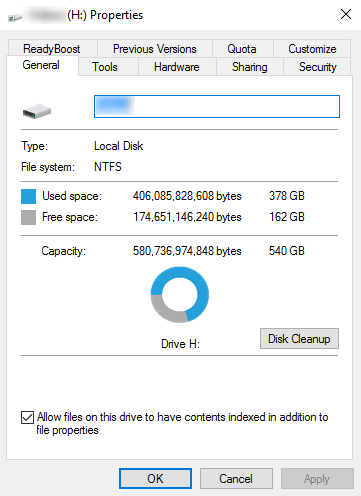
local disk propertiesIf your disk doesn’t have ample space to accommodate the installation then you should free up some of the space on your disk to make sure the Windows can be installed on it. You can also reinstall the Windows on another disk that has sufficient space.

Get Rid of the Third Party Driver

If the error 0x0000001e message gives you the name of the driver due to which the installation process is being halted, then get rid of that driver by disabling it or removing it. If the problem is resolved by this then you should contact the manufacturer of the third-party driver and ask them about any newer versions of the driver that wouldn’t conflict with the installation of Windows.

Upgrade System BIOS

Upgrading your system BIOS is something that you can’t do on your own. You will need to find out more about how you can upgrade. For this, you should contact either your PC’s manufacturer or your motherboard’s manufacturer. If nothing else works, you can always make use of the Microsoft Debugging Tools which will provide you ample information about the error message. You will find the Debugging Tools and further information about them including the downloading and installation process on Microsoft’s website.
Read More
Fix Error opening file for writing
If you got encounter an error message saying, “Error opening file for writing” while running a setup file to install some program on your computer, read on as this post will give you some suggestions on how you can fix it. You can encounter this error when running a setup file for installing a program like GlassWire, Notepad++, VLC, Steam, OBS, Mod Organizer, WinpCap, NSIS, FileZilla, BSPlayer, Kodi, Wireshark, rtcore64, qt5core.dll, MSI Afterburner, GWCtlSrv.exe, npf.sys, vcredist_86 and many more. And so when this error pops up while you run a setup file, refer to the steps given below which might help resolve the problem. Step 1: First, you have to make sure that there is no other installation in progress as multiple installations can most likely cause this error to show up. You can restart your computer and try to run the setup file again. Step 2: If you still got the error even after your restart your computer, click on Retry to try again and if it does nothing, click Abort to terminate the installation. After that, go to the folder where you’ve placed the setup file and then delete it. Step 3: Make sure that you have enough disk space on your computer. You can use the Windows 10 Storage Sense feature which can clean all the temporary files from your computer and help you save storage space. To use Storage Sense, follow the steps below.
  • Open Setting > System > Storage from the WinX Menu.
  • From there, you will see a list of all the local and connected storage devices along with the details on the free space.
  • Now make sure that the Storage Sense feature is turned On then go find a link that says “Free Up Space” and click it to open.
  • After that, a screen which is the built-in program in Windows 10 will appear and will scan your computer for the following junk files so you can free up disk space:
  • Windows Upgrade Log Files
  • The system created Windows Error Reporting Files
  • Thumbnails
  • Temporary Internet Files
  • Previous Windows Installation Files
  • Delivery Optimisation Files
  • DirectX Shader Cache
Note: Once you’re done freeing up space on your drive, try to run the setup file again. Step 4: If freeing up space didn’t help, you can just delete the setup file and download another one from the official homepage of the program. From there download the setup file and place it in a different location. After that, run the setup file once again. Step 5: Make sure that you have downloaded the correct setup file according to your operating system, i.e. x64 or x86. Step 6: Restart your computer once more and make sure that you sign in as administrator. After that, right-click on the setup file and click “Run as administrator”. If it still didn’t help, you might want to take ownership of the folder where you saved the setup file. How? Follow the steps below but before you do that, you have to create a System Restore Point first, once that’s done, proceed.
  • First, locate the concerned folder and right-click on it then select Properties.
  • Next, click on the Edit button in the Properties window and click OK to confirm if you got a User Account Control elevation request.
  • After that, select user/group from the permission windows or click on the Add button to add another user or group. It would be best if you add “Everyone” to give permission.
  • Then check “Full Control” under the “Allow” column to assign full access rights control permissions.
  • Now edit the permission to Full Control for “Everyone”.
  • Click OK to save the changes made and then exit.
Read More
Guide to Fixing 0x80040600 Error

What Is 0x80040600 Error?

The 0x80040600 error is a common error that becomes particularly distressing for Outlook users. This error prevents users from sending or receiving emails through Microsoft Outlook. Users may also encounter this problem while altering an entry on the calendar or adding a new contact. There is no obvious message that is displayed to the user when this error occurs. However, Outlook displays a vague message that includes the code 0x80040600.

Solution

Download available to recover all lost Outlook data

Restoro box imageError Causes

The primary cause of this error is a problem with the PST file. When the PST file is corrupt, missing, or damaged, this error occurs at once. The PST file is essentially an important file that stores crucial and personal information of an individual’s accounts. Sometimes this error is because the file is corrupt while at other times, the reason that it occurs is that the file is too full to accommodate any further information. Irrespective of the causes of this problem, it is important that this error is promptly fixed to ensure the proper and uninterrupted functioning of Outlook in the future.

Further Information and Manual Repair

The error occurs because the Outlook application encounters problems while attempting to receive, send or read emails. Some solutions that can work wonders and help you get rid of the problem are outlined below.
  • As soon as the error appears, the first solution is to restart the system. This is the first thing that must be done because a lot of times, these errors can be removed by simply restarting the system. This will, hence, save the user the inconvenience of manually fixing this problem.
If restarting the system doesn’t resolve the problem and the error message displays again, it is advised the user makes use of the ‘Inbox Repair Tool’. This is the most commonly used and effective approach to fixing a corrupt PST file. The procedure to remedy this Personal Storage Table file or PST file is listed below.
  • Go to the start menu. Type Run and launch the Inbox Repair Tool by typing the following path:  drive name: Program FilesCommon FilesSystemMapiLocale IDscanpst.exe. Now click Ok. A pop-up message will appear. Enter the file name and path of the damaged PST file. Now click on the Start button. Here it is important to mention that the inbox repair tool may take a long time depending upon the file size and the amount of data that has to be recovered. However, it is the most effective way of fixing this problem.
Read More
1 2 3 171
Logo
Copyright © 2023, ErrorTools. All Rights Reserved
Trademark: Microsoft Windows logos are registered trademarks of Microsoft. Disclaimer: ErrorTools.com is not affiliated with Microsoft, nor claims direct affiliation.
The information on this page is provided for information purposes only.
DMCA.com Protection Status