dxgkrnl.sys Blue Screen Error in Windows

Dxgkrnl.sys is a file related to the Microsoft DirectX driver – a suite of technologies developed by Microsoft to provide hardware acceleration for heavy multimedia applications like 3D games as well as HD videos. However, there are times when you encounter Blue Screen errors for this system file which is quite a lot. So when you encounter a Blue Screen error that’s related to this file, then it could be that the dxgkrnl.sys file is infected with some virus or malware and this might go unnoticed since antivirus programs regard dxgkrnl.sys as a system file. Here are some Blue Screen errors related to the dxgkrnl.sys file:

  • SYSTEM_SERVICE_EXCEPTION .
  • BAD_POOL_HEADER
  • STOP 0x0000000A: IRQL_NOT_LESS_OR_EQUAL.
  • STOP 0x0000001E:

KMODE_EXCEPTION_NOT_HANDLED

  • STOP 0x00000050:

PAGE_FAULT_IN_NONPAGED_AREA

To fix the dxgkrnl.sys Blue Screen error, here are some suggestions you have to check out.

Option 1 – Try running the DirectX Diagnostic Tool

Since the dxgkrnl.sys error has something to do with the DirectX Graphics APIs, you can run the DirectX Diagnostic tool to resolve the problem.

Option 2 – Try updating or re-installing DirectX

If the DirectX Diagnostic tool didn’t work, you can try to update or reinstall DirectX instead. This can help in fixing the problem because when you reinstall or update DirectX, it will replace the incompatible or corrupted components of DirectX from your computer.

Option 3 – Try to run the DISM commands

You might want to repair potentially corrupted files in your system as having them could also trigger the dxgkrnl.sys Blue Screen error. To repair these corrupted system files, you can run the DISM commands:

  • Tap the Win + X keys and click on the “Command Prompt (Admin)” option.
  • After that, input each one of the commands listed below sequentially to execute them:
    • Dism /Online /Cleanup-Image /CheckHealth
    • Dism /Online /Cleanup-Image /ScanHealth
    • Dism /Online /Cleanup-Image /RestoreHealth
  • Once you’ve executed the commands given above, restart your computer and check if the dxgkrnl.sys Blue Screen error is now fixed.

Option 4 – Try updating or reinstalling your Graphics drivers

Updating or reinstalling the Graphics drivers in your computer can also help in resolving compatibility issues between the operating system and the driver that also cause this kind of BSOD error.

  • First, boot your computer into Safe Mode.
  • After that, tap the Win + R keys to launch Run.
  • Type in devmgmt.msc into the box and tap Enter or click OK to open the Device Manager.
  • After that, a list of device drivers will be displayed. From there, look for the Display Adapters and click on them.
  • After that, right-click on each entry under the Display Adapters and select the “Uninstall Device” option from the menu.
  • Now restart your computer.
  • After restarting your computer, go to the Settings app and Check for Updates in the Windows Update section.

Note: You also have the option to go directly to the website of your graphics card manufacturers like NVIDIA, Intel, or AMD and go to the section called Drivers then check if there’s a new available update – if there is, download and install it.

Option 5 – Try to run the Blue Screen Troubleshooter

As you know, the Blue Screen troubleshooter is a built-in tool in Windows 10 that helps users in fixing BSOD errors like dxgkrnl.sys. It can be found on the Settings Troubleshooters page. To use it, refer to these steps:

  • Tap the Win + I keys to open the Settings panel.
  • Then go to Update & Security > Troubleshoot.
  • From there, look for the option called “Blue Screen” on your right-hand side and then click the “Run the troubleshooter” button to run the Blue Screen Troubleshooter and then follow the next on-screen options. Note that you might have to boot your PC into Safe Mode.

Option 6 – Try disabling the SLI Technology in NVIDIA Control Panel

In case you don’t know, there is a technology called SLI that comes with the NVIDIA graphics cards. With the help of this technology, the usage of various GPUs is allowed on a computer and hence helps in triggering the Alternate Frame Rendering and boosts the Graphics Performance directly. This is why this option to disable the SLI technology is suitable in fixing the problem if you are using an NVIDIA Graphics card.

  • Search for NVIDIA Control Panel in the Cortana Search box and then click on the related search result or you can also right-click on the NIVIA icon located in the system tray and then select the NVIDIA Control Panel to open it.
  • After that, navigate to the 3D settings section.
  • Then select the “Set SLI Configuration” option and click on the “Do Not Use SLI Technology” option.
  • Now click on Apply located at the bottom-right corner of the window to save the changes made.
  • Restart your computer.

Option 7 – Try turning off NVIDIA Surround

Note that this option is only applicable if your computer is using the NVIDIA Graphics card.

  • In the Cortana Search box, search for NVIDIA Control Panel and click on the related search result.
  • After opening the NVIDIA Control Panel, go to 3D Settings > Configure Surround, PhysX.
  • Now uncheck the “Span displays with Surround” option and then click on the Apply and OK buttons to save the changes made.
  • Restart your computer.

Do You Need Help with Your Device?

Our Team of Experts May Help
Troubleshoot.Tech Experts are There for You!
Replace damaged files
Restore performance
Free disk space
Remove Malware
Protects WEB browser
Remove Viruses
Stop PC freezing
GET HELP
Troubleshoot.Tech experts work with all versions of Microsoft Windows including Windows 11, with Android, Mac, and more.

Share this article:

You might also like

Upcoming Windows features for future
It is no secret that Microsoft is trying to keep Windows relevant and that it is trying to make it as good as possible. A new Windows update will bring some interesting stuff in it which well some like it, some not so much. Among various technical and security updates Microsoft will bring some directly visible to each user.

First

of these features will be File explorer compact mode. This feature is a sort of spacing content in file explorer giving it easier access if you are using a touch screen device. Now, this feature is somewhat strange, and altho I can understand and get behind the logic of this move I am not sure I like it. Lucky for me and others who feel the same this option can be turned off for now.

Second

feature is something I can get behind, improvements for virtual desktops. There is an article on errortools about virtual desktops feature and I really hope you are using it since it is a great feature. Anyway, new update will bring us separate desktop wallpapers for each desktop and we will be able to arrange them in order we like.

Third

thing that I would like to address is animation features. We will have windows slowly fade and resize when opened, minimized, maximized, etc. So far we are unable to tell how this can and will it affect overall system performance. I am sure it will have some impact but hopes are that it will be kept to a minimum. If you would like to read more helpful articles and tips about various software and hardware visit errortools.com daily.
Read More
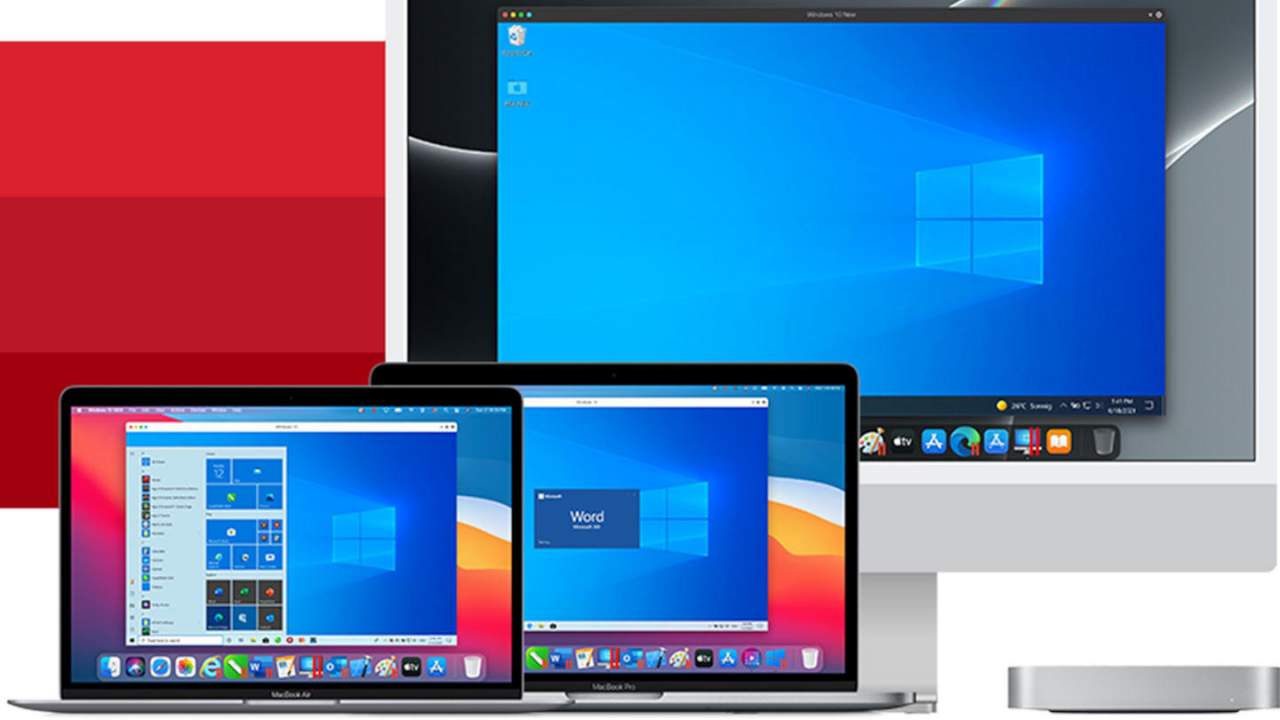
Parallels Desktop 17 brings Windows 11 to MAC
Parallels Desktop 17Parallels is an application developer for MAC OS mostly known for its PC virtualization software Parallels Desktop, a PC virtualization software running on Macs enabling running Windows and Linux with respective software on your MAC. With its latest Desktop 17 version, the software can run natively on both Intel-based and M1-based MACs. Thanks to this feature MAC users will be able to benefit from various speed improvements while running both Windows 10 or Windows 11 preview. On both Intel and M1 setups, Parallels resumes Windows and Linux up to 38% faster, provides an up to 25% bump in 2D graphics and a six-time increase in OpenGL graphics processing. M1-centric stats include 33% faster Windows start-up times, up to 28% faster DirectX 11 performance, and up to 20% better disk performance on Windows 10 Insider Preview. Parallels Desktop 17 delivers a set of fresh features including a new video driver that enhances video and game playback and boosts Windows UI responsiveness. An improved Coherence mode lets users run Windows apps within the Mac environment, cutting down on distracting changes in appearance during Windows sign-in, shut down, and software updates. Drag-and-drop operations are also improved, with support for text and graphics between Mac and Windows applications. This function works well with MAC OS Monterey's Quick Note feature, which can accept content from any Windows app. USB support, disk management, copy and paste unformatted text, and automatic virtual machine optimization also receive upgrades.
Read More
Fix Could not find the Recovery Environment
If you suddenly find the Windows Recovery Environment not working and you see an error message saying, “Could not find the recovery environment”, then you’ve come to the right place as this post will guide you on how you can fix it. In times when you can’t boot into the Windows Recovery Environment, there could be several reasons behind it. However, have you ever wondered where exactly the Windows Recovery Environment is in your computer? Windows initially places the Windows RE Image file in the installation partition during Windows Setup so if you have installed Windows in the C drive, you can find the Windows RE at the C:/Windows/System32/Recovery or C:/Recovery folder. Keep in mind that this folder is hidden and later on, the system copies the image file into the recovery tools partition to make sure that one can boot into recovery if there are any issues with the drive partition. The “Could not find the recovery environment” error mostly occurs if the Windows Recovery Environment is disabled or if the “Winre.wim” file is corrupted. Thus, to fix this error, you need to refer to the given suggestions below.

Option 1 – Try to enable Windows Recovery Environment

  • In the Windows Start Search, type “PowerShell” and from the search results that appear, right-click on Windows PowerShell and then select the “Run as administrator” option to open it with admin privileges.
  • Next, type the “reagentc /info” command and tap Enter to execute it.
  • After that, if the output states that Status is enabled, then you’re all set.
  • Now type the “reagentc /enable” command and tap Enter to enable the Windows Recovery Environment. You will see a success message at the end signifying that Windows RE is available.

Option 2 – Try to fix the corrupted or missing “Winre.wim” file

If the Winre.wim file is either corrupted or missing, you need to get a new copy of this file from another computer where the Windows RE is working. Once you’re able to get a new copy of the Winre.wim file, you have to set the image path to a new location. For more details, refer to these steps:
  • First, type “Powershell” in Windows Start Search and right-click on Windows PowerShell from the results, and select Run as administrator.
  • Next, execute the given command below to change the path of the WIM file to the new location. Note that the steps should be used when the file path of the Windows Recovery Environment is different from the usual spot.
Reagentc /setreimage /path C:RecoveryWindowsRE
  • As mentioned, if the file is corrupted, you just have to get a new copy from another PC but before you do that, make sure that the WINRE on that computer is disabled (just enable it later on) and then place it in the C:/Recovery path and then set its path again using the command given above and then verify its path by executing the following command.
reagentc /info command
Note: Since the Recovery folder is hidden as well as the WINRE folder in it and you won’t be able to access them using the Windows File Explorer, you need to use the Windows PowerShell or Command Prompt so that you can access them.

Option 3 – Try checking and fixing the WinRE Reference in the Windows Boot Loader

The Windows Boot Loader is the one that determines if it has to load the Windows Recovery Environment. It could be that the boot loader is pointing to an incorrect location which is why you’re getting the error. To resolve it, you have to check and fix the WinRE Reference in the boot loader. How? Follow these steps:
  • In the Windows Start Search, type “PowerShell” and from the search results that appear, right-click on Windows PowerShell and then select the “Run as administrator” option to open it with admin privileges.
  • After that, execute the “bcdedit /enum all” command.
  • Next, look for an entry in the Windows Boot Loader identifier set as Current and look for “recoverysequence” in that section and take note of the GUID.
  • Ensure that the device and the osdevice items show the path for the Winre.wim file and that they are the same. If not, you need to point the current identifier to the one which has the same.
  • Once you’ve found the new GUID, execute this command: bcdedit /set {current} recoverysequence {GUID_which_has_same_path_of_device_and_device}
  • Now check if the error in the Recovery Environment is fixed or not.

Option 4 – Try creating a Recovery Media

You could also try creating a Recovery Media to resolve the error in the Windows RE. All you have to do is download the Windows 10 ISO file using the Media Creation tool and then create a recovery drive. Once you’re done, check if it fixes the problem or not.
Read More
Fixing Folder Size Issue in Windows 10
Recently, several Windows 10 users have reported an issue with the Windows folder sizes in their PCs. If you are one of these affected users, read on as this post will walk you through fixing this issue. For instance, if you have a folder with 100 GB worth of data and when checking its size using its properties, you see the wrong size instead of 100GB. The size displayed will most likely be a random number which can either be bigger or smaller than the real size of the folder. This incorrect folder size issue does not happen to any specific drive or certain kinds of folders as any folder can be affected by this incorrect folder size issue. When you try to rename the affected folder, the size will change but its size still remains to be incorrect. The root cause of this particular issue is in Windows 10 itself. It is a known bug that came along with one of the latest Windows Updates which prevents the File Explorer to accurately read the metadata of a certain folder or file and leads to displaying incorrect and unexpected file sizes and the reason why you might also notice that your drive is also not correct. Since this is brought upon by one of the recent or latest Windows Updates the good thing is that Microsoft will most likely release a fix on its next upcoming updates but until then, you will be left with no choice but to deal with an incorrect folder or file size. To remedy that, here are some suggestions you can try that might fix the problem.

Option 1 – Try using the System File Checker

The System File Checker or SFC is a built-in command utility that helps in restoring corrupted files as well as missing files. It replaces bad and corrupted system files to good system files that might be causing the incorrect folder or file size in Windows 10. To run the SFC command, follow the steps given below.
  • Tap Win + R to launch Run.
  • Type in cmd in the field and tap Enter.
  • After opening Command Prompt, type in sfc /scannow
The command will start a system scan which will take a few whiles before it finishes. Once it’s done, you could get the following results:
  1. Windows Resource Protection did not find any integrity violations.
  2. Windows Resource Protection found corrupt files and successfully repaired them.
  3. Windows Resource Protection found corrupt files but was unable to fix some of them.

Option 2 – Try resetting Windows 10

To fix the folder and file size issue, you can try resetting Windows 10. Doing so won’t get rid of any file in your system – instead of erasing all your media files and documents, this reset option resets all the system settings and files. That way, you won’t have to deal with inaccurate folders or file sizes as you browse and use your files.

Option 3 – Wait for the Windows Update

As mentioned, this is already a known issue and a lot of Windows 10 users have already complained about it to Microsoft so a bug fix will be soon released in the latest Windows Updates.
Read More
Fix intelppm.sys error in Windows 10
intelppm.sys blue screen of death is linked to an outdated driver, if you received this error do not sweat we have simple solutions for you. Please keep on reading in order to find out what can you do to fix this error.
  1. Update driver Go to the device manager and manually update old-dated drivers. Note that this will take some time because you will need to update each device manually through the device manager but in the end, it will fix the issue.
  2. Use automated application Instead of going through each device one by one manually get a dedicated driver fixing device like DRIVERFIX and update all drivers automatically.
Read More
Fix Print Spooler Service Error 1068
There is one service in the Windows operating system that is responsible for managing all the print jobs as well as handles the interaction with the printer. This service is known as the Print Spooler service. However, if it stops running, then you won’t be able to print anything on your computer. In such a case, you can try to restart the Print Spooler service, and to do that, you have to open the Windows Services Manager and look for the Print Spooler Service. Once you found it, right-click on it and select Restart. If it isn’t running, select Start and if the Service starts working again, then good but if not and you got an error message instead that says, “Windows could not start the Print Spooler service on Local Computer, Error 1068, The dependency service or group failed to start”, then read on as this post will give you a couple of suggestions you can try to resolve the issue. The reason why you could not start the service is most likely because the Print Spooler service is dependent on other services which might not be properly running. If the following services are not running then it’s no wonder why you’re getting the error.
  • HTTP Service
  • Remote Procedure Control (RPC) Service
You might not see the RPC service which means that the Print Spooler Service does not recognize its dependency on the RPC service. In such a case, you have to manually configure the dependency by following the options given below.

Option 1 – Try configuring the dependency via CMD

The first thing you have to do is to configure the dependency using CMD. Refer to the steps below to do so:
  • Open an elevated Command Prompt.
  • Then type in “sc config spooler depend= RPCSS” and hit Enter.
  • After the command has been executed, restart your computer and then check if it fixed the problem. If not, proceed to the next given option below.

Option 2 – Fix dependency via the Registry Editor

You can also resolve dependency using the Registry Editor. How? Refer to these steps:
  • Tap the Win + R keys to open the Run dialog box.
  • Then type “Regedit” in the field and hit Enter to open the Registry Editor.
  • After that, navigate to this key: HKEY_LOCAL_MACHINESYSTEMCurrentControlSetServicesSpooler
  • Next, right-click on the “DependOnService” entry located on the right pane and select Modify.
  • Now change its value data to “RPCSS” and click OK to save the changes made and then exit the Registry Editor.
  • Reboot your computer and see if the issue is resolved.

Option 3 – Try running the Printer Troubleshooter

Another option you can check out is the Printer Troubleshooter. This built-in troubleshooter in Windows 10 can help you fix most print issues. It checks if you have the latest printer drivers and then tries to fix and update them automatically. Aside from that, it also checks if you have connectivity issues or if the Print Spooler and the required Services are running fine. To run it, follow the steps below.
  • Tap the Win + R keys to open the Run dialog box.
  • Next, type “exe /id PrinterDiagnostic” in the field and click OK or hit Enter to open the Printer Troubleshooter.
  • Then click the Next button and follow the next on-screen instructions to fix the issue with the printer.
Read More
An Easy Guide to Fixing Error Code 12

Error Code 12 - What is it?

Error code 12 is a typical Device Manager error code. It usually pops on the computer screen when the computer experiences device driver problems or system resource conflicts.

Error code 12 is mostly displayed on the computer screen in the following format:

‘This device cannot find enough free resources that it can use. If you want to use this device, you will need to disable one of the other devices on this system.’

Solution

driverfix boxError Causes

The error code 12 occurs when 2 devices installed on your PC are accidentally assigned the same I/O (input/output) ports or the same direct memory access channel.

This assignment is known to be made either by BIOS (Basic Input/output system) or by the operating system. It can sometimes be assigned by a combination of the two. Also, code 12 can also appear on your monitor screen if the BIOS didn’t allocate enough resources to the device.

Although this error code is not fatal, it is nonetheless advisable to fix it immediately to avoid inconvenience and hassle. This error is most likely to lower and hamper the performance of your system.

Further Information and Manual Repair

Here are some of the easiest and most effective do-it-yourself methods to resolve error code 12 on your PC. To perform these fixes, you don’t have to be technically sound or a computer programmer for that matter. Simply follow the steps to fix the problem right away.

Method 1 - Use the Troubleshooting Wizard to identify the Conflict

To repair error code 12, simply go to the start menu and type Device Manager in the search box. Now go to the Device Properties dialog box. After that click on the ‘General Tab’ and now access Troubleshoot to start the Troubleshooting Wizard.

The Wizard will ask you some questions and provide you a solution accordingly. Follow the instructions and resolution steps provided by the troubleshooting wizard to repair error code 12 on your PC.

Method 2 - Disable the Device to Resolve

By disabling the problematic device in the Device Manager, Windows will ignore that piece of hardware. Once disabled, Windows will then no longer assign system resources to that device and no driver/software will be able to use that device.

To disable, go to the Device Properties in the Device Manager and then click the Driver tab. Click disable located at the bottom of the window. Then you will be prompted with a message stating ‘Disabling this device will cause it to stop functioning. Do you wish to disable it?’ Click yes to continue and then click OK to save changes.

Method 3 - Restore Your PC to its Previous State

Another method to resolve error code 12 is to restore your PC to its previous state when it was working properly.

For this, it is important to backup all your data first to avoid data loss issues that are likely to occur during this process. Creating backups manually can be a time-consuming and tedious task. To save time and quicken the process, it is best to install a program like DriverFIX.

DriverFIX is a user-friendly and intuitive device driver management software that helps backup all your data automatically and efficiently, while simultaneously restores your PC back to its previous state before you encountered problems.

Click here to download DriverFIX on your system to resolve error code 12

Read More
How to Fix the File Too Large Error in Windows 10
If you are trying to copy large files that are over 4GB to a USB flash drive or SD card, but you suddenly get an error message saying, “File Too Large, The file is too large for the destination file system”, read on as this post will help you fix this problem. A user recently reported that while trying to copy a 4.8GB zipped file from a Windows 10 PC to a new 8GB USB drive but only got the File Too Large error message instead. If you share the same problem with this user and you know that there is more than enough available space for the file in your USB drive or SD card, continue reading until you get to the instructions provided in this post so that you will be able to copy the file successfully. It is most likely that the USB drive has been FAT32 formatted which is why you’re unable to copy the file and got an error. The FAT32 file system has a built-in limitation on the size of the individual file that it may contain. For instance, it’s 4GB so even though collectively, it may have files or even 1TB individually it shouldn’t be more than 4GB. Thus, you need to change the file system from FAT32 to NTFS. To do that, carefully follow the instructions provided below.
  • Step 1: Connect the USB drive and open the Windows File Explorer.
  • Step 2: Afterwards, right-click on the USB drive letter and select Format from the context menu.
  • Step 3: Next, select NTFS instead of FAT32 the instant a dialog box appears from the drop-down menu for the file system.
  • Step 4: Now click on the Quick Format option and then click the Start button to reformat the USB drive.
Note: There is also another way you can change the file system. In this alternative way, you need to open an elevated Command Prompt and type the convert X: /fs:ntfs /nosecurity command, and hit Enter to execute it. Remember that in this command, “X” is the letter of your USB drive so whatever the letter of your drive is, you need to make sure to put it instead of “X”. Once the process is completed, try copying the file again.
Read More
WeatherBlink Malware Removal Guide

WeatherBlink is an extension for google chrome, Mozilla, and internet explorer. It allows users to check out the weather anywhere in the world at any time. This might seem like a convenient feature, however, this toolbar also displays unwanted ads, hijacks your browser home page, collects personal data about your web surfing habits, visits, and clicks. From the author: Access local weather forecasts, weather radar, allergy, and pollen reports, and worldwide weather news – all in one convenient spot! This extension configures your New Tab page to WeatherBlink™ to provide these features.

Be prepared with instant weather forecasts. Access FREE and accurate weather forecasts with one click!

About Browser Hijackers

Browser hijack is a very common type of online fraud where your web browser settings are modified to make it do things you do not intend. Browser hijackers can do more than simply modifying home pages. It redirects you to the sponsored internet sites and inserts ads on the internet browser that helps its creator generate ad revenue. A lot of people assume that these kinds of websites are legitimate and harmless but that is not true. Nearly every browser hijacker poses an actual threat to your online safety and it is necessary to classify them under privacy dangers. In a worst-case scenario, your internet browser could be hi-jacked to open up your computer to a host of additional computer infections.

Indications of browser hijack

Below are some symptoms that indicate you’ve been hijacked: 1. the browser’s home page is changed 2. bookmark and the new tab are also modified 3. default online search engine is modified 4. you see unwanted new toolbars added 5. you notice a lot of pop-ups on your computer screen 6. web pages load very slowly and often incomplete 7. you’ve disallowed entry to particular web pages, for example, the website of an antimalware software firm like SafeBytes.

So how exactly does a browser hijacker infect a computer?

A browser hijacker could be installed on your PC when you go to an infected website, click an email attachment, or download something from a file-sharing website. They also come from add-on applications, also referred to as browser helper objects (BHO), browser extensions, or toolbars. Sometimes you may have mistakenly accepted a browser hijacker as part of a software program bundle (usually freeware or shareware). Typical examples of browser hijackers include CoolWebSearch, Conduit, RocketTab, OneWebSearch, Coupon Server, Searchult.com, Snap.do, and Delta Search.

Tips on how to remove browser hijackers

Certain browser hijacking can be easily stopped by discovering and eliminating the corresponding malware application from your control panel. However, certain hijackers are more difficult to find or eliminate as they might get themselves associated with certain crucial system files that enable it to work as a necessary operating-system process. You should think about carrying out manual repairs only if you’re a tech-savvy person because there are possible risks associated with fiddling around with the system registry and HOSTS file.

How One Can Eliminate Malware that is Blocking Websites or Preventing Downloads

Malware could potentially cause several different types of damage to PCs, networks, and data. Certain malware goes to great lengths to prevent you from downloading or installing anything on your PC, especially anti-malware applications. If you’re reading this, you probably have got infected by a virus that prevents you from downloading security software like Safebytes Anti-Malware. There are a few fixes you could try to get around with this issue.

Start Windows in Safe Mode

Safe Mode is actually a unique, basic version of Windows where just essential services are loaded to counteract malware as well as other problematic programs from loading. In the event the malware is blocking access to the internet and affecting your PC, launching it in Safe Mode enables you to download anti-virus and run a diagnostic scan while limiting possible damage. To start the computer into Safe Mode, hit the “F8” key on your keyboard right before the Windows logo screen comes up; Or after normal Windows boot up, run MSCONFIG, check Safe Boot under Boot tab, and click Apply. Once you restart into Safe Mode with Networking, you may download, install, as well as update anti-malware software from there. At this point, you could run the anti-malware scan to eliminate computer viruses and malware without any interference from another application.

Switch over to an alternate browser

Some malware may target vulnerabilities of a specific browser that block the downloading process. The most effective solution to avoid this problem is to pick a browser that is renowned for its security features. Firefox has built-in Phishing and Malware Protection to help keep you secure online.

Install antivirus on a thumb drive

To effectively remove the malware, you have to approach the problem of running an anti-malware software program on the affected computer from a different angle. Adopt these measures to run the anti-virus on the affected computer. 1) Download Safebytes Anti-Malware or Windows Defender Offline onto a virus-free computer system. 2) Plug the USB drive into the clean PC. 3) Double-click the Setup icon of the anti-malware program to run the Installation Wizard. 4) When asked, choose the location of the USB drive as the place in which you would like to store the software files. Follow activation instructions. 5) Unplug the flash drive. You may now utilize this portable anti-virus on the infected computer. 6) Double-click the Safebytes Anti-malware icon on the flash drive to run the program. 7) Press the “Scan Now” button to begin the virus scan.

SafeBytes Anti-Malware: Lightweight Malware Protection for Windows Computer

Do you want to install the best anti-malware software for your computer system? There are plenty of applications available in the market which comes in paid and free versions for Microsoft Windows computers. A few of them are good, some are ok types, while some will damage your computer themselves! You need to be careful not to select the wrong application, particularly if you purchase a paid application. On the list of recommended software programs is SafeBytes AntiMalware. SafeBytes has a very good track record of top-quality service, and customers seem to be very happy with it. SafeBytes can be described as a powerful, real-time anti-spyware application that is made to assist the common computer end user in safeguarding their PC from malicious internet threats. Using its cutting-edge technology, this application can assist you to get rid of multiples types of malware which include computer viruses, PUPs, trojans, worms, ransomware, adware, and browser hijackers. SafeBytes has a variety of features that can help you protect your PC from malware attacks and damage. Below are a few of the great ones: Antimalware Protection: With a critically acclaimed anti-malware engine, SafeBytes gives multi-layered protection which is intended to find and eliminate viruses and malware that are concealed deep in your computer’s operating system. Real-time Threat Response: SafeBytes provides round-the-clock protection for your PC restricting malware intrusions in real-time. It’ll regularly monitor your laptop or computer for hacker activity and also gives users sophisticated firewall protection. Quick Multi-threaded Scanning: SafeBytes’s high-speed malware scanning engine lessens scan times and extends the life of the battery. At the same time, it’ll effectively detect and get rid of infected computer files or any internet threat. Internet Security: Safebytes allots all sites a unique safety score that helps you to get an idea of whether the website you’re just about to visit is safe to browse or known to be a phishing site. Low CPU/Memory Usage: SafeBytes is well known for its minimal influence on computer resources and great detection rate of numerous threats. It works quietly and efficiently in the background so you are free to utilize your computer or laptop at full power all the time. 24/7 Customer Support: You will get 24/7 technical support to promptly resolve any problem with your security tool.

Technical Details and Manual Removal (Advanced Users)

To remove WeatherBlink manually, go to the Add or Remove programs list in the Control Panel and select the program you want to get rid of. For internet browser plug-ins, go to your browser’s Addon/Extension manager and select the plug-in you want to remove or disable. You will probably also want to reset your internet browser. Finally, examine your hard drive for all of the following and clean your registry manually to remove leftover application entries after uninstallation. Please remember that only experienced users should try to manually edit the registry because incorrect file deletion results in a major problem or perhaps a PC crash. Furthermore, certain malware is capable of replicating or preventing deletion.

Carrying out this malware-removal process in Safe Mode is recommended.

Files: C:Program FilesWeatherBlink C:ProgramDataWeatherBlink C:UsersYOUR_USERAppDataRoamingWeatherBlink Registry: Key HKLMSOFTWAREClassesWeatherBlink.DynamicBarButton Key HKLMSOFTWAREClassesWeatherBlink.FeedManager Key HKLMSOFTWAREClassesWeatherBlink.HTMLMenu Key HKLMSOFTWAREClassesWeatherBlink.HTMLPanel Key HKLMSOFTWAREClassesWeatherBlink.MultipleButton Key HKLMSOFTWAREClassesWeatherBlink.PseudoTransparentPlugin Key HKLMSOFTWAREClassesWeatherBlink.Radio Key HKLMSOFTWAREClassesWeatherBlink.RadioSettings Key HKLMSOFTWAREClassesWeatherBlink.ScriptButton Key HKLMSOFTWAREClassesWeatherBlink.SettingsPlugin Key HKLMSOFTWAREClassesWeatherBlink.SkinLauncher Key HKLMSOFTWAREClassesWeatherBlink.SkinLauncherSettings Key HKLMSOFTWAREClassesWeatherBlink.ThirdPartyInstaller Key HKLMSOFTWAREClassesWeatherBlink.ToolbarProtector Key HKLMSOFTWAREClassesWeatherBlink.UrlAlertButton Key HKLMSOFTWAREClassesWeatherBlink.XMLSessionPlugin Key HKLMSOFTWAREMicrosoftWindowsCurrentVersionExplorerBrowser Helper Objects9b9dcae3-be34-424c-8d73-75e305a9e091 Key HKLMSOFTWAREMicrosoftWindowsCurrentVersionExplorerBrowser Helper Objectsdc9051c2-8f55-479a-97a4-747980d9047f Key HKLMSOFTWAREMicrosoftWindowsCurrentVersionUninstallWeatherBlinkbar Uninstall Firefox Key HKLMSOFTWAREMicrosoftWindowsCurrentVersionUninstallWeatherBlinkbar Uninstall Internet Explorer Key [email protected]/Plugin Key HKLMSOFTWAREWeatherBlink Key HKLMSOFTWAREMicrosoftWindowsCurrentVersionRunValue: WeatherBlink Search Scope Monitor Data: C:PROGRA~1WEATHE~2bar.bingcsrchmn.exe Key HKLMSOFTWAREMicrosoftWindowsCurrentVersionRunValue: WeatherBlink Browser Plugin Loader Data: C:PROGRA~1WEATHE~2bar.bingcbrmon.exe
Read More
How to Fix Sysdata.xml Error Code on Your PC

Sysdata.xml Error Code - What is it?

To develop a good understanding of the Sysdata.xml error code, it is first important to learn what is sysdata.xml file and its function. Sysdata.xml is a type of XML file. The .XML file extension is an Extensible Markup Language file. XML-based formats have now become the default for many office productivity tools including Microsoft Office and LibreOffice. Furthermore, it has also come into common use for the interchange of data over the internet. Sysdata.xml error code usually pops up when .XML based applications are unable to run and crash while loading. This is a type of BSoD (Blue Screen of Death) error code. Common symptoms include:
  • System freeze
  • The screen turns blue
  • Sudden system shut down

Solution

Restoro box imageError Causes

The Sysdata.xml error code is triggered due to multiple reasons such as:
  • Faulty hardware
  • Malware or viral infection
  • Registry issues
No matter what the reason may be, it is advisable to fix this error code right away without any delays. This is a fatal error and can result in a system crash and loss of data. And recovering valuable lost data is the hardest.

Further Information and Manual Repair

Here are some of the effective and easy do it yourself methods to resolve this error on your system:

Method 1: Fix Faulty Hardware

Hardware issues may arise due to many reasons like manufacturing issues or voltage fluctuations. Electrical storms can cause power surges which may affect the hardware causing it to fail. The best way to resolve this is to download the latest drivers for the problematic devices or alter the device configuration in the BIOS setup program.
  • To reconfigure the BIOS simply restart your PC and before Windows starts, press Del Key to access your BIOS.
  • Now find the factory reset option.
  • Select the option and press the button to load your factory defaults.
  • After that save changes and confirm your selection.
  • Reboot your PC to activate the changes.

Method 2: Scan for Viruses

Sometimes viruses and malware can disguise themselves in the .XML files which can cause them to get corrupted. To resolve the issue, it is advisable to download a powerful antivirus and scan your entire PC for viruses. Remove the detected viruses to resolve the Sysdata.xml error on your system.

Method 3: Repair the Registry

If the registry is not cleaned frequently, it loads with unnecessary and obsolete files like the junk files and cookies. These files clutter and damage the registry and eventually corrupt it and the important files like .XML files stored in it. To resolve the issue it is recommended to download Restoro. It is a user-friendly and powerful PC Fixer embedded with a registry cleaner. It scans your entire PC for registry-related errors and removes them immediately. It cleans the cluttered registry and restores the damaged files thereby repairing the issue right away. Click here to download Restoro.
Read More
1 2 3 171
Logo
Copyright © 2023, ErrorTools. All Rights Reserved
Trademark: Microsoft Windows logos are registered trademarks of Microsoft. Disclaimer: ErrorTools.com is not affiliated with Microsoft, nor claims direct affiliation.
The information on this page is provided for information purposes only.
DMCA.com Protection Status