Logo

Cannot find the MS Software License Terms

Both the Windows 10 and Windows Server operating systems have a number of common system files that vary from the ones that support the installation, boot process, and other operations or tasks in the system. However, if any of these files get corrupted, it might cause some errors during the setup of the Windows 10 operating system. One of these errors is the “Windows cannot find the Microsoft Software License Terms” error.

“Windows cannot find the Microsoft Software License Terms. Make sure the installation sources are valid and restart the installation.”

The only option given when you encounter this error is to click on the OK button and nothing else and then the setup gets interrupted and won’t push through. To fix this error and proceed with the installation, you can try to get a new installation image or switch ports, or fix the CFG file. For more details, follow each one of the potential fixes provided below.

Option 1 – Try to get a new installation image

It is possible that there might be some issues with the installation image. It could be corrupted or was modified illegally. Or it could be that the bootable storage device created might have damaged sectors or installation. To resolve this problem, you need to download a fresh copy of the Windows 10 installation image using the Windows Media Creation tool or simply use the ISO image separately and then build a bootable USB.

Option 2 – Try to switch Ports

The error might be caused by the connection to the USB port. It could be that the port is unstable due to a number of factors that resulted in the interruption of the installation process. To fix this problem, you can try switching the USB port or if you are using an optical drive, you can get an external USB optical drive or connect it to another port internally and see if it fixes the problem.

Option 3 – Try to fix the CFG file

If none of the first two options worked, then you might want to fix the CFG file. This file is a configuration file format used for storing settings. All you have to do is download the CFG file. Once you’ve downloaded this file, copy this file to the root of your bootable drive and then check if it fixes the error. If not, then try to copy the same file inside the “/sources/” folder inside the root of the drive. This should fix the error.

Do You Need Help with Your Device?

Our Team of Experts May Help
Troubleshoot.Tech Experts are There for You!
Replace damaged files
Restore performance
Free disk space
Remove Malware
Protects WEB browser
Remove Viruses
Stop PC freezing
GET HELP
Troubleshoot.Tech experts work with all versions of Microsoft Windows including Windows 11, with Android, Mac, and more.

Share this article:

You might also like

Headphones are not visible in playback devices
If you connected headphones to your Windows 10 computer to listen to audio but when you check it in the playback devices, you’re not able to find it, read on as this post will guide you in what you can do to figure out what exactly caused this kind of problem and how you can resolve it. This kind of issue could simply be with the headphone itself or the headphone port or your operating system. So if it turns out that the problem is with the hardware, you might have to replace the components. However, it is recommended that you troubleshoot the problem first before doing that. The most basic thing you can do is to try changing the headphone port, although this can be quite difficult since most computers don’t have any extra port for headphones if your computer has one, then give it a go. If it still didn’t work, follow each one of the options provided below.

Option 1 – Try to run the Playing Audio troubleshooter

Since the Windows 10 operating system has the Playing Audio Troubleshooter, you can use this troubleshooter to try and fix the problem with the “No Audio Output Device is installed” error. You can access this tool in the Control Panel or in the Taskbar Search and even on the Troubleshooters page of Windows 10. Run this troubleshooter and see if it can fix the issue or not.

Option 2 – Try to update the Audio driver

If the error has something to do with software, chances are it might be related to the audio driver – it could be that the newest version of your Windows 10 does not work well with the old version of the driver. This is why you have to update your audio driver to the newest available version.
  • Tap the Win + R keys to open the Run dialog box and then type in MSC and tap Enter or click OK to open the Device Manager.
  • Expand the section of the Audio inputs and outputs.
  • And then from the drop-down menu, select the Update Driver option and follow the on-screen instructions to install the latest version of the driver.
  • Then also click on the option, “Search automatically for updated driver software.
  • Restart your PC after the installation.
Note: If updating the Audio driver didn’t work, you can go to the website of your PC manufacturer and look for the support section where you can download the drivers for your computer. You just need to take note of your PC’s correct model and model number so you can find the appropriate driver.

Option 3 – Try enabling the headphones from the playback devices

  • Tap the Win + R keys to open the Run dialog box and type the “CPL” command.
  • Tap Enter to open the Playback devices.
  • Next, right-click on any open space section and check the boxes for the “Show Disconnected Devices” and “Show Disabled Devices” options.
  • After that, this should help in displaying the headphones in the section of Playback devices.
  • And if they are disabled, you can just right-click them to have them enabled.
Read More
How to Fix Error 1007

Error Code 1007 - What is it?

This is a typical system error.  This error means the requested operation cannot be performed in full-screen mode. It hampers your ability to run your desired program on Windows PC. It is displayed on computer screens in the following format:
"ERROR_FULLSCREEN_MODE" and/or as the hexadecimal value 0x3EF.”

Solution

Restoro box imageError Causes

The system error code 1007 can be triggered due to several reasons. This includes but is not limited to:
  • Windows registry damage or corruption
  • Device driver conflicts
  • Spyware or viral infection
  • Hardware malfunction
  • Software file damage or corruption
Unlike the blue screen of death error codes, this error is not fatal. But it may hamper your ability to run and work on your desired program. To avoid the inconvenience, it is advisable to fix it immediately.

Further Information and Manual Repair

Try these easy and effective do it yourself methods to repair the system error code 1007 on your PC:

Method 1 - Scan Your System for Viruses

If the underlying cause of error 1007 on your system is viral and spyware infection, then it is advisable to download a powerful antivirus and scan your entire PC. An antivirus not only detects but also removes all types of viruses including spyware, Trojans and adware. Once removed, try running your desired program again, if the program runs successfully, this means the error is resolved.

Method 2 - Update the Drivers

When the error code 1007 occurs due to driver conflict, then it is advisable to update the drivers. To do so simply use the driver update wizard from within Device Manager. The wizard will guide you through the entire driver update process, making it extremely simple for you to update the drivers in minutes.

Method 3 - Clean and Repair the Registry

You may experience the error 1077 because of registry damage or corruption. If this is the reason, then it is suggested you download Restoro. This is a user-friendly and multi-functional PC Fixer deployed with a powerful registry cleaner. It scans your entire system for registry related errors and issues, removes all unnecessary and obsolete files like cookies, junk files and bad registry entries, notorious for registry corruption. In addition to this, it also repairs the registry and damaged system files, thereby resolving the system error code 1007 immediately. Click here to download Restoro on your PC and fix system error code 1007 today!
Read More
Windows 11 23H2 Update Details Revealed

Loving Windows 11 so far? We sure are. Microsoft has clearly decided to take its OS to the next level and keeps showing it through every update. It makes you wonder what’s next - and today, you’ll find out!

Tons of new features have been leaked, and we can probably expect them with the 23H2 update. Here’s everything you need to know so far.

What’s Windows 11 23H2 bringing?

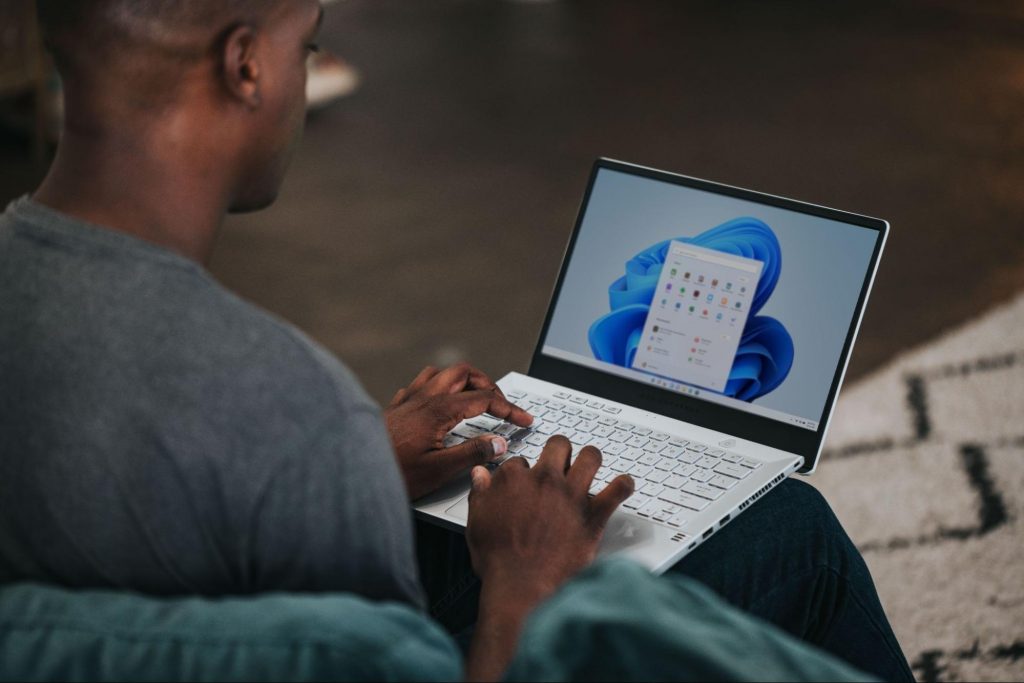
Windows 11
Credit: Windows on Unsplash

There are plenty of new features already confirmed for Windows 11. The only issue is we don’t know for sure if they’re coming with the 23H2 update or separately, at a different time. Whatever the case, a lot of them are pretty exciting.

Here’s an overview of what we might be getting this fall.

  • Windows Copilot. Microsoft wants to add this AI-powered feature based on chatbots like Bing Chat and ChatGPT to assist users with all kinds of actions and tasks on the platform. As part of this development, the integration of first- and third-party plugins and the Bing Chat AI will be enhanced. This is a pretty amazing addition to look forward to, if you ask us.
  • Dynamic Lighting. RGB lovers will rejoice upon this one! Dynamic Lighting will allow you to control your RGB-powered components directly through the Windows Settings, allowing smooth integration of your favorite peripherals with your OS. No need for third-party software anymore!
  • Taskbar enhancements. Microsoft has announced some neat improvements to the Windows 11 taskbar. For one, we’ll be able to hide the Time and Date now, which is extremely useful for focus, but also for clean screenshots. Another change is the ability to shut down programs directly from the Taskbar, without having to run the Task Manager.
  • Expanding native support for archive formats 7-zip, rar, gz and others on the libarchive open-source projects.
  • Microsoft Store AI features. The theme of AI power is clearly being taken up a notch, because the Microsoft Store seems to be getting several awesome features in this regard. One of them is AI hub, which “curate the best AI experiences built by the developer community and Microsoft” (Windows Developer Blog). We’re not sure what that means exactly, but we sure can’t wait to see.

Another is AI-generated keywords, designed to improve the discoverability of apps you’re searching for. Moreover, the AI-generated review summary is designed to give us a simpler experience looking at reviews. Huge numbers of reviews will be compiled into a summary that’s easy to scan and lets us discover new content faster.

  • Other Microsoft Store improvements. Business owners will be happy to hear that Microsoft Store ads will now reach 150+ regions worldwide, significantly increasing the audiences they can target. Furthermore, there will be enhancements to the Backup and Restore functionality to give users a more seamless experience in case they switch devices. 
  • File Explorer changes. Rumor has it that Microsoft is working on a Gallery to be embedded within the File Explorer. The addition of a Recommended section might be on the horizon as well. 
  • Widget Panel update. The introduction of the Widget Panel in itself was exciting for many. As a next step in the development of this feature, Microsoft is planning to make it possible to pin widgets to the desktop. 
  • Presence sensor. You might actually already have this one, as it was rolled out as part of Moment 3 for compatible devices. With the Presence sensing app, found in the Privacy settings, you can decide which (if any) apps use APIs to detect the state of your activity on Windows. This can significantly enhance privacy and security, as you can have apps containing sensitive data lock automatically when unattended. If you’re a laptop user, it can also be beneficial to your battery life.
  • Bluetooth LE. Microsoft is adding support for Bluetooth Low Energy, a functionality that allows reduced battery consumption when devices are connected.
  • Adding more languages to the Live Captions feature. This specification is only as powerful as the languages it supports. Microsoft is reportedly working on expanding the list with 10 more languages.

Summary

We’ve got some interesting stuff to look forward to with the next major Windows 11 update. And these are just the things the Internet’s actually heard of, so who knows what else Microsoft might be planning? It remains to be seen, hopefully just a few months from now. 23H2 has been released on October 31st.

Read More
Scroll bar in Chrome is missing in Windows
If you find that the scroll bar in your Google Chrome browser is missing all of a sudden, and it becomes difficult for you to scroll down the web page and see its content, worry not for this post will guide you on what you can do to resolve this problem. Usually, when the mouse cursor stays hidden in the corner and only appears when you point it to the edge of the screen. However, there are instances when it won’t appear which makes navigating the web page you are visiting quite impossible. So if you encounter this kind of strange behavior on your Google Chrome browser, there are several suggestions you can check out to resolve it. In most cases, updating the browser resolves the problem, but if it does not, you can try restoring the browser’s settings to their default state by resetting Chrome or you could also disable hardware acceleration or disable the overlay scrollbars flag. For more information, follow each one of the options provided below.

Option 1 – Reset Google Chrome

Before you proceed, make sure that the Chrome browser is not running anywhere in the background via Task Manager. Once you’ve made sure that it’s no longer running, refer to these steps:
  • Tap the Win + R keys to open the Run dialog box.
  • Then type “%USERPROFILE%AppDataLocalGoogleChromeUser Data” in the field and tap Enter to open this location.
  • From there, look for the Default folder and then tap the Shift + Delete button and if a confirmation prompt appears, click on Yes.
  • After deleting the Default folder, open Google Chrome and click on the three vertical dots icon located in the top-right corner to open the menu.
  • Next, click on Settings and scroll down and then click on Advanced to open the Advanced Settings.
  • Then scroll down until you see the “Reset and clean up” section and click the “Restore Settings to their original defaults” option.
  • After that, you will see a confirmation box and from there, click on the Reset settings button to reset your Google Chrome browser.

Option 2 – Try to disable the Hardware Acceleration

For better performance, Google Chrome uses the Hardware Acceleration by default. Unfortunately, there are just some cases when your hardware, GPU to be specific, might not be able to cope with the requirements, resulting in the black screen issue. And if this is your case, you should try to disable the hardware acceleration from your Google Chrome browser settings panel. To do so, follow the steps below.
  • Open the Google Chrome settings page.
  • Click on the Advanced button to get more options.
  • Look for the option called “Use hardware acceleration when available” and then disable it by toggling the button to the left.
  • After that, check if the screen flickering issue in Chrome is fixed.

Option 3 – Try to disable “Smooth Scrolling” in Chrome

Disabling “Smooth Scrolling” in Chrome might also help you fix the issue. To do so, follow these steps:
  • Open Chrome and type “chrome://flags” and hit Enter.
  • Next, look for a flag named “Smooth Scrolling”. You can scroll down until you find it or search it in the Search Flag bar. Note that Smooth Scrolling is enabled by default in the newer versions of Chrome.
  • After that, select the drop-down menu and select Disabled.
  • Then click on the “Relaunch Now” button.
Read More
Outlook 2013 Preview
Hello and welcome to our Outlook 2013 Preview. Everyone has heard of sneak peeks when it comes to new movies and games that are coming out soon. That is what advertisements and test reels are for to get the audience interested and excited before the piece of media even comes out. It serves to entertain the target audience in the months, maybe even years, up until the release date of this thing they want to play or see and it keeps it in the public mind. It is also great for the viewers because it is a hint to what they will expect when it comes out and it keeps them wanting more excitedly. However, did you know that sometimes computer software releases previews and sneak peeks too?

Outlook 2013

Well, they do and Microsoft has released some sneak peeks and previews of their new Outlook, Outlook 2013! This is probably to get consumers ready for when it comes out next year; people are going to be getting excited about this new makeover that Microsoft Office, with Outlook, has given itself, people from Microsoft even saying it is ‘the most ambitious’ version of Office yet! The new orange color scheme and logo design look promising enough for the consumer without even checking the new features and special things that have been revealed about it yet!

Outlook 2013 Features

The best part of this new Outlook is that you can move widgets around in it. If you don’t like the fact that your inbox is placed over your outbox, you can move it- simple as that! It will be really handy for people who like messing around with layouts and will also be handy for people who tend to overlook things at the bottom of the pile like spam and trash if they can move them to a more noticeable location for themselves. Another great thing is that the new Microsoft Office that Outlook comes with has a cool new stylus option, allowing you to personalize things with your own handwriting or even drawings. This can then be used as your email signature on Outlook which can give a really nice and personal feel to the emails you are sending. Another new thing is their labeling of drafts. Like Gmail, Google’s own email service, a red-lettered ‘draft’ will now appear over composing messages you have not yet sent.

Handy Email Tools in Outlook 2013

This is handy because you know where your message has been saved as opposed to how it could be saved in your outbox or be sent to the trash. Also, there are new links with Facebook that allow you to see what your friends are doing through Outlook. You can also converse with Facebook friends through Outlook now, which is a big step forward in this age of social media. You can get an email from a person and, at a click of a button, also read all their Facebook posts. However, there is not an option for Twitter or Tumblr or even Myspace, which is a shame I suppose, but maybe in the next update. So, I think Outlook 2013 will be worth looking at, don’t you?
Read More
How to Fix Error Code 0xC004C770

Error Code 0xC004C770 – What is it?

If the Error Code 0xC004C770 popped up on your computer during your activation of the Windows 10 software, don’t worry. This is a fairly common error, especially for people who own more than one computer upon which Windows 10 is installed and activated. The gist of this error code is that the product key that you have entered has already been claimed or used on a different computer. Because there are limitations on the number of computers that can use any given license activation code or product key, this error code can arise when you have exceeded that limit. If you have a single-use license and have already entered the particular product key onto another machine, you may see this error come up during activation.

Both Error Code 0xC004C770 and Error Code 0x803FA071 arise from the same problem and the same steps can be used to resolve both error codes.

Solution

Restoro box imageError Causes

Error Code 0xC004C770 is likely to appear on your screen during activation of Windows 10 if you or anyone else in your organization have already entered in the product key used on another computer. If you have a multiple-use license, the product key that you are entering may already have been used for the maximum number of computers allowed under that license.

Further Information and Manual Repair

There are two basic methods for addressing the issues associated with Error Code 0xC004C770. These methods can easily be implemented by anyone who is comfortable interacting with the Windows Store from their computer, which makes the resolution of this particular error code fairly simple and straightforward.

If you are unable to complete the steps below or Error Code 0xC004C770 has not been resolved after following the guides below, contact a Windows technician who is familiar with the Windows 10 activation process to assist you in the process. You can also get in touch with the Windows technical support team to assist you in the process if needed.

Method One: Purchase A New Product Key from Windows

If you have already used the product key on another computer or have used it on the maximum number of allowed devices, you may need to purchase an additional product key for the computer with Error Code 0xC004C770. Product keys can be purchased physically from a retailer that sells Windows 10 software licenses or purchased directly from the Windows store.

To purchase a new product key directly from the Windows Store, follow the steps below:

  • Step One: Select the Windows start button at the bottom of your toolbar. Click on “Settings,” then select the option for “Update and Security.”
  • Step Two: Click on the “Activation” option.
  • Step Three: In the menu that appears, choose the option to “Go to Store” and follow any on-screen instructions to finalize a purchase of the Windows 10 software and product key.
  • Step Four: Use the new product key to complete the installation and activation of the Windows 10 software on your computer.

If you are unable to see the “Go to Store” option when you reach the “Activation” page, you may not be set as an administrator of your machine. In this case, get in touch with the support personnel from your company to complete the purchase, installation, and activation process on your computer.

Method Two: Attempt to Finish Activation via Phone

For users who have changed out parts of their computer’s hardware, like putting in a new motherboard or activating a new hard drive, you may have more success if you attempt activation through a phone.

In order to activate your copy of Windows 10 from your phone, follow the steps below:

  • Step One: On your mobile device, open up the search box from the taskbar.
  • Step Two: In the search box, enter the phrase “SLUI 04.”
  • Step Three: Select the “SLUI 04” option that appears.
  • Step Four: Follow the directions given on the screen to complete the activation process for your copy of Windows 10.

As with any error code resolution, if the methods above are not successful or if you are not comfortable with your ability to successfully complete the steps above, get in contact with a qualified professional who is trained in the Windows 10 activation process to assist you or download a powerful automated tool to get the job done.

Read More
How to Fix Sndvol32.exe Error

What Is Sndvol32.exe Error?

Sndvol32.exe is actually an important part of the Windows operating system. Responsible for managing the sound-card volume and running programs properly, the problem occurs when error messages appear. The user will be unable to listen to music on the system. Usually, Windows XP users encounter the Sndvol32.exe error.

Solution

Restoro box imageError Causes

Sndvol32.exe error can be caused by any one or several of the reasons listed below.
  • Accidental deletion of the DLL file from the system
  • Damage to the DLL file due to spyware or virus infection
  • Improper removal of software
  • Unintentional overwriting on the DLL file by a mismatched version
  • Obsolete hardware drivers
  • Several obsolete/invalid registry entries
  • Corrupt registry entries
Regardless of what triggers the Sndvol32.exe error, it is of utmost importance to take immediate measures to fix the problem and to keep it from occurring again.

Further Information and Manual Repair

If you are looking for ways to fix this error manually, the Windows functionality of System Restore will come into play in this particular scenario. In case the error is caused by a damaged or corrupt file, performing System Restore is an ideal choice as it will allow you to not only get a fresh copy of the operating system, it will be possible for you to remove the error at the same time as well. The procedure for performing System Restore is outlined below as follows.
  • Click on the Start menu and type ‘System Restore’ in the search box.
  • When the icon for ‘System Restore’ appears, click on it.
  • Now type ‘Restore’ in the search box that appears on the start menu.
  • The window for the System Restore center will now appear.
  • Now you have two options. You can either opt for “Recommend Restore” which is the case where the system itself will choose a restore point for you or you can select “Choose a different restore point”. Users are advised to choose the latter option as it is more customizable.
  • Users can now select from a list of restore points that have been created before. If you observe closely, you will realize that one of the restore points is prior to the occurrence of the Sndvol32.exe error.
  • Click on the restore point. Once you have confirmed your selection, your system will restart and it will roll back to its previously selected restore point.
One recommendation is to perform the system restore in Windows Safe Mode. This is just to ensure that the System Restore is performed smoothly and any potential problems are kept at bay.
Read More
Server certificate revoked ERR_CERT_REVOKED!
While browsing the internet, if you suddenly encounter a warning with an error message saying, “Server certificate has been revoked ERR CERT REVOKED” then it indicates that the SSL certificate used by the website has been revoked by its issuer. This kind of problem can only be fixed by the website owner but that does not mean that you can’t do anything about it. In fact, you have the option to bypass this error as well as contact the certificate issuer – all this and more. Just a reminder, if a website that accepts payment, its passwords don’t have SSL or has some certification issue, you should never trust it. For instance, if you are trying to purchase something online and you’re on the payment stage but you encounter the “Server certificate has been revoked ERR CERT REVOKED” error, you must not proceed. To resolve the “Server certificate has been revoked ERR CERT REVOKED” error, here are some things you can do.

Option 1 – Try contacting the Certificate Issuer

If you are the website owner, of course, the best thing you can is to get in touch with the Certificate Issuer in order to resolve the problem.

Option 2 – Try fixing the Date and Time

You have to check your computer’s Date and Time. There are cases when this simple setting causes a connection problem. So if your computer Date and Time is set to date or time that this after the certificate expiration date, then you have to make sure that you set it to automatically configure time. To do so, just open Settings > Time and Language. From there, turn on the toggle for “Set time automatically” and “Set time zone automatically” options. After that, check if it fixes the error, if not, you need to check if the manual selection is correctly set or not.

Option 3 – Bypass the Certificate Revocation Check

As pointed out earlier, you have the option to bypass the Certificate Revocation check. All you have to do is follow the steps below.
  • In the search box of your browser, type “internet options” and open it once it appears.
  • After that, go to the Advanced tab and navigate to the Security subheading.
  • Next, uncheck the “Check for publisher’s certificate revocation” option as well as the “Check for server certificate revocation” option.
  • Now restart your computer. Upon the next startup, try opening the website again. This time, your browser will stop checking it for certificate issues. However, it’s not safe to leave those options unchecked so make sure that once the website’s SSL certificate is fixed or once you no longer have to visit that website, you recheck those options.
Read More
Jzip PUP Easy Removal Tutorial

jZip is a software utility published by Bandoo Media and is classified as a Potentially Unwanted Program. The software is an archive tool that used to compress and extract files in the rar, zip, and other formats. The program is typically bundled upon installation with other unwanted applications and is itself often installed in co-bundles. As of publication time, over 40 AntiViruses have flagged jZip as malicious or potentially unwanted.

It injects itself in Windows shell, providing quick access to the program by right-clicking on any file. jZip displays it's advertising in your browser, instead of the default search results, to better do this, it collects information about your browsing history and your current browsing session, so it can better target ads. This software, upon install, defines an auto-start registry key in your system, this allows the software to launch every time your computer is rebooted, no matter what Windows account you log in to, it also adds Windows Tasks, to allow it to launch by itself at random times, even when closed.

About Potentially Unwanted Applications

If you have ever downloaded software programs from the internet (shareware, freeware, etc,), odds are high you’ve unintentionally installed unwanted programs on your personal computer. Potentially Unwanted Programs (PUP), also referred to as Potentially Unwanted Applications (PUA), are applications that you never wanted in the first place and quite often come bundled with freeware software. Once installed, most of these applications can be hard to remove and become more of a nuisance rather than a necessity. The idea of PUP was actually coined to define this crapware as something other than malware. The primary reason for this is that most PUPs get into users’ computers not because they exploit security vulnerabilities, for instance, but because the users grant consent to install it – unwittingly in many instances. Nevertheless, there isn’t any doubt that PUPs are still bad news for PC users as they could be incredibly damaging to the computer in lots of ways.

What do PUPs do on your computer, precisely?

The unwanted programs after installation display a lot of annoying pop-up advertisements create fake alerts, and quite often it even pushes the end-user to buy the software. PUPs which come as browser add-ons and toolbars are widely identifiable. Not just they needlessly take up space on your computer screen, toolbars could also manipulate search results, monitor your browsing activities, decrease your internet browser’s overall performance, and slow your net connection to a crawl. They might seem innocent but PUPs tend to be spyware. The worst part of setting up a PUP is the spyware, adware, and keystroke loggers that might lurk inside. Even if the PUPs aren’t inherently malicious, these programs still do absolutely nothing good on your PC – they will take valuable system resources, slow down your computer or laptop, weaken your device’s security, and make your PC more susceptible to trojans.

Some tips on protecting yourself from unwanted software

• Read the EULA meticulously. Look for clauses that say that you have to accept advertisements and pop-ups or bundled programs from the company. • Typically, when setting up a program you will get two options, ‘Standard Installation (recommended)’ and ‘Custom Installation’. Don’t pick ‘Standard’ as unwanted programs will automatically be installed that way! • Have a solid anti-virus program such as Safebytes Anti-Malware that will protect your personal machine from PUPs. Once you install this software, the defense against viruses and PUPs is already switched on. • Avoid installing freeware software you will not utilize. Turn off or get rid of toolbars and internet browser extensions you don’t really need. • Only download programs from the original providers’ websites. Avoid download portals since they use their own download manager to bundle extra programs along with the initial download.

Can't Install Safebytes Anti-malware because of a Virus? Do This!

Malware may cause several kinds of damage to computers, networks, and data. Some malware types alter browser settings by including a proxy server or change the computer’s DNS configuration settings. In such cases, you will be unable to visit some or all of the websites, and therefore unable to download or install the required security software to clear out the infection. So what to do if malicious software keeps you from downloading or installing Safebytes Anti-Malware? Follow the instructions below to eliminate malware in alternate ways.

Make use of Safe Mode to fix the issue

In Safe Mode, you are able to modify Windows settings, un-install or install some software, and eliminate hard-to-delete viruses. In case the virus is set to load immediately when the computer starts, switching to this particular mode may well prevent it from doing so. In order to get into Safe Mode or Safe Mode with Networking, press the F8 key while the system is booting up or run MSConfig and find the “Safe Boot” options in the “Boot” tab. After you restart the PC into Safe Mode with Networking, you may download, install, and update the anti-malware program from there. After installation, run the malware scanner to remove most standard infections.

Download the security program using an alternate internet browser

Web-based viruses can be environment-specific, aiming for a particular web browser or attacking particular versions of the browser. The most effective solution to avoid this issue is to opt for an internet browser that is known for its security measures. Firefox contains built-in Phishing and Malware Protection to help keep you safe online.

Create a portable USB antivirus for eliminating viruses

Another solution is to save and run an anti-malware software tool completely from a USB drive. Adopt these measures to employ a USB drive to clean your corrupted system. 1) Download Safebytes Anti-Malware or MS Windows Defender Offline onto a clean computer. 2) Plug the Flash drive into the uninfected computer. 3) Double-click the exe file to open the installation wizard. 4) When asked, choose the location of the USB drive as the place in which you want to store the software files. Follow the activation instructions. 5) Now, plug the thumb drive into the corrupted PC. 6) Run the Safebytes Anti-malware directly from the pen drive by double-clicking the icon. 7) Run Full System Scan to detect and clean-up up all kinds of malware.

SafeBytes Anti-Malware Features

These days, anti-malware software can protect your laptop or computer from different kinds of internet threats. But how to select the right one among several malware protection application that is available in the market? Perhaps you might be aware, there are many anti-malware companies and tools for you to consider. Some of them are good, some are decent, while some will ruin your computer themselves! You must pick one that is dependable, practical, and has a good reputation for its malware source protection. On the list of recommended software programs is SafeBytes Anti-Malware. SafeBytes carries a superb track record of top-quality service, and customers seem to be happy with it. Safebytes is one of the well-established PC solutions companies, which offer this comprehensive anti-malware program. Once you’ve got installed this software program, SafeByte's state-of-the-art protection system will ensure that absolutely no viruses or malicious software can seep through your computer. SafeBytes anti-malware comes with a myriad of enhanced features which sets it aside from all others. Here are a few typical features found in this application: Active Protection: SafeBytes provides real-time active monitoring service and protection against all known computer viruses and malware. This software will constantly monitor your PC for any suspicious activity and updates itself continuously to keep current with the newest threats. Most effective AntiMalware Protection: By using a critically acclaimed malware engine, SafeBytes offers multilayered protection that is designed to catch and remove viruses and malware which are concealed deep in your computer system. Safe Browsing: SafeBytes gives an instant safety rating about the web pages you are about to check out, automatically blocking harmful sites and make sure that you’re certain of your safety while browsing the world wide web. Fast Multithreaded Scanning: Safebytes Anti-Malware, using its enhanced scanning engine, gives super-fast scanning which can promptly target any active internet threat. Minimal CPU Usage: SafeBytes is a lightweight tool. It consumes a really small amount of processing power as it works in the background which means you won’t observe any computer performance issues. 24/7 Customer Support: You will get 24/7 technical support to quickly resolve any issue with your security application.

Technical Details and Manual Removal (Advanced Users)

If you wish to manually remove Jzip without the use of an automated tool, it may be possible to do so by removing the program from the Windows Add/Remove Programs menu, or in cases of browser extensions, going to the browsers AddOn/Extension manager and removing it. You will likely also want to reset your browser. To ensure the complete removal, manually check your hard drive and registry for all of the following and remove or reset the values accordingly. Please note that this is for advanced users only and may be difficult, with incorrect file removal causing additional PC errors. In addition, some malware is capable of replicating or preventing deletion. Doing this in Safe Mode is advised.

The following files, folders, and registry entries are created or modified by Jzip

Files: File APPDATAjziptoolbaruninstallIE.dat. File APPDATAMozillaExtensions1FD91A9C-410C-4090-BBCC-55D3450EF433. File COMMONDESKTOPEmoticons for your messenger!.url. File LOCALSETTINGSTempinstallhelper.dll. File LOCALSETTINGSTempnsb2.tmp.exe. File LOCALSETTINGSTempSetupDataMngr_jZip.exe. File PROGRAMFILESMozilla Firefoxextensions1FD91A9C-410C-4090-BBCC-55D3450EF433. File PROGRAMFILESMozilla FirefoxsearchpluginsjZipWebSearch.xml. Directory APPDATAjzipband. Directory APPDATAjziptoolbar. Directory APPDATAMozillaFirefoxProfilesENV(jZip_ff_profile)extensions1e48c56f-08cd-43aa-a6ef-c1ec891551ab. Directory APPDATAMozillaFirefoxProfilesENV(jZip_ff_profile)jziptoolbar. Directory PROGRAMFILESWindows jZip ToolbarDatamngr. Directory PROGRAMFILESWindows jZip ToolbarToolBar. Registry: Key in HKEY_CLASSES_ROOT named JzipIEHelper.DNSGuard.*, plus associated values. Key in HKEY_CLASSES_ROOT named JzipIEHelper.DNSGuard, plus associated values. Key 1e48c56f-08cd-43aa-a6ef-c1ec891551ab at HKEY_CLASSES_ROOTCLSID. Key 1e48c56f-08cd-43aa-a6ef-c1ec891551ab at HKEY_LOCAL_MACHINESOFTWAREMicrosoftWindowsCurrentVersionExplorerBrowser Helper Objects. Key 41C4AA37-1DDD-4345-B8DC-734E4B38414D at HKEY_CLASSES_ROOTCLSID. Key 41C4AA37-1DDD-4345-B8DC-734E4B38414D at HKEY_LOCAL_MACHINESOFTWAREMicrosoftWindowsCurrentVersionExplorerBrowser Helper Objects. Key 99D9640D-7DD9-4AB1-946C-AD779E1EABE0 at HKEY_CLASSES_ROOTTypeLib. Key jZipMediabarTb at HKEY_LOCAL_MACHINESOFTWARE. Key jziptoolbar at HKEY_CURRENT_USERSoftware. Value 1e48c56f-08cd-43aa-a6ef-c1ec891551ab at HKEY_LOCAL_MACHINESOFTWAREMicrosoftInternet ExplorerToolbar. Value <$PROGRAMFILES>Windows jZip ToolbarToolBardtUser.exe at HKEY_LOCAL_MACHINESYSTEMControlSet001ServicesSharedAccessParametersFirewallPolicyStandardProfileAuthorizedApplicationsList. Value <$PROGRAMFILES>Windows jZip ToolbarToolBardtUser.exe at HKEY_LOCAL_MACHINESYSTEMControlSet002ServicesSharedAccessParametersFirewallPolicyStandardProfileAuthorizedApplicationsList. Value <$PROGRAMFILES>Windows jZip ToolbarToolBardtUser.exe at HKEY_LOCAL_MACHINESYSTEMControlSet003ServicesSharedAccessParametersFirewallPolicyStandardProfileAuthorizedApplicationsList. Value <$PROGRAMFILES>Windows jZip ToolbarToolBardtUser.exe at HKEY_LOCAL_MACHINESYSTEMCurrentControlSetServicesSharedAccessParametersFirewallPolicyStandardProfileAuthorizedApplicationsList. Remove <$PROGRAMFILES>WINDOW~4Datamngrdatamngr.dll <$PROGRAMFILES>WINDOW~4DatamngrIEBHO.dll from registry value AppInit_DLLs at HKEY_LOCAL_MACHINESOFTWAREMicrosoftWindows NTCurrentVersionWindows.

Read More
Fix Err_Connection_Closed in Windows
If you suddenly encounter an error message that says, “This webpage is not available, Err_Connection_Closed” while browsing the internet or visiting a website and the website fails to load, then it means that there is some problem with your network connection. Similarly, you may also get other error messages like “Err_Network_Changed”, “Err_Connection_Reset” and “Err_Internet_Disconnected” errors in different browsers like Chrome, Firefox, and Edge. The problem lies in your Windows 10 computer and your internet connection since this is a network issue. So before you troubleshoot the problem using the suggestions given below, you need to refresh your browser first or you could also tap Ctrl + F5 on your keyboard to hard reload the webpage. If you’re still getting the same error message, then proceed to the guide below.

Option 1 – Try removing the Proxy

Removing the Proxy might also help you in fixing the “This webpage is not available, Err_Connection_Closed” error. Here’s how you can do it:
  • Tap the Win + R keys to open the Run dialog box.
  • Then type “inetcpl.cpl” in the field and hit Enter to pull up the Internet Properties.
  • After that, go to the Connections tab and select the LAN settings.
  • From there. Uncheck the “Use a Proxy Server” option for your LAN and then make sure that the “Automatically detect settings” option is checked.
  • Now click the OK and the Apply buttons.
  • Restart your PC.
Note: If you are using a third-party proxy service, you have to disable it.

Option 2 – Try using Google Public DNS

If the first option didn’t resolve the issue, you can try to use the Public DNS by Google and see if it can help fix the problem. You have to modify the DNS settings in your system explicitly and use the DNS IP addresses.
  • The first thing you have to do is right-click on the network icon in the Taskbar and select Network and Sharing Center.
  • Next, click on the “Change Adapter Settings” option.
  • After that, search for the network connection that you are using to connect to the internet. Note that the option might be “Wireless Connection” or “Local Area Connection”.
  • Right-click on your network connection and click on Properties.
  • Then select the new window to choose the “Internet Protocol 4 (TCP/IPv4)” option.
  • After that, click on the Properties button and click the checkbox in the new window for the option “Use the following DNS server addresses”.
  • Type in “8.8.8.8” and “8.8.4.4” and click OK and exit.

Option 3 – Reset Winsock, TCP/IP & Flush DNS

Resetting Winsock, TCP/IP, and flushing DNS might help you resolve the Err_Connection_Closed error. To do so, follow these steps:
  • Right-click on the Start button and click on Command Prompt (administrator) so you can pull up an elevated Command Prompt.
  • After that, execute each one of the commands listed below. And after you typed in one after the other, you have to hit Enter.
  1. netsh winsock reset – type in this command to reset Winsock
  2. netsh int ip reset resettcpip.txt – type in this command to reset TCP/IP
  3. ipconfig /flushdns – type in this command to flush the DNS cache
  • Next, restart your PC and check if the problem’s fixed.

Option 4 – Disable both the Antivirus program and Firewall temporarily

There are times when antivirus programs and the firewall blocks a website that they consider to be malicious or even because of false-positive effects which is why you have to disable these programs temporarily as it might be the reason why you’re getting the “This webpage is not available, Err_Connection_Closed” error when trying to browse the internet.

Option 5 – Try to check the network cables and then restart your router

The most obvious thing you can do first is to try checking if the network cables connected to your computer or router are properly connected or not. If it turns out that some network cables are not connected properly, then it’s probably why you’re getting this error.

Option 6 –Try a Network Reset

When all else fails, you might have to consider resetting your entire network settings. Simply follow the steps below to do so.
  • Click on the Start button and then click on the gear-like icon for Settings to open it.
  • Next, select Network and Internet.
  • Then scroll down and look for “Network Reset” – click on it and then click on the Reset now button.
Read More
1 2 3 171
Logo
Copyright © 2023, ErrorTools. All Rights Reserved
Trademark: Microsoft Windows logos are registered trademarks of Microsoft. Disclaimer: ErrorTools.com is not affiliated with Microsoft, nor claims direct affiliation.
The information on this page is provided for information purposes only.
DMCA.com Protection Status