Logo

Fix Error Code 0xc0000225 in Windows 10

Error 0xc0000225 is the error that occurs on system startup, most times error just disappears all by itself but in some cases, it can be really persistent and can even cause you not to be able to enter the system that could be a really annoying thing, especially if there is some important task waiting to be finished.

In this guide, we will present you with solutions for this error and how to solve it so you can get back to work as soon as possible.

Solution if you can not log into windows due to repeating error

If an error repeats itself constantly and you are unable to boot into Windows itself you will need to prepare Windows boot USB. You can download the Microsoft media creation tool here and then use it to create a bootable USB with Windows 10.

Once the USB is done reboot your system and boot from USB. CHoose repair Windows instead of install and follow onscreen instructions.

Solution if you can log into Windows

If you can log into Windows bring up the command prompt in administrator mode and type in it SFC /SCANNOW followed by ENTER, wait for the whole operation to finish, and then reboot the system.

Do You Need Help with Your Device?

Our Team of Experts May Help
Troubleshoot.Tech Experts are There for You!
Replace damaged files
Restore performance
Free disk space
Remove Malware
Protects WEB browser
Remove Viruses
Stop PC freezing
GET HELP
Troubleshoot.Tech experts work with all versions of Microsoft Windows including Windows 11, with Android, Mac, and more.

Share this article:

You might also like

Can’t type in Win apps, Search, Cortana, etc.
If you are typing inside the Search bar, Cortana, Taskbar, Windows 10 apps, etc., and then everything seems invisible then read on as this post will guide you in fixing this issue. At first, you might think that something is wrong with your keyboard but it really has nothing to do with it. The problem actually lies with the apps from Microsoft Store. Thus, if you can’t type anything in any of the apps from Microsoft Store in Windows 10, refer to the options given below to fix them.

Option 1 – Ensure that ctfmon.exe is running

Ctfmon.exe is a Microsoft process in Windows 10 that controls the Alternative User Input as well as the Office Language bar. In other words, it enables end-users to control the computer using on-screen keyboard inputs, speech, and even pen for various languages. It would be better if you launch the program once by going to the C:/Windows/system32 folder. Doing so will ensure that whatever API is needed for the keyboard typing to work properly again. You also have to make sure that its startup status is not disabled. In addition, you can also try the following steps, alternatively.
  • Open the Task Scheduler.
  • Then go to Microsoft > Windows > TextServicesFramework.
  • And on the MsCtfMonitor, right-click and enable the task.
  • Now restart your computer.
This will ensure that all the text boxes will start to work again. And if the task MsCtfMonitor is missing from the list of tasks, you can import it with the XML file from basics.net. Then download and create a task to run it each time you log in to your PC.

Option 2 – Use the Windows Store Apps Troubleshooter

You might also try running the Windows Store Apps Troubleshooter as it can help in resolving issues with the Windows Store apps. This built-in tool can resolve most of the app-related problems. To use it, go to Settings > Update & Security > Troubleshooting > Windows Store Apps and from there, click the start the troubleshooter button. The Windows Store Apps Troubleshooter will scan the computer for any issues with the Windows store apps and will automatically fix them if it finds any.

Option 3 – Re-register all the Windows 10 UWP apps using PowerShell

  • First, make sure to close all the running applications on your computer.
  • Next, in the Start search, type in PowerShell and right click on the result, and select the “Run as administrator” option.
  • After that, type the following commands to re-register the Windows 10 apps. Make sure to hit Enter on each line:
    • reg delete "HKCUSoftwareMicrosoftWindows NTCurrentVersionTileDataModelMigrationTileStore" /va /f
    • get-appxpackage -packageType bundle |% {add-appxpackage -register -disabledevelopmentmode ($_.installlocation + "appxmetadataappxbundlemanifest.xml")}
    • $bundlefamilies = (get-appxpackage -packagetype Bundle).packagefamilyname
    • get-appxpackage -packagetype main |? {-not ($bundlefamilies -contains $_.packagefamilyname)} |% {add-appxpackage -register -disabledevelopmentmode ($_.installlocation + "appxmanifest.xml")}

Option 4 – Try to run the DISM tool

You can also run the DISM Tool as it helps in repairing the Windows System Image as well as the Windows Component Store in Windows 10. Using this built-in tool, you have various options such as the “/ScanHealth”, “/CheckHealth”, and “/RestoreHealth” which could help in fixing the problem.
  • Open the Command Prompt with admin privileges.
  • Then type in the following commands and make sure to hit Enter right after you type each one of them:
    • Dism /Online /Cleanup-Image /CheckHealth
    • Dism /Online /Cleanup-Image /ScanHealth
    • exe /Online /Cleanup-image /Restorehealth
  • Do not close the window if the process takes a while as it will probably take a few minutes to finish.

Option 5 – Run the System File Checker Scan

System File Checker or SFC is a built-in command utility that helps in restoring corrupted files as well as missing files. It replaces bad and corrupted system files to good system files. To run the SFC command, follow the steps given below.
  • Tap Win + R to launch Run.
  • Type in cmd in the field and tap Enter.
  • After opening Command Prompt, type in sfc /scannow
The command will start a system scan which will take a few whiles before it finishes. Once it’s done, you could get the following results:
  1. Windows Resource Protection did not find any integrity violations.
  2. Windows Resource Protection found corrupt files and successfully repaired them.
  3. Windows Resource Protection found corrupt files but was unable to fix some of them.
  • Restart your PC.
Read More
A Quick Guide to Resolving the Runtime Error R6025

What is the Runtime Error R6025?

The runtime error R6025 can be quite annoying for PC users as it pops up randomly anytime. It is a type of runtime error but typically associated with C++ programming. The error is displayed in the following format:

‘Runtime Error! Program: C:…R6025-Pure Virtual Function Call’

Solution

Restoro box imageError Causes

The runtime error R6025 is triggered due to the following reasons:
  • Runtime components of Visual C++ libraries are missing
  • Microsoft.NET framework damaged
  • Registry corrupted with bad files and data overload
  • Virus and malware invasion

Further Information and Manual Repair

Try the solutions given below to repair the runtime error R6025 on your system:

Cause: Microsoft.NET framework damaged

Solution: If this is the underlying cause of the error, then it is advisable to reinstall and repair the Microsoft.NET framework on your PC. To reinstall this framework, go to the start menu, click control panel, programs and then click ‘Turn Windows features on or off’. Here you might be promoted for an administrator password. Insert the password to proceed. Now locate Microsoft.NET framework 3.5.1 and uncheck this box, press OK and then reboot your system. After that open ‘Turn Windows features on or off’ and check the Microsoft.NET framework 3.5.1 and then restart your PC. This will hopefully resolve the error.

Cause: Runtime components of Visual C++ libraries are missing

Solution: If runtime components of Visual C++ libraries are missing, then you will have to download and install these from different websites. This can be time-consuming and slightly complicated for you if you are not technically sound.

Cause: Malware Attack

Solution: If the runtime error R6025 is triggered due to a malware attack, then you will have to install and run a powerful antivirus on your PC. This will help detect and remove such malicious software affecting your system.

Cause: Registry Issues

Solution: If registry corruption is the underlying cause of the runtime error R6025 on your PC, then you need to clean up the registry and repair it. The best way to clean and repair the registry is to download Restoro. Restoro is an advanced PC repair tool integrated with powerful and highly functional utilities all in one. Utilities include a registry cleaner and a system optimizer. It has easy navigation, a user-friendly interface, and is compatible with all Windows versions. Users of all levels can operate it to resolve all kinds of PC errors including the runtime error R6025. The registry cleaner utility wipes out all the unnecessary, malicious, obsolete files and invalid entries overloading the RAM. It frees up the disk space, repairs the damaged files and the registry. Furthermore, Restoro also functions as a system optimizer. It detects system instability issues and resolves them while boosting the speed of your PC. To resolve the runtime Error R6025 on your system in seconds click here to download Restoro PC repair tool now!
Read More
nslookup works but ping fails in Windows
nslookup is a command-line tool that helps in finding the DNS records of a website. It sends a name server query to the DNS and obtains the corresponding IP address. Aside from that, it can also perform some complex functionality such as finding details about FTP server, Mail server and many more but most of them are used by administrators. The best thing about nslookup is that it queries the DNS server directly and it does not rely on the cache. On the other hand, there is another tool called PING that is used to verify connectivity. PING sends a packet of information to the IP address or Domain and gets back a response in the form of packets. So if everything goes well, all packets are received but if not, it will help you find out where the delay in the network exactly is. However, the ping command does not always attempt a DNS lookup which means that it might be using the DNS cache and use the IP address available in that table. Although both nslookup and PING help you in identifying the host or IP address, however, they don’t always work and sometimes fail. So if your nslookup works but ping fails on your Windows 10 PC when querying the IP address of a website then it could be caused by many reasons. It could be that the nslookup queries work for you but when you try to use PING, it fails. For instance, if you open the abc.com website, here’s how it will look like:
nslookup xyz.com Server: dns.company.com Address: 192.168.1.38 C:> ping xyz.com Ping request could not find host xyz.com. Please check the name and try again.
The domain is converted into an IP address and then data is sent to that IP address when you use PING. So when a reply comes back it means that the data is going back and forth to that domain without any problem. However, if the DNS fails to resolve the IP address of the website or if your PC does not attempt a DNS lookup, you will receive a similar error message that says, “Could not find host” and so on. To resolve this issue, here are some options that might help.

Option 1 – Reset Winsock, TCP/IP & Flush DNS

Resetting Winsock, TCP/IP, and flushing DNS might help you resolve the issue with nslookup and PING. To do so, follow these steps:
  • Right-click on the Start button and click on Command Prompt (administrator) so you can pull up an elevated Command Prompt.
  • After that, execute each one of the commands listed below. And after you typed in one after the other, you have to hit Enter.
  1. netsh winsock reset – type in this command to reset Winsock
  2. netsh int ip reset resettcpip.txt – type in this command to reset TCP/IP
  3. ipconfig /flushdns – type in this command to flush the DNS cache
  • Next, restart your PC and check if the problem’s fixed.

Option 2 – Force Windows to do a DNS lookup using FQDN

  • Go to Settings > Network & Internet > Status > Change adapter options.
  • From there, right-click on the network and select Properties.
  • Next, in case you’re using IPv6, from the list of connections available in the list, select Internet Protocol Version 4.
  • Then click on Properties and click Advanced.
  • After that, switch to the DNS tab and select “Append these DNS suffixes (in order)” and click on the Add button and then add “.” as a suffix so that each time you query using PING and another tool, it will add a “.” at the end and will force the lookup.

Option 3 – Make sure that there is only one default gateway

If your computer has more than one NIC connected and there are multiple default gateways, then it will most likely create confusion which is why you need to remove the default gateway from the configuration of all NICs and make sure that there is only one default gateway.

Option 4 – Use the Google Public DNS

You might want to change your DNS to Google Public DNS as it could also help you in fixing the nslookup and PING issues. To do so, follow the steps below.
  • The first thing you have to do is right-click on the network icon in the Taskbar and select Network and Sharing Center.
  • Next, click on the “Change Adapter Settings” option.
  • After that, search for the network connection that you are using to connect to the internet. Note that the option might be “Wireless Connection” or “Local Area Connection”.
  • Right-click on your network connection and click on Properties.
  • Then select the new window to choose the “Internet Protocol 4 (TCP/IPv4)” option.
  • After that, click on the Properties button and click the checkbox in the new window for the option “Use the following DNS server addresses”.
  • Type in “8.8.8.8” and “8.8.4.4” and click OK and exit.

Option 5 – Check the Windows Host file

You can also try to cross-check the Windows Hosts file to find out if the website you are trying to open has been blocked, because if it is, then it’s no wonder why PING fails even when nslookup works. There are instances when some third-party application modifies the file and adds some websites to the blocklists. So if the website is indeed blocked, you need to remove it from the list.

Option 6 – Delete the WLAN Profiles

Deleting the WLAN Profiles might be a good idea if you are not able to connect to the internet on your computer and if you’re using Wi-Fi. It could be that the networks that were connected previously have gone rogue which is why it is not connecting properly. And so deleting the WLAN profiles might help you in fixing the issue with nslookup and PING.

Option 7 – Reinstall the Network Adapter Drivers

  • Tap the Win + R keys to launch the Run window and then type in the “msc” command and hit Enter to open the Device Manager window.
  • Under the Device Manager, you will see a list of drivers. From there, look for the Network Adapters and expand it.
  • Then right-click on each one of the Network drivers and select “Uninstall device”.
  • Restart your PC.
Read More
Fixing Error code 15 or Error code 16
If you get an Error Code 15 or Error Code 16 while you are browsing the web and you notice that your access is blocked to a particular website, then read on as this post will guide you in resolving this problem. Both Error Code 15 and Error Code 16 have the same message that states, “Access Denied: This request was blocked by the security rules”. Note that the error depends on what kind of browser you are using, as well as the operating system and network that you are using. On the other hand, the fixes for this error are the same and there is a handful of them that you can check out just make sure to follow each one of them carefully.

Option 1 – Sync Date and Time

The first thing you can try is to sync the Date and Time of your computer as the wrong Date and Time settings are one of the most common causes of connection problems like Error code 15 or Error code 16. This is because of the incompatibility between the SSL Certificate validation date and the System Clock. Thus, you have to sync your System Clock. Refer to the steps below to do so.
  • Right-click on the Taskbar and click on the Adjust Date and Time option.
  • Next, click on the Sync Now button to synchronize the Date and Time with the Microsoft Servers.
  • Now make sure that the Time Zone that’s set on the same page is correct.

Option 2 – Try to reset the affected browser

Resetting the affected browser might help in fixing Error Code 15 or Error Code 16.

Mozilla Firefox

  • Open Firefox and click the icon that looks like three stacked lines located at the top-right section of the browser.
  • Next, select the question mark icon from the drop-down menu.
  • Then select “Troubleshooting information” from the slide-out menu.
  • After that, click on the “Reset Firefox” button located at the top-right section of the newly opened web page.
  • Now select “Reset Firefox” in the confirmation pop-up window that appears.

Google Chrome

  • Open Google Chrome, then tap the Alt + F keys.
  • After that, click on Settings.
  • Next, scroll down until you see the Advanced option, once you see it, click on it.
  • After clicking the Advanced option, go to the “Restore and clean up option and click on the “Restore settings to their original defaults” option to reset Google Chrome.
  • Now restart Google Chrome.

Internet Explorer

  • Launch Internet Explorer.
  • Next, click the wrench icon for Settings.
  • Then click Internet Options.
  • After that, go to the Advanced tab.
  • From there, click the Reset button. This will reset Internet Explorer’s settings to their default condition.
  • Now click OK to save the changes made.

Option 3 – Temporarily disable Firewall and third-party antivirus

Firewall and antivirus programs are known to block files the instant it detects a threat to the system. However, there are some cases when it can also block a file even when it’s a safe one. Thus, your antivirus or firewall programs might be the reason why you can’t download anything on your Windows 10 computer. To isolate the issue, you need to temporarily disable both the Firewall and antivirus programs and then check if you can now download anything from the internet. Do not forget to enable them again as disabling them can leave your computer vulnerable to cyber threats.

Option 4 – Disable the Proxy server

You can also try to disable the Proxy server for your LAN to fix Error code 15 or Error code 16 especially if your computer was attacked by some malware or adware recently. In such cases, there is a chance that the malware or adware has changed your network settings in order to generate intrusive advertisements. Thus, you have to disable the proxy server and you can do that by following these steps:
  • Tap the Win + R keys to open the Run dialog box.
  • Then type “inetcpl.cpl” in the field and hit Enter to pull up the Internet Properties.
  • After that, go to the Connections tab and select the LAN settings.
  • From there. Uncheck the “Use a Proxy Server” option for your LAN and then make sure that the “Automatically detect settings” option is checked.
  • Now click the OK and the Apply buttons.
  • Restart your PC.
Note: If you are using a third-party proxy service, you have to disable it.

Option 5 – Check your VPN

If you are using a VPN application, there are times when it causes some issues like this error. If that’s the case, you can try to disable your VPN temporarily and see if the error is resolved or not and if turns out that your VPN is the culprit, you have to uninstall it and install a new one or its latest version. To uninstall it, follow the steps below.
  • Tap the Win + R keys to open the Run dialog box
  • Then type “appwiz.cpl” in the field and hit Enter to open the Programs and Features in Control Panel.
  • From there, look for the VPN service you are using, select it and then click on Uninstall to remove it.
  • After that, restart your computer and try to install the latest version of the program again. It should work now. If not, proceed to the next available option below.
Read More
DDR5 what we know so far about it
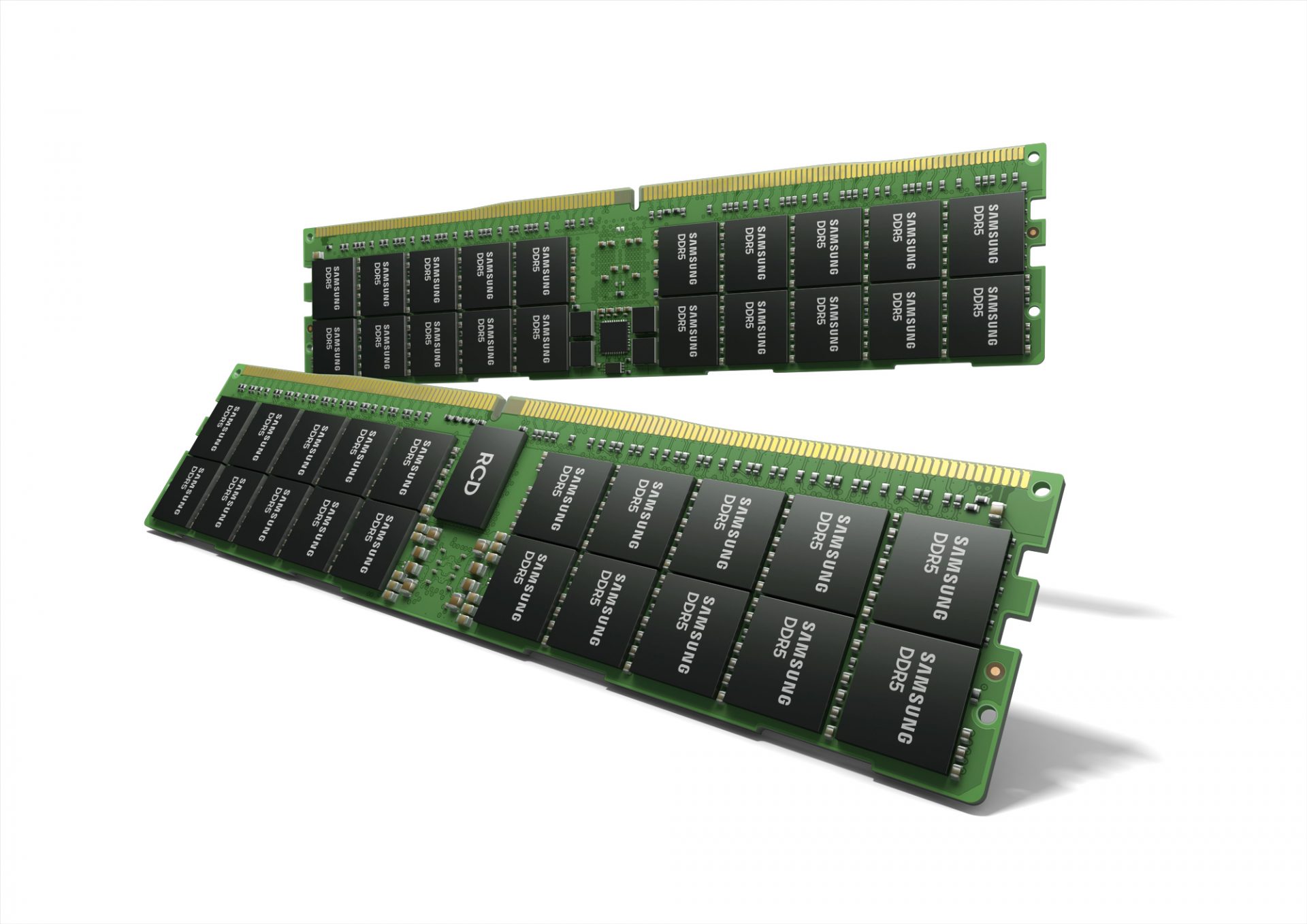
DDR5 memory moduleNext-generation of RAM, DDR5 supposed to hit shelves around late summer or fall in 2021if everything goes as planned. Its goal is to increase speed and efficiency, wants to pack more memory in a single stick, and have better power management.

Hardware requirements for DDR5

Using the latest memory technology will require other hardware to follow certain standards and the first ones that will need to follow are CPUs and Motherboards. Intel is already prepared with its Alder Lake CPUs that suppose to come out also later this year. AMD on other hand has not stated anything at the time of this writing but it is a bet that their next generation that will come in 2022 will have full support. It is speculated that bot companies and their respective CPUs will have both support for DDR4 and DDR5. A story about motherboards is a little different. Motherboards will support DDR4 or DDR5 memory banks, not both, so make sure that your motherboard will support the memory you plan on getting.

Capacity of memory

The goal and aim for the DDR5 memory stick are to reach a whopping 126GB per stack. This will be done by using a dual in-line module or DIMM enabling larger capacity. That being said, the first modules that we will see are more likely to be 16GB as standard and 8GB as low entry ones.

Power consumption of DDR5 memory

The standard voltage that DDR4 operates under is 1.2V. DDR5 wants to lower this to 1.1V without sacrificing speed. Voltage regulation on modules themselves will be now integrated on memory banks instead of leaving that to motherboards which will help to detect memory errors directly on the memory bank.

Speed of memory

The most common speed of DD4 memory banks is 2,666MHz, more expansive ones go from 3,600 to 4,000MHz. DD5 aims to raise this bar to 4,800MHz and offers greater speed.

Should you get it right away?

Hardware is ever-evolving, we have PCIe 3.0 to PCIe 4.0, and taking into account that sometimes the newest tech can cause some unexpected behavior it is always the best strategy to wait for a little. Price for the newest tech has also been in its heist just when it is released and seeing how DDR5 will benefit mostly servers mostly since even today memory, processors, and other available equipment can tackle all daily tasks.
Read More
Fix PAGE_FAULT_IN_NONPAGED_AREA 0x00000050
If you suddenly encounter the PAGE_FAULT_IN_NONPAGED_AREA Blue Screen error then it means that your computer is under a heavy load. And if you look closely, you’ll see that it has a bug check value of 0x00000050. This kind of Blue Screen error also indicates that invalid system memory has been referenced. It could be that the memory address is wrong, or that it is pointing at freed memory. The PAGE_FAULT_IN_NONPAGED_AREA Blue Screen error occurs when the requested data is not found in the memory. As a result, the system generates a fault which normally indicates that the system is looking for data in the paging file. However, in this case, the missing data is identified as being located within an area of memory that cannot be paged out to the disk. This Stop error might be caused by a buggy system service, antivirus program, a corrupted NTFS volume, or faulty hardware. So if you’ve recently added hardware, you can try removing it and then check. If the problem still persists, refer to the suggestions given below to fix the problem.

Option 1 – Run Memory Check to test your memory

  • Tap the Win + R keys to open Run and type exe and hit Enter to open the Windows Memory Diagnostic Tool.
  • After that, it will give two options such as:
    • Restart now and check for problems (Recommended)
    • Check for problems the next time I start my computer
  • Select the option you prefer and afterward, check if the Blue Screen error is now fixed.

Option 2 – Run a System File Checker scan

You can also try to run a System File Checker or SFC scan in order to scan your computer for corrupted files that might be the cause behind the PAGE_FAULT_IN_NONPAGED_AREA Blue Screen error. Once it finds any corrupted system files, it will automatically fix them. To run System File Checker, here’s what you have to do:
  • Tap Win + R to launch Run.
  • Type in cmd in the field and tap Enter.
  • After opening Command Prompt, type in sfc /scannow
The command will start a system scan which will take a few whiles before it finishes. Once it’s done, you could get the following results:
  1. Windows Resource Protection did not find any integrity violations.
  2. Windows Resource Protection found corrupt files and successfully repaired them.
  3. Windows Resource Protection found corrupt files but was unable to fix some of them.
  • Restart your computer after the scan is completed.

Option 3 – Disable Automatic Paging File Size Management

  • Right-click on This PC located on your desktop.
  • Next, click on Properties and then click on the Advanced System Settings.
  • Go to the Advanced tab and then click on the Settings button under the Performance section.
  • Afterward, a new mini window will appear and from there, go to the Advanced tab.
  • Then click the Change button under the Virtual Memory section. Once you do, another mini window will appear.
  • Now uncheck the “Automatically manage paging file size for all drives” option.
  • After that, you have to increase the Page File size by doubling the amount of memory allocated by default in the text field. For instance, the paging size given is a minimum of 16MB and so you have to change it to 32MB. And since the recommended value is 1907MB, you can make its maximum size around 4000MB. By doing so, it will allocate more space for paging into individual drivers.
  • Now click OK, close all the open windows and then restart your PC.

Option 4 – Update the Device Drivers

Updating the Device drivers can also help you fix the PAGE_FAULT_IN_NONPAGED_AREA Blue Screen error. To do so, follow the steps below.
  • Tap the Win + R keys to launch Run.
  • Type in devmgmt.msc into the box and tap Enter or click OK to open the Device Manager.
  • After that, a list of device drivers will be displayed. If you see a red or yellow sign that shows up against the driver, right-click on the driver and select “Update Driver Software”.
  • Select the “Search automatically for updated driver software” option and then follow the instructions to complete the process.
  • Restart your PC and then check if the Blue Screen error is now fixed or not.

Option 5 – Perform a System Restore

Performing System Restore might help you in fixing the PAGE_FAULT_IN_NONPAGED_AREA error. You can do this option either by booting into Safe Mode or in System Restore. If you are already in the Advanced Startup Options, just directly select System Restore and proceed with the next steps. And if you have just booted your PC into Safe Mode, refer to the steps below.
  • Tap the Win + R keys to open the Run dialog box.
  • After that, type in “sysdm.cpl” in the field and tap Enter.
  • Next, go to the System Protection tab then click the System Restore button. This will open a new window where you have to select your preferred System Restore point.
  • After that, follow the on-screen instructions to finish the process and then restart your computer and check if the problem is fixed or not.

Option 6 – Try disabling your antivirus programs

There are instances when antivirus programs trigger Stop errors like PAGE_FAULT_IN_NONPAGED_AREA. Thus, you can try disabling your antivirus programs like Windows Defender or other third-party programs if you’re using one.

Option 7 – Use the Blue Screen Troubleshooter

The Blue Screen troubleshooter is a built-in tool in Windows 10 that helps users in fixing BSOD errors like PAGE_FAULT_IN_NONPAGED_AREA error. It can be found on the Settings Troubleshooters page. To use it, refer to these steps:
  • Tap the Win + I keys to open the Settings panel.
  • Then go to Update & Security > Troubleshoot.
  • From there, look for the option called “Blue Screen” on your right-hand side and then click the “Run the troubleshooter” button to run the Blue Screen Troubleshooter and then follow the next on-screen options. Note that you might have to boot your PC into Safe Mode.

Option 8 – Disable Memory caching in the BIOS

You can also disable memory caching in the BIOS to fix the PAGE_FAULT_IN_NONPAGED_AREA error.
  • Open the BIOS Setup screen.
  • Next, go to Advanced > Cache Memory and then disable it.
  • Tap the F10 key to save the changes made and restart your computer.
Read More
PrivacyAssistant Malware Removal Tutorial

PrivacyAssistant is a browser extension developed by SearchAssistant.net. These extensions allegedly offer users a safer way to browse the internet and some other tools to customize the home page with background wallpapers and one-click links that can be added. While all this may sound appealing, PrivacyAssistant also monitors your browser activity, search quarries, clicks, visits, and possibly personal information.

This extension changes your default home page to SearchAssistant.com and rerouting all searches through its search portal, displaying sponsored links instead of your typical search results. While active you may see unwanted ads and even pop-up ads appearing while browsing the internet.

Several anti-virus programs have classified this extension as a Browser Hijacker, and are, therefore, for security reasons, not recommended to keep on your computer.

About Browser Hijackers

Browser hijacking is amongst the web’s constant risks that target internet browsers. It’s a kind of malicious software that alters your internet browser’s configuration settings and redirects you to websites or pages that you had no intention of checking out. They are created to disrupt browser functions for many different reasons. Usually, hijackers will force hits to internet sites of their choice either to increase traffic producing higher advertisement earnings, or to gain a commission for each and every user visiting there. Most people believe that these kinds of websites are legitimate and harmless but that is not the case. Almost every browser hijacker poses an existent threat to your online safety and it’s important to categorize them under privacy dangers. When the program attacks your PC, it starts to mess things up a whole that slows your computer down to a crawl. In the worst-case scenario, you might be forced to deal with serious malware threats as well.

How one can recognize a browser hijack

There are numerous symptoms that point to a browser hijacking: your browser’s home page is suddenly different; you get re-directed to sites you never meant to visit; the default web engine has been changed and your web browser security settings have been lowered without your knowledge; find new toolbars that you simply did not add; you might find many pop-up ads on your computer screen; your web browser starts running slowly or displays frequent errors; you have prohibited entry to certain web pages, for example, the website of an antivirus software developer like SafeBytes.

So how exactly does a browser hijacker infect a PC

Browser hijackers may use drive-by downloads or file-sharing websites or perhaps an email attachment in order to reach a targeted computer system. They can also originate from any BHO, extension, toolbar, add-on, or plug-in with malicious intent. Other times you might have unintentionally accepted a browser hijacker as part of a software program bundle (generally freeware or shareware). A good example of some popular browser hijackers includes Conduit, Anyprotect, Babylon, DefaultTab, SweetPage, Delta Search, and RocketTab, however, the names are constantly changing. Browser hijacking can lead to serious privacy problems and even identity theft, disrupt your browsing experience by taking control over outgoing traffic, considerably slows down your personal computer by consuming lots of system resources, and result in system instability at the same time.

How to repair a browser hijack

Some hijackers can be removed by uninstalling the free software they were included with or by deleting any extension you’ve recently added to your browser. But, the majority of hijackers are extremely tenacious and require specialized applications to eradicate them. Furthermore, manual removal requires you to execute many time-consuming and tricky procedures which are hard to carry out for inexperienced computer users.

How To Get Rid Of Virus That Is Preventing Antivirus Installation?

Viruses can cause a great deal of damage to your computer system. Some malware sits in between the computer and your net connection and blocks some or all sites that you really want to visit. It will also prevent you from installing anything on your computer, especially anti-malware software. So what to do if malicious software keeps you from downloading or installing Safebytes Anti-Malware? Although this sort of problem can be difficult to circumvent, there are some actions you can take.

Make use of Safe Mode to resolve the problem

In Safe Mode, you can actually change Windows settings, un-install or install some software, and eliminate hard-to-delete malware. In case the malware is set to load immediately when PC boots, switching into this mode may well prevent it from doing so. To enter into Safe Mode or Safe Mode with Networking, press F8 while the system is starting up or run MSCONFIG and look for the “Safe Boot” options in the “Boot” tab. Once you’re in safe mode, you can try to install your anti-malware program without the hindrance of the malicious software. Following installation, run the malware scanner to remove most standard infections.

Switch over to some other web browser

Some malware mainly targets specific browsers. If this is your situation, use another internet browser as it can circumvent the malware. In the event you suspect that your Internet Explorer has been hijacked by a computer virus or otherwise compromised by cybercriminals, the best approach is to switch over to a different internet browser like Mozilla Firefox, Google Chrome, or Apple Safari to download your favorite computer security program – Safebytes Anti-Malware.

Run anti-virus from a USB drive

Another solution is to create a portable anti-malware program on your USB thumb drive. Try these simple actions to clean up your affected PC using a portable antivirus. 1) Download Safebytes Anti-Malware or Microsoft Windows Defender Offline onto a clean computer system. 2) Plug the pen drive into the uninfected PC. 3) Run the setup program by double-clicking the executable file of the downloaded application, which has a .exe file format. 4) Choose the flash drive as the location for saving the file. Follow the on-screen instructions to complete the installation process. 5) Transfer the pen drive from the uninfected computer to the infected computer. 6) Double-click the EXE file to open the Safebytes tool from the pen drive. 7) Click “Scan Now” to run a scan on the infected computer for viruses.

A Look at the Best AntiMalware Program

If you are looking to download an anti-malware application for your computer, there are several tools out there to consider nonetheless, you cannot trust blindly anyone, no matter whether it is paid or free software. Some are really worth your money, but many aren’t. While looking for an anti-malware program, choose one that offers solid, efficient, and complete protection against all known computer viruses and malware. One of the highly recommended software is SafeBytes AntiMalware. SafeBytes carries a very good track record of quality service, and customers appear to be happy with it. SafeBytes anti-malware is really a powerful, very effective protection tool created to assist users of all levels of IT literacy in finding and eliminating malicious threats out of their PC. Once you’ve got installed this software, SafeByte's state-of-the-art protection system will make sure that no viruses or malicious software can seep through your PC. SafeBytes anti-malware comes with a plethora of enhanced features which sets it aside from all others. Listed below are some of the highlighted features included in the tool. Robust Anti-malware Protection: This deep-cleaning anti-malware software goes much deeper than most anti-virus tools to clean your computer. Its critically acclaimed virus engine finds and disables hard to remove malware that conceals deep inside your personal computer. Active Protection: SafeBytes gives round-the-clock protection for your PC limiting malware attacks in real-time. They’re extremely effective in screening and removing various threats since they’re constantly improved with the latest updates and alerts. Web protection: SafeBytes checks the links present on a web page for possible threats and alerts you whether the website is safe to explore or not, through its unique safety ranking system. Light-weight: The program is lightweight and will work quietly in the background, and that does not impact your computer efficiency. 24/7 Premium Support: Support service is readily available for 24 x 7 x 365 days through email and chats to answer your queries.

Technical Details and Manual Removal (Advanced Users)

If you wish to manually remove PrivacyAssistant without the use of an automated tool, it may be possible to do so by removing the program from the Windows Add/Remove Programs menu, or in cases of browser extensions, going to the browsers AddOn/Extension manager and removing it. You will likely also want to reset your browser. To ensure the complete removal, manually check your hard drive and registry for all of the following and remove or reset the values accordingly. Please note that this is for advanced users only and may be difficult, with incorrect file removal causing additional PC errors. In addition, some malware is capable of replicating or preventing deletion. Doing this in Safe Mode is advised.

The following files, folders, and registry entries are created or modified by PrivacyAssistant

Registry: HKLMSOFTWAREClassesAppID.exe HKEY_CURRENT_USERsoftwareMicrosoftInternet ExplorerMainStart Page Redirect=http://.com HKEY_LOCAL_MACHINESOFTWAREMicrosoftWindows NTCurrentVersionvirus name HKEY_CURRENT_USERSoftwareMicrosoftWindows NTCurrentVersionWinlogon Shell = %AppData%.exe HKEY_CURRENT_USERSoftwareMicrosoftWindowsCurrentVersionRun Random HKEY_LOCAL_MACHINESoftwareMicrosoftWindows NTCurrentVersionRandom HKEY_LOCAL_MACHINESOFTWAREsupWPM HKEY_LOCAL_MACHINESYSTEMCurrentControlSetServicesWpm HKEY_CURRENT_USERSoftwareMicrosoftWindowsCurrentVersionUninstallPrivacyAssist HKEY_LOCAL_MACHINESOFTWAREMicrosoftWindows NTCurrentVersionImage File Execution Optionsmsseces.exe HKLMSOFTWAREClassesAppIDrandom.exe HKEY_CURRENT_USERSoftwareMicrosoftInternet ExplorerMain Default_Page_URL

Read More
Software Licensing Service 0xC004F009 Error
A copy of Windows gets into a grace period when it is installed on a computer which means that you can use your Windows computer without any constraints on its feature. However, if you suddenly encounter an error code 0xC004F009 then this means that the grace period has already expired. In such cases, you will see the following error message on your screen:
“Error Code 0xC004F009, The Software Licensing Service reported that the grace period expired.”
One of the possible causes of this error is that it could be that the grace period has already expired way before the system was activated which is a result of which the system is in the Notifications state at this moment. The error code 0xC004F009 has something to do with MAK-enabled computers in an enterprise when it comes to Volume Licensing. One of the reasons that this error pops up is due to the possibility that the computer was not activated yet even when it was already connected to the Enterprise. Another most likely cause of the error is when the system was never connected with the Enterprise at all and the given grace period has expired before your computer system is activated. Whatever the real cause of this error, this post will guide you in fixing it. Just refer to the instructions given below to fix it.

Option 1 – Try activating Windows using the command-line tool

  • First, you need to obtain your MAK key from the IT administrator.
  • Once you have it, tap the Win + R keys on your keyboard and then type “cmd” in the field and hit Enter to open an elevated Command Prompt.
  • After that, type this command and hit Enter to install the product key or replace the existing one: Slmgr.vbs –ipk <your mak key>
  • Next, type another command and hit Enter: slmgr.vbs –ato
  • Once you’ve executed the given commands, Windows should be activated after it connects to Microsoft servers and then gives it some time and try to check if error code 0xC004F009 is now fixed or not.

Option 2 – Try activating Windows using your mobile phone

Activating Windows 10 can also be done using your phone. Just note that you have to call Microsoft to do so.
  • In the Start Search box, type in “Slui 4” and tap Enter.
  • Next, select your country and click on Next.
  • Keep the window open and call the toll-free number of the country you’re from.
  • Afterward, a confirmation ID should be given by the automated system which you must take a note of.
  • Finally, in the box on the window, type in the confirmation ID and click on the Activate button. That should do it.

Option 3 – Try to prolong the grace period

On the other hand, it is also possible for you to prolong the grace period but you might have to get another genuine Windows key for that. Before you proceed, you need to create a System Restore point first afterwards, refer to the steps given below to increase the grace period of the Software Licensing Service on your Windows 10 computer.
  • Tap the Win + R keys to open the Run dialog box and type “Regedit” in the field then hit Enter to open the Registry Editor.
  • After that, navigate to this registry key: HKEY_LOCAL_MACHINESOFTWAREMicrosoftWindowsCurrentVersionSetupOOBEmediabootinstall
  • Next, change the value of the “mediabootinstall” key to “0”.
  • Now open Command Prompt with admin privileges and then type this command and hit Enter: slmgr –rearm
  • The command you just entered will add another grace period to your system activation. After that, you have to obtain a new key and then activate Windows.

Option 4 – Try running the Windows 10 Activation Troubleshooter

You can also try to run the Windows 10 Activation troubleshooter to help resolve the error code 0xC004F009.
  • Go to Settings and then select Activation.
  • After that, click on the Windows Activation and then troubleshoot. This will help you address most of the commonly found activation issues in Windows devices.
Read More
Folder shortcuts in Windows 11 on Start menu
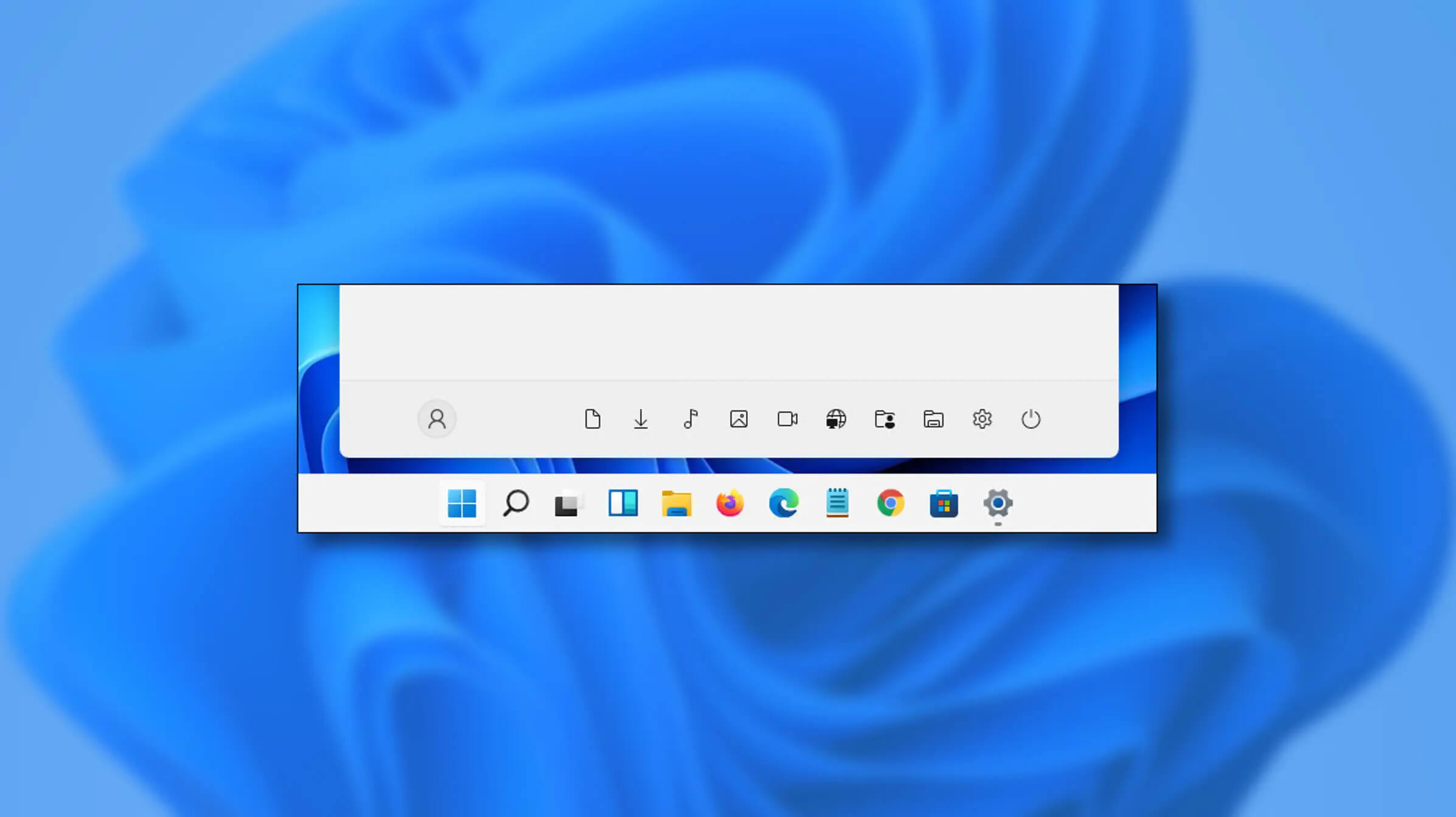
Special folders like music, pictures, download, videos, etc, can be placed as shortcuts in the start menu inside Windows 11 for easy access. Shortcuts will appear in the start menu on the bottom as simple glyphs. They are not present in the start menu by default so it needs to be turned ON first. Folder shortcutsIf you want to place these icons in your Star menu follow this step-by-step guide and you will have them in no time.

  1. Open Windows settings
  2. In settings go to Personalization > Start
  3. In Start click on Folders
  4. On the given list of Settings, File Explorer, Documents, Downloads, Music, Pictures, Videos, Network, and Personal folder click on the switch beside them if you want them as shortcuts in the Start menu. You can choose whichever you want.
  5. Close settings
You can revisit the settings menu to add more icons or remove some of them later if you wish so.
Read More
Keyboard folder shortcut in Windows 11
If you are visiting a single folder many times during the day it might be beneficial to place its shortcut on the desktop for easy access. But did you know that you can also set a keyboard shortcut for that same folder shortcut making it available simply by clicking desired key combination? keyboard shortcutIn order to make a keyboard shortcut for the desired folder know that it is available only when you have a shortcut of the desired folder, it cannot be done on the folder itself, only on its shortcut. Now folder shortcut does not need to reside on desktop, you can place it anywhere you like, but it must be a shortcut. So the first step is of course to make a shortcut of the folder that you wish to have access via keyboard key combination and place it where you wish. Once you have done this step, right-click on it and choose properties. Inside properties at the top click on the Shortcut tab and then inside Shortcut Key, press the key combination that you wish to associate with this folder. Confirm with OK and start using fast folder access with your desired key combination.

Read More
1 2 3 171
Logo
Copyright © 2023, ErrorTools. All Rights Reserved
Trademark: Microsoft Windows logos are registered trademarks of Microsoft. Disclaimer: ErrorTools.com is not affiliated with Microsoft, nor claims direct affiliation.
The information on this page is provided for information purposes only.
DMCA.com Protection Status