Logo

Remove HowToSimplified PUP Removal Tutorial

HowToSimplified is a browser extension developed by MindSpark inc. This extension offers users easy access to DIY tutorials, guides, and websites just a few clicks away. There is also a top video selection with the most popular DIY videos at the moment.

This extension, though it may look useful in the beginning, hijacks your browser's default search provider, it changes your default home page to HowToSimplified, powered by the MyWay search engine. During your browsing sessions, it will record your website visits, collect information, clicks, and sometimes even personal data. This information is later used to deliver ads that are injected into your browser search results. Aside from sponsored links, and additional unwanted ads that this extension displays, it also may from time to time display pop-up ads during your browsing sessions.

Multiple anti-virus scanners have detected HowToSimplified as a Browser Hijacker and are therefore not recommended to keep on your computer for security and privacy reasons.

About Browser Hijackers

Browser hijacking means that a malicious program code has control over and altered the settings of your internet browser, without your approval. Almost all browser hijackers are made for marketing or advertising purposes. In most cases, browser hijacking is used for earning ad revenue that comes from forced advert clicks and site visits. It could seem naive, but most of such sites aren’t legitimate and could pose a severe threat to your online safety. In a much worst case, your browser can be hijacked to download malware that can do a lot of damage to your computer system.

How you can recognize a browser hijack

There are many symptoms that indicate your browser has been highjacked: home page is changed; bookmark and the new tab are also changed; the default web engine is changed and your browser security settings have been cut down without your knowledge; find new toolbars that you simply didn’t add; unstoppable flurries of popup advertisements show up on your personal computer screen; your internet browser has become unstable or starts running sluggishly; you can’t navigate to certain internet pages, like computer security software related websites.

How they invade PCs

Browser hijackers infect computer systems through malicious email attachments, downloaded infected documents, or by visiting infected websites. They can also be deployed via the installation of a web browser toolbar, add-on, or extension. Other times you may have accidentally accepted a browser hijacker as part of an application bundle (generally freeware or shareware). An example of some notorious browser hijacker includes Babylon, Anyprotect, Conduit, DefaultTab, SweetPage, Delta Search, and RocketTab, but the names are regularly changing.

Browser hijacking can lead to severe privacy issues and even identity theft, disrupt your browsing experience by taking command over outbound traffic, drastically slows down your personal computer by consuming a lot of resources, and cause system instability as well.

Browser Hijacker Malware – Removal

The one thing you can try to get rid of a browser hijacker is to find the malware inside the “Add or Remove Programs” list of the Windows Control Panel. It might or might not be there. When it is, uninstall it. However, many hijackers are harder to track down or remove since they might get themselves associated with some critical computer files that enable it to operate as a necessary operating-system process. Amateur computer users shouldn’t ever attempt the manual form of removal methods, since it requires detailed system knowledge to carry out repairs on the computer registry and HOSTS file.

How One Can Eliminate a Virus that is Blocking Websites or Preventing Downloads

Practically all malware is detrimental and the extent of the damage will vary greatly depending on the type of malware. Some malware is meant to hinder or block things that you want to do on your computer. It may well not let you download anything from the web or it will prevent you from accessing a few or all internet sites, especially the anti-malware websites. If you are reading this article right now, you may have perhaps realized that a malware infection is the cause of your blocked internet connectivity. So how to proceed if you need to install an anti-malware program like Safebytes? There are a few actions you can take to get around this problem.

Install the anti-malware in Safe Mode

The Windows operating system comes with a special mode referred to as “Safe Mode” where just the minimum required applications and services are loaded. If the malware is obstructing the internet connection and affecting your PC, starting it in Safe Mode allows you to download anti-malware and run a diagnostic scan while limiting potential damage. To enter into Safe Mode or Safe Mode with Networking, press the F8 key while the PC is starting up or run MSCONFIG and look for the “Safe Boot” options under the “Boot” tab. Once you’re in Safe Mode, you can attempt to install your anti-malware software application without the hindrance of the malicious software. At this point, you can actually run the antivirus scan to get rid of viruses and malware without interference from another malicious application.

Obtain the anti-malware program using an alternate web browser

Web-based viruses can be environment-specific, targeting a particular internet browser or attacking specific versions of the web browser. If you seem to have a trojan attached to Internet Explorer, then switch to a different browser with built-in security features, such as Firefox or Chrome, to download your favorite anti-malware program – Safebytes.

Install and run anti-malware from the USB drive

Another solution is to create a portable anti-malware program on your USB thumb drive. Try these simple measures to clear up your infected PC using portable anti-malware.
1) Download the anti-malware on a virus-free computer.
2) Plug the Thumb drive into the uninfected computer.
3) Double-click the Setup icon of the antivirus program to run the Installation Wizard.
4) Choose a thumb drive as the place when the wizard asks you where you want to install the application. Follow the on-screen instructions to complete the installation.
5) Transfer the USB drive from the uninfected PC to the infected PC.
6) Double-click the EXE file to run the Safebytes software right from the thumb drive.
7) Click on “Scan Now” to run a complete scan on the affected computer for viruses.

If, after all of these methods, you are still having troubles with the possible infection, feel free to write to us with your question, through chat or email. If you are unsure which method to employ, simply call our toll-free number 1-844-377-4107 to speak to our technical support team. Our experts can walk you through the virus removal process on the phone and fix the computer remotely.

Protect Your Personal Computer From Viruses and Malware With SafeBytes Security Suite

Nowadays, an anti-malware tool can protect your laptop or computer from various kinds of internet threats. But exactly how to choose the best one amongst the many malware protection software that is available on the market? Perhaps you might be aware, there are several anti-malware companies and products for you to consider. A few of them are great but there are lots of scamware applications that pretend as authentic anti-malware software waiting to wreak havoc on the computer. You must be careful not to choose the wrong product, especially if you purchase a paid application. When thinking about trustworthy programs, Safebytes AntiMalware is certainly the highly recommended one.

SafeBytes anti-malware is a powerful, highly effective protection tool designed to assist users of all levels of IT literacy in detecting and eliminating malicious threats from their PC. This tool can easily detect, eliminate, and protect your PC from the most advanced malware intrusions including spyware, adware, trojan horses, ransomware, parasites, worms, PUPs, as well as other possibly damaging software programs.

SafeBytes has great features when compared to other anti-malware programs. A few of them are listed as below:

Best AntiMalware Protection: Built on a highly acclaimed anti-virus engine, this malware removal application has the capacity to identify and remove various obstinate malware threats such as browser hijackers, potentially unwanted programs, and ransomware that other common anti-virus software will miss.

Live Protection: SafeBytes provides real-time active monitoring service and protection against all known computer viruses and malware. It’ll constantly monitor your computer for hacker activity and also gives users superior firewall protection.

Web Protection: Safebytes allots all websites a unique safety score that helps you to have an idea of whether the webpage you’re about to visit is safe to view or known to be a phishing site.

“Fast Scan” Features: SafeBytes Anti-Malware possesses a multi-thread scan algorithm that works up to five times faster than any other protection software.

Very Low CPU and RAM Usage: SafeBytes is a lightweight application. It uses up a really small amount of processing power as it works in the background therefore you won’t notice any computer performance difficulties.

24/7 Customer Support: You will get 24/7 technical support to quickly resolve any concern with your security tool.

Technical Details and Manual Removal (Advanced Users)

If you wish to manually remove HowToSimplified without the use of an automated tool, it may be possible to do so by removing the program from the Windows Add/Remove Programs menu, or in cases of browser extensions, going to the browsers AddOn/Extension manager and removing it. You will likely also want to reset your browser.

To ensure the complete removal, manually check your hard drive and registry for all of the following and remove or reset the values accordingly. Please note that this is for advanced users only and may be difficult, with incorrect file removal causing additional PC errors. In addition, some malware is capable of replicating or preventing deletion. Doing this in Safe Mode is advised.

The following files, folders, and registry entries are created or modified by HowToSimplified

Files:
C:DOCUME1USER1LOCALS1Tempnsu1.tmp
C:76681c9c0f70e45328483cc27310678c28751a66f9849aa13f34d2e7f8c650
C:DOCUME1USER1LOCALS1Tempnsf2.tmp
C:DOCUME1USER1LOCALS1Tempnsf2.tmpnsDialogs.dll
C:DOCUME1USER1LOCALS1Tempnsf2.tmpSystem.dll
C:DOCUME1USER1LOCALS1Tempnsf2.tmpnsDialogs.dll
C:DOCUME1USER1LOCALS1Tempnsf2.tmpSystem.dll
C:Program FilesHowToSimplified_8e

Registry:
Key: HKCUSOFTWAREMicrosoftWindowsCurrentVersionExplorerBrowser Helper ObjectsValue: Verizon Broadband Toolbar Data: A057A204-BACC-4D26-8398-26FADCF27386
Key: HKEY_CURRENT_USERSoftwareMicrosoftWindowsCurrentVersionRun Value: Hoolapp Android Data: C:usersuserappdataRoamingHOOLAP~1Hoolapp.exe
Key: HKEY_CURRENT_USERSoftwareMicrosoftWindowsCurrentVersionRun Value: ctfmon.exe Data: C:Program Files3rundll32.exe C:Program Files3lni28.dat,FG00

Do You Need Help with Your Device?

Our Team of Experts May Help
Troubleshoot.Tech Experts are There for You!
Replace damaged files
Restore performance
Free disk space
Remove Malware
Protects WEB browser
Remove Viruses
Stop PC freezing
GET HELP
Troubleshoot.Tech experts work with all versions of Microsoft Windows including Windows 11, with Android, Mac, and more.

Share this article:

You might also like

EU Common Charge Rules

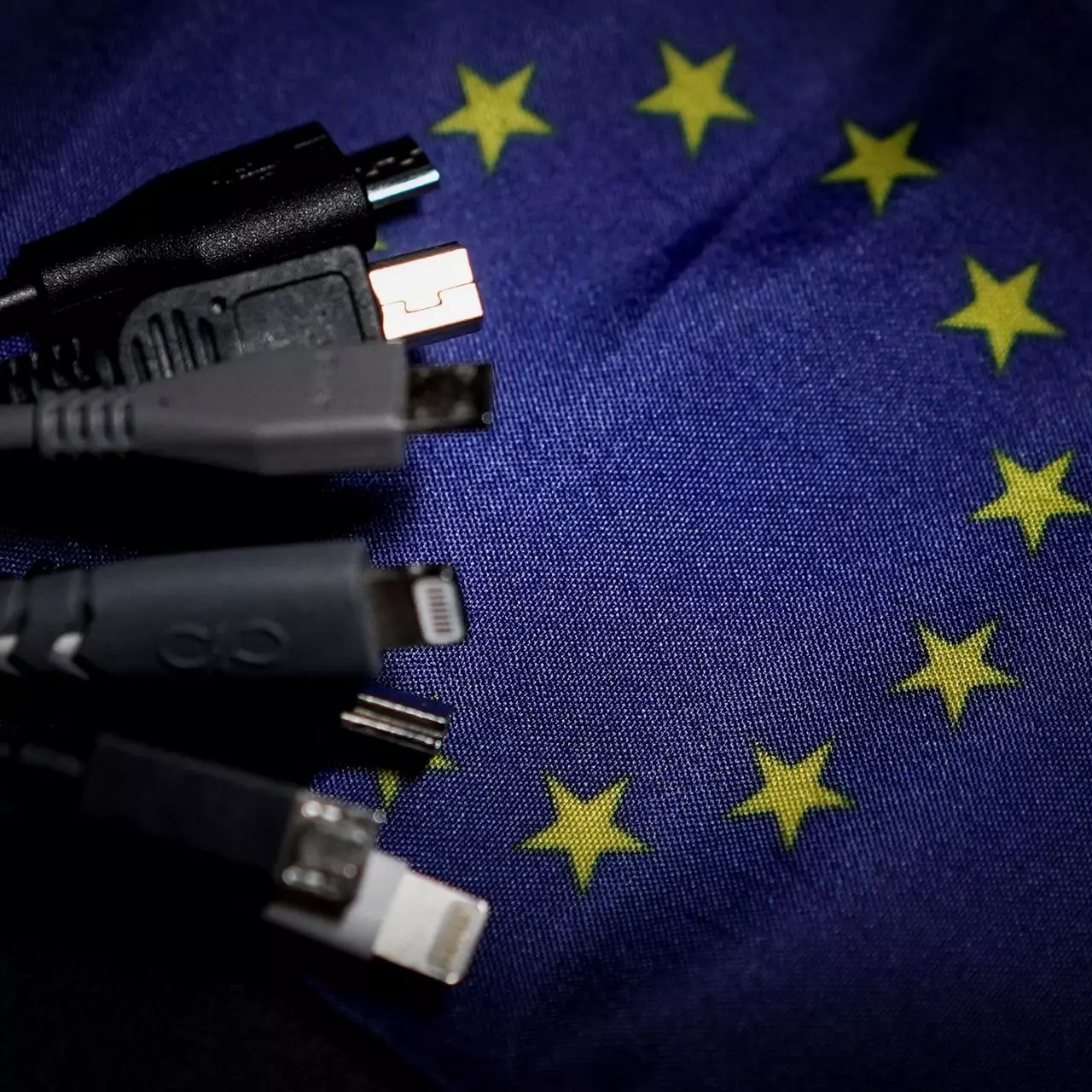
In 27 European countries for some time it has been considered for introducing a law that would force phones, tablets, laptops, and other mobile devices to use a single USB Type-C connector.

EU charge law

The European Parlament announced that a provisional agreement has been reached and that it was voted that a single charging solution is USB Type-C. The current agreement applies and covers the next devices: phones, tablets, Readers, earbuds, digital cameras, headphones, headsets, handheld consoles, and portable speakers. All currently existing devices can still be sold without issues but starting in the fall of 2024 all-new products must support USB Type-C charging.

The agreement will also hit Laptops but not on the same date, How is USB Type-C currently not enough for charging laptops, all new laptops that will have to use it are scheduled for fall of 2025.

Although the agreement is reached the EU Parliament and Council still have to formally approve everything.

Apple targeted the most

Apple has been targeted as the main target for rules since their iPhones are still using Apple's proprietary Lightning charging port. Apple sells a lot of iPhones in Europe and even though iPad Pro and iPad Air along with all MacBooks have moved to USB Type-C, iPhones are still struggling with the Lightning port.

Apple criticized the EU’s charger rules when they were first proposed in 2021, telling the BBC, “We remain concerned that strict regulation mandating just one type of connector stifles innovation rather than encouraging it, which in turn will harm consumers in Europe and around the world.” The European Union has said in response that it will update its rules as new technology arrives.

Why was this proposed?

The main problem in Europe that led to this proposition was electronic waste which reached 11 000 metric tons in 2018. European union is afraid that this will keep rising as chargers become larger and heavier in order to accommodate faster-charging speeds. More electronic waste means more hardware slowly decomposing in landfills that will contribute to climate change affecting everyone on the planet, not just the people living in Europe.

Read More
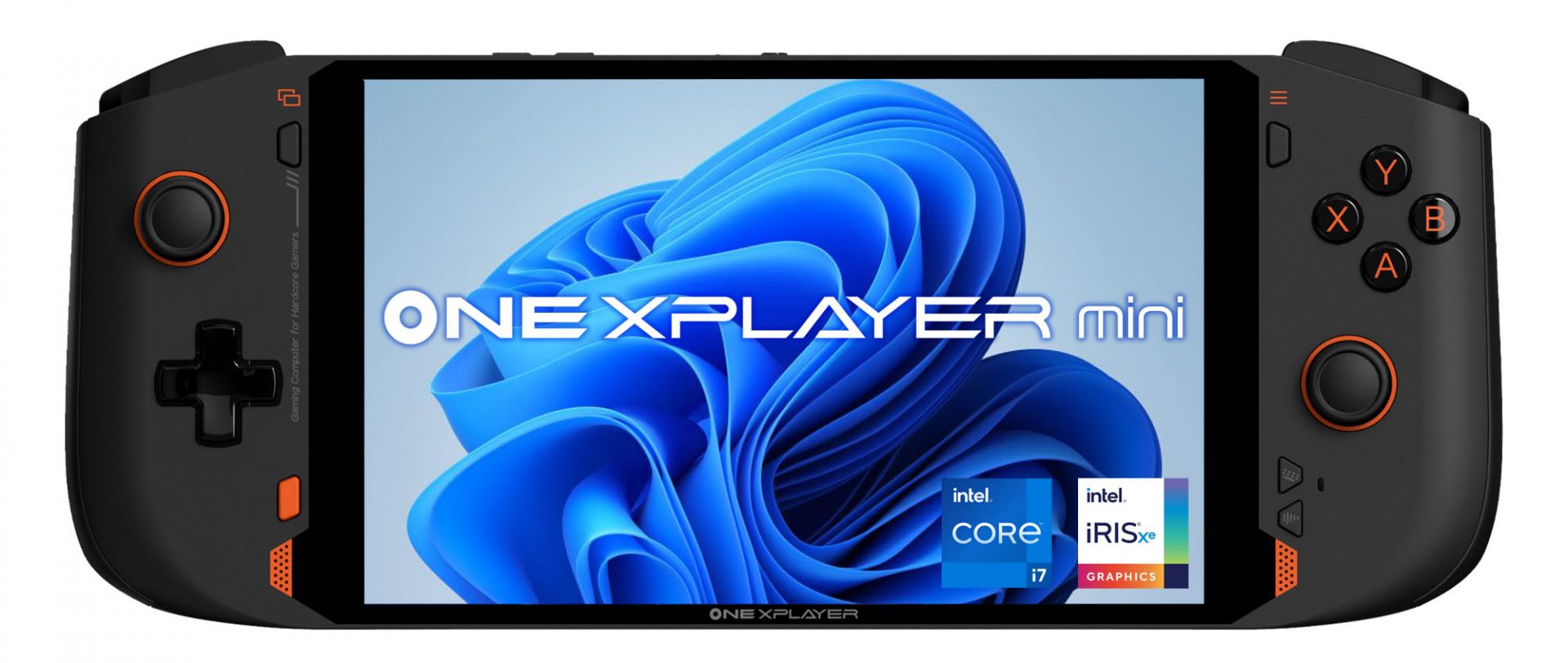
OneXPlayer Mini Handheld Gaming PC
OneXPlayer is a direct competitor to Valve’s upcoming steam deck. This device is clearly inspired by Valve’s offering and it shows all over the place, from its looks to its purpose and aims to PC gamers as a handheld device.

OneXPlayer miniHardware under the hood

This device is packing a 7-inch 1080p display, 11th generation Intel Core i7-1195G7 CPU, stunning 16GB of RAM, 512GB SSD drive with the option to purchase 1TB or 2TB model. GPU of choice is Intel iris Xe Graphics that is in our opinion a bottleneck in the whole system and for more demanding games, we believe switching them to 720p would be a better option. Everything here is powered with a 10455 mAh lithium-ion battery.

OneXPlayer inputs and other stuff

Handheld is equipped with dual bumpers and dual linear triggers. The console comes with dual speakers on both sides of it. Inside the console, there is an aluminum heat sink with copper heat pipes and a fan in order to cool internal hardware. On the outside, we have two USB-C ports and one USB-A port for connections, and of course, a headphone jack for headphones. The console comes with Wi-Fi 6 and Bluetooth 5.0 for wireless connectivity.

Price

The base entry model will cost you a whopping $1.259, 1TB model $1.399 and 2TB one will go as far as $1,599. With this kind of price, I am not sure it can come up as a winner against Valve. Sure it is packing fully licensed Windows 11 that will for sure offer more options than Stem’s OS based on Linux but even with that advantage I do not think it justifies such a big price difference.

Conclusion

Of course, this kind of console or handheld PC will still find its customer base, many users will probably like it since it comes Windows ready out of the box. Sure, you can place Windows on Steam deck as well but you will need to know how, where everything is ready and you can run beside steam other launchers without issues like origin, uplay, gog, etc. How this will be accepted by community time will tell but it is good to see that there is variety and competition in handheld PC space.
Read More
Fix Microsoft Store error 0x80072F30
If you got the Microsoft Store error code 0x80072F30 while trying to open Microsoft Store, then it indicates that the Store fails to connect to the internet or is not able to launch successfully for some reason. It could be that the Windows Update Service has stopped or the Windows Store cache might be corrupted or it could just be due to a poor internet connection. Whichever the cause is, you have to fix this error so that you can use Microsoft Store again and you won’t be getting the following error message every time you open the app:
“Check your connection, Microsoft Store needs to be online, It looks like you are not, error code 0x80072f30.”
The error code 0x80072F30 is related to the Windows Store which prevents it from opening properly. To resolve this problem, you can try fixing the problem with the help of the options given below. Follow each one of them carefully.

Option 1 – Check your internet connection

The first and most obvious thing you can do is to check your internet connection. This may only be a basic tip but it sure works like a charm in most cases. And if you have another internet connection available, you can also try connecting to that and see if you can pull up Microsoft Store or not. 1] Change your internet connection: A basic tip, but sometimes works like a charm. You may want to check if your internet connection has an issue, or you can also try opening a website and see if you can open it and if possible try connecting to a different internet connection and see if the Microsoft Store opens for you. We also suggest you try changing your DNS and see if it helps.

Option 2 – Check the date and time as well as the time zone of your PC

A lot of services and apps rely on the Date, Time, and Time Zone of your PC which is why if they are not configured correctly, a request from the client machine will be rejected from the server and the same thing happens with the Microsoft Store.
  • First, go to Settings > Time and Language.
  • From there, check if it is set to Automatic or not – if it is, switch the toggle button off to set the Time and Time zone manually.
  • Then select the right time zone manually.
  • On the other hand, if the Time and Time zone is set manually, you have to switch the toggle button on to set Time and Time zone automatically.
  • Restart your PC and afterward try opening Microsoft Store again and check if the problem’s fixed or not.

Option 3 – Run the Network Adapter Troubleshooter

Since Windows 10 is packed with various troubleshooters – one of which is the Network Adapter Troubleshooter – you can use it to troubleshoot the problem. To use it, follow these steps:
  • Open the Search bar on your computer and type in “troubleshoot” to open the Troubleshoot settings.
  • Next, scroll down and select the “Network Adapter” option from the right pane.
  • Then click on the Run Troubleshooter” button.
  • After that, your computer will check for any possible errors and will pinpoint the root cause of the problem if possible.

Option 4 – Try to reset the Microsoft Store cache

Just like browsers, Microsoft Store also caches as you view apps and games so it is most likely that the cache is no longer valid and must be removed. To do so, follow the steps below.
  • Right-click on the start button and click on Command Prompt (administrator).
  • Next, type in the command, “exe” and tap Enter. Once you do, the command will clear the cache for the Windows Store app.
  • Now restart your PC and afterward, try opening Microsoft Store again.

Option 5 – Check the Windows Update Service status

You might also want to check the status of the Windows Update Service since the proper functioning of this app depends on the Windows Update Service. It could be that there is some issue with the service which is why you’re getting the error code 0x80072F30 while trying to open Microsoft Store.
  • Tap the Win + R keys to open the Run dialog box.
  • Then type “services.msc” in the field and hit Enter to open Services.
  • Next, look for Windows Update Service from the list of available services in Windows.
  • Once you see it, check if its status is STOP or Pause and then change the status to Automatic.
Read More
Get a Custom URL for Your YouTube Channel
Having a youtube channel nowadays is quite an easy task, you just need to create a free google account and there you go, you can start uploading videos to your YouTube channel. All you need in today's world is some applications for manipulating video material, creation of titles and graphics, some charisma and ideas for content and you could be a well-known YouTuber. For some guidance on software needed for this kind of creativity, we urge you to check our article about open source free software alternatives to paying ones here. So now that we have technicality out of way there is one more prerequisite that is needed in order for you to have your unique custom URL for your channel.
  • The channel must be at least 30 days old.
  • The channel must have a profile picture and a banner image.
  • The channel must have at least 100 subscribers.
You need to fulfill all three prerequisites in order to change your typical URL to something nicer and personal like youtube.com/myGREATchannel So if you have everything needed let's get that custom URL for your channel.
  1. Sign in to your YouTube channel
  2. On the top-right corner of the YouTube window, click on your profile picture.
  3. From the drop-down menu, select YouTube Studio.
  4. From the list on the right side of the YouTube Studio page, select Customization.
  5. Under Channel customization, select Basic info.
  6. Under Channel URL, click on Set a custom URL for your channel.
  7. Your custom URL will appear in the box below. You can change it as you desire.
  8. Click on the Publish button on the top-right corner of the window to set your custom URL.

WORD OF WARNING:

Once the custom URL is set, it can neither be changed nor transferred to someone else so make sure that channel name is really something that you want for the long run.
Read More
Run as administrator is not working
Recently, a number of users reported that they were not able to use the “Run as administrator” context menu option when they tried using it or opening a program with administrator privilege. If you are one of these users facing this problem, then you’ve come to the right place as this post will guide you in fixing this issue. At the time of writing, it isn’t clear what the cause of the issue is but there are potential fixes you can try to fix the problem. You can try turning on the User Account Control or clean up the Context Menu items change the Group Membership. On the other hand, you can also perform both SFC and DISM scans via Command Prompt or troubleshoot the problem in a clean boot state as it is possible that some third-party programs are the ones that are causing the problem. You could also run an anti-malware scan using Windows Defender or your antivirus program.

Option 1 – Try to turn on the User Account Control

When you open a program with administrator privilege, the User Account Control or UAC prompt will pop up asking you to confirm the permission. However, if you have disabled the User Account Control by mistake or some malware has disabled it, then it’s no wonder why the “Run as administrator” option is not working. Thus, you need to check if UAC is turned on or not. All you have to do is go to the User Account Control settings.

Option 2 – Try changing the Group Membership

  • First, you need to sign in with your administrator account or ask your administrator to sign in for you. So if you only have a Standard User account, you have to add that account to the Administrators group.
  • In the taskbar search box, type “netplwiz” and check the search results.
  • From there, select your user account and click the Properties button.
  • After that, go to the Group Membership tab and select Administrator.
  • Now click on the Apply and OK buttons to save the changes made and then sign in to your computer again and see if the “Run as administrator” option is working or not.

Option 3 – Try to create a new Administrator User account

If you have a standard account, you can try creating a new account but this time, you create an administrator user account and then see if you can now use the Run as administrator option or not. Note that you have to sign in with your main account before you can create an admin account.

Option 4 – Run the DISM tool

You can run the DISM tool as well to help fix the problem with the “Run as administrator” option. Using this built-in tool, you have various options such as the “/ScanHealth”, “/CheckHealth”, and “/RestoreHealth”.
  • Open the Command Prompt with admin privileges.
  • Then type in the following commands and make sure to hit Enter right after you type each one of them:
    • Dism /Online /Cleanup-Image /CheckHealth
    • Dism /Online /Cleanup-Image /ScanHealth
    • exe /Online /Cleanup-image /Restorehealth
  • Do not close the window if the process takes a while as it will probably take a few minutes to finish.

Option 5 – Perform a System File Checker scan

The SFC or System File Checker scan could detect and automatically repair damaged system files that could be causing the problem with the “Run as administrator” option on your Windows 10 computer. SFC is a built-in command utility that helps in restoring corrupted files as well as missing files. It replaces bad and corrupted system files with good system files. To run the SFC command, follow the steps given below.
  • Tap Win + R to launch Run.
  • Type in cmd in the field and tap Enter.
  • After opening Command Prompt, type in sfc /scannow and hit Enter.
The command will start a system scan which will take a few whiles before it finishes. Once it’s done, you could get the following results:
  1. Windows Resource Protection did not find any integrity violations.
  2. Windows Resource Protection found corrupt files and successfully repaired them.
  3. Windows Resource Protection found corrupt files but was unable to fix some of them.
  • Once done, restart your computer.

Option 6 – Put your computer in a Clean Boot State

You can also troubleshoot the problem in a Clean Boot state. It could be that there are some third-party applications in your computer that are preventing you from using the “Run as administrator” option and to isolate this possibility, you need to boot your computer in a Clean Boot State and then try to use the Run as administrator again. Putting your computer in this state can help you identify which program is the culprit and thus isolates the problem. In a Clean Boot state, your computer will start using only the pre-selected minimal set of drivers and startup programs. Note that you have to disable and enable one process at a time.
  • Log onto your PC as an administrator.
  • Type in MSConfig in the Start Search to open the System Configuration utility.
  • From there, go to the General tab and click “Selective startup”.
  • Clear the “Load Startup items” check box and make sure that the “Load System Services” and “Use Original boot configuration” options are checked.
  • Next, click the Services tab and select the “Hide All Microsoft Services” check box.
  • Click Disable all.
  • Click on Apply/OK and restart your PC. (This will put your PC into a Clean Boot State. And configure Windows to use the usual startup, just simply undo the changes.)
  • After you’ve set your computer into a Clean Boot State, try to check if the error is now fixed and that you can now view the Properties.

Option 7 – Try scanning your computer using Windows Defender

As mentioned, if your computer was recently infected with some malware, it is possible that the malware changed the User Account Control settings which is why you’re not able to use the Run as administrator option. Thus, you need to scan your computer using Windows Defender.
  • Tap the Win + I keys to open Update & Security.
  • Then click on the Windows Security option and open Windows Defender Security Center.
  • Next, click on Virus & threat protection > Run a new advanced scan.
  • Now make sure that Full Scan is selected from the menu and then click the Scan Now button to get started.
Read More
Mapped network drives are not working
When you have to connect to a drive that’s on a different computer or on external storage, that’s where the mapped network drives come in. Mapped network drives make accessing files a lot easier. However, there are times when it won’t work for some reason. Windows will notify you about the unavailability of mapped network drives in several ways. For one, Windows might display a red X on the network drives or it could be that its status will be unavailable when you try to use it from the Command Prompt or via a notification. It is recommended that you run a few scripts when you log in to your PC as it may so happen that the network drive takes more than usual to connect. Before you start troubleshooting the problem using the given options below, keep in mind that some workouts might only work under certain scenarios. You might need some network access at logon or you might need access to the Group Policy settings. So you need to choose what you prefer more. You can try the given workarounds below if the mapped network drives are not showing or connecting or working on your Windows 10 computer. These workarounds use scripts to make sure that you are connected to them as soon as you start to use your PC. As mentioned, before you can troubleshoot, you need to create scripts first. There are two scripts here namely MapDrives.ps1 which is executed by the second script named MapDrives.cmd and is done at a regular and non-elevated Command Prompt. Follow the steps below to get started.
  • You have to create a script file named “MapDrives.cmd” first and then save it on a place where the files are safe. To do that, open a text editor like Notepad and then copy and paste the following script:
PowerShell -Command "Set-ExecutionPolicy -Scope CurrentUser Unrestricted" >> "%TEMP%StartupLog.txt" 2>&1 PowerShell -File "%SystemDrive%ScriptsMapDrives.ps1" >> "%TEMP%StartupLog.txt" 2>&1
  • After that, save the file and name it “MapDrives.cmd”.
  • Next, create a script file named “MapDrives.ps1” and then copy and paste the following content. Just make sure to save both scripts in the same folder.
$i=3 while($True){     $error.clear()     $MappedDrives = Get-SmbMapping |where -property Status -Value Unavailable -EQ | select LocalPath,RemotePath     foreach( $MappedDrive in $MappedDrives)     {         try {             New-SmbMapping -LocalPath $MappedDrive.LocalPath -RemotePath $MappedDrive.RemotePath -Persistent $True         } catch {             Write-Host "There was an error mapping $MappedDrive.RemotePath to $MappedDrive.LocalPath"         }     }     $i = $i - 1     if($error.Count -eq 0 -Or $i -eq 0) {break}     Start-Sleep -Seconds 30 } Note: Now that you’ve created the script files, it’s time for you to proceed to the options given below.

Option 1 – Try creating a startup item

Note that this option only works on devices that have network access at login. So if it’s not there, the script will fail to reconnect the network drivers automatically. To create a startup item, here’s what you have to do:
  • Open the Startup folder located at %ProgramData%MicrosoftWindowsStart MenuProgramsStartUp.
  • From there, copy and paste the MapDrives.cmd.
  • After that, open the Scripts folder located at %SystemDrive%Scripts copy-paste MapDrives.ps1 and then copy and paste MapDrives.ps1 in there.
Note: After you complete the steps above, a log file named “StartupLog.txt” will be created in the %TEMP% folder. Now all that’s left for you to do is to log out of your computer and then log back in. This will ensure that the mapped drives are open.

Option 2 – Create a scheduled task

It is possible to create a scheduled task that runs as soon as you log in to your computer. To create a scheduled task, follow the steps below.
  • You have to copy the MapDrives.ps1 script file to the scripts folder of Windows located at %SystemDrive%Scripts.
  • After that, open the Task Scheduler and select Action > Create Task.
  • Next, type a name and description of the task in the General tab.
  • Then click on the Change User or Group button and select a local user group and click OK.
  • Now check the box labeled “Run with highest privileges” and switch to the Triggers tab.
  • From there, create a new trigger with the “At Logon” option in the Begin the task drop-down menu and then click OK.
  • After that, switch to the Actions tab and create a new action then choose to Start a program.
  • Next, type “Powershell.exe” in the Program/Script field, and in the Add arguments (optional) field, type the following:
-windowsstyle hidden -command .MapDrives.ps1 >> %TEMP%StartupLog.txt 2>&1
  • And in the Start in the (optional) field, type “%SystemDrive%Scripts” as the location of the script file.
  • Now under the Conditions tab, select the “Start only if the following network connection is available” option and then select Any connection and click OK.
  • Restart your computer or log off from your account and then log back in so that the task will be executed.

Option 3 – Use the Group Policy settings

You need this option if the mapped network drives are defined via Group Policy settings. You have to update the action of the drive maps to Replace. As a result, it will delete the existing mapped drive and create the mapping on each logon again. However, any settings on the mapped drive that are changed from the Group Policy settings will be gone on each logon. So if the changes don’t work, you need to run the gpupdate command together with the /force parameter in order to refresh the Group Policy setting quickly.
Read More
How to Fix ACPI.sys Blue Screen Error
If, while using your computer, you encounter the ACPI.sys Blue Screen error, read on as this post will guide you in fixing the problem. The ACPI.sys file is a Windows operating system file that is related to the MSDN 2939. ACPI.sys, the Windows ACPI driver, is an inbox component of the Windows operating system. It is the one that supports the power management as well as the Plug and Play or PnP device enumeration. And so if this file ends up getting corrupted, it is known to cause a Blue Screen error. Another possible cause for the ACPI.sys Blue Screen error includes RAM issues, incompatible firmware, hard disk issues, corrupted drivers or malware infection, and so on. Here are some Blue Screen errors that can be triggered by the ACPI.sys file:
  • KMODE EXCEPTION NOT HANDLED
  • PAGE FAULT IN A NONPAGED AREA
  • SYSTEM THREAD EXCEPTION NOT HANDLED
  • IRQL NOT LESS OR EQUAL
  • KERNEL DATA INPAGE
  • SYSTEM SERVICE EXCEPTION
To fix the Blue Screen error associated with the ACPI.sys file, refer to the instructions provided below.

Option 1 – Try to recreate the ACPI.sys file

If the first option didn’t work, the next thing you can do is to recreate the ACPI.sys file. Every time your Windows 10 PC boots up, it looks for all the system drivers in place and if it is unable to find them, it tries to create them. This is why if you remove your corrupt driver file, chances are, you might get a fixed file recreated just for you. How? Refer to the steps below.
  • Boot your Windows 10 PC in Safe Mode.
  • Then open File Explorer and navigate to this location: C:/Windows/System32/drivers
  • From there, look for the file named ACPI.sys and rename it to ACPI.old.
Note: As you can see, the file’s extension has changed from .sys to .old.
  • Now restart your computer and check if the ACPI.sys Blue Screen error is now fixed.

Option 2 – Try to update or rollback the ACPI Driver

The first thing you can try to fix the Storport.sys Blue Screen error is to either update or roll back the device drivers. It is most likely that after you updated your Windows computer that your driver also needs a refresh. On the other hand, if you have just updated your device drivers then you need to roll back the drivers to their previous versions. Whichever applies to you, refer to the steps below.
  • Tap the Win + X keys to open the Win X menu and from there, select the Device Manager.
  • After opening the Device Manager, look for the ACPI.sys driver and right-click on it, and then select Properties.
  • Next, go to the Driver section. Note that the rollback option would only be available if you’ve recently updated the ACPI.sys driver. So if you can’t see it then click on the Update Driver button.
  • After that, Windows will automatically check for the problems that could be related to the Blue Screen error.
  • Finally, restart your computer. It will just reinstall the device drivers automatically.
Note: You can also directly download the relevant drivers of your computer from the manufacturers’ website. So if you have an SSD, the issue might be due to an old storage driver. On the other hand, if updating the ACPI driver, didn’t work, you can also try to copy the ACPI.sys system driver file from the System32 folder of another computer that’s functioning properly and runs the same Windows OS version. Afterward, place it on your problematic computer and check if it fixes the BSOD error or not.

Option 3 – Run System File Checker or SFC scan

System File Checker or SFC is a built-in command utility that helps in restoring corrupted files as well as missing files. It replaces bad and corrupted system files with good system files. To run the SFC command, follow the steps given below.
  • Tap Win + R to launch Run.
  • Type in cmd in the field and tap Enter.
  • After opening Command Prompt, type in sfc /scannow
The command will start a system scan which will take a few whiles before it finishes. Once it’s done, you could get the following results:
  1. Windows Resource Protection did not find any integrity violations.
  2. Windows Resource Protection found corrupt files and successfully repaired them.
  3. Windows Resource Protection found corrupt files but was unable to fix some of them.
 Reboot your PC.

Option 4 – Run the Blue Screen Troubleshooter

Troubleshooting Blue Screen of Death errors wouldn’t be complete without the Blue Screen troubleshooter. As you know, it is a built-in tool in Windows 10 that helps users in fixing BSOD errors like ACPI.sys. It can be found on the Settings Troubleshooters page. To use it, refer to these steps:
  • Tap the Win + I keys to open the Settings panel.
  • Then go to Update & Security > Troubleshoot.
  • From there, look for the option called “Blue Screen” on your right-hand side and then click the “Run the troubleshooter” button to run the Blue Screen Troubleshooter and then follow the next on-screen options. Note that you might have to boot your PC into Safe Mode.

Option 5 – Run System Restore

  • Tap the Win + R keys to open the Run dialog box.
  • After that, type in “sysdm.cpl” in the field and tap Enter.
  • Next, go to the System Protection tab then click the System Restore button. This will open a new window where you have to select your preferred System Restore point.
  • After that, follow the on-screen instructions to finish the process and then restart your computer and check if the problem is fixed or not.
Read More
Change screenshot location

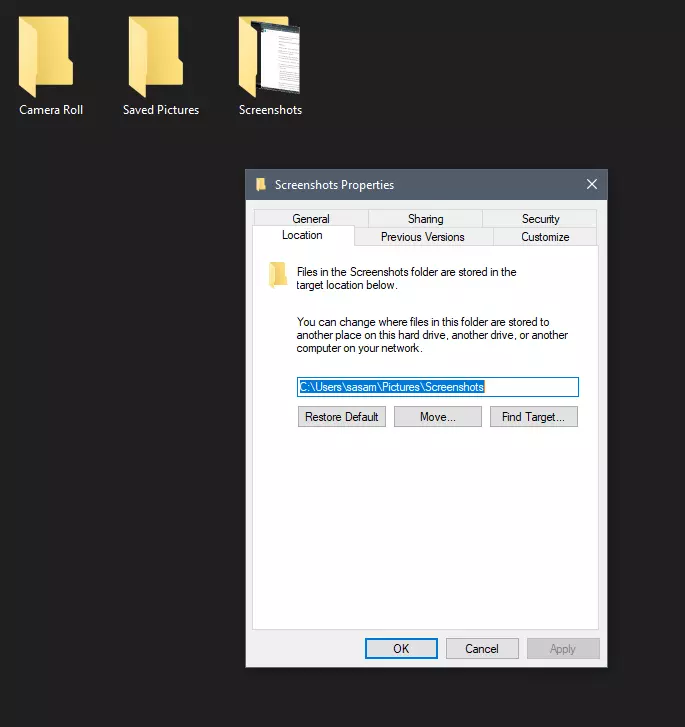
Each time when you press WINDOWS + PrtScn key on your keyboard a screenshot is taken and saved on your Hard drive, to be more precise, it is saved in a specific folder which is in c:\Users\Your user name\Pictures\Screenshots. Now, this specific location is not anything that's bad but it is a little deep and not so user-friendly for quick access.

screenshot properties

Luckily this default location can be changed into any folder that you like.

Changing location

First thing is to open File Explorer and then navigate to your PC. Once you go to your PC, go to Pictures, and inside right-click on the Screenshots folder. If there is no screenshots folder inside, this means that since Windows was installed no screenshots were taken with WINDOWS + PrtScn key combination. Please note that just by pressing PrtScn you will create a screenshot but you will place it inside the clipboard ready to be pasted somewhere, with WINDOWS + PrtScn you are saving the screenshot directly in a file on your hard drive.

So once you clicked on the Screenshots folder, go to the bottom and click on properties. Inside properties go to the Location tab. In the location, tab clicks on MOVE and browse to your new location where you would like screenshots to be saved. Once you select the folder for screenshots, click on the Select Folder button and confirm with OK. After this, Windows will ask you would you like to move existing screenshots into the chosen folder. Click YES or NO, depending on your preference.

After this easy setup, all of your new screenshots will be placed now inside the chosen folder.

Thank you for reading and I hope to see you tomorrow. Take care.

Read More
How to Set up POP3 Email in Outlook
No one knows everything about a program off hand. You need to use the program for a long time before you can even possibly know all that it is able to do and all you are able to achieve with it. However, this doesn’t mean that you don’t need help from time to time. This is also the case when Outlook errors pop up. Sometimes there are things you must or probably should do with your program that you do not understand and definitely don’t know how to do. Set up POP3 with your email account in Outlook is one of these things you will probably need help to achieve.

Steps to Set up POP3

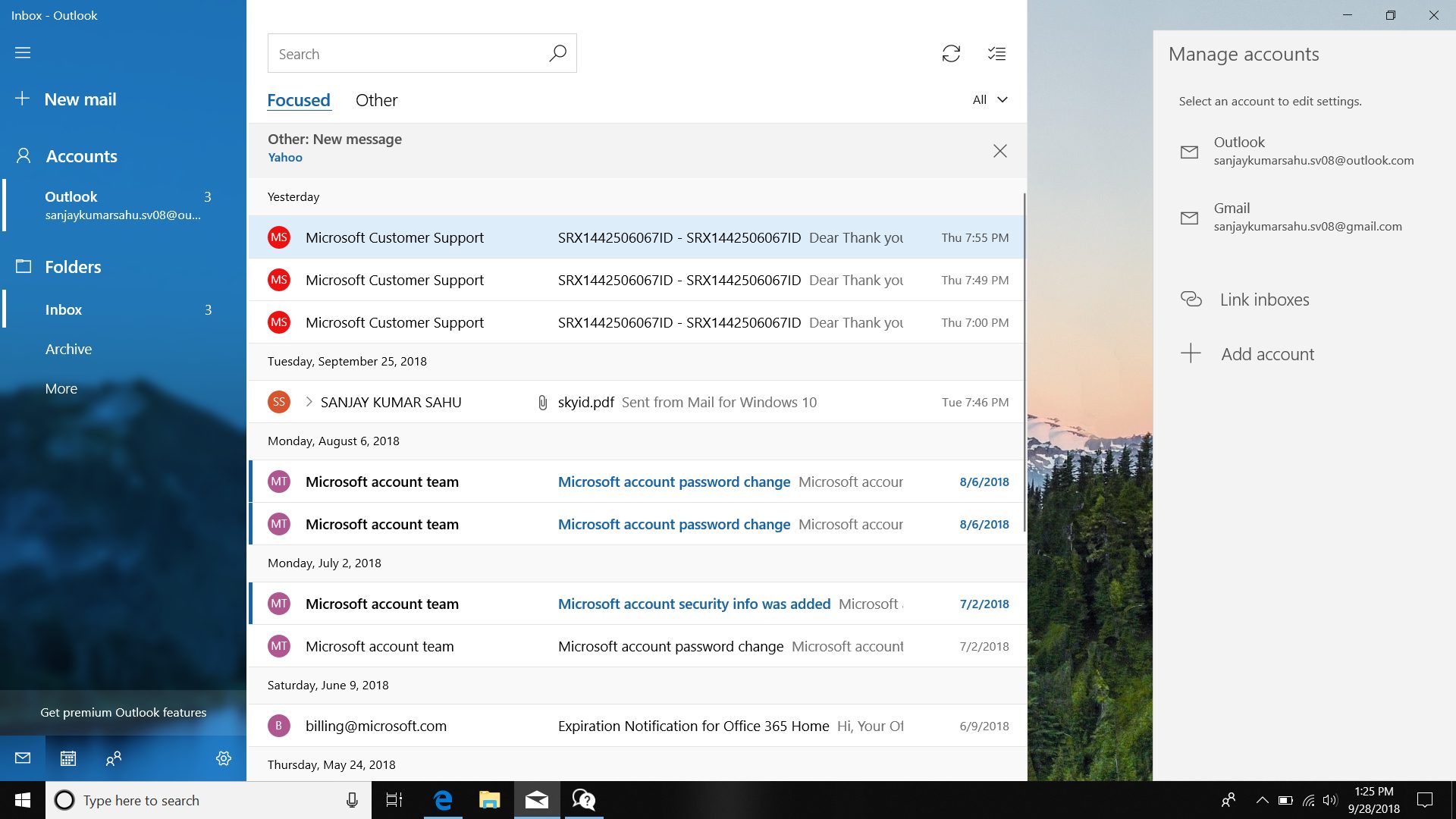
First, you may need to know what POP3 is. POP3 is the way emails are sent from one email address to another. It may be more or less instant nowadays, but the process is still long and hard-winded. Similar to how your letters get from your mailbox to the recipients' mailbox, your emails get from you to the next person. Letters are picked up in your mailbox and sent to your post office where they send it to the recipient’s post office who sends it to the recipient’s mailbox. Similarly, your email is sent to your outbox, which sends it to your email service provider, that sends it to the recipient’s email service provider who sends it to their inbox. This is one of the reasons that sending an email to someone who uses the same email service provider as you is about a millisecond faster. This process of sending emails is called POP3 and you need to set it up if you use Outlook on Microsoft. This, on Outlook, also determines which email account you send your emails from. You see, on Outlook and many other email service providers, you can have many different email addresses, no even necessarily with the email service provider’s prefix on the end. Now, if you want to see this for yourself, go on to your settings on Outlook and look for manage email accounts. If you have more than one email account, you will see them listed. Somewhere on the sidebar, you will see POP3 as well. If you want to add more email accounts to this, such as a business email or a personal email, then just click ‘Add new account’ instead of 'Manage email accounts'. When you click on an email account you have linked already, you will see on this side the details for your POP3 (incoming emails) and your SMTP (outgoing emails). This can be changed, but since everyone’s number of accounts and type of accounts is different, there is no set way to change this. However, you can give Microsoft a call and they will walk you through the necessary steps in order to change this.

Conclusion

So, POP3 can be incredibly easy to understand or incredibly hard; it depends on how good you are with electronics and the advice you are given. But don’t try to change things by yourself; get a professional from Microsoft to help you with POP3 on your Microsoft Outlook account.
Read More
Windows 10 exploit using App installer
Scammers have decided to target Windows’s 10 App installer process in order to infect your computer and steal your data. windows 10 mail exploitAs in most usual online scams, everything starts with a strange email containing threats and other poorly written and composed speech. At the end of the given email, there would be a link claiming that you, of course, need to read it and follow instructions about the threat, if you click the link it will open a web page where you will have an innocent-looking PDF file with more information about the threat itself. If you click on a seemingly innocent PDF file it will summon Windows 10's AppInstaller.exe tool, kickstarting a download-and-run process that'll put you in a bad place very quickly. From there, you'll have to deal with the dangers of malware BazarBackdoor, including data and credential theft. This kind of scam is nothing new but the interesting thing here is that it uses App installer and by clicking on a link you are opening and giving permission for a malicious crook to use it. So, stay safe and do not click on any links from unknown emails no matter what.

Read More
1 2 3 171
Logo
Copyright © 2023, ErrorTools. All Rights Reserved
Trademark: Microsoft Windows logos are registered trademarks of Microsoft. Disclaimer: ErrorTools.com is not affiliated with Microsoft, nor claims direct affiliation.
The information on this page is provided for information purposes only.
DMCA.com Protection Status