Logo

Experiencing Error Code 36, We Have A Solution!

Error Code 36 – What is it?

This is a common Device Manager Error Code that users encounter. It is commonly found on all Windows 2000 and later versions of Windows operating systems. Error Code 36 is usually prompted by the following message:

"This device is requesting a PCI interrupt but is configured for an ISA interrupt (or vice versa). Please use the computer's system setup program to reconfigure the interrupt for this device. (Code 36)"

Solution

driverfix boxError Causes

Error Code 36 occurs when there is a failure in IRQ translation due to your Windows operating system getting corrupted. This is caused due to a number of triggers, such as:

  • An excess of startup entries
  • Errors in registries
  • RAM or hardware failure
  • Excessive unnecessary installed programs
  • Malware or spyware

When programs are removed excessively, some programs are not removed completely and create problems in your computer’s registry.

Also, due to the presence of malware and spyware and other causes mentioned above, your computer registry builds up errors with the time that leads to slowing your PC, time lags, and even result in crashes and freezes.

Error Code 36 can cause internal and external components to malfunction or experience time lags such as DVD drive or printer and hence can severely affect your entire PC.

Further Information and Manual Repair

Error Code 36 is a severe PC error and any attempt at fixing the error must be approached with extreme caution for your PC to start functioning properly again. Here are two methods to fixing your PC.

Method 1 – Change IRQ reservation settings

Changing the IRQ reservation settings is the best way you can rely on to fix the error code. You can do this by changing the BIOS settings of your PC.

The BIOS stands for ‘Basic Input/Output System’ and is the program of your PC’s microprocessor that allows your PC to boot after you switch it on.

Caution needs to be exercised before changing the BIOS settings of your PC. This is because every PC’s BIOS version differs from another and any wrong attempt to change the settings may make matters worse.

It is therefore recommended to refer to hardware documentation that you received with your PC or motherboard and check for the model number and details of your PC’s motherboard.

Only after you have checked and confirmed all the details, should you use the specific BIOS settings required to configure your IRQ reservations?

Method 2 – Install DriverFIX

Error Code 36 isn’t an easy error to remove.

While changing the BIOS settings can work to restore your PC, it may create a whole lot of inconvenience for finding the time and effort to check the hardware documentation details and attempting to change the specific settings and especially, if your PC does not support the options to change IRQ reservations.

Given the high risks of fixing such an error, you can also install software that enables you to fix your slow PC at the click of a few buttons.

Programs such as DriverFIX can enable you to download and replace your outdated drivers with new updated ones without you having to look for them. It will detect which drivers to download based on your PC’s motherboard version from the program’s database and can get rid of error code 36.

Click here to download DriverFIX and remove error code 36 and any other type of Device Manager error from your PC.

Do You Need Help with Your Device?

Our Team of Experts May Help
Troubleshoot.Tech Experts are There for You!
Replace damaged files
Restore performance
Free disk space
Remove Malware
Protects WEB browser
Remove Viruses
Stop PC freezing
GET HELP
Troubleshoot.Tech experts work with all versions of Microsoft Windows including Windows 11, with Android, Mac, and more.

Share this article:

You might also like

Fix Printer driver issue in Windows
The printer can stop working for many various reasons, some of them are however tied to the printer driver itself. In this guide, we will address issues and provide you with advice on how to get your printer back in working order in no time. All of that being said let us fix your Printer driver issue.
  1. Check to see if the printer is plugged and that it has toner or colors and paper in the tray

    The simplest solutions are the best ones, and most of the time simplest issues are overlooked. To eliminate any basic issues check the printer cable does it has paper in the tray and check the status of toner or colors in it.
  2. Check if Windows troubleshooter will resolve the issue

    Bring up settings and choose devices, under devices click on printers and scanners. On the far right top, you have a link to start the troubleshooter, click on it. Windows built-in tools could resolve issues and fix them for you. If by any chance Windows is not able to find or resolve issues move to the next step.
  3. Check if the Device Manager is reporting an error and update the driver

    If the hardware is functioning properly then the issue might be in Windows not detecting device or driver malfunction. In any case, the Device Manager will be the one who will report this problem. In order to check to see if the driver is properly working press ⊞ WINDOWS + X to open the hidden start menu. keyboard with windows and x marked Once it opens, click on Device Manager to open it, If you have a driver device error inside Windows, you should see it immediately when entering the Device Manager, it will have a yellow exclamation mark beside it. Right-click on it and choose update driver.
  4. Reinstall driver

    If driver update failed or you already have the latest drivers, reinstalling them could fix the issue since drivers might have corrupted during installation of some update or application. Follow steps from point 3 to get to the driver in Device Manager, then right-click on it but instead of update choose to uninstall. Reboot Windows once the driver is uninstalled and Windows will install a new one automatically. If you do not want to update drivers automatically install the latest driver for your device, then reboot.
  5. Check Windows update

    Check to see if the latest Windows update is installed, update your Windows if needed
  6. Fix driver issue with DRIVERFIX

    If everything else fails, get DRIVERFIX, a premium solution for your PC issues, and fix driver errors.
Read More
How to remove Search Donkey

Search Donkey is a Potentially Unwanted Program for Windows developed by Western Web Applications, LLC. This program may inject ads into your browsing sessions, giving you false search results and advertisements.

As described by Western Web Applications: “Search Donkey is entirely free to use. To keep Search Donkey free, we’ve partnered with high-quality ad providers and you may see additional ads when Search Donkey is installed.

While installed, Search Donkey will keep track of your web search queries, allowing it to let you know what pages you already visited, however, this data is also used to better target personal unwanted ads.

Search Donkey has been flagged as a Potentially Unwanted Program (PUP) by several anti-virus scanners, and their website is blacklisted by Google, giving warning to whoever visits it, and due to the nature of this application, it is not recommended to keep on your computer.

About Adware

Exactly what is Adware? If you have ever owned a computer, then you’ve probably heard the word numerous times, but it is still beneficial to define it. The term “adware” is actually a short form of advertising-supported software and it includes programs that are solely designed to display ads on a computer. A kind of malware, it will come bundled right in with the software package that a user either installs or accesses. Shareware or freeware programs are often times packaged with adware. If adware penetrates your system without you knowing and sends information about you or your PC to 3rd parties, then it is spyware. Quite often, adware changes your web browser settings to open pop-up adverts or modifies browser homepage and default internet search engine to some unwanted website. Adware is a common problem that affects a large number of PCs around the globe. If your computer doesn’t have any anti-malware software then it’s very likely it could get infected with adware as well as other malware.

Adware and its effects on your PC:

Adware could generate and display plenty of ads of all sorts which in turn disrupt the functions of your personal computer while browsing the net. Pop-ups might also show up on your computer’s desktop even when you’re not online. Adware results in a reduction of available memory and processing power, or resources. It also causes a slow net connection because adware consumes bandwidth whenever it retrieves adverts from the internet. Adware was originally created to support companies to generate income when they offer the software away free of charge. However, adware nowadays displays hundreds of adverts which will cause your PC to slow down and even crash.

Adware prevention:

As we discussed, adware could potentially be harmful to your computer, generally not by itself, but by bringing other problems to you. A top-quality antivirus program has the capability of permanently removing adware. We recommend Safebytes Anti-Malware, one of the top-rated anti-malware programs by world-renowned industry experts. It will act either as a preventative tool stopping websites or software installations that contain adware or as a removal tool for an already infected computer. To prevent adware, download software from websites that you trust. Never download from websites that you have never been aware of or tried before; Always study the end-user license agreement (EULA) of any application you want to install; You need to avoid freeware and shareware where possible; Lastly, watch out for ActiveX, since many adware and spyware companies make use of the technology to install their wares onto your computer system

Malware Blocking Internet And All Anti-Malware Software? Do This!

All malware is bad and the consequences of the damage will vary based on the specific type of malware. Some malware variants alter browser settings by adding a proxy server or modify the PC’s DNS settings. In these instances, you will be unable to visit some or all internet sites, and thus not able to download or install the required security software to eliminate the malware. So what to do when malicious software prevents you from downloading or installing Anti-Malware? There are a few options you could try to get around with this problem.

Remove viruses in Safe Mode

In Safe Mode, you can actually change Windows settings, un-install or install some program, and eliminate hard-to-delete viruses and malware. If the malware is blocking access to the internet and affecting the computer, launching it in Safe Mode will let you download antivirus and run a diagnostic scan while limiting possible damage. To enter into Safe Mode or Safe Mode with Networking, press the F8 key while the PC is starting up or run MSConfig and look for the “Safe Boot” options under the “Boot” tab. Once you’re in safe mode, you can attempt to install your anti-malware program without the hindrance of the malicious software. At this point, you could run the anti-malware scan to eliminate viruses and malware without hindrance from another application.

Switch over to an alternate browser

Some malware only targets certain browsers. If this sounds like your case, use another web browser as it could circumvent the malware. If you suspect that your Internet Explorer has been hijacked by malware or otherwise compromised by hackers, the ideal approach is to switch over to a different internet browser like Firefox, Chrome, or Safari to download your chosen computer security software – Safebytes Anti-Malware.

Create a portable USB antivirus for eliminating malware

Another solution is to make a portable antivirus program on your USB flash drive. Adopt these measures to run the anti-malware on the affected computer system. 1) Download the anti-malware program on a virus-free PC. 2) Connect the flash drive to a USB slot on the clean computer. 3) Run the setup program by double-clicking the executable file of the downloaded software, which has a .exe file format. 4) Select the flash drive as the destination for saving the software file. Follow the directions to complete the installation process. 5) Transfer the pen drive from the clean computer to the infected computer. 6) Double-click the Safebytes Anti-malware icon on the thumb drive to run the software. 7) Hit the “Scan Now” button to start the virus scan.

Detect And Remove Viruses With SafeBytes Anti-Malware

Today an anti-malware tool can protect the computer from different types of online threats. But wait, how to decide on the best one amongst countless malware protection application that’s available out there? As you might be aware, there are many anti-malware companies and products for you to consider. A few are well worth your money, but many aren’t. You need to choose one that is reliable, practical, and has a strong reputation for its malware source protection. Amongst few good applications, SafeBytes Anti-Malware is the strongly recommended software for the security-conscious individual. SafeBytes anti-malware is a trustworthy tool that not only secures your PC permanently but is also very easy to use for people of all ability levels. With its outstanding protection system, this tool will easily detect and remove most of the security threats, including adware, viruses, browser hijackers, ransomware, trojans, worms, and PUPs.

SafeBytes has outstanding features when compared to other anti-malware programs. Below are some of the great ones:

Real-time Threat Response: SafeBytes provides 100 % hands-free real-time protection and is set to check, block, and eliminate all threats at its very first encounter. They’re very effective in screening and getting rid of different threats because they’re constantly revised with new updates and safety measures. Robust, Anti-malware Protection: With its enhanced and sophisticated algorithm, this malware removal tool can identify and get rid of the malware threats hiding in the PC effectively. Internet Security: SafeBytes gives an instant safety rating about the pages you’re about to visit, automatically blocking harmful sites and ensure that you’re certain of your safety while browsing the world wide web. “Fast Scan” Abilities: SafeBytes’s virus scan engine is one of the fastest and most efficient within the industry. It's targeted scanning seriously increases the catch rate for viruses which is embedded in various computer files. Low CPU and Memory Usage: This program is not “heavy” on your computer’s resources, so you’ll not see any overall performance issues when SafeBytes is working in the background. 24/7 Customer Support: You can obtain totally free 24/7 technical support from their computer experts on any product queries or computer security concerns. Overall, SafeBytes Anti-Malware is a solid program as it has lots of features and could identify and remove any potential threats. Malware problems will become a thing of the past once you put this software to use. So if you’re searching for the best malware removal application out there, and if you don’t mind paying out some money for it, opt for SafeBytes Anti-Malware.

Technical Details and Manual Removal (Advanced Users)

If you don’t want to use malware removal software and prefer to get rid of Search Donkey manually, you could do so by going to the Windows Add/Remove Programs menu in the control panel and deleting the offending program; in cases of web browser plug-ins, you may remove it by visiting the browsers Add-on/Extension manager. You’ll probably also want to reset your internet browser. To ensure the complete removal, manually examine your hard disk and registry for all of the following and remove or reset the values accordingly. But bear in mind, editing the Windows registry can be a complicated job that only experienced users and professionals should attempt to fix it. Furthermore, some malware keeps replicating which makes it tough to eliminate. It is advised that you do the removal procedure in Windows Safe Mode.
Files: % Program Files% \Search Donkey.exe %UserProfile%\Desktop\ Search Donkey.lnk %UserProfile%\Start Menu \ Search Donkey C:\Users\%CurrentUserName%\AppData\Local\Temp\nst2A8A.tmp\nsDialogs.dll (21 bytes) C:\ProgramData\SearchDonkey\Firefox\chrome\content\overlay.xul (391 bytes) C:\Users\%CurrentUserName%\AppData\Local\Temp\nst2A8A.tmp\System.dll (23 bytes) C:\ProgramData\SearchDonkey\IE\common.dll (11359 bytes) C:\ProgramData\SearchDonkey\Chrome\common.crx (5843 bytes) C:\Users\%CurrentUserName%\AppData\Local\Temp\nst2A8A.tmp\modern-wizard.bmp (4232 bytes) C:\Users\%CurrentUserName%\AppData\Local\Temp\nst2A8A.tmp\util_ex.dll (21609 bytes) C:\ProgramData\SearchDonkey\Firefox\chrome\content\main.js (17 bytes) C:\ProgramData\SearchDonkey\app.dat (172455 bytes) C:\Users\%CurrentUserName%\AppData\Local\Temp\nst2A8A.tmp\Helper.dll (27542 bytes) C:\Users\%CurrentUserName%\AppData\Local\Temp\nst2A8A.tmp\version.dll (14 bytes) C:\Users\%CurrentUserName%\AppData\Local\Temp\nst2A8A.tmp\Processes.dll (1772 bytes) C:\ProgramData\SearchDonkey\Firefox\chrome.manifest (196 bytes) C:\ProgramData\SearchDonkey\Uninstall.exe (12729 bytes) C:\ProgramData\SearchDonkey\Firefox\install.rdf (955 bytes) C:\ProgramData\SearchDonkey\SearchDonkey.ico C:\ProgramData\SearchDonkey\Chrome\common.crx C:\ProgramData\SearchDonkey\Firefox\chrome.manifest C:\ProgramData\SearchDonkey\Firefox\chrome\content\main.js C:\ProgramData\SearchDonkey\Firefox\chrome\content\overlay.xul C:\ProgramData\SearchDonkey\Firefox\install.rdf C:\ProgramData\SearchDonkey\IE\common.dll C:\ProgramData\SearchDonkey\SearchDonkey.ico C:\ProgramData\SearchDonkey\Uninstall.exe C:\ProgramData\SearchDonkey\app.dat Registry: HKEY_CURRENT_USER\Software\Microsoft\Windows\CurrentVersion\Uninstall\SearchDonkey \DisplayIcon %AppData%\%RANDOM CHARACTERS%\%RANDOM CHARACTERS%.exe,0 HKEY_CURRENT_USER\Software\Microsoft\Windows\CurrentVersion\Uninstall\SearchDonkey HKEY_CURRENT_USER\Software\Microsoft\Windows\CurrentVersion\Uninstall\SearchDonkey\UninstallString %AppData%%RANDOMCHARACTERS%\%RANDOM CHARACTERS%.exe

Read More
Cannot save media from Microsoft Photos
The Microsoft Photos app is a useful tool that allows users to view, edit, as well as create videos on their Windows 10 computers. Although it works just fine most of the time, there are some instances when you might encounter some issues when using it. One of these issues is when you cannot save media from the Photos app after you’ve edited an image. This is most likely related to a permission issue. However, according to some users, they got the error where the edited media file can’t be saved. When you encounter this kind of error, you will see the following error in your Photos app:
“It looks like you don’t have permission to save changes to this file. Try saving a copy instead.”
There are several options you can explore to resolve this error. You can try updating the Microsoft Photos app or verify the ownership of the destination folder. You can also re-register and reinstall the app. For more detailed instructions, make use of the options provided below.

Option 1 – Try to update the Microsoft Photos app

The first thing you can do to fix the problem is to update the Microsoft Photos app.
  • Open the Microsoft Store and click on the three horizontal dots for the menu located on the top right portion of the window to see the options.
  • Next, select Downloads and updates and then click the Get updates button in the top right. This will install any pending updates for all the apps including the Microsoft Photos app using the Microsoft Store.

Option 2 – Try to verify the ownership of the destination folder

The next thing you can do to fix the error is to verify the ownership of the folder because chances are, the location where you’re trying to save the file might not have enough permissions to read and write the file to the disk. Thus, you need to take ownership of the folder by following these steps:
  • Type “command prompt” in the Windows Search bar and then right-click on the relevant search result and select “Run as administrator”.
  • After that, if a User Account Control or UAC prompt appears, just click on Yes to proceed.
  • Next, type and enter this command: TAKEOWN /F <path>
  • Note that the <path> is the location of the folder or file in File Explorer.
  • Now type and enter this second command: ICACLS <path> /grant administrators:F
  • Finally, once the command has been executed, restart your computer and then see if you can now access the folder or file.

Option 3 – Try resetting the Photos app

If the first option of restarting the background process of the Photos app didn’t work for you, you can try to reset the Photos app so that it will use the default factory settings. Note that this option works when you are experiencing this issue after making a couple of changes in the Photos app.
  • To get started in resetting the Photos app, open the Windows 10 Settings.
  • Then go to Apps > Apps & features.
  • After that, scroll down until you see the Photos app option – click on it and open its Advanced options.
  • From there, you will see the Reset button, click on it and click and then click on it once more to confirm.
Note: The process may take a couple of minutes to complete. Once it’s done, open the pictures again using the Photos app.

Option 4 – Try reinstalling the Photos app

If none of the first two options given above worked, then you might want to consider reinstalling the Photos app. Unlike what most users think, it isn’t really that hard reinstalling preinstalled apps as you have the Windows PowerShell for that. To use this program in reinstalling the Photos app, follow these steps:
  • Open the Windows PowerShell program with admin privileges and key in the following command:
Set-ExecutionPolicy Unrestricted
  • After that, execute this second command to re-register and reinstall the Microsoft Photos app.
Get-AppXPackage -AllUsers | Foreach {Add-AppxPackage -DisableDevelopmentMode -Register "$($_.InstallLocation)AppXManifest.xml"}
Note: In the command given, do not forget to replace the “PackageFullName” with the actual package name for the Photos app. After executing the command, it will uninstall the Photos app from your computer so you need to install it again from the Windows Store by simply looking for it. Once you found it, just click on install to start the installation process.
Read More
Guide for Removing SMSFromBrowser Malware

What is SMSFromBrowser

SMSFromBrowser is a Browser Extension developed by MindSpark. This extension usually comes bundled up with other software or via online advertising. Allegedly this extension allows you to send SMS messages from your computer, however, all it does is point you to other websites that offer this service. While active this extension monitors your browsing behavior, it records your website visits, clicks, links, and sometimes even private information, in order to use this data to better serve additional ads. During your browsing sessions, you may encounter additional unwanted ads, sponsored links, and sometimes even pop-up ads. Several anti-virus scanners have detected this extension as a potentially unwanted extension / Browser Hijacker, and due to its privacy mining behavior, it is not recommended to keep it on your computer.

Browser hijackers (sometimes referred to as hijackware) are a kind of malicious software that modifies web browser settings without the computer owner’s knowledge or permission. These hijacks appear to be increasing at an astonishing rate around the world, and they could be actually nefarious and sometimes harmful too. Browser hijackers are capable of doing more than just modifying homepages. These are typically used to force hits to a specific site, manipulating web traffic to generate ad revenue. Though it might seem naive, these tools are made by vicious people who always try to take advantage of you, so that they can easily make money from your naive and distraction. As soon as the program attacks your laptop or computer, it starts to mess things up a whole lot that slows your system down to a crawl. In the worst-case scenario, you will be forced to deal with serious malware threats as well.

Indications of browser hijack

There are many signs of web browser hijacking: 1. home page is changed 2. your browser is constantly being redirected to porn sites 3. the default online search engine and the default browser settings are altered 4. discover new toolbars that you simply didn’t add 5. you notice numerous ads pop up on the browsers or computer screen 6. your browser gets sluggish, buggy crashes very often 7. you can’t go to specific sites such as homepages of anti-malware software.

How it infects your personal computer

A browser hijacker can be installed on your computer or laptop when you visit an infected site, click on an e-mail attachment, or download something from a file-sharing website. They can be included with toolbars, BHO, add-ons, plug-ins, or browser extensions. Some internet browser hijackers spread in user’s PC by using a deceptive software distribution technique known as “bundling” (often through freeware and shareware). A good example of a notorious browser hijacker is the most recent Chinese malware known as “Fireball”, which has attacked 250 million PCs worldwide. It acts as a hijacker but could be turned into a fully functioning malware downloader afterward. Browser hijackers could interrupt the user’s web surfing experience greatly, keep track of the websites visited by users and steal financial information, cause difficulty in connecting to the web, and eventually create stability problems, making applications and computers freeze.

Removal

Some types of browser hijackers can be effortlessly removed from your PC by deleting malicious applications or any other recently added freeware. Many times, it could be a tough job to discover and get rid of the malicious program because the associated file will be running as part of the operating system process. And there’s no denying the very fact that manual repairs and removal methods can be a difficult job for an amateur computer user. Also, there are several risks associated with fiddling around with the pc registry files. Browser hijackers could be effectively removed by installing and running an anti-malware application on the affected computer. To remove any browser hijacker from your PC, you can download the following professional malware removal program – Safebytes Anti-Malware. And utilize a system optimizer, such as Safebytes Anti-Malware, to erase all associated files in the registry and repair browser problems. All malware is detrimental and the degree of the damage may vary greatly according to the type of infection. Certain malware types alter web browser settings by adding a proxy server or modify the computer’s DNS configuration settings. In such cases, you will be unable to visit some or all internet sites, and thus unable to download or install the required security software to eliminate the infection. If you’re reading this article, odds are you’re stuck with a virus infection that is preventing you to download or install the Safebytes Anti-Malware program on your system. Follow the instructions below to get rid of the malware by alternative methods.

Install the anti-virus in Safe Mode

If the malware is set to run automatically when Microsoft Windows starts, entering Safe Mode could very well block the attempt. Just bare minimum required programs and services are loaded whenever you boot your PC into Safe Mode. To start your Windows XP, Vista, or 7 PCs in Safe Mode with Networking, follow the instructions below. 1) Tap the F8 key continuously as soon as your PC boots, however, before the large Windows logo shows up. This would invoke the “Advanced Boot Options” menu. 2) Use the arrow keys to choose Safe Mode with Networking and press ENTER. 3) Once this mode loads, you should have an internet connection. Now, get the malware removal application you need by using the web browser. To install the program, follow the guidelines in the installation wizard. 4) Right after the software is installed, let the diagnostic scan run to eliminate trojans and other malware automatically. Use an alternate internet browser to download an antivirus application Some malware only targets specific web browsers. If this sounds like your situation, employ another browser as it might circumvent the virus. The best way to avoid this problem is to opt for an internet browser that is known for its security measures. Firefox has built-in Phishing and Malware Protection to help keep you secure online.

Create a bootable USB anti-virus drive

Another option is to store and run an antivirus software program completely from a Flash drive. To run anti-malware from a flash drive, follow these simple steps: 1) On a virus-free PC, download and install Safebytes Anti-Malware. 2) Insert the pen drive on the same PC. 3) Run the setup program by double-clicking the executable file of the downloaded software, which has a .exe file extension. 4) Choose the USB flash drive as the destination for saving the software file. Follow the directions to complete the installation process. 5) Now, transfer the thumb drive to the infected computer system. 6) Double click the Safebytes Anti-malware icon on the pen drive to run the application. 7) Press the “Scan” button to run a full computer scan and remove malware automatically.

Benefits and Features of SafeBytes Anti-Malware

These days, an anti-malware tool can protect your computer or laptop from various types of internet threats. But wait, how to select the best one amongst plenty of malware protection applications that are available on the market? You may be aware, there are several anti-malware companies and products for you to consider. Some of them are good, some are ok types, and some will ruin your PC themselves! You need to be very careful not to select the wrong application, particularly if you purchase a premium application. When it comes to commercial antimalware tool options, many people opt for well-known brands, like SafeBytes, and they are quite happy with it. SafeBytes can be described as a powerful, real-time anti-malware application that is created to assist the average computer end user in safeguarding their computer from malicious internet threats. Through its cutting-edge technology, this software will help you protect your PC against infections caused by various kinds of malware and other threats, including spyware, adware, computer viruses, worms, trojan horses, keyloggers, ransomware, and potentially unwanted program (PUPs).

SafeBytes has excellent features when compared to various other anti-malware programs. A few of them are given as below:

Real-time Active Protection: SafeBytes gives you round-the-clock protection for your personal computer limiting malware attacks instantly. They are extremely effective in screening and removing various threats because they’re continuously revised with new updates and alerts. Robust, Anti-malware Protection: Safebytes is made on the best virus engine within the industry. These engines will detect and get rid of threats even during the early stages of a malware outbreak. Internet Security: SafeBytes inspects the hyperlinks present on a webpage for possible threats and informs you if the website is safe to visit or not, through its unique safety rating system. Low CPU Usage: SafeBytes is a lightweight and user-friendly anti-virus and anti-malware solution. Since it uses minimum computer resources, this application leaves the computer power exactly where it belongs to: with you actually. 24/7 Online Tech Support: You may get absolutely free 24/7 technical support from their computer experts on any product queries or computer security concerns. SafeBytes will keep your personal computer safe from the latest malware threats automatically with almost no input needed from you again. Once you have downloaded and installed this software, you will no longer have to bother about malware or any other security concerns. You will get the best all-around protection for the money you pay on SafeBytes anti-malware subscription, there isn’t any doubt about it.

Technical Details and Manual Removal (Advanced Users)

If you wish to manually remove SMSFromBrowser without the use of an automated tool, it may be possible to do so by removing the program from the Windows Add/Remove Programs menu, or in cases of browser extensions, going to the browsers AddOn/Extension manager and removing it. You will likely also want to reset your browser. To ensure the complete removal, manually check your hard drive and registry for all of the following and remove or reset the values accordingly. Please note that this is for advanced users only and may be difficult, with incorrect file removal causing additional PC errors. In addition, some malware is capable of replicating or preventing deletion. Doing this in Safe Mode is advised. The following files, folders, and registry entries are created or modified by SMSFromBrowser
Files: %ALLUSERSPROFILE%MicrosoftWindowsStart MenuProgramsSMSfromBrowser %ALLUSERSPROFILE%Start MenuProgramsSMSfromBrowser %LOCALAPPDATA%SMSfromBrowserTooltab %UserProfile%Local SettingsApplication DataSMSfromBrowserTooltab Registry: HKEY_CURRENT_USERSoftwareWow6432NodeMicrosoftWindowsCurrentVersionexplorerBrowser Helper ObjectsFFE35078-94B2-4FC0-990D-BF8289BC25E4 HKEY_CURRENT_USERSoftwareMicrosoftWindowsCurrentVersionexplorerBrowser Helper ObjectsFFE35078-94B2-4FC0-990D-BF8289BC25E4 HKEY_CURRENT_USERSoftwareWow6432NodeMicrosoftWindowsCurrentVersionexplorerBrowser Helper Objects3188EEFD-9259-445D-8CCD-B99D6296AD1A HKEY_CURRENT_USERSoftwareMicrosoftWindowsCurrentVersionExtStats3188EEFD-9259-445D-8CCD-B99D6296AD1A HKEY_CURRENT_USERSoftwareMicrosoftWindowsCurrentVersionExtSettingsFFE35078-94B2-4FC0-990D-BF8289BC25E4 HKEY_CURRENT_USERSoftwareMicrosoftWindowsCurrentVersionExtSettingsB1D7EA4A-79CA-454E-897F-F5A052E467F6 HKEY_CURRENT_USERSoftwareMicrosoftWindowsCurrentVersionExtSettings3188EEFD-9259-445D-8CCD-B99D6296AD1A HKEY_CURRENT_USERSoftwareMicrosoftInternet ExplorerApproved Extensions, value: 3188EEFD-9259-445D-8CCD-B99D6296AD1A HKEY_CURRENT_USERSoftwareMicrosoftInternet ExplorerApproved Extensions, value: B1D7EA4A-79CA-454E-897F-F5A052E467F6 HKEY_CURRENT_USERSoftwareMicrosoftInternet ExplorerApproved Extensions, value: FFE35078-94B2-4FC0-990D-BF8289BC25E4 HKEY_CURRENT_USERSoftwareMicrosoftInternet ExplorerToolbar, value: B1D7EA4A-79CA-454E-897F-F5A052E467F6 HKEY_CURRENT_USERSoftwareWow6432NodeMicrosoftTracingSMSfromBrowser_RASMANCS HKEY_CURRENT_USERSoftwareMicrosoftTracingSMSfromBrowser_RASMANCS HKEY_CURRENT_USERSoftwareWow6432NodeMicrosoftTracingSMSfromBrowser_RASAPI32 HKEY_CURRENT_USERSoftwareMicrosoftTracingSMSfromBrowser_RASAPI32 HKEY_CURRENT_USERSoftwareAppDataLowHKEY_CURRENT_USERSoftwareSMSfromBrowser_f7 HKEY_CURRENT_USERSoftwareMicrosoftInternet ExplorerDOMStoragesmsfrombrowser.dl.myway.com HKEY_CURRENT_USERSoftwareSMSfromBrowser HKEY_LOCAL_MACHINEHKEY_CURRENT_USERSoftware[APPLICATION]MicrosoftWindowsCurrentVersionUninstall..Uninstaller
Read More
How to Resolve Error Code 0x80070643 in Windows 10

Error Code 0x80070643 – What is it?

Error Code 0x80070643 or Windows Update error code affects various versions of the Windows operating system, including Windows 10. Error code 0x80070643 usually occurs due to corruption within the .Net Framework. When this occurs, users will be unable to install updates they have downloaded on their PC.

Solution

Restoro box imageError Causes

Error codes within Windows occur for many reasons including corrupt system files, viruses, and lack of space on your PC. In terms of error code 0x80070643 in Windows 10, the cause usually relates to a problem with the .NET framework or errors within one’s registry.

Further Information and Manual Repair

To solve error code 0x80070643 in Windows 10, users will need to employ various manual repair methods. These methods seek to fix core problems that result in the error being present on your device in the first place. Thus, the methods include the use of the .Net Framework Repair tool, resetting Windows Update components, or running a clean boot.

Note that the instructions provided in this article must be followed correctly, as making changes to your computer via these manual repair methods can result in serious problems if mistakes are made. Consider a Windows repair technician if you are unable to complete the steps mentioned in the manual repair methods below. Note, failure to rectify this error might result in other error messages, such as error code 0xc004fc03

Method One: Run the .Net Framework Repair Tool

As error code 0x80070643 may be triggered by issues related to the .Net Framework on your machine, it’s important that you download the .Net Framework Repair tool. This tool, as the name suggests, helps to repair errors it detects within the setup or updates associated with the framework.

The tool is available on the official Windows site. Download the tool and follow the instructions provided. Once you’ve downloaded the .Net Framework Repair tool, run it and wait until it fixes all problems detected within the framework.

Afterward, reboot your computer and check to see if Windows Update is functioning properly. If the error code reoccurs, proceed to another solution by implementing the second manual repair method listed in this article.

Method Two: Reset Windows Update Components

This method is the most technical of all the methods mentioned in this article. It will require that Windows 10 user access Command Prompt and make modifications to the Windows registry – an area of the operating system which stores important information, settings and other details regarding hardware and programs installed on your machine. Follow the steps carefully and be sure to back up the registry before proceeding with this manual repair method.

Step one: Type Command Prompt in the search box near Start, then select Command Prompt (Admin).

Step two: Select Yes as soon as the User Account Control box appears.

Step three: Stop Windows Update service, the BITS service, and Cryptographic service by typing the following commands:

net stop bits

net stop wuauserv

net stop appidsvc

net stop cryptsvc

Step four: Be sure to press Enter after typing each command.

Step five: Type the following command, then Enter to delete qmgr*.dat files:

        Del "%ALLUSERSPROFILE%Application DataMicrosoftNetworkDownloaderqmgr*.dat"

Step six: Press enter after typing the following command:

        cd /d %windir%system32

Step seven: Reregister the files for BITS and Windows Update that you stopped in step three. To do this, type the following commands, selecting Enter after each command:

        regsvr32.exe atl.dll

        regsvr32.exe urlmon.dll

        regsvr32.exe mshtml.dll

        regsvr32.exe shdocvw.dll

        regsvr32.exe browseui.dll

        regsvr32.exe jscript.dll

        regsvr32.exe vbscript.dll

        regsvr32.exe scrrun.dll

        regsvr32.exe msxml.dll

        regsvr32.exe msxml3.dll

        regsvr32.exe msxml6.dll

        regsvr32.exe actxprxy.dll

        regsvr32.exe softpub.dll

        regsvr32.exe wintrust.dll

        regsvr32.exe dssenh.dll

        regsvr32.exe rsaenh.dll

        regsvr32.exe gpkcsp.dll

        regsvr32.exe sccbase.dll

        regsvr32.exe slbcsp.dll

        regsvr32.exe cryptdlg.dll

        regsvr32.exe oleaut32.dll

        regsvr32.exe ole32.dll

        regsvr32.exe shell32.dll

        regsvr32.exe initpki.dll

        regsvr32.exe wuapi.dll

        regsvr32.exe wuaueng.dll

        regsvr32.exe wuaueng1.dll

        regsvr32.exe wucltui.dll

        regsvr32.exe wups.dll

        regsvr32.exe wups2.dll

        regsvr32.exe wuweb.dll

        regsvr32.exe qmgr.dll

        regsvr32.exe qmgrprxy.dll

        regsvr32.exe wucltux.dll

        regsvr32.exe muweb.dll

        regsvr32.exe wuwebv.dll

Step eight: Reset Winsock in Command Prompt by typing the following command, then selecting Enter:

      netsh winsock reset

Step nine: Configure proxy settings in Windows 10 with the following command, then press Enter:

     netsh winhttp reset proxy

Step ten: To restart the BITS, Windows Update, and Cryptographic service, type the following commands, then press Enter:

        net start bits

        net start wuauserv

        net start appidsvc

        net start cryptsvc

Step eleven: Install the latest Windows Update Agent.

Step twelve: Restart your machine.

Once you’ve restarted your PC, check Windows Update to verify if the error code is resolved. You should now be able to access the latest updates on your device. However, if a problem has arisen and the error code reoccurs, you will need to proceed with a Clean Boot.

Method Three: Download an Automated Tool

If you wish to always have at your disposal a utility tool to fix these Windows 8 and other related issues when they do arise, download and install a powerful automated tool.

Read More
Automatically Adjust Active Hours in Windows
In case you didn’t know, the new Windows 10 v1903 has brought tons of new features around Windows 10 Updates. One of these features is the ability to automatically adjust the Active Hours based on your computer activity. This feature is really useful as it tells the operating system when to install the Windows Updates. A lot of users use the Active Hours feature to ensure that the Windows Update won’t force them to restart their PCs to install the update. So if your computer is turned on, it won’t apply the update during the active hours you’ve specified. In addition, the active hours change for many users and they are not that strict. For instance, if you set the active hours between 10 am to 5 pm, Windows Update won’t be forcing you to restart your computer to install the updates at those times. Note that Windows Update allows enabling an option using where it can monitor the active hours in your computer and change it. To configure this setting, here’s what you have to do:
  • Frist, go to Settings > Update & security > Windows Update.
  • Next, take note of your current active hours and click on the “Change active hours” link.
  • Then toggle the option that says, “Automatically adjust active hours for this device based on activity”. This will change the active hours and if you match it with the previous one, it should be different.
As you can see on the image given above, the earlier active hours were between 8:00 to 17:00 and were changed to 11:00 to 19:00. If you have been using this feature for a while you’ll find how useful and handy it is especially when you’re using your computer and don’t want any notifications like the prompts for Windows Updates to bother you while working.
Read More
Swap between headphones and speakers in 1 sec
Hello and welcome to errortools another tutorial which aims to make your computer life easier and more relaxed. This time we will be talking about how to switch sound output devices in Windows 10 in a matter of seconds between Headphones and external speakers, Between 2 different speakers, or any other audio output device in general. Windows 10 with its updates has really gone from OK to one of the greats, little hacks and shortcuts which every update has introduced have really made life easier. Now, your typical switching from one audio output device to another can be accomplished with your standard go to settings, go to devices, choose audio, pick one which you prefer and click on OK. This way altho nothing wrong with it is a little slow and if you need to switch your output devices several times in a single day often it can be time-consuming as well. Lucky for you we have a quick solution for you.

Switching guide

All right, now in order to be able to actually switch between your audio output devices make sure that all of them are working and that they are plugged in. For example, make sure that both of your headphones and speakers are turned ON and plugged in. Once you have confirmed that everything is in working order:
  1. Click with a left mouse button on a speaker icon located on the right part of your taskbar next to the clock
  2. Click on the small up arrow on the right next to your current audio output device.
  3. The list will open, choose, and left click with the mouse button on your choice.
And that's it, you have changed your default audio output device in a matter of seconds. The good thing about this method is that Windows will remember output audio levels for each device.

Potential issue

If by any chance when switching your audio devices this way freezes volume control just go to the task manager and restart Windows Explorer. To restart Windows explorer:
  1. Press CTRL + ESC to open task manager
  2. Right-click on Windows Explorer
  3. Left-click on restart
Read More
Fix Windows Activation Error 0xC004F211
If you got an Activation Error 0xC004F211 after having installed or upgraded your Windows 10 PC, then this indicates that some hardware in your computer has changed which’s causing the error to pop up. Windows might not be able to determine if the key is used on a new computer or if it’s still the same one if you have just removed or upgraded old hardware. But worry not for this post will guide you in fixing the Windows Activation Error 0xC004F211 on your Windows 10 computer. When you encounter this error, you will see the following error message on your screen:
“Cannot activate Windows 10. Try activating again later. If that doesn’t work, contact support. Error code: 0xC004F211.”
Note that although hardware changes cause this error, the minor ones don’t really cause any issues with activation, however, if you have made any significant hardware change such as replacing your motherboard, it will most likely cause the activation error. In such cases, the Windows Activation system will treat this as new hardware and you will need a new license for that. Even if your Windows 10 computer has a genuine key, it might still fail to get activated which results in the Windows Activation Error 0xC004F211. Thus, before you do other troubleshooting steps, you need to run the Windows 10 Activation Troubleshooter first. To do so, follow these steps:
  • Go to Settings and then select Activation.
  • After that, click on the Windows Activation and then troubleshoot. This will help you address most of the commonly found activation issues in Windows devices.
In addition, there is an exception offered by Microsoft – if you are connected to a Microsoft account prior to the hardware change, then you can most certainly use the same license key to reactivate Windows 10 again. Microsoft calls this an “Exception path” which should be fixed easily by the Windows Activation Troubleshooter as pointed out earlier. However, if the Windows Activation Troubleshooter isn’t able to resolve the error you can try purchasing a new license. In such rate case, even if you do have a Microsoft account available on your Windows 10 computer, and if Windows was never activated, this solution will not work. And if you haven’t connected your Microsoft account with your Windows 10 computer prior to the major hardware change, then your only option left is to purchase a new license. For you to do that here are some steps you can follow.
  • To purchase a new Windows license, the first thing you have to do is click on the Start button > Settings > Update & Security.
  • From there, go to Activation and select the “Go to Microsoft Store” option.
  • After receiving your new license, you need to go back to Update & Security then go to Activation and select the “Change product key” option.
  • Now update your Windows 10 computer using the new key and it should automatically activate your computer.
  • Next, you have to create a Microsoft account or connect your existing local account to your online account.
  • Once the system links the key and the account, you need not buy a new license in case something like this happens again.
Note: If you are an IT administrator, you need to keep in mind that there is a limit to the number of times you can reactivate Windows on your computer. Moreover, if you don’t see any option to reactivate the license, and it is a work computer, you need to contact your organization’s tech support.
Read More
0x800701e3, The request failed due ...
A lot of things can go wrong even when you’re only doing some simple operations or tasks on your computer and this is due to the fact that there are various small operations make up in order to perform the larger operations on your computer. So if any of these smaller operations are not properly working, it crashes the operation as a whole and it throws an error code instead. And one of these error codes is Error 0x800701e3. This particular error pops up when an error has occurred in the File Explorer when a transfer is initiated from one disk to another in your Windows 10 computer. When you encounter this error, you will get the following error message:
“Error 0x800701e3: The request failed due to a fatal hardware error.”
There are several methods you can check out to fix this error – you can try to run System Restore or Check Disk or format the destination drive or check the SMART attribute of the drive. For more details, refer to each one of the following options.

Option 1 – Try to run System Restore

Error 0x800701e3 might be due to some adjustments you’ve made in your computer’s settings. Thus, to fix this error, you can try undoing those changes using System Restore. How? Refer to these steps:
  • Tap the Win + R keys to open the Run dialog box.
  • After that, type in “sysdm.cpl” in the field and tap Enter.
  • Next, go to the System Protection tab then click the System Restore button. This will open a new window where you have to select your preferred System Restore point.
  • After that, follow the on-screen instructions to finish the process and then restart your computer and then check if your mouse is now back to its normal state.

Option 2 – Try running the Check Disk utility

You can also run the Check Disk utility in fixing Error 0x800701e3.
  • In the Windows Search box, type “command prompt” and from the search results, right-click on Command Prompt and select “Run as administrator”.
  • After opening Command Prompt, type this command and tap Enter: chkdsk <Partition Letter>: /f /r /x /b
  • The command you entered will start to check for errors and fix them automatically. Else, it will throw an error message saying, “Chkdsk cannot run because the volume is in use by another process. Would you like the schedule this volume to be checked the next time the system restarts? (Y/N)”.
  • Tap the Y key to schedule Disk Check the next time your computer restarts.

Option 3 – Try to format the destination drive

Formatting the destination drive could also help you resolve error 0x800701e3. To format your drive, follow these steps:
  • First, open File Explorer and then right-click on the drive where you encountered the error.
  • Next, select Format from the context menu. This will open a new mini window.
  • Then select the NTFS option from the drop-down menu for the File System menu.
  • After that, check the box labeled as Quick Format.
  • Now click on Start. Keep in mind that doing so will remove all the contents of your storage device.

Option 4 – Verify the hard drive using SMART attributes

In case you don’t know, Windows has a built-in feature of SMART analysis which analyzes the hard drive/SSD and checks all the parameters by performing some minor operations. To use it, follow these steps:
  • Tap the Win + S keys and type “command prompt” in the field then right-click on the related search result and select the “Run as administrator” option.
  • After opening Command Prompt as admin, type the “wmic diskdrive get status” command and hit Enter.
  • You should get a result after that, and if you see that it’s “normal”, proceed to the next option below
Read More
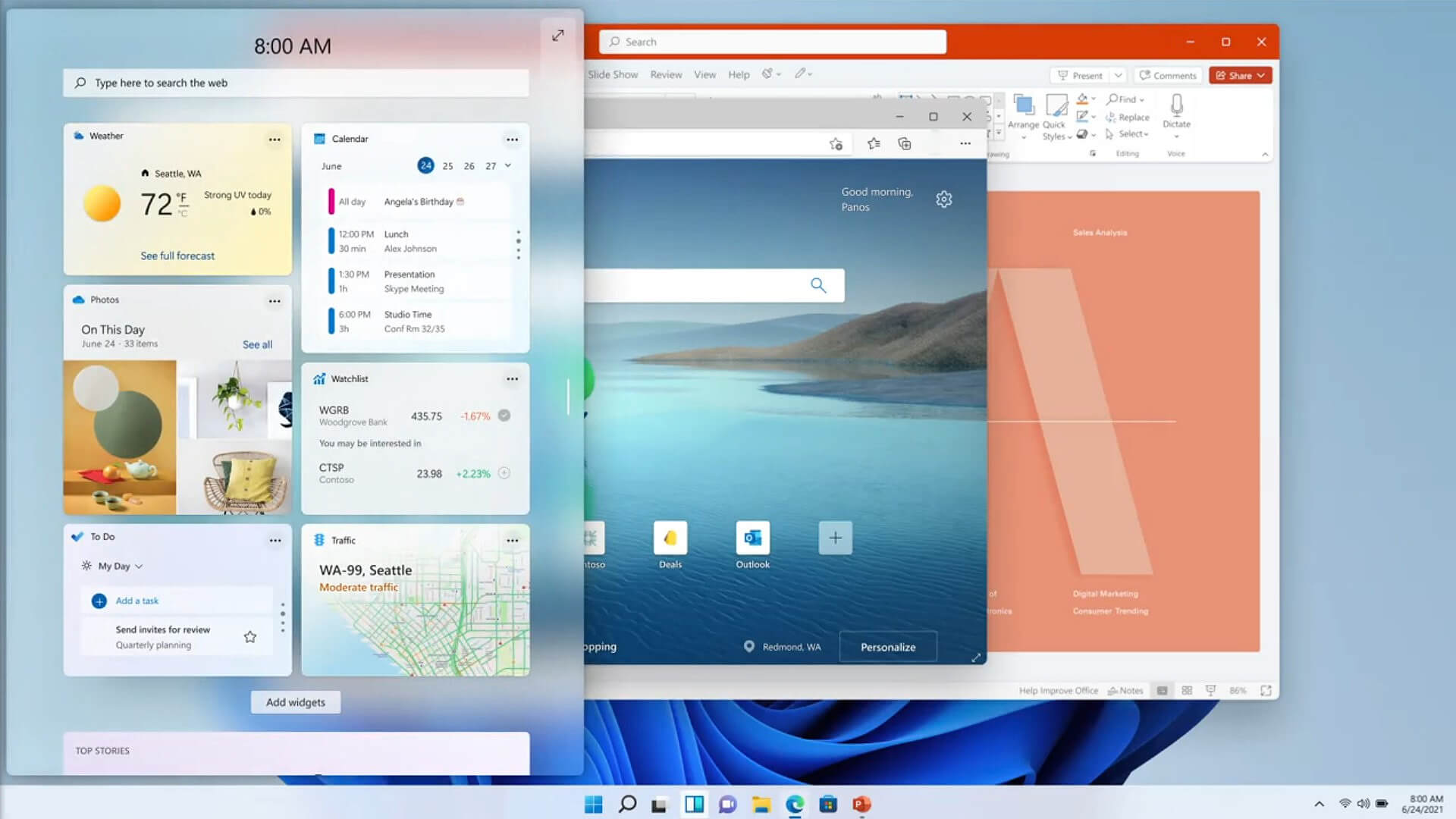
Windows 11 Insider Preview Build 22000.71
Microsoft just released Windows 11 Insider build 22000.71. Let’s dive in and see what it brings with you.

windows insider 2000Changes and features

New entertainment widget. The entertainment widget allows you to see new and featured movie titles available in the Microsoft Store. Selecting a movie will direct you to the Microsoft Store to see more information about that title. Just open widgets and click or tap on the “Add widgets” button and choose the entertainment widget. For now, the entertainment widget is available for Insiders in the following countries: US, UK, CA, DE, FR, AU, JP. The new context menus and other right-click menus have been updated to use acrylic material. We are testing the usability of a SplitButton for making new folders and files in the File Explorer command bar. The Taskbar previews (when you mouse-over open apps on the Taskbar) have been updated to reflect the new visual design of Windows 11.

Fixes

Taskbar:

  • We fixed an issue where if you drag app icons on the Taskbar to rearrange them, it was making the apps launch or minimize when you released the icon.
  • Using a long press with a touch on an app icon in the Taskbar to open the jump list should now work.
  • After right-clicking the Start icon in the Taskbar, clicking somewhere else should now dismiss the menu more reliably.
  • Shift + Right-click on an app icon in the Taskbar will now bring up the window menu like it used to and not the jump list.
  • We’ve addressed an issue that was making your mouse move slowly when hovering over the Taskbar previews.
  • We’ve included the fix for an issue when using multiple Desktops where an app icon in the taskbar might give the appearance of multiple windows being open when that wasn’t the case on that Desktop.
  • When using the Amharic IME you should no longer see an unexpected X next to the IME icon in the taskbar.
  • The issue where if you click on the input indicator on the Taskbar and it would unexpectedly highlight Quick Settings has been fixed.
  • When you hover over Task View, the preview flyout for your Desktops will no longer pop back up after using Esc to dismiss them.
  • We made a fix to address an issue where explorer.exe might crash after hovering over the Task View icon in the Taskbar.
  • We fixed an issue where the selected date in the calendar flyout was out of sync with the date in the Taskbar.
  • We made an update to address a scenario resulting in some Insiders not seeing the lunar calendar text in the calendar flyout when enabled in Settings.
  • This flight addressed an issue that could unexpectedly make the Taskbar background transparent.
  • Right-clicking the focus assist icon in the taskbar should now show a context menu.
  • The issue from the previous flight where icons in the taskbar corner were getting crushed against the top of the Taskbar has been addressed.
  • The tooltip for the location in use icon in the Taskbar should no longer appear blank sometimes.

Settings:

  • We fixed an issue making Settings crash on launch periodically.
  • Using the volume mixer sliders in Sound Settings should be more responsive now, as well as the page responsiveness as a whole.
  • We fixed an issue resulting in Disk and Volumes Settings’ change size option being clipped.
  • There was a non-functional verify link under Backup Settings – this has been fixed.
  • The Power and Battery Settings page should no longer be reporting that the battery saver is engaged if it’s not.
  • The Power and Battery Settings page should also now not crash when launched from Quick Settings.
  • We fixed a grammatical error in the Sign-in Settings text.
  • The “I forgot my PIN” link was unexpectedly missing in Sign-in Settings when a PIN was set up and has now been returned.
  • The issue where the Move option under Apps & Features in Settings wasn’t working reliably should be addressed in this build.
  • We’ve mitigated a problem where some of the colors in Settings weren’t updating after switching between dark and light mode, leaving the unreadable text.
  • We’ve done some work to help improve the performance of Settings when switching between light and dark mode.
  • We addressed an issue where some of the elements of the Themes page in Settings would end up crowded together when the window size was small.
  • We resolved an issue where the Pen menu toggle under Taskbar Settings was not in sync with the actual state of the feature.
  • Changes made to “Dismiss notification after this amount of time” in Accessibility Settings should now persist.
  • Some of the icons you could enable in Taskbar Settings were erroneously labeled Windows Explorer even though that’s not what they were – this should now be fixed.
  • The Connect text in Quick Settings has been updated to say Cast.

File Explorer:

  • Clicking the command bar button twice should now close any dropdown that appeared.
  • The new command bar should now appear when “Open folders in a separate process” is enabled under File Explorer Options > View.
  • This build addresses an issue where right-clicking a file and selecting Open With > Choose another app might launch the file in the default app rather than opening the Open With dialog.
  • Fixed an issue the desktop and File Explorer context menu would stop launching.

Search:

  • We fixed an issue where the option to verify your account in Search wasn’t working.
  • Hovering over the Search icon on a secondary monitor will now show the flyout on the correct monitor.
  • Search should now work if you open Start and start typing after having gone to the apps list and back.

Widgets:

  • When using the Outlook client with a Microsoft account, Calendar, and To-Do updates should sync faster down to the widgets.
  • We addressed an issue where if you added multiple widgets quickly from the widget's settings, it could result in some of the widgets not being visible on the board.
  • We fixed a bug where widgets could all become stuck in a loading state (blank squares in the window).
  • The traffic widget should now follow the Windows mode (light or dark).
  • The title of the sports widget should no longer mismatch with the content of the widget.

Other:

  • This build addresses an issue where ALT + Tab was getting stuck open sometimes after you released the keys and had to be manually dismissed.
  • We made a fix for an issue where Narrator's focus wasn’t ending up on the emoji panel after using the keyboard shortcut to open it.
  • Magnifier’s lens view has been updated so the lens now has rounded corners.
  • We found an issue that was noticeably impacting Start launch reliability for some Insiders, and have addressed it with this flight.
  • We’ve updated the “Most Used” text in the Start menu’s app list so it should no longer be getting clipped.
  • Using the semantic zoom in Start’s app list should no longer result in the list being pushed down and to the right off the edge of the window.
  • We fixed an issue where if you pressed ⊞ WIN + Z you would need to press Tab before you could use the arrow key to navigate through the snap layouts.
  • We addressed an issue where an acrylic area could get left on the screen after repeatedly snapping and unsnapping a window with touch.
  • We’ve done some work to mitigate an unexpected flash when moving a snapped window with touch.
  • We made a change to help window borders have a little more contrast when “Show accent color on title bars and windows borders” was turned off.

Known issues in Windows 11 repaired

Start:

  • In some cases, you might be unable to enter text when using Search from Start or the Taskbar. If you experience the issue, press ⊞ WIN + R on the keyboard to launch the Run dialog box, then close it.
  • Based on feedback, we are working on adding access keys to ⊞ WIN + X so that you can do things like “⊞ WIN + X M” to launch Device Manager. Insiders may see this functionality in this build, however, we are currently investigating an issue in which sometimes the option is unexpectedly unavailable.

Taskbar:

  • There is an issue in this build where Explorer.exe will crash when the date and time button on the Taskbar is clicked to access new notifications with Focus Assist turned off. The workaround for this is to enable Focus assist to priority or alarms mode. Note that when focus assist is turned on, notification popups won’t appear, but they will be in the notification center when opened.
  • The Taskbar will sometimes flicker when switching input methods.
  • Taskbar previews may draw partially offscreen.

Settings:

  • When launching the Settings app, a brief green flash may appear.
  • When using Quick Settings to modify Accessibility settings, the settings UI may not save the selected state.
  • The button to rename your PC doesn’t work in this build. If needed, this can be done using sysdm.cpl.
  • Settings will crash when clicking “Facial recognition (Windows Hello)” under Sign-in Settings if Windows Hello is already set up.
  • Reset this PC and Go back buttons in Settings > System > Recovery does not function. Reset and rollback can be accessed from the Windows Recovery Environment by selecting System > Recovery > Advanced startup, and pressing Restart now. Once in Windows Recovery, choose Troubleshoot.
  • Choose Reset this PC to perform a reset.
  • Choose Advanced options > Uninstall Updates > Uninstall latest feature update to perform a rollback.

File Explorer:

  • exe crashes in a loop for Insiders using the Turkish display language when the battery charge is at 100%.
  • When right-clicking the desktop or File Explorer, the resulting context menu and submenus may appear partially off-screen.
  • Clicking a desktop icon or context menu entry may result in the wrong item being selected.

Search:

  • After clicking the Search icon on the Taskbar, the Search panel may not open. If this occurs, restart the “Windows Explorer” process, and open the search panel again.
  • When you hover your mouse over the Search icon on the Taskbar, recent searches may not be displayed. To work around the issue, restart your PC.
  • The search panel might appear black and not display any content below the search box.

Widgets:

  • Widgets board may appear empty. To work around the issue, you can sign out and then sign back in again.
  • Launching links from the widgets board may not invoke apps to the foreground.
  • Widgets may be displayed in the wrong size on external monitors. If you encounter this, you can launch the widgets via touch or WIN + W shortcut on your actual PC display first and then launch on your secondary monitors.

Store:

  • The install button might not be functional yet in some limited scenarios.
  • Rating and reviews are not available for some apps.

Windows Security:

  • Device Security is unexpectedly saying “Standard hardware security not supported” for Insiders with supported hardware.
  • “Automatic sample submission” is unexpectedly turned off when you restart your PC.

Localization:

  • There is an issue where some Insiders may be missing some translations from their user experience for a small subset of languages running the latest Insider Preview builds. To confirm if you have been impacted, please visit this Answers forum post and follow the steps for remediation.
That's is so far, the latest update information on Windows 11 insider build. Stay tuned for more information when it comes as it comes.
Read More
1 2 3 171
Logo
Copyright © 2023, ErrorTools. All Rights Reserved
Trademark: Microsoft Windows logos are registered trademarks of Microsoft. Disclaimer: ErrorTools.com is not affiliated with Microsoft, nor claims direct affiliation.
The information on this page is provided for information purposes only.
DMCA.com Protection Status