Find out bottlenecks in your PC easily

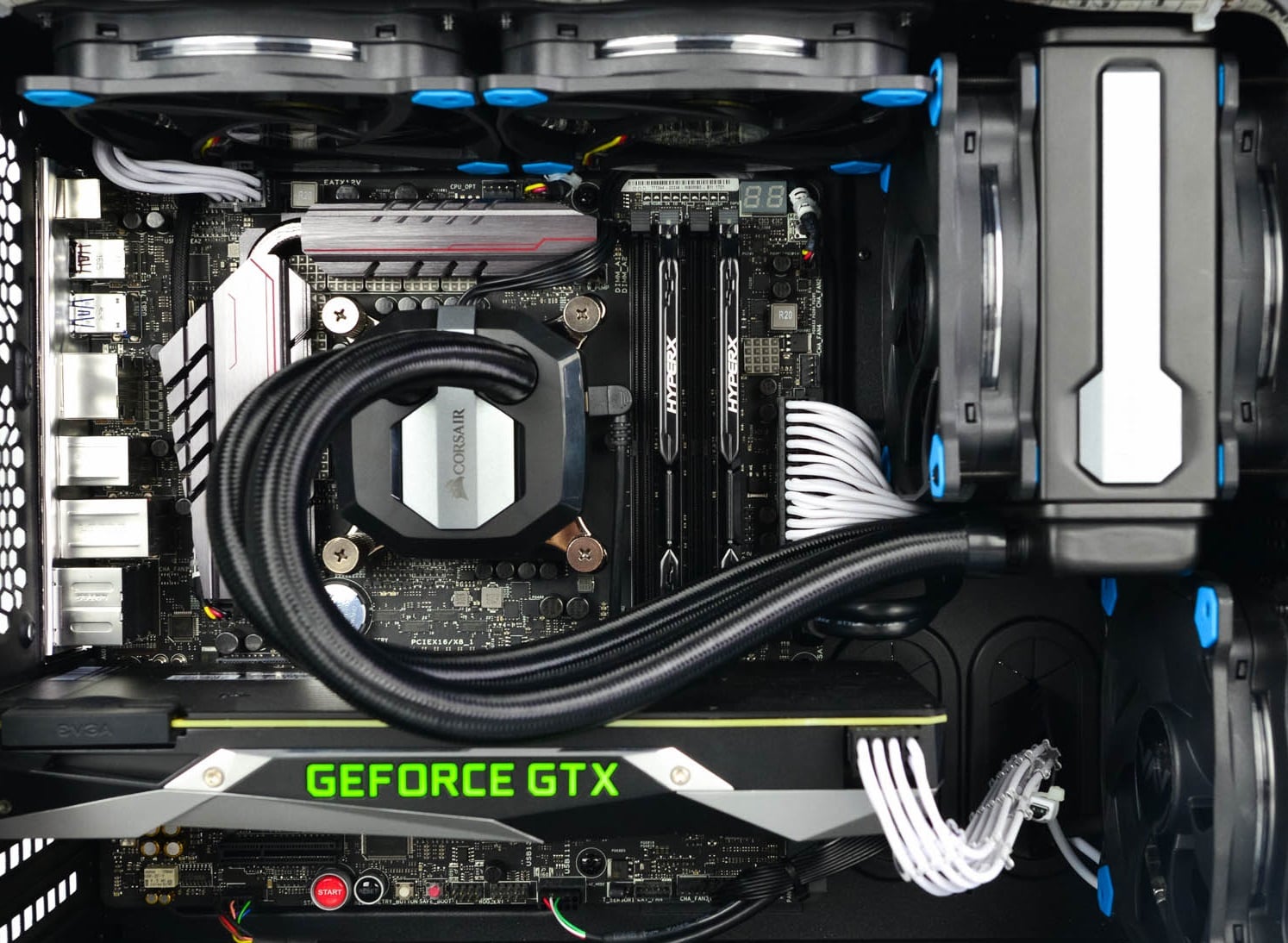
Building a custom PC is a great feeling but it can sometimes not be ideal and we are not talking about breaking or losing parts. What we mean is that choosing the right components can be sometimes a difficult task. Of course, picking a PC case can have its issues, choosing the right power supply can be tricky but pairing all components together, especially CPU and GPU can be tricky.

bottlenecksBuilders with no depth knowledge and experience can sometimes choose improper CPU or GPU, picking one of them to be much more powerful than another thus not using it to its full potential because another component cannot handle stuff at the same speed. In order to not be trumped by this kind of stuff, there is a website that is completely free and you do not even need to be registered in order to use it.


Bottlenet calculator link here

What is even better, once you input your components you will get advice on what to change in order to tweak the system a little more to avoid bottlenecks even more. It is a very useful tool and we are advising you to use it in order to save money but not throwing it on some component that will be half used.

Do You Need Help with Your Device?

Our Team of Experts May Help
Troubleshoot.Tech Experts are There for You!
Replace damaged files
Restore performance
Free disk space
Remove Malware
Protects WEB browser
Remove Viruses
Stop PC freezing
GET HELP
Troubleshoot.Tech experts work with all versions of Microsoft Windows including Windows 11, with Android, Mac, and more.

Share this article:

You might also like

Display driver nvlddmkm stopped responding
Users are reporting that randomly their screen will just go black for a second and come back. When this happens, it usually distorts any video currently on the screen; sometimes, they can resume working on the PC normally. However, when they view the event logs, they see the error message Display driver nvlddmkm stopped responding and has successfully recovered. In this article, we will address solutions to this issue and how to not have it again.
  1. Remove Aura iCUE plugin (applies to only ASUS motherboards)

    Some PC users discovered that iCue adds an Aura plugin for ASUS MOBOs. That, combined with EVGA Precision X1, was causing the error it seems – this was determined when the screen would turn off and on when opening EVGA x1 software. In this case, the issue was resolved by removing the Aura iCUE plugins.
  2. Change Power Management mode

    Right-click the battery icon on the notification area on the right of the Taskbar. Select Power Options. In the Power Options window, locate your current Power Plan. Select High performance, if that’s not your current power plan. Now, click on Change plan settings next to it. Now click on Change advanced power settings. Expand PCI Express section. Expand Link State Power Management. Now set power saving to Off for both On battery and Plugged in state. This would fix any issues caused by the low power of the video card. Click Apply > OK to save changes.
  3. Update graphics driver

    Go into device manager Expand display adapter section Right-click on adapter Click on update driver Reboot
  4. Rollback graphics driver

    Go into device manager Expand display adapter section Right-click on adapter Click on Roll back driver Reboot
  5. Uninstall and reinstall graphics card driver

    Go into device manager Expand display adapter section Right-click on adapter Click on Uninstall device Reboot
  6. Replace the graphics card

    If everything else failed, replace the graphic card
Read More
Best graphic design software for 2022

2021 is nearing toward the end and with just a couple of days remaining in this year, we are happy to look forward to the next year. So in large anticipation of what will next year bring us, we are taking a good design look at this one and making a list for you of what graphic design software you should learn and use in the upcoming 2022.

graphic design softwareBefore we dive into it in more detail and predictions please be aware that this article is based upon my personal opinion drawn from the research of current trends and standards. That being said let's dive right into details.

Adobe Photoshop

Whether you like it or not, Adobe has cemented itself with its flagship application Photoshop and how things are looking this situation will not change any time soon. Photoshop is an extraordinary pixel manipulation software that has the ability to work with both animations and vector graphics as well making it a great single application for all-around design needs. It has been industry-standard design software for the web, print, and all other kinds of design all over the globe and this will not change in near future. With its constant updates and expansion of its abilities, this is a must-have tool in your design tool belt. If you are looking to find work as a designer you will have to know how to work with photoshop.

Adobe illustrator

Many will tell you that is photoshop for raster graphics, the illustrator is for vectors. First started as illustrator 88 on Mac right away it took first place for vector graphics from FreeHand and it continued on its path of vector dominance. After some time and more integration with photoshop Adobe managed to overthrow Corel Draw as well winning the title for best vector editing software with illustrator. Same as with photoshop, if you are planning to work in a serious industry you will need to know the illustrator.

Adobe InDesign

We are still in Adobe train and it is moving hard, InDesign is graphic design software aimed for paper publications. If you need to create and prepare any kind of professional publication for printing InDesign is the application to go to. With its specific print aimed features it is a must-have for any graphic designer.

Corel Draw Graphic Suite

Once the king of vector and print design but dethroned by Adobe Corel Draw still has some punches to stay relevant in the field. With some cool features like symmetry and long shadows, it stands out from its competitors for its ease of use. Corel was always focused on easy to learn, and difficult to master and it is still following that kind of thinking. Granted not many employers will require you to be a master of Corel Draw but some of them will request that you are familiar with the application. One of perhaps the greatest advantages of Corel over Adobe is not locking you into a subscription making Draw suit a great choice for freelancers and designers that want to own software, not rent it.

Affinity Designer

The first software from Affinity was Photo, made as a cheap version one-time purchase competitor for photoshop. Later it has released Designer, also a one-time purchase competitor for illustrators. If we are going to take a good look into a feature for feature comparison, both Adobe and Corel will win over Affinity but if we take a look at a price that is a one-time purchase Affinity will win over easily. Priced only at $54.99 it is a steal, and taking into account that many designers will not require any very advanced features found in Corel or Adobe applications Affinity is the way to go.

Inkscape & GIMP

Speaking of price, nothing beats free, and both Inkscape and GIMP are completely free. offering very decent and competitive features applications will require you to get used to their own specific UI and workflow, but once you get a grasp of them, you will be able to do most design work in them. One of the downsides of using these free open source apps is their limited export options but if all that is required from you is to deliver a typical SVG, JPG, EPS, PNG, or PDF file you are good to go.

Colorcinch

Free with basic functionality with the option to purchase more advanced features Colorcinch is a great application if you are on quickly developing and creating graphics for social media posts. Add quickly text or filters, quickly do the color adjustment and save for social apps. The application also within its basic boundaries can work directly on the website without you requiring to even install it making it one of a kind. Go try it at the official site and enjoy yourself.

Conclusion

If you have followed the graphic design scene you will notice that nothing has changed and it will not change in near future. This just speaks about how much industry is defined and how little change is there over time. I advise if you can to get and learn adobe suite since it is industry standard and is required from almost every employer today. Rest applications on the list are great alternatives and can bring you income and offer you a way to finish your project.

Read More
0x3D55: Family App information is corrupted
What is 0x3D55? As you know, Windows 10 is loaded with various Universal Windows Platform or UWP apps such as the Microsoft News, Weather, Calculator, Windows Mail, and many other applications that are based on the modern UWP platform of Microsoft that was introduced in Windows 10. Each one of these apps has a shared piece of code in the kernel for them to be able to get executed across any device that runs the Windows 10 OS which includes laptops, PCs, 2-in-1 devices, mobile phones, mixed reality headsets, and many more. However, there are times when the runtime information for these apps ends up getting corrupted which causes them not to function as expected and throws errors like the error 0x3D55. This kind of error can be pinned down when the UWP app malfunctions and you can also find an error message in the Event Log that reads, “0x3D55: Package family <App name with ID> runtime information is corrupted”. So if you encounter this error, read on for this post will walk you through fixing it. There are three suggestions you need to check out to fix this error – first, you can try to reset the Microsoft Store cache, second, you can try to re-register or reinstall the problematic app and lastly, run the Windows Store App troubleshooter.

Option 1 – Try to reset the Microsoft Store cache

Just like browsers, Microsoft Store also caches as you view apps and games so it is most likely that the cache is no longer valid and must be removed. To do so, follow the steps below.
  • Right-click on the start button and click on Command Prompt (administrator).
  • Next, type in the command, “wsreset.exe” and tap Enter. Once you do, the command will clear the cache for the Windows Store app.
  • Now restart your PC and afterward, try opening Microsoft Store again and then try to install your app or update your computer again.

Option 2 – Run the Microsoft Store Apps troubleshooter

The Microsoft Store Apps Troubleshooter will help you in fixing the error 0x3D55. This is a great built-in tool from Microsoft that helps users fix any app installation issues. So this is worth a try to solve the problem. This built-in tool also helps you fix the Windows 10 Store if it isn’t working. To use the Windows Store Troubleshooter, follow the steps below.
  1. Tap Win + I keys again to open the Windows Settings panel.
  2. Go to Update & Security and then go to Troubleshoot.
  3. On your right-hand side, scroll down to find the Windows Store Apps and then click on the Run the troubleshooter option and see if it fixes the problem.

Option 3 – Try to re-register the UWP app via PowerShell

  • First, type “command prompt” in the Start Search and right-click on Command Prompt and then select the “Run as administrator” option.
  • Next, navigate to this location in the command line utility: C:/Users/<Insert Username>/AppData/Local/Packages
  • After that, execute the “DIR” command to view the list of all the directories in the given location.
  • Once the list appears, look for the ID of the problematic app and take note of it.
  • Now tap the Win + X key combination or right-click on the Start button and click on the Windows PowerShell (Admin) option.
  • If a User Account Control or UAC prompt appears, just click on Yes to proceed and open the Windows PowerShell window.
  • Next, type in or copy-paste the following command to re-register the Microsoft Store app and tap Enter:
PowerShell -ExecutionPolicy Unrestricted -Command "& {$manifest = (Get-AppxPackage Microsoft.<YOUR APP ID HERE>).InstallLocation + 'AppxManifest.xml' ; Add-AppxPackage -DisableDevelopmentMode -Register $manifest}"
  • Wait for the process to be completed and then restart your computer.
Read More
Change the Taskbar Size in Windows 11
Default Taskbar inside Windows 11 is pretty good if we are talking about its height. Sitting at 48 pixels it is a pretty decent size considering functionality and size ratio but if you want to make it a little larger or smaller know that you can do that as well in order to customize it for your personal needs. Sadly in order to actually change height size, you will have to do it inside the registry editor, but worry not, we are here with you to guide you all the way, one step at a time. Also, note that you can only change Taskbar from normal size of 48px to either small of 32px or large gapping at 72px. Icons will also be scaled proportionally with the taskbar.

windows 11 TaskbarGuide

  1. Press ⊞ WINDOWS + R to open the run dialog
  2. Inside run dialog type in RegEdit and press ENTER
  3. In registry editor locate and find HKEY_CURRENT_USER\Software\Microsoft\Windows\CurrentVersion\Explorer\Advanced
  4. Right Click on it to select it and create a new DWORD (32-bit) value
  5. Name the value TaskbarSi
  6. Inside TaskbarSi double click in order to set the value to 0 if you want a small size Taskbar, 1 is if you want to revert back to medium (standard one), or type in 2 if you want a large Taskbar.
  7. Save and close the Registry editor
  8. Reboot PC
And there you go, you have successfully changed Taskbar size inside Windows 11. If you want to revert back to standard size just repeat steps and place 1 as a value in point 6.
Read More
Create Custom Views in Event Viewer
The Event Viewer in the Windows operating system is used to troubleshoot any computer issues. It is one of the most useful tools that keep logs of both security and system events. It also monitors for both software and hardware problems in the computer. This tool is the only one with amazing features that maintain logs about everything that’s going on in the computer system. It keeps track of all the information to the point where going over them will take a lot of time. Luckily, the Event Viewer tool now allows users to create custom views where you can set the filters and sort the data recorded to limit the information details to only what you’re interested in seeing. For instance, if you want to troubleshoot with one hard drive, you can just create a special custom view to display only the hard drive warnings in the security logs. This will save you hassle and time. Take note that the logs in the Event Viewer are divided into two main categories namely the Window logs and the Application and Services logs. You can just set the filter to the logs by their event id, specific date, and many other events when you have to troubleshoot some problem in your computer. So if you are trying to troubleshoot a problem in your Windows 10 computer and you’re checking the Event Viewer, read on as this post will guide you in creating custom event views in the Event Viewer. To get started, refer to the instructions given below. Step 1: Go to the Start menu and in the search box, type “event viewer” and then click on Event Viewer from the search results to open it. Step 2: After opening Event Viewer, click on Custom Views located in the left pane of the window. Step 3: Next, click on the Administrative events under the Custom View to create special log views. Step 4: Then on the right side of the window, click on Create Custom View to open the Create Custom View window. Step 5: There is a logged drop-down list under Filter. From there, you have the option to choose an appropriate predefined time or use a custom time range for your Custom log views. Step 6: After that, select an appropriate event level for your custom view. You have fine entry-level options to choose from such as critical event level, error, warning, information and verbose.
  • Critical – select this if you want to see the events that require your immediate attention in the custom view.
  • Error – select this if you want your Event Viewer to display the events that are less critical but hints at the problems.
  • Warning – select this event-level if you want to see the event with the potential problem but may not bound to happen.
  • Verbose – select this if you want to see detailed information about all the events.
Step 7: After you’ve selected the event level, you now have to select how you want the events to be filtered. They can either be filtered By the log or By the source.
  • By the log – you can select two options called Windows log and, Application and Service logs. The Windows logs allow you to filter the logs created during events like setup, security, applications, and system events. While the Application and Service logs filter the log created by the installed applications in your system.
  • By the source – select this if you want your Custom View to search for information in event sources. It allows you to view events in detail for various applications and devices.
Note: You have the option to further customize the event logs with more filters like Event IDs, task category, keywords, User, and Computer. Using these additional filters, you can choose to filter the events in the special views by specifying event id numbers in the Event IDs, entering predefined Windows words in the Keyword, specify the user accounts in the User field, as well as choose the system from the server to maintain logs in the Computer field. Step 8: Once you’re done customizing the log filter, click on OK to apply the changes made. Step 9: After that, a Save Filter should be displayed in the Custom View window. Just enter the Custom View name and select the Event Viewer folder where you want to save the Custom view. The folder name should be Custom View by default. And if you want, you can also create your own folder if you want your custom views to be visible to all the system users. Step 10: Next, check all the Users box located in the lower corner of the window and then click the OK button after you’re done. You should now see the customized filter you just created on the left side of the window. Just click on it to check your filtered events in the center of the Event Viewer window. And for you to save the custom view logs, simply right-click on the Custom views you created and then click on Save All Events in the Custom View As from the drop-down menu. Then put a name on the file and select the appropriate location where you want to save the logs and click on the Save button. Note that the log file is saved with the “.EVTX” file extension and when you double click on it, it will open the file in the Event Viewer.
Read More
Fix Boot Device Not Found 3F0 Error
Today we will be solving the Device not found 3F0 error which is a common error, especially among HP (HP Pavilion G6), Lenovo, Acer, and Dell laptops/desktops. This error occurs when the computer is turned ON and when the system is about to boot. It can happen on windows 7,  8, or 10. When a mentioned error occurs one of the following messages will be displayed on your screen:
  • “No bootable device – insert boot disk and press any key”
  • “No Boot Device Found. Press any key to reboot the machine”
  • “Boot Device Not Found. Please install an operating system on your hard disk. Hard Disk (3FO)”
  • “No boot device is available”

The most common reasons for 3F0 error to occur is:

  • Using the unbootable device or disk to boot from.
  • If the bootable hard drive you are using might have corrupted or damaged somehow.
  • MBR or boot sector is damaged on the bootable hard drive.
  • If your system has gone through a virus or malware attack.
  • The wrong boot order in the BIOS.
  • Hard disk connection problem.
  • System files or boot files unknowingly damaged.
  • Corrupt hard drive partitions.
Now all of these being said let us go through some of the solutions and fix this dreaded error in order to get your computer back in working order:

1: Change Boot Order


This is well, the most simple solution and the easiest one, try to change the boot sequence in the BIOS settings of your motherboard. Sometimes most easier solutions can provide great results and solve our problems. If sadly this fails and the issue persists move to the next solution.

2: Perform a Hard Reset


Performing hard reset can often solve issues, to perform a hard reset do the following:
  • Turn off the computer and unplug the power adapter. If there is a removable battery, it should also be removed.
  • Then disconnect all peripherals, including the removable hard drive, etc.
then
  • Press and hold the power button for 15 seconds to drain all remaining power.
  • Insert the battery, and then re-plug the AC adapter into the laptop.
  • Press the power button to turn on the computer.
  • Once the computer starts up properly and the startup menu appears, use the arrow keys to select “Start Windows normally” and then press Enter.
Reconnect everything back of your peripherals. If by any chance problem still persists follow the next step:

3: Test Hard Drive Using HP Diagnostic Tool


Use the built-in tool in the Hp device to solve the issue:
  • Turn on your computer and keep pressing the Esc key until the menu appears on the screen.
  • Next, press the F2 key.
  • Choose the Components Tests option from the HP PC Hardware Diagnostics menu.
  • Select Hard Drive from the Component Tests menu.
  • Click on the Quick Test, then click on the Run once button.
  • If there are still any issues with your hard drive, then run the Extensive Test.

4: Restore BIOS Default Settings


  • Press the Power button to start the computer, and immediately after this, repeatedly press the F10 key to enter the BIOS setup menu.
  • To load and restore BIOS Setup Default settings, press F9 on the BIOS setup menu.
  • Once loaded, press F10 to Save and Exit.
  • Select yes, and then press Enter when it says Exit Saving Changes.

5: Reconnect Your Hard Drive


  • Turn the computer off and remove the power cable.
  • If you have a removable battery, take it out
  • Disconnect your hard drive and then connect it back.
  • Reassemble your computer and turn the computer on to see if it fixed the issue.

6: Fix and Rebuild Damaged MBR


  • Boot from the original installation DVD (or the recovery USB)
  • At the Welcome screen, click Repair your computer.
  • Choose Troubleshoot.
  • Choose Command Prompt.
  • When the Command Prompt loads, type the following commands: bootrec /FixMbr bootrec /FixBoot bootrec /ScanOs bootrec /RebuildBcd.

7: Fix Operating System


  • Prepare a Windows installation disc, CD/DVD or USB flash drive and connect it to your PC.
  • During the installation process, launch Command Prompt.
  • In Windows 7, under the System Recovery Options tab, click Startup Repair.
  • In Windows 8 and Windows 10, click Repair your computer, then select Troubleshoot > Advanced options > Automatic Repair (Windows 8) or Startup Repair (Windows 10).

8: Replace the Hard Disk

Read More
5 Windows 10 Upgrade errors you might encounter

5 Windows 10 Upgrade Errors

The recently released Windows 10 captivated the mass but its rollout, polished as it might have been, proved everything but seamless. Surf the Internet and you’ll get the gist. People are complaining and they need assistance. Assistance with what you might ask? Many have attempted to make an upgrade but failed after encountering various strange combinations of letters and numbers. These are none other than error codes. If you’ve tried and failed, feast your visuals below as you might encounter one of these 5 Windows 10 Upgrade errors.

Error Code 0x80073712

Encountering error code 0x80073712 in no way implies that you need to throw out your computer system and acquire a new one. Not at all! This error code simply means that a very important file to Windows might have gone missing or corrupted. This file is crucial to Windows update so without obtaining this file, you won’t be able to proceed with the update.

Error Code 0x800F0923

Likely, there are many programs and drivers installed on your computer. They all play a vital role. However, if you’ve received error code 0x800F0923, it might be time to consider or turn your eyes to installed drivers on your system. Why? Error code 0x800F0923 means that there’s a driver or driver on your current Operating System that’s not compatible with Windows 10. There’s clearly a dilemma here.

“We couldn't complete the updates. Undoing changes. Don't turn off your computer.” Or “Failure configuring Windows Updates. Reverting changes”

That’s a pretty odd error but I will say it's slick… That Windows 10 upgrade error is straightforward. Microsoft is just letting you know that they won’t be able to complete the update to Windows 10 and so they are putting your computer back to where it was. How nice of them.

The error messages above are pretty generic and will manifest when the upgrade fails for one reason or the other. To resolve this issue, you’ll most definitely have to decipher what error code was presented. Identifying that will provide a glimpse into exactly what steps you need to take.

The Update Isn't Applicable to Your Computer

I don’t know about you but I strongly believe Microsoft is subtly letting you know that your computer system is old and needs to be thrown out. Also, this update could imply that your PC needs to install important updates to rev you up to the requirements. All relevant updates to your computer must be installed before you can get past this stage.

Error… “Something Happened”

This Windows 10 upgrade error has been the talk of the Internet. In fact, users of Windows OS have been making it a mockery. Clearly, not many have had success after encountering this error. Obviously, “something happened” but it’s just not easy to decipher what went wrong. Microsoft is still trying to figure it out.

Solution

Restoro box image
Read More
Microsoft bans Windows from Russia

Microsoft has cut out Russia from downloading ISO files for Windows 10 and Windows 11 as well as installation tools without any explanation or reason behind this.

microsoft

If you connect via VPN to a Russian server and try to download either ISO files or installation tools you will be greeted with the error 404 and an explanation of File or Directory not found or There was a problem with your request.

At this time you can still download Windows 11 Media creation tool but once you run it will throw a 0x80072F8F-0x20000 error with text: For some unknown reason, this tool failed to run on your computer.

People in Russia can still download files if they connect via VPN and go to a server located outside Russia.

Microsoft has not published any explanation why is this happening, it might be technical difficulty or it could be on purpose.

Other histories of Microsoft vs Russia

Since the beginning of the Russian military operation in Ukraine Microsoft has been putting restrictions on Russia starting with a suspension of all sales in March, next month in April Microsoft started suspending developer's accounts on GitHub linked to sanctioned companies and the suspension was even if the developer is not working for a given company or left it.

At the beginning of this month, Microsft laid off 400 employees inside Russia as they began scaling back operations in the country but has also stated that they would continue to provide services to all contractors and customers inside Russia so this sudden blocking of downloads is unexpected and it goes against their statement.

Read More
SettingSyncHost.exe High CPU usage
One of the important processes in the Windows operating system is the Setting Synchronization or SettingSyncHost.exe. This process is the one responsible for synchronizing the settings of your computer with other devices. It is the one that replicates settings like OneDrive, Internet Explorer, wallpapers, and so on, to other systems. However, it has been known to cause high CPU usage in Windows 10 and there are times when it causes the system to freeze or system lags. So if you notice that the SettingSyncHost.exe process is causing high CPU usage in your computer, worry not for this post will guide you in fixing them. You have to be cautious when you notice high CPU usages caused by system processes since cybercriminals mostly set the names of viruses in a way that the system or the user won’t be able to identify them. Cyber crooks could name the virus and malware the same as one of the system processes like SettingSyncHost.exe to make it seem like it’s a legitimate process. Thus, you need to keep in mind that original system processes like the SettingSyncHost.exe file are located in the System32 folder. The original SettingSyncHost.exe file is located in the System32 folder. To check for the same, right-click on the troublesome process in the Task Manager and select Open file location. If the place is any other than the System32 folder, run a full system anti-virus scan on the system. The SettingSyncHost.exe causes high CPU usage when it gets stuck in the sync process and is not able to come out of the loop. To fix this problem, you need to follow the solutions offered below but before you proceed, make sure that you create a System Restore point first.

Option 1 – Apply some registry tweak

The first thing you can do is to apply some tweaks to the Windows Registry. To get started, follow these steps:
  • Tap the Win + R keys to open the Run utility and type “Regedit” in the field and then tap Enter to open the Registry Editor.
  • Next, navigate to this registry path: HKEY_CURRENT_USERSoftwareMicrosoftInputPersonalizationTrainedDataStore
  • From there, right-click on the key and select Permissions.
  • After that, check the box next to “Allow” for Full Permission for every user group.
  • Now click on the Apply and OK buttons to save the changes made.
  • Then restart your computer.

Option 2 – Close the Host process for setting synchronization

If the registry tweak didn’t work, you can try to close the host process for setting synchronization, especially if this process continues to hog resources. You can terminate this process by opening the Task Manager. From there, end the process or task of the host process. On the other hand, you can also turn off the Host process for synchronization by opening Settings > Accounts > Sync settings located in the left pane. After that, turn off the Sync setting.

Option 3 – Run the Hardware and Devices Troubleshooter or the Performance Troubleshooter

Hardware and Devices Troubleshooter:

  • The first thing you need to do is click on Start and then on the gear-like icon to pull up the window for Settings.
  • After opening Settings, look for the Update and Security option and select it.
  • From there, go to the Troubleshoot option located on the left-hand side of the list.
  • Next, select Hardware and Devices from the list and open the Troubleshooter and run it. Once it is doing its job, wait for it to complete the process and then restart the system.
  • After the system restarts, check if the problem’s now fixed. If not, refer to the next option given below.

Performance Troubleshooter:

  • Tap the Win + R keys to open the Run dialog box.
  • Type “exe /id PerformanceDiagnostic” in the field and hit Enter to open the Performance troubleshooter.
  • Then click on Next to get started. Wait until the process is completed.

Option 4 – Try scanning your computer using Windows Defender

As mentioned, it is possible that the SettingSyncHost.exe could be infected with a virus or malware. To eliminate it, you have to scan your computer using security programs like Windows Defender.
  • Tap the Win + I keys to open Update & Security.
  • Then click on the Windows Security option and open Windows Defender Security Center.
  • Next, click on Virus & threat protection > Run a new advanced scan.
  • Now make sure that Full Scan is selected from the menu and then click the Scan Now button to get started.
Read More
What to do if Windows 10 Taskbar Volume Control is not working
The quickest way to control and manage the volume of your Windows 10 PC is using the Volume control icon in the system tray. However, you might encounter issues in using it especially if you recently updated your PC. After the update, if it no longer responds to mouse clicks, be it a right-click or left-click, read on as this post will show you what you can do to remedy that issue. If you think that you’re the only one who has experienced this problem, you are mistaken as several users also reported that the volume icon does highlight and shows the volume level if you hover the cursor over it but it does not really do anything at all. This is definitely the quickest way to change the audio output in Windows 10 especially when you have to change from speakers to your earphone and whatnot. If you are one of the users whose Windows 10 Taskbar Volume Control icon has stopped working and every time you click on the icon and nothing happens and you’re still not able to adjust the volume of your Windows 10 computer, read on as this post will show you what you can do to fix that problem. Although the audio is working just fine, you will still not be able to adjust the volume from its control icon. The problem is most likely related to the UI interaction. There are times when icons in the taskbar also experience the same issue where you can hover your mouse over them but nothing happens when you click on them. As mentioned, the issue with the volume icon does not seem to affect the actual audio of the computer. Double-check to confirm and if it turns out that the audio is indeed working fine, you can use the hardware of your keyboard to manage and control the volume, however, the software just won’t work. This issue is really inconvenient especially for users who connect their laptops to a bigger display. To fix this issue, here are some suggestions you need to check out.

Option 1 – Try to restart the Windows Explorer

This option may sound silly but it has actually worked in fixing the issue for some users. So if anything gets stuck on the taskbar or system tray, the best way to revive them is by restarting Windows Explorer.
  • Right-click on the taskbar and then select the Task Manager.
  • Next, look for Windows Explorer under the Processes tab.
  • Then right-click and select restart.
  • After that, wait for the restart process to be completed and for the user interface to refresh. Note that you will notice the Taskbar disappearing and reappearing again. It will reload the entire user interface and allows you to access the volume icon. It should work this time.

Option 2 – Restart the Audio services

Restarting the audio services in your computer can also help you fix the volume control issue and to do that, refer to these steps:
  • Tap the Win + R keys to open the Run dialog box.
  • Type in “services.msc” in the field and hit Enter to open Services.
  • From there, look for Windows Audio and then right-click on it and go to Properties.
  • After that, you have to make sure that the Startup Type is set to Automatic.
  • Then click on the Stop button. Once it has stopped, start it again.
  • Now restart your computer and see if you can now access the volume icon on the taskbar.

Option 3 – Try to update or roll back the Audio driver

If the glitch in your audio has something to do with software, chances are it might be related to the audio driver – it could be that the newest version of your Windows 10 does not work well with the old version of the driver. This is why you have to update your audio driver to the newest available version.
  • Tap the Win + R keys to open the Run dialog box and then type in devmgmt.msc and tap Enter or click OK to open the Device Manager.
  • Expand the section for the outdated device drivers.
  • And then select the outdated driver(s) and right-click on it/them.
  • From the drop-down menu, select the Update Driver option and follow the on-screen instructions to install the latest version of the driver.
  • Then also click on the option, “Search automatically for updated driver software.
  • Restart your PC after the installation.
Note: If updating the Audio driver didn’t work, you can go to the website of your PC manufacturer and look for the support section where you can download the drivers for your computer. You just need to take note of your PC’s correct model and model number so you can find the appropriate driver.

Option 4 – Try running the Playing Audio Troubleshooter

Since the Windows 10 operating system has the Playing Audio Troubleshooter, you can use this troubleshooter to try and fix the volume control issue on your PC. You can access this tool in the Control Panel or in the Taskbar Search and even on the Troubleshooters page of Windows 10. Run this troubleshooter and see if it can fix the issue or not.
Read More
1 2 3 171
Logo
Copyright © 2023, ErrorTools. All Rights Reserved
Trademark: Microsoft Windows logos are registered trademarks of Microsoft. Disclaimer: ErrorTools.com is not affiliated with Microsoft, nor claims direct affiliation.
The information on this page is provided for information purposes only.
DMCA.com Protection Status