Windows 10 Power Toys detailed guide

Hello and welcome everyone, today we will be talking about power toys, a great, completely free, open-source, Microsoft-supported Windows project which aims to provide Windows itself with powerful features not found natively in it.

We will explore power toys completely here and explain each module and its features.

The first thing is of course to download power toys themselves. You can find them here. After you download them, double click on the downloaded file and install. Start power toys, you will find them at the bottom of the taskbar, note that power toys need to be active in order to use their features.

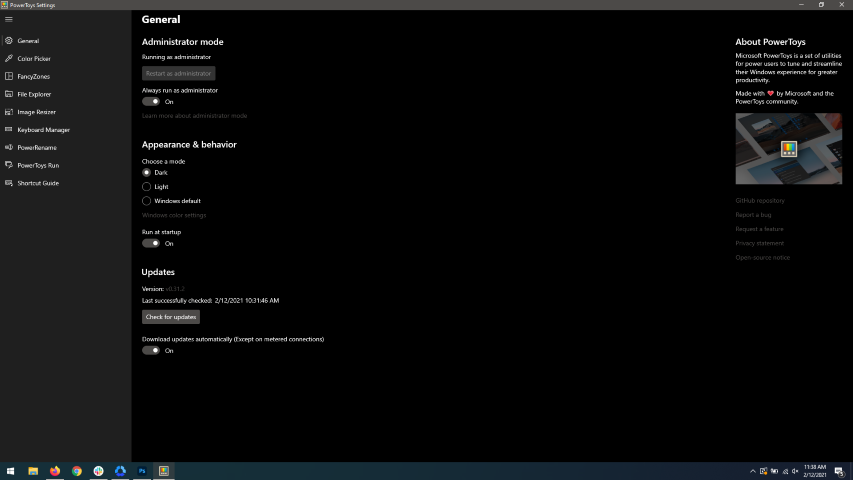
power toysWhen opened you will be greeted with general settings window. These are settings for power toys themselves, Here you can check for updates, change the looks of power toys, run it on system startup and run them as administrator. Set them up so they best suit your needs.
Color Picker

Moving down next tab we have is Color picker.

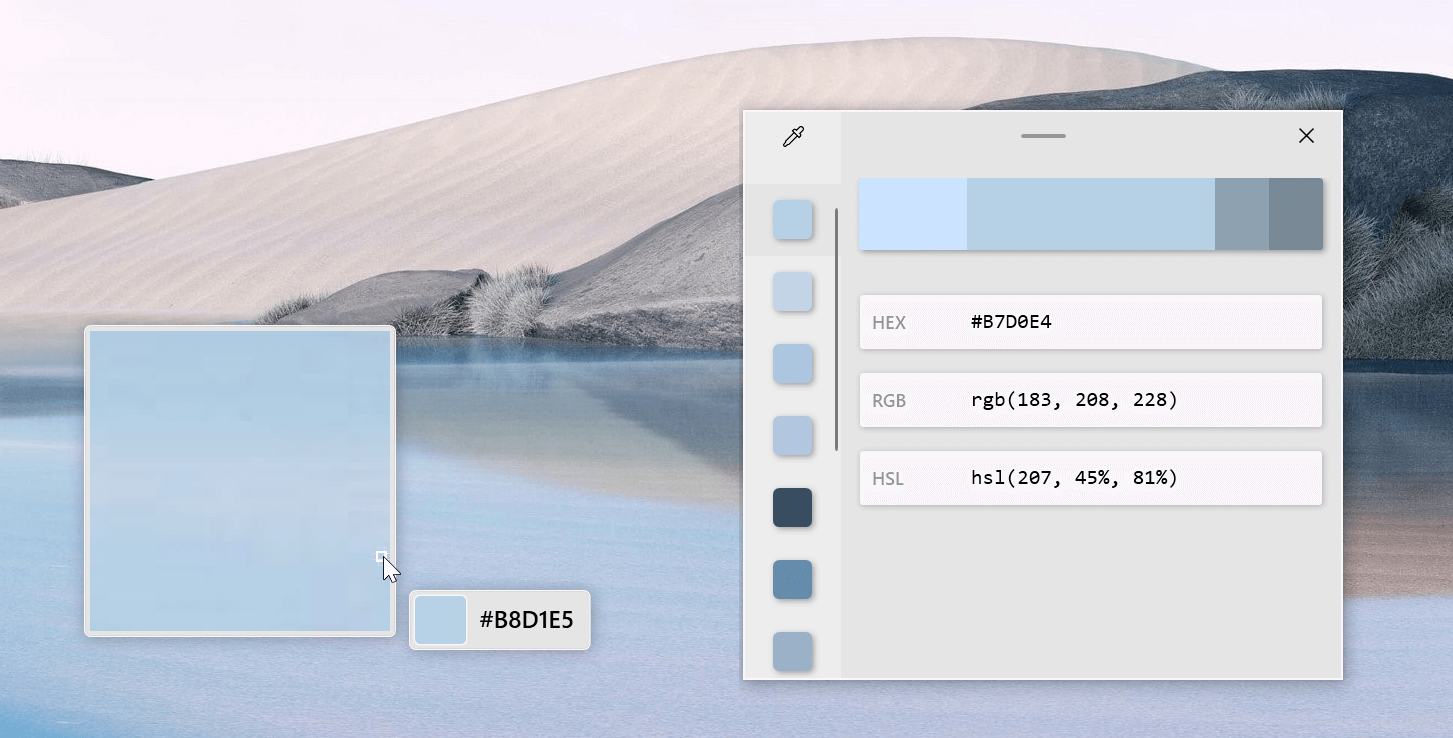
power toys colorpicker hex editorThe color picker will let you as the name suggests pick colors, it will sample colors from running applications and windows, snap their values, and place them in the clipboard. A useful application if you are working as a graphic designer, want to create some cool word document, or just want to compare the difference between colors.
After the Color Picker is activated, hover your mouse cursor over the color you would like to copy and left-click the mouse button to select a color. If you want to see the area around your cursor in more detail, scroll up to zoom in. The copied color will be stored in your clipboard in the format that is configured in the settings (HEX by default). The editor lets you see the history of picked colors (up to 20) and copy their representation in any predefined string format. You can configure what color formats are visible in the editor, along with the order that they appear. This configuration can be found in PowerToys settings. The editor also allows you to fine-tune any picked color or get a new similar color. Editor previews different shades of currently selected color - 2 lighter and 2 darker ones. Clicking on any of those alternative color shades will add the selection to the history of picked colors (appears on the top of the colors history list). Color in the middle represents your currently selected color from the history of the colors. By clicking on it, the fine-tuning configuration control will appear, which will let you change the HUE or RGB values of the current color. Pressing OK will add newly configured color into the history of the colors.

Fancy Zones

Moving down, we have fancy zones.

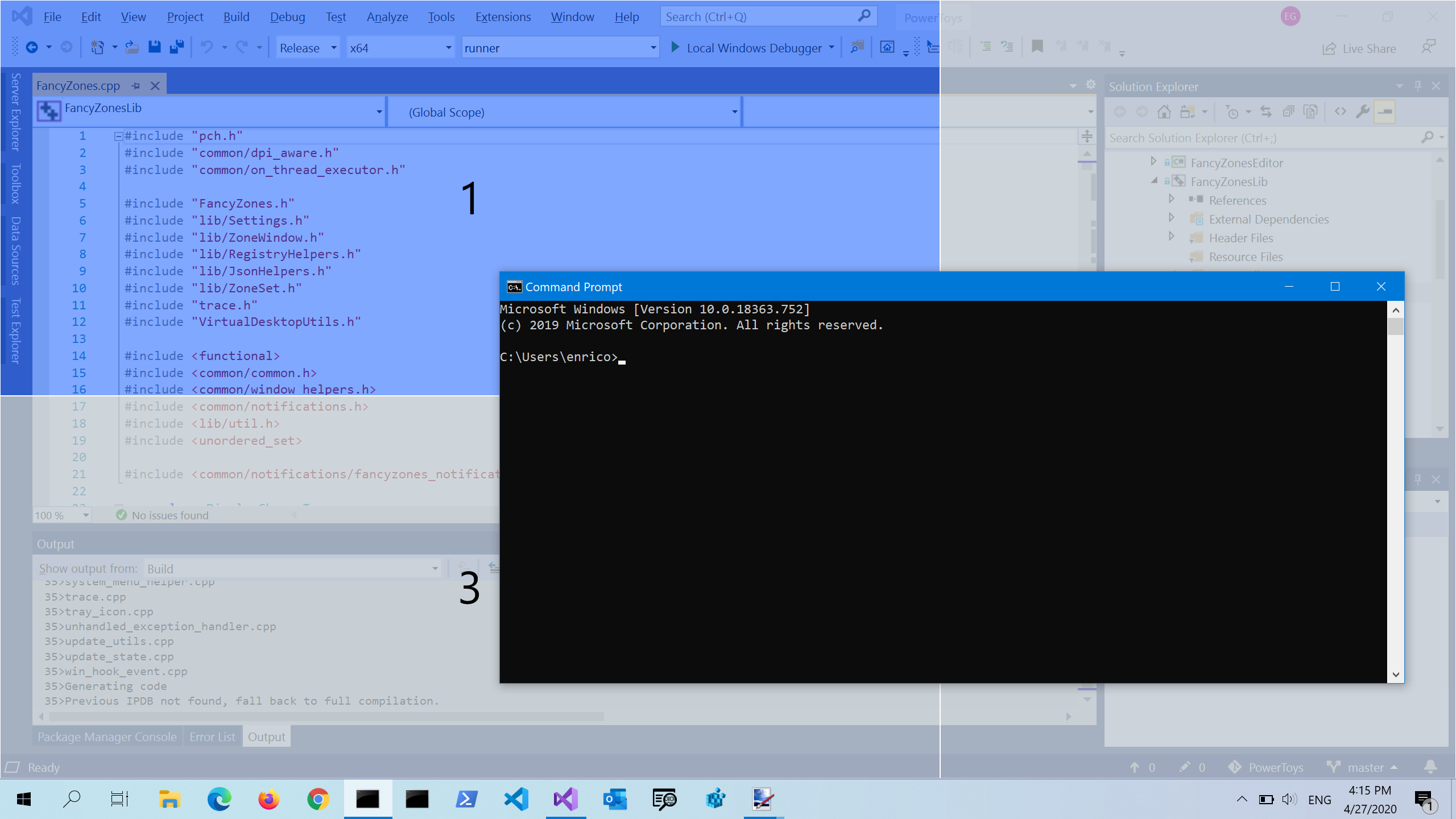
power toys fancy zonesFancyZones is a window manager utility for arranging and snapping windows into efficient layouts to improve the speed of your workflow and restore layouts quickly. FancyZones allows the user to define a set of window locations for a desktop that are drag targets for windows. When the user drags a window into a zone, the window is resized and repositioned to fill that zone. When first launched, the zones editor presents a list of layouts that can be adjusted by how many windows are on the monitor. Choosing a layout shows a preview of that layout on the monitor. The selected layout is applied automatically.
File Explorer

Next, File Explorer.

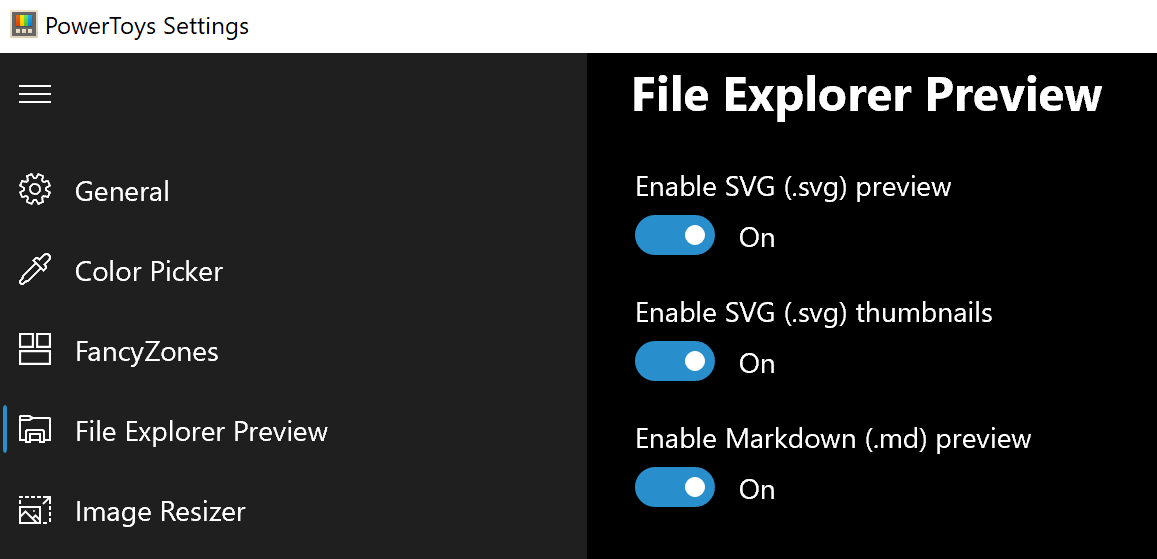
power toys settings file explorerOnly 3 options here but maybe some are important to you. This extension lets you enable SVG file preview in File Explorer, enable Markdown preview, and enable SVG thumbnails. Turn on each one you might need.
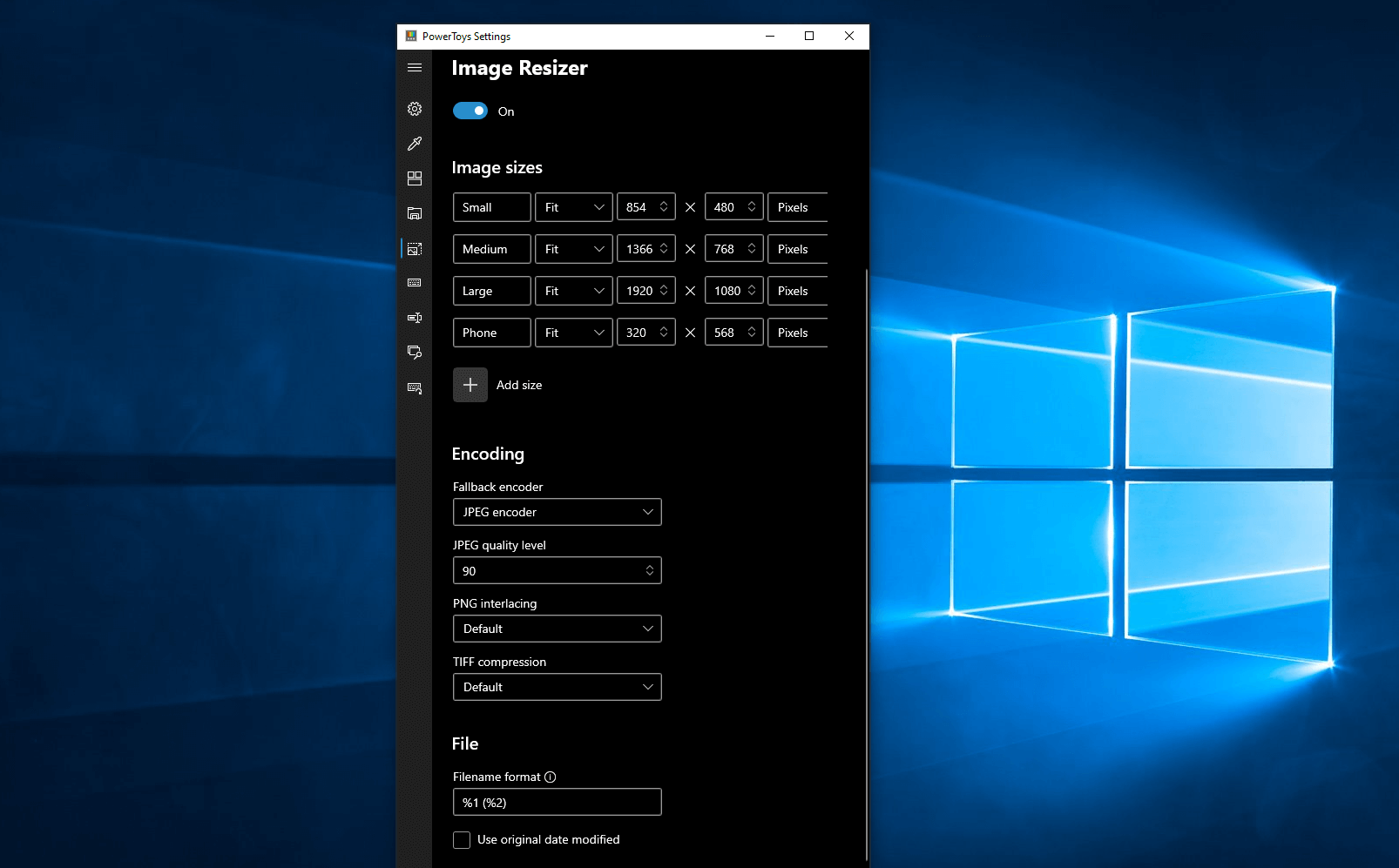
Image Resize

Next down the line, we have Image resize.

power toys image resizeImage Resizer is a Windows shell extension for bulk image-resizing. After installing PowerToys, right-click on one or more selected image files in File Explorer, and then select Resize pictures from the menu. You can specify your own sizes if you want, you can resize when dragging files, you can overwrite files or make new copies of new sizes, and many more options. A very useful tool I am sure plenty of users can use since this eliminates the need for pictures or any other image application for common resizing tasks.
Keyboard Manager

The keyboard manager is the next tab in power toys.

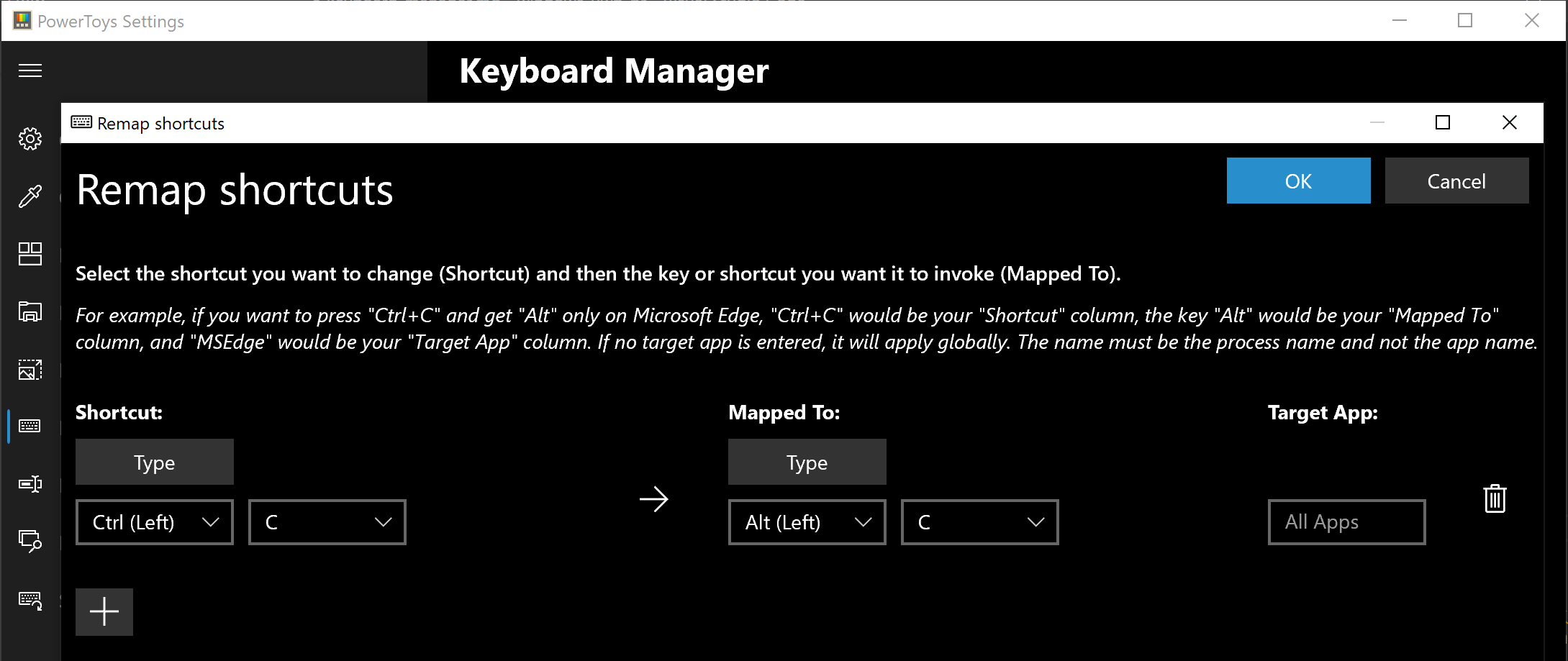
power toys keyboard shortcutsThe PowerToys Keyboard Manager enables you to redefine keys on your keyboard. For example, you can exchange the letter A for the letter D on your keyboard. When you select the A key, a D will display. You can also exchange shortcut key combinations. For example, the shortcut key, Ctrl+C, will copy the text in Microsoft Word. With the PowerToys Keyboard Manager utility, you can exchange that shortcut for ⊞ Win+C). Now, ⊞ Win+C) will copy text. If you do not specify a targeted application in PowerToys Keyboard Manager, the shortcut exchange will be applied globally across Windows. PowerToys Keyboard Manager must be enabled (with PowerToys running in the background) for remapped keys and shortcuts to be applied. If PowerToys is not running, key remapping will no longer be applied.
Power Rename

Nex we have a very cool and powerful Power Rename

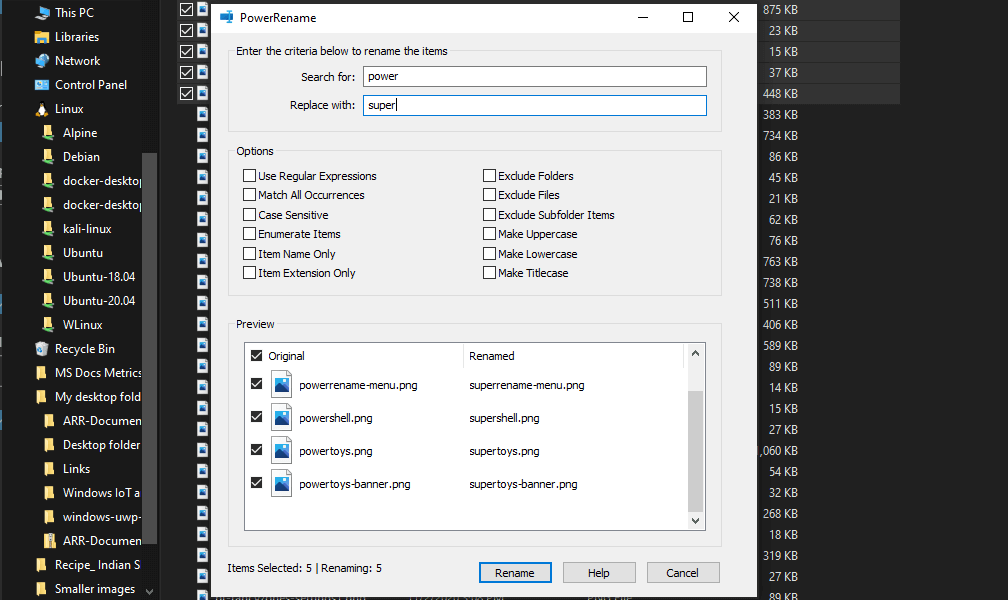
power toys power renamePowerRename is a bulk renaming tool that enables you to:
  • Modify the file names of a large number of files (without renaming all of the files with the same name).
  • Perform a search and replace on a targeted section of file names.
  • Perform a regular expression rename on multiple files.
  • Check expected rename results in a preview window before finalizing a bulk rename.
  • Undo a rename operation after it is completed.

Run Utility

Power Toys Run utility follows next.

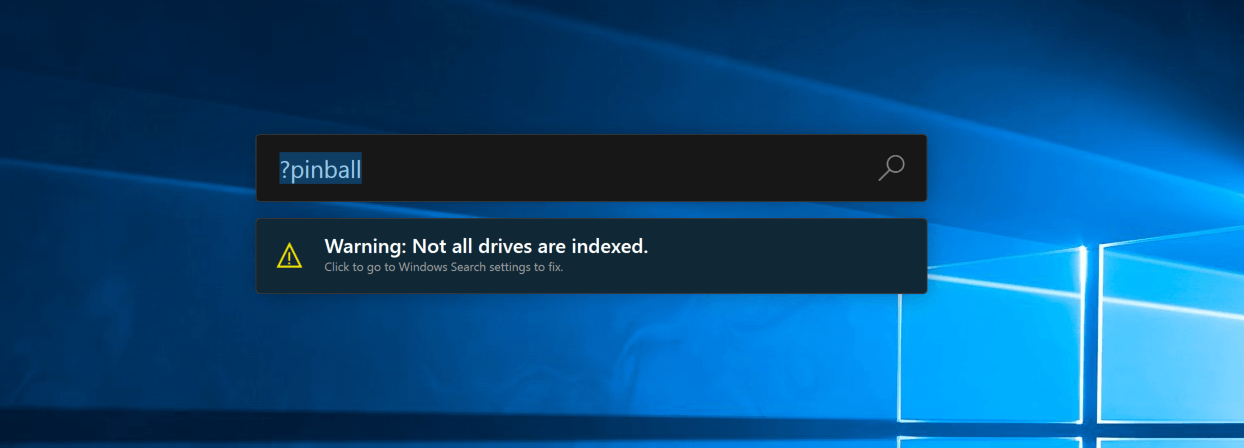
power toys run warningPowerToys Run is a quick launcher for power users that contains some additional features without sacrificing performance.
PowerToys Run features include:

  • Search for applications, folders, or files
  • Search for running processes (previously known as WindowWalker)
  • Clickable buttons with keyboard shortcuts (such as Open as the administrator or Open containing folder)
  • Invoke Shell Plugin using > (for example, > Shell:startup will open the Windows startup folder)
  • Do a simple calculation using the calculator

Shortcut Guide

Last but not least we have a Shortcut guide.

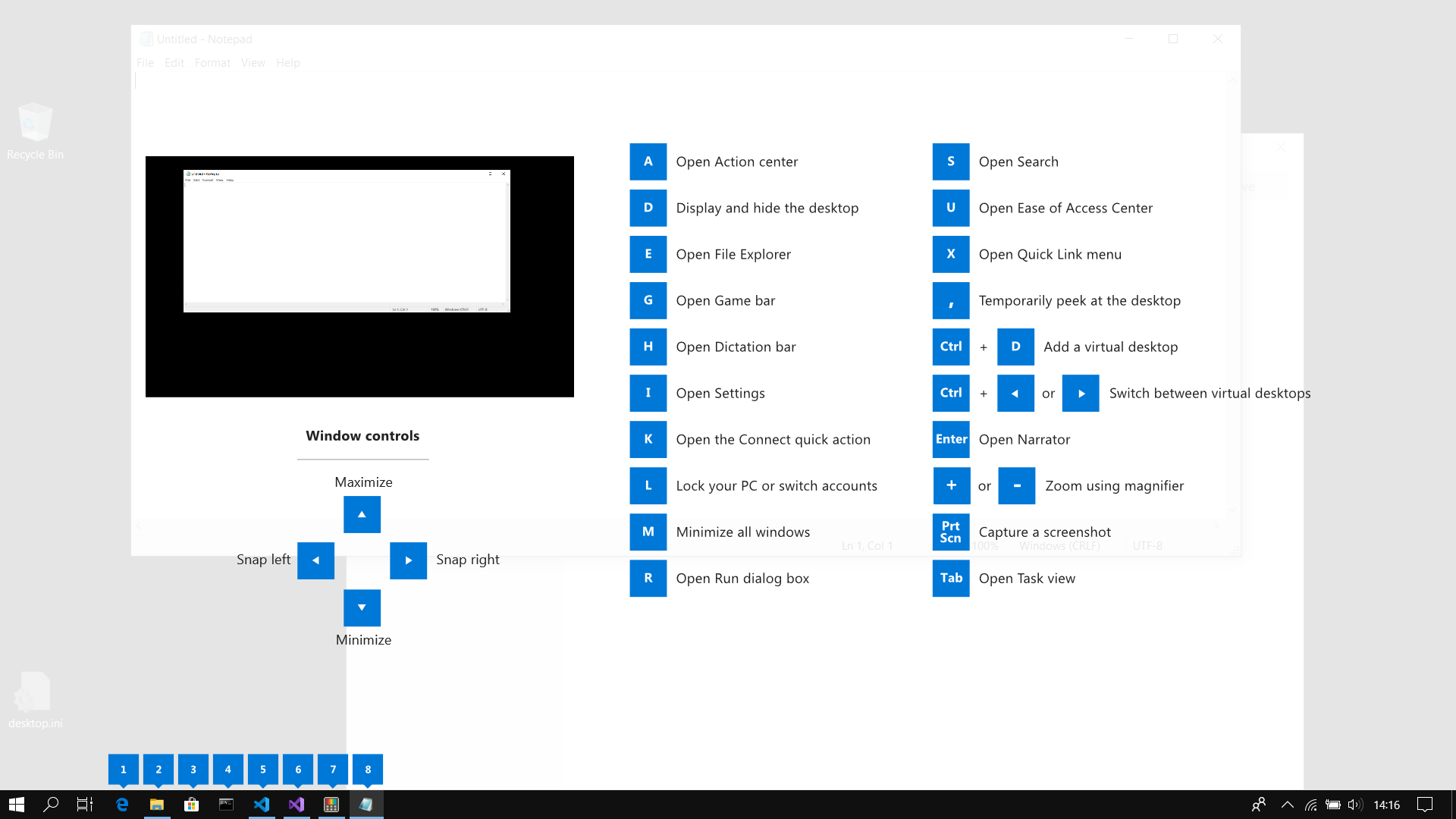
power toys shortcut guide largeThis guide uses PowerToys to display common keyboard shortcuts that use the Windows ⊞ key. Windows key keyboard shortcuts can be used while the guide is being shown and the result of those shortcuts (active window moved, arrow shortcut behavior changes, etc) will be displayed in the guide. Releasing the Windows ⊞ key will make the overlay disappear. Tapping the Windows ⊞ key will display the Windows Start menu.


Hey, you made it till the end, thank you for reading and I hope to see you soon.

Do You Need Help with Your Device?

Our Team of Experts May Help
Troubleshoot.Tech Experts are There for You!
Replace damaged files
Restore performance
Free disk space
Remove Malware
Protects WEB browser
Remove Viruses
Stop PC freezing
GET HELP
Troubleshoot.Tech experts work with all versions of Microsoft Windows including Windows 11, with Android, Mac, and more.

Share this article:

You might also like

Fix Windows Update Error 0x80244007
Getting errors while trying to update your Windows 10 computer is not an uncommon occurrence. Although some of them are easy to fix, there are others that need a lot of time and research in order to resolve. One of these tough Windows Update errors is Error 0x80244007. This kind of Windows Update error halts the process of Windows Update and a simple system restart won’t help much to fix it. When you encounter this Windows Update error, you will see a description that says, “SOAP client failed because there was a SOAP fault for reasons of WU_E_PT_SOAP_* error codes”. One of the main causes of such an error is that Windows was not able to renew the cookies for Windows Update. To fix this error, here are some suggestions that might be useful.

Option 1 – Clear up temporary or junk files

The error could be caused by some temporary or junk files in your computer and so you need to clear them up to fix the problem. You can achieve that using the Storage Sense feature.
  • Open Setting > System > Storage from the WinX Menu.
  • From there, you will see a list of all the local and connected storage devices along with the details on the free space. Make sure that Storage Sense is on.
  • Next, find a link that says “Free Up Space” and click it to open.
  • After that, a screen which is the built-in program in Windows 10 will appear and will scan your computer for the following junk files so you can free up disk space:
    • Windows Upgrade Log Files
    • The system created Windows Error Reporting Files
    • Thumbnails
    • Temporary Internet Files
    • Previous Windows Installation Files
    • Delivery Optimisation Files
    • DirectX Shader Cache
  • Choose the files you want to get rid of and then click on the remove files option. Note that you’ll have an idea of the total size as you select any of the junk files listed above.
  • Now go to the “Free Up Space Now” section and click the Clear Now button. This will get rid of all the temporary or junk files in your computer and should hopefully fix the Windows Update error 0x80244007.

Option 2 – Try running the Windows Update troubleshooter

Windows 10 have various troubleshooters that can help you resolve many system issues. So if you’re dealing with Windows Update errors like Error 0x80244007, you can run the Windows Update troubleshooter to resolve it. To run it, go to Settings and then select Troubleshoot from the options. From there, click on Windows Update and then click the “Run the troubleshooter” button. After that, follow the next on-screen instructions and you should be good to go.

Option 3 – Try to reset the Windows Update components

If by any chance that the second option didn’t work, resetting the Windows Update components could also help you resolve the problem. How? Refer to the following steps:
  • Open Command Prompt with admin privileges.
  • After that, type each one of the following commands and hit Enter after you key in one after the other.
    • net stop wuauserv
    • net stop cryptsvc
    • net stop bits
    • net stop msiserver
Note: The commands you entered will stop the Windows Update components such as Windows Update service, Cryptographic services, BITS and MSI Installer.
  • After disabling WU components, you need to rename both the SoftwareDistribution and Catroot2 folders. To do that, type each one of the following commands below and don’t forget to hit Enter after you type one command after the other.
    • ren C:WindowsSoftwareDistribution SoftwareDistribution.old
    • ren C:WindowsSystem32catroot2 Catroot2.old
  • Next, restart the services you’ve stopped by entering another series of commands. Don’t forget to hit Enter after you key in one command after the other.
    • net start wuauserv
    • net start cryptsvc
    • net start bits
    • net start msiserver
  • Close Command Prompt and reboot your PC.
Read More
How to Fix Windows Update Error 0x800f0900
If you are trying to update or upgrade your Windows 10 computer using the Windows Update and suddenly an “Error 0x800f0900” appears, then you’ve come to the right place as this post will help you resolve this Windows Update issue. When you encounter this error, you will see the following error message on your screen:
There were problems installing some updates, but we’ll try again later. If you keep seeing this and you want to search the web or contact support for information, this may help: 2018-03 Cumulative Update for Windows 10 Version 1709 for x64-based Systems (KB4088776) – Error 0X800F0900”
This kind of Windows Update error is most likely caused by some corrupted files in the system. It is also possible that the Windows Database might have become corrupted as well. So if you are currently experiencing this problem, refer to the options given below and see which one of them works best for you.

Option 1 – Try running the DISM Tool

Running the DISM Tool helps in repairing the Windows System Image as well as the Windows Component Store in Windows 10. Using this built-in tool, you have various options such as the “/ScanHealth”, “/CheckHealth”, and “/RestoreHealth”.
  • Open the Command Prompt as admin.
  • Then type in this command: exe /Online /Cleanup-image /Restorehealth
  • Do not close the window if the process takes a while as it will probably take a few minutes to finish.
After you run this tool, a log file is created at C:WindowsLogsCBSCBS.log. On the other hand, if the Windows Update client is already broken, you will be prompted to use a running Windows installation as the repair source or use a Windows side-by-side folder from a network share, as the source of the files. Although the chances of this happening are less, if it turns out to be the case, you need to run an advanced command in the DISM tool to repair a broken Windows Update. Just repeat the process above but use the following command instead:
DISM.exe /Online /Cleanup-Image /RestoreHealth /Source:C:RepairSourceWindows /LimitAccess

Option 2 – Try running the System File Checker or SFC scan

The SFC scan or System File Checker is a built-in command utility in Windows that helps in restoring corrupted files as well as missing files that cause several issues in the computer like the Windows Update Error 0x800f0900. It replaces bad and corrupted system files with good system files. To run the SFC command, follow the steps given below.
  • Tap Win + R to launch Run.
  • Type in cmd in the field and tap Enter.
  • After opening Command Prompt, type in sfc /scannow
The command will start a system scan which will take a few whiles before it finishes. Once it’s done, you could get the following results:
  1. Windows Resource Protection did not find any integrity violations.
  2. Windows Resource Protection found corrupt files and successfully repaired them.
  3. Windows Resource Protection found corrupt files but was unable to fix some of them.

Option 3 – Try running the Windows Update Troubleshooter

Running the built-in Windows Update troubleshooter could also help you resolve the Windows Update error 0x80073712. To run it, go to Settings and then select Troubleshoot from the options. From there, click on Windows Update and then click the “Run the troubleshooter” button. After that, follow the next on-screen instructions and you should be good to go.

Option 4 – Perform a System Restore

You can also try to perform a System Restore as it can also help you fix the Windows Update Error 0x800f0900. You can do this option either by booting into Safe Mode or in System Restore. If you are already in the Advanced Startup Options, just directly select System Restore and proceed with the next steps. And if you have just booted your PC into Safe Mode, refer to the steps below.
  • Tap the Win + R keys to open the Run dialog box.
  • After that, type in “sysdm.cpl” in the field and tap Enter.
  • Next, go to the System Protection tab then click the System Restore button. This will open a new window where you have to select your preferred System Restore point.
  • After that, follow the on-screen instructions to finish the process and then restart your computer and check if the problem is fixed or not.

Option 5 – Reset both the SoftwareDistribution and Catroot2 folders

You have to stop a couple of services such as BITS, Cryptographic, MSI Installer, and Windows Update Services. And to do that, you need to flush the contents in the SoftwareDistribution folder. The Software Distribution folder in the Windows operating system is a folder that can be found in the Windows directory and is used to store files temporarily which might be required to install the Windows Update on your PC. Thus, it is required by the Windows Update and maintained by WUAgent. Aside from that, it also contains all the Windows Update History files and once you delete them, you will most likely lose the Update history. As a result, the next time you run the Windows Update, it may result in a longer detection time.
  • Open the WinX Menu.
  • From there, open Command Prompt as admin.
  • Then type in the following command – don’t forget to hit Enter right after typing each one of them.
net stop wuauserv net start cryptSvc net start bits net start msiserver
  • After entering these commands, it will stop the Windows Update Service, Background Intelligent Transfer Service (BITS), Cryptographic, and the MSI Installer
  • Next, go to the C:/Windows/SoftwareDistribution folder and get rid of all the folders and files thereby tapping the Ctrl + A keys to select them all and then click on Delete. Note that if the files are in use, you won’t be able to delete them.
After resetting the SoftwareDistribution folder, you need to reset the Catroot2 folder to restart the services you just stopped. To do that, follow these steps:
  • Type each one of the following commands.
net start wuauserv net start cryptSvc net start bits net start msiserver
  • After that, exit Command Prompt and restart your computer, and then try to run Windows Update once more.
Read More
A Quick Guide to Resolving Missing Dciman32.dll Error

Missing Dciman32.dll Error – What is it?

Dciman32.dll is a type of dynamic link library. Just like any other dll file, it includes instructions and is called to load and run different programs. The Missing Dciman32 dll error code occurs when the program dependent on this dll file type is unable to load the file. This error can occur while using or installing certain programs on your system.
  • "Dciman32.dll Not Found"
  • "Cannot find [PATH]dciman32.dll"
  • "This application failed to start because dciman32.dll was not found. Re-installing the application may fix this problem."
  • "The file dciman32.dll is missing."
  • "Cannot start [APPLICATION]. A required component is missing: dciman32.dll. Please install [APPLICATION] again."

Solution

Restoro box imageError Causes

The Dciman32.dll error causes include:
  • Dciman32.dll file corruption or removal
  • Poor program installation that uses Dciman32.dll file
  • Registry issues
  • Hardware failure
  • Malware infection

Further Information and Manual Repair

Here are some of the easiest and effective ways to fix the Dciman32 dll error on your PC:

Method 1 - Restore Dciman32 dll file Back on your PC

Remember DLL files are shared files. You might have deleted this file while uninstalling some other program on your PC. Therefore to restore Dciman32.dll file, first check your recycle bin. If you locate it, then that’s great however if you don’t, then another way to restore the Dciman32.dll file is to download it from the internet.

Method 2 - Update Drivers for Hardware Devices

To update the driver first download the latest drivers from the hardware manufacturer’s website. Now go to the start menu, then the control panel and then click the device manager. Once you open the device manager, locate the hardware device you want to update the driver for. For example, if you experience a Dciman32 dll error when you play a 3D video game, then this indicates that you need to update the drivers for your video card. Navigate through different categories of hardware devices by clicking the icon to find the hardware you want to update. After finding the hardware you’re updating the driver for, right-click on the hardware’s name and then choose properties and then the driver tab. Click update driver button. This method will take approximately 10 to 12 minutes. To activate the changes you will have to restart your PC.

Method 3 - Reinstall the Program that Uses Dciman32.dll File

Another way to resolve the Dciman32.dll error code on your system is to reinstall the program showing the error message. Poor program installation can also be the reason for the error occurrence. To reinstall the program, first, you will have to uninstall the program showing the error message, and then restart your PC to activate changes. Once your computer restarts, reinstall the deleted program. Make sure that the disc or the CD you are reinstalling the program from is bug-free and not scratched.

Method 4 - Scan your PC for Registry Issues and Viruses

If the dll error still persists, then this means either the error is triggered by viruses or registry issues. To resolve these issues you will have to install and run programs on your PC antivirus and a registry cleaner. However, you should note that installing too many programs can slow down your system’s performance.

Restoro

The best way to scan for viruses and registry issues without compromising your PC performance is to download Restoro. This is a multi-functional PC Fixer embedded with 4 powerful and unique PC repair utilities including an antivirus that scans all kinds of viruses, Trojans, and malware. It also features a registry cleaner that removes all unwanted files saved in the registry, cleans the registry, repairs the damaged dll and system files including the Dciman32.dll file, and restores them back to normal. Furthermore, to ensure your system performance at its optimum level, it is also embedded with a system optimizer. And forth utility it features is Active X controls and class scanner. This is a safe and a user-friendly program compatible with all Windows versions. Click here to download Restoro now.
Read More
Automatically backup files & folders
If you are a person which spends a lot of time in front of the computer doing work, then you are aware of the importance of having a proper backup of your archive so if anything bad happens you will lose almost none of the work. We can never tell when we might experience HDD failures or when we might be a victim of cyber attacks, natural disasters,s and other unpredictable circumstances where we could lose all of our data in a matter of minutes. Having a backup of our data is very important but sometimes we are too busy or not around and we miss that data backup we wanted to do, and if in this case disaster strikes we are out of luck and data is lost. To avoid such circumstances, you can set up automatic Windows Backups at a scheduled time. This way it will help to have the loss of important files and documents from unexpected hazards. in order to create automatic backups of your files, you have several options, and below we will explore each one in hopes that you will find one that best suits your needs.
  1. Create automatic file backup with OneDrive

    This is probably the best way to do it because each time when you sign in OneDrive files get backed up right away, files are stored in the cloud and can be accessed on any device via a Microsoft account. To get started, open the Settings app first. Click on the Update & Security category Select the Backup tab from the left pane. Move to the right page and click on the Back up files button that is available under Back up files to OneDrive. Select the folders you want to backup in the cloud, and remove those ones you don’t want to backup. On the next page, click the Start backup button to start the procedure.
  2. Create a backup using File History

    File History is an inbuilt feature that allows users to create automatic file backup on Windows 10. File History allows the users to back up their files in an external or cloud drive at different intervals of time. To create automatic file backup using File History: Press the ⊞ WINDOWS + I to open the Settings app. Click on the Update & Security category and then select the Backup tab from the left pane. Under the Back up using File History section, click on Add a drive button. Now choose the drive to store the backup files. Windows will use this drive for File History. Then turn on the toggle button under Automatically back up my files. This will back up your data to the drive automatically whenever you connect it to the system. Below the toggle button, click on the “More options” link to set how frequently File History will back up. Use the Keep my backups drop-down menu to get the option to configure the time for how long you want to keep your backups. By default, it will keep your backups forever. Under the section Back up these folders, tap on the Add a folder button in order to add one more folder to the backup. Then click on the Add a folder button, under Exclude these folders. This will exclude the files that you don’t want to back up. You can stop the drive from storing backup files to change the backup storage location. To do this, click the Stop using drive option under the Back up to a different drive category.
  3. Backup using Windows backup & restore tool

    Open Control Panel Click on the System and Security option Scroll down and select the Backup and Restore (Windows 7) button Next click on the Set up backup button, available under the Back up or restore your files section Under the Save backup on section, select the Backup Destination where you want your backup files to get stored On the “Set up backup” page, Windows will ask you to choose the way to backup, check Let me choose checkbox, and then hit the Next button Under the section Computer, select the files and folders you want to backup. Then uncheck the box next to the Include a system image of drives option, and then hit the Next button Now click on the Change schedule link. Set the time and check the box beside Run backup on a schedule button Click OK then select the Save settings and run backup option
Read More
Fix Error Accessing the Registry in Windows
If you encounter an error saying, “error accessing the registry” when you try to merge a registry key on your Windows 10 computer, you’re not alone as some users also experienced the same problem. According to these users, they encounter the error after they’ve re-installed their Windows version and tried to open a .reg file. Based on the reports, this error could occur if the registry file does not have administrative privileges. Meaning to say, the program does not have the necessary permission to merge the .reg file. This is common with fresh installs as well as reinstalls. Moreover, this kind of issue could also occur due to system file corruption. Whichever the case may be, here are some troubleshooting tips you can check out to resolve the error.

Option 1 – Try to import the .reg file with admin privileges

As pointed out, the error may be due to a lack of admin privileges. It could be that the Registry Editor does not have admin privileges to merge the registry file. This is common with new Windows installations especially since the Registry Editor hasn’t been opened before. So you need to import the .reg file again and this time, with admin privileges.
  • Tap the Win + R keys to open the Run dialog box.
  • Then type “Regedit” in the field and tap the Ctrl + Shift + Enter keys to open the Registry Editor with admin privileges.
  • A User Account Control or UAC prompt will appear where you have to click Yes to proceed.
  • After opening the Registry Editor, go to File > Import using the ribbon bar at the top.
  • Next, use the import menu to go to the location of the file you were trying to merge. Once you’ve found it, click Open to merge it with your current registry. This should fix the problem. If not, refer to the next options below.

Option 2 – Try performing a System Restore

Running System Restore can also help you fix the error when accessing the Registry. You can do this option either by booting into Safe Mode or in System Restore. If you are already in the Advanced Startup Options, just directly select System Restore and proceed with the next steps. And if you have just booted your PC into Safe Mode, refer to the steps below.
  • Tap the Win + R keys to open the Run dialog box.
  • After that, type in “sysdm.cpl” in the field and tap Enter.
  • Next, go to the System Protection tab then click the System Restore button. This will open a new window where you have to select your preferred System Restore point.
  • After that, follow the on-screen instructions to finish the process and then restart your computer and check if the problem is fixed or not.
  • Once the next startup is complete, you have to merge or import the file again and see if the error is now fixed or not.

Option 3 – Try to perform repair install by creating a Windows 10 installation media

  • Click this link and then click the Download Tool Now button.
  • Next, click the “Use the tool to create installation media (USB flash drive, DVD, or ISO file)…” option and follow the next given instructions on the screen.
  • Now select the ISO file option in step 5.
  • After that, you should now have an ISO file.
  • Next, go to the location where you’ve downloaded the ISO file.
  • Then right-click on the Windows 10 ISO file and select the Open with option and then select File Explorer.
  • Now click on “setup.exe” and follow the next instructions that appear on the screen. When asked, you have to select either Nothing (clean install) or Keep personal files only option. Take note that you must not select the “Keep personal files, apps, and Windows settings since it doesn’t really work.

Option 4 – Try running the System File Checker Scan

As mentioned, the error when accessing the Registry might be caused by file corruption. And that’s where the SFC scan comes in. The SFC or System File Checker scan could detect and automatically repair damaged system files. SFC is a built-in command utility that helps in restoring corrupted files as well as missing files. It replaces bad and corrupted system files with good system files. To run the SFC command, follow the steps given below.
  • Tap Win + R to launch Run.
  • Type in cmd in the field and tap Enter.
  • After opening Command Prompt, type in sfc /scannow
The command will start a system scan which will take a few whiles before it finishes. Once it’s done, you could get the following results:
  1. Windows Resource Protection did not find any integrity violations.
  2. Windows Resource Protection found corrupt files and successfully repaired them.
  3. Windows Resource Protection found corrupt files but was unable to fix some of them.
  • Now restart your computer.
Read More
Fix 0xc0000454, The Boot Configuration ...
If you are in the process of booting up your computer but suddenly encountered an error saying, “The Boot Configuration Data for your PC is missing or contains errors” with an error code of 0xc0000454, read on as this post will help you resolve the problem. The error code 0xc0000454 occurs when you boot your computer and when the Windows Boot Manager encounters an issue with the Boot Configuration Data or BCD. The error code 0xc0000454 (STATUS_INSUFFICIENT_NVRAM_RESOURCES) signifies that there are no sufficient NVRAM or Non-Volatile Random Access Memory resources to complete the API. NVRAM is a component of the system based on the software that stores the Boot Configuration Data in an operating system. Usually, a simple restart can resolve the problem. However, if you’ve already done that and it’s of no use, then there are other potential fixes you can check out to troubleshoot the problem. To resolve the error code 0xc0000454, here are some potential fixes that should help:

Option 1 – Try to repair corrupted BCD

As mentioned, the error could also be due to corruption in BCD, and to fix it, you can use Bootrec.exe – a built-in command-line tool used to troubleshot issues related to boot up and Windows Startup. Before you run this tool, make sure that you have inserted a bootable USB or DVD into your computer. Once you have that covered, follow these steps:
  • You need to go to the Advanced Startup Options.
  • Then click on Troubleshoot.
  • Next, select the Advanced Options and then Command Prompt.
  • Once Command Prompt has been pulled up, enter each one of the following commands and in the sequence that they are given to rebuild BCD files and repair MBR files:
    • Bootrec /Fixmbr
    • Bootrec /FixBoot
  • After you execute the commands given above, you should see a confirmation message that says, “The operation completed successfully”.
  • Now type the “Bootrec /RebuildBCD” command to rebuild BCD.
  • Finally, close Command Prompt and then restart your computer to successfully apply the changes made.

Option 2 – Try to run the Automatic Repair Utility

You might also want to use Automatic Repair in fixing the error. To do so, follow the steps below.
  • You can start by creating and booting from a bootable Windows 10 USB Stick.
  • After that, click on Repair your computer located on the bottom left corner when you are on the initial Windows Startup screen.
  • Next, click on Troubleshoot, and then on the other screen, click the Startup Repair option.
  • Now select the operating system you want to repair. Once you do that, it will start to repair your operating system. Wait until the process is completed and then check if the problem’s now fixed.

Option 3 – Disable the Secure Boot in the BIOS

Disabling the Secure Boot in the BIOS settings is definitely recommended to resolve the error. To disable Secure Boot, here’s what you have to do:
  • First, boot your computer into Windows 10.
  • Next, go to Settings > Windows Update. From there, check if there is anything that you have to download and install if you see any available updates. Usually, OEMs send and update the list of trusted hardware, drivers, and operating systems for your computer.
  • After that, go to the BIOS of your computer.
  • Then go to Settings > Update & Security > Advanced Startup options. If you click on Restart Now, it will restart your computer and give you all the advanced options.
  • Next, select Troubleshoot > Advanced Options. As you can see, this screen offers you further options including System restore, Startup repair, Go back to the previous version, Command Prompt, System Image Recovery, and UEFI Firmware Settings.
  • Select the UEFI Firmware Settings which will take you to the BIOS.
  • From there, go to the Security > Boot > Authentication tab where you should see Secure Boot. Note that every OEM has its own way of implementing the options so it varies.
  • Next, set Secure Boot to Disabled and set Legacy Support to On or Enabled.
  • Save the changes made and exit. Afterward, your computer will reboot.

Option 4 – Try to reset the BIOS

If updating the BIOS didn’t help in fixing the error, you can try to reset the BIOS instead.
  • Start your computer and tap the F10 key during the booting process to enter the BIOS. If it does not work, you can try tapping the F1 or F2 key as well as the Del key.
  • Once you’re already in the BIOS, tap the F9 key to get the prompt to RestoreLoad default configuration now for the BIOS.
  • Next, click on Yes and then follow the next on-screen instructions that appear to set the BIOS back to its default settings.
  • Once you’re done restoring the default settings of the BIOS, restart your computer and then check if it now boots properly.
Read More
How to Fix Error Code 0x8024002e

Error Code 0x8024002e - What is it?

Windows 10 error code 0x8024002e is related to the Windows update service. When you see the error code displayed on your screen, it means that the Windows update service has been blocked or not working. As a result of this error code, your computer might lag and the system may freeze while performing normal operations. The error may read as follows:
“There were some problems installing updates, but we’ll try again later. If you keep seeing this and want to search the web or contact support for information this may help: (0x8024002e)”.
Common symptoms include:
  • Slow computer performance
  • System freezes while performing normal operations or freezes while multitasking
  • BSOD error is showing
  • Some unwanted files get opened automatically
  • Updating is not possible

Solution

Restoro box imageError Causes

This error code appears because of the following reasons:
  • Incomplete installation of the Windows operating system
  • Incorrect registry entry
  • Corrupt or damaged system files
  • The computer has come under a virus attack
  • Miscommunication between the computer and the Windows Automatic Update service
The decline in RAM or outdated Hard Disk Drive

Further Information and Manual Repair

Method 1:

  • Remove any external media connected to the computer
  • Crash reboot your PC 2 to 3 times.
  • Now check if you are still having the problem.
If the problem still persists, try the following methods if you are able to boot to the desktop and check for the problem.

Method 2:

Changing Windows Update property to automatic: You might see this error if your Windows update property is set to manual. Follow the steps below to change it to automatic. Open Task Manager.
  1. Click on the Services tab. Find “Open Services” at the bottom of the window.
  2. A new window will pop up. Scroll down and find “Windows Update” from the list. Double click on the Windows Update. It will open its properties.
  3. Select Automatic for ‘Startup Type.’ Click Apply, Start, and OK.
Now, try the Windows Update and check if you are still getting the error message. If the problem isn’t resolved, reboot your PC for the changes to take effect and then try again.

Method 3:

Disable Antivirus program: If you have any antivirus installed on your PC, you might need to disable it first and see if that helps. Although, most of the antivirus makers have made changes to work smoothly with Windows 10, it is a new Operating System and some antivirus may cause conflict. Disable the antivirus and check for updates to see if it is preventing you from updating your system and displaying the error code 0x8024002e.

Method 4:

Run inbuilt Windows update troubleshooter. Follow the steps given below:
  1. Press Windows + W keys on your keyboard to enable the search option.
  2. In the Search box type Troubleshooting.
  3. Click on View all
  4. Click on Windows update and follow the prompts to run the troubleshooter.
If the issue persists, try Method 5

Method 5:

Run the System File Checker tool (sfc.exe):
  1. Open Command prompt.
  2. Type sfc /scannow and hit Enter.
  3. The sfc /scannow will scan all protected system files and replace corrupted files with a cached copy that is located in a compressed folder at %WinDir%System32dllcache. The %WinDir% has the Windows Operating System folder. For example, C:\Windows.
Do not close the Command prompt window until the verification is 100% complete. The command prompt will show the scan results when it is done. After it is done, you may receive one of the following messages:
“Windows Resource Protection did not find any integrity violations.” This means you do not have any missing or damaged system files.
OR you may receive a message saying:
“Windows Resource Protection could not perform the requested operation.”
To resolve this problem, run the System File Checker in safe mode and make sure that the PendingDeletes and PendingRenames folders exist under %WinDir%WinSxSTemp.
OR you may also receive a message saying, “Windows Resource Protection found corrupt files and successfully repaired them. Details are included in the CBS.Log%WinDir%LogsCBSCBS.log.” OR you may receive a message saying, “Windows Resource Protection found corrupt files but was unable to fix some of them. Details are included in the CBS.Log%WinDir%LogsCBSCBS.log.”
Read More
Recent Items aren't visible under Taskbar
In this post, you will be guided on what to do if the Recent Items are no longer visible in the Taskbar icons in Windows 10. This can be quite inconvenient especially if you work simultaneously on many files and documents together and would require you to visit them regularly to incorporate changes. Thus, if you find that the Recent items are not visible in the Windows Taskbar, read on. In order for the Recent Items to appear on the taskbar icons in Windows 10 again, there are four potential fixes you can check out. You can try to show the recently opened items via Settings or clear the cache of the recent items. You could also make some changes in the Windows Registry or use the Group Policy Editor. But before you proceed with these potential fixes, it’s best if you create a System Restore Point first just in case something goes wrong after you made changes in the system. The System Restore Point allows you to undo these changes and bring back the previous state of your computer. Thus, you need to create one and then carefully follow the given options below.

Option 1 – Show the recently opened items via Settings

The first thing you can do to fix the problem is to show the recently opened items through the Settings app.
  • Open the Settings app and select Personalization.
  • From there, select the Start option and scroll down until you see the “Show recently opened items in Jump Lists on Start or the taskbar” option.
  • Make sure that its toggle button is turned on.

Option 2 – Try to clear the Recent Items cache

  • Tap the Win + E keys to open File Explorer.
  • Next, copy and paste this link on the address bar: %AppData%Microsoftwindowsrecentautomaticdestinations
  • Once you’re in the given location, you should see multiple files. Now select all these files and completely delete them.
Note: These files are automatically recreated when you interact with the system like performing tasks such as opening apps or accessing files.
  • After that, go to this next location: %AppData%Microsoftwindowsrecentcustomdestinations
  • Once there, delete all of its files and restart your computer. This should resolve the problem.

Option 3 – Try making changes via Registry Editor

The next thing you can do to fix the problem is to apply some tweaks in the Registry by following these steps:
  • Tap the Win + R keys to open the Run dialog box and type “Regedit” in the field and hit Enter to open the Registry Editor.
  • Next, navigate to this registry sub-path: HKEY_CURRENT_USERSoftwareMicrosoftWindowsCurrentVersion
  • From there, select the Policies Explorer folder located in the left pane.
  • Then move to the right pane and look for the “NoRecentDocsHistory” entry and right-click on it.
  • Now delete this entry.
Note: This entry is the one that stores the Group Policy setting for “Do not keep the history of recently opened documents. The Group Policy adds this entry to the registry with a value of 1 if you enable the “Do not keep the history of recently opened documents” policy. On the other hand, if you disable the policy by setting it to “Not configured” or deleting it, the Group Policy will delete the entry from the registry, and the system will act as though the value is 0 – for instance, it keeps the history of the recently opened files in your computer.

Option 4 – Try to use the Group Policy Editor

  • Tap the Win + R keys to open the Run utility and type “gpedit.msc” in the field and tap Enter to launch the Group Policy Editor.
  • Next, navigate to User Configuration > Administrative Templates > Start Menu and Taskbar.
  • Afterward, double click on the “Do not keep a history of recently opened documents” policy located on the right panel. This is the policy that lets you enable or disable recent items and frequent places.
  • Now to enable the recent items, as well as the frequent places, feature, click on the “Disabled” or the “Not Configured” option.
  • Once you’re done, close the Group Policy Editor and restart your PC.
Note: If you choose to enable this setting, the system and Windows programs will not create shortcuts to documents opened while the setting is in effect. Aside from that, they also stay but won’t display the existing document shortcuts and the system will empty the Recent Items menu on the Start menu and the Windows programs won’t also display shortcuts in the Start Menu. In addition, the Taskbar won’t also show the recently opened or frequently used folders, files, or websites.
Read More
Software review series: BitWarden
BitWardenMany times we were talking and writing here on Errortools.com about security, privacy, hacking, identity theft, etc. We tried to raise important security questions and I hope I have managed to at least shed some light and change maybe some bad behaviors for some, helping them embrace better routines about their security on their PC. In this light, I will today present you with one neat and awesome piece of software, a password manager worth your time and money (if you want premium features): BitWarden.

What BitWarden offers?

The first thing that it offers is the completely free basic plan, granted BitWarden is not an open-source project nor completely free but it has an unlimited free basic plan that will cover 90% of user needs. There is also a free basic unlimited plan for Organizations letting you and one more user share files and other stuff via BitWarden making it a cool option if you need it. Premium features offer you encrypted sharing of files, two-step login, 1GB file attachments (encrypted), Bitwarden Authenticator (TOTP), Vault Health Reports, Emergency Access, and Priority Support. The cost for all of these additional features is 10 USD per year for an individual plan or 40 USD per year for organizations where you will get an increase of maximum users from 2 to 6. Yes, you read that correctly, only 10 USD per YEAR for the whole set of features. Granted if you do not need any of them, enjoy the free version forever. Besides very low premium cost BitWarden will offer you compatibility with all major browsers and devices including both Android and iOS platforms making it a great cross-platform solution to login and maintain your passwords anywhere with just one click. Once installed all you need to do is set one master password and be very careful not to lose or forget this one, if you do all of your other generated passwords will be lost forever.

Features

Secure Password Sharing

Share your encrypted data quickly and easily, and only with the users or teams who need access

Cross-Platform Accessibility

Access critical data in your Bitwarden vault from any location, browser, and device

Cloud-Based or Self-Host

Get up and running in minutes in the cloud or you can self-host Bitwarden for complete data control

Security Audit & Compliance

Open source and third-party audited, Bitwarden complies with Privacy Shield, GDPR, CCPA regulations

Vault Health Reports

Access insightful reports to reveal weak, reused passwords, and other helpful data security metrics

Directory Sync

Our powerful Directory Connector streamlines user and group onboarding and keeps them in sync

Always-On Support

Our Customer Success agents are available to support you around the clock

Detailed Event Logs

Bitwarden creates audit trails to help you keep track of user and group access to sensitive data

Flexible Integrations

Unite your existing systems with Bitwarden using SSO authentication, Directory services, or powerful APIs

Conclusion

There are many password managers out there but via recommendation I have tried BitWarden and truth to be told, I really never felt the need to try anything else, it is great at what it does and it is moving forward with features and it is constantly updated and maintained.
Read More
Easy Remove FreeRideGames PUP Removal Tutorial

Free Ride Games is a desktop casual game program and potentially unwanted application. It sets its player to run in startup boot with Windows and installs additional files outside of its designated installation folders. The software reads PC information to display targeted advertising and runs a background process that cannot be shut down even by exiting the FreeRide Player. The player runs in full screen with no visible window controls to exit or minimize, and contains unskippable advertising in its function. While not malicious, the FreeRide Player possesses many traits that as of publication time have caused some AntiVirus programs to designate it as potentially unwanted adware. It has also been associated with adware distribution toolbars such as GameVance.

About Browser Hijackers

Browser hijacking means a malicious code has power over and modified the settings of your browser, without your consent. Browser hijacker malware is created for a variety of reasons. Typically, hijackers will force hits to websites of their preference either to increase web traffic generating higher ad earnings, or to gain a commission for each and every user visiting there. Many people think that such websites are legitimate and harmless but that is incorrect. Nearly every browser hijacker poses an actual threat to your online safety and it is vital to categorize them under privacy risks. When the malware attacks your computer or laptop, it begins to mess things up a whole that slows your system down to a crawl. In the worse case, you will be pushed to deal with serious malware threats as well.

Browser hijacking signs

There are numerous signs that could indicate a browser hijacking: 1. you find unauthorized modifications to your Internet browser’s home-page 2. when you enter a URL, you find yourself regularly directed to some other website than the one you actually intended 3. the default web engine and the default browser settings are modified 4. discover new toolbars that you didn’t add 5. you might find numerous pop-up adverts on your computer screen 6. your internet browser has become unstable or starts running sluggishly 7. you are blocked to access those sites of security solution providers.

How it infects your computer

Browser hijackers could use drive-by downloads or file-sharing websites or even an email attachment to reach a targeted computer. They can also come from any BHO, extension, toolbar, add-on, or plug-in with malicious objectives. Also, certain freeware and shareware can put the hijacker in your computer through the “bundling” technique. An example of some notorious browser hijacker includes Conduit, Anyprotect, Babylon, DefaultTab, SweetPage, Delta Search, and RocketTab, but the names are constantly changing. Browser hijacking can lead to serious privacy issues and also identity theft, affect your web browsing experience by taking control of outbound traffic, substantially slows down your personal computer by depleting a lot of resources and lead to system instability as well.

How to remove a browser hijacker

Some hijackers could be removed by just uninstalling the related freeware or add-ons through the Add or Remove Programs in the Windows Control Panel. However, most hijackers are difficult to eliminate manually. Regardless of how much you attempt to get rid of it, it might keep returning again and again. Furthermore, manual removals demand in-depth system knowledge and therefore can be an extremely difficult task for beginner computer users.

Can't Install Safebytes Anti-malware due to the presence of Malware? Try This!

Malware can cause all kinds of damage when they invade your system, from stealing your personal details to erasing files on your computer system. Some malware sits in between the computer and your net connection and blocks a few or all internet sites that you really want to check out. It might also prevent you from adding anything on your PC, particularly anti-malware applications. If you are reading this, chances are you’re stuck with a malware infection that is preventing you to download and/or install the Safebytes Anti-Malware program on your system. Even though this sort of problem can be harder to get around, there are a few actions you can take.

Install the anti-virus in Safe Mode

If the virus is set to load automatically when Microsoft Windows starts, entering Safe Mode could block the attempt. Only minimal required applications and services are loaded when you boot your computer or laptop into Safe Mode. To launch your Windows XP, Vista, or 7 PCs in Safe Mode with Networking, please do as instructed below. 1) At power on, hit the F8 key while the Windows splash screen begins to load. This will bring up the Advanced Boot Options menu. 2) Select Safe Mode with Networking with arrow keys and hit ENTER. 3) When you are into this mode, you should have online access once again. Now, get the malware removal application you want by using the browser. To install the software, follow the directions in the setup wizard. 4) Following installation, run a complete scan and let the program delete the threats it discovers.

Download the antivirus program in an alternate browser

Web-based viruses could be environment-specific, aiming for a specific web browser or attacking specific versions of the browser. If you appear to have malware attached to Internet Explorer, then switch over to a different web browser with built-in safety features, such as Firefox or Chrome, to download your favorite antivirus program – Safebytes. Make a bootable USB antivirus drive Another option is to save and operate an anti-malware software program entirely from a USB drive. To run anti-malware from a USB drive, follow these simple steps: 1) Download the anti-malware program on a virus-free PC. 2) Plug in the pen drive into the clean computer. 3) Run the setup program by double-clicking the executable file of the downloaded application, which has a .exe file extension. 4) Select flash drive as the location when the wizard asks you exactly where you wish to install the application. Follow the directions to complete the installation process. 5) Remove the flash drive. Now you can use this portable antivirus on the infected computer. 6) Double-click the Safebytes Anti-malware icon on the thumb drive to run the software. 7) Click on the “Scan” button to run a full computer scan and remove viruses automatically. How SafeBytes Anti-Malware Keep your Machine Virus Free"]If you are planning to buy anti-malware for your desktop, there are numerous brands and applications for you to consider. Some are very good ones, some are decent, while some are merely bogus anti-malware applications that will damage your computer themselves! You have to look for a tool that has gained a strong reputation and detects not just viruses but other types of malware also. Among few good applications, SafeBytes Anti-Malware is the highly recommended program for the security-conscious end user. SafeBytes anti-malware is really a powerful, highly effective protection tool made to assist end-users of all levels of computer literacy in detecting and removing malicious threats from their PC. After you have installed this tool, SafeBytes sophisticated protection system will make sure that no viruses or malicious software can seep through your PC. SafeBytes has excellent features when compared to other anti-malware programs. The following are some typical features found in this software: Active Protection: SafeBytes provides complete and real-time security for your personal machine. It will check your computer system for suspicious activity continuously and its unrivaled firewall protects your PC from unauthorized access by the outside world. Most effective AntiMalware Protection: Using its enhanced and sophisticated algorithm, this malware removal tool can detect and eliminate the malware threats hiding in your computer system effectively. Web Protection: SafeBytes checks and gives a unique safety rating to each and every website you visit and block access to webpages considered to be phishing sites, thus safeguarding you from identity theft, or known to contain malicious software. Faster Scanning: Safebytes Anti-Malware, using its advanced scanning engine, provides extremely fast scanning which can quickly target any active online threat. Light-weight: This software is lightweight and will work silently in the background, and that does not have an effect on your computer efficiency. 24/7 Online Tech Support: You can get 24/7 technical support to promptly resolve any concern with your security tool.

Technical Details and Manual Removal (Advanced Users)

If you wish to manually remove FreeRideGames without the use of an automated tool, it may be possible to do so by removing the program from the Windows Add/Remove Programs menu, or in cases of browser extensions, going to the browsers AddOn/Extension manager and removing it. You will likely also want to reset your browser. To ensure the complete removal, manually check your hard drive and registry for all of the following and remove or reset the values accordingly. Please note that this is for advanced users only and may be difficult, with incorrect file removal causing additional PC errors. In addition, some malware is capable of replicating or preventing deletion. Doing this in Safe Mode is advised.

The following files, folders, and registry entries are created or modified by FreeRideGames.

Files: C:21984fa691bd80870e3e3f15cc83121a5862cef4abf2989844d858b2c64b0f C:DOCUME1USER1LOCALS1TempSDM143C:21984fa691bd80870e3e3f15cc83121a5862cef4abf2989844d858b2c64b0f C:DOCUME1USER1LOCALS1TempSDM143%#MANIFEST#%01235B C:DOCUME1USER1LOCALS1TempSDM143cmhelper.exe C:DOCUME1USER1LOCALS1TempSDM143ExentCtlInstaller.dll C:DOCUME1USER1LOCALS1TempSDM143Free Ride Games.exe C:DOCUME1USER1LOCALS1TempSDM143resourceDll.dll C:WINDOWSRegistrationR000000000007.clb C:WINDOWSsystem32msxml3r.dll C:21984fa691bd80870e3e3f15cc83121a5862cef4abf2989844d858b2c64b0f C:DOCUME1USER1LOCALS1TempSDM143%#MANIFEST#%01235B C:WINDOWSRegistrationR000000000007.clb C:DOCUME1USER1LOCALS1TempSDM143Free Ride Games.exe C:DOCUME1USER1LOCALS1Temp_uninsep.bat C:WINDOWSsystem32rsaenh.dll C:Documents and SettingsUSERLocal SettingsTemp_uninsep.bat C:WINDOWSsystem32shdocvw.dll C:WINDOWSsystem32stdole2.tlb c:autoexec.bat C:DOCUME1USER1LOCALS1TempSDM143%#MANIFEST#%01235B C:DOCUME1USER1LOCALS1TempSDM143cmhelper.exe C:DOCUME1USER1LOCALS1TempSDM143ExentCtlInstaller.dll C:DOCUME1USER1LOCALS1TempSDM143Free Ride Games.exe C:DOCUME1USER1LOCALS1TempSDM143resourceDll.dll C:DOCUME1USER1LOCALS1Temp_uninsep.bat C:DOCUME1USER1LOCALS1TempSDM143SDMLog.log C:DOCUME1USER1LOCALS1TempSDM143SDM_DB_143.xml C:DOCUME1USER1LOCALS1TempSDM143FreeRideGames.exe C:DOCUME1USER1LOCALS1Temp_uninsdm.bat C:DOCUME1USER1LOCALS1Temppft3.tmpIKernel.ex_ C:DOCUME1USER1LOCALS1TempIEC4.tmp C:Program FilesCommon FilesInstallShieldEngineIntel 32temp.000 C:Program FilesCommon FilesInstallShieldEngineIntel 32IKernel.exe C:DOCUME1USER1LOCALS1TempSDM143Free Ride Games.exe C:DOCUME1USER1LOCALS1Temp_uninsep.bat C:DOCUME1USER1LOCALS1TempSDM143FreeRideGames.exe C:DOCUME1USER1LOCALS1TempSDM143FreeRideGames.exe C:DOCUME1USER1LOCALS1Temp_uninsdm.bat C:DOCUME1USER1LOCALS1Temppft3.tmpSetup.exe C:Program FilesCommon FilesInstallShieldEngineIntel 32IKernel.exe -RegServer01235B C:DOCUME1USER1LOCALS1TempSDM143cmhelper.exe C:DOCUME1USER1LOCALS1TempSDM143ExentCtlInstaller.dll C:DOCUME1USER1LOCALS1TempSDM143Free Ride Games.exe C:DOCUME1USER1LOCALS1TempSDM143resourceDll.dll C:WINDOWSRegistrationR000000000007.clb C:WINDOWSsystem32msxml3r.dll C:21984fa691bd80870e3e3f15cc83121a5862cef4abf2989844d858b2c64b0f C:DOCUME1USER1LOCALS1TempSDM143C:21984fa691bd80870e3e3f15cc83121a5862cef4abf2989844d858b2c64b0f C:DOCUME1USER1LOCALS1TempSDM143%#MANIFEST#%01235B C:DOCUME1USER1LOCALS1TempSDM143cmhelper.exe C:DOCUME1USER1LOCALS1TempSDM143ExentCtlInstaller.dll C:DOCUME1USER1LOCALS1TempSDM143Free Ride Games.exe C:DOCUME1USER1LOCALS1TempSDM143resourceDll.dll C:WINDOWSRegistrationR000000000007.clb C:WINDOWSsystem32msxml3r.dll C:21984fa691bd80870e3e3f15cc83121a5862cef4abf2989844d858b2c64b0f C:DOCUME1USER1LOCALS1TempSDM143%#MANIFEST#%01235B C:WINDOWSRegistrationR000000000007.clb C:DOCUME1USER1LOCALS1TempSDM143Free Ride Games.exe C:DOCUME1USER1LOCALS1Temp_uninsep.bat C:WINDOWSsystem32rsaenh.dll C:Documents and SettingsUSERLocal SettingsTemp_uninsep.bat C:WINDOWSsystem32shdocvw.dll C:WINDOWSsystem32stdole2.tlb c:autoexec.bat C:DOCUME1USER1LOCALS1TempSDM143%#MANIFEST#%01235B C:DOCUME1USER1LOCALS1TempSDM143cmhelper.exe C:DOCUME1USER1LOCALS1TempSDM143ExentCtlInstaller.dll C:DOCUME1USER1LOCALS1TempSDM143Free Ride Games.exe C:DOCUME1USER1LOCALS1TempSDM143resourceDll.dll C:DOCUME1USER1LOCALS1Temp_uninsep.bat C:DOCUME1USER1LOCALS1TempSDM143SDMLog.log C:DOCUME1USER1LOCALS1TempSDM143SDM_DB_143.xml C:DOCUME1USER1LOCALS1TempSDM143FreeRideGames.exe C:DOCUME1USER1LOCALS1Temp_uninsdm.bat C:DOCUME1USER1LOCALS1Temppft3.tmpIKernel.ex_ C:DOCUME1USER1LOCALS1TempIEC4.tmp C:Program FilesCommon FilesInstallShieldEngineIntel 32temp.000 C:Program FilesCommon FilesInstallShieldEngineIntel 32IKernel.exe C:DOCUME1USER1LOCALS1TempSDM143Free Ride Games.exe C:DOCUME1USER1LOCALS1Temp_uninsep.bat C:DOCUME1USER1LOCALS1TempSDM143FreeRideGames.exe C:DOCUME1USER1LOCALS1TempSDM143FreeRideGames.exe C:DOCUME1USER1LOCALS1Temp_uninsdm.bat C:DOCUME1USER1LOCALS1Temppft3.tmpSetup.exe C:Program FilesCommon FilesInstallShieldEngineIntel 32IKernel.exe -RegServer01235B C:WINDOWSRegistrationR000000000007.clb C:DOCUME1USER1LOCALS1TempSDM143Free Ride Games.exe C:DOCUME1USER1LOCALS1Temp_uninsep.bat C:WINDOWSsystem32rsaenh.dll C:Documents and SettingsUSERLocal SettingsTemp_uninsep.bat C:WINDOWSsystem32shdocvw.dll C:WINDOWSsystem32stdole2.tlb c:autoexec.bat C:DOCUME1USER1LOCALS1TempSDM143C:21984fa691bd80870e3e3f15cc83121a5862cef4abf2989844d858b2c64b0f C:DOCUME1USER1LOCALS1TempSDM143%#MANIFEST#%01235B C:DOCUME1USER1LOCALS1TempSDM143cmhelper.exe C:DOCUME1USER1LOCALS1TempSDM143ExentCtlInstaller.dll C:DOCUME1USER1LOCALS1TempSDM143Free Ride Games.exe C:DOCUME1USER1LOCALS1TempSDM143resourceDll.dll C:WINDOWSRegistrationR000000000007.clb C:WINDOWSsystem32msxml3r.dll C:21984fa691bd80870e3e3f15cc83121a5862cef4abf2989844d858b2c64b0f C:DOCUME1USER1LOCALS1TempSDM143%#MANIFEST#%01235B C:WINDOWSRegistrationR000000000007.clb C:DOCUME1USER1LOCALS1TempSDM143Free Ride Games.exe C:DOCUME1USER1LOCALS1Temp_uninsep.bat C:WINDOWSsystem32rsaenh.dll C:Documents and SettingsUSERLocal SettingsTemp_uninsep.bat C:WINDOWSsystem32shdocvw.dll C:WINDOWSsystem32stdole2.tlb c:autoexec.bat C:DOCUME1USER1LOCALS1TempSDM143%#MANIFEST#%01235B C:DOCUME1USER1LOCALS1TempSDM143cmhelper.exe C:DOCUME1USER1LOCALS1TempSDM143ExentCtlInstaller.dll C:DOCUME1USER1LOCALS1TempSDM143Free Ride Games.exe C:DOCUME1USER1LOCALS1TempSDM143resourceDll.dll C:DOCUME1USER1LOCALS1Temp_uninsep.bat C:DOCUME1USER1LOCALS1TempSDM143SDMLog.log C:DOCUME1USER1LOCALS1TempSDM143SDM_DB_143.xml C:DOCUME1USER1LOCALS1TempSDM143FreeRideGames.exe C:DOCUME1USER1LOCALS1Temp_uninsdm.bat C:DOCUME1USER1LOCALS1Temppft3.tmpIKernel.ex_ C:DOCUME1USER1LOCALS1TempIEC4.tmp C:Program FilesCommon FilesInstallShieldEngineIntel 32temp.000 C:Program FilesCommon FilesInstallShieldEngineIntel 32IKernel.exe C:DOCUME1USER1LOCALS1TempSDM143Free Ride Games.exe C:DOCUME1USER1LOCALS1Temp_uninsep.bat C:DOCUME1USER1LOCALS1TempSDM143FreeRideGames.exe C:DOCUME1USER1LOCALS1TempSDM143FreeRideGames.exe C:DOCUME1USER1LOCALS1Temp_uninsdm.bat C:DOCUME1USER1LOCALS1Temppft3.tmpSetup.exe C:Program FilesCommon FilesInstallShieldEngineIntel 32IKernel.exe -RegServer01235B C:DOCUME1USER1LOCALS1TempSDM143cmhelper.exe C:DOCUME1USER1LOCALS1TempSDM143ExentCtlInstaller.dll C:DOCUME1USER1LOCALS1TempSDM143Free Ride Games.exe C:DOCUME1USER1LOCALS1TempSDM143resourceDll.dll C:DOCUME1USER1LOCALS1Temp_uninsep.bat C:DOCUME1USER1LOCALS1TempSDM143SDMLog.log C:DOCUME1USER1LOCALS1TempSDM143SDM_DB_143.xml C:DOCUME1USER1LOCALS1TempSDM143FreeRideGames.exe C:DOCUME1USER1LOCALS1Temp_uninsdm.bat C:DOCUME1USER1LOCALS1Temppft3.tmpIKernel.ex_ C:DOCUME1USER1LOCALS1TempIEC4.tmp C:Program FilesCommon FilesInstallShieldEngineIntel 32temp.000 C:Program FilesCommon FilesInstallShieldEngineIntel 32IKernel.exe C:DOCUME1USER1LOCALS1TempSDM143Free Ride Games.exe C:DOCUME1USER1LOCALS1Temp_uninsep.bat C:DOCUME1USER1LOCALS1TempSDM143FreeRideGames.exe C:DOCUME1USER1LOCALS1TempSDM143FreeRideGames.exe C:DOCUME1USER1LOCALS1Temp_uninsdm.bat C:DOCUME1USER1LOCALS1Temppft3.tmpSetup.exe C:Program FilesCommon FilesInstallShieldEngineIntel 32IKernel.exe -RegServer
Read More
1 2 3 171
Logo
Copyright © 2023, ErrorTools. All Rights Reserved
Trademark: Microsoft Windows logos are registered trademarks of Microsoft. Disclaimer: ErrorTools.com is not affiliated with Microsoft, nor claims direct affiliation.
The information on this page is provided for information purposes only.
DMCA.com Protection Status