Logo

Windows computer goes to sleep automatically

If your Windows 10 computer or laptop keeps on going to sleep randomly even when you’re using it, read on as this post will walk you through the process of resolving the problem.

There are a number of users who reported about how their Windows 10 computers would automatically go into Sleep Mode. One particular user claimed that when he installed a fresh Windows 10 version he began experiencing the same problem.

It turns out that the screen goes to sleep but what’s odd is that the power lights and the keyboard are still working. The computer is also warm to touch which shouldn’t be the case when it is in sleep mode. And when some users tried checking the event log, it showed them that the computer didn’t actually go into sleep mode but it shut down instead. To fix this issue, here are some possible fixes that could hopefully work.

Option 1 – Edit the Power Plan settings using Control Panel

  • Click the Cortana button and type “control panel” in the field and select the appropriate result to open Control Panel.
  • After opening Control Panel, click on the Power Options.
  • From there, select the “Edit Plan Settings” option and make sure that the option to “Put the computer to sleep” is set to Never.

Option 2 – Edit the Power Options using Settings

  • Tap the Windows key + I to open the Settings app.
  • After that, select Settings and go to the Power & sleep section.
  • Next, set the system to “Never” when the device is running on battery power or plugged in.
  • Now restart your computer to make sure that everything is working properly.

Option 3 – Try running the Power Troubleshooter

Another option that could help resolve the problem is the Power Troubleshooter. This built-in troubleshooter in Windows can help you get things up and running again.

Option 4 – Troubleshoot Sleep Mode issue in a Clean Boot State

The issue with Sleep Mode might be caused by some third-party programs installed on your computer. This program might be the one that puts your computer to sleep and so to isolate this possibility, you have to put your PC in a Clean Boot State using the steps below.

  • Log onto your PC as an administrator.
  • Type in MSConfig in the Start Search to open the System Configuration utility.
  • From there, go to the General tab and click “Selective startup”.
  • Clear the “Load Startup items” check box and make sure that the “Load System Services” and “Use Original boot configuration” options are checked.
  • Next, click the Services tab and select the “Hide All Microsoft Services” check box.
  • Click Disable all.
  • Click on Apply/OK and restart your PC. (This will put your PC into a Clean Boot State. And configure Windows to use the usual startup, just simply undo the changes.)
  • After that, try to install the Windows Updates or upgrade again.

Option 5 – Try checking the Sleep Advanced Settings

  • Click on the Windows key and type “control panel” in the field and select the related search result.
  • Next, select the Security and Maintenance option and click on the Power Options.
  • After that, you have to select the Change Plan Settings but keep in mind that this option is barely readable so you need to read each option carefully.
  • Now click on the Change advanced power settings button and a new window will appear.
  • Then look for the “Sleep” option and expand it to select the Allow hybrid sleep” option. Turn this option off and close all the opened windows.
  • Reboot your computer and check if your computer now functions properly. If it still didn’t work, you may have to reverse the changes you’ve made.

Option 6 – Try installing v9 or 10 of the MEI or Intel Management Engine Interface

Note that this option only applies to users who are using an HP laptop. And if your motherboard does not support Hybrid Sleep, you might have to downgrade the Intel MEI to version 9 or 10. To install v9 or v10, you need to go to the HP Drivers & Downloads page and look for the MEI driver version 9 from the website’s Driver Chipset section. Once you’ve downloaded the driver, install it and if a dialog box warning pops up, simply ignore it and proceed.

Option 7 – Update the device drivers

  • Reboot your computer into Safe Mode with networking support.
  • Tap the Win + R keys on your keyboard to open the Run dialog box.
  • After that, type “devmgmt.msc” in the field and hit Enter or click OK to open the Device Manager.
  • After opening the Device Manager, update all the outdated Device drivers on your computer.
  • Next, right-click on all the driver entries that are appropriately labeled, and then click the Update driver option.
  • Now restart your PC and check if your computer is now back to normal.

Do You Need Help with Your Device?

Our Team of Experts May Help
Troubleshoot.Tech Experts are There for You!
Replace damaged files
Restore performance
Free disk space
Remove Malware
Protects WEB browser
Remove Viruses
Stop PC freezing
GET HELP
Troubleshoot.Tech experts work with all versions of Microsoft Windows including Windows 11, with Android, Mac, and more.

Share this article:

You might also like

Watch Marvel Universe in chronological order
marvelSo far I believe each person on this planet has at least heard of Marvel superhero movies, perhaps even watched a few of them, and no wonder. Movies are spawning now over 20 titles and they are not really released as events described in them. Throw into mix TV series and you can get confused pretty fast. Now it was officially stated that all TV series that were released before Wanda vision is no canon in Marvel cinematic universe which simplify thing a little but there are still series that are.

So without further blabbering around here is a list of Marvels films and TV series in chronological order:

  • Captain America: The First Avenger
  • Captain Marvel
  • Iron Man
  • Iron Man 2
  • The Incredible Hulk
  • Thor
  • The Avengers
  • Iron Man 3
  • Thor: The Dark World
  • Captain America: The Winter Soldier
  • Guardians of the Galaxy
  • Guardians of the Galaxy Vol. 2
  • Avengers: Age of Ultron
  • Ant-Man
  • Captain America: Civil War
  • Spider-Man: Homecoming
  • Doctor Strange
  • Black Panther
  • Thor: Ragnarok
  • Ant-Man and The Wasp
  • Black Widow
  • Avengers: Infinity War
  • Avengers: Endgame
  • WandaVision
  • The Falcon and The Winter Soldier
  • Spiderman: Far From Home
  • Loki
And there you go, if you have someone who has not yet seen movies or you would like to view that as the story is revealed and not by the date they were released now you can easily with this list.
Read More
Removal guide for Movie Mode Potentially Unwanted Program

MovieMode is a Potentially Unwanted Program developed by GenTechnologies Apps that allegedly ads a “Lights Off” function to video streaming websites like Youtube. This feature allows a user to dim the entire background around the video, allowing for better video focus. Although this sounds interesting and useful, upon further inspection it was discovered that this program does not work with modern browsers.

While installed, MovieMode may modify your browser settings, changing your home page, displaying additional ads, and other suspicious behavior. From the Terms Of Use: “Applications may be automatically enabled on your web browsers following installation. Applications or advertisements may require changing your web browser’s default home page, default page, or set of pages on startup, default search provider, and other browser settings. So that Applications can function most efficiently and with the least annoyance, Applications may modify or disable certain web browser or operating system features including, but limited to load time alerts, accelerator features, and Content Security Policy functionality. Applications may also include features to notify you when you are launching an application or visiting a web domain that may interfere with your installed Applications. “

About Potentially Unwanted Applications

What is a Potentially Unwanted Program (PUP)?

Have you ever detected an unwanted program running on your computer and wondered how the heck it got there? These unwanted programs, which are referred to as Potentially Unwanted Programs, or PUPs in short, usually tag along as a software bundle when downloading the program and could cause significant problems for users. From the technical perspective, a PUP is not true “malware”. A basic difference between PUP and malware is distribution. Malware is normally dropped via vulnerability exploitation while PUP gets installed with the consent of the end-user, who knowingly or unintentionally approves the PUP installation on their computer system. On the other hand, it is obvious that PUPs are still bad news for computer users as they could be quite dangerous to the computer in lots of ways.

How do unwanted programs impact you?

Unwanted programs can be found in many forms. Typically, they will be found in adware bundlers that are known to use aggressive and deceptive advertising. Most bundlers install numerous adware applications from various vendors, each of which has its own EULA policy. Safebytes Anti-malware completely eradicates this threat and safeguards your PC against unwanted programs or malware infection. Additionally, most free software programs these days include a few unwanted add-ons; in many instances an internet browser toolbar or browser modification like a homepage hijacker. Not only they needlessly use up space on your screen, but toolbars may also manipulate search results, track your browsing activities, decrease your web browser’s overall performance, and slow down your web connection to a crawl. They could seem innocent but PUPs are sometimes spyware. The worst part of setting up a PUP is the spyware, adware, and keystroke loggers that may hide inside. Most PUPs don’t have any significant value or advantages. As soon as they are installed, they could waste your valuable system resources and also drastically slow down computer performance. Many of these programs are harmful to computer systems and put your private information and perhaps your identity at stake.

The best ways to stop PUPs

• Always study the license agreement and privacy statement. Don’t agree unless you understand exactly what you’re agreeing to. • Always pick the custom if you’re provided a choice between Recommended and Custom Installations – never ever click Next, Next, Next blindly. • Use an ad blocker/pop-up blocker; Install anti-malware products such as Safebytes Anti-malware. These kinds of programs can establish a wall between your computer and online criminals. • Avoid adding freeware software you simply won’t utilize. Avoid downloading and installing browser extensions and applications you aren’t familiar with. • Always download applications from the original site. The majority of PUPs find their way to your computer is through download portals, so stay away from it entirely.

What To Do If You Cannot Install Safebytes Anti-Malware?

Malware could cause all sorts of damage after they invade your computer, from stealing your private details to deleting files on your PC. Some malware goes to great lengths to prevent you from downloading or installing anything on your computer system, especially antivirus software programs. If you’re reading this, you probably have infected by malware that prevents you from installing a computer security program like Safebytes Anti-Malware. There are a few fixes you can attempt to get around with this particular problem.

Download the software in Safe Mode with Networking

In the event the malware is set to load at Windows startup, then booting in Safe Mode should prevent it. Just bare minimum required applications and services are loaded whenever you boot your computer or laptop into Safe Mode. You will need to do the following to get rid of malware in Safe mode. 1) At power on/start-up, press the F8 key in 1-second intervals. This will invoke the Advanced Boot Options menu. 2) Use the arrow keys to choose Safe Mode with Networking and press ENTER. 3) Once you get into this mode, you should have internet access again. Now, utilize your web browser normally and go to https://safebytes.com/products/anti-malware/ to download and install Safebytes Anti-Malware. 4) Immediately after installation, do a complete scan and let the program get rid of the threats it detects.

Obtain the anti-malware program using an alternate browser

Some malware only targets certain internet browsers. If this is your situation, utilize another web browser as it might circumvent the malware. If you are not able to download the security software using Internet Explorer, this means the virus could be targeting IE’s vulnerabilities. Here, you must switch to an alternate internet browser such as Firefox or Chrome to download Safebytes Anti-malware software.

Create a portable USB antivirus for eliminating viruses

Another option is to create a portable anti-malware program on your USB stick. Follow these steps to use a thumb drive to clean your infected computer. 1) On a clean computer, install Safebytes Anti-Malware. 2) Insert the pen drive on the same system. 3) Run the setup program by double-clicking the executable file of the downloaded software, which has a .exe file extension. 4) Pick a USB flash drive as the location when the wizard asks you exactly where you want to install the software. Follow activation instructions. 5) Disconnect the USB drive. Now you can use this portable anti-malware on the infected computer system. 6) Double-click the antivirus software EXE file on the pen drive. 7) Click on “Scan Now” to run a complete scan on the affected computer for malware.

SafeBytes Anti-Malware Features

Are you looking to download the best anti-malware software for your system? There are plenty of applications in the market that comes in paid and free versions for Microsoft Windows systems. Some of them are good, some are ok types, and some will ruin your computer themselves! While looking for antimalware software, pick one which gives dependable, efficient, and total protection against all known viruses and malware. On the list of recommended software is SafeBytes AntiMalware. SafeBytes carries a really good reputation for excellent service, and customers are happy with it. SafeBytes anti-malware is a highly effective and user-friendly protection tool that is designed for users of all levels of IT literacy. With its most advanced virus detection and repair technology, this software protects your personal computer against infections caused by various kinds of malware and similar threats, including adware, spyware, trojans horses, worms, computer viruses, keyloggers, ransomware, and potentially unwanted program (PUPs). SafeBytes has outstanding features when compared to other anti-malware programs. Here are some of the features you might like in SafeBytes Anti-Malware. Real-time Protection: SafeBytes gives complete and real-time security for your personal machine. It’ll monitor your computer for suspicious activity regularly and safeguards your computer from illegal access. Most Reliable AntiMalware Protection: Built on a greatly acclaimed antivirus engine, this malware removal tool has the capacity to find and remove several obstinate malware threats like browser hijackers, potentially unwanted programs, and ransomware that other typical antivirus software will miss. Safe Browsing: Safebytes assigns all sites a unique safety rating that helps you to have an idea of whether the webpage you are going to visit is safe to view or known to be a phishing site. Lightweight: SafeBytes provides total protection from online threats at a fraction of the CPU load due to its advanced detection engine and algorithms. Premium Support: You can get 24/7 technical assistance to quickly resolve any concern with your security application. Overall, SafeBytes Anti-Malware is a solid program since it has loads of features and can identify and remove any potential threats. Malware problems can become a thing of the past once you put this application to use. If you need advanced forms of protection features and threat detections, purchasing SafeBytes Anti-Malware could be well worth the dollars!

Technical Details and Manual Removal (Advanced Users)

If you don’t wish to use malware removal software and like to get rid of Movie Mode manually, you could possibly accomplish this by going to the Add/Remove Programs menu in the control panel and removing the offending program; in cases of browser add-ons, you can remove it by visiting the browser’s Add-on/Extension manager. You may even want to reset your browser settings, and also clear your web browser cache and cookies. To ensure the complete removal, manually check your hard drive and computer registry for all of the following and remove or reset the values as needed. Having said that, editing the Windows registry is often a hard task that only advanced computer users and professionals should attempt to fix it. Moreover, some malware keeps replicating which makes it difficult to get rid of. It is advisable that you carry out the removal process in Safe Mode.
Files: C:\ProgramData\MovieMode\MovieMode.exe C:\ProgramData\MovieMode\MovieModeService.exe C:\ProgramData\MovieMode\Uninstall.exe C:\Users\All Users\MovieMode\MovieMode.exe C:\Users\All Users\MovieMode\MovieModeService.exe C:\Users\All Users\MovieMode\Uninstall.exe C:\ProgramData\MovieMode C:\Users\All Users\MovieMode

Read More
Domain Users Sign in using Biometrics
The use of Biometrics is supported by Windows 10. Aside from that, it also supports PIN, password, picture password on all computers and if your computer has the proper hardware, Windows 10 also supports facial scanning, iris scanning, and even fingerprint scanning. You can see all these exciting features inside Settings > Accounts > Sign In Options. On the other hand, you can’t really expect to make use of all the above-mentioned features since it depends if the hardware is available to support them. One of the most interesting features is the use of Biometrics which is really useful in workplaces and so this post will show you how you can enable or disable the Domain Users Sign In on Windows 10 using Biometrics via Registry Editor or Group Policy Editor. But before you go on, you need to create a System Restore Point first since the modifications you’re about to do might affect the functioning of your computer. So in case something went wrong, you can always undo the changes you’ve made.

Option 1 – via Registry Editor

  • Tap the Win + R keys to open the Run dialog box.
  • Next, type “Regedit” in the field and hit Enter to open the Registry Editor.
  • After that, navigate to the following registry path:
HKEY_LOCAL_MACHINESOFTWAREPoliciesMicrosoftBiometricsCredential Provider
  • From there, right-click on the right-side panel and click on New > DWORD (32-bit) Value.
  • And then set the name of the newly created DWORD as “Domain Accounts”.
  • Afterward, click on “Domain Accounts” and set its value to “1”. This will allow the domain users to sign in to Windows 10 using Biometrics. While the value of 0 will disable the domain users sign in to Windows 10 using Biometrics.
  • Exit the Registry Editor and restart your computer for the changes to take effect.

Option 2 – via Group Policy Editor

  • Tap the Win + R keys to open the Run dialog box.
  • Next, type “gpedit.msc” in the field and hit Enter to open the Group Policy Editor.
  • After that, navigate to the following setting:
Computer Configuration > Administrative Templates > Windows Components > Biometrics
  • Then double click on the following entries located on the right-side panel and set the radio button to Enabled on all of them.
    • Allow the use of Biometrics.
    • Allow users to log on using Biometrics.
    • Allow domain users to log on using biometrics.
  • Now exit the Group Policy Editor and restart your computer to apply the changes made properly.
Read More
Fix Windows 0x8007002C – 0x400D Error
In Installing or upgrading your Windows 10, there really is no guarantee that everything will go smoothly as there are times you encounter errors like the “ We couldn’t install Windows 10, 0x8007002C - 0x400D ” error message among other Windows update/upgrade errors. When you encounter this particular error message you will the following message on your screen:
 “We’ve set your PC back to the way it was right before you started installing Windows 10. 0x8007002C-0x400D The installation failed in the SECOND_BOOT phase with an error during MIGRATE-DATA operation”
This kind of Windows upgrade error indicates that some of the files needed for the installation are locked out for some reason and that Windows was not able to migrate them to a new version. It could be that your computer does not have sufficient space for those files. Thus, no matter how many times you try to upgrade your computer, you always end up going back to the previous version of Windows. To fix the “0x8007002C – 0x400D, The installation failed in the SECOND_BOOT phase with an error during MIGRATE-DATA operation” error, here are some suggestions that might help:

Option 1 – Disable your antivirus program

There are times when the antivirus program installed in your computer blocks file access and even disk access. Thus, disabling the antivirus program or any security software installed in your computer is always a good idea you can try when the Windows Update process does not go smoothly. So before you try updating your computer again, make sure to disable the antivirus or security program and once the Windows Update is done, don’t forget to enable the antivirus program back again.

Option 2 – Perform a Disk Cleanup to free up disk space

Chances are, some unnecessary files in your computer might be interrupting the installation process which explains why you’re getting the “0x8007002C – 0x400D, The installation failed in the SECOND_BOOT phase with an error during MIGRATE-DATA operation” error instead so you need to perform a Disk Cleanup in order to fix the problem.
  • In the Cortana Search box, type “disk cleanup” and click on the related search result.
  • Then select the disk you want to clean and click OK.
  • Wait for the process to be completed and then restart your PC and try to install the Windows upgrade again.

Option 3 – Get rid of any file protection software

The Windows setup migrates the folder from one version to another during the upgrade. However, if some of your folders, if not all, are protected using some file protection software, then Windows won’t succeed in moving the folder and you will encounter this Windows upgrade error instead. Thus, you need to unlock all those protected files or better yet uninstall the file protection software after you remove the locked files. After that, try installing the upgrade again.

Option 4 – Rename the SoftwareDistribution folder

The Software Distribution folder in the Windows operating system is a folder that can be found in the Windows directory and is used to store files temporarily which might be required to install the Windows Update on your PC. Thus, it is required by the Windows Update and maintained by WUAgent. Aside from that, it also contains all the Windows Update History files and once you delete them, you will most likely lose the Update history. As a result, the next time you run the Windows Update, it may result in a longer detection time.
  • Open the WinX Menu.
  • From there, open Command Prompt as admin.
  • Then type in the following command – don’t forget to hit Enter right after typing each one of them.
net stop wuauserv net stop bits rename c:windowsSoftwareDistribution SoftwareDistribution.bak
  • After entering these commands, it will stop the Windows Update Service, the Background Intelligent Transfer Service, and rename the SoftwareDistribution folder.
  • Next, got to the C:\Windows\SoftwareDistribution folder and get rid of all the folders and files thereby tapping the Ctrl + A keys to select them all and then click on Delete. Note that if the files are in use, you won’t be able to delete them.
  • Once all the contents in the Software Distribution folder are deleted, restart your PC and then go back to Command Prompt and input the following commands again.
net start wuauserv net start bits
Since the folder has already been flushed, it will be populated afresh the instant your restart your computer and open Windows Update.

Option 5 – Run the DISM tool

As mentioned, the “0x8007002C – 0x400D, The installation failed in the SECOND_BOOT phase with an error during MIGRATE-DATA operation” error might also be caused by corrupted files in the computer. Thus, you can try using the DISM tool to repair them. Running the DISM tool can repair the Windows System Image and Windows Component Store in Windows 10.
  • Open the Command Prompt as admin.
  • Then type in this command: DISM /Online /Cleanup-Image /RestoreHealth
  • Do not close the window if the process takes a while as it will probably take a few minutes to finish.

Option 6 – Run the Windows Update Troubleshooter

Running the built-in Windows Update troubleshooter could also help you resolve this particular Windows upgrade error. To run it, go to Settings and then select Troubleshoot from the options. From there, click on Windows Update and then click the “Run the troubleshooter” button.

Option 7 – Try running Microsoft’s online troubleshooter

You also have the option to run Microsoft’s online troubleshooter which could help you fix Windows Update errors including the “0x8007002C – 0x400D, The installation failed in the SECOND_BOOT phase with an error during MIGRATE-DATA operation” error.
Read More
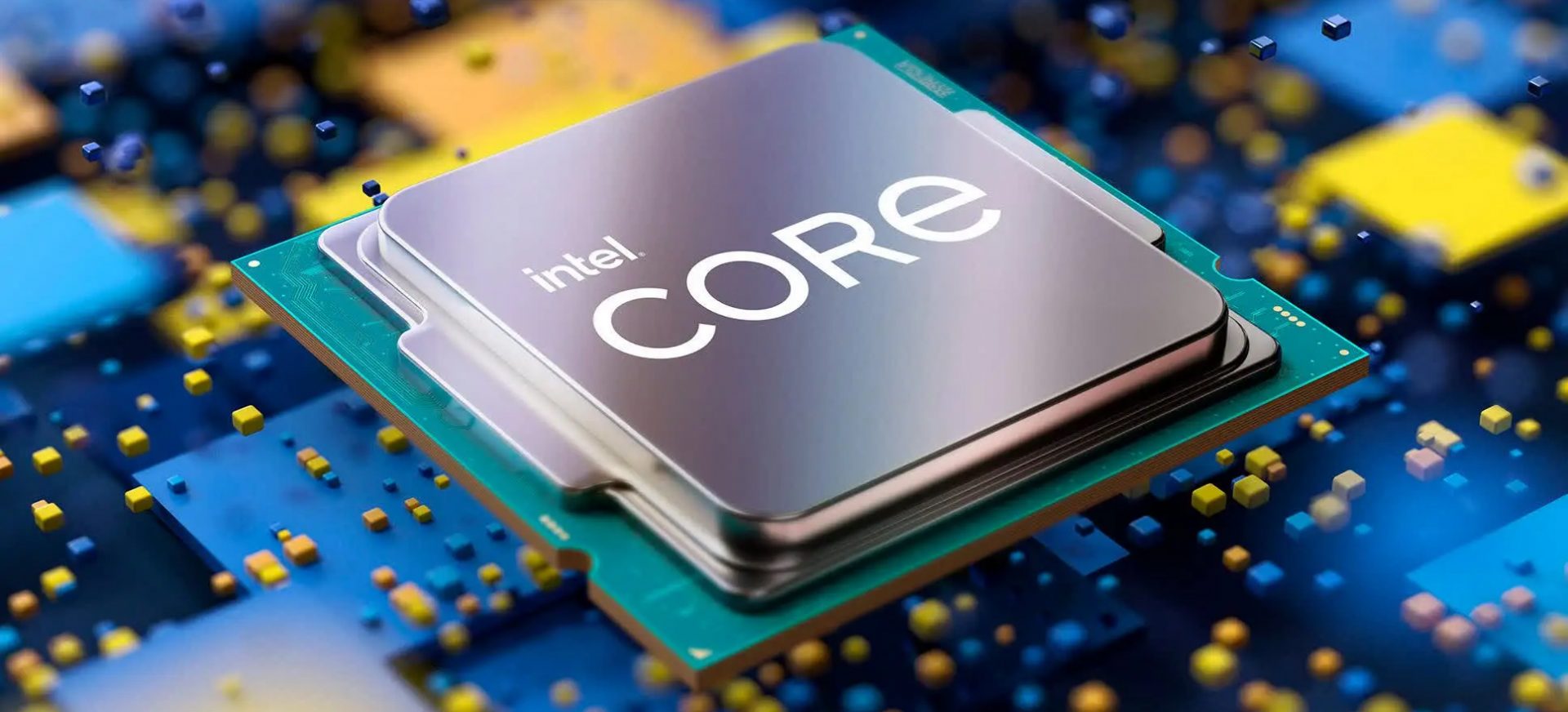
Intel i9 Alder Lake better than AMD Ryzen 9
Alder LakeIf we are to believe news from Intel, new series of processors based on Alder Lake architecture are about to be released somewhere in October. Alder Lake is the 12th Generation Core of Intel processors and it is meant to have all advantages of the current CPU structure. I9 is aimed to pack a punch against its competitors with technology including eight high-performance Golden Cove cores (P-cores) with Hyper-Threading and eight energy-efficient Goldmont (E-cores) equipped with a 30MB L3 cache and operating at high clock speeds. During the benchmark test, the new CPU outperformed all of Intel’s previous Rocket Lake structure processors which is logically expected but the big surprise came from results that indicate better performance than Apple’s new M1 processor even in single-threaded performance which is supposed to be best in that field. Another surprise was really beating AMD Ryzen 9 in each field. If we take into account that i9 has 16 cores in total and can process 24 threads against Ryzen 9 with 16 Cores and 32 threads this is an impressive feature. Now truth to be told Alder lake has massive L3 cache and microarchitectural advantages and consumes much more power but the results of performance are high. Also, note that this early CPU is not really a mass production one and maybe some things will still change but early results are very satisfactory. We will see what will price tag be since in this age of shortage and competition that will also play a big role in its overall success. Speaking of competition I eagerly await AMD’s response to this, in any way it seems that the CPU market is for some turbulence which is always a good thing for the final customer and I welcome it.

Read More
Steps to Fixing Error Code 38

Error Code 38 – What is it?

Error Code 38 is a device driver error that users encounter on any Windows 2000 operating system and its following versions.

It occurs when the peripheral device that you connect to your PC cannot be accessed due to an inability of the Windows system to acknowledge the driver as a previous record of the driver being loaded is found in its memory.

It is a common error that users come across and appears on your PC with the following message:

“Windows cannot load the device driver for this hardware because a previous instance of the device driver is still in memory. (Code 38)”

Solution

driverfix boxError Causes

Error Code 38 is prompted when incomplete program files are left in the Windows system which damage or corrupt its files. There are various factors that contribute to this, some of which are:

  • An incomplete program installation
  • An incomplete program uninstallation
  • Hardware is not removed properly
  • System recovery from viruses
  • An improper system shut down

The above triggers are very likely to create incomplete files within the Windows registry thereby leading to its damage and corruption.

This is especially true in the case of your PC when it has recovered from viruses when using anti-virus software. The anti-virus in its effort to remove the virus also could remove the files which contain them thereby increasing the risk of the error code.

These damaged files can severely impact the health of your PC and are imperative to fix it immediately to prevent further problems.

Further Information and Manual Repair

Although this error code may pose serious problems for your PC, thankfully, it is very similar to other PC driver errors and thus is an easy one to get rid of. Here are various methods that you can use to get your PC running smoothly again.

Method 1 – Restart your PC

The easiest method you can use to solve your PC error code is to simply restart your PC. It may be that the error prompted upon connecting the device you have connected is merely a temporary problem, and upon restart, will resume functioning smoothly.

Method 2 – Run the Troubleshooting Wizard

If restarting your PC does not help, you will have to find the exact nature of the problem by running the troubleshooting wizard for the device and then address the problem accordingly. To do this, proceed with the following steps:

  1. Run Device Manager on your PC
  2. Click on the program under the installed programs that is creating problems for you
  3. Click on the ‘General’ Tab
  4. Click ‘Troubleshoot’
  5. Upon opening, the Troubleshooting Wizard will ask a series of questions regarding the error. Answer the questions and follow its directions for solving the error code.

After following the directions of the Troubleshooting wizard, make sure to restart your PC for the changes to take effect. Now check if your device is still causing problems.

Method 3 – Use System Restore

If the error persists, you can use system restore to eliminate the problem. Here is how to do so:

  1. Log in using an Administrator account
  2. Click ‘Start’ button and select All Programs > Accessories > System Tools > System Restore
  3. Click ‘Restore my computer to an earlier time’ and click ‘Next’
  4. Select the last Windows to restore point from the ‘On this list, click a restore point’ list, and click ‘Next’
  5. Click ‘Next’ on the confirmation window to proceed
  6. Restart your PC after restoration is complete

By restoring the system via a last saved system checkpoint, you can obtain undamaged Windows system files that can help resolve the error code.

Method 4 – Manually uninstall and reinstall the device driver

If using system restore does not work either, you may have to resort to manually uninstalling and then reinstalling the device driver causing the problem.

This would be necessary since the remaining incomplete files due to a partial removal or installation of programs are responsible for the error code. By uninstalling and reinstalling the device driver program, it would lead to the completion of the files.

You can do this by firstly logging in as Administrator and opening Device Manager. Select the device that is causing the problem and double click it; make sure that the peripheral is connected properly to the PC.

Upon opening, click on the ‘Driver’ tab and then select ‘Update Driver’. Make sure to refer to the system documentation that you received with your PC or computer to check for the motherboard details and driver specifics.

Method 5 – Use software to automatically download the driver

Manually uninstalling and reinstalling the driver will do the trick; however, it may be time-consuming especially when you would have to resort to your hardware user manual.

Using a program such as DriverFIX can save you a lot of time and frustration in having your device to work properly on your computer.

DriverFIX, with its user-friendly approach to help you fix your PC issues, comes with an integrated database that detects which drivers you need to reconfigure within just a few seconds and downloads it automatically.

It further ensures that your drivers are installed in their entirety leaving no room for any incomplete files to remain that create Error Code 38, or any other driver-related errors for that matter.

It also has the added advantage of being able to backup and restores your files should there be the slightest possibility of system file damage. DriverFIX is the answer to fixing your PC error codes accurately and quickly.

Click here to download DriverFIX to fix Error Code 38 quickly and effectively!

Read More
Fix Update components must be repaired
Recently, a lot of users reported having an issue with Windows Update. According to these users, they got an error message saying, “Windows Update components must be repaired” after they run the Windows Update troubleshooter. So if you are also facing this issue then you’ve come to the right place as this post will guide you in fixing this problem. There are various suggestions you can check out to fix this problem – you can try running the Windows Update troubleshooter again but this time, in a Clean Boot State or you could also run System File Checker or the DISM tool to repair corrupted Windows Update files or reset the Windows Update components. For more information, refer to the given options below.

Option 1 – Run the Windows Update troubleshooter in a Clean Boot State

Repairing the “Windows Update components must be repaired” error is not that complicated. One of the things you can try is to run the Windows Update troubleshooter again but this time, in a Clean Boot State. Refer to the steps below to get started.
  • Log onto your PC as an administrator.
  • Type in MSConfig in the Start Search to open the System Configuration utility.
  • From there, go to the General tab and click “Selective startup”.
  • Clear the “Load Startup items” check box and make sure that the “Load System Services” and “Use Original boot configuration” options are checked.
  • Next, click the Services tab and select the “Hide All Microsoft Services” check box.
  • Click Disable all.
  • Click on Apply/OK and restart your PC. (This will put your PC into a Clean Boot State. And configure Windows to use the usual startup, just simply undo the changes.)
  • Now try to run the Windows Update troubleshooter again and see if the error is fixed or not.

Option 2 – Try to run System File Checker

If the Windows Update troubleshooter still failed to fix the problem, you can run System File Checker instead. It is a built-in command utility that helps in restoring corrupted files as well as missing files. It replaces bad and corrupted system files with good system files. To run the SFC command, follow the steps given below.
  • Tap Win + R to launch Run.
  • Type in cmd in the field and tap Enter.
  • After opening Command Prompt, type in sfc /scannow
The command will start a system scan which will take a few whiles before it finishes. Once it’s done, you could get the following results:
  1. Windows Resource Protection did not find any integrity violations.
  2. Windows Resource Protection found corrupt files and successfully repaired them.
  3. Windows Resource Protection found corrupt files but was unable to fix some of them.

Option 3 – Run the DISM tool

Running the DISM Tool helps in repairing the Windows System Image as well as the Windows Component Store in Windows 10. Using this built-in tool, you have various options such as the “/ScanHealth”, “/CheckHealth”, and “/RestoreHealth”.
  • Open the Command Prompt with admin privileges.
  • Then type in the following commands and make sure to hit Enter right after you type each one of them:
    • Dism /Online /Cleanup-Image /CheckHealth
    • Dism /Online /Cleanup-Image /ScanHealth
    • exe /Online /Cleanup-image /Restorehealth
  • Do not close the window if the process takes a while as it will probably take a few minutes to finish.
Note: If it happens that the Windows Update client is broken, you need to run the following command to repair it then restart your PC and click on Update once again.
DISM.exe /Online /Cleanup-Image /RestoreHealth /Source:C:RepairSourceWindows /LimitAccess

Option 4 – Delete the contents in the Software Distribution folder and Catroot2 folder

You can also delete the contents in both the Software Distribution and Catroot2 folders as it could potentially fix the “Windows Update components must be repaired” error.
  • Open the WinX Menu.
  • From there, open Command Prompt as admin.
  • Then type in the following command – don’t forget to hit Enter right after typing each one of them.
net stop wuauserv net start cryptSvc net start bits net start msiserver
  • After entering these commands, it will stop the Windows Update Service, Background Intelligent Transfer Service (BITS), Cryptographic, and the MSI Installer
  • Next, go to the C:/Windows/SoftwareDistribution folder and get rid of all the folders and files thereby tapping the Ctrl + A keys to select them all and then click on Delete. Note that if the files are in use, you won’t be able to delete them.
After resetting the SoftwareDistribution folder, you need to reset the Catroot2 folder to restart the services you just stopped. To do that, follow these steps:
  • Type each one of the following commands.
net start wuauserv net start cryptSvc net start bits net start msiserver
  • After that, exit Command Prompt and restart your computer, and then try to run Windows Update once more.
Read More
How to place different wallpapers on 2 screens
Two monitor systems are not such a rarity like they were just a couple of years ago. More and more people are finding out the benefits of having 2 screens instead of one no matter if you play games or do serious work. So how technology has moved forward and new norms so have Windows and we can now set different wallpapers to different screens very easy, a task which was very difficult in the past.
  1. Go to the Personalization option in the Control Panel.
  2. Right-click on your home screen and select the Personalize option from the menu.
  3. In the new window, you can browse for images you wish to set as wallpaper on both of your monitors. This way, the images would be preloaded in the “Choose your picture” option.
  4. Right-click on the image. Doing this will open a new menu that will allow you to set wallpapers for each screen. There is also another option called “Choose a fit” which gives you the option to select the fit of the wallpaper.
  5. Choose one wallpaper for “monitor 1” and a different wallpaper for “monitor 2.” You will now see your dual-screen setup customized with two different wallpapers.
Read More
How to Fix 'We Couldn't Install Windows Technical Preview 0x80070070 - 0x20005' Error Code on Windows 10

We Couldn't Install Windows Technical Preview 0x80070070 - 0x20005 -- What is it?

Some Windows users have been experiencing errors in an attempt to upgrade to Windows 10 OS. This includes the “We Couldn’t Install Windows Technical Preview 0x80070070 – 0x20005” error code. If you’re one of the many users who’ve encountered this error, you might want to check the available space on your device. Error code 0x80070070 – 0x20005 occurs when you do not have the required space to be able to install the upgrade.

Solution

Restoro box imageError Causes

Just like the other alternatives of error code 0x80070070 – 0x20005 such as 0x80070070 – 0x50011, 0x80070070 – 0x50012, and 0x80070070 – 0x60000, We Couldn't Install Windows Technical Preview 0x80070070 - 0x20005 is most likely caused by the following:
  • Insufficient disk space in your computer
  • Incomplete installation or improper deletion of applications
  • The device is infected with virus or malware

Further Information and Manual Repair

In order to upgrade to Windows 10, you need to have at least 40 to 50 GB of free space in your device. Thus, you need to free up some space in order to successfully upgrade your system to Windows 10. See below for the manual methods you can employ to solve your problem.

NOTE: It would be best to seek help from an experienced technician if you are not confident enough to perform the manual methods yourself or you can alternatively make use of an automated tool.

Method One: Clean Up Your Device

  1. Click Start then browse Afterwards, click on This PC.
  2. Right-click on Local Disk (C:) then choose
  3. Under the General tab, click on Disk Cleanup.
  4. Once the Disk Cleanup window appears, check all items you want to clear down, making sure that the recycle bin is empty and clear any temp files, as well as error logs. Click OK once you’re done.
  5. Repeating the same process above, clear down your system files as well to ensure that the old OS files from your previous system are taken down by clicking on Clean up system files in the Disk Cleanup window.

 Method Two: Uninstall Unused Applications

Sometimes, there are unused applications just lying around your device. This may take up your needed space from your device for a system upgrade. Uninstalling these applications can make space that will eventually elude error code 0x80070070 – 0x20005 along with its alternatives – code 0x80070070 – 0x50011, code 0x80070070 – 0x50012, and code 0x80070070 – 0x60000.

  1. Open the Control Panel then select Programs and Features.
  2. Check on unused applications on your device
  3. Right-click on the unused application then select

 Method Three: Remove or Archive Files

If there are tons of images, media, videos, or documents that you rarely use but will still be needing in the future, you can move these files to another drive where Windows 10 will not be installed on.

If there are no secondary drives in your device, consider using a USB Drive or external hard disk. Another option you can do is making use of cloud storage programs like One Drive or Google Drive. In this way, you’ll still have access to these files even if it’s not in a physical location while making larger space in your device.

Method Four: Scan Your Device For Viruses

Most Windows users download applications or software regularly. These applications or software might come from unsafe sites where you might have accidentally downloaded a virus or malware along with the legit application or software you intended to download.

With that said, it is highly recommended to download and install in your device a reliable and powerful antivirus. Using an antivirus, you can now perform an overall scan of your device’s system. Once you’re able to detect and remove any suspected virus or malware, you’ll now be able to get rid of the error code 0x80070070 – 0x20005. After solving the issue, you can now resume upgrading to Windows 10.

Method Five: Download An Automated Tool

Can’t seem to put up with the long and technical manual repair process? You can still fix this error by downloading and installing a powerful automated tool that will surely get the job done in a jiffy!

Read More
How to Fix QTCF.dll Error

What is QTCF.dll Error?

Sometimes you may experience QTCF.dll error on your computer either during installation or while upgrading applications like iTunes and QuickTime. This error indicates that the installation or the upgrading of the desired application was unsuccessful. The QTCF.dll error is recognized by the Apple Support Community and they have provided a solution to fix this error easily.

Solution

Restoro box imageError Causes

QTCF.dll error occurs because the computer overloads with too much data which corrupts and damages registry files. And therefore the desired program fails to download and start on your PC. When this happens you see a pop up on your screen and the QTCF.dll error message that is usually displayed as:
  • QTCF.dll not found
  • QTCF.dll file is missing
Such message display hinders your ability to use iTunes or QuickTime applications on your PC. Furthermore, it also slows the performance of your system and you may encounter startup and shutdown problems. Therefore, it is advisable to repair the problem and fix the QTCF.dll error right away.

Further Information and Manual Repair

The good news is that you don’t need to go to a professional or be an IT expert in order to fix the QTCF.dll error. Since this error means that the installation or the attempt to upgrade the system was unsuccessful therefore you need to reinstall the fresh copy of the application. Here’s how you can easily fix the problem by yourself and install a fresh copy of the application: Step 1: First close all the applications running on your computer. Step 2: Now uninstall the application that you were trying to install such as iTunes or QuickTime.  To do this, go to the start menu, click on settings, control panel, and programs. Now click on the application you want to remove. Step 3: Once the application is uninstalled and removed from your computer, then restart it again. Step 4: Now download a fresh version of the application (iTunes or QuickTime) from Apple’s official website http://www.apple.com/quicktime/download/. Step 5: Run the installer. If reinstalling doesn’t work, then it is advisable to download the QTCF.dll repair tool. This repair tool will scan your PC for errors in seconds. Once the scanning is complete, click on the ‘fix all’ button to repair your computer. Once the error is fixed, restart your computer and then try reinstalling the desired application one more time.

A Word of Advice

For regular PC users, it is advisable to install an anti-virus and malware scanner and run it every time you use your computer. This helps you keep informed about the viruses or errors that your computer might be exposed to. And you can take timely actions before you experience file corruption and damage.
Read More
1 2 3 171
Logo
Copyright © 2023, ErrorTools. All Rights Reserved
Trademark: Microsoft Windows logos are registered trademarks of Microsoft. Disclaimer: ErrorTools.com is not affiliated with Microsoft, nor claims direct affiliation.
The information on this page is provided for information purposes only.
DMCA.com Protection Status