iWin is a self-published games platform that offers users to download and play free games. It is classified as potentially unwanted, primarily because it often comes bundled with the iWin Toolbar, which is an adware supported browser extension by Conduit. The iWin Toolbar is heavily flagged as malware or unwanted by numerous Antiviruses. iWin Games is not malicious in itself, though due to its bundling and common inclusion of the toolbar, many users wish to remove it.
About Browser Hijackers
Browser hijack is a very common type of online fraud where your web browser configurations are altered to allow it to do things you never intend. Basically, most browser hijackers are made for marketing or advertising purposes. It redirects you to the sponsored sites and injects advertisements on the browser that helps its creator generate income. Most people assume that these kinds of websites are legitimate and harmless but that is incorrect. Nearly every browser hijacker poses an actual threat to your online safety and it is necessary to categorize them under privacy risks. When the program attacks your computer or laptop, it starts to mess things up a whole lot that slows your computer down to a crawl. In the worst-case scenario, you may be pushed to deal with serious malware threats as well.
How one can know whether the web browser is hijacked?
There are plenty of signs that indicate your internet browser has been highjacked: the browser’s homepage is changed; you find new unwanted bookmarks or favorites added, usually directed to ad-filled or pornography sites; The default search page of web browser is altered; you’ll see many toolbars on the web browser; your internet browser displays constant pop-up ads; your web browser starts running slowly or presents frequent glitches; You can’t access certain sites, particularly anti-virus websites.
How they invade computers
Browser hijackers infect PCs in numerous ways, including via a drive-by download, a file-share, or an infected e-mail. Many browser hijackings originate from add-on programs, i.e., browser helper objects (BHO), toolbars, or plug-ins added to web browsers to provide them extra capabilities. Also, some shareware and freeware can put the hijacker in your computer through the “bundling” technique. A good example of some popular browser hijackers includes Anyprotect, Conduit, Babylon, SweetPage, DefaultTab, Delta Search, and RocketTab, but the names are constantly changing.
Browser hijackers could record user keystrokes to collect potentially important information that leads to privacy concerns, cause instability on systems, severely disrupt the user experience, and ultimately slow down the computer to a point where it becomes unusable.
How to repair a browser hijack
Some hijackers can be easily removed by uninstalling the free software they were included with or by deleting any extension you have recently added to your computer system. However, most browser hijackers are hard to get rid of manually. Irrespective of how much you try to eliminate it, it may return over and over. And there’s no denying the very fact that manual repairs and removal can be quite a difficult job for a beginner computer user. Furthermore, there are many risks associated with tinkering around with the pc registry files.
What To Do If You Cannot Install Any Antivirus?
Malware could cause many different types of damage to computer systems, networks, and data. Some malware variants modify internet browser settings by including a proxy server or modify the computer’s DNS settings. In these cases, you’ll be unable to visit some or all of the sites, and thus not able to download or install the required security software to remove the computer virus. If you’re reading this article right now, you may have perhaps recognized that virus infection is the cause of your blocked net connectivity. So what to do when you want to install an anti-virus application like Safebytes? Refer to the instructions below to remove malware through alternative ways.
Make use of Safe Mode to fix the issue
In the event the malware is set to load at Windows startup, then booting in safe mode should avoid it. Only minimal required applications and services are loaded whenever you boot your laptop or computer in Safe Mode. Here are the steps you should follow to boot into the Safe Mode of your Windows XP, Vista, or 7 computers (visit Microsoft website for instructions on Windows 8 and 10 computers).
1) Press the F8 key continuously as soon as your system boots, but before the large windows logo comes up. This will bring up the Advanced Boot Options menu.
2) Use the arrow keys to choose Safe Mode with Networking and press ENTER.
3) Once you get into this mode, you will have an internet connection once again. Now, use your browser to download and install an anti-malware application.
4) Right after the software program is installed, let the scan run to remove viruses and other threats automatically.
Obtain the antivirus software using an alternate internet browser
Certain malware might target vulnerabilities of a specific web browser that obstruct the downloading process. The ideal way to overcome this issue is to go with an internet browser that is well known for its security measures. Firefox has built-in Malware and Phishing Protection to help keep you safe online.
Create a bootable USB antivirus drive
Another way is to download and transfer an antivirus application from a clean PC to run a scan on the infected computer. To run anti-malware from a USB pen drive, follow these simple measures:
1) Use another virus-free computer system to download Safebytes Anti-Malware.
2) Insert the pen drive onto the same computer.
3) Double-click the Setup icon of the anti-malware software package to run the Installation Wizard.
4) When asked, select the location of the pen drive as the place where you would like to store the software files. Follow the activation instructions.
5) Now, transfer the pen drive to the infected PC.
6) Run the Safebytes Anti-malware directly from the pen drive by double-clicking the icon.
7) Click on “Scan Now” to run a scan on the infected computer for malware.
Protect Your Computer & Privacy With SafeBytes Anti-Malware
To help protect your PC from many different internet-based threats, it is important to install an anti-malware program on your laptop. But with countless numbers of anti-malware companies in the market, nowadays it is hard to decide which one you should buy for your computer. A few of them are good, some are decent, while some will harm your PC themselves! You need to purchase a product that has gained a strong reputation and detects not just viruses but other kinds of malware as well. When considering commercial anti-malware tool options, most people opt for well-known brands, such as SafeBytes, and they are quite happy with it.
SafeBytes anti-malware is a trustworthy tool that not only secures your PC permanently but is also extremely user-friendly for people of all ability levels. Through its cutting-edge technology, this software protects your personal computer against infections caused by various kinds of malware and similar threats, including adware, spyware, trojans, worms, computer viruses, keyloggers, potentially unwanted programs (PUPs), and ransomware.
SafeBytes has a plethora of great features that can help you protect your PC from malware attacks and damage. Listed below are some of the best ones:
Robust, Anti-malware Protection: Built upon a highly acclaimed antivirus engine, this malware removal application is able to identify and get rid of various stubborn malware threats like browser hijackers, potentially unwanted programs, and ransomware that other typical antivirus programs will miss.
Live Protection: Malware programs attempting to get into the system are discovered and stopped as and when detected by the SafeBytes active protection shields. This tool will always monitor your PC for any suspicious activity and updates itself regularly to keep abreast of the constantly changing threat scenarios.
Web Protection: Safebytes assigns all websites a unique safety rating that helps you to get an idea of whether the webpage you’re just about to visit is safe to browse or known to be a phishing site.
High-Speed Malware Scanning Engine: SafeBytes’s virus scan engine is among the fastest and most efficient in the industry. Its targeted scanning considerably increases the catch rate for viruses which is embedded in various computer files.
Lowest CPU and RAM Usage: SafeBytes is a lightweight and user-friendly anti-virus and antimalware solution. Since it uses very low computer resources, this program leaves the computer’s power exactly where it belongs to: with you actually.
24/7 Live Expert Support: For any technical concerns or product support, you may get 24/7 expert assistance through chat and email.
Technical Details and Manual Removal (Advanced Users)
If you wish to manually get rid of iWin Games without the use of an automated tool, it might be possible to do so by removing the program from the Windows Add/Remove Programs menu, or in cases of browser extensions, going to the browsers AddOn/Extension manager and uninstalling it. You may even want to reset your home page and search providers, and also delete browsing history, temporary files, and cookies.
Lastly, examine your hard drive for all of the following and clean your computer registry manually to get rid of leftover application entries after uninstalls. Please be aware that this is for advanced users only and could be difficult, with wrong file removal causing additional PC errors. Moreover, certain malware is capable of replicating or preventing removal. You’re suggested to do this process in Safe Mode.
Files:
C:DOCUME1USER1LOCALS1Tempnsu1.tmp
C:e8bfb44ebc51cebadf4410cb35e993837a67e31b69a243ebac9de76160c97ac6
C:DOCUME1USER1LOCALS1Tempnsu2.tmp
C:DOCUME1USER1LOCALS1Tempnsu2.tmpSystem.dll
C:DOCUME1USER1LOCALS1Tempnsu2.tmpftdownload.dat
C:e8bfb44ebc51cebadf4410cb35e993837a67e31b69a243ebac9de76160c97ac6
C:DOCUME1USER1LOCALS1Tempnsu2.tmpSystem.dll
C:DOCUME1USER1LOCALS1Tempnsu2.tmpftdownload.dat
C:DOCUME1USER1LOCALS1Tempnsu2.tmp
C:DOCUME1USER1LOCALS1Tempnsu1.tmp
C:DOCUME1USER1LOCALS1Tempnsu2.tmp
C:DOCUME1USER1LOCALS1Tempnsu2.tmpftdownload.dat
C:DOCUME1USER1LOCALS1Tempnsu2.tmpSystem.dll
Directory %COMMONAPPDATAiWin Games.
Directory %LOCALSETTINGSTempiWinGames.
Directory %PROGRAMFILESiWin Games.
Directory %PROGRAMSiWin Games.
Registry:
Key HKEY_CLASSES_ROOT named iWinGamesInstaller.CoInServ.1
Key HKEY_CLASSES_ROOT named iWinGamesInstaller.CoInServ
Key 495874FE-4A82-4AD1-9476-0B957E0B95EB at HKEY_CLASSES_ROOTTypeLib.
Key 4B55700F-DB51-4891-8B28-6136A48A0105 at HKEY_CLASSES_ROOTAppID.
Key 4B55700F-DB51-4891-8B28-6136A48A0105 at HKEY_CLASSES_ROOTCLSID.
Key CA5E2E62-8612-4942-84A0-A94090D166AA at HKEY_CLASSES_ROOTInterface.
Key E3ED53C5-7AD5-4DF5-9734-AFB6E7E5D9DB at HKEY_CLASSES_ROOTInterface.
Key 4301AEBD288588A40833184CFEC0AF92 at HKEY_CLASSES_ROOTInstallerFeatures.
Key 4301AEBD288588A40833184CFEC0AF92 at HKEY_CLASSES_ROOTInstallerProducts.
Key 80F08842F9EA1BE4BA4922DA74CDB698 at HKEY_CLASSES_ROOTInstallerUpgradeCodes.
Key ForseRemove at HKEY_CLASSES_ROOTAppID.
Key iWinArcade at HKEY_CURRENT_USERSoftware.
Key iWinArcade at HKEY_LOCAL_MACHINESOFTWARE.
Key iWinGamesInstaller.EXE at HKEY_CLASSES_ROOTAppID.
Key iWinGamesInstaller at HKEY_LOCAL_MACHINESYSTEMControlSet001Services.
Key iWinGamesInstaller at HKEY_LOCAL_MACHINESYSTEMControlSet002Services.
Key iWinGamesInstaller at HKEY_LOCAL_MACHINESYSTEMControlSet003Services.
Value %PROGRAMFILESiWin GamesiWinGames.exe at HKEY_LOCAL_MACHINESYSTEMControlSet001ServicesSharedAccessParametersFirewallPolicyStandardProfileAuthorizedApplicationsList.
Value %PROGRAMFILESiWin GamesWebUpdater.exe at HKEY_LOCAL_MACHINESYSTEMControlSet001ServicesSharedAccessParametersFirewallPolicyStandardProfileAuthorizedApplicationsList.







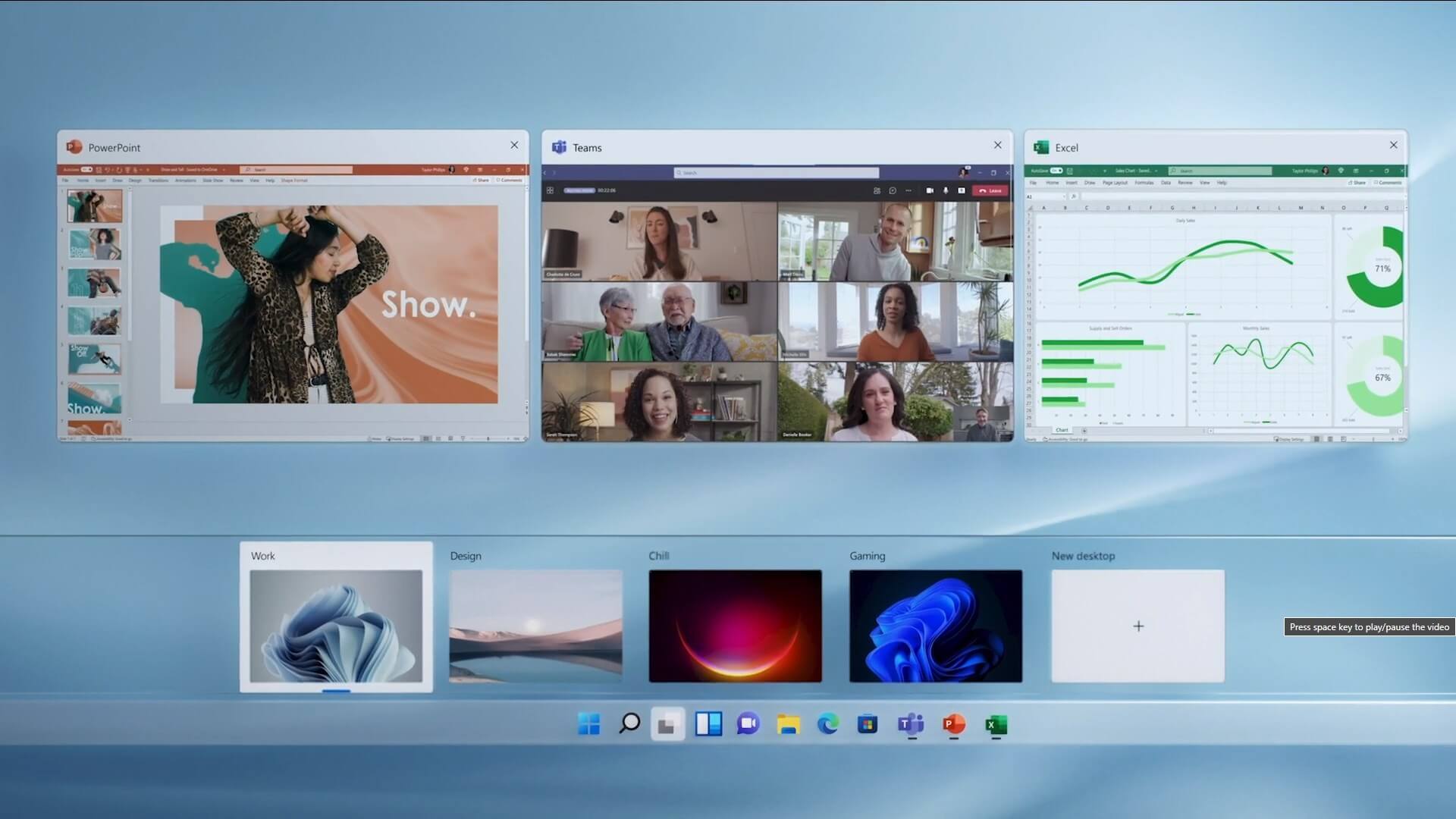 The feature that was originally planned for now scrapped Windows 10X is included in Windows 11. You will be able to customize your Virtual desktop with different wallpapers for each screen.
In order to fully customize your virtual desktops with different wallpapers follow this easy step-by-step guide.
The feature that was originally planned for now scrapped Windows 10X is included in Windows 11. You will be able to customize your Virtual desktop with different wallpapers for each screen.
In order to fully customize your virtual desktops with different wallpapers follow this easy step-by-step guide.
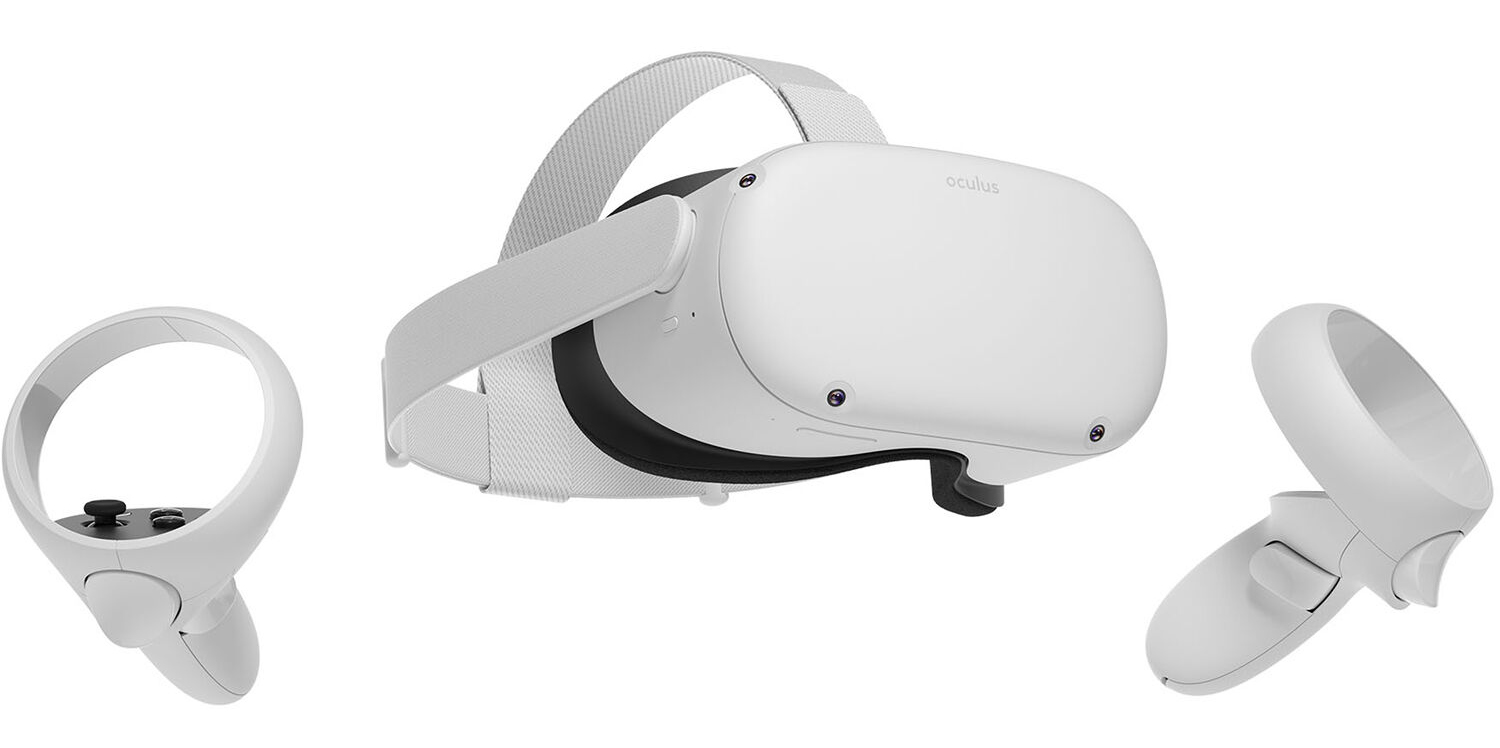 With its Rift model, Oculus set itself as a big player in VR. Now the company is slowly bowing out of the dedicated, tethered VR headset with its latest Quest 2 designed to primarily be a standalone headset.
In case you do not know, tethered headset means that the headset itself is connected to your PC and is using its power to drive your VR experience.
Now technical specifications of Quest 2 are pretty OK and it can drive stuff pretty decently and if you want you can purchase the dedicated cable to connect it to your PC for the full experience of games requiring more capable hardware.
Oculus Quest 2 is the cheapest headset on this list and with its stable performance, is highly recommended.
With its Rift model, Oculus set itself as a big player in VR. Now the company is slowly bowing out of the dedicated, tethered VR headset with its latest Quest 2 designed to primarily be a standalone headset.
In case you do not know, tethered headset means that the headset itself is connected to your PC and is using its power to drive your VR experience.
Now technical specifications of Quest 2 are pretty OK and it can drive stuff pretty decently and if you want you can purchase the dedicated cable to connect it to your PC for the full experience of games requiring more capable hardware.
Oculus Quest 2 is the cheapest headset on this list and with its stable performance, is highly recommended.
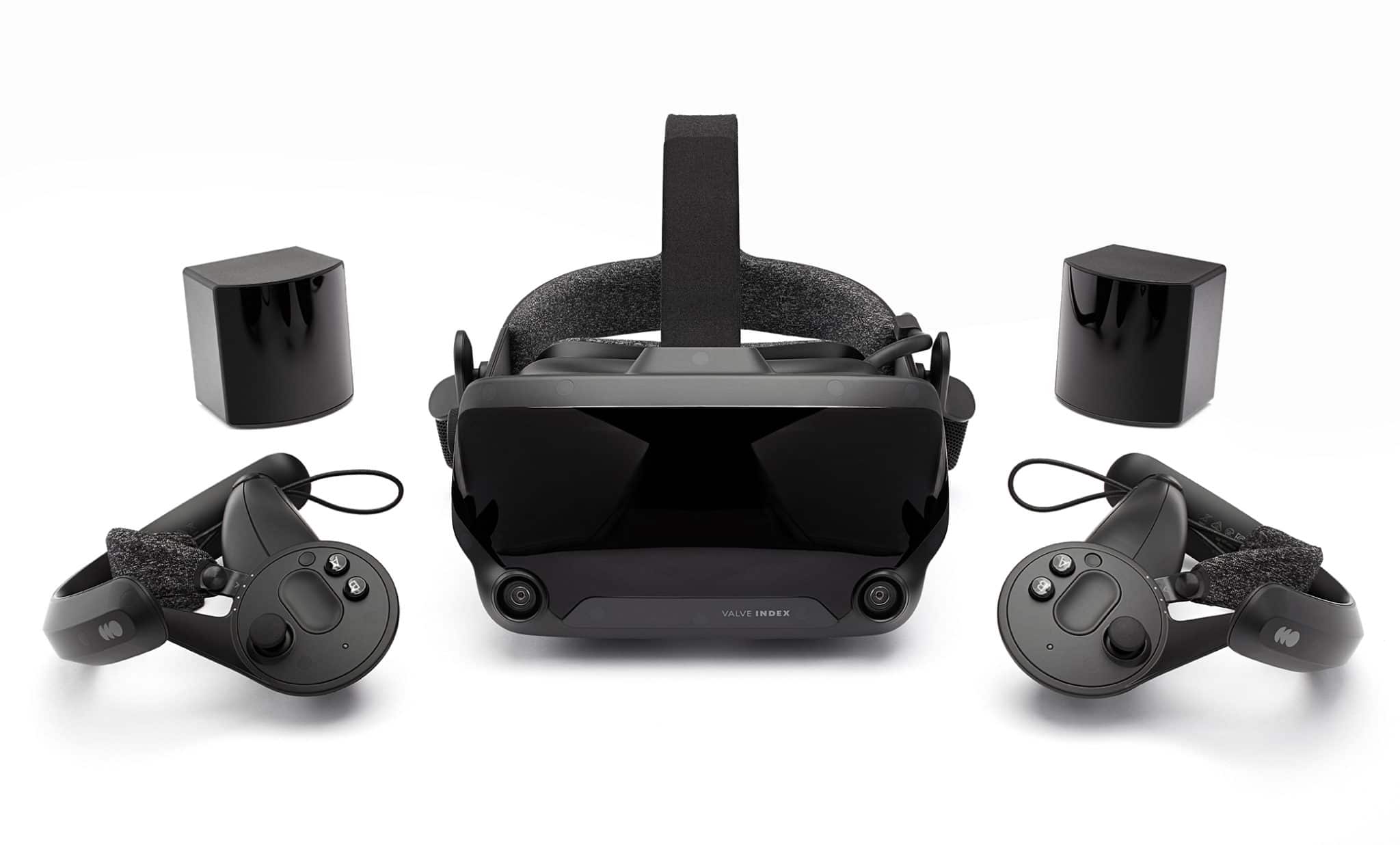 Although the headset itself is nothing revolutionary or special its controllers are. They can track individual finger movements, making games (that take advantage of them) much more immersive than the standard trigger grips on other controllers.
The Index's higher refresh rate makes for smoother action, as well, which is another nice bonus. If you already have an HTC Vive or Vive Cosmos Elite, and their base stations (not the regular Cosmos), you can buy only the controllers.
Although the headset itself is nothing revolutionary or special its controllers are. They can track individual finger movements, making games (that take advantage of them) much more immersive than the standard trigger grips on other controllers.
The Index's higher refresh rate makes for smoother action, as well, which is another nice bonus. If you already have an HTC Vive or Vive Cosmos Elite, and their base stations (not the regular Cosmos), you can buy only the controllers.
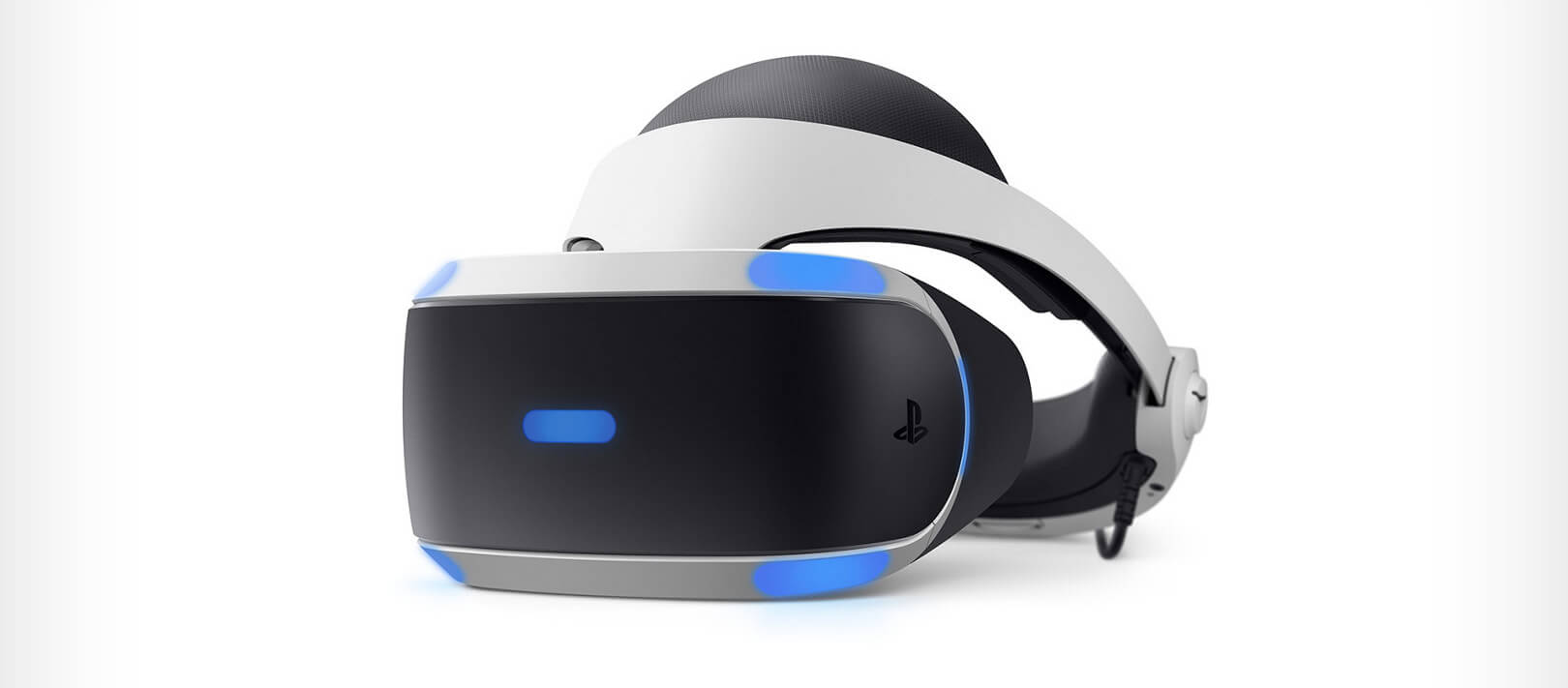 The PlayStation VR is compelling thanks to Sony backing its development, plus the PlayStation 4's affordability and availability compared with gaming PCs. All you need is the headset, a PlayStation 4, and a PlayStation Camera (now included with most PlayStation VR bundles).
Not really the best of the bunch but still one of the top ones for console gaming. Sony is working on a new PlayStation VR system for the PlayStation 5, with redesigned controllers. The new headset hasn't been revealed yet, but the company has released a preview of the new controllers.
The PlayStation VR is compelling thanks to Sony backing its development, plus the PlayStation 4's affordability and availability compared with gaming PCs. All you need is the headset, a PlayStation 4, and a PlayStation Camera (now included with most PlayStation VR bundles).
Not really the best of the bunch but still one of the top ones for console gaming. Sony is working on a new PlayStation VR system for the PlayStation 5, with redesigned controllers. The new headset hasn't been revealed yet, but the company has released a preview of the new controllers.
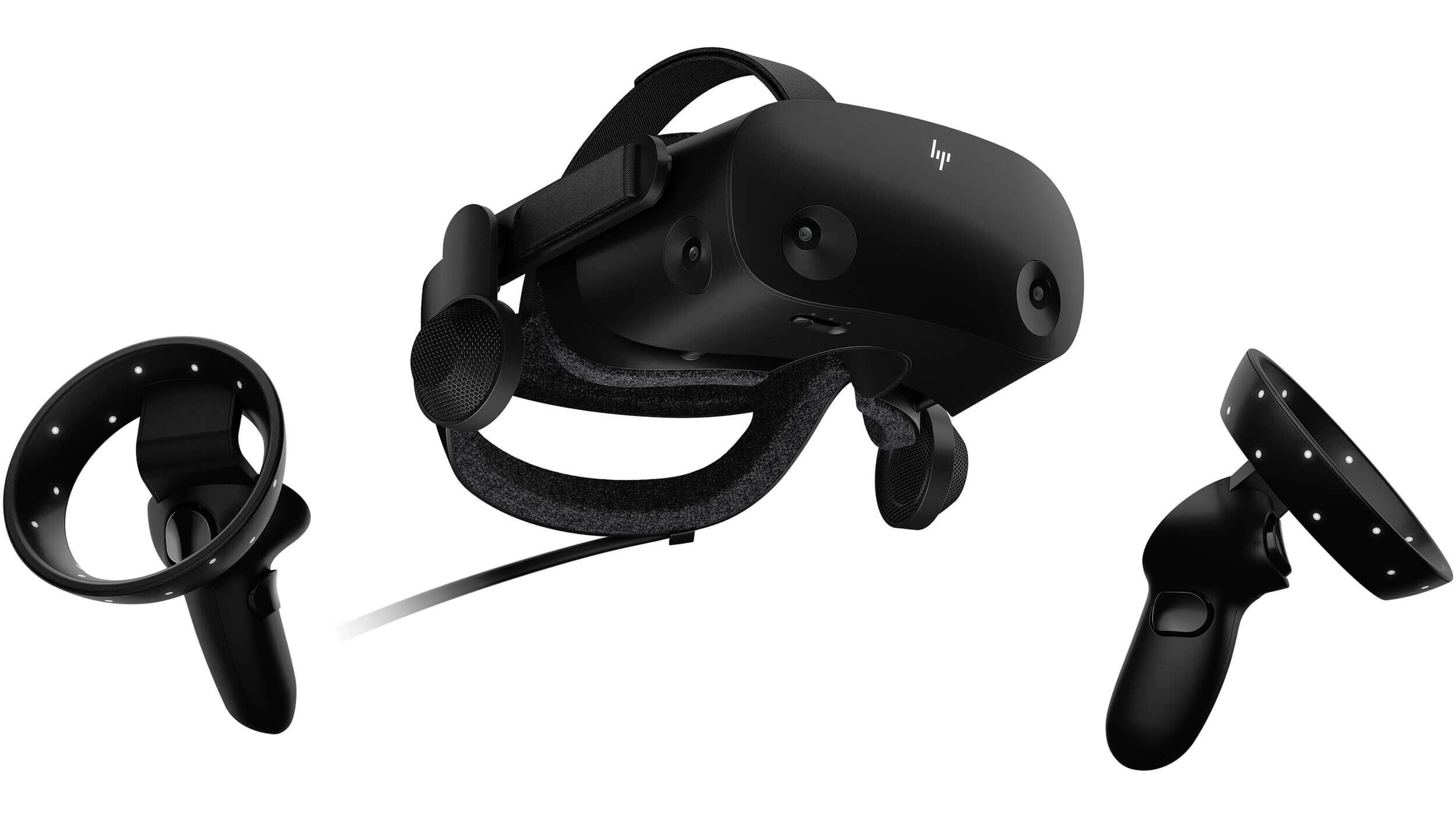 HP headset is one which you get if you want the best image quality in VR headset, sadly controllers did not follow the same quality of headset itself. But this is still a pretty decent headset overall and worth the purchase.
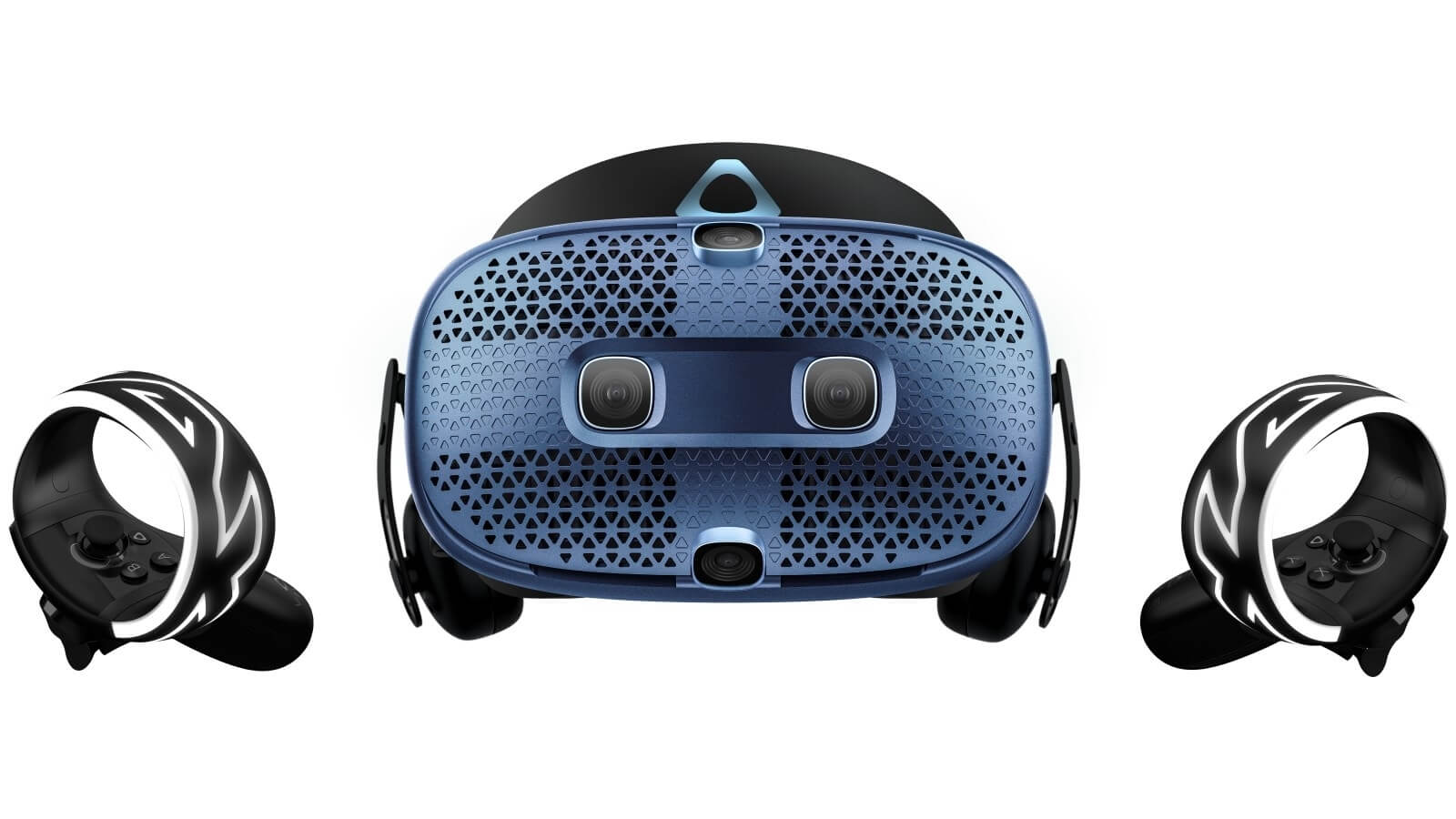 HTC's Vive Cosmos is the upgraded version of the Vive. It features a higher resolution and replaces the external base stations with outward-facing cameras for motion tracking. It's a comprehensive package for whole-room VR.
HTC recently released the Vive Pro 2, a high-end VR headset targeting both enterprise users and consumers. This new headset features a 2,448-by-2,448 resolution display for each eye, making it the highest-resolution headset currently available. It's also more expensive than the Cosmos Elite.
Sadly one thing that is bringing this headset down is the price.
HTC's Vive Cosmos is the upgraded version of the Vive. It features a higher resolution and replaces the external base stations with outward-facing cameras for motion tracking. It's a comprehensive package for whole-room VR.
HTC recently released the Vive Pro 2, a high-end VR headset targeting both enterprise users and consumers. This new headset features a 2,448-by-2,448 resolution display for each eye, making it the highest-resolution headset currently available. It's also more expensive than the Cosmos Elite.
Sadly one thing that is bringing this headset down is the price. 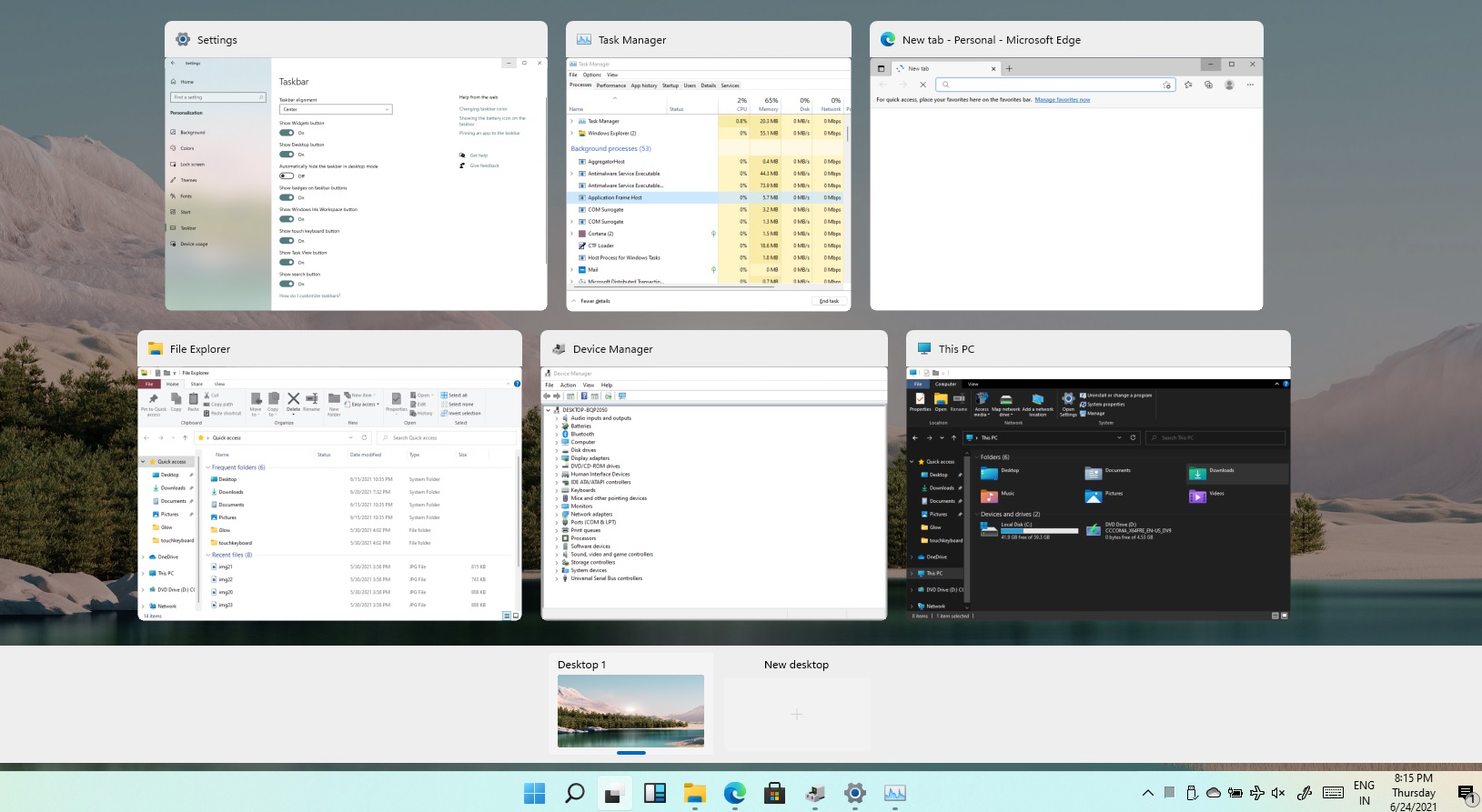 Task View feature inside Windows 11 is actually a great feature, letting you quickly view open windows and virtual desktops. How Task view itself could be reached with keyboard shortcut combination of ⊞ WINDOWS + TAB some users will prefer this way of using it and thus button on the taskbar is something you do not want or need.
There is a very easy way to remove mentioned button and I will show you how to do it.
Right-click the taskbar button itself and click on Hide From Taskbar.
That’s it, you have done it.
Now in order for you to bring it back if you change your mind, you will have to do some extra steps but it is nothing difficult.
Right-click on the taskbar and click on Taskbar settings, you will be lead to Personalization > Taskbar.
Inside locate Taskbar Items and switch Task View to ON, you will see the Task View button right away showing itself again.
Task View feature inside Windows 11 is actually a great feature, letting you quickly view open windows and virtual desktops. How Task view itself could be reached with keyboard shortcut combination of ⊞ WINDOWS + TAB some users will prefer this way of using it and thus button on the taskbar is something you do not want or need.
There is a very easy way to remove mentioned button and I will show you how to do it.
Right-click the taskbar button itself and click on Hide From Taskbar.
That’s it, you have done it.
Now in order for you to bring it back if you change your mind, you will have to do some extra steps but it is nothing difficult.
Right-click on the taskbar and click on Taskbar settings, you will be lead to Personalization > Taskbar.
Inside locate Taskbar Items and switch Task View to ON, you will see the Task View button right away showing itself again.  Before we dive into it in more detail and predictions please be aware that this article is based upon my personal opinion drawn from the research of current trends and standards. That being said let's dive right into details.