Logo

nslookup works but ping fails in Windows

nslookup is a command-line tool that helps in finding the DNS records of a website. It sends a name server query to the DNS and obtains the corresponding IP address. Aside from that, it can also perform some complex functionality such as finding details about FTP server, Mail server and many more but most of them are used by administrators. The best thing about nslookup is that it queries the DNS server directly and it does not rely on the cache.

On the other hand, there is another tool called PING that is used to verify connectivity. PING sends a packet of information to the IP address or Domain and gets back a response in the form of packets. So if everything goes well, all packets are received but if not, it will help you find out where the delay in the network exactly is. However, the ping command does not always attempt a DNS lookup which means that it might be using the DNS cache and use the IP address available in that table.

Although both nslookup and PING help you in identifying the host or IP address, however, they don’t always work and sometimes fail. So if your nslookup works but ping fails on your Windows 10 PC when querying the IP address of a website then it could be caused by many reasons. It could be that the nslookup queries work for you but when you try to use PING, it fails. For instance, if you open the abc.com website, here’s how it will look like:

nslookup xyz.com

Server: dns.company.com

Address: 192.168.1.38

C:> ping xyz.com

Ping request could not find host xyz.com. Please check the name and try again.

The domain is converted into an IP address and then data is sent to that IP address when you use PING. So when a reply comes back it means that the data is going back and forth to that domain without any problem. However, if the DNS fails to resolve the IP address of the website or if your PC does not attempt a DNS lookup, you will receive a similar error message that says, “Could not find host” and so on. To resolve this issue, here are some options that might help.

Option 1 – Reset Winsock, TCP/IP & Flush DNS

Resetting Winsock, TCP/IP, and flushing DNS might help you resolve the issue with nslookup and PING. To do so, follow these steps:

  • Right-click on the Start button and click on Command Prompt (administrator) so you can pull up an elevated Command Prompt.
  • After that, execute each one of the commands listed below. And after you typed in one after the other, you have to hit Enter.
  1. netsh winsock reset – type in this command to reset Winsock
  2. netsh int ip reset resettcpip.txt – type in this command to reset TCP/IP
  3. ipconfig /flushdns – type in this command to flush the DNS cache
  • Next, restart your PC and check if the problem’s fixed.

Option 2 – Force Windows to do a DNS lookup using FQDN

  • Go to Settings > Network & Internet > Status > Change adapter options.
  • From there, right-click on the network and select Properties.
  • Next, in case you’re using IPv6, from the list of connections available in the list, select Internet Protocol Version 4.
  • Then click on Properties and click Advanced.
  • After that, switch to the DNS tab and select “Append these DNS suffixes (in order)” and click on the Add button and then add “.” as a suffix so that each time you query using PING and another tool, it will add a “.” at the end and will force the lookup.

Option 3 – Make sure that there is only one default gateway

If your computer has more than one NIC connected and there are multiple default gateways, then it will most likely create confusion which is why you need to remove the default gateway from the configuration of all NICs and make sure that there is only one default gateway.

Option 4 – Use the Google Public DNS

You might want to change your DNS to Google Public DNS as it could also help you in fixing the nslookup and PING issues. To do so, follow the steps below.

  • The first thing you have to do is right-click on the network icon in the Taskbar and select Network and Sharing Center.
  • Next, click on the “Change Adapter Settings” option.
  • After that, search for the network connection that you are using to connect to the internet. Note that the option might be “Wireless Connection” or “Local Area Connection”.
  • Right-click on your network connection and click on Properties.
  • Then select the new window to choose the “Internet Protocol 4 (TCP/IPv4)” option.
  • After that, click on the Properties button and click the checkbox in the new window for the option “Use the following DNS server addresses”.
  • Type in “8.8.8.8” and “8.8.4.4” and click OK and exit.

Option 5 – Check the Windows Host file

You can also try to cross-check the Windows Hosts file to find out if the website you are trying to open has been blocked, because if it is, then it’s no wonder why PING fails even when nslookup works. There are instances when some third-party application modifies the file and adds some websites to the blocklists. So if the website is indeed blocked, you need to remove it from the list.

Option 6 – Delete the WLAN Profiles

Deleting the WLAN Profiles might be a good idea if you are not able to connect to the internet on your computer and if you’re using Wi-Fi. It could be that the networks that were connected previously have gone rogue which is why it is not connecting properly. And so deleting the WLAN profiles might help you in fixing the issue with nslookup and PING.

Option 7 – Reinstall the Network Adapter Drivers

  • Tap the Win + R keys to launch the Run window and then type in the “msc” command and hit Enter to open the Device Manager window.
  • Under the Device Manager, you will see a list of drivers. From there, look for the Network Adapters and expand it.
  • Then right-click on each one of the Network drivers and select “Uninstall device”.
  • Restart your PC.

Do You Need Help with Your Device?

Our Team of Experts May Help
Troubleshoot.Tech Experts are There for You!
Replace damaged files
Restore performance
Free disk space
Remove Malware
Protects WEB browser
Remove Viruses
Stop PC freezing
GET HELP
Troubleshoot.Tech experts work with all versions of Microsoft Windows including Windows 11, with Android, Mac, and more.

Share this article:

You might also like

MS Store and Electron Bot

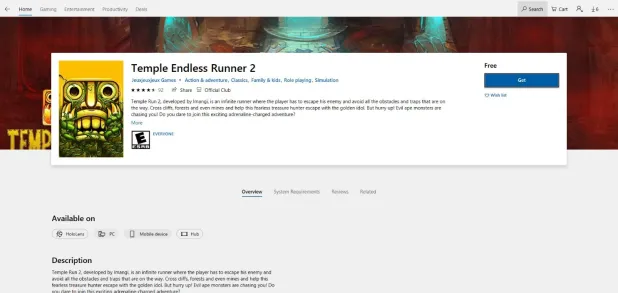
So, what is Electron bot, and why it even matters if it is in the MS store. Electron bot is malware that somehow found its way inside MS Store via game clones of popular games temple run and subway surfer. This infiltration led to the infection of around 5000 systems over the globe in a very short period of time.

electron bot malware

This malware is a backdoor that gives complete system control to the attacker. Any type of execution can be performed remotely in real-time. Usually, this kind of attack was aimed at a spread of click fraud over popular social media like Facebook, google, youtube, etc.

Primary goal

Electron Bot's primary goals in the ongoing campaign analyzed by researchers are:

  • SEO poisoning – Create malware-dropping sites that rank high on Google Search results.
  • Ad clicking – Connect to remote sites in the background and click on non-viewable advertisements.
  • Social media account promotion – Direct traffic to specific content on social media platforms.
  • Online product promotion – Increase store rating by clicking on its advertisements.

These functions are offered as services to those who want to increase their online profits illegitimately, so the gains for the malware operators are indirect.

Publishers that contain malware

For now, users may take note of the publishers who released confirmed malicious game apps using the following names:

  • Lupy games
  • Crazy 4 games
  • Jeuxjeuxkeux games
  • Akshi games
  • Goo Games
  • Bizzon Case
Read More
Your Windows license will expire soon
If you suddenly get a message telling you that “Your Windows license will expire soon, You need to activate Windows in Settings” on your Windows 10 computer but you know that your Windows 10 is already activated. Worry not for this post will help you get rid of that error message right away. Before you get started, make sure that you have the Windows product key with you. If you don’t, you can get it by running the following command in an elevated Command Prompt:
wmic path SoftwareLicensingService get OA3xOriginalProductKey
Take note of the product key and then proceed to the options given below.

Option 1 – Try activating Windows 10 again or use another product key

  • If you’re sure that you have the correct product key, click the Go to the Settings button.
  • After that, click the Activate button once again.
  • If you have another license key, you can also use that as well, just simply click on the Change product key.
  • Then enter the new product key and click on Activate. That should fix the problem, if it doesn’t, refer to the next option below.

Option 2 – Try to reset the licensing status

  • Click the Start button and then type “cmd” in the Search box and then tap Ctrl + Shift + Enter to open an elevated Command Prompt.
  • Next, type the “slmgr –rearm” and hit Enter to reset the licensing status.
  • Restart your computer and check if the error is now gone or not.

Option 3 – Try uninstalling the product key and re-enter it once more.

  • The first thing you have to do to uninstall the product key is to know the Activation ID of your Windows installation. To do so, open an elevated Command Prompt and type this command, and hit Enter – vbs /dlv
  • After you enter the command, you should see the licensing status and Activation ID. And to get all the Activation IDs of all the installed Windows versions, key in this command and hit Enter – vbs /dlv all
Note: The “/dlv” parameter will give you the license information for the installed operating system.
  • After you enter the second command, you should see a Windows Script Host window with all the Windows licensing and activation status. Take note of the Activation ID.
  • Next, in the same elevated Command Prompt, type this command – slmgr /upk <Activation ID>
Note: In the third given command, “/upk” stands for “uninstall product key”. This parameter uninstalls the product key of the current Windows edition.
  • Restart your PC. After that, your computer will be in an unlicensed state so you need to re-enter the product key again.

Option 4 – Try rebuilding the Tokens.dat file.

The issue might be caused by a corrupted Tokens.dat file. The Tokens.dat file is a digitally signed file that stores most of the Windows Activation files so if it is corrupted then no wonder you’re having activation issues. To rebuild the Tokens.dat file, refer to these steps:
  • From the WinX Menu, open an elevated Command Prompt.
  • After opening Command Prompt, you need to type each one of the following commands and after you type each command, hit Enter.
    • net stop sppsvc
    • cd %windir%ServiceProfilesLocalServiceAppDataLocalMicrosoftWSLicense
    • ren tokens.dat tokens.bar
    • net start sppsvc
    • exe %windir%system32slmgr.vbs /rilc
  • Now restart your computer.

Option 5 – Try running the Windows 10 Activation Troubleshooter

  • Go to Settings and then select Activation.
  • After that, click on the Windows Activation and then troubleshoot. This will help you address most of the commonly found activation issues in Windows devices.

Option 6 – Try activating Windows 10 via mobile phone

Activating Windows 10 can also be done using your phone. Just note that you have to call Microsoft to do so.
  • In the Start Search box, type in “Slui 4” and tap Enter.
  • Next, select your country and click on Next.
  • Keep the window open and call the toll-free number of the country you’re from.
  • Afterward, a confirmation ID should be given by the automated system which you must take a note of.
  • Finally, in the box on the window, type in the confirmation ID and click on the Activate button. That should do it.
Read More
How To Fix Error 504

Error 504 - What is it?

Error 504 is a type of runtime error that occurs on Windows PC. A runtime error is a bug that causes software or hardware problems thereby preventing programs from working on your PC correctly. This error may occur during the execution of the program.  It also slows down your PC performance.

Solution

Restoro box imageError Causes

Error 504 can be triggered by many causes such as:
  • Incompatibility between 2 software programs
  • Malicious software
  • Missing DLL files
  • Registry issues

Further Information and Manual Repair

Whenever you experience the error 504 on your system, it is advisable to resolve it immediately, typically because runtime errors like error 504 can lead to system failure and valuable data loss which is more than often hard to recover. To resolve this error code, you don’t necessarily have to hire a professional for the job. In fact, here are some solutions that you can try to fix by yourself, even if you are not a computer programmer.

1. Get the latest updates for Windows and for the program showing the error

This is a quick way to resolve runtime error 504 on Windows PC. To update the latest updates for Windows and for the program causing the error, open Windows Update by going to the start menu. In the search box type ‘update’ and then in the list of results click Windows Update.  In the left pane click on check for updates, wait while Windows looks for the latest updates. It will show you a list of updates available select the important updates that you want to install. Then click ok and then click install updates. After the updates are successfully complete, restart your PC and try running the application. If the error still persists, then try the solution given below.

2. Scan For Malicious Software

Sometimes the runtime error 504 may occur due to viral infection and malware. So, to resolve it download an antivirus. However, the antivirus can also slow down your PC performance.

3. Scan for Registry Issues

Another way to resolve it is to scan for registry issues. The registry and DLL files get damaged when it overloads with too much data. This particularly includes irrelevant and obsolete files. Registry issues trigger runtime errors like 504. The best way to resolve it is to download Restoro. This is an advanced and multi-functional PC Fixer embedded with multiple utilities like a registry cleaner, an antivirus, and a system optimizer. The registry cleaning utility resolves registry issues by removing the unnecessary files completely and repairing the damaged dll files. The antivirus module scans and removes all kinds of malicious software on your PC like viruses and Trojans, thereby resolving the runtime error 504 in seconds. As for speed, Restoro also functions as a system optimizer which boosts the performance of your system significantly. Restoro is safe and bug-free software. It has simple navigation and a user-friendly interface which makes it very easy to operate and workaround. It is compatible with all Windows versions. Click here to download Restoro and resolve error 504 today!
Read More
No usable free extent could be found
One of the most useful and efficient command-line disk management tools is the DISKPART utility. It can be used to manage, delete or create new hard drive partitions. However, despite its efficiency, there are still times it could face some errors like the “No usable free extent could be found”. You can encounter this error when you create a partition. This error could be due to insufficient disk space which is why it is not able to carry out the operation. It is also possible that the disk is not recognized by the system. And since there are only four recognized primary partitions, when you try creating a fifth one, you will get this error. In addition, this error could also occur if the disk has been partitioned using the MBR disk partitioning format. To fix the “No usable free extent could be found” error, here are some suggestions you can follow.

Option 1 – Free up disk space using Storage Sense

The error could be caused by insufficient disk space in your computer and so you need to free up disk space using Storage Sense to fix the problem.
  • Open Setting > System > Storage from the WinX Menu.
  • From there, you will see a list of all the local and connected storage devices along with the details on the free space. Make sure that Storage Sense is on.
  • Next, find a link that says “Free Up Space” and click it to open.
  • After that, a screen which is the built-in program in Windows 10 will appear and will scan your computer for the following junk files so you can free up disk space:
    • Windows Upgrade Log Files
    • The system created Windows Error Reporting Files
    • Thumbnails
    • Temporary Internet Files
    • Previous Windows Installation Files
    • Delivery Optimisation Files
    • DirectX Shader Cache
  • Choose the files you want to get rid of and then click on the remove files option. Note that you’ll have an idea of the total size as you select any of the junk files listed above.
  • Now go to the “Free Up Space Now” section and click the Clear Now button. This will get rid of all the temporary or junk files in your computer and should hopefully fix Error 1310.
Note: You can also run the Disk Cleanup tool to free up disk space.

Option 2 – Try to run DISKPART in Command Prompt with administrator permissions

The next thing you can do to resolve the error is to run the DISKPART utility with admin privileges.
  • In the Start Search, type “command prompt” and from the search results that appear, look for Command Prompt.
  • Once you found it, right-click on it and select the “Run as administrator” option.
  • After that, try to execute the Diskpart operation once again. Note that you also have to specify different size & offset values for the partitioning and then see if you still encounter the same error.

Option 3 – Try to execute the DISKPART clean command

The next thing you can try is to execute the clean command in DISKPART to fix any issues in the disk.
  • Open Command Prompt with admin privileges.
  • Then execute this command: diskpart
  • The command you entered will initiate the DISKPART utility. Now execute this second command to view all the disk connects or all the partitions on those disks formed: list disk
  • After that, you need to select one command depending on the list command you executed and then execute this third command: select disk #
  • The third command you just executed will select the disk or partition you want to select. Now execute this fourth command: clean
  • The command you entered will remove all the volumes or partitions formatting the disk in focus.
  • Once it’s done, try to carry out the DISKPART operation you were trying to execute.

Option 4 – Try to update the USB drivers

Outdated USB drivers can also be the reason why you’re getting the error. Thus, you must update them from time to time. You can install the latest version of the USB driver for your system. But you need to check the manufacturer’s website or guidelines to update the driver according to your system. If it happens that the drivers might not be compatible with the version of the system your laptop is using which is unlikely, you can run the driver software in Compatibility Mode in that kind of situation. To update your USB drivers, follow these steps:
  • Tap the Win + R keys to launch Run.
  • Type in devmgmt.msc into the box and tap Enter or click OK to open the Device Manager.
  • After that, look for the USB Serial Bus controllers from the list of device drivers displayed. If you see a red or yellow sign that shows up against the driver, right-click on the driver’s name and select “Update Driver Software”. And if you find any “Unknown device”, you need to update it as well.
  • Select the “Search automatically for updated driver software” option and then follow the instructions to complete the process.

Option 5 – Run the Hardware and Devices troubleshooter or the USB troubleshooter

You can find the Hardware and Devices troubleshooter under the Troubleshooters section of the Windows Settings panel on your Windows 10 PC. You can use this troubleshooter to fix common hardware and external device-related issues without exerting too much effort. If you don’t know where to find it, follow these steps:
  • Tap the Win + I keys to open the Windows Settings.
  • Next, navigate to Update & Security > Troubleshoot.
  • You should see the option for Hardware and Devices on your right-hand side where you can also find the “Rub the troubleshooter” button – click on it to get started.
  • Follow the next on-screen instructions to fix the basic issues of common hardware and external device.
Note: If you want to, you can also use the USB Troubleshooter to fix the problem just go back to the Troubleshoot page where you can find it.
Read More
How to Repair Runtime Error 216

What is Runtime Error 216?

Runtime Error 216 is not a common error message like Runtime Error 339. However, it may sometimes occur when starting up the computer if you are using a Windows-based application or using Internet Explorer.

Solution

Download Available to Completely Repair Runtime Error 216

Restoro box imageError Causes

The runtime error 216 error occurs when your computer gets infected with one or more viruses. The most common virus, in this case, is the SubSeven Trojan virus. Once your computer gets infected with a virus(es) it creates a backdoor on your Windows system. This might give hackers access to monitor your PC remotely. This poses a great risk to confidential information and personal data stored on your PC. The hackers can easily monitor your PC, access your private information and misuse it.

Further Information and Manual Repair

If you experience this error message, it is advisable to repair it immediately without any delays; Runtime Error 216 can make your system vulnerable. Here’s what you must do:
  • First things first, disconnect the internet connection so that the hacker can’t access your PC.
  • Now perform a boot scan through a powerful antivirus.  The antivirus will scan your system for viruses. After the scan is complete, all the disinfected files will appear in the scan report results. You are advised to delete them and click repair to fix the error.
  • Remember the antivirus will not scan infected Windows Registry entries, therefore to remove SubSeven.exe Windows Registry entries go to the start menu and type REGEDIT in the search box.
  • Click on REGEDIT and select Run as Administrator. Now type the following registry path HKEY_LOCAL_MACHINESoftware. This will help locate SubSeven.exe infected files. Once located, delete all of them and close Windows Registry Editor.
To ensure your computer is completely free from SubSeven Trojan Virus and other possible viruses, it is advisable to remove all the recently installed programs and downloaded applications. This is recommended because sometimes while downloading programs, we tend to download corrupted programs which include viruses. It’s, therefore, best to delete all the programs you’ve installed recently. Secondly, to prevent virus and hacker attacks, you must frequently update your security program by installing a powerful antivirus program. Following the repair guide steps will protect your system from malware. It will also help fix runtime error 216 and ensure your PC is protected from similar threats.
Read More
DigiSmirkz Removal Tutorial For Windows

DigiSmirkz is a Browser Extension by Mindspark Inc. This extension offers users the ability to enrich their emails or chats with tons of new emojis. When installed it will replace your default new tab page with a variety of search.myway.com, hosted at hp.myway.com. This search engine uses information about you, collected by the extension to display unwanted targeted ads by Mindspark Partners and Ad Networks.

While surfing the internet with this extension installed and enabled, you will see additional pop-up ads, inserted ads into search results and sponsored content on web pages.

Several anti-virus applications have marked this extension as a Browser Hijacker and is therefore recommended to be removed from the Computer.

About Browser Hijackers

Browser hijackers (sometimes referred to as hijackware) are a kind of malicious software that modifies web browser settings without the computer owner’s knowledge or consent. These hijacks appear to be rising at an alarming rate worldwide, and it could be really nefarious and often harmful too. Browser hijacker malware is created for a variety of reasons. Typically, hijackers will force hits to sites of their choice either to get more traffic generating higher ad earnings or to obtain a commission for every user visiting there. Although it may seem harmless, these tools were created by vicious people who always look to take advantage of you, so that they can easily make money from your naive and distraction. They not only ruin your internet browsers, but browser hijackers can even modify the computer registry, making your PC vulnerable to other types of attacks.

Major signs that an internet browser has been hijacked

There are many symptoms that indicate your browser is highjacked: 1. your homepage is reset to some unfamiliar webpage 2. your internet browser is constantly being redirected to porn websites 3. the default web engine and/or the default browser settings are modified 4. unsolicited new toolbars are added to your web browser 5. your internet browser will display constant pop-up windows 6. your web browser starts running slowly or presents frequent errors 7. you can’t navigate to particular webpages, like security software-related websites.

How they get into your PC

Browser hijackers can enter a PC by some means or other, for example via file sharing, downloads, and e-mail too. They may also come from any BHO, extension, add-on, toolbar or plug-in with malicious purpose. A browser hijacker could also be installed as a part of freeware, shareware, demoware and fake programs. Some of the most popular hijackers are DigiSmirkz, Conduit Search, Babylon Toolbar, Sweet Page, OneWebSearch, and CoolWebSearch. Browser hijackers can interrupt the user’s web surfing experience severely, track the websites frequented by users and steal private information, cause difficulty in connecting to the web, and eventually create stability issues, causing applications and system to crash.

How you can fix a browser hijack

Certain hijackers could be removed simply by uninstalling the related freeware or add-ons through the Add or Remove Programs in the Windows control panel. But, many browser hijackers are hard to get rid of manually. Irrespective of how much you attempt to get rid of it, it may keep returning over and over again. You should think of undertaking manual repairs only if you are a tech-savvy person, as there are possible risks associated with tinkering around with the computer registry and HOSTS file. Industry experts always suggest users remove any malicious software including browser hijacker by using an automatic malware removal tool, which is better, safer, and faster than the manual removal method. To remove any type of browser hijacker from your system, you can download this particular top-notch malware removal software – SafeBytes Anti-Malware.

Virus Blocking Internet And All Antivirus Software? Do This!

Practically all malware is bad and the degree of the damage will vary greatly with regards to the type of infection. Certain malware types alter internet browser settings by adding a proxy server or change the PC’s DNS configurations. When this happens, you will be unable to visit some or all sites, and thus not able to download or install the necessary security software to clear out the computer virus. If you are reading this article, chances are you’re stuck with a malware infection which is preventing you to download and/or install Safebytes Anti-Malware program on your system. Follow the instructions below to get rid of malware by alternate ways.

Make use of Safe Mode to resolve the issue

If any malware is set to load immediately when Windows starts, stepping into safe mode may block this attempt. Since only the bare minimum programs and services start-up in Safe Mode, there are rarely any reasons for issues to happen. Below are the steps you should follow to take out viruses in Safemode. 1) Tap the F8 key repeatedly as soon as your system boots, however, before the big Windows logo or black screen with white texts appears. This should bring up the Advanced Boot Options menu. 2) Use the arrow keys to choose Safe Mode with Networking and press ENTER. 3) When you are into this mode, you will have an internet connection once again. Now, get the malware removal software you want by utilizing the browser. To install the software, follow the guidelines in the installation wizard. 4) Once the software is installed, let the scan run to eliminate viruses and other malware automatically.

Switch to an alternative browser

Malicious program code might exploit vulnerabilities in a specific internet browser and block access to all anti-virus software sites. The most effective solution to avoid this problem is to choose a web browser that is renowned for their security measures. Firefox has built-in Malware and Phishing Protection to keep you safe online.

Run anti-virus from a pen drive

Another solution is to create a portable anti-malware program on your USB stick. Adopt these measures to run the anti-malware on the affected computer. 1) Use another virus-free PC to download Safebytes Anti-Malware. 2) Mount the USB drive on the same system. 3) Run the setup program by double-clicking the executable file of the downloaded software, which has an .exe file format. 4) Select USB flash drive as the location when the wizard asks you where you want to install the application. Follow the on-screen instructions to complete the installation process. 5) Transfer the USB drive from the clean PC to the infected computer. 6) Run the Safebytes Anti-malware directly from the USB drive by double-clicking the icon. 7) Click the “Scan” button to run a full system scan and remove viruses automatically.

Protect Your Computer Against Malware and Viruses With SafeBytes Anti-Malware

If you are looking to purchase anti-malware for your computer system, there are lots of brands and packages for you to consider. Some of them are great while some are scamware applications that pretend as legitimate anti-malware software waiting around to wreak havoc on the computer. You need to select a company that creates industry-best anti-malware and it has got a reputation as reliable. On the list of highly recommended software programs is SafeBytes Anti-Malware. SafeBytes has a good track record of excellent service, and clients are very happy with it. SafeBytes anti-malware is a trustworthy software that not only secures your computer system completely but is also very user-friendly for people of all ability levels. Through its cutting-edge technology, this software protects your PC against infections brought on by various kinds of malware and similar internet threats, including spyware, adware, trojans, worms, computer viruses, keyloggers, potentially unwanted program (PUPs), and ransomware.

There are many wonderful features you will get with this particular security product. These are some of the highlighted features included in the product.

World-class AntiMalware Protection: This deep-cleaning antimalware application goes much deeper than most antivirus tools to clean out your personal computer. Its critically acclaimed virus engine detects and disables hard to remove malware that conceals deep inside your personal computer. Live Protection: SafeBytes provides real-time active checking and protection against all of known viruses and malware. This utility will always monitor your PC for any suspicious activity and updates itself regularly to keep current with the latest threats. Web Protection: Safebytes allots all sites a unique safety rating that helps you to have an idea of whether the webpage you are going to visit is safe to view or known to be a phishing site. Faster Scanning: SafeBytes’s very fast malware scanning engine reduces scan times and extends battery life. Simultaneously, it will effectively detect and remove infected files or any online threat. Low CPU and RAM Usage: SafeBytes gives you total protection from internet threats at a fraction of the CPU load because of its advanced detection engine and algorithms. Fantastic Tech Support Team: You can obtain absolutely free 24/7 technical assistance from their computer experts on any product queries or PC security issues. SafeBytes will keep your computer safe from latest malware threats automatically with hardly any input needed from you again. You now may realize that this particular tool does more than just scan and eliminate threats from your PC. You will get the very best all-around protection for the money you spend on SafeBytes Anti-Malware subscription, there is no doubt about it.

Technical Details and Manual Removal (Advanced Users)

If you want to do the removal of DigiSmirkz manually rather than employing an automated software tool, you can follow these simple steps: Go to the Windows Control Panel, click on the “Add or Remove Programs” and there, select the offending program to remove. In case of suspicious versions of web browser extensions, you can actually remove it through your browser’s extension manager. You may also want to reset your home page and search engine providers, and also clear your web browser cache and cookies. In order to ensure complete removal, manually examine your hard drive and registry for all of the following and remove or reset the values accordingly. Please note that only advanced computer users should try to manually edit the registry because removing any single critical system file leads to a serious problem or perhaps a computer crash. Moreover, certain malware keeps replicating which makes it tough to remove. Doing this malware-removal process in Safe Mode is suggested.
Files: %UserProfile%\Local Settings\Application Data\Google\Chrome\User Data\Default\Extensions\fhibenoomgnppdhbjaephephkddnokof %LOCALAPPDATA%\DigiSmirkzTooltab Registry: HKEY_CURRENT_USER\SOFTWARE\DigiSmirkz HKEY_CURRENT_USER\SOFTWARE\Wow6432Node\DigiSmirkz HKEY_CURRENT_USER\SOFTWARE\Microsoft\Internet Explorer\LowRegistry\DOMStorage\digismirkz.dl.myway.com HKEY_LOCAL_MACHINE\Software\Microsoft\Internet Explorer\DOMStorage\digismirkz.dl.myway.com HKEY_LOCAL_MACHINE\Software\[APPLICATION]\Microsoft\Windows\CurrentVersion\Uninstall..Uninstaller DigiSmirkzTooltab Uninstall Internet Explorer

Read More
Setting a default printer in Windows 10
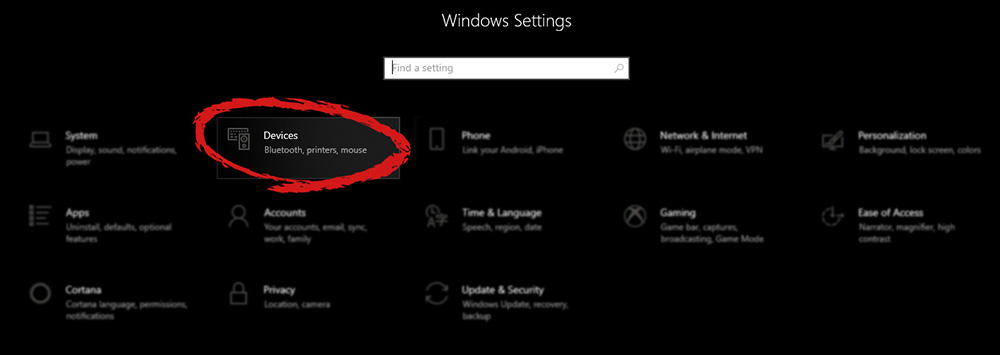
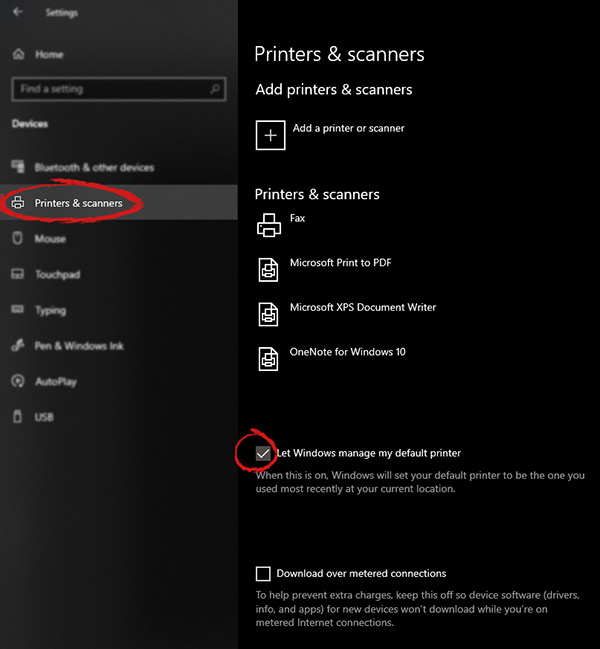
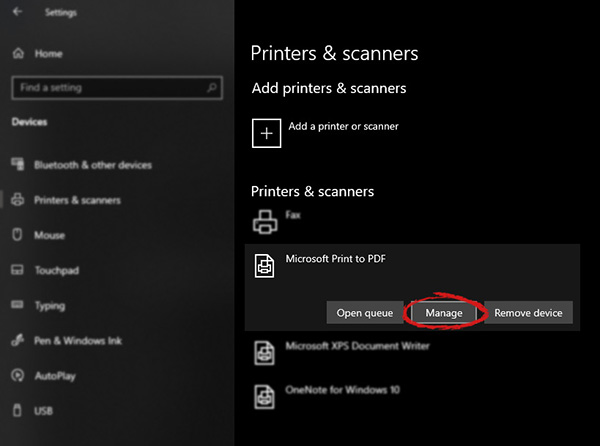
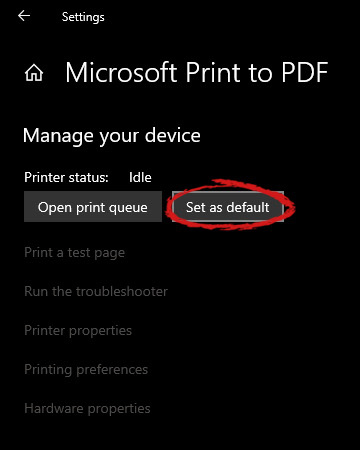
Windows 10 is by far the most personalized Windows so far, most of its personalization comes from him learning our habits on computers and setting future experiences taking them into account. One of these things that Windows likes to set for us is also the default printer. The default printer is set as one which is most used but sometimes we do not want that, we might like to use another printer as default despite Windows choosing one for us. Never worry, setting default printer is easy and this guide will take you to step by step journey of how you can do it in 5 min on your personal computer. Let us begin: First thing is to click on the windows icon on the bottom left and open start menu, from start menu click once on settings. Windows 10 Star menu with marked settings iconWhen the settings window opens, choose DEVICES on it. Windows settings with marked devices sectionOnce the device window opens, click once on printers and scanners, and on the right window go to the bottom and uncheck Let windows manage my default printer. Windows settings for printerUnchecking that box will let Windows know that we do not wish anymore for him to set our default printers according to their use. Once the checkbox is clear go up to your printer list and click on the printer you wish to use as the default one. I will choose Microsoft Print to PDF as my default printer and click on it. Once the printer is clicked option menu will appear. Windows settings manage printerWhen the option menu appears under the printer name, click on Manage which will take you to the printer management screen. When you are on the manage screen, click on the Set as default button, and you are done. Windows settings printer setting
Read More
Step by Step Guide for Removing MyFunCardsToolbar

MyFunCards Toolbar is a browser hijacking extension for Google Chrome made by Mindspark Interactive. This extension installs a toolbar for your browser, changes your default search engine, and lowers the general performance of your browser. This extension has access to your personal information, injects your search results with potentially dangerous ads, and possibly breaks some of the browser functions. Since this extension injects its code into too many files and has access to all your browser details, upon removing it you will lose all your browser settings, themes, and login information. MyFunCards is considered a potentially unwanted application, and as a result, is flagged for optional removal by many anti-malware programs.

About Browser Hijackers

Browser hijacking is amongst the web’s constant problems that target internet browsers. It is a type of malware program that alters your web browser’s settings so that you are redirected to internet sites or pages that you had no intention of checking out. There are many reasons why you may have a browser hijack; however commercial, marketing, and advertising are the main reasons for their creation. It redirects you to the sponsored sites and injects advertisements on the browser that assists its developer to generate revenue. Even though it may seem naive, these tools were created by vicious people who always look to take advantage of you, so that they can easily earn money from your naivety and distraction. They not only mess up your browsers, but browser hijackers can also modify the computer registry to make your PC susceptible to various other types of attacks.

Key symptoms that an internet browser has been hijacked

When your web browser is hijacked, the following might happen: 1. the home page of the browser is changed all of a sudden 2. your internet browser is constantly being redirected to adult sites 3. the default search engine has been changed and the web browser security settings have been cut down without your knowledge 4. unwanted new toolbars are added to your browser 5. your browser will display endless pop-up ads 6. your internet browser has become unstable or starts running slowly 7. You cannot access certain websites, in particular anti-malware sites.

How browser hijacker finds its way onto your computer system

A browser hijacker could be installed on your PC if you visit an infected site, click an e-mail attachment, or download something from a file-sharing website. They could also be deployed via the installation of a web browser toolbar, add-on, or extension. A browser hijacker can be installed as a part of freeware, demoware, shareware, and fake programs. Common examples of browser hijackers include Conduit, CoolWebSearch, Coupon Server, OneWebSearch, RocketTab, Snap.do, Delta Search, and Searchult.com. Browser hijacking can cause severe privacy issues and even identity theft, disrupt your web browsing experience by taking control of outgoing traffic, significantly slows down your personal computer by depleting lots of resources and result in system instability as well.

Browser hijacker removal methods

Certain hijackers can be removed by just uninstalling the corresponding freeware or add-ons through the Add or Remove Programs in the Windows control panel. Having said that, the majority of hijackers are quite tenacious and require specialized applications to eradicate them. Moreover, browser hijackers can modify the Computer registry therefore it can be quite hard to repair manually, especially when you’re not a tech-savvy individual.

Malware Blocking Internet And All Antivirus Software? Do This!

All malware is inherently dangerous, but certain kinds of malicious software do more damage to your computer than others. Some malware goes to great lengths to prevent you from installing anything on your computer system, especially anti-virus software programs. If you’re reading this article, you may have got affected by malware that prevents you from downloading a security program such as Safebytes Antimalware on your PC. There are a few options you can try to get around with this particular obstacle.

Install the anti-virus in Safe Mode

If any malware is set to load immediately when Windows starts, stepping into Safe Mode could block the attempt. Just bare minimum required applications and services are loaded when you start your personal computer in Safe Mode. You will have to do the following to eliminate malware in Safe mode. 1) After switching on the computer, press the F8 key before the Windows splash screen begins to load. This should bring up the Advanced Boot Options menu. 2) Use the arrow keys to select Safe Mode with Networking and hit ENTER. 3) As soon as this mode loads, you will have an internet connection. Now, make use of your browser normally and go to https://safebytes.com/products/anti-malware/ to download and install Safebytes Anti-Malware. 4) As soon as the software is installed, allow the scan run to eliminate viruses and other threats automatically.

Use an alternate web browser to download security application

Malicious program code might exploit vulnerabilities on a specific web browser and block access to all antivirus software websites. If you are not able to download the anti-malware application using Internet Explorer, it means malware could be targeting IE’s vulnerabilities. Here, you need to switch over to a different web browser like Firefox or Chrome to download Safebytes software.

Make a bootable USB antivirus drive

Another option is to create a portable antivirus program on your USB stick. Adopt these measures to employ a USB flash drive to clean your corrupted computer system. 1) Download Safebytes Anti-Malware or MS Windows Defender Offline onto a clean computer system. 2) Plug the Flash drive into the clean computer. 3) Run the setup program by double-clicking the executable file of the downloaded software, with an .exe file format. 4) Select the USB flash drive as the location for saving the software file. Follow the on-screen instructions to complete the installation. 5) Now, plug the USB drive into the corrupted system. 6) Run the Safebytes Anti-malware directly from the thumb drive by double-clicking the icon. 7) Run Full System Scan to detect and get rid of all kinds of malware.

SafeBytes Anti-Malware: Lightweight Malware Protection for Windows Computer

Nowadays, anti-malware software can protect your computer from various forms of online threats. But exactly how to select the best one among numerous malware protection application that is available in the market? You may be aware, there are lots of anti-malware companies and tools for you to consider. Some of them are great and some are scamware applications that pretend as authentic anti-malware software waiting around to wreak havoc on your computer. While looking for an anti-malware program, pick one which gives dependable, efficient, and total protection against all known computer viruses and malware. One of the strongly recommended software is SafeBytes Anti-Malware. SafeBytes has a really good history of excellent service, and customers are happy with it. SafeBytes anti-malware is a powerful, very effective protection application created to assist users of all levels of IT literacy in finding and removing harmful threats from their PC. Using its outstanding protection system, this utility will easily detect and remove most of the security threats, which include viruses, adware, browser hijackers, PUPs, trojans, worms, and ransomware. SafeBytes has great features when compared with various other anti-malware programs. Below are a few of the best ones: Active Protection: SafeBytes provides a completely hands-free live protection that is set to monitor, prevent and destroy all computer threats at its very first encounter. They are very effective in screening and eliminating different threats because they’re continuously revised with new updates and alerts. Anti-Malware Protection: With its enhanced and sophisticated algorithm, this malware removal tool can identify and eliminate the malware threats hiding in your PC effectively. SuperSpeed Scanning: This application has one of the fastest and most effective virus scanning engines in the industry. The scans are extremely accurate and take a short amount of time to complete. Safe Web Browsing: Safebytes allots all websites with a unique safety ranking that helps you to have an idea of whether the website you’re about to visit is safe to view or known to be a phishing site. Lightweight: SafeBytes gives you total protection from internet threats at a fraction of the CPU load because of its advanced detection engine and algorithms. 24/7 Premium Support: Skilled technicians are at your disposal 24/7! They will quickly resolve any technical issues you might be encountering with your security software.

Technical Details and Manual Removal (Advanced Users)

If you wish to manually remove MyFunCardsToolbar without the use of an automated tool, it may be possible to do so by removing the program from the Windows Add/Remove Programs menu, or in cases of browser extensions, going to the browsers AddOn/Extension manager and removing it. You will likely also want to reset your browser. To ensure the complete removal, manually check your hard drive and registry for all of the following and remove or reset the values accordingly. Please note that this is for advanced users only and may be difficult, with incorrect file removal causing additional PC errors. In addition, some malware is capable of replicating or preventing deletion. Doing this in Safe Mode is advised.

The following files, folders, and registry entries are created or modified by MyFunCardsToolbar

Files: C:Program FilesFunWebProductsInstallr.binF3EZSETP.DLL C:Program FilesFunWebProductsInstallr.binF3EZSETP.DL_ C:Program Files C:Program FilesFunWebProducts C:PROGRA~1FUNWEB~1Installr.binF3EZSETP.DL_ C:Program FilesFunWebProductsInstallr.binF3EZSETP.DLL Registry: HKEY_LOCAL_MACHINESoftwareFunWebProductsInstaller HKEY_LOCAL_MACHINESOFTWAREMicrosoftWindowsCurrentVersion HKEY_LOCAL_MACHINESoftware HKEY_LOCAL_MACHINESoftwareMicrosoft HKEY_LOCAL_MACHINESoftwareMicrosoftWindows HKEY_LOCAL_MACHINESoftwareMicrosoftWindowsCurrentVersion HKEY_LOCAL_MACHINESoftwareMicrosoftWindowsCurrentVersionExt HKEY_LOCAL_MACHINESoftwareMicrosoftWindowsCurrentVersionExtPreApproved HKEY_LOCAL_MACHINESoftwareMicrosoftWindowsCurrentVersionExtPreApproved1D4DB7D2-6EC9-47a3-BD87-1E41684E07BB HKEY_CURRENT_USERSoftware HKEY_CURRENT_USERSoftwareMicrosoft HKEY_CURRENT_USERSoftwareMicrosoftWindows HKEY_CURRENT_USERSoftwareMicrosoftWindowsCurrentVersion HKEY_CURRENT_USERSoftwareMicrosoftWindowsCurrentVersionExt HKEY_CURRENT_USERSoftwareMicrosoftWindowsCurrentVersionExtSettings HKEY_CURRENT_USERSoftwareMicrosoftWindowsCurrentVersionExtSettings1D4DB7D2-6EC9-47a3-BD87-1E41684E07BB HKEY_CLASSES_ROOTFunWebProductsInstaller.Start.1 HKEY_CLASSES_ROOTFunWebProductsInstaller.Start.1CLSID HKEY_CLASSES_ROOTFunWebProductsInstaller.Start HKEY_CLASSES_ROOTFunWebProductsInstaller.StartCLSID HKEY_CLASSES_ROOTFunWebProductsInstaller.StartCurVer HKEY_CLASSES_ROOTCLSID HKEY_CLASSES_ROOTCLSID1D4DB7D2-6EC9-47a3-BD87-1E41684E07BB HKEY_CLASSES_ROOTCLSID1D4DB7D2-6EC9-47a3-BD87-1E41684E07BBProgID HKEY_CLASSES_ROOTCLSID1D4DB7D2-6EC9-47a3-BD87-1E41684E07BBVersionIndependentProgID HKEY_CLASSES_ROOTCLSID1D4DB7D2-6EC9-47a3-BD87-1E41684E07BBProgrammable HKEY_CLASSES_ROOTCLSID1D4DB7D2-6EC9-47a3-BD87-1E41684E07BBInprocServer32 HKEY_CLASSES_ROOTCLSID1D4DB7D2-6EC9-47a3-BD87-1E41684E07BBControl HKEY_CLASSES_ROOTCLSID1D4DB7D2-6EC9-47a3-BD87-1E41684E07BBMiscStatus HKEY_CLASSES_ROOTCLSID1D4DB7D2-6EC9-47a3-BD87-1E41684E07BBMiscStatus HKEY_CLASSES_ROOTCLSID1D4DB7D2-6EC9-47a3-BD87-1E41684E07BBTypeLib HKEY_CLASSES_ROOTCLSID1D4DB7D2-6EC9-47a3-BD87-1E41684E07BBVersion HKEY_LOCAL_MACHINESOFTWAREMicrosoftOLEAUT HKEY_CLASSES_ROOTTypeLib HKEY_CLASSES_ROOTTypeLib1D4DB7D0-6EC9-47A3-BD87-1E41684E07BB HKEY_CLASSES_ROOTTypeLib1D4DB7D0-6EC9-47A3-BD87-1E41684E07BB.0 HKEY_CLASSES_ROOTTypeLib1D4DB7D0-6EC9-47A3-BD87-1E41684E07BB.0FLAGS HKEY_CLASSES_ROOTTypeLib1D4DB7D0-6EC9-47A3-BD87-1E41684E07BB.0C:Program FilesFunWebProductsInstallr.binF3EZSETP.DLL C:Program FilesFunWebProductsInstallr.binF3EZSETP.DL_ C:Program Files C:Program FilesFunWebProducts C:PROGRA~1FUNWEB~1Installr.binF3EZSETP.DL_ C:Program FilesFunWebProductsInstallr.binF3EZSETP.DLL HKEY_LOCAL_MACHINESoftwareFunWebProductsInstaller HKEY_LOCAL_MACHINESOFTWAREMicrosoftWindowsCurrentVersion HKEY_LOCAL_MACHINESoftware HKEY_LOCAL_MACHINESoftwareMicrosoft HKEY_LOCAL_MACHINESoftwareMicrosoftWindows HKEY_LOCAL_MACHINESoftwareMicrosoftWindowsCurrentVersion HKEY_LOCAL_MACHINESoftwareMicrosoftWindowsCurrentVersionExt HKEY_LOCAL_MACHINESoftwareMicrosoftWindowsCurrentVersionExtPreApproved HKEY_LOCAL_MACHINESoftwareMicrosoftWindowsCurrentVersionExtPreApproved1D4DB7D2-6EC9-47a3-BD87-1E41684E07BB HKEY_CURRENT_USERSoftware HKEY_CURRENT_USERSoftwareMicrosoft HKEY_CURRENT_USERSoftwareMicrosoftWindows HKEY_CURRENT_USERSoftwareMicrosoftWindowsCurrentVersion HKEY_CURRENT_USERSoftwareMicrosoftWindowsCurrentVersionExt HKEY_CURRENT_USERSoftwareMicrosoftWindowsCurrentVersionExtSettings HKEY_CURRENT_USERSoftwareMicrosoftWindowsCurrentVersionExtSettings1D4DB7D2-6EC9-47a3-BD87-1E41684E07BB HKEY_CLASSES_ROOTFunWebProductsInstaller.Start.1 HKEY_CLASSES_ROOTFunWebProductsInstaller.Start.1CLSID HKEY_CLASSES_ROOTFunWebProductsInstaller.Start HKEY_CLASSES_ROOTFunWebProductsInstaller.StartCLSID HKEY_CLASSES_ROOTFunWebProductsInstaller.StartCurVer HKEY_CLASSES_ROOTCLSID HKEY_CLASSES_ROOTCLSID1D4DB7D2-6EC9-47a3-BD87-1E41684E07BB HKEY_CLASSES_ROOTCLSID1D4DB7D2-6EC9-47a3-BD87-1E41684E07BBProgID HKEY_CLASSES_ROOTCLSID1D4DB7D2-6EC9-47a3-BD87-1E41684E07BBVersionIndependentProgID HKEY_CLASSES_ROOTCLSID1D4DB7D2-6EC9-47a3-BD87-1E41684E07BBProgrammable HKEY_CLASSES_ROOTCLSID1D4DB7D2-6EC9-47a3-BD87-1E41684E07BBInprocServer32 HKEY_CLASSES_ROOTCLSID1D4DB7D2-6EC9-47a3-BD87-1E41684E07BBControl HKEY_CLASSES_ROOTCLSID1D4DB7D2-6EC9-47a3-BD87-1E41684E07BBMiscStatus HKEY_CLASSES_ROOTCLSID1D4DB7D2-6EC9-47a3-BD87-1E41684E07BBMiscStatus HKEY_CLASSES_ROOTCLSID1D4DB7D2-6EC9-47a3-BD87-1E41684E07BBTypeLib HKEY_CLASSES_ROOTCLSID1D4DB7D2-6EC9-47a3-BD87-1E41684E07BBVersion HKEY_LOCAL_MACHINESOFTWAREMicrosoftOLEAUT HKEY_CLASSES_ROOTTypeLib HKEY_CLASSES_ROOTTypeLib1D4DB7D0-6EC9-47A3-BD87-1E41684E07BB HKEY_CLASSES_ROOTTypeLib1D4DB7D0-6EC9-47A3-BD87-1E41684E07BB.0 HKEY_CLASSES_ROOTTypeLib1D4DB7D0-6EC9-47A3-BD87-1E41684E07BB.0FLAGS HKEY_CLASSES_ROOTTypeLib1D4DB7D0-6EC9-47A3-BD87-1E41684E07BB.0%#MANIFEST#% HKEY_CLASSES_ROOTTypeLib1D4DB7D0-6EC9-47A3-BD87-1E41684E07BB.0%#MANIFEST#%win32 HKEY_CLASSES_ROOTTypeLib1D4DB7D0-6EC9-47A3-BD87-1E41684E07BB.0HELPDIR HKEY_CLASSES_ROOTInterface HKEY_CLASSES_ROOTInterface1D4DB7D1-6EC9-47A3-BD87-1E41684E07BB HKEY_CLASSES_ROOTInterface1D4DB7D1-6EC9-47A3-BD87-1E41684E07BBProxyStubClsid HKEY_CLASSES_ROOTInterface1D4DB7D1-6EC9-47A3-BD87-1E41684E07BBProxyStubClsid32 HKEY_CLASSES_ROOTInterface1D4DB7D1-6EC9-47A3-BD87-1E41684E07BBTypeLib HKEY_CLASSES_ROOTInterface1D4DB7D3-6EC9-47A3-BD87-1E41684E07BB HKEY_CLASSES_ROOTInterface1D4DB7D3-6EC9-47A3-BD87-1E41684E07BBProxyStubClsid HKEY_CLASSES_ROOTInterface1D4DB7D3-6EC9-47A3-BD87-1E41684E07BBProxyStubClsid32 HKEY_CLASSES_ROOTInterface1D4DB7D3-6EC9-47A3-BD87-1E41684E07BBTypeLib HKLMSOFTWAREMyFunCards_5m HKLMSOFTWAREClassesMyFunCards_5m.SkinLauncher HKLMSOFTWAREClassesMyFunCards_5m.SettingsPlugin HKLMSOFTWAREClassesMyFunCards_5m.ScriptButton HKLMSOFTWAREClassesMyFunCards_5m.Radio HKLMSOFTWAREClassesMyFunCards_5m.PseudoTransparentPlugin HKLMSOFTWAREClassesMyFunCards_5m.MultipleButton HKLMSOFTWAREClassesMyFunCards_5m.HTMLPanel HKLMSOFTWAREClassesMyFunCards_5m.HTMLMenu HKLMSOFTWAREClassesMyFunCards_5m.FeedManager HKLMSOFTWAREClassesMyFunCards_5m.DynamicBarButton HKLMSOFTWAREClassesCLSID4bdd2be-51e9-4031-a7a7-b882b3abea12 HKEY_CLASSES_ROOTTypeLib1D4DB7D0-6EC9-47A3-BD87-1E41684E07BB.0C:Program FilesFunWebProductsInstallr.binF3EZSETP.DLL HKEY_LOCAL_MACHINESoftwareFunWebProductsInstaller HKEY_LOCAL_MACHINESOFTWAREMicrosoftWindowsCurrentVersion HKEY_LOCAL_MACHINESoftware HKEY_LOCAL_MACHINESoftwareMicrosoft HKEY_LOCAL_MACHINESoftwareMicrosoftWindows HKEY_LOCAL_MACHINESoftwareMicrosoftWindowsCurrentVersion HKEY_LOCAL_MACHINESoftwareMicrosoftWindowsCurrentVersionExt HKEY_LOCAL_MACHINESoftwareMicrosoftWindowsCurrentVersionExtPreApproved HKEY_LOCAL_MACHINESoftwareMicrosoftWindowsCurrentVersionExtPreApproved1D4DB7D2-6EC9-47a3-BD87-1E41684E07BB HKEY_CURRENT_USERSoftware HKEY_CURRENT_USERSoftwareMicrosoft HKEY_CURRENT_USERSoftwareMicrosoftWindows HKEY_CURRENT_USERSoftwareMicrosoftWindowsCurrentVersion HKEY_CURRENT_USERSoftwareMicrosoftWindowsCurrentVersionExt HKEY_CURRENT_USERSoftwareMicrosoftWindowsCurrentVersionExtSettings HKEY_CURRENT_USERSoftwareMicrosoftWindowsCurrentVersionExtSettings1D4DB7D2-6EC9-47a3-BD87-1E41684E07BB HKEY_CLASSES_ROOTFunWebProductsInstaller.Start.1 HKEY_CLASSES_ROOTFunWebProductsInstaller.Start.1CLSID HKEY_CLASSES_ROOTFunWebProductsInstaller.Start HKEY_CLASSES_ROOTFunWebProductsInstaller.StartCLSID HKEY_CLASSES_ROOTFunWebProductsInstaller.StartCurVer HKEY_CLASSES_ROOTCLSID HKEY_CLASSES_ROOTCLSID1D4DB7D2-6EC9-47a3-BD87-1E41684E07BB HKEY_CLASSES_ROOTCLSID1D4DB7D2-6EC9-47a3-BD87-1E41684E07BBProgID HKEY_CLASSES_ROOTCLSID1D4DB7D2-6EC9-47a3-BD87-1E41684E07BBVersionIndependentProgID HKEY_CLASSES_ROOTCLSID1D4DB7D2-6EC9-47a3-BD87-1E41684E07BBProgrammable HKEY_CLASSES_ROOTCLSID1D4DB7D2-6EC9-47a3-BD87-1E41684E07BBInprocServer32 HKEY_CLASSES_ROOTCLSID1D4DB7D2-6EC9-47a3-BD87-1E41684E07BBControl HKEY_CLASSES_ROOTCLSID1D4DB7D2-6EC9-47a3-BD87-1E41684E07BBMiscStatus HKEY_CLASSES_ROOTCLSID1D4DB7D2-6EC9-47a3-BD87-1E41684E07BBMiscStatus HKEY_CLASSES_ROOTCLSID1D4DB7D2-6EC9-47a3-BD87-1E41684E07BBTypeLib HKEY_CLASSES_ROOTCLSID1D4DB7D2-6EC9-47a3-BD87-1E41684E07BBVersion HKEY_LOCAL_MACHINESOFTWAREMicrosoftOLEAUT HKEY_CLASSES_ROOTTypeLib HKEY_CLASSES_ROOTTypeLib1D4DB7D0-6EC9-47A3-BD87-1E41684E07BB HKEY_CLASSES_ROOTTypeLib1D4DB7D0-6EC9-47A3-BD87-1E41684E07BB.0 HKEY_CLASSES_ROOTTypeLib1D4DB7D0-6EC9-47A3-BD87-1E41684E07BB.0FLAGS HKEY_CLASSES_ROOTTypeLib1D4DB7D0-6EC9-47A3-BD87-1E41684E07BB.0%#MANIFEST#% HKEY_CLASSES_ROOTTypeLib1D4DB7D0-6EC9-47A3-BD87-1E41684E07BB.0%#MANIFEST#%win32 HKEY_CLASSES_ROOTTypeLib1D4DB7D0-6EC9-47A3-BD87-1E41684E07BB.0HELPDIR HKEY_CLASSES_ROOTInterface HKEY_CLASSES_ROOTInterface1D4DB7D1-6EC9-47A3-BD87-1E41684E07BB HKEY_CLASSES_ROOTInterface1D4DB7D1-6EC9-47A3-BD87-1E41684E07BBProxyStubClsid HKEY_CLASSES_ROOTInterface1D4DB7D1-6EC9-47A3-BD87-1E41684E07BBProxyStubClsid32 HKEY_CLASSES_ROOTInterface1D4DB7D1-6EC9-47A3-BD87-1E41684E07BBTypeLib HKEY_CLASSES_ROOTInterface1D4DB7D3-6EC9-47A3-BD87-1E41684E07BB HKEY_CLASSES_ROOTInterface1D4DB7D3-6EC9-47A3-BD87-1E41684E07BBProxyStubClsid HKEY_CLASSES_ROOTInterface1D4DB7D3-6EC9-47A3-BD87-1E41684E07BBProxyStubClsid32 HKEY_CLASSES_ROOTInterface1D4DB7D3-6EC9-47A3-BD87-1E41684E07BBTypeLib HKLMSOFTWAREMyFunCards_5m HKLMSOFTWAREClassesMyFunCards_5m.SkinLauncher HKLMSOFTWAREClassesMyFunCards_5m.SettingsPlugin HKLMSOFTWAREClassesMyFunCards_5m.ScriptButton HKLMSOFTWAREClassesMyFunCards_5m.Radio HKLMSOFTWAREClassesMyFunCards_5m.PseudoTransparentPlugin HKLMSOFTWAREClassesMyFunCards_5m.MultipleButton HKLMSOFTWAREClassesMyFunCards_5m.HTMLPanel HKLMSOFTWAREClassesMyFunCards_5m.HTMLMenu HKLMSOFTWAREClassesMyFunCards_5m.FeedManager HKLMSOFTWAREClassesMyFunCards_5m.DynamicBarButton HKLMSOFTWAREClassesCLSID4bdd2be-51e9-4031-a7a7-b882b3abea12win32 HKEY_CLASSES_ROOTTypeLib1D4DB7D0-6EC9-47A3-BD87-1E41684E07BB.0HELPDIR HKEY_CLASSES_ROOTInterface HKEY_CLASSES_ROOTInterface1D4DB7D1-6EC9-47A3-BD87-1E41684E07BB HKEY_CLASSES_ROOTInterface1D4DB7D1-6EC9-47A3-BD87-1E41684E07BBProxyStubClsid HKEY_CLASSES_ROOTInterface1D4DB7D1-6EC9-47A3-BD87-1E41684E07BBProxyStubClsid32 HKEY_CLASSES_ROOTInterface1D4DB7D1-6EC9-47A3-BD87-1E41684E07BBTypeLib HKEY_CLASSES_ROOTInterface1D4DB7D3-6EC9-47A3-BD87-1E41684E07BB HKEY_CLASSES_ROOTInterface1D4DB7D3-6EC9-47A3-BD87-1E41684E07BBProxyStubClsid HKEY_CLASSES_ROOTInterface1D4DB7D3-6EC9-47A3-BD87-1E41684E07BBProxyStubClsid32 HKEY_CLASSES_ROOTInterface1D4DB7D3-6EC9-47A3-BD87-1E41684E07BBTypeLib HKLMSOFTWAREMyFunCards_5m HKLMSOFTWAREClassesMyFunCards_5m.SkinLauncher HKLMSOFTWAREClassesMyFunCards_5m.SettingsPlugin HKLMSOFTWAREClassesMyFunCards_5m.ScriptButton HKLMSOFTWAREClassesMyFunCards_5m.Radio HKLMSOFTWAREClassesMyFunCards_5m.PseudoTransparentPlugin HKLMSOFTWAREClassesMyFunCards_5m.MultipleButton HKLMSOFTWAREClassesMyFunCards_5m.HTMLPanel HKLMSOFTWAREClassesMyFunCards_5m.HTMLMenu HKLMSOFTWAREClassesMyFunCards_5m.FeedManager HKLMSOFTWAREClassesMyFunCards_5m.DynamicBarButton HKLMSOFTWAREClassesCLSID4bdd2be-51e9-4031-a7a7-b882b3abea12
Read More
How to get rid of Chedot

Chedot is a Chromium-based Browser that replaces your default System Internet Browser. This browser offers users tools for downloading videos, faster browsing, and custom searches. From the publisher: A feature of our browser is a high speed on slow computers, high speed download on a poor internet, support resuming file download when connection is broken and the download in multiple threads, the ability to go on blocked websites and downloading videos from video sites.

While this may seem interesting and good at start, this browser has been marked as a Potentially Unwanted Program. It monitors user activity, collects web traffic data, and user information. While using Chedot you may see additional ads throughout your browsing sessions.

About Potentially Unwanted Applications

Exactly what is a Potentially Unwanted Program (PUP)?

People have encountered it – you download a free software, you then discover some unwanted applications on your computer system or discover a strange toolbar has been included with your browser. You didn’t have them installed, so how did they appear? These unwanted applications, which are called Potentially Unwanted Programs, or PUP in short, usually tag along as a software bundle when downloading the application and could cause serious problems for computer users. PUP does not involve malware in the traditional sense. What normally makes a PUP different from malicious software is the fact that when you download one, you’re doing it with your consent – although in most cases unintentionally and reluctantly. But, there is no doubt that PUPs remain bad news for computer users as it can be incredibly damaging to the PC in many ways.

How do unwanted programs affect you?

Unwanted programs come in many forms. More commonly, they will be found in adware bundlers which are known to utilize aggressive and misleading advertising. The majority of bundlers install many adware applications from a number of vendors, each of which features its own EULA policy. Safebytes Anti-malware completely removes this threat and safeguards your PC against PUP or malware infection. PUPS also appear in the form of undesirable toolbars or internet browser plug-ins. Not just they needlessly use up space on your screen, toolbars can also manipulate search results, track your web browsing activities, decrease your internet browser’s performance, and slow down your web connection to a crawl. They could seem harmless but PUPs are generally spyware. They may include dialers, keyloggers, and also other software built inside them that could monitor you or send out your sensitive information to 3rd parties. Because of this unwanted program, your application may freeze, your security protections can get disabled that could leave your computer susceptible, your system could get ruined, and this list goes on and on.

Tips for preventing PUPs

• Study cautiously prior to agreeing to the license agreement as it could have a clause about PUPs. • Always opt for the custom if you are given an option between Recommended and Custom Installations – never click Next, Next, Next thoughtlessly. • Install an advert blocker/pop-up blocker; Deploy anti-malware products such as Safebytes Anti-malware. These software programs will establish a wall between the computer and online criminals. • Be alert when you download and install freeware, open-source software, or shareware. Avoid downloading and installing browser extensions and applications you are not knowledgeable about. • Always download software from reliable sources like official sites as opposed to untrustworthy sharing space. Avoid torrents and peer-to-peer clients.

What To Do If You Cannot Download Safebytes Anti-Malware?

All malware is bad, but certain types of malware do much more damage to your PC than others. Some malware sits in between your computer and the net connection and blocks some or all internet sites that you really want to check out. It will also block you from installing anything on your PC, especially anti-malware applications. So what to do when malicious software keeps you from downloading or installing Safebytes Anti-Malware? Although this type of issue will be tougher to get around, there are some actions you can take.

Install the antivirus in Safe Mode

In Safe Mode, you can adjust Windows settings, un-install or install some software, and get rid of hard-to-delete viruses. In the event the virus is set to load immediately when PC starts, shifting into this mode may well prevent it from doing so. In order to get into Safe Mode or Safe Mode with Networking, press the F8 key while the PC is booting up or run MSConfig and look for the “Safe Boot” options under the “Boot” tab. Once you’re in Safe Mode, you can try to install your antivirus program without the hindrance of the virus. Now, you can run the anti-malware scan to eliminate computer viruses and malware without any hindrance from another malicious application.

Download the antivirus software using a different browser

Some viruses might target vulnerabilities of a specific browser that block the downloading process. If you suspect that your Internet Explorer happens to be hijacked by a virus or otherwise compromised by cybercriminals, the best approach is to switch over to an alternate web browser like Chrome, Firefox, or Safari to download your chosen security software – Safebytes Anti-Malware.

Make a bootable USB anti-virus drive

Here’s another solution which is creating a portable USB anti-virus software that can scan your system for malware without the need for installation. Follow these steps to run the anti-virus on the affected PC. 1) Download Safebytes Anti-Malware or Windows Defender Offline onto a clean computer. 2) Plug the USB drive into the uninfected PC. 3) Double-click on the downloaded file to open the installation wizard. 4) Choose the drive letter of the flash drive as the place when the wizard asks you exactly where you would like to install the anti-virus. Follow the on-screen instructions to complete the installation process. 5) Now, transfer the pen drive to the infected PC. 6) Double-click the EXE file to run the Safebytes tool from the flash drive. 7) Press the “Scan Now” button to start the virus scan.

SafeBytes Anti-Malware - More Protection For You

These days, an anti-malware tool can protect the computer from different forms of online threats. But wait, how to choose the right one amongst various malware protection software that is available on the market? Perhaps you might be aware, there are lots of anti-malware companies and products for you to consider. Some of them are good, some are decent, while some will affect your computer themselves! You must be careful not to pick the wrong product, especially if you purchase premium software. When it comes to commercial anti-malware software options, many people opt for popular brands, like SafeBytes, and they are very happy with it. Safebytes is among the well-established computer solutions firms, which provide this all-inclusive anti-malware software. Using its cutting edge technology, this application can help you eradicate multiples types of malware which includes computer viruses, worms, PUPs, trojans, adware, ransomware and browser hijackers. SafeBytes has outstanding features when compared with various other anti-malware programs. Below are a few of the great ones: Real-time Protection: Malware programs aiming to enter the computer are discovered and stopped as and when detected by the SafeBytes active protection shields. It’ll examine your computer system for suspicious activity regularly and shields your personal computer from unauthorized access. Optimum AntiMalware Protection: Safebytes is built on the best virus engine within the industry. These engines can find and remove threats even during the initial stages of a malware outbreak. “Fast Scan” Features: SafeBytes’s high speed malware scanning engine lessens scan times and extends battery life. Simultaneously, it’ll effectively identify and remove infected files or any online threat. Web Filtering: SafeBytes provides instant safety rating to the webpages you are about to check out, automatically blocking harmful sites and to ensure that you’re certain of your online safety while browsing the internet. Lightweight: SafeBytes is really a lightweight tool. It use up an extremely small amount of processing power as it operates in the background therefore you will not observe any system performance difficulties. Premium Support: For any technical concerns or product support, you can obtain 24/7 professional assistance via chat and e-mail.

Technical Details and Manual Removal (Advanced Users)

If you don’t wish to use malware removal software and prefer to get rid of Chedot manually, you could possibly do so by going to the Windows Add/Remove Programs menu in the Control Panel and deleting the offending program; in cases of browser extensions, you may uninstall it by visiting the browsers Add-on/Extension manager. It’s also highly recommended to factory reset your browser to its default state to fix corrupt settings. To make sure of complete removal, find the following registry entries on your computer and delete it or reset the values accordingly. Please keep in mind that only advanced users should try to manually edit the system files mainly because deleting any single critical registry entry results in a major problem or even a system crash. Furthermore, certain malware keeps replicating which makes it tough to get rid of. You’re encouraged to do this procedure in Safe Mode.
Files: %APPDATA%\Microsoft\Windows\Start Menu\Programs\Chedot %PROGRAMFILES%\Chedot %USERPROFILE%\Documents\chedot.reg Registry: HKEY_LOCAL_MACHINE\ HKEY_LOCAL_MACHINE\SOFTWARE\Wow6432Node\Microsoft\Windows\CurrentVersion\App Paths\chedot.exe HKEY_LOCAL_MACHINE\SOFTWARE\Wow6432Node\Microsoft\Windows\CurrentVersion\Run value: Chedot HKEY_LOCAL_MACHINE\SOFTWARE\Microsoft\Windows\CurrentVersion\Run value: Chedot HKEY_LOCAL_MACHINE\SOFTWARE\Wow6432Node\RegisteredApplications value: Chedot.NSJA6BHDA3NCFCFMXW3QSCUYUQ HKEY_LOCAL_MACHINE\Software\Chedot HKEY_LOCAL_MACHINE\SOFTWARE\Classes\.htm\OpenWithProgIds value: ChedotHTML.NSJA6BHDA3NCFCFMXW3QSCUYUQ HKEY_LOCAL_MACHINE\SOFTWARE\Classes\.html\OpenWithProgIds value: ChedotHTML.NSJA6BHDA3NCFCFMXW3QSCUYUQ HKEY_LOCAL_MACHINE\SOFTWARE\Classes\.xhtml\OpenWithProgIds value: ChedotHTML.NSJA6BHDA3NCFCFMXW3QSCUYUQ HKEY_LOCAL_MACHINE\SOFTWARE\Classes\ChedotHTML.NSJA6BHDA3NCFCFMXW3QSCUYUQ HKEY_LOCAL_MACHINE\SOFTWARE\Clients\StartMenuInternet\Chedot.NSJA6BHDA3NCFCFMXW3QSCUYUQ HKEY_LOCAL_MACHINE\SOFTWARE\Microsoft\Windows\CurrentVersion\App Paths\chedot.exe HKEY_LOCAL_MACHINE\SOFTWARE\RegisteredApplications value: Chedot.NSJA6BHDA3NCFCFMXW3QSCUYUQ HKEY_CURRENT_USER\Software\Microsoft\Windows\CurrentVersion\Explorer\FileExts\.html\OpenWithProgids value: ChedotHTML.NSJA6BHDA3NCFCFMXW3QSCUYUQ HKEY_CURRENT_USER\Software\Microsoft\Windows\CurrentVersion\Explorer\FileExts\.htm\OpenWithProgids value: ChedotHTML.NSJA6BHDA3NCFCFMXW3QSCUYUQ HKEY_LOCAL_MACHINE\SOFTWARE\Wow6432Node\Chedot HKEY_LOCAL_MACHINE\SOFTWARE\Microsoft\MediaPlayer\ShimInclusionList\chedot.exe HKEY_LOCAL_MACHINE\Software\Chedot\Microsoft\Windows\CurrentVersion\Uninstall..Uninstaller Chedot
Read More
Guide to Quickly Fixing the Thorconnwndclass
Thorconnwndclass error is an Outlook error that has recently reared its head. Known to create several problems in the proper functioning of the Outlook application, this error is essentially a constituent of the Norton Antivirus Crash Guard Symantec component. That’s why those using the Norton Antivirus program are most likely to encounter this error.

Solution

Restoro box imageError Causes

When the Thorconnwndclass error occurs, the Outlook closes unexpectedly, users encounter problems while sending or receiving emails and, performance of Outlook is degraded and this happens because issues arise while accessing the PST file. Because of this damaged PST file, stored data is unavailable for access. Other factors that trigger the Thorconnwndclass error are listed below.
  • Corrupt or damaged Outlook Add-ins
  • Corrupt or damaged Outlook bar
  • Unfinished Outlook installation
  • Faulty settings
  • Thorconnwndclass Norton is being used with Outlook
Regardless of the underlying factors that lead up to the occurrence of this error, it's of paramount importance that workarounds are implemented to ensure desired performance of Outlook in the long run.

Further Information and Manual Repair

While there are several ways to rectify this error, some of the most common ones are listed below as follows.
  • The most effective solution is the PST file repair tools available online. These tools use a complex algorithm and thoroughly scan the PST file and repair it as needed. This resolves the Thorconnwndclass error that one encounters in Outlook. Usually such software have an easy to use interface and can easily be used, without the need for the user to have a strong technical background. Another advantage of using these software available online is that they not only repair the file, but they often play a pivotal role in retrieving inaccessible or lost data.
Some other tips for manually resolving this problem are listed below as follows.
  • First and foremost, disable your Norton Antivirus program if it’s installed on your system. Now, open the Outlook application in Safe Mode. Since this problem may also be triggered by damaged or corrupt Outlook add-ins, it is strongly advised that you disable or uninstall them. Now, you will come across some .dat files. Rename them by changing the existing .dat files to new .dat.
  • Another useful approach is to employ the Inbox Repair tool offered by Outlook.
  • Finally, one can also use the scanpst.exe file to fix any problem or error that resides within the  Outlook application.
Read More
1 2 3 171
Logo
Copyright © 2023, ErrorTools. All Rights Reserved
Trademark: Microsoft Windows logos are registered trademarks of Microsoft. Disclaimer: ErrorTools.com is not affiliated with Microsoft, nor claims direct affiliation.
The information on this page is provided for information purposes only.
DMCA.com Protection Status