Logo

Chrome automatically opens a new tab

Recently, a number of users reported that their Google Chrome browsers keep on opening new tabs no matter what they do. This issue could be due to lots of reasons but the main ones are corrupt installation, background applications, adware, dubious browser extensions, malware, and so on.

Although there are a lot of possible causes for this particular issue in Chrome, its potential fixes are straightforward so you should not have any problem following the given options below.

Option 1 – Get rid of any conflicting browser extensions

As mentioned, shady browser extensions can cause unusual behavior in a browser. Chances are, these extensions or toolbars might be conflicting with the loading of the website. Thus, you have to get rid of these unwanted extensions and toolbars to fix the issue.

  • Open Chrome and press Alt + F keys.
  • Go to More tools and click Extensions to look for any suspicious browser extensions or toolbars.
  • Click the Recycle bin and select Remove.
  • Restart Chrome and press Alt + F keys again.
  • Proceed to On Startup and mark Open a specific page or set of pages.
  • To check if the browser hijacker is still active, click Set pages, if it is active, overwrite the URL.

Option 2 – Try to disable applications from running in the background

  • Open Google Chrome and then click on the menu button located in the top-right corner.
  • From the drop-down, select Settings and then scroll down until you see the Advanced button. Click on it.
  • Next, turn off the toggle for “Continue running background apps when Google Chrome is closed” under the System section.
  • Now restart Chrome and check if it is working properly.

Option 3 – Try to configure the search settings of Chrome

  • Open Google Chrome and type any search query in the address bar and then tap Enter.
  • After that, it will open the Google search engine. From the top-right corner, click the Settings button.
  • Next, select Search settings from the drop-down menu.
  • Then scroll down to the new page that appears and make sure that the “Open New Window for each result” option is set to Uncheck.
  • Once you’re done, save the changes made and restart Google Chrome.

Option 4 – Reset Chrome

Resetting Chrome can also help you fix the error. This means that you will be restoring its default settings, disabling all the extensions, add-ons and themes. Aside from that, the content settings will be reset as well and the cookies, cache, and site data will also be deleted. To reset Chrome, here’s what you have to do:

  • Open Google Chrome, then tap the Alt + F keys.
  • After that, click on Settings.
  • Next, scroll down until you see the Advanced option, once you see it, click on it.
  • After clicking the Advanced option, go to the “Restore and clean up option and click on the “Restore settings to their original defaults” option to reset Google Chrome.
  • Now restart Google Chrome.

Option 5 – Try to clean reinstall Chrome

There are instances when programs leave files behind after you’ve uninstalled them and the same thing can happen to Chrome so before you reinstall Chrome, you have to make sure that you have deleted the User Data folder. To do so, refer to the following steps:

  • Hit the Win + R keys to open the Run dialog box.
  • Next, type “%LOCALAPPDATA%GoogleChromeUser Data” in the field and hit Enter to open the User Data folder.
  • From there, rename the default folder and name it something else, e.g. “Default.old”.
  • After that, install Google Chrome again and check if the issue is now fixed.

Option 6 – Try scanning your computer using Windows Defender

As mentioned, the error when accessing the security settings or properties of a folder or file might be due to a virus or malware. It could be that it had made some modifications that prevents you from accessing security settings or properties. To eliminate it, you have to scan your computer using security programs like Windows Defender.

  • Tap the Win + I keys to open Update & Security.
  • Then click on the Windows Security option and open Windows Defender Security Center.
  • Next, click on Virus & threat protection > Run a new advanced scan.
  • Now make sure that Full Scan is selected from the menu and then click the Scan Now button to get started.

Do You Need Help with Your Device?

Our Team of Experts May Help
Troubleshoot.Tech Experts are There for You!
Replace damaged files
Restore performance
Free disk space
Remove Malware
Protects WEB browser
Remove Viruses
Stop PC freezing
GET HELP
Troubleshoot.Tech experts work with all versions of Microsoft Windows including Windows 11, with Android, Mac, and more.

Share this article:

You might also like

What to do if the Windows 10 Control Panel is not opening
The Control Panel is one of the most important tools in Windows which allows users to control and change various settings. However, there are cases when it experiences some problems like when users aren’t able to open it. Recently, a lot of users complained about not being able to open the Control Panel. To be more specific, users were able to open it but only lasted for a second, and then it’s gone. This is not just some issue you can ignore as this will prevent you from accessing some major settings in your computer and you won’t be able to perform some important task without it. According to security experts, this issue is most likely caused by a bug in the Windows Update. If you have installed an update recently, then it’s most likely the culprit. Aside from the Windows Update, there are also other things that can cause this issue. Some of them are the IDT audio panel and a control panel file that causes conflicting issues with the control panel that leads to this problem. Aside from these aforementioned cases, the Windows Error reporting services could also be one of the causes of this issue. As you can see, since there are a lot of possible causes for this problem, this post prepared a lot of options as well which you have to check out. Follow each one of them and see which one worked best for you.

Option 1 – Try updating your Windows 10 PC

If you haven’t updated your PC to the latest version of Windows 10, then you should. A lot of users found that the issue with the Control Panel was fixed right after they updated their Windows 10 PCs. This is probably because Microsoft has probably released a fix on one of the latest updates.

Option 2 – Try uninstalling the IDT Audio Panel

For some users, uninstalling the IDT Audio Panel from their PCs did the trick. You can also try doing the same thing to fix the vanishing Control Panel. According to these users. The IDT audio panel was the one that’s causing the issue. To uninstall the IDT audio panel, here’s what you have to do:
  • Tap the Win + R keys at the same time to open the Run dialog box.
  • Then type in “appwiz.cpl” in the field and tap Enter to open the “Uninstall or change a program” screen of the Control Panel.
  • From there, look for the IDT audio panel, select it and then select the Uninstall option and follow the next on-screen instructions that appear.
Note: If you are unable to locate the IDT audio panel or you simply can’t access the Uninstall or change program screen or you can’t keep Control Panel open for a long time, here’s what you can do:
  • Tap the Win + R keys at the same time once again to open the Run dialog box.
  • And in the field, type in “devmgmt.msc” and hit Enter to open the Device Manager.
  • After opening the Device Manager, look for the “Sound, video and game controllers” option and double-click on it.
  • From there, locate the IDT audio panel or “IDT High Definition CODEC” and select Uninstall and follow the next instructions that appear.

Option 3 – Try deleting or renaming IDTNC64.cpl

IDTNC64.cpl is a control file in the control panel. However, it might be the one that’s causing the problem as it could be conflicting with the control panel. As a result, the control panel crashes after a second or more. Many users have fixed the problem by either renaming or deleting this file – the safer option would be is renaming it.
  • Tap the Win + E keys to open File Explorer.
  • In the address bar located at the top, type in “C:\Windows\System32” and tap Enter to open this folder.
  • From there, look for the IDTNC64.cpl file, right-click on it and select the Rename option.
  • You can name the file anything you want but it’s better if you rename it to “oldcpl”.
  • After you rename the file, try opening the Control Panel again. It should work fine now.

Option 4 – Try to disable the Windows Error Reporting Service

As mentioned earlier, the Windows Error Reporting Service is also known to cause the issue so some users disable it and got the issue fixed.
  • Tap the Win + R keys.
  • In the field, type in “MSConfig” and hit Enter to open System Configuration.
  • After opening System Configuration, go to the Services tab and look for the Windows Error Reporting Service and uncheck its checkbox.
  • Click the Apply button and click OK. You should now see a date in the Disable Date column. Then check if the Control Panel is now working properly if not, restart your computer and check once more. That should fix the problem.

Option 5 – Try opening Control Panel via Run

This option is more of a workaround than a solution as it does not really fix the issue with the Control Panel but rather helps you in accessing the controls at the very least.
  • Tap the Win + R keys to open Run.
  • Type in “appwiz.cpl” in the field and tap Enter to open the Uninstall or change program screen of the Control Panel.
  • Next, copy and paste “Control panel all control panel items” on the address bar located at the top-mid part of your screen. You must not type the given address and simply copy and paste it. After that, you will see a list of control panel controls you can use.
Read More
Can't Connect to Blizzard Battle.net App
Blizzard is one of the most beloved game company which brought some of the most and greatest titles in PC gaming. Blizzard has released its own launcher in which you can launch games, sadly sometimes launcher does not want to work and fails to connect. If this happens to you be sure to:
  1. Reset your network devices to make sure your router hasn't become flooded with data.

    Power cycling your modem and router allows them to reset and re-establish a connection to your ISP. Follow these steps to completely power cycle the devices in your network connection:Note: If your modem has a battery backup, you will need to take the battery out or use the reset button on the modem.
    1. Shut down all computers connected to the modem/router.
    2. Power down and unplug the modem and the router if you're using one.
    3. Allow to sit for 60 seconds unplugged.
    4. Plug in and turn on the modem and router, and allow them to completely boot up until the front panel connection lights on the modem show a steady connection.
    5. Start the computer and allow it to completely boot up.
  2. If you're using a wireless connection, optimize your internet connection to rule out a connection issue.

    If you're experiencing issues with your low-speed or wireless internet connection, follow the steps below to troubleshoot the problem.
    1. Try plugging your computer directly into your modem.
    2. Shut down other programs that access the internet, such as other games or download programs.
    3. Satellite, mobile phone, and WiMax internet connections are not stable connections and may cause further connection issues when playing Blizzard games. If possible, consider switching to a more stable connection.
  3. Update your drivers and operating system to resolve any compatibility issues.

    Out-of-date drivers and operating systems can cause a variety of issues and are one of the first things to check when a game is having problems. The instructions below will help you check and update your drivers.
    • Even new computers can have out-of-date drivers and operating systems because updates are released routinely.
    • Some games and programs might run fine on a system with old drivers, but outdated drivers can still create technical issues with specific games or programs.
    • Check our supported video cards articles to make sure your hardware is compatible:
    Refer to the steps below to update drivers and software for your operating system.
  4. Release and renew your IP and flush your DNS to resolve any network conflicts.

    1. While on the desktop, press Windows Key and type CMD.
    2. Right-click Command Prompt and select Run as administrator.
    3. Type ipconfig /release in the command prompt.
    4. Wait a few seconds for a reply that the IP address has been released.
    5. Type ipconfig /renew in the command prompt.
    6. Wait a few seconds for a reply that the IP address has been re-established.
    7. Type ipconfig /flushdns in the command prompt.
    8. Close the command prompt and attempt to make a connection.
  5. Close all other applications to resolve software conflicts and free up resources.

    Before trying the steps below, close unnecessary programs and restart your computer. Identify Problematic Startup Items
    1. Press Ctrl+Shift+Esc to open the Task Manager.
    2. Click More Details.
    3. Select the Startup tab.
    4. Right-click on each item and select Disable.
    5. Restart the computer.
    If this resolves the issue, enable the startup application one at a time to determine which one is causing the problem. You will need to restart between each application you enable. Note: To re-enable startup applications, follow steps 1-4 and select Enable.
  6. Delete the Battle.net Tools folder to automatically rebuild outdated or corrupt files.

    1. Close Blizzard processes.
      1. Press Ctrl + Shift + Esc to bring up the Task Manager.
      2. Click the Processes tab.
      3. Select all Agent, Blizzard Battle.net desktop app, and game processes, and click End Process.
    2. Navigate to the folder containing the Battle.net directory:
      1. Press Windows Key + R to open the Run dialogue.
      2. Type C:\ProgramData\ into the Open field and press Enter.
    3. Delete the Battle.net folder.
    4. Run Battle.net and update the game to see if the issue persists.
    If the error persists after you try these steps, another program may be causing the problem. Restart your computer and delete the Battle.net folder one more time.
    Note: The above steps may cause the Blizzard Battle.net desktop app to forget game install locations. If your games can’t be found, you will see Install on the Blizzard Battle.net desktop app game tab instead of Play. To find your installation, click Locate this game or run the game launcher.
Read More
Change position of Taskbar in Windows 10
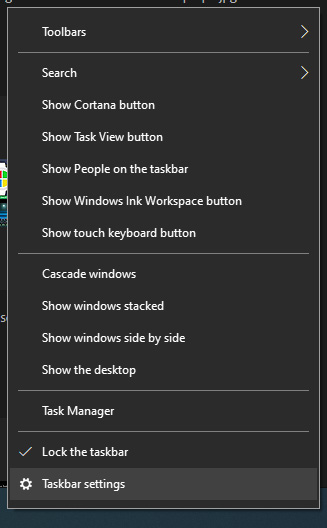
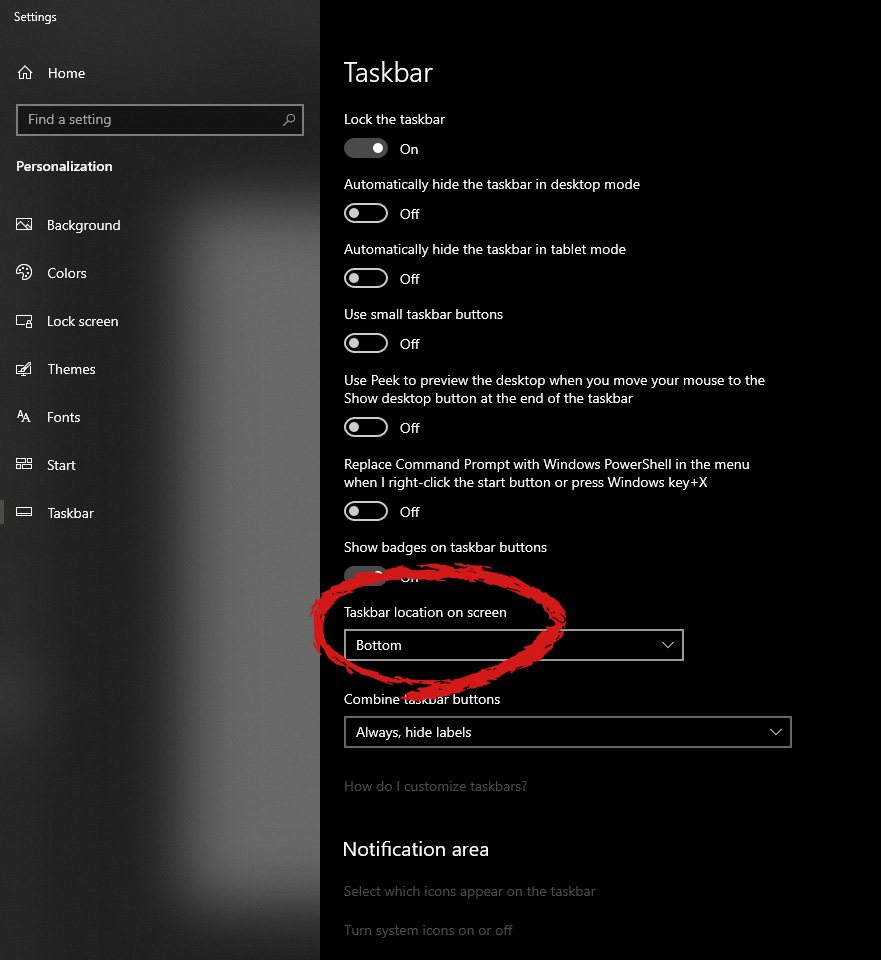
Changing Taskbar location in your Windows 10 is an easy task but lately, Microsoft has removed the option to just drag it to one side of the screen and place it there, now in order to change location we need to do a little more work but do not worry it is not difficult at all. Right-click on the taskbar to open its properties menu taskbar settings menuin the menu, on the bottom choose taskbar settings. Once the settings dialog opens, on the right side locate the taskbar location on screen. taskbar location chooserClick on the dropdown menu and choose the desired location for the taskbar.
Read More
Your Windows license will expire soon
If you suddenly get a message telling you that “Your Windows license will expire soon, You need to activate Windows in Settings” on your Windows 10 computer but you know that your Windows 10 is already activated. Worry not for this post will help you get rid of that error message right away. Before you get started, make sure that you have the Windows product key with you. If you don’t, you can get it by running the following command in an elevated Command Prompt:
wmic path SoftwareLicensingService get OA3xOriginalProductKey
Take note of the product key and then proceed to the options given below.

Option 1 – Try activating Windows 10 again or use another product key

  • If you’re sure that you have the correct product key, click the Go to the Settings button.
  • After that, click the Activate button once again.
  • If you have another license key, you can also use that as well, just simply click on the Change product key.
  • Then enter the new product key and click on Activate. That should fix the problem, if it doesn’t, refer to the next option below.

Option 2 – Try to reset the licensing status

  • Click the Start button and then type “cmd” in the Search box and then tap Ctrl + Shift + Enter to open an elevated Command Prompt.
  • Next, type the “slmgr –rearm” and hit Enter to reset the licensing status.
  • Restart your computer and check if the error is now gone or not.

Option 3 – Try uninstalling the product key and re-enter it once more.

  • The first thing you have to do to uninstall the product key is to know the Activation ID of your Windows installation. To do so, open an elevated Command Prompt and type this command, and hit Enter – vbs /dlv
  • After you enter the command, you should see the licensing status and Activation ID. And to get all the Activation IDs of all the installed Windows versions, key in this command and hit Enter – vbs /dlv all
Note: The “/dlv” parameter will give you the license information for the installed operating system.
  • After you enter the second command, you should see a Windows Script Host window with all the Windows licensing and activation status. Take note of the Activation ID.
  • Next, in the same elevated Command Prompt, type this command – slmgr /upk <Activation ID>
Note: In the third given command, “/upk” stands for “uninstall product key”. This parameter uninstalls the product key of the current Windows edition.
  • Restart your PC. After that, your computer will be in an unlicensed state so you need to re-enter the product key again.

Option 4 – Try rebuilding the Tokens.dat file.

The issue might be caused by a corrupted Tokens.dat file. The Tokens.dat file is a digitally signed file that stores most of the Windows Activation files so if it is corrupted then no wonder you’re having activation issues. To rebuild the Tokens.dat file, refer to these steps:
  • From the WinX Menu, open an elevated Command Prompt.
  • After opening Command Prompt, you need to type each one of the following commands and after you type each command, hit Enter.
    • net stop sppsvc
    • cd %windir%ServiceProfilesLocalServiceAppDataLocalMicrosoftWSLicense
    • ren tokens.dat tokens.bar
    • net start sppsvc
    • exe %windir%system32slmgr.vbs /rilc
  • Now restart your computer.

Option 5 – Try running the Windows 10 Activation Troubleshooter

  • Go to Settings and then select Activation.
  • After that, click on the Windows Activation and then troubleshoot. This will help you address most of the commonly found activation issues in Windows devices.

Option 6 – Try activating Windows 10 via mobile phone

Activating Windows 10 can also be done using your phone. Just note that you have to call Microsoft to do so.
  • In the Start Search box, type in “Slui 4” and tap Enter.
  • Next, select your country and click on Next.
  • Keep the window open and call the toll-free number of the country you’re from.
  • Afterward, a confirmation ID should be given by the automated system which you must take a note of.
  • Finally, in the box on the window, type in the confirmation ID and click on the Activate button. That should do it.
Read More
Setup has failed to determine install choices
Running the Windows Setup does not always go smoothly as you could encounter some errors along the way. One of these errors is the “Something happened, Setup has failed to determine supported install choices” error. The only given option in such cases is to click the Close button and exit the setup. This kind of error in Windows setup can occur when you try to downgrade to the previous version of Windows using the built-in mechanism. This error could be caused by a corrupted image or it is also possible that the set of files are incomplete. Aside from that, it could also be due to compatibility issues or that the module used to downgrade the Windows operating system is not configured properly. To fix this error, you have to run the Windows Setup program in compatibility mode so that you can downgrade Windows. You could also use the image for the lower version of Windows that’s available on the official site of Microsoft. But before you do any of these, make sure that you’re logged in as an administrator. To fix the “Something happened, Setup has failed to determine supported install choices” error, follow the given options below sequentially.

Option 1 – Try to run the Installer of the downgraded version in Compatibility Mode

This is the first thing you can try to resolve the issue instead of going right ahead on making a bootable device. So if you are downgrading Windows, you can try to run the installer in the compatibility mode for that specific Windows version.
  • Look for the setup file.
  • Once you find it, right-click on it and select Properties from the context menu.
  • After that, go to the Compatibility tab and mark the checkbox for “Run this program in compatibility mode for:” and from the drop-down list, select either Windows 7 or Windows 8.
  • You also have to check the “Run as administrator” option.
  • Now click the Apply button and then click OK to save the changes made and check if it has resolved the issue or not.

Option 2 – Try to troubleshoot compatibility

This option is almost the same as the first one except it is an alternative way of fixing the “Setup has failed to determine supported install choices” error in case the first one didn’t work. In this option, you will troubleshoot the compatibility issue.
  • Look for the setup file.
  • Then right-click on it and select the “Troubleshoot compatibility” from the context menu.
  • After that, click on the “Try recommended setting” option. Once the process is done, the error message should be gone.

Option 3 – Run the DISM tool

You can run the DISM tool as well to help fix the error code 0x80244022 during Windows Update. Using this built-in tool, you have various options such as the “/ScanHealth”, “/CheckHealth”, and “/RestoreHealth”.
  • Open the Command Prompt with admin privileges.
  • Then type in the following commands and make sure to hit Enter right after you type each one of them:
    • Dism /Online /Cleanup-Image /CheckHealth
    • Dism /Online /Cleanup-Image /ScanHealth
    • exe /Online /Cleanup-image /Restorehealth
  • Do not close the window if the process takes a while as it will probably take a few minutes to finish.

Option 4 – Try using the image from the official site of Microsoft

If none of the options given above worked, you can try to use the image from Microsoft’s official site. This would help, especially if the error is caused by a corrupted image or image folder with incomplete files.
Read More
Fix 0x80070037: The specified network ...
If you are trying to copy a file but suddenly encountered an error message saying, “An unexpected error is keeping you from copying the file”, then you’ve come to the right place as this post will help you resolve the problem. This error comes along with another message that states, “Error 0x80070037: The specified network resource or device is no longer available”. This kind of error occurs when the power supply to the external device is weak and causes the device to be disconnecting and reconnecting consistently. To fix this problem, you need to check out the potential fixes provided below.

Option 1 – Try to physically check the USB ports

You need to check the USB ports as there could be some ports that are loose or damaged physically which affects the overall performance of the port. You could also try to change the USB port since modern computers have a variety of USB ports. So if your USB drive supports USB 3.0 or 3.1, make sure that you plug it inside a USB 3.0 or 3.1 ports. If you’re not sure which port, just keep in mind that the USB 3 port is usually blue or you can also use your computer’s documentation or manual as a reference to locate it.

Option 2 – Check the connected cables physically

Aside from the USB ports, you also have to check the physical status of the connected cables because if there are damaged ones, just like with USB ports, it would also affect the overall connectivity of the device with the computer. So if you notice some irregularities in the connecting cable physically, you might have to buy another one and replace it and then see if it fixes the problem or not.

Option 3 – Update or reinstall the Universal Serial Bus Controller driver

Since it could be a driver issue, you can try to update or reinstall the Universal Serial Bus Controller drivers using the Device Manager. Refer to the following steps:
  • First, click the Start button and type “device manager”.
  • Then click on the “Device Manager” from the search results to open it.
  • From there, look for the “Universal Serial Bus controllers” option and then right-click on each one of the USB drivers and select the Update Driver from the menu.
Note: If it is a regular USB drive, then it will be listed as a USB Mass Storage Device but if you have a USB 3.0 device, then look for a USB 3.0 Extensible Host Controller.
  • Restart your PC and then click the “Search automatically for updated driver software” option.
Note: If updating the USB Controller drivers didn’t work, you can try to reinstall them instead.

Option 4 – Try connecting to a slower USB port

If connecting your device to USB 3.0 or 3.1 ports didn’t work, you might want to try connecting it to a slower USB port this time. There are times when the device is not capable of supporting the higher power supply from a USB 3.0 or 3.1 port which is why the weak circuits do not work properly. Thus, try connecting your device to a USB 2.0 port and check if your device is now working.

Option 5 – Try to turn off the Power Saving option

You could also try to turn off the Power Saving option to resolve the problem. All you have to do is switch to Power Management after you select the Properties of the USB device and from there, uncheck the “Allow the computer to turn off the device to save power” option. On the other hand, if you are using a laptop and did not use the USB device for a long time, then it could be powered off. This will ensure that the system does not turn off the USB device.

Option 6 – Try to connect your device to another computer

It is also possible that your computer does not support your device. To check that possibility, you can try connecting your device to a different computer and see if it is working without any issues. If it is, then you need to get another device that’s compatible with your computer.

Option 7 – Try to use a different device

You could also try using a different device and connect it to your computer. This will help you figure out if your device is damaged or not. So if the other device you connected is working just fine, then you might have to replace your device with a new one or consult an expert and have it repaired if possible.

Option 8 – Run the Hardware and Devices Troubleshooters

  • The first thing you need to do is click on Start and then on the gear-like icon to pull up the window for Settings.
  • After opening Settings, look for the Update and Security option and select it.
  • From there, go to the Troubleshoot option located on the left-hand side of the list.
  • Next, select Hardware and Devices from the list and open the Troubleshooter and run it. Once it is doing its job, wait for it to complete the process and then restart the system.
  • After the system restarts, check if the problem’s now fixed. If not, refer to the next option given below.
Read More
Can’t connect to this network Windows issue
Internet connectivity issues like Can’t connect to this network present a complex problem with simple solutions for PC and laptop users. First, it is usually recommended that users rule out problems with the internet connection, router, and Wi-Fi settings before proceeding to troubleshoot settings on your PC/laptop. Once the rest are ruled out, we can then proceed with the following troubleshooting steps and guidelines to fix your wifi connection issue: The first step is to update your windows network adapter driver. Connectivity problems may arise if your network driver is not updated or if it is incompatible with the network adapter. To do so, you may resort to any third-party driver scanning and installing programs found online. This solution should resort if users don’t want the hassle of perusing through windows settings that users may not be familiar with. However, this solution requires a pre-existing internet connection other than wifi, so it is recommended you have a backup internet connection via ethernet. The second step is to uninstall the driver for your network adapter. This solution is to resort if there is an issue with the driver as restarting the PC after the following steps let windows reinstall the driver again:
  • Open the quick access menu on your keyboard by pressing the Windows key and X key at the same time and select “Device Manager” from the menu list.
  • From the list of devices, select “Network Adapters”
  • Usually on the top of the list is the Wireless Network Adapter
  • Right-click the Wireless Network Adapter and select the option to “Uninstall device”
  • You will be given a confirmation in a new separate window to proceed. Click “Uninstall” to proceed.
  • After completing the previous steps, try rebooting your Windows PC and reconnecting to see if it works.
A third step is to disable the 802.1 1n modes of your network adapter by following the next steps:
  • First press the Windows logo key and the X key at the same time to bring up the quick-access menu. And like the previous step, select “Device Manager”
  • From the list of devices, select “Network Adapters”
  • Right-click the Wireless Network Adapter from the drop-down menu and select properties
  • Under properties, select the “Advanced” tab then select the 802.1 1n Mode. To the right drop-down menu change the option to  “Disabled” and click “Ok”
  • After, try to re-establish the connection to see if the steps have worked.
In the event that any of the preceding did not fix your problem, it helps to take a second look at the router and network settings using the interface provided by your ISP. A simple reset to the back of your router often fixes the issue. Also, try to check if you have any other administrative capabilities over the network to determine whether your device, in particular, has been MAC filtered or if the frequency of your wireless adapter is not compatible with the broadcast frequency of your router.
Read More
Keyboard shortcuts and hotkeys are not working
This post will guide you on what to do if your keyboard shortcuts or hotkeys are not working on your Windows 10 computer. A lot of users use hotkeys as they make things easier for them as they use their computer. However, there are instances when these hotkeys suddenly stop working. It’s actually one of the most common problems with keyboards. And so to resolve this problem, you can try out some suggestions prepared on this post.

Option 1 – Clean the keyboard keys physically

Your keyboard might not be working properly due to some dirt or other corrosion. First, you need to shut down your computer and then unplug the keyboard if you are using a desktop computer and then prepare it for cleaning. After that, use a small cotton ear cleaning tool to get between the creases and clean them. You can dip it slightly in alcohol to make it more efficient in cleaning dust and dirt. And if you can, you have the option to pull apart the keyboard completely and then wipe away all the corrosion from the inside. Once you’re done, put the keyboard back together and then plug it back into your PC. Now turn your PC on and check if the hotkeys are now working.

Option 2 – Try running the Hardware and Devices Troubleshooter

The first thing you can do to fix the problem is by running the Hardware Troubleshooter. Although it won’t make much of a difference, there’s still a possibility that it could automatically fix the problem with these function keys. To use it, refer to these steps:
  • The first thing you need to do is click on Start and then on the gear-like icon to pull up the window for Settings.
  • After opening Settings, look for the Update and Security option and select it.
  • From there, go to the Troubleshoot option located on the left-hand side of the list.
  • Next, select Hardware and Devices from the list and open the Troubleshooter and run it. Once it is doing its job, wait for it to complete the process and then restart the system.
  • After the system restarts, check if the problem’s now fixed. If not, refer to the next option given below.

Option 3 – Try connecting the keyboard to a different USB port

The problem might have something to do with the USB port that’s currently in use by your keyboard. It could be that it’s not working so it makes sense to unplug it and attach it to another USB port. You can also clean the USB port on both ends to ensure that they are not affected by corrosion.

Option 4 – Uninstall previously installed keyboard software

If you have been previously using another keyboard, it might be better if you make sure that the software for the old device has been removed since there are instances when multiple software can cause problems due to similarities in actions.

Option 5 – Update the keyboard driver

You can also update the keyboard driver to fix the problem. There are cases when an outdated or corrupted driver can fix the problem. To do so, follow the steps below.
  • Tap the Win + R keys to open the Run dialog box.
  • Then type “devmgmt.msc” in the field and hit Enter to open the Device Manager.
  • From there, look for the keyboard driver and click on it.
  • Next, right-click on the keyboard driver and select the Update driver option.
  • After that, click the “Search automatically for updated driver software” option to proceed.

Option 6 – Reinstall the keyboard driver

If updating the keyboard driver didn’t help, then you might want to reinstall it. How? Follow the steps below.
  • Tap the Win + R keys to launch Run.
  • Type in MSC into the box and tap Enter or click OK to open the Device Manager.
  • After that, a list of device drivers will be displayed. Look for keyboard driver, right-click on it and then select “Uninstall device”.
  • After that, unplug the device and restart your PC.
  • Then plug your device back in. Assuming your device is connected to your PC, open the Device Manager again.
  • Next, click on the Action button and click the Scan for hardware changes button. That should fix the problem.
Note: You could also completely uninstall the driver and go directly to the manufacturer’s website and download the latest driver for your hardware and then install it.

Option 7 – Enable Human Interface Device (HID) Service

Another thing to consider is the Human Interface Device Service. If this service is disabled, then no wonder why your hotkeys are not working. Thus, you need to enable this service. Refer to the following steps to do that:
  • Tap the Win + R key to launch the Run dialog box.
  • Then type “services.msc” in the field and hit Enter to open Services.
  • After opening Services, scroll down until you see the Human Interface Device service.
  • Double click on HID and make sure that its Startup Type is set to “Automatic” and then click OK.
  • Restart your PC and check if the hotkeys are now working or not.

Option 8 – Try resetting the keyboard

You might also want to try resetting the keyboard as it can also help in fixing the problem. Setting it back to its default state will surely help.
Read More
Override default Regional settings in Windows
As you probably know, Windows 10 does not offer lots of choices for its Regional settings depending on where you are and what locale you work with or belong to. The standard region settings for Windows 10 allow users to select one set of formats for the calendar and more. However, this has somewhat changed in the Windows 10 v1809. If you don’t want such a change, you can just override the default regional format settings in the Windows 10 Improved local experience. So in this post, you will be guided on how you can do such a thing. Follow the given instructions below to override the default Regional Format settings in Windows 10. Step 1: Go to Settings > Time and Language > Region. Step 2: From there, the default region is what Windows and apps might use to provide you with local content. However, this won’t be much of use if you work for a different locale and need to have different format settings like Calendar, Dates, Times, Currency, and First day of the week, all of which you can modify under the Regional format. Step 3: You need not reboot your Windows 10 computer after changing. On the other hand, some of the apps will have to close and launch again in order to apply the new format. Thus, if you need to use apps that are of different locales, you will only see the changes after you re-launch the app. Note: You can also select a different language that makes more sense to you. In other words, if you prefer more common words to standard words for your Windows 10 computer, then this is definitely the way to do it. This local format will be used for messages, menus, navigation, settings, and other topics. Step 4: Look for a link that says “Add a Windows display language with local experience packs” under Languages. In case you don’t know, Local Experience Packs are Microsoft Store apps that deliver Windows display language quality improvements. So once you click the link, it will download the packs from the Microsoft Store. In addition, Windows has already begun using AI or Artificial Intelligence as well as neural network-based Machine Learning for Windows localization. And as the number increase, the Machine language improvements and feedback from users will help in making the translations a lot better and make them available to even more languages. All in all, it’s pretty much an interesting and a good move for Microsoft as the demands for topics and machines to be available in local languages have been increasing for the past couple of years.
Read More
Command prompt tips and tricks
Hello and welcome to errortools articles. Today we will talk about some great and awesome tips and tricks for the command prompt. Commands which can make your life easier and your workday more pleasant. That being said let's dive in right into muddy waters and swim out with new knowledge.

Tip 1: Read Motherboard information

There are a lot of reasons why you would like to read information from your motherboard, maybe you would like to upgrade your BIOS, perhaps you would like to know the serial number, maybe even the version number. Well, you can, type the following code into the command prompt and you will receive all information about your motherboard.
wmic baseboard get product,version,serialnumber,product

Tip 2: Copy command output to clipboard

Getting information from the command prompt to a word processor, into an email or any other medium can be somewhat troublesome, usually, people tend to screenshot or write from a command prompt into another destination, which could induce errors, and let's be honest, it is not practical. You can copy command output directly into the clipboard ready for pasting it anywhere with | clip. So for example if you would like to paste the directory structure of your c drive command would look like: dir c: | clip, now output would be placed into the clipboard ready to be pasted anywhere needed.

Tip 3: Erase data permanently

When you delete data on your hard drive, what really happens is that files are marked with a marker which marks that space for new data writing, but the data itself is still present and can be brought back. This sometimes could impose problems but if you would type: cipher /w:c Windows will write random data over each marked file deleting it forever without means to be brought back.

Tip 4: Manage your IP address

If you would like to play with your IP address and do fancy stuff with it do the following: ipconfig /release to release your IP address ipconfig /renew to renew your IP address ipconfig /flushdns to flush down DNS information and enjoy a new browsing start.

Tip 5: Check to see are packets reaching the desired location

You installed a new LAN printer, or a new switch, maybe you want to check if your new site is up and running. Use ping destination in order to see if TCP packets are reaching desired information, you can use it with a specific address like ping 192.168.1.1 or you can type a web address, for example, ping google.com and see if a connection can be established.

Tip 6: Get information about a specific command

So you learned some command prompt commands, but you do not know all of their configuration or switches? No worries, just type command/? to get a list of available switches for it. For example ipconfig/? will write you a list of available switches for ipconfig command.

Tip 7: Link and execute multiple commands one after another.

Let us say that for example, you would like to copy files into a different folder, then rename some and delete others and you need to do a couple of times. Instead of writing command after command once each one is finished link them with && and they will execute one after another.

Tip 8: Scan and repair files.

In order to scan files and repair broke or corrupted ones write in the command prompt: sfc /scannow. Please know that this command can take a long time since it is solely dependant on the number of files, their size, and the power of the computer.

Tip 9: Manage and configure your computer energy

Command powercfg will let you manage and see the power configuration of your computer. Just write powercfg/? and see what you need and want to change or get information about.

Tip 10: Associate files with applications

Windows already has some file associations defined, and some applications take over some type of files but if you want to take control into your own hand use assoc command. For example assoc.txt= "APPLICATION NAME" will associate txt files with the provided application.

Tip 11: Hide files and folder.

Do you have some folder or file with information that you do not want to be seen when someone opens file explorer? Use attrib +h <name of file> and hide file or attrib +h /D <folder name> to hide folder.

Tip 12: Get a list of installed computer drivers

Want to know which drivers are installed in your system? Use driverquery and take a look.

Tip 13: Find and locate shared folders

have you shared a folder but forgot which one and where? Do not bang your head on the wall, we have a simple solution for you. just type in command prompt net share and see everything.

Tip 14: Run commands as an administrator

You do not have administrator privileges? Do you want to bypass common blockades?
runas /user:yourdomainadministrator command
That is all that we have for you today, I certainly hope you have found something useful here and that we have managed to teach you some valuable things.

Read More
1 2 3 171
Logo
Copyright © 2023, ErrorTools. All Rights Reserved
Trademark: Microsoft Windows logos are registered trademarks of Microsoft. Disclaimer: ErrorTools.com is not affiliated with Microsoft, nor claims direct affiliation.
The information on this page is provided for information purposes only.
DMCA.com Protection Status