Logo

Device frequently disconnects from hotspot

As you know, Windows 10 comes with the option to create Mobile Hotspot for other devices. This allows you to share your Ethernet connection. However, there are times when one of your devices might fail to reconnect to the mobile hotspot again. For instance, you moved out of the Wi-Fi range because you have somewhere to be and whatnot and when you’re back you find that you are now unable to reconnect to the Windows 10 Hotspot or the shared network. Although you can always restart the mobile hotspot to resolve the problem, however, it might only be a temporary fix. So in this post, you will be given options for a much better solution to the problem.

This kind of problem seems unusual and does not occur that often. To fix it, you can try to set up DNS on your Windows 10 device and then configure the settings on the mobile device. It seems that what’s happening here is that the mobile device is unable to lock on to the Mobile Hotspot when the IP address changes for some reason.

Option 1 – Try changing the DNS settings on your laptop

In this option, you need to make sure that IPv4 and IPv6 are selected on your Ethernet connection. You also have to change the Preferred DNS server as well as the Alternate DNS server to 8.8.8.8 and 8.8.4.4, respectively. You also have to validate the settings before you exit just to ensure that you’ve entered everything correctly. After that, open Command Prompt and run the ipconfig command and then take note of the IP address, Gateway DNS 1 and DNS 2.

Option 2 – Try changing the Wi-Fi settings on your mobile device

This option should be mostly the same on all your mobile devices. And given that OEMs build their customization and skin, you might have to fiddle around a little to get the settings. Refer to the steps below to change the Wi-Fi settings:

  • Go to the Settings of your mobile device and tap on Wi-Fi.
  • Then click the Mobile Hotspot connection that you’ve created on your laptop.
  • After that, input the password and tap the Advanced options.
  • From there, tap on IP settings and select the Static option instead of DHCP.
  • Now you have to enter the IP address, Gateway, DNS 1, and DNS 2 of the laptop you’ve taken note of earlier and that’s it.

Note: If you are already connected to the Mobile Hotspot, long press on the Wi-Fi network and select the Modify Network option and then follow the steps given above to change from DHCP to static. Once you’re done, your mobile device should now be able to connect to the Windows 10 Mobile Hotspot all the time.

Do You Need Help with Your Device?

Our Team of Experts May Help
Troubleshoot.Tech Experts are There for You!
Replace damaged files
Restore performance
Free disk space
Remove Malware
Protects WEB browser
Remove Viruses
Stop PC freezing
GET HELP
Troubleshoot.Tech experts work with all versions of Microsoft Windows including Windows 11, with Android, Mac, and more.

Share this article:

You might also like

The Best Way to Recover Lost MS Outlook Password

What's the PST record?

Do you often use MS-Outlook for communicating in your work environment? If so, you should be aware that all e-mails messages you send and receive, attachments, contacts, and schedule items you be, the files you create and the details you include are all stored within an Outlook Data File folder. This includes 2 kinds of files .OST and .PST. OST is the offline Storage Table that allows Outlook users to gain access to the e-mail account with no internet access. But this document is vulnerable to corruption. So you need to change it into the PST (Personal Storage Table) file structure. This document keeps data protected and saves all of the data in your view e-mail accounts including e-mails, calendar items, contact info, notifications, and accessories in your local hard drive securely. For security and privacy purposes password protection is necessary.

How can the PST File get locked?

However, with a lot of work to do, a lot of people frequently have a tendency to overlook and easily forget the Outlook password. This affects the user's capability to gain access to the account and execute the associated e-mail features. That is very difficult for those who have contacts stored in it and significant e-mails which one would like to see instantly. In this case, there is also the threat of losing the data that was significant in the long term. Sadly, Outlook will not provide an easy method without removing all of your own personal data to regain this password.

Why Should I Use Stellar Phoenix Outlook PST Repair Tool

Stellar Phoenix Outlook PST Repair tool may be the best fix software out there. It's easy to use, secure, dependable, and quick. You do not have to be a pro to use it. In just a couple of clicks, your password can be recovered, without losing any of your crucial data, including associates contacts and e-mail communications. This repair tool is full of special characteristics. It's compatible with most if not all variants of Windows, including 2000 and Vista, Win7, Windows 2003. Additionally, it helps fix all MS-outlook versions like 2010 and 2000, 2002, 2003, 2007.

Here is what you should do

Just click here Download and install Stellar Phoenix Outlook PST Repair tool in your computer. Run it to regain all of your data within your e-mail account and to regain your lost MS-Outlook PST File Password.
Besides assisting you to regain your PST file password, it can be utilized to solve malfunctions in the PST Files and any other associated problems. For instance, this repair tool can help to fix damaged and corrupted PST file size limit errors as well as PST files. If you use MS Outlook 2002 version on your PC and you use it quite often and prefer not to delete emails in it, then you might come across the PST file size 2GB limit error. This error occurs when you reach or exceed the 2 gigabytes memory limit. If this happens, your ability to send and receive emails through your MS-Outlook account is greatly hindered. You can't add new contacts either. In instances such as these, Stellar Phoenix Outlook PST Repair Tool is useful. It helps increase the GB limit twice as much as normal. This means that your memory limit rises from 2-4GB making Stellar PST Outlook Repair a crucial tool for all MS Outlook users.
Read More
Fixing Upside Down Screen in Windows 10
As you know, Windows 10 comes with a pre-packed feature that allows you to rotate the screen at different angles, and to facilitate this feature, there are keyboard shortcuts you can use as well. However, from time to time, no matter how useful this feature is, users still experience a handful of issues. One of which is that they suddenly find their screen rotated or Upside Down even when they didn’t do a thing or adjust the setting. You may have pressed the shortcut on the keyboard by accident or some other program changed the setting on your computer without your permission – whichever the case is, this post will show you what you can do to fix the upside-down screen on your Windows 10 PC using the options laid out below.

Option 1 – Try using hotkeys

As mentioned earlier, Windows have hotkeys in the UI that changes the orientation of the display. So the first thing you need to do is to make sure that these hotkeys are enabled and if they are, you can use the keyboard shortcut to adjust the orientation of your screen.
  • Right-click on an empty part of your Desktop and then select the Graphic options.
  • Next, select “Hot Keys” > “Enable”. After verifying that the hotkeys are enabled, you can tap the Ctrl + Alt + Up arrow keys to change your computer screen’s orientation.
  • Alternatively, you can also tap the Ctrl + Alt + Right or Left or Down arrow keys to change the direction the other way.

Option 2 – Try using the Graphics Properties

You will probably see the “Graphics Properties” option if you use the Intel HD Graphics every time you click on your Desktop. Note that this option has all the graphics driver properties and helps you in changing the configurations as well as control several options like refresh rate, resolution, color-depth and many more. You have to navigate to these options to see if the orientation is changed in these properties. To do so, follow the steps below.
  • Right-click on any empty space on your Desktop and then select Graphics Properties or Intel Graphics Settings.
  • After that, select Display from the list of sub-options that appears.
  • From there, you will see the rotation of the screen under the “Display settings” option where you have to make sure that the slider is set to “0”.
  • Click the Apply button to save the changes made and then click on Exit. The orientation of your screen should automatically change.

Option 3 – Try using the Windows Display Settings

Since the Windows Settings have a section where you can manage the display settings of your computer, you can use them to help control the resolution of your PC’s display without any trouble. There is a possibility that the settings are changed there so that’s probably why your screen is turned upside down all of a sudden.
  • Tap the Win + S keys to open search and then type in “settings” in the field and then hit Enter to open Settings.
  • After opening Settings, click on System and then on Display using the left navigation bar and then scroll to the end and select the Advanced display settings.
  • Next, click on the Display adapter properties and click on Intel HD Graphics control panel.
  • Now change the rotation to 0 Degrees. Afterward, the display should revert back to its original form automatically.

Option 4 – Check your monitor’s physical controls

There are monitors that have buttons in them that allows users to shift the rotation of the screen to 90 degrees. It could be that your monitor has these buttons without you knowing and you suddenly pressed them by mistake which caused your screen to rotate. Thus, you have to check your monitor for any physical buttons on the side and if you see a menu, navigate to its options and check if there are screen rotation options. To make it easier for you, you can simply search your monitor’s model online and see if these buttons exist. You could also go over your monitor’s manual if you still have it as it contains details with regards to screen rotation.

Option 5 – Update your Graphics drivers

  • Tap the Win + R keys to open the Run dialog box and then type in devmgmt.msc and tap Enter or click OK to open the Device Manager.
  • Expand the section for the outdated device drivers.
  • And then select the outdated driver(s) and right-click on it/them.
  • From the drop-down menu, select the Update Driver option if you wish to update the driver or select the Uninstall device if you want to uninstall the driver and then follow the on-screen instructions to install the latest version of the driver.
  • Restart your PC after the installation to allow the system to reinstall the driver.
Read More
WebShield Malware Removal Tutorial

Web Shield is a free application that allows you to view insightful analyses about the websites that you visit and specifically how they’re tracking you online. Web Shield cannot determine exactly who is tracking your computer usage. Instead, Web Shield allows a user to see which websites have placed tracking code onto their computer.

This software is ad-supported and displays advertisements in the form of injected banner ads, popups, and context hyperlinks in the user’s web browser. It adds Windows Background services, displays unwanted advertisements, and can modify the browser’s home page.

About Browser Hijackers

Browser hijackers (also called hijackware) are a type of malicious software that modifies web browser settings without the user’s knowledge or permission. These hijacks appear to be increasing at a worrying rate across the world, and it could be really nefarious and sometimes dangerous too. There are lots of reasons why you may experience a browser hijack; but commercial, marketing, and advertising are the main reasons for their creation. The idea is to force users to visit specific sites that are looking to increase their site visitor traffic and generate higher ad income. Nevertheless, it is not that harmless. Your web safety is jeopardized and it is also very irritating. Furthermore, hijackers will make the entire infected system fragile – other destructive malware and viruses would seize these opportunities to intrude into your system very easily.

Browser hijacking signs

Here are some symptoms that indicate you have been hijacked: home-page is modified; you see new unwanted favorites or bookmarks added, typically directed to ad-filled or pornography sites; the default search engine has been changed and the web browser security settings have been cut down without your knowledge; you notice many toolbars on the internet browser; you see lots of pop-up ads on your computer screen; your internet browser has become unstable or starts running slowly; you can’t visit certain websites like home pages of anti-malware software.

How does a PC get infected with a browser hijacker?

Browser hijackers might use drive-by downloads or file-sharing networks or even an email attachment to reach a targeted computer system. They may also originate from any BHO, browser extension, add-on, toolbar, or plug-in with the malicious objectives. Some browser hijackers spread in user’s PC by using a deceptive software distribution strategy called “bundling” (usually through shareware and freeware). A good example of a popular browser hijacker is the most recent Chinese malware named “Fireball”, which has attacked 250 million computers across the world. It acts as a hijacker but could be changed into a fully functioning malware downloader later on. Browser hijackers will affect the user’s web surfing experience severely, record the websites frequented by users and steal personal information, cause problems in connecting to the net, and eventually create stability issues, causing applications and systems to crash.

Browser hijacker removal

Some browser hijacking could be quite easily reversed by finding and removing the corresponding malware software from your control panel. But, most browser hijackers are difficult to get rid of manually. No matter how much you try to remove it, it can come back over and over. Moreover, manual removal requires you to carry out several time-consuming and intricate actions that are hard to do for novice computer users.

Malware Blocking Access To Safebytes Website And Anti-Malware Downloads - What To Do?

Every malware is bad and the effects of the damage can vary based on the specific type of malicious software. Some malware types alter browser settings by including a proxy server or change the computer’s DNS settings. In these cases, you’ll be unable to visit some or all internet sites, and therefore unable to download or install the required security software to get rid of the malware. If you’re reading this, chances are you’re stuck with a malware infection that is preventing you to download and/or install Safebytes Anti-Malware software on your PC. Even though this type of problem can be tougher to circumvent, there are some steps you can take.

Start your system in Safe Mode

If the malware is set to load at Windows start-up, then booting in Safe Mode should avoid it. Since just the bare minimum programs and services start-up in Safe Mode, there are rarely any reasons for issues to occur. The following are the steps you need to follow to start your computer into the Safe Mode of your Windows XP, Vista, or 7 computers (go to Microsoft website for directions on Windows 8 and 10 computers). 1) Tap the F8 key continuously as soon as your computer boots, but before the large Windows logo or black screen with white texts appears. This would conjure up the “Advanced Boot Options” menu. 2) Make use of the arrow keys to choose Safe Mode with Networking and press ENTER. 3) Once this mode loads, you should have internet access. Now, get the malware removal program you need by using the browser. To install the program, follow the guidelines within the setup wizard. 4) Right after installation, run a complete scan and allow the program to delete the threats it detects.

Switch over to an alternate browser

Some malware only targets particular browsers. If this is your situation, make use of another internet browser as it might circumvent the malware. If you appear to have a trojan attached to Internet Explorer, then switch to a different web browser with built-in safety features, such as Firefox or Chrome, to download your favorite antivirus program – Safebytes.

Install and run anti-virus from your Thumb drive

Here’s yet another solution which is utilizing a portable USB antivirus software that can scan your system for malware without the need for installation. Follow these steps to use a thumb drive to clean your infected computer system. 1) Make use of another virus-free PC to download Safebytes Anti-Malware. 2) Plug in the USB flash drive to a USB port on the uninfected computer. 3) Run the setup program by double-clicking the executable file of the downloaded software, which has a .exe file extension. 4) When asked, choose the location of the pen drive as the place where you want to put the software files. Follow the directions to complete the installation process. 5) Now, transfer the pen drive to the infected PC. 6) Double-click the anti-malware software EXE file on the USB flash drive. 7) Click on “Scan Now” to run a scan on the affected computer for malware.

Review of SafeBytes Anti-Malware

Do you want to download the very best anti-malware software program for your desktop? You can find many applications available that come in free and paid versions for Windows systems. A few of them are great, some are ok types, and some will harm your computer themselves! You need to pick one that is reliable, practical, and has a good reputation for its malware protection. When considering the reliable software programs, Safebytes Anti-Malware is undoubtedly the highly recommended one. SafeBytes anti-malware is a trusted software that not only secures your PC completely but is also quite user-friendly for people of all ability levels. Through its cutting-edge technology, this software protects your computer against infections caused by different types of malware and other threats, including spyware, adware, trojans horses, worms, computer viruses, keyloggers, ransomware, and potentially unwanted program (PUPs). SafeBytes anti-malware comes with a plethora of enhanced features that sets it apart from all others. Here are a few popular features present in this program: World-class AntiMalware Protection: This deep-cleaning anti-malware software program goes much deeper than most antivirus tools to clean out your personal computer. Its critically acclaimed virus engine locates and disables hard to remove malware that hides deep within your PC. Real-time Active Protection: SafeBytes offers complete and real-time security for your computer system. It’ll regularly monitor your laptop or computer for hacker activity and also provides users with advanced firewall protection. Web protection: SafeBytes checks and provides a unique safety rating to every website you visit and block access to web pages considered to be phishing sites, thus protecting you from identity theft, or known to contain malware. Low CPU Usage: SafeBytes is a lightweight and simple-to-use anti-virus and anti-malware solution. Since it uses very little computer resources, this software leaves the computer power exactly where it belongs to: with you actually. 24/7 Guidance: You could get high levels of support 24/7 if you’re using their paid version.

Technical Details and Manual Removal (Advanced Users)

If you’d like to manually get rid of WebShield without the use of an automated tool, it may be actually possible to do so by deleting the program from the Microsoft Windows Add/Remove Programs menu, or in cases of web browser extensions, going to the browsers AddOn/Extension manager and removing it. You’ll probably also want to totally reset your browser to its default settings. If you choose to manually delete the system files and registry entries, make use of the following list to make sure you know precisely what files to remove before undertaking any actions. Please keep in mind that this is for advanced users only and might be challenging, with incorrect file removal leading to additional system errors. In addition to that, certain malware is capable of replicating or preventing deletion. It is recommended that you do the removal procedure in Safe Mode.
Files: %ProgramData%webshield %ALLUSERSPROFILE%Application DataWebShield %ALLUSERSPROFILE%WebShield Registry: [HKEY_LOCAL_MACHINESOFTWAREMicrosoftWindowsCurrentVersionUninstallmweshield] [HKEY_LOCAL_MACHINESOFTWAREmweshield] [HKEY_LOCAL_MACHINESYSTEMCurrentControlSetservicesmwescontroller]

Read More
15 Deep WEB sites you need to visit
Deep WEBA not long time ago we had an article about the deep WEB and dark WEB here on errortools.com explaining its origins and its purpose. The article can be found here if you are interested: https://errortools.com/windows/what-is-deep-and-dark-web/ Now at this point in time, we want to present you with 15 great Deep WEB sites that could offer you some information not found anywhere else, that could offer you some privacy, or simply to have some fun and safely explore how it is like to be part of deep WEB. Take notice that for successful visiting of given sites you will need to have installed TOR browser. More about Tor browser itself can be found here: https://errortools.com/blog/software-review-series-tor-browser/ and its official website for download here: https://www.torproject.org/download/ Make sure that you copy the onion link and paste it into your TOR browser in order to access the site. That being said, let’s begin.

Mail2Tor

http://mail2tor2zyjdctd.onion/ If you want secure and private ways of sending your emails then look no further. Mail2Tor uses a webmail client and encrypts each email received or sent, combine that for not storing IP addresses and you have a private and safe environment for your emails.

The Hidden Wiki

http://zqktlwiuavvvqqt4ybvgvi7tyo4hjl5xgfuvpdf6otjiycgwqbym2qad.onion/wiki/index.php/Main_Page The Hidden Wiki is the go-to site if you want to explore more of deep WEB since it is the site of collected .onion sites. Think of it as a registry of onion sites that want to be accessed publicly but offer anonymity.

TorLinks

http://torlinksd6pdnihy.onion/ TorLinks is another site focusing on .onion site listings. Site themselves are divided into categories and are easy to find. Take note that .onion sites come and go so make sure to visit frequently both The Hidden Wiki and TorLinks in order to be updated.

Torch Search Engine

ttp://xmh57jrzrnw6insl.onion/ Torch is the oldest and most well-known search engine for dark web links, with its database of over a million .onion websites there is a chance that you will find what you are looking for on it.

DuckDuckGo

http://3g2upl4pq6kufc4m.onion/ Integrated into TOR itself as a default search engine DucDuckGo has proven itself to be a great competitor and challenger to Google. But unlike Google, DuckDuckGo will not track you nor store your search activities making it a great general private search engine.

Facebook

https://www.facebookwkhpilnemxj7asaniu7vnjjbiltxjqhye3mhbshg7kx5tfyd.onion/ Yup, Facebook has its own .onion version of its popular platform. Now since Facebook itself is a social media platform anonymity is out of the question but with .onion routing, you can have and maintain a Facebook account from locations where you normally could not like in some countries where Facebook.com is banned.

Galaxy3

http://galaxy3bhpzxecbywoa2j4tg43muepnhfalars4cce3fcx46qlc6t3id.onion/ Galaxy3 is also a social platform, the site is mostly populated with code experts and other individuals posting all kinds of stuff.

The Dark Lair

http://vrimutd6so6a565x.onion/index.php/Board Dark Lair was the first image exchange website that evolved into a social network. One difference from the other two mentioned is that you can engage in the website without registration as an anonymous user.

Pro Publica

https://www.propub3r6espa33w.onion/ The aim of the five-time Pulitzer Prize winner ProPublica is “To expose abuses of power and betrayals of the public trust by government, business, and other institutions, using the moral force of investigative journalism to spur reform through the sustained spotlighting of wrongdoing.” It’s the first major online publication to have a .onion address. The non-profit newsroom is funded by organizations such as the Sandler Foundation and has made countless contributions to the fight for free speech and privacy.

Soylent News

http://7rmath4ro2of2a42.onion/ Soylent news is an onion site that well brings news. The difference from other sites of the same content is that Soylent news is community moderated without any big names involved so it is authentic in its content.

CIA

ttp://ciadotgov4sjwlzihbbgxnqg3xiyrg7so2r2o3lt5wz5ypk4sxyjstad.onion/ Tor’s history is an unlikely tale. It was created by the U.S Navy with the purpose of helping informants in foreign nations to communicate safely over the Internet. The Central Intelligence Agency (CIA), in that spirit, released a .onion site so that people from across the globe can browse their resources securely and anonymously.

Secure drop

https://secrdrop5wyphb5x.onion/ Secure drop is a platform for changing leaked information and for journalists to communicate with their leads in private. It is used by Washington Post, Pro Publica, and The Guardian.

Hidden Answers

http://answerszuvs3gg2l64e6hmnryudl5zgrmwm3vh65hzszdghblddvfiqd.onion/ Hidden Answers is Reddit or Quora of the dark web but as in the spirit of the dark web, all discussed topics and stories are in total anonymity.

SCI-HUB

http://scihub22266oqcxt.onion/ With over 50 million research papers in the domain of science shared freely, Sci-Hub eliminates all barriers of free knowledge and offers a unique approach to education and scientific information.

Smartmixer.IO

http://smrtmxdxognxhv64.onion/ Smartmixer is a bitcoin mixer. The service scrambles your bitcoin with other users making your purchases completely anonymous. And that's it. 15 dark WEB onion sites you need to visit. I hope that you enjoyed the list and found something useful in it. Also, note that onion links can change overnight so if any of provided links do not work just go to DuckDuckGo and search for the site with the onion at the end.
Read More
How to fix Error 2753, The file is not marked
Installing programs on your Windows 10 computer does not go smoothly as you could encounter some issues along the way that could prevent you from successfully installing the program. One of the common errors you can encounter during the installation of programs is Error 2753. There are times when the packages are corrupted or those packages are not working properly or it wasn’t able to create files and paths. When you encounter this kind of error, you will get the following error message:
“Error 2753, The File is not marked for installation.”
Note that this kind of error is not bound to only some specific files but it can also happen with any file, be it an executable file or an MSI file. To fix this error, here are some possible solutions that you could try.

Option 1 – Fresh download the setup file

The first thing you can do is to fresh download the setup file from the official homepage and then place it in a different location. Just make sure that you download the correct setup file that’s compatible with your operating system. Then restart your computer and sign in as administrator. After that, right-click on the setup file and select the Run as administrator to proceed with the installation.

Option 2 – Try removing all the previous versions of the software

If there is a previous version of the program that’s still installed on your computer, you need to uninstall that program since it might be the reason why you’re getting Error 2753.
  • Tap the Win + R keys to open the Run dialog box
  • Then type “appwiz.cpl” in the field and hit Enter to open the Programs and Features in Control Panel.
  • From there, look for the previous version of the program you are trying to install, select it and then click on Uninstall to remove it.
  • After that, restart your computer and try to install the latest version of the program again. It should work now. If not, proceed to the next available option below.

Option 3 – Run the setup file as administrator

The setup file may need more permission in order to execute properly and so you need to run it as an administrator. To do so, you need to give it more privileges for it to work as intended by its developer.
  • Right-click on the setup file and select the Run as administrator option.
  • Afterward, a User Account Control or UAC prompt will appear and from there, click on Yes and then check if the file runs or not.
Note: If the setup file does not run, you may have to take ownership of the folder where the setup file is located. To take ownership of the folder, refer to these steps:
  • First, locate the concerned folder and right-click on it then select Properties.
  • Next, click on the Edit button in the Properties window and click OK to confirm if you got a User Account Control elevation request.
  • After that, select user/group from the permission windows or click on the Add button to add another user or group. It would be best if you add “Everyone” to give permission.
  • Then check “Full Control” under the “Allow” column to assign full access rights control permissions.
  • Now edit the permission to Full Control for “Everyone”.
  • Click OK to save the changes made and then exit.

Option 4 – Try running the setup file in Compatibility Mode

You may be getting Error 2753 if the setup file is not intended to run on the Windows 10 version you are using which is why you have to run it in Compatibility Mode. This will allow the setup file to think that it is running in a compatible environment as it is intended to.

Option 5 – Try to re-register the vbscript.dll file

You may have to re-register the vbscript.dll file using the regsvr32.exe before you can successfully install the program and fix Error 2753. The Regsvr32 tool is a command-line utility that can be used to register and un-register the OLE controls like DLL and ActiveX (OCX) control in the Windows operating system. Follow the steps below to use it.
  • Open Command Prompt as admin from the WinX menu.
  • Next, type exe vbscript.dll in the elevated Command Prompt and hit Enter to execute the command. This will re-register the affected DLL file using the Windows operating system tool, regsvr32.exe.
  • You should see a message saying, “DllRegisterServer in vbscript.dll succeeded” if the Regsvr32 tool was able to run successfully. After that, try to install the program again and see if it now works.
Read More
How to Fix Windows 10 Error 0xc00000fd

Error Code 0xc00000fd - What is it?

In its most basic essence, Error Code 0xc00000fd appears when a program can not be initiated. It can occur when a file or program is corrupted, incompatible with the current version of the operating system, or out of date.

This error code occurs primarily in Windows but is also present in previous editions of the operating system. The symptoms of this error and the resolution methods for each of these systems are essentially resolved in the same way.

Common symptoms include:

  • Failure of programs to open properly, even if they were able to be opened in the past
  • The appearance of an error message stating that the application couldn’t be started correctly

There are several different things that Windows 10 users can do to try to fix the appearance of Error Code 0xc00000fd on their machine. Some of these methods are fairly simple for the average user, while others may require advanced knowledge and comfort with diving into the deeper tools and settings of the Windows operating system. If you have difficulty in implementing the methods below, contact a qualified Windows repair technician to assist you in the resolution of the error code.

Solution

Restoro box imageError Causes

Error Code 0xc00000fd can arise when program files are not recognized properly by the operating system, when the operating system is no longer compatible with the program being run, when files are missing or corrupted, or when the program has been changed in a substantial way. Each of these causes requires a different method of resolution.

Further Information and Manual Repair

Several methods can be used to attempt to resolve Error Code 0xc00000fd on your computer. Basic users can use some of these methods, while others require familiarity with advanced tools and options in Windows. If you have trouble implementing the steps below, contact a qualified professional to assist you. Here are the top ways to deal with Error Code 0xc00000fd on your machine:

Method One:  Check for Updates using the Windows Update Tool

In some cases, compatibility issues can be resolved through updates and patches available directly from Microsoft via the Windows Update tool. This is most likely the case if you have not kept up with regular updates on your machine over time. In your settings, open up the Windows Update tool and run a scan to see if there are any required updates available for your programs or for the operating system itself. If there are updates, install them, then reboot your computer to make sure that all updates are able to be fully applied to your operating system. Attempt to open the program that caused the error after you are finished to see if this method addressed the problem fully or if an additional method needs to be used.

Method Two:  Roll Back to an Earlier Version of the Updates

Sometimes, an update can cause a compatibility issue. If you have previously been able to open the program in question without any problems, but have recently installed an update on your computer, that update may have been the source of the problem. If this is the case, roll your system back to an earlier stage of updates to see if that fixes the problem. If so, you may need to wait to reinstall the updates until Microsoft corrects the issue.

Method Three:  Run Scans on Your Registry, Antivirus Software, Drivers, and Update Troubleshooters

If there truly is a corrupted or missing file within the program that you are trying to run, you can open up several tools to scan for the file that may be causing the trouble and attempt to fix it. Run the following tools to try to fix the problems:
  • Windows Registry Repair Tool (this particular tool may take some time to complete)
  • Windows Update Troubleshooting Wizard
  • Windows Drivers Updates
  • Antivirus software or Microsoft Security Essentials
After running each of these tools, restart your computer to allow any necessary changes to be applied to your system. If the above methods do not fix error Code 0xc00000fd on your particular device or if you do not have the confidence and knowledge to implement these steps on your own, get in touch with a Windows repair professional who can help you to resolve the problem.

Method 4: Use An Automated Tool

If you wish to always have at your disposal a utility tool to fix these Windows 10 and other related issues when they do arise, download and install a powerful automated tool.
Read More
Fix Windows Update error code 0x80d02002
A lot of users have experienced various issues either in installing a Feature or a Windows Update. One of these errors is the one with the error code 0x80d02002. If you are one of the users who is facing this problem right now, then the working solutions given in this post will surely help. The Windows Update error code 0x80d02002 indicates that Windows 10 fails to upgrade or install as there is some issue with the files that have been downloaded and Windows encounters an error in installing them. Thus, the best thing you can do in such a case is to start the installation from scratch but before you do that, here are some suggestions that might help.

Option 1 – Try to rename the SoftwareDistribution folder

The Software Distribution folder in the Windows operating system is a folder that can be found in the Windows directory and is used to store files temporarily which might be required to install the Windows Update on your PC. Thus, it is required by the Windows Update and maintained by WUAgent. Aside from that, it also contains all the Windows Update History files and once you delete them, you will most likely lose the Update history. As a result, the next time you run the Windows Update, it may result in a longer detection time.
  • Open the WinX Menu.
  • From there, open Command Prompt as admin.
  • Then type in the following command – don’t forget to hit Enter right after typing each one of them.
net stop wuauserv net stop bits rename c:windowsSoftwareDistribution SoftwareDistribution.bak
  • After entering these commands, it will stop the Windows Update Service, the Background Intelligent Transfer Service, and rename the SoftwareDistribution folder.
  • Next, got to the C:\Windows\SoftwareDistribution folder and get rid of all the folders and files thereby tapping the Ctrl + A keys to select them all and then click on Delete. Note that if the files are in use, you won’t be able to delete them.
  • Once all the contents in the Software Distribution folder are deleted, restart your PC and then go back to Command Prompt and input the following commands again.
net start wuauserv net start bits
Since the folder has already been flushed, it will be populated afresh the instant your restart your computer and open Windows Update.

Option 2 – Try to reset the Catroot2 folder

You can also try resetting the catroort2 folder as it is known to fix tons of Windows Update issues including the Windows Update error code 0x80d02002. Both the Catroot and catroot2 are Windows operating system folders that are required for the Windows update process.  So when you run the Windows Update, the catroort2 folders stores the signatures of the Windows Update package and helps it in the installation. It makes use of the “%windir%System32catroot2edb.log” file in the updating process. Afterward, the updates are stored in the SoftwareDistribution folder which is used then by the Automatic Updates in order to execute the updating process. Keep in mind that you must not rename or delete the Catroot folder. Although the Catroot2 folder is recreated automatically by Windows, the Catroot folder isn’t.

Option 3 – Try running the DISM tool to fix the broken Windows Update client

The Windows update/upgrade error 0x80d02002 might be caused by some issues in the Windows Update client so you need to run the DISM tool to repair it. Note that you have to use another computer or another Windows from a shared network to fix it.

Option 4 – Try to run the Windows Update Troubleshooter

Running the built-in Windows Update troubleshooter could also help you resolve the Windows Update error 0x80d02002. To run it, go to Settings and then select Troubleshoot from the options. From there, click on Windows Update and then click the “Run the troubleshooter” button.

Option 5 – Try to run Microsoft’s troubleshooter online

You also have the option to run Microsoft’s online troubleshooter which could help you fix Windows Update errors.
Read More
Fix Error 0x8000704ec in Windows 10
Universal Windows Platform (UWP) applications are the modern application in the windows store that can be used in all the Window devices like Xbox, Hololens, Tablet, PC or Phone. Basically, UWP provides a common platform for every device that runs Windows 10. When attempting to login into these applications and receive this error:
Can’t sign in with a Microsoft account This program is blocked by group policy. For more information, contact your system administrator. 0x8000704ec
Then this post is for you. We will guide you on how to easily resolve issues, please follow the steps provided.
  1. Local group policy editor solution

    • Press ⊞ WINDOWS + R to open the Run dialog.
    • In the Run dialog box type gpedit.msc and press ENTER to open Group Policy Editor.
    • Inside the Local Group Policy Editor, navigate to the path below:
    Computer Configuration > Windows Settings > Security Settings > Local Polices > Security Options
    • On the right pane, double-click on Accounts: Block Microsoft accounts to edit its properties.
    • Under Local Security Setting tab, click on the drop-down and select This policy is disabled.
    • Click Apply > OK to save the changes.
    • Exit Group Policy Editor.
  2. Registry editor solution

    As always, it is highly recommended to make a backup of the registry editor just in case that something goes wrong.
    • Press ⊞ WINDOWS + R to open the Run dialog.
    • In the Run dialog box, type regedit and hit ENTER to open Registry Editor.
    • Navigate to the registry key path below:
    HKEY_LOCAL_MACHINE\SOFTWARE\Microsoft\Windows\CurrentVersion\Policies\System
    • At the location, on the right pane, identify the NoConnectedUser key. The key value might be set to either 1 or 3.
    • Now, double-click the NoConnectedUser entry to edit its properties.
    • Input 0 in the Value data field and hit Enter to save the change.
Read More
Software review series: Freeplane
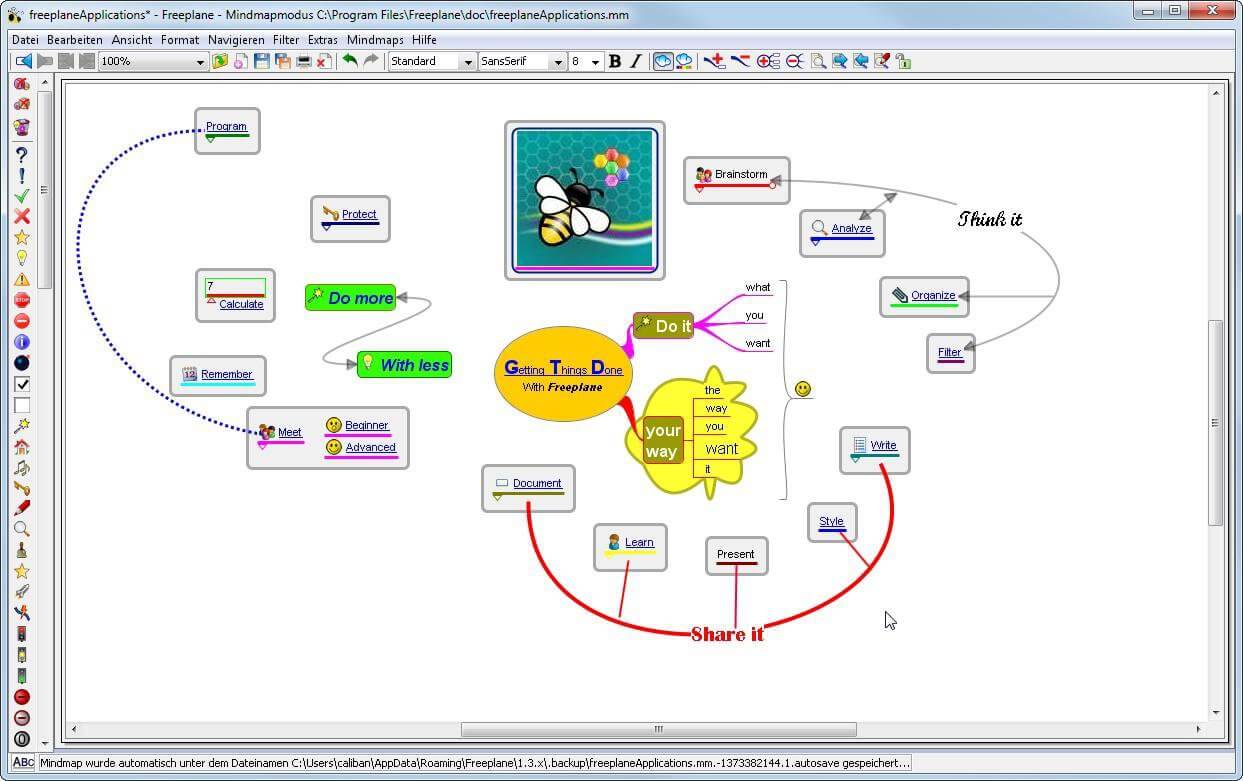
There are not many applications for creating mind maps, even fewer that are completely free, so it is with great pleasure to present you with Freeplane. Freeplane is mind mapping, Knowledge Management, and Project Management software completely free and open source. freeplaneYou can it here: https://sourceforge.net/projects/freeplane/files/latest/download

And from developers git page and I quote:

Freeplane is a free and open-source software application that supports thinking, sharing information, and getting things done at work, in school, and at home. The core of the software is tools for mind mapping (also known as concept mapping or information mapping) and using mapped information. Freeplane is written in Java using OSGi and Java Swing. It runs on any operating system that has a current version of Java installed. It can be run locally or portably from removable storage like a USB drive. We use Github only as of the main code repository, all other project parts are hosted at the source forge. So all bugs and feature requests are managed in a separate issue tracker. There is a drop-down box for selecting different types of issues. Other sources of inspiration are our new forum and old forum. Some users write their ideas there. Every contributor and every team member freely decides what task he is going to work on, but for making the best decision we can communicate our self-set goals in the above forum. It is supposed to enable early discussions and community feedback and also to motivate you and other people.

How to start hacking and contributing

People new to the project can start with implementing a new small feature or doing some refactoring or documentation and not with the bug fixing. Not all bug reports seem to be equally important, and if there are important bugs they usually get fixed by people who broke the functionality. I think you should first get there :). For internal developer discussions, there is a private mailing list. It is held private to avoid spam mails. If you want to be subscribed let us know what mail address you are going to use with it. This list is the preferred way to ask all code-related questions because they usually get answered soon and by the most competent team member. Some documentation for new developers is available in Freeplane wiki https://www.freeplane.org/wiki/index.php/How_to_build_Freeplane and also here and here. It is written for new guys and should also be maintained by the new guys to stay up to date. Looking forward to any questions and contributions, Freeplane development team
Read More
Fix WIFI not asking for password
Windows has tendencies to remember WIFI passwords so it can reconnect automatically to them. But from time to time we change passwords and Windows does not let us change it since he has network remembered. In this case, we will not be able to connect to the internet. In this helpful guide, we will let you know which steps you will need to take in order to solve this issue and to be able to connect to the internet again.
  1. Restart Modem

    First thing first, restart your modem. Windows might see it as a new network and offer you to type in the password for it.
  2. Update driver

    Sometimes the issue could be due to driver problems, open device manager and update WIFI driver or reinstall it.
  3. Reset WIFI password

    Press ⊞ Windows + R type “Control” > hit Enter. Now click Network and Internet > Network and Sharing Center > Change adapter settings. Right-click on the connected Wifi and select Status. Click Wireless Properties, change the password from the Network security key section, and then click OK to reset your WiFi password.
  4. Forget the network

    Click on Start > Settings > Network & Internet > Wi-Fi. Click the Manage known networks link Select the network you are looking for Select Forget.
  5. Delete your WIFI profile

    Press ⊞ Windows + X to open the secret menu and click on Command prompt (admin) In command prompt windows type: netsh wlan show profile netsh wlan delete profile name=<profile name> Reboot
Read More
1 2 3 171
Logo
Copyright © 2023, ErrorTools. All Rights Reserved
Trademark: Microsoft Windows logos are registered trademarks of Microsoft. Disclaimer: ErrorTools.com is not affiliated with Microsoft, nor claims direct affiliation.
The information on this page is provided for information purposes only.
DMCA.com Protection Status