Logo

Setting default applications in Windows 11

Setting default applications in Windows 11Same as in previous Windows versions, Windows 11 will also use certain applications as default ones for opening certain file types and file extensions. And yes, same as in previous versions it will come preconfigured for certain file types and associated applications like for example photos for pictures.

Of course, users usually have their own favorite applications for certain file types and much more prefer to open them inside the application of their choice instead of the default one.

We can change the default application like in previous Windows versions but this time there are two ways and overall more control of this process. Windows 11 has settings for choosing default file type applications and default file extension applications giving you more control of this process.

The opening setting for apps

Whatever you wish to change default application or default extension application you will need to open settings for default application. Follow steps to quickly go into it.

  1. Press ⊞ WINDOWS + I to open settings
  2. Select Apps on left
  3. On the right part select Default Apps

Now you are in settings for choosing default applications

Choosing default application by file type extension

This is considering by Microsoft as a typical way to set default applications inside Windows 11. Once you are inside the settings app there is a box labeled Enter a file type or link type. Inside the search box, type in file extension that you wish to associate the application with like .JPG, .TXT, or other.

If the file extension is not associated with any application you will be presented with a Choose a Default button, if however, the file extension is already associated with the app, you will need to click on the app box itself.

In any case, a pop-up will appear and ask How do you want to open YOUR FILE EXTENSION files from now on? Choose Application from the list of presented ones and click on OK.

Choosing default file type

Another method is to select the default application by file type selecting application for it. In the settings screen, under the search box, you will have a list of installed applications. Choose the application that you would like to associate a file type with and click on it. On the next details screen scroll down and select the file type that you want to associate with the selected application and click on OK.

Other/third method

There is also the third method for choosing the default application for file type but it includes some surfing on your hard drive and it can be more time-consuming for first-time settings. But it is fairly quick when you need to only use it once on some new file type (for example you have a new application installed and want to switch just one file type extension to that application).

Locate the file that you want to associate with the application and right-click on it. Select Open With from the menu and then Choose Another App. Pop up will appear, select the application that you would like to use, and check the box beside Always use this app to open CHOOSEN EXTENSION files followed by clicking on the OK button.

Do You Need Help with Your Device?

Our Team of Experts May Help
Troubleshoot.Tech Experts are There for You!
Replace damaged files
Restore performance
Free disk space
Remove Malware
Protects WEB browser
Remove Viruses
Stop PC freezing
GET HELP
Troubleshoot.Tech experts work with all versions of Microsoft Windows including Windows 11, with Android, Mac, and more.

Share this article:

You might also like

Disable Facebook face recognition
Facebook has an algorithm inside it that can recognize your face in pictures and videos which is meant to help people tag friends when they upload media into Facebook. It is a neat feature meant to help all Facebook users but what if we do not want to be detected in pictures and videos? What if we do not want to be tagged? If you are one of the Facebook users that do not wish to be detected and recognized by Facebook in media keep on reading to find out how you can disable this option.
  1. Open the Facebook website and log into your account.
  2. Click on the arrow visible in the top menu bar.
  3. Select the Settings & privacy option.
  4. Click on the Settings option.
  5. Switch to the Face recognition tab on the left-hand side.
  6. Click the Edit button.
  7. Select No from the drop-down list.
And you are done, you do not need to log out or restart facebook in order for changes to have an effect. Now you are free from face recognition and detection.
Read More
Quick Fix Guide for Error 1310
Error 1310 is a fairly common type of error encountered by Windows users. Error 1310 usually generates while a user is attempting to install Adobe Photoshop or some Adobe product on Windows. The message displayed to the user usually states: ‘Error 1310. Error writing to file. Verify you have access to that directory’. Once the error message appears, the installation process will be terminated.

Solution

Restoro box imageError Causes

While there are different conditions that may trigger this error, most likely, they are generated because of the lack of privileges a user has on a Windows log-on. When this happens, the operating system doesn’t allow the user to access the installation files. Another reason Error 1310 may occur is that often users attempt to log on to the system and choose the ‘Only for me’ option rather than the recommended ‘Anyone who uses this computer’. Because of this reason, the data is locked for all the other users. Since Error 1310 can easily disrupt your workflow on the system and may also lead to annoying consequences, it is best advised to treat it as quickly as possible.

Further Information and Manual Repair

There are different solutions to resolve these errors that are briefly listed below as follows.
  • First and foremost, restart the installation by logging onto your computer from the administrator account. This error will most likely disappear because there is often a lack of privileges that will trigger it. When you will log on from the admin account, you will have access privileges and such errors will be rectified.
  • Fix any corrupt system files that exist on your system. If the file resides in the Windows directory, this error will be generated. Check if any of your system files are corrupt or damaged. If yes, make sure you repair and return them back to their original position.
  • This error is sometimes caused because of incorrect registry entries. If the setup program shows errors, it is possible that it is because the system is having problems retrieving data stored in the system registry.
  • Another way, this error can be avoided is to run the setup in compatibility mode. Compatibility issues are a common occurrence. However, when an installation is performed in the compatibility mode, one can easily steer clear of such errors.
Implement any of the solutions listed above and protect your system against Error 1310.
Read More
How to always run the app in admin mode in W11
Each time you open an application inside your Windows 11 operating system, it is opened with standard privileges. Now, please note that your account privileges and application privileges are two different things, you might be the administrator of the system but when you open the app, it still opens with standard privilege. admin privilegesMost of the time running applications with typical settings is fine but from time to time we might have some applications that will require running with administrator privilege in order to work properly. In this case, it is very easy to do it, you just right-click and choose run as administrator. Although a very easy solution, it can be quite annoying if running the app is on a daily basis or even more times per day. If this is the case then right-clicking and choosing to run as administrator can be a daunting task, sometimes you can even forget to run it like this in heat of work and some unforeseen consequences might occur. Luckily there is an easy hack so you can open the chosen application each time as an administrator with a simple double click each time.

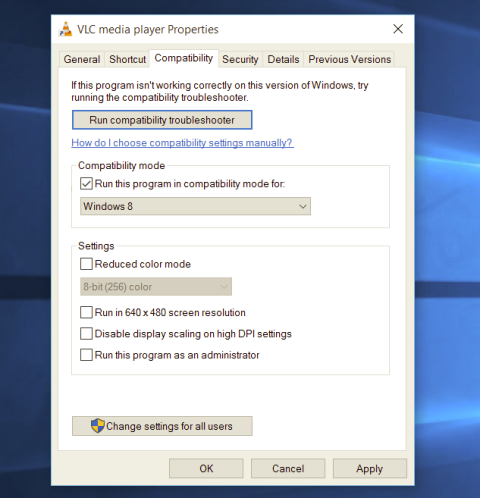
Setting application to run as administrator always

  1. Locate application executable file
  2. Right-click on in and choose properties
  3. Click on the Compatibility tab
  4. Check the box next to Run this Program as an Administrator
  5. Click on Apply
  6. Click on OK
From now on each time you open an application normally with a double click, it will be opened as administrator privileges.
Read More
Brave and Vivaldi are blocking google FLoC
FLoC is Google’s alternative to third-party cookies and is based on machine learning. This will allow the browser, any browser, to anonymously study how users are browsing and then group them into ‘cohorts’. Following this, you will be served ads based on your cohort and not on your individual data. So, you are still going to be targeted with ads but in a more anonymous manner. Google claims that this will improve user privacy since this “federated learning” happens on the user’s device and artificial intelligence-based learning involves sharing lesser users than what happens with third-party cookies. If something like this gets widely adopted by ad companies and services, it should “protect users” from tracking methods that are more intrusive than third-party cookies, like browser fingerprinting.

Who is against it?

Privacy-focused browsers DuckDuckGo, Brave, and Vivaldi have all warned users against FLoC and have said that they are going to block it on their end. Brave says that Google FLoC has a design that does not respect the customer’s privacy and consent. It has been designed to provide browsing behavior and interest data with any website that users may interact with, and this process does not involve fully informed consent. Vivaldi, another popular Chromium-based web browser, has also made its stance clear regarding the status of FLoC. The company said in a Reddit thread that the FLoC experiment does not work in Vivaldi. It happens because for FLoC to work, some features need to be enabled under the hood, but Vivaldi does not provide those options. The company also added that it plans to stop the entire FLoC component from being a part of the browser, regardless of how Google may implement it. Considering that Brave and Vivaldi have been privacy-focused browsers since their beginnings, the decision to stay away from FLoC is not surprising.
Read More
A Quick Guide to Fixing the Entry.Dll Error

Entry.dll Error - What is it?

Entry.Dll is a type of Dynamic Link Library file. This file consists of small programs that are called to load and run desired applications. Just like any other dll file, the entry.dll file is also a shared file. It supports and is compatible with multiple applications. You may experience entry.dll error message on your PC, when the Windows cannot properly load the entry.dll file.  This error most often occurs during PC startup, application startup or while trying to use a specific function in your program. The enrty.dll error message is often displayed in either of the following formats:
  • “Entry.dll not found.”
  • “The file Entry.dll is missing."
  • “Cannot register Entry.dll."
  • “Cannot find C:WindowsSystem32\Entry.dll."
  • “Cannot start YAPC: Europe. A required component is missing: Entry.dll. Please install YAPC: Europe again."
  • “Entry.dll Access Violation."

Solution

Restoro box imageError Causes

The entry.dll file error may occur due to multiple reasons including but not limited to:
  • Corrupt entry.dll registry entry
  • Entry Dll file is not registered properly
  • Open source hardware failure  for example  a bad hard drive
  • Virus or malware infection
No matter what the underlying reason may be, it is advisable to repair and resolve the dll file error on your PC to ensure the program is accessible without any inconvenience.

Further Information and Manual Repair

Here are different ways to fix and resolve the Entry.dll error on your PC:

1. Re-Register Entry.dll File

When you install software that uses the Entry.dll, the software automatically registers that file for you. However, in some cases the dill file may not register properly and as a result you may experience the error Entry.dll not registered. In such situations it is advisable to use ‘Microsoft Register Server’ built-in utility to re-register the entry.dll file. This utility can be accessible in Windows XP, Vista, 7 and 8 through the command prompt. To get started, here’s what you need to do:-
  • Go to the start menu and type command in the search box.
  • Now press Ctrl and Shift together and hit the Enter key.
  • After that you will be prompted with a permission dialog box; click yes to continue.
  • Now type the following command: regsvr32 /u Entry.dll. Press enter to un-register the file.
  • Type the following command: regsvr32 /i Entry.dll and press enter again. This will re-register the file.
  • Close the command prompt window and try accessing the desired program supported my entry.dll file. If the program is accessible and you don’t encounter the error message, this means the error is resolved.

2. Update Outdated and Corrupt Device Drivers

Another method to fix this error is to update the device drivers that are incompatible, corrupt or outdated. Download the latest versions of the corrupt drivers and re-install them on your PC.

3. Clean the Registry to Remove Invalid Entry Files

The entry.dll file error can be related to problems in the Windows registry. The registry gets damaged when it gets overloaded with too many unnecessary and obsolete files such as junk files, bad registry keys, invalid entries and cookies. These files not only take up great deal of disk space but also damage the registry, system and dll files. You can clean the registry manually but it is time consuming and needs technical expertise. However, to repair the error right away in seconds download Restoro. This is a powerful Registry Cleaner integrated with an intuitive algorithm that detects and removes all types of registry issues on your entire PC in no time. It wipes out the unnecessary files and invalid entries, repairs dll files including the entry.dll file and restores the registry.

4. Scan for Malware and Viruses

Another cause of the entry.dll error can be malware and viruses. These malicious programs can also corrupt dll files. It is important to remove all of them from your PC to resolve the issue. For this you need to scan your PC with an antivirus. If you download Restoro, you don’t need to download an antivirus program. This is because Restoro includes multiple utilities including an antivirus too. You can run it to scan and remove all types of malicious programs like malware, viruses, spyware and Trojans on your system. Restoro also features a system optimizer. This utility boosts your system’s speed significantly ensuring your PC performs at its optimum level. It is safe, user-friendly and can be installed on any Windows versions. It has easy navigations making it quite simple to use by all levels of users. It is bug free and efficient. In just a few clicks you can resolve practically all PC related issues. To resolve entry.dll error on your PC, click here to download Restoro today!
Read More
Fix INVALID_POINTER_READ_c0000005 atidxx64.dll
If your Microsoft Edge browser encountered a Stop Error that says, “INVALID_POINTER_READ_c0000005 (atidxx64.dll)” in your Windows 10 computer, then this indicates that your Graphics card driver is outdated. According to security experts, Microsoft has already acknowledged the problem and stated that this issue exists with Windows 10 v1809, Windows Server 2019, and Windows Server version 1809. Although there is no direct way to resolve the problem, there are still some workarounds you can try. If you are using a RadeonHD2000 or HD4000 series video card, the update will be blocked for you. Some users also claim to experience performance issues with the lock screen or the ShellExperienceHost. However, if you are using AMD, the problem is that it no longer supports Radeon HD2000 and HD4000 series graphics processing units or GPUs. Even though Microsoft is already working for a way to resolve the problem, here are some alternative solutions you can check out:

Option 1 – Update your Graphics card drivers

  • First, boot your computer into Safe Mode.
  • After that, tap the Win + R keys to launch Run.
  • Type in devmgmt.msc into the box and tap Enter or click OK to open the Device Manager.
  • After that, a list of device drivers will be displayed. From there, look for the Display Adapters and click on them.
  • After that, right-click on each entry under the Display Adapters and select the “Uninstall Device” option from the menu.
  • Now restart your computer.
  • After restarting your computer, go to the Settings app and Check for Updates in the Windows Update section.
Note: You also have the option to go directly to the website of your graphics card manufacturers like NVIDIA, Intel or AMD and go to the section called Drivers then check if there’s a new available update – if there is, download and install it.

Option 2 – Try removing AMD Radeon HD2000 and HD4000 drivers

Although this is not exactly a perfect solution, removing AMD drivers will make the operating system fall back to the default GPU available on your motherboard. You also have the option to completely disable the hardware.
  • Tap the Win + X + M keys to open the Device Manager.
  • Next, look for your Graphics card drive, and under Display Adapters, right click on them and click Uninstall device or Disable device.
  • After that, restart your computer. This will disable the AMD drivers so you won’t be able to find them. It will also release the Windows 10 v1809 update on your computer and in case your operating system tries to prompt you with the “New Device found” message, simply ignore it.

Option 3 – Try to use another browser

You might want to use another browser especially when you already updated your computer and Microsoft Edge still keeps on crashing. You can use Google Chrome, Mozilla Firefox, and other browsers as alternatives until you sort out the problem.

Option 4 – Try to remove the Graphics card physically

You might also want to try removing both AMD Radeon HD2000 and HD4000 as they are very old graphics cards. And since AMD is not going to roll out anything, at least on its own if your motherboard has an onboard GPU, it would be best to get rid of the cards. After that, install the Windows v1809 update and then put them back in. You also have the option to install the driver but just don’t use Microsoft Edge.
Read More
Happy New Year from ErrorTools.com!!!
As we are on the last day of 2021, our team here at errortools.com would like to express their great gratitude to you all for being with us all this time and would also want to wish you error-free 2022!!! Thank you for being part of this community, we wish you all the best in the upcoming 2022 and hope that we will see you again From all members of errotools, HAPPY NEW YEAR!!! new year christmass tree
Read More
How to Fix the D3dx9_32.dll Error Code

D3dx9_32.dll Error - What is it?

D3dx9_32.dll is basically a type of dynamic link library used to load and run different programs on the PC. The D3dx9_32.dll error message pops on the screen when this file is unable to load successfully. The error message is displayed in either of the following formats on the computer screen:
"The file d3dx9_32.dll is missing" "D3DX9_32.DLL is missing. Replace D3DX9_32.DLL and try again." "File d3dx9_32.dll not found" "D3dx9_32.dll not found. Reinstalling might help fix this." "Missing component d3dx9_32.dll"
This error usually pops while using gaming software. The D3dx9_32.dll error is displayed after a game is loaded or before the game-play begins. However, it may also appear in software that uses advanced graphic features.

Solution

Restoro box imageError Causes

D3dx9_32.dll error may occur due to multiple causes. These include:
  • The problem is related to Microsoft DirectX software. This software includes the D3dx9_32.dll file in its software collection.
  • Incompatible Video Card Drivers
  • Improper game installation
  • DLL File Corruption
  • Registry issues
  • Viral infection

Further Information and Manual Repair

To avoid inconvenience, it is advisable to fix the error right away. To resolve it you don’t need to be a technical whiz or hire a technician. Luckily, the D3dx9_32.dll file error is quite easy to fix. Here are some of the best and effective DIY methods that you can try to remove the error:

Method 1 - Install the Latest Version of DirectX

Since D3dx9_32.dll error is related to DirectX software, it is advisable to make sure that you have the latest version of this software installed on your PC. To install the updated version, simply go to Microsoft’s official website, download the software from there and install it on your PC. To activate changes, restart your computer.

Method 2 - Uninstall and then Re-install Gaming Application

If the error still persists, then the reason for it could be the gaming application. Sometimes D3dx9_32.dll error may also occur due to poor program installation. Therefore, in this case it is recommended that you first uninstall the program by going to the Add/Remove program option. And once the program is uninstalled, try re-installing it on your PC. Hopefully, it will remove the error.

Method 3 - Restore the Damaged/Corrupt D3dx9_32.dll File

The error may also pop due to the damaged or corrupt D3dx9_32.dll file. This indicated registry issues. When the registry becomes overloaded with unnecessary and obsolete files, there is not enough space for other files to store. Due to the poor registry maintenance, the system and dll files are often damaged. To restore the damaged D3dx9_32.dll file, you need to clean the registry first. You can do this manually, but that will be quite time-consuming and slightly technical. Therefore, download a registry cleaner. A registry cleaner scans all registry-related errors and removes them right away. It cleans the registry and restores the damaged dll files.

Method 4 - Scan for Viruses

If the D3dx9_32.dll error is triggered by viruses, then it is advisable to scan your PC with an antivirus. It will scan and removes all viruses from your system. Whether D3dx9_32.dll error is related to registry issues or viral infection, download Restoro. It is a cutting-edge, advanced, and multi-functional PC Fixer. A one-stop solution for all PC-related issues. It is deployed with a powerful registry cleaner, an antivirus, a system optimizer and several other scanners. The registry cleaner detects and removes all registry errors and repairs damaged Dll files including D3dx9_32.dll file and simultaneously the antivirus utility scans your entire PC for all types of malicious software infecting your system including spyware, Trojans, adware and malware. The system optimizer feature ensures your PC works at its optimal level. Restoro PC Fixer is safe and efficient. It has a user-friendly interface which makes it quite easy for all levels of users to operate. In just a few simple clicks, errors are resolved. In addition to this, you can download it on all Windows PC. It is compatible with all Windows versions. Click here to download Restoro and resolve D3dx9_32.dll error code on your PC today.
Read More
How to Resolve HP Printer Spooler Not Running Error

HP Printer Spooler Not Running - What is it?

If you have the HP printer, then you may come across this error. HP Printer Spooler not running errors does not mean there is anything wrong with your printer. It indicates printer driver issues.

Solution

Restoro box imageError Causes

There can be multiple causes behind the HP printer Spooler not running error code such as:
  • The poor or unsuccessful printer driver installation
  • Invalid registry entries
Though this is not a critical error code as it does not pose serious damage threats to your PC, however, it is advisable to resolve it as it can cause you a great deal of inconvenience especially if you want to take out printouts every now and then.

Further Information and Manual Repair

Here are some ways you can try to resolve HP Printer Spooler Not Running Error on your system: 1. Reinstall the HP Printer driver on Your System
  • Simply go to the control panel and then click on the Device Manager option
  • Once you click it you will see details pane with a list of devices. Now simply click on the printer, to reinstall the driver software.
  • Double click on it to open the properties dialog box
  • After that click on the driver tab and then click update driver
Once you update the driver, try using the Printer to see if it works. Sometimes you may come across a pop-up displaying the following message: ‘Driver installed correctly, Device is ready to use however, you may not see the printer under the printer’s pane. This triggers registry issues. 2. To resolve registry issues, install Restoro on your system. This is a highly functional registry cleaner integrated with a powerful antivirus. It helps resolve registry issues, malware, and guarantees system optimization. This feature-filled tool is the answer to all your PC-related issues. Restoro is a next-generation PC repair software that extends outstanding usability and helps PC users resolve errors efficiently. Its simple navigation and user-friendly interface make it so easy to use that even novice users can also work around it and repair issues without any hassle or difficulty. It’s a smart and intuitive in-built registry cleaner that wipes out all the unnecessary and obsolete files on your hard disk. This includes junk files, internet history, invalid registry keys, and files from the uninstalled old program versions. Sometimes the files from the uninstalled programs hamper your ability to update new program versions thus leading to unsuccessful driver installation. Nonetheless, all such files are removed in seconds with this helper and you are then ready to reinstall the driver. This registry cleaner cleans the clutter from your hard disk and optimizes your system's speed, lowering your PC boot time significantly. Total System Care can be used on all Windows versions To fix the HP printer spooler not running error on your computer, simply click here to install Restoro. Run it to scan for the error and fix it in seconds. Once the issue is resolved, update the printer driver. You’ll see the driver will be updated successfully and the HP printer will also appear in the printer’s panel. By installing Restoro on your system, you can also resolve several other issues like privacy errors triggered by malware and virus infections. With this tool, you will not have to download and run a separate anti-virus on your system.
Read More
How to Fix: Not a Valid Win32 Application Error

Not a Valid Win32 Application Error - What is it?

Not a Valid Win32 Application error code that indicates either the file or the program you are attempting to run missing or corrupt. And because of this error, Windows is unable to open your desired file or run the program successfully.

Error Causes

The ‘Not a Valid Win32 Application’ is triggered due to multiple reasons such as:
  • Unsuccessful program installation due to damaged disc/CD
  • Corrupted or incompatible file
  • The hard drive is loaded with bad and invalid entries
  • Malware invasion or viral infection
When you come across this error code on your PC, it is advisable to resolve it as it will cause you a great deal of inconvenience hampering program and file accessibility. Furthermore, if the error code occurs due to malware or viruses, then it can lead to severe data security threats and privacy issues.

Further Information and Manual Repair

To resolve the Not a Valid Win32 Application error on your PC, you don’t need to be a technical expert or hire a professional. Though this error might be crucial it is easy to fix. Here are some of the many methods that you can try to resolve this error code on your PC:
  • Check for File Compatibility
If you downloaded a file that is not compatible with your Windows version then you will come across this error. In this case, it is advisable to download the file version that is compatible and can run easily on the Windows version installed on your system. Nonetheless, if the file is compatible but still doesn’t run on your PC, then it’s possible that the file became corrupt during the download. Try downloading the file again.
  • Check if the CD is Clean
You may also come across the Not a valid Win32 application error code if the program installation from the CD is unsuccessful. This happens when the CD is dirty or it is scratched. The program does not copy properly onto the computer from the damaged CD. So, if the CD is scratched and dirty, buy a new CD and try installing the program again.
  • Verify the Program You Want to Run is Still on the Computer
If you are running the program from a shortcut, then verify that the program is still installed on your PC. This error may occur if the program is no longer installed on the computer. If you find the program is not installed on your system, then reinstall and try running the program again.
  • Wrong File Name Issue
Make sure the program or the file you are attempting to run on your system does not contain the same name as the long filename directory it is saved in. For example, running a file named ‘program’ in the ‘program files’ directory can cause errors in some Windows versions. If this is the issue, then try installing the program in a different directory.
  • Repair Hard Drive
If the hard drive is bad or corrupted, it can also generate the not a valid Win32 application. And because of this error files and programs fail to execute successfully as not all data can be read from the hard drive. To repair this issue first you need to run defrag and ScanDisk Microsoft built-in tools. These tools check for errors on the hard drive.
  • Run an Antivirus
If the error code occurs due to a viral infection or malware attack on your system, then you must download an antivirus, scan, and remove such malicious software. However, antivirus may slow down the speed of your PC. So, to resolve speed issues and boost the performance of your system, you may have to download a system optimizer.
Read More
1 2 3 171
Logo
Copyright © 2023, ErrorTools. All Rights Reserved
Trademark: Microsoft Windows logos are registered trademarks of Microsoft. Disclaimer: ErrorTools.com is not affiliated with Microsoft, nor claims direct affiliation.
The information on this page is provided for information purposes only.
DMCA.com Protection Status