Logo

New Windows vulnerability discovered

The latest security vulnerability was discovered inside both Windows 10 and Windows 11 letting any user access admin privileges inside the operating system. This can, of course, be used by a potential attacker to get full control of the system.

The problem lies in Microsoft's security rules assigned to the Windows Registry and the Security Account Manager. Both for some reason have reduced restrictions allowing any local user to fully access the files without administrator privileges.

The problem is even more amplified if we think about Security Account Manager which includes all account data including the passwords of all users using the same PC. This can provide a potential attacker with all information and let them log on into the administrator account for full control.

Microsoft is aware of the matter and is tracking it with code CVE-2021-36934, and includes a complete workaround for the issue, which includes restricting access to  %windir%\system32\config and deleting any restore points or Shadow volumes that were created before that point until the hole is plugged with an official security patch.

Do You Need Help with Your Device?

Our Team of Experts May Help
Troubleshoot.Tech Experts are There for You!
Replace damaged files
Restore performance
Free disk space
Remove Malware
Protects WEB browser
Remove Viruses
Stop PC freezing
GET HELP
Troubleshoot.Tech experts work with all versions of Microsoft Windows including Windows 11, with Android, Mac, and more.

Share this article:

You might also like

Fix Error 0x80246019 in Microsoft Store
Microsoft has started building a unified store with Windows 8 and later with Windows 10 in order to make it easier for users to get safer and more modern applications for their Windows 10 devices. This unified store is called the Microsoft Store which is tied up with the Windows Update. The delivery for them both are quite similar which is why they also have some common errors as well as fixes for them. So in this post, you will be guided on how you can fix error 0x80246019 for both Microsoft Store and Windows Update in your Windows 10 computer. The error 0x80246019 might be caused by corrupted system files or missing ones or be due to some glitch in the component services and other possible causes but whatever the cause is, you can fix it with the help of the following fixes, make sure to follow each one of them carefully.

Option 1 – Reset Windows Update components

  • Open Command Prompt with admin privileges.
  • After that, type each one of the following commands and hit Enter after you key in one after the other.
    • net stop wuauserv
    • net stop cryptsvc
    • net stop bits
    • net stop msiserver
Note: The commands you entered will stop the Windows Update components such as Windows Update service, Cryptographic services, BITS, and MSI Installer.
  • After disabling WU components, you need to rename both the SoftwareDistribution and Catroot2 folders. To do that, type each one of the following commands below, and don’t forget to hit Enter after you type one command after the other.
    • ren C:WindowsSoftwareDistribution SoftwareDistribution.old
    • ren C:WindowsSystem32catroot2 Catroot2.old
  • Next, restart the services you’ve stopped by entering another series of commands. Don’t forget to hit Enter after you key in one command after the other.
    • net start wuauserv
    • net start cryptsvc
    • net start bits
    • net start msiserver
  • Close Command Prompt and reboot your PC.

Option 2 – Toggle the Windows Insider Program settings

This option is only applicable to you if you are a part of the Windows Insider Program. If you are, then follow the steps below.
  • First, you have to open Settings and go to the Update & Security section.
  • From there select the Windows Insider Program.
  • After that, select the “Stop Insider Preview builds” option and then restart your computer.
  • Now open the Windows Insider Program again and check if it fixes error 0x80246019 or not.

Option 3 – Run the System File Checker Scan

System File Checker or SFC is a built-in command utility that helps in restoring corrupted files as well as missing files. It replaces bad and corrupted system files with good system files that might be the cause why you’re getting error 0x80246019. To run the SFC command, follow the steps given below.
  • Tap Win + R to launch Run.
  • Type in cmd in the field and tap Enter.
  • After opening Command Prompt, type in sfc /scannow
The command will start a system scan which will take a few whiles before it finishes. Once it’s done, you could get the following results:
  1. Windows Resource Protection did not find any integrity violations.
  2. Windows Resource Protection found corrupt files and successfully repaired them.
  3. Windows Resource Protection found corrupt files but was unable to fix some of them.
 Reboot your computer.

Option 4 – Run the DISM tool

You can also run the DISM Tool as it helps in repairing the Windows System Image as well as the Windows Component Store in Windows 10. Using this built-in tool, you have various options such as the “/ScanHealth”, “/CheckHealth”, and “/RestoreHealth” which could help in fixing error 0x80246019.
  • Open the Command Prompt with admin privileges.
  • Then type in the following commands and make sure to hit Enter right after you type each one of them:
    • Dism /Online /Cleanup-Image /CheckHealth
    • Dism /Online /Cleanup-Image /ScanHealth
    • exe /Online /Cleanup-image /Restorehealth
  • Do not close the window if the process takes a while as it will probably take a few minutes to finish.

Option 5 – Try to reset the Microsoft Store cache

Just like browsers, Microsoft Store also caches as you view apps and games so it is most likely that the cache is no longer valid and must be removed. To do so, follow the steps below.
  • Right-click on the start button and click on Command Prompt (administrator).
  • Next, type in the command, “wsreset.exe” and tap Enter. Once you do, the command will clear the cache for the Windows Store app.
  • Now restart your PC and afterward, try opening Microsoft Store again and then try to install your app or update your computer again.

Option 6 – Run the Windows Update Troubleshooter

You might also want to run the Windows Update Troubleshooter as it could also help in fixing error 0x80246019. To run it, go to Settings and then select Troubleshoot from the options. From there, click on Windows Update and then click the “Run the troubleshooter” button. After that, follow the next on-screen instructions and you should be good to go.
Read More
How to Fix Windows 10 Error Code 0xC004E003

What is Error Code 0xC004E003?

Error code 0xC004E003 almost always appears when there are damaged files in the Windows operating system. These files could be corrupt for a number of reasons and are usually a serious danger to the life of the computer system. These file errors may be caused by a number of things. Incomplete installation setup, incorrect deletion of hardware or utilities, or an unfinished file erasure. The trigger might also be in the event that the computer system is contaminated with a virus or adware or spyware, or even by the improper shut down of the computer. Any of these scenarios have the possibility to result in the removal or corruption of data of the Windows system data files.

The data system files that are damaged will give linked data and archives that are missing or wrongly linked. These are needed for the proper functioning of the software. This can also happen when or after installing third-party software that might have changed the system files. If it is suspected that a program installation will need to be stopped, it is best to let it run through the setup and then delete it later. While it installs, it is altering program files, and likely rearranging them. Stopping this in the middle can scramble files associated with the program and files vital to the usage of the computer.

Solution

Restoro box imageError Causes

This error will pop up after installing third-party software that has changed the system files. These system files are necessary to finish the activation process. A restore point will be necessary if it is ultimately determined that a system restore is necessary, to bring the computer back to the state it was in previous to the failed installation.

  • Error code “0xC004E003” appears and does not allow the system to continue the install.
  • The computer will not allow any further access or installation of the program.
  • The computer may crash.
  • The third-party program will not have installed completely or successfully.
  • The system will not start up correctly.
  • Personal files are corrupt or missing.

Further Information and Manual Repair

There are several steps that can be taken when the error code 0xC004E003 appears. It is helpful to know that this can occur from trying to install third party software. Going forward, do not attempt to install third-party software that is not trusted, and does not attempt to abruptly stop the third-party software from installing. This may cause the program to corrupt the files or delete important files. Recovering from this error can be easy if there is a recent restore point already backed up in the recovery portion of the system's files.

  • Method One

Run an error scan. The problem should be resolved after rebooting the computer once these steps have been completed.

  1. Download and save an error code fix utility.
  2. Setup the program and then click the Scan button.
  3. Click the Repair Errors button when the diagnostic has been completed successfully.
  4. Reboot the computer.
  • Method Two

Best when utilized by an expert.

  1. Start the system up and sign in as the admin.
  2. Click on Get Started, then select Programs, Accessories, Tools, and then System Restore.
  3. On the next screen, click on Restore my PC to an Earlier Period, and then click Next.
  4. Select the most recent system restore date within the drop-down menu of “select restore point”.
  5. Click Next.
  6. Click Next on the confirmation window.
  7. Reboot the system after the system has finished restoring.
  • Method Three

Another option for restoring. This method can be used by a novice.

  1. Right-click on the Start button, then select Control Panel.
  2. Look for the Control Panel for Recovery.
  3. Select Recovery, then Open System Restore, then Next.
  4. Choose the restore point right before the problematic installation.
  5. Click Next, click Finish.

NOTE: If there are no restore points available, the system recovery may not be turned on. To check this, go to Control Panel, and select Recovery. Configure System Restore, Configure. Then, select Turn on system protection. Having a current restore point for a computer ensures the ease of recovery if any problems with the computer arise.

If you wish to always have at your disposal a utility tool to fix these Windows 10 and other related issues when they do arise, download and install a powerful automated tool.

Read More
Fix user account is not authorized
If you encounter an error message saying, “The connection was denied because the user account is not authorized for remote login” when you try to establish a remote connection, read on as this post will help you resolve the problem. This kind of error occurs when the targeted host does not allow you to access that system remotely. Based on the error, you are not authorized to log in remotely which means that you need to obtain the correct permission. There are several potential fixes you can try for this error. You can try to check the Remote Desktop Users group or add users to the Security group or check the Remote Desktop Service itself. Refer to the options provided below for more detailed instructions to fix the “The connection was denied because the user account is not authorized for remote login” error.

Option 1 – Try checking the Remote Desktop Users group

You can encounter this error when the Remote Desktop Users group does not have any permission for your user account that you are using to establish a remote connection. Thus, you need to make sure that your user account is a member of the Remote Desktop Users group. How? Refer to these steps:
  • Tap the Win + R keys on your keyboard and then type “cmd” in the field and tap Enter or click OK to open Command Prompt.
  • After opening Command Prompt, type the “lusrmgr.msc” command and tap Enter to execute it.
  • Alternatively, you can also search for “lusrmgr.msc” in the Start Search and once you’ve opened it, select Users and then double click on your user name to open its Properties.
  • From there, switch from the “General” tab to the “Member Of” tab.
  • Next, if you can’t see any Remote Desktop Users group under the Administrator, you have to add it. To do that, just click on the Add button.
  • After that, on the newly opened window, click on the Advanced and Find Now buttons, respectively.
  • And in the Search results box, double click on Remote Desktop Users.
  • Now click on the OK button to save the changes made and check if you can now connect to a remote host or not.

Option 2 – Try to add a user to the Security group

You can actually block or allow a user from logging on through the Remote Desktop Services. However, if you do not have the right setting, you won’t be able to use this functionality. Thus, you need to confirm this setting. To do that, follow the steps below.
  • In the Start Search, type “secpol.msc” in the field and tap Enter to open the Local Security Policy panel.
  • From there, go to User Rights Assignment.
  • Next, look for a policy named “Allow log on through Remote Desktop Services” located on your right-hand side and then double click on it to open its Properties.
  • If you were not able to find the Remote Desktop Users under Administrator, then you have to add it by simply clicking on the Add User or Group button.
  • After that, enter “Remote Desktop Users” in the blank field and click the OK button to save the changes made.
  • Now restart your computer and try connecting again to the remote host.

Option 3 – Try checking the Remote Desktop Users group

There is a service that’s supposed to be running and needs to be set up correctly for you to connect to the remote host. And so you need to ensure that this service is up and running. To do so, follow these steps:
  • Tap the Win + R keys to launch the Run utility.
  • Then type “services.msc” in the field and hit Enter or click OK to open the Services Manager.
  • Next, look for the Remote Desktop Services and double click on it to open its Properties.
  • After that, go to the “Log On” tab and select the “This account” option and then click on the Browse button.
  • On the next screen that appears, look for the Advanced button and click on it and use the Find Now button to search.
  • You will see “NETWORK SERVICE”. Double click on it and then save the changes you’ve made to the settings.
  • Finally, restart your PC and see if the problem is now fixed.
Read More
Making your own Minecraft server in Windows
Minecraft has taken the world like a storm and if you tried it, you could tell why, procedurally created worlds, various modifications available and fun gameplay are just some of the things this game offers and it is non wonder why kids and adults are enjoying it. Minecraft is even more fun when you play with your friends on dedicated servers, where you all can adventure and build together. Sadly as everything costs, so does the Minecraft servers as well. Lucky you can create your own Minecraft server on your computer so your friends can join and play with you free of charge with just a little time you need to spend reading this guide and building one for yourselves. Without further delay let's dive right into it.

1. Install the most recent Java version

In order to run your personal server, you will need to own and have Minecraft: JAVA edition, not Windows 10 one. If you have this version of the game and it is already running it means that you already have JAVA as well but we will need to check to see if it is the latest version of JAVA, to check this do the following:
  • Press Windows and type in configure java followed by ENTER
  • Under the update tab, click on the update now button
  • If you have the latest version you are all good, if not follow the onscreen instruction on how to update it.
If by any chance you do not have JAVA installed you can get it here.

2. Prepare a dedicated location for your Minecraft server files

You can use any folder you like for your Minecraft server folder but it is highly recommended to create a new folder whose sole purpose will be to hold and run Minecraft server files. this will be very beneficial in the future when server files need to be updated or configured. Having things in one isolated space is always a good idea and keeping things organized is also a good idea.

3. Download, install and start the Minecraft: Java Edition server file

It is now time to download server files, you can get them here. Download the server.jar file and place it inside your server folder. Once everything is downloaded and prepared do the following:
  • Run the server.jar file, the first time it runs, the file will create some configuration files.
  • After additional files appear, there should be a text document called eula.txt. Open it with a text editor then change eula=false to eula=true.

4. Enable port forwarding on your router

This sep is required if you want to have people to play with you that are outside your router network, for example, if you want them to connect to your server from their home. If you do not wish to do this and want only people on your serves from your router network you can skip this step. Unfortunately, to enable port forwarding, you’ll need to make your computer on your local network to be accessible by other computers over the internet via a router. This will effectively make your port to be an open portThis can make your system vulnerable to malicious attacks. Once you’ve enabled it, set the default server port to 25565. You’ll need the Server IP address, which you can get by opening Command Prompt or PowerShell and run ipconfig. Your IP address is usually listed as IPv4 or IPv6 Address.

5. Run the Minecraft server

Simply double-click the server.jar file to run the server. If you want to have more control over it, use the command line.
  • Navigate to your Minecraft server directory using file explorer.
  • We will be using PowerShell instead of Command Prompt to enter commands. Hit Shift + Right-click on the directory window and select “Open PowerShell window here.
  • Once you are in the right directory, write the following command:
java -Xms1024M -Xmx1024M -jar {server file name} nogui
  1. Replace the {server file name} with the full name of .jar file. The command above will make the server run with no Graphical User Interface (GUI) and use 1024MB of allocated RAM space.
  2. If you want to enable the GUI, remove the nogui command. Additionally, you can edit the memory allocation for the server by changing the Xms and Xmx value.
  3. After the server is up, invite your friends to play by sharing your local or public IP address, depending on whether you are using a local or public network. For a local network, you can give the IPv4 or IPv6 Address earlier. For public networks, go to Google and type “what is my ip” to get the address.

Read More
Repair Windows 10 Update Error 0x80070003, 0x20007

Error Code 0x80070003, 0x20007 - What is it?

Update Error 0x80070003, 0x20007 One of the most common errors encountered by users who updated to Windows 10 is the Error Code 0x80070003-0x20007. Normally, this error code is accompanied by the message saying “Windows could not search for new updates. An error occurred while checking for new updates or your computer” or “Error(s) found: Code 0x80070003 Windows update encountered an unknown error”.

This update-related error is often encountered any time while your device automatically installs updates once there’s an available system update or during manually installing updates for a specific app. Regardless if you are using a tablet, laptop, or PC, this update-related error could occur after upgrading your system to Windows 10.

Solution

Restoro box imageError Causes

There are several reasons why the update-related Error Code 0x80070003-0x20007 occurs. This includes the following:

  • Windows Firewall-related problem
  • A conflict in your device’s system might be present
  • Not enough space in your RAM
  • Not enough space in your installation disk
  • Problems in your system memory

Further Information and Manual Repair

An effective way to address problems like the Error Code 0x80070003-0x20007 is by applying certain manual repair methods. However, ensure that you strictly follow instructions since one slight slip-up might result in critical issues. If you’re not knowledgeable enough, it would be best to consult help from a professional Windows technician or you can make use of an automated tool to solve any issues you’re encountering.

When you encounter the update-related Error Code 0x80070003-0x20007, you must take action immediately to address the problem to lessen the risk of losing all your data or damaging the Windows registry host.

In fixing Error Code 0xC1900101-0x30018, you can repeat the same steps used for 0xc000021a (Method One) then apply the following steps as well:

  • Uninstall your antivirus prior to upgrading your system
  • Ensure that you have a simple machine name with no periods, dashes, or hyphens.
  • Restart several times then try again.
  • Disable the General USB Devices in your machine like the Smart Card Reader.
  • If you use a SCSI hard disk, ensure that you have available drivers you can use as your storage such as a thumb drive, and ensure as well that it is connected. Once you’re on the Windows 10 setup, click on Custom Advanced Option then use the Load Driver command in order to load the right driver for the SCSI drive. If this fails, try switching to an IDE-based hard disk.
  • Once done, perform a clean boot then try restarting the device again.
  • If you are upgrading your system using the .ISO file, disconnect your device from the Internet during setup. If your device is connected to the Internet by LAN or Wi-Fi, you need to disable both first then proceed to set up again.
  • If you’re performing the update through Windows Update, disconnect from the Internet LAN or Wi-Fi once the download reaches 100% then proceed with the installation.
  • If this still does not work, you can try using the .ISO file in upgrading.
  • Switch to a local account if your machine is connected to a domain.
  • Disconnect all external devices attached to your machine including gaming controllers, external hard disk, USB keys, and printers.

If the above steps still do not work, you can try performing a repair by doing the following steps:

  1. Put the installation disc into the disc drive. Afterward, boot the computer.
  2. Once the message: “Press any key to boot from CD or DVD…” appears, press any key.
  3. Choose a language, currency, time, and a keyboard or another input method. Click Next.
  4. Click on Repair your computer
  5. Select the operating system that you wish to repair then click Next
  6. Open the Command Prompt by clicking it in the System Recovery Options dialog box.
  7. Type BOOTREC /FIXMBR then hit Enter
  8. Type BOOTREC /FIXBOOT then hit Enter
  9. Type Drive:bootBootsect.exe /NT69 All then hit Enter

Can’t seem to put up with the long and technical manual repair process? You can still fix this error by downloading and installing a powerful automated tool that will surely get the job done in a jiffy!

Read More
Custom widgets in Windows 11 later
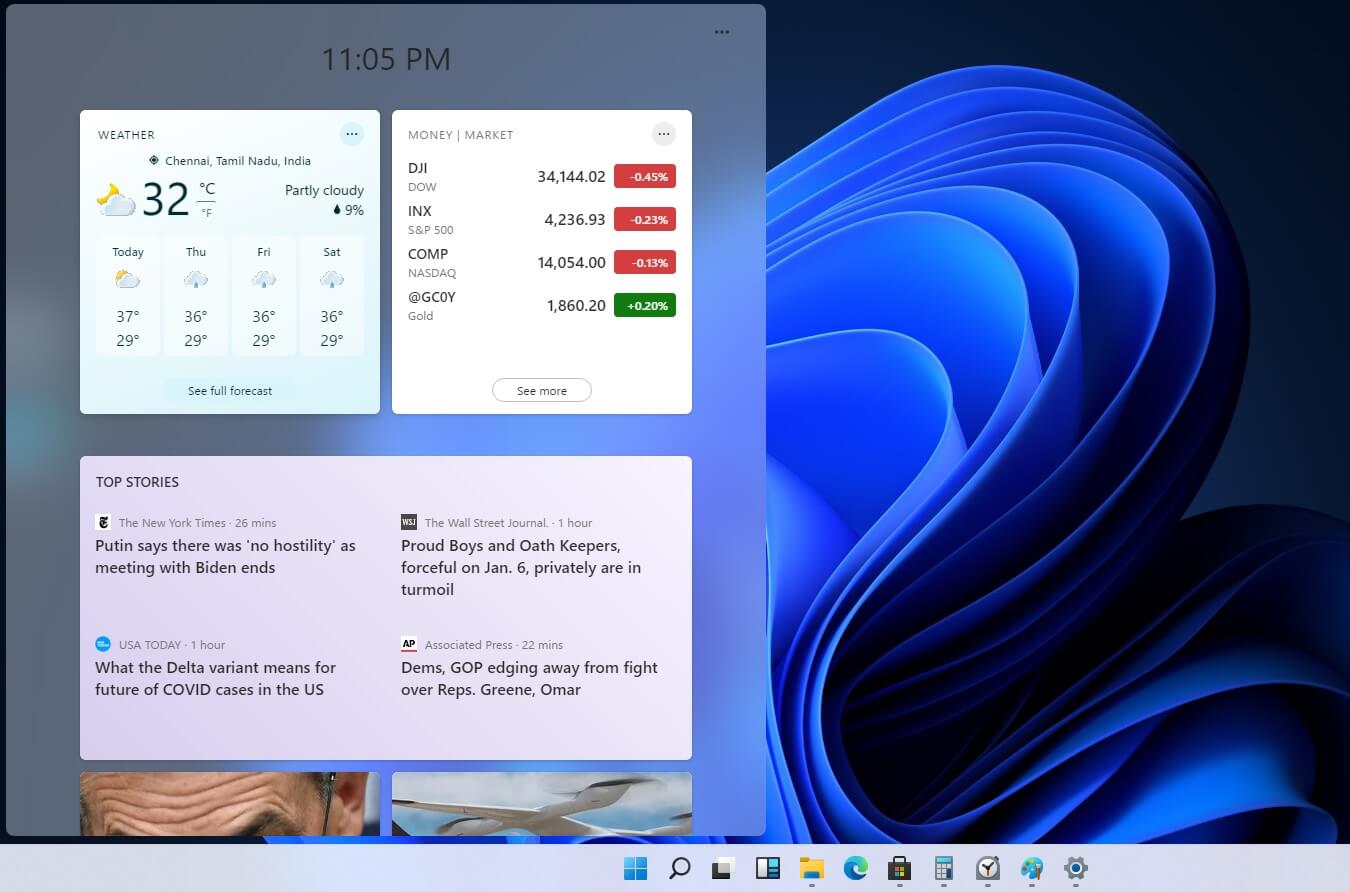
windows custom widgetsOriginally Microsoft has imagined its widgets menu as Microsoft-only widgets but it seems that they have changed their mind. Due to the latest leak, it seems that Microsoft will open the widgets menu to 3rd party developers as well but at launch, it will be only official widgets. It was hinted that later widgets menu will be open to developers who want to bring their own stuff into it. Distribution, date, and technology that will need to be used in order to create your widget have not been discussed nor leaked at a given time but in some way, I am very glad that at least some customization will be in Windows 11. It is funny and amusing how some things that were in Windows Vista are getting back like glass design, round corners, and widgets. Let’s just hope Windows 11 will be a better Windows than Vista was.
Read More
OneXPlayer Mini Handheld Gaming PC
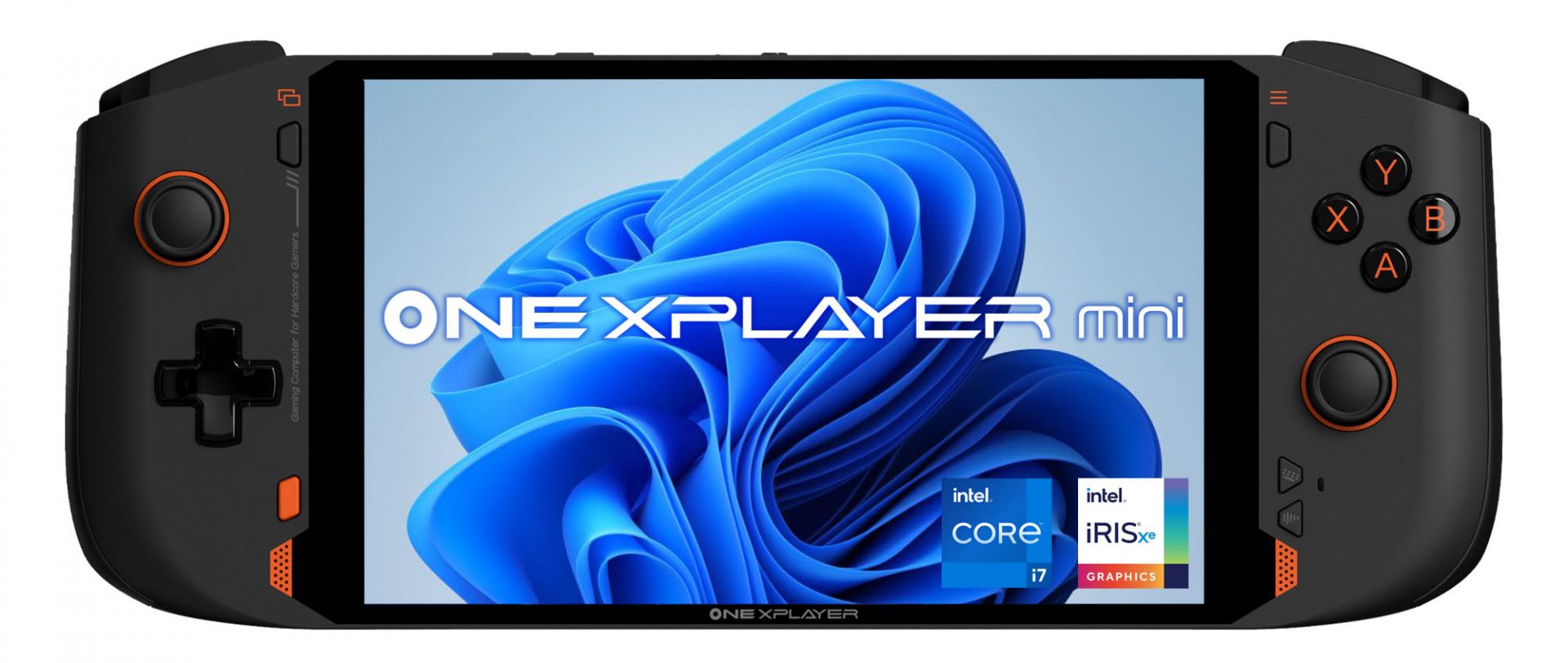
OneXPlayer is a direct competitor to Valve’s upcoming steam deck. This device is clearly inspired by Valve’s offering and it shows all over the place, from its looks to its purpose and aims to PC gamers as a handheld device.

OneXPlayer miniHardware under the hood

This device is packing a 7-inch 1080p display, 11th generation Intel Core i7-1195G7 CPU, stunning 16GB of RAM, 512GB SSD drive with the option to purchase 1TB or 2TB model. GPU of choice is Intel iris Xe Graphics that is in our opinion a bottleneck in the whole system and for more demanding games, we believe switching them to 720p would be a better option. Everything here is powered with a 10455 mAh lithium-ion battery.

OneXPlayer inputs and other stuff

Handheld is equipped with dual bumpers and dual linear triggers. The console comes with dual speakers on both sides of it. Inside the console, there is an aluminum heat sink with copper heat pipes and a fan in order to cool internal hardware. On the outside, we have two USB-C ports and one USB-A port for connections, and of course, a headphone jack for headphones. The console comes with Wi-Fi 6 and Bluetooth 5.0 for wireless connectivity.

Price

The base entry model will cost you a whopping $1.259, 1TB model $1.399 and 2TB one will go as far as $1,599. With this kind of price, I am not sure it can come up as a winner against Valve. Sure it is packing fully licensed Windows 11 that will for sure offer more options than Stem’s OS based on Linux but even with that advantage I do not think it justifies such a big price difference.

Conclusion

Of course, this kind of console or handheld PC will still find its customer base, many users will probably like it since it comes Windows ready out of the box. Sure, you can place Windows on Steam deck as well but you will need to know how, where everything is ready and you can run beside steam other launchers without issues like origin, uplay, gog, etc. How this will be accepted by community time will tell but it is good to see that there is variety and competition in handheld PC space.
Read More
Error 0x80004001 Quick Fix Guide

What Is 0x80004001 Error Code?

0x80004001 is an error code that Windows users encounter quite commonly.

This error usually occurs when users try to update an old Windows application or attempt to run a certain application. When this error appears on the screen, the system automatically restarts to stop further processing. The error results in a blue screen after the system boots.

This blue screen is known as the Blue Screen of Death.

Error Causes

There are different files in the Windows operating system responsible for its smooth functioning. Sometimes problems like viruses or incorrect register entries corrupt or damage these files. This is when this 0x80004001 error appears.

Simply put, some of the most common causes that trigger 0x80004001 error are listed below as follows.

  • Corrupt or damaged EXE, VXD, DLL files of Windows
  • Incorrect entry of registry files
  • Presence of viruses or malware in the system
  • Corrupt or damaged system files
  • Unfinished application installation

Irrespective of what causes this error, it is of utmost importance to troubleshoot it as soon as possible.

Further Information and Manual Repair

While there are several ways of troubleshooting this error, the two most useful approaches have been listed below as follows.

  • This solution is for advanced users. Start your system and log on to it as the administrator. Click on the Start button. Now select All Programs->Accessories->System Tools. Finally, click on System Restore. In a new window, select the option “Restore My Computer to an Earlier Time”. Now click on Next. A list of restore points will be displayed. Choose the most recent restore point from this list and click “Next”. Now click next on the confirmation Window again. Once the restoration is finished, the computer will restart itself and you will observe that the error no longer appears.
  • This solution is for beginner or novice users. Download a 0x80004001 error repair utility available online. Install this program on your computer and use it to scan for the error in your system. When the scan completes, find if any feature allows you to fix errors. If yes, click on it. Now restart your computer again. You will notice that the virus has disappeared. It is a good idea to use error repair utilities because they scan the system, diagnose the error and then perform the repair.

Use any of the methods listed above to get rid of the 0x80004001 error once and for all.

Read More
How to fix disk signature collision problem
As you know, storage devices are an important part of the computer system for porting, saving, and extracting data files. And for you to differentiate between storage devices on your computer system, each one of the storage devices is labeled with a unique number referred to as Disk Signature for identification. The unique disk identifier is stored as a part of the MBR or Master Boot Record. Disk signature is used by operating systems in order to identify and set apart different data storage devices and hard disk drives in the computer for data access. These days, Disk cloning has become a regular practice in upgrading to larger hard disk drives. Drives are cloned in order to produce a similar copy to use both the original drive and cloned copy together. Moreover, lots of virtualization tools are being used to virtualize the physical hard disk drives to create virtual hard disk drives and several virtual machine clones that are created with the existing virtual hard disk drives. And since these are identical copies, chances these copies may have identical disk signatures. As a result, when you use both disks that have identical signatures at the same time you run into the Disk Signature Collision problem. This kind of problem does not often occur as the Windows system does not really allow two disks to function simultaneously when they have the same disk signature. When you encounter a Disk Collision problem in your Windows 10 computer, you may see the following error messages:
  • The boot selection failed because a required device is inaccessible
  • The disk is offline because it has a signature collision
  • This disk is offline because it has a signature collision with another disk that is online
You can fix the disk collision problem by changing the disk signature which you can achieve using the command line utility diskpart in Windows PowerShell or Command Prompt or using Windows Disk Management utility. To fix the disk collision problem, you can make use of the command-line utility called diskpart in Windows PowerShell or Command Prompt to view and change the signature, or can make use of Master Boot record in the Windows Registry. You can also make use of Windows Disk Management Utility to change the signature. Simply follow the given options below to change the disk signature either way.

Option 1 – Change Disk Signature via Diskpart

  • Type “command prompt” in the Windows Search bar and then right-click on the related search result and select the “Run as administrator” option.
  • After that, type the “diskpart” command and hit Enter to open Diskpart.
  • Next, type the “list disk” command to display all the disks available in the system.
  • Next, take note of the problematic disk number with the status Offline from the list and then type the “Select disk x” command where x is the offline disk to select the offline disk. For instance, if you type “select disk 1”, it will display the “Disk 1 is now the selected disk” message.
  • Now type the “Uniqueid disk” command to display the disk signature and to change the disk’s signature and set the disk online, type the “unique disk ID= (New signature)” where (New signature) is the new ID in hexadecimal. For instance, you can set the new id as “unique disk ID= 1456ACBD”.
Note: If you have given the wrong format ID, the command prompt will display the following error:
“The specified identifier is not in the correct format. Type the identifier in the correct format: in hexadecimal form for an MBR disk or as a GUID for a GPT disk.”
  • After you’re done, the disk will be online, and then restart your computer.

Option 2 – Change Disk Signature via Disk Management Utility

  • Tap the Win + R keys to open the Run dialog box and then type “diskmgmt.msc” and hit Enter or click OK to open Disk Management.
  • Next, right-click on the disk that is marked as Missing or Offline.
  • After that, select the Online command from the drop-down menu.
  • Then from the selecting option Online, Windows will generate a new disk signature.
Read More
Diablo 2 Resurrected facing server issues
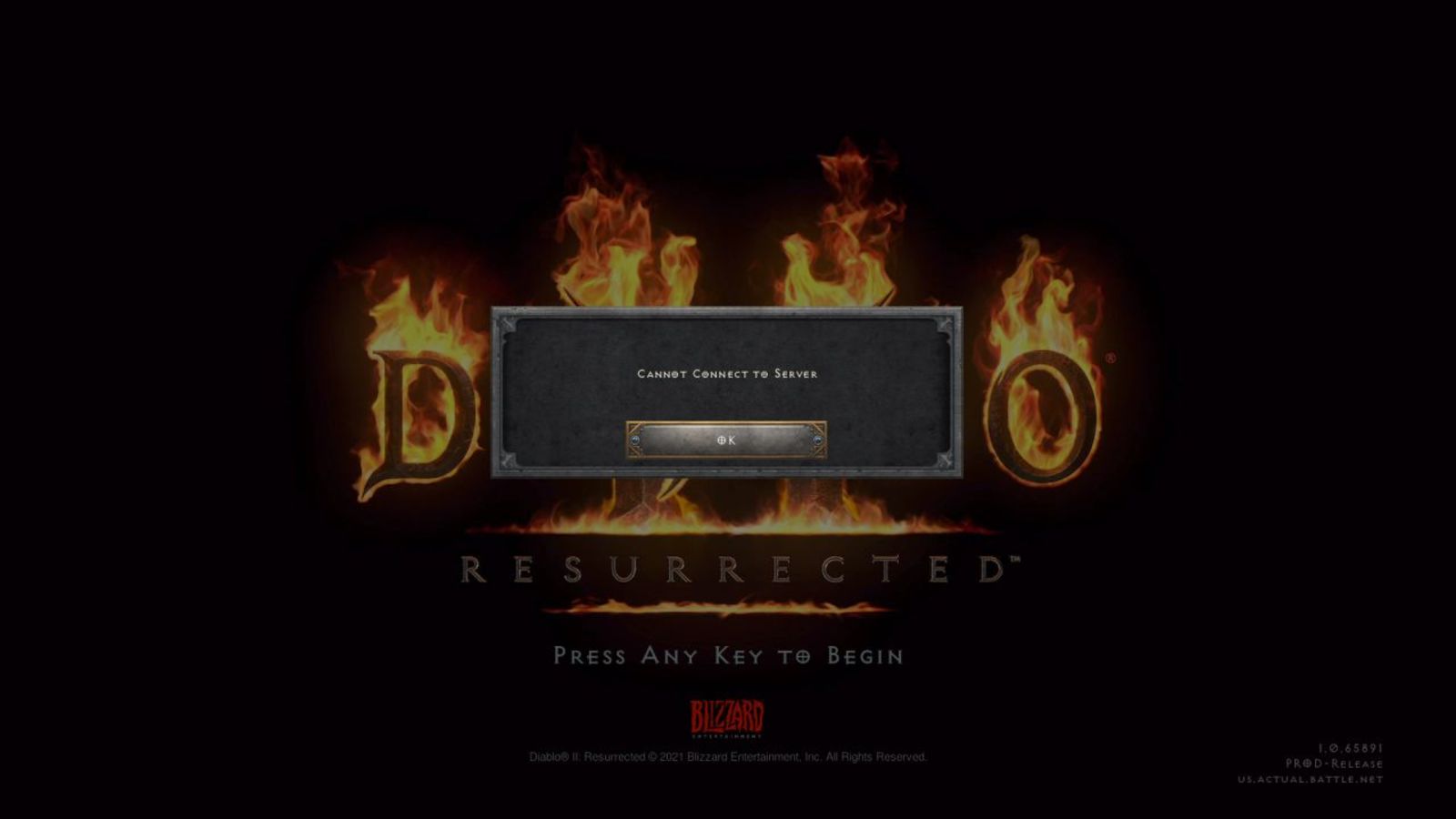
It has been some time since the release of Diablo 2 resurrected and overall reception was pretty good. People are enjoying the old classic game in hi-def. resolution and with new and improved visuals. Sadly some server issues are present still until this day and somewhat spoil the experience for players. diablo 2 server statusThe greatest lag and server crashes are pinpointed to game-creating events. When a player creates a new online game, the server needs to pull a lot of details from the database and make a game, due to some legacy code present this process takes some time and it is demanding a bit on the server-side, and although code was optimized to cater to more modern approach some legacy code still remains. Another thing that was spotted to affect performance itself is player behavior, to be more specific, modern gamer behavior. Where players find good builds and runs on the internet and then go to farm-specific areas or bosses for loot or experience points, which in return boils down to making plenty and short runs that are made by creating games and after run eliminating them. Now pair that with the previous statement about legacy server and database code and you can add 1 and 1 and see how this might be an issue. A lot of short games over legacy code are placing games in a state it was not designed for back in 2001 and therefore we have issues. Sadly solutions without completely rewriting the whole code are not very promising and they include rate limiting, which will prevent players to create many games in succession in a short period of time and maybe even login queues to drop a load on servers. Blizzard reached to people in the whole company, even old diablo 2 developers to ask for advice and they say that they are working on solutions so they could lift limitations and have everything running fine.

Read More
1 2 3 171
Logo
Copyright © 2023, ErrorTools. All Rights Reserved
Trademark: Microsoft Windows logos are registered trademarks of Microsoft. Disclaimer: ErrorTools.com is not affiliated with Microsoft, nor claims direct affiliation.
The information on this page is provided for information purposes only.
DMCA.com Protection Status