Logo

Almost complete List of Cortana commands

Cortana is your personal digital assistant fully integrated into Windows 10 designed to help you make your life easier. The more you use it, the more Cortana can learn about you, and the experience becomes more personalized and accurate. It can perform a variety of tasks, and it's full of handy tricks, but perhaps one of the best features is the advanced speech recognition that enables Cortana to understand the context of a natural voice conversation.

On Windows 10, and across platforms with the Cortana app on iPhone and Android, the assistant can understand virtually any voice command and perform tasks. For example, by just speaking you can find facts, create reminders and manage your calendar, launch applications, change settings, and a lot more.

Now, if you're looking for an official list of all the voice commands Cortana supports, you'll never find it because it doesn't exist. Cortana can understand natural language and context, there's no particular set of commands to make things happen. In a sort of way, you are speaking to Cortana as you would to any other person.

Invoking Cortana

Before using voice commands, it's important to know the ways in which you can invoke Cortana using natural language:

  • You can click the microphone icon in the taskbar next to the Start menu.
  • You can use the Shift + ⊞ Windows + C keyboard shortcut to open Cortana in listening mode.
  • You can use the Hey Cortana feature, which lets you invoke the assistant by simply saying Hey Cortana followed by the command. For example, Hey Cortana: How's the weather?.
  • On Windows 10 Mobile devices, you can press and hold the search button to open Cortana in listening mode.

Comprehensive list of Cortana voice commands

The following list of commands are examples you can use to learn how to control Cortana with voice commands. Keep in mind that there isn't a specific way to speak the commands. For example, Hey Cortana: Let me listen to some tunes is the same as asking for a more systematic command like Hey Cortana: Play music.

Cortana basic voice commands:

Getting the time for any location:

  • "What time is it?"
  • "What time is in New York?" or "What time is in Greece?"

Getting weather information for any location:

  • "What's the weather like?"
  • "What's the weather in Madrid?" or "What's the weather in Slovakia?"
  • "When does the sun set?"
  • "Is it hot in Hawaii?"
  • "How's the weather looking for tomorrow/next week?"

Opening (Store and desktop) apps and websites:

  • "Open Photoshop" or "Go to Firefox"
  • "Open errortools.com."

Getting news information:

  • "Show me top headlines."
  • "Show me the latest news."
  • "Show me weather news."
  • "Show me Blizzard stock."
  • "Show me bitcoin exchange rate."
  • "What was the score of the last Brazil football game."

Creating a note:

  • "Create a note."
  • "Create Shopping note."
  • "Create Shopping note: Buy a basket of eggs"
  • "Take a note."
  • "Draft a note."
  • "Write a note."

Translating to a different language:

  • "Translate."
  • "Translate Hello to German"
  • "Translate Where is the nearest park? to Spain"

Doing math:

  • "What's 34% or $764.89?"
  • "What's 43 times 59?"
  • "What the square root of 26509?"
  • "What's 29 times 6 divided by 12?"
  • "Convert 6.9 cups to fluid ounces."
  • "How many miles are in 89 Kilometers?"

Defining a word:

  • "Define Space."

Tracking packages:

  • "Where is my package?"
  • "Show me my packages."

Cortana search voice commands:

Finding documents, photos, videos:

  • "Find photos from August 1998."
  • "Find cat videos."
  • "Find document called Collection of poems."

Searching the web:

  • "Search the web for Heroes of Might and magic."

Finding facts:

  • "How tall is Mount Everest?"
  • "Who is Steve Jobs?"
  • "When Arnold Schwarzenegger was born?"
  • "Who is Mercedes CEO?"
  • "When does spring begin?"
  • "What's the capital of Zimbabwe?"
  • "When is Thanksgiving?"

It's important to note that Cortana is capable of conversational understanding, which means that you can also ask follow-up questions without having to be very specific.

For example, if you ask Cortana: "Who is the president of the United States", you can then ask a follow-up question, such as "Who is his wife?" or "When was he born?" and the assistant should be able to answer those questions accurately.

Discovering food places nearby:

  • "Find food places near me."
  • "Find restaurants near me."
  • "Find bars near me."
  • "What's a good restaurant near me?"
  • "What's interesting nearby?"
  • "Show me Chinese restaurants near me."
  • "Show me Italians restaurants in Los Angeles."

Cortana health and fitness voice commands:

  • "How was my sleep last night?"
  • "What was my step count yesterday?"
  • "How many calories did I burn today?"

These commands require a tracking device, such as the Microsoft Band 2 to enable your fitness and health activities, and you need to connect Cortana with the Microsoft Health (Microsoft Band) service.

Cortana settings voice commands:

Opening the Settings app:

  • "Open Settings."
  • "Open Action Center."

Controlling settings:

  • "Turn on/off Bluetooth"
  • "Turn on/off Wi-Fi"
  • "Turn on/off Airplane Mode"

Cortana reminders voice commands:

Creating reminders:

  • "Remind me to wash the car."

Creating location-based reminders:

  • "Remind me to buy CDs next time I go to Walmart."

Creating person-based reminders:

  • "Remind me to ask for vacation time next time I talk to Goran."

Creating time-based reminders:

  • "Remind me to watch the basketball game at 6 PM."
  • "Remind me to buy the food for the d&d session on Sunday at 3 PM."

Viewing reminders:

  • "Show me my reminders."

Cortana calendar voice commands:

Viewing calendar events:

  • "How's my schedule looking today?"
  • "Show me my appointments for next week."
  • "When is my dentist appointment?"

Adding new calendar events:

  • "Add dental appointment for Monday at 2 PM."

Moving calendar events:

  • "Move dental appointment to Friday at 5 PM."

Cortana alarms voice commands:

Creating alarms:

  • "Set an alarm for next Monday at 5:30 AM."
  • "Set an alarm for Saturdays at 9 AM."

Viewing alarms:

  • "Show my alarms"

Removing alarms:

  • "Cancel alarm for Saturdays at 9 AM."

Cortana timer voice commands:

Creating a timer:

  • "Set a timer for 5 minutes."

You can only start a one-timer at one point in time. If there is a timer already running, Cortana will ask you to restart it at a new time.

Viewing timer:

  • "Show timer."
  • "How much time is left on the timer?"

Canceling timer:

  • "Stop timer."

Cortana location voice commands:

Knowing your exact location:

  • "Tell me where am I?"

Cortana messaging voice commands:

Sending text messages:

  • "Send a text to Milan: I'll be late for lunch today."

Sending quick emails:

  • "Send email to Milena: See you later tonight."
  • "Send email to John and Claudia: How is the project coming along?"

Cortana location voice commands:

Getting directions:

  • "What's the traffic like on the way home?"
  • "How do I get home."
  • "How long would it take to drive to Madison Square Garden?"
  • "Get me directions to Port Authority."
  • "How do I get from my location to Long Beach, New York?"
  • "How far away is the moon?"
  • "Show me walking directions to the nearest gas station."
  • "Show me public transit to 11 Times Sq, New York, NY 10036."
  • "Show me the map of San Francisco."

Tracking flights:

  • "Track flight 1056."
  • "Is my flight delayed?"
  • "Is my flight on time?"

Cortana entertainment voice commands:

Controlling music:

  • "Play Metallica."
  • "Put some Symphonic music."
  • "Shuffle music."
  • "Play and Justice for all by Metallica."
  • "Stop music"
  • "Pause music"
  • "Pause song."
  • "Play next"
  • "Next track"
  • "Skip track."

Identifying what's playing:

  • "What is this song?"
  • "What's playing?"

Movies & TV:

  • "What's Blade Runner run time?"
  • "Who was the director of Gladiator?"
  • "What movies are playing near me?"
  • "What are the showtimes for Star Trek lower decks?"

Cortana technical support voice commands:

  • "How do I install a printer?"
  • "How do I project my screen?"
  • "How do I change my background?"
  • "How do I update Windows?"
  • "How do I make a backup?"
  • "How do I change default apps?"
  • "How do I change Privacy?"
  • "How do I connect a wireless device?"

Sometimes asking a "How to do I" question will result in a web search response.

Cortana phone voice commands:

  • "Call wife on speakerphone."
  • "Call David at home."
  • "Call Goran."
  • "Redial."
  • "Send a photo to my PC."

Cortana random voice commands:

  • "Tell me a joke."
  • "Tell me a riddle."
  • "Tell me something interesting."
  • "Tell me something funny."
  • "Tell me a scary story."
  • "Sing me a song."
  • "Surprise me."
  • "Do an impression."
  • "What do you look like?"
  • "Which is the best smartphone?"
  • "What is love?"
  • "Which is better, Google or Bing?"
  • "Why should I buy this phone?"
  • "What do you think about Google?"
  • "Do you like Google?"
  • "What do you think about Yahoo?"
  • "Do you like Windows 10?"
  • "Play the movie game."
  • "Are you better than Siri?"
  • "Where is Clippy?"
  • "What do you think about Clippy?"
  • "Heads or tails?"
  • "Rock, paper, scissors."
  • "Roll a dice."

Do You Need Help with Your Device?

Our Team of Experts May Help
Troubleshoot.Tech Experts are There for You!
Replace damaged files
Restore performance
Free disk space
Remove Malware
Protects WEB browser
Remove Viruses
Stop PC freezing
GET HELP
Troubleshoot.Tech experts work with all versions of Microsoft Windows including Windows 11, with Android, Mac, and more.

Share this article:

You might also like

How to Fix Windows 8 Error Code 0xc004f034

Error Code 0xc004f034 – What is it?

Error code 0xc004f034 occurs when Windows users are unable to activate their operating system. It affects Windows 8 and Windows 10 users and features common symptoms which include the following:
  • Inability to activate Windows
  • Message box with error code 0xc004f034

Solution

Restoro box imageError Causes

Error code 0xc004f034 often occurs due to an issue with the Windows product key. This may occur when users enter an invalid product key or use one that is appropriate for use on a different version of Windows. To correct the issue, users will need to use the correct product key for their system or contact an IT professional if their device is connected to a Key Management Service (KMS).  Windows users affected by this error code may also need to check their system for viruses or missing system files since these issues can result in error codes on Windows devices.

Further Information and Manual Repair

Manual repair methods enable users to fix problems related to error codes. Though some manual repair methods require the use of Command Prompt and utility tools like the System File Checker, even non-technical Windows users can find success simply by following the instructions provided below.

However, note that some issues can be complex, thus requiring the use of an automated tool or help from a Windows repair technician. Consider these options if the manual repair methods below do not resolve error code 0xc004f034 on your Windows 8 device.

Method One: Enter Valid Windows Product Key

Microsoft currently offers several ways for customers to activate their Windows operating system, the most common of which is the product key. This 25-character code verifies that users have access to an authorized version of Windows.

You may get a valid product key from an authorized dealer, a new PC with Windows, or access a digital copy from a Windows website when you purchase your Windows operating system online. Once you have a valid product key, use it to activate Windows and resolve error code 0xc004f034 in Windows 8. Follow the steps below to access the Product Activation Wizard.

  • Step one: Click or tab Start button then select Settings
  • Step two: Tap or click PC Settings, then select Activate Windows
  • Step three: Type invalid product key

Once a valid product key is used, the Product Activation Wizard should complete the activation process. If you are unable to complete the process, however, and error code 0xc004f034 remains unresolved, click the link or instructions the Product Activation Wizard provides regarding activation via phone or customer support.

Method Two: Run System File Checker

Another option available to Windows 8 users is System File Checker (SFC). This tool enables Windows users to scan and repair corrupted or missing system files. Follow the steps below to access SFC.

  • Step one: Go to Start and type Command Prompt or CMD.
  • Step two: Run as Administrator
  • Step three: Type sfc /scannow ensuring a space is between “sfc” and “/scannow”.

System File Checker will repair any corruptions found on system files within your machine once you successfully follow the instructions provided. The tool will also replace missing files which will lead to better performance on your PC.

When the process is complete, restart your device then check if you are able to activate Windows. If error code 0xc004f034 is still present, you will need to find another solution via repair method three.

Method Three: Scan for Viruses and other Malware

Viruses and other forms of malware are one of the main issues resulting in poor PC performance and Windows error codes. To fix this issue on your PC, scan your machine for signs of these malicious programs. If you do not have anti-malware software and would like to download one from the Internet, ensure the software you choose is effective before attempting to download it.

Once you have powerful antimalware software on your PC, begin a scan for viruses, Trojan horses, and other forms of malware. If the Windows error code occurred due to issues related to malicious programs, you will be able to resolve the issue. If, however, this manual repair method proves ineffective in resolving error code 0xc004f034, download a powerful automated tool or contact a Windows repair technician to assist you.

Method Four: Use an Automated Tool

If you wish to always have at your disposal a utility tool to fix these Windows 8 and other related issues when they do arise, download and install a powerful automated tool.
Read More
Automatically backup files & folders
If you are a person which spends a lot of time in front of the computer doing work, then you are aware of the importance of having a proper backup of your archive so if anything bad happens you will lose almost none of the work. We can never tell when we might experience HDD failures or when we might be a victim of cyber attacks, natural disasters,s and other unpredictable circumstances where we could lose all of our data in a matter of minutes. Having a backup of our data is very important but sometimes we are too busy or not around and we miss that data backup we wanted to do, and if in this case disaster strikes we are out of luck and data is lost. To avoid such circumstances, you can set up automatic Windows Backups at a scheduled time. This way it will help to have the loss of important files and documents from unexpected hazards. in order to create automatic backups of your files, you have several options, and below we will explore each one in hopes that you will find one that best suits your needs.
  1. Create automatic file backup with OneDrive

    This is probably the best way to do it because each time when you sign in OneDrive files get backed up right away, files are stored in the cloud and can be accessed on any device via a Microsoft account. To get started, open the Settings app first. Click on the Update & Security category Select the Backup tab from the left pane. Move to the right page and click on the Back up files button that is available under Back up files to OneDrive. Select the folders you want to backup in the cloud, and remove those ones you don’t want to backup. On the next page, click the Start backup button to start the procedure.
  2. Create a backup using File History

    File History is an inbuilt feature that allows users to create automatic file backup on Windows 10. File History allows the users to back up their files in an external or cloud drive at different intervals of time. To create automatic file backup using File History: Press the ⊞ WINDOWS + I to open the Settings app. Click on the Update & Security category and then select the Backup tab from the left pane. Under the Back up using File History section, click on Add a drive button. Now choose the drive to store the backup files. Windows will use this drive for File History. Then turn on the toggle button under Automatically back up my files. This will back up your data to the drive automatically whenever you connect it to the system. Below the toggle button, click on the “More options” link to set how frequently File History will back up. Use the Keep my backups drop-down menu to get the option to configure the time for how long you want to keep your backups. By default, it will keep your backups forever. Under the section Back up these folders, tap on the Add a folder button in order to add one more folder to the backup. Then click on the Add a folder button, under Exclude these folders. This will exclude the files that you don’t want to back up. You can stop the drive from storing backup files to change the backup storage location. To do this, click the Stop using drive option under the Back up to a different drive category.
  3. Backup using Windows backup & restore tool

    Open Control Panel Click on the System and Security option Scroll down and select the Backup and Restore (Windows 7) button Next click on the Set up backup button, available under the Back up or restore your files section Under the Save backup on section, select the Backup Destination where you want your backup files to get stored On the “Set up backup” page, Windows will ask you to choose the way to backup, check Let me choose checkbox, and then hit the Next button Under the section Computer, select the files and folders you want to backup. Then uncheck the box next to the Include a system image of drives option, and then hit the Next button Now click on the Change schedule link. Set the time and check the box beside Run backup on a schedule button Click OK then select the Save settings and run backup option
Read More
Windows Sandbox item is greyed out
As you know, the functioning of the Windows Sandbox feature is supported by various components in the background of the Windows operating system. And the only way for you to enable the Windows Sandbox feature in your computer is through the Turn Windows features on or off utility. This feature will work directly on the basis of Virtualization which is also supported by Hyper-V. However, there are some reports claiming that some computers have the Windows 10 Sandbox item greyed out in the Turn Windows features on or off utility. Thus, in this post, you will be guided on what you can do to resolve such a problem in your Windows 10 computer. In this kind of problem, you should know that this has something to do with the Second Level Address Translation which is one of the important pillars of how the Windows 10 Sandbox feature functions. Thus, if the Second Level Address Translation or SLAT feature in Windows Sandbox is not supported by the CPU of your computer, there is no way for you to use Windows Sandbox on your computer. On the other hand, if SLAT is supported, then there is definitely something you can do to resolve the greyed-out Sandbox item in Windows 10.

To get started, follow the steps provided below.

Step 1: First, you have to boot into the BIOS of your PC. Step 2: After that, make sure that the following options are set to their respective configurations:
  • Hyper-V – Enabled
  • VM Monitor Mode – Yes
  • Virtualization – Enabled
  • Second Level Address Translation (VT-d or RVI) – Enabled
  • Data Execution Prevention – Enabled
Step 3: Once you’re done, save the configuration and then restart your Windows 10 computer as usual. Step 4: Once your computer has restarted, you should see the same option in the Turn Windows features on or off utility and it should no longer be greyed out. Then you can now enable the feature and follow the onscreen instructions need to use the feature as best as you can.
Read More
SoftwareUpdater Malware Removal Guide

Software Updater is an ad-supported browser extension hijacker that claims to update your PC programs and drivers. In addition to managing the installation of your selected software, this install manager will make recommendations for additional free software that you may be interested in. Additional software may include toolbars, browser add-ons, game applications, anti-virus applications, and other types of applications. The hijacked homepage, softwareupdater.com, did not have valid legal privacy and disclaimer policies on its website as of publication date.

This software adds a Windows Task Scheduler in order to launch the program at various times, including system startup. The software has access to all installed applications on your PC and can install bundled products with unwanted malware. It is also commonly distributed in bundles with unwanted software. Several anti-virus programs have classified this software as malware and are therefore not recommended.

About Browser Hijackers

Browser hijacking means that a malicious code has control over and modified the settings of your internet browser, without your consent. They’re made to interfere with browser programs for several purposes. The idea is to force users to visit specific sites that are trying to increase their visitor traffic and produce higher ad revenue. It may appear harmless, but most of these sites are not legitimate and could present a severe threat to your online safety. Browser hijackers can even allow other malicious programs without your knowledge to further damage your computer.

How to determine if your web browser is hijacked

The common symptoms that indicate having this malicious software on your computer are: 1. home page is changed 2. you find new unwanted bookmarks or favorites added, typically directed to advertisement-filled or pornography websites 3. the default search engine has been changed and your browser security settings have been lowered without your knowledge 4. you find unwanted new toolbars added 5. you may find many pop-up ads on your computer screen 6. your internet browser has become unstable or starts running sluggishly 7. you can’t go to specific websites such as home pages of anti-malware software.

Exactly how browser hijacker infects computers

Browser hijackers infect PCs in numerous ways, including via a drive-by download, a file-share, or an infected email. Many web browser hijackings come from add-on software, i.e., browser helper objects (BHO), toolbars, or extensions added to web browsers to provide them additional functionality. Also, certain freeware and shareware can put the hijacker in your PC through the “bundling” technique. Some of the well-known hijackers are SoftwareUpdater, Conduit Search, Babylon Toolbar, OneWebSearch, Sweet Page, and CoolWebSearch. Browser hijackers may record user keystrokes to collect potentially valuable information leading to privacy issues, cause instability on systems, drastically disrupt user’s browsing experience, and eventually slow down the computer to a point where it will become unusable.

Browser Hijacker Malware – Removal

Certain hijackers could be removed by just uninstalling the related free software or add-ons through the Add or Remove Programs in the Windows Control Panel. In some cases, it can be a tough task to identify and get rid of the malicious piece because the associated file could be running as part of the operating system process. Besides, browser hijackers might modify the Computer registry so it can be extremely tough to fix manually, especially when you are not a very tech-savvy person.

How To Get Rid Of Malware That Is Preventing Anti-Malware Installation?

Malware can cause many different types of damage to PCs, networks, and data. Some malware is meant to restrict or prevent things that you want to do on your computer system. It may not permit you to download anything from the net or stop you from accessing some or all of the internet sites, especially the anti-virus websites. If you’re reading this now, you’ve perhaps recognized that a malware infection is a reason for your blocked internet traffic. So how to proceed if you need to install an anti-virus software like Safebytes? Even though this type of problem can be difficult to circumvent, there are a few actions you can take.

Install the anti-virus in Safe Mode

In Safe Mode, you can change Windows settings, un-install or install some software, and eliminate hard-to-delete viruses and malware. In the event, the virus is set to load immediately when PC boots, shifting into this particular mode can prevent it from doing so. To start the computer into Safe Mode, hit the “F8” key on your keyboard right before the Windows boot screen comes up; Or after normal Windows boot up, run MSCONFIG, check “Safe Boot” under Boot tab, and click Apply. As soon as you restart into Safe Mode with Networking, you could download, install, as well as update the anti-malware program from there. At this point, you could run the antivirus scan to remove viruses and malware without hindrance from another malicious application.

Switch to an alternate browser

Some malware only targets certain internet browsers. If this sounds like your situation, utilize another browser as it might circumvent the virus. The best solution to avoid this problem is to select a web browser that is well known for its security measures. Firefox contains built-in Malware and Phishing Protection to help keep you secure online.

Install and run anti-malware from your flash drive

To effectively remove the malware, you might want to approach the issue of running anti-virus software on the affected computer system from a different perspective. Adopt these measures to run the antivirus on the affected PC. 1) Download the anti-malware program on a virus-free PC. 2) Mount the USB drive onto the same computer. 3) Run the setup program by double-clicking the executable file of the downloaded application, which has a .exe file extension. 4) Pick a thumb drive as the place when the wizard asks you exactly where you want to install the program. Follow the on-screen instructions to complete the installation. 5) Disconnect the pen drive. You can now use this portable anti-malware on the infected computer. 6) Double-click the anti-malware program EXE file on the flash drive. 7) Run Full System Scan to detect and get rid of all types of malware.

Features of SafeBytes Anti-Malware

Want to install the best anti-malware software for your computer system? You can find many applications available that come in paid and free versions for Windows systems. Some of them do a great job in getting rid of threats while some will affect your PC themselves. You must be careful not to choose the wrong application, especially if you purchase a paid software. Among few good programs, SafeBytes Anti-Malware is the strongly recommended software for the security-conscious individual. SafeBytes anti-malware is really a powerful, highly effective protection application made to assist users of all levels of IT literacy in identifying and eliminating harmful threats from their computers. Through its cutting-edge technology, this software protects your PC against infections brought on by different types of malware and similar threats, including spyware, adware, computer viruses, worms, trojan horses, keyloggers, ransomware, and potentially unwanted program (PUPs). SafeBytes possesses a plethora of great features that can help you protect your laptop or computer from malware attack and damage. The following are some of the best ones: Real-time Active Protection: SafeBytes delivers complete and real-time security for your laptop or computer. They are very efficient in screening and getting rid of different threats because they are constantly revised with new updates and safety measures. Best AntiMalware Protection: This deep-cleaning anti-malware application goes much deeper than most antivirus tools to clean your personal computer. Its critically acclaimed virus engine finds and disables hard to remove malware that conceals deep inside your computer. Safe Browsing: SafeBytes gives an instant safety rating about the web pages you’re about to check out, automatically blocking unsafe sites and make sure that you’re certain of your online safety while browsing the net. Lightweight Tool: SafeBytes is a lightweight and easy-to-use antivirus and antimalware solution. As it uses minimal computer resources, this application leaves the computer’s power exactly where it belongs: with you actually. Premium Support: You may get absolutely free 24/7 technical support from their computer experts on any product queries or computer security issues.

Technical Details and Manual Removal (Advanced Users)

If you wish to manually remove SoftwareUpdater without the use of an automated tool, it may be possible to do so by removing the program from the Windows Add/Remove Programs menu, or in cases of browser extensions, going to the browsers AddOn/Extension manager and removing it. You will likely also want to reset your browser. To ensure the complete removal, manually check your hard drive and registry for all of the following and remove or reset the values accordingly. Please note that this is for advanced users only and may be difficult, with incorrect file removal causing additional PC errors. In addition, some malware is capable of replicating or preventing deletion. Doing this in Safe Mode is advised.

The following files, folders, and registry entries are created or modified by SoftwareUpdater

Files: C:Program FilesSoftware UpdaterSoftwareUpdater.exe C:Program FilesSoftware Updatersuscan.exe C:Program FilesSoftware Updater C:Program FilesSoftware Updater cpprest120_xp_1_4.dll C:Program FilesSoftware Updater cpuidsdk.dll C:Program FilesSoftware Updater DriversHQ.SDK.REST.Win32.dll C:Program FilesSoftware Updater msvcp120.dll

Read More
Fix 0xc00d36cb error in Windows 10
0xc00d36cb error shows up when you are trying to play a video or movie using the default player in Windows. This error can occur due to a glitch in the media player or corrupted system files. in this guide, we will show you how to tackle this issue and fix it.
  1. Run the video playback troubleshooter

    • Click on Start and select Settings.
    • Go to Update and Security.
    • Scroll down and open the Troubleshoot tab.
    • Scroll down and select the Video Playback option.
    • Click the Run the Troubleshooter button.
    • The troubleshooter will perform an initial scan and offer a few options.
    • Select Continue with this troubleshooter.
    • The troubleshooter will scan the system again for driver and codec issues.
    • Follow on-screen instructions and apply recommended fixes.
  2. Reset the Movies and TV app

    • Click on Start and select Settings.
    • Go to Apps and open the Apps and features tab.
    • Scroll down to Movies and TV.
    • Select Movies and TV.
    • Click Advanced options.
    • Scroll down and click on the Reset button.
  3. Create a new user account

    • Click on Start and select Settings.
    • Open Accounts.
    • Open the Family & other users tab.
    • Scroll down to Other users and click the Add someone else to this PC button.
    • In the Microsoft account window, type your email address.
    • If you don’t want to enter an email address and establish a local account, click on I don’t have this person’s sign-in information option instead.
    • Next, select Add a user without a Microsoft account (for a local account).
      • Else, enter your Microsoft account login details.
    • Enter a user name and password for your new account. Also, select a security question and add an answer to it.
    • Once the new profile is ready, log out of your current account.
  4. Check for permission issues

    • Right-click on the problematic file and select Properties.
    • Open the Security tab.
    • Click the Advanced button.
    • In the Advanced Security Setting window, click the Change link.
    • In the Select User or Group window, enter Everyone in the text box.
    • Click the Check Names button.
    • Click OK and Apply to save the changes.
    • Close all the Properties windows.
    • Try playing the file or modifying the properties and check for any improvements.
Read More
Firewall is preventing or blocking connections
As you know, the Windows Firewall is designed not just to protect your computer from viruses and malware, and other security threats but it’s also designed to block any program from accessing the internet. Users are given the option to block both inbound and outbound traffic for any apps on their computers. However, this kind of option can often lead to not being able to access the internet. In such cases, when you try to run the Windows Firewall Troubleshooter or the Windows Network Diagnostic troubleshooter, it will throw an error message that says, “Windows Firewall is preventing connections to your computer. The Windows Firewall rule HSS DNS Leak Rule may be blocking your connection”. If you are in this kind of scenario, then you’ve come to the right place as this post will guide you on how exactly you can fix this error. When you encounter this kind of error, there are several options you can check out to fix it. You can try to allow an app or feature through the Windows Firewall or uncheck the HSS DNS leak rule in both private and public. For more details, refer to the suggestions provided below.

Option 1 – Try to allow an app or feature through Windows Firewall

The first thing you can do to get rid of the error is to allow a feature or app through the Windows Firewall. To do this, follow these steps:
  • Open the Windows Defender Security Center.
  • From there, select the Firewall and Network Protection option.
  • Next, click on the “Allow an app through firewall” option and then click on the “Change Settings” button and make sure that you have administrative privileges.
  • After that, select the app or feature you want to allow through the Firewall from the menu. You also have the option to manually add the app by using the “Add an App” option.
  • Then select the between the type of network an app can access such as:
    • Private Network will allow the app to connect to the internet only at home or work.
    • Public Network will allow the app to connect to the internet from anywhere, including Public WiFi hotspots.
  • Once done, restart your computer and see if it fixed the error or not.

Option 2 – Try to uncheck the HSS DNS leak rule in both private and public

The next thing you can do to fix the error is to uncheck the HSS DNS leak rule in both private and public. You can do this by following these steps:
  • Open the Windows Defender Security Center.
  • From there, select the Firewall and Network Protection option.
  • After that, click on the “Allow an app through firewall” option and then click on the “Change Settings” button and make sure that you have administrative privileges.
  • Next, scroll down until you see the HSS DNS leak rule in both private and public option and then uncheck it.
  • Now restart your computer and check if the error is now gone.
Read More
Software review series: Visual studio code
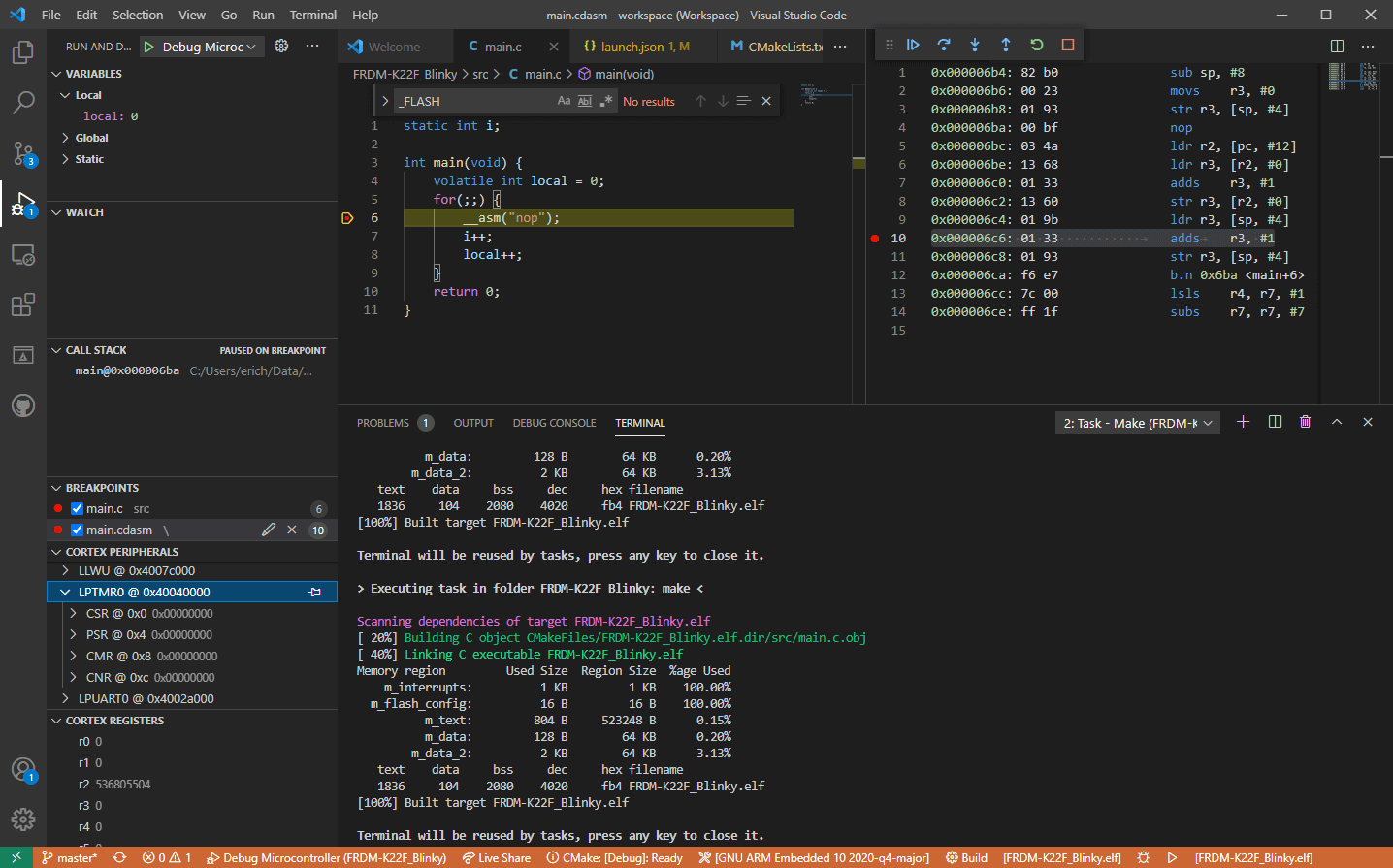
Visual Studio codeVisual studio code is a code editor available for Windows, Linux, and macOS. It is a completely free tool offering you to code in any language without the need to switch to another editor. Visual Studio Code is part of Microsoft Visual Studio which is a complete integrated development environment (IDE). Take notice that Visual studio itself has more advanced tools for developing and testing, it has 24/7 support, training, and Azure for WEB apps. Visual Studio Code is an editor lacking in some advanced features Visual Studio offers.
Visual Studio code Price and royalty

As mentioned Visual Studio code is completely free licensed under the MIT license agreement giving you the tool free to use and sell your product. How it supports Linux, Windows, and macOS, all you need it to go to its official page https://code.visualstudio.com/, download it and start using it. How this is free project backside is that there is no official support, you will have to rely on various articles and community in order to get needed information or problem solution.

Features

Syntax highlighting has become standard and norm for any editor but besides this function VS code offers us also IntelliSense option which goes a step further with code completion, code hinting, and parameter info. This means that VS code is aware of many things going on inside your code and will offer you as you type a menu with options for autocomplete along with variables referenced, function names, etc. VS code offers extensions inside its extensions marketplace where you can add extensions in order to implement new languages, add debuggers, change the layout, etc. This is one of the great features it allows you to easily switch from one project to another, one language to another not leaving your code editor. Working with version control systems like Git is easy with VS Code. You’ll be able to stage files and make commits, then push and pull changes to your remote code repository of choice, right from the editor.

Conclusion about Visual Studio code

Visual Studio Code is one of if not the most flexible and extensible code editors currently on the market that I have ever tried and used. IT has become my code editor of choice simply for reasons that there is really not much it cannot do and it is constantly updated and taken care of. You can really tune it to look and feels how you want with extensions and you really cannot beat the free price tag. I would highly recommend this editor for daily use especially since its biggest competitors like Atom and sublime text have not seen many updates lately.
Read More
New Chrome update brings surveillance debate
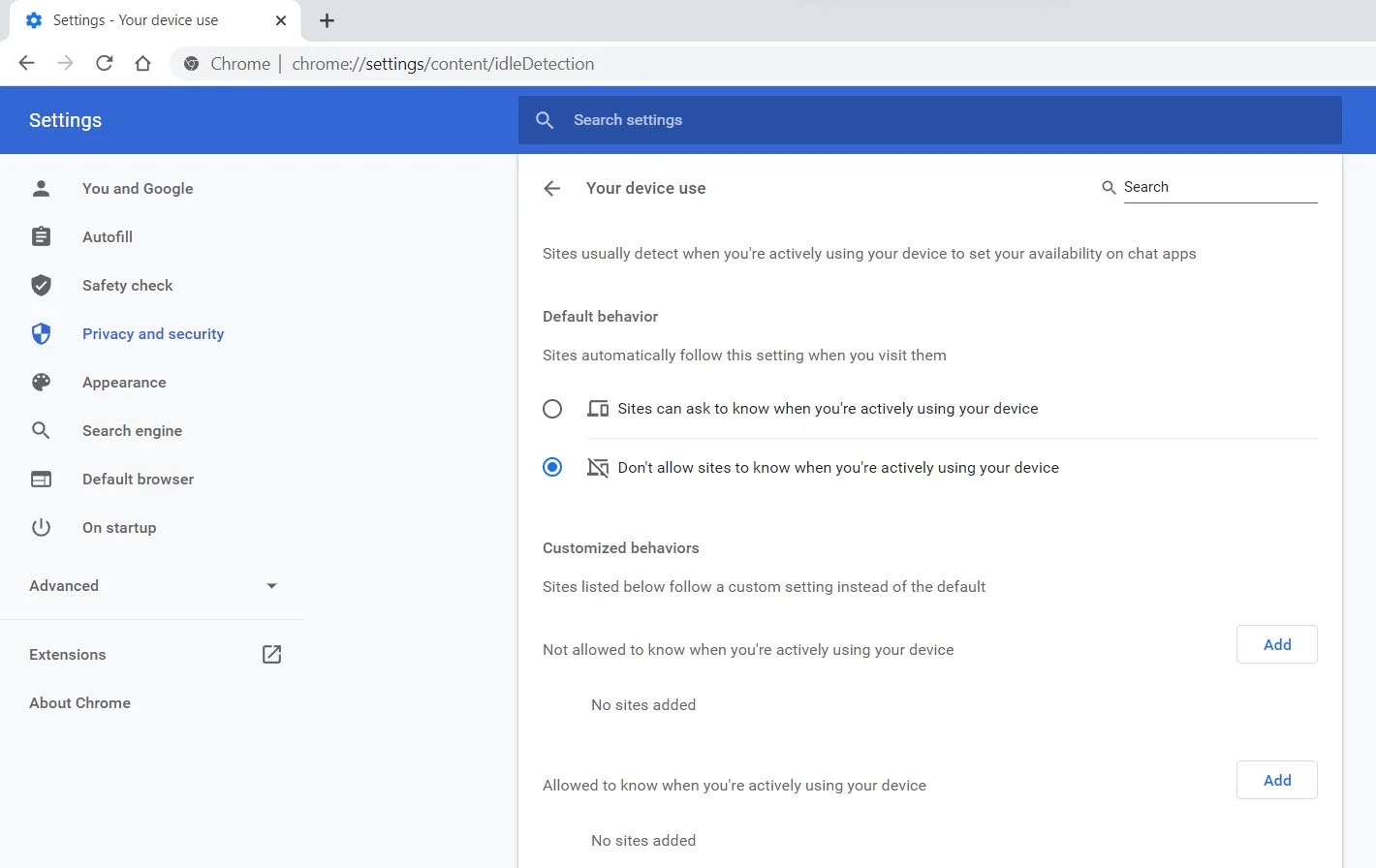
Google Chrome 94 is here and it has introduced a controversial idle detection API. For those people that do not know what idle detection API is, well basically Chrome can be asked by a website to report when a user of the site has a site open and is idle on the device. The issue that people have with this is that this particular feature can be used to report when the user is not using a computer at all. chrome idle detection featureGood thing is that website or web application will prompt you to allow it to use this feature like when a site/application wants to use your microphone or web camera. Developers are on board with this feature since it can provide them with more telemetric data on how users are interacting with their website/application but there are some that are strongly voicing against this. Tantek Çelik, Mozilla Standards Lead, commented on GitHub, saying:

As it is currently specified, I consider the Idle Detection API too tempting of an opportunity for surveillance capitalism motivated websites to invade an aspect of the user’s physical privacy, keep long-term records of physical user behaviors, discerning daily rhythms (e.g. lunchtime), and using that for proactive psychological manipulation (e.g. hunger, emotion, choice)… Thus I propose labeling this API harmful and encourage further incubation, perhaps reconsidering simpler, less-invasive alternative approaches to solve the motivating use-cases.
Others who have spoken against this feature are people from the WebKit development team inside Apple. Ryosuke Niwa, an Apple software engineer who works on WebKit said:
That doesn’t seem like a strong enough use case for this API. For starters, there is no guarantee that the user won’t immediately come back to the device. Also, who is such a service supposed to know what another device user might be using at any given point? We’re definitely not going to let a website know all the devices a given user might be using at any given point. That’s a very serious breach of the said user’s privacy. It seems to me that such a suppression/distribution mechanism is best left for the underlying operating systems/web browsers to handle.
Of course, technology itself as always can be used for good or for bad and time will tell if this feature has brought good stuff or it has paved another brick in surveillance and privacy manipulation. As said for now option will prompt for agreement and let's hope that it will be used for good causes from this day into the future.
Read More
Fix DRIVER_IRQL_NOT_LESS_OR_EQUAL in Windows
DRIVER_IRQL_NOT_LESS_OR_EQUAL will cause your computer to go to the blue screen of death but do not worry there are solutions around this and we are here to instruct you on how to solve this.
  1.  Uninstall and install network drivers

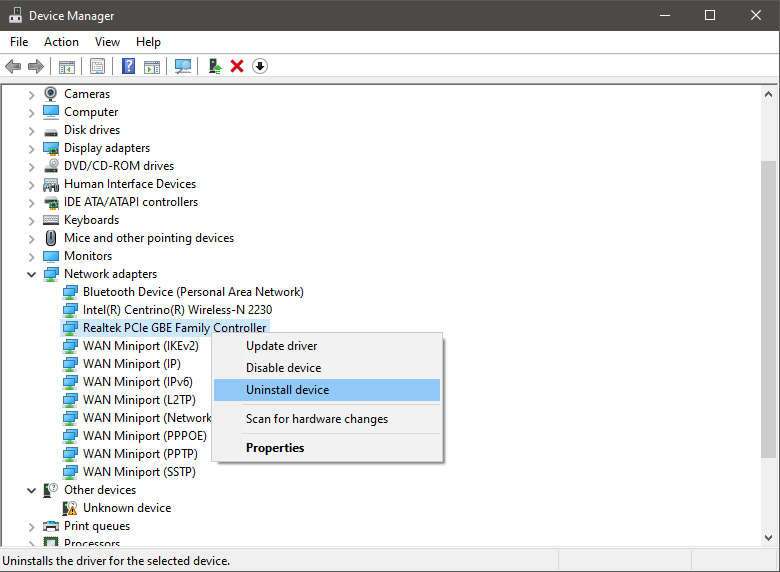
    DRIVER_IRQL_NOT_LESS_OR_EQUAL is most commonly tied to bad network drivers, whatever that be a corruption of the driver files or their incompatibility. So first thing is to check if this is the case. Press ⊞ WINDOWS + X to open the hidden menu in Windows and click on Device Manager. keyboard with windows and x marked Windows menu device manager In the Device Manager expand Network adapters, choose adapter, right-click on it and choose Uninstall. network device manager Install latest driver or reboot so Windows will install the driver automatically

  2. Update driver

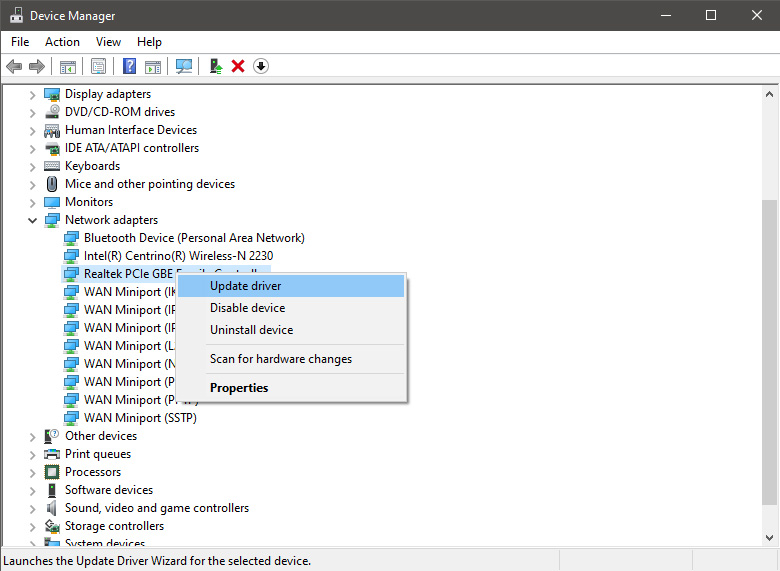
    If you do not want to reinstall the driver or you are unable to for whatever reason updating the driver might do the trick. To update driver: Press ⊞ WINDOWS + X to open the hidden menu in Windows and click on Device Manager. keyboard with windows and x markedWindows menu device manager In the Device Manager expand Network adapters, choose adapter, right-click on it and choose Update Driver. network device manager update
  3. Fix via Command prompt

    If both of the beforementioned solutions fail, try running the command prompt and fix the issue from there. Press ⊞ WINDOWS + X to open the hidden menu in Windows and click on Command Prompt (administrator) keyboard with windows and x markedWindows menu command prompt admin In command prompt type next line and press ENTERDEL /F /S /Q /A “C:\Windows\System32\drivers\mfewfpk.sys Reboot the system

  4. Scan your PC for malware

    Sometimes corruption in the system is caused by malware, Scan your system for malware, viruses, etc.
  5. Check connections or other hardware issues

    If all methods fail, open your PC case and check to see if connections everywhere are properly connected and tight. Clean your PC and turn it back ON
  6. Use system restore

    If anything fails, use Windows system restore and bring back computer into a state where everything was working fine.
Read More
TitleBar, Minimize, Maximize and Close missing
In case you don’t know, the Title bar comes with the Maximize, Minimize, as well as the Close button. However, there are instances when you might notice that the Title bar, Maximize, Minimize and Close buttons are missing in the File Explorer. This kind of problem might be due to some glitch in the computer, or it could also be caused by some built-in tool or an installed program in your computer. Moreover, there are also other factors that you have to consider such as corruption in the system files as well as errors in the user profile which is generated on a domain network, and so on. There are several suggestions you can check out to fix the problem. You can try to boot your computer in a Clean Boot State to see if a third-party program is the root cause of the problem. You can also try to run built-in tools like System File Checker and the DISM tool. You could also get the video buffer emptied, reset or reinstall the program, or recreate the User Profile.

Option 1 – Put your computer in a Clean Boot State

As pointed out, it is possible that some third-party program or service is the one that’s behind the problem. To isolate this possibility and to identify the culprit, you have to put your computer into a Clean Boot State. To do so, follow the steps below.
  • Log onto your PC as administrator.
  • Type in MSConfig in the Start Search to open the System Configuration utility.
  • From there, go to the General tab and click “Selective startup”.
  • Clear the “Load Startup items” check box and make sure that the “Load System Services” and “Use Original boot configuration” options are checked.
  • Next, click the Services tab and select the “Hide All Microsoft Services” check box.
  • Click Disable all.
  • Click on Apply/OK and restart your PC. (This will put your PC into a Clean Boot State. And configure Windows to use the usual startup, just simply undo the changes.)
  • You need to disable one third-party app after the other to really isolate the issue. And once you’ve narrowed down the problem, you can either disable the third-party app that’s causing the problem or remove it.

Option 2 – Run System File Checker scan

You might also try running the System File Checker or SFC scan to fix the issue. System File Checker is a command utility built into your computer that helps restore corrupted files and missing files. Refer to the following steps to run it:
  • Hit the Win + R keys to launch Run.
  • Type in cmd in the field and tap Enter.
  • After opening Command Prompt, type in sfc /scannow
The command will start a system scan which will take a few whiles before it finishes. Once it’s done, you could get the following results:
  1. Windows Resource Protection did not find any integrity violations.
  2. Windows Resource Protection found corrupt files and successfully repaired them.
  3. Windows Resource Protection found corrupt files but was unable to fix some of them.
  • Restart your computer and see if the System32 folder still pops up at startup or not.

Option 3 – Try running the DISM tool

You can try running the Deployment Imaging and Servicing Management or DISM tool to fix the Windows Upgrade problem. Using this built-in tool, you have various options such as the “/ScanHealth”, “/CheckHealth”, and “/RestoreHealth”.
  • Open the Command Prompt with admin privileges.
  • Then type in the following commands and make sure to hit Enter right after you type each one of them:
    • Dism /Online /Cleanup-Image /CheckHealth
    • Dism /Online /Cleanup-Image /ScanHealth
    • exe /Online /Cleanup-image /Restorehealth
  • Do not close the window if the process takes a while as it will probably take a few minutes to finish.

Option 4 – Try to empty the Vide buffer

These kinds of problems could also be due to bad data in the Video Buffer. Thus, you can try to empty the Video buffer to resolve the problem. All you have to do is tap the Shift + Ctrl + Win key + B keys on your keyboard. After that, leave your computer idle for about 10 seconds until you notice it blink once. Now you try using your computer as usual and see if the glitch is now fixed or not.

Option 5 – Try to reset or reinstall the program

Another thing you can do to fix the issue is to reset or reinstall the program where you encounter the problem. Chances are, you are running the application in the Full-screen mode but you can exit it by simply tapping the Esc or F11 key. However, if nothing changed, then consider resetting or reinstalling the program. Just go to the Windows 10 Settings app and navigate to Apps > Apps & Features. From there, look for the entry of the application you’re having problems with and select it and then click on the Advanced options. After that, click on the Reset button under the Reset section.

Option 6 – Try recreating the User Profile

You might also want to try recreating the User Profile on your computer since some errors in the creation of a User Profile can result in problems like this one. Thus, you have to try deleting the User Profile and then recreate it.
Read More
1 2 3 171
Logo
Copyright © 2023, ErrorTools. All Rights Reserved
Trademark: Microsoft Windows logos are registered trademarks of Microsoft. Disclaimer: ErrorTools.com is not affiliated with Microsoft, nor claims direct affiliation.
The information on this page is provided for information purposes only.
DMCA.com Protection Status