Logo

How to Turn Bluetooth ON in Windows 11

Windows 11 BluetoothBluetooth perhaps is slowly becoming an outdated feature but sometimes you can really used it and need it.

By default, in Windows 11 Bluetooth is turned OFF so if you need it, you will need to turn it ON first. Luckily turning it ON is easy and we will guide you through the process

Turning Bluetooth using the Quick Settings menu

The easiest and fastest way to turn the Bluetooth ON is using the quick setting menu:

  1. Click on indicator icons located left of date and time in Taskbar
  2. Click on the Bluetooth icon (if the icon is not displayed, click on the pencil icon, then click on Add and add Bluetooth icon from the list)
  3. Right-click on the Bluetooth icon and select go to Settings
  4. Go to Adding a Bluetooth Device to Windows 11 section

Switch it ON via Windows Settings

  1. Open Windows settings by using ⊞ WINDOWS + I combination
  2. Click on Bluetooth & Devices
  3. Inside settings turn Switch to ON beside Bluetooth
  4. Click + Add Device large button on top
  5. Click Bluetooth
  6. Select device in the list of found devices (make sure device is turned ON, it has Bluetooth sharing ON, and that it is in pairing mode)
  7. If the device needs the password, type it in
  8. When the message Your device is ready to go is showed on the screen click on the Done

Advice on Bluetooth devices

Note that the Bluetooth devices you connect to Windows 11 stay linked to your PC unless you pair them with a different PC, smartphone, or tablet later.

After a time, most Bluetooth devices power down automatically to save battery life. To continue where you left off, either power the Bluetooth device up (if it has a power button) or press a button on a keyboard or mouse, and it should automatically turn on and reconnect with your PC.

If you’re having trouble connecting your Bluetooth device, make sure that Windows 11 is fully updated and that you’ve installed any drivers that came with your device.

Make sure that the device is fully charged or that it has a fresh set of batteries.

while Windows is searching. You’ll need to remove the device from Windows 11 first and then attempt to pair it with your PC again.

Removing devices

If you need to remove (un-pair) a Bluetooth device, just open Windows Settings and navigate to Bluetooth & Devices. Locate the name of the device that you want to remove, click the three dots button in the corner of its square and select Remove Device.

Do You Need Help with Your Device?

Our Team of Experts May Help
Troubleshoot.Tech Experts are There for You!
Replace damaged files
Restore performance
Free disk space
Remove Malware
Protects WEB browser
Remove Viruses
Stop PC freezing
GET HELP
Troubleshoot.Tech experts work with all versions of Microsoft Windows including Windows 11, with Android, Mac, and more.

Share this article:

You might also like

Fix Error 0x80070057 in Windows
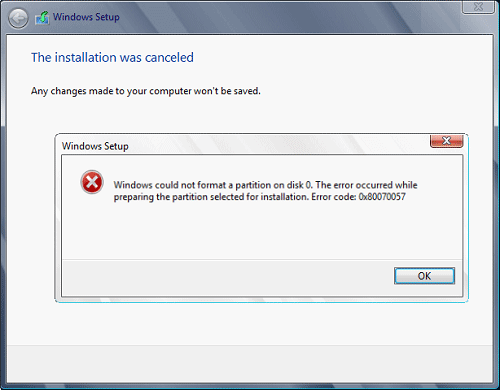
Hello and welcome to another problem-solving tutorial on errortools.com. Today we will be solving error 0x80070057, we could not format the selected partition which occurs during setup and installation when performing a clean install of Windows from a USB drive. So, you have backed up your files and decided to format and do clean WIndows installation, you have your USB ready, you reboot the system, plug in USB, start Windows setup, choose the hard drive on which you want to do a clean install and then this happens. error 0x80070057This error is very frustrating and it annoys pretty much anyone who encountered it but do not worry we have a solution for you. First thing is to confirm the error prompt, Click on the OK button and then on X to exit Windows 10 installation wizard. Click on yes to confirm that you want to exit the setup. You will find yourself in original installation windows. On that screen choose and click on Repair your computer. Choose an option screen that will pop up, click on Troubleshoot. In the advanced options, click on the command prompt. Once you are in command prompts type DISKPART and hit ENTER In the diskpart prompt type LIST DISK and hit ENTER again. type SELECT DISK #, where # is listed disk number where you would like to install Windows. type LIST VOLUME in order to list volumes in the selected disk and hit ENTER You need to select the volume on which you would like to place your WINDOWS, to do this type in SELECT VOLUME #, where # is the listed number of the volume Finally, type FORMAT FS=NTFS and hit ENTER You have successfully formated a given volume, you can now exit DISKPART and return to setup, to exit DISKPART simply type exit and hit ENTER. Leave command prompt as well by again typing exit and hitting ENTER You will be returned to Choose an option screen, click on Turn off your PC. Your drive has been successfully formatted and it is ready for clean Windows installation, you can now restart your Windows 10 installation and the process will complete without errors.
Read More
Delete files and folders using Command Prompt
There are times when you might find it difficult to delete folders or files in File Explorer and it could be due to many reasons. One of these reasons can be attributed to the failure that can lock down the folders or files which prevents you from deleting them. In this kind of situation, you can utilize the Command Prompt to delete the folders, sub-folders, and files on your computer, and in this post, you will be guided on how exactly you can do that. Before you proceed, keep in mind that when you use the Command Prompt incorrectly, it might affect your computer and render it inoperable, thus, you must be extra careful when executing the steps given below and it would also be better if you create a System Restore Point. After that, refer to the following instructions. Step 1: First, in the Start Search, type “command prompt” in the field and from the search results, right-click on Command Prompt and then select the “Run as administrator” option to open Command Prompt with admin privileges. Step 2: After opening Command Prompt as admin, navigate to the folder where the file you want to delete is located. Note that you have to execute the “cd” or the change directory command. Step 3: Next, execute the following command in Command Prompt:
DEL /F /A <file path with extension>
Note: In the given command, “/F” is the force delete command, while “/A” is the command that selects the files with the ready for archiving attribute. Step 4: After that, go to the location where you can find the folder you want to delete by using the “cd” command again. And then execute the following command right after:
RD /S <folder path>
Note: In the given command, “RD” is the command that removes the folder from the directory, while “/S” removes all of its sub-folders and files. On the other hand, if you also use the “/Q” parameter, you won’t see the “Y/N” confirmation but if you didn’t use it, then simply tap the Y button to proceed.
Read More
Toggle to turn Bluetooth On or Off is missing
Support for Bluetooth hardware has always been included in the Windows 10 operating system for a long time now. And it just keeps getting better especially now with the support for the latest version of Bluetooth 5.0 LE. However, there are still times when Bluetooth experiences a couple of issues one of which is users were not able to turn on or off Bluetooth on their Windows 10 Pc since the option to turn Bluetooth off or on is missing in the Windows 10 settings app and even in the Action Center. So if you are one of the users who experience the same problem, read on as this post will guide you in resolving the issue. To resolve this Bluetooth issue, here are some suggestions that could help:

Option 1 – Try running the Bluetooth Troubleshooter

As you know, Windows 10 has various troubleshooters with user-friendly interfaces where you can utilize them to fix issues in your PC. And since you’re dealing with some Bluetooth problem, you have to run the Bluetooth Troubleshooter.
  • Open the Windows 10 Settings.
  • Then go to Update & Security > Troubleshoot.
  • You should find the option for Bluetooth on your right-hand side – click on it then click on the “Run the troubleshooter” option.
  • Now follow the next screen options.

Option 2 – Try to reinstall or update the Bluetooth driver

The issue might have something to do with the Bluetooth drivers. It could be that it is outdated and needs to be updated or that you recently updated it and since then you have trouble removing the Bluetooth devices and so to fix the issue, you can update, roll back or uninstall the Bluetooth drivers. How? Follow the steps below.
  • Tap the Win + X keys to open the Device Manager.
  • Next, look for the Bluetooth device and right-click on it.
  • Select the option “Update driver”.
  • After that, a new popup window will appear. In there, select the option, “Search automatically for updated driver software”.
Note: Checking the update may take a few minutes so you’ll have to wait until it finishes. If it is able to find an update, you must install it. And if you want to reinstall the Bluetooth driver, just select the “Uninstall driver” option and follow the next on-screen instructions that follow.

Option 3 – Configure the Bluetooth Services

If the first two options didn’t work, the next thing you can do is configure Bluetooth Services. How? Simply follow these steps:
  • Tap the Win + R key combination to open the Run dialog box.
  • After that, type “services.msc” in the field and hit Enter to open the Windows Services Manager.
  • You will then see a list of services and from there, look for the following services and make sure that their default values are set as follows:
    • Bluetooth Handsfree Service – Manual (Triggered)
    • Bluetooth Audio Gateway Service – Manual (Triggered)
    • Bluetooth Support Service – Manual (Triggered)
    • Bluetooth User Support Service – Manual (Triggered)
  • Now click on the Start button to start all the aforementioned services and then check if you can now see the option to turn Bluetooth on or on.
Read More
A Quick Guide to Fixing Error 0x80010108

What is Error 0x80010108?

Error 0x80010108 is a Windows Live Photo Gallery error. This error prevents the Windows PC user from viewing photos. The error code is often displayed in the following format:
‘An error is preventing the photo or video from being displayed’ Error code 0x80010108

Solution

Restoro box imageError Causes

The error 0x80010108 occurs due to multiple reasons including:
  • The issue in Windows Live Essential Settings
This error occurs while using Windows Photo Gallery but it is actually related to the Windows Live Photo Viewer within the Windows Live Essentials software.
  • Viral Infection
  • Registry Issues
To view the photos on your Windows PC, it is advisable to fix the problem right away. Furthermore, you should also not delay in fixing this problem especially if the underlying causes are related to the registry or viral infection. These can pose serious system and security threats including system failure, crash and data breaches.

Further Information and Manual Repair

To resolve this error on your system, you don’t always have to hire a technical expert or be a technical whiz yourself. Here are some easy and effective methods to resolve error 0x80010108 on your PC immediately:

Method #1

To repair Windows Live Essential Software Settings, go to the start menu and then click the control panel. Now in the control panel go the option Programs. In the programs click the tab programs and features and then select Windows Live Essentials and click repair tab. Once the settings are repaired, restart your PC to activate changes.

Method #2

Go to the start menu and type regedit.exe and then press enter. Type the following key: HKEY_CLASSES_ROOT WindowsLive.PhotoGallery.bmp.15.4 shell open DropTarget then right-click DropTarget and then Rename. Prefix a hyphen so that it becomes “-DropTarget”. Now type the following for each GIF/ICO/JPG/PNG/TIF file types: HKEY_CLASSES_ROOTWindowsLive.PhotoGallery.gif.15.4 shellopen DropTarget HKEY_CLASSES_ROOT WindowsLive.PhotoGallery.ico.15.4 shell open DropTarget HKEY_CLASSES_ROOT WindowsLive.PhotoGallery.jpg.15.4 shell open DropTarget HKEY_CLASSES_ROOT WindowsLive.PhotoGallery.png.15.4 shell open DropTarget HKEY_CLASSES_ROOT WindowsLive.PhotoGallery.tif.15.4 shell open DropTarget

Method #3

Download Restoro on your PC to scan for both registry issues and malware. Restoro is a multi-functional PC Fixer embedded with utilities like a powerful registry cleaner, an antivirus, and a system optimizer to name a few. The registry cleaner scans and detects all registry-related issues. It removes all unnecessary files damaging the registry and corrupting the registry settings. Simultaneously, the antivirus removes all kinds of malicious software affecting your PC including spyware, viruses, and Trojans. The system optimizer feature ensures that your PC works at the optimal level and does not slow down during and after the cleaning process. Restoro is efficient and safe. It has a user-friendly interface and simple navigations which makes it quite easy to operate. It can be downloaded on all Windows versions including. Click here to download Restoro to resolve error 0x80010108.
Read More
Different types of computer viruses
Computer viruses are malicious applications that have the ability to self replicate and spread over the system and various devices, just like viruses in organisms. We all know that computer viruses are bad and that you should avoid them however you can. So in this spirit, we are taking a deeper dive into what kind of viruses exist and how they function.

viruses types1. File-infecting Virus

A virus that attached itself to an executable program. It is also called a parasitic virus which typically infects files with .exe or .com extensions. Some file infectors can overwrite host files and others can damage your hard drive’s formatting.

2. Macro Virus

This type of virus is commonly found in programs such as Microsoft Word or Excel. These viruses are usually stored as part of a document and can spread when the files are transmitted to other computers, often through email attachments.

3. Browser Hijacker

This virus targets and alters your browser setting. It is often called a browser redirect virus because it redirects your browser to other malicious websites that you don’t have any intention of visiting. This virus can pose other threats such as changing the default home page of your browser.

4. Web Scripting Virus

A very sneaky virus that targets popular websites. What this virus does is overwrite code on a website and insert links that can install malicious software on your device. Web scripting viruses can steal your cookies and use the information to post on your behalf on the infected website.

5. Boot Sector Virus

These viruses are once common back when computers are booted from floppy disks. Today, these viruses are found distributed in forms of physical media such as external hard drives or USB. If the computer is infected with a boot sector virus, it automatically loads into the memory enabling control of your computer.

6. Polymorphic Virus

This virus has the capability to evade anti-virus programs since it can change codes every time an infected file is performed.

7. Resident Virus

A resident virus stores itself on your computer’s memory which allows it to infect files on your computer. This virus can interfere with your operating system leading to file and program corruption.

8. Multipartite Virus

A type of virus that is very infectious and can easily spread on your computer system. It can infect multiple parts of a system including memory, files, and boot sector which makes it difficult to contain.
Read More
Easy Remove FreeRideGames PUP Removal Tutorial

Free Ride Games is a desktop casual game program and potentially unwanted application. It sets its player to run in startup boot with Windows and installs additional files outside of its designated installation folders. The software reads PC information to display targeted advertising and runs a background process that cannot be shut down even by exiting the FreeRide Player. The player runs in full screen with no visible window controls to exit or minimize, and contains unskippable advertising in its function. While not malicious, the FreeRide Player possesses many traits that as of publication time have caused some AntiVirus programs to designate it as potentially unwanted adware. It has also been associated with adware distribution toolbars such as GameVance.

About Browser Hijackers

Browser hijacking means a malicious code has power over and modified the settings of your browser, without your consent. Browser hijacker malware is created for a variety of reasons. Typically, hijackers will force hits to websites of their preference either to increase web traffic generating higher ad earnings, or to gain a commission for each and every user visiting there. Many people think that such websites are legitimate and harmless but that is incorrect. Nearly every browser hijacker poses an actual threat to your online safety and it is vital to categorize them under privacy risks. When the malware attacks your computer or laptop, it begins to mess things up a whole that slows your system down to a crawl. In the worse case, you will be pushed to deal with serious malware threats as well.

Browser hijacking signs

There are numerous signs that could indicate a browser hijacking: 1. you find unauthorized modifications to your Internet browser’s home-page 2. when you enter a URL, you find yourself regularly directed to some other website than the one you actually intended 3. the default web engine and the default browser settings are modified 4. discover new toolbars that you didn’t add 5. you might find numerous pop-up adverts on your computer screen 6. your internet browser has become unstable or starts running sluggishly 7. you are blocked to access those sites of security solution providers.

How it infects your computer

Browser hijackers could use drive-by downloads or file-sharing websites or even an email attachment to reach a targeted computer. They can also come from any BHO, extension, toolbar, add-on, or plug-in with malicious objectives. Also, certain freeware and shareware can put the hijacker in your computer through the “bundling” technique. An example of some notorious browser hijacker includes Conduit, Anyprotect, Babylon, DefaultTab, SweetPage, Delta Search, and RocketTab, but the names are constantly changing. Browser hijacking can lead to serious privacy issues and also identity theft, affect your web browsing experience by taking control of outbound traffic, substantially slows down your personal computer by depleting a lot of resources and lead to system instability as well.

How to remove a browser hijacker

Some hijackers could be removed by just uninstalling the related freeware or add-ons through the Add or Remove Programs in the Windows Control Panel. However, most hijackers are difficult to eliminate manually. Regardless of how much you attempt to get rid of it, it might keep returning again and again. Furthermore, manual removals demand in-depth system knowledge and therefore can be an extremely difficult task for beginner computer users.

Can't Install Safebytes Anti-malware due to the presence of Malware? Try This!

Malware can cause all kinds of damage when they invade your system, from stealing your personal details to erasing files on your computer system. Some malware sits in between the computer and your net connection and blocks a few or all internet sites that you really want to check out. It might also prevent you from adding anything on your PC, particularly anti-malware applications. If you are reading this, chances are you’re stuck with a malware infection that is preventing you to download and/or install the Safebytes Anti-Malware program on your system. Even though this sort of problem can be harder to get around, there are a few actions you can take.

Install the anti-virus in Safe Mode

If the virus is set to load automatically when Microsoft Windows starts, entering Safe Mode could block the attempt. Only minimal required applications and services are loaded when you boot your computer or laptop into Safe Mode. To launch your Windows XP, Vista, or 7 PCs in Safe Mode with Networking, please do as instructed below. 1) At power on, hit the F8 key while the Windows splash screen begins to load. This will bring up the Advanced Boot Options menu. 2) Select Safe Mode with Networking with arrow keys and hit ENTER. 3) When you are into this mode, you should have online access once again. Now, get the malware removal application you want by using the browser. To install the software, follow the directions in the setup wizard. 4) Following installation, run a complete scan and let the program delete the threats it discovers.

Download the antivirus program in an alternate browser

Web-based viruses could be environment-specific, aiming for a specific web browser or attacking specific versions of the browser. If you appear to have malware attached to Internet Explorer, then switch over to a different web browser with built-in safety features, such as Firefox or Chrome, to download your favorite antivirus program – Safebytes. Make a bootable USB antivirus drive Another option is to save and operate an anti-malware software program entirely from a USB drive. To run anti-malware from a USB drive, follow these simple steps: 1) Download the anti-malware program on a virus-free PC. 2) Plug in the pen drive into the clean computer. 3) Run the setup program by double-clicking the executable file of the downloaded application, which has a .exe file extension. 4) Select flash drive as the location when the wizard asks you exactly where you wish to install the application. Follow the directions to complete the installation process. 5) Remove the flash drive. Now you can use this portable antivirus on the infected computer. 6) Double-click the Safebytes Anti-malware icon on the thumb drive to run the software. 7) Click on the “Scan” button to run a full computer scan and remove viruses automatically. How SafeBytes Anti-Malware Keep your Machine Virus Free"]If you are planning to buy anti-malware for your desktop, there are numerous brands and applications for you to consider. Some are very good ones, some are decent, while some are merely bogus anti-malware applications that will damage your computer themselves! You have to look for a tool that has gained a strong reputation and detects not just viruses but other types of malware also. Among few good applications, SafeBytes Anti-Malware is the highly recommended program for the security-conscious end user. SafeBytes anti-malware is really a powerful, highly effective protection tool made to assist end-users of all levels of computer literacy in detecting and removing malicious threats from their PC. After you have installed this tool, SafeBytes sophisticated protection system will make sure that no viruses or malicious software can seep through your PC. SafeBytes has excellent features when compared to other anti-malware programs. The following are some typical features found in this software: Active Protection: SafeBytes provides complete and real-time security for your personal machine. It will check your computer system for suspicious activity continuously and its unrivaled firewall protects your PC from unauthorized access by the outside world. Most effective AntiMalware Protection: Using its enhanced and sophisticated algorithm, this malware removal tool can detect and eliminate the malware threats hiding in your computer system effectively. Web Protection: SafeBytes checks and gives a unique safety rating to each and every website you visit and block access to webpages considered to be phishing sites, thus safeguarding you from identity theft, or known to contain malicious software. Faster Scanning: Safebytes Anti-Malware, using its advanced scanning engine, provides extremely fast scanning which can quickly target any active online threat. Light-weight: This software is lightweight and will work silently in the background, and that does not have an effect on your computer efficiency. 24/7 Online Tech Support: You can get 24/7 technical support to promptly resolve any concern with your security tool.

Technical Details and Manual Removal (Advanced Users)

If you wish to manually remove FreeRideGames without the use of an automated tool, it may be possible to do so by removing the program from the Windows Add/Remove Programs menu, or in cases of browser extensions, going to the browsers AddOn/Extension manager and removing it. You will likely also want to reset your browser. To ensure the complete removal, manually check your hard drive and registry for all of the following and remove or reset the values accordingly. Please note that this is for advanced users only and may be difficult, with incorrect file removal causing additional PC errors. In addition, some malware is capable of replicating or preventing deletion. Doing this in Safe Mode is advised.

The following files, folders, and registry entries are created or modified by FreeRideGames.

Files: C:21984fa691bd80870e3e3f15cc83121a5862cef4abf2989844d858b2c64b0f C:DOCUME1USER1LOCALS1TempSDM143C:21984fa691bd80870e3e3f15cc83121a5862cef4abf2989844d858b2c64b0f C:DOCUME1USER1LOCALS1TempSDM143%#MANIFEST#%01235B C:DOCUME1USER1LOCALS1TempSDM143cmhelper.exe C:DOCUME1USER1LOCALS1TempSDM143ExentCtlInstaller.dll C:DOCUME1USER1LOCALS1TempSDM143Free Ride Games.exe C:DOCUME1USER1LOCALS1TempSDM143resourceDll.dll C:WINDOWSRegistrationR000000000007.clb C:WINDOWSsystem32msxml3r.dll C:21984fa691bd80870e3e3f15cc83121a5862cef4abf2989844d858b2c64b0f C:DOCUME1USER1LOCALS1TempSDM143%#MANIFEST#%01235B C:WINDOWSRegistrationR000000000007.clb C:DOCUME1USER1LOCALS1TempSDM143Free Ride Games.exe C:DOCUME1USER1LOCALS1Temp_uninsep.bat C:WINDOWSsystem32rsaenh.dll C:Documents and SettingsUSERLocal SettingsTemp_uninsep.bat C:WINDOWSsystem32shdocvw.dll C:WINDOWSsystem32stdole2.tlb c:autoexec.bat C:DOCUME1USER1LOCALS1TempSDM143%#MANIFEST#%01235B C:DOCUME1USER1LOCALS1TempSDM143cmhelper.exe C:DOCUME1USER1LOCALS1TempSDM143ExentCtlInstaller.dll C:DOCUME1USER1LOCALS1TempSDM143Free Ride Games.exe C:DOCUME1USER1LOCALS1TempSDM143resourceDll.dll C:DOCUME1USER1LOCALS1Temp_uninsep.bat C:DOCUME1USER1LOCALS1TempSDM143SDMLog.log C:DOCUME1USER1LOCALS1TempSDM143SDM_DB_143.xml C:DOCUME1USER1LOCALS1TempSDM143FreeRideGames.exe C:DOCUME1USER1LOCALS1Temp_uninsdm.bat C:DOCUME1USER1LOCALS1Temppft3.tmpIKernel.ex_ C:DOCUME1USER1LOCALS1TempIEC4.tmp C:Program FilesCommon FilesInstallShieldEngineIntel 32temp.000 C:Program FilesCommon FilesInstallShieldEngineIntel 32IKernel.exe C:DOCUME1USER1LOCALS1TempSDM143Free Ride Games.exe C:DOCUME1USER1LOCALS1Temp_uninsep.bat C:DOCUME1USER1LOCALS1TempSDM143FreeRideGames.exe C:DOCUME1USER1LOCALS1TempSDM143FreeRideGames.exe C:DOCUME1USER1LOCALS1Temp_uninsdm.bat C:DOCUME1USER1LOCALS1Temppft3.tmpSetup.exe C:Program FilesCommon FilesInstallShieldEngineIntel 32IKernel.exe -RegServer01235B C:DOCUME1USER1LOCALS1TempSDM143cmhelper.exe C:DOCUME1USER1LOCALS1TempSDM143ExentCtlInstaller.dll C:DOCUME1USER1LOCALS1TempSDM143Free Ride Games.exe C:DOCUME1USER1LOCALS1TempSDM143resourceDll.dll C:WINDOWSRegistrationR000000000007.clb C:WINDOWSsystem32msxml3r.dll C:21984fa691bd80870e3e3f15cc83121a5862cef4abf2989844d858b2c64b0f C:DOCUME1USER1LOCALS1TempSDM143C:21984fa691bd80870e3e3f15cc83121a5862cef4abf2989844d858b2c64b0f C:DOCUME1USER1LOCALS1TempSDM143%#MANIFEST#%01235B C:DOCUME1USER1LOCALS1TempSDM143cmhelper.exe C:DOCUME1USER1LOCALS1TempSDM143ExentCtlInstaller.dll C:DOCUME1USER1LOCALS1TempSDM143Free Ride Games.exe C:DOCUME1USER1LOCALS1TempSDM143resourceDll.dll C:WINDOWSRegistrationR000000000007.clb C:WINDOWSsystem32msxml3r.dll C:21984fa691bd80870e3e3f15cc83121a5862cef4abf2989844d858b2c64b0f C:DOCUME1USER1LOCALS1TempSDM143%#MANIFEST#%01235B C:WINDOWSRegistrationR000000000007.clb C:DOCUME1USER1LOCALS1TempSDM143Free Ride Games.exe C:DOCUME1USER1LOCALS1Temp_uninsep.bat C:WINDOWSsystem32rsaenh.dll C:Documents and SettingsUSERLocal SettingsTemp_uninsep.bat C:WINDOWSsystem32shdocvw.dll C:WINDOWSsystem32stdole2.tlb c:autoexec.bat C:DOCUME1USER1LOCALS1TempSDM143%#MANIFEST#%01235B C:DOCUME1USER1LOCALS1TempSDM143cmhelper.exe C:DOCUME1USER1LOCALS1TempSDM143ExentCtlInstaller.dll C:DOCUME1USER1LOCALS1TempSDM143Free Ride Games.exe C:DOCUME1USER1LOCALS1TempSDM143resourceDll.dll C:DOCUME1USER1LOCALS1Temp_uninsep.bat C:DOCUME1USER1LOCALS1TempSDM143SDMLog.log C:DOCUME1USER1LOCALS1TempSDM143SDM_DB_143.xml C:DOCUME1USER1LOCALS1TempSDM143FreeRideGames.exe C:DOCUME1USER1LOCALS1Temp_uninsdm.bat C:DOCUME1USER1LOCALS1Temppft3.tmpIKernel.ex_ C:DOCUME1USER1LOCALS1TempIEC4.tmp C:Program FilesCommon FilesInstallShieldEngineIntel 32temp.000 C:Program FilesCommon FilesInstallShieldEngineIntel 32IKernel.exe C:DOCUME1USER1LOCALS1TempSDM143Free Ride Games.exe C:DOCUME1USER1LOCALS1Temp_uninsep.bat C:DOCUME1USER1LOCALS1TempSDM143FreeRideGames.exe C:DOCUME1USER1LOCALS1TempSDM143FreeRideGames.exe C:DOCUME1USER1LOCALS1Temp_uninsdm.bat C:DOCUME1USER1LOCALS1Temppft3.tmpSetup.exe C:Program FilesCommon FilesInstallShieldEngineIntel 32IKernel.exe -RegServer01235B C:WINDOWSRegistrationR000000000007.clb C:DOCUME1USER1LOCALS1TempSDM143Free Ride Games.exe C:DOCUME1USER1LOCALS1Temp_uninsep.bat C:WINDOWSsystem32rsaenh.dll C:Documents and SettingsUSERLocal SettingsTemp_uninsep.bat C:WINDOWSsystem32shdocvw.dll C:WINDOWSsystem32stdole2.tlb c:autoexec.bat C:DOCUME1USER1LOCALS1TempSDM143C:21984fa691bd80870e3e3f15cc83121a5862cef4abf2989844d858b2c64b0f C:DOCUME1USER1LOCALS1TempSDM143%#MANIFEST#%01235B C:DOCUME1USER1LOCALS1TempSDM143cmhelper.exe C:DOCUME1USER1LOCALS1TempSDM143ExentCtlInstaller.dll C:DOCUME1USER1LOCALS1TempSDM143Free Ride Games.exe C:DOCUME1USER1LOCALS1TempSDM143resourceDll.dll C:WINDOWSRegistrationR000000000007.clb C:WINDOWSsystem32msxml3r.dll C:21984fa691bd80870e3e3f15cc83121a5862cef4abf2989844d858b2c64b0f C:DOCUME1USER1LOCALS1TempSDM143%#MANIFEST#%01235B C:WINDOWSRegistrationR000000000007.clb C:DOCUME1USER1LOCALS1TempSDM143Free Ride Games.exe C:DOCUME1USER1LOCALS1Temp_uninsep.bat C:WINDOWSsystem32rsaenh.dll C:Documents and SettingsUSERLocal SettingsTemp_uninsep.bat C:WINDOWSsystem32shdocvw.dll C:WINDOWSsystem32stdole2.tlb c:autoexec.bat C:DOCUME1USER1LOCALS1TempSDM143%#MANIFEST#%01235B C:DOCUME1USER1LOCALS1TempSDM143cmhelper.exe C:DOCUME1USER1LOCALS1TempSDM143ExentCtlInstaller.dll C:DOCUME1USER1LOCALS1TempSDM143Free Ride Games.exe C:DOCUME1USER1LOCALS1TempSDM143resourceDll.dll C:DOCUME1USER1LOCALS1Temp_uninsep.bat C:DOCUME1USER1LOCALS1TempSDM143SDMLog.log C:DOCUME1USER1LOCALS1TempSDM143SDM_DB_143.xml C:DOCUME1USER1LOCALS1TempSDM143FreeRideGames.exe C:DOCUME1USER1LOCALS1Temp_uninsdm.bat C:DOCUME1USER1LOCALS1Temppft3.tmpIKernel.ex_ C:DOCUME1USER1LOCALS1TempIEC4.tmp C:Program FilesCommon FilesInstallShieldEngineIntel 32temp.000 C:Program FilesCommon FilesInstallShieldEngineIntel 32IKernel.exe C:DOCUME1USER1LOCALS1TempSDM143Free Ride Games.exe C:DOCUME1USER1LOCALS1Temp_uninsep.bat C:DOCUME1USER1LOCALS1TempSDM143FreeRideGames.exe C:DOCUME1USER1LOCALS1TempSDM143FreeRideGames.exe C:DOCUME1USER1LOCALS1Temp_uninsdm.bat C:DOCUME1USER1LOCALS1Temppft3.tmpSetup.exe C:Program FilesCommon FilesInstallShieldEngineIntel 32IKernel.exe -RegServer01235B C:DOCUME1USER1LOCALS1TempSDM143cmhelper.exe C:DOCUME1USER1LOCALS1TempSDM143ExentCtlInstaller.dll C:DOCUME1USER1LOCALS1TempSDM143Free Ride Games.exe C:DOCUME1USER1LOCALS1TempSDM143resourceDll.dll C:DOCUME1USER1LOCALS1Temp_uninsep.bat C:DOCUME1USER1LOCALS1TempSDM143SDMLog.log C:DOCUME1USER1LOCALS1TempSDM143SDM_DB_143.xml C:DOCUME1USER1LOCALS1TempSDM143FreeRideGames.exe C:DOCUME1USER1LOCALS1Temp_uninsdm.bat C:DOCUME1USER1LOCALS1Temppft3.tmpIKernel.ex_ C:DOCUME1USER1LOCALS1TempIEC4.tmp C:Program FilesCommon FilesInstallShieldEngineIntel 32temp.000 C:Program FilesCommon FilesInstallShieldEngineIntel 32IKernel.exe C:DOCUME1USER1LOCALS1TempSDM143Free Ride Games.exe C:DOCUME1USER1LOCALS1Temp_uninsep.bat C:DOCUME1USER1LOCALS1TempSDM143FreeRideGames.exe C:DOCUME1USER1LOCALS1TempSDM143FreeRideGames.exe C:DOCUME1USER1LOCALS1Temp_uninsdm.bat C:DOCUME1USER1LOCALS1Temppft3.tmpSetup.exe C:Program FilesCommon FilesInstallShieldEngineIntel 32IKernel.exe -RegServer
Read More
My device used to work, but now it doesn’t
So you just have turned your computer ON only to find out that your device which was working perfectly yesterday is not working anymore. This situation can be very stressful and disappointing but do not despair, before you toss your device through the window know that this kind of behavior can be traced back to a software issue. In this article, we will give you hints on what to do and where to pay attention when something like this happens so you get the device back in working order.
  1. Check if it not a hardware malfunction

    To save yourself time and unnecessary frustration with juggling through Windows first inspect the device to be sure that indeed it is working properly, check all led lamps which could indicate that the device is working and receiving power, and if it is an internal device try opening the case and visually check if there are signs of working like rotating fans or led lamps on it.
  2. Check Cables

    If it is an external device that has stopped working try checking power cables and cables which go to your computer, see if they are tightly connected. If it is an internal device also check cables, nudge them and if possible disconnect and clean them.
  3. Disconnect and reconnect the device

    Try this solution to see will Windows register the device again and start it.
  4. Update Windows

    If there is a Windows update not installed, install it and see if the device will start working.
  5. Update device drivers

    Go to device manager and update the device driver to its latest version or go to the manufacturer's site and download the latest driver version.
  6. Reinstall the device

    In the device manager, uninstall the device driver and reboot Windows. When Windows boots it will recognize the device and install the necessary drivers for it.
  7. Disable antivirus and firewall

    Sometimes antivirus can prevent certain devices from working properly, especially if they rely on some system files to which antivirus or firewall has cut access. Try disabling your PC protection to see if this will resolve the issue.
  8. Use dedicated error software

    Use DRIVERFIX to automatically search and fix driver issues.
Read More
Windows Upgrade/Activation error 0xc03f6506
There are a lot of home users that often get a computer that comes installed with the Windows 10 Home. And since Windows 10 Pro offers more features and utilities compared to Windows 10 Home, a lot of users also prefer to upgrade their Windows 10 Home computers to Windows 10 Pro. However, while doing so, a number of users reported that they encountered error 0xc03f6506 and they were not able to proceed with the upgrade. If you are one of these users, when you encounter error 0xc03f6506, you will see the following error message on your screen:
“The last product key you entered can’t be used on this copy of Windows (0xc03f6506).”
This particular error tends to occur when you go on to activate Windows 10 although it can also appear during the upgrade process. In such cases, you will see the following error message:
“Unable to upgrade your edition, We can’t upgrade your edition of Windows. Try upgrading your edition of Windows again. (0xc03f6506).”
To fix the Activation Error Code 0xc03f6506 in Windows 10, use the options provided below as references but before you proceed, make sure that you create a System Restore point first.

Option 1 – Try to use the Registry Editor

If you have already upgraded from Windows 10 Home to Windows 10 Pro and you’re having trouble with its Activation, then you might want to apply some registry tweaks to fix the problem. How? Refer to these steps:
  • Tap the Win + R key combination to open the Run dialog box.
  • Then type “Regedit” in the field and click OK or tap Enter to open the Registry Editor.
  • Next, navigate to this registry key: ComputerHKEY_LOCAL_MACHINESOFTWAREMicrosoftWindows NTCurrentVersion
  • From there, look for a DWORD named “EditionID” and once you found it, double click on it and change its Value data to Windows 10 Professional.
  • After that, look for another DWORD named “ProductName” and double click on it to change its Value data to Windows 10 Professional.
  • Once you’re done, restart your computer to apply the changes made successfully.

Option 2 – Try to use Command Prompt

If the registry tweaks you applied didn’t fix the Activation error, then you can try using Command Prompt instead. Note that you can use this option in both scenarios pointed out above.
  • First, you have to insert a bootable drive of the Windows10 installer.
  • Next, tap the Win + X keys and select Command Prompt (Admin) from the menu.
  • After opening Command Prompt as admin, navigate to the root location of the bootable drive inside the Command Prompt command line.
  • Once you’re already there, type the following command and tap Enter:
setup.exe /auto upgrade /pkey <YOUR WINDOWS 10 PRO EDITION PRODUCT KEY>
After entering the command, check if it was able to fix the Windows Upgrade or Activation error 0xc03f6506. If not, refer to the next given option below.

Option 3 – Try to disable the Network Adapter

Just like the second option, you can also use this option for both the given scenarios above.
  • Tap the Win + X keys and select Network Connections from the menu.
  • This will open the settings for your network and on the left side panel, click on the “Change adapter settings” link. This will open Control Panel.
  • From there, click on the network your computer is connected to, and then right-click on the Network Adapter that you are using and select Disable.
  • After disabling the Network Adapter, try to switch to the edition of your copy of Windows 10 again and see if the problem is now fixed and don’t forget to double click on the disabled Network Adapter to get back on the Network.
Read More
Guide to Resolving the Msvcr71.dll Error Code

Msvcr71.dll Error - What is it?

Msvcr71.dll is a dynamic library link that belongs to the Microsoft Visual C Runtime library. This file is a core Windows component used by numerous Windows applications like Microsoft Office version 2002 and 2003, Windows XP Media Center, and Windows XP Tablet PC Edition. The Msvcr71.dll error commonly occurs when two applications share the same DLL file. When an application is deleted sometimes the Msvcr71.dll file is also deleted which is associated with two applications on your PC. So, when you try to run the other application you come across the Msvcr71.dll error on your system. The error also occurs when you try to install new programs or update the old program versions. This also misconfigures the DLL files and results in the Msvcr71.dll error. Msvcr71.dll error messages are often displayed as the following:
  • “This application has failed to start because Msvcr71.dll was not found.”
  • “Mscvr71.dll is a bad windows image. Please check against your installation diskette.”
  • “Cannot find [PATH]msvcr71.dll"
  • "The file msvcr71.dll is missing."

Solution

Restoro box imageError Causes

Deletion of the Msvcr71.dll file is one cause for the Msvcr71.dll file error. However, this error can also be generated due to other causes such as:
  • Corrupt, missing, or misconfigured msvcr71.dll file
  • Damaged and missing .dll files
  • Corrupt runtime code library
  • Registry issues
  • Malware attack and viral infection
  • Msvcr71.dll error codes usually occur on Windows versions XP and Vista.

Further Information and Manual Repair

Here are different ways to resolve the Msvcr71.dll error code on your system:

1. Reinstall the program/application that is causing the Error to Pop up on the Screen

When this error code occurs due to misconfigured or missing the Msvcr71.dll file, try reinstalling the program/application that is causing the error to pop up on your screen. When doing this, make sure there is no problem with the setup files from the disk you are performing the installation on your PC.

2. Check the Recycle Bin and Restore the Deleted File

If the Msvcr.dll file was deleted accidentally when you uninstalled a program on your PC, then the deleted file is most likely to be in the recycle bin. Check it and if you find it, restore it. Once the file is restored try running the application again.

3. Scan for Malware and Viruses

Install an antivirus and scan for malware and viruses. This software can also corrupt DLL files and runtime code libraries. However, this is not the best solution especially if you already have too many programs installed on your PC. New program installations cause more complications and besides antivirus are infamous for slowing down PC speed.

4. Repair the Corrupt Registry

If the three methods discussed above don’t help you resolve the Msvcr71.dll error code on your system, then this means the cause of the error is more critical than you think. The error is triggered by a corrupt and damaged registry. If this issue is not addressed timely, it can result in system failure and a fatal crash. To resolve the error code Msvcr71.dll, you need to repair the corrupt registry. And the best way to go about it is to download Restoro Restoro is a user-friendly, highly functional, and multi-functional repair tool integrated with high speed and powerful utilities such as a registry cleaner, system stability scanner, Active X and class error module, and an antivirus. It also functions as a system optimizer. It is the answer to your entire PC-related errors and issues. The automated and intuitive algorithm deployed inside this tool enables it to detect all registry errors and issues generating Msvcr71.dll error. DLL files often get damaged due to data overload, disk fragmentation, and malicious files saved in the registry. The registry cleaner removes all the unnecessary and obsolete files from the registry, clears up disk space, and repairs defragmented, damaged, and misconfigured disks. DLL files including Msvcr71.dll and also fixes the registry. It’s an in-built antivirus scan and removes viruses and the system optimizer feature ensures that your PC runs at its optimum speed. It is safe, bug-free, efficient, and easy to use.  It runs smoothly on all Windows versions. Click here to download Restoro and resolve the Msvcr71.dll error on your PC.
Read More
ERR_SSL_VERSION_OR_CIPHER_MISMATCH
If you encounter an error message saying, “ERR SSL VERSION OR CIPHER MISMATCH” while visiting a website, then it is not primarily your fault as an end-user. In fact, it can happen on any website like Chrome, Edge, Firefox, and even Internet Explorer. Getting this error means that the website you are visiting is using an SSL certificate which your browser seems to be rejected because there is some issue with the certificate. It is also possible that the certificate that’s downloaded on your computer is corrupted or that your computer configuration for TSL/SSL is misconfigured. Here are the complete details of the error message:
“A secure connection cannot be established because this site uses an unsupported protocol, Error code ERR_SSL_VERSION_OR_CIPHER_MISMATCH”
To resolve the ERR_SSL_VERSION_OR_CIPHER_MISMATCH error, refer to the options given below and see which one works for you.

Option 1 – Try to access the website with the only HTTP

The first thing you can do is to try accessing the website using HTTP instead of HTTPS. If you can open the website using HTTP then it means that the problem is in the website itself. And if you are the website owner, you can check the following:
  • Check if your website’s SSL certificate name is mismatched. Here you need to ensure that the name and alias of the websites match with the actual website URL where the certificate is installed.
  • Second, check if your server is using the RC4 Cipher. If it is, then you need to fix that.
On the other hand, you may also check if your CDN also supports SSL since most of the CDN nowadays supports SSL. All you have to do is configure it correctly and it should be good to go.

Option 2 – Try enabling SSL 3 / TLS and disable QUIC Protocol

If you were using Google Chrome when you got the ERR SSL VERSION OR CIPHER MISMATCH error, then you need to follow the protocol fixes for SSL3/TLS and QUIC which are usually some of the reasons that cause the SSL version / Cipher Mismatch. It also has a few fixes for Windows 10 computer where you can clear the certificates and make sure that your computer date and time is in sync with your time zone and so on. If you were using Edge or Internet Explorer when you got the error, then you have to follow the steps below.
  • Type “Internet” in the search box of your browser. After that, you should see the Internet Options from the search results.
  • Next, open the Internet Properties window and switch to the Advanced tab and then scroll down to the Security section.
  • From there, check the “Use TLS 1.1” checkbox as well as the “Use TLS 1.2” checkbox and then click OK to save the changes made.
  • Restart the browser.
On the other hand, if you were using Firefox when you go the error, here’s what you have to do.
  • Open Firefox and in the address bar, type “about:config” and hit Enter.
  • If a warning appears, just click on the “I accept the risk!” button to proceed.
  • Next, type in “TLS” in the search field and hit Enter.
  • Then look for “security.tls.version.min” and double click on it and set its integer value to 3 to force the protocol of TLS 1.3.
  • Now click OK and restart Firefox and do the same thing with SSL.
Read More
1 2 3 171
Logo
Copyright © 2023, ErrorTools. All Rights Reserved
Trademark: Microsoft Windows logos are registered trademarks of Microsoft. Disclaimer: ErrorTools.com is not affiliated with Microsoft, nor claims direct affiliation.
The information on this page is provided for information purposes only.
DMCA.com Protection Status