Logo

Resume an Interrupted Download in Chrome

Where all have been there, we are downloading something and for any kind of reason chrome closes, internet breaks, etc. And our download is interrupted and gone forever, and we need to start again.

You will be glad to hear that chrome has side a download manager which tracks each download you made and you can use this manager to resume interrupted downloads.

Please note that some websites have certain scripts that will prevent you to resume interrupted downloads, in this case, using chrome's download manager will not work and you will have to start the download again.

All of this being said, if your download has been interrupted, and went away, pin Chrome press CTRL + J to open download manager, find your interrupted download, and press the resume button.

That's it, you have successfully resumed your download.

Do You Need Help with Your Device?

Our Team of Experts May Help
Troubleshoot.Tech Experts are There for You!
Replace damaged files
Restore performance
Free disk space
Remove Malware
Protects WEB browser
Remove Viruses
Stop PC freezing
GET HELP
Troubleshoot.Tech experts work with all versions of Microsoft Windows including Windows 11, with Android, Mac, and more.

Share this article:

You might also like

How to Fix Fatal Error c000021a

Fatal Error c000021a - What is it?

Fatal Error c000021a is a type of Windows stop error also known as the blue screen of death (BSoD) error. When this error occurs, it causes the computer screen to go blue and locks the user out of the current activity. This error code is fatal and can lead to serious issues like system crashes and freeze. The error code is usually displayed in the following format:
STOP: c000021a {Fatal System Error} The Windows Logon Process system process terminated unexpectedly with a status of 0xc0000034 (0x00000000 0x0000000)

Solution

Restoro box imageError Causes

Fatal Error c000021a occurs when the Windows kernel detects that either Winlogon.exe or Csrss.exe service processes have stopped responding or failed to load.  When this happens the error code pops up on the screen. Nonetheless, this is not the only reason for the occurrence of this error. There are plenty more reasons why Fatal Error c000021a may pop on your computer screen. These include:
  • Missing or corrupt hardware drivers
  • Faulty hardware
  • Windows System Restore failed during the rollback process
  • Malware or viral infection
  • Registry issues
No matter what the reason may be, it is advisable to fix the error right away without any delays. Remember it is a fatal error and can cause a great deal of damage to your PC.

Further Information and Manual Repair

Fatal Error c000021a is a serious PC issue but this does not mean you have to hire an expert to get it fixed. The good news is that this error is actually quite easy to resolve. You don’t have to be a technical whiz or a computer programmer to fix Fatal Error c000021a on your PC. Here are some do it yourself methods to fix this error code right away without any hassle: Let’s get started:

Method 1: Update Your PC Drivers

As we mentioned about corrupt or missing drivers can be one of the many reasons for the occurrence of this error. So, check the drivers first. Perform a driver scan and make sure all your drivers are updated.

Method 2: Perform a Windows System Restore

To do this, first launch Task Manager by pressing CTRL+SHIFT+ESC on your keyboard. Now click on the application tab and then click ‘New Task’ then browse. After that, go to C:\Windows\System32\Restore  folder and then double click the rstrui.exe file. This will help start system restoration. Your computer will reboot during the process and hopefully, the error will be resolved. Nonetheless, if the error still persists then try methods 3 and 4.

Method 3: Scan for Viruses

Sometimes Fatal Error c000021a may also occur due to malware infection. Your PC may be affected by viruses hidden in different locations without you knowing about it. Therefore to resolve this error, it is recommended to run an antivirus and scan for viruses. If detected, remove them right away to fix the error code.

Method 4: Repair the Registry

Another method to resolve Fatal Error c000021a code on your system is to repair the registry. The registry stores all the information and activities performed on the system. If it is not cleaned frequently, it gets loaded with too many files unnecessary and obsolete files like the junk files, cookies, internet history and temporary files which corrupts and damages the registry thereby generating blue screen of death error codes like Fatal Error c000021a. Though you can repair the registry manually it can be both time-consuming and slightly difficult especially if you are not a computer programmer. Therefore it is advisable to download a registry cleaner to fix it right away.

Automatic Repair with Restoro.

Whether the Fatal Error c000021a code occurs due to viral infection or registry issues, download Restoro. This is a next-generation, advanced, and multi-functional PC Fixer. This software is deployed with multiple utilities such as a powerful registry cleaner, an antivirus, a system optimizer, and more. The registry cleaner scans the entire PC and detects all types of registry issues at once. It cleans the registry, wipes out all the unnecessary files, and restores the registry back to normal. Simultaneously, the antivirus embedded in this software detects all types of viruses including malware, adware, spyware and Trojans and removes them in seconds. The system optimizer feature ensures the speed and performance of your PC are not compromised during the repairing process. It ensures your PC works at its optimal speed. Restoro is a one-stop solution for all your PC needs. It has a user-friendly interface making it easy for all levels of users to work around. It is compatible with all Windows versions Click here to download Restoro and resolve the Fatal Error c000021a code on your PC today!

Read More
How to Fix Windows 10 Error Code 0x803f7001

Error Code 0x803f7001 – What is it?

Error code 0x803f7001 occurs when there is a failure to update your Windows operating system to Windows 10. Usually, a message box pops up with the following statement, “Windows is not activated as your previous version of Windows on this device was not activated prior to upgrade to Windows 10.” When this occurs, common symptoms of the error code will manifest themselves:

  • Inability to upgrade your Windows operating system to Windows 10
  • Message box with error code 0x803f7001

Solution

Restoro box imageError Causes

The cause for error code 0x803f7001 varies. Usually, it occurs for two reasons: 1) when during the process of upgrading to Windows 10, no valid Windows license or product key is found for your device or 2) when a user performs a clean installation of Windows 10. During a clean installation, a new license is usually required to allow you to activate your copy of Windows.

Further Information and Manual Repair

There are two main options available to fix error code 0x803f7001. Usually, the use of a valid product key can help users rectify error code 0x803f7001. You may also try an automated tool to access the best solutions.

Method One: Use a Valid Product Key

A product key is a code containing 25 characters that enable users to activate Windows. You will need to enter the product key in the exact order it appears in order to install your Windows operating system. All users will be able to access this code in an email or on a card within the Windows DVD package they receive upon purchasing a version of the Windows operating system.

To solve error code 0x803f7001, complete the following steps.

  • Step one: Click the Start button then select Settings
  • Step two: Select Update and Security then Activation
  • Step three: Click the Change product key
  • Step four: Type in your valid product key. (To do this ensure the 25 characters are accounted for and in the correct order.)

If the issue causing error code 0x803f7001 relates to your product key, then the instructions within method one will rectify the issue. You will be able to install and activate Windows 10. However, if while attempting to update your Windows operating system, the error occurs once more, you will need to follow the instructions in the manual repair below.

You may also consider contacting a Windows repair technician if you are uncertain of your ability to perform the tasks required to fix error code 0x803f7001. This IT professional will be able to use his or her technical knowledge to perform complex manual repair tasks if the need arises.

Method Two: Install an Automated Tool

Automated tools help PC users eliminate common issues such as Windows error codes. To address or rectify error codes like error code 0x8007007b download a powerful automated tool on your machine. This tool enables users to access quick solutions. It also scans for and corrects issues that may result in error codes or poor PC performance.

Read More
Fix terminated lsass.exe in Windows
The Local Security Authority Subsystem Service or LSASS.exe is a process in the Windows operating system that is valuable as it enforces the security policy on the computer. Every time you log in to the Windows Server, the LSASS.exe is the one that handles the password changes and creates the access tokens while updating the security log. However, it is also frequently targeted by malware and is often imitated. The original location of this file is at “C:/Windows/System32” so if you open the Task Manager and notice that a process with a similar name has a different location then it is definitely a threat and is exploiting the security of your computer. To resolve issues related to LSASS.exe, here are some fixes that could help.

Option 1 – Use the Performance Monitor’s Active Directory Data Collector

Note that this option will only work on the recent Windows server versions. Refer to the steps below to use the Performance Monitor’s Active Directory Data Collector set on your computer.
  • Tap the WINKEY + R button to open the Run dialog box.
  • Then type “Perfmon.msc” in the field and hit Enter to open the Performance Monitor and from there open the Server Manager.
  • Next, navigate to Diagnostics > Reliability and Performance > Data Collector Sets > System from the left side of the navigation bar.
  • Then right-click on “Active Directory Diagnostics” and select Start from the context menu. This will take about 5 minutes or 300 seconds depending on the performance capabilities of your hardware to gather the data required and then take some more time to compile a report from the gathered data. Note that these timings are dependent on one another.
  • After the report is compiled, you can find it under Diagnostics > Reliability and Performance > Reports > System > Active Directory Diagnostics. The report will contain all the information as well as conclusions. However, it does not mean that it will also contain the exact cause of the problem with LSASS.exe. Nevertheless, it should help you in fixing the problem.

Option 2 – Try to run the System File Checker

System File Checker or SFC is a built-in command utility that helps in restoring corrupted files as well as missing files. It replaces bad and corrupted system files to good system files that might be the cause why the LSASS.exe file is having some issues. To run the SFC command, follow the steps given below.
  • Type “cmd” in the Start search and then right-click on the appropriate search result.
  • Next, select “Run as administrator” to open Command Prompt with admin privileges.
  • After opening Command Prompt, type in sfc /scannow
The command will start a system scan which will take a few whiles before it finishes. Once it’s done, you could get the following results:
  1. Windows Resource Protection did not find any integrity violations.
  2. Windows Resource Protection found corrupt files and successfully repaired them.
  3. Windows Resource Protection found corrupt files but was unable to fix some of them.
 Now restart your computer and see if the problem is fixed or not.

Option 3 – Put your computer in a Clean Boot State

If none of the options given above helped, you can try putting your computer in a Clean Boot State as this can help you in finding any incompatible programs that’s causing the problem.
  • Log onto your PC as an administrator.
  • Type in MSConfig in the Start Search to open the System Configuration utility.
  • From there, go to the General tab and click “Selective startup”.
  • Clear the “Load Startup items” check box and make sure that the “Load System Services” and “Use Original boot configuration” options are checked.
  • Next, click the Services tab and select the “Hide All Microsoft Services” check box.
  • Click Disable all.
  • Click on Apply/OK and restart your PC. (This will put your PC into a Clean Boot State. And configure Windows to use the usual startup, just simply undo the changes.)
  • From there, start to isolate the problem by checking which one of the programs you installed recently is the root cause of the problem.
Once you’ve found any incompatible programs, you need to uninstall them. Refer to the steps below to do so.
  • In the search box, type in “control” and then click on Control Panel (desktop app) among the search results.
  • After that, select Programs and Features from the list which will give you a list of all the programs installed on your computer.
  • From there, look for the concerned program and select it and then uninstall it.
Note: If you have downloaded the app from the Windows Store, you can simply right-click on it from the application list and then uninstall it.
Read More
How to send your PDF file to amazon Kindle
Kindle is, without doubt, a great piece of hardware, perhaps it is the closest thing to a book within the domain of digital devices. With its low price and usability, it has found itself in many homes and within the grasp of many readers in the world. You can buy digital books in the Amazon store for fraction of a regular price if it digital Kindle edition. You keep your library in the cloud and download just books you want to read on your device. In this article, we will explore how you can send your existing PDF or any other supported file that you already have to your kindle device so you can read it on it.

Before we begin, you should make sure the file you're trying to convert is compatible with the Kindle:

HTML RTF JPEG GIF PNG BMP or PDF The compatible file types cover most formats you're likely using, but if you find the document you want on your Kindle isn't compatible, there are a few ways to convert it. In the program it typically opens into, like Microsoft Word for .doc files or an image editing apps for .PNG ones, select 'Save As', and in the drop-down menu, see if any of the compatible options are available. If not, you could try a PDF converter tool. There are plenty of great paid options and a few good free ones too.

Transfering PDF

To get a PDF on a Kindle, you're going to need to know your Kindle's email address. You'll need to head over to the Amazon website and sign in first. Select 'Your devices and content', click 'Manage Devices'. You should see a list of the books you have assigned to your Kindle account, above this list, in a toolbar should be some options - you'll currently be on 'Content', which should be followed by 'Devices', 'Preferences' and 'Privacy Settings'. Click on 'Devices', and in the next menu, select the option for the Kindle you want the document on. You'll be brought to a Device Summary page which tells you your Kindle email as well as the type of device it is. You now need to approve your personal email, so that when the Kindle receives your PDF, it knows to download this. Make sure the email you approve is the one you're planning to send documents to your Kindle from otherwise it won't work. To approve your email address follow the steps for finding your Kindle email address but instead of selecting 'Devices' in the top bar, click 'Preferences'. Scroll down this list until you find Personal Document Settings, and select this option so it expands into more options. From here, scroll down until you find 'Approved Personal Document E-mail List'. This list will show people who can email stuff to your Kindle, Below the emails is an option to 'Add a new approved e-mail address', which you should select. Enter your email address and click 'Add address' to get yourself approved. Head over to your email client of choice, attach the file to an email, and send the email to your Kindle email address. You're able to send multiple documents at once, so if you have loads of files you want on your Kindle, you don't need to send separate emails. If you're sending over a PDF file, you can ask Amazon to automatically convert the file into a Kindle one, which lets you annotate the sections and change the font size. Simply put the word 'convert' as the subject line and the rest will be handled for you. 'Sync Your Kindle'.
Read More
Fix Windows doesn’t have a network profile
A number of users reported that they encountered an error that says, “Windows doesn’t have a network profile for this device” while they tried to connect Network devices such as printers and speakers to their Windows 10 computers. On the other hand, this kind of issue is reported for non-network devices as well. This kind of error might be due to incompatibility between the device and your operating system or it could be that the network drivers in your computer need to be updated in order to recognize the new device. Whatever the cause is here are a couple of suggestions you can try to resolve the “Windows doesn’t have a network profile for this device” error.

Option 1 – Check if the network device is compatible with your operating system

As mentioned, the error could be due to incompatibility between the device and the system. To verify, just go to the website of the device’s manufacturer since you can find all the information about the device there.

Option 2 – Make sure that your computer is discoverable

  • Click on the Start button.
  • Then click on the gear-like icon to open Settings.
  • After that, select Network & Internet >> Wi-Fi.
  • Next, change the Network Profile to Private.
  • Now restart your computer and then connect the device again and see if the error is gone or not.

Option 3 – Try to update or rollback or uninstall the Network drivers

You might also want to update or roll back or disable your Network drivers to fix the “This operation failed as no adapter is in the state permissible for this operation” error.
  • Tap the Win + R keys to launch the Run window and then type in the “devmgmt.msc” command and hit Enter to open the Device Manager window.
  • Under the Device Manager, you will see a list of drivers. From there, look for the Network Adapters and expand it.
  • Then right-click on each one of the Network drivers and depending on your preference, you can either select “Update driver”, “Disable device” or “Uninstall device”.
  • After that, restart your PC and see if it helped in fixing the “Windows doesn’t have a network profile for this device” error.

Option 4 – Try to check the SNMP status

  • Tap the Win + R keys to open the Run dialog box and type “services.msc” in the field and tap Enter to open the Service Manager window.
  • After opening the Service Manager, look for the SNMP Service from the list of services.
  • Once you’ve found the SNMP Service, make sure that its Service Status is set to “Running”. If the service is not running, just right-click on it and select Properties.
  • From there, change the Service Status to Automatic and then click on the Apply and OK buttons.
  • After that, click on the Start button again and check if the error is now fixed.
Note: If your printer is the one that triggers the error, refer to these steps:
  • You have to go to Control Panel > Devices & Printers.
  • From there, right-click on the printer which is the one that causes the error, and then select Printer Properties.
  • Next, click the Configure Port button under the Ports tab and select SNMP Status Enabled.
  • Now click the OK button and check if it fixes the error or not.

Option 5 – Run the Hardware and Devices Troubleshooters

You could also run this troubleshooter to fix the “Windows doesn’t have a network profile for this device” error.
  • The first thing you need to do is click on Start and then on the gear-like icon to pull up the window for Settings.
  • After opening Settings, look for the Update and Security option and select it.
  • From there, go to the Troubleshoot option located on the left-hand side of the list.
  • Next, select Hardware and Devices from the list and open the Troubleshooter and run it. Once it is doing its job, wait for it to complete the process and then restart the system.
  • After the system restarts, check if the problem’s now fixed. If not, refer to the advanced guide given below.
Read More
Intel’s GPU ARC coming aimed at AMD & Nvidia
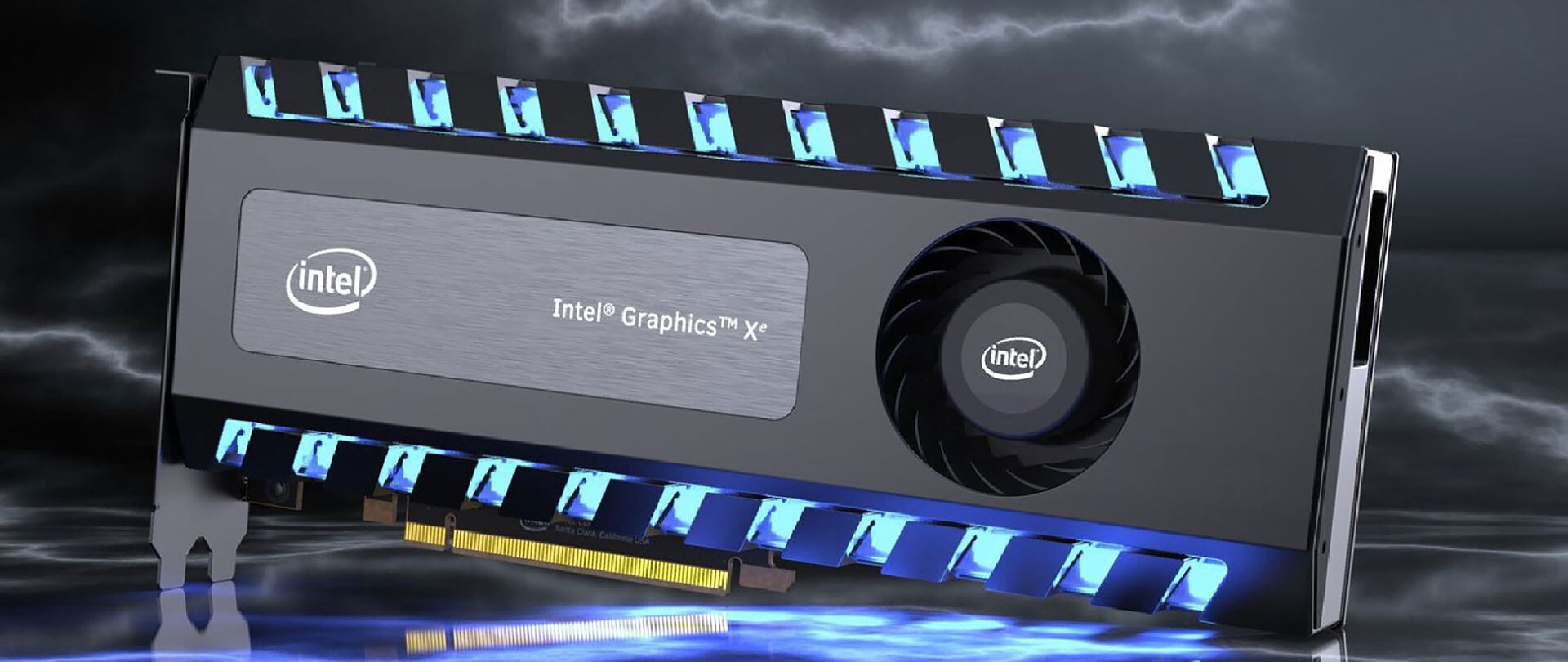
intel ARCThis is not the first time that Intel is trying to enter the GPU field but its adventures so far were, well let us agree not so good. All of that is hoping to be changed with the upcoming ARC GPU. The first generation of Arc graphics, code-named Alchemist and previously known as DG2, will support desktop PCs and laptops and is set to arrive in the first quarter of 2022. Alchemist will have hardware-based Ray tracing and AI-driven supersampling. This indicates that GPU is aimed to compete in the Hi-end spectrum and battle side by side with Nvidia and AMD on the market. Alchemist will also pack full DirectX 12 Ultimate support. Intel also released names for the next upcoming future generations of ARC GPUs: Battlemage, Celestial & Druid. More information about ARC products will be released later this year. “Today marks a key moment in the graphics journey we started just a few years ago. The launch of the Intel Arc brand and the reveal of future hardware generations signifies Intel’s deep and continued commitment to gamers and creators everywhere,” Roger Chandler, Intel vice president, and general manager of client graphics products and solutions.
Read More
Samsung had Data Breach

After Plex, DoorDash, and LastPass, Samsung has also confirmed that they also have experienced a data breach and that some customer data has been stolen.

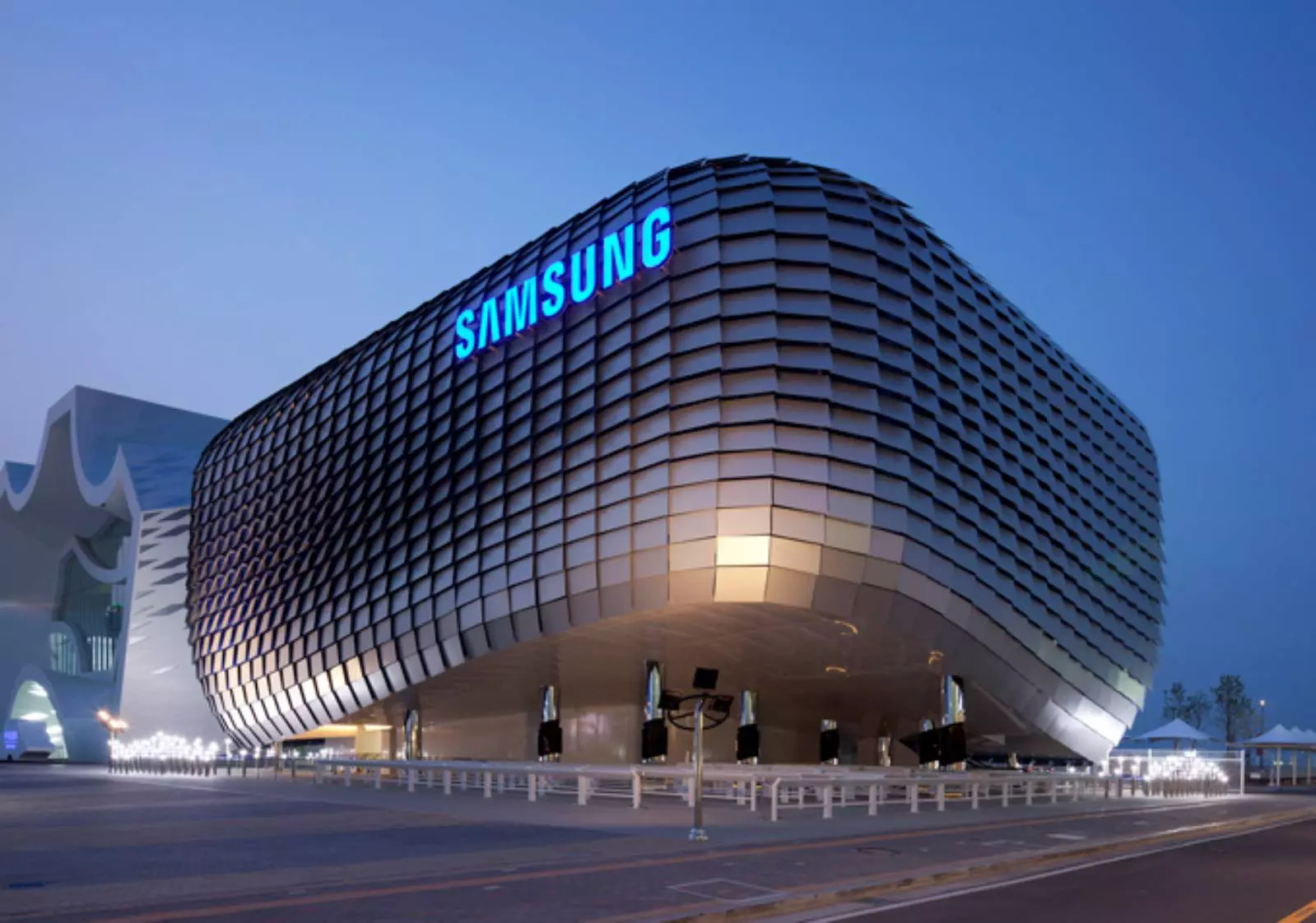
samsung HQ

On Friday, September 2nd Samsung announced that an unauthorized third party gained access to some of the company's U.S. systems in late July and that Samsung learned in August that some personal information was affected. It was also stated that affected information is: names, contact information, demographics, dates of birth, and product registration information. Also so far it was said that no Social Security numbers nor credit card number information have been compromised.

For now, Samsung is sending an email directly to anyone that has been affected by this data breach, however, they did not state what service or product has experienced this breach, we just know that it has happened at Samsung Electronics America which sells everything, from smartphones to debit cards. Also keep an eye on your inbox if you are a Samsung user since it took them a whole month in order to go public with this information and there is no justification for this, if it was reported on time people could change their information and take other steps.

Read More
How to Enable Last Active Click feature
Microsoft has started to use group along with every open window in the Taskbar ever since the release of Windows 10. Early on, they used to show an individual entry for each one of the windows after grouping them which makes the taskbar look cleaner and organized. However, the main issue lies in the fact that you have to hover on your desired window to get on to them. At the time of writing, you need to tap the Ctrl key and click on the taskbar icon to open the last active window but you have to only click on the program’s taskbar icon after you apply the tweak given in this post for the last active window to open. Take note that the “Last Active” windows feature will only work if the taskbar buttons are combined. Before you get started doing the instructions given below, you need to create a System Restore Point first since you will be dealing with registry files and modifying some of the critical settings in Windows 10. Once you’ve done this, proceed to the given steps below. Step 1: Tap the Win + R keys to open the Run dialog box and then type “Regedit” in the field and hit Enter to open the Registry Editor. Step 2: If a User Account Control or UAC prompt appears, just click on Yes to proceed to open the Registry Editor. Step 3: Next, navigate to the following registry path:
HKEY_CURRENT_USERSoftwareMicrosoftWindowsCurrentVersionExplorerAdvanced
Step 4: From there, right-click on the right side of the panel and select New > DWORD (32-bit) and then name it “LastActiveClick”. Step 5: After that, double click on the newly created DWORd to modify its value. Put “1” as its value data. Step 6: Then click OK and close the Registry Editor. Step 7: Now restart your computer to successfully apply the changes made. Note: In case you want to revert back to the default configuration, all you have to do is set the value data of LastActiveClick to “0” or simply delete that DWORD and restart your computer to successfully apply the changes made.
Read More
How to Set up POP3 Email in Outlook
No one knows everything about a program off hand. You need to use the program for a long time before you can even possibly know all that it is able to do and all you are able to achieve with it. However, this doesn’t mean that you don’t need help from time to time. This is also the case when Outlook errors pop up. Sometimes there are things you must or probably should do with your program that you do not understand and definitely don’t know how to do. Set up POP3 with your email account in Outlook is one of these things you will probably need help to achieve.

Steps to Set up POP3

First, you may need to know what POP3 is. POP3 is the way emails are sent from one email address to another. It may be more or less instant nowadays, but the process is still long and hard-winded. Similar to how your letters get from your mailbox to the recipients' mailbox, your emails get from you to the next person. Letters are picked up in your mailbox and sent to your post office where they send it to the recipient’s post office who sends it to the recipient’s mailbox. Similarly, your email is sent to your outbox, which sends it to your email service provider, that sends it to the recipient’s email service provider who sends it to their inbox. This is one of the reasons that sending an email to someone who uses the same email service provider as you is about a millisecond faster. This process of sending emails is called POP3 and you need to set it up if you use Outlook on Microsoft. This, on Outlook, also determines which email account you send your emails from. You see, on Outlook and many other email service providers, you can have many different email addresses, no even necessarily with the email service provider’s prefix on the end. Now, if you want to see this for yourself, go on to your settings on Outlook and look for manage email accounts. If you have more than one email account, you will see them listed. Somewhere on the sidebar, you will see POP3 as well. If you want to add more email accounts to this, such as a business email or a personal email, then just click ‘Add new account’ instead of 'Manage email accounts'. When you click on an email account you have linked already, you will see on this side the details for your POP3 (incoming emails) and your SMTP (outgoing emails). This can be changed, but since everyone’s number of accounts and type of accounts is different, there is no set way to change this. However, you can give Microsoft a call and they will walk you through the necessary steps in order to change this.

Conclusion

So, POP3 can be incredibly easy to understand or incredibly hard; it depends on how good you are with electronics and the advice you are given. But don’t try to change things by yourself; get a professional from Microsoft to help you with POP3 on your Microsoft Outlook account.
Read More
Install Windows 11 on any computer officially
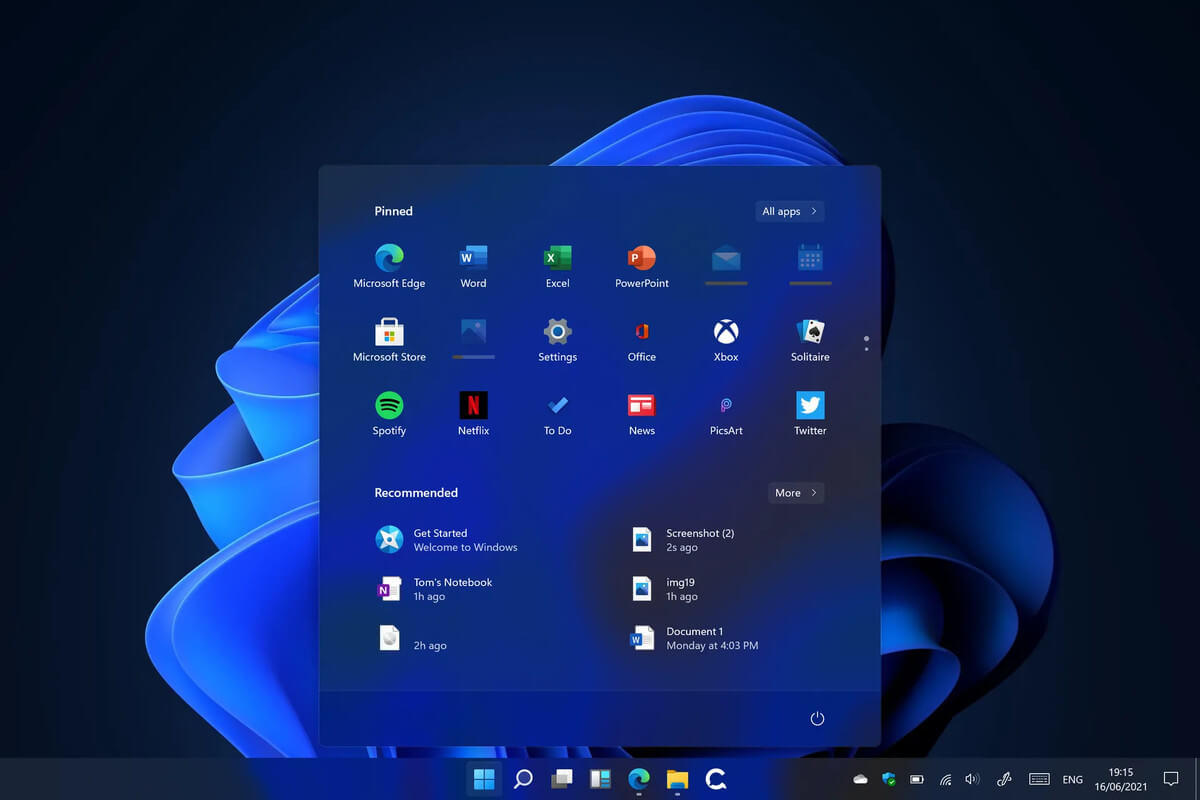
Windows 11 system requirementsMicrosoft’s initial Windows 11 hardware requirements were not really well received by users and they were not really clearly represented from the start making a lot of potential customers slowly drift away from the hype. It seems that Microsoft has acknowledged this since they have changed their tune about system hardware requirements for the upcoming Windows 11. It seems that Windows 11 will be able to be officially installed on unsupported computers but with a little inconvenience.

What is a catch?

Windows 11 will still have the same hardware requirements and if the PC meets them, that computer will be officially supported, other ones (any that can run Windows 10) that do not meet system requirements can still run Windows 11 but the system will have to be clean installed. So no upgrade option for old computer users, just a clean install. This means of course that you will need to download the ISO image and make a bootable USB in order to install it. Also since you will be doing a clean install do a backup of the hard drive since it will need to be formatted. Also, Microsoft has stated that with unofficially supported PC some driver updates might not be delivered leaving you with either older driver versions or relying on your hardware manufacturer on them. This is still not confirmed by Microsoft, just stated as an option. We will see how it goes.

Conclusion

It is very good that Microsoft has reconsidered its system requirements and will not stubbornly push its initiatives over the top requirements allowing even older computers to install new OS. I am sure over time lot of users will upgrade their hardware and drive into officially supported waters, but it is good that they will be able to use new OS on their current hardware.
Read More
1 2 3 171
Logo
Copyright © 2023, ErrorTools. All Rights Reserved
Trademark: Microsoft Windows logos are registered trademarks of Microsoft. Disclaimer: ErrorTools.com is not affiliated with Microsoft, nor claims direct affiliation.
The information on this page is provided for information purposes only.
DMCA.com Protection Status