Logo

Fix Windows Update Error 0x80244019

Updating your computer does not always end up successfully as there are a number of things that could go wrong with the Windows Update module in your Windows 10 computer. One of the issues you could face when you update your computer is error 0x80244019. This error could be caused by a number of factors. If you are currently having problems fixing this Windows Update error, read on as this post will help you resolve this problem.

Here’s the full content of the error:

“There were some problems installing updates, but we’ll try again later. If you keep seeing this and want to search the web or contact support for information, this may help: (0x80244019).”

In this kind of Windows Update error, you might not be able to get the download file of the requested update started to your computer and this could be due to some third-party application or the overall internal components that contribute to the functioning of the Windows Update module.

Refer to each one of the following options to fix the Windows Update error 0x80244019.

Option 1 – Restart your computer

The most basic thing you can do to fix the problem is to restart your computer. It usually works in fixing common issues like the Windows Update error 0x80244019. However, if it didn’t work, proceed to the next given options below.

Option 2 – Try to run the Windows Update Troubleshooter

The Windows Update Troubleshooter will help you in fixing error 0x80244019. This is a great built-in tool from Microsoft that helps users fix any issues with Windows Update. So this is worth a try to solve the problem.

To use the Windows Update Troubleshooter, follow the steps below.

  • Tap Win + I keys again to open the Windows Settings panel.
  • Go to Update & Security and then go to Troubleshoot.
  • Under the Troubleshoot section, on your left-hand side, scroll down to find Windows Update and then click on Run the troubleshooter option and follow the on-screen instructions and then see if it fixes the problem.

Option 3 – Try configuring the Windows Update-related Services

Configuring all the Windows Update-related services could also help in fixing the error as it makes sure that all the required services are available.

  • Tap the Win + R keys to open the Run dialog box.
  • Then type “cmd” in the field and tap Enter to open an elevated Command Prompt.
  • Next, execute the following commands. Note that you have to type and enter each command one after the other.
    • SC config wuauserv start= auto
    • SC config bits start= auto
    • SC config cryptsvc start= auto
    • SC config trustedinstaller start= auto
  • The commands you executed will make sure that the Windows Update-related services are available. Once it’s done, restart your computer and see if the Windows Update error is now fixed.

Option 4 – Run Windows Update in a Clean Boot State

It could be that some third-party application is the one that’s causing the problem so it’s best if you put your computer in a Clean Boot state. During this state, you can start the system with a minimum number of drivers and startup programs that will surely help you in isolating the root cause of the issue.

  • Log onto your PC as an administrator.
  • Type in MSConfig in the Start Search to open the System Configuration utility.
  • From there, go to the General tab and click “Selective startup”.
  • Clear the “Load Startup items” check box and make sure that the “Load System Services” and “Use Original boot configuration” options are checked.
  • Next, click the Services tab and select “Hide All Microsoft Services” check box.
  • Click Disable all.
  • Click on Apply/OK and restart your PC. (This will put your PC into a Clean Boot State. And configure Windows to use the usual startup, just simply undo the changes.)
  • After that, try to run Windows Update again.

Note: If you are able to install the app without any trouble at all then it means that the error is caused by some third-party application on your computer. You need to look for the culprit and uninstall it once you found it.

Option 5 – Try to fix the Proxy Settings

  • In the Cortana search box, search for Internet Explorer and then click on the related search result.
  • After that, tap the Win + T keys on your keyboard and click on Internet Options.
  • Next, navigate to the Connections tab and click on LAN Settings.
  • Then click on the Advanced button and delete all the entries in the list generated in the Exceptions section. And if the Advanced button is disabled because the “Use a proxy server for your LAN (These settings will not apply to dial-up or VPN connections)” option is disabled then you are good to go. Now proceed to the next step.
  • Tap the Win + X keys or right-click on the Start button and select Command Prompt (Admin) or you could also search for “cmd” in the Cortana search box and right-click on Command Prompt from the search results and select the “Run as administrator” option.
  • If a User Account Control appears, click on Yes to proceed. After that, type each one of the commands listed below, and don’t forget to hit Enter after you type each one of them.
    • netsh winhttp reset proxy
    • net stop wuauserv
    • net start wuauserv
  • Now restart your computer and check if the problem is fixed or not by checking for Windows Updates again.

Do You Need Help with Your Device?

Our Team of Experts May Help
Troubleshoot.Tech Experts are There for You!
Replace damaged files
Restore performance
Free disk space
Remove Malware
Protects WEB browser
Remove Viruses
Stop PC freezing
GET HELP
Troubleshoot.Tech experts work with all versions of Microsoft Windows including Windows 11, with Android, Mac, and more.

Share this article:

You might also like

How to Fix Windows Setup Error 0x80300002
Installing a Windows 10 upgrade is definitely not an easy task since the process is not always smooth sailing and you could encounter some errors when doing so. This isn’t unusual since there are various software configurations and hardware configurations as well as services it depends on in order to properly work. So if any of them malfunctions or becomes corrupted, it will affect the process which will result in errors like the error code 0x80300002. When you encounter this kind of Windows Update error, you will see the following error message on your screen:
“We couldn’t install Windows in the location you choose. Please check your media drive. Here’s more info about what happened: 0x80300002”
You can encounter this kind of error if there is corruption in the partition table of the drive where the installation is in progress. In addition, corruption on the Media device could also cause this problem. So if you encounter this error when running Windows Setup, read on as this post will guide you in fixing it. There are several ways to resolve this issue. The first thing you can do is to verify the compatibility between the BIOS and the installation media. You could also try recreating all the partitions as well as recreating the bootable USB drive. For more detailed information, follow the given options below.

Option 1 – Check if the BIOS is compatible with the installation media

The first thing you can do to fix the error is to check if there are any compatibility issues between the BIOS and the installation media you’re using. This is actually one of the most likely reasons why you’re getting the error since this is a complicated point for the Windows installation process. If the installation media is based on GPT, then your BIOS must be based on UEFI. So if you have your bootable media with the MBR partitioning, you need to set your BIOS to Legacy.
  • In the Windows Search box, type “command prompt” and from the search results that appear, right-click on Command Prompt and select the “Run as administrator” option.
  • After that, execute this command: exe /convert /allowfullOS
  • Now, wait until the process is completed since you can track its process on your screen.
  • Once it’s done, go to Settings > Update & Security > Advanced Startup options and from there, click on Restart Now. This will restart your computer and give you advanced options.
  • Next, select Troubleshoot > Advanced Options where you will see further options including System Restore, Startup Repair, Go back to the previous version, Command Prompt, System Image Recovery, and UEFI Firmware Settings.
  • Now select the “Legacy” option. This will take you to the BIOS. Boot Mode is typically available under Boot > Boot Configuration. Once you’re there, set it to Legacy and then save the changes you’ve made. After that, your computer will restart.

Option 2 – Try recreating a new bootable drive

  • Insert your USB drive into your PC.
  • Tap the Win + R keys to open the Run dialog box and type in “cmd” and tap Enter to open the Command Prompt. Alternatively, you can also search for “cmd” in the Cortana search box to open Command Prompt.
  • Once you’ve opened CMD, type in this command to open the DISPART utility – diskpart
  • After that, you should see a new black and white window that would say, “DISKPART>”.
  • Next, type in “list disk” in the command line and tap Enter to see the list of all the Storage devices as well as your hard disk connected to your PC. Here, you have to identify your disk’s number.
  • Type in this command where “X” is the disk number you have identified and then tap Enter – disk X
  • Type in this command and hit Enter to clear the table records and all the visible data on the drive – clean
  • Now you have to recreate a new primary partition of the drive so you’ll have to type in this command and tap Enter right after – create part pri
  • A new primary partition has been created so you have to select it by typing this command and tapping Enter – select part 1
  • Now you have to format it to make it visible to normal users by typing – format fs=ntfs quick
Note: If your platform supports the Unified Extensible Firmware Interface or UEFI, replace the “NTFS” with “FAT32” in the command on Step 10.
  • After that, type in this command and tap Enter after – active
  • Finally, type this command and hit Enter to exit the utility – exit
  • After you prepare the image for the operating system, save it to the root of your USB Storage device.

Option 3 – Try to recreate all the partitions

If none of the first two options given above worked, then you can try to recreate all the partitions instead. All you have to do is restart the Windows installation process and wait until you get to the part that says, “Where do you want to install Windows?”. From there, you will see options like delete, format, extend, create new partitions, and many more. Now you have to select the Delete all the partitions options and then use the “New” button to create new partitions. Just make sure that you have one primary partition at least where you can install Windows 10. After that, continue the installation of Windows on the new partition. Keep in mind that when you create a new partition, it also recreates the partition table configuration which means that the chances of getting an error are very unlikely.
Read More
Fix Error opening file for writing
If you got encounter an error message saying, “Error opening file for writing” while running a setup file to install some program on your computer, read on as this post will give you some suggestions on how you can fix it. You can encounter this error when running a setup file for installing a program like GlassWire, Notepad++, VLC, Steam, OBS, Mod Organizer, WinpCap, NSIS, FileZilla, BSPlayer, Kodi, Wireshark, rtcore64, qt5core.dll, MSI Afterburner, GWCtlSrv.exe, npf.sys, vcredist_86 and many more. And so when this error pops up while you run a setup file, refer to the steps given below which might help resolve the problem. Step 1: First, you have to make sure that there is no other installation in progress as multiple installations can most likely cause this error to show up. You can restart your computer and try to run the setup file again. Step 2: If you still got the error even after your restart your computer, click on Retry to try again and if it does nothing, click Abort to terminate the installation. After that, go to the folder where you’ve placed the setup file and then delete it. Step 3: Make sure that you have enough disk space on your computer. You can use the Windows 10 Storage Sense feature which can clean all the temporary files from your computer and help you save storage space. To use Storage Sense, follow the steps below.
  • Open Setting > System > Storage from the WinX Menu.
  • From there, you will see a list of all the local and connected storage devices along with the details on the free space.
  • Now make sure that the Storage Sense feature is turned On then go find a link that says “Free Up Space” and click it to open.
  • After that, a screen which is the built-in program in Windows 10 will appear and will scan your computer for the following junk files so you can free up disk space:
  • Windows Upgrade Log Files
  • The system created Windows Error Reporting Files
  • Thumbnails
  • Temporary Internet Files
  • Previous Windows Installation Files
  • Delivery Optimisation Files
  • DirectX Shader Cache
Note: Once you’re done freeing up space on your drive, try to run the setup file again. Step 4: If freeing up space didn’t help, you can just delete the setup file and download another one from the official homepage of the program. From there download the setup file and place it in a different location. After that, run the setup file once again. Step 5: Make sure that you have downloaded the correct setup file according to your operating system, i.e. x64 or x86. Step 6: Restart your computer once more and make sure that you sign in as administrator. After that, right-click on the setup file and click “Run as administrator”. If it still didn’t help, you might want to take ownership of the folder where you saved the setup file. How? Follow the steps below but before you do that, you have to create a System Restore Point first, once that’s done, proceed.
  • First, locate the concerned folder and right-click on it then select Properties.
  • Next, click on the Edit button in the Properties window and click OK to confirm if you got a User Account Control elevation request.
  • After that, select user/group from the permission windows or click on the Add button to add another user or group. It would be best if you add “Everyone” to give permission.
  • Then check “Full Control” under the “Allow” column to assign full access rights control permissions.
  • Now edit the permission to Full Control for “Everyone”.
  • Click OK to save the changes made and then exit.
Read More
How to remove FindWide

FindWide is a browser add-on for Internet Explorer. This addon Hijacks your home page and internet search provider changing it to search.findwide.com. Alternate versions change the homepage to search.us.com.

This addon monitors your user activity while you are surfing the web. It collects user and browsing data, that it uses to better display targeted ads. While browsing with this addon enabled you will see additional ads, sponsored links, and even sometimes pop-up ads displaying throughout your browsing sessions.

Several anti-virus programs have marked this addon as a Browser Hijacker and is therefore not recommended to keep on your computer.

From the Author: Each search engine has its own method of searching and each will return different results. Findwide.com looks at all of them, decides which are most relevant to your search, eliminates duplicates, and reveals them to you. In the end, you get a list of results more complete than using any one search engine alone.

Help! Malware Blocking Antivirus Installation And Access To The Internet

Viruses could cause plenty of damage to your computer. Some malware is meant to restrict or block things that you wish to do on your personal computer. It may well not permit you to download anything from the net or it will stop you from accessing some or all websites, especially the anti-malware websites. If you’re reading this, you probably have got infected by a virus that prevents you from installing a computer security program like Safebytes Antimalware on your PC. Even though this kind of problem can be tougher to get around, there are some steps you can take.

Download the application in Safe Mode with Networking

If any virus is set to run automatically when Microsoft Windows starts, entering Safe Mode could block the attempt. Since only the bare minimum applications and services launch in safe mode, there are seldom any reasons for conflicts to take place. To launch your Windows XP, Vista, or 7 PCs in Safe Mode with Networking, follow the instructions below. 1) Press the F8 key continuously as soon as your computer boots, but before the big Windows logo comes up. This will bring up the Advanced Boot Options menu. 2) Choose Safe Mode with Networking using arrow keys and press ENTER. 3) When you are into this mode, you will have online access again. Now, utilize your browser to download and install Safebytes. 4) Following installation, do a full scan and let the software get rid of the threats it discovers.

Switch over to an alternate web browser

Certain malware might target vulnerabilities of a specific web browser that obstruct the downloading process. In the event you suspect that your Internet Explorer has been hijacked by malware or otherwise compromised by hackers, the best course of action is to switch over to an alternate internet browser such as Chrome, Firefox, or Safari to download your chosen computer security application – Safebytes Anti-Malware.

Install antivirus on a USB drive

Here’s another solution which is using portable USB anti-malware software that can scan your computer for malicious software without needing installation. Follow these steps to run the anti-malware on the affected computer system. 1) Download Safebytes Anti-Malware or MS Windows Defender Offline onto a clean computer. 2) Plug the Flash drive into the uninfected computer. 3) Double-click the exe file to open the installation wizard. 4) When asked, select the location of the pen drive as the place in which you want to put the software files. Follow the directions to complete the installation process. 5) Transfer the USB drive from the clean PC to the infected PC. 6) Double-click the anti-malware software EXE file on the thumb drive. 7) Press the “Scan” button to run a full computer scan and remove malware automatically.

Protect Your PC & Privacy With SafeBytes Anti-Malware

To help protect your computer or laptop from various internet-based threats, it is very important to install anti-malware software on your computer system. However, with countless numbers of antimalware companies in the marketplace, nowadays it is actually challenging to decide which one you should obtain for your laptop. A few are good ones, some are decent, while some are simply just fake anti-malware software that will harm your PC themselves! You must be careful not to choose the wrong product, especially if you buy a premium program. Among few good applications, SafeBytes Anti-Malware is the highly recommended program for security-conscious people. SafeBytes anti-malware is a trustworthy tool that not only protects your PC completely but is also very easy to use for people of all skill levels. With its cutting-edge technology, this application can help you eliminate multiples types of malware like computer viruses, trojans, PUPs, worms, ransomware, adware, and browser hijackers. SafeBytes anti-malware offers an array of advanced features which sets it apart from all others. The following are some typical features present in this computer software: Real-time Threat Response: Malware programs attempting to enter the system are discovered and stopped as and when detected by the SafeBytes active protection shields. This tool will always monitor your PC for any suspicious activity and updates itself continuously to keep current with the latest threats. Robust Anti-malware Protection: By using a critically acclaimed anti-malware engine, SafeBytes offers multilayered protection that is made to catch and eliminate threats that are concealed deep inside your computer. Web Filtering: Through its unique safety score, SafeBytes alerts you whether a website is safe or not to visit it. This will assure that you’re always certain of your safety when browsing the net. Lowest CPU/Memory Usage: SafeBytes is well-known for its low effect on computer resources and great detection rate of countless threats. It runs quietly and efficiently in the background so you are free to use your computer at full power all the time. Fantastic Technical Support: Support service is accessible 24 x 7 x 365 days via chat and email to answer your queries. To conclude, SafeBytes Anti-Malware is really great for securing your computer against all sorts of malware threats. Once you’ve installed SafeBytes Anti-Malware, you will no longer have to bother about malware or other security concerns. If you’re searching for a comprehensive antivirus program that’s still easy to use, SafeBytes Anti-Malware is just what you need!

Technical Details and Manual Removal (Advanced Users)

If you do not wish to use an automated tool and like to eliminate FindWide manually, you could possibly do so by going to the Windows Add/Remove Programs menu in the Control Panel and deleting the offending program; in cases of browser plug-ins, you can uninstall it by visiting the browser’s Add-on/Extension manager. You might also want to reset your home page and search engine providers and also clear your browser cache and cookies. Finally, examine your hard disk for all of the following and clean your Windows registry manually to remove leftover application entries following uninstalls. But bear in mind, this is often a complicated task and only computer professionals could perform it safely. In addition, some malware is capable of replicating or preventing removal. Carrying out this malware-removal process in Safe Mode is suggested.
Files: C:\Documents and Settings\%USERNAME%\Local Settings\Application Data\TNT2.0.0.1599\Autorun.inf C:\Documents and Settings\%USERNAME%\Local Settings\Application Data\TNT2.0.0.1599\crx.tar C:\Documents and Settings\%USERNAME%\Local Settings\Application Data\TNT2.0.0.1599\ffassist.1.dll C:\Documents and Settings\%USERNAME%\Local Settings\Application Data\TNT2.0.0.1599\GLOBALUNINSTALL.TNT C:\Documents and Settings\%USERNAME%\Local Settings\Application Data\TNT2.0.0.1599\hmac.1.dll C:\Documents and Settings\%USERNAME%\Local Settings\Application Data\TNT2.0.0.1599\iehpr.1.dll C:\Documents and Settings\%USERNAME%\Local Settings\Application Data\TNT2.0.0.1599\iestage2.1.dll C:\Documents and Settings\%USERNAME%\Local Settings\Application Data\TNT2.0.0.1599\IEToolbar.dll C:\Documents and Settings\%USERNAME%\Local Settings\Application Data\TNT2.0.0.1599\IEToolbar64.dll C:\Documents and Settings\%USERNAME%\Local Settings\Application Data\TNT2.0.0.1599\INSTALL.TNT
Read More
Enable or Disable Status Bar in File Explorer
As you know, the Windows File Explorer is quite a responsive program and contains tons of features. It allows you to do various customizations by changing Settings or changing the value of a Registry key or Group Policy modification. Either way, you will be guided on how you can enable or disable the Status Bar in File Explorer on your Windows 10 computer. The Status Bar is located at the bottom of the File Explorer and shows you how many items are inside the folder and how many items you’ve selected. In addition, it also shows you information about each item and can display items using large thumbnails with just a single click. In order to enable or disable the Status Bar in File Explorer, you can use the two given options below as reference. You can either use the Folder Options or the Registry Editor.

Option 1 – Enable or Disable Status Bar via Folder Options

  • Tap the Win + E keys on your keyboard to open File Explorer.
  • Then tap the Alt + F keys and click on Options.
  • From there, make sure that you are in the View tab and look for the “Show Status Bar” option in the list that gets populated.
  • After that, check if the Show Status Bar option is enabled or disabled. It is supposed to be enabled by default so if it is enabled and you want to disable it, just simply uncheck its checkbox otherwise, leave it as it is.
  • Now click on Apply and then OK to save the changes made

Option 2 – Enable or Disable Status Bar via Registry Editor

  • Tap the Win + R keys to open the Run dialog box.
  • Then type “Regedit” in the field and hit Enter to pull up Registry Editor.
  • Next, navigate to this registry key: HKEY_CURRENT_USERSoftwareMicrosoftWindowsCurrentVersionExplorerAdvanced
  • Afterward right-click on Advanced and select New > DWORD (32-bit) Value and then input “ShowStatusBar as the name of the newly created DWORD.
  • Now double click on the new DWORD and change its value to “0” if you want to disable Status Bar and “1” if you want to enable it.
  • Then exit the Registry Editor and restart your computer to apply the changes made.
Read More
Fix 0x8000ffff error in Windows 11
Error 0x8000ffff prevents you from using the Microsoft store. Altho it is not a critical error that will break Windows, it is annoying enough that will require fixing so we can use the store once again and install apps when we want to. Interesting thing is that this error was present inside Windows 10 as well causing some annoyance, you think Microsoft would learn, and then you see reality. Anyway, we have not come here to bash Microsoft, we came to solve errors. 0x8000ffff errorSo there are several problems that can cause this error like issues with accessing the Microsoft servers, corrupt system files, settings being misconfigured, malware infections, or conflicting applications. We will cover all solutions for each scenario taking approaches from most simple solutions to more complex ones. Follow the guide and let's fix this annoyance.
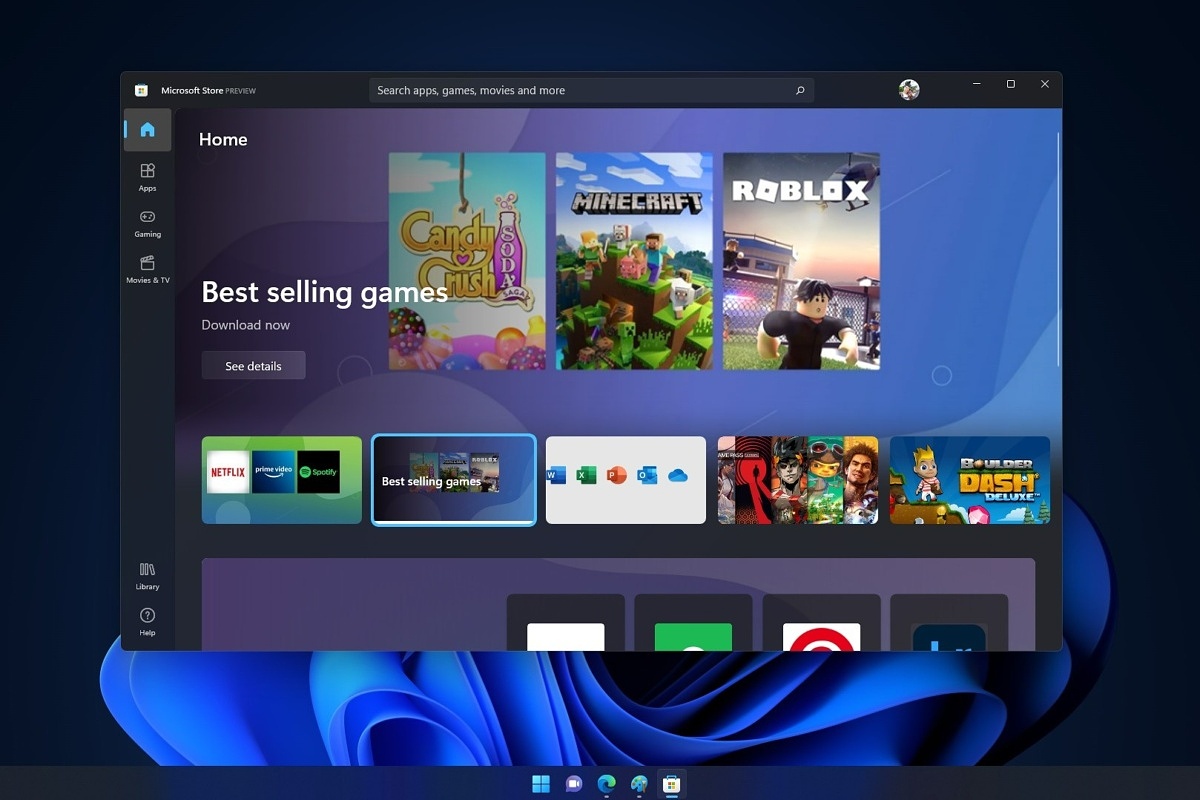
Wait for Microsoft's servers to become accessible

Yes, just wait. If the problem is tied to Microsoft servers having heavy load or being temporarily down there is not much you can do except for their tech team to resolve the issue. Go to Twitter or Facebook and check the Microsoft page to see if anyone else has this issue, if several people are reporting the same error then it is due to server problems. In this case, the only thing you can do is to wait.

Run troubleshooter

If servers are working fine then the issue is within your system so let's get down to fixing. Most simple and easiest solution is to let Windows try and resolve the problem by itself. We will use troubleshooter for this, Windows's integrated fixing solution: Press ⊞ WINDOWS + I to open the settings app Click on System in the left panel, then on Troubleshoot on the right Click on Other troubleshooters In most Frequent section find Windows Update and click on the Run button Wait for the troubleshooter to finish and follow on-screen instructions

Clear Store cache

If the troubleshooter has not found the issue or was unable to repair it, the next step is cleaning the Microsoft store cache in order to eliminate corrupted or partial cache files. Press ⊞ WINDOWS + R to open the run dialog In run dialog type in: wsreset and press OK or press ENTER A black screen will appear and it will not give any kind of feedback about progress, so it might seem like Windows has frozen, but do not panic nor try to do anything, this kind of behavior is normal, just wait for the process to finish and once it is done Microsoft store will launch with the cleared cache.

Disable Proxy

Proxy setting can interfere with establishing a connection to the store servers and if previous solutions have not worked we will check proxy next. Press ⊞ WINDOWS + R to open the run dialog Inside run dialog type: inetcpl.cpl and hit ENTER or press OK button Inside Internet Properties click on the Connections tab and then on LAN settings Uncheck the box next to Use a proxy server for your LAN and click on OK

Turn off antivirus

If nothing worked so far, turn off your anti-virus software, there is a slight possibility that your antivirus is misconfigured or preventing the system from accessing the store. Turn off antivirus and firewall to make sure that this is not an issue.

Delete the software distribution folder

So, we have tried a lot of things, and the error still persists? Let's then go to the next step and delete the software distribution folder in order to be remade new so we can eliminate corruption in the folder itself. To do this follow the guide: Press ⊞ WINDOWS + S to open the search menu Inside search type in Windows terminal, right-click on the terminal and click on Run as administrator. Confirm with YES on UAC prompt pop up Inside terminal press CTRL + SHIFT + 2 to open command prompt inside command prompt type in: net stop wuauserv and press ENTER Then type in: net stop bits followed with ENTER Next press ⊞ WINDOWS + R to open the run dialog Inside run dialog type in C:\Windows\SoftwareDistribution and press the OK button or ENTER File Explorer will open and you will find yourself inside SoftwareDistribution folder. Press CTRL + A to select all files inside Press on the delete icon or press DEL, confirm with YES Once all files are deleted, the system will redownload new ones.

Enable Cryptographic service

Windows 11 has come with a cryptographic service that aims to make your computer more secure but if the service is turned off it can be the cause of 0x8000ffff error. In order to turn this service back ON, follow the guide: Press ⊞ WINDOWS + R to open the run dialog In run dialog type in services.msc and press ENTER or click on the OK button In the list find Cryptographic Services and double click on it Inside properties click on Startup type dropdown menu and select Automatic from the list Click on the Start button to run service and then on the OK button to save the changes

Run SFC scan

SFC is an internal Windows tool for fixing corrupt system files, application will scan all system files and repair ones that are corrupted. To run an SFC scan do the following: Press ⊞ WINDOWS + S to open the search menu Inside search type in Windows terminal, right-click on the terminal and click on Run as administrator. Confirm with YES on UAC prompt pop up Inside terminal press CTRL + SHIFT + 2 to open command prompt inside command prompt type in: SFC /scannow and press ENTER Wait for the whole process to finish and reboot your system

Run DISM scan

Similar to SFC, DISM scan will scan your system Windows image and if required it will repair it. Press ⊞ WINDOWS + S to open the search menu Inside search type in Windows terminal, right-click on the terminal and click on Run as administrator. Confirm with YES on UAC prompt pop up Inside terminal press CTRL + SHIFT + 2 to open command prompt inside command prompt type in: DISM /Online /Cleanup-Image /RestoreHealth and press ENTER Wait for the whole process to finish and restart your computer

Read More
A Simple Guide to Fixing Error Code 0x80070424

Error Code 0x80070424 - What is it?

The error code 0x80070424 is a Windows PC error. It may occur when using Windows Update, Microsoft Update or while trying to change Windows Firewall settings. This error does not allow you to enable or disable the Firewall on your PC. It is quite common on Windows 7 and Vista. Symptoms of error code 0x80070424 include Windows Firewall may not be listed on Services.msc, inability to change Windows Firewall settings and you may come across this error message when restarting your PC, “Base Filtering Engine Service could not be found in the system”.

Solution

Restoro box imageError Causes

Some of the common causes of the error code 0x80070424 include:
  • Base Filtering Engine Service file corruption
  • Registry issues
When you encounter this error code on your system, it is recommended to fix it immediately as this error can lead to serious PC damages.

Further Information and Manual Repair

To resolve the error code 0x80070424 here are some of the best DIY solutions for you. By following these solutions, you can fix the error all by yourself. These are simple, easy, and quick PC fixers that require no technical expertise. Just follow the simple steps and the error will be resolved in the shortest time.

Re-Install Windows Firewall & Filtering Engine

If the underlying cause of the error 0x80070424 is Base Filtering Engine Service file corruption, then the best way to resolve it is to download the Firewall and register file from a reliable website. Once you download it extract the zip on your desktop.
  • Double click on both files one by one to confirm their installation on your PC. Once installed, restart your PC and click on the start button. Search file type and run and then press enter.
  • When the Run window opens, type REGEDIT and click OK. After that, from the left sidebar navigate to HKEY_LOCAL_MACHINESYSTEMCurrentControlSetservicesBFE.
  • Now simply right-click on BFE folder and choose permission. Once that’s done, click on add button and type everyone then press OK to confirm settings.  Here you will see the ‘everyone’ added field.
  • After that in the below permission panel, tick the box that says Full Control and confirm. Now close the window and go to the menu and type services MSC.
This will open the service window. From the list search for ‘Base Filtering engine file’ right-click on it. Now search for Windows Firewall and see if you can change the settings. This procedure is most likely to resolve the error code 0x80070424 on your PC. It is time-consuming but worth it.

Use a Registry Cleaner

None the less, if the error is triggered by registry issues, then it is advisable to download Restoro. This is an advanced and highly functional PC fixer integrated with multiple utilities including a powerful registry cleaner. The registry cleaner utility detects all registry issues on your system and fixes them in seconds. It wipes out the excess, unnecessary, and obsolete registry entries and files corrupting your system cleans, and restores the registry. It is user-friendly and compatible with all Windows versions. So whether you are using Windows 7, 8, XP or Vista, you can run it on all versions with ease and resolve the error code 0x80070424 generated by registry issues. This software also includes other functional and value-added features like antivirus and a system optimizer. Click here to download Restoro and resolve error code 0x80070424  on your PC today!
Read More
How to Fix Windows 10 Activation Error 0Xc004F074

Error code 0Xc004F074 - What is it?

Did you previously use Windows 7 or 8 but decided to run with the latest Windows 0S, Windows 10? An early error message encountered was activation error code 0Xc004F074. Error code 0Xc004F074 is manifested when the user fails to activate Windows directly after the installation of Windows 10. This occurs if the previous operating system on your computer was Key Management Service (KMS) activated.

The KMT provides a more seamless operation when users are activating volume license editions of Microsoft Windows and Office. This process tends to be clear to end-users of the system.

Symptoms of error code 0Xc004F074 include:

  • Windows is unable to reach your company’s activation service.
  • The Key Management Service is unavailable.

Solution

Restoro box imageError Causes

Various factors might incite error code 0Xc004F074. A primary cause is a discrepancy or difference between the KMS client and the KMS host machine. The host computer could possibly be operating a Windows Server 2003 or Windows Server 2008, while the client runs on OS Windows 7 or Windows Server 2008 R2. To supplement, the computer’s time might be a contributing factor. The time on the host machine and client might show a difference (Usually the host time exceeds 4 hours).

Further Information and Manual Repair

To rectify error code 0Xc004F074, users are advised to try various methods. These methods include:
  1. Method 1: Update Your KMS Host 9 (Windows Server 2003)

Are you running later versions of Windows Server? Use an update that fixes or installs KMS on your computer. The update is available on Microsoft’s website. Keep clearly in mind that the update is only for Windows Server 2013 Service Pack 1 and later versions of Windows Server 2003.

  1. Method 2: Update Your KMS Host 9 (Windows Server 2008)

This step is similar to the aforementioned. However, it applies to Windows Vista and Windows Server 2008. This ensures the service is extended to Windows 7 and Windows Server 2008 R2.

  1. Method 3: Update the Time

It was previously mentioned that the time reflected on the KMS host and client might cause error code 0Xc004F074 to manifest. A simple fix to adhere to is to always ensure that the time between both is updated. To Resync the time on the client, execute the following command.

w32tm /resync

  1. Method 4: Uninstall the Existing KMS

For this method to be successfully deployed, you’ll need to have in your possession an activation key or KMSpico Key. As you cannot apply the new key with the existing one, remove or uninstall the initial key. To perform this step, open the command prompt. This should be done while the computer is in admin mode. Then, run the command

(slmgr.vbs /dlv)

It should be executed without the brackets and before you have removed the existing key.

After executing the command, you’ll encounter the description:

Windows(R) Operating System, VOLUME_KMS_WS12_R2 channel

Move along with the process by applying the slmgr.vbs /upk to uninstall the existing KMS key.

After the old key is uninstalled, you’re ready to apply the following:

slmgr.vbs /ipk <NewKMSProductKey>

To check if things are in place and complete the process, follow the steps below: PC Settings >Update and Security > Activation

  1. Method 5: Download an Automated Tool

If you wish to always have at your disposal a utility tool to fix these Windows 8 and other related issues when they do arise, download and install a powerful automated tool.
Read More
Where can you get computer viruses & malware
From their infant stages to modern days, computer viruses were always kind of here. From simple ones that were annoying with playing speaker sounds and throwing messages on screen to more malicious ones capable of deleting and encrypting files. In today's modern world it is very important to protect yourself, modern viruses are not a joke anymore and they are aimed to create serious damage to computer systems. Where can you get computer viruses & malwareThey can encrypt files in order to make you pay for a decrypter, they can straight up delete files or even cause some hardware damage. Like mentioned before protecting yourself is important, but protecting does not mean only having antivirus software installed, information, where are common places in which they lurk and could be picked up, is also very important. That is why we are exploring in this article the most common place where you can pick viruses or other malware.

Downloading Programs

Programs that contain the downloadable files are the commonest source of malware such as freeware, worms, and other executable files. Whether you download an image editing software, a music file, or an e-book, it is important to ensure the reliability of the source of the media. Unknown, new, or less popular sources should be avoided.

Pirated or Cracked Software

Are you aware of software cracking? Well, every time you open cracked software, your antivirus software might flag it as malware as the cracks consist of malicious scripts. Always say “No” to cracks as they can inject malicious script into your PC.

Email Attachments

Anyone can send you an email attachment whether you know them or not. Clicking on unknown links or attachments can harm your device. Think twice before clicking anything and make sure that file type is not ‘.exe’.

Internet

One of the easiest ways to get a virus on your device is through the Internet. Make sure to check the URL before accessing any website. For a secured URL always look for ‘HTTPS in it. For example, when you click videos published on social media websites, they may require you to install a particular type of plug-in to watch that video. But in reality, these plug-ins might be malicious software that can steal your sensitive information.

Booting Data from Unknown CDs

Malicious software can get into your device through an unknown CD. A good practice to be safe from malicious infection is to remove CD when your device is not working at all. Your system could reboot the CD if it is not removed before switching off the computer.

Bluetooth

Bluetooth transfers can also infect your system, so it is crucial to know what type of media file is being sent to your computer whenever a transfer takes place. An effective armor would be to allow Bluetooth connectivity with only known devices and activate it only when required.

Unpatched Software

Often overlooked, unpatched software is also a leading source of virus infection. Security holes in software are exploited by attackers and are unknown to software makers until the attackers release them in the form of zero-day attacks. It is therefore recommended to install software updates as soon as they are available on your PC.
Read More
Fix Origin code 10.0 Error in Windows 10
Gaming on the computer has become one of the most used past-time activities among people of all ages. And since we are still in pandemic it has only risen as activity. People can acquire a lot of games at various discounts on various platforms and enjoy them at the leisure of their home. Among many game platforms and stores, Electronic art's Origin is one of the bigger ones, and having some titles that could not be found anywhere else coupled with the ability to have access to almost the whole game catalog with one monthly subscription make it one of the most used clients. Sadly as with every piece of software Origin's client is not perfect by any means and it can behave strangely from time to time. Hello everyone and welcome to errortools.com, today we will fix Origin error code 10 which oddly enough can appear out of nowhere and can even appear on the very end of installation for the chosen game. If you have managed to come by this error you are in luck to be here because we have a couple of fixes for it. I know that you might be excited to play the game so let's go and do some fixing

Check Server status

Before diving into technicality and before we start deleting files and fixing things you should check the Server status. This seems maybe like something you should not do but if the server has experienced some kind of downtime or it is in maintenance Origin will throw this error in the client. Unexpected situations can cause various server issues all of a sudden and the first thing is to check are servers online and working. There are various ways to check server status from official origin website to Electronic arts twitter channel to Reddit and many more online server status websites. If it turns out that the server is to be blamed for this error then sit back and wait for EA to resolve the issue, there is not much you can do anyway.

Delete OriginThinSetupInternal.exe

  • After some research, it has come to light that originthinsetupinternal.exe can cause this specific error. The best solution is to delete the file and then run Origin as administrator so the file is remade new.
  • First, make sure that Origin is fully closed, check the taskbar and if it lurks there right-click on it and click on quit
  • Run file explorer and go into the folder where Origin is installed, by default it is C:\Program Files (x86)\Origin
  • Locate OriginThinSetupInternal.exe and delete it
  • Then locate origin.exe and right-click on it and then click on Run as administrator

Reinstall Origin client

If the previous solution has not solved the issue then Origin might have some corrupted files inside it. It is known that the Origin client can produce some bad files if the installation has been forcefully canceled. The best thing is to reinstall the completely whole client.
  • Press ⊞ WINDOWS + R to open the run dialog
  • Inside run dialog type in Control panel and press ENTER
  • In the control panel locate programs and features group and double click on it
  • Locate Origin, click to select it, and on top click on uninstall
  • After uninstall process is completed start file explorer and go to the folder where Origin was installed, by default it is C:\Program Files (x86). Locate the Origin folder and delete it.
  • Go to the official origin website and download the new client installation.
  • After the download is finished double click on it and follow onscreen instructions.

Disable antivirus

If every solution so far has not been able to remove error then obviously something else is interfering with the origin client and installation functioning. Altho not advisable, turn OFF your security suite including both firewall and antivirus and try installing the game again. There is the possibility that the origin client or some game file has been marked as false positive by security software thus preventing it from executing properly.
Read More
Fix CompareExchange128 error
During Windows 10 installation, you will see all the beautiful user interfaces, however, what’s more, important are the drivers, your processor, and free storage disk in order for the installation to be successfully completed. So if you are getting the CompareExchange128 error during the installation of Windows 10, this means that the CPU lacks a very important instruction known as “CMPXCHG16B”. Thus, if you don’t have CMPXCHG16B, then it will result in the CompareExchange128 error when you install Windows 10. In fact, CMPXCHG16B, PrefetchW as well as LAHF/SAHF is a criterion for you to be able to use Windows 10 64-bit version when upgrading from an earlier version of Windows. So what exactly is the CMPXCHG16B instruction? The CMPXCHG16B instruction is the one that performs an atomic compare-and-exchange on 16-byte values. This instruction can also be referred to as “CompareExchange128”. The atomic compare-and-exchange means that the CPU compares the contents of a memory location with a given value. So if the values are the same, it modifies the contents of that memory location to a new given value. Note that this kind of issue only happens to the 64-bit Windows 10 version and the only way to resolve it is by getting an update on the hardware level from the OEM. On the other hand, if nothing really works, it’s maybe time for you to get a new CPU but before you resort to that, in the meantime, you can try following the options given below to fix the CompareExchange128 error during the installation of Windows 10.

Option 1 – Try to update the BIOS and Chipset Drivers

One of the best things you can do to fix the CompareExchange128 error is by updating the BIOS and chipset drivers which is why you need to check if your OEM has an update available for your computer’s BIOS as well as the related chipset drivers. But before that, you need to first check the BIOS version. To do so, follow these steps:
  • Type “msinfo32” in the search bar and hit Enter to open the System Information Tools.
  • After opening the System Information Tools, check the BIOS version.
  • Then take note of that BIOS version. You also need to use the BIOS utility that came with your computer and use it for the upgrade. Note that it is different for every computer and if you don’t have it, you can just go to the OEM website and see if there is an option to download it there.

Option 2 – Try to downgrade to the 32-bit Windows 10 version

If option 1 didn’t work as the BIOS update is not available, you can also try downgrading to the 32-bit version of Windows 10. Keep in mind that this will bring restrictions on the amount of RAM installed and other places but that won’t be a problem as you can still switch.

Option 3 – Try buying a new hardware

If none of the first two options didn’t work for some reason then maybe it’s time for you to purchase new hardware especially if your computer is way too old. In such cases, it’s better to buy new hardware or better yet, a new computer that can keep up for the next couple of years.
Read More
1 2 3 171
Logo
Copyright © 2023, ErrorTools. All Rights Reserved
Trademark: Microsoft Windows logos are registered trademarks of Microsoft. Disclaimer: ErrorTools.com is not affiliated with Microsoft, nor claims direct affiliation.
The information on this page is provided for information purposes only.
DMCA.com Protection Status