Logo

Fix MS Store Error 0x80131500 in Windows

One of the essential parts of the Windows 10 operating system is the Microsoft Store as it is the distribution hub of numerous applications such as Netflix, Facebook, and many more. In fact, Microsoft is planning to make it a hub not just for UWP applications but also Windows Classic applications. Microsoft has already built a bridge with the power of Project Centennial which allows developers to migrate and upload their Windows Classic applications to the Microsoft Store. Although the Microsoft Store has been constantly improving, there are still times when you might face an error while using it. One of these errors is error 0x80131500. When you encounter this error, you will get the following error message on your screen:

“Try that again, Something happened at our end, Waiting a bit might help, The error code is 0x80131500 in case you need it.”

To fix this error, you can try changing your internet connection, toggle the date & time settings, change DNS, create a new user account, run the Microsoft Store Apps troubleshooter or reset the Microsoft Store as well re-register it using Windows PowerShell.

Option 1 – Try changing your internet connection

The first thing you can do is to change your internet connection. If you are using Ethernet, you can try to connect to a Wi-Fi connection instead and see if it helps.

Option 2 – Try to toggle the Date and Time settings

The first thing you can try is to sync the Date and Time of your computer as the wrong Date and Time settings are one of the most common causes of connection problems like the error 0x80131500. This is because of the incompatibility between the SSL Certificate validation date and the System Clock. Thus, you have to sync your System Clock. Refer to the steps below to do so.

  • Start by tapping the Win + I keys to open the Windows Settings.
  • Next, go to Time & Language > Date & time.
  • From there, turn the toggle on for the “Set time automatically and Set time zone automatically” option on the right-side panel.
  • After that, click on Region & language located on the left side panel and make sure that the Country or region on the right-side panel is set to the country you live in.
  • Now close the Settings app and restart your computer and see if it fixes the problem or not.

Option 3 – Try to change the DNS Server

In this option, you can try changing your current DNS settings to the Google Public DNS as it could also help in fixing error 0x80131500. To do so, follow the steps below.

  • The first thing you have to do is right-click on the network icon in the Taskbar and select Network and Sharing Center.
  • Next, click on the “Change Adapter Settings” option.
  • After that, search for the network connection that you are using to connect to the internet. Note that the option might be “Wireless Connection” or “Local Area Connection”.
  • Right-click on your network connection and click on Properties.
  • Then select the new window to choose the “Internet Protocol 4 (TCP/IPv4)” option.
  • After that, click on the Properties button and click the checkbox in the new window for the option “Use the following DNS server addresses”.
  • Type in “8.8.8.8” and “8.8.4.4” and click OK and exit.

Option 4 – Try to create a new Administrator User account

If you have a standard account, you can try creating a new account but this time, you create an administrator user account and then see if the error is fixed or not. Note that you have to sign in with your main account before you can create an admin account.

Option 5 – Run the Microsoft Store Apps troubleshooter

The Microsoft Store Apps Troubleshooter will help you in fixing the error 0x80131500. This is a great built-in tool from Microsoft that helps users fix any app installation issues. So this is worth a try to solve the problem. This built-in tool also helps you fix the Windows 10 Store if it isn’t working.

To use the Windows Store Troubleshooter, follow the steps below.

  1. Tap Win + I keys again to open the Windows Settings panel.
  2. Go to Update & Security and then go to Troubleshoot.
  3. On your right-hand side, scroll down to find the Windows Store Apps and then click on the Run the troubleshooter option and see if it fixes the problem.

Option 6 – Try to reset the Microsoft Store cache

Just like browsers, Microsoft Store also caches as you view apps and games so it is most likely that the cache is no longer valid and must be removed. To do so, follow the steps below.

  • Right-click on the start button and click on Command Prompt (administrator).
  • Next, type in the command, “exe” and tap Enter. Once you do, the command will clear the cache for the Windows Store app.
  • Now restart your PC and afterward, try opening Microsoft Store again and then try to install your app or update your computer again.

Option 7 – Try to re-register the Microsoft Store app via PowerShell

  • Tap the Win + X key combination or right-click on the Start button and click on the Windows PowerShell (Admin) option.
  • If a User Account Control or UAC prompt appears, just click on Yes to proceed and open the Windows PowerShell window.
  • Next, type in or copy-paste the following command to re-register the Microsoft Store app and tap Enter:

powershell -ExecutionPolicy Unrestricted Add-AppxPackage -DisableDevelopmentMode -Register $Env:SystemRootWinStoreAppxManifest.xml

  • Wait for the process to be completed and then restart your computer.

Do You Need Help with Your Device?

Our Team of Experts May Help
Troubleshoot.Tech Experts are There for You!
Replace damaged files
Restore performance
Free disk space
Remove Malware
Protects WEB browser
Remove Viruses
Stop PC freezing
GET HELP
Troubleshoot.Tech experts work with all versions of Microsoft Windows including Windows 11, with Android, Mac, and more.

Share this article:

You might also like

How to Fix Error Code 0xc0000142

What is Error 0xc0000142?

Error 0xc0000142 can occur in any of the Windows versions and usually occurs when an application fails to properly initialize.

This error can be critical for a computer as it signifies that the system is unstable. Error 0xc0000142 can cause slow performance in a PC, system freeze, startup and shutdown issues, blue screen and errors in installation.

Solution

Restoro box imageError Causes

Windows/Application Error 0xc0000142 can occur because of a number of reasons.

When a computer is an overload with data, or when system files get broken or missing, this error can occur and will result in startup and shutdown issues as well as the blue screen. Another reason, and one which is quite common, is improper computer maintenance.

This will cause a PC to perform slow, system freezes, and installation errors. This error displays ‘failed to initialize’ on either a Windows error box or the blue screen of death.

Further Information and Manual Repair

Error 0xc0000142 can occur at any time, but there are many ways to resolve it. For instance:

1) Clean the Registry

A corrupted registry is one of the major reasons why this error occurs. The registry is used by Windows to store information and settings on the computer, which is why it has a large database.

This database contains emails, wallpapers, saved passwords and much more in ‘file path references’. These allow Windows to run the common files in your system. A registry cleaner can fix any errors in the registry database.

2) Malware Scan

Viruses can cause certain applications to not function properly. Hence, download a strong antivirus and run a deep scan on your system and remove any potential infections and spyware.

3) Reinstall Applications

Non-critical applications in a computer are those that are installed by the user. If error 0xc0000142 displays in any of your installed programs, then you should reinstall these programs. Often applications have damaged or corrupted files which can slow them down. To resolve this, follow these steps:

  • From Start, click on Control Panel
  • Go to Add/Remove Programs and uninstall the programs
  • Restart your PC and reinstall the program

The third step is not recommended in case the error is caused by cmd.exe

4) Repair Windows

If the error is still on display despite following the previous steps, then you can repair Windows. This process allows Windows to retain all your data and information by simply replacing the program files and settings with fresh ones. This can stop error 0xc0000142 by allowing the programs access to use necessary files smoothly and effectively.

If you cannot resolve the error in any of these steps, then there is another way to do so if you have a computer that runs the Microsoft Internet Security and Acceleration (ISA) Server 2000. Follow these steps in order to resolve it:

  • Make sure that in Program Files and Microsoft ISA Server, a Clients folder exists. The ISA Server service will run on this folder
  • Confirm that Administrators and SYSTEM have Full Control assigned in the Program Files/Microsoft ISA Server/Clients folder
  • Confirm that Msplat.txt file is in the Clients folder. You can copy this file from other ISA Server computers if it is missing
  • If the Clients folder is damaged or is missing, or if you can’t copy the Msplat.tct file from another ISA Server computer, then reinstall the ISA Server 2000
Read More
What to do if CPU is not running at full speed
The speed at which the CPU runs varies depending on any Windows laptop or desktop. And in case you don’t know, the CPU does not run at full speed all the time as it depends on how the operating system distributes the load so it works accordingly. However, there are instances when it runs at full speed especially if your Windows 10 computer is on a heavy workload. But if you find that even when your computer is already on a heavy workload and the CPU is still not running at full speed, then you need to look into this situation. To verify that your CPU’s speed, you can use any CPU stress test tool. This kind of issue is common on laptops compared to desktop computers since laptop runs on battery. The Intel Processor on laptops uses the Speed Stepping Technology which means that when you are doing some small tasks on your laptop, the processor’s speed is reduced. On the other hand, if this happens when you are using a heavy application, it can be due to a low charge on the laptop’s battery. Thus, Windows will try its best to keep the computer running for as long as possible by reducing the CPU speed or processor. But there are times when you are ready to sacrifice battery to make sure that the work gets done on time. To achieve that, here are some options you can check out.

Option 1 – Try setting the processor state to the maximum in Power Options

  • Type “control” in the search box to view the classic Control Panel as well as the popular options.
  • Next, click on Power Options > Change plan settings > Change advanced power settings.
  • Then navigate to Processor power management > Maximum processor state.
  • Now select 100% when it is on Battery and Plugged in.
  • After that, expand the System cooling policy option and make sure to set it as Active to make sure that the battery won’t overheat.
  • Finally, apply the changes made to all the profiles of the power management and restart your computer. This will ensure that your CPU will run at maximum power at all times.

Option 2 – Try to update or disable the Intel Power Management driver

The next option you can try is to update or disable the Intel Power Management driver. The Intel-powered computers have dedicated software that controls CPU speed and Fan speed when it needs to save battery. You can try disabling it temporarily and check if there are any changes with the CPU fan speed.
  • First, restart your computer by holding the Shift key to boot your computer into Troubleshooting or Advanced mode.
  • Next, go to Troubleshoot > Advanced Options > Command Prompt.
  • Then change the directory to C:/Windows/System32/driver and then rename the file named “Intelppm” by entering the “ren intelppm.sys intelppm.sys.bak”.
  • Now restart your computer.
Note: If you were not able to find the drivers in C:/Windows/System32/driver, check if they are available under C:/Drivers/IntelPPM. After that, the CPU speed should change now with the Intel driver missing from the system. And in case you want to enable it, simply follow the same steps given above and rename the file again.

Option 3 – Try disabling the IPPM using the Command Line or Registry Editor

  • Command Prompt:
    • Tap the Win + R keys to open the Run dialog box and type “cmd” and tap Enter to open Command Prompt.
    • Next, type this command and hit Enter: sc config intelppm start= disabled
    • The “sc config” command you entered modifies the value of a service’s entries in the registry as well as in the Service Control Manager database.
  • Registry Editor:
    • Tap the Win + R keys to open the Run dialog box and type “Regedit” in the field and hit Enter to open the Registry Editor.
    • Next, navigate to HKEY_LOCAL_MACHINESYSTEMCurrentControlSetServicesintelppm.
    • From there, double click on the intelppm and change the Start key value to
    • Now close the Registry Editor and reboot your computer.
Note: The steps given will make sure that the CPU will run at maximum power at all times.
Read More
Fixing netio.sys Blue Screen error in Windows
One of the most important components of a computer in the network. The network, with the help of network devices, makes it possible for all kinds of devices to exchange information. One of the files associated with the network driver is the netio.sys file. It is a system file used by third-party programs to interact with the devices on the network. If you encounter a Blue Screen of Death error that’s related to the netio.sys file then you’ve come to the right place as this post will guide you in fixing it. Here are some of the Blue Screen errors related to the netio.sys file:
  • KMODE EXCEPTION NOT HANDLED
  • PAGE FAULT IN A NONPAGED AREA
  • IRQL NOT LESS EQUAL
  • SYSTEM_SERVICE_EXCEPTION
  • DRIVER IRQL NOT LESS OR EQUAL
  • SYSTEM THREAD EXCEPTION NOT HANDLED
To fix the netio.sys Blue Screen errors on your Windows 10 computer, you can check out each one of the following suggestions.

Option 1 – Try to use the System File Checker

One of the built-in tools in Windows that you can use to fix Blue Screen errors is the System File Checker. This built-in command utility can help you restore corrupted or missing files as well as replace bad and corrupted system files. Chances are, the netio.sys file might be corrupted so to fix it, use System File Checker.
  • First, right-click on the Start button and click on the “Command Prompt (Admin) option.
  • Next, type in the sfc /scannow command and hit Enter to execute it.
The command will start a system scan which will take a few whiles before it finishes. Once it’s done, you could get the following results:
  1. Windows Resource Protection did not find any integrity violations.
  2. Windows Resource Protection found corrupt files and successfully repaired them.
  3. Windows Resource Protection found corrupt files but was unable to fix some of them.
  • Finally, restart your computer.

Option 2 – Try checking the Memory for any errors

The first thing you can do to check the memory for errors is to run the CHKDSK utility. The CHKDSK utility repairs hard drive errors that might be causing the problem.
  • You need to open “This PC” first.
  • And then right-click on your operating system partition for Windows.
  • Next, click on Properties and navigate to the Tools tab.
  • After that, click on the Check button under the Error Checking section.
  • A new mini window will appear and from there, click on Scan drive.
  • Now let it scan your disk drive partition to check for errors and then restart your computer.
After running the CHKDSK utility, it’s now time to fix issues with your RAM by running the Memory Diagnostic tool. This tool in windows can help resolve the Blue Screen errors related to the netio.sys file by checking and automatically fixing any memory-based issues. To run it, refer to these steps:
  • Tap the Win + R keys to open Run and type mdsched.exe and hit Enter to open the Windows Memory Diagnostic Tool.
  • After that, it will give two options such as:
    • Restart now and check for problems (Recommended)
    • Check for problems the next time I start my computer
  • Once your computer has restarted, perform a basic scan or you could also go for the “Advanced” options such as “Test mix” or “Pass count”. Simply tap the F10 key to start the test.
Note: After you select your preferred option, your computer will restart and check for memory-based issues. If it finds any issues, it will automatically fix them and if there’s no issue found, then it’s most likely not a memory-based issue so you should try the other options given below.

Option 3 – Try to update or rollback or disable Network drivers

You might also want to update, roll back or disable your Network drivers to resolve the netio.sys Blue Screen errors.
  • Tap the Win + R keys to launch the Run window and then type in the “mdsched.msc” command and hit Enter to open the Device Manager window.
  • Under the Device Manager, you will see a list of drivers. From there, look for the Network Adapters and expand it.
  • Then right-click on each one of the Network drivers and depending on your preference, you can either select “Update driver”, “Disable device” or “Uninstall device”.
  • After that, restart your PC and see if it helped in fixing the netio.sys Blue Screen error.

Option 4 – Perform System Restore

Performing System Restore can also help fix BSOD errors, including the ones related to the netio.sys file. To run System Restore, follow the steps below.
  • First, tap the Win + R keys to open the Run dialog box.
  • After that, type in “sysdm.cpl” in the field and tap Enter.
  • Next, go to the System Protection tab then click the System Restore button. This will open a new window where you have to select your preferred System Restore point.
  • After that, follow the on-screen instructions to finish the process and then restart your computer and check if the problem is fixed or not.

Option 5 – Run the Blue Screen Troubleshooter

Troubleshooting Blue Screen of Death errors wouldn’t be complete without the Blue Screen troubleshooter. As you know, it is a built-in tool in Windows 10 that helps users in fixing BSOD errors like Storport.sys. It can be found on the Settings Troubleshooters page. To use it, refer to these steps:
  • Tap the Win + I keys to open the Settings panel.
  • Then go to Update & Security > Troubleshoot.
  • From there, look for the option called “Blue Screen” on your right-hand side and then click the “Run the troubleshooter” button to run the Blue Screen Troubleshooter and then follow the next on-screen options. Note that you might have to boot your PC into Safe Mode.
Read More
Fix Update and MS Store Error code 0x80070424
As you know, both the Windows Update and Windows Store are inter-dependable services in Windows 10 operating system. So when one of these services encounters an error like the “0x80070424, ERROR_SERVICE_DOES_NOT_EXIST”, the other service will most likely get this error as well. Note that this kind of error can occur to both the Windows Update Standalone Installer and to the Windows Update section in the Windows 10 Settings app. Some users also reported getting this error while trying to update Windows Defender as well. You can see the following error message in the Windows Update Standalone Installer:
“Installer encountered an error: 0x80070424, The specified service does not exist as an installed service.”
While you’ll see the following error message in the Windows Store:
“The were some problems installing updates, but we’ll try again later. If you keep seeing this and want to search the web or contact support for information, this may help: (0x80070424).”
To fix this error, you can try to re-register the Background Intelligent Transfer Service DLL file or run the Windows Update and Store apps troubleshooters. You can also reset the Windows Update-related folders or the Microsoft Store or fix the Windows Update files by using the DISM tool. On the other hand, you can also use the Registry Editor or check Windows Services. For more details regarding these potential fixes, refer to each one of the given options below.

Option 1 – Try to re-register the Background Intelligent Transfer Service DLL file

You may have to re-register the Background Intelligent Transfer Service DLL file using the regsvr32.exe before you can successfully install the program and fix ntdll.dll file crash error. The Regsvr32 tool is a command-line utility that can be used to register and un-register OLE controls as DLL and ActiveX (OCX) controls in the Windows operating system. Follow the steps below to use it.
  • Open Command Prompt as admin from the WinX menu.
  • Next, type the following commands in the elevated Command Prompt and hit Enter to execute the command. This will re-register the affected DLL file using the Windows operating system tool, regsvr32.exe.
    • regsvr32 Qmgr.dll /s
    • regsvr32 Qmgrprxy.dll /s
Note: Replace “[DLL file]” with the name of the DLL file that was pointed out in the error.
  • After you execute the given commands, you should see a message saying, “DllRegisterServer in vbscript.dll succeeded” if the Regsvr32 tool was able to run successfully.
  • Now restart your computer and check if the error is now fixed.

Option 2 – Try to run the Windows Store or the Windows Update Troubleshooters

The Windows 10 Store Apps Troubleshooter will help you in fixing the Error code 0x80070424. This is a great built-in tool from Microsoft that helps users fix any app installation issues. So this is worth a try to solve the problem. This built-in tool also helps you fix the Windows 10 Store if it isn’t working. To use the Windows Store Troubleshooter, follow the steps below.
  • Tap Win + I keys again to open the Windows Settings panel.
  • Go to Update & Security and then go to Troubleshoot.
  • On your right hand side, scroll down to find the Windows Store Apps and then click on Run the troubleshooter option and see if it fixes the problem.
Note: You can also try running the Windows Update troubleshooter to fix the error. You can run it under the Windows Update section of Update & Security.

Option 3 – Delete the files from Software Distribution Folder & Catroot2 folders

The downloaded Windows Updates are placed in a folder called “SoftwareDistribution”. The files downloaded in this folder are automatically deleted once the installation is completed. However, if the files are not clean up or if the installation is still pending, you can delete all the files in this folder after you pause the Windows Update service. For complete instructions, refer to these steps.
  • Open the WinX Menu.
  • From there, open Command Prompt as admin.
  • Then type in the following command – don’t forget to hit Enter right after typing each one of them.
net stop wuauserv net start cryptSvc net start bits net start msiserver
  • After entering these commands, it will stop the Windows Update Service, Background Intelligent Transfer Service (BITS), Cryptographic and the MSI Installer
  • Next, got to the C:WindowsSoftwareDistribution folder and get rid of all the folders and files there by tapping the Ctrl + A keys to select them all and then click on Delete. Note that if the files are in use, you won’t be able to delete them.
After resetting the SoftwareDistribution folder, you need to reset the Catroot2 folder to restart the services you just stopped. To do that, follow these steps:
  • Type each one of the following commands.
net start wuauserv net start cryptSvc net start bits net start msiserver
  • After that, exit Command Prompt and restart your computer and then try to run Windows Update once more.

Option 4 – Try to reset the Microsoft Store cache

Just like browsers, Microsoft Store also caches as you view apps and games so it is most likely that the cache is no longer valid and must be removed. To do so, follow the steps below.
  • Right click on the start button and click on Command Prompt (administrator).
  • Next, type in the command, “wsreset.exe” and tap Enter. Once you do, the command will clear the cache for the Windows Store app.
  • Now restart your PC and afterwards, try opening Microsoft Store again and then see if Error Code 0x80070424 is resolved or not.

Option 5 – Try to check the Windows Update or WU setting in the Registry

  • Tap the Win + R keys to open the Run utility and type “regedit” in the field and tap Enter to open the Registry Editor.
  • Next, go to this registry path: ComputerHKEY_LOCAL_MACHINESOFTWAREPoliciesMicrosoftWindowsWindowsUpdate
  • Here, look for the DWORD named “DisableWindowsUpdateAccess” and double click on it and then set its value data to “0”.
  • Exit the Registry Editor once you’re done and restart your computer.

Option 6 – Try to check the status of some Windows Update Services

  • Tap the Win + R keys to open the Run dialog box.
  • Next, type “services.msc” in the field and hit Enter or click OK to open Services.
  • From the list of Services, look for the following services and make sure that their Startup type is as follows:
    • Windows Update Service – Manual (Triggered)
    • Background Intelligent Transfer Service – Manual
    • Workstation Service – Automatic
  • After that, check if the Service status of the listed services above are set to Running. If they’re not, click on the Start button to start these services and then check if you can now enable the Windows Update service or not.

Option 7 – Run the DISM tool

You can also run the Deployment Imaging and Servicing Management or DISM tool to fix the error code 0x80070424. Using this built-in tool, you have various options such as the “/ScanHealth”, “/CheckHealth”, and “/RestoreHealth”.
  • Open the Command Prompt with admin privileges.
  • Then type in the following commands and make sure to hit Enter right after you type each one of them:
    • Dism /Online /Cleanup-Image /CheckHealth
    • Dism /Online /Cleanup-Image /ScanHealth
    • exe /Online /Cleanup-image /Restorehealth
  • Do not close the window if the process takes a while as it will probably take a few minutes to finish.
  • Once it’s done, reboot your computer and check if it has fixed the error.
Read More
Removal guide for Movie Mode Potentially Unwanted Program

MovieMode is a Potentially Unwanted Program developed by GenTechnologies Apps that allegedly ads a “Lights Off” function to video streaming websites like Youtube. This feature allows a user to dim the entire background around the video, allowing for better video focus. Although this sounds interesting and useful, upon further inspection it was discovered that this program does not work with modern browsers.

While installed, MovieMode may modify your browser settings, changing your home page, displaying additional ads, and other suspicious behavior. From the Terms Of Use: “Applications may be automatically enabled on your web browsers following installation. Applications or advertisements may require changing your web browser’s default home page, default page, or set of pages on startup, default search provider, and other browser settings. So that Applications can function most efficiently and with the least annoyance, Applications may modify or disable certain web browser or operating system features including, but limited to load time alerts, accelerator features, and Content Security Policy functionality. Applications may also include features to notify you when you are launching an application or visiting a web domain that may interfere with your installed Applications. “

About Potentially Unwanted Applications

What is a Potentially Unwanted Program (PUP)?

Have you ever detected an unwanted program running on your computer and wondered how the heck it got there? These unwanted programs, which are referred to as Potentially Unwanted Programs, or PUPs in short, usually tag along as a software bundle when downloading the program and could cause significant problems for users. From the technical perspective, a PUP is not true “malware”. A basic difference between PUP and malware is distribution. Malware is normally dropped via vulnerability exploitation while PUP gets installed with the consent of the end-user, who knowingly or unintentionally approves the PUP installation on their computer system. On the other hand, it is obvious that PUPs are still bad news for computer users as they could be quite dangerous to the computer in lots of ways.

How do unwanted programs impact you?

Unwanted programs can be found in many forms. Typically, they will be found in adware bundlers that are known to use aggressive and deceptive advertising. Most bundlers install numerous adware applications from various vendors, each of which has its own EULA policy. Safebytes Anti-malware completely eradicates this threat and safeguards your PC against unwanted programs or malware infection. Additionally, most free software programs these days include a few unwanted add-ons; in many instances an internet browser toolbar or browser modification like a homepage hijacker. Not only they needlessly use up space on your screen, but toolbars may also manipulate search results, track your browsing activities, decrease your web browser’s overall performance, and slow down your web connection to a crawl. They could seem innocent but PUPs are sometimes spyware. The worst part of setting up a PUP is the spyware, adware, and keystroke loggers that may hide inside. Most PUPs don’t have any significant value or advantages. As soon as they are installed, they could waste your valuable system resources and also drastically slow down computer performance. Many of these programs are harmful to computer systems and put your private information and perhaps your identity at stake.

The best ways to stop PUPs

• Always study the license agreement and privacy statement. Don’t agree unless you understand exactly what you’re agreeing to. • Always pick the custom if you’re provided a choice between Recommended and Custom Installations – never ever click Next, Next, Next blindly. • Use an ad blocker/pop-up blocker; Install anti-malware products such as Safebytes Anti-malware. These kinds of programs can establish a wall between your computer and online criminals. • Avoid adding freeware software you simply won’t utilize. Avoid downloading and installing browser extensions and applications you aren’t familiar with. • Always download applications from the original site. The majority of PUPs find their way to your computer is through download portals, so stay away from it entirely.

What To Do If You Cannot Install Safebytes Anti-Malware?

Malware could cause all sorts of damage after they invade your computer, from stealing your private details to deleting files on your PC. Some malware goes to great lengths to prevent you from downloading or installing anything on your computer system, especially antivirus software programs. If you’re reading this, you probably have infected by malware that prevents you from installing a computer security program like Safebytes Anti-Malware. There are a few fixes you can attempt to get around with this particular problem.

Download the software in Safe Mode with Networking

In the event the malware is set to load at Windows startup, then booting in Safe Mode should prevent it. Just bare minimum required applications and services are loaded whenever you boot your computer or laptop into Safe Mode. You will need to do the following to get rid of malware in Safe mode. 1) At power on/start-up, press the F8 key in 1-second intervals. This will invoke the Advanced Boot Options menu. 2) Use the arrow keys to choose Safe Mode with Networking and press ENTER. 3) Once you get into this mode, you should have internet access again. Now, utilize your web browser normally and go to https://safebytes.com/products/anti-malware/ to download and install Safebytes Anti-Malware. 4) Immediately after installation, do a complete scan and let the program get rid of the threats it detects.

Obtain the anti-malware program using an alternate browser

Some malware only targets certain internet browsers. If this is your situation, utilize another web browser as it might circumvent the malware. If you are not able to download the security software using Internet Explorer, this means the virus could be targeting IE’s vulnerabilities. Here, you must switch to an alternate internet browser such as Firefox or Chrome to download Safebytes Anti-malware software.

Create a portable USB antivirus for eliminating viruses

Another option is to create a portable anti-malware program on your USB stick. Follow these steps to use a thumb drive to clean your infected computer. 1) On a clean computer, install Safebytes Anti-Malware. 2) Insert the pen drive on the same system. 3) Run the setup program by double-clicking the executable file of the downloaded software, which has a .exe file extension. 4) Pick a USB flash drive as the location when the wizard asks you exactly where you want to install the software. Follow activation instructions. 5) Disconnect the USB drive. Now you can use this portable anti-malware on the infected computer system. 6) Double-click the antivirus software EXE file on the pen drive. 7) Click on “Scan Now” to run a complete scan on the affected computer for malware.

SafeBytes Anti-Malware Features

Are you looking to download the best anti-malware software for your system? There are plenty of applications in the market that comes in paid and free versions for Microsoft Windows systems. Some of them are good, some are ok types, and some will ruin your computer themselves! While looking for antimalware software, pick one which gives dependable, efficient, and total protection against all known viruses and malware. On the list of recommended software is SafeBytes AntiMalware. SafeBytes carries a really good reputation for excellent service, and customers are happy with it. SafeBytes anti-malware is a highly effective and user-friendly protection tool that is designed for users of all levels of IT literacy. With its most advanced virus detection and repair technology, this software protects your personal computer against infections caused by various kinds of malware and similar threats, including adware, spyware, trojans horses, worms, computer viruses, keyloggers, ransomware, and potentially unwanted program (PUPs). SafeBytes has outstanding features when compared to other anti-malware programs. Here are some of the features you might like in SafeBytes Anti-Malware. Real-time Protection: SafeBytes gives complete and real-time security for your personal machine. It’ll monitor your computer for suspicious activity regularly and safeguards your computer from illegal access. Most Reliable AntiMalware Protection: Built on a greatly acclaimed antivirus engine, this malware removal tool has the capacity to find and remove several obstinate malware threats like browser hijackers, potentially unwanted programs, and ransomware that other typical antivirus software will miss. Safe Browsing: Safebytes assigns all sites a unique safety rating that helps you to have an idea of whether the webpage you are going to visit is safe to view or known to be a phishing site. Lightweight: SafeBytes provides total protection from online threats at a fraction of the CPU load due to its advanced detection engine and algorithms. Premium Support: You can get 24/7 technical assistance to quickly resolve any concern with your security application. Overall, SafeBytes Anti-Malware is a solid program since it has loads of features and can identify and remove any potential threats. Malware problems can become a thing of the past once you put this application to use. If you need advanced forms of protection features and threat detections, purchasing SafeBytes Anti-Malware could be well worth the dollars!

Technical Details and Manual Removal (Advanced Users)

If you don’t wish to use malware removal software and like to get rid of Movie Mode manually, you could possibly accomplish this by going to the Add/Remove Programs menu in the control panel and removing the offending program; in cases of browser add-ons, you can remove it by visiting the browser’s Add-on/Extension manager. You may even want to reset your browser settings, and also clear your web browser cache and cookies. To ensure the complete removal, manually check your hard drive and computer registry for all of the following and remove or reset the values as needed. Having said that, editing the Windows registry is often a hard task that only advanced computer users and professionals should attempt to fix it. Moreover, some malware keeps replicating which makes it difficult to get rid of. It is advisable that you carry out the removal process in Safe Mode.
Files: C:\ProgramData\MovieMode\MovieMode.exe C:\ProgramData\MovieMode\MovieModeService.exe C:\ProgramData\MovieMode\Uninstall.exe C:\Users\All Users\MovieMode\MovieMode.exe C:\Users\All Users\MovieMode\MovieModeService.exe C:\Users\All Users\MovieMode\Uninstall.exe C:\ProgramData\MovieMode C:\Users\All Users\MovieMode

Read More
How to Fix Error Code 0xc004f034 in Windows 10

Error Code 0xc004f034 – What is it?

Error code 0xc004f034 occurs when Windows 10 users fail to activate their operating system. This activation error code affects not only Windows 10 but those using other versions of the Windows operating system including Windows 8.1. Users experiencing this problem will notice the following common symptoms which occur:

  • Inability to activate Windows 10 operating system
  • Message box with error code 0xc004f034

Solution

Restoro box imageError Causes

Error code 0xc004f034 usually results from issues related to activation servers. In such cases when servers are busy, users will not be able to complete the activation process which would result in access to their Windows 10 edition of choice. The error code may also result from issues related to your product key. For this reason, be sure to use the correct product key when you attempt to activate Windows 10.

Further Information and Manual Repair

The completion of manual repair methods can be an effective way to correct issues like error codes in Windows 10. To begin, however, ensure you follow the instructions as given as making even a slight mistake will result in unfavorable results. If, for whatever reason, you have trouble completing the steps suggested below, feel free to contact a Windows repair technician. This type of IT professional is usually equipped with knowledge and expertise to access your particular situation. Otherwise, see the manual repair methods listed below and complete at least one method to fix error code 0xc004f034.

Method One: Ensure You Enter a Valid Product Key

If there is a problem with your product key, you will need to ensure you fix it before you can resolve error code 0xc004f034. Follow the instructions below after ensuring you have a valid product key.

  • Step one: Click the Start button then select Settings
  • Step two: Select Update & security then Activation
  • Step three: Click the Change product key
  • Step four: Type in your valid product key with its 25 characters in the correct order

Your system will activate Windows 10 if the issue was related to the use of an invalid product key. However, attempt manual method two if error code 0xc004f034 reappears and you are unable to complete the activation process.

Method Two: Reattempt Windows 10 Activation Until Process Completes

In many cases, error code 0xc004f034 occurs simply due to a busy server. This was the case in 2015 in particular when Windows users first received access to editions of Windows 10 like Windows 10 Pro. To complete this process, you will need to follow the instructions below, repeating the last step until the activation occurs.

  • Step one: Click the Start button then select Settings
  • Step two: After selecting Settings, click Update & Security
  • Step three: Select Windows Update then the Check for updates tab
  • Step four: Click Activate Windows 10 update

If this method is successful, you will finally be able to update your system to the Windows 10 edition of your choice. This process may take just a few minutes – and several attempts – before you resolve the issue. Remember to be patient. However, contact a Windows repair technician to evaluate your system if the issue persists for more than a few days.

Method Three: Use an Automated Tool

If you wish to always have at your disposal a utility tool to fix these Windows 8 and other related issues when they do arise, download and install a powerful automated tool.
Read More
Should you buy used GPU in current market?
Things have stirred lately with Chinas ban on crypto mining and many used GPUs will flow the market probably. But should you buy a used GPU? Short answer: NO, long answer: keep on reading to find out why.

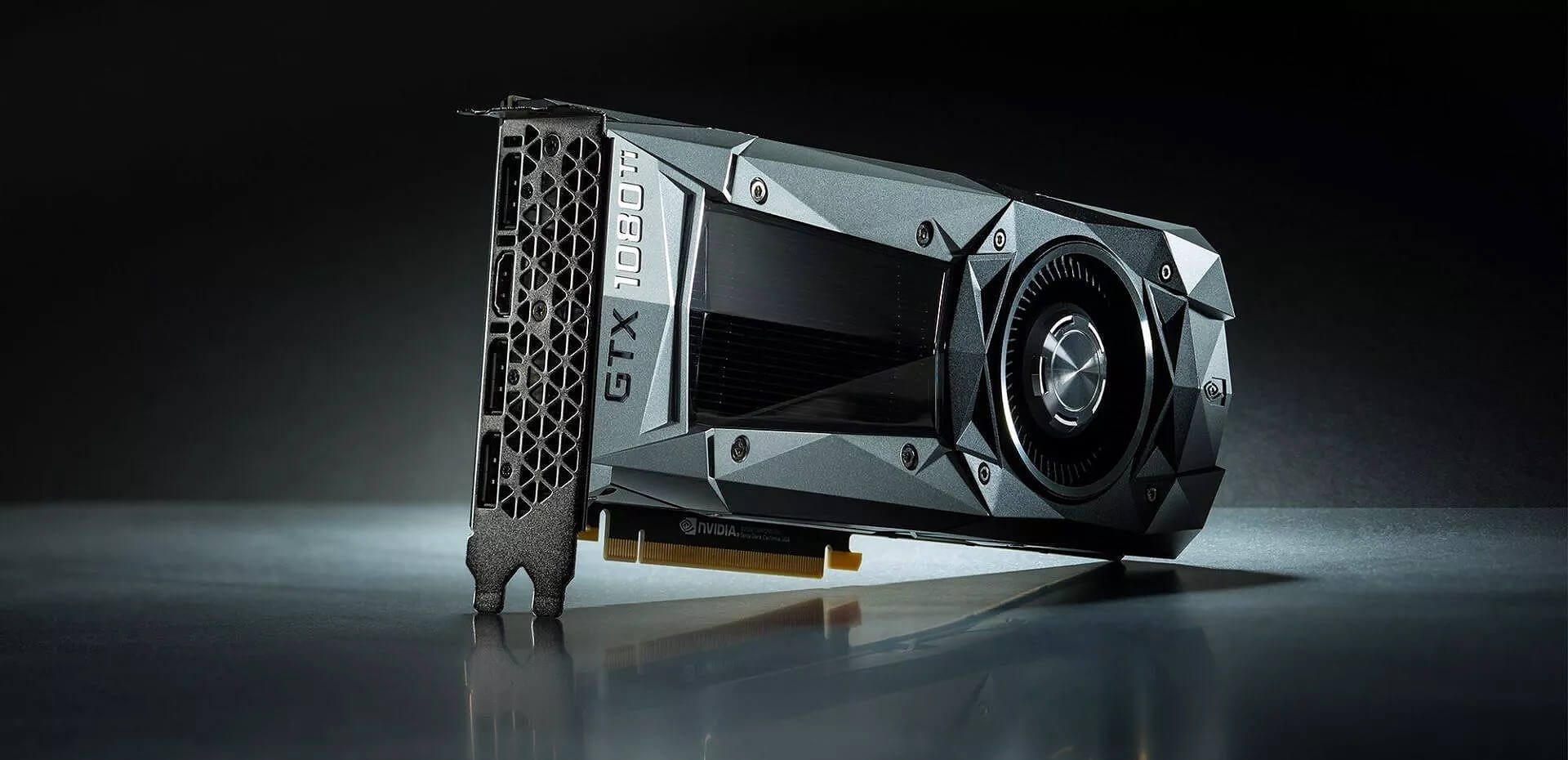
GPU 1080tiGPU shortage and its cause

As you all know by now, we live sadly in a world struck by a global Pandemic. Due to this awful disease and measures taken against it, many people are either working from home or are at home making the manufacturing of new chips problematic while demand on the market has raised. Throw into that mix crypto mining which has raised in popularity and you have, well today's market where we have GPU shortage. Now with the latest news that China has banned the mining of cryptocurrency, there is to be expected that at some point in time mining cards used there will fit the market in the whole world. Sadly even with a large quantity of GPUs that will become available, the overall price of cards will not be much lowered I am afraid since demand is still very high and many people would not want to purchase used mining cards and neither should you.

Be prepared for the worst scenario

Although this sounds very pessimistic and in most cases, it will not turn out to be true, you should always prepare yourself mentally that you might be in that lower percentage that will end up with a really bad GPU. What has come up to be absolutely true when considering GPU that were mining is that if anything at all can be done to GPU in order to increase performance, it has been done. Miners want to optimize and almost every GPU if could be overclocked, it was overclocked. Extensive mining also means that thermal paste has been dried and it is pretty useless at this point and there is a very high chance that fans and heat sinks will need much cleaning or even replacement raising the price of the card itself for mentioned paste, fans, and heat sinks. There's no way to tell what the previous owner might have done with a graphics card when you're shopping online, so our advice is to assume the worst. Don't trust the seller to give truthful information. Any listing that says it was "never used for mining" at this point is probably a lie.

Age of the GPU matters

Date when GPU itself has manufactured really matters. Newer cards even if used extensively have been used for a much shorter period of time and are not so damaged were ones produced a few years ago have seen a lot of action. Let’s say that you get RTX 3060, In the worst-case scenario it has been mining since late February of 2021 and basically, it is still under warranty so it should behave OK and put some good work in gaming even in that state. On another hand, if we take for example GTX 1080Ti which is 4 years old GPU things start to change drastically. 4 years GPU could be worn out even if it was used just for extensive gaming sessions let alone for mining.

No return policy and seller rating

Most of the time you will run into a product that cannot be returned or no refunds policy. This should bring a red flag right away and deter you from purchase. Sellers with the highest ratings are more trustworthy since many of them will not want to destroy their reputation but these will probably not even have these kinds of merchandise in their store. Buying with a poor rating seller and no return policy on a product is just asking for trouble. And although some stores do have arbitration and will stand on the customer side there is no guarantee for that and it will take too much time to process.

If you really must buy a second-hand GPU

Of course in these troubled times sometimes due to malfunction or any other reason, there would not be another choice than to buy a second-hand GPU. In this case, if there is no other option consider sellers with many positive ratings. If you can buy locally that would even be better or the best-case scenario would be if you could visually see and inspect GPU itself in order to see in what state it is. Look for warranty stickers to see if they are thorn and the card has been tampered with. Also take a good look at screws, if they have scratches card has been opened, probably to replace fan or heating sinks which means that it has worked a lot.

Conclusion

It is very difficult to give the best possible advice on this situation since of GPU shortage, but I would much prefer a new GPU with lower performance than a hi-performance one which was mining.
Read More
How to Fix ACPI_BIOS_ERROR in Windows 10
BSOD or Blue Screen of Death errors are one of the most common errors you can encounter on your Windows PC. One of these BSOD errors is the “ACPI_BIOS_ERROR”. If you suddenly get this error, it means that there is some problem in booting the operating system from your hard drive or Windows was not properly installed on your PC. In addition, this error could also mean that there is something wrong with the CMOS battery located in the motherboard. Unlike other BSOD errors, the workaround for this error is a bit different as these workarounds require a bit more expertise in updating the BIOS as well as setting the correct boot configuration. If you know are capable enough in troubleshooting the problem, refer to the instructions laid out below to fix the BSOD “ACPI_BIOS_ERROR”.

Option 1 – Try to remove the SSD and update the BIOS

The first thing you have to do is to check the primary storage devices on your PC. If you have just installed a new hard drive or SSD recently on your computer, then it’s most likely the cause of the BSOD error. Moreover, you should also ensure that your BIOS is up-to-date to the latest available build.
  • Remove the SSD/HDD and inject a different HDD that was already preinstalled in your Windows PC.
  • After that, update the BIOS to the latest available build. After updating it, insert the old SSD/HDD and then try to boot your PC again. The problem should be fixed now. If not, refer to the next given option.

Option 2 – Try to check the CMOS battery and reset the CMOS module

As mentioned earlier, the CMOS battery might also be the one that’s causing the problem. It is a physical component of the motherboard and is a memory chip that contains all the settings configuration on your computer and is also powered by a battery. So if your battery loses power, the CMOS will be reset and as a result, all the configurations will be gone as well. It is also possible that the CMOS module is not properly working and every time things are saved, they are properly written due to the battery. That’s why you have to consider changing the CMOS battery and see if it fixes the problem. In addition, you also have to make sure that you completely reset the CMOS module and then try booting your PC again.

Option 3 – Try to check the BIOS settings

If the BIOS settings are incorrect, chances are that’s the reason why you’re getting the “ACPI_BIOS_ERROR” BSOD error. Every BIOS has different settings which you can make use of to enhance your computer experience. So make sure that your BIOS is up-to-date and that the settings are in accordance with your requirement. Another thing you can try is to disable the Legacy USB and the Legacy BIOS in the BIOS settings if you are trying to install a 64 bit Windows version. Make sure that you also enable AHCI before plugging in the installation drive on your PC. Moreover, ensure that your PC is using IDE or Integrated Drive Electronics mode instead of SATA or Serial Advanced Technology Attachment. Aside from that, try to check the extracted setup if it is in NTFS format, if it is, you should extract the ISO in FAT32 and use it to install Windows.

Option 4 – Try to reset the ACPI Compliant Control Method

ACPI or Advanced Configuration and Power Interface provide an open standard that operating systems can use to detect hardware, perform power management, as well as monitor the status of your device and provide information for other processes. Chances are, there are some misconfigurations with this module on your PC that lead to believing that there is no battery present. That’s why you need to reset it and see if it fixes the BSOD error or not.
  • Boot your PC into Safe Mode.
  • Tap the Win + R keys to open the Run dialog box.
  • Type in “devmgmt.msc” in the field and tap Enter to open the Device Manager.
  • After opening the Device Manager, go to the “Batteries” section and click it to expand it and then right-click on the “Microsoft ACPI-Complaint Control Method Battery” option and click on Uninstall.
  • After you disable the module, click on any empty space and then click the “Scan for hardware changes” option.
  • Then check if you can now boot your PC normally and without the BSOD error.
Read More
Upcoming Windows 11 features

22H2 update for Windows 11 will arrive later this year and although Microsoft is not releasing anything big there will be some interesting improvements and fixes. We take a look at some that caught our attention.

windows 11 new fetures full screen widgets

Phishing protection

One of the most interesting upcoming features is enhanced phishing protection. Microsoft Defender SmartScreen will be upgraded to alert users when they try to store passwords in plain text files and also if they accidentally type in a Microsoft account password on phishing sites.

"These enhancements will make Windows the world's first operating system with phishing safeguards built directly into the platform and shipped out of the box to help users stay productive and secure without having to learn to be their own IT department,"

Microsoft

File Explorer gets tabs, a modern sidebar, and contextual suggestions

Finally, Windows File explorer is getting tabs that will allow much easier management of folders and files inside it.

It is confirmed that Microsoft is also working on a new 'HOME' sidebar that should be modern in design and in features including OneDrive so you can find everything in one place.

Pinning of favorite files was also mentioned so you can easily pin favorites for quick access.

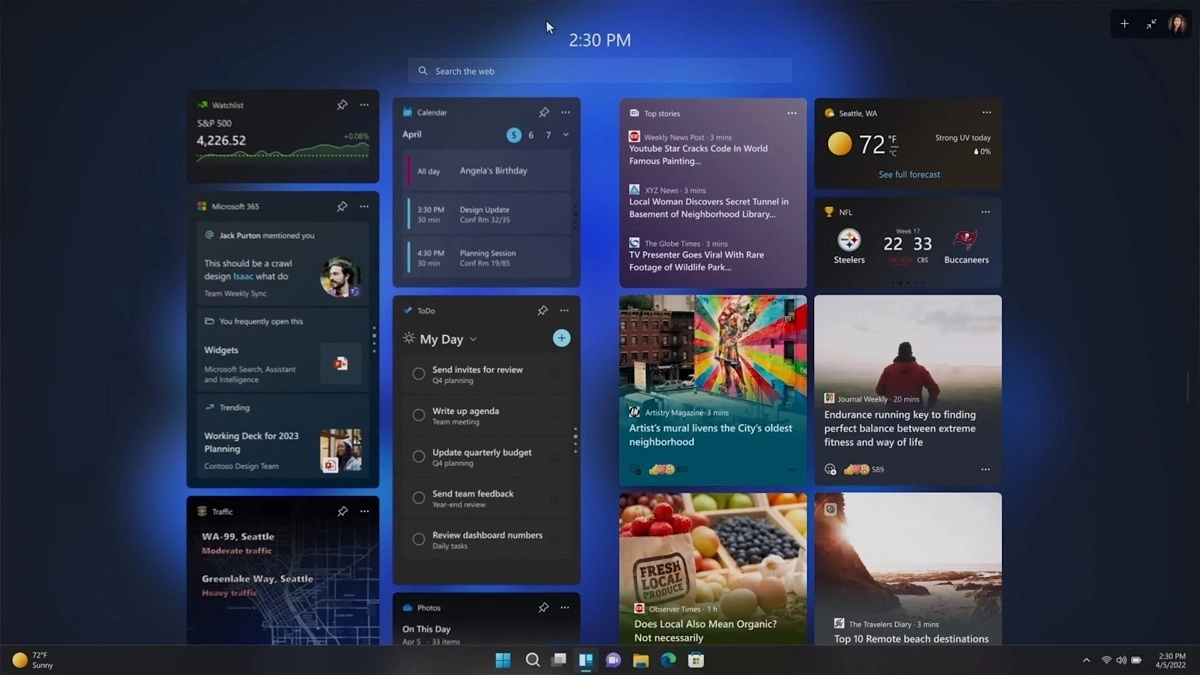
Full-screen widgets

Windows 11 has brought back widgets in a new way and from all the feedback users are loving them. Currently, you have a widget sidebar on the left part of the screen where you have your chosen store widgets but from the Microsoft teaser, we will have soon the option to have them in full screen.

If you are using a widget for reading news, blogs, etc. this feature will be very good since you will be able to use your whole screen for information and not just a part of it.

Suggested actions

Another new feature is 'suggested actions' which is going to be particularly useful in apps like Microsoft Teams. With this new feature, you can highlight a date in a Teams message and Windows will suggest actions.

For example, if you highlight a date, you'll see a recommendation to create an event in Microsoft Calendar for that day.

Read More
New calculator features in Windows 11 and more
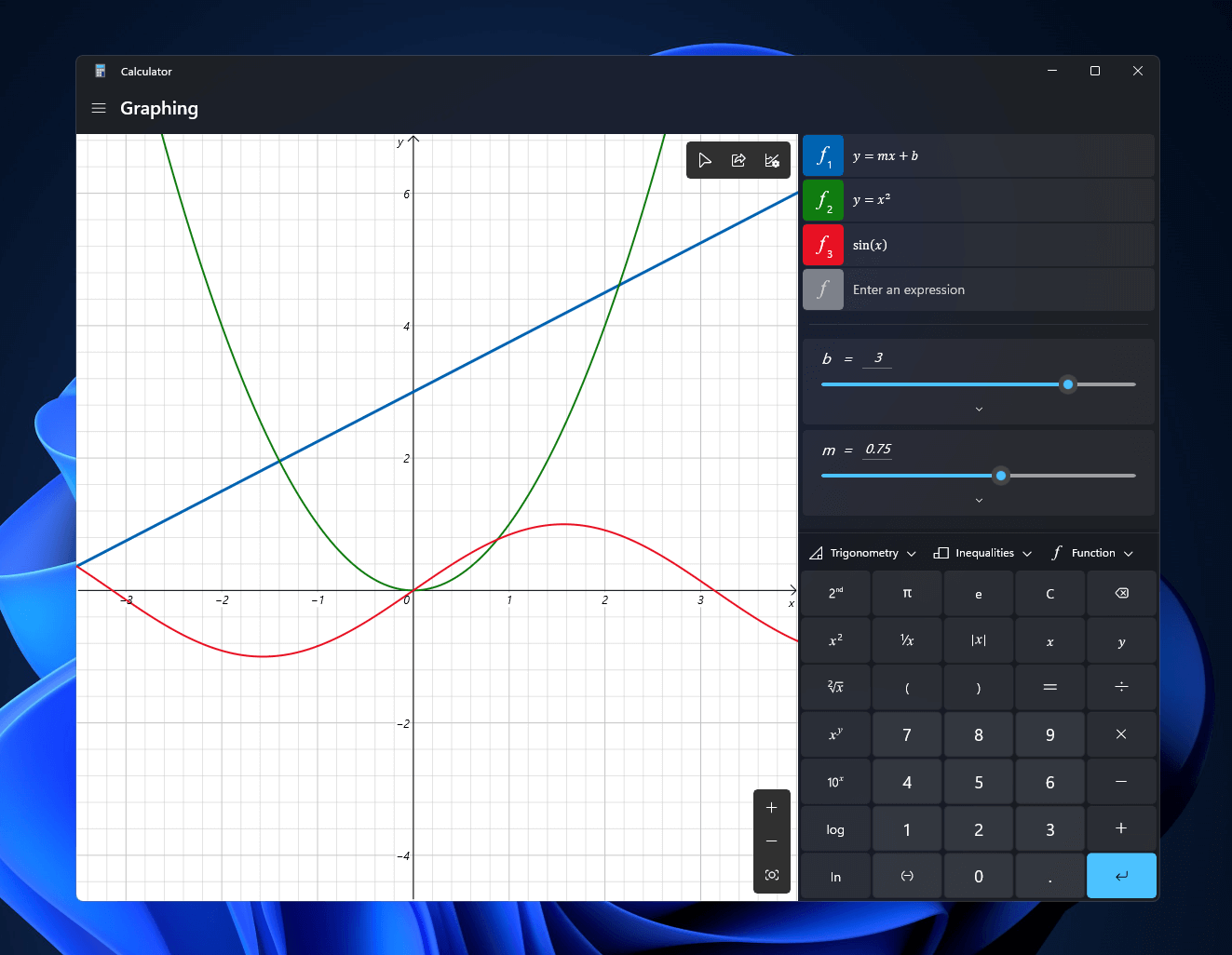
Calculator GraphingWindows 11 will bring some old applications in new looks and some will get additional features as well. One of the old apps that will get new stuff is a calculator. The calculator was always a way to go application for quick calculations but Microsoft aims to expand on that and make the calculator a little more useful. The first thing that you will notice is the calculator look, the calculator has now an application theme setting that allows you to change the look of the application. It comes in standard and professional mode as usual but this time calculator will come with features that will enable it to handle some programming and engineering tasks. The new calculator features a full graphing mode that lets you visually analyze a graph to identify key features. It also packs a deep converter that can switch between more than 100 units and currencies.

Other Windows 11 apps

A new snipping tool will be delivered with this latest update as well packed with new functionality. We have covered new features of the snipping tool in another article, if you are interested you can find the article here: https://errortools.com/windows/new-snipping-tool-redesigned-in-windows-11/ Mail and Calendar apps will also get a redesign, sadly all redesign that they will include will be of visual nature to fit in the overall Windows 11 theme, functionality will remain the same.
Read More
1 2 3 171
Logo
Copyright © 2023, ErrorTools. All Rights Reserved
Trademark: Microsoft Windows logos are registered trademarks of Microsoft. Disclaimer: ErrorTools.com is not affiliated with Microsoft, nor claims direct affiliation.
The information on this page is provided for information purposes only.
DMCA.com Protection Status