How to Fix Error Code 0xc004f210 in Windows 10

Error Code 0xc004f210 – What is it?

Error code 0xc004f210 is one of the many activation errors that affect Windows 10 users. Users will be able to identify error code 0xc004f210 because of the following common symptoms which occur:

  • Inability to activate Windows 10 operating system
  • Message box with error code 0xc004f210

Solution

Restoro box imageError Causes

Error code 0xc004f210 usually occurs due to issues related to one’s product key or digital entitlement. Both the product key and digital entitlement are used by Microsoft to enable customers to activate the version of Microsoft that they have legitimate access to. If you enter the wrong product key or if you upgrade to Windows 10 but the current version of Windows to which you are attempting an activation does not match the edition of your digital entitlement, error code 0xc004f210 may occur. To correct this issue, you will need to implement one or more manual repair procedures. This will depend on the problem that caused the error to occur in the first place.

Further Information and Manual Repair

The methods below are simple procedures that Windows users lacking technical knowledge will be able to successfully complete. However, do contact a Windows repair technician if you have difficulty completing the manual repair methods listed below, or if the problem persists after completing these steps.

Method One: Enter Valid Product Key

In order to successfully activate your Windows 10 operating system and resolve error code 0xc004f210, you will need to enter a valid product key. Ensure you enter the 25-character code in the order it is given as making a simple mistake while typing the product key can lead to the reoccurrence of the error code. Follow the instructions below to enter the product key.

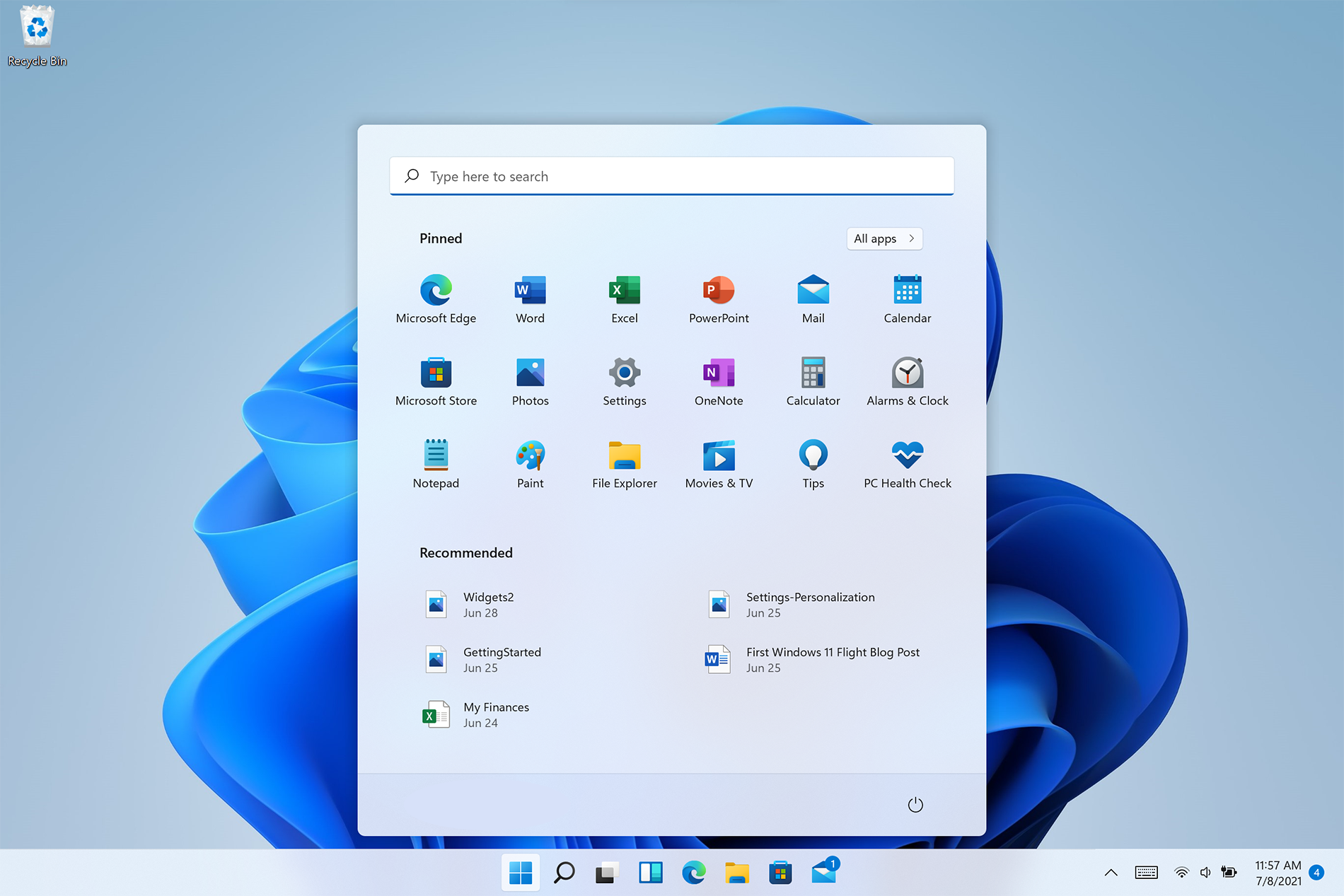
  • Step one: Click the Start button then select Settings
  • Step two: Select Update & security then Activation
  • Step three: Click the Change product key
  • Step four: Type in your valid product key with its 25 characters in the correct order

You should be able to successfully activate Windows 10 once you complete the process. However, move to the next manual method suggested below if the problem persists as error code 0xc004f210 could be due to an issue with your digital entitlement.

Method Two: Reinstall Windows 10 Edition that Matches Your Digital Entitlement

Digital entitlement, a new form of activation that doesn’t require the use of a product key, could be the real reason you are experiencing error code 0xc004f210 on your device. To combat any issues related to your digital entitlement, ensure the version of Windows 10 installed on your system matches your digital entitlement. This will require that you reinstall your operating system as well. After reinstalling Windows 10, follow the steps below to complete the process.

  • Step one: Click the Start button then select Settings
  • Step two: After selecting Settings, click Update & Security
  • Step three: Select Windows Update then the Check for updates tab
  • Step four: Activate Windows 10 update

If this method is successful, you will no longer see the error code 0xc004f210 pop up on your screen. However, contact a Windows repair technician to evaluate your system if the issue persists.

Method Three: Use an Automated Tool

This method involves the use of a powerful automated tool. But why is this important you might ask? A third-party tool is often the best solution when all manual repair efforts fail. Automated tools come equipped to tackle the most serious PC problems including error codes which can cause frustration and result in reduces PC performance.

Do You Need Help with Your Device?

Our Team of Experts May Help
Troubleshoot.Tech Experts are There for You!
Replace damaged files
Restore performance
Free disk space
Remove Malware
Protects WEB browser
Remove Viruses
Stop PC freezing
GET HELP
Troubleshoot.Tech experts work with all versions of Microsoft Windows including Windows 11, with Android, Mac, and more.

Share this article:

You might also like

Methods To Repair "Error in Loading DLL" on Windows PC's

Error in Loading DLL - What is it?

This is a Dynamic Link Library (DLL) error. It results when a program calls upon a DLL file to perform a certain task and the file fails to load as it is damaged. In a nutshell, DLL is a collection of small programs. DLL is called upon by the executable program (EXE) that is running. The DLL file allows the executable program to run on the system. For example this error may occur when you try to run wizards in Microsoft Office Access such as the Import Wizard, the Report Wizard or the Control Wizard. This error is usually displayed as:
“Error in loading dll” “Object library not registered”

Solution

Restoro box imageError Causes

The error in loading DLL occurs due to numerous reasons. Some of the most common causes include:
  • The DLL or the referenced DLL is not in a directory specified in the path.
  • DLL File is damaged due to hard disk errors and registry corruption
  • Registry key may not exist
  • Malware errors add malicious codes to the application
  • Spyware and adware infections
When you come across error in loading DLL, it is advisable to fix it right away as this error can pose serious threats and lead to your PC malfunctioning. It can corrupt programs and put you at risk of data security and privacy threats.

Further Information and Manual Repair

To resolve this error in loading DLL files, you don’t always have to hire a technician even if you don’t have technical knowledge. This error is quite easy to repair. Here are two ways to resolve error in loading DLL without any professional assistance:

Solution 1: Reinstall the Program

Reinstalling the program can help you resolve this issue. However, when doing this you will first have to uninstall the program and also remove the DLL files from the registry to ensure the update is carried successfully. In addition to this, you will also have to uninstall some programs that share DLL files with the program that you are removing from your system to reinstall it again. Windows will prompt the DLL shared message if it is being shared by other software on your system. Though this is a method used to resolve errors in loading DLL this can be slightly tricky and confusing for many.

Solution 2: Repair the Registry and Remove Malware

This is the best, easiest and most efficient way to repair error in loading DLL files. Did you know 94% of the PC-related errors are triggered by registry corruption and malware infection? To repair the registry and remove malware from your system, you don’t have to download a separate registry cleaner and an anti-virus. Simply download Restoro. Restoro is a cutting-edge and multi-functional repair tool integrated with powerful utilities like a registry cleaner, system optimizer, and an anti-virus. By running Restoro on your computer you can resolve all the underlying causes for error in loading DLL files in seconds. Whether the error results from registry corruption or viral infection, Restoro is the only tool you need to run to repair. It is a safe, efficient and a super functional tool. It has a neat layout, easy navigation, and a user-friendly interface embedded with advanced technology and automated algorithms that scan your entire PC and repair all kinds of PC issues right away.  It can be easily operated by even novice users.

Restoro features

The registry cleaner feature repairs DLL errors and corrupt registry. It removes all the unnecessary and obsolete files that have overloaded and damaged the hard disk. It scans and wipes out such files clearing up the disk space. It fixes mis-configured registry keys and settings thus resolving errors in loading DLL files. If your system is infected by malware it may create Dll.exe malicious files on your system. If these are viruses, they can damage your system. Malicious software like Trojan and spyware are detected and removed with the help of the privacy error detector module integrated into Restoro. Other features that are worth mentioning are its backup feature and outstanding Windows compatibility. With Restoro users can create backup files for data recovery in the event of data loss during repair. Also, it is compatible with all Windows versions. To resolve error in loading DLL files on your system you just have to perform 3 simple steps:
  1. Click here to download Restoro.
  2. Run it on your system to scan for errors in loading DLL files
  3. Click repair to fix the issues.
Read More
Guide to Correcting Error Code 46

Error Code 46 – What is it?

Error Code 46 is a device driver error that occurs when Windows fails to access the connected peripheral device to the computer as Windows is in a process of shutting down.

Users experience this error on any Windows 2000 and later operating system versions and usually see a pop-up with the following message:

“Windows cannot gain access to this hardware device because the operating system is in the process of shutting down. (Code 46)”

Solution

driverfix boxError Causes

Error Code 46 is caused when there is a temporary problem with windows system files which prompts that the system is undergoing a shut down when in fact is it not.

This prevents access to the connected devices. This error may also be caused by a registry issue in which case it has either become corrupted or damaged.

Further Information and Manual Repair

Unlike all other Windows error codes, code 46 is relatively easy to fix with the right knowledge and does not pose any serious threat to the well-being of your PC. Here is how you can do it.

Method 1 – Restart your PC

The simplest method to resolve Error Code 46 is to run a restart of your computer.

The error is most commonly a temporary registry glitch that prevents you from accessing the device connected to your computer. Upon restarting your computer, it will resume working properly as before.

There is no need to run a troubleshooting wizard, use system restore, or run anti-virus software to scan and remove malware or spyware. A simple restart is all that is needed.

Method 2 – Install DriverFIX

Although the error code can be resolved upon restarting the computer, there’s a possibility of damaged or corrupted Windows registry files. This can be fixed by using a program like DriverFIX.

DriverFIX, with its user-friendly approach to help you fix your PC issues, comes with an integrated database that detects which drivers you need to reconfigure within just a few seconds and downloads it automatically.

It further ensures that your drivers are installed in their entirety leaving no room for any corrupted or damaged registry.

Error Code 46 may not be much of an issue, however, to prevent any risk of a Windows system corruption can be disastrous for your computer.

DriverFIX helps you fix your PC registry and device driver problems with user-friendly software and an integrated database. The database which consists of detailed information on what device driver needs to be installed will automatically download the required device driver without you need to refer to your hardware instruction manual.

Registry problems resulting from incomplete program installations and viruses such as malware and spyware damaged registry files. This affects your PC in serious ways.

DriverFIX further has an automatic backup and restoration system that helps create system ‘checkpoints’ which allow you to roll back to a healthier state and resume operations. This can help you avert any Windows error codes in the future.

Click here to download DriverFIX now!

Read More
Fix Can’t initialize disk in Windows 10
If you have recently installed a new internal or external hard drive or SSD and you’ve noticed that its status on the left side of the Disk Management tool states “Unknown Not Initialized”, this indicates that Windows can’t initialize the disk and that you won’t be able to use this new SSD or hard drive. You can encounter this kind of issue randomly and not just with a new hard drive or SSD but also with existing drives. There are times when you won’t be able to find your drive or partition in the File Explorer. In such a case, you have to check the Disk Management if your drive or partition is there physically. You also have to check if you can see it as Not Initialized. If it is, then this means that the disk or partition does not have a valid signature that is if it’s not registered with the system properly. Note that a disk is registered when you format it at least once so if the disk was available before, then it could be somehow corrupted. To resolve the problem, you can try to initialize the disk manually or bring it online and add a drive letter. You can also try checking the Device Manager for issues or check the cable physically.

Option 1 – Try to manually initialize the disk

Since initializing the disk is the most common way to resolve the “Unknown Not Initialized” error, this is what you have to try first.
  • To initialize the disk manually, you have to open the Disk Management from the WinX menu by tapping Win + X keys and selecting Disk Management.
  • From there, you can find the non-initialized disk. Right-click on it and select the “Initialize Disk” option.
  • Next, select the partition style. It is recommended that you use the MBR option instead of the GPT or GUID Partition Table.
  • Now click the OK button. Your hard drive or SSD should now initialize without any problem.

Option 2 – Set the disk Online and add the Drive letter

  • If the disk appears to be offline under Disk Management, right-click on it and select the Online option.
  • On the other hand, if the disk is already set Online but does not have a drive letter, right-click on it and select the Change drive letter and path option.
  • Select a letter that is not allocated yet.
  • Once you’re done, you have the option to format the disk in either NTFS or FAT32 but if you are using a 64-bit computer, make sure that you opt for NTFS.

Option 3 – Try to check any issues in the Device Manager

It is also possible that the hard drive is not working properly due to some driver issues. Thus, it’s better if you check the Device Manager and see if that drive is listed with a yellow exclamation mark next to it. And if that’s the case, you have to right-click on that drive and select the Uninstall drive option. After that, click on Action and then run the Scan for hardware changes. It should fix the problem.

Option 4 – Try to physically check the cable

You might also want to check the physical status of the wires and see if they are connected properly or not. Specifically, you have to check two cables, such as:
  • The first one is the power cable that’s connected to your SMPS.
  • Next is the one that’s connected to your motherboard.
If any of the two cables are not working or missing, then it’s no wonder why your drive has an “Unknown Not Initialized” status. Thus, you need to have them replaced to fix the problem.
Read More
Advice when you have broken key on a keyboard
Having any kind of hardware malfunction is not a pleasant place to be. Even a minor malfunction like a broken key on a keyword can introduce certain bad feelings, frustration, and difficulty in working. So, what are your options when the dreaded key on the keyboard breaks? From my point of view, there are three options that could be accomplished in order to continue working.
  1. Replace broken keyboard with the new one

    Yes, the best and most expensive solution, just bite the bullet and buy a new working one.
  2. Replace key with another key

    So you broke some key, if you can replace it with another key which you do not use, this option will work only tho if the broken key is not Space bar, enter or similar with specific shape and size.
  3. Remap key

    use Windows power tools to remap key function to another working key
There you go, three options to continue working with a broken key on the keyboard.
Read More
A Quick Guide to Repair User32.dll Error Code

User32.dll Error Code - What is it?

User32.dll is a Dynamic Link Library file. Windows stores instructions for graphical elements such as dialog boxes and Windows in this file. This file is a crucial file, necessary to run Windows operations. If this file is damaged, deleted, or removed from the system you may not be able to run the programs on your system that use and share the User32.dll file thereby causing you inconvenience. The User32.dll file error is displayed in the following format:

“This application has failed to start because USER32.dll was not found. Reinstalling the application may fix this problem.”

Or

“[Program] illegal system DLL relocation”

Program here refers to the name of a program that caused the User32.dll error message.

Solution

Restoro box imageError Causes

User32.dll errors are triggered by the following reasons:
  • Missing and damaged .dll files
  • Viral infection
  • Registry corruption
User32.dll error is also referred to as C0000135 blue screen of death error. When the User32.dll error occurs it not only locks you out of your desired program but also turns your computer screen blue. If the error is not repaired timely it may expose your PC to serious threats such as abrupt system shutdowns, system failure, and crash.

Further Information and Manual Repair

To resolve the User32.dll error on your PC, try the following solutions:

1. Reinstall Programs Causing User32.dll errors

Sometimes User32.dll error may occur due to missing DLL files.  This happens when you delete a program from your PC and accidentally the DLL file also gets deleted which is shared by other programs on your system. Therefore to resolve this first find out what programs on your system use User32.dll to load and run on your system. To do this use the Tasklist command-line tool. It displays the names of all the programs that currently use the User32.dll file. After this, reinstall the programs that use User32.dll files on your system. This will hopefully resolve the error.

2. Install and Run Restoro

If it doesn’t, then this probably means that the damage is deep-rooted. It is related to the damaged DLL files, registry corruption, or viral infection. To resolve all of these causes in one go, it is best to download Restoro instead of downloading 3 different software to resolve each cause for the error separately. This is basically an advanced, innovative, and multi-functional PC repair tool embedded with multiple powerful utilities including a registry cleaner, and a system optimizer. It is a one-stop solution for all your PC-related problems including the User32.dll error. The registry cleaner wipes the clutter and obsolete files damaging the hard disk and simultaneously repairs the DLL files and the registry. The antivirus feature removes all the viruses on your system while the system stability utility boosts the PC speed significantly. It is safe, user-friendly, and compatible with all Windows versions including Windows Vista, XP, Windows 7, 8, 8.1, and 10. Click here to download Total System Care to resolve the User32.dll error right away.
Read More
Can’t connect to this network Windows issue
Internet connectivity issues like Can’t connect to this network present a complex problem with simple solutions for PC and laptop users. First, it is usually recommended that users rule out problems with the internet connection, router, and Wi-Fi settings before proceeding to troubleshoot settings on your PC/laptop. Once the rest are ruled out, we can then proceed with the following troubleshooting steps and guidelines to fix your wifi connection issue: The first step is to update your windows network adapter driver. Connectivity problems may arise if your network driver is not updated or if it is incompatible with the network adapter. To do so, you may resort to any third-party driver scanning and installing programs found online. This solution should resort if users don’t want the hassle of perusing through windows settings that users may not be familiar with. However, this solution requires a pre-existing internet connection other than wifi, so it is recommended you have a backup internet connection via ethernet. The second step is to uninstall the driver for your network adapter. This solution is to resort if there is an issue with the driver as restarting the PC after the following steps let windows reinstall the driver again:
  • Open the quick access menu on your keyboard by pressing the Windows key and X key at the same time and select “Device Manager” from the menu list.
  • From the list of devices, select “Network Adapters”
  • Usually on the top of the list is the Wireless Network Adapter
  • Right-click the Wireless Network Adapter and select the option to “Uninstall device”
  • You will be given a confirmation in a new separate window to proceed. Click “Uninstall” to proceed.
  • After completing the previous steps, try rebooting your Windows PC and reconnecting to see if it works.
A third step is to disable the 802.1 1n modes of your network adapter by following the next steps:
  • First press the Windows logo key and the X key at the same time to bring up the quick-access menu. And like the previous step, select “Device Manager”
  • From the list of devices, select “Network Adapters”
  • Right-click the Wireless Network Adapter from the drop-down menu and select properties
  • Under properties, select the “Advanced” tab then select the 802.1 1n Mode. To the right drop-down menu change the option to  “Disabled” and click “Ok”
  • After, try to re-establish the connection to see if the steps have worked.
In the event that any of the preceding did not fix your problem, it helps to take a second look at the router and network settings using the interface provided by your ISP. A simple reset to the back of your router often fixes the issue. Also, try to check if you have any other administrative capabilities over the network to determine whether your device, in particular, has been MAC filtered or if the frequency of your wireless adapter is not compatible with the broadcast frequency of your router.
Read More
Fix Windows was unable to repair the drive
If you connected your Hard Disk, USB, or SD card to your Windows 10 computer and you suddenly encounter an error that says, “Windows was unable to repair the drive”, read on as this post will help you fix the problem. This kind of error indicates that the file system on the drive has become corrupted and that ChkDsk was not able to repair the problem. You can also encounter this error when you try to run the ChkDsk utility to repair the system. This kind of error is most likely due to the general corruption of the contents in the drive. It is also possible that you removed the external drive without using the “Safely remove hardware” option or it could be that the drive is still in use. To fix the problem, the obvious thing to do is to safely remove the external drive by using the “Safely remove hardware” option. If it didn’t work, you can try to run the CHKDSK utility from the command line or you could also restart your computer in a Clean Boot State and then run the scan. Before you proceed with the potential fixes provided below, make sure that you create a system restore point first or you could also create a backup copy of the data to an external drive.

Option 1 – Run the CHKDSK utility from the command line

Although some users reported getting the “Windows was unable to repair the drive” when they run a CHKDSK scan, other users reported that running it also fixed the error. Thus, you can try to run it and see if it works or not.
  • In the Windows Search box, type “command prompt” and from the search results, right-click on Command Prompt and select “Run as administrator”.
  • After opening Command Prompt, type this command and tap Enter: chkdsk <Partition Letter>: /f
  • The command you entered will start to check for errors and fix them automatically. Else, it will throw an error message saying, “Chkdsk cannot run because the volume is in use by another process. Would you like the schedule this volume to be checked the next time the system restarts? (Y/N)”.
  • Tap the Y key to schedule Disk Check the next time your computer restarts.

Option 2 – Restart your computer in a Clean Boot State

There are some instances that some conflicting programs installed in your computer might be the one that triggers the “Windows was unable to repair the drive” error to appear when you connect your external drive or run the CHKDSK utility. To identify which program is causing the problem, you need to put your computer in a Clean Boot State. To do so, follow the steps below.
  • Log onto your PC as an administrator.
  • Type in MSConfig in the Start Search to open the System Configuration utility.
  • From there, go to the General tab and click “Selective startup”.
  • Clear the “Load Startup items” check box and make sure that the “Load System Services” and “Use Original boot configuration” options are checked.
  • Next, click the Services tab and select the “Hide All Microsoft Services” check box.
  • Click Disable all.
  • Click on Apply/OK and restart your PC. (This will put your PC into a Clean Boot State. And configure Windows to use the usual startup, just simply undo the changes.)
  • Once your computer has restarted in a Clean Boot State, perform your scan again and see if it now works, and then start to isolate the problem by checking which one of the programs you installed recently is the root cause of the problem.
Read More
Error Code 0x6d9 - The Causes & The Fix!

What is the Error Code 0x6d9?

If you have a firewall installed on your system, you may come across the error code 0x6d9.  This error occurs when opening Windows Firewall with advanced security. The error code 0x9d9 is displayed as:

“There was an error opening the Windows Firewall with Advanced Security snap-in. The Windows Firewall with Advanced Security snap-in failed to load. Restart the Windows Firewall service on the computer you are managing. Error code: 0x6D9”

This occurs when the Windows Firewall service is missing. The service doesn’t start due to permission errors on various registry keys. It is a critical blue screen of death error code that turns the computer screen blue and causes the Windows to shut down. If this error code is not fixed it may start appearing more and more frequently resulting in total system corruption.

Solution

Restoro box imageError Causes

Virtually, the underlying cause for Windows Firewall error code 0x6d9 is a damaged registry. The registry is the database of the system that saves all the activities including web browsing and programs installed and uninstalled and junk files on the PC. The registry saves all the information in the RAM, your hard disk. As the disk gets filled with files, it then requires more power to run which impacts the performance of the PC and slows it down. Simultaneously, since the hard disk is overloaded with data, it exposes the registry to file damages, fragmentation, and corruption which then eventually causes hindrance in running calling programs and running them on your system because files are either corrupt or missing. Other than cluttered disk issues, registry errors also occur due to viral and malware attacks. If the Firewall is inaccessible, your system is prone to malware.

Further Information and Manual Repair

To fix the error code 0x6d9 on your system, you don’t have to be a computer programmer or hire a professional. You can fix it all by yourself with Restoro. Restoro is an advanced, intuitive, user-friendly, and multi-functional repair tool with a comprehensive suite of powerful PC fixing utilities, all in one. From registry errors like the blue screen of death error codes including 0x6d9 to viral infection and system slowdowns, Restoro is your one-stop solution for all PC errors. With this software, you don’t need any technical expertise. You don’t have to get into the nitty-gritty of finding the deep-rooted cause for the error code 0x6d9 and then searching and installing a PC tool designed to solve that specific cause for the error. Restoro has an intuitive and sophisticated interface combined with an automated algorithm that enables it to detect, scan and identify all the underlying and deep-rooted causes for errors on your PC in seconds and resolves them all. All you have to do is hit the scan button and the Restoro takes care of the rest.

Restoro features

Restoro is also easy to use and has simple navigation making it easy for all levels of users including beginners and intermediates to use. This PC Fixer is both a high-functional registry cleaner and a powerful anti-virus. This means whether the error code 0x6d9 occurs due to disk overload or viral infection this helper can be used to fix the error in both scenarios. Its in-built registry cleaner cleans and clears up the hard disk in a few seconds. It removes all the unnecessary and obsolete files cluttering the system and repairs the damaged registry. For data safety during repair, it has a built-in back feature. This feature allows you to save and create backup copies of all your files. Its smart privacy error detector feature checks for viruses, spyware, adware, and malware invasion on your system. Such malicious software if not removed from your PC can expose you to data security risks.  Such software allows easy access to hackers. And since error code 0x6d9 hampers you in using Firewall, your system will have higher chances of getting infected by viruses and data security dangers. Nonetheless, by running Restoro on your system, you can easily remove this malicious software and resolve the error code 0x6d9. Unlike other repair tools, Restoro is compatible with all Windows versions.

How to get Restoro

So, what are you waiting for? It will take just 3 steps. To get started all you need to do is:
  1. Click here to install Restoro
  2. Run it to Scan for errors
  3. Hit the repair button to resolve
To prevent the error code 0x6d9 from reoccurring on your PC for a while proper PC maintenance is advisable to run Restoro on a weekly basis on your system so that the registry is not cluttered and your system is not exposed to viruses. Timely detection of errors and repair is the best way to keep your system performing smoothly and at its optimum speed.
Read More
Fix One Drive Error: This is not a valid file name
As you know, Microsoft’s consumer cloud storage platform is none other than OneDrive. It is where users can save any of their files albeit it’s mostly used to store common files like documents and photos. However, there are times when you might encounter some problems when saving these files. Recently, some users reported that they had problems saving Word documents to OneDrive and if you experience the same issue, then you’ve come to the right place as this post will guide you on how to resolve it. According to users who encountered the problem, when they try to save Word documents on OneDrive, an error message appears instead stating, “This is not a valid file name”. This kind of error only occurs when the file is opened from within OneDrive for saving in a different folder. In other words, if the file is saved in the same folder, the error won’t pop up but if it is saved in a separate folder, that’s when the error appears. Worry not though for fixing this error is not complicated and won’t take too long. It seems that this error is due to the 259-character limitation when creating and saving files as far as the Office products are concerned. To resolve it, there are several workarounds you can check out. Before you proceed with these workarounds, make sure that you have a stable internet connection.

Option 1 – Try renaming the file with a shorter name

The first thing you can do to fix the problem is to rename the file with a shorter name. Just right-click on the file and select the Rename option from the menu and then type in the new name and click OK or tap Enter to rename the file.

Option 2 – Try renaming the folders where the file is located

Like what you did in the first given option, all it takes is a right-click but this time on a folder. Rename the folder with a different name and save the changes made and then check if you can now save the Word document on OneDrive.

Option 3 – Try moving the file to a folder with a shorter path

If the first two options didn’t work, you can try moving the file to a folder with a shorter path. Note that it is not the same as doing it locally on a Windows 10 computer so you have to right-click on the file and select the “Move to” option. After that, locate the folder where you want to move the file and select it and then click on the Move button to complete the task.

Option 4 – Try making some changes in the document

You could also try to make some modifications to the document. Once you’ve done that, click the File tab and select the Save As option and then go to the folder where you want to save the file and tap enter.
Read More
Changing color of START menu in Windows 10
The new Windows 10 update has brought some fixes, improvements, and little things to personalize our computer more. One of these personalization updates we have received is that we can now finally change the color of our START menu and taskbar and it is easy as 1,2,3. In order to change and personalize your START menu and/or title bars all you have to do is click on your windows icon to bring the start menu up and then click on settings. Windows 10 Start menu with marked settings iconOnce you are in setting windows go to personalization settings. Windows 10 settings menu with marked Personalization groupWhen the personalization setting opens go-to color tab on left and scroll down until you find 2 checkboxes under "show accent color on the following surfaces:" Windows 10 Color settings marked with optionscheck ones you wish to apply the effect to and you are done. Now your START menu and/or title bars are using the color scheme of your choice.
Read More
1 2 3 171
Logo
Copyright © 2023, ErrorTools. All Rights Reserved
Trademark: Microsoft Windows logos are registered trademarks of Microsoft. Disclaimer: ErrorTools.com is not affiliated with Microsoft, nor claims direct affiliation.
The information on this page is provided for information purposes only.
DMCA.com Protection Status