Logo

How to Enable Last Active Click feature

Microsoft has started to use group along with every open window in the Taskbar ever since the release of Windows 10. Early on, they used to show an individual entry for each one of the windows after grouping them which makes the taskbar look cleaner and organized. However, the main issue lies in the fact that you have to hover on your desired window to get on to them. At the time of writing, you need to tap the Ctrl key and click on the taskbar icon to open the last active window but you have to only click on the program’s taskbar icon after you apply the tweak given in this post for the last active window to open. Take note that the “Last Active” windows feature will only work if the taskbar buttons are combined.

Before you get started doing the instructions given below, you need to create a System Restore Point first since you will be dealing with registry files and modifying some of the critical settings in Windows 10. Once you’ve done this, proceed to the given steps below.

Step 1: Tap the Win + R keys to open the Run dialog box and then type “Regedit” in the field and hit Enter to open the Registry Editor.

Step 2: If a User Account Control or UAC prompt appears, just click on Yes to proceed to open the Registry Editor.

Step 3: Next, navigate to the following registry path:

HKEY_CURRENT_USERSoftwareMicrosoftWindowsCurrentVersionExplorerAdvanced

Step 4: From there, right-click on the right side of the panel and select New > DWORD (32-bit) and then name it “LastActiveClick”.

Step 5: After that, double click on the newly created DWORd to modify its value. Put “1” as its value data.

Step 6: Then click OK and close the Registry Editor.

Step 7: Now restart your computer to successfully apply the changes made.

Note: In case you want to revert back to the default configuration, all you have to do is set the value data of LastActiveClick to “0” or simply delete that DWORD and restart your computer to successfully apply the changes made.

Do You Need Help with Your Device?

Our Team of Experts May Help
Troubleshoot.Tech Experts are There for You!
Replace damaged files
Restore performance
Free disk space
Remove Malware
Protects WEB browser
Remove Viruses
Stop PC freezing
GET HELP
Troubleshoot.Tech experts work with all versions of Microsoft Windows including Windows 11, with Android, Mac, and more.

Share this article:

You might also like

Fix 0x80071AC3, Volume is dirty error message
If you are trying to copy a folder or a file but encountered an error that says, “An unexpected error is keeping you from copying the folder. If you continue to receive this error, you can use the error code to search for help with this problem”, read on as this post will guide you on how you can fix this error. This kind of error is a CHKDSK error. It is the “Volume is dirty” error message with error code 0x80071AC3 which indicates that the CHKDSK operation on your computer did not go through due to some corrupted sector of your hard drive, data corruption, corrupted system files, malware infection, as well as improper installation of an application that left some residual folders and files and many more. To fix the Error 0x80071AC3, here are some potential fixes you can check out to resolve it:

Option 1 – Run the Check Disk utility

You can also run the Check Disk utility to fix the error when you connect your USB or external device.
  • In the Windows Search box, type “command prompt” and from the search results, right-click on Command Prompt and select “Run as administrator”.
  • After opening Command Prompt, type this command and tap Enter: chkdsk /r /f <PARTITION LETTER>
  • The command you entered will start to check for errors and fix them automatically. Else, it will throw an error message saying, “Chkdsk cannot run because the volume is in use by another process. Would you like the schedule this volume to be checked the next time the system restarts? (Y/N)”.
  • Tap the Y key to schedule Disk Check the next time your computer restarts.

Option 2 – Try to check if a particular volume is dirty and exclude it

The next thing you can do to fix the problem is to check if the particular volume is dirty and exclude it. To do so, follow these steps:
  • In the Start Search, type “command prompt” in the field and right-click on Command Prompt from the search results, and then select the “Run as administrator” option.
  • After opening Command Prompt with admin privileges, execute this command: fsutil dirty query <PARTITION LETTER>
  • After that, you will see either of the following results of the command you just executed:
    • “Volume <PARTITION LETTER> is dirty”
    • “Volume <PARTITION LETTER> is not dirty”
  • If you see the “Volume <PARTITION LETTER> is dirty” message, then you can just skip checking the drive for errors by executing this command: CHKNTFS /X <PARTITION LETTER>

Option 3 – Try to format the destination drive

If the first two options above didn’t work, then you might want to try formatting the drive can also help you resolve the error. To format it, follow these steps:
  • To get started formatting your drive, tap the Win + E keys and then go to the access page of the drive.
  • Next, right-click on the drive and select Format.
  • After that, uncheck the “Quick Format” option and then format your drive properly.
  • Now once the formatting process is finished, unplug the drive and plug it back in afterward.
  • Check if the error is already fixed. If the drive is not initialized, tap the Win + R keys and hit Enter.
  • After opening the Run dialog box, type “diskmgmt.msc” and hit Enter to open Disk Management.
  • From there, right-click on the drive volume and select initialize disk.
  • Next, select the correct partition type and proceed.
Read More
How to Fix Error Code HPQTRA08.exe

HPQTRA08.exe - What is it?

HPQTRA08.exe (Hewlett Packard Tray 08) is the Hewlett Packard Digital Imaging Monitor task. It is installed with the drivers of HP imaging products like PhotoSmart Printers.

It incessantly monitors and indicates the connectivity status with any recognizable HP product.

Simply put, HPQTRA08.exe is an exe (executable) file that contains step-by-step instructions that a computer follows to carry out a function.

HPQTRA08.exe error code is displayed in any of the following formats:

  • "Hpqtra08.exe Application Error."
  • "Cannot find hpqtra08.exe."
  • "Hpqtra08.exe not found."
  • "Error starting program: hpqtra08.exe."
  • "Hpqtra08.exe is not a valid Win32 application."
  • "Hpqtra08.exe failed."
  • "Faulting Application Path: hpqtra08.exe."
  • "Hpqtra08.exe has encountered a problem and needs to close. We are sorry for the inconvenience."
  • "Hpqtra08.exe is not running."

Solution

Restoro box imageError Causes

Error code HPQTRA08.exe can be triggered for several reasons. However, some of the most common causes include:

  • Corrupt Windows registry keys
  • Virus infection
  • Deleted, damaged, or corrupted HPQTRA08.exe file
  • HPQTRA08.exe file conflict
  • Corrupt or incomplete installation of Hp Digital Imaging

It is advisable to repair the error code HPQTRA08.exe on your PC immediately. Delays can lead to serious problems especially if the underlying cause of the error is related to registry corruption.

Further Information and Manual Repair

To resolve this error on your PC, you don’t need to hire a professional and pay hundreds of dollars for the repair. Simply try the DIY methods listed below to fix the problem right away.

Method 1 - Download and Install HPQTRA08.exe File

If the error cause is related to deleted, corrupted, or damaged HPQTRA08.exe file, then the best way to fix the problem is to install the HPQTRA08.exe file on your PC.

However, first, make sure the site you select to download the file from is reliable and trusted.

By downloading from an unreliable website you can expose your PC to potential malicious programs and risk your data security.

Method 2 - Remove all Viruses

Sometimes viruses and malware tend to disguise in the form of exe files such as the HPQTRA08.exe file.

In such a situation scan your entire PC for viruses and malware using a powerful antivirus. Remove all the malicious programs found to fix the issue.

Method 3 - Clean and Repair the Registry

The registry saves all PC-related activities and information including both important and obsolete files such as cookies, bad registry entries, invalid keys, internet history, and junk files.

If these files are not removed from the registry frequently, these accumulate in the registry and corrupt thereby triggering error codes. Error code HPQTRA08.exe is generated when the corrupt Windows registry keys are associated with the HPQTRA08.exe file.

To resolve, clean the registry and repair it. Although this can be done manually it can be time-consuming and tricky especially if you are not technically sound, therefore it is advisable to download Restoro.

Click here to download Restoro and resolve error HPQTRA08.exe.

Method 4 - Locate and Install the Driver

As was pointed out, you might need to reinstall the printer driver again. Using DriverFIX, you’ll be able to automatically update your computer system and install the drivers your computer needs to operate smoothly.
Read More
Fixing Windows 10 stuck at “Preparing Security Options”
There are cases when your Windows 10 PC can encounter an issue where it gets stuck and will display a message that says, “Preparing Security Options”. If this is happening to your Windows 10 PC, you won’t be able to use your keyboard or even mouse and your screen will only be stuck on the screen as mentioned above. As your computer is still stuck, you will be left with no choice but to shut it down and restart it. Tap the F11 key as soon as your PC powers on. This will take you to the Advanced Startup options where you can carry out some steps. If it still didn’t work, you have to boot your Windows 10 PC into Safe Mode and then try out the troubleshooting options below.

Option 1 – Try using System Restore

You can do this option either by booting into Safe Mode or in System Restore. If you are already in the Advanced Startup Options, just directly select System Restore and proceed with the next steps. And if you have just booted your PC into Safe Mode, refer to the steps below.
  • Tap the Win + R keys to open the Run dialog box.
  • After that, type in “sysdm.cpl” in the field and tap Enter.
  • Next, go to the System Protection tab then click the System Restore button. This will open a new window where you have to select your preferred System Restore point.
  • After that, follow the on-screen instructions to finish the process and then restart your computer and check if the problem is fixed or not.

Option 2 – Uninstall the Windows Updates you’ve installed recently

The issue could be caused by Windows Updates so you need to check if it’s indeed the case. The best way you can do so is via Safe Mode.
  • Boot your PC into Safe Mode and then tap the Win + I keys to open Settings.
  • After that, click on Update and Security and then select Windows Update from the left side menu column.
  • Next, select the “View installed update history” option on the right-side column and click on Uninstall Updates which will open a window that will show the list of all the installed updates on your PC.
  • From there, select the update you want to uninstall and click the Uninstall button located in the lower right corner of the window.

Option 3 – Try disabling the Fast Startup

  • Boot your PC into Safe Mode.
  • Then tap the Win + R keys to open the Run dialog box.
  • Next, type in “control” to open Control Panel.
  • After that, select Hardware and Sound and click on Power Options.
  • Select “Choose what the power buttons do” from the left side menu pane and click on Change settings that are currently unavailable.
  • Afterward, uncheck the “Turn on fast startup (Recommended)” entry and click on Save Changes.
  • Now restart your PC and check if the problem’s fixed.

Option 4 – Try running both the SFC scan and CHKDSK utility

You can do both SFC and CHKDSK using Safe Mode and Advanced Startup options. For Advanced Startup options, click on the Command Prompt option and proceed with the steps. And if you have booted your computer into Safe Mode, follow these steps:
  • Tap the Win + X keys or right-click on the Start button and click Command Prompt (admin).
  • After that, type in this command and tap Enter to run the System File Checker or SFC – “Sfc /scannow”.
  • Alternatively, you can use this command instead if the previous command didn’t work – “sfc /scannow /offbootdir=c: /offwindir=c:windows”.
  • Wait until the SFC scan is done with the process and then restart your PC.
  • Next, run the CHKDSK utility and once it’s done checking your disk for errors and then reboot your PC to save the changes made.

Option 5 – Try resetting Windows 10

You can reset your Windows 10 PC using either the Advanced Startup Options or by booting into Safe Mode.
  • Tap the Win + I keys and go to Update and Security > Recovery.
  • Then click on Get Started under the Reset this PC section.
  • After that, follow the on-screen instructions with how you want to reset your PC and what files and settings you want to revert.
  • Then it will reset your PC by reinstalling it

Option 6 – Try to rename the SoftwareDistribution folder

In this option, the Command Prompt is supposed to be like the one in option 4. You can use both ways there to open the Command Prompt.
  • Open an elevated Command Prompt as admin and type in the commands below and tap Enter right after you typed in each one of them
  • net stop wuauserv
  • net stop bits
  • rename c:windowsSoftwareDistribution SoftwareDistribution.bak
  • net start wuauserv
  • net start bits
Note: You can also rename the SoftwareDistribution folder to “SoftwareDistribution.bak” or “SoftwareDistribution.old” after you boot your PC into Safe Mode.

Option 7 – Try rebuilding BCD

Rebuilding the BCD can help you in fixing the stuck Windows 10.
  • You can start by booting into the installation environment for Windows 10 from an installation media.
  • After that, click on Repair your computer and on the blue screen, select Troubleshoot and then select the Advanced options menu.
  • Next, select Command Prompt and type in the commands below one by one, and tap Enter right after you do so.
  • exe /FixMbr
  • exe /FixBoot
    • exe /RebuildBcd

Read More
Microsoft project Volterra

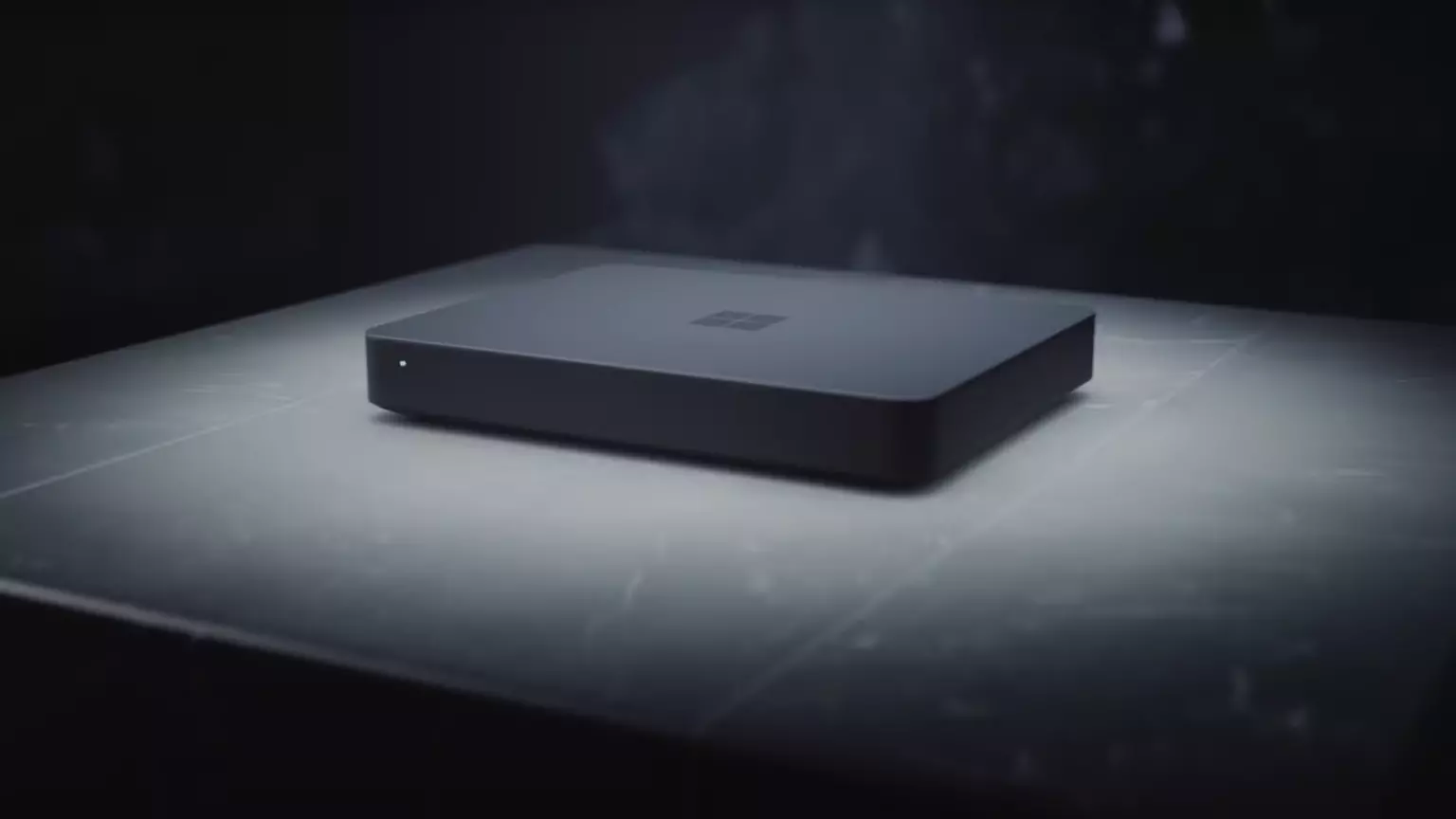
Microsoft will soon offer 4 CPU computer specifically aimed at developers and its name is Volterra. The machine as stated will come with 4 processors but the strange thing is that they will be ARM-based instead of x86.

CEO of Microsoft, mister Satya Nadella has introduced the product and Microsoft has released a youtube video promoting it.

https://youtu.be/yICVNta8jMU

The computer system will have Qualcomm's NPU or built-in neural processing unit to use AI's power to help developers write and produce better and faster code. The sad news is that besides processors used there is no other information on other components that will go into this system.

As seen in the video, the computer reminds me a lot of the apple MAC mini with its size and design, and as stated it is made from recycled plastic which in our opinion will bring the price under $1000.

Microsoft has not provided an official price tag for Volterra, but our hope is that it will be more affordable than building your own development PC. Also, there was nothing said about computer availability, we suspect that the selling model will be typical Microsoft one with first models available only in the USA and moving forward slowly opening it to other markets.

Volterra specifications

As previously said nothing except the number of CPUs and their type has been officially said but we managed to get some information about some other specific things not including its inside components.

microsoft volterra

The unit will have a fan inside of it for cooling purposes and better performance and that is what was officially stated by Microsoft. On the outside, it is known that the computer will have three USB-A ports, a mini DisplayPort, and an ethernet input. All of these will be positioned on the back of the device, on its left side there will be two USB-C ports.

The unit itself will be running on Windows 11 but it was not disclosed anything about the version, we presume since this is a model aimed for professional use that it will come with Windows 11 PRO version.

Currently available tools for ARM

Since this product is aimed at developers logically support for developing software is a must-have and at the time of this writing software that will come and that will run on Volterra is:

  • Visual Studio 2022
  • Visual Studio Code
  • Visual C++
  • Modern .NET 6 & JAVA
  • Classic .NET
  • Windows Terminal
  • Windows Subsystem for Android
  • Windows Subsystem for Linux

Conclusion

Once MAC studio has been released it showed that specific builds have their audience and can be sold for less of a price than full-fledged custom-made workstations. There is no doubt that Microsoft Volterra will find its audience but will that be enough to have more versions of this compact computer only time will tell.

Read More
Make AI images on your local PC

Stable Diffusion is a machine learning model developed by Stability AI to generate digital images from natural language descriptions. The model can be used for different tasks like generating image-to-image translations guided by text prompts and upscaling images.

Unlike competing models like DALL-E, Stable Diffusion is open source and does not artificially limit the images it produces. Stable diffusion was trained on a subset of the LAION-Aesthetics V2 data set. It can run on most consumer hardware equipped with a modest GPU and was hailed by PC World as "the next killer app for your PC".

stable diffusion

Since Stable Diffusion is run locally and not in the cloud, as mentioned there is no limit to the number of images that you can produce but in order to use it you will have to get down a little dirty with setting your PC environment for it since it is not really an application, it is a command line text based descriptor that will use python to generate your images, so there is no install nor GUI.

In this guide, we will show you how to both install and run Stable Diffusion on your local PC so you can start producing some cool images all by yourself.

Hardware and software requirements

Make no mistake, Stable Diffusion will not run on a potato PC, in order to harvest the power of AI-generated imagery this is what you will need:

  • A GPU with at least 4GB of VRAM
  • 10GB of hard disk space
  • Python and libraries (Miniconda3 installer will install everything you need)
  • The Stable Diffusion files
  • Git
  • Any OS (Windows, Linux, macOS)

Installing components

For this tutorial, we are covering the installation and running of Stable Diffusion on Windows PC. The steps presented here are presented in a way that installation can be performed on any operating system but precise instructions will be for Windows OS.

GIT

The first thing to do is to install GIT. It is a tool that will let you easily maintain and install repos from the internet. to install it go to: https://git-scm.com/ and click on download. Follow the instructions for your version of the operating system. If you are a developer you are familiar with GIT and if you already have it installed you can skip this step.

One thing that is important when installing GIT locally is to select to use it via the command line (the second option that says "Git from the command line and also from 3rd-party software").

Miniconda3

Now when we have GIT installed, next thing is to use Miniconda3 to install python and all required libraries that are needed. Get the installer at: https://docs.conda.io/en/latest/miniconda.html

Miniconda3 is basically an easy installer so you do not have to install tons of stuff manually from different websites and sources, it is nicely packaged in the installer that will take care of everything.

Stable Diffusion

After the previous two steps, we are ready now to actually install Stable Diffusion. Go to https://huggingface.co/CompVis/stable-diffusion#model-access and install the latest library (as of the writing of this article currently it is stable-diffusion-v1-4-original, the last one on the right), the library is almost 5GB in size so be prepared for big download.

After installing stable diffusion's latest library it is time to update it to the newest version. You can download ZIP from GIT HUB https://github.com/CompVis/stable-diffusion

Once downloaded click on the Windows start button and type in Miniconda3 and click on open. Create a folder and name it how you want on a drive of your choice. For this example, we will install it all in disk C under folder AI_art, follow the instructions below but use your own names and destination instead. Do not close Minicoda3 after typing commands!!!

cd c:/
mkdir AI_art
cd AI_art 

Extract GitHub files that you have downloaded into your new folder and get back to Minicoda3 and type the next commands:

cd C:\AI_art\stable-diffusion-main
conda env create -f environment.yaml
conda activate ldm
mkdir models\ldm\stable-diffusion-v1

Let the whole process finish, some files are large and it might take a while. After the whole process is finished and completed, copy the checkpoint file that you have downloaded into: C:\AI_art\stable-diffusion-main\models\ldm\stable-diffusion-v1

After the file is copied rename it to model.ckpt and you are finished.

Running Stable Diffusion

The created environment is needed in order to actually use Stable Diffusion to create images. Each time you want to use it you will have to run it, so go into Miniconda3, and inside it type:

conda activate ldm
cd C:\AI_art\stable-diffusion-main

after we are inside the folder call the script with the parameters:

python scripts/txt2img.py --prompt "TXT DESCRIPTION OF IMAGE THAT YOU WANT TO CREATE" --plms --n_iter 5 --n_samples 1

and that's it, your image is created and it is located in C:\AI_art\stable-diffusion-main\outputs\txt2img-samples\samples

Read More
Facebook messengers alternatives
People are becoming more and more concerned with their privacy and Facebook's flagship messaging application is caught between it all. While still widely popular it has becoming to lose its ground due to many unanswered questions about privacy encryption. Lucky for all of us there are alternatives for more secure messaging.

SIGNAL

Arguably the most secure of all well-regarded messaging apps, Signal is the favorite of the European Commission, as well as newsrooms around the world. While Signal doesn’t disclose how many daily or monthly users the app has, Google’s Play Store says it has been installed more than 50 million times. While using Signal, each voice or video call connected through the app includes full end-to-end encryption. Signal takes an extra step by hiding message metadata so that the location of the original message is missing. While it asks for your mobile number, that number isn’t used with your profile. Instead, it acts as a numeric username. Once registered, you will find 1-1 chat, audio, and video calls, disappearing or “secret” chats, and a privacy lock so nobody can access the app even if they have your phone. Best of all, it’s completely free to use.

TELEGRAM

One of the biggest competitors to Facebook Messenger (and WhatsApp), Telegram is a very strong alternative. With more than 400 million users, it offers an interface that should feel right at home for anyone coming from Messenger. Telegram offers some huge benefits over Messenger, including features like groups that can hold up to 200,000 members for a chat. There is no limit on your media or chat size, and you can share all types of files between users and in groups. From a privacy standpoint, Telegram has robust security, but it is worth noting that only “secret” messages are end-to-end encrypted and can self-destruct. Non-secret messages can be stored on Telegram’s servers so you can pick them up between your devices quickly. That’s a consideration worth knowing prior to making Telegram your default Messenger replacement. Telegram is free across all platforms.

THREEMA

Rising in popularity, Threema is another privacy-focused alternative that has quickly become a competitor to Facebook Messenger. This paid service ($2.99 on both App Store and Play Store) is a pay-once, use forever option. Once you pay the small fee, you gain all of Threema’s touted privacy options, like open-source end-to-end encryption for both messages and calls. Like Signal, Threema won’t require you to link any phone numbers or emails to your account. All chats are handled anonymously, and the service generates a random user ID when you first open and register for the app. No data is collected from any of your chats and no ads are shown. The Swiss-made app does have its own servers hosted in Switzerland, which do not store any chat messages. Another privacy benefit of Threema is the notion that all of your contact lists, groups, and user profiles are hosted on your device, not on the Swiss servers. Because of that, Threema can once again state that none of your personal info is stored anywhere they have access.
Read More
Fix Errors 0x80070001, 0x81000037, 0x80070003
Windows has a built-in Backup and Restore system so if the Windows Backup or Restore fails and you receive any of the errors 0x80070001, 0x81000037, 0x80070003, worry not for this post will guide you in fixing the problem. You might not be able to browse to the folders and files that you want to restore in the File Restore Wizard. The cause of the error could vary depending on what error code you receive:
  • 0x80070001 – If you got this particular error code when trying to back up a specific library or when you accept the default settings in Windows Backup and Restore.
  • 0x81000037 – If you got this kind of error code when you try to read from the shadow copy on one of the volumes being backed up.
  • 0x80070003 – If you got this error code when trying to restore the folders or files in a library by using the Windows Backup and Restore.
  • On the other hand, you cannot use the Browse for files or the Browse for folders functionality.
Note that the Windows Backup or Restore failed, Errors 0x80070001, 0x81000037, 0x80070003 Error code 0x80070001, 0x81000037 occurs during backup while Error code 0x80070003 and “Browse for Files” issue occurs when you try to restore files. Whichever error codes you got, here are some possible fixes that might help.

Option 1 – Fix Windows Backup error codes 0x80070001, 0x81000037

The reason for the Windows Backup error codes 0x80070001, 0x81000037, as mentioned above, is when there is a volume that uses a FAT file system (0x80070001) and when a volume contains compressed files (0x81000037). To fix these errors, you need to remove the “reparse point” also known as SYMBOLIC LINK, and select the absolute path of this location in the Windows Backup configuration user interface. Refer to these steps to remove the reparse point.
  • Tap the Win + R keys to open the Run dialog box.
  • Then type “cmd” in the field and hit Enter to open Command Prompt.
  • Next, type the following command and hit Enter:
DIR /AL /S
  • After you enter the command, it will display the JUNCTION list.
  • Now to delete the mounted volume reparse point, you have to locate the reparse point you found and right-click on the reparse point icon, and click on Properties.
  • Confirm that the folder Type is Mounted Volume in the General tab and then delete this folder.

Option 2 – Fix the Windows Restore Error 0x81000037

When you try to restore a deleted backed-up directory, it fails and the Error code 0x81000037 pops up. You can also encounter this error when you select to restore the files to their original subfolders check box in the File Restore Wizard and you try to restore folders or files to an alternative location, then you will encounter error code 0x81000037 which will be displayed in an error message as shown below: To fix this error, you need to re-create the missing directory using the following steps:
  • Take note of the path for which the error occurs.
  • Then create the corresponding folder.
  • Now perform the restore operation again.
And since you might have subfolders in the deleted folder, click to clear the “Restore the files to their original subfolders” checkbox when you run the File Restore Wizard.

Option 3 – Cannot use the Browse for files or the Browse for folders functionality

There is no proper fix for this particular error but if you remember the name of the files, you can just search for them. Click on the Search button when using the File Restore functionality and then type the name of the file and when that file appears, select and click on it to restore it.
Read More
Fix Google Chrome error “He’s dead, Jim!”
If you always use the Google Chrome browser in browsing the internet, then you might have come across an error message saying, “He’s dead, Jim!” along with a funny looking face that’s peeking its tongue out and another detailed message saying, “Either Chrome Ran out of memory or process for the webpage has terminated for some other reason. To continue, reload the webpage or go to another page”. This error message in Google Chrome is actually quite famous and it appears for various reasons but it may have something to do with a memory issue. The Google Chrome browser is known to consume a lot of memory and the more web pages you open and load, it takes up more resources. Thus, the first thing you need to do when you encounter this error is to simply click the Reload button to continue browsing the internet or close the browser and then open it again. On the other hand, if you keep seeing this error message, then that’s a whole different story as you have to take some action to prevent it from popping up again, for good. Follow the instructions given below to fix the error in Chrome.

Option 1 – Reduce Google Chrome’s memory usage

The first thing you can try is reducing the memory usage of the Chrome browser. However, this option has a bit of a disadvantage. If a website crashes, all the instances of that website will also crash although other open tabs and websites won’t be affected. This process is referred to as “Process-per-site” mode which you will have to launch Chrome within this parameter.

Option 2 – Run Google Chrome with Strict Site Isolation

Aside from reducing Chrome’s memory usage, you can also run the browser with the Strict Site Isolation which makes sure that the crashing of one tab in the browser won’t affect the entire Windows as this feature will run every website you open on its own isolated process.

Option 3 – Run the built-in Malware Scanner and Cleanup tool in Chrome

In case you don’t know, there is actually a built-in malware scanner and cleanup tool in Chrome that helps you get rid of any unwanted ads, pop-ups, and even malware, as well as unusual startup pages, toolbars, and other things that could affect the performance of the browser.

Option 4 – Reset Google Chrome

Resetting Chrome can also help you get rid of the “He’s dead, Jim!” error message for good. Resetting Chrome means restoring its default settings, disabling all the extensions, add-ons, and themes. Aside from that, the content settings will be reset as well and the cookies, cache, and site data will also be deleted. To reset Chrome, here’s what you have to do:
  • Open Google Chrome, then tap the Alt + F keys.
  • After that, click on Settings.
  • Next, scroll down until you see the Advanced option, once you see it, click on it.
  • After clicking the Advanced option, go to the “Restore and clean up the option and click on the “Restore settings to their original defaults” option to reset Google Chrome.
  • Now restart Google Chrome.

Option 5 – Perform a clean reinstall on the Chrome browser

Although reinstalling any program is easy, not so much for Google Chrome as you need to make sure that the User Data folder is deleted before you reinstall it.
  • Tap the Win + R keys to open the Run prompt.
  • Then type %LOCALAPPDATA%GoogleChromeUser Data in the field and hit Enter.
  • Next, rename the “Default” folder inside the path you were redirected to. For instance, you can rename it to “Default-old”.
  • After that, install the Chrome browser again.

Option 6 – Try to flush the DNS and reset the TCP/IP

There are instances when a network goes into haywire because of a bad DNS. Thus, a bad DNS might be the one that’s causing this headache so it’s time for you to reset the entire network to resolve the issue. To reset the network, here’s what you have to do:
  • Click the Start button and type in “command prompt” in the field.
  • From the search results that appear, right-click on Command Prompt and select the “Run as administrator” option.
  • After opening Command Prompt, you have to type each one of the commands listed below. Just make sure that after you type each command, you hit Enter
    • ipconfig /release
    • ipconfig /all
    • ipconfig /flushdns
    • ipconfig /renew
    • netsh int ip set dns
    • netsh winsock reset
After you key in the commands listed above, the DNS cache will be flushed and the Winsock, as well as the TCP/IP, will reset.
  • Now restart your computer and open Google Chrome then try opening the website you were trying to open earlier.
Note: You can also try changing the DNS server to the Google Server, i.e. 8.8.8.8, and then see if it works for you or not.

Option 7 – Disable both the antivirus and firewall temporarily

As you know, both the firewall and antivirus programs are there to protect the operating system from any malicious threats. So if they find that there is some malicious content in a website you are visiting, they will block the site right away. Thus, it could also be the reason why you’re getting the “He’s dead, Jim!” error so you need to disable both the firewall and antivirus program temporarily and then try opening the website again. If you are able to open the website, you need to add this site as an exception and then enable the firewall and antivirus program back.
Read More
Desk365 Complete Removal - PUP Removal Guide

What is Desk365?

Desk 365 is a program developed by 337 Technology Limited and is classified as a potentially unwanted application by a number of Antiviruses. While not technically malware, for many users it is unwanted as it is often distributed as a bundle with other downloads. It allows a fast way to access your shortcuts and applications. Upon installation this program will insert itself into the system registry, adding startup strings to allow it to automatically start every time your system is restarted. The software adds a scheduled windows task to allow it to reopen itself even when closed. The applications also access the internet and add firewall rules to your system, that allow it to access anything without restrictions.

The main executable file for this application is Dock365.exe. It is possible to delete this file preventing the application to run, but its monitoring services and registry entities remain hidden inside your computer.

The software sends browsing information back to its ad servers, displaying custom ads and sponsored products instead of the usual search results. And the app itself pins itself to the start menu and cannot be removed.

About Potentially Unwanted Applications

Have you ever discovered an unwanted program on your PC that you didn’t consciously download and never gave authorization to be installed? Potentially Unwanted Programs (PUP), also referred to as Potentially Unwanted Applications (PUA), are applications that you never wanted in the first place and often come bundled with freeware. Once installed, the majority of these applications can be difficult to eliminate and become much more of an annoyance rather than a necessity. PUPs did not actually constitute pure “malware” in the strict sense of the definition. What normally makes a PUP different from malicious software is that whenever you download one, you’re doing it with your consent – though in many instances unconsciously and unwillingly. A PUP may not be regarded as malicious or unsafe yet still, it’s a common cause of clunky OS’s; some PUPs are a lot more aggressive by intentionally slowing down your computer or laptop.

Exactly how do unwanted programs look like?

Potentially Unwanted Programs can be found in different forms and varieties, but in the majority of cases, these are typically adware programs that exhibit irritating pop-up adverts and advertisements on websites you check out. They even come in the form of browser extension toolbars and add-ons. Not only they needlessly take up space on your screen, but toolbars can also manipulate search engine results, keep an eye on your surfing activities, decrease your internet browser’s efficiency, and slow down your internet connection to a crawl. PUPs load up a dangerous bite if left unchecked. They could include keyloggers, dialers, and other program built into them which could track you or send your sensitive information to third parties. Typically, such software will disable security protections and configuration settings to take control over your computer or laptop, leaving that PC vulnerable to online hackers and data fraud. At a minimum, PUPs slow your computer down with every added program.

Tips on how to prevent PUPs

• Read the fine print so that the end-user license agreement (EULA) you are accepting is only for the software you primarily intend to download. • Choose the “custom” install whenever installing an application. Especially, look closely at those small boxes which have been checked as default, where you may ‘agree’ to receive promotions or install software bundlers. • Use an anti-PUP program. Security applications such as Safebytes Anti-Malware gives the very best real-time protection against PUPs and also other malware. • Be alert if you download and install freeware, open-source programs, or shareware. Nowadays ‘freeware’ isn’t actually freeware – but “crapware” bundling nonsense. • Always download software from trustworthy sources like official websites rather than untrustworthy sharing space. Avoid file-hosting sites where/when possible.

What To Do If You Cannot Download Safebytes Anti-Malware?

Every malware is detrimental and the level of the damage can vary greatly according to the type of infection. Some malware is designed to restrict or prevent things that you wish to do on your PC. It may well not permit you to download anything from the web or prevent you from accessing some or all internet sites, in particular the antivirus sites. If you are reading this, chances are you’re stuck with a virus infection that is preventing you to download or install Safebytes Anti-Malware software on your computer system. There are a few fixes you could try to get around with this particular problem. Download the software in Safe Mode with Networking The Windows-based PC comes with a special mode known as “Safe Mode” in which just the minimum required programs and services are loaded. If the malicious software is set to load immediately when PC boots, shifting into this mode may well prevent it from doing so. To get into Safe Mode or Safe Mode with Networking, press the F8 key while the system is starting up or run MSCONFIG and look for the “Safe Boot” options in the “Boot” tab. After you restart the PC into Safe Mode with Networking, you can download, install, and update the anti-malware program from there. At this point, you could run the anti-virus scan to eliminate viruses and malware without any hindrance from another malicious application.

Switch over to an alternate web browser

Some malware mainly targets specific internet browsers. If this sounds like your situation, use another internet browser as it might circumvent the malware. If you are not able to download the anti-virus software using Internet Explorer, it means the virus could be targeting IE’s vulnerabilities. Here, you need to switch to a different internet browser such as Chrome or Firefox to download Safebytes Anti-malware software.

Install and run anti-virus from your flash drive

Another option would be to create a portable anti-malware program on your USB stick. To run antivirus from a thumb drive, follow these simple steps: 1) Make use of another virus-free computer to download Safebytes Anti-Malware. 2) Plug in the pen drive to a USB port on the uninfected computer. 3) Double-click the Setup icon of the antivirus software package to run the Installation Wizard. 4) When asked, choose the location of the USB drive as the place in which you want to put the software files. Follow activation instructions. 5) Now, insert the USB drive into the infected PC. 6) Run the Safebytes Anti-malware directly from the flash drive by double-clicking the icon. 7) Run Full System Scan to detect and clean-up up all kinds of malware. If all the above approaches fail to help you in downloading the anti-malware, then you’ve no alternative but to reinstall the computer’s operating system to wipe out all the data, including the malicious programs which are obstructing the anti-malware installation. If you are already our customer, technical help for Malware Removal is just a phone call away. Call 1-844-377-4107 to speak to our expert technicians and get assistance remotely.

Let's Talk About SafeBytes Anti-Malware!

To help protect your computer from many different internet-based threats, it’s very important to install anti-malware software on your personal computer. But with so many antimalware companies out there, nowadays it’s tough to decide which one you should obtain for your PC. A few are good ones, some are decent, and some are merely fake anti-malware programs that will harm your PC themselves! You need to be very careful not to pick the wrong product, especially if you buy a paid program. On the list of the highly recommended tools by industry experts is SafeBytes Anti-Malware, well-known security software for Windows computers. Safebytes is among the well-established computer solutions firms, which offer this comprehensive anti-malware software program. Using its outstanding protection system, this utility will quickly detect and eliminate the majority of the security threats, including viruses, adware, browser hijackers, ransomware, PUPs, and trojans. SafeBytes anti-malware offers an array of advanced features which sets it apart from all others. Listed below are some of the highlighted features included in the tool. Real-time Threat Response: SafeBytes delivers complete and real-time security for your PC. It will inspect your computer for suspicious activity continuously and shields your personal computer from unauthorized access. Optimum AntiMalware Protection: This deep-cleaning anti-malware software goes much deeper than most antivirus tools to clean your computer. Its critically acclaimed virus engine finds and disables hard-to-remove malware that conceals deep within your computer. Web Filtering: SafeBytes gives an instant safety rating about the web pages you’re about to visit, automatically blocking harmful sites and ensuring that you are certain of your online safety while browsing the net. Light-weight: This software program is not “heavy” on your computer’s resources, so you will not notice any performance issues when SafeBytes is working in the background. 24/7 Online Support: You can obtain high levels of support round the clock if you’re using their paid version. Overall, SafeBytes Anti-Malware is a solid program since it has plenty of features and can identify and remove any potential threats. You can rest assured that your computer will be protected in real-time once you put this tool to use. For optimum protection and the best bang for your buck, you can’t get better than SafeBytes Anti-Malware.

Technical Details and Manual Removal (Advanced Users)

If you wish to manually remove Desk365 without the use of an automated tool, it may be possible to do so by removing the program from the Windows Add/Remove Programs menu, or in cases of browser extensions, going to the browsers AddOn/Extension manager and removing it. You will likely also want to reset your browser. To ensure the complete removal, manually check your hard drive and registry for all of the following and remove or reset the values accordingly. Please note that this is for advanced users only and may be difficult, with incorrect file removal causing additional PC errors. In addition, some malware is capable of replicating or preventing deletion. Doing this in Safe Mode is advised. The following files, folders, and registry entries are created or modified by Desk365
Files: File $APPDATACheckRun22find.exe. File $APPDATADesk 365accelerate. File $APPDATADesk 365desk_bkg_list.xml. File $APPDATADesk 365desk_list.xml. File $APPDATADesk 365desk_settings.ini. File $APPDATADesk 365firstrun. File $APPDATADesk 365process_mgr.xml. File $APPDATADesk 365promote.xml. File $APPDATAeDownloadfindhpnt_v2.exe. File $APPDATAMicrosoftInternet ExplorerQuick Launchfind.lnk. File $COMMONPROGRAMSDesk 365Desk 365.lnk. File $COMMONPROGRAMSDesk 365eUninstall.lnk. File $DESKTOPfind.lnk. File $LOCALAPPDATAGoogleChromeUser DataDefaultExtensionsnewtab.crx. File $LOCALSETTINGSTempV9Zip_003Desk365.exe. File $PROGRAMFILESDesk 365desk_bkg_list.xml. File $PROGRAMFILESDesk 365desk_list.xml. File $PROGRAMFILESDesk 365desk_settings.ini. File $PROGRAMFILESDesk 365desk365.exe. File $PROGRAMFILESDesk 365deskSvc.exe. File $PROGRAMFILESDesk 365ebase.dll. File $PROGRAMFILESDesk 365edeskcmn.dll. File $PROGRAMFILESDesk 365eDhelper.exe. File $PROGRAMFILESDesk 365eDhelper64.exe. File $PROGRAMFILESDesk 365edis.dll. File $PROGRAMFILESDesk 365edis64.dll. File $PROGRAMFILESDesk 365ElexDbg.dll. File $PROGRAMFILESDesk 365eUninstall.exe. File $PROGRAMFILESDesk 365libpng.dll. File $PROGRAMFILESDesk 365main. File $PROGRAMFILESDesk 365ouilibnl.dll. File $PROGRAMFILESDesk 365process_mgr.xml. File $PROGRAMFILESDesk 365promote.xml. File $PROGRAMFILESDesk 365recent.xml. File $PROGRAMFILESDesk 365sqlite3.dll. File $PROGRAMFILESDesk 365svc.conf. File $PROGRAMFILESDesk 365TrayDownloader.exe. File $PROGRAMFILESDesk 365zlib1.dll. File $PROGRAMFILESMozilla Firefoxsearchpluginsfind.xml. File $SENDTODesk 365.lnk. Directory $APPDATADesk 365. Directory $APPDATAeDownload. Directory $COMMONPROGRAMFILES7. Directory $COMMONPROGRAMSDesk 365. Directory $LOCALSETTINGSTempDesk365. Directory $LOCALSETTINGSTempV9Zip_003. Directory $PROGRAMFILESDesk 365. Registry: Key 33BB0A4E-99AF-4226-BDF6-49120163DE86 at HKEY_CURRENT_USERSoftwareMicrosoftInternet ExplorerSearchScopes. Key deskSvc at HKEY_LOCAL_MACHINESOFTWARE. Key desksvc at HKEY_LOCAL_MACHINESYSTEMControlSet001Services. Key desksvc at HKEY_LOCAL_MACHINESYSTEMControlSet001ServicesEventlogApplication. Key desksvc at HKEY_LOCAL_MACHINESYSTEMCurrentControlSetServices. Key desksvc at HKEY_LOCAL_MACHINESYSTEMCurrentControlSetServicesEventlogApplication. Key findSoftware at HKEY_LOCAL_MACHINESOFTWARE. Key ijblflkdjdopkpdgllkmlbgcffjbnfda at HKEY_LOCAL_MACHINESOFTWAREGoogleChromeExtensions. Key lnkguard at HKEY_CURRENT_USERSoftware. Key V9 at HKEY_LOCAL_MACHINESOFTWARE.
Read More
How to remove myBrowser

myBrowser is a Potentially Unwanted Program that allows users to access the internet. This browser suggests users install other PUP like myfiles, myemail, and others. This application claims to be a good reliable portable internet browser, however during our test use of the program several website scripts crashed and were not able to open up all the website assets required, leaving the users with a mediocre browsing experience.

While browsing the internet through this program, you might see additional ads and sponsored links injected into your search results and/or websites.

About Potentially Unwanted Applications

What is a Potentially Unwanted Program (PUP)?

Everyone has experienced it – you download and install a free application, you then notice some unwanted programs on your computer system, come across a strange toolbar on your web browser, or find your default search engine has been changed to something else. You didn’t set them up, so how did they turn up? Potentially Unwanted Programs (PUP), also referred to as Potentially Unwanted Applications (PUA), are programs that you never wanted in the first place and often come bundled with freeware software. Once installed, most of these applications can be difficult to eliminate and become much more of an annoyance rather than a necessity. PUP doesn’t involve malware in the traditional sense. A basic difference between PUP and malware is distribution. Malware is commonly dropped by silent installation vectors such as drive-by downloads while PUP gets installed with the consent of the user, who knowingly or unintentionally authorizes the PUP installation on their PC. PUP developers may argue that their programs aren’t malicious software but they can still be dangerous software and put the computer at risk much the same way a computer virus does.

What do PUPs do on your PC, precisely?

Unwanted programs can be found in various forms. Usually, they will be found in adware bundlers that are known to utilize aggressive and misleading advertising. The majority of bundlers install many adware applications from several vendors, each of which features its own EULA policy. Safebytes Anti-malware entirely removes this threat and protects your PC against unwanted programs or malware infection. PUPS also appear in the form of undesirable toolbars or web browser add-ons. They may change your internet browser settings, monitor your surfing activities and online searches, take up a large amount of space on your monitor, and degrade your web browsing experience. Potentially Unwanted Programs at times act quite similarly to computer viruses or spyware. They will often carry keyloggers, dialers, and other programs built inside them that may track you or send your sensitive details to third parties. Even if the PUPs aren’t basically malicious, these programs still do absolutely nothing good on your computer – they will take precious resources, slow down your PC, weaken your device’s security, making your PC more vulnerable to trojans.

Protect yourself from PUPs

• Read very carefully before you install anything. Do not click accept till you have read the fine print. There will probably be a clause about PUPs. • Always select “Custom” or “Advanced” installation and never blindly click the Next button, which will let you uncheck any foistware software programs you do not want. • Use an anti-PUP program. Security software like Safebytes Anti-malware provides the very best real-time protection against PUPs and also other malware. • Be alert if you install freeware, open-source software, or shareware. Don’t install programs that appear suspicious or malicious. • Always download software from reliable sources like official websites instead of untrustworthy sharing space. Stay away from file-hosting sites where/when possible. Comply with these guidelines and you should more or less never get potentially unwanted programs on your PC

What To Do When You Cannot Install Safebytes Anti-Malware?

Malware could cause all kinds of damage once they invade your PC, from stealing your private details to deleting files on your computer. Some malware is designed to restrict or prevent things that you wish to do on your computer. It may well not let you download anything from the internet or stop you from accessing a few or all of the internet sites, particularly the anti-malware sites. So what you should do if malware prevents you from downloading or installing Safebytes Anti-Malware? Follow the instructions below to eliminate malware by alternate methods.

Make use of Safe Mode to fix the problem

If any virus is set to run automatically when Microsoft Windows starts, stepping into safe mode could very well block this attempt. Since only the minimal programs and services launch in Safe Mode, there are hardly any reasons for issues to occur. Below are the steps you need to follow to start into the Safe Mode of your Windows XP, Vista, or 7 computers (check out the Microsoft website for instructions on Windows 8 and 10 computers). 1) Hit the F8 key repeatedly as soon as your PC boots, but before the big Windows logo comes up. This will bring up the Advanced Boot Options menu. 2) Make use of the arrow keys to select Safe Mode with Networking and press ENTER. 3) When this mode loads, you should have the internet. Now, make use of your internet browser to download and install an anti-malware application. 4) Right after the software is installed, let the scan run to remove viruses and other threats automatically.

Obtain the antivirus software using a different browser

Some malware mainly targets specific web browsers. If this sounds like your case, make use of another internet browser as it might circumvent the virus. If you’re not able to download the security application using Internet Explorer, this means the virus is targeting IE’s vulnerabilities. Here, you should switch to another internet browser such as Chrome or Firefox to download the Safebytes program.

Create a bootable USB antivirus drive

Here’s another solution which is creating a portable USB anti-virus software package that can scan your system for malware without needing installation. Adopt these measures to run the anti-virus on the affected PC. 1) Download Safebytes Anti-Malware or Microsoft Windows Defender Offline onto a clean PC. 2) Plug in the pen drive into the uninfected computer. 3) Double click on the exe file to open the installation wizard. 4) When asked, choose the location of the USB drive as the place in which you want to store the software files. Follow the directions to finish the installation process. 5) Now, transfer the flash drive to the infected computer. 6) Double-click the EXE file to open the Safebytes tool right from the flash drive. 7) Click the “Scan” button to run a full computer scan and remove malware automatically.

SafeBytes Anti-Malware: Lightweight Malware Protection for Windows Computer

If you’re looking to download the anti-malware program for your computer, there are numerous tools on the market to consider however, you should not trust blindly anyone, irrespective of whether it is a paid or free program. Some of them do a good job in removing threats while some will ruin your computer themselves. You have to select one that is reliable, practical and has a good reputation for its malware source protection. On the list of strongly recommended tool by industry experts is SafeBytes Anti-Malware, a well known security software for Microsoft Windows. SafeBytes is a powerful, real-time anti-malware application that is designed to assist the common computer user in safeguarding their computer from malicious threats. With its outstanding protection system, this tool will quickly detect and eliminate the majority of the security threats, which includes adware, viruses, browser hijackers, ransomware, trojans, worms, and PUPs.

SafeBytes anti-malware takes computer protection to a whole new level with its enhanced features. The following are some of the great features included in the software.

Live Protection: SafeBytes offers real-time active checking and protection against all known viruses and malware. It will continuously monitor your pc for hacker activity and also gives end-users superior firewall protection. Best AntiMalware Protection: This deep-cleaning anti-malware application goes much deeper than most antivirus tools to clean your computer. Its critically acclaimed virus engine locates and disables hard to remove malware that hides deep within your computer. Website Filtering: SafeBytes provides instant safety rating to the webpages you’re going to visit, automatically blocking unsafe sites and to make sure that you are certain of your safety while browsing the internet. Lightweight Utility: SafeBytes is a light-weight application. It consumes a very small amount of processing power as it works in the background so you are free to use your Windows-based computer the way you really want. Premium Support: You will get 24/7 technical assistance to quickly resolve any concern with your security application. SafeBytes can keep your PC protected from the latest malware threats automatically, thus keeping your online experience secure and safe. Now you may realize that this tool does more than just scan and delete threats in your computer. If you’re looking for the very best malware removal tool out there, and if you don’t mind spending some dollars for it, opt for SafeBytes Anti-Malware.

Technical Details and Manual Removal (Advanced Users)

If you want to carry out the removal of myBrowser manually instead of using an automated software tool, you can follow these simple steps: Proceed to the Windows Control Panel, click on the “Add/Remove Programs” and there, choose the offending application to remove. In cases of suspicious versions of browser extensions, you can easily remove them through your web browser’s extension manager. You will most probably also want to totally reset your internet browser to its default settings. Lastly, check your hard disk for all of the following and clean your Windows registry manually to remove leftover application entries after uninstalls. Please remember that only advanced computer users should try to manually edit the registry because incorrect file deletion leads to a major problem or even a PC crash. Moreover, some malicious programs have the capability to defend against its deletion. Carrying out this in Safe Mode is advised.

Read More
1 2 3 171
Logo
Copyright © 2023, ErrorTools. All Rights Reserved
Trademark: Microsoft Windows logos are registered trademarks of Microsoft. Disclaimer: ErrorTools.com is not affiliated with Microsoft, nor claims direct affiliation.
The information on this page is provided for information purposes only.
DMCA.com Protection Status