Logo

Could not connect to the System Event

Could not connect to the System Event explanation: Although logging into a Windows 10 computer may seem like a simple process, it’s actually not since the Windows operating system has built a mechanism in a way that any third party or malware intervention would not compromise access to the system. This mechanism is supported by numerous services, functions, and DLL files. And Microsoft has been taking this security to a whole new level with the introduction of Windows Hello.

Recently, a number of users reported getting the “Windows could not connect to the System Event Notification Service service. Please consult your system administrator” error when logging into their computers. While some users also reported that although they can log in, they encounter the same error message from the Notification area. There are several options you can check out to resolve the error. You have to check the status of several Windows Services and make sure that they are running. You also have to reset Winsock as well as run the System File Checker scan.

Option 1 – Check for certain Windows Services

  • First, you need to tap the Win + R keys on your keyboard to open the Run dialog box.
  • Next, type “services.msc” in the field and click OK or tap Enter to open the Windows Services Manager.
  • After that, you will see a list of services and from there, look for the following Windows Services:
    • DHCP Client
    • System Event Notification Service
    • Windows Font Cache Service
  • Now make sure that the Startup Type of each service is started and running.

Option 2 – Try resetting the Winsock drivers

  • In the Start Search, type “command prompt” and right-click on Command Prompt from the search results, and then select the “Run as administrator” option.
  • After opening Command Prompt, execute this command: netsh winsock reset

Note: If you are using IPv4, execute the “netsh int ipv4 reset” instead. On the other hand, if you are using IPv6, execute the “netsh int ipv6 reset

  • Now exit Command Prompt and see if the error is now fixed.

Option 3 – Try running System File Checker or SFC scan

You could also run System File Checker or SFC scan to fix the BSOD error. It is a built-in command utility that helps in restoring corrupted files as well as missing files. It replaces bad and corrupted system files with good system files. To run the SFC command, follow the steps given below.

  • Tap Win + R to launch Run.
  • Type in cmd in the field and tap Enter.
  • After opening Command Prompt, type in sfc /scannow

The command will start a system scan which will take a few whiles before it finishes. Once it’s done, you could get the following results:

  1. Windows Resource Protection did not find any integrity violations.
  2. Windows Resource Protection found corrupt files and successfully repaired them.
  3. Windows Resource Protection found corrupt files but was unable to fix some of them.
  • Reboot your PC.

Do You Need Help with Your Device?

Our Team of Experts May Help
Troubleshoot.Tech Experts are There for You!
Replace damaged files
Restore performance
Free disk space
Remove Malware
Protects WEB browser
Remove Viruses
Stop PC freezing
GET HELP
Troubleshoot.Tech experts work with all versions of Microsoft Windows including Windows 11, with Android, Mac, and more.

Share this article:

You might also like

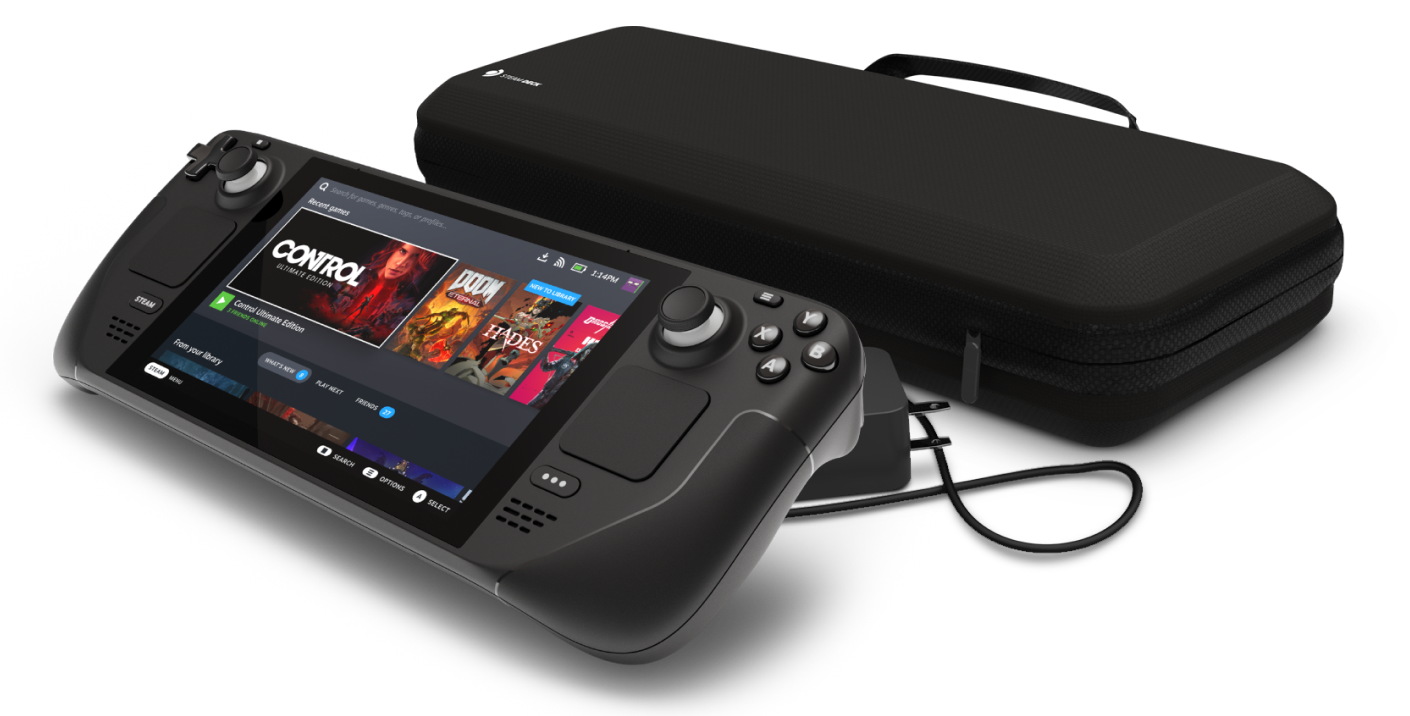
Steam Deck will be able to dual boot
Steam Deck release is almost upon us and more news comes to light. The Latest officially confirmed technical detail is that the user will have access to device's BIOS and that dual booting will be officially supported. steam deckThis, of course, means that you will be able to have both Proton and Windows on your device letting you play anything that you wish if the hardware is strong enough. Valve also said that you can launch OS from an SD card! This of course will save space available for games themselves, especially for entry models with less than one available. All of this information really pushes Deck into the territory of a handheld PC and not just another console and I must admit that this announcement left a smile on my face.
Read More
How to Patch Windows Error Code 45

Error Code 45 – What is it?

Error Code 45 is a common device manager problem that users encounter on any Windows 2000 and later operating system versions.

The error occurs when your Windows system fails to acknowledge the connected device by either stating that the device is not present or that it was previously attached to a computer.

The error pops up and appears on your computer screen with the following message:

“Currently, this hardware device is not connected to the computer” (Code 45)

Solution

driverfix boxError Causes

The error is prompted either due to a temporary system file malfunction or a problem in the Windows registry system files. In the latter case, it could be due to a damaged or corrupted Windows registry.

Further Information and Manual Repair

While it may appear that Error Code 45 is a serious threat to your computer, it cannot be farther from the truth. Error Code 45, unlike other error codes, is the easiest one to fix. Here is how you can do it.

Method 1 – Reconnect the device to your computer

Unplugging and plugging the USB cable of the device into the computer is the easiest way to solve the error.

Doing this will help refresh the system and increase the likelihood of the device driver files loading and function properly.

It is often only a case of reconnecting the device back to your computer which helps eliminate the error and does not require any particular resolution other than this.

Method 2 – Install DriverFIX

Although reconnecting the disconnected device is all you need to fix the error code, it is always safer to fix your Windows registry system files by using a program like DriverFIX.

DriverFIX, with its user-friendly approach to help you fix your PC issues, comes with an integrated database that detects which drivers you need to reconfigure within just a few seconds and downloads it automatically.

It further ensures that your drivers are installed in their entirety leaving no room for any corrupted or damaged registry.

It also has the added advantage of being able to backup and restores your files should there be the slightest possibility of system file damage.

Thus, registry damage can be averted by letting the software roll back the system files to an earlier healthy checkpoint. DriverFIX is the answer to fixing your PC error codes accurately and quickly.

Click here to download DriverFIX now!
Read More
Fix 0x0000007c (ERROR_INVALID_LEVEL) in W11
0x0000007c error inside Windows 11 is a printer error that is manifested when Windows users are trying to connect to a shared network remote printer. Error is displayed by the message:
Windows cannot connect to the printer. Operation failed with error 0x0000007c.
If you are experiencing this type of annoyance, fear now we are providing you with several solutions to this problem.

0x0000007c (ERROR_INVALID_LEVEL)Update Windows 11

  1. Open the Start menu, click on the settings app
  2. Select Windows update tab
  3. Click on Check for updates
  4. Click on Advanced options
  5. Inside select Optional updates
  6. If there are optional updates click on Download & Install

Run the printer troubleshooter

  1. Press ⊞ WINDOWS + I to open settings
  2. Click on Troubleshoot navigation on the system tab
  3. Select Other trouble-shooters
  4. Click on the Run for printer troubleshooter
  5. If the error is found click on Apply this fix

Restart the Print Spooler Service

  1. Right-click on the Start button
  2. Click on RUN
  3. Type in services.msc and press OK
  4. Right-click on Printer Spooler service and select Restart

Clear the Print Spooler

  1. Open services like in the previous step
  2. Right-click Print Spooler and select STOP
  3. Open File explorer
  4. Navigate to: C:\Windows\System32\spool\drivers\x64\3 (64-bit Platform) C:\Windows\System32\spool\drivers\W32X86\3 (32-bit Platform)
  5. Delete everything inside folders
  6. Go back to services, right-click on Print Spooler and select RESTART

Reinstall Driver for printer

  1. Right-click on Start and select device manager
  2. Double click on the Print queues category
  3. Right-click on the printer and select Uninstall device
  4. Click on Uninstall on prompt
  5. Right-click on the Print queues category and select Scan for hardware Changes
Read More
How to Set up POP3 Email in Outlook
No one knows everything about a program off hand. You need to use the program for a long time before you can even possibly know all that it is able to do and all you are able to achieve with it. However, this doesn’t mean that you don’t need help from time to time. This is also the case when Outlook errors pop up. Sometimes there are things you must or probably should do with your program that you do not understand and definitely don’t know how to do. Set up POP3 with your email account in Outlook is one of these things you will probably need help to achieve.

Steps to Set up POP3

First, you may need to know what POP3 is. POP3 is the way emails are sent from one email address to another. It may be more or less instant nowadays, but the process is still long and hard-winded. Similar to how your letters get from your mailbox to the recipients' mailbox, your emails get from you to the next person. Letters are picked up in your mailbox and sent to your post office where they send it to the recipient’s post office who sends it to the recipient’s mailbox. Similarly, your email is sent to your outbox, which sends it to your email service provider, that sends it to the recipient’s email service provider who sends it to their inbox. This is one of the reasons that sending an email to someone who uses the same email service provider as you is about a millisecond faster. This process of sending emails is called POP3 and you need to set it up if you use Outlook on Microsoft. This, on Outlook, also determines which email account you send your emails from. You see, on Outlook and many other email service providers, you can have many different email addresses, no even necessarily with the email service provider’s prefix on the end. Now, if you want to see this for yourself, go on to your settings on Outlook and look for manage email accounts. If you have more than one email account, you will see them listed. Somewhere on the sidebar, you will see POP3 as well. If you want to add more email accounts to this, such as a business email or a personal email, then just click ‘Add new account’ instead of 'Manage email accounts'. When you click on an email account you have linked already, you will see on this side the details for your POP3 (incoming emails) and your SMTP (outgoing emails). This can be changed, but since everyone’s number of accounts and type of accounts is different, there is no set way to change this. However, you can give Microsoft a call and they will walk you through the necessary steps in order to change this.

Conclusion

So, POP3 can be incredibly easy to understand or incredibly hard; it depends on how good you are with electronics and the advice you are given. But don’t try to change things by yourself; get a professional from Microsoft to help you with POP3 on your Microsoft Outlook account.
Read More
Fix Template_fields error in Microsoft Word
As you know, Microsoft Office Word is a program that’s widely used all over the web and it’s because it’s the best program there is when it comes to editing and processing words. However, even when it is the best there is, it is not without its faults and so on as it can still encounter some errors every now and then. One of these errors is the Template_fields errors. When you encounter such an error, you will see a pop-up window. This strange error randomly appears on documents but you need not worry as this post will provide you with possible solutions to resolve the problem. But before you proceed with these solutions, you have to create a backup for all your Word documents to Microsoft OneDrive preferably. To fix the problem, you can try to disable the add-ins or try to start Word in Safe Mode or repair Office. For more details, refer to the options given below.

Option 1 – Disable the Add-ins

Although add-ins enhance Microsoft Word, there are times when they can also cause problems that end up breaking Microsoft Word instead of improving it which is why you have to disable them. Refer to the following steps to do so:
  • Open Microsoft Word and then click on File.
  • After that, select Options from the menu and then click on Add-ins.
  • From there, you’ll see Manage: Com Add-ins as well as a button that says Go.
  • Now click on the Go button and wait for a couple of seconds for a new window to appear.
  • In the newly opened window, uncheck all the Add-ins and click on OK.
  • Restart Microsoft Word and check if the “Template_fields” error is now fixed or not.

Option 2 – Try starting Word in Safe Mode

You might also want to try rebooting Microsoft Office in Safe Mode as it is one of your best shots in finding out whether the problem is internal or external. However, if the problem does not appear after you reboot Microsoft Word in Safe Mode, then there is a possibility that the problem is with Microsoft Office itself. On the other hand, if the problem persists, then it could be a deeper issue.
  • First, start Microsoft Word in Safe Mode.
  • Next, tap and hold the Ctrl key on your keyboard and open the Word document.
  • After that, you should see a dialog box. Click on Yes and see if Microsoft Word opens in Safe Mode.
  • Alternatively, you can open the search box and then type “winword.exe /safe” and hit Enter.

Option 3 – Try repairing Microsoft Office

If the first two options didn’t work, then you might want to try repairing Microsoft Office without getting rid of it. In most cases, this usually works in fixing any problems and returns the program back to its default state. To repair Microsoft Office, follow the steps below.
  • Right-click on the Start Menu button and select Apps and Features.
  • Next, scroll until you see the Microsoft Office program you want to repair and then select the Modify option.
  • After that, follow the options to repair Microsoft Office and then restart your PC and see if the “Template_fields” error is no longer present.
Read More
How to Fix The Rtl70.bpl Error on Your System

Rtl70.bpl Error - What is it?

To understand Rt170.bpl error code, it is important to have a good understanding of .bpl files first. BPL is the abbreviation of Borland Package Library. BPL is a developer file format used by Borland. It contains dynamic link libraries which are used for constructing Borland programs. BPL files are most commonly used for Borland Delphi programs. Delphi competes with Visual Basic as an offering for an object-oriented visual programming approach to application development. There are many programs/applications on your system that use rtl70.bpl file format to run successfully on Windows PC. The rtl70.bpl error occurs when this file gets damaged or corrupted. It fails to execute the command and run the application on your system. When your computer experiences this problem with this file, the following error messages are likely to appear:
  • rtl70.bpl is not responding
  • Runtime error: rtl70.bpl
  • Symantec User Session has encountered a problem and needs to close. We are sorry for the inconvenience. Application Name: rtl70.bpl
This error code exposes you to system freeze, crash, abrupt system shutdowns, blue screen of death errors, and it also reduces your PC performance.

Solution

Restoro box imageError Causes

The potential causes of rtl70.bpl error code includes:
  • DLL file was damaged due to viral infection or spyware
  • DLL file was overwritten by an incompatible version
  • Poor program installation
  • Too many invalid and obsolete registry entries stored in the RAM
  • Related Registry entries are corrupt

Further Information and Manual Repair

Here are some of the best yet simple solutions for you to resolve rtl70.bpl error on your PC:

1. Reboot Your PC

Sometimes this error can be resolved by simply restarting your system. Try rebooting your system and running .bpl supported program. If the program runs after you reboot your PC, then that’s great! But you should keep in mind that this is a temporary solution. The error may reappear anytime soon. So, it is advisable to consider a long-term solution for repairing the error code for the longest time.

2. Uninstall and then Reinstall the Program Causing the Error

If the error occurred after a certain program installed on your system,  it is advisable to uninstall it and then reinstall the program. Simply go to the control panel, select Add/Remove program option and uninstall the program that you recently installed that could be triggering the rtl70.bpl error code. Now reinstall and run it on your system. If the error is resolved, then this means the poor installation was the cause. If not, then this means the cause of the error is related to the registry.

3. Registry Restore to Fix rt170.bpl error

There are two ways to go about it. The first one is to click on the start menu, type registry editor, and press run. This will open the registry editor. Now click on the computer option then click file and import. This helps restore the registry but it is possible that the problem might persist. The error code may pop up again. Also, if the registry is damaged due to viral infection, then this solution may not work and you may still experience the error on your system. Then you will also have to download an antivirus which may further reduce the speed of your PC. However, the best way to restore the registry and to get rid of the error code for the longest time is to download Restoro. This is a new, user-friendly, high and multi-functional repair tool that functions as a registry cleaner and a system optimizer. It cleans the registry by scanning and removing all the unnecessary and obsolete files saved in RAM such as junk files, internet history, invalid registry entries, and more. It also repairs the damaged dll files and restores the registry thereby resolving the rtl70.bpl error. Restoro is easy to use, safe, efficient, and compatible on all Windows versions. To get started and resolve the rtl70.bpl error code in just a few seconds on your system click here and download Restoro.
Read More
Creating custom Keyboard shortcuts in Windows
Keyboard shortcuts are undeniably one of the most utilized ways and are helpful in maximizing productivity through the various applications at top speed in Windows 10. It offers the option to create custom keyboard shortcuts that allow users to launch apps, and even websites, instantly. There are already tons of keyboard shortcuts that are built-in in Windows 10 but in case you don’t know, you can actually create new ones. Doing so is not a difficult task and in this post, you will be guided on how you can exactly create custom keyboard shortcuts in your Windows 10 computer. Most users would create desktop shortcuts or pin the apps in the taskbar to speed up the process of working on their computers. It is an easy task to do since you can easily do it by dragging an app from the Start Menu to the desktop or by simply right-clicking on the executable app and selecting the “Create Shortcut” option. However, doing so would take physical effort and there are times when you have to minimize all the apps to get to the desktop so you can click the shortcut and this is where the Custom Keyboard Shortcuts come in handy. You can create Custom Keyboard Shortcuts in Windows 10 for various programs – from the traditional desktop apps to the new universal apps – you can fling in a shortcut so that you can instantly open them faster compared to when doing it manually and besides this also wouldn’t affect any of the ongoing system activity. To get started, you need to follow the steps provided below carefully.

To add Custom Keyboard hotkeys to a program and website desktop shortcuts, here’s what you have to do:

Step 1: First, you have to right-click on the app or website and select Properties. Step 2: After that, go to the Shortcut tab and from there, you will see the “Shortcut key” textbox which allows you to enter a new or custom keyboard shortcut for the app or website. Step 3: In the textbox field, input your preferred letters to set up the new hotkey. Keep in mind that this custom shortcut has to be combined with the Ctrl + Alt keys which means that if you want to select “N”, you have to tap the Ctrl + Alt + N keys. Step 4: Once done, click on the Apply and OK buttons to save the changes made and then close the window. Step 5: After that, tap the newly created keyboard shortcut, Ctrl + Alt + N keys again to open the app or website you’ve set up earlier.

To add Custom Keyboard hotkeys to a desktop app or an independent program that can be installed using direct download, here’s what you have to do:

Step 1: First, open the Start Menu and look for the icon/tile of the required app in the menu. However, if you are not able to find the desired app, then just click on the All Apps option to navigate through all the apps that are installed on your PC. Step 2: Once you find the app, just right-click on it and select More and then click on the “Open file location” option. Step 3: This will open a new window with the shortcut icon. Right-click on the app’s shortcut icon and select Properties. Step 4: This will open the Properties window where you can add the shortcut combination. Keep in mind that just like the previous method, the custom shortcut has to be combined with the Ctrl + Alt keys. For instance, if you select E, then you also have to set a keyboard shortcut that includes Ctrl + Alt, so it will be, Ctrl + Alt + E. Step 5: Once you’re done, click on the Apply and OK buttons to save the changes made. You should now be able to use the custom shortcut key you’ve set.
Read More
Fix ndis.sys failed BSOD error on Windows 10
NDIS or Network Driver Interface Specification is a programming interface for the network interface cards that aids in the proper functioning of a system driver in a computer network. The NDIS helps the computer system in order to communicate with other connected devices and hardware components on a computer network. In relation, the ndis.sys file is a critical system file developed by Microsoft for the Windows operating system. As you know, sys files or system files are important parts of the Windows operating system as well as a repository of system driver settings used by Windows to communicate with the connected hardware and devices. The ndis.sys files are stored mostly in a driver folder at C:/Windows/System32/drivers and as mentioned, these files are essential for the system to function properly. Although the presence of ndis.sys system file is not yet known to affect the normal functioning of the Windows OS, some of the Windows 10 users reported that they encountered ndis.sys blue screen errors on their PCs. Blue Screen of Death errors or Stop errors usually occurs when you open a program or a function. Moreover, it could also occur when the driver gets loaded during the system startup or during system shutdown. It isn’t yet clear what really causes the ndis.sys blue screen error. However, like other Stop errors, it may occur due to corrupted files, misconfigured device drivers, bad drivers, corrupted Windows Registry, missing or damaged system files, and malicious programs. Aside from the aforementioned reasons, the ndis.sys blue screen error might also occur if your hard disk is damaged and if the RAM is corrupted. In such cases, a lot of users usually disable the ndis.sys file. However, it won’t really resolve the issue since the file is required for the normal functioning of the operating system and even when you disable the file, it’s pretty useless as the file will start all over again. In addition, you might want to disable security programs or firewalls and antivirus programs in the meantime to check if these programs are the ones that are causing the error. And if you’ve determined that none of the security programs or firewalls and antivirus programs are to blame, refer to the options below that might help you resolve the DRIVER_IRQL_NOT_LESS_OR_EQUAL or ndis.sys Blue Screen of Death error.

Option 1 – Try to update or reinstall the PC device driver

The Ndis.sys Blue screen error can occur when the device driver in your computer is outdated or corrupted. Thus, you either have to update or reinstall it to fix the issue.
  • Tap the Win + R keys to launch Run.
  • Type in devmgmt.msc into the box and tap Enter or click OK to open the Device Manager.
  • After that, a list of device drivers will be displayed. If you see a red or yellow sign that shows up against the driver, right-click on the driver’s name and select “Update Driver Software” or “Uninstall”. And if you find any “Unknown device”, you need to update it as well.
  • Select the “Search automatically for updated driver software” option and then follow the instructions to complete the process.
  • Restart your PC.

Option 2 – Rollback your Network drivers

If you have updated the driver software as of late and you suddenly got this BSOD error, you might have to roll back the device driver – in other words, switch back to the previous working version. To do that, follow these steps:
  • Tap the Win + R keys to launch the Run window and then type in the “devmgmt.msc” command and hit Enter to open the Device Manager window.
  • Under the Device Manager, you will see a list of drivers. From there, look for the Network Adapters and expand it.
  • Next, select the driver entries that are labeled appropriately other than anything in the context of the WAN Miniport.
  • Then select each one of them and double-click to open a new mini window.
  • After that, make sure that you’re on the Driver tab and if you are not, just navigate to it then click the Roll Back Driver button to switch back to the previous version of your Network adapters.
  • Now restart your computer to successfully apply the changes made.

Option 3 – Try running the System File Checker

The SFC or System File Checker scan could detect and automatically repair damaged system files that could be causing the ndis.sys Blue Screen of Death error. SFC is a built-in command utility that helps in restoring corrupted files as well as missing files. It replaces bad and corrupted system files with good system files. To run the SFC command, follow the steps given below.
  • Tap Win + R to launch Run.
  • Type in cmd in the field and tap Enter.
  • After opening Command Prompt, type in sfc /scannow and hit Enter.
The command will start a system scan which will take a few whiles before it finishes. Once it’s done, you could get the following results:
  1. Windows Resource Protection did not find any integrity violations.
  2. Windows Resource Protection found corrupt files and successfully repaired them.
  3. Windows Resource Protection found corrupt files but was unable to fix some of them.

Option 4 – Try running the CHKDSK utility

Running the CHKDSK utility might also help you resolve the Netwtw04.sys failed BSOD error. If your hard drive has issues with integrity, the update will really fail as the system will think that it’s not healthy and that’s where the CHKDSK utility comes in. The CHKDSK utility repairs hard drive errors that might be causing the problem.
  • Open Command Prompt with admin privileges.
  • After opening Command Prompt, execute the following command and hit Enter:
chkdsk /f /r
  • Wait for the process to be completed and then restart your computer.

Option 5 – Run the DISM Tool

The DISM tool is another command-line tool in the Windows operating system that could help users fix various corrupted system files. To use it, follow these steps:
  • Open the Command Prompt as admin.
  • Then type in this command: DISM /Online /Cleanup-Image /RestoreHealth
  • The DISM command you entered will repair the corrupted system image. Do not close the window if the process takes a while as it will probably take a few minutes to finish.
  • Restart your PC.

Option 6 – Perform a System Restore

Performing a System Restore on your computer can also help you fix the ndis.sys Blue Screen of Death error. You can do this option either by booting into Safe Mode or in System Restore. If you are already in the Advanced Startup Options, just directly select System Restore and proceed with the next steps. And if you have just booted your PC into Safe Mode, refer to the steps below.
  • Tap the Win + R keys to open the Run dialog box.
  • After that, type in “sysdm.cpl” in the field and tap Enter.
  • Next, go to the System Protection tab then click the System Restore button. This will open a new window where you have to select your preferred System Restore point.
  • After that, follow the on-screen instructions to finish the process and then restart your computer and check if the problem is fixed or not.

Read More
How to Fix Ehshell.exe Application Error Code

Ehshell.exe Application Error - What is it?

Ehshell.exe is a type of .exe (executable file). This file functions as an essential component of the Microsoft Media Center.  By default, it is located in a subfolder of C:\Windows. Ehshell.exe application error is an error code that pops up when tasks in the Media Center freezes. The Ehshell.exe application error is usually displayed on the screen in the following format:
“ehshell.exe – Common Language Runtime Debugging Services Application has generated an exception that could not be handled. Process id=0xa18 (2584), Thread id=0xa24 (2596).”

Solution

Restoro box imageError Causes

Ehshell.exe application error is triggered when PC users perform repetitive tasks in Media Center on a Windows XP Media Center Edition. The computer stops to respond and the error message is displayed. This error occurs if users perform one or more of the following repetitive tasks in the Media Center:
  • Repeated resize, restore and minimize the Media Center Window
  • Schedule TV shows to record
  • Repeatedly change the channel while Media Center is in a window
  • Ehshell.exe file corruption due to malware infection or registry issues
Though this is not a fatal error, to avoid any kind of inconvenience, it is advisable to fix the error right away.

Further Information and Manual Repair

To fix the ehshell.exe application error on your system, you don’t have to hire a professional and spend hundreds of dollars on repair. Here are some of the best and most effective do-it-yourself methods that you can try to resolve this issue on your PC immediately.

Method 1 - Install the Latest Service Pack for Microsoft Windows

To repair the issue, install the latest Windows service pack. A service pack is basically a Windows update, often combines previously released updates that help make Windows more reliable. These are offered free of charge on Microsoft’s official website.  To get started, simply log on to Microsoft’s official website and download the latest service pack compatible with your Windows version. The installation process may take 30 minutes to install. And you will be prompted to restart your PC about halfway through the installation process. Once the Windows Service Pack is installed, the ehshell.exe application error will be fixed. If the error still persists, then try method 2.

Method 2 - Scan for Malware

Ehshell.exe application error may also appear on your PC due to malware infection. Malware programs like viruses, Trojans, and worms deliberately give their malicious processes similar .exe file names, so it is hard to identify the malware. In such an event, it is advisable to download a powerful antivirus and scan your entire PC. Run it to remove all the hidden malware programs on your system. Once malware is removed, the ehshell.exe application error will be resolved.

Method 3 - Clean Registry

Sometimes .exe files can also get corrupt when the registry gets overloaded with unnecessary and obsolete files. If this is the underlying reason for the error code occurrence then it is advisable to download Restoro. This is a multi-functional and user-friendly PC Fixer deployed with a registry cleaner. It removed all the unnecessary files, cleans and repairs the registry in seconds thereby fixing all registry-related errors. Click here to download Total System Care and resolve the Ehshell.exe application error on your PC.
Read More
Almost complete List of Cortana commands
Cortana is your personal digital assistant fully integrated into Windows 10 designed to help you make your life easier. The more you use it, the more Cortana can learn about you, and the experience becomes more personalized and accurate. It can perform a variety of tasks, and it's full of handy tricks, but perhaps one of the best features is the advanced speech recognition that enables Cortana to understand the context of a natural voice conversation. On Windows 10, and across platforms with the Cortana app on iPhone and Android, the assistant can understand virtually any voice command and perform tasks. For example, by just speaking you can find facts, create reminders and manage your calendar, launch applications, change settings, and a lot more. Now, if you're looking for an official list of all the voice commands Cortana supports, you'll never find it because it doesn't exist. Cortana can understand natural language and context, there's no particular set of commands to make things happen. In a sort of way, you are speaking to Cortana as you would to any other person.

Invoking Cortana

Before using voice commands, it's important to know the ways in which you can invoke Cortana using natural language:
  • You can click the microphone icon in the taskbar next to the Start menu.
  • You can use the Shift + ⊞ Windows + C keyboard shortcut to open Cortana in listening mode.
  • You can use the Hey Cortana feature, which lets you invoke the assistant by simply saying Hey Cortana followed by the command. For example, Hey Cortana: How's the weather?.
  • On Windows 10 Mobile devices, you can press and hold the search button to open Cortana in listening mode.

Comprehensive list of Cortana voice commands

The following list of commands are examples you can use to learn how to control Cortana with voice commands. Keep in mind that there isn't a specific way to speak the commands. For example, Hey Cortana: Let me listen to some tunes is the same as asking for a more systematic command like Hey Cortana: Play music.

Cortana basic voice commands:

Getting the time for any location:

  • "What time is it?"
  • "What time is in New York?" or "What time is in Greece?"

Getting weather information for any location:

  • "What's the weather like?"
  • "What's the weather in Madrid?" or "What's the weather in Slovakia?"
  • "When does the sun set?"
  • "Is it hot in Hawaii?"
  • "How's the weather looking for tomorrow/next week?"

Opening (Store and desktop) apps and websites:

  • "Open Photoshop" or "Go to Firefox"
  • "Open errortools.com."

Getting news information:

  • "Show me top headlines."
  • "Show me the latest news."
  • "Show me weather news."
  • "Show me Blizzard stock."
  • "Show me bitcoin exchange rate."
  • "What was the score of the last Brazil football game."

Creating a note:

  • "Create a note."
  • "Create Shopping note."
  • "Create Shopping note: Buy a basket of eggs"
  • "Take a note."
  • "Draft a note."
  • "Write a note."

Translating to a different language:

  • "Translate."
  • "Translate Hello to German"
  • "Translate Where is the nearest park? to Spain"

Doing math:

  • "What's 34% or $764.89?"
  • "What's 43 times 59?"
  • "What the square root of 26509?"
  • "What's 29 times 6 divided by 12?"
  • "Convert 6.9 cups to fluid ounces."
  • "How many miles are in 89 Kilometers?"

Defining a word:

  • "Define Space."

Tracking packages:

  • "Where is my package?"
  • "Show me my packages."

Cortana search voice commands:

Finding documents, photos, videos:

  • "Find photos from August 1998."
  • "Find cat videos."
  • "Find document called Collection of poems."

Searching the web:

  • "Search the web for Heroes of Might and magic."

Finding facts:

  • "How tall is Mount Everest?"
  • "Who is Steve Jobs?"
  • "When Arnold Schwarzenegger was born?"
  • "Who is Mercedes CEO?"
  • "When does spring begin?"
  • "What's the capital of Zimbabwe?"
  • "When is Thanksgiving?"
It's important to note that Cortana is capable of conversational understanding, which means that you can also ask follow-up questions without having to be very specific. For example, if you ask Cortana: "Who is the president of the United States", you can then ask a follow-up question, such as "Who is his wife?" or "When was he born?" and the assistant should be able to answer those questions accurately.

Discovering food places nearby:

  • "Find food places near me."
  • "Find restaurants near me."
  • "Find bars near me."
  • "What's a good restaurant near me?"
  • "What's interesting nearby?"
  • "Show me Chinese restaurants near me."
  • "Show me Italians restaurants in Los Angeles."

Cortana health and fitness voice commands:

  • "How was my sleep last night?"
  • "What was my step count yesterday?"
  • "How many calories did I burn today?"
These commands require a tracking device, such as the Microsoft Band 2 to enable your fitness and health activities, and you need to connect Cortana with the Microsoft Health (Microsoft Band) service.

Cortana settings voice commands:

Opening the Settings app:

  • "Open Settings."
  • "Open Action Center."

Controlling settings:

  • "Turn on/off Bluetooth"
  • "Turn on/off Wi-Fi"
  • "Turn on/off Airplane Mode"

Cortana reminders voice commands:

Creating reminders:

  • "Remind me to wash the car."

Creating location-based reminders:

  • "Remind me to buy CDs next time I go to Walmart."

Creating person-based reminders:

  • "Remind me to ask for vacation time next time I talk to Goran."

Creating time-based reminders:

  • "Remind me to watch the basketball game at 6 PM."
  • "Remind me to buy the food for the d&d session on Sunday at 3 PM."

Viewing reminders:

  • "Show me my reminders."

Cortana calendar voice commands:

Viewing calendar events:

  • "How's my schedule looking today?"
  • "Show me my appointments for next week."
  • "When is my dentist appointment?"

Adding new calendar events:

  • "Add dental appointment for Monday at 2 PM."

Moving calendar events:

  • "Move dental appointment to Friday at 5 PM."

Cortana alarms voice commands:

Creating alarms:

  • "Set an alarm for next Monday at 5:30 AM."
  • "Set an alarm for Saturdays at 9 AM."

Viewing alarms:

  • "Show my alarms"

Removing alarms:

  • "Cancel alarm for Saturdays at 9 AM."

Cortana timer voice commands:

Creating a timer:

  • "Set a timer for 5 minutes."
You can only start a one-timer at one point in time. If there is a timer already running, Cortana will ask you to restart it at a new time.

Viewing timer:

  • "Show timer."
  • "How much time is left on the timer?"

Canceling timer:

  • "Stop timer."

Cortana location voice commands:

Knowing your exact location:

  • "Tell me where am I?"

Cortana messaging voice commands:

Sending text messages:

  • "Send a text to Milan: I'll be late for lunch today."

Sending quick emails:

  • "Send email to Milena: See you later tonight."
  • "Send email to John and Claudia: How is the project coming along?"

Cortana location voice commands:

Getting directions:

  • "What's the traffic like on the way home?"
  • "How do I get home."
  • "How long would it take to drive to Madison Square Garden?"
  • "Get me directions to Port Authority."
  • "How do I get from my location to Long Beach, New York?"
  • "How far away is the moon?"
  • "Show me walking directions to the nearest gas station."
  • "Show me public transit to 11 Times Sq, New York, NY 10036."
  • "Show me the map of San Francisco."

Tracking flights:

  • "Track flight 1056."
  • "Is my flight delayed?"
  • "Is my flight on time?"

Cortana entertainment voice commands:

Controlling music:

  • "Play Metallica."
  • "Put some Symphonic music."
  • "Shuffle music."
  • "Play and Justice for all by Metallica."
  • "Stop music"
  • "Pause music"
  • "Pause song."
  • "Play next"
  • "Next track"
  • "Skip track."

Identifying what's playing:

  • "What is this song?"
  • "What's playing?"

Movies & TV:

  • "What's Blade Runner run time?"
  • "Who was the director of Gladiator?"
  • "What movies are playing near me?"
  • "What are the showtimes for Star Trek lower decks?"

Cortana technical support voice commands:

  • "How do I install a printer?"
  • "How do I project my screen?"
  • "How do I change my background?"
  • "How do I update Windows?"
  • "How do I make a backup?"
  • "How do I change default apps?"
  • "How do I change Privacy?"
  • "How do I connect a wireless device?"
Sometimes asking a "How to do I" question will result in a web search response.

Cortana phone voice commands:

  • "Call wife on speakerphone."
  • "Call David at home."
  • "Call Goran."
  • "Redial."
  • "Send a photo to my PC."

Cortana random voice commands:

  • "Tell me a joke."
  • "Tell me a riddle."
  • "Tell me something interesting."
  • "Tell me something funny."
  • "Tell me a scary story."
  • "Sing me a song."
  • "Surprise me."
  • "Do an impression."
  • "What do you look like?"
  • "Which is the best smartphone?"
  • "What is love?"
  • "Which is better, Google or Bing?"
  • "Why should I buy this phone?"
  • "What do you think about Google?"
  • "Do you like Google?"
  • "What do you think about Yahoo?"
  • "Do you like Windows 10?"
  • "Play the movie game."
  • "Are you better than Siri?"
  • "Where is Clippy?"
  • "What do you think about Clippy?"
  • "Heads or tails?"
  • "Rock, paper, scissors."
  • "Roll a dice."
Read More
1 2 3 171
Logo
Copyright © 2023, ErrorTools. All Rights Reserved
Trademark: Microsoft Windows logos are registered trademarks of Microsoft. Disclaimer: ErrorTools.com is not affiliated with Microsoft, nor claims direct affiliation.
The information on this page is provided for information purposes only.
DMCA.com Protection Status