Logo

There is a system repair pending

If you are running a System File Checker scan but got an error message instead that says, “There is a system repair pending which requires reboot to complete, Restart Windows and run SFC again”, worry not for this post will walk you through how you can fix the problem.

This kind of error can be addressed and fixed with several potential fixes which will be provided in this post. You can try to restart your computer and run a System File Checker scan again or delete the pending .xml file or use the “revertpendingactions” parameter for the DISM tool. For more information, refer to each one of the options given below.

Option 1 – Try restarting your computer and run the SFC again

The first thing you can do to fix the problem is to restart your computer and let the pending process be completed. After your computer restarted, try to run System File Checker again and see if the error is now fixed or not. If not, refer to the other options below.

Option 2 – Try deleting the pending .xml file

The next thing you can do to fix the problem is to delete the pending .xml file. How? All you have to do is navigate to this location at CWindowsWinSxS and from there, look for a pending .xml file and rename it or delete it. This will get rid of any pending tasks and will build a fresh new check.

Option 3 – Try to use the “revertpendingactions” parameter for the DISM tool

If the two options given above didn’t work, you can try using the revertpendingactions parameter for the DISM tool. If you’re not able to boot into Windows, then run Command Prompt from the Recovery Console and execute the given command below.

dism.exe /image:C: /cleanup-image /revertpendingactions

After you execute the command, restart your computer and try to run System File Checker again and see if it has fixed the problem or not.

Do You Need Help with Your Device?

Our Team of Experts May Help
Troubleshoot.Tech Experts are There for You!
Replace damaged files
Restore performance
Free disk space
Remove Malware
Protects WEB browser
Remove Viruses
Stop PC freezing
GET HELP
Troubleshoot.Tech experts work with all versions of Microsoft Windows including Windows 11, with Android, Mac, and more.

Share this article:

You might also like

How to remove Search Donkey

Search Donkey is a Potentially Unwanted Program for Windows developed by Western Web Applications, LLC. This program may inject ads into your browsing sessions, giving you false search results and advertisements.

As described by Western Web Applications: “Search Donkey is entirely free to use. To keep Search Donkey free, we’ve partnered with high-quality ad providers and you may see additional ads when Search Donkey is installed.

While installed, Search Donkey will keep track of your web search queries, allowing it to let you know what pages you already visited, however, this data is also used to better target personal unwanted ads.

Search Donkey has been flagged as a Potentially Unwanted Program (PUP) by several anti-virus scanners, and their website is blacklisted by Google, giving warning to whoever visits it, and due to the nature of this application, it is not recommended to keep on your computer.

About Adware

Exactly what is Adware? If you have ever owned a computer, then you’ve probably heard the word numerous times, but it is still beneficial to define it. The term “adware” is actually a short form of advertising-supported software and it includes programs that are solely designed to display ads on a computer. A kind of malware, it will come bundled right in with the software package that a user either installs or accesses. Shareware or freeware programs are often times packaged with adware. If adware penetrates your system without you knowing and sends information about you or your PC to 3rd parties, then it is spyware. Quite often, adware changes your web browser settings to open pop-up adverts or modifies browser homepage and default internet search engine to some unwanted website. Adware is a common problem that affects a large number of PCs around the globe. If your computer doesn’t have any anti-malware software then it’s very likely it could get infected with adware as well as other malware.

Adware and its effects on your PC:

Adware could generate and display plenty of ads of all sorts which in turn disrupt the functions of your personal computer while browsing the net. Pop-ups might also show up on your computer’s desktop even when you’re not online. Adware results in a reduction of available memory and processing power, or resources. It also causes a slow net connection because adware consumes bandwidth whenever it retrieves adverts from the internet. Adware was originally created to support companies to generate income when they offer the software away free of charge. However, adware nowadays displays hundreds of adverts which will cause your PC to slow down and even crash.

Adware prevention:

As we discussed, adware could potentially be harmful to your computer, generally not by itself, but by bringing other problems to you. A top-quality antivirus program has the capability of permanently removing adware. We recommend Safebytes Anti-Malware, one of the top-rated anti-malware programs by world-renowned industry experts. It will act either as a preventative tool stopping websites or software installations that contain adware or as a removal tool for an already infected computer. To prevent adware, download software from websites that you trust. Never download from websites that you have never been aware of or tried before; Always study the end-user license agreement (EULA) of any application you want to install; You need to avoid freeware and shareware where possible; Lastly, watch out for ActiveX, since many adware and spyware companies make use of the technology to install their wares onto your computer system

Malware Blocking Internet And All Anti-Malware Software? Do This!

All malware is bad and the consequences of the damage will vary based on the specific type of malware. Some malware variants alter browser settings by adding a proxy server or modify the PC’s DNS settings. In these instances, you will be unable to visit some or all internet sites, and thus not able to download or install the required security software to eliminate the malware. So what to do when malicious software prevents you from downloading or installing Anti-Malware? There are a few options you could try to get around with this problem.

Remove viruses in Safe Mode

In Safe Mode, you can actually change Windows settings, un-install or install some program, and eliminate hard-to-delete viruses and malware. If the malware is blocking access to the internet and affecting the computer, launching it in Safe Mode will let you download antivirus and run a diagnostic scan while limiting possible damage. To enter into Safe Mode or Safe Mode with Networking, press the F8 key while the PC is starting up or run MSConfig and look for the “Safe Boot” options under the “Boot” tab. Once you’re in safe mode, you can attempt to install your anti-malware program without the hindrance of the malicious software. At this point, you could run the anti-malware scan to eliminate viruses and malware without hindrance from another application.

Switch over to an alternate browser

Some malware only targets certain browsers. If this sounds like your case, use another web browser as it could circumvent the malware. If you suspect that your Internet Explorer has been hijacked by malware or otherwise compromised by hackers, the ideal approach is to switch over to a different internet browser like Firefox, Chrome, or Safari to download your chosen computer security software – Safebytes Anti-Malware.

Create a portable USB antivirus for eliminating malware

Another solution is to make a portable antivirus program on your USB flash drive. Adopt these measures to run the anti-malware on the affected computer system. 1) Download the anti-malware program on a virus-free PC. 2) Connect the flash drive to a USB slot on the clean computer. 3) Run the setup program by double-clicking the executable file of the downloaded software, which has a .exe file format. 4) Select the flash drive as the destination for saving the software file. Follow the directions to complete the installation process. 5) Transfer the pen drive from the clean computer to the infected computer. 6) Double-click the Safebytes Anti-malware icon on the thumb drive to run the software. 7) Hit the “Scan Now” button to start the virus scan.

Detect And Remove Viruses With SafeBytes Anti-Malware

Today an anti-malware tool can protect the computer from different types of online threats. But wait, how to decide on the best one amongst countless malware protection application that’s available out there? As you might be aware, there are many anti-malware companies and products for you to consider. A few are well worth your money, but many aren’t. You need to choose one that is reliable, practical, and has a strong reputation for its malware source protection. Amongst few good applications, SafeBytes Anti-Malware is the strongly recommended software for the security-conscious individual. SafeBytes anti-malware is a trustworthy tool that not only secures your PC permanently but is also very easy to use for people of all ability levels. With its outstanding protection system, this tool will easily detect and remove most of the security threats, including adware, viruses, browser hijackers, ransomware, trojans, worms, and PUPs.

SafeBytes has outstanding features when compared to other anti-malware programs. Below are some of the great ones:

Real-time Threat Response: SafeBytes provides 100 % hands-free real-time protection and is set to check, block, and eliminate all threats at its very first encounter. They’re very effective in screening and getting rid of different threats because they’re constantly revised with new updates and safety measures. Robust, Anti-malware Protection: With its enhanced and sophisticated algorithm, this malware removal tool can identify and get rid of the malware threats hiding in the PC effectively. Internet Security: SafeBytes gives an instant safety rating about the pages you’re about to visit, automatically blocking harmful sites and ensure that you’re certain of your safety while browsing the world wide web. “Fast Scan” Abilities: SafeBytes’s virus scan engine is one of the fastest and most efficient within the industry. It's targeted scanning seriously increases the catch rate for viruses which is embedded in various computer files. Low CPU and Memory Usage: This program is not “heavy” on your computer’s resources, so you’ll not see any overall performance issues when SafeBytes is working in the background. 24/7 Customer Support: You can obtain totally free 24/7 technical support from their computer experts on any product queries or computer security concerns. Overall, SafeBytes Anti-Malware is a solid program as it has lots of features and could identify and remove any potential threats. Malware problems will become a thing of the past once you put this software to use. So if you’re searching for the best malware removal application out there, and if you don’t mind paying out some money for it, opt for SafeBytes Anti-Malware.

Technical Details and Manual Removal (Advanced Users)

If you don’t want to use malware removal software and prefer to get rid of Search Donkey manually, you could do so by going to the Windows Add/Remove Programs menu in the control panel and deleting the offending program; in cases of web browser plug-ins, you may remove it by visiting the browsers Add-on/Extension manager. You’ll probably also want to reset your internet browser. To ensure the complete removal, manually examine your hard disk and registry for all of the following and remove or reset the values accordingly. But bear in mind, editing the Windows registry can be a complicated job that only experienced users and professionals should attempt to fix it. Furthermore, some malware keeps replicating which makes it tough to eliminate. It is advised that you do the removal procedure in Windows Safe Mode.
Files: % Program Files% \Search Donkey.exe %UserProfile%\Desktop\ Search Donkey.lnk %UserProfile%\Start Menu \ Search Donkey C:\Users\%CurrentUserName%\AppData\Local\Temp\nst2A8A.tmp\nsDialogs.dll (21 bytes) C:\ProgramData\SearchDonkey\Firefox\chrome\content\overlay.xul (391 bytes) C:\Users\%CurrentUserName%\AppData\Local\Temp\nst2A8A.tmp\System.dll (23 bytes) C:\ProgramData\SearchDonkey\IE\common.dll (11359 bytes) C:\ProgramData\SearchDonkey\Chrome\common.crx (5843 bytes) C:\Users\%CurrentUserName%\AppData\Local\Temp\nst2A8A.tmp\modern-wizard.bmp (4232 bytes) C:\Users\%CurrentUserName%\AppData\Local\Temp\nst2A8A.tmp\util_ex.dll (21609 bytes) C:\ProgramData\SearchDonkey\Firefox\chrome\content\main.js (17 bytes) C:\ProgramData\SearchDonkey\app.dat (172455 bytes) C:\Users\%CurrentUserName%\AppData\Local\Temp\nst2A8A.tmp\Helper.dll (27542 bytes) C:\Users\%CurrentUserName%\AppData\Local\Temp\nst2A8A.tmp\version.dll (14 bytes) C:\Users\%CurrentUserName%\AppData\Local\Temp\nst2A8A.tmp\Processes.dll (1772 bytes) C:\ProgramData\SearchDonkey\Firefox\chrome.manifest (196 bytes) C:\ProgramData\SearchDonkey\Uninstall.exe (12729 bytes) C:\ProgramData\SearchDonkey\Firefox\install.rdf (955 bytes) C:\ProgramData\SearchDonkey\SearchDonkey.ico C:\ProgramData\SearchDonkey\Chrome\common.crx C:\ProgramData\SearchDonkey\Firefox\chrome.manifest C:\ProgramData\SearchDonkey\Firefox\chrome\content\main.js C:\ProgramData\SearchDonkey\Firefox\chrome\content\overlay.xul C:\ProgramData\SearchDonkey\Firefox\install.rdf C:\ProgramData\SearchDonkey\IE\common.dll C:\ProgramData\SearchDonkey\SearchDonkey.ico C:\ProgramData\SearchDonkey\Uninstall.exe C:\ProgramData\SearchDonkey\app.dat Registry: HKEY_CURRENT_USER\Software\Microsoft\Windows\CurrentVersion\Uninstall\SearchDonkey \DisplayIcon %AppData%\%RANDOM CHARACTERS%\%RANDOM CHARACTERS%.exe,0 HKEY_CURRENT_USER\Software\Microsoft\Windows\CurrentVersion\Uninstall\SearchDonkey HKEY_CURRENT_USER\Software\Microsoft\Windows\CurrentVersion\Uninstall\SearchDonkey\UninstallString %AppData%%RANDOMCHARACTERS%\%RANDOM CHARACTERS%.exe

Read More
InternetSpeedTracker Removal Guide

InternetSpeedTracker is a browser extension developed by MindSpark Inc. This browser add-on offer uses tips on how to boost their “bad” internet connection speed. It displays false internet speed in order to get you to open the sponsored links listed in the toolbar.

This extension also hijacks your browser home page and replaces your default search engine with MyWay. While browsing the internet you will see additional unwanted sponsored ads and links throughout your search results, and sometimes even pop-up ads might appear. While active this extension gathers personal information, website visits, links, and clicks and uses this data to serve ads.

InternetSpeedTracker has been flagged as a Browser Hijacker by several anti-virus scanners, and due to its data mining behavior, it is not recommended to keep it on your computer, especially because it gives false data about your internet speed.

About Browser Hijackers

Browser hijack is a very common type of online fraud where your internet browser settings are modified to allow it to carry out things you don’t intend. They’re created to disrupt browser functions for several purposes. It redirects you to the sponsored sites and inserts ads on the web browser which helps its developer generate earnings. Nevertheless, it’s not that naive. Your web safety is jeopardized and it is also extremely irritating. They don’t just ruin your web browsers, but browser hijackers could also modify the computer registry, making your PC vulnerable to other attacks.

How one can know if your web browser is hijacked

Signs that an internet browser is a hi-jacked include: the browser’s home-page is modified; you find yourself regularly directed to a different site than the one you meant; the default search engine is changed; unwanted new toolbars are added to your web browser; never-ending pop-up ads show up and/or your browser pop-up blocker is disabled; your web browser starts running sluggishly or displays frequent glitches; You simply can’t access specific sites, particularly anti-virus sites.

How they infect PCs

A browser hijacker can be installed on your computer when you check out an infected website, click an e-mail attachment, or download something from a file-sharing website. They are usually included with toolbars, BHO, add-ons, plugins, or browser extensions. A browser hijacker could also be installed as a part of freeware, shareware, demoware, and fake programs. A good example of a notorious browser hijacker is the most recent Chinese malware known as “Fireball”, which has attacked 250 million computer systems worldwide. It acts as a hijacker but can be turned into a fully functioning malware downloader afterward. Browser hijackers could affect the user’s browsing experience greatly, keep track of the websites visited by users and steal private information, cause difficulty in connecting to the internet, and ultimately create stability issues, making software programs and systems freeze.

How to repair a browser hijack

Some hijackers could be removed by uninstalling the freeware they came with or by eliminating any extension you have recently added to your system. But, many hijackers are hard to get rid of manually. No matter how much you attempt to eliminate it, it can keep coming back over and over again. And there’s no denying the fact that the manual fixes and removal methods can be quite a complicated job for a rookie PC user. Furthermore, there are several risks connected with fiddling around with the system registry files.

What you can do if Virus Stops You From Downloading Anything?

Malware could cause all kinds of damage after they invade your system, ranging from stealing your private information to deleting data files on your computer system. Certain malware variants modify web browser settings by adding a proxy server or modify the computer’s DNS configuration settings. In such cases, you’ll be unable to visit some or all of the websites, and thus not able to download or install the necessary security software to remove the infection. If you’re reading this article, chances are you’re stuck with a virus infection that is preventing you to download or install the Safebytes Anti-Malware program on your PC. There are some fixes you can try to get around with this issue.

Install antivirus in Safe Mode with Networking

If the malware is set to load at Windows startup, then booting in Safe Mode should prevent it. Since only the minimal programs and services start-up in safe mode, there are rarely any reasons for issues to take place. Listed below are the steps you should follow to start your computer into the Safe Mode of your Windows XP, Vista, or 7 computers (visit Microsoft site for instructions on Windows 8 and 10 PCs). 1) At power on/start-up, tap the F8 key in one-second intervals. This will bring up the Advanced Boot Options menu. 2) Select Safe Mode with Networking with arrow keys and hit Enter. 3) As soon as this mode loads, you will have an internet connection. Now, utilize your web browser normally and navigate to https://safebytes.com/products/anti-malware/ to download and install Safebytes Anti-Malware. 4) Right after the software program is installed, let the diagnostic scan run to remove trojans and other malware automatically.

Switch to an alternate web browser

Web-based viruses can be environment-specific, aiming for a particular internet browser or attacking specific versions of the browser. The best solution to avoid this issue is to opt for a browser that is known for its security features. Firefox comprises built-in Phishing and Malware Protection to keep you safe online.

Run anti-virus from a pen drive

Another technique is to download and transfer an anti-malware application from a clean PC to run a scan on the affected computer. Follow these steps to use a flash drive to clean your infected system. 1) Download Safebytes Anti-Malware or Microsoft Windows Defender Offline onto a clean PC. 2) Insert the pen drive on the same system. 3) Double-click the Setup icon of the anti-malware software package to run the Installation Wizard. 4) Pick a USB flash drive as the place when the wizard asks you exactly where you would like to install the application. Follow the instructions on the computer screen to complete the installation process. 5) Now, transfer the pen drive to the infected computer. 6) Run the Safebytes Anti-malware directly from the thumb drive by double-clicking the icon. 7) Click the “Scan” button to run a full system scan and remove malware automatically.

Let's Talk About SafeBytes Anti-Malware!

Want to install the best anti-malware application for your laptop or computer? There are many applications available in the market which comes in free and paid versions for Windows computers. Some of them are great and some are scamware applications that pretend as legitimate anti-malware programs waiting to wreak havoc on your PC. When looking for an antimalware program, pick one which gives reliable, efficient, and total protection against all known viruses and malware. One of the recommended tools by industry leaders is SafeBytes Anti-Malware, the most dependable program for Windows computers. SafeBytes anti-malware is a reliable tool that not only secures your system permanently but is also quite user-friendly for people of all ability levels. This application could easily identify, remove, and protect your personal computer from the most advanced malware attacks such as spyware, adware, trojan horses, ransomware, worms, PUPs, and other possibly damaging software applications. SafeBytes has excellent features when compared to other anti-malware programs. Below are a few of the great ones: World-class AntiMalware Protection: Built upon a greatly acclaimed anti-virus engine, this malware removal application can identify and remove numerous obstinate malware threats such as browser hijackers, PUPs, and ransomware that other common antivirus applications will miss. Live Protection: SafeBytes gives real-time active supervision and protection from all known viruses and malware. They’re very effective in screening and eliminating different threats because they are regularly improved with new updates and alerts. Web Security: SafeBytes provides an instant safety rating on the web pages you are going to visit, automatically blocking risky sites and making sure that you are certain of your safety while browsing the internet. Very Low CPU and Memory Usage: SafeBytes provides complete protection from online threats at a fraction of the CPU load due to its enhanced detection engine and algorithms. Premium Support: SafeBytes provides 24/7 technical support, automatic maintenance, and updates for the best user experience.

Technical Details and Manual Removal (Advanced Users)

If you wish to manually remove InternetSpeedTracker without the use of an automated tool, it may be possible to do so by removing the program from the Windows Add/Remove Programs menu, or in cases of browser extensions, going to the browsers AddOn/Extension manager and removing it. You will likely also want to reset your browser. To ensure the complete removal, manually check your hard drive and registry for all of the following and remove or reset the values accordingly. Please note that this is for advanced users only and may be difficult, with incorrect file removal causing additional PC errors. In addition, some malware is capable of replicating or preventing deletion. Doing this in Safe Mode is advised.

The following files, folders, and registry entries are created or modified by InternetSpeedTracker

Files: C:DOCUME1USER1LOCALS1Tempnsk1.tmp C:b418207fbd4b466002312b66521c390947518e9a0d787e4e059af0505f607f3e C:DOCUME1USER1LOCALS1Tempnsk2.tmp C:DOCUME1USER1LOCALS1Tempnsk2.tmpnsDialogs.dll C:DOCUME1USER1LOCALS1Tempnsk2.tmpSystem.dll C:DOCUME1USER1LOCALS1Tempnsk2.tmpnsDialogs.dll C:DOCUME1USER1LOCALS1Tempnsk2.tmpSystem.dll C:Program FilesInternetSpeedTracker_9tEIInstallr.binNP9tEISb.dl_ C:PROGRA1INTERN2Installr.binNP9tEISb.dl_ C:Program FilesInternetSpeedTracker_9tEIInstallr.binNP9tEISb.dll C:Program FilesInternetSpeedTracker_9tEIInstallr.bintEIPlug.dl_ C:PROGRA1INTERN2Installr.bintEIPlug.dl_ C:Program FilesInternetSpeedTracker_9tEIInstallr.bintEIPlug.dll C:Program FilesInternetSpeedTracker_9tEIInstallr.bintEZSETP.dl_ C:PROGRA1INTERN2Installr.bintEZSETP.dl_ C:Program FilesInternetSpeedTracker_9tEIInstallr.bintEZSETP.dll C:WINDOWSsystem32rundll32.exe C:Program FilesInternetSpeedTracker_9tEIInstallr.binNP9tEISb.dl_ C:Program FilesInternetSpeedTracker_9tEIInstallr.binNP9tEISb.dll C:Program FilesInternetSpeedTracker_9tEIInstallr.bintEIPlug.dl_ C:Program FilesInternetSpeedTracker_9tEIInstallr.bintEIPlug.dll C:Program FilesInternetSpeedTracker_9tEIInstallr.bintEZSETP.dl_ C:Program FilesInternetSpeedTracker_9tEIInstallr.bintEZSETP.dll Registry: HKLMSOFTWAREClassesInternetSpeedTracker_9t.HTMLMenu HKLMSOFTWAREClassesInternetSpeedTracker_9t.HTMLPanel HKLMSOFTWAREClassesInternetSpeedTracker_9t.SettingsPlugin HKLMSOFTWAREClassesInternetSpeedTracker_9t.ToolbarProtector HKLMSOFTWAREWow6432NodeMicrosoftWindowsCurrentVersionexplorerBrowser Helper Objects9e28b297-11d4-4293-aa6f-558658ee66ae HKLMSOFTWAREWow6432NodeMicrosoftWindowsCurrentVersionexplorerBrowser Helper Objectscc28794a-99d4-4b1b-bccf-b065ce5f9feb HKLMSOFTWAREWow6432NodeInternetSpeedTracker_9t HKLMSYSTEMControlSet001servicesInternetSpeedTracker_9tService HKLMSYSTEMCurrentControlSetservicesInternetSpeedTracker_9tService HKUS-1-5-21-1633355155-4214755471-2067616181-1000SoftwareAppDataLowSoftwareInternetSpeedTracker_9t HKLMSOFTWAREWow6432NodeMicrosoftWindowsCurrentVersionRunInternet Speed Tracker EPM Support
Read More
Fix “Diskpart failed to clear disk attributes”
If you encounter the “Diskpart failed to clear disk attributes” error when you try to change the read-only state of a storage device using the Diskpart application and the request is denied, worry not for this post will give you a couple of fixes to resolve the problem. As you know, Diskpart is used for resolving read-only storage devices by changing their attribute via the command line. So if it is not able to change the attribute of the storage device, then you will most likely encounter an error such as this one. This kind of error is not uncommon and as long as there are no damaged physical attributes, you can resolve it right away. There are tons of reasons why you’re getting this error while using Diskpart, it could be that the storage device has a physical write-protected switch or the disk is hidden or has bad sectors. It could also be because the storage drive might be in RAW format or that you are running the Diskpart application without admin privileges. Whatever the cause may be, here are some options you can try to fix the problem but before you proceed, make sure that you log on to your PC as an administrator.

Option 1 – Check if there is a physical switch on the storage device

There are some USB devices and SD card readers that have a write-protected physical switch that disables all the writable options on the storage device and so if it is turned on, Diskpart won’t be able to change the disk attribute to writable. To check, simply look for the physical switch on both sides of the device and once you found it, make sure that it is toggled off and then plug the storage device back in then try running Diskpart once again.

Option 2 – Modify the WriteProtected key in the Registry Editor

Before you proceed, you have to create a System Restore Point first.
  • Tap the Win + R keys to open Run and type “Regedit” in the field and hit Enter to open the Registry Editor.
  • Next, navigate to the following path:
HKEY_LOCAL_MACHINESYSTEMCurrentControlSetControlStorageDevicePolicies
  • After that, look for the “WriteProtect” registry entry which is located on the left side of the window, and then double click on it.
  • Change its value to “0” and click OK to save the changes made and exit the Registry Editor.

Option 3 – Run CHKDSK to check the drive for errors

When it comes to some issues concerning the hard drive or removable devices, there is a utility in Windows that might help which is called “chkdsk”. This error check utility can help with several issues in the system including the “Diskpart failed to clear disk attributes” error.
  • Tap the Win + S keys to open the Search box.
  • Then type “command prompt” in the field and from the search results that appear, right-click on Command Prompt and select “Run as administrator”.
  • After opening an elevated command prompt, copy and paste the following command and hit Enter:
CHKDSK [volume [[path] filename]] [/F] [/V] [/R] [/X] [/C] [: size]]
Note: In the command given above, “[/F]” will try to fix the system errors while “[/R]” will be the one to fix the bad sectors.
  • Now if you are prompted to run CHKDSK after your reboot your PC, just tap Y and reboot your PC.
  • If CHKDSK is not able to find any errors, tap the Win + E keys and navigate the access window. From there, right-click on the concerned drive and click on Properties.
  • After opening Properties, click on the tab Tools and then click on the “Check” button under the Error-checking section.
  • Wait until the process is completed and then restart your computer.

Option 4 – Clear the attributes on RAW

  • Tap the Win + S keys then type “diskpart” in the field.
  • Click the Diskpart application and if a User Account Control dialog box pops up, click Yes to proceed.
  • After opening an elevated Command Prompt, type in the commands listed below and make sure to tap Enter right after you key in one command after the other.
    • list volume
    • select volume ‘n’ (In this command, you have to replace ‘n’ with the volume number of the drive)
    • format fs=fat32 quick (In this command you also have the flexibility to change the format to ‘ntfs’ or ‘exfat’)
  • After executing the commands given, unplug the removable storage device and wait for a couple of seconds and then plug it back in.
  • Now try any normal write operations and see if the error no longer appears.

Option 5 – Try checking the hardware components

On the other hand, it is also possible that the issue has something to do with a hardware problem and so you need to check the hardware components on your computer to determine that.
Read More
How To Fix Error 0x00000bcb

What is 0x00000bcb PC Windows Error?

The 0x00000bcb is a PC Windows error code that occurs when Windows cannot connect to the printer successfully thus hampering the installation of your system.

Solution

Restoro box imageError Causes

Like any other computer hardware device, printers also need additional software to function called the driver. Unsuccessful installation of driver software leaves behind locked files in the registry information that causes the next installation to fail as well. And so eventually, when you try to connect the printer with your system, you see a 0x00000bcb error message pop up on your screen. To ensure you fix this error code for good you need to make sure the printer software installation is carried successfully the next time you do it. And for that, you need to get rid of the locked files and bad registry keys that are preventing successful printer software installation.

Further Information and Manual Repair

The inability to install the printer support software countless times can be frustrating and cause inconvenience as it can prevent you from getting printouts. To resolve this error code, many people pay hundreds of dollars to technicians. Nonetheless, there is a way to resolve this issue on your PC without hiring a professional or having technical expertise. Wondering how? Restoro is your answer. This is a two in one highly functional system optimizer and registry cleaner PC repair tool. It includes multiple utilities allowing PC users to fix practically all types of PC errors in seconds. To use Restoro, you don’t need to be technically sound. It is simple and very easy to operate. The powerful registry cleaning utility integrated into Restoro enables PC users facing error code 0x00000bcb messages to clean up the registry in no time and ensure quick and successful printer software install. With this helper, you can swiftly clean up unnecessary and locked files and bad registry keys. The advanced registry cleaner scans for all junk files, invalid entries, bad keys, and corrupt files accumulated in your system. Once the files causing the 0x00000bcb error are scanned all you have to do is click on the fix button to repair. It’s that easy! It cleans up the registry, wipes out the clutter, and clears up the disk space in seconds. Once the registry is cleaned, you can then try installing the printer software again. And once the printer software is installed successfully, your system will be able to connect to your printer without displaying 0x00000bcb error messages. In addition to this, you will also experience a great difference in the speed and performance of your PC. Here's how to Install and use Restoro to Fix PC Errors Restoro also includes other utilities like privacy error fixer, Active X and Class detector, and system stability repair. So along with registry issues, you can also scan your system for privacy errors like viruses and malware, thus keeping your PC secure from data breaches and system security issues. This multi-functional tool is worth downloading. It is safe, efficient, useful, and utility load. With this helper, Windows compatibility is not an issue. Restoro is compatible with all PC Windows versions. So, no matter what Windows version you are using, you can run this repair tool with ease. So, what are you waiting for? Download it now to resolve the 0x00000bcb error code and ensure a successful printer connected to your computer. Click here to install Restoro on your system.
Read More
Quick Fix Guide for Stop Code 0x0000008e

What Is STOP Code 0x0000008e

The STOP Code 0x0000008E is essentially an error code that is displayed on the STOP message. This STOP message is also commonly known as Blue Screen of Death or BSOD for short. When this error occurs, usually messages like, “STOP: 0x0000008E” or “KERNEL_MODE_EXCEPTION_NOT_HANDLED” are displayed to the user.

Solution

Download Available to Completely Repair Error 0x0000008e

Restoro box imageError Causes

These errors are commonly caused by failures of memory hardware. However, viruses, hardware failures or issues with the device drivers may also trigger them. If this error code appears but Windows is successfully able to recover from it, then the message ‘Windows has recovered from an unexpected shutdown’ is displayed to the users. Regardless of what causes these errors, it is of paramount importance that counteractive measures are taken as soon as the error appears.

Further Information and Manual Repair

While this error can be removed in many ways, the most effective ones are listed below as follows.
  • The screen might be a fluke. Restart your system; the blue screen that appears to you may not be what it seems.
  • Have you just modified or installed new hardware or driver? If yes, it is highly likely that the change you have made has triggered the error. If this is the case, it is strongly recommended that you revert back to the original settings and check whether the blue screen appears again or not. If it does, you can fix it by reconfiguring or removing the hardware you have recently installed. You can perform System Restore or you can go back to the previous versions if you have installed a new driver.
  • To keep this error from occurring in the future, it is strongly advised that you test your RAM. Damaged memory or one that’s unable to perform in the usual manner is often the reason this error occurs.
  • Ensure appropriate installation of your system memory. If you have installed memory in a way other than advised by your memory manufacturer that it may lead to STOP 0x0000008E error or other problems.
  • Misconfigured or over-clocked memory settings can cause STOP 0x0000008E errors as well. To remedy this situation, it is best advised to return the BIOS settings to their default level.
  • If you haven’t updated your Windows, apply all the updates you come across. Patches and service packs specifically address such issues.
Read More
Fix error 0x00000709 when connecting a Printer
One of the most common and bothersome issues with a printer is when it refuses to get configured or set up on your computer. Thus when your printer has some configuration issues, you will most likely encounter the error 0x00000709. This occurs if there is already a default printer set and configured or Windows does not want to configure the new printer at all. The operation could not be completed (error 0x00000709), Double check the printer name and make sure that the printer is connected to the network. Today, we will try two fixes that may help you get rid of this error.

Option 1 – Run the Printer Troubleshooter

One of the first basic troubleshooting you can perform to resolve the printer issue is running the Printer Troubleshooter. This built-in troubleshooter can detect and automatically fix the problem for you. To use it, follow these steps:
  • Tap the Win + R keys to open the Run dialog box.
  • Next, type “exe /id PrinterDiagnostic” in the field and click OK or hit Enter to open the Printer Troubleshooter.
  • Then click the Next button and follow the next on-screen instructions to fix the issue with the printer.

Option 2 – Try to use some Registry tweaks to add the Printer

You might want to use some tweaks to add the Printer but before you proceed, make sure to create a System Restore Point so that if anything goes out of hand, you can always undo the changes you’ve made.
  • Tap the Win + R keys to open the Run dialog box.
  • Next, type “Regedit” in the field and hit Enter to open the Registry Editor.
  • When a UAC or User Account Control prompt appears, click Yes.
  • Once you’ve opened the Registry Editor, go to the following key location:
HKEY_CURRENT_USERSoftwareMicrosoftWindows NTCurrentVersionWindows
  • From there, double click on the file named “Device on the right side pane under the Windows folder.
  • Now add the name of your printer in the Value Data field as you can see below and then click the OK button.
Note: As you can see on the image above, you must not change the “.winspool.Ne02:” part and only the first one which is the name of your printer.
  • After that, you will get a message that says, “Cannot edit Device: Error writing the value’s new contents, simply click on OK again. You have to take note of the existing permissions before you proceed to the next step. Once you’ve added the Printer, make sure to reverse the changes you’ve made to the Permissions.
  • Now right click on the Windows folder located on the left pane and click on Permission.
  • Select Restricted under the Group or user names section.
  • Then check the checkboxes for “Full Control”, “Read” and “Special Permissions” under the Permissions for RESTRICTED section.
  • After that click the Apply button and then OK to save the changes made.
  • Next, right-click on the file named “UserSelectdDefault” and select Rename to rename it to your printer’s name.
  • Now restart your computer to successfully apply the changes made.
  • After the printer is added, don’t forget to reverse the Permission changes you’ve made early on.

Option 3 – Try updating the Printer drivers

You might also want to try updating your printer drivers. All you have to do is locate the USB Composite Device. For complete details, follow the steps below.
  • First, click the Start button and type “device manager”.
  • Then click on the “Device Manager” from the search results to open it.
  • From there, look for the USB Composite Device option and right-click on it, and select the Update Driver from the options.
  • Restart your PC and then click the “Search automatically for updated driver software” option.
Note: You also have the option to download the latest version of your Printer from the manufacturer’s website.
Read More
A Quick Guide to Fixing Error 404

Error 404 - What is it?

Error 404 is a HTTP status code. You may come across the error code 404 while browsing online. The message indicates the web page you are trying to log on to couldn’t be found on the server. This error code is frequently customized by individual websites. Most of the time it is displayed by:
  • “404 Error"
  • "404 Not Found"
  • "Error 404"
  • "404 File or Directory Not Found"
  • "HTTP 404 Not Found”
  • "The requested URL [URL] was not found on this server."
  • "HTTP 404"
  • "404 Page Not Found"
  • “Error 404 Not Found"
The error message 404 can occur in any browser including Firefox, Internet Explorer and Google Chrome. It can also occur is any operating system. In addition to this, the error 404 may also occur during Windows updates.

Solution

Restoro box imageError Causes

Technically, the error 404 is a client-side error that implies you couldn’t access the desired web page because either you typed the wrong URL or either the page has been removed from the website. Other causes of this error code include:
  • Junk files in the browser
  • Junk registry entries
  • Browser cache issues
  • DNS server problems

Further Information and Manual Repair

If the error code does not occur due to web page removal from the owner of the website, then this means there is some other underlying issue from the error code 404. To avoid inconvenience and to access the website, it is advisable to resolve the error right away. To help you resolve the error 404 on your PC, we have listed some of the best and easy DIY solutions. Try these methods to fix the issue on your system:

Method 1

Press F5 to retry accessing the web page. F5 is the refresh/reload button. If the error is temporary this will resolve the issue immediately.

Method 2

Check the URL - ‘The error 404 not found’ may also appear because the URL was typed wrong. Search for the page on the popular search engines. Insert the correct URL for the web page you want to access. This will most likely fix the error.

Method 3

Clear your browser’s cache – For this, simply go to the history and clear up your browser’s cookies.

Method 4

Change the DNS Servers - If the entire website you want to access is giving you error 404 and if the site is available to others on different servers then you might want to try changing your DNS server. 404 errors are not particularly common unless your ISP or government filters or censors websites.

Method 5

Remove Junk files and Junk registry entries - Another way to resolve the error is to clean the registry. The underlying cause of the error could be accumulation of the junk, invalid and bad registry entries. You can remove them manually, but that process will require technical expertise and will be quite time-consuming. Nonetheless, the easy and efficient way to clean up the registry is to download Restoro. This is an advanced, highly functional and next-generation Registry Cleaner.

Why Use Restoro?

  • It is deployed with a cutting-edge and intuitive algorithm that detects, scans, and removes all the registry issues on your entire PC in seconds.
  • This registry cleaner wipes out all bad entries and junk files saved on the disk immediately, fixes the damaged and corrupt files, and restores the registry back to normal.
  • Besides functioning as a registry cleaner, this software is also integrated with several other utilities such as an antivirus that removes all kinds of malicious software from your system, a system optimizer for optimum PC functioning, and Active X controls and Class ID scanner.
  • It is safe to download, user-friendly and efficient. This error tool is compatible with all Windows versions.
To resolve error 404 on your PC, click here to download Restoro today!
Read More
Open Source Software Alternatives
Open Source Software is developed, tested, or improved through public collaboration and distributed with the idea that the must be shared with others, ensuring an open future collaboration. In other words, it is free software developed and maintained by public contribution. Many open-source projects have reached performance and usability like their paid alternatives, some have even surpassed them. Here we will explore open source alternatives to paid applications, you will find alternatives to paid ones that aim to do the same task.
  1. LINUX - alternative to Windows or macOS

    When it comes to the operating system, Windows and macOS mostly dominate the home market, but if you go a little deeper into the OS world you will hear this talk about LINUX and its distributions. LINUX is an open-source operating system, it has many various distributions aimed at different types of users and they are also open source as well. Its security and account privileges, as well as complete control over it, make it one of the best-operating systems in the world, many servers that run websites today use LINUX as their choice of operating system mostly due to its superior security features. If LINUX is good enough for big web companies, I am sure it will be at least satisfactory to you as well. Get your LINUX distribution here. open source os linux
  2. Thunderbird - alternative to outlook

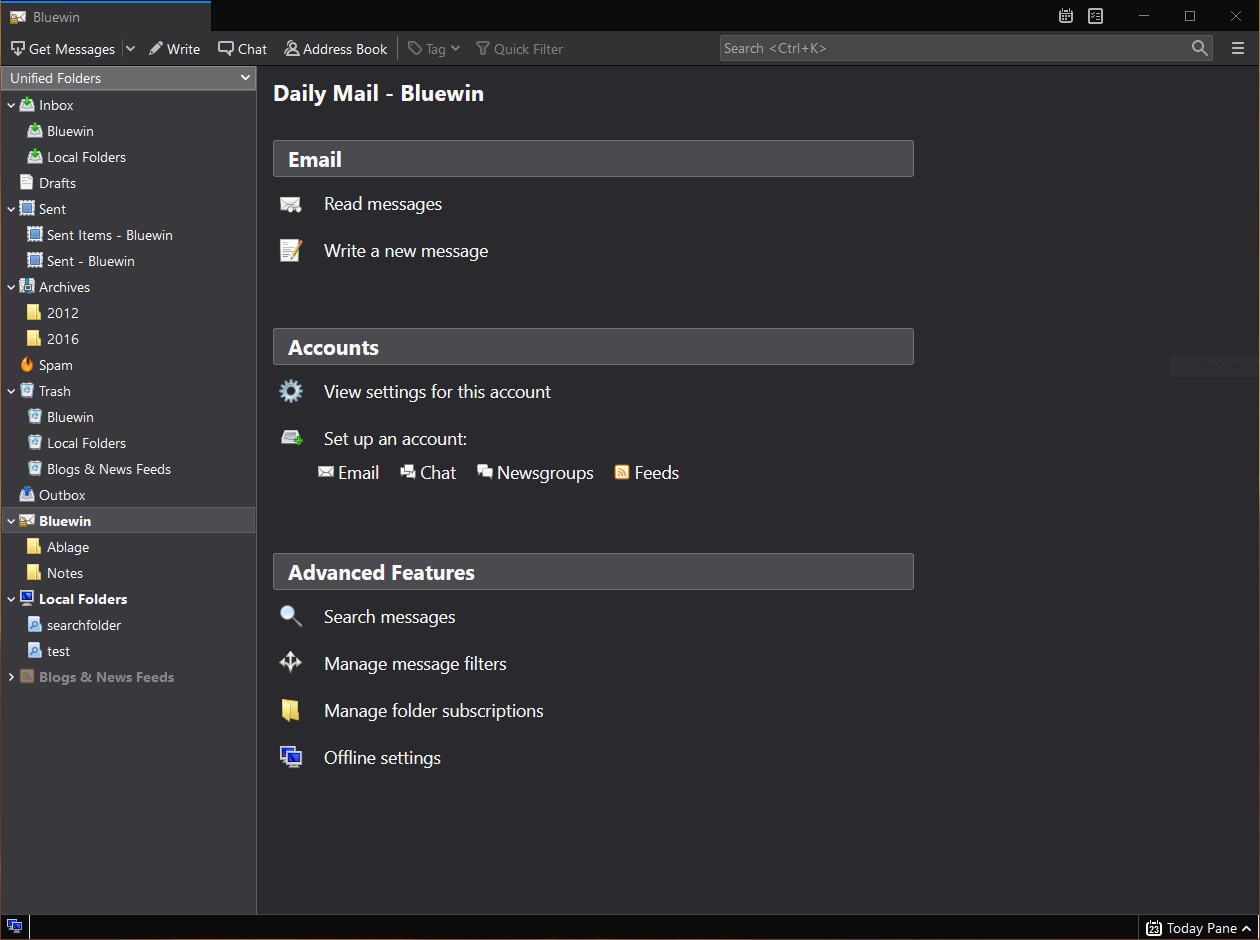
    A great alternative to any mail client actually, connect all of your emails into thunderbird and use it as the centralized email client for all of your email needs. Thunderbird does not lack any features that its paid counterparts have and overall it is a great application worth installing. Grab it from here. open source email client thunderbird
  3. VLC media player - media player able to play almost anything

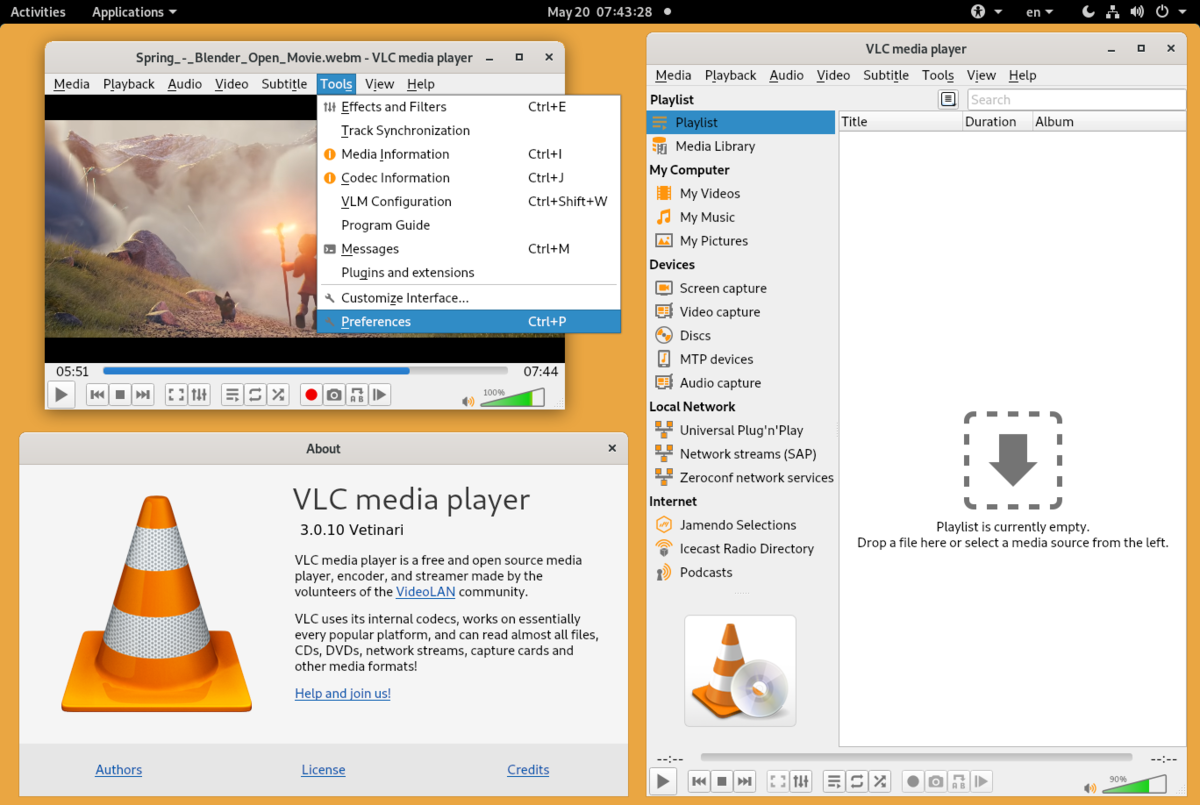
    Are you looking for a great media player alternative to Windows media player or iTunes? Look no further, VLC is a lightweight media player that can play almost any file type, it is customizable and packed with features even its paid counterparts would envy. Its playback features are unmatched by other applications and once you try it, I am sure you will hardly go back from it. Give it a go and grab it from here. open source media player vlc
  4. KeePass - password manager

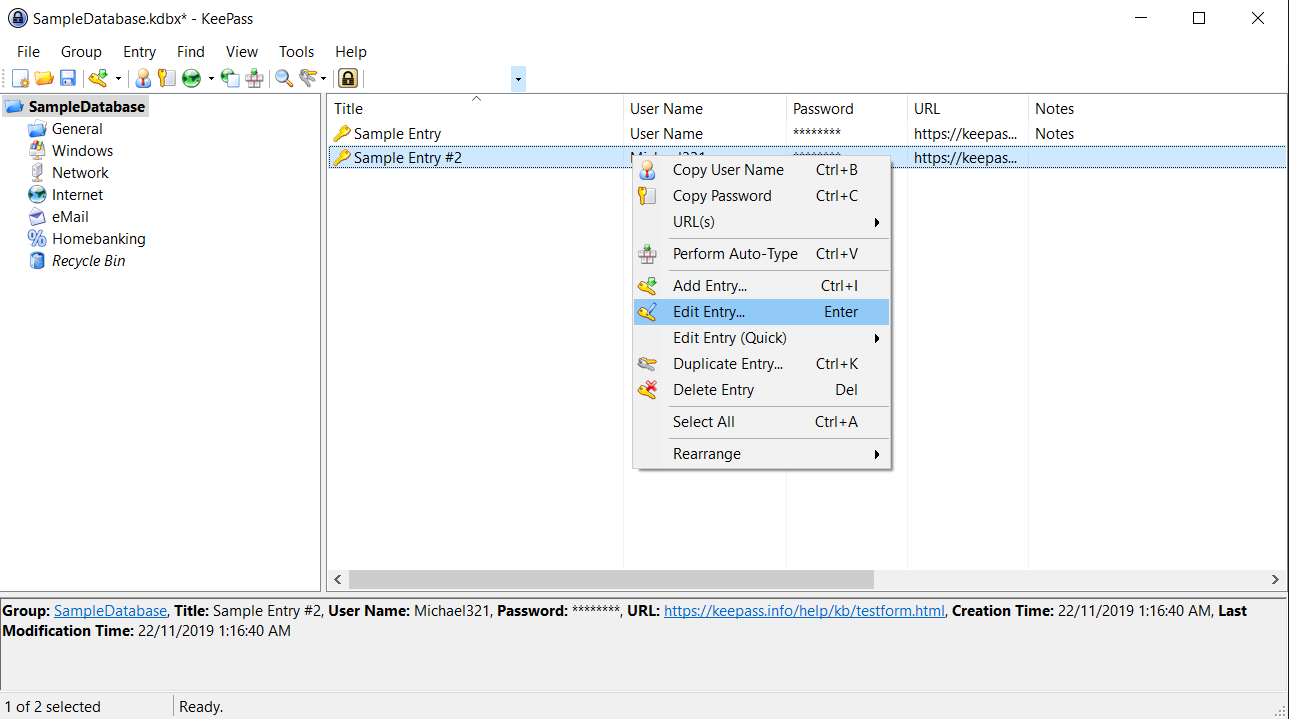
    Keepass is a simple, user-friendly lightweight password generator and manager, it uses industry-standard AES encryption and two-factor authentication to keep the details of your accounts safe and secure. you can store him and the database on a USB stick for safekeeping making it a great one to use on a go, wherever you need it. Get it from this link. open source password manager keypass
  5. FileZilla - FTP client

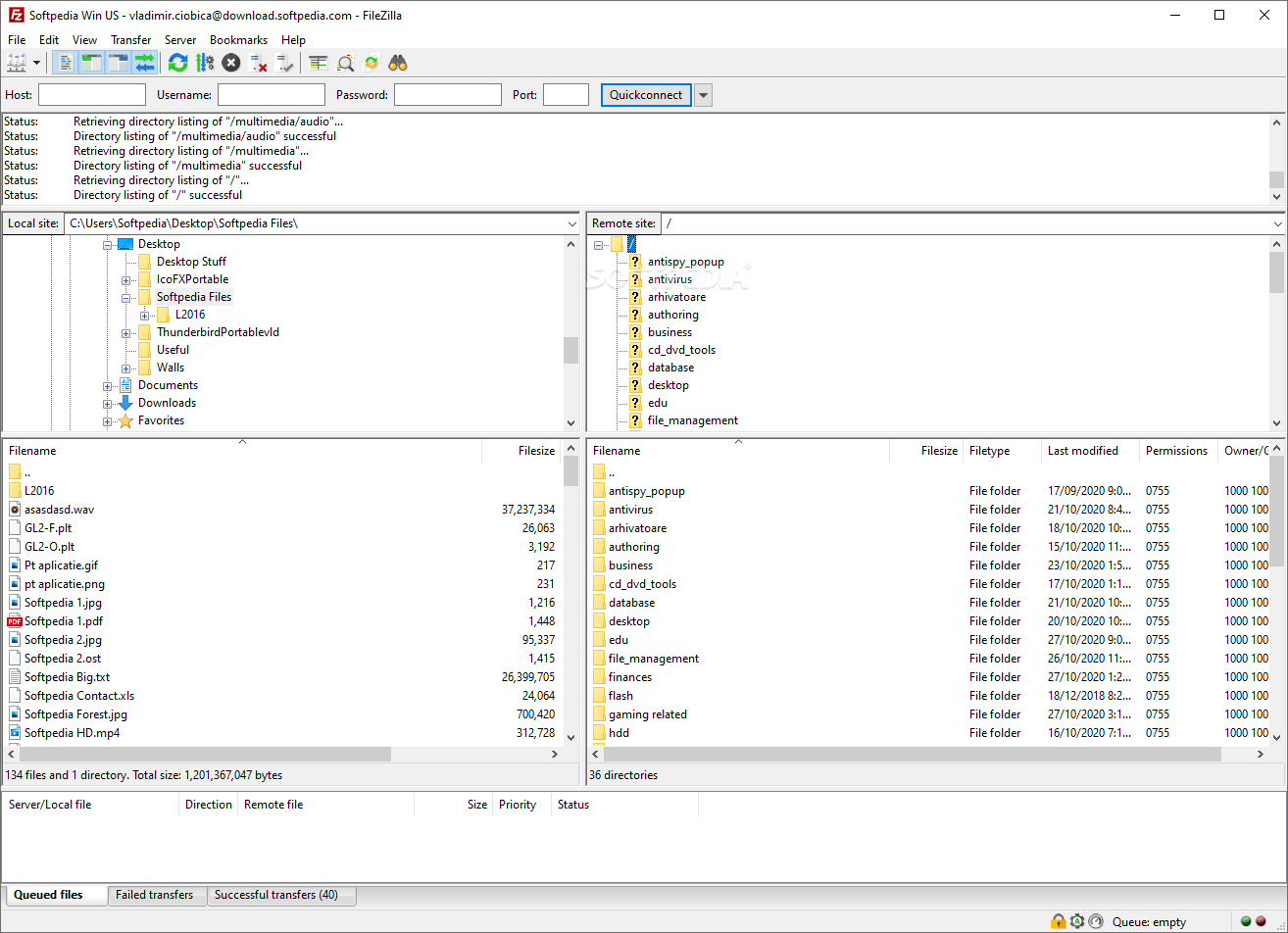
    A lightweight and future-rich FTP solution. It supports remote file editing and resuming of lost transfers, overall great application which anyone who needs this type of software should not overlook. Download it from its official website. open source FTP client FileZilla
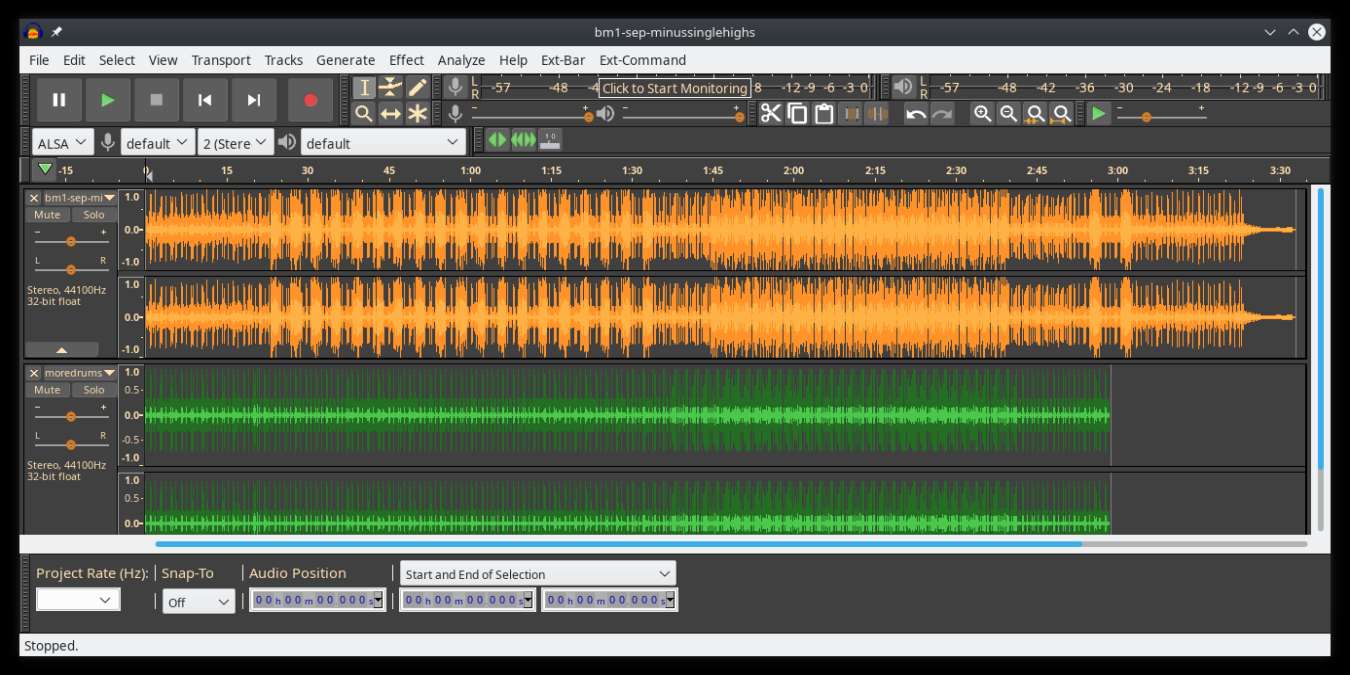
  6. Audacity - alternative to Audition, Fl, apple logic pro,...

    Digital audio editor and recording computer software with some great features like recording audio from multiple sources, post-processing of all types of audio, including podcasts by adding effects such as normalization, trimming, and fading in and out. Audacity has a great following and it is well documented, easy to learn and use. Grab it from here. open source sound editor audacity
  7. Shortcut - alternative to adobe premiere, avid media composer, DaVinci resolve

    The shortcut is a video editor application that demonstrates how long an open-source project can go if enough dedication and work are put into it, started as not so great and not so feature-packed in beginning, today it can easily contend with its paid counterparts with its non-destructive editing, color gradation, keyframing, etc. It is running and using FFmpeg, an open-source video framework that lets it open and works with virtually any video or audio format. Download it from here. open source video editor shotcut
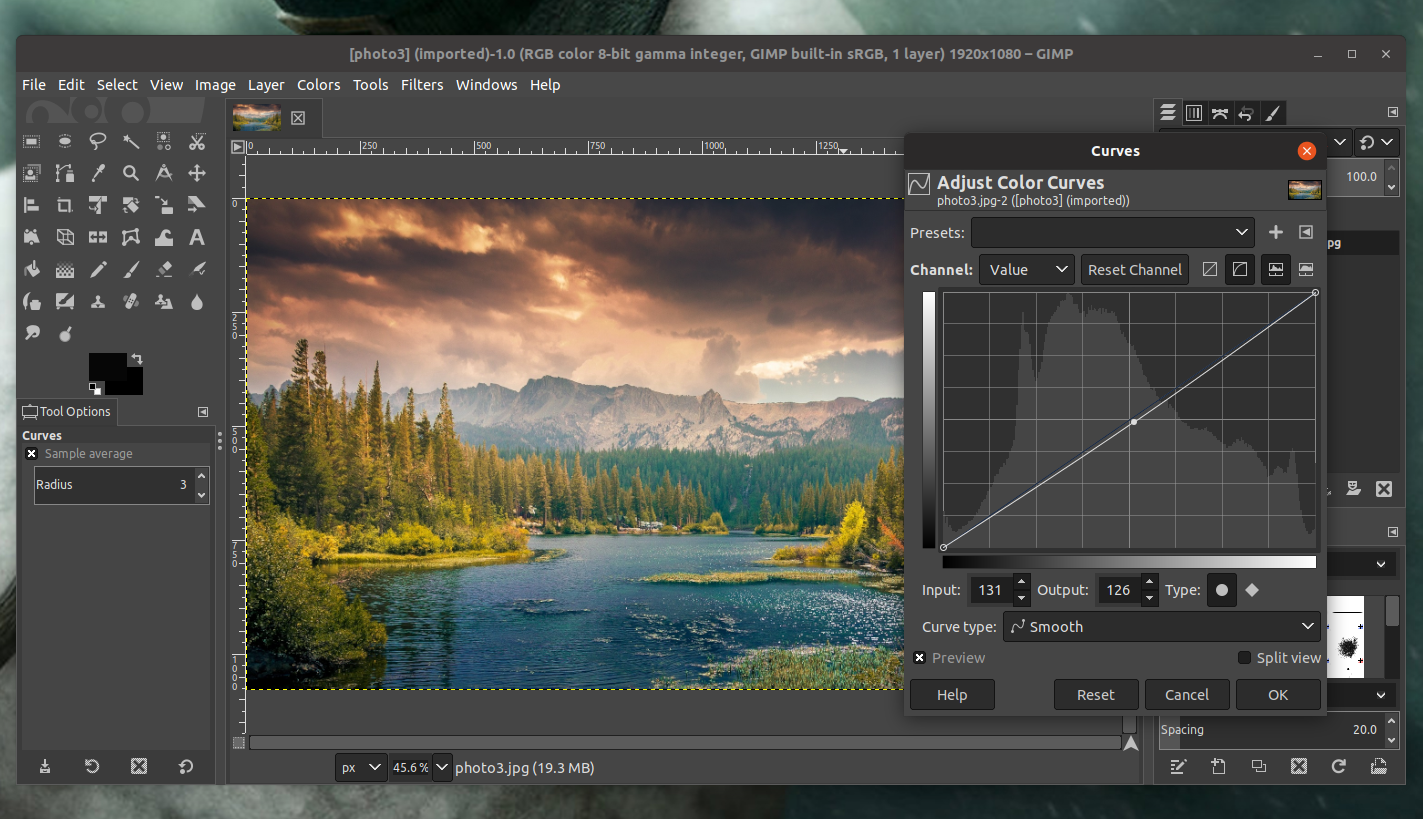
  8. Gimp - alternative to adobe photoshop

    This one has been around since 1996 and it is one of the best maintained open source applications. With its features like built-in support for layers, filters, and automatic photo enhancement. It also makes it easy to create new graphic design elements and you can really take things to the next level by downloading plug-ins created by the broader GIMP open source community. Gimp is the best pixel manipulation-free tool on the market and with the right skills, it can go side by side with adobe's flagship product. Check it out here. open source photo editor gimp
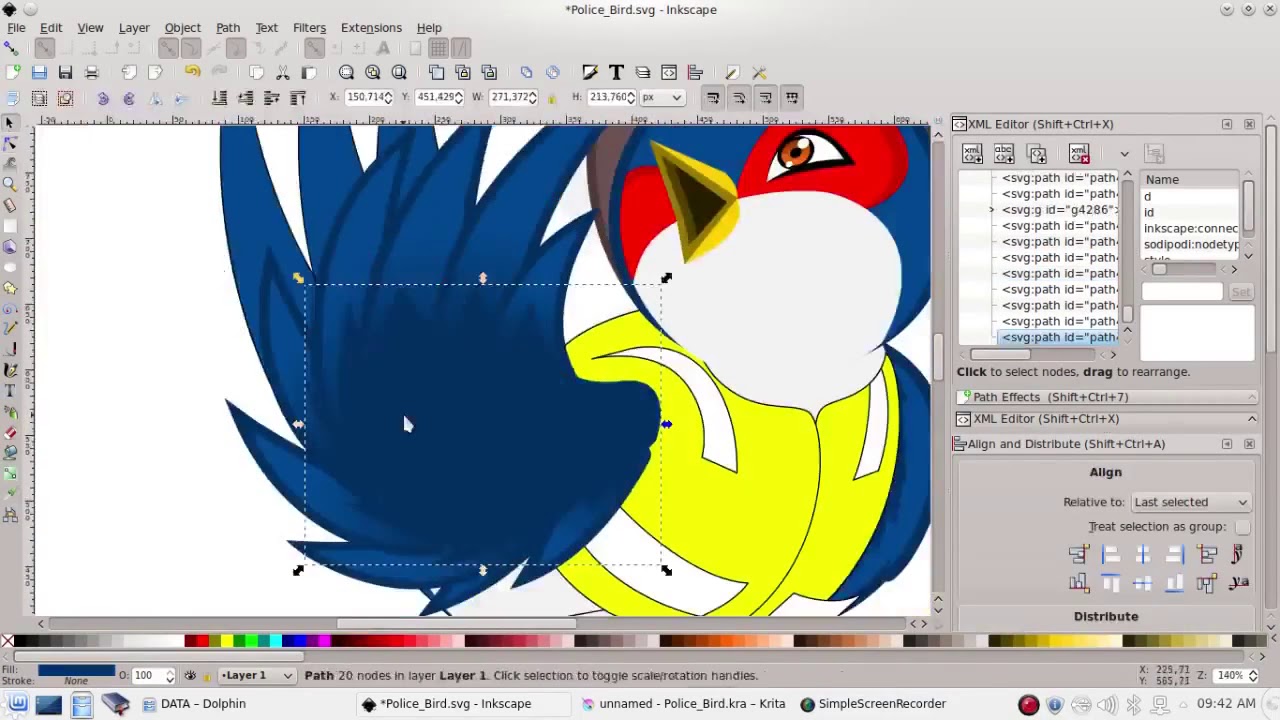
  9. Inkscape - alternative to adobe illustrator, Corel draw

    What is Gimp for photoshop that is Inkscape for illustrator. This free open-source vector graphic tool does not fall behind with its tools in comparison to its paid counterparts and I would highly recommend it for anyone. Features like alpha blending, cloning on-point path manipulations can assure that you can create anything you want inside it. get your copy from here. open source vector tool inkscape
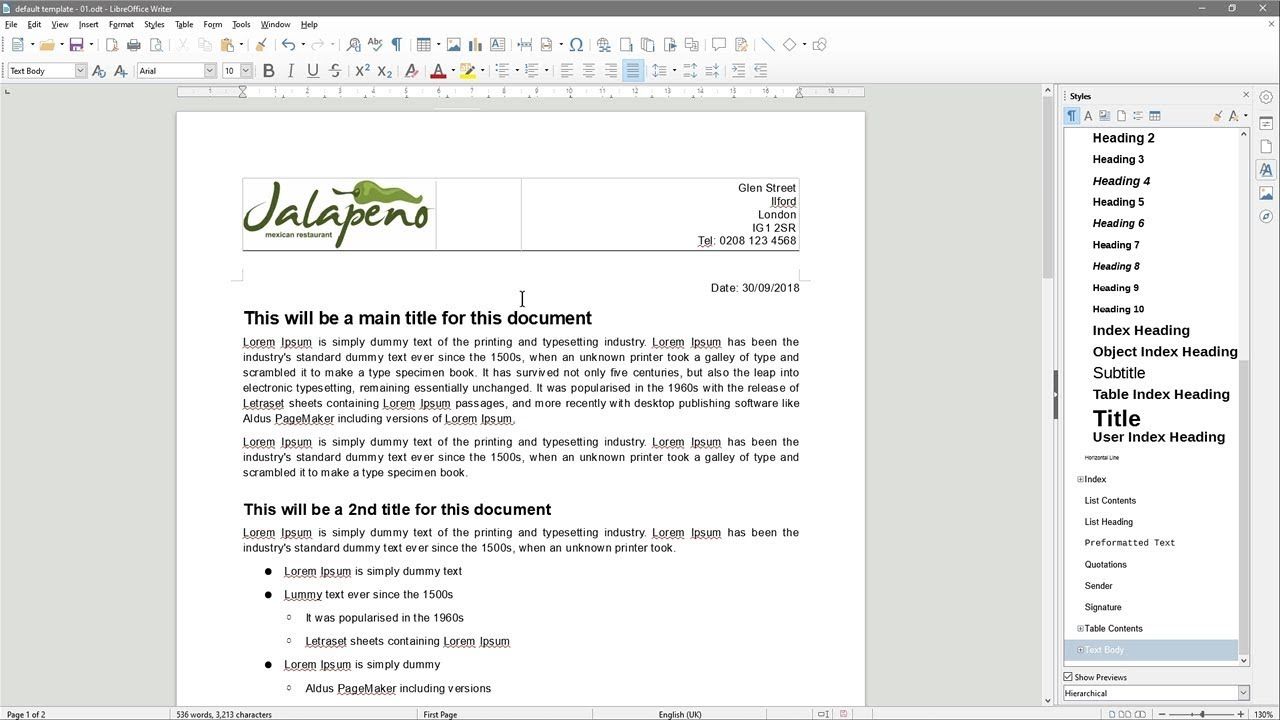
  10. Libre office - alternative to MS office

    Libre office is one of the most quality office suite there, it has spreadsheets, word processor, presentation app, calculation applications, database application, and diagrams. All these applications create and make one great suite that can open Microsoft Office files and even work with them naturally. Completely free and active in development there is no reason, not t use it in your daily routine. Go to its official website and download it for a test run. open source office suite libre office
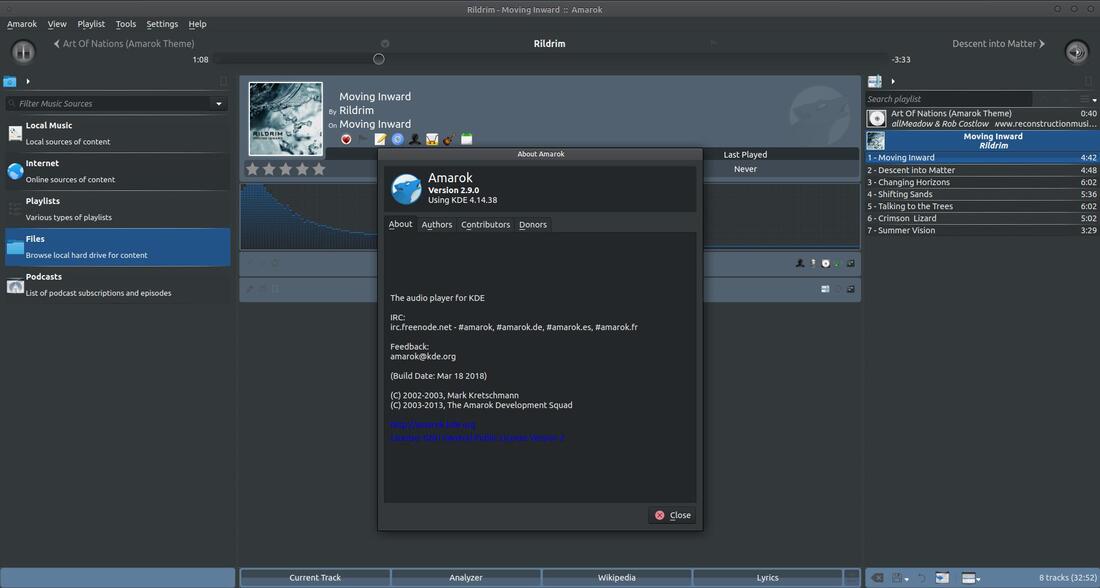
  11. Amarok - alternative to iTunes

    Amarok is an audio player with a broad range of features like integration with multiple Web audio services, dynamic playlists, bookmarks, scripting, context view, and more. get it from here. open source music player amarok
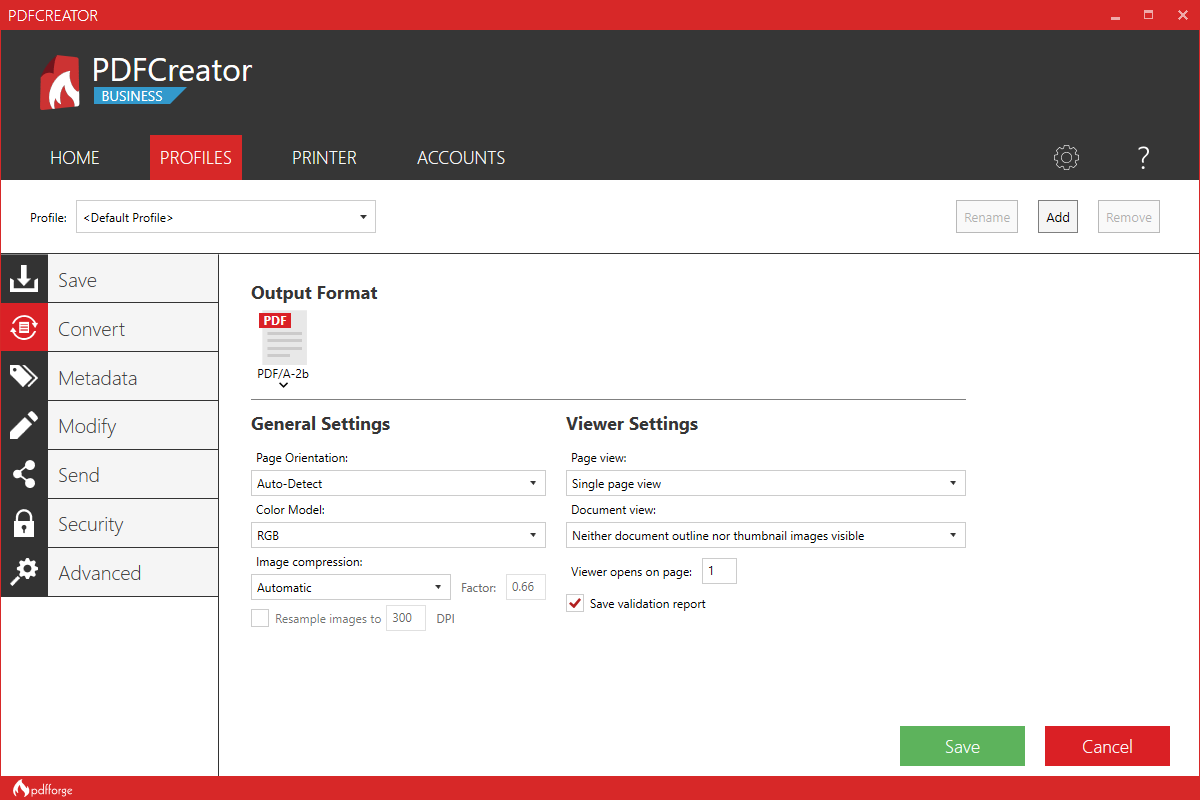
  12. PDF Creator - alternative to adobe acrobat

    As its paid counterpart PDF Creator lets you make PDF files from any application that could print. It works the same way as adobe acrobat and supports encryption and digital signature, it lacks in PDF forms a little but if that is not something that you need, it is a great alternative to acrobat and completely free. Download it from here. open source PDF maker PDFCreator
  13. Blender - Alternative to Autodesk Maya, Autodesk 3dmax, foundry Modo, cinema4d,...

    3D modeling and animation software is very expensive. From the point of home user long it has been lost dream to have industry quality 3D modeling, animation, and rendering application for an affordable price. Blender has made that dream a possibility, completely free and open-source this package offers everything that its paid counterparts offer, some could even argue that since its open-source nature and availability of full code it offers even more. Why you are still here? Go get it here. open source 3d application blender
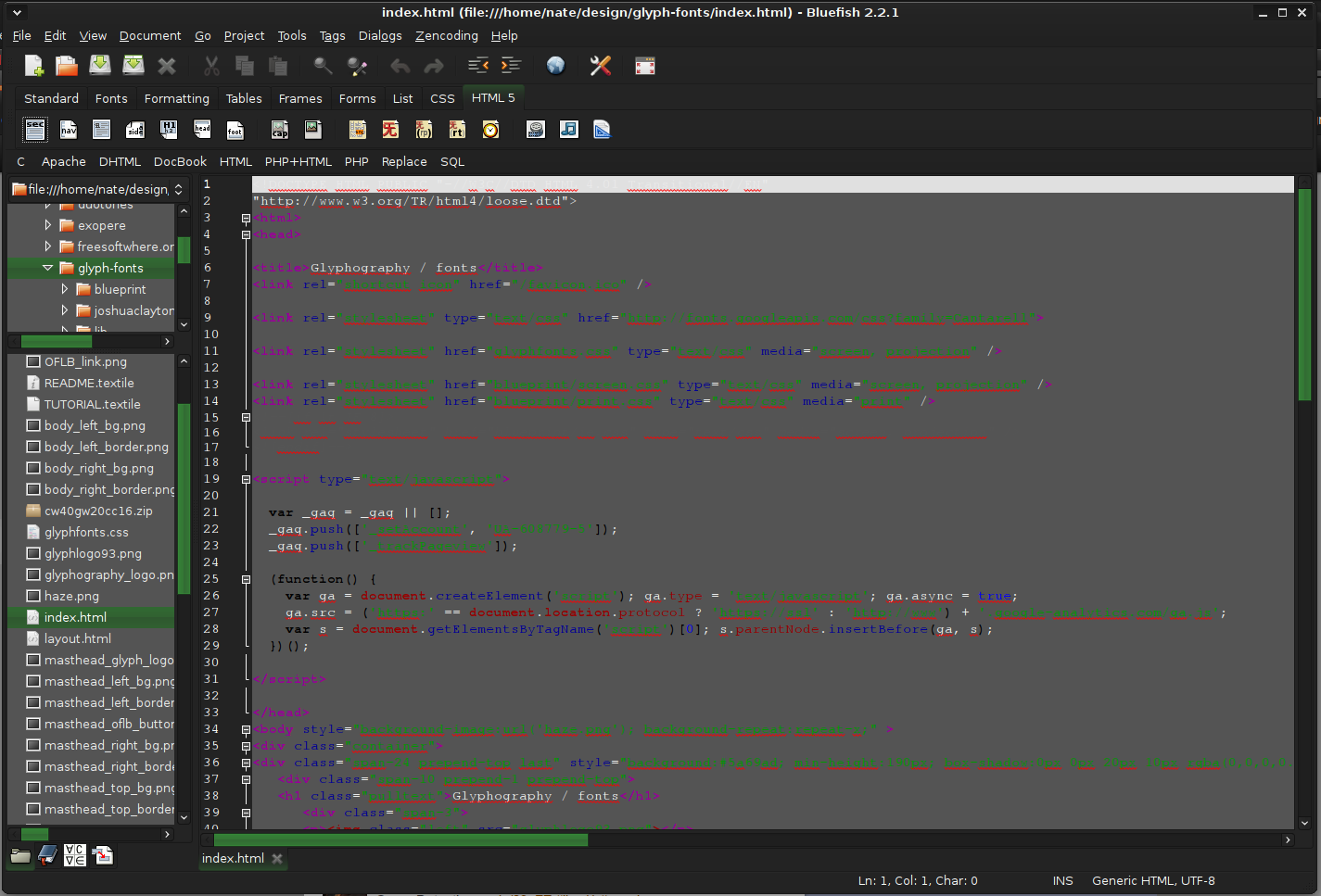
  14. Bluefish - alternative to Adobe Dreamweaver

    When it comes to web editing and code editing applications, notepad ++ seems like a person go-to application, but if you prefer a more professional suited IDE for web development check out Bluefish, auto-filling, code syntax, and constant development make sure that this application will not go away soon and it is worth investing your time in it. Get it from here. open source wed editor bluefish
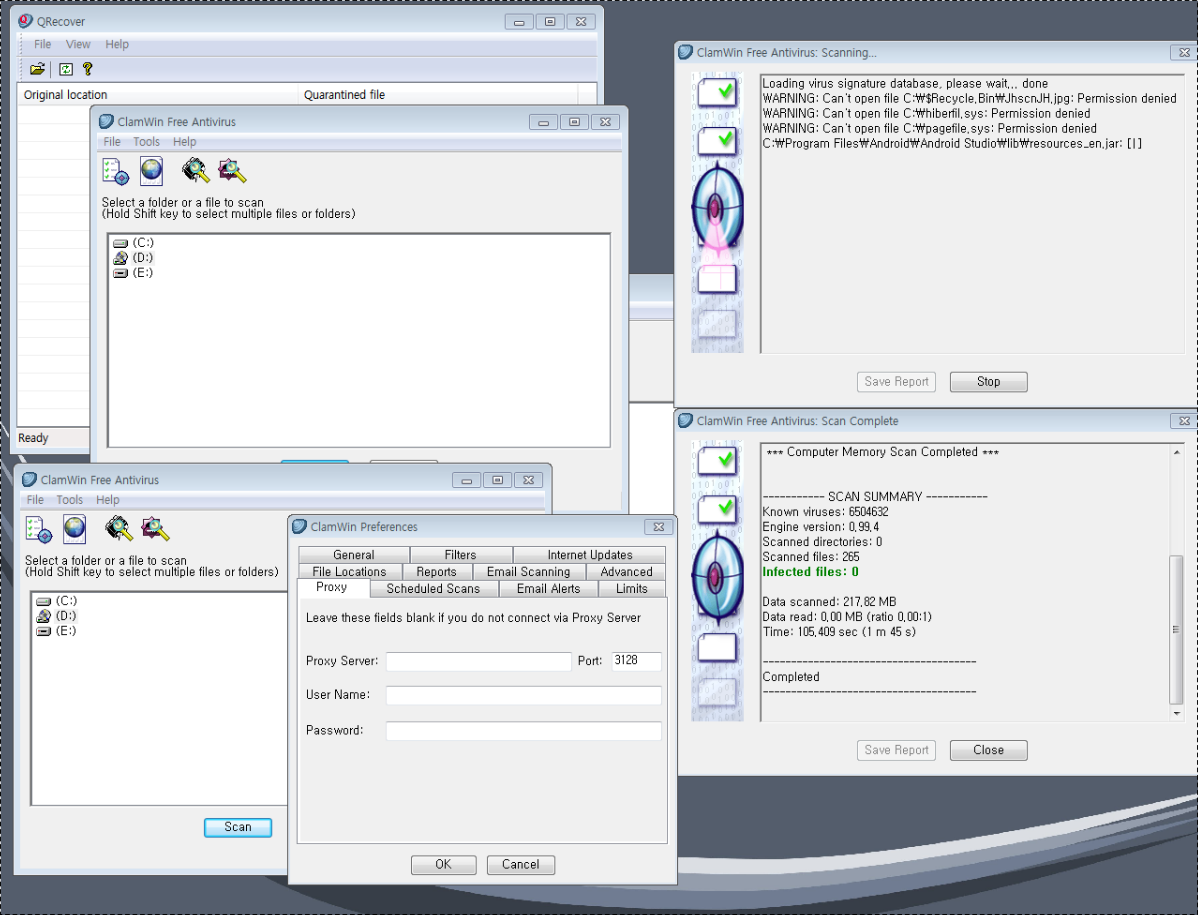
  15. ClamWin - alternative to Kaspersky, BItdefender, Norton

    This antivirus has over 600000 users and active database updates also feature a full email scanner, scanning scheduler, and File Explorer integration. It is far better than other freeware alternatives and if you are looking for a free antivirus option look no further, ClamWin is here to stay. Grab it from here. open source anti virus ClamWin
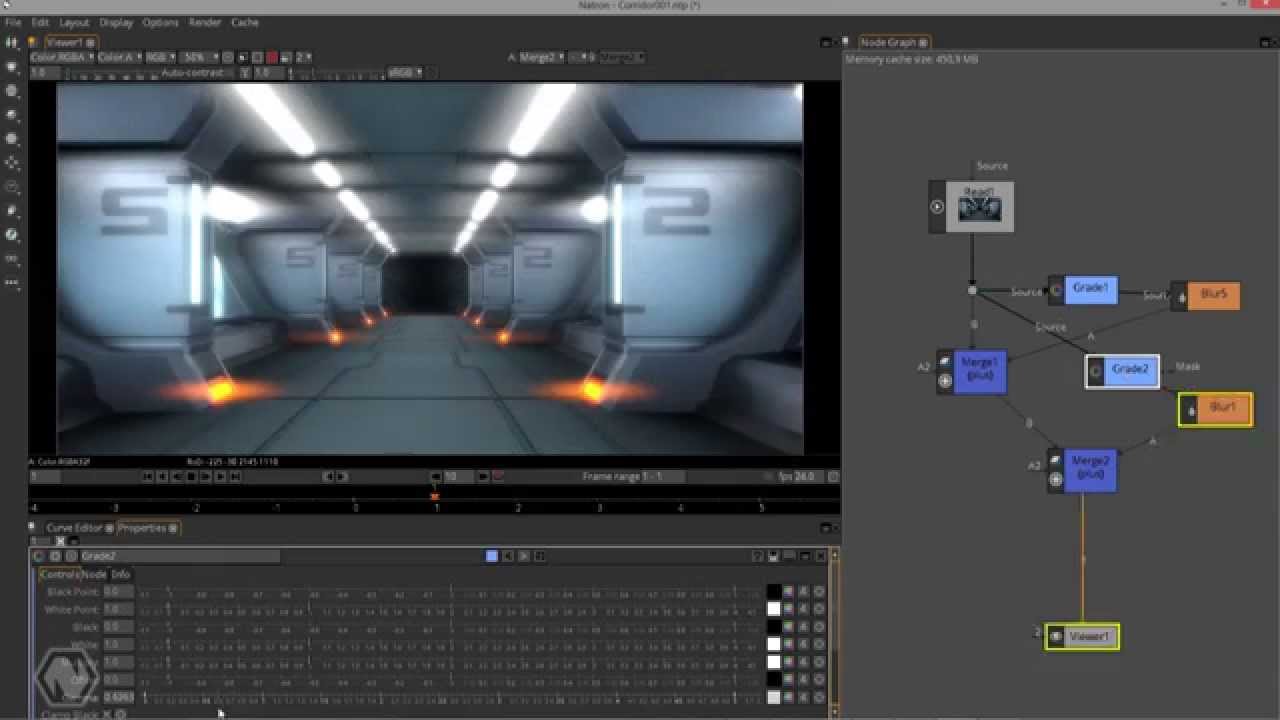
  16. Natron - alternative to adobe aftereffects, foundry nuke

    Full-featured node-based composition and effects suite. Natron is a powerful Digital Compositor that can handle all of your 2D/2.5D needs. Its robust OIIO file formats and OpenFX architecture is what makes Natron the most flexible open-source compositor for the visual effects community. Its interface and functionally are the same across all platforms such as macOS, Linux, and Windows. Natron has a powerful keying, roto/roto paint, 2D tracking tools that are staple for all current film production project that requires visual effects. Get natron from here. open source composition and effect application natron
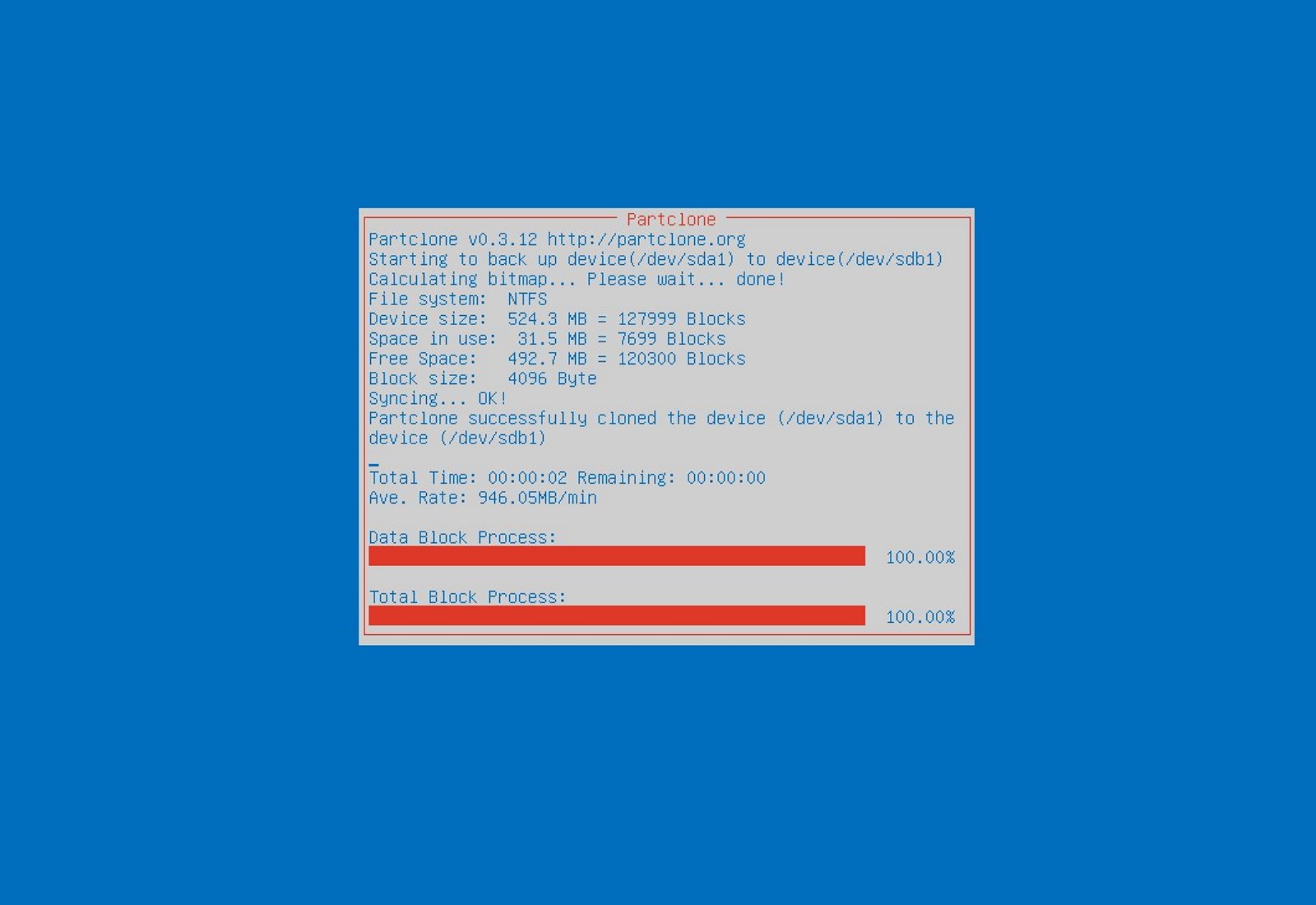
  17. Clonezilla - alternative to Norton Ghost

    When it comes to cloning hard drives usually there is only one application, Norton ghost. Clonezilla tends to change that by offering the same usability as the ghost. Grab your copy from here. open source HD clone clonezilla
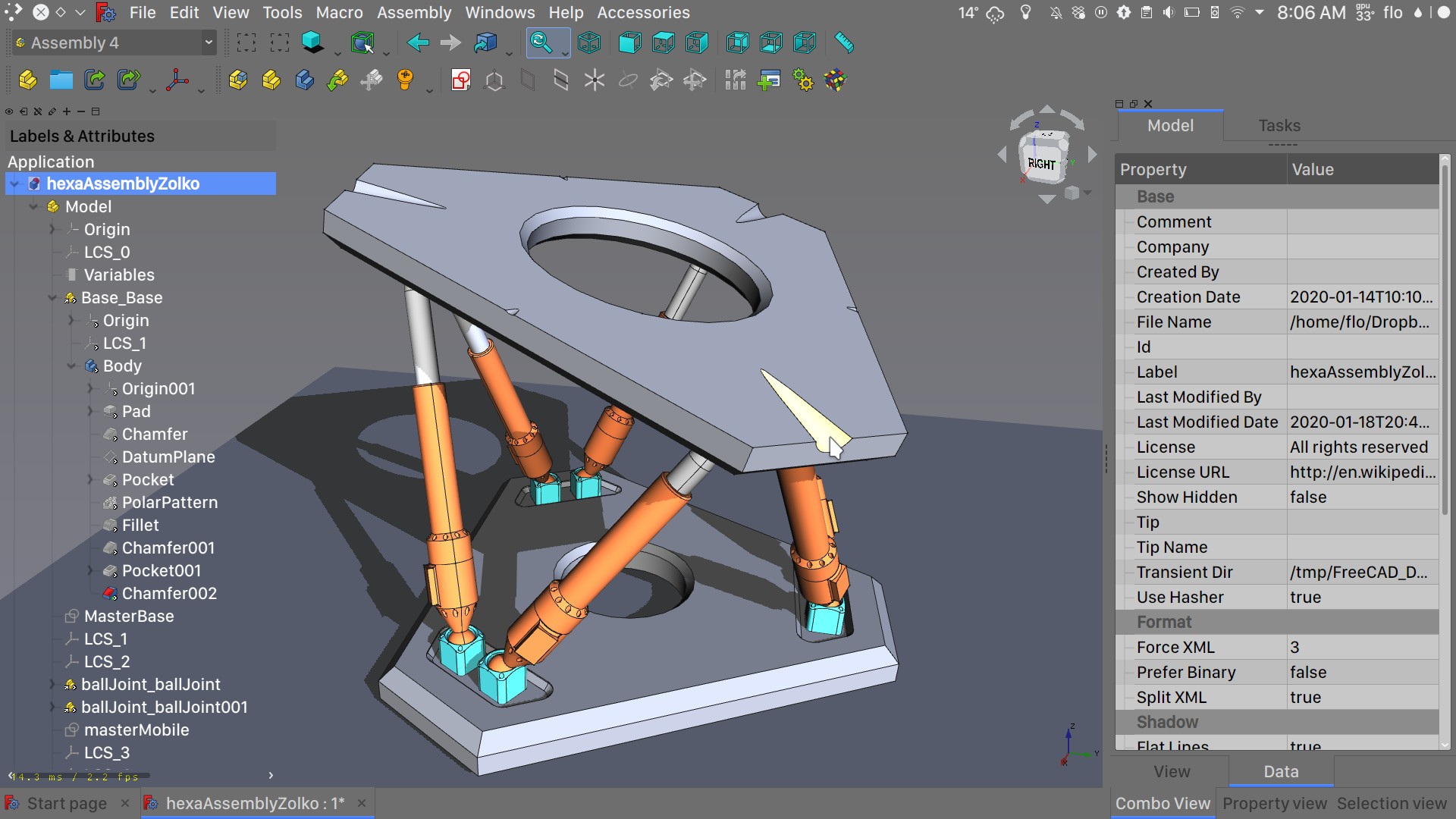
  18. FreeCAD - alternative to Autodesk AutoCAD

    Autodesk AutoCAD has years of development and dedication of its team behind it to keep it as the best CAD application on the market and it shows. However, if you are not really a hardcore professional who needs all of AutoCAD features and can live without some automation inside it FreeCAD is one of the best free open source options, it will certainly get the job done and with its dynamic simulation and analysis, it is guaranteed that you can achieve same results as in AutoCAD with little more time investment. Get if here. open source CAD freecad
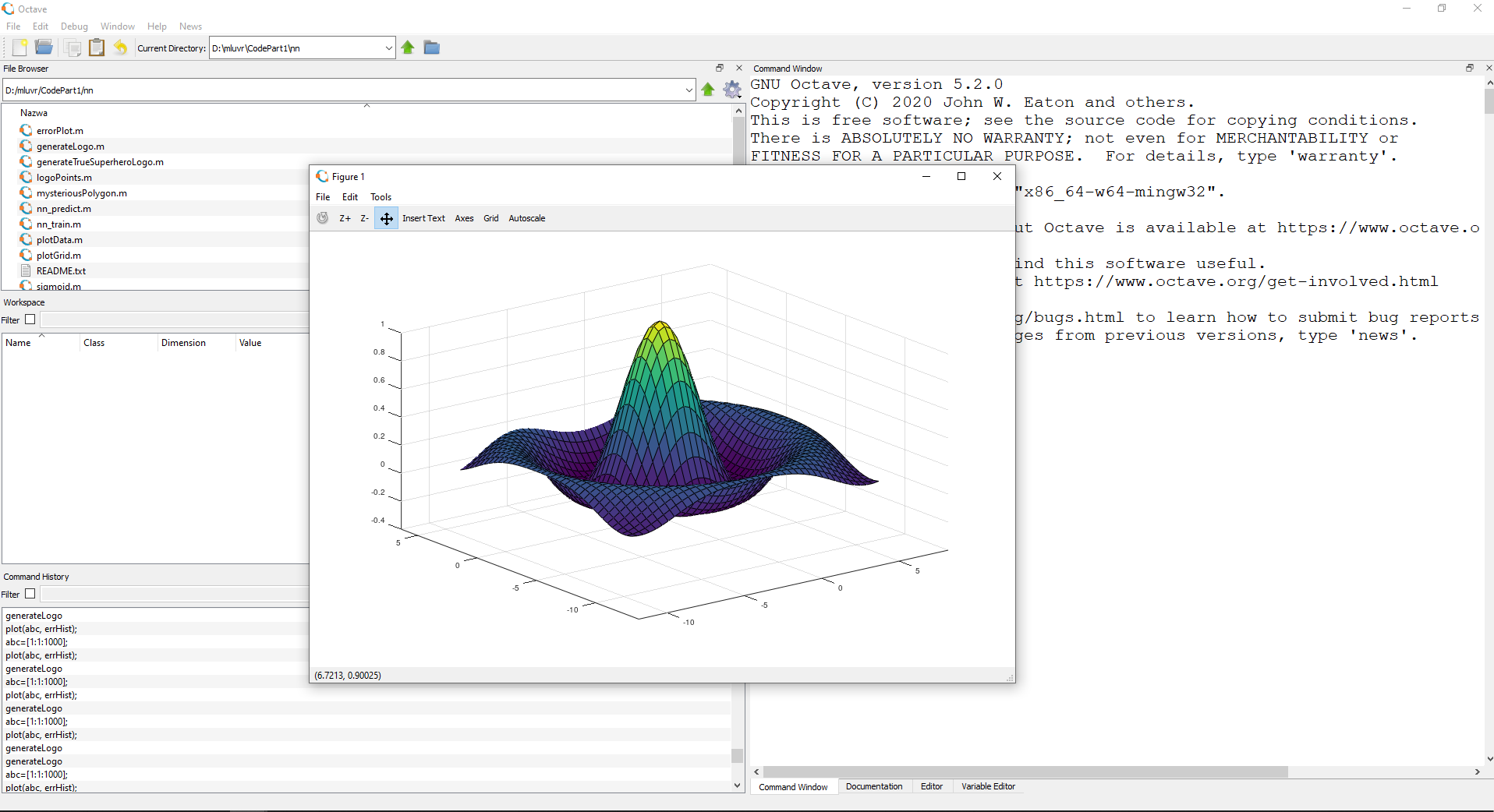
  19. Octave - alternative to MATLAB

    Octave is the best open-source educational tool used for numerical computation with an interactive environment. The tool features powerful mathematics-oriented syntax with built-in plotting and visualization tools and also Octave syntax is largely compatible with Matlab. Get your copy from here. open source math tool octave
  20. Godot - alternative to Unity3D, Unreal

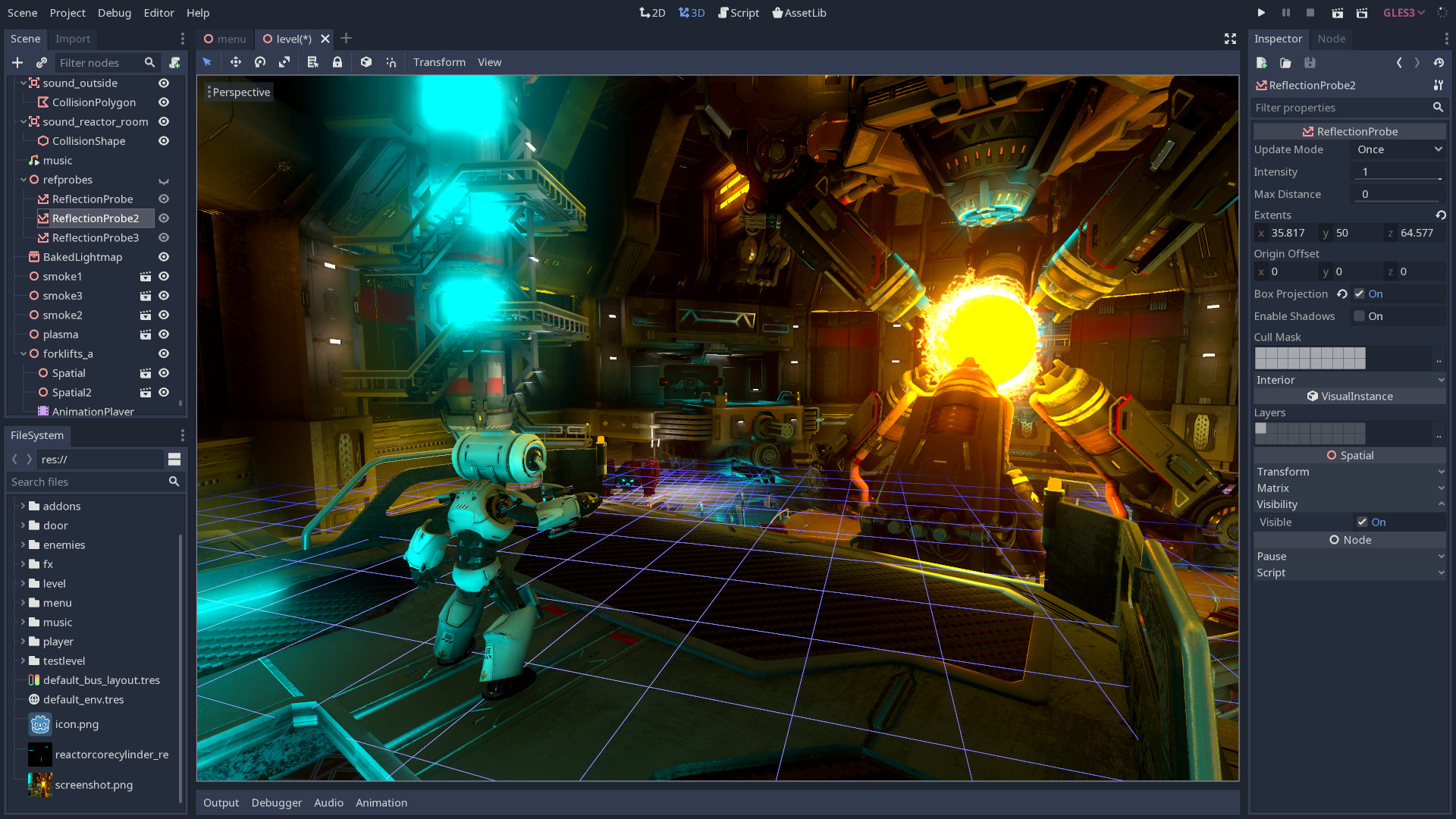
    Godot is a lightweight feature-packed node-based game development engine, completely open-source and free to use for commercial projects. The engine has reached 3.2 version and it is more and more adopted by various independent game makers across the globe, recently there are to of video tutorials and documentation to get you up and running and its open-source nature lets you modify the engine itself in any way that suits and benefits you. Also, any project made with Godot is completely yours, there are no hidden fees or anything similar. Download it from here. open source game engine godot

Conclusion

That's it, my pick for 20 open source alternatives which I believe you should at least try and if you end up with at least one, you have saved some hard-earned money. And always remember:
  1. Open-source programs give you complete freedom without any shady terms and conditions.
  2. Open-source software code is readily available for anyone who wants it, so anyone can use it, share it, modify it for their own needs, and study it.
  3. No spying eyes, no tracking, and no telemetry
  4. In some cases, open-source tools offer features or performance benefits that surpass their commercial counterparts.
  5. No hidden charges, completely free.
If you would like to read more helpful articles and tips about various software and hardware visit errortools.com daily.
Read More
Fix THREAD_STUCK_IN_DEVICE_DRIVER 0x000000EA
If a program tried and failed to use the Graphics rendering capabilities of a computer, Windows 10 will most likely throw a Blue Screen error that says, “ THREAD_STUCK_IN_DEVICE_DRIVER ”. 0x000000EA is the Stop code for this particular Blue Screen error and could be caused by a bad display driver or bad video card. Whatever the cause is, here are some suggestions you need to check out to resolve this Blue Screen error.

Option 1 – Try to rollback, update, or disable the Graphics card drivers

Since the THREAD_STUCK_IN_DEVICE_DRIVER Blue Screen error has something to do with Graphics card drivers, you can either roll back, update or disable them depending on your preference in order to resolve the error.
  • First, boot your computer into Safe Mode.
  • After that, tap the Win + R keys to launch Run.
  • Type in devmgmt.msc into the box and tap Enter or click OK to open the Device Manager.
  • After that, a list of device drivers will be displayed. From there, look for the Display Adapters and click on them.
  • After that, right-click on each entry under the Display Adapters and select the “Uninstall Device” option from the menu.
  • Now restart your computer.
  • After restarting your computer, go to the Settings app and Check for Updates in the Windows Update section.
Note: You also have the option to go directly to the website of your graphics card manufacturers like NVIDIA, Intel, or AMD and go to the section called Drivers then check if there’s a new available update – if there is, download and install it.

Option 2 – Try removing hardware or drivers that you’ve installed recently

If you have recently installed some hardware or drivers, you might want to disable or remove them since external devices are proven to be one of the factors that trigger Blue Screen errors like THREAD_STUCK_IN_DEVICE_DRIVER. All you have to do is physically disconnect any external devices that are connected to your computer and then check if it fixes the BSOD error or not.

Option 3 – Run System File Checker at boot time

  • Once you get to the Welcome Screen part, click on Next.
  • Afterward, click on the Repair your computer option located on the bottom-left part of the window.
  • Then click on Troubleshoot.
  • Next, select the Advanced Options and then Command Prompt.
  • After opening Command Prompt, type the “sfc /scannow” command and hit Enter to run the System File Checker scan.
  • Wait until the process is completed and type “exit” to close Command Prompt and then restart your computer to successfully apply the changes made.

Option 4 – Try to run the Blue Screen Troubleshooter

As you know, the Blue Screen troubleshooter is a built-in tool in Windows 10 that helps users in fixing BSOD errors like the THREAD_STUCK_IN_DEVICE_DRIVER error. It can be found in the Settings Troubleshooters page. To use it, refer to these steps:
  • Tap the Win + I keys to open the Settings panel.
  • Then go to Update & Security > Troubleshoot.
  • After that, look for the option called “Blue Screen” on your right-hand side and then click the “Run the troubleshooter” button to run the Blue Screen Troubleshooter and then follow the next on-screen options. Note that you might have to boot your PC into Safe Mode.

Option 5 – Try to manually check the Graphics Card hardware

You might also want to check the physical status of your Graphics card and you can do this by disconnecting the Graphics card or any other external device connected to your computer. Once you’ve removed the external device, check it for any damages. If there’s none, connect it back to your computer and check if the THREAD_STUCK_IN_DEVICE_DRIVER Blue Screen error is fixed or not.

Option 6 – Uninstall any faulty drivers

You can also uninstall any faulty drivers via Device Manager. How? Refer to these steps:
  • Tap the Win + R keys to launch the Run dialog box.
  • Then type “devmgmt.msc” in the field and tap Enter to open the Device Manager.
  • From there, look for any faulty drivers. You can identify them easily as they will be marked with a yellow exclamation point. And then check which entries would not affect the normal functioning of your PC.
  • Now click on the entries of every faulty driver and click on the Uninstall option.
  • Once you’ve uninstalled them, restart your computer to allow your computer to reinstall the faulty drivers you’ve just removed.
Read More
Windows Defender error code 0x80073afc
If you receive an error code of “0x80073afc” in Windows Defender after you boot your Windows 10 computer or when you try to manually run Windows Defender, then it could be that the Windows Defender files are corrupted. In such cases, this error could also occur if there is third-party security software that interferes with the smooth functioning of this Microsoft Security Client. If you are one of the users who are currently facing this issue, then here are some suggestions you can check out to resolve the Windows Defender error code 0x80073afc.

Option 1 – Try to check the status of all the Windows Defender-related services

  • In the Cortana search box, type “services” and click on the Services icon to open the Services Manager. Alternatively, you can also tap the Win + R keys to launch the Run prompt and then type “msc” in the field and hit Enter to open the Services Manager
  • After opening the Services Manager, look for the following services and make sure that their Startup type is set to their default values:
    • Windows Defender Advanced Threat Protection Service – Manual
    • Windows Defender Antivirus Network Inspection Service – Manual
    • Windows Defender Antivirus Service – Manual
    • Windows Defender Firewall Service – Automatic
  • You can right-click on each one of the listed services and then select Start to start them.
  • And if some of the services don’t have their default values, just double-click on the Services to change the Startup types and select the correct option from the drop-down menu of the Startup type under the Properties box.
  • Next, set up the Startup type of these services to Automatic and then click on the Start button if the services are not running yet.
  • Now click on the Apply and OK buttons to save the changes made and then see if it fixed the problem or not.

Option 2 – Try to re-register the concerned DLL files

You could also try to re-register some Dynamic Link Library or DLL files on your computer as this could also help in fixing the Windows Defender error.
  • In the Start search, type “cmd” and from the search results that appear, right-click on Command Prompt and select the “Run as administrator” option from the context menu.
  • After opening Command Prompt as admin, type the following commands one after the other:
    • regsvr32 dll
    • regsvr32 dll
    • regsvr32 dll
    • regsvr32 dll
  • Once you’ve entered the commands given above, it will re-register the concerned DLL files in your system.
  • Now restart your computer for the changes to take effect.

Option 3 – Try to use the Registry Editor

  • Tap the Win + R keys to open the Run dialog box,
  • Then type “Regedit” in the field and hit Enter to open the Registry Editor.
  • Afterward, navigate to this registry path: ComputerHKEY_LOCAL_MACHINESOFTWAREMicrosoftWindows NTCurrentVersionImage File Execution Options
  • Next, look for the DWORDs named “MSASCui.exe”, “MpCmdRun.exe”, “MpUXSrv.exe” and “msconfig.exe”.
  • If you can’t find these DWORDs, refer to the next given option below.
  • Restart your computer.

Option 4 – Check the Environmental Values

  • Type “View advanced system settings” in the Windows search box and select the appropriate result.
  • This will open a new mini window. From there, go to the Advanced tab and click on the “Environment Variables…” button located at the bottom part of the window.
  • Next, look for the “%ProgramData%” variable name and make sure that its value is set to C:/ProgramData.
  • Then click OK to save the changes made.

Option 5 – Run the System File Checker Scan

System File Checker or SFC is a built-in command utility that helps in restoring corrupted files as well as missing files. It replaces bad and corrupted system files to good system files. To run the SFC command, follow the steps given below.
  • Tap Win + R to launch Run.
  • Type in cmd in the field and tap Enter.
  • After opening Command Prompt, type in sfc /scannow
The command will start a system scan which will take a few whiles before it finishes. Once it’s done, you could get the following results:
  1. Windows Resource Protection did not find any integrity violations.
  2. Windows Resource Protection found corrupt files and successfully repaired them.
  3. Windows Resource Protection found corrupt files but was unable to fix some of them.
  • Restart your computer.

Option 6 – Perform a System Restore

Performing a System Restore on your computer can also help you fix the Windows Defender error. You can do this option either by booting into Safe Mode or in System Restore. If you are already in the Advanced Startup Options, just directly select System Restore and proceed with the next steps. And if you have just booted your PC into Safe Mode, refer to the steps below.
  • Tap the Win + R keys to open the Run dialog box.
  • After that, type in “sysdm.cpl” in the field and tap Enter.
  • Next, go to the System Protection tab then click the System Restore button. This will open a new window where you have to select your preferred System Restore point.
  • After that, follow the on-screen instructions to finish the process and then restart your computer and check if the problem is fixed or not.
Read More
1 2 3 171
Logo
Copyright © 2023, ErrorTools. All Rights Reserved
Trademark: Microsoft Windows logos are registered trademarks of Microsoft. Disclaimer: ErrorTools.com is not affiliated with Microsoft, nor claims direct affiliation.
The information on this page is provided for information purposes only.
DMCA.com Protection Status