Logo

Fix Boot Configuration Data error 0xc0000185

This post will guide you in fixing a particular problem where your Windows 10 computer does not even let you turn it on and it appears as soon as it starts to boot the operating system and it displays an error message that says, “The Boot Configuration Data for your PC is missing or contains errors, Error code 0xc0000185”. On the other hand, it may also display a different error message saying, “The operating system couldn’t be loaded because a required file is missing or contains errors”.

There are various suggestions you can try to resolve this error. You could check the physical status of your hardware or rebuild the Boot Configuration Data, use the Automatic Startup Repair or System Restore, or better yet, reset your Windows 10 computer.

Since your computer will not boot, you will have to either try to get into the Advanced Startup Options screen, boot Windows 10 in Safe Mode, or use a bootable Windows 10 media to boot your computer.

Option 1 – Try to rebuild the BCD files

The first thing you can do to resolve the issue is to Rebuild Boot Configuration Data or BCD files.

  • You can start by booting into the installation environment for Windows 10 from an installation media.
  • After that, click on Repair your computer and on the blue screen, select Troubleshoot and then select the Advanced options menu.
  • From there, select Command Prompt and once you open it, enter each one of the commands given below by sequence.
    • bootrec /FixMbr
    • bootrec /FixBoot
    • bootrec /ScanOS
    • bootrec /RebuildBcd
  • Once you’re done executing the commands given above, type “exit” to close the Command Prompt window and then restart your computer and see if it fixed error code 0xc000014c.

Option 2 – Try to run Automatic Startup Repair

In this option, you need to boot your computer into the Advanced Startup Options and from there, run the Automatic Startup Repair and then wait until the process is completed.

Option 3 – Try running System Restore in Advanced Startup Options

Since you probably can’t boot into your Windows 10 computer, you can try to run System Restore again in the Advanced Startup Options.

  • Boot your computer into the Advanced Startup Options screen.
  • From there, you will see some options to troubleshoot when you can’t log in to Windows in the usual way.
  • Now select Troubleshoot > Advanced Options > Command Prompt.
  • After that, type “rstrui” and hit Enter to execute the command which will start the System Restore process.

Option 4 – Try to perform repair install by creating a Windows 10 installation media

  • Click this link and then click the Download Tool Now button.
  • Next, click the “Use the tool to create installation media (USB flash drive, DVD, or ISO file)…” option and follow the next given instructions on the screen.
  • Now select the ISO file option in step 5.
  • After that, you should now have an ISO file.
  • Next, go to the location where you’ve downloaded the ISO file.
  • Then right-click on the Windows 10 ISO file and select the Open with option and then select File Explorer.
  • Now click on “setup.exe” and follow the next instructions that appear on the screen. When asked, you have to select either Nothing (clean install) or Keep personal files only option. Take note that you must not select the “Keep personal files, apps, and Windows settings since it doesn’t really work.

Option 5 – Try to physically check the hardware

You should also check the physical status of the hardware in your computer. You can clean the dust off the hardware components like the Network Card of the computer. You might want to use a small blower or you could also use a soft cloth and run the components gently. Make sure that you don’t damage any parts with moisture or cause harm to any circuits while you carry out this task.

Do You Need Help with Your Device?

Our Team of Experts May Help
Troubleshoot.Tech Experts are There for You!
Replace damaged files
Restore performance
Free disk space
Remove Malware
Protects WEB browser
Remove Viruses
Stop PC freezing
GET HELP
Troubleshoot.Tech experts work with all versions of Microsoft Windows including Windows 11, with Android, Mac, and more.

Share this article:

You might also like

How to create a public VPN Server on Windows
As you know, a Virtual Private Network or VPN is used to access a particular network from another network which is why it is also referred to as a mini-internet. Moreover, you can use it in two ways. One, you can use it to get you access to a closed server which means that you would not be getting access to the internet. Second, you can also use it to access a set of resources while at the same time get access to the internet. However, what if you want to access your resources at home even when you’re away? And what if you want to use the private server at home or at your office even when you’re away? This is where the callout for a VPN server for yourself comes in. And so in this post, you will be guided in how you can create a public VPN server on your Windows 10 computer. Follow each one of the given steps below to get started. Step 1: Find your IP address. This step is rather simple since all you have to do is open Control Panel > Network and Internet > Network and Sharing Center. From there, click on “Local Area Connection” and then click on Details where you’ll see your IP address next to “Autoconfiguration IPv4 Address”. Step 2: Next, set up port forwarding on your router. In this step, you will have to configure port forwarding in your router so that you would be able to connect to the VPN server through a public network like the internet.
  • Log in to the Admin Panel of your router. You have to do this since your router will be the gateway for your access to the network.
  • After you’re logged in, look for the “Port Forwarding” or “Applications and Gaming” or “NAT/QoS” menu tab and other similar names.
  • Now you need to set the port number to 1723 for connections based on Point to Point Tunneling Protocol.
  • Then save the configuration and reboot your router.
Step 3: Set up a VPN server on Windows 10.
  • In the Cortana search box, type “ncpa.cpl” and click on the related entry from the search results.
  • After that, tap the Alt + F keys to bring down the File Menu and then select New Incoming Connection which will open a mini window where you can allow the user accounts on the particular machine to access the VPN connection.
  • On the other hand, you can also click the “Add someone” button so that you can add someone else to the whitelist that can access the connection.
  • Now click on Next and you’ll see an option to select how people will connect to the network. Check the checkbox for the “Through the Internet” option.
  • After that, you will see a page where you have to configure the network. Just select IPv4 and then click on Properties.
  • From there, you will be asked to continue some additional settings like letting users access your Local Area Network or how IP addresses will be allocated to these users. Click on OK to save the changes you’ve made.
  • Click on Allow Access after you configure the network. And if you want to, you have the option to print this information for future reference or for the client machine.
  • Now click on Close to exit the configuration process.
Step 4: Allow the VPN Connections through the firewall In this step, you will have to allow the VPN connections through the firewall.
  • In the Cortana search box, type “Allow an app through Windows Firewall” and click on the related search result to open the intended Windows Firewall settings.
  • Next, click on Change Settings.
  • Then scroll down to check if Routing and Remote Access is Enabled for both the Public and Private networks and click on OK.
Step 5: Set up a VPN connection on Windows 10 Now all that’s left for you to do is to set up a VPN connection on Windows 10.
  • Go to Settings > Network and Internet.
  • From the list of options given, click on VPN located on the left pane to see the related settings.
  • After that, click on the “+” icon to add a VPN connection.
  • Next, select Windows Default under VPN Provider and under the Connection Name, input your VPN’s name, and then enter the IP address you got from the VPN service provider under the Server name or address section.
  • Now select PPTP under VPN type since it is the most commonly used protocol for VPNs.
Read More
How to Fix Black Screen During Installation Windows 10

Black Screen During Installation - What Is It?

Many are upgrading their OS to Windows 10, however, it’s not always smooth sailing because users have been reportedly experiencing different bugs including Black Screen after a successful update.

One common issue in installing Windows 10 is the appearance of a black screen after installation. This usually occurs when the user restarts the computer. Initially, there will be a black screen only appearing on the monitor. There are also cases where a mouse cursor is present, while some cases have no cursor at all.

Not only that, it seemed that you’ve lost all your desktop icons when experiencing this bug.

Solution

Restoro box imageError Causes

Just like the other bugs experienced by Windows 10 users, booting to a black screen has reasons. Before you even try to look for the solution, you first have to determine the cause of the error, in this case, the error would be black screen when booting.

  • Error on external devices such as printer or mouse.
  • Having outdated display/video drivers that normally result in black screen when OS is updated.
If error messages are left unsolved, you may encounter other Windows 10 related issues such as error code 0xc0000142

Further Information and Manual Repair

Before you even think of upgrading your OS to Windows 10, you need to know that there are specific system requirements and specifications to be able to successfully update your operating system.

  • Minimum of 1 gigahertz (GHz) Processor
  • Either 1 (GB) (32-bit) or 2 GB (64-bit) Ram
  • You need at least 16 GB of free hard disk space
  • A Microsoft DirectX 9 graphics device or later with WDDM 1.0 driver graphics card
  • 800 x 600 display
  • A Microsoft account and Internet access.

There are more system requirements in order to use other certain Windows 10 features, but we’ll focus on solving your black screen problem in this article.

IMPORTANT NOTE: While it’s possible that you’ll be able to find the solution for your black screen during Windows 10 update, contacting the service of a professional technician or using an automated tool is advisable if you’re not confident in performing the methods to be discussed.

Method 1: Windows 10 DVD Boot

  1. Hit Repair your computer at the Install Now screen.
  2. Press Advanced Options
  3. When you’re in the Advanced Options find Troubleshoot and click it.
  4. Proceed to pressing Startup Repair
  5. Simply follow the instructions of the screen and check if that helps solve the black screen problem.

Method 2: Safe Mode from Windows 10 DVD Boot

  1. Go to Install Now screen
  2. Hit Repair your computer button
  3. Go to Advanced Options
  4. Click Safe Mode option

There’s a chance that you’ll get an error prompt saying, “installation cannot be completed in safe mode.” If this happens, simply press Shift + F10. This command will redirect you to the Command Prompt. You just open Device Manager by keying in devmgmt.msc then disable the display adapters, now check if you’ll be able to successfully boot in normal mode.

This process will normally allow you to complete the Windows 10 installation, if that’s the case you can just update the display adapter drivers from the manufacturer’s website. Restart your computer and see if this solves the problem.

Method 3: Driver Roll Back

  1. Hit Windows Key + X then press the Device Manager
  2. Expand the Display Adapters option
  3. Right-click the listed Display Adapter and press on properties
  4. Find the Driver Tab and click on it, then press Roll Back Driver

Do take note, however, that the Roll Back Driver option is not available if there was no previous version installed.

Method 4: Check External Devices

Since one common cause of black screen during a Windows 10 update is the external devices you use in your computer, you might want to consider these steps as well.

  1. Simply unplug all of the external devices you currently use
  2. Restart your computer
  3. If in case this solved your black screen problem, carefully plug back the devices one at a time to determine which of the device is the culprit.
  4. Update the drivers for the outdated hardware using a reliable third party tool.

Method 5: Fast Startup Disabled

Some Windows 10 users had success in solving their black screen problem by disabling the fast startup.

  1. Go to the Control Panel, find Power Options and press “Choose what the power button does,” which is located in the left pane of the panel.
  2. Hit the “Change settings that are currently unavailable.”
  3. Make sure to unmark the checkbox button saying, “Turn on fast startup.”
Read More
Fix Can’t initialize disk in Windows 10
If you have recently installed a new internal or external hard drive or SSD and you’ve noticed that its status on the left side of the Disk Management tool states “Unknown Not Initialized”, this indicates that Windows can’t initialize the disk and that you won’t be able to use this new SSD or hard drive. You can encounter this kind of issue randomly and not just with a new hard drive or SSD but also with existing drives. There are times when you won’t be able to find your drive or partition in the File Explorer. In such a case, you have to check the Disk Management if your drive or partition is there physically. You also have to check if you can see it as Not Initialized. If it is, then this means that the disk or partition does not have a valid signature that is if it’s not registered with the system properly. Note that a disk is registered when you format it at least once so if the disk was available before, then it could be somehow corrupted. To resolve the problem, you can try to initialize the disk manually or bring it online and add a drive letter. You can also try checking the Device Manager for issues or check the cable physically.

Option 1 – Try to manually initialize the disk

Since initializing the disk is the most common way to resolve the “Unknown Not Initialized” error, this is what you have to try first.
  • To initialize the disk manually, you have to open the Disk Management from the WinX menu by tapping Win + X keys and selecting Disk Management.
  • From there, you can find the non-initialized disk. Right-click on it and select the “Initialize Disk” option.
  • Next, select the partition style. It is recommended that you use the MBR option instead of the GPT or GUID Partition Table.
  • Now click the OK button. Your hard drive or SSD should now initialize without any problem.

Option 2 – Set the disk Online and add the Drive letter

  • If the disk appears to be offline under Disk Management, right-click on it and select the Online option.
  • On the other hand, if the disk is already set Online but does not have a drive letter, right-click on it and select the Change drive letter and path option.
  • Select a letter that is not allocated yet.
  • Once you’re done, you have the option to format the disk in either NTFS or FAT32 but if you are using a 64-bit computer, make sure that you opt for NTFS.

Option 3 – Try to check any issues in the Device Manager

It is also possible that the hard drive is not working properly due to some driver issues. Thus, it’s better if you check the Device Manager and see if that drive is listed with a yellow exclamation mark next to it. And if that’s the case, you have to right-click on that drive and select the Uninstall drive option. After that, click on Action and then run the Scan for hardware changes. It should fix the problem.

Option 4 – Try to physically check the cable

You might also want to check the physical status of the wires and see if they are connected properly or not. Specifically, you have to check two cables, such as:
  • The first one is the power cable that’s connected to your SMPS.
  • Next is the one that’s connected to your motherboard.
If any of the two cables are not working or missing, then it’s no wonder why your drive has an “Unknown Not Initialized” status. Thus, you need to have them replaced to fix the problem.
Read More
Deleting a User Account in Windows
There are instances when there are multiple accounts which is the result when there are a lot of users who use the computer. Some may use it more often, while others may seldom use it. Having multiple accounts can be quite confusing and inconvenient especially if it takes a lot of space. Thus, in this post, you will be guided on how you can delete a User Account on your Windows 10 computer, as well as how you can create a backup of the existing profile data and files. All the data of user accounts can be found at C:/Users, where its folder name will be exactly the same as the name of the user. You can check the exact user’s name by simply using the “net user” command either via Command Prompt or Windows PowerShell. Once you delete a user account, its folder, along with its files, will also be deleted. You can also create a backup for user files and the best way to do that is by copying the folder to other partitions or to an external drive. Here are two methods you can check out to delete a user account in Windows 10 – you can do it via Windows Account settings or via the command line. For more details, follow each one of the options provided below.

Option 1 – Delete the user account using Windows Account settings

  • First, go to Settings > Accounts > Family & other users.
  • Next, select the account you want to delete and click on the Remove button. This will open a confirmation window along with a warning message and two buttons that say, “Delete account & data” and “Cancel”.
  • Click on the Delete account & data button to delete the user account.
Note: Once you remove a user account, it will also remove all its corresponding data such as items like Documents, Photos, Music, Desktop, and other related folders. Thus, if you have not created a backup, then you won’t be able to recover those files.

Option 2 – Delete the user account using the command line

If you want to delete several user accounts, then doing it via Command Prompt or Windows PowerShell is a lot quicker. To get started, follow these steps:
  • In the Start Search, type “command prompt” and from the search results that appear, right-click on Command Prompt and select the “Run as administrator” option.
  • Next, type the “net user” command and hit Enter to execute it. This will show you the exact usernames on the computer.
  • After that, type the “net user <username> /delete” command and hit Enter to execute it. This will delete the account and all of its data without any warning. You have to replace “<username>” with the name of the user account.
Read More
What to do if Windows 10 Store is not downloading Apps
The store is not downloading Apps: As you know, the Windows Store is one of the places where you can download Windows apps. However, there are times when you might not be able to do so for some reason. For instance, if you search for an app and click on the get it now button, instead of downloading the app, nothing happens and there are also cases when the download will start but the page will refresh after half a second. When this issue happens, you won’t be seeing any error message or warning at all. So you’ll just have to look at the download get started where the page will refresh and you’ll be back at the Get button. This issue in the Windows 10 Store only happens for a few apps so even though you are able to download some apps, you might be able to do on other ones. Note that the apps affected are random and there is no specific set of apps that cause this issue while downloading and that this problem will repeat again each time you click on the Get it now button. This issue is definitely caused by Windows itself and has something to do with a bug in the Windows store which was brought by the latest Windows Update. It’s already a known issue among other Windows 10 users who are also suffering the same dilemma. So until Microsoft releases another update to fix this bug, you will have no choice but to deal with it in the meantime. On the other hand, you can also try a couple of suggestions laid out in this post. Follow the steps in every option given below to fix the issue with the Windows 10 Store.

Option 1 – Try signing out from the Microsoft Store

A lot of Windows 10 users were able to resolve the problem by simply signing out and signing back into the Microsoft Store. How? Follow these steps:
  • Go to the Microsoft Store.
  • Next, go to the Get page of the app you were trying to download.
  • And then click on your account picture located in the top right corner of the window and select your account.
  • Sign out from your account and after that, click the Get button to download the app.
  • After that, a new window will appear where you’ll have to select your account and click on Continue.
  • Now enter your credentials. Once you do, the app should be downloaded automatically after you’re signed in. And that’s about it.
Note: Keep in mind that this option is merely a temporary solution to the problem and once you close the Microsoft Store and open it back again, you will be back to square one.

Option 2 – Wait for the Windows Update

As mentioned, this is already a known issue and a lot of Windows 10 users have already complained about it to Microsoft so a bug fix will be soon released in the latest Windows Updates.
Read More
Something went Wrong. Try to reopen later
Windows update issue may come up when the configuration for windows update service is not properly configured or this error can also come up when there is corrupt windows installation. Before trying any of the given solutions to this error try first to clean boot your Windows and turn off any 3rd party utility application. If this method fails move to the provided solutions.
  1. Change startup type of UOS service to automatic

    UOS or The Update Orchestrator Service is essential for proper Windows updates. If this service is by any means turned on manual it could be the reason for error since it can create incompatibility between OS modules, if this is the case, setting it to automatic will solve the issue. Press CTRL + SHIFT + ESC on your keyboard to bring the task manager up and click on the services tab. In the services find orchestrator service, right-click on it, and from the list of startup types choose automatic. Click on APPLY and reboot your computer.
  2. Try to fix it in the command prompt

    If the above method failed, try fixing the issue via command prompt. Press ⊞ WINDOWS + X to bring up the secret menu and start command prompt (administrator) In the command prompt write these lines one after another as they are finished: net stop bits net stop wuauserv net stop appidsvc net stop cryptsvc Ren %systemroot%SoftwareDistribution SoftwareDistribution.bak Ren %systemroot%system32catroot2 catroot2.bak Net Start bits Net Start wuauserv Net Start appidsvc Net Start cryptsvc After all this, reboot your system and check if updates are working properly.
  3. Try to fix it via registry editor

    Press ⊞ WINDOWS + R to bring run and type in it RegEdit, press ENTER find Computer\HKEY_LOCAL_MACHINE\SYSTEM\CurrentControlSet\Services\UsoSvc in the right part, find key START and change its value to 2 Reboot your system
  4. Try with a new user account

    If by any chance user account data is corrupted this may be the reason why we have this error. Create a new administrator user account Shut down your computer Turn in back ON and log in with the new account
  5. Perform SFC scan

    Press ⊞ WINDOWS + X and choose command prompt (administrator) type in: sfc /scannow This may take a while, sit back, let it finish, and try again windows update
That is all considering this particular error, we certainly hope that you have managed to fix it using any of provided solutions!
Read More
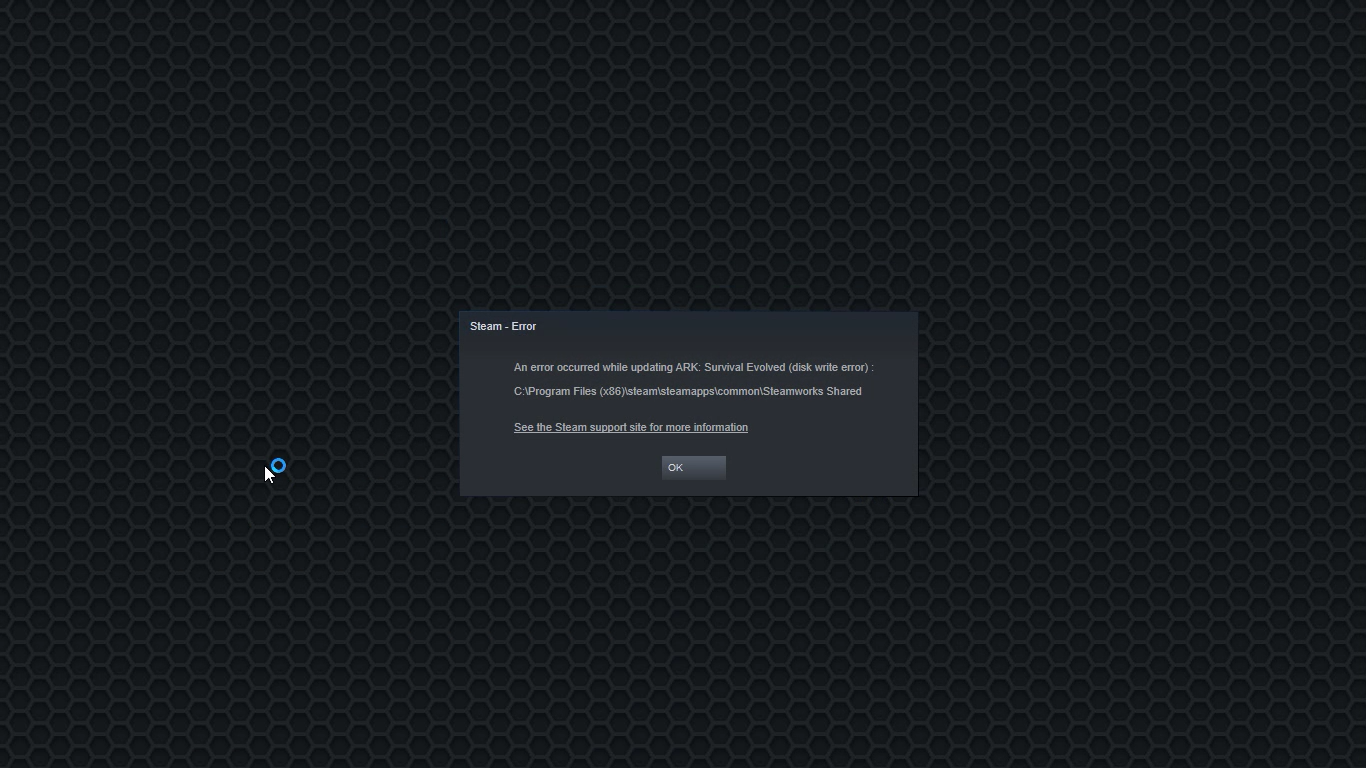
Fix a Steam Disk Write error

Disk Write Error in Steam is thrown at you while you try to download or update the game in your library. If you are an unfortunate user of Steam that has encountered this error do not sweat, the error is usually tied to permission in windows or file corruption and not to hardware issues and can be easily resolved.

In this guide, we will go through solutions for this specific error and it is advisable to go through solutions as they are presented since they go from the easiest and most common issues.

steam disk write error

Restart PC and Steam

The easiest and quickest way of resolving this issue is just a simple restart of the Steam client. Just completely quit Steam and they run it again, if this has not solved the issue try rebooting your PC. In most cases, this can solve the issue since this error is known to be introduced with some communication issues with OS (Windows)

Set Write permissions

Disk write permissions could also cause this error because if by any chance the Steam library folder has been set or changed to the read-only client would be unable to write anything in it. To easily solve this issue completely exit the Steam client and rerun it as administrator. Just right-click on it and select Run as Administrator. If this has solved your issue run Steam always as an administrator.

To run always as an administrator right click on the steam executable, go to properties, and inside properties go to the compatibility tab. In the compatibility tab check run as administrator and click on OK.

Clear download cache

If for any reason cache has become corrupted there is a big chance that this might be an issue why there is a disk drive error in Steam. To clear download, cache goes into your client, and on top drow down menu click on steam. Find and open settings and inside go to the downloads tab. Locate a clear download cache and immediately you will be prompted to restart Steam. After restart, you will be asked to login into steam and the issue with disk write should be gone.

Repair library folder

Library folder issues can also be the source of disk write annoyance so let's repair them. Click steam in the top left and go to the settings. Locate and click on Downloads and then go to Steam library folders. You will be here shown all disk drivers you are using for steam games and all of the games that are downloaded.

Select the game you are getting errors with and click on three dots on the far right. From the menu choose the repair folder option. Take note that the more games you have installed, the more time the repair process will need.

Change download server

Sometimes the issue is not at your end at all, servers can experience problems and outrages and this can directly reflect at your end with a disk write error. If any of the previous solutions have not resolved the issue this is the next logical step to try. If the server is facing issues then changing the download server will resolve the issue at your end.

Click on settings in the top drop-down menu and then click on the Steam library folder. Find the downloads page and then click on download region, Choose another server than one nearest to your location since that's what will Steam choose by default.

Read More
Fix Windows Update Error 0x8007001f – 0x20006
As you know, Microsoft’s Windows Media Creation Tool is a useful tool that helps you download and install the latest version of the Windows 10 operating system. However, there are times when it could encounter some problems during the update process. One of these programs is the following error message:
“0x8007001F-0x20006, The installation failed in the SAFE_OS phase with an error during REPLICATE_OC operation.”
The error pointed out the “Safe OS phase”. It is the phase that’s initiated to install all the required Windows Updates. Thus, the possible cause for this error could have something to do with an interrupted download, internet connection, and many more. Although this error could be caused by a lot of factors, fixing it shouldn’t be that hard. You can try to reset the Windows Update Components or delete the Windows Update cache. You could also disable both the Firewall and your antivirus program temporarily or run the Windows Update in a Clean Boot state, as well as run the Windows Update troubleshooter. To get started troubleshooting the error, follow each one of the suggestions provided below.

Option 1 – Try to reset the Windows Update components

Resetting the Windows Update components could help you resolve the Windows Update error 0x8007001f – 0x20006. How? Refer to the following steps:
  • Open Command Prompt with admin privileges.
  • After that, type each one of the following commands and hit Enter after you key in one after the other.
    • net stop wuauserv
    • net stop cryptsvc
    • net stop bits
    • net stop msiserver
Note: The commands you entered will stop the Windows Update components such as Windows Update service, Cryptographic services, BITS, and MSI Installer.
  • After disabling WU components, you need to rename both the SoftwareDistribution and Catroot2 folders. To do that, type each one of the following commands below, and don’t forget to hit Enter after you type one command after the other.
    • ren C:WindowsSoftwareDistribution SoftwareDistribution.old
    • ren C:WindowsSystem32catroot2 Catroot2.old
  • Now, restart the services you’ve stopped by entering another series of commands. Don’t forget to hit Enter after you key in one command after the other.
    • net start wuauserv
    • net start cryptsvc
    • net start bits
    • net start msiserver
  • Exit Command Prompt and then restart your computer.

Option 2 – Try to delete the Windows Update Cache

You might also want to delete the Windows Update cache since there are times when existing corrupt or incomplete Windows Update files can cause some problems in downloading and installing Windows Updates. To achieve this, simply delete the “$Windows.~BT” & “$Windows.~WS” folders in your computer. Once you’re done, try to run Windows Update again and see if the error is now fixed.

Option 3 – Try to temporarily disable anti-virus and Windows Defender Firewall

As mentioned, the error could be due to the antivirus program or the Windows Defender Firewall installed on your computer. Thus, disabling them or any security software installed in your computer is always a good idea you can try when you’re not able to access the shared drive on your computer. There are times when you encounter problems like error 0x8007001f – 0x20006 due to interference of antivirus or security programs. Thus, you have to disable both your antivirus program and Windows Defender Firewall for the meantime and check if it fixes the error or not

Option 4 – Run the Windows Update in a Clean Boot State

It is possible that some third-party application is the one that’s causing the problem so it’s best if you put your computer in a Clean Boot state. During this state, you can start the system with a minimum number of drivers and startup programs that will surely help you in isolating the root cause of the issue.
  • Log onto your PC as an administrator.
  • Type in MSConfig in the Start Search to open the System Configuration utility.
  • From there, go to the General tab and click “Selective startup”.
  • Clear the “Load Startup items” check box and make sure that the “Load System Services” and “Use Original boot configuration” options are checked.
  • Next, click the Services tab and select the “Hide All Microsoft Services” check box.
  • Click Disable all.
  • Click on Apply/OK and restart your PC. (This will put your PC into a Clean Boot State. And configure Windows to use the usual startup, just simply undo the changes.)
  • After that, try to run Windows Update again.
Note: If you are able to install the app without any trouble at all then it means that the error is caused by some third-party application on your computer. You need to look for the culprit and uninstall it once you found it.

Option 5 – Run the Windows Update Troubleshooter

You might also want to run the Windows Update Troubleshooter as it could also help in fixing error 0x8007001f – 0x20006. To run it, go to Settings and then select Troubleshoot from the options. From there, click on Windows Update and then click the “Run the troubleshooter” button. After that, follow the next on-screen instructions and you should be good to go.
Read More
How to Fix Sndvol32.exe Error

What Is Sndvol32.exe Error?

Sndvol32.exe is actually an important part of the Windows operating system. Responsible for managing the sound-card volume and running programs properly, the problem occurs when error messages appear. The user will be unable to listen to music on the system. Usually, Windows XP users encounter the Sndvol32.exe error.

Solution

Restoro box imageError Causes

Sndvol32.exe error can be caused by any one or several of the reasons listed below.
  • Accidental deletion of the DLL file from the system
  • Damage to the DLL file due to spyware or virus infection
  • Improper removal of software
  • Unintentional overwriting on the DLL file by a mismatched version
  • Obsolete hardware drivers
  • Several obsolete/invalid registry entries
  • Corrupt registry entries
Regardless of what triggers the Sndvol32.exe error, it is of utmost importance to take immediate measures to fix the problem and to keep it from occurring again.

Further Information and Manual Repair

If you are looking for ways to fix this error manually, the Windows functionality of System Restore will come into play in this particular scenario. In case the error is caused by a damaged or corrupt file, performing System Restore is an ideal choice as it will allow you to not only get a fresh copy of the operating system, it will be possible for you to remove the error at the same time as well. The procedure for performing System Restore is outlined below as follows.
  • Click on the Start menu and type ‘System Restore’ in the search box.
  • When the icon for ‘System Restore’ appears, click on it.
  • Now type ‘Restore’ in the search box that appears on the start menu.
  • The window for the System Restore center will now appear.
  • Now you have two options. You can either opt for “Recommend Restore” which is the case where the system itself will choose a restore point for you or you can select “Choose a different restore point”. Users are advised to choose the latter option as it is more customizable.
  • Users can now select from a list of restore points that have been created before. If you observe closely, you will realize that one of the restore points is prior to the occurrence of the Sndvol32.exe error.
  • Click on the restore point. Once you have confirmed your selection, your system will restart and it will roll back to its previously selected restore point.
One recommendation is to perform the system restore in Windows Safe Mode. This is just to ensure that the System Restore is performed smoothly and any potential problems are kept at bay.
Read More
How to Fix Missing MSVCR80.dll Error

Missing MSVCR80.dll Error - What is it?

Msvcr80.dll is a runtime dynamic link library file. This file is typically required to run programs written with Visual Studio. Msvcr80.dll error messages might appear when using or installing certain programs on your PC, that are dependent on the Msvcr80.dll file to run and load. This error message may appear on your computer screen in either of the following formats:
  • "Msvcr80.dll Not Found"
  • "This application failed to start because msvcr80.dll was not found. Re-installing the application may fix this problem."
  • "The file msvcr80.dll is missing."
  • "Cannot start [APPLICATION]. A required component is missing: msvcr80.dll. Please install [APPLICATION] again.
  • "APSDaemon.exe - System Error - MSVCR80.dll is missing from your computer."
  • "Cannot find [PATH]msvcr80.dll"

Solution

Restoro box imageError Causes

Msvcr80.dll error is a common Windows PC error. This error code may occur due to multiple reasons. These include:
  • Removal and corruption of Msvcr80.dll file
  • Registry issues
  • Viral infection
  • Hardware failure
  • Improper software installation
It is advisable to resolve this error code to avoid inconvenience. This error may hamper your ability to access and run your desired program.

Further Information and Manual Repair

Here are some of the best and easiest DIY solutions to fix the Msvcr80.dll error on your PC right away:

1. Check your Recycle Bin for the Missing Msvcr80.dll file or Download the Msvcr80.dll file from a Trusted Website

If you receive the error message ‘missing Msvcr80.dll file’ then first check the recycle bin. It is possible that you may have unknowingly deleted the Msvcr80.dll file while uninstalling a program from the PC. Remember dll files are shared files. These files are used by a number of programs on your PC to run and load. There is a possibility that the program you uninstalled shared the same file to run on your PC. So, when removing that program from your PC it could have also deleted the Msvcr80.dll file. Therefore, check your recycle bin to restore the missing file. Nonetheless, if in case you are unable to locate the missing Msvcr80.dll file, then try downloading it on your PC. However, when doing so, make sure you download the file from a reliable dll download website.

2. Uninstall and Reinstall Apple iTunes Program

This error commonly pops up when running Apple iTunes on your PC. To resolve this issue, and ensure smooth access to Apple iTunes, here’s what you need to do: uninstall from Windows the following programs in this order: Apple iTunes, Software update, Apple Mobile device support, Bonjour, application support, iCloud and mobile me. Skip over software that you haven’t installed already on your system. When uninstalling the programs, if you have two entries of the same software, then uninstall the older version first and then the newer one. To do so, go to Applet in the Control Panel.  It is called programs and features in Windows 7, 8, and Vista and add/remove programs in Windows XP. Once all Apple software is uninstalled, the next step is to download the latest version of iTunes from Apple. After the software is downloaded on your system successfully, run it. This is most likely to resolve the issue.

3. Scan for Viruses

If the issue still persists, then the underlying cause could be related to malware invasion. Therefore in such circumstances, it is advisable to scan for viruses and malware with a powerful antivirus on your PC and remove them right away. Please note, using an antivirus may slow down your PC performance.

4. Perform Registry Scan and Repair

When the registry is overloaded with unnecessary and redundant files like junk files, cookies, invalid entries, and bad keys, it gets corrupted easily thereby generating errors like Msvcr80.dll errors. To resolve this issue, you must perform a registry scan and repair it with a powerful registry cleaner. Whether the cause of the issue is a viral infection or the cause is related to registry problems, the best way to resolve the issue without compromising the speed of your system is to download Restoro. This is an advanced, cutting-edge, and multi-functional PC repair tool. It is compatible with all Windows versions. This software is embedded with multiple PC repair and performance-boosting utilities such as a registry cleaner, an antivirus, and a system optimizer. It has a high functional intuitive algorithm and a user-friendly interface. The registry cleaning feature detects all registry issues, wipes unnecessary files, cleans and repairs the corrupt registry and damaged dll files. The antivirus utility scans for all types of malware, viruses, Trojans, and spyware and removes them immediately. While the system optimizer module helps boost your computer’s performance to its optimal level.  In just a few simple clicks, the Msvcr80.dll error is resolved. To get started, click here to download Restoro on your PC today!

Read More
1 2 3 171
Logo
Copyright © 2023, ErrorTools. All Rights Reserved
Trademark: Microsoft Windows logos are registered trademarks of Microsoft. Disclaimer: ErrorTools.com is not affiliated with Microsoft, nor claims direct affiliation.
The information on this page is provided for information purposes only.
DMCA.com Protection Status