Logo

Fix Windows 11 Black Screen Error

A black screen error inside Windows 11 is a typical screen turning to solid black without any error message. This can be very annoying since it can randomly appear out of nowhere and it will appear while you are using the computer. Worry not, this is not a serious error and we have several solutions for it, so please keep reading and try them as presented in order.

Black screenRestart graphic driver

This is the first thing to check if the issue is due to software or driver malfunctioning, there is a shortcut for rebooting graphic driver inside Windows 11. Press WINDOWS + CTRL + SHIFT + B to reboot the graphic driver and see if this fixes the issue. A beep sound should be heard during this process and the screen should turn back to normal.

Check connections

Sometimes the screen can go black due to a faulty connection or cable. If you have it at your hand try a different cable or slightly and gently nudge the existing one to see will screen flicker. If you are on a laptop try gently moving the lid from back to front and pay attention to the screen. If screen flickers or picture returns with this method, cable or connector needs to be replaced.

Clean your computer

The black screen can be because the computer is overheating. If this is the case either fan inside is not working properly or there is a lot of dirt and dust that needs to be removed so airflow can be established again for proper cooling. We have an article on errortools.com on how to properly clean your PC but if you are not technical enough maybe the best solution would be to call someone who is or to take the PC to service for cleaning.

Change The Projection Settings

Press WINDOWS + P to open projection settings, check to see if PC is set to PC screen only. If any other option is selected change it to PC screen only since this can cause random black screen issues.

Uninstall latest updates

If this problem has started to manifest itself during the latest update, go to setting and roll back from the latest update to fix this issue.

Scan system for malware

The black screen can also be caused by various viruses and malware. IF you have anti-virus software, run a full system scan to check it for malware. If you do not have one, download a free one and run a system scan, we recommend Bitdefender.

Do You Need Help with Your Device?

Our Team of Experts May Help
Troubleshoot.Tech Experts are There for You!
Replace damaged files
Restore performance
Free disk space
Remove Malware
Protects WEB browser
Remove Viruses
Stop PC freezing
GET HELP
Troubleshoot.Tech experts work with all versions of Microsoft Windows including Windows 11, with Android, Mac, and more.

Share this article:

You might also like

Patching Error Code 21

Code 21 - What is it?

Code 21 is a Device Manager error code that appears when you try to use a hardware device attached to your computer and the Windows prohibits you from using it.

This is due to the Windows experiences problems loading the device driver. This error message is displayed in the following format:

“Windows is removing this device. (Code 21)”

Solution

driverfix boxError Causes

Error code 21 means that Windows is in the device removal process and the device has not been completely removed. It occurs when you set a device to be removed and then select the same device to run on your system.

Upon your instructions, Windows start to remove that device and when you on the other hand try to use/access the same device that you selected for removal, it kicks up Code 21.

Further Information and Manual Repair

If you are experiencing error code 21 on your PC, it is advisable to resolve it immediately.

Though this error will not damage your system, but will significantly lower the performance of your PC which is definitely something you don’t want especially if you work on your computer daily and use it to perform important time-sensitive errands.

To repair and resolve, try the methods given below:

Method 1 - Wait for a Few Seconds and Then Press F5

This is one of the best and easiest ways to resolve code 15 on your system. Wait for a few seconds, and then press the F5 key. This will update the Device Manager view and the error will most probably go away.

Method 2 - Restart Your PC

Sometimes error codes may pop up due to temporary glitches. To resolve such errors, a simple reboot of your PC is enough. Shut down Windows and then restart your system.

This is most likely to resolve Code 21. However, if the error still persists then this means the underlying problem for code 21 is deeper than you think. Try method 3 to resolve.

Method 3 - Install DriverFIX

As mentioned earlier, the error code 21 may occur if you have selected a device to remove and then you try to reuse it.

To resolve, you may have to install the device again and the driver for that the reinstalled device. To reinstall the driver without any hassle, simply download DriverFIX.

It is a smart, user-friendly, and intuitive software program designed to resolve driver problems. The program is embedded with intelligent device identification technology which:

  • Automatically detects all the appropriate system drivers
  • Matches them with the latest available versions
  • And then updates drivers according to their compatible versions on a regular basis

Furthermore, it enables accurate installation and ensures that your system is running at its optimal speed.

Other features that this program boasts are full backup and restoration, safe USB management, and ejection.

If nothing works, you can try the full backup and restoration feature and restore your PC to its previous state when it was functioning properly before the error occurred.

DriverFIX creates a backup of all your files and data hedging keeps you from disasters like data loss. It restores the system to the time when it was working properly.

Click here to download DriverFIX on your system and resolve error code 21 today.

Read More
Could not connect to the System Event
Could not connect to the System Event explanation: Although logging into a Windows 10 computer may seem like a simple process, it’s actually not since the Windows operating system has built a mechanism in a way that any third party or malware intervention would not compromise access to the system. This mechanism is supported by numerous services, functions, and DLL files. And Microsoft has been taking this security to a whole new level with the introduction of Windows Hello. Recently, a number of users reported getting the “Windows could not connect to the System Event Notification Service service. Please consult your system administrator” error when logging into their computers. While some users also reported that although they can log in, they encounter the same error message from the Notification area. There are several options you can check out to resolve the error. You have to check the status of several Windows Services and make sure that they are running. You also have to reset Winsock as well as run the System File Checker scan.

Option 1 – Check for certain Windows Services

  • First, you need to tap the Win + R keys on your keyboard to open the Run dialog box.
  • Next, type “services.msc” in the field and click OK or tap Enter to open the Windows Services Manager.
  • After that, you will see a list of services and from there, look for the following Windows Services:
    • DHCP Client
    • System Event Notification Service
    • Windows Font Cache Service
  • Now make sure that the Startup Type of each service is started and running.

Option 2 – Try resetting the Winsock drivers

  • In the Start Search, type “command prompt” and right-click on Command Prompt from the search results, and then select the “Run as administrator” option.
  • After opening Command Prompt, execute this command: netsh winsock reset
Note: If you are using IPv4, execute the “netsh int ipv4 reset” instead. On the other hand, if you are using IPv6, execute the “netsh int ipv6 reset
  • Now exit Command Prompt and see if the error is now fixed.

Option 3 – Try running System File Checker or SFC scan

You could also run System File Checker or SFC scan to fix the BSOD error. It is a built-in command utility that helps in restoring corrupted files as well as missing files. It replaces bad and corrupted system files with good system files. To run the SFC command, follow the steps given below.
  • Tap Win + R to launch Run.
  • Type in cmd in the field and tap Enter.
  • After opening Command Prompt, type in sfc /scannow
The command will start a system scan which will take a few whiles before it finishes. Once it’s done, you could get the following results:
  1. Windows Resource Protection did not find any integrity violations.
  2. Windows Resource Protection found corrupt files and successfully repaired them.
  3. Windows Resource Protection found corrupt files but was unable to fix some of them.
  • Reboot your PC.
Read More
How to Fix Error 118

Error 118 - What is it?

Error 118 is a typical Google Chrome error. It pops up when Google Chrome fails to load websites like Facebook. It is usually displayed in the following format:
‘Error Message: Error 118 (net::ERR_CONNECTION_TIMED_OUT): The operation timed out.’

Solution

Restoro box imageError Causes

Error 118 may be triggered due to several reasons. This includes:
  • Problems with DNS setting
  • IP Address is filtering websites
  • Cookies and invalid registry entries

Further Information and Manual Repair

To ensure smooth internet browsing on Google Chrome, it is advisable to repair the error 118. If error 118 is not resolved you will be unable to load and access your desired websites. To avoid inconvenience and resolve the issue immediately, try the methods suggested below. These are easy and effective do-it-yourself methods that require no technical skills.

Method 1 - Change Proxy Settings

If your IP address is filtering websites, then you might experience error 118 while using Google Chrome. When this is the error cause, then it is advisable to add a proxy for your PC. To change proxy settings and add a new proxy, simply click on Customize and Control Google Chrome menu. Now click the options button. Under the Google Chrome Options window select the Under the Hood tab. After that in the Network, section click the change proxy settings button. Check Show Suggestions for navigation errors and Use DNS pre-fetching to improve page load performance boxes. Now under Internet Properties, click LAN Settings. Under LAN settings you will see the Proxy Server box, check it, and enter your new proxy settings. Click OK to confirm and save settings. This will hopefully resolve the issue.

Method 2 - Change to Google DNS

When the error is related to DNS settings then try this method to resolve it. Simply set DNS to use Google DNS. Here’s how it’s done:
  1. Go to the start menu, click Windows Control Panel, Network and Internet, and change adapter settings. Here you will see Local Area Connection.
  2. Right click to select properties at the bottom.
  3. Check Internet Protocol Version 4 and click properties.
  4. Now check the ‘Obtain an IP address automatically’ box and also select the option that says ‘Use the following DNS server addresses’.
  5. Change Preferred DNS to 8.8.4.4 and Alternate DNS server to 8.8.8.8 now click OK to confirm.

Method 3 - Remove the Bad Entries and Cookies Damaging the Registry

Bad entries and cookies saved in the registry can also trigger error 118. To fix the issue immediately download Restoro. This is PC Fixer with multiple utilities including a registry cleaner. The registry cleaner removes all bad entries and cookies in seconds and repairs the damaged registry. Click here to download Restoro and resolve error 118.
Read More
How to remove "program" from startup

Instaling and removing applications from your Windows can sometimes leave some traces that are unpleasant and can cause annoyances. One of these annoyances is the program in the startup section of the task manager.

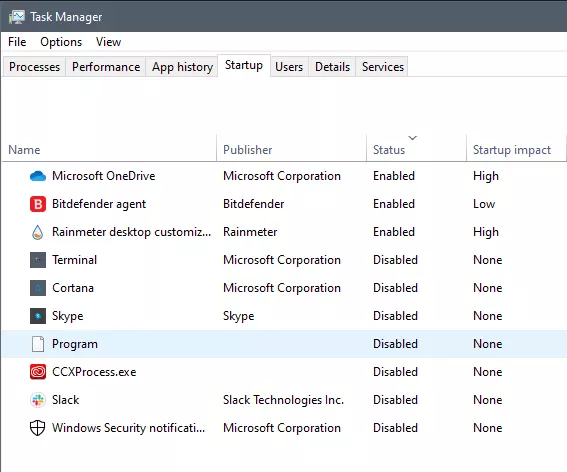
If you ever opened task manager and went into the startup section trying to disable some of the startup items on your Windows boot there might be a chance that you have experienced and seen a program without any icon or information about it just sitting there.

Program inside task manager

This is due to some applications being removed from the system but for some reason, it still shows itself in startup and it is quite annoying. So here we will show you how to get rid of this annoyance so your startup is clean again without junk in it.

Removing a program from startup

Locating the source of the issue

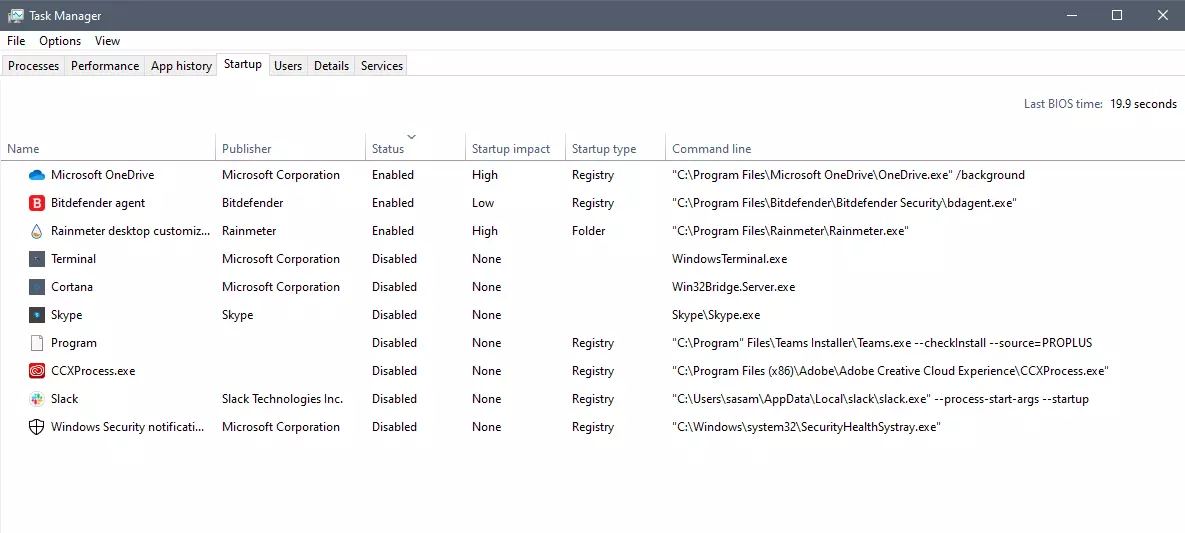
The first thing of course is to open the task manager itself and navigate to the startup tab. Inside the startup tab right-click on the column header and tick or enable Startup type and command line. Now you will see the location of the supposed file (that is missing or you could just go there by right-clicking on the item, but here it is greyed).

program in task manager with details

99% of the time startup type will be registry since the file is missing, if it was a file fix would be just to simply delete the file in the folder but since it was installed and not properly removed registry key is still present but the file cannot be found. After confirmation that the file is indeed missing and that the startup type is registry open the registry editor by typing Regedit in search and pressing enter.

Removing the key from registry

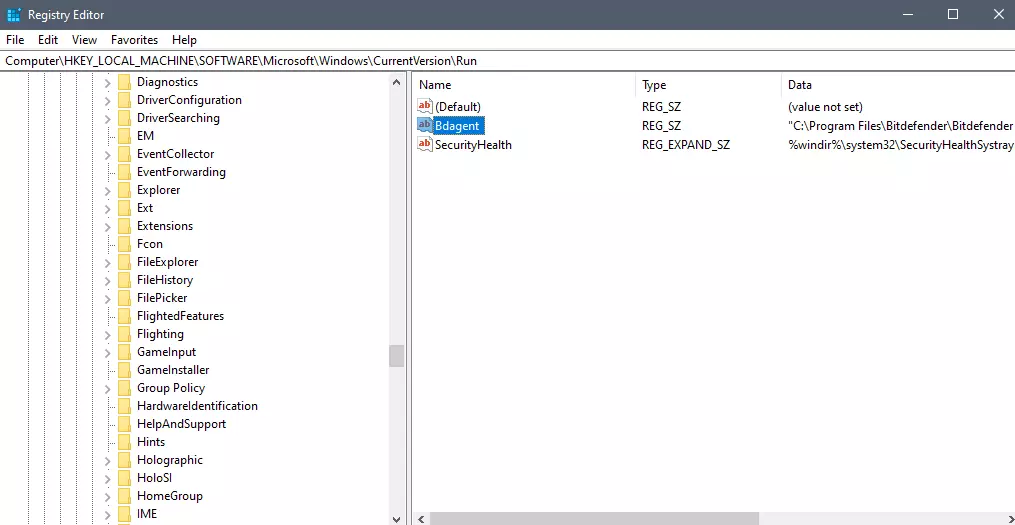
Inside Registry editor navigate to: HKEY_CURRENT_USER\SOFTWARE\Microsoft\Windows\CurrentVersion\Run. Inside on right part, you will see all auto-start entries added by installed applications.

regirsty editor

Locate one that is causing issues by comparing its path with the path inside the task manager command line and delete the key. Once the key is deleted right-click on RUN on the left part and choose HKEY_LOCAL_MACHINE to quickly jump on that key location and repeat the process of key deletion if needed. HKEY_LOCAL_MACHINE will delete startup entry for all users and sometimes entry will not be present here since the application is not installed for all users or there are no other users on the machine.

After the procedure is finished, reboot your systems in order to apply changes.

Read More
Install Remote Server Administration Tools
RSAT or Remote Server Administration Tools for Windows 10 is a collection of programs for IT experts. It helps in managing Servers from a Windows 10 PC and starting with the Windows 10 v1809 or the October 2018 update, users have to install the Remote Server Administration Tools for Windows 10 as Features on Demand or as Optional Features. The program includes the Microsoft Management Console or MMC snap-ins, Server Manager, consoles, Windows PowerShell cmdlets, and providers as well as command-line tools for managing roles and features that run on the Windows Server. So if you have updated your Windows 10 pc to v1809 or later then the RSAT tool has to be installed as a set of Features on Demand right from Windows 10. You can install RSAT Tools on Windows 10 Enterprise or Windows 10 Professional and once you install it, make sure that you do not install RSAT tools from the Microsoft Download page directly. Step 1: Open Settings and then go to Apps > Apps & Features. Step 2: Next, click on Manage Optional Features. Step 3: After that, click on Add a Feature which will load all the optional features one can install. Step 4: Now scroll to find the listing of all 18 RSAT tools and depending on what you need, click and install them. Step 5: Then go back to where you should see the progress of the installation. Click on the Manage Optional Features page to check the status. Note: If you are well-versed with the command line or automation, you can also install Remote Server Administration Tools for Windows 10 via DISM /add-capability. And when you install anything via Features on Demand, they stay across Windows 10 version upgrades. On the other hand, if you feel that you don’t need a particular RSAT feature, you have the option to uninstall it using the Manage Option Features. However, bear in mind that some tools depend on one another which means that if you uninstall anything that has a dependency, it will only fail that’s why you need to be careful.

To uninstall an RSAT feature, here’s what you have to do:

Step 1: Go to Settings > Apps > Manage Optional Features. Step 2: After that, look for the list of installed feature that appears before this. Step 3: Now select the feature you want to uninstall and go back. If you have some system-related issues that need to get fixed, there is a one-click solution known as [product-name] you could check out to resolve them. This program is a useful and efficient tool that could repair corrupted registries and optimize your PC’s overall performance. Aside from that, it also cleans out your computer for any junk or corrupted files that help you eliminate any unwanted files from your system. This is basically a solution that’s within your grasp with just a click. It’s easy to use as it is user-friendly. For the complete set of instructions in downloading and using it, refer to the steps below.
Read More
Fixing the We can’t find a USB flash drive
One of the preferred ways to upgrade Windows 10 is by creating a bootable USB drive. However, you might change your mind when you encounter an error during the Windows 10 Setup that says, “We can’t find a USB flash drive”. Worry not for this error can be fixed using some suggestions that will be provided in this post. The funning thing about this error in Windows setup is that the computer says it’s not there when it’s clearly there. To fix this problem, you need to check if the USB device is accessible on your computer or you can also try a different USB device. In addition, you could check if there are any issues with both the USB 3.0 and USB 2.0 ports as it could be the reason why you’re getting the error or fix the bad sectors in the USB drive as well as see if the USB drive is set as the primary drive.

Option 1 – Try to check if the USB is accessible on your PC

The first thing you can do to resolve the problem is to check if you can access your USB device from your computer. All you have to do is open File Explorer and check if the USB device is listed there or not.

Option 2 – Try to connect a different USB device

The next thing you can do to fix the error is to try connecting a different USB device, specifically the one that has more significant storage space. You also have to make sure that it’s working on a different PC.

Option 3 – Fix any issues with the USB 3.0 and 2.0 ports

Although the USB 3.0 ports are compatible with the USB 2.0 ports, it does not necessarily mean that there wouldn’t be any problem when you use them which is why it’s best to fix any issues in them or better yet, use a compatible drive.

Option 4 – Try to fix the bad sectors in the USB drive via CHKDSK

When it comes to some issues concerning the hard drive or removable devices, there is a utility in Windows that might help which is called “chkdsk”. To use it, follow the steps below.
  • Tap the Win + S keys to open the Search box.
  • Then type “command prompt” in the field and from the search results that appear, right-click on Command Prompt and select “Run as administrator”.
  • After opening an elevated command prompt, copy and paste the following command and hit Enter:
CHKDSK [volume [[path] filename]] [/F] [/V] [/R] [/X] [/C] [: size]]
Note: In the command given above, “[/F]” will try to fix the system errors while “[/R]” will be the one to fix the bad sectors.
  • Now if you are prompted to run CHKDSK after your reboot your PC, just tap Y and reboot your PC.
  • If CHKDSK is not able to find any errors, tap the Win + E keys and navigate the access window. From there, right-click on the concerned drive and click on Properties.
  • After opening Properties, click on the tab Tools and then click on the “Check” button under the Error-checking section.
  • Wait until the process is completed and then restart your computer.

Option 5 – Try checking if the USB is set as the primary drive

You might also want to check if the USB drive is set as the primary drive because if it is, then it won’t appear on the list. It could also be that the USB drive has a primary disk in it. To undo it, you need to use the DISKPART utility.
  • In the Start Search, type “command prompt” and right-click on Command Prompt from the search results, and then select the “Run as administrator” option.
  • Next, execute the “diskpart” command to initiate the DISKPART utility.
  • After that, type the “list disk” command and tap Enter to display the list of disks on the computer. You have to take note of the drive number or letter of the concerned USB drive.
  • Once done, type the “select disk <X>” command where X is the drive letter or number and tap Enter.
  • Then execute the “list partition” command to see the list of all the partitions in your computer. It should be listed as 0, 1, or 2. 0 is the primary partition.
  • Now type the “select partition 0” command and tap Enter and then type “delete partition” to delete the selected partition.
  • You can do the same to the other partitions as well and when you’re done, execute the format command to turn the USB drive into a standard one.
Read More
How to remove myBrowser

myBrowser is a Potentially Unwanted Program that allows users to access the internet. This browser suggests users install other PUP like myfiles, myemail, and others. This application claims to be a good reliable portable internet browser, however during our test use of the program several website scripts crashed and were not able to open up all the website assets required, leaving the users with a mediocre browsing experience.

While browsing the internet through this program, you might see additional ads and sponsored links injected into your search results and/or websites.

About Potentially Unwanted Applications

What is a Potentially Unwanted Program (PUP)?

Everyone has experienced it – you download and install a free application, you then notice some unwanted programs on your computer system, come across a strange toolbar on your web browser, or find your default search engine has been changed to something else. You didn’t set them up, so how did they turn up? Potentially Unwanted Programs (PUP), also referred to as Potentially Unwanted Applications (PUA), are programs that you never wanted in the first place and often come bundled with freeware software. Once installed, most of these applications can be difficult to eliminate and become much more of an annoyance rather than a necessity. PUP doesn’t involve malware in the traditional sense. A basic difference between PUP and malware is distribution. Malware is commonly dropped by silent installation vectors such as drive-by downloads while PUP gets installed with the consent of the user, who knowingly or unintentionally authorizes the PUP installation on their PC. PUP developers may argue that their programs aren’t malicious software but they can still be dangerous software and put the computer at risk much the same way a computer virus does.

What do PUPs do on your PC, precisely?

Unwanted programs can be found in various forms. Usually, they will be found in adware bundlers that are known to utilize aggressive and misleading advertising. The majority of bundlers install many adware applications from several vendors, each of which features its own EULA policy. Safebytes Anti-malware entirely removes this threat and protects your PC against unwanted programs or malware infection. PUPS also appear in the form of undesirable toolbars or web browser add-ons. They may change your internet browser settings, monitor your surfing activities and online searches, take up a large amount of space on your monitor, and degrade your web browsing experience. Potentially Unwanted Programs at times act quite similarly to computer viruses or spyware. They will often carry keyloggers, dialers, and other programs built inside them that may track you or send your sensitive details to third parties. Even if the PUPs aren’t basically malicious, these programs still do absolutely nothing good on your computer – they will take precious resources, slow down your PC, weaken your device’s security, making your PC more vulnerable to trojans.

Protect yourself from PUPs

• Read very carefully before you install anything. Do not click accept till you have read the fine print. There will probably be a clause about PUPs. • Always select “Custom” or “Advanced” installation and never blindly click the Next button, which will let you uncheck any foistware software programs you do not want. • Use an anti-PUP program. Security software like Safebytes Anti-malware provides the very best real-time protection against PUPs and also other malware. • Be alert if you install freeware, open-source software, or shareware. Don’t install programs that appear suspicious or malicious. • Always download software from reliable sources like official websites instead of untrustworthy sharing space. Stay away from file-hosting sites where/when possible. Comply with these guidelines and you should more or less never get potentially unwanted programs on your PC

What To Do When You Cannot Install Safebytes Anti-Malware?

Malware could cause all kinds of damage once they invade your PC, from stealing your private details to deleting files on your computer. Some malware is designed to restrict or prevent things that you wish to do on your computer. It may well not let you download anything from the internet or stop you from accessing a few or all of the internet sites, particularly the anti-malware sites. So what you should do if malware prevents you from downloading or installing Safebytes Anti-Malware? Follow the instructions below to eliminate malware by alternate methods.

Make use of Safe Mode to fix the problem

If any virus is set to run automatically when Microsoft Windows starts, stepping into safe mode could very well block this attempt. Since only the minimal programs and services launch in Safe Mode, there are hardly any reasons for issues to occur. Below are the steps you need to follow to start into the Safe Mode of your Windows XP, Vista, or 7 computers (check out the Microsoft website for instructions on Windows 8 and 10 computers). 1) Hit the F8 key repeatedly as soon as your PC boots, but before the big Windows logo comes up. This will bring up the Advanced Boot Options menu. 2) Make use of the arrow keys to select Safe Mode with Networking and press ENTER. 3) When this mode loads, you should have the internet. Now, make use of your internet browser to download and install an anti-malware application. 4) Right after the software is installed, let the scan run to remove viruses and other threats automatically.

Obtain the antivirus software using a different browser

Some malware mainly targets specific web browsers. If this sounds like your case, make use of another internet browser as it might circumvent the virus. If you’re not able to download the security application using Internet Explorer, this means the virus is targeting IE’s vulnerabilities. Here, you should switch to another internet browser such as Chrome or Firefox to download the Safebytes program.

Create a bootable USB antivirus drive

Here’s another solution which is creating a portable USB anti-virus software package that can scan your system for malware without needing installation. Adopt these measures to run the anti-virus on the affected PC. 1) Download Safebytes Anti-Malware or Microsoft Windows Defender Offline onto a clean PC. 2) Plug in the pen drive into the uninfected computer. 3) Double click on the exe file to open the installation wizard. 4) When asked, choose the location of the USB drive as the place in which you want to store the software files. Follow the directions to finish the installation process. 5) Now, transfer the flash drive to the infected computer. 6) Double-click the EXE file to open the Safebytes tool right from the flash drive. 7) Click the “Scan” button to run a full computer scan and remove malware automatically.

SafeBytes Anti-Malware: Lightweight Malware Protection for Windows Computer

If you’re looking to download the anti-malware program for your computer, there are numerous tools on the market to consider however, you should not trust blindly anyone, irrespective of whether it is a paid or free program. Some of them do a good job in removing threats while some will ruin your computer themselves. You have to select one that is reliable, practical and has a good reputation for its malware source protection. On the list of strongly recommended tool by industry experts is SafeBytes Anti-Malware, a well known security software for Microsoft Windows. SafeBytes is a powerful, real-time anti-malware application that is designed to assist the common computer user in safeguarding their computer from malicious threats. With its outstanding protection system, this tool will quickly detect and eliminate the majority of the security threats, which includes adware, viruses, browser hijackers, ransomware, trojans, worms, and PUPs.

SafeBytes anti-malware takes computer protection to a whole new level with its enhanced features. The following are some of the great features included in the software.

Live Protection: SafeBytes offers real-time active checking and protection against all known viruses and malware. It will continuously monitor your pc for hacker activity and also gives end-users superior firewall protection. Best AntiMalware Protection: This deep-cleaning anti-malware application goes much deeper than most antivirus tools to clean your computer. Its critically acclaimed virus engine locates and disables hard to remove malware that hides deep within your computer. Website Filtering: SafeBytes provides instant safety rating to the webpages you’re going to visit, automatically blocking unsafe sites and to make sure that you are certain of your safety while browsing the internet. Lightweight Utility: SafeBytes is a light-weight application. It consumes a very small amount of processing power as it works in the background so you are free to use your Windows-based computer the way you really want. Premium Support: You will get 24/7 technical assistance to quickly resolve any concern with your security application. SafeBytes can keep your PC protected from the latest malware threats automatically, thus keeping your online experience secure and safe. Now you may realize that this tool does more than just scan and delete threats in your computer. If you’re looking for the very best malware removal tool out there, and if you don’t mind spending some dollars for it, opt for SafeBytes Anti-Malware.

Technical Details and Manual Removal (Advanced Users)

If you want to carry out the removal of myBrowser manually instead of using an automated software tool, you can follow these simple steps: Proceed to the Windows Control Panel, click on the “Add/Remove Programs” and there, choose the offending application to remove. In cases of suspicious versions of browser extensions, you can easily remove them through your web browser’s extension manager. You will most probably also want to totally reset your internet browser to its default settings. Lastly, check your hard disk for all of the following and clean your Windows registry manually to remove leftover application entries after uninstalls. Please remember that only advanced computer users should try to manually edit the registry because incorrect file deletion leads to a major problem or even a PC crash. Moreover, some malicious programs have the capability to defend against its deletion. Carrying out this in Safe Mode is advised.

Read More
How to Fix DLL Errors in Windows?
A general rule of thumb, which is followed by most users, is to download the specific missing DLL file and place it within the software’s installation directory. However, this can be harmful to your system as hackers often upload popular malicious DLL files to target systems. Thus, you should avoid downloading DLLs from the internet. And follow these steps to fix the DLL error:
  • Restart your computer
  • System restore to an earlier state
  • Run a malware/virus scan
  • Update all the hardware drivers
  • Running SFC /scannow command in command prompt
  • Then do as the error suggests, reinstall the program if it’s feasible. Game files can take several hours to install and therefore, reinstallation can be a cumbersome job. Also, frustrating if the error appears after reinstallation.
  • Update device drivers manually, such as graphics drivers, DirectX software if you see DLL missing error while running game
Read More
Fix Windows Update Error 0x80004005
As you know, Microsoft is consistent in pushing updates to its supported versions of the Windows operating systems in order to make it better and defend it from different kinds of vulnerabilities. And pushing billions of active Windows computers every now and then is really not an easy thing to do since it calls for a complex Windows Update delivery module. These complexities often give rise to various errors like the Windows Update error code 0x80004005. When you encounter this kind of Windows Update error, you will see the following error message on your screen:
“There were problems installing some updates, but we’ll try again later. If you keep seeing this and want to search the web or contact support for information, this may help 0x80004005.”
This kind of Windows Update error occurs due to an issue while either installing or downloading an update. There are several ways you can fix the problem. You can try to replace the dpcdll.dll file, reset the Windows Update-related services, run the Windows Update troubleshooter or manually install the Windows Updates. For more details, check out the options given below.

Option 1 – Try to replace the DLL file with a trusted source

The first thing you can do is to replace the dpcdll.dll file with a trusted source.
  • First, you need to get the new dpcdll.dll file from another computer with preferably the same file version number as your computer.
  • After that, you need to boot your PC into Safe Mode and navigate to the paths listed below and then replace the file using a USB drive or other external storage devices.
    • For x86: This PC > C:/Windows/System32
    • For x64: This PC > C:/Windows/SysWOW64
  • Next, type “cmd” in the Cortana search box and right-click on Command Prompt, and select “Run as administrator” to open it with administrator privileges.
  • Now type the “regsvr32 dpcdll.dll” command and hit Enter.
  • Restart your PC and check if the error is now fixed.

Option 2 – Try to reset the Windows Update components

If by any chance that the third option didn’t work, you can also try resetting the Windows Update components as it could also help you resolve the Windows Update error. How? Refer to the following steps:
  • Open Command Prompt with admin privileges.
  • After that, type each one of the following commands and hit Enter after you key in one after the other.
    • net stop wuauserv
    • net stop cryptsvc
    • net stop bits
    • net stop msiserver
Note: The commands you entered will stop the Windows Update components such as Windows Update service, Cryptographic services, BITS and MSI Installer.
  • After disabling WU components, you need to rename both the SoftwareDistribution and Catroot2 folders. To do that, type each one of the following commands below and don’t forget to hit Enter after you type one command after the other.
    • ren C:WindowsSoftwareDistribution SoftwareDistribution.old
    • ren C:WindowsSystem32catroot2 Catroot2.old
  • Next, restart the services you’ve stopped by entering another series of commands. Don’t forget to hit Enter after you key in one command after the other.
    • net start wuauserv
    • net start cryptsvc
    • net start bits
    • net start msiserver
  • Close Command Prompt and reboot your PC.

Option 3 – Run the Windows Update Troubleshooter

You might also want to run the Windows Update Troubleshooter as it could also help in fixing Windows Update error 0x80004005. To run it, go to Settings and then select Troubleshoot from the options. From there, click on Windows Update and then click the “Run the troubleshooter” button. After that, follow the next on-screen instructions and you should be good to go.

Option 4 – Try downloading and installing the Windows Updates manually

Windows Update Error 0x80004005 might be due to a Windows Update that has failed. So if it is not a feature update and only a cumulative update, you can download the Windows Update and install it manually. But first, you need to find out which update has failed, and to do so, refer to the following steps:
  • Go to Settings and from there go to Update and Security > View Update History.
  • Next, check which particular update has failed. Note that Updates that have failed to install will be displayed under the Status column which has a label of “Failed”.
  • After that, go to the Microsoft Download Center and look for that update using its KB number and once you find it, download and then install it manually.
Note: You can also use the Microsoft Update Catalog, a service from Microsoft that provides a list of software updates that can be distributed over a corporate network. With the help of this service, it can be easier for you to find Microsoft software updates, drivers as well as fixes.
Read More
How to Fix Windows 10 Error C1900107

Error Code C1900107 – What is it?

Error code C1900107 is associated with an issue with upgrading to Windows 10. If you are trying to upgrade your Windows 7, Windows 8, or Windows 8.1 to Windows 10, you might have trouble doing it and you might come across this error C1900107. The error prevents you from upgrading to Windows 10 no matter what you do. Common symptoms of this error:
  • The update process continues for a long time and never ends.
  • The update process ends suddenly and a message says “Failed: 1 update. Errors found: Code C1900107. Windows Update encountered an unknown error.”
  • The update process fails after trying multiple times.

Solution

Restoro box imageError Causes

Following reasons may be responsible for this error:
  • There is not enough space for Windows 10 files in the primary drive
  • There is not enough space in System Reserved Partition
  • Windows 10 files are faulty or corrupt

More Information and Manual Repair

Method 1:

Clean boot Windows 8 and Windows 8.1: Whenever you get some unexpected behavior on your Windows 8, the first thing you should do is try to resolve the issue by taking a diagnostic approach. Plenty of factors can be the cause for issues like slowdowns, BSODs, computer freezes, sudden reboots, etc. The best way to detect the problem is to perform a clean boot. Using a clean boot, you can find out if the Operating System is damaged by some third-party app or bad driver. You can exclude the influence of these factors and prevent them from loading. You should do 2 things before you proceed with the clean boot. First, check if any third-party application is causing the problem. If you disable all third-party apps from startup, it will help eliminate software conflicts.
  • Press the Windows + R on the keyboard. The Run dialog box will pop up.
  • Type MSConfig in the dialog box and click "OK".
  • The System Configuration utility will appear on the screen.
  • On the services tab of the System Configuration dialog box, tap or click to select the Hide all Microsoft services check box, and then tap or click Disable all.
  • On the startup tab of the System Configuration dialog box, tap or click Open Task Manager.
  • On the startup tab in Task Manager, for each startup item, select the item and then click Disable.
  • On the startup tab of the System Configuration dialog box, tap or click OK, and then restart the computer.
Now, close MSConfig.

Method 2:

The second step is a Safe boot. Follow the steps below for a safe boot:
  • Press Win + R shortcut keys on your keyboard. The Run dialog will appear on the screen. Type MSConfig and press Enter.
  • The 'System Configuration' application will appear on the screen.
  • Switch to the 'Boot' tab, select your Windows 8.1 entry and tick the 'Safe mode' checkbox.
  • Reboot your PC to enter the Safe mode of Windows 8.1.
  • After you finish troubleshooting in Safe Mode, run MSConfig again from Safe Mode and uncheck the checkbox from step 2.

Method 3:

For this method, you will need to find the $Windows.~BT Folder in your primary drive which is C:. This folder might contain corrupt files which are preventing you from installing Windows 10. The folder is hidden and we need to unhide it. Follow the steps below:
  1. Open File Explorer or alternatively double click on This PC or My Computer.
  2. Now from the top option click on View, The Check the Box that says Hidden items.
  3. Now you will be able to see hidden files and folders. Navigate to C:$Windows.~BT and Rename the folder to something like $Windows.~BT1.
  4. Now, try downloading Windows 10 again. The installation process should go through this time without any errors like code C1900107.
Method 4: If the above methods fail, try this method:
  1. Go to C:\Windows\Software Distribution\Download. Now delete all the files from this download folder. Remember, do not delete the folder itself, and just delete the files.
  2. Now, delete the $Windows.~BT Folder. This might ask you for administrator permission. Simply click yes.
  3. Now try to install or upgrade to Windows 10. This method should work fine and there should be no error code C1900107.
If you do not possess the technical expertise required to accomplish this yourself or do not feel comfortable doing so, download and install a powerful automated tool to get the job done.
Read More
1 2 3 171
Logo
Copyright © 2023, ErrorTools. All Rights Reserved
Trademark: Microsoft Windows logos are registered trademarks of Microsoft. Disclaimer: ErrorTools.com is not affiliated with Microsoft, nor claims direct affiliation.
The information on this page is provided for information purposes only.
DMCA.com Protection Status