DownSpeedTest is a Browser Toolbar Extension for Google Chrome that allows users to test their internet speed and convert files, however this speed test does not show proper values, nor even close.
Upon installation DownSpeedTest will replace your default New Tab page with its own Search Engine “MyWay.com” or “Search.MyWay.com”. This Search Engine camouflages itself as a “Enhanced Google Search Engine”, but all it does is allow more room for easier ad injection. In the background, this extension monitors user browsing behavior and records visited links, viewed products, clicked links and time spend on websites. This information is later used for Ad targeting.
While browsing the internet with this extension enabled you will experience additional ads, sponsored content, and even pop-up ads on some occasions. Due to its information mining behavior and aggressive ad placement, DownSpeedTest had been marked as a Browser Hijacker and it is recommended for removal.
About Browser Hijackers
Browser hijacking is a type of unwanted program, commonly a web browser add-on or extension, which causes modifications in the browser’s settings. There are lots of reasons why you may experience a browser hijack; but commercial, advertising and marketing are the major reasons for their creation. These are typically used to force hits to a specific site, manipulating web-traffic to generate ad-revenue. Even though it might appear naive, these tools are made by malicious people who always try to take full advantage of you, so that hackers could earn money from your naive and distraction. In a worst-case scenario, your browser could be hi-jacked to download malicious software that can do a lot of damage to your laptop or computer.
How one can know whether the browser is hijacked?
When your web browser is hijacked, the following might happen: your browser’s homepage has been reset to some unknown webpage; new bookmarks pointing to porn websites have been added to your bookmarks; the default browser configurations are modified and/or your default web engine is altered; you see unwanted new toolbars added; unstoppable flurries of pop-up ads show up on your computer screen; your browser gets slow, buggy, crashes regularly; you can’t navigate to specific internet pages, such as security software related websites.
How does a browser hijacker infect a computer?
Browser hijackers infect computers via malicious e-mail attachments, downloaded infected documents or by visiting infected internet sites. They can be included with toolbars, add-ons, BHO, plugins or browser extensions. Also, some freeware and shareware can put the hijacker in your PC through “bundling”.
Browser hijackers could record user keystrokes to collect potentially important information leading to privacy concerns, cause instability on computers, significantly disrupt user’s browsing experience, and ultimately slow down the system to a point where it becomes unusable.
How you can fix a browser hijack
One thing you could try to eradicate a browser hijacker is to find the malware in the “Add or Remove Programs” list of the Microsoft Windows Control Panel. It might or might not be there. When it is, uninstall it. However, most browser hijackers are difficult to eliminate manually. Regardless of how much you attempt to get rid of it, it might come back over and over. Amateur PC users should never try for the manual form of removal methods, since it demands in-depth system knowledge to perform fixes on the system registry and HOSTS file.
Anti-malware software is really effective when it comes to picking up and eliminating browser hijackers that regular anti-virus application has overlooked. If you’d like to get rid of persistent hijackers effectively, install the top-rated Anti-Malware software Safebytes Anti-Malware. Use a system optimizer (like Total System Care) along with your anti-malware software to fix various registry issues, remove system vulnerabilities, and improve your computer performance.
What To Do If You Cannot Install Any Anti-Malware?
Practically all malware is bad and the consequences of the damage could differ according to the specific kind of malicious software. Some malware is created to interfere with or block things that you’d like to do on your PC. It may not permit you to download anything from the web or prevent you from accessing a few or all of the internet sites, especially the anti-malware websites. So what you should do if malware prevents you from downloading or installing Anti-Malware? There are a few actions you can take to circumvent this problem.
Install the anti-virus in Safe Mode
Safe Mode is a unique, simplified version of Microsoft Windows in which only essential services are loaded to counteract viruses and also other problematic applications from loading. If the malware is set to load immediately when computer starts, switching into this mode may prevent it from doing so. To start the computer into Safe Mode, press the “F8” key on the keyboard just before the Windows logo screen shows up; Or after normal Windows boot up, run MSConfig, look over “Safe Boot” under the Boot tab, and then click Apply. Once you are in Safe Mode, you can try to install your antivirus application without the hindrance of the malicious software. Following installation, run the malware scanner to get rid of most standard infections.
Download the anti-malware program using a different browser
Web-based malware could be environment-specific, aiming for a particular web browser or attacking particular versions of the browser. If you’re not able to download the security program using Internet Explorer, it means virus is targeting IE’s vulnerabilities. Here, you should switch over to an alternative web browser such as Chrome or Firefox to download Safebytes Anti-malware software.
Install anti-malware on a thumb drive
Another solution is to save and operate antivirus software tool completely from a Pen drive. Follow these steps to use a USB flash drive to clean your infected PC.
1) Make use of another virus-free computer to download Safebytes Anti-Malware.
2) Insert the USB drive on the same system.
3) Double click on the downloaded file to run the installation wizard.
4) Choose the USB flash drive as the location for saving the software file. Follow the instructions to complete the installation process.
5) Now, plug the USB drive into the corrupted computer.
6) Double-click the Safebytes Anti-malware icon on the pen drive to run the application.
7) Run Full System Scan to identify and clean-up of all types of malware.
Protect Your Computer & Privacy With SafeBytes Anti-Malware
If you’re planning to purchase anti-malware for your computer, there are lots of brands and utilities for you to consider. A few of them do a good job in getting rid of threats while many will harm your PC by themselves. You need to select one that is trustworthy, practical and has a good reputation for its malware source protection. While thinking about the dependable programs, Safebytes Anti-Malware is certainly the strongly recommended one.
SafeBytes anti-malware is a reliable software that not only secures your system permanently but is also very user friendly for people of all skill levels. Through its cutting-edge technology, this software will help you protect your PC against infections brought on by different kinds of malware and other threats, including spyware, adware, viruses, worms, trojans, keyloggers, potentially unwanted program (PUPs), and ransomware.
SafeBytes has great features when compared with other anti-malware programs. The following are some of the features you might like in SafeBytes Anti-Malware.
Live Protection: SafeBytes provides complete and real-time security for your computer system. This tool will continuously monitor your PC for any suspicious activity and updates itself regularly to keep abreast of the latest threats.
World-class AntiMalware Protection: With a critically acclaimed anti-malware engine, SafeBytes offers multilayered protection which is made to find and remove threats which are hidden deep in your computer’s operating system.
Safe Browsing: Safebytes assigns all sites a unique safety ranking that helps you to have an idea of whether the webpage you’re just about to visit is safe to view or known to be a phishing site.
Lightweight: This program is light-weight and will work quietly in the background, and will not affect your computer efficiency.
24/7 Online Technical Support: Support service is available for 24 x 7 x 365 days via email and chats to answer your queries.
SafeBytes can keep your PC safe from latest malware threats automatically with very little input needed from you again. Once you have installed this software, you no longer have to worry about malware or any other security worries. You will get the very best all-around protection for the money you pay on SafeBytes anti-malware subscription, there’s no question about it.
Technical Details and Manual Removal (Advanced Users)
To get rid of DownSpeedTest manually, go to the Add or Remove programs list in the Control Panel and select the offending program you want to get rid of. For internet browser extensions, go to your browser’s Addon/Extension manager and choose the plug-in you intend to disable or remove. You’ll likely also want to reset your web browser.
To ensure the complete removal, manually check your hard disk and computer registry for all the following and remove or reset the values as needed. Please be aware that this is for skilled users only and might be challenging, with incorrect file removal causing additional system errors. In addition, some malware is capable of replicating itself or preventing deletion. You’re suggested to do this procedure in Safe Mode.
Files:
%USERPROFILE%\Microsoft\Windows\Start Menu\Programs\DownSpeedTest
%ALLUSERSPROFILE%\Microsoft\Windows\Start Menu\Programs\DownSpeedTest
%ALLUSERSPROFILE%\Application Data\Microsoft\Windows\Start Menu\Programs\DownSpeedTest
%LOCALAPPDATA%\Google\Chrome\User Data\Default\Sync Extension Settings\maoffpmgdffbgbncadalkhfhmlfihkgk
%UserProfile%\Local Settings\Application Data\Google\Chrome\User Data\Default\Sync Extension Settings\maoffpmgdffbgbncadalkhfhmlfihkgk
%LOCALAPPDATA%\Google\Chrome\User Data\Default\Extensions\maoffpmgdffbgbncadalkhfhmlfihkgk
%UserProfile%\Local Settings\Application Data\Google\Chrome\User Data\Default\Extensions\maoffpmgdffbgbncadalkhfhmlfihkgk
Registry:
HKEY_CURREN_USER\SOFTWARE\Wow6432Node\Microsoft\Windows\CurrentVersion\explorer\Browser Helper Objects\5818CEA7-889D-459A-9A75-889E1298A892
HKEY_LOCAL_MACHINE\Software\Microsoft\Windows\CurrentVersion\Ext\Stats\5818CEA7-889D-459A-9A75-889E1298A892
HKEY_LOCAL_MACHINE\Software\Microsoft\Windows\CurrentVersion\Ext\Stats\481F6B47-2AD8-4C6A-8554-A2897E6CF900
HKEY_LOCAL_MACHINE\Software\Microsoft\Windows\CurrentVersion\Ext\Stats\1AAB982B-77D7-44F1-B305-8909DAC045F2
HKEY_LOCAL_MACHINE\Software\Microsoft\Windows\CurrentVersion\Ext\Settings\5818CEA7-889D-459A-9A75-889E1298A892
HKEY_LOCAL_MACHINE\Software\Microsoft\Windows\CurrentVersion\Ext\Settings\481F6B47-2AD8-4C6A-8554-A2897E6CF900
HKEY_LOCAL_MACHINE\Software\Microsoft\Windows\CurrentVersion\Ext\Settings\1AAB982B-77D7-44F1-B305-8909DAC045F2
HKEY_LOCAL_MACHINE\Software\Microsoft\Internet Explorer\Approved Extensions, value: 1AAB982B-77D7-44F1-B305-8909DAC045F2
HKEY_LOCAL_MACHINE\Software\Microsoft\Internet Explorer\SearchScopes\CA6A7AB9-F4B5-4D50-B5D2-33E996549AE3
HKEY_CURREN_USER\SOFTWARE\Wow6432Node\Microsoft\Internet Explorer\Toolbar, value: 1AAB982B-77D7-44F1-B305-8909DAC045F2
HKEY_CURREN_USER\SOFTWARE\Microsoft\Internet Explorer\Toolbar, value: 1AAB982B-77D7-44F1-B305-8909DAC045F2
HKEY_CURREN_USER\SOFTWARE\Wow6432Node\Microsoft\Tracing\DownSpeedTest_RASMANCS
HKEY_CURREN_USER\SOFTWARE\Microsoft\Tracing\DownSpeedTest_RASMANCS
HKEY_CURREN_USER\SOFTWARE\Wow6432Node\Microsoft\Tracing\DownSpeedTest_RASAPI32
HKEY_CURREN_USER\SOFTWARE\Microsoft\Tracing\DownSpeedTest_RASAPI32
HKEY_CURREN_USER\SOFTWARE\Microsoft\Internet Explorer\LowRegistry\DOMStorage\downspeedtest.dl.myway.com







 Error Causes
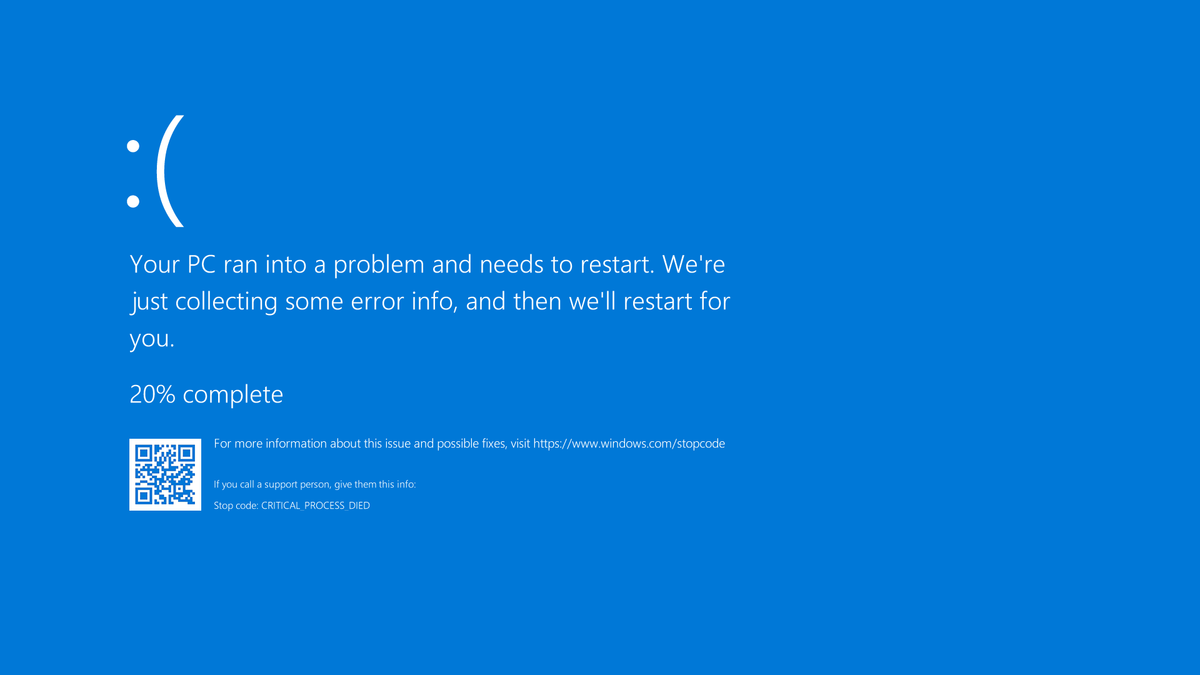 A stop error or exception error commonly called the blue screen of death (BSoD) or blue screen, is an error screen displayed on Windows computers following a fatal system error. It indicates a system crash, in which the operating system has reached a condition where it can no longer operate safely. This is caused by many different problems, such as a general hardware failure or a crucial process terminating unexpectedly.
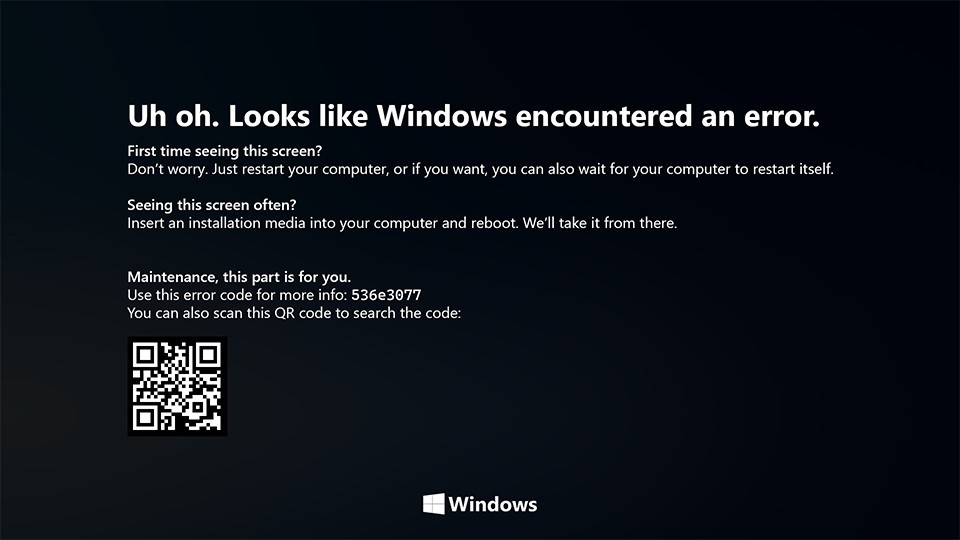 On Windows 10 systems, a Black Screen of Death can be caused by an unfinished Windows Update.
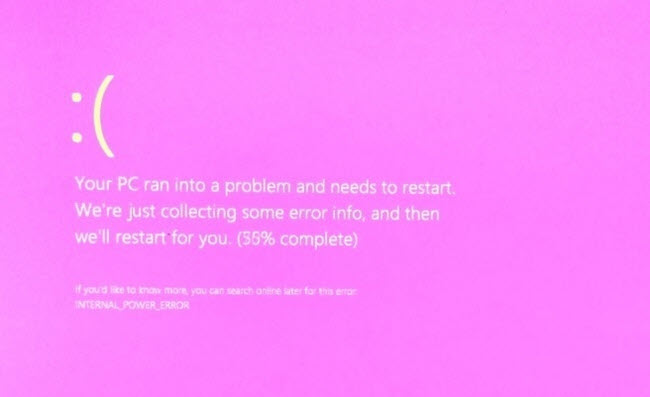 It is a diagnostic screen with a white type on a pink background. Pink Screen is mainly seen when the VMkernel of an ESX/ESXi host experiences a critical error, becomes inoperative, and terminates any virtual machines that are running. It is not fatal and generally considered more of a developer testing issue. When encountered, it can be fixed quickly by following the simple action of pressing and holding your computer’s power button to shut down the device.
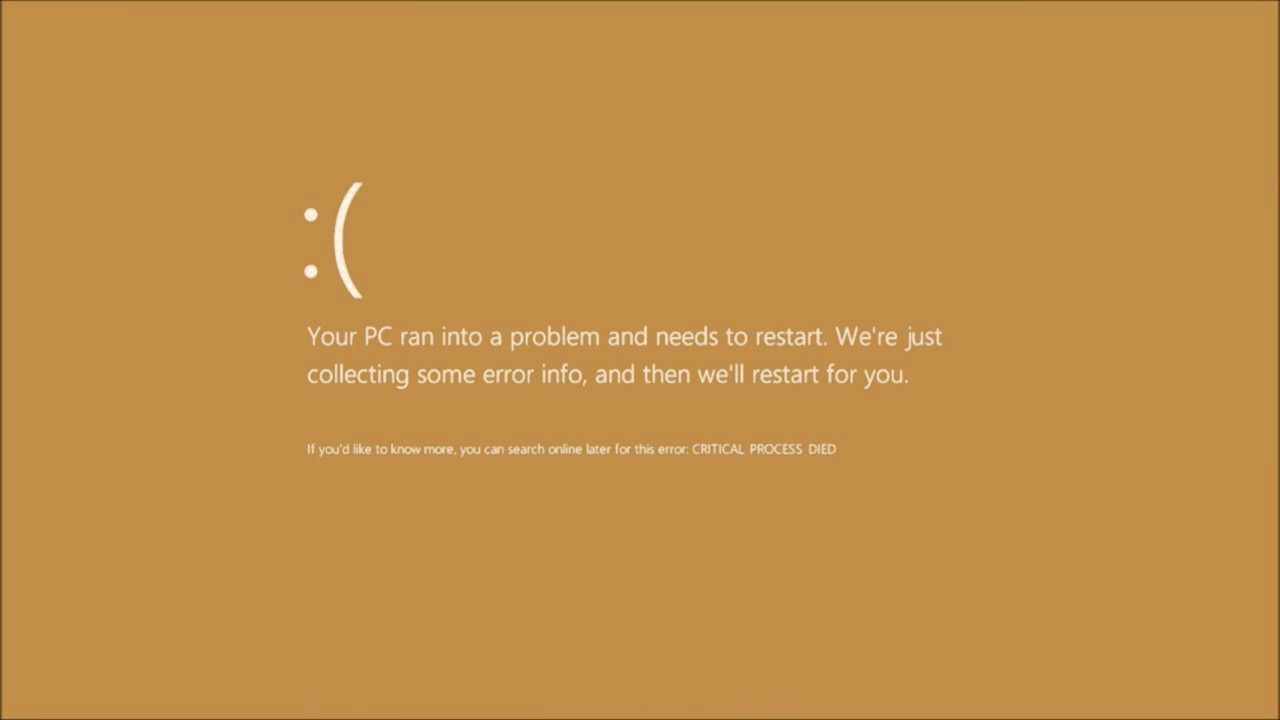 The Microsoft Windows 10 Operating System Brown Screen of Death is an on-screen fatal error notification with bug check codes which is seen when a computer crashes due to graphics hardware or software-related problems (failing graphics drivers).
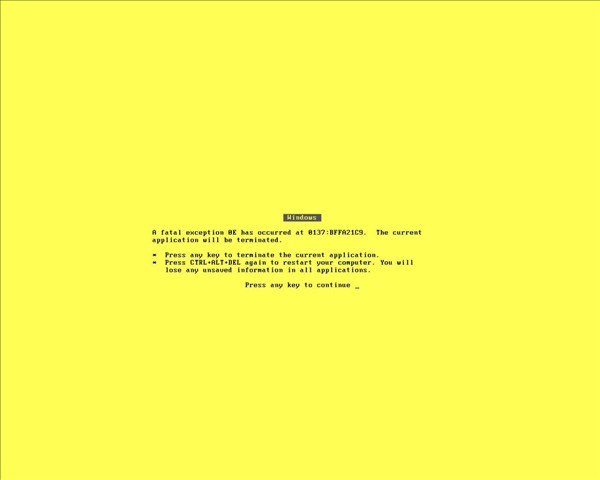 It affects the functioning of a browser, particularly Mozilla Firefox. The Yellow Screen of Death makes the appearance with a weird buzzing sound in the background when the XML parser refuses to process an XML document causing a parsing error and a weird buzzing sound. The issue persists unless the computer is manually rebooted.
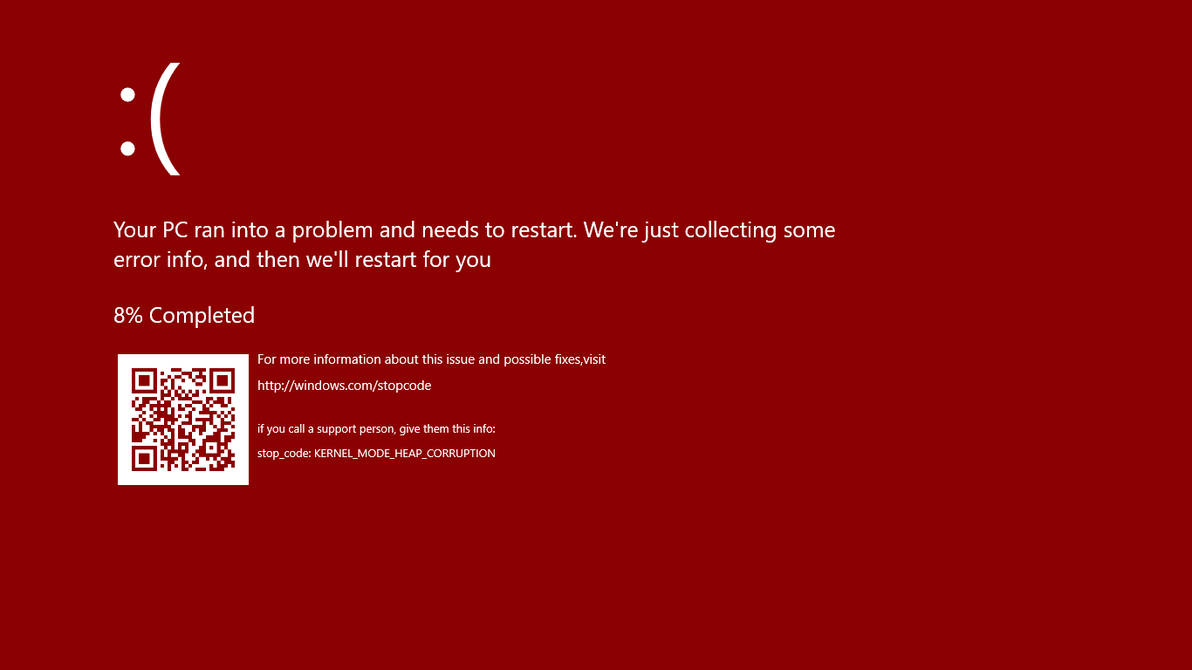 Commonly the Windows 10 red screen is caused due to the hardware error, particularly if you overclock your Windows PC/laptop. Despite this, sometimes the red screen of death is also caused by outdated or incompatible drivers or due to BIOS issues.
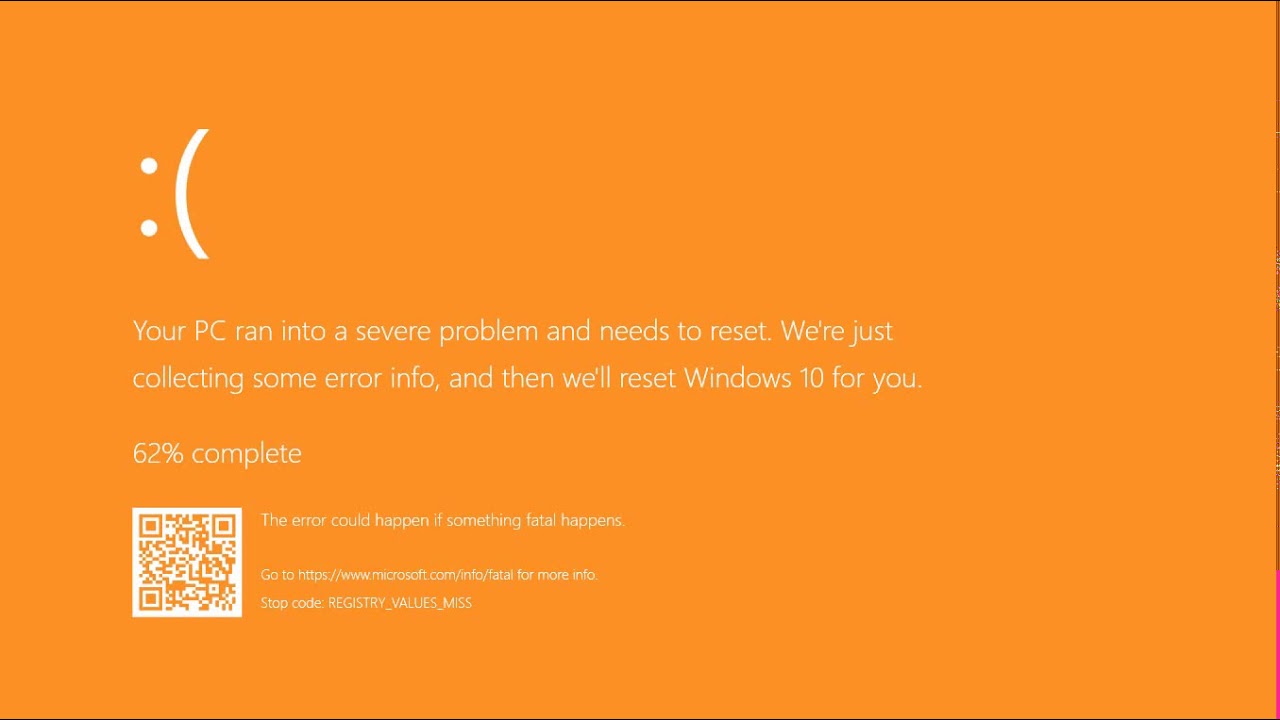 The Orange Screen of Death on Windows occurs due to fatal hardware errors. Multiple reasons have been reported for the Orange Screen of Death. Some had this issue when watching a YouTube video, some were not able to boot into Windows. It can even occur when waking up from Sleep.
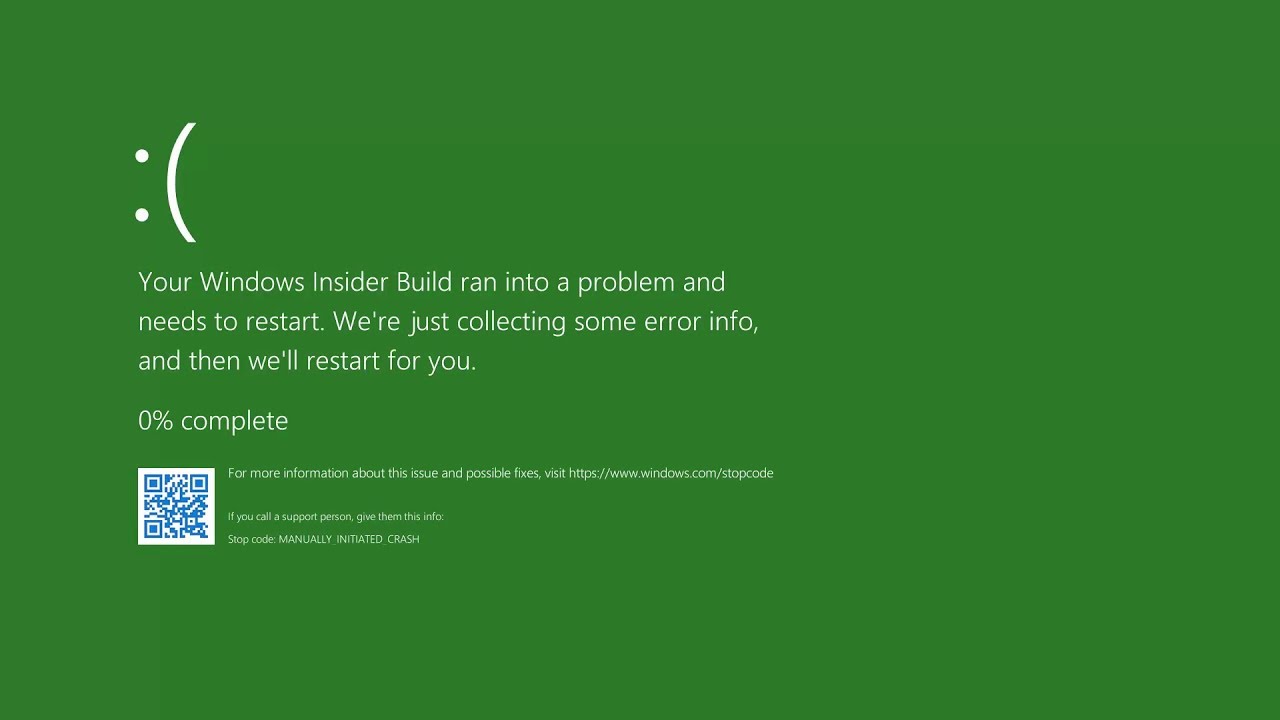 The green screen of death only appears when you're running an Insider Preview version of Windows 10. It's the same as the blue screen of death, and it will show the same error messages. ... If you see a green screen of death (GSOD) on your PC, that's a sign you're using an Insider Preview build of Windows 10.
 The White Screen on Windows is also an error where the screen of the computer just turns white and freezes. There can be several things that can cause the white screen to appear on the Windows laptop monitor. But the main issue could be because of malfunctioning of the graphics hardware.
  From the menu choose command prompt (admin)
 In command prompt type sfc /scannow and press ENTER
Leave the computer for the operation to be completed and Reboot your computer
In command prompt type sfc /scannow and press ENTER
Leave the computer for the operation to be completed and Reboot your computer