Logo

An Easy Guide to Resolving Internal Error 2324

Internal Error 2324 - What is it?

Internal Error 2324 occurs when you try to upgrade Firefox on your Windows 7 PC. The program fails to install and run successfully. The following error message is displayed:

‘The installer encountered an unexpected error installing this package. This may indicate a problem with this package. The error code is 2324.’

Solution

Restoro box imageError Causes

This error may occur due to different reasons. These include:

  • Viral infection
  • Bad registry entries (cookies or traces of old version of Firefox program)
  • Other programs running on your PC during Firefox program installation
  • Installation was not performed from the Administrator account

To use the Firefox web browser successfully on your PC, you first need to resolve error 2324 on your system.

Further Information and Manual Repair

To repair error 2324, try the following methods:

Method 1 - Perform a Clean Reinstall.

This means to remove the Firefox program completely from your PC and then reinstall it. To do this, remove the Firefox installation folder saved in one of the locations by default:

C:\Program Files\Mozilla Firefox
C:\Program Files (x86)\Mozilla Firefox

Now download the latest Firefox version on your PC and save the setup file on your computer. After that double click, the downloaded installation file and follow the steps illustrated in the wizard to install Firefox on your PC.

Method 2

Sometimes Firefox installation may fail because of the interference from other programs running on your PC. Therefore, it is advisable to close all programs running in the background when upgrading the Firefox program.

You can also disable programs like Logitech QuickCam and Spybot Tea Timer.  These are some of the many programs that are notorious for interfering with Firefox updates.

Method 3 - Scan for viruses to resolve.

Viruses are malicious programs that often enter computers through files downloads from unreliable websites and phishing emails. These programs then hide in your PC and infect it.

You may often experience problems during program installation if your PC is infected by viruses. To fix the issue and ensure smooth Firefox program installation on your system, simply run an antivirus.

Antivirus scans and detects all viruses in a few minutes. Upon detection, remove them right away to ensure your PC is free from such malicious programs. Now try updating Firefox on your system again. If it is updated smoothly, then the error is resolved.

Method 4

The registry of your system stores all the activities performed on your PC. You may have uninstalled the old Firefox version from the Control Panel but the traces of the uninstalled program may still remain in the registry as bad entries.

These bad entries may be causing error 2324 to pop up on your PC. To resolve, you need to remove these entries from the registry. For quick removal, download Restoro.

It is a user-friendly PC Fixer with a registry cleaner that scans and removes all obsolete files stored in the registry such as incorrect registry keys, bad entries, cookies, and junk files.

Click here to download Restoro.

Do You Need Help with Your Device?

Our Team of Experts May Help
Troubleshoot.Tech Experts are There for You!
Replace damaged files
Restore performance
Free disk space
Remove Malware
Protects WEB browser
Remove Viruses
Stop PC freezing
GET HELP
Troubleshoot.Tech experts work with all versions of Microsoft Windows including Windows 11, with Android, Mac, and more.

Share this article:

You might also like

How to Fix Windows 10 Error 0x80070070

Error Code 0x80070070 - What is it?

Error code 0x80070070 can be presented when there is not enough drive space on the computer to install updates. It is possible to uninstall apps that are not often used, or you may delete or archive files that are no longer needed, you may even add on some removable storage space to free up the internal memory of the computer. The computer needs a significant amount of internal memory in order to be able to update the operating system properly. When the computer fails to have the amount of memory that is needed to perform the update, the error code 0x80070070 will be presented. If this error message is not resolved, your computer might be opened to other error messages, including error code 0x80072EE2.

Common symptoms include:

  • Windows cannot install updates properly.
  • You might not be able to install any additional programs or apps onto the computer.
  • When you check the memory of the computer, it may be very near its full capacity.

Solution

Restoro box imageError Causes

The Windows 10 upgrade error is caused by varying factors including a lack of computer space or resources, malware or virus infestation, or a clogged registry on the computer.  The error code 0x80070070 will present itself when there is not enough free space on the computer to perform the necessary updates on the computer. Too many apps or programs downloaded onto the computer, too many photos, or too much music may also contribute to the lack of storage space on the computer, thus contributing to the error, and the computer not being able to install the updates to the operating system properly.

Further Information and Manual Repair

There is not a lot of information regarding this error code, but there are a few methods to repair it when it does present itself. There are practical and manual steps that can be taken when trying to get the PC up and running. The primary way to solve this problem is to free up disk space and there are several ways to do this. Please do note that if these methods seem confusing or too complicated, do contact a Windows repair technician so that they may properly correct the problem. You will need to know for sure that it is error code 0x80070070 that you are dealing with so that these options are the best bet for fixing it.

Method One: Disk Cleanup

It is important to know how much space there is on the computer to start with prior to trying to free up any space. Use the free program on the computer called the Disk Cleanup tool. This will save time and free up some hard drive space while optimizing the computer to work better.

From the Start menu, browse to the Explore option, and then select This PC. Right-click on the C drive, and then select Properties. Select Disk cleanup. From here, select the options that you would like to clear. Make sure that the recycle bin is emptied of any temporary files or any error logs. Once done, select Okay.

Use this same process to clear the system files after an update from Windows, as they may still have files from the old operating system in place.

Method Two: Remove Unwanted Apps

Go through your computer and remove any unwanted apps that are present. There are sure to be some that you do not use or do not want.

Follow these steps: From the Start menu, select Settings. Then, select System, Apps, and Features. When you have found the program that you would like to uninstall, select it and then select Uninstall. NOTE: some apps that are built into Windows do not have the capability to be uninstalled. Once you have selected Uninstall for the app or program, follow all directions that appear on the screen.

Method Three: Cloud Storage

If there are a lot of media, photos, documents, videos, and the like that are not used on a regular basis, try out cloud storage. These files will still be in your possession and will be able to be accessed from anywhere. There are many applications or websites that cater to this.

Method Four: External Storage Options

If none of the above methods work, add more storage. To acquire more storage, you can incorporate devices such as SD cards, USB flash drives, and even external hard drives.

Method Five: Use An Automated Tool

If you wish to always have at your disposal a utility tool to fix these Windows 10 and other related issues when they do arise, download and install a powerful automated tool.
Read More
How to Fix Windows 10 Error 0x80070490

Error Code 0x80070490 - What is it?

When downloading a Windows update, it is important to remember that these updates are what keeps your computer safe. Some users have reported seeing error code 0x80070490 when allowing updates for their Windows PC. This error code may appear when the user is trying to connect to the update site for Windows and maybe a result of a corrupted CBS manifest. Having this error code will not only stop the update of the system, but it will also certainly halt any work being done with the computer. Quite a few Windows users have written in complaints about this error while updating from any prior Windows update to Windows 10.

Common symptoms include:

  • While a user is performing the updates, the Windows computer will stop running the updates, and it will show the error code 0x80070490.
  • Windows updates will not install any new features and will not install security patches.
  • The computer will not continue with the Windows update, and it may revert back to the previous state that the computer was in, prior to attempting the updates.

Error Causes

There is not a lot known about what exactly causes the error code 0x80070490, but it is something critical that makes Windows abruptly stop its updates. It could be caused by a simple glitch in the computer system, or it could be caused by a larger problem. One thought is that the CBS (Component-Based Servicing) manifest can be corrupt. Another thought is that the computer's anti-virus software may be interfering with the computer's ability to perform the necessary updates.

Further Information and Manual Repair

There is very little information known about error code 0x80070490 and why it exists, but there are a few methods in which to correct it. Users should be careful when trying to fix this error themselves. If the user feels that the methods are too complicated or they are uncomfortable taking it on themselves, they should contact a Windows repair technician to fix the problem. Not all methods listed will suit the user's needs, but it is dependent upon the problem at hand as to which method will be the best fit to fix the error code. If these steps are taken and the error is not corrected, it is vital to contact the Windows repair technician.

Method One: Creating a new local account

Create a new local account on the computer, and allow administrator privileges on it. Next, move all of your documents and personal files to the new account. Delete the old account (you will no longer be using this) and switch over to the new one. After switching to the new local account, add the Microsoft account to it.

Method Two: Delete user ID, Store cache from the registry

  • You will need to open the Registry Editor. Do this by pressing the Windows Key and R, then typing in “Regedit”. After this is typed in, press Enter or click the OK button to start the registry editor.
  • When this starts, you will need to navigate all the way to the following key on the left pane:
  • HKEY_LOCAL_MACHINESOFTWAREMicrosoftWindowsCurrentVersionAppxAppxAllUserStore After this, find the key that is similar to this: S-1-5-21-1505978256-3813739684-4272618129-1016
  • NOTE: this is just an example. The keys will be in a similar format but will not look exactly like this.
  • Select all the keys that look like this, and then delete them. After these keys are deleted, close the Registry Editor and restart the computer.

Method Three: Check to see if BITS, MSI Installer, Cryptographic, and Windows Update Services are running

Press the Windows key and R. Then, type in services.msc. After the Services window starts up, find the following services:  BITS, MSI Installer, Cryptographic, and Windows Update Services. When these services are found, make sure that they are up and running. If one or more of these services is not running, make sure that they are started. To do this, select the service and then click on Start the Service.

Method Four: Windows Update Troubleshooting

Press the Windows key plus W and then type in “troubleshooting”.  Select Troubleshooting. On the top left corner, select View All. Click on Windows Update troubleshooter. After this, follow the on-screen instructions in order to run the troubleshooter. After the troubleshooter has run, the issue should be fixed.

Read More
Babylon Removal Tutorial

What is Babylon?

Babylon is a self-published computer dictionary and translation program. Babylon is a tool used for translation and conversion of currencies, measurements, and time, and for obtaining other contextual information. The program also uses a text-to-speech agent so users hear the proper pronunciation of words and text. Babylon’s translation software adds the Babylon toolbar identified as a browser hijacker. This toolbar may modify the homepage of the browser. It adds a Scheduled Task, Startup file, and Registry Keys that allow it to run at any time. A Windows Firewall exception is also added for the software, allowing it to connect to the internet without content.

About Browser Hijackers

Browser hijacking is actually a type of unwanted software program, commonly a browser add-on or extension, which causes modifications in browser settings. Browser hijackers will do a number of things on your computer. Often, hijackers will force hits to internet sites of their choice either to increase targeted traffic generating higher ad revenue, or to obtain a commission for each and every user visiting there. It could seem harmless, but the majority of these websites aren’t legitimate and can present a significant risk to your online safety. Additionally, hijackers can make the entire infected system fragile – other harmful malware and viruses will take hold of these opportunities to get into your PC effortlessly.

Signs of browser hijacker malware

There are several symptoms of browser hijacking. Here are a few of them: the home page of your browser is changed all of a sudden; new bookmarks pointing to porn websites are added to your favorite pages; the default browser settings have been modified and/or your default search engine is altered; unsolicited new toolbars are added to your internet browser; you notice a lot of pop-ups on your computer screen; your web browser gets sluggish, buggy, crashes frequently; you cannot go to certain sites such as homepages of anti-malware software.

How it infects your computer

Browser hijackers may use drive-by downloads or file-sharing networks or perhaps an email attachment in order to reach a targeted computer system. They may also originate from any BHO, browser extension, toolbar, add-on, or plug-in with malicious intent. Sometimes you might have accidentally accepted a browser hijacker as part of a software bundle (usually freeware or shareware). Examples of well-known browser hijackers include Fireball, GoSave, Ask Toolbar, CoolWebSearch, Babylon Toolbar, and RocketTab. The existence of any browser hijacker on your system will considerably diminish the browsing experience, monitor your online activities that lead to troublesome privacy issues, produce system stability issues and finally cause your PC to slow down or to a nearly unusable state.

Browser hijacker removal tips

Some hijackers can be easily removed by deleting the free software they were included with or by eliminating any add-ons you’ve recently added to your computer system. Sadly, most of the software packages used to hijack a web browser are intentionally designed to be hard to eliminate or detect. And there’s no denying the fact that manual fixes and removal can be quite a difficult task for an inexperienced PC user. Besides, there are numerous risks associated with fiddling around with the pc registry files. Anti-malware application is extremely efficient when it comes to picking up and eliminating browser hijackers that regular anti-virus program has overlooked. To get rid of any kind of browser hijacker from your PC, you could download this top-notch malware removal tool – Safebytes Anti-Malware.

What To Do If You Cannot Install Safebytes Anti-Malware?

Practically all malware is inherently unsafe, but certain types of malicious software do much more damage to your computer than others. Certain malware types alter browser settings by adding a proxy server or modify the PC’s DNS configurations. In such cases, you will be unable to visit some or all websites, and thus unable to download or install the required security software to clear out the infection. So what you should do if malware prevents you from downloading or installing Anti-Malware? Even though this sort of problem can be tougher to get around, there are some actions you can take.

Boot Windows in Safe Mode

If the malware is set to run at Windows start-up, then booting in Safe Mode should prevent it. Just the minimum required applications and services are loaded when you start your laptop or computer into Safe Mode. To launch your Windows XP, Vista, or 7 computers in Safe Mode with Networking, follow the instructions below. 1) After switching on the computer, hit the F8 key before the Windows splash screen begins to load. This should bring up the Advanced Boot Options menu. 2) Use the arrow keys to select Safe Mode with Networking and press ENTER. 3) Once this mode loads, you should have the internet. Now, make use of your internet browser normally and navigate to https://safebytes.com/products/anti-malware/ to download Safebytes Anti-Malware. 4) Immediately after installation, do a full scan and allow the software to delete the threats it detects.

Obtain the antivirus software using a different browser

Certain malware may target vulnerabilities of a particular browser that obstruct the downloading process. The best way to overcome this problem is to opt for a web browser that is well known for its security measures. Firefox comprises built-in Phishing and Malware Protection to help keep you secure online.

Install security software on a flash drive

Another option is to store and run an antivirus program completely from a Thumb drive. Try these simple actions to clear up your affected computer using a portable antivirus. 1) Use another virus-free computer to download Safebytes Anti-Malware. 2) Mount the USB drive onto the same PC. 3) Double-click the exe file to run the installation wizard. 4) When asked, choose the location of the pen drive as the place in which you would like to store the software files. Do as instructed on the screen to finish up the installation process. 5) Remove the flash drive. You may now utilize this portable anti-malware on the infected computer. 6) Double-click the antivirus software EXE file on the pen drive. 7) Press the “Scan Now” button to start the virus scan. If all the previously mentioned methods are not able to help you in downloading and installing the anti-malware, then you have no option but to reinstall the computer’s operating system to wipe out all of the data, including the harmful programs which are obstructing the anti-malware installation. If you are unclear regarding which method works best for you, simply call 1-844-377-4107 to speak to our computer professionals who can walk you through the process to fix your infected computer system.

SafeBytes AntiMalware Overview

Today an anti-malware program can protect your PC from different kinds of internet threats. But how to decide on the best one among countless malware protection application that is available in the market? You may be aware, there are several anti-malware companies and products for you to consider. A few of them do a good job in eradicating malware threats while many will harm your computer themselves. While looking for an anti-malware program, pick one which provides dependable, efficient, and total protection against all known computer viruses and malware. With regards to commercial application options, many people select popular brands, like SafeBytes, and they are quite happy with it. Safebytes is among the well-established computer solutions firms, which offer this all-inclusive anti-malware program. When you have installed this software, SafeBytes' sophisticated protection system will make sure that no viruses or malware can seep through your PC. SafeBytes anti-malware provides a myriad of enhanced features which set it apart from all others. The following are some of the great features included in the tool. Optimum AntiMalware Protection: With its enhanced and sophisticated algorithm, this malware removal tool can detect and remove the malware threats hiding within your computer system effectively. Real-time Active Protection: SafeBytes offers entirely hands-free real-time protection and is set to monitor, block, and destroy all computer threats at its very first encounter. They’re highly efficient in screening and getting rid of numerous threats because they’re regularly revised with new updates and safety measures. Web Filtering: Through its unique safety score, SafeBytes notifies you whether a site is safe or not to visit it. This will ensure that you’re always certain of your online safety when browsing the world wide web. Light-weight: This program is not “heavy” on the computer’s resources, so you’ll not notice any performance difficulties when SafeBytes is operating in the background. 24/7 Guidance: You can obtain totally free 24/7 technical assistance from their IT experts on any product queries or PC security concerns. SafeBytes has put together an excellent anti-malware solution to help you conquer the latest computer threats and virus attacks. There is no doubt that your computer system will be protected in real-time as soon as you put this software to use. So if you’re trying to find a comprehensive antivirus program that’s still easy to use, SafeBytes Anti-Malware is exactly what you need!

Technical Details and Manual Removal (Advanced Users)

If you wish to manually remove Babylon without the use of an automated tool, it may be possible to do so by removing the program from the Windows Add/Remove Programs menu, or in cases of browser extensions, going to the browsers AddOn/Extension manager and removing it. You will likely also want to reset your browser. To ensure the complete removal, manually check your hard drive and registry for all of the following and remove or reset the values accordingly. Please note that this is for advanced users only and may be difficult, with incorrect file removal causing additional PC errors. In addition, some malware is capable of replicating or preventing deletion. Doing this in Safe Mode is advised. The following files, folders, and registry entries are created or modified by Babylon
Files: $APPDATABabylonToolbarBabylonToolbar $APPDATABabylonToolbar $PROGRAMFILESBabylonToolbarBabylonToolbar $PROGRAMFILESBabylonToolbar Registry: key HKEY_CLASSES_ROOT named Babylon.dskBnd. key HKEY_CLASSES_ROOT named Babylon.dskBnd key HKEY_CLASSES_ROOT named bbylnApp.appCore. key HKEY_CLASSES_ROOT named bbylnApp.appCore key HKEY_CLASSES_ROOT named bbylntlbr.bbylntlbrHlpr. key HKEY_CLASSES_ROOT named bbylntlbr.bbylntlbrHlpr key HKEY_CLASSES_ROOT named bbylntlbr.xtrnl” key HKEY_CLASSES_ROOT named bbylntlbr.xtrnl key HKEY_CLASSES_ROOT named escort.escortIEPane. key HKEY_CLASSES_ROOT named escort.escortIEPane key HKEY_CLASSES_ROOT named escort.escrtBtn. key HKEY_CLASSES_ROOT named esrv.BabylonESrvc. key HKEY_CLASSES_ROOT named esrv.BabylonESrvc key 09C554C3-109B-483C-A06B-F14172F1A947 at HKEY_CLASSES_ROOTTypeLib. key 2EECD738-5844-4a99-B4B6-146BF802613B at HKEY_CLASSES_ROOTCLSID. key 2EECD738-5844-4a99-B4B6-146BF802613B at HKEY_LOCAL_MACHINESOFTWAREMicrosoftWindowsCurrentVersionExplorerBrowser Helper Objects. key 3718D0AF-A3B8-4F5E-86F3-FAD8D02043BE at HKEY_CLASSES_ROOTInterface. key 4E1E9D45-8BF9-4139-915C-9F83CC3D5921 at HKEY_CLASSES_ROOTTypeLib. key 6E8BF012-2C85-4834-B10A-1B31AF173D70 at HKEY_CLASSES_ROOTTypeLib. key 706D4A4B-184A-4434-B331-296B07493D2D at HKEY_CLASSES_ROOTInterface. key 78868069-5D96-4B47-BE52-3D625EE3D7CB at HKEY_CLASSES_ROOTInterface. key 78888F8B-D5E4-43CE-89F5-C8C18223AF64 at HKEY_CLASSES_ROOTInterface. key 8B8558F6-DC26-4F39-8417-34B8934AA459 at HKEY_CLASSES_ROOTInterface. key 94C0B25D-3359-4B10-B227-F96A77DB773F at HKEY_CLASSES_ROOTInterface. key 98889811-442D-49dd-99D7-DC866BE87DBC at HKEY_CLASSES_ROOTCLSID. key 9E393F82-2644-4AB6-B994-1AD39D6C59EE at HKEY_CLASSES_ROOTInterface. key A3A2A5C0-1306-4D1A-A093-9CECA4230002 at HKEY_CLASSES_ROOTInterface. key AD25754E-D76C-42B3-A335-2F81478B722F at HKEY_CLASSES_ROOTAppID. key AD25754E-D76C-42B3-A335-2F81478B722F at HKEY_CLASSES_ROOTTypeLib. key B0B75FBA-7288-4FD3-A9EB-7EE27FA65599 at HKEY_CLASSES_ROOTInterface. key B12E99ED-69BD-437C-86BE-C862B9E5444D at HKEY_CLASSES_ROOTTypeLib. key B173667F-8395-4317-8DD6-45AD1FE00047 at HKEY_CLASSES_ROOTInterface. key B8276A94-891D-453C-9FF3-715C042A2575 at HKEY_CLASSES_ROOTCLSID. key BDB69379-802F-4eaf-B541-F8DE92DD98DB at HKEY_CLASSES_ROOTAppID. key BFE569F7-646C-4512-969B-9BE3E580D393 at HKEY_CLASSES_ROOTInterface. key C2434722-5C85-4CA0-BA69-1B67E7AB3D68 at HKEY_CLASSES_ROOTInterface. key C2996524-2187-441F-A398-CD6CB6B3D020 at HKEY_CLASSES_ROOTInterface. key C8D424EF-CB21-49A0-8659-476FBAB0F8E8 at HKEY_CLASSES_ROOTInterface. key D7EE8177-D51E-4F89-92B6-83EA2EC40800 at HKEY_CLASSES_ROOTTypeLib. key E047E227-5342-4D94-80F7-CFB154BF55BD at HKEY_CLASSES_ROOTInterface. key E3F79BE9-24D4-4F4D-8C13-DF2C9899F82E at HKEY_CLASSES_ROOTInterface. key E46C8196-B634-44a1-AF6E-957C64278AB1 at HKEY_CLASSES_ROOTCLSID. key E77EEF95-3E83-4BB8-9C0D-4A5163774997 at HKEY_CLASSES_ROOTInterface. key FFB9ADCB-8C79-4C29-81D3-74D46A93D370 at HKEY_CLASSES_ROOTCLSID. key BabylonToolbar at HKEY_CURRENT_USERSoftware. key BabylonToolbar at HKEY_LOCAL_MACHINESOFTWARE. key dhkplhfnhceodhffomolpfigojocbpcb at HKEY_LOCAL_MACHINESOFTWAREGooglechromeExtensions. key escort.DLL at HKEY_CLASSES_ROOTAppID. key esrv.EXE at HKEY_CLASSES_ROOTAppID. value 98889811-442D-49dd-99D7-DC866BE87DBC at HKEY_LOCAL_MACHINESOFTWAREMicrosoftInternet ExplorerToolbar.

Read More
What is HEIF file format and how to use it?
High Efficiency Image File Format (HEIF) is a container format for individual images and image sequences. The standard covers multimedia files that can also include other media streams, such as timed text, audio, and video. A HEIF image using High-Efficiency Video Coding, HEVC, requires only about half the storage space as the equivalent quality JPEG. HEIF also supports animation and is capable of storing more information than an animated GIF or APNG at a small fraction of the size. HEIF files are a special case of the ISO Base Media File Format (ISOBMFF, ISO/IEC 14496-12), first defined in 2001 as a shared part of MP4 and JPEG 2000. Introduced in 2015, it was developed by the Moving Picture Experts Group (MPEG) and is defined as Part 12 within the MPEG-H media suite (ISO/IEC 23008-12). HEIF was adopted by Apple in 2017 with the introduction of iOS 11, and support on other platforms is growing.

HEIF files can store the following types of data:

Image items
Storage of individual images, image properties, and thumbnails.
Image derivations
Derived images enable non-destructive image editing and are created on the fly by the rendering software using editing instructions stored separately in the HEIF file. These instructions (rectangular cropping, rotation by one, two or three quarter-turns, timed graphic overlays, etc.) and images are stored separately in the HEIF file, and describe specific transformations to be applied to the input images. The storage overhead of derived images is small.
Image sequences
Storage of multiple time-related and/or temporally predicted images (like a burst-photo shot or cinemagraph animation), their properties, and thumbnails. Different prediction options can be used in order to exploit the temporal and spatial similarities between the images. Hence, file sizes can be drastically reduced when many images are stored in the same HEIF file.
Auxiliary image items
Storage of image data, such as an alpha plane or a depth map, which complements another image item. These data are not displayed as such but used in various forms to complement another image item.
Image metadata
Storage of EXIF, XMP and similar metadata which accompany the images stored in the HEIF file.
Read More
Fixing Windows Update Error 80244019
As you know, Windows Update is the source for everything latest for Windows from Microsoft. Your computer receives essential updates frequently because of the Windows Update service and this Windows Update mechanism depends on various services such as Background Intelligent Transfer Service or BITS, Windows Server Update Service, Windows Update service, and many more. Although it may seem like a complex delivery system, it is a very efficient one. However, it is not without its issues as it still encounters errors every now and then. One of these errors is 80244019 which applies only to the Windows Server operating systems and to resolve it, you need to determine its cause. The Windows Update Error 80244019 is most likely caused by faulty and corrupted DLL files or Registry Entries, connectivity issues, and outdated configuration of Windows Update service on the client end. Moreover, the error can also be caused by malware or if a file is not found on the server. This error can lead to a number of system issues like Startup and shutdown issues, software installation errors, external devices connection, system lags, unexpected application, and program issues, and many more. To resolve the problem, refer to the options given below.

Option 1 – Restart some Windows Update services

The first thing you have to do is to restart Windows Update-related services. Refer to the steps below to do so.
  • Open the WinX Menu.
  • From there, open Command Prompt as admin.
  • Then type in the following command – don’t forget to hit Enter right after typing each one of them.
net stop wuauserv net stop bits
  • After entering these commands, it will stop the Windows Update Service and the Background Intelligent Transfer Service.
  • Next, go to the C:/Windows/SoftwareDistribution folder and get rid of all the folders and files there by tapping the Ctrl + A keys to select them all and then click on Delete. Note that if the files are in use, you won’t be able to delete them.
  • Once all the contents in the Software Distribution folder are deleted, restart your PC and then go back to Command Prompt and input the following commands again.
net start wuauserv net start bits
 Since the folder has already been flushed, it will be populated afresh the instant your restart your computer and open Windows Update.

Option 2 – Try turning on the Data Execution Prevention or DEP

The problem might be caused by disabled Data Execution Prevention which is why you have to make sure that it’s turned on.

Option 3 – Run the Windows Update Troubleshooter

You might also want to run the Windows Update Troubleshooter as it could also help in fixing Windows Update Error 80244019. To run it, go to Settings and then select Troubleshoot from the options. From there, click on Windows Update and then click the “Run the troubleshooter” button. After that, follow the next on-screen instructions and you should be good to go.

Option 4 – Try reconfiguring the Windows Update Settings

You can also try to reconfigure the settings in the Windows Update section to resolve the error.
  • Tap the Win + I keys to open the Windows Settings.
  • Next, click on Update & Security > Windows Updates > Update Settings and from there, click on the Advanced Options.
  • After that, uncheck the “Give me updates for other Microsoft Products when I update Windows” option.
  • Now restart your computer to successfully apply the changes made and then check if the Windows Update error is now fixed.

Option 5 – Try to manually install the Windows Updates

Windows Update Error 80244019 might be due to a Windows Update that has failed. So if it is not a feature update and only a cumulative update, you can download the Windows Update and install it manually. But first, you need to find out which update has failed, and to do so, refer to the following steps:
  • Go to Settings and from there go to Update and Security > View Update History.
  • Next, check which particular update has failed. Note that Updates that have failed to install will be displayed under the Status column which has a label of “Failed”.
  • After that, go to the Microsoft Download Center and look for that update using its KB number and once you find it, download and then install it manually.
Note: You can also use the Microsoft Update Catalog, a service from Microsoft that provides a list of software updates that can be distributed over a corporate network. With the help of this service, it can be easier for you to find Microsoft software updates, drivers as well as fixes.
Read More
Change position of Taskbar in Windows 10
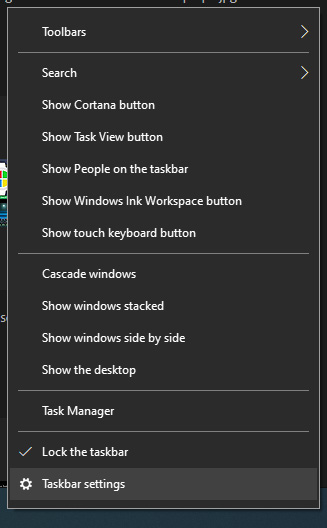
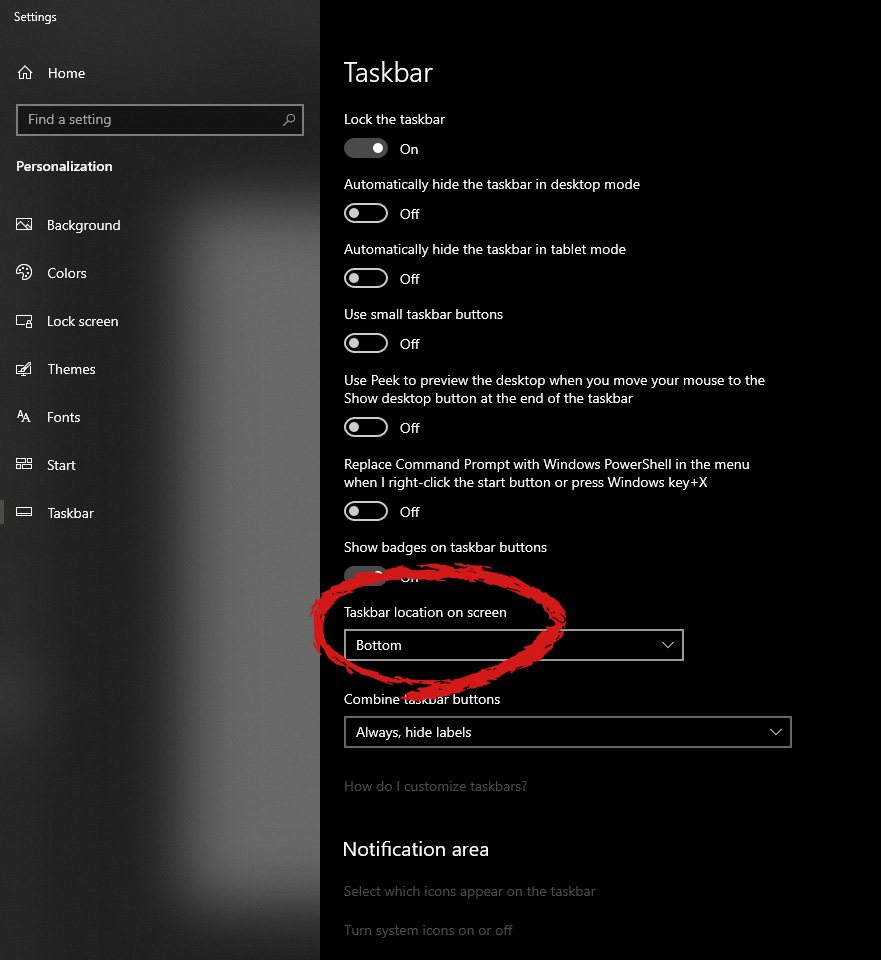
Changing Taskbar location in your Windows 10 is an easy task but lately, Microsoft has removed the option to just drag it to one side of the screen and place it there, now in order to change location we need to do a little more work but do not worry it is not difficult at all. Right-click on the taskbar to open its properties menu taskbar settings menuin the menu, on the bottom choose taskbar settings. Once the settings dialog opens, on the right side locate the taskbar location on screen. taskbar location chooserClick on the dropdown menu and choose the desired location for the taskbar.

Read More
Microsoft Surface Dial fails to pair with PC
One of the most interesting innovations that were released by Microsoft is the Surface Dial. This only goes to show that Microsoft is very competent not just in hardware but in overall innovation. Although it’s quite a piece of technology and as far as the consensus is concerned, it works pretty well, there are still some issues encountered by users. One of the particular issues experienced by users is that the Surface Dial fails to pair with every Windows 10 PC. At a time of writing, it is still not clear what the cause of the problem really is. However, their possible solutions are provided in this post that might help you resolve the problem. Before you get started troubleshooting the problem, make sure that there are two AAA batteries fitted inside properly.

Option 1 – Check if your PC supports Bluetooth 4.0 LE

In case you don’t know, the Surface Dial only works with the Windows 10 Anniversary Update and later PCs that support Bluetooth 4.0 LE. Thus, you have to check if this is supported or not before you troubleshoot further.
  • Tap the Win + R keys on your keyboard to open the Run dialog box.
  • Next, type “devmgmt.msc” in the field and hit Enter to open the Device Manager.
  • From there, click on Bluetooth and select “Microsoft Bluetooth LE Enumerator” from the drop-down menu. However, if it is not there, then it simply means that your computer does not support this standard which is most likely why you were unable to pair with other Windows 10 PCs. On the other hand, if you were able to see it, then proceed to the next troubleshooting steps below.

Option 2 – Check if Bluetooth is on

The next thing you have to do is to check if Bluetooth is turned on. As you know, the Surface Dial connects to your computer using Bluetooth and so you need to check if it’s really on or not. Aside from that, you also have to verify pairing.
  • Tap the Win + I keys to open Windows Settings.
  • Next, select Devices from the menu and click on Bluetooth.
  • After that, make sure that the toggle switch for Bluetooth is turned on.
  • Now all you have to do is to verify pairing by pressing and holding the pairing button located beside the batteries and then wait for a few seconds until the Bluetooth light begins to flash.
  • Then go back to the Bluetooth section and click on Bluetooth or other devices.
  • From there, click on Add Bluetooth and select Surface Dial.
  • Follow the next instructions on the screen and click on Done once everything is completed. That should fix the problem.

Option 3 – Check if Surface Dial is connected to another PC

If you think that connecting a Bluetooth device to two different PCs at the same time is wise, then think again as it does not really bode well for the overall user experience. Thus, you need to disconnect the Surface Dial from the system that you are currently using. On the other hand, if everything fails, then it’s most likely that the Bluetooth adapter is the one at fault. So you may have to get a third-party device that connects to your system via USB and then see if it works or not.
Read More
Automatically Turn Off Hotspot when idle
One of the useful features that came with Windows 10 is the Mobile Hotspot although there’s a downside to it – it drains your battery faster especially if your Windows 10 device is running on battery. Another one of its flaws in the implementation of this feature is that it stays activated even when the connection is idle. In other words, it is still activated even if no devices are connected to it. As a result, it consumes battery life and affects it. There are also instances when it affects the performance of the network connection. At the time of writing, Microsoft hasn’t done anything about this dilemma yet so in the meantime, you can continue reading this post to resolve this issue on your Windows 10 device. You can remedy this Mobile Hotspot issue by running a command in Windows PowerShell. To get started, follow the given instructions below.

Turn off Mobile Hotspot Automatically:

Step 1: The first thing you have to do is to copy the following command:
powershell -windowstyle hidden -command "Start-Process cmd -ArgumentList '/s,/c,net stop "icssvc" & REG ADD "HKLMSYSTEMCurrentControlSetServicesicssvcSettings" /V PeerlessTimeoutEnabled /T REG_DWORD /D 1 /F & net start "icssvc"' -Verb runAs"
Step 2: After copying the command given above, open the Notepad app and paste the command you copied there and save it. And when saving it, select the “Save as” option and its File type as “All files”. Step 3: After that, put “TurnOnTimer.bat” as the file’s name and save it on your Desktop. Step 4: Once done, run the file you just created, and when a User Account Control or UAC prompt appears, just click on Yes. Step 5: After you run the file, it will run a series of scripts in a command line which will turn off the Mobile Hotspot automatically when idle. And that’s how you automatically turn off the Mobile Hotspot when your Windows 10 device is idle. On the other hand, if you want to undo the changes made, you can always do so using the steps provided below.

Turn on Mobile Hotspot:

Step 1: Copy and paste the following command in the Notepad app:
powershell -windowstyle hidden -command "Start-Process cmd -ArgumentList '/s,/c,net stop "icssvc" & REG ADD "HKLMSYSTEMCurrentControlSetServicesicssvcSettings" /V PeerlessTimeoutEnabled /T REG_DWORD /D 0 /F & net start "icssvc"' -Verb runAs"
Step 2: After copying and pasting the command, save it as “TurnOffTimer.bat” on the Desktop. Step 3: Once done, run the file like what you did earlier and select Yes when a UAC prompt pops up. This will run a series of scripts on a command line which will revert the changes back to their default state.
Read More
Instagram posts available now on computer
Instagram posting has been reserved for mobile phones for a very long time but in October 2021 that privilege has come to an end. Instagram added the long-awaited ability to post to Instagram from the website. You get nearly all of the same filters and editing tools that you can find in the iPhone and Android app, too. Instagram logoIn order to post via computer on your Instagram account all you need is a browser. The first step, of course, is to go to instagram.com and login into your account, if you do not have an account, you can make one for free. Next, click on the + icon in the upper right corner. Create a new post screen will open, in this screen click on the Select from computer blue button on the bottom. The file manager will open, choose your desired photo and confirm. After that, you will be presented will an adjustment screen for a photo, here you can crop the photo, zoom in, adjust the aspect ratio, or if you wish add more photos to create a slide show. Once you are done will all of these adjustments, click on Next in the upper right. From there you will be taken into a filter screen where you can apply one of many filters or if you want, you can adjust brightness, contrast, saturation, temperature, etc. just like in the application on your phone. Once you have the desired result, again click on Next in the upper right part of the screen. Lastly, you will be given an option to write a caption for the photo if you wish and add a location. Once this step is finished you can post the feed by clicking on share in the upper right part. That is all to it, just like in a mobile application you can now use your computer for Instagram posting.
Read More
The new Windows 11 dev build will be buggy
windows 11 dev build channelMicrosoft sent an email to users on the Dev build channel saying that the company intends to push some builds that don’t represent what consumers will receive with Windows 11 when it officially releases. In other words, these are going to be some rather buggy builds that won’t be too enjoyable to use. The company recommends users switch from the Dev to the beta channel if they aren’t prepared to deal with the instability. We’ll have to wait and see just how buggy these builds are, but if Microsoft is actually sending out a warning about them it is very likely that builds will be plagued with issues and maybe even stability problems.

Back to Windows 10

How we can expect some buggy build of Windows 11 if you prefer a stable system over new features maybe best decision would be to switch back to Windows 10 until the new OS hits official release.

Switching from dev build channel to beta channel

Another solution, if you do not want to deal with too many issues, is to switch from Dev build channel to beta where things will be more stable. Follow the guide below in order to quickly switch to the beta channel. Following instructions only apply to Windows 11 installations that are linked up to the Windows Insider program, not clean installation of OS.
  1. Press ⊞ WINDOWS + I to open settings
  2. Inside settings click on Windows update
  3. In Windows Update click on Windows Insider Program
  4. Inside click on Choose your Insider Settings
  5. Click on the button next to Beta Channel to select it (you can switch back to the Dev channel here if you change your mind)
The setting will be saved automatically and from now on you will only receive beta channel updates.
Read More
1 2 3 171
Logo
Copyright © 2023, ErrorTools. All Rights Reserved
Trademark: Microsoft Windows logos are registered trademarks of Microsoft. Disclaimer: ErrorTools.com is not affiliated with Microsoft, nor claims direct affiliation.
The information on this page is provided for information purposes only.
DMCA.com Protection Status