Logo

Gigabit internet showing as 100MB in Windows

In today's world setting up a LAN network or internet connection is no longer a daunting task that will require having a bachelor's degree in computer science nor a specialized technician. But even in the present-day environment issues and problems can occur. One of these problems is detecting or running a network at a slower 100MB speed instead of 1GB.

Troubleshooting of this nature is somewhat more complex than your typical troubleshooting issue because several things including hardware could be involved in this particular problem but do not worry, we are here to back you up and guide you

Setting up a home or small office network no longer requires a specialist technician to constantly monitor and optimize the LAN routers and connected PCs. As Windows networking has improved and new features have become available on the hardware, configuring a 1GB network should be as simple as connecting the LAN to a router that came with this capability. If however the network’s rated speed only gives 100MB, troubleshooting the issue is more complex. To find the problem, you’ll need to check the hardware devices, cable connections, and the software you are using to connect and manage the network.

Hardware checks

If you are using the switch in your LAN configuration check its hardware details as well to see if it can handle 1GB speeds.
The next step is network cables, some cables are not designed and their copper can not transfer 1GB of flow, check to see if your cable is classified for the desired speed. To visually check cables do the following
  1. Check both connection jacks to see if it has any loose or frayed wires. If any of the wires are loose, it can be the cause of the performance issue. You should replace the cable if you discover damage to the connectors.
  2. Inspect the entire length of the cable and check if the harness shows any clear signs of damage. A bent or damaged cable can reduce the amount of information it’s capable of transferring between the PC and LAN router. If you find any damage to the cable, replace it to restore your network speed.
  3. Is the cable capable of transferring 1GB speeds? Different network cables support different network speeds. A Cat-5 cable will only provide 100MB transfers, while a Cat-5e or Cat-6 can support up to 10GB transfers. Check the cable’s labels to make sure you are using a Cat-5e or higher-rated data cable.

Now when the hardware issue is out of the way we can focus a little more on the software part.

Let's try the first easy solution, run Windows built-in troubleshooter

  1. Click the Windows button and type Control Panel. Then select the top result.
  2. If your Control Panel shows the Category View, change it to display Small Icons instead.
  3. From the list of available applications, select Network and Sharing Center.
  4. In your Network and Sharing Center, you can see the active network, set up a new network connection, troubleshoot problems, or change your adapter settings. Before making changes to your device properties, you can let Windows run a troubleshooter on your adapters to see if it can automatically fix your connection issues.
  5. Click on Troubleshoot Problems from the Change Your Network Settings section.
  6. In the Troubleshooter Application, scroll down and find the Network Adapter option.
  7. Click on Run Troubleshooter to let Windows check your network adapter’s configuration for any issues.
  8. Select the Ethernet Adapter you’re currently using from the list and click Next to proceed.
  9. Wait for the process to complete and check the results. If Windows detects any issues, it will recommend a fix. However, if the configuration of your network adapters does not have any problems, you’ll see a message that Windows couldn’t detect any problems.
  10. If there are any issues with the cable, the troubleshooter will detect the connection issue and request you replace the cable and connect it to your PC.
  11. It can occur that even after inspecting the cable and you didn’t find any visible damage on the housing or connectors, it could still be faulty. Replace the cable with a new one and rerun the troubleshooter to see if the cable is working as required.

If the troubleshooter finished and you received a Windows Couldn’t Detect Any Issues result, you’ll need to verify your adapter’s speed settings.

  1. In your Network and Sharing Center, select the Change Adapter Settings option from the left menu.
  2. On the list of adapters, choose the one you’re using and click the Right Mouse Button to open the context menu.
  3. Select Properties from the Context Menu to access your adapter’s settings.
  4. On the Ethernet Properties window, you can enable or disable different features and install additional protocols. To change the device settings, click on Configure to continue.
  5. This will open the Device Controller Properties window where you can check the status, make changes to the settings, find out information about the driver, or check historical events on the device. Select the Advanced tab to access the device settings.
  6. On the Advanced tab, locate the Speed and Duplex setting.
  7. The Auto-Negotiation option may cause network performance issues on certain Ethernet adapters and routers. The setting allows your adapter to change the speed settings according to the LAN configuration you connect to your PC. If you connect to different LAN networks regularly with different speeds, it can occur that the setting doesn’t update from 100MB to 1GB while switching.
  8. Change the Value to match the network speed of the LAN you’re connecting to your PC and use the manual speed setting.
  9. Click OK to apply the setting and test your network performance. If your adapter doesn’t have the 1GB setting available but you know the rating should go up to that speed, it could indicate that you aren’t using the right driver for the device.

If you don’t have the setting available or the device still only provides 100MB speeds after changing the Speed setting to a manual value, you may have to update the driver for the device.

  1. On the Ethernet Properties Window, once again click on Configure to access the Device Properties Window. Then select the Driver Tab to access your driver details.
  2. Select Update Driver from the available options.
  3. On the Update Driver window, select the option to let Windows Search Automatically for Updated Driver Software.
  4. Windows will connect to the internet and search for the latest drivers online. If a newer driver exists, Windows will download and install the driver for you. If you’re using the latest driver, Windows will inform you that no updated drivers are available.

Do You Need Help with Your Device?

Our Team of Experts May Help
Troubleshoot.Tech Experts are There for You!
Replace damaged files
Restore performance
Free disk space
Remove Malware
Protects WEB browser
Remove Viruses
Stop PC freezing
GET HELP
Troubleshoot.Tech experts work with all versions of Microsoft Windows including Windows 11, with Android, Mac, and more.

Share this article:

You might also like

Patch for Windows Error Code 41

Code 41 - What is it?

Poor PC maintenance can lead to error message pop-ups like error code 41. Code 41 is one of the several Device Manager Error codes.

This error indicates 2 things: issues with the device driver for the hardware you wish to use, or the hardware device is not properly attached to your system.

The error code 41 is usually displayed in the following format:

“Windows successfully loaded the device driver for this hardware but cannot find the hardware device.” Code 41

Solution

driverfix boxError Causes

For successful installation of a new hardware piece, it is imperative to follow the installation routine correctly and allow it to complete properly, especially with USB devices.

This is important largely because if installation is not followed and executed properly, code 41 can pop up.

Code 41 is also related to device driver problems. It can occur if your system device drivers are outdated. Also, if the device is a CD/DVD drive, code 41 can occur due to conflicts with 3rd party disc burning software.

Although Device Manager Error code 41 is not detrimental, it is still advisable to repair it as quickly as you can. Code 41 can negatively affect your PC. It can:

  • Lower your PC’s Performance
  • Limit your ability to use your desired piece of hardware device

Further Information and Manual Repair

As compared to the blue screen of death errors, Device Manager Error codes are much easier to resolve.

Here are some of the best, effective and easy-to-resolve methods to help you fix code 41 on your PC, in a few minutes.

To work around these methods, you don’t have to be a technical whiz or a computer programmer. Simply follow these steps to resolve:

Method 1 - Uninstall Faulty Drivers and then Reinstall

To repair code 41 on your system, try uninstalling problematic drivers and then reinstalling new drivers. To do this, follow these instructions:

  • Click the start button
  • Then type Device Manager in the search bar and press enter
  • Once the Device Manager opens, look for problematic devices
  • Click on the device whose driver you wish to uninstall
  • Double click to uninstall
  • Windows will prompt you to confirm the device removal
  • Accept changes and confirm by clicking on OK
  • Now reboot your PC to activate changes
  • The next step is to reinstall the driver properly. To do this, simply follow the same steps. Once you access the Device Manager,
  • Click on the Action tab in the toolbar
  • After that select the option ‘Scan for Hardware Changes’

This will hopefully resolve error code 41 on your system and you will be able to use your desired hardware device without any hassle. Nonetheless, if the error code continues to persist, try other methods illustrated below.

Method 2 - Replace the Hardware or Try Reattaching it to your System

Sometimes the error may pop up due to poorly configured devices. This is common if it is a plug-and-play device. The best way to resolve is to remove the device, reattach it properly, and then try using it again.

However, if the problem is with the hardware, then it is advisable to replace the hardware with a new device compatible with your Windows version.

Method 3 - Update the Drivers Manually

If the underlying cause for error code 41 is outdated or corrupted drivers, then it is advisable to update the drivers.

However, when updating drivers and ensuring that the newly installed drivers work perfectly, make sure you install versions that are compatible with your device and Windows. Incompatible drivers are no good.

You will continue to face Device Manager Errors if you install incompatible drivers.

To update drivers, here’s what you have to do:

  • Identify the problematic drivers
  • Go to the Device Manager and locate all drivers with yellow exclamation marks
  • Now install new and compatible driver versions from the manufacturers’ site

Method 4 - Download Driver Assist to Update Drivers Automatically

Updating drivers manually will take time, so perform this task when you are free and have nothing else on your mind. However, if you wish to resolve the issue immediately and have the time to invest in manual updates, then consider downloading DriverFIX.

DriverFIX is a feature-rich and an innovative software program deployed with an intelligent programming system and intuitive technology.

It is exclusively designed to resolve PC device driver problems. Once installed on your system, it scans your PC and identifies problematic drivers.

After that it matches latest and compatible driver versions and updates them  immediately within a few seconds. DriverFIX updates drivers both automatically and on a regular basis.

Click here to download DriverFIX to update drivers and repair error code 41.

Read More
Guide to Fixing Error 0x800CCC0E

Error Code 0x800CCC0E - What is it?

The error code 0x800CCC0E is an Outlook error that appears while using either Microsoft Outlook or Outlook Express. The error message hampers your ability to send and receive emails.

Solution

Restoro box imageError Causes

0x800CCC0E Outlook error code is triggered by multiple reasons including:
  • Improper connection with SMTP (Simple Mail Transfer Protocol) server
  • Damaged files
  • Registry corruption
In most cases, it’s the registry that gets corrupted which leads to the occurrence of 0x800CCC0E error code display. This typically happens when you try to update your Outlook/Outlook Express version. When updating, you need to remove all the software files of the previous Outlook version which includes the registry too. If the files are not removed from the registry, the new version update will often fail. The junk files of the old version are likely to damage and corrupt the registry.

Further Information and Manual Repair

It is advisable to repair the error code 0x800CC0E right away to avoid inconvenience and system failure and fatal crashes which can lead to valuable data loss.

Cause: Improper connection with SMTP (Simple Mail Transfer Protocol) server

Solution: If the cause of the 0x800CCC0E is SMTP server connection failure, then the best way to resolve the error is to reconfigure your email account settings. Make sure that port 25 is being used in the SMTP area. Port 25 is the standard outgoing mail port. If the SMTP setting is on port 25 then another reason for the error 0x800CCC0E can be your anti-virus or firewall software enabled on your PC. Turn it off for a moment and then try sending emails from your Outlook.

Cause: Damaged Files and Registry Corruption

Solution: If the error code is triggered due to registry corruption and file damage, then the best way to resolve it is to download Restoro. Restoro is a safe, efficient, and highly functional inbox cleaner and a system optimizer embedded with numerous powerful utilities designed to repair multiple PC-related errors including the error code 0x800CCC0E when triggered by registry corruption. This cutting inbox cleaner scans your PC entirely and detects all the unnecessary and malicious files saved in your system’s registry like junk files, internet history, invalid entries, and files of the uninstalled programs. These files take up most of the registry disk space thus causing the registry files to get damaged and corrupt and triggering error codes like 0x800CCC0E. With the help of Restoro,  you can easily wipe out all such files from your system in just one click. After scanning for errors all you need to do is click the repair tab to make your registry disk clutter-free. Once the clutter is removed, update the new version of the Outlook/ Outlook Express again on your system and then try sending emails. You’ll see two noticeable differences after repairing your PC with Restoro. One is that you will be able to install the new version and send emails smoothly from your Outlook account without any 0x800CCC0E error pop-ups. And the second difference you’ll see is the change in your PC performance. This tool optimizing your PC speed and reduces boot time. This tool is very simple and easy to use. It has a neat design layout and a user-friendly interface which makes it easy for all levels of users to use Restoro smoothly with zero complexity. In just a few clicks the error message 0x800CCC0E is resolved. What makes this tool a favorite among users is that it does not require any skills or technical know-how. To get started here’s what you need to do:
  1. Click here to download Restoro software on your PC
  2. Once the download is complete, run it to scan for 0x800CC0E error
  3. After the scanning is successfully complete, click on the Repair button to fix the error right away.
  4. Then install the new version of Outlook/ Outlook Express again on your system
Read More
CHKDSK cannot continue in read-only mode
As you know, the CHKDSK utility is proven to be one of the useful tools to fix any issues that concerns file system, storage, and disk. However, as useful as it may be, it is still not immune to issues as you could encounter errors when running it. One of these errors is the “One such error is the CHKDSK cannot continue in read-only mode” error. If you receive such an error message while running CHKDSK, then you’ve come to the right place as this post will help you sort the problem out. It is possible that the drive is read-only or that the Write Protection is enabled. It could also be that the drive is already being used and scanned by a different program or utility. To get rid of this error, there are a couple of suggestions you need to check out. You can try to run the CHKDSK utility from Recovery or run it on Boot. You could also try to disable Write Protection. For more detailed steps, follow the given instructions below.

Option 1 – Try to run the CHKDSK utility from Recovery

The first thing you can do to resolve the error in CHKDSK is to run the CHKDSK utility from Recovery. How? Follow these steps:
  • First, boot into the installation environment for Windows 10 from a Windows installation media.
  • Next, click on the “Repair your computer” option.
  • After that, select Troubleshoot > Advanced options > Command Prompt.
  • After opening Command Prompt, type this command and tap Enter: chkdsk <Partition Letter>: /r /f
  • Wait until the disk error checking process is completed.
  • Once it’s done, exit the Command Prompt window and restart your computer and then see if the error is fixed.

Option 2 – Try running the CHKDSK utility on Boot

On the other hand, you can also try to run the CHKDSK utility on Boot so you can fix the error and recover any damaged segments of the drive.
  • Open an elevated Command Prompt and enter this command: chkdsk /r
  • After that, you will a message that says, “Chkdsk cannot run because the volume is in use by another process. Would you like to schedule this volume to be checked the next time the system restarts? (Y/N)”
  • Type Y and tap Enter to schedule a CHKDSK scan once your computer reboots next time.

Option 3 – Try to remove the Write Protection from the drive

As mentioned, removing the Write-Protection on the concerned drive could also help you fix the problem and there are two ways to get rid of the write protection – you can either use the Diskpart utility or the Registry Editor. How? Refer to the following steps.

Via Diskpart utility:

  • Open Command Prompt with admin privileges and then type the “diskpart” command and tap Enter to execute it.
  • Next, type “list disk” and tap Enter to get the list of all the Disk connects or all the partitions that are formed on those disks.
  • After that, you need to choose one command depending on the list of commands you entered. Type “select disk #” and tap Enter to select the disk or partition you want to select.
  • Then type “attribute disk clear readonly” and tap Enter to Disable the Write Protection on the selected disk or partition.

Via Registry Editor:

  • Tap the Win + R keys to open the Run utility and type “Regedit” in the field and then tap Enter to open the Registry Editor.
  • Next, navigate to the following registry key:
ComputerHKEY_LOCAL_MACHINESYSTEMCurrentControlSetControlStorageDevicePolicies
  • After that, look for the DWORD named “WriteProtect” and double click on it, and then set its Value Data to “0”.
  • Now restart your computer and see if the problem is now fixed or not.
Read More
Rebuild Search Index in Windows 10
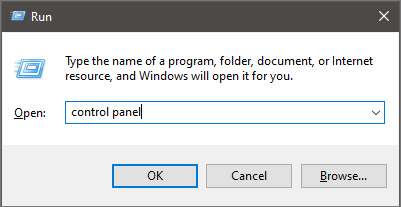
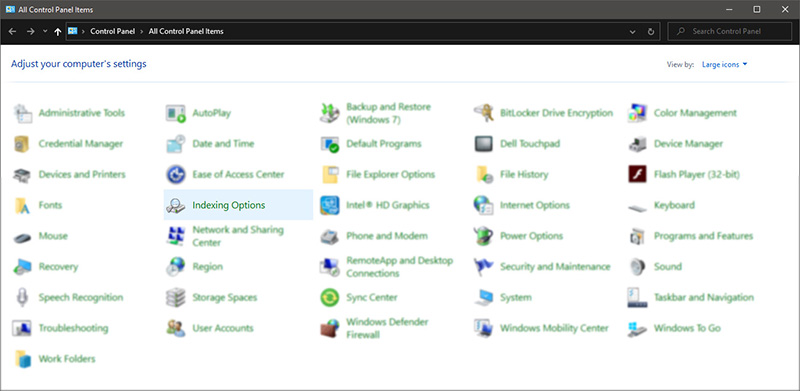
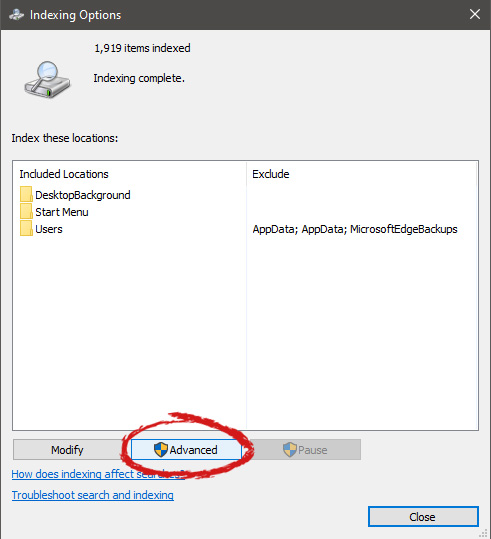
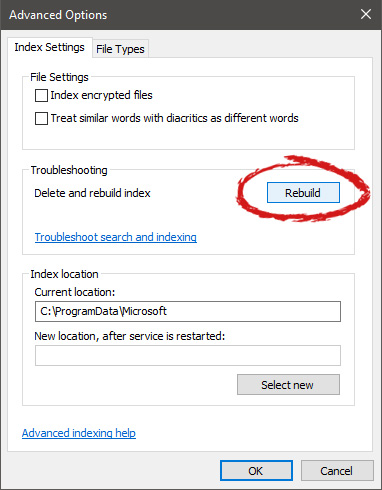
If by any chance your search result in Windows is misleading, missing, or incorrect then it is a high probability that your search index is out of date. To repair this issue follow this guide step by step. Please take note that rebuilding the whole search index can take a long time on some systems depending on the size of the index itself, CPU speed, HD speed, etc. Sometimes it can take even hours on large drives. First, press ⊞ WINDOWS + R to open the run dialog and type in it Control panel to open the control panel. keyboard with windows and r markedrun dialog with control panel typed in Once you are in the control panel, switch your view to large icons and locate Indexing options. Control panel with indexing options selectedInside indexing options, click on advanced. indexing options advanced button markedIn advanced options click on the rebuild and confirm. indexing options rebuild button markedLeave your computer to finish and your searches should be working fine now.
Read More
Fix cannot open IPv4 Properties in Windows 10
Many Windows 10 users often change the IP addresses of their computers’ network adapter in order to connect to the internet or network they belong to in times when there is no automatic connection for their computers. In most cases, access to modifying this setting is restricted for some odd reason even if you are an administrator. So if you are one of the users whose Windows 10 VPN IPv4 Properties are not working, this post can help you remedy that so that you can open and edit the IPv4 Properties on your Windows 10 PC. The common way to change IP settings is by going to Settings > Network and then to Internet > Change adapter options > Select Network adapter > right click and open Properties. From there, you can select TCP/IP 4 and modify it. If you aren’t able to do this, refer to the instructions laid out below to troubleshoot the problem in accessing the IPv4 Properties.

Option 1 – Try using PowerShell to manually set the IPv4 properties

As you are not able to set it using the interface, you can do so using PowerShell instead. Note that this option will only work for you if you run PowerShell with administrator privileges. After opening PowerShell, according to many users, you have to run the this command – set-DnsClientServerAddress -InterfaceAlias “Ethernet” -ServerAddresses xxx.xx.xxx.xxx,x.x.x.x,xxx.xx.xxx.xxx,x.x.x.x Usually, Ethernet is the name of your network adapter which is set by default. If you want to see the actual name of your network adapter, you can just type this command and tap Enter after doing so – Get-NetAdapter -physical | where status -eq 'up' After entering the given command, you will see a list of active Ethernet adapter in your computer as you can see on the image above. Note that the 4 sets of X like the one on the image below should match with the sequence:

Option 2 – Try editing the rasphone.pbk files

The rasphone.pbk files stores property for the connections and since you are not able to access the IPv4 properties, it is most likely that it has been disabled here. The good thing is that you can open these files and edit them using Notepad. Refer to the steps below to do so.
  • Open the Windows Explorer and then enable the show hidden files option.
  • After that, look for the files at this location – C:Users <username>AppDataRoamingMicrosoftNetworkConnectionsPbk_hiddenPbkrasphone.pbk
  • Then right-click on it and select the “Open with” option and choose the Notepad app.
  • After opening the file, look for “IpPrioritizeRemote” from the long list.
  • Once you found it, set its value from “1” to “0”.
  • After that, look for “IPInterfaceMetric” and set its value to “1” and tap Ctrl + S to save the changes you’ve made, and then exit and try accessing the IPv4 properties again. It should work, but if you’re still unable to access it, try the next option below.

Option 3 – Enable the Split Tunneling if you use VPN

All data goes back and forth when you are using a VPN service on your computer. And since you are using VPN, it could be that it disables the IPv4 interface. If that’s the case, you need to stay connected with both the local network and VPN and to do so, you have to enable Split Tunneling. How? Follow these steps:
  • Open PowerShell with administrator privileges.
  • Next, type in “Get-VpnConnection” and tap Enter. After doing so, it will give you the exact name of your VPN.
  • After that, type in “Set-VpnConnection -Name “yourVPNName” -SplitTunneling $True” and tap Enter. Once you enter the command, it will free your IPv5 settings so that you can change it to connect with your local network if you prefer it to.
Read More
How to Fix Error 0199, Security password retry
The errors that are caused by the BIOS of your computer can get annoying as they can be hard to fix for they are really dangerous and won’t be resolved by simple fixes. This is because of the fact that these kinds of errors do not even allow you to load your operating system as it throws the error even before you can access your computer. One of these errors is the “Error 0199: System Security – Security password retry count exceeded”. Fixing this error can be quite tricky but you need not worry for you will be guided in doing so. Simply follow the given instructions below.

Option 1 – Try to update the BIOS

Updating the BIOS can help you fix the “Error 0199, Security password retry count exceeded” error but as you know, BIOS is a sensitive part of a computer. Even though it is a software component, the functioning of the hardware depends on it largely. Thus, you must be careful when modifying something in the BIOS. So if you don’t know much about it, it’s best if you skip on this option and try the other ones instead. However, if you are well-versed in navigating the BIOS, then follow the steps below.
  • Tap the Win + R keys to open the Run dialog box.
  • Next, type “msinfo32” in the field and press Enter to open System Information.
  • From there, you should find a search field on the bottom where you have to search for the BIOS version and then press Enter.
  • After that, you should see the developer and version of the BIOS installed on your PC.
  • Go to your manufacturer’s website and then download the latest version of BIOS on your computer.
  • If you are using a laptop, make sure that you keep it plugged in until you have updated the BIOS.
  • Now double click on the downloaded file and install the new BIOS version on your computer.
  • Now restart your computer to apply the changes made.

Option 2 – Try resetting the BIOS

If updating the BIOS didn’t help in fixing Error 0199, you can try to reset the BIOS instead.
  • Start your computer and tap the F10 key during the booting process to enter the BIOS. If it does not work, you can try tapping the F1 or F2 key as well as the Del key.
  • Once you’re already in the BIOS, tap the F9 key to get the prompt to RestoreLoad default configuration now for the BIOS.
  • Next, click on Yes and then follow the next on-screen instructions that appear to set the BIOS back to its default settings.
  • Once you’re done restoring the default settings of the BIOS, restart your computer and then check if it now boots properly.
Read More
Kernel Mode Heap Corruption Error in Windows
Kernel Mode Heap Corruption is the error message that the Windows operating system throws when it encounters a blue screen of death or BSOD error during PC startup or launching specific programs such as video games. It is mainly caused due to software conflicts, driver issues (especially graphics card driver), and computer hardware malfunctioning. The good news is that this error is easily fixable. Follow the next steps in order to fix the error:
  1. Rollback graphic card driver

    Press ⊞ WINDOWS + X to open Windows secret menu and click on device manager Expand Display adapters section Right-click on your GPU and choose properties In properties window go to the driver tab and click on Roll back driver Select the reason for operation and click on YES Reboot your PC
  2. Update corrupted and outdated drivers

    How is this error mostly driver issue, updating and fixing bad drivers can fix it very easily. As in the previous step, you will need to open the device manager and go through all drivers and manually check for updates for each one, update as necessary or reinstall ones you might think have gone rogue. If you are not experienced enough with this kind of task install some automatic solution for this task like DriverFix
  3. Check for software issues

    If this error started happening after the installation of new software it is very likely that the application is causing problems. Try uninstalling or disabling the application to see if it will fix the issue. You can also boot Windows in safe mode to see if the error will happen there, if Windows is working fine in safe mode, it is likely that issue is on the software side.
  4. Run SFC scan

    Press ⊞ WINDOWS + X and choose Command prompt (admin) In command prompt type in sfc /scannow and press ENTER Wait for the process to be finished and Reboot the system
Read More
Microsoft Store not opening
When Windows 10 was introduced as an upgrade to Windows 7 and 8, a lot were thrilled because of its new features. One of the most interesting features that this has is the Microsoft Store. Just like in our tablets and smartphones, we can now download our favorite apps from a trusted source. Without the Microsoft store app, you can’t download any applications that you can use on your computer. But what happens if you can’t open your Microsoft Store or you accidentally uninstalled it? The most common error that users encounter when accessing Microsoft Store is the error code 0x80072efd. This error code appears when there is a problem with the internet connection. To resolve this, troubleshoot your modem by doing a simple power cycle. Turn off your modem and wait for a couple of minutes and turn it back on. It should refresh your internet. This works if there is really no problem on the Service provider’s side. Disable your Proxy server, if you are using one to access the internet. To do this, press Windows + R keys on your keyboard. Type “inetcpl.cpl” in the box and go to Connection. Next, click on LAN settings then tick on the box next to Automatically detect settings. Uncheck the box below Proxy Server Among the useful apps that came with the Windows 10 upgrade is PowerShell. It allows you to install and uninstall individual and all apps by using a series of commands. So you don’t have to worry if you can’t find your Microsoft Store or if you accidentally delete it. To access PowerShell, type in the word PowerShell into the search box found beside your Window Icon. Look for PowerShell from the results and right-click on it and hit Run as Administrator.

When you are in the PowerShell window, enter the command below:

Get-AppxPackage -allusers Microsoft.WindowsStore | Foreach {Add-AppxPackage -DisableDevelopmentMode -Register "$($_.InstallLocation)AppXManifest.xml"
Another option is to download a Windows Update Troubleshooter. After you download it, open the troubleshooter tool and follow the steps. If you saved the file instead of directly opening it, go to the folder where the troubleshooter was saved and double click on the wu.diagcab file to rub the troubleshooter. One of the most interesting error codes that you might encounter when accessing the Microsoft store is error code 1. This particular error code is resolved by changing your PC’s region to the United States. To do this, go to Settings and look for Time & Language. Then go to region and language. Under the Country or region, choose the United States from the dropdown menu then restart your computer. The troubleshooting procedures above are the most common solution to resolve the problem on Microsoft Store issues but there are times that these procedures won’t work. If you are not confident to resolve this through the procedures mentioned in this article, there are so many tools online that you can download to help you out. It also helps to contact Microsoft or consult a technician to ensure that you are doing the correct procedure.
Read More
Windows 10 exploit using App installer
Scammers have decided to target Windows’s 10 App installer process in order to infect your computer and steal your data. windows 10 mail exploitAs in most usual online scams, everything starts with a strange email containing threats and other poorly written and composed speech. At the end of the given email, there would be a link claiming that you, of course, need to read it and follow instructions about the threat, if you click the link it will open a web page where you will have an innocent-looking PDF file with more information about the threat itself. If you click on a seemingly innocent PDF file it will summon Windows 10's AppInstaller.exe tool, kickstarting a download-and-run process that'll put you in a bad place very quickly. From there, you'll have to deal with the dangers of malware BazarBackdoor, including data and credential theft. This kind of scam is nothing new but the interesting thing here is that it uses App installer and by clicking on a link you are opening and giving permission for a malicious crook to use it. So, stay safe and do not click on any links from unknown emails no matter what.
Read More
DDR5 what we know so far about it
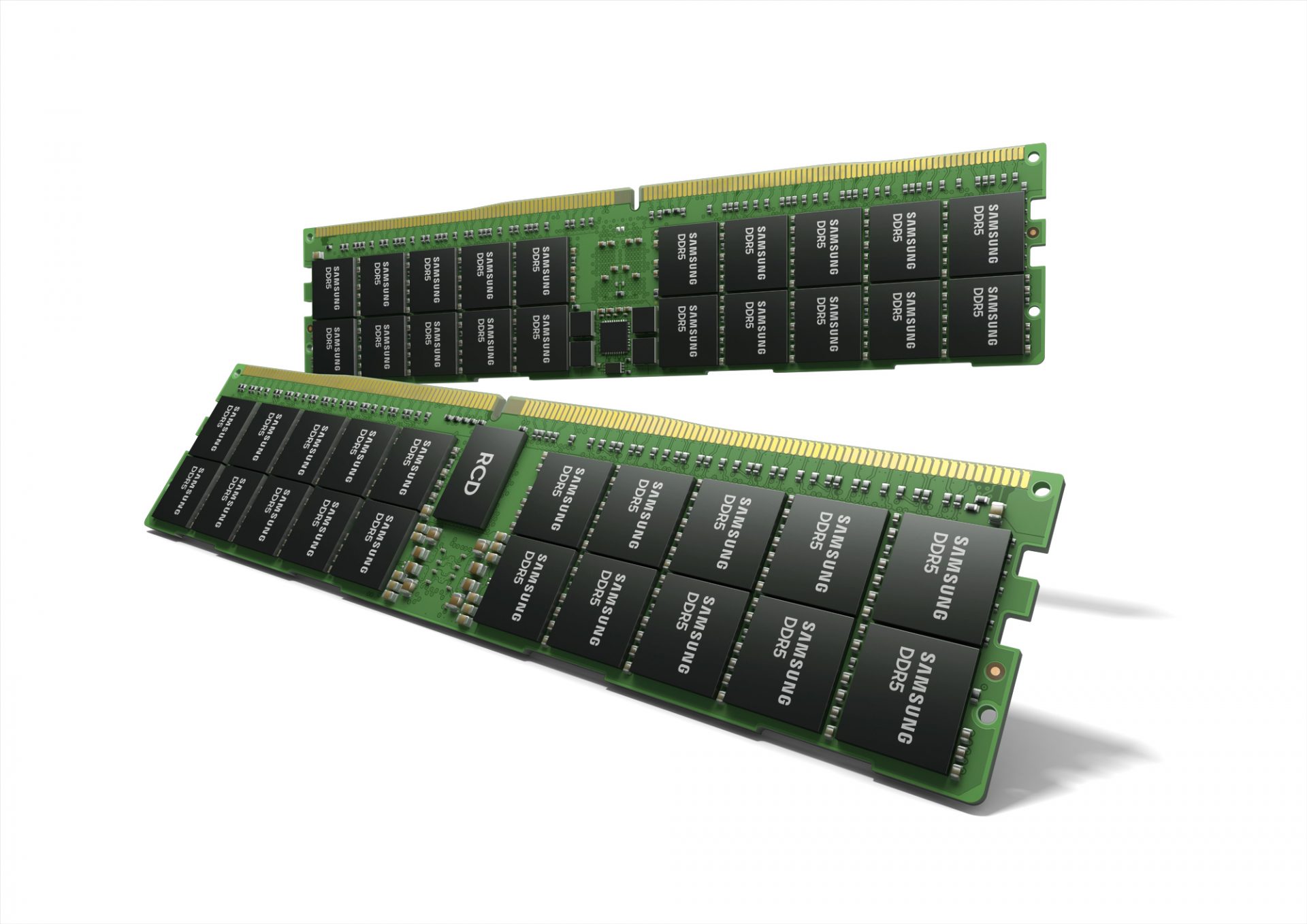
DDR5 memory moduleNext-generation of RAM, DDR5 supposed to hit shelves around late summer or fall in 2021if everything goes as planned. Its goal is to increase speed and efficiency, wants to pack more memory in a single stick, and have better power management.

Hardware requirements for DDR5

Using the latest memory technology will require other hardware to follow certain standards and the first ones that will need to follow are CPUs and Motherboards. Intel is already prepared with its Alder Lake CPUs that suppose to come out also later this year. AMD on other hand has not stated anything at the time of this writing but it is a bet that their next generation that will come in 2022 will have full support. It is speculated that bot companies and their respective CPUs will have both support for DDR4 and DDR5. A story about motherboards is a little different. Motherboards will support DDR4 or DDR5 memory banks, not both, so make sure that your motherboard will support the memory you plan on getting.

Capacity of memory

The goal and aim for the DDR5 memory stick are to reach a whopping 126GB per stack. This will be done by using a dual in-line module or DIMM enabling larger capacity. That being said, the first modules that we will see are more likely to be 16GB as standard and 8GB as low entry ones.

Power consumption of DDR5 memory

The standard voltage that DDR4 operates under is 1.2V. DDR5 wants to lower this to 1.1V without sacrificing speed. Voltage regulation on modules themselves will be now integrated on memory banks instead of leaving that to motherboards which will help to detect memory errors directly on the memory bank.

Speed of memory

The most common speed of DD4 memory banks is 2,666MHz, more expansive ones go from 3,600 to 4,000MHz. DD5 aims to raise this bar to 4,800MHz and offers greater speed.

Should you get it right away?

Hardware is ever-evolving, we have PCIe 3.0 to PCIe 4.0, and taking into account that sometimes the newest tech can cause some unexpected behavior it is always the best strategy to wait for a little. Price for the newest tech has also been in its heist just when it is released and seeing how DDR5 will benefit mostly servers mostly since even today memory, processors, and other available equipment can tackle all daily tasks.
Read More
1 2 3 171
Logo
Copyright © 2023, ErrorTools. All Rights Reserved
Trademark: Microsoft Windows logos are registered trademarks of Microsoft. Disclaimer: ErrorTools.com is not affiliated with Microsoft, nor claims direct affiliation.
The information on this page is provided for information purposes only.
DMCA.com Protection Status