Fix Error 0164, Memory size decreased

Computer upgrades are the most common and most efficient ones. RAM upgrade is one of the easiest ones you can do and the most common ones but even as simple an upgrade as this one can cause certain issues.

If you are experiencing error 0164, memory size decreased after RAM upgrade we are offering you solutions on how to fix this particular error and get your computer back in working order.

  1. Change BIOS settings

    Enter your motherboard BIOS (usually by pressing the del key on startup)
    Load BIOS defaults
    Save changes and exit
    If the Error 0164: Memory size decreased issue persists even after loading setup defaults, then it must be configured manually inside the BIOS.

  2. Clear CMOS

    Follow the instructions precisely:

    • Turn off all peripheral devices connected to the computer.
    • Disconnect the power cord from the AC power source.
    • Remove the computer cover.
    • Find the battery on the board. The battery may be in a horizontal or vertical battery holder or connected to an onboard header with a wire.

    If the battery is in a holder, note the orientation of the + and – on the battery. With a medium flat-blade screwdriver, gently pry the battery-free from its connector.

    If the battery is connected to an onboard header with a wire, disconnect the wire from the onboard header.

    • Wait one hour, then reconnect the battery.
    • Put the computer cover back on.
    • Plug the computer and all devices back in.
    • Power on the computer.

Do You Need Help with Your Device?

Our Team of Experts May Help
Troubleshoot.Tech Experts are There for You!
Replace damaged files
Restore performance
Free disk space
Remove Malware
Protects WEB browser
Remove Viruses
Stop PC freezing
GET HELP
Troubleshoot.Tech experts work with all versions of Microsoft Windows including Windows 11, with Android, Mac, and more.

Share this article:

You might also like

Installing Windows 11 on Raspberry Pi 4
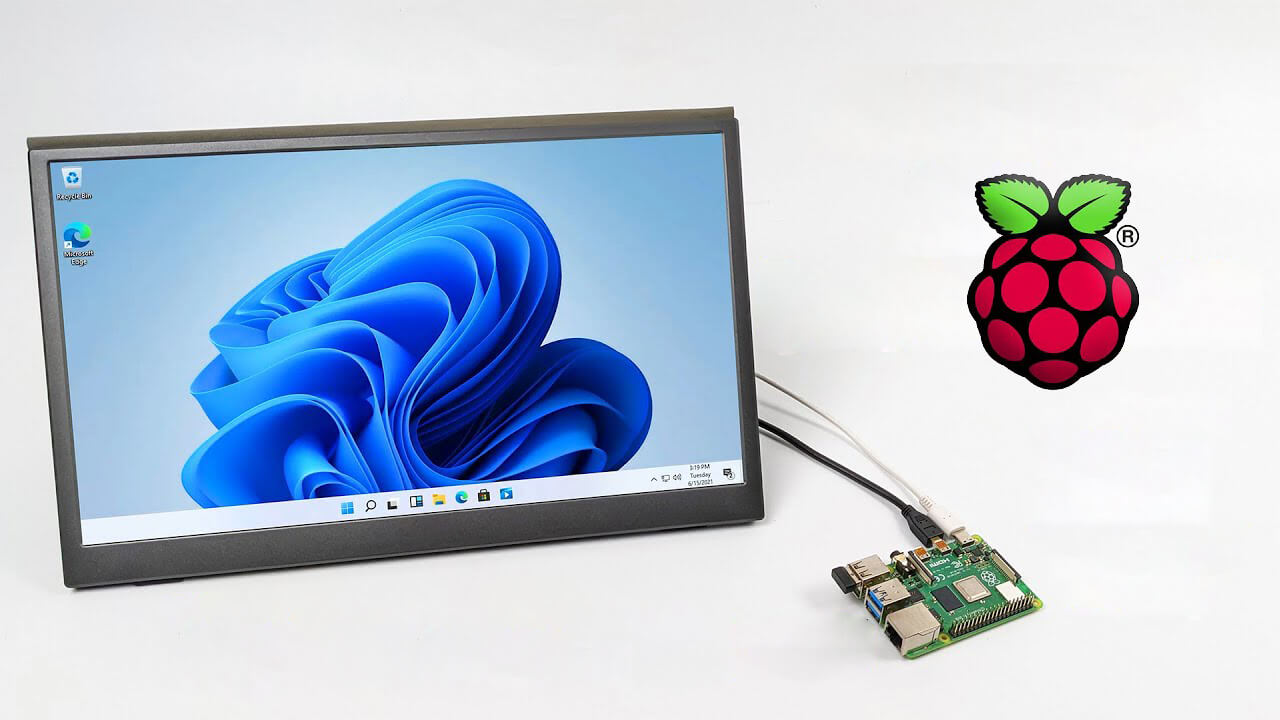
A lot of controversies and mixed emotions have come from statements about Windows 11 minimum system requirements, especially ones linked to TPM. Naturally, each time some software company giant announces how things are must have there are people who go out and prove them wrong. This time Raspberry Pi community was one which demonstrated that not only Raspberry Pi does not have a TPM module, it can run the full desktop version of Windows 11

Windows 11 on Raspberry Pi 4Raspberry Pi 4 and things you need for Windows 11 installation

In order to actually install Windows 11 on your Pi, there are certain things that you will need. Check out the below list and prepare everything.
  • Raspberry Pi 4 4GB or 8GB
  • A 32GB or larger SSD via a USB 3 caddy. Best for performance or 16GB or larger microSD card
  • USB boot enabled, see below.
  • A micro SD card with the latest Raspberry Pi OS
  • Windows 10 PC
  • USB to Ethernet or WiFi dongle
  • Bluetooth dongle (if you want Bluetooth)
  • Keyboard, mouse, HDMI, and power for your Raspberry Pi

Configuring Pi to boot from SSD

In order to boot from SSD be sure that firmware and bootloader are up to date on the latest version and upgrade if needed. Be aware that this firmware update can only be performed using the official Raspberry Pi OS. Also if you are eager and want to use a standard microSSD card instead of an SSD to run Windows 11 feel free to skip this entire section.
  1. Boot from microSSD with the latest Raspberry Pi OS on it.
  2. Update firmware and OS using the terminal by typing sudo apt update sudo apt full-upgrade sudo rpi-update
  3. Reboot your Pi
  4. Install the latest version of bootloader again using the terminal with the command sudo rpi-eeprom-update -d – a
  5. Reboot Pi
  6. Launch raspi-config on your Pi via terminal with sudo raspi-config
  7. Select option 3 (Boot options – Configure options for start-up) from boot options
  8. Select Boot ROM version and press ENTER
  9. Select latest and then OK
  10. Select NO when prompted to reset boot ROM to defaults on the latest version boot ROM selected screen. Press OK
  11. Select Boot order and press ENTER
  12. Select USB Boot and click on OK and remove microSD card from Pi
  13. Select Finish and click on NO when prompted to reboot

Creating Windows 11 installation image for Pi 4

In order to install Windows 11 on our Pi, we must create an installation image, follow the steps below explaining the process.
  1. Go to https://uupdump.net/
  2. Search for Windows 11 Arm
  3. Select the latest build for arm64
  4. Select Language on which you would like installer and Windows
  5. Pick Windows edition you would like
  6. Set download method to Download and convert to ISO and click on Create download package
  7. Extract downloaded content into win11 folder and go into it
  8. Double click on uup_download_windows.cmd
  9. On the security warning screen click on More info and then on Run anyway
  10. Wait for the process to finish completely
  11. Once the process is finished, press 0 to close the prompt

Installing image on microSSD or SSD

If previous steps of instruction were follower precisely you now have an ISO image that can be installed onto microSSD or SSD
  1. Connect SSD or insert microSSD card into your PC
  2. Go to https://www.worproject.ml/downloads
  3. Download Windows on Raspberry imager and extract it into the win11 folder
  4. Open Imager and allow it to make changes to your computer, set your language, and click on next
  5. Select storage drive where you would like to install Windows
  6. Set device type and click on next
  7. Select our Windows 11 ISO image we created and click on next
  8. On the drivers screen select Use the latest driver package available on the server
  9. On UEFI firmware select screen choose Use the latest firmware available on the server
  10. On configuration screen click on next
  11. Check your setting on the installation overview and if everything is ok click on install
  12. Wait for the whole process to be finished
  13. Once the process is completed, close Windows on Raspberry imager, take out SSD or microSSD card from PC and connect it on your Pi along with Pi peripherals.

Setting Windows 11 on Pi

In order to actually use Windows 11 on our Raspberry Pi we now have to set up the Windows 11 install using the standard post-installation setup sequence.
  1. Power up Pi and press ESC when prompted
  2. Go to Device manager and press ENTER
  3. Select Raspberry Pi Configuration
  4. Select Advanced configuration
  5. Set Limit RAM to 3GB to a disabled state, press F10 to save, and ESC to exit.
  6. Select Display configuration
  7. Set the resolution to desired option and press ENTER, F10 to save, and ESC to exit
  8. Go to CPU configuration
  9. Check if the CPU clock is set to default, if not set it
  10. Press ESC to go back all the way to the main menu
  11. Select Continue to exit BIOS and boot your Raspberry Pi with Windows 11 on it
And there you have it, fully working Windows 11 OS on Raspberry Pi despite what Microsoft says Note that due to lack of some drivers performance can be less than optimal, for example, full HD videos will not work since there are no compatible graphic drivers for Pi and some other stuff like Wi-Fi will also cause some issues but overall Windows 11 is working pretty well.
Read More
Sites for COVID-19 information
Living in today's world sadly is still living in the COVID-19 pandemic. It has been more than a year and sadly pandemic is still very strong and we are battling it on a daily basis. Governments all over the world are trying to battle pandemics in their own way with their own ideas and prevention measures. We as individuals can not very much influence how will the pandemic itself go but fortunately in this modern age of information we can at least follow and be in the loop at the current state of the situation regarding it. Today instead of having a troubleshooting article or tips and trick for your PC we are doing something else but in the domain of internet technology, you know, just to keep everything still IT related ???? Below you will find websites with small descriptions of what they do to keep yourself informed and hope to get over this dreadful pandemic.
  1. The WHO’s COVID-19 Dashboard

    If you are interested in real-time COVID-19 information about active cases, death tool so far, new cases and the number of vaccines administrated so far I would recommend WHO's dashboard. How WHO is a non-government institution composed of doctors from all over the world with just a single goal in mind, to help and put an end to this pandemic is a great non-biased source of information on the current state of virus spread.
  2. Vaccine Finder

    Please be aware that Vaccinefinder is working only on the territory of the United States of America. The reason why it was included in this list is that basically it is a great idea and I hope to see this site expand on other world regions or at least that inspires the emergence of another worldwide website with this type of content. If you live in the USA, this site will be a great help since you can track where and how many shots are distributed to states and even towns in America.
  3. COVID tracking project

    This site is also for U.S. residents, this time it is about tracking cases in each state with details and statistics. If you are interested in more detailed statistics of hospitalized patients per state or overall you are just interested in statistics about the pandemic in the U.S. this site might provide all the information about your needs.
  4. NPR

    On national public radio or NPR for short, there is a special section devoted to the coronavirus where new articles about pandemic are released daily with new information and new findings on how to battle it and the current state of things. A great informational site to keep up with the current state of things.
  5. Google's COVID-19 page

    Google has not been inactive during this pandemic and on its page specially dedicated to the COVID-19 virus you can find a lot of free information updated daily. From safety and prevention tips to data about pandemics there is a lot of ground covered on-page and we recommend at least going through the prevention section to inform yourself how to keep yourself and others safe.
  6. Coronavirus tracker

    This daily updated chart can show how many cases and deaths are from chosen time period all in form of a chart, you can see charts for each country in the world how COVID cases rose or dropped along with the death tool it brought.
There you go, 6 websites to track and inform yourself about this dreaded pandemic which has managed to change the world and people's lives forever, sadly on the bad side.
Read More
NewTabAid Malware Removal Guide

New Tab Aid is an extension for Google Chrome. It is published by Spigot Inc. It is classified as a potentially unwanted browser hijacker as it injects Yahoo search into your new tab windows. This extension also adds recently viewed tabs under the search bar. It also redirects all your searches to Yahoo instead of your default browser search engine. It is often found bundled with other software found on the internet and not installed directly by the user. For these reasons, numerous anti-malware utilities flag New Tab Aid as potentially unwanted or malicious.

About Browser Hijackers

Browser hijackers (sometimes called hijackware) are a kind of malicious software that changes internet browser configurations without the user’s knowledge or permission. These types of hijacks appear to be increasing at an alarming rate around the world, and they could be actually nefarious and often harmful too. Browser hijackers could do more than just modifying homepages. The idea is to force users to visit specific websites that are looking to improve their website visitor traffic and produce higher ad earnings. Even though it may seem naive, all browser hijackers are damaging and therefore always regarded as security risks. Browser hijackers can even allow other vicious programs without your knowledge to further damage your personal computer.

Major signs that your web browser has been hijacked

There are numerous signs of browser hijacking: 1. the home page of your respective web browser is changed all of a sudden 2. you see new unwanted bookmarks or favorites added, typically directed to advertisement-filled or pornography sites 3. the default web browser settings are changed and/or your default web engine is altered 4. unwanted new toolbars are added to your browser 5. you observe numerous ads show up on your browsers or computer screen 6. your web browser gets sluggish, buggy crashes regularly 7. Inability to navigate to particular websites, particularly anti-malware and other security software sites.

How does a browser hijacker infect a computer?

Browser hijackers might use drive-by downloads or file-sharing networks or even an email attachment in order to reach a targeted computer. Many web browser hijackings come from add-on applications, i.e., toolbars, browser helper objects (BHO), or plug-ins added to browsers to provide them additional features. Browser hijackers sneak into your computer in addition to free software application downloads also that you unintentionally install alongside the original. Popular examples of browser hijackers include Conduit, CoolWebSearch, Coupon Server, OneWebSearch, RocketTab, Searchult.com, Snap.do, and Delta Search. Browser hijacking can result in severe privacy issues and also identity theft, affect your browsing experience by taking control of outgoing traffic, substantially slows down your personal computer by consuming a lot of resources, and cause system instability also.

How to fix a browser hijack

Certain browser hijacking could be quite easily stopped by discovering and eliminating the corresponding malware software through your control panel. However, most hijackers are hard to get rid of manually. No matter how much you attempt to remove it, it may come back again and again. Moreover, browser hijackers could modify the Windows registry therefore it can be very hard to repair manually, particularly when you’re not a very tech-savvy individual.

Virus Blocking Access To Safebytes Site And Preventing Anti-Malware Downloads - What To Do?

Malware can cause all kinds of damage if they invade your computer, from stealing sensitive information to deleting files on your computer system. Certain malware goes to great lengths to stop you from installing anything on your computer system, especially anti-malware software programs. If you’re reading this, you probably have affected by malware that prevents you from installing a computer security application like Safebytes Anti-Malware. Although this sort of issue will be tougher to get around, there are a few actions you can take.

Eliminate malware in Safe Mode

If any malware is set to load immediately when Microsoft Windows starts, getting into Safe Mode could block this attempt. Just minimal required applications and services are loaded whenever you start your personal computer into Safe Mode. The following are the steps you need to follow to take out viruses in Safemode. 1) Tap the F8 key repeatedly as soon as your PC boots, however, before the large Windows logo shows up. This should bring up the Advanced Boot Options menu. 2) Select Safe Mode with Networking with arrow keys and hit ENTER. 3) When this mode loads, you should have the internet. Now, obtain the malware removal application you want by using the web browser. To install the software, follow the directions within the installation wizard. 4) Once the application is installed, let the diagnostic scan run to eliminate viruses and other threats automatically.

Switch over to an alternate browser

Malicious program code may exploit vulnerabilities on a particular browser and block access to all anti-malware software sites. The most effective solution to avoid this issue is to choose a browser that is well known for its security measures. Firefox contains built-in Malware and Phishing Protection to keep you safe online.

Install and run antivirus from your USB drive

Another way is to download and transfer an antivirus application from a clean computer to run a scan on the affected system. Do these simple measures to clean up your affected computer using a portable antivirus. 1) Download the anti-malware program on a virus-free computer. 2) Insert the USB drive on the same system. 3) Double-click the exe file to open the installation wizard. 4) When asked, select the location of the pen drive as the place in which you want to put the software files. Follow the instructions on the computer screen to finish off the installation process. 5) Now, transfer the USB drive to the infected computer. 6) Double-click the Safebytes Anti-malware icon on the pen drive to run the software. 7) Run Full System Scan to detect and get rid of all sorts of malware.

Ensure the Safety of Your PC by Installing SafeBytes Anti-Malware

These days, anti-malware software can protect your computer from various types of internet threats. But exactly how to decide on the best one among many malware protection application that is available on the market? As you might be aware, there are several anti-malware companies and products for you to consider. Some of them are good, some are ok types, and some will destroy your computer themselves! When searching for antimalware software, pick one that provides reliable, efficient, and full protection against all known viruses and malware. One of the highly recommended software by industry experts is SafeBytes Anti-Malware, the most dependable program for Microsoft Windows. SafeBytes anti-malware is a powerful, very effective protection tool designed to assist end-users of all levels of computer literacy in detecting and eliminating malicious threats out of their computer. This program could easily detect, remove, and protect your computer from the most advanced malware attacks including spyware, adware, trojan horses, ransomware, parasites, worms, PUPs, along with other possibly damaging software programs. SafeBytes has excellent features when compared to various other anti-malware programs. Let’s look into some of them below: Active Protection: Malware programs trying to get into the computer are discovered and stopped as and when detected by the SafeBytes real-time protection shields. This tool will constantly monitor your computer for any suspicious activity and updates itself continuously to keep current with the latest threats. Antimalware Protection: With its enhanced and sophisticated algorithm, this malware removal tool can identify and remove the malware threats hiding in your PC effectively. Web Security: Safebytes allots all websites a unique safety rating that helps you to get an idea of whether the webpage you’re about to visit is safe to browse or known to be a phishing site. Lightweight: SafeBytes is well known for its minimal impact on computer resources and great detection rate of diverse threats. It operates quietly and efficiently in the background so you are free to utilize your personal computer at full power all of the time. 24/7 Customer Service: For any technical concerns or product assistance, you can get 24/7 professional assistance through chat and email.

Technical Details and Manual Removal (Advanced Users)

If you wish to manually remove NewTabAid without the use of an automated tool, it may be possible to do so by removing the program from the Windows Add/Remove Programs menu, or in cases of browser extensions, going to the browsers AddOn/Extension manager and removing it. You will likely also want to reset your browser. To ensure the complete removal, manually check your hard drive and registry for all of the following and remove or reset the values accordingly. Please note that this is for advanced users only and may be difficult, with incorrect file removal causing additional PC errors. In addition, some malware is capable of replicating or preventing deletion. Doing this in Safe Mode is advised.

The following files, folders, and registry entries are created or modified by NewTabAid

Files: C:windowssystem32services.exe C:Windowswinsxsamd64_microsoft-windows-s..s-servicecontroller_31bf3856ad364e35_6.1.7600.16385_none_2b54b20ee6fa07b1services.exe C:WindowsInstallerbbee3ba2-89af-930c-bb78-1fb4e17db3cc C:DOCUME~1USER~1LOCALS~1Tempnsw1.tmp C:c0b5e060b7e0becc89a6b6111a8644db7612072dc9a02f5bd32dc25dc459d7 C:DOCUME~1USER~1LOCALS~1Tempnsw2.tmp C:DOCUME~1USER~1LOCALS~1Tempnsg3.tmp C:DOCUME~1USER~1LOCALS~1Tempnsg3.tmpSM.dll C:WINDOWSRegistrationR000000000007.clb C:WINDOWSsystem32rsaenh.dll C:c0b5e060b7e0becc89a6b6111a8644db7612072dc9a02f5bd32dc25dc459d7 C:DOCUME~1USER~1LOCALS~1Tempnsw2.tmp C:WINDOWSRegistrationR000000000007.clb C:WINDOWSsystem32rsaenh.dll c:autoexec.bat C:WINDOWSsystem32cmd.exe C:DOCUME~1USER~1LOCALS~1Temp~sp4.tmp.exe C:DOCUME~1USER~1LOCALS~1Tempnsb6.tmp C:DOCUME~1USER~1LOCALS~1Tempnsw2.tmp C:DOCUME~1USER~1LOCALS~1Tempnsg3.tmpSM.dll C:DOCUME~1USER~1LOCALS~1Tempnsg3.tmpSystem.dll C:DOCUME~1USER~1LOCALS~1Tempnsg3.tmp.dll C:DOCUME~1USER~1LOCALS~1Tempnsg3.tmpNSISdl.dll C:DOCUME~1USER~1LOCALS~1Tempnsg3.tmppixel C:DOCUME~1USER~1LOCALS~1Temp~sp4.tmp.exe C:DOCUME~1USER~1LOCALS~1Tempnsb6.tmp C:DOCUME~1USER~1LOCALS~1Tempnsb7.tmpSystem.dll C:DOCUME~1USER~1LOCALS~1Tempnsb7.tmpSM.dll C:DOCUME~1USER~1LOCALS~1Tempnsw1.tmp C:DOCUME~1USER~1LOCALS~1Tempnsg3.tmp C:DOCUME~1USER~1LOCALS~1Tempnsg3.tmpNSISdl.dll C:DOCUME~1USER~1LOCALS~1Tempnsg3.tmppixel C:DOCUME~1USER~1LOCALS~1Tempnsg3.tmpSM.dll C:DOCUME~1USER~1LOCALS~1Tempnsg3.tmpSystem.dll C:DOCUME~1USER~1LOCALS~1Temp~sp4.tmp C:DOCUME~1USER~1LOCALS~1Tempnsr5.tmp C:DOCUME~1USER~1LOCALS~1Tempnsb7.tmp C:DOCUME~1USER~1LOCALS~1Tempnsb7.tmpSM.dll Registry: HKEY_LOCAL_MACHINESOFTWAREWow6432NodeMicrosoftWindowsCurrentVersionRunRandom.exe HKCUSOFTWAREMicrosoftWindowsCurrentVersionRunRandom.exe HKEY_LOCAL_MACHINEsoftwaremicrosoftwindowscurrentversionpoliciesexplorerEnableShellExecuteHooks= 1 (0x1) HKEY_LOCAL_MACHINESOFTWAREMicrosoftWindowsCurrentVersionpoliciesExplorerrunRandom.exe

Read More
Cleaning your PC for better performance
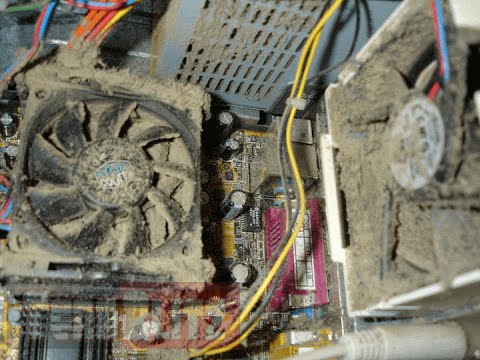
Hello everyone, last time we were talking about disk cleanup and its benefits, but as you need to keep your System clean you should also clean and keep your hardware clean as well. Many system issues could be traced and could happen due to dirty PC. In this article, we will give you tips on how to perform safely cleaning on your computer and hopefully point good sides to it so you can develop a healthy habit of regularly cleaning it and keeping it tidy. dirty PC that needs cleaningKeeping your PC clean is not rocket science and you can do it with things you already and probably have in your house. One thing that I would recommend tho to purchase is antistatic gloves since they could prevent any kind of electrostatic discharges thus protecting your electric components. If you have the option to disconnect your PC and get it outdoors, I would highly recommend this approach since all the dust will be dusted outside and not in the room where your computer is. If you can not it is still ok, but since some portion of dust will be set in the room, you might need to dust your room after cleaning your computer.
Cleaning outside case & redusting inside

The first thing after disconnecting your computer is to dust it from outside, here you will need a vacuum cleaner and a brush, gently brush outside dust from your casing and vacuum it with your vacuum cleaner. You can use dustcloth for larger parts but use the brush for fans and connectors. After you have done cleaning the outside part, open the side of your computer casing, put on your antistatic gloves, and get a fine and soft brush, repeat dusting and vacuuming of the inner parts of your computer. If your computer is not regularly been cleaned this part will take a little longer since there would be excess dust inside and it will take a longer time to vacuum it all but keep going until you are left with no dirt.

Cleaning it inside

Fans are troublesome to clean since they will rotate when brushed and that could make you miss certain sports, in order to battle this get a tape and stick the fan into one position, brush areas that you can reach, then unstick it, rotate the head, stick it again in another position and dust off remaining areas which you could not reach before. If your computer is very dirty and some hard dirt is at bottom of the connectors, disconnect desired component and clean the connection properly. plug it back in immediately after cleaning to avoid connecting it somewhere else. Harder stains that could not be dusted could be cleaned with little alcohol. Get your dustcloth just a little wet with alcohol, just a corner, and gently wipe out sticky dust or spills if they are present. Leave it 10 minutes for alcohol to evaporate before plugging it back into an electric socket.

Thermal paste and cable management

If you have money and expertise, every 2 years would be a good idea to change the thermal paste on your processor, all you need to do is buy it from your local computer store online, remove the CPU fan clean the CPU and bottom of the fan and apply new thermal paste, place fan back and lock it. If you do not have expertise in this area, call someone who has to show you how it is done. When cleaning it would be a good idea if you do not have any cable management to do it now, nice and tidy cables not only look good, they also improve your air circulation inside your casing making your computer cooling better. once you are done with it, close back the casing side and plug it back in the wall.

Peripherals

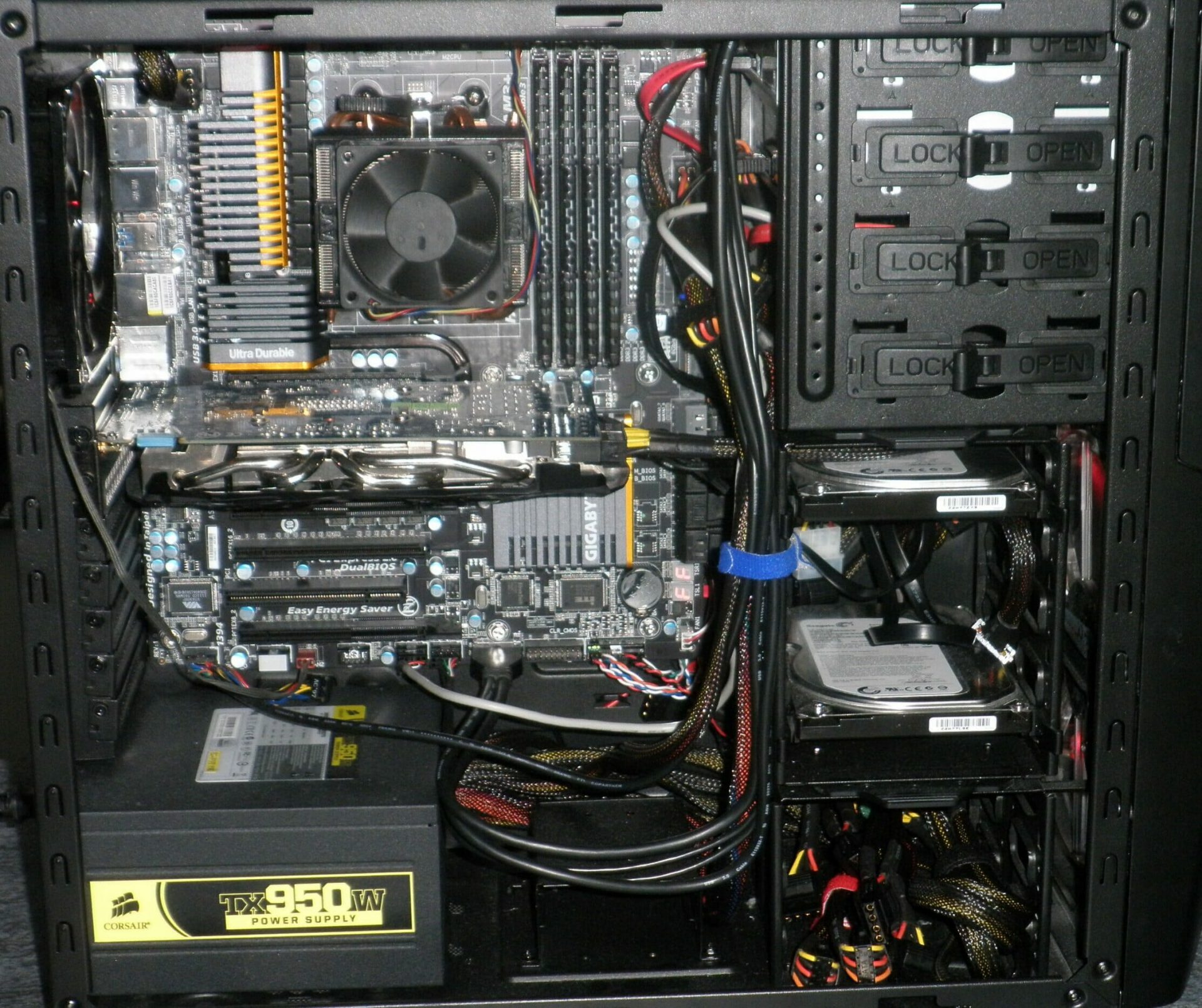
When you are cleaning your computer, do yourself a favor and clean your keyboard, mouse, and screen as well. the keyboard can be quickly cleaned with compressed air in the can and screen and mouse with dustcloth. That's it, remember, keep your PC clean and tidy and enjoy the benefits of non-hardware malfunctions caused by dirt and dust. cleaned PC
Read More
What to do if you can’t find Recycle Bin
The Recycle Bin is undeniably an important place to make files ready for deletion. To put it simply, it assumes some importance but there are times when it displays an unpredictable behavior. For instance, it just suddenly goes missing and even Cortana is unable to find it. A lot of users have experienced the missing Recycle Bin issue in their Windows 10 computers. If you are one of these users, you might have wondered where the Recycle Bin icon has gone and how you can get it back. Worry not, as this post will provide you a couple of options you can try to bring back Recycle Bin in your Windows 10 computer. Follow the given options below to get started.

Option 1 – Try to restore Recycle Bin

It could be that you have disabled the Recycle Bin by accident which is why Windows was not able to show it on your desktop. To restore Recycle Bin, follow these steps:
  • First, click on the Start button and select Settings.
  • Next, select the Personalization setting and then select Themes from the left pane.
  • After that, click on the “Desktop icon settings” link under the “Related Settings” heading. This will display a list of icons in the Desktop Icons window.
  • From there, make sure that you check the checkbox for “Recycle Bin” to make it appear on your Desktop screen once again.

Option 2 – Try to recreate the Recycle Bin

If the first option didn’t work, then it could be that Recycle Bin might have been deleted which is why you fail to restore it. And to resolve this problem, you need to recreate Recycle Bin. Refer to the following steps to do so:
  • You need to launch the Windows File Explorer first and go to the View tab.
  • From this tab, select Options and click on the drop-down arrow and then select the “Change folder and search option”.
  • Afterward, switch to the View tab when the Folder Options window appears on your screen and select the “Show hidden files, folders, and drives” option.
  • And then unmark the checkbox next to the “Hide protected operating system files (Recommended)” option and click on both the Apply and OK buttons, respectively.
  • Next, go back to the File Explorer and click on “This PC” located on the left bar and go to the C: drive.
  • From there, you will find a file named “$Recycle.Bin” located at the top.
  • Open this folder to access its contents and you should see the Recycle Bin icon located at the top.
  • After that, right-click on the Recycle Bin icon and click on the “Send To” option and then click on “Desktop (create shortcut)”.
  • It will then confirm and recreate the Recycle Bin icon on your Desktop screen.
Note: Even though this icon is quite similar to the original one, it actually differs from it. The difference is that you won’t see if fill up when you delete files and you can’t simply empty it by right-clicking on the shortcut. On the other hand, you can still drag items into it just like with the original one. So when you want to empty the content of the newly restored Recycle Bin, you just have to double-click on the shortcut and right-click on the recycle bin in the window that appears, and select the “Empty Recycle Bin” option. In addition, now that you’ve set up the Recycle Bin shortcut, you have to re-activate the “Hide protected operating system files” to keep the important files and folders in your computer hidden.

Option 3 – Try to repair the Recycle Bin

If both the first two options failed to restore the missing Recycle Bin, then you can try repairing it instead. There are times when the Recycle Bin is removed from the Desktop screen due to some corrupted Windows system files. To fix these corrupted system files, you can run the DISM tool. This tool is known to repair potentially corrupted files in your system as having them could also system issues like the missing Recycle Bin. To repair these corrupted system files, you can run the DISM commands:
  • Tap the Win + X keys and click on the “Command Prompt (Admin)” option.
  • After that, input each one of the commands listed below sequentially to execute them:
    • Dism /Online /Cleanup-Image /CheckHealth
    • Dism /Online /Cleanup-Image /ScanHealth
    • Dism /Online /Cleanup-Image /RestoreHealth
  • Once you’ve executed the commands given above, restart your computer and check if the problem is now fixed.

Option 4 – Make sure that you are not in Tablet Mode

Since Windows 10 is designed to work on both desktop and mobile devices, it could be that your computer has slipped into Tablet Mode which explains why you’re not seeing the Recycle Bin. To check if your computer is really in Tablet Mode, follow these steps:
  • Go to the Start menu and select Settings.
  • Next, select the System setting and from the left pane select the Tablet Mode.
  • From there, make sure that the buttons next to the options given below are set to the off position:
    • Hide app icons on the taskbar in tablet mode
    • Automatically hide the taskbar in tablet mode
Read More
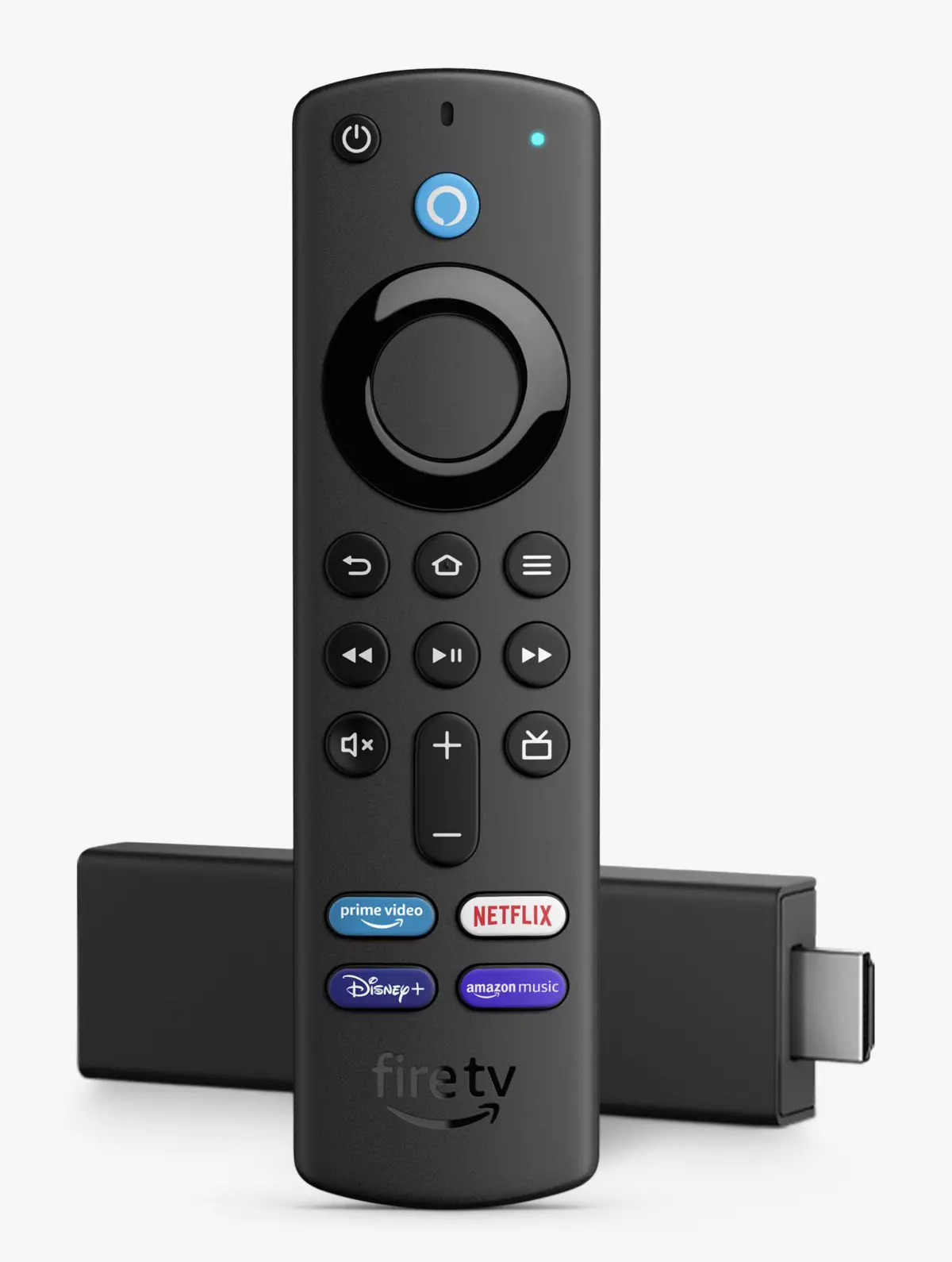
Jailbreak Amazon Fire TV stick

Sometimes we need and want some apps that are not part of the official Amazon Appstore but having their Fire TV stick prevents us from installing anything that's not in their store, or does it?

amazon tv stick

You can quickly "jailbreak" given stick and unlock additional installations via different providers. Although the term jailbreaking is associated with illegal and hacker activities rest assured that in this case there is nothing illegal about this procedure and that you are entirely safe.

Jailbreaking process

In order to do this procedure firstly you will have to allow the installation of apps obtained from outside the Amazon Appstore. To do this open the settings menu on your Fire TV Stick and inside settings choose My Fire TV. On the My Fire TV page select Developer Options and inside select Apps From Unknown Sources. The prompt screen will open, choose Turn On to activate the option.

APK installation is enabled now and the next step is to download an app like Downloader that will allow you to get your favorite apps. Downloader is free to download manager fully available on the Amazon Appstore and with it, you can download any kind of file to your device including APKs.

Once installed open the Downloader app and type in the URL or search term in order to find your application of choice but please do get all of your APK from trusted sources in order to avoid exploits and getting malware.

Read More
Is it wise to keep old electronics

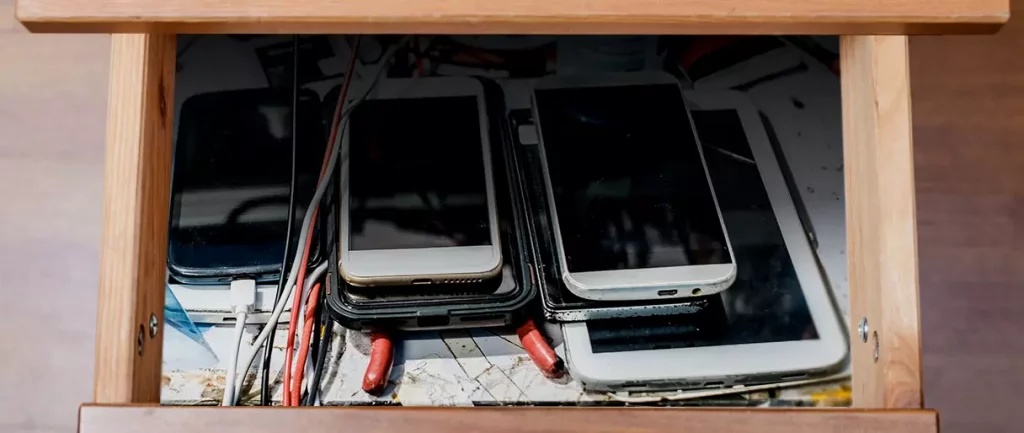
Hello all the wonderful people and welcome to our new article where we take a little different turn than usual and discuss why keeping old electronics around the house is not such a good idea. We all have some drawer or in some bag around the house and in the end of the day if that electronic has battery inside it is probably not the smart thing to keep it.

So naturally, the question comes why it is a bad idea to have old electronics with batteries in them? Well unlike a battery failure with, say, some AA batteries jammed in the back of an old toy, the risk with a lithium-ion battery failing isn’t just some leaking and corrosion in the battery compartment, it’s a potential fire as the battery swells up and the gases (combined with the stored energy) turn the battery into a potential fire hazard.

Good thing is that the battery will not explode just like that, it will swallow over time and get bigger and bigger until the breaking point is reached and all the fire breaks lose. So if by any chance you have some old gadgets lying around you can check up on them and see if has swelling process started, if yes, dispose properly of that piece of the old device immediately.

How to keep old electronics

If you’re not ready to get rid of the gadget then it’s best to charge it properly for storage. Proper charging keeps the battery cells and circuits in optimum health.

While recommendations vary by manufacturer and application, the general consensus is that lithium-ion batteries should be charged to approximately 40%. (Some manufacturers recommend charging 50% or 60% instead.)

Really, the important part here isn’t the exact percentage. What’s important is ensuring that the battery is charged to roughly half capacity and not stored with a completely discharged or completely full battery.

Discharge rates on lithium-ion batteries in completely powered-off devices are very slow, but you should still plan to top off the charge every 12-18 months or so to keep it around 50%.

If you wanted to go above and beyond, a metal storage container with a snug lid on a basement shelf with a desiccant pack inside to control the moisture would offer optimum conditions.

Read More
Could not configure one or more components
If you are trying to install or upgrade your Windows 10 computer but suddenly encountered an error message saying, “Windows could not configure one or more system components”, read on as this post will show you how you can fix the problem. You are not alone in experiencing this problem as other users also reported having the same scenario. Some of them reported getting the following error message:
“Windows could not configure one or more system components. To install Windows restart the computer with error code 0xc1900101-0x30018.”
When you check on the Windows 10 rollback log, you will see a part with the “iisetup.exe” that’s related to the abort. Usually, the upgrade process completes over 50% and gets stuck and then rolls back later on and generates the error logs. This kind of error, in most cases, appears during the upgrade of Windows 10 and is related with the Internet Information Services or IIS in Windows 10. For some unknown reason, it restricts the installation or the upgrade which causes the error to appear. To fix the “Windows could not configure one or more system components” error, you can try to remove the IIS from the Windows Features or rename the “inetsrv” folder. You could also move all the folders related to IIS to another drive. For more details, refer to the options provided below.

Option 1 – Try to remove the IIS from Windows Features

The IIS is installed from the Windows Features and you can find it at Control Panel > Programs. From there, uncheck the checkbox for the Internet Information Services. Once done, click on the OK button to save the changes. Note that this process will get rid of all the related programs, services, and folders from Windows 10. So if you want to, you can just install them later on or use an offline installer from the official site of Microsoft.

Option 2 – Try renaming the inetsrv folder

The next option you can check out to resolve the problem is to rename the “inetsrv” folder. If you have uninstalled IIS from the Windows Features, this should remove the folders as well, however, it didn’t remove the folder then you have to delete the folders that are related to the IIS by following these steps:
  • First, you have to boot into the Advanced Recovery Mode and from there, open Command Prompt.
  • Next, execute this command to rename the folder from this location, C:Windowssystem32inetsrv: rename C:/Windows/system32/inetsrv/inetsrv.old
  • Once done, boot into your computer normally and try to upgrade Windows 10 again, and check if the problem is fixed or not.

Option 3 – Try to move the folders related to IIS to a different drive

  • Tap the Win + R keys to launch the Run utility and type “services.msc” in the field and hit Enter to open the Windows Services Manager.
  • Next, look for the Application Host Helper Service from the list of services and stop it.
  • Once done, take ownership of the “WinSxS” folder and then move the *windows-iis*.*” folders to another drive. You can just search using the “*windows-iis*.*” keyword in the Start Search.
  • Next, tap the Ctrl + X keys and paste the folders to another drive.
  • After that, start the update process for Windows 10 again.
Read More
Setting up an FTP Server in Windows
File Transfer Protocol Server, also known as FTP Server, is a private or public service that can host files that can be accessed both locally and globally. It is a quick, flexible and seamless service that allows you to store any kind of files depending on the total size of the server. If you’ve always found an FTP server useful, then the good thing is you can now create your FTP server since Windows 10 now allows it. You can host this server locally and later on make it globally available via the internet. So if you are planning to set up an FTP server on your Windows 10 computer, read on as this post will guide you on how to do so.

To set up the FTP server, you need to configure it first and then configure the Windows Firewall for the connections to go through. For more details, refer to the following steps:

Step 1: You need to configure the FTP server on Windows 10.
  • In the Search box, type in “Turn Windows Features On or Off” to search for it.
  • Then click on the appropriate result which will open a mini window.
  • From this mini window, scroll down to the list and expand “Internet Information Services where you have to expand the FTP Server section.
  • Next, select all the checkboxes to enable all the entries under FTP Server and then click the OK button to apply the changes made.
  • And now, since your computer is now allowed to host an FTP server, you need to configure it. To do so, type “Internet Information Services (IIS) Manager” in the Search box and click on the appropriate entry.
  • Next, right-click on Sites under the navigation bar of Connections and select Add FTP Site. This will open a new window where you have to input some information about your FTP hosting.
  • Now enter the details and click on Next.
  • Upon clicking Next, you will be prompted to give some authentication details. Enter the following details in the screenshot below.
  • Now click on Finish. After that, you will get an FTP Server being hosted on your Windows 10 PC.
And now that you’ve successfully configured the FTP Server, the next thing you have to do is to allow connections from and to the FTP server. Refer to the next step below. Step 2: Configure the Windows Firewall for FTP connections to pass-through
  • In the Start Search, type “Allow an app or feature through Windows Firewall” and click on the related search result which will open a window with all the settings.
  • From there, click on the Change Settings button. This will display a list where you have to mark all the checkboxes for the FTP server to enable them in both the Private and Public configurations.
  • After that, click OK. This will allow you access to the FTP server on your local network.
Read More
Fix Error 30053-4 or 30053-39, language pack
As you know, the Office Language Packs need to be installed right after installing Office. It also has to be on the correct version of Office so if any of these conditions are not met, you will most likely get error codes 30053-4 or 30053-39 when you install a language pack in Microsoft Office. If you are currently facing this error, read on as this post will help you fix the problem. Here’s the full context of the error message:
“Something went wrong, Sorry, installation cannot continue because no compatible office products are detected.”
When you have to work on two different languages, that’s where the language packs come in handy. You might have to work on one language but when it comes to proofreading or help, you need another language. Note that some language accessory packs offer partial localization which is why some parts of the Office might show the default language. If you are using Office 365 or Office 2019, 2016, 2013, or 2010, you need to go to the language accessory pack page from office.com and select your language. Once you see the download link, click on it to start downloading the pack. It includes the display in the chosen language, proofing tools for the selected language, as well as the Help in the selected language. Once the installation is complete, follow each one of the given options below to configure the language accessory pack properly.

Option 1 – Select Editing and Proofing language

  • You need to open any Office program and navigate to File > Options > Language.
  • From there, you need to make sure that the language you want to use is in the list under the Choose Editing Languages section.
  • After that, you can add or remove the language that Office uses for editing and proofing tools.

Option 2 – Configure the Display and Help languages

In this option, you can change the default display and help languages for all the Office applications so whatever you choose will be used for all the buttons, menus, and support of all the programs. After you select the language, restart all the Office applications to apply the changes made successfully. On the other hand, if you are using Office volume license versions, note that only an administrator account can install this if you are using the Volume License version of Microsoft Office 2016. You have to download the ISO image of the language packs, language interface packs, and the proofing tools from the VLSC or Volume Licensing Service Center. This process can be quite complicated so you might have to go to the docs.microsoft.com page to be guided accordingly. After you installed everything correctly, the error code 30053-4 or 30053-39 should now be fixed.
Read More
1 2 3 171
Logo
Copyright © 2023, ErrorTools. All Rights Reserved
Trademark: Microsoft Windows logos are registered trademarks of Microsoft. Disclaimer: ErrorTools.com is not affiliated with Microsoft, nor claims direct affiliation.
The information on this page is provided for information purposes only.
DMCA.com Protection Status