Logo

Fix Device not migrated on Windows 10

Hello everyone, in today's tips and tricks we will focus on providing you with various solutions on how to solve the Device not migrated error that appears after the Windows update has been performed. Sometimes sadly updates to our operating systems can introduce us to various issues that look scary but in reality, they are solvable and not so scary at all. After all who would not find this message concerning, especially when it happens in the middle of work.

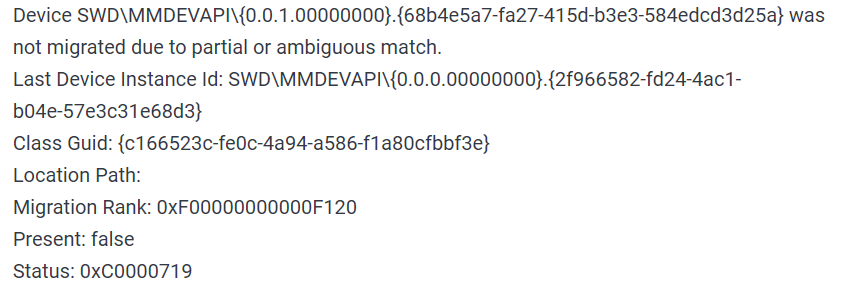
device error messageThe first thing that would pop into my mind is that I have lost tons of work and that something in my hardware has gone very wrong and it is dead. Luckily that is not the case and this error means that due to Windows update drivers were not properly transferred due to some compatibility issues, maybe it was a corrupt update file, etc. Of course, the reason could be hardware malfunction as well, but if everything was working fine before the update, it is a software issue, and I must say it is a common one and fixable. Please keep reading this guide in order to fix the Device not migrated error.

  1. Update the Driver

    You should always try this first, if the device is not recognizable, try updating its driver and see if the problem vanishes. In order to update the driver, we will need first to locate which device has not been migrated properly, we will do this with help of a search engine on the internet like google for example. So open your browser of choice, go to a search engine (google for example) and type in the search box first line from your error message, yes, that scary one. You will be given which device has malfunctioned and was not migrated properly, now we will locate the device and update its drivers. To do this press WINDOWS + X on your keyboard to bring up Windows secret menu and choose device manager.
    keyboard with windows and x marked
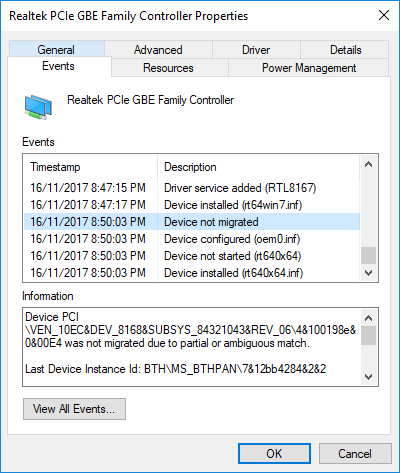
    Find device inside device manager, right-click on it, and choose properties. Go to the events tab and make sure that the device has migration issues.
    device not migrates status
    You have now 3 options for updating the driver, you can do it manually, automatically, or with the driver installer. We will cover all 3 options so you choose which one best suits you.

    OPTION 1: Manually.
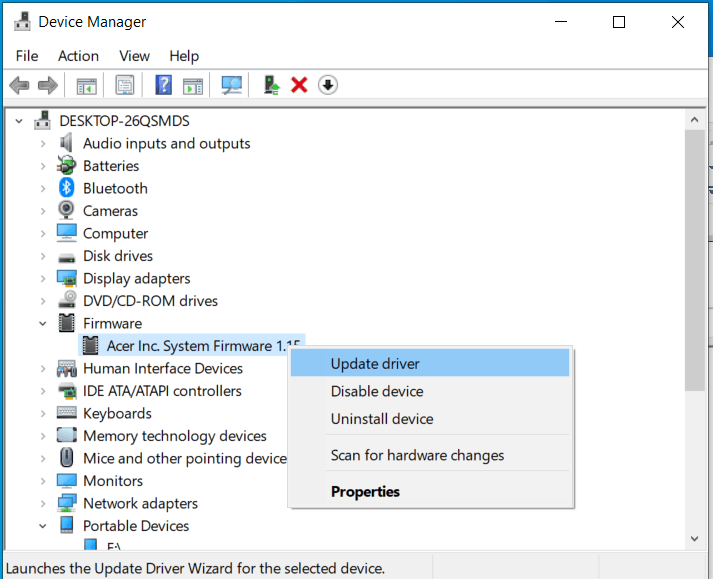
    Close the Properties tab, go to the device manufacturer website and download the latest driver, if there are no drivers there, the only executable installer for the device skip this step and try the other 2. After you have downloaded the driver package from the website, right-click on the device and choose update driver.

    device update driver
    Now navigate to the folder where you have downloaded your driver package and update the driver. Reboot your system.

    OPTION 2: Automatic update.
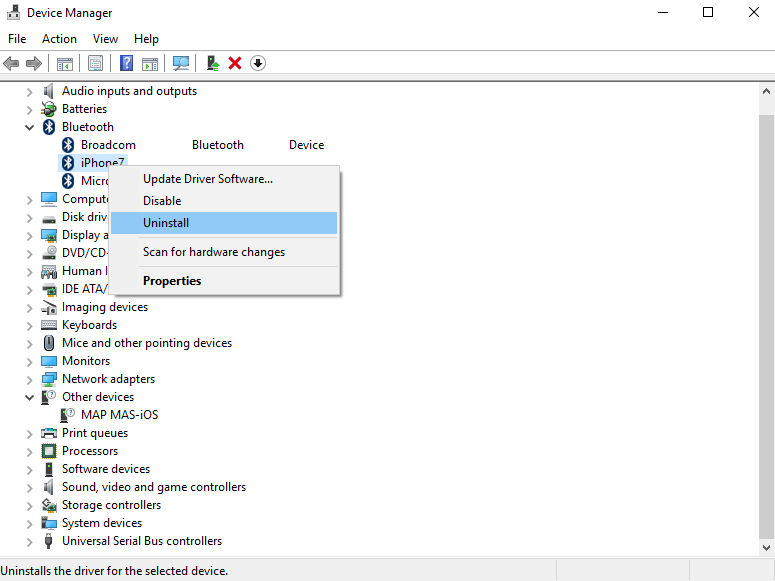
    Close the Properties tab, right-click on the device and choose to uninstall.

    device manager uninstall device
    Once the device is uninstalled, restart your system, and Windows will automatically search and install the latest driver for the device.

    OPTION 3: Via driver installer.
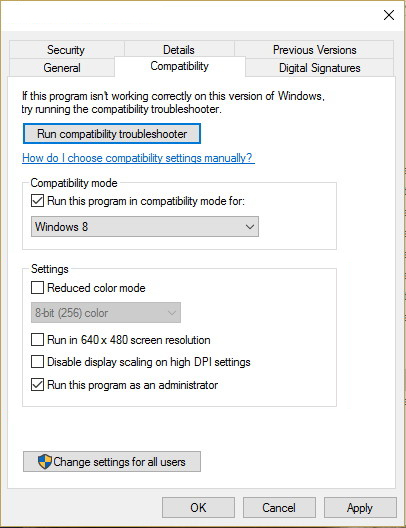
    If you have downloaded .EXE or executable driver installer from device manufacturers web site try installing it, if the installation fails, try using compatibility mode for the installer. Navigate where the installer is located, right-click on it, and choose properties. Go to compatibility TAB and try installing it with administrator privileges in Windows 8 mode.

    device run compatibility troubleshooterReboot your system after this step.
    This should solve the issues, however, if the issue still persists, follow the next steps.

  2. Verify the Corrupted System Files

    Press WINDOWS + X on the keyboard to open the hidden system menu and choose Command prompt (administrator)
    keyboard with windows and x marked
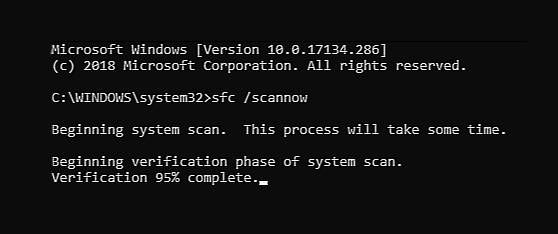
    In the command prompt type in: sfc /scannow and press ENTER.
    command prompt SFC scan
    The scanning process and repair of files will take around 15 min. Leave it to finish completely, do not restart, work on the computer or shut it down while the process is active, and only after it is finished reboot your system.

  3. Update Windows.

    If your Windows is not updated sometimes this issue can be resolved by updating it on the latest version.
    Click on start and then on settings.
    Windows 10 Star menu with marked settings icon
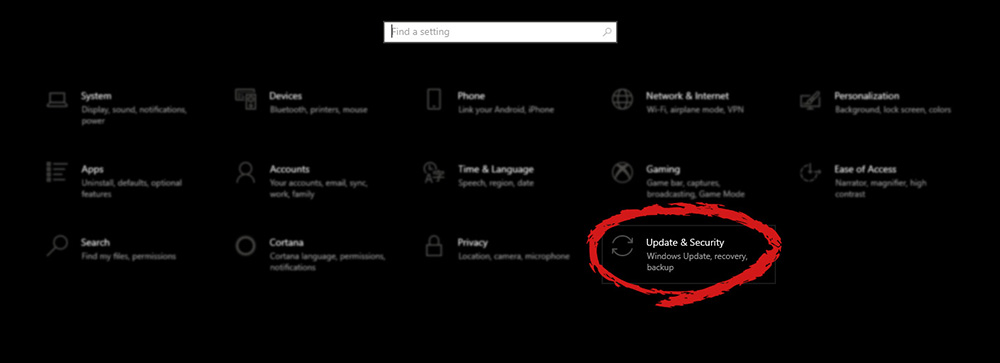
    Once the settings screen is opened, find and click on Update and Security.
    Windows settings update and security section marked
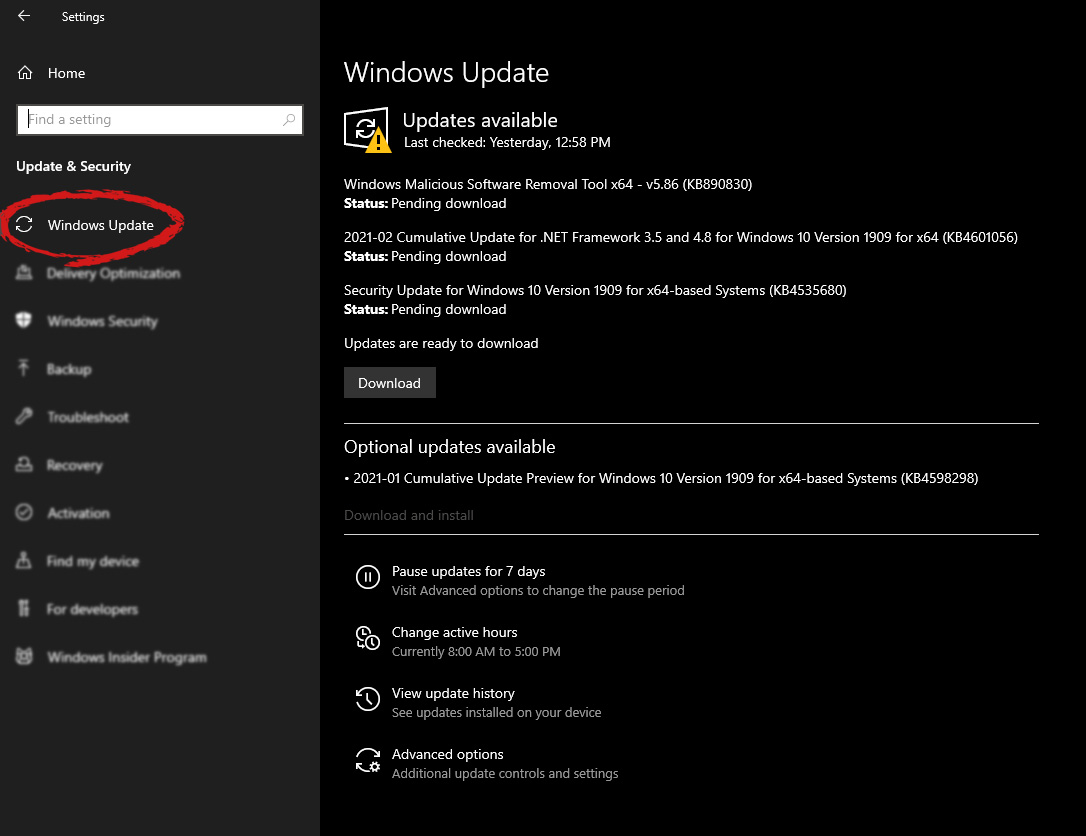
    Go to the Windows update tab and click on DOWNLOAD or click on check for updates for the latest Windows fix.
    windows settings windows update selected

  4. Reset BIOS to factory settings.

    Sometimes BIOS not being properly configured can cause issues in Windows itself and prevent it from detecting PnP devices thus creating this error. Restoring BIOS back to the factory setting can help.
    Turn off your computer and turn it back on. Press delete, f12, f11, or any other key which will take you to BIOS (default key is delete but sometimes manufacturers map this to another one. Once your screen turns ON you will see in the bottom message which key needs to be pressed in order to enter BIOS).
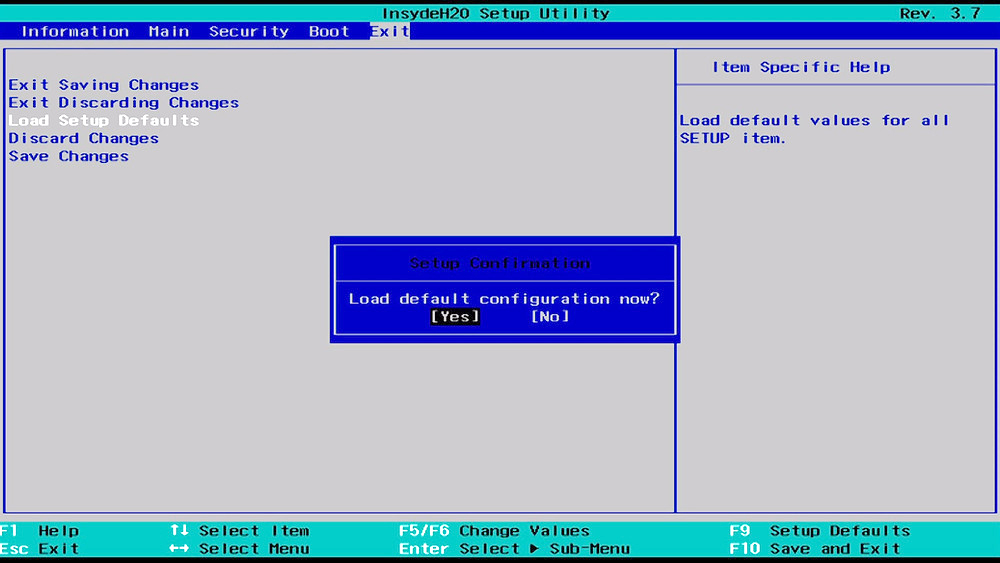
    Sadly since every BIOS could be different we can not cover step by step guide for each but you need to find the option where you load BIOS defaults, click on it save, and exit. Your computer will restart and boot into Windows, check to see if the problem still persists.

    BIOSD load defaults

  5. Update BIOS

    BIOS can cause issues with certain PnP devices when the newest Windows update is rolled. If reverting BIOS to the factory setting has not been successful try update.
    Go to your motherboard manufacturer website, find the update and read step by step guide there since updating BIOS differs from version to version and from manufacturer to manufacturer.
    After the update is done, restart the computer and hopefully, the error is gone.

  6. Perform a System Restore

    If everything else fails, perform a system restore to get Windows back into the state before the update was installed and when everything was working fine.
    Press WINDOWS + R on the keyboard to open the run dialog.
    keyboard with windows and r marked
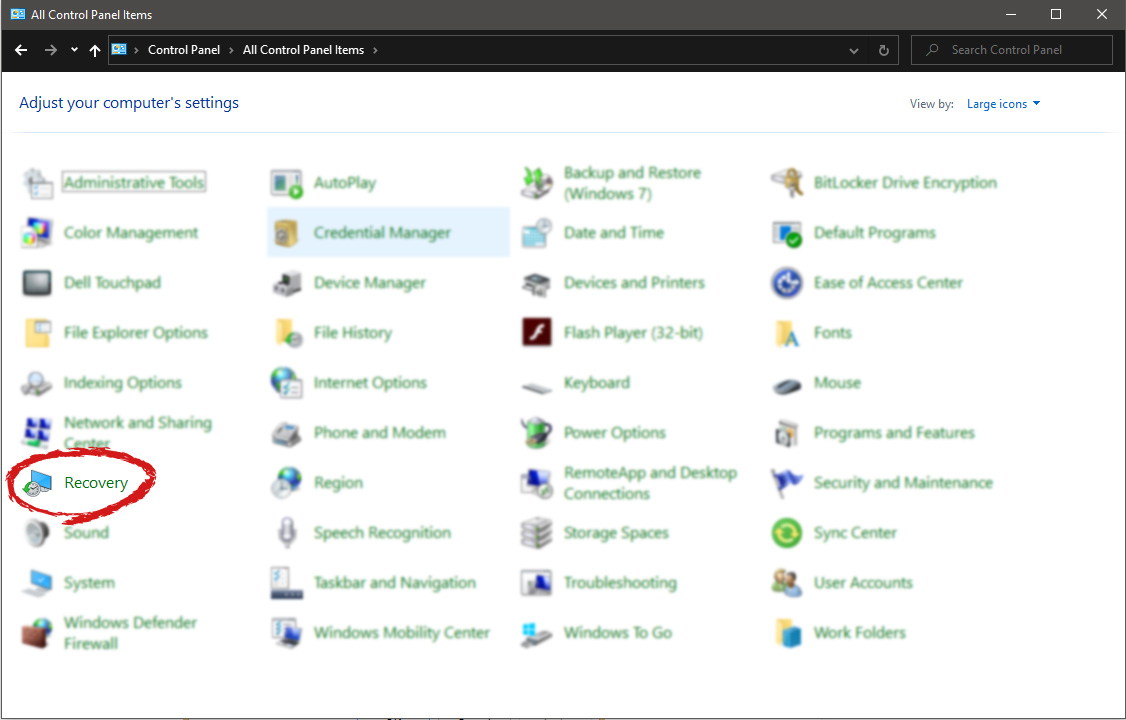
    In the run dialog, type control panel and press enter to enter control panel, locate recovery and click on it.
    control panel recovery selected
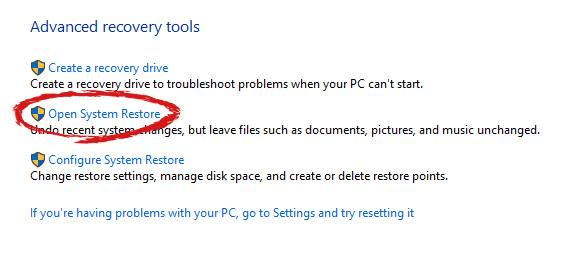
    Inside the recovery screen click on Open System Restore.
    advanced recovery tools
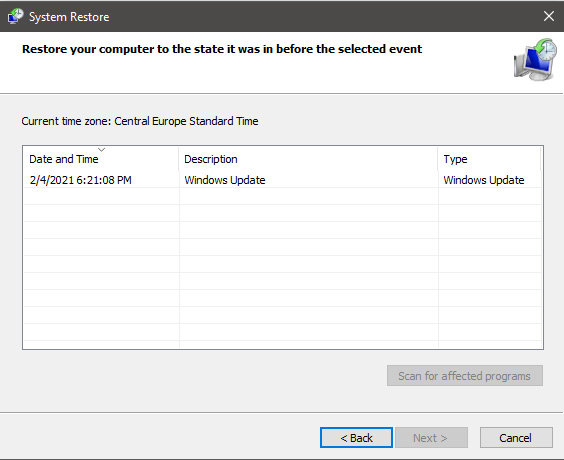
    Choose a date when everything was working in order, the best bet is the date before Windows update and roll it back.
    system restore latest backup restore
    Click on date, and then on next.

Do You Need Help with Your Device?

Our Team of Experts May Help
Troubleshoot.Tech Experts are There for You!
Replace damaged files
Restore performance
Free disk space
Remove Malware
Protects WEB browser
Remove Viruses
Stop PC freezing
GET HELP
Troubleshoot.Tech experts work with all versions of Microsoft Windows including Windows 11, with Android, Mac, and more.

Share this article:

You might also like

Can the Adobe.Dll Error Be Fixed?
Adobe.DLL is one of the numerous Dll files you are going to encounter on your Personal Computer. This isn't a system-established service and is usually the consequence of the sort of applications you install on your own Personal Computer. Because adobe.dll is a low-program process, in the event that you find it present on your pc, you can easily end it. It isn't required for the normal working of your OS but might trigger permanent harm if left unchecked. Don't forget that the Computer uses the AdobePDF.dll file for assorted tasks, and you need to make sure it's installed correctly.

Solution

Restoro box imageError Causes

When the adobe.dll is left un-fixed, you may shortly have to deal with sluggishness on your Computer. Simply put, this impedes the standard and amount of work you do while using your PC and impacts your productivity. Sometimes, adobe.dll happens because your computer experiences an overload. As a result, while resolving the malfunction, you've got to look for methods of decreasing the system overload. It's possible that lots of processes are functioning on your PC concurrently. Quit these processes. Lousy setup of the adobe.dll file causes this error too. Check and fix the files and settings that Adobe.Dll requires to run and you may not have to content with these error anymore.

Further Information and Manual Repair

Even though the adobe.dll may severely influence the functioning of your Computer, it is really a trouble or malfunction that one can fix manually.
  • Permanently Un-Installing the Adobe.dll Component is one of the better methods for repairing the malfunction.
Yes, you are able to completely eliminate the adobe.dll issue. The thing you really need to do is un-install it from your own computer fully, and for good.
  • Quit the many processes operating on your Computer and you may get rid of the adobe.dll malfunction.
Adobe.dll regularly happens due to system overload. Thus, the first thing you need to assess is if several processes are operating on the device. If they're, search for methods to stop them, and you'll not have to worry about the adobe.dll error anymore.
  • Utilize Microsoft System Configuration Utility
The MS System-Configuration Utility will settle the system overload problem, thus freeing up space for your programs to run smoothly and possibly avoid malfunctions, including adobe.dll. The Microsoft System-Configuration Utility manually locates and eliminates all running processes.
  • Perform Scans On Your Computer
Running scans on your own Computer may enhance or increase its operation. This technique may also aid in examining your Computer for adobe.dll, or such associated malfunctions, and resolve them forever.
  • Repair Adobe.Dll Files and Settings' Errors.
Considering that the adobe.dll malfunctions can be a result of the existence of malfunctions on your own PC's files and options, fix these properly. Begin by fixing the settings on the files and options utilized by your Computer to perform the adobe.dll, and you may have removed this issue completely. Finally, establish the source of the error message to effectively solve it. Once you do that and fix it, your PC will resume normal operations and even boost your work and productivity.
Read More
How to Fix Windows 10 Error Code 0xc0000142

Error Code 0xc0000142, What is it?

Error code 0xc0000142 is an error code that affects Windows 10 users. It often occurs when users attempt to run Windows applications. The message in the application error box allows users to recognize the error as it states that “the application was unable to start correctly (0xc0000142).” Common symptoms of this error code include the following:

  • Inability to start applications
  • Inability to completely run Windows applications
  • The appearance of error code 0xc0000142 message box

Error Causes

Error code 0xc0000142 in Windows 10 is often caused by issues related to startup programs, corrupted files or other applications. To address this issue, the source of the issue needs to be located. But how will users be able to do this while the error code is present?

Further Information and Manual Repair

To fix error code 0xc0000142 users will need to employ at least one manual repair procedure. This may include checking your system for corrupt files through tools like Microsoft’s System File Checker (SFC). If you are uncertain of your skills or prefer to get professional support, contact a Windows repair technician to assist you.

The top three methods to resolve error code 0xc0000142 include the following:

Method One: Perform a Clean Boot

A clean boot is one of the most basic procedures you can run to solve a Windows-based error code of this nature. It works by identifying whether or not conflict among startup programs is preventing Windows applications from running properly. This occurs through a clean boot process involving Windows using a minimal set of drivers and startup programs when you reboot.

Here is what you’ll need to do:

  • Step one: Go to Start and type msconfig
  • Step two: Right-click and select System Configuration
  • Step three: Select Service tab and click Hide all Microsoft Services then click Disable all.
  • Step four: Click Startup tab within the System Configuration dialog box.
  • Step five: Select Open Task Manager
  • Step six: Within the Startup tab of Task Manager, select Disable for each Startup item, then close Task Manager.
  • Step seven: Click OK on the Startup tab of System Configuration.
  • Step eight: Restart your computer.

This method resolves software conflict arising when you attempt to update, run a program or simply use your operating system. However, if error code 0xc0000142 remains unresolved after you restart your machine, follow the next step below.

Method Two: Run a System File Checker Scan

System File Checker (SFC) is a utility tool built into the Windows 10 operating system, as well as other versions of Windows, to detect and repair corrupted system files. Since corrupted system files can result in error code 0xc0000142, run this tool by following the steps below:

  • Step one: Go to Start and type Command Prompt or CMD.
  • Step two: Right-click and select Administrator
  • Step three: Check for and repair corrupted system files. Simply type sfc /scannow. (Be sure to place a space between “sfc” and “/scannow”).

Once these procedures are followed, the System File Checker tool will automatically scan your machine, and find and repair corrupted files. If this is the source or underlying cause of error code 0xc0000142 on your system, the error code will be resolved. However, if the source of the issue is not due to corruption in our system or is simply a more complicated issue try the next method highlighted below.

Read More
SYSTEM_THREAD_EXCEPTION_NOT_HANDLED CMUSBDAC.sys
If you encounter a Blue Screen error that points out to the CMUDA.sys, read on as this post will guide you in fixing it. The CMUDA.sys file is a Windows operating system driver file that is related to the USB Device Audio capabilities of a computer. There are times when this file causes Blue Screen error due to some conflicts in RAM or some incompatible firmware or hard disk issues, corrupted drivers or malware infection, and so on. There are various Blue Screen errors that are related to the CMUDA.sys file such as:
  • KMODE EXCEPTION NOT HANDLED
  • PAGE FAULT IN A NONPAGED AREA
  • IRQL NOT LESS OR EQUAL
  • SYSTEM THREAD EXCEPTION NOT HANDLED (CMUSBDAC.sys)
In most cases, the CMUDA.sys file usually triggers the SYSTEM_THREAD_EXCEPTION_NOT_HANDLED Blue Screen error. Although this Blue Screen error may seem complicated, its workarounds are straightforward so you won’t have any problems in following them.

Option 1 – Try to update or rollback your device drivers

If the first option didn’t work for you, then it’s time to either update or roll back the device drivers. It is most likely that after you updated your Windows computer that your driver also needs a refresh. On the other hand, if you have just updated your device drivers then you need to roll back the drivers to their previous versions. Whichever applies to you, refer to the steps below.
  • Open the Devices Manager from the Win X Menu.
  • After opening the Device Manager, locate the device drivers that are marked with a small yellow exclamation mark icon and right-click on each one to open their Properties. On the other hand, you can also look for sub-entries under Sound, video, and game controllers like the C-Media USB Audio Class
  • After that, switch to the Driver tab and click on the Uninstall Device button.
  • Follow the screen option to completely uninstall it.
  • Finally, restart your computer. It will just reinstall the device drivers automatically.
Note: You can install a dedicated driver on your computer in case you have it or you could also look for it directly from the website of the manufacturer. You can download the as C-Media USB Audio Class driver from the cmedia.com website.

Option 2 – Try to recreate the CMUDA.sys file

The first thing you can try is to recreate the CMUDA.sys file. Every time your Windows 10 PC boots up, it looks for all the system drivers in place and if it is unable to find them, it tries to create them. Which is why if you remove your corrupt driver file, chances are, you might get a fixed file recreated just for you. How? Refer to the steps below.
  • Boot your Windows 10 PC in Safe Mode.
  • Then open File Explorer and navigate to this location: C:/Windows/System32/drivers
  • From there, look for the file named sys and rename it to CMUDA.old.
Note: As you can see, the file’s extension has changed from .sys to .old.
  • Now restart your computer and check if the CMUDA.sys Blue Screen error is now fixed.

Option 3 – Run the Blue Screen Troubleshooter

The Blue Screen troubleshooter is a built-in tool in Windows 10 that helps users in fixing BSOD errors. It can be found on the Settings Troubleshooters page. To use it, refer to these steps:
  • Tap the Win + I keys to open the Settings panel.
  • Then go to Update & Security > Troubleshoot.
  • After that, look for the option called “Blue Screen” on your right-hand side and then click the “Run the troubleshooter” button to run the Blue Screen Troubleshooter and then follow the next on-screen options. Note that you might have to boot your PC into Safe Mode.
On the other hand, you can also try running the online Windows 10 Blue Screen troubleshooter from Microsoft. It is a wizard that could help you fix any Stop errors related to the CMUDA.sys file and will offer you helpful links as you use it.

Option 4 – Try running the DISM tool

You can try running the Deployment Imaging and Servicing Management or DISM tool to fix the Wdf01000.sys Blue Screen error. Using this built-in tool, you have various options such as the “/ScanHealth”, “/CheckHealth”, and “/RestoreHealth”.
  • Open the Command Prompt with admin privileges.
  • Then type in the following commands and make sure to hit Enter right after you type each one of them:
    • Dism /Online /Cleanup-Image /CheckHealth
    • Dism /Online /Cleanup-Image /ScanHealth
    • exe /Online /Cleanup-image /Restorehealth
  • Do not close the window if the process takes a while as it will probably take a few minutes to finish.

Option 5 – Run System Restore

Running System Restore might also help in fixing Blue Screen errors related to the CMUDA.sys file.
  • Tap the Win + R keys to open the Run dialog box.
  • After that, type in “sysdm.cpl” in the field and tap Enter.
  • Next, go to the System Protection tab then click the System Restore button. This will open a new window where you have to select your preferred System Restore point.
  • After that, follow the on-screen instructions to finish the process and then restart your computer and check if the problem is fixed or not.
Read More
Desktop widgets in Windows 10
Windows 7 was an operating system that had one thing which no other Windows had, even today. Official Microsoft desktop widgets. With an attractive design, users loved to exploit the adequacy and neatness of these gadgets. However, Microsoft had to discontinue these gadgets as they posed a serious security threat to the Operating System. It was believed that a potential attacker could even use a gadget to take complete control of your PC. With Windows 10, things have changed big time. You have all the fantastic apps and live tiles at your disposal providing a more native experience. Despite all this, if you still have a fondness for fancy gadgets, we have just the right tool for you to get started with similar “Widgets” on Windows 10. Win10 Widgets is a tool that places the most important information right in front of you, on your desktop.

Win10 Widgets

Win10 Widgets is a desktop app package provided by Rainmeter which is an effective system customization engine for Windows. It brings some informative widgets to Windows 10 which look almost native with their intuitive and sleek design. You can pin them on your desktop to keep an eye on various system figures like CPU usage, data storage, battery usage, detailed computer performance, etc.

Native looking Widgets for Windows 10

These widgets are designed in such a way that it looks totally indigenous to the Windows 10 UI. With a similar design language, visual style, accent color, and even font settings, these widgets almost look like an inseparable system component. You can choose between different size variants to pin on your desktop and arrange them in an orderly fashion to make the most of it.

Highly customizable desktop gadgets

Apart from the default size variants, you can configure several other parameters pertaining to the look and appearance of any widget. As Rainmeter is an open-source program, you are provided with the .ini configuration files which you can customize as per your wish. You can make adjustments to the widget coordinates, position and transparency as well. You can even create your own skins (.rmskin package) using the built-in Skin Packager and publish them for general usage through Rainmeter.

Illustro Skins

Over and above the cool widgets, Rainmeter also contains Illustro, a simple collection of skins that shows the range of Rainmeter’s capabilities. You can load the skins on your desktop for a brief look at your system internals. You can also start editing these skins to make them yours by taking advantage of the Rainmeter manual and forum link provided on the Welcome screen. Win10 Widgets is a great tool if you like widgets or gadgets on your Desktop. It blends into the background and puts the important piece of information right on your desktop without you having to look somewhere else. If you already have the Rainmeter application, you can download the Win10 Widgets .rmskin file from here, else you can download the combined bundle for both Rainmeter and Win10 Widgets from here.
Read More
Desk365 Complete Removal - PUP Removal Guide

What is Desk365?

Desk 365 is a program developed by 337 Technology Limited and is classified as a potentially unwanted application by a number of Antiviruses. While not technically malware, for many users it is unwanted as it is often distributed as a bundle with other downloads. It allows a fast way to access your shortcuts and applications. Upon installation this program will insert itself into the system registry, adding startup strings to allow it to automatically start every time your system is restarted. The software adds a scheduled windows task to allow it to reopen itself even when closed. The applications also access the internet and add firewall rules to your system, that allow it to access anything without restrictions.

The main executable file for this application is Dock365.exe. It is possible to delete this file preventing the application to run, but its monitoring services and registry entities remain hidden inside your computer.

The software sends browsing information back to its ad servers, displaying custom ads and sponsored products instead of the usual search results. And the app itself pins itself to the start menu and cannot be removed.

About Potentially Unwanted Applications

Have you ever discovered an unwanted program on your PC that you didn’t consciously download and never gave authorization to be installed? Potentially Unwanted Programs (PUP), also referred to as Potentially Unwanted Applications (PUA), are applications that you never wanted in the first place and often come bundled with freeware. Once installed, the majority of these applications can be difficult to eliminate and become much more of an annoyance rather than a necessity. PUPs did not actually constitute pure “malware” in the strict sense of the definition. What normally makes a PUP different from malicious software is that whenever you download one, you’re doing it with your consent – though in many instances unconsciously and unwillingly. A PUP may not be regarded as malicious or unsafe yet still, it’s a common cause of clunky OS’s; some PUPs are a lot more aggressive by intentionally slowing down your computer or laptop.

Exactly how do unwanted programs look like?

Potentially Unwanted Programs can be found in different forms and varieties, but in the majority of cases, these are typically adware programs that exhibit irritating pop-up adverts and advertisements on websites you check out. They even come in the form of browser extension toolbars and add-ons. Not only they needlessly take up space on your screen, but toolbars can also manipulate search engine results, keep an eye on your surfing activities, decrease your internet browser’s efficiency, and slow down your internet connection to a crawl. PUPs load up a dangerous bite if left unchecked. They could include keyloggers, dialers, and other program built into them which could track you or send your sensitive information to third parties. Typically, such software will disable security protections and configuration settings to take control over your computer or laptop, leaving that PC vulnerable to online hackers and data fraud. At a minimum, PUPs slow your computer down with every added program.

Tips on how to prevent PUPs

• Read the fine print so that the end-user license agreement (EULA) you are accepting is only for the software you primarily intend to download. • Choose the “custom” install whenever installing an application. Especially, look closely at those small boxes which have been checked as default, where you may ‘agree’ to receive promotions or install software bundlers. • Use an anti-PUP program. Security applications such as Safebytes Anti-Malware gives the very best real-time protection against PUPs and also other malware. • Be alert if you download and install freeware, open-source programs, or shareware. Nowadays ‘freeware’ isn’t actually freeware – but “crapware” bundling nonsense. • Always download software from trustworthy sources like official websites rather than untrustworthy sharing space. Avoid file-hosting sites where/when possible.

What To Do If You Cannot Download Safebytes Anti-Malware?

Every malware is detrimental and the level of the damage can vary greatly according to the type of infection. Some malware is designed to restrict or prevent things that you wish to do on your PC. It may well not permit you to download anything from the web or prevent you from accessing some or all internet sites, in particular the antivirus sites. If you are reading this, chances are you’re stuck with a virus infection that is preventing you to download or install Safebytes Anti-Malware software on your computer system. There are a few fixes you could try to get around with this particular problem. Download the software in Safe Mode with Networking The Windows-based PC comes with a special mode known as “Safe Mode” in which just the minimum required programs and services are loaded. If the malicious software is set to load immediately when PC boots, shifting into this mode may well prevent it from doing so. To get into Safe Mode or Safe Mode with Networking, press the F8 key while the system is starting up or run MSCONFIG and look for the “Safe Boot” options in the “Boot” tab. After you restart the PC into Safe Mode with Networking, you can download, install, and update the anti-malware program from there. At this point, you could run the anti-virus scan to eliminate viruses and malware without any hindrance from another malicious application.

Switch over to an alternate web browser

Some malware mainly targets specific internet browsers. If this sounds like your situation, use another internet browser as it might circumvent the malware. If you are not able to download the anti-virus software using Internet Explorer, it means the virus could be targeting IE’s vulnerabilities. Here, you need to switch to a different internet browser such as Chrome or Firefox to download Safebytes Anti-malware software.

Install and run anti-virus from your flash drive

Another option would be to create a portable anti-malware program on your USB stick. To run antivirus from a thumb drive, follow these simple steps: 1) Make use of another virus-free computer to download Safebytes Anti-Malware. 2) Plug in the pen drive to a USB port on the uninfected computer. 3) Double-click the Setup icon of the antivirus software package to run the Installation Wizard. 4) When asked, choose the location of the USB drive as the place in which you want to put the software files. Follow activation instructions. 5) Now, insert the USB drive into the infected PC. 6) Run the Safebytes Anti-malware directly from the flash drive by double-clicking the icon. 7) Run Full System Scan to detect and clean-up up all kinds of malware. If all the above approaches fail to help you in downloading the anti-malware, then you’ve no alternative but to reinstall the computer’s operating system to wipe out all the data, including the malicious programs which are obstructing the anti-malware installation. If you are already our customer, technical help for Malware Removal is just a phone call away. Call 1-844-377-4107 to speak to our expert technicians and get assistance remotely.

Let's Talk About SafeBytes Anti-Malware!

To help protect your computer from many different internet-based threats, it’s very important to install anti-malware software on your personal computer. But with so many antimalware companies out there, nowadays it’s tough to decide which one you should obtain for your PC. A few are good ones, some are decent, and some are merely fake anti-malware programs that will harm your PC themselves! You need to be very careful not to pick the wrong product, especially if you buy a paid program. On the list of the highly recommended tools by industry experts is SafeBytes Anti-Malware, well-known security software for Windows computers. Safebytes is among the well-established computer solutions firms, which offer this comprehensive anti-malware software program. Using its outstanding protection system, this utility will quickly detect and eliminate the majority of the security threats, including viruses, adware, browser hijackers, ransomware, PUPs, and trojans. SafeBytes anti-malware offers an array of advanced features which sets it apart from all others. Listed below are some of the highlighted features included in the tool. Real-time Threat Response: SafeBytes delivers complete and real-time security for your PC. It will inspect your computer for suspicious activity continuously and shields your personal computer from unauthorized access. Optimum AntiMalware Protection: This deep-cleaning anti-malware software goes much deeper than most antivirus tools to clean your computer. Its critically acclaimed virus engine finds and disables hard-to-remove malware that conceals deep within your computer. Web Filtering: SafeBytes gives an instant safety rating about the web pages you’re about to visit, automatically blocking harmful sites and ensuring that you are certain of your online safety while browsing the net. Light-weight: This software program is not “heavy” on your computer’s resources, so you will not notice any performance issues when SafeBytes is working in the background. 24/7 Online Support: You can obtain high levels of support round the clock if you’re using their paid version. Overall, SafeBytes Anti-Malware is a solid program since it has plenty of features and can identify and remove any potential threats. You can rest assured that your computer will be protected in real-time once you put this tool to use. For optimum protection and the best bang for your buck, you can’t get better than SafeBytes Anti-Malware.

Technical Details and Manual Removal (Advanced Users)

If you wish to manually remove Desk365 without the use of an automated tool, it may be possible to do so by removing the program from the Windows Add/Remove Programs menu, or in cases of browser extensions, going to the browsers AddOn/Extension manager and removing it. You will likely also want to reset your browser. To ensure the complete removal, manually check your hard drive and registry for all of the following and remove or reset the values accordingly. Please note that this is for advanced users only and may be difficult, with incorrect file removal causing additional PC errors. In addition, some malware is capable of replicating or preventing deletion. Doing this in Safe Mode is advised. The following files, folders, and registry entries are created or modified by Desk365
Files: File $APPDATACheckRun22find.exe. File $APPDATADesk 365accelerate. File $APPDATADesk 365desk_bkg_list.xml. File $APPDATADesk 365desk_list.xml. File $APPDATADesk 365desk_settings.ini. File $APPDATADesk 365firstrun. File $APPDATADesk 365process_mgr.xml. File $APPDATADesk 365promote.xml. File $APPDATAeDownloadfindhpnt_v2.exe. File $APPDATAMicrosoftInternet ExplorerQuick Launchfind.lnk. File $COMMONPROGRAMSDesk 365Desk 365.lnk. File $COMMONPROGRAMSDesk 365eUninstall.lnk. File $DESKTOPfind.lnk. File $LOCALAPPDATAGoogleChromeUser DataDefaultExtensionsnewtab.crx. File $LOCALSETTINGSTempV9Zip_003Desk365.exe. File $PROGRAMFILESDesk 365desk_bkg_list.xml. File $PROGRAMFILESDesk 365desk_list.xml. File $PROGRAMFILESDesk 365desk_settings.ini. File $PROGRAMFILESDesk 365desk365.exe. File $PROGRAMFILESDesk 365deskSvc.exe. File $PROGRAMFILESDesk 365ebase.dll. File $PROGRAMFILESDesk 365edeskcmn.dll. File $PROGRAMFILESDesk 365eDhelper.exe. File $PROGRAMFILESDesk 365eDhelper64.exe. File $PROGRAMFILESDesk 365edis.dll. File $PROGRAMFILESDesk 365edis64.dll. File $PROGRAMFILESDesk 365ElexDbg.dll. File $PROGRAMFILESDesk 365eUninstall.exe. File $PROGRAMFILESDesk 365libpng.dll. File $PROGRAMFILESDesk 365main. File $PROGRAMFILESDesk 365ouilibnl.dll. File $PROGRAMFILESDesk 365process_mgr.xml. File $PROGRAMFILESDesk 365promote.xml. File $PROGRAMFILESDesk 365recent.xml. File $PROGRAMFILESDesk 365sqlite3.dll. File $PROGRAMFILESDesk 365svc.conf. File $PROGRAMFILESDesk 365TrayDownloader.exe. File $PROGRAMFILESDesk 365zlib1.dll. File $PROGRAMFILESMozilla Firefoxsearchpluginsfind.xml. File $SENDTODesk 365.lnk. Directory $APPDATADesk 365. Directory $APPDATAeDownload. Directory $COMMONPROGRAMFILES7. Directory $COMMONPROGRAMSDesk 365. Directory $LOCALSETTINGSTempDesk365. Directory $LOCALSETTINGSTempV9Zip_003. Directory $PROGRAMFILESDesk 365. Registry: Key 33BB0A4E-99AF-4226-BDF6-49120163DE86 at HKEY_CURRENT_USERSoftwareMicrosoftInternet ExplorerSearchScopes. Key deskSvc at HKEY_LOCAL_MACHINESOFTWARE. Key desksvc at HKEY_LOCAL_MACHINESYSTEMControlSet001Services. Key desksvc at HKEY_LOCAL_MACHINESYSTEMControlSet001ServicesEventlogApplication. Key desksvc at HKEY_LOCAL_MACHINESYSTEMCurrentControlSetServices. Key desksvc at HKEY_LOCAL_MACHINESYSTEMCurrentControlSetServicesEventlogApplication. Key findSoftware at HKEY_LOCAL_MACHINESOFTWARE. Key ijblflkdjdopkpdgllkmlbgcffjbnfda at HKEY_LOCAL_MACHINESOFTWAREGoogleChromeExtensions. Key lnkguard at HKEY_CURRENT_USERSoftware. Key V9 at HKEY_LOCAL_MACHINESOFTWARE.

Read More
"Stop Running This Script" Error - How to Fix It

Stop Running This Script Error - What is it?

"Stop Running This Script" Error is a Windows Internet Explorer error message that is displayed in the following format with a yes and a no button:
Stop running this script?
A Script on this page is causing your web browser to run slowly.  If it continues to run, your computer might become unresponsive. This occurs when some scripts take an excessive amount of time to run. To be precise, there are some websites that use JavaScript, JQuery, and Active X scripts to run. These scripts are notorious for taking too much time to run. So, if you use the Internet Explorer as your web browser, then by default if the website takes a long time to load, the ‘Stop running this script error will be triggered. Other than this, if you are scripting an Active X control on the web page to transfer a very heavy file or run a huge database query, this may cause delays and lead to the error display. However, if you use Firefox, then the ‘Stop running this script error code will be promoted as ‘Unresponsive Script’ error.

Solution

Restoro box imageError Causes

The ‘Stop running this script error code’ is triggered due to multiple reasons. These include:
  • Webpage programming errors
  • Running a pop-up killer
  • Spyware and viral infection
  • Active X control errors

Further Information and Manual Repair

Here are some of the best methods that you can try to resolve Internet Explorer’s ‘stop running this script error’ on your PC:

1. Change the Internet Explorer Settings

This can be done by opening Internet Explorer and in the top menu, click on Tools, and then go to Internet Options. Now click on the Advanced Tab option. Locate where it says ‘Disable Script Debugging’. Once you find it uncheck the box beside it. Now close the browser and restart your PC. Access the same website on your IE web browser and see if the website opens. If it does, then the error is resolved. However, if it doesn’t, then you the underlying causes for the stop running this script error message could either be spyware or ActiveX control error.

2. Download Restoro

Whether the error occurs due to spyware invasion of Active X control error, it is advisable to download Restoro on your PC. This is a next-generation, innovative, and multi-functional PC repair tool that has several powerful utilities deployed together in one program. Plus you don’t have to get into the technicalities of resolving Active X control issues. Restoro is safe, bug-free, and efficient. It has a user-friendly interface and simple navigation which makes it quite easy for all levels of users to operate. It is compatible with all Windows versions including Windows 7, 8, XP, Vista, 8.1, and 10. This PC repair tool is a one-stop solution for all your script error repair needs. It includes the following utilities: a registry cleaner, a system stability detector, and an ActiveX control error scanner. It simultaneously scans for ActiveX control errors too. So, if the IE script error is triggered by ActiveX control issues, it resolves them too. To fix the ‘stop running this script’ error code on your PC, click here to download Restoro
Read More
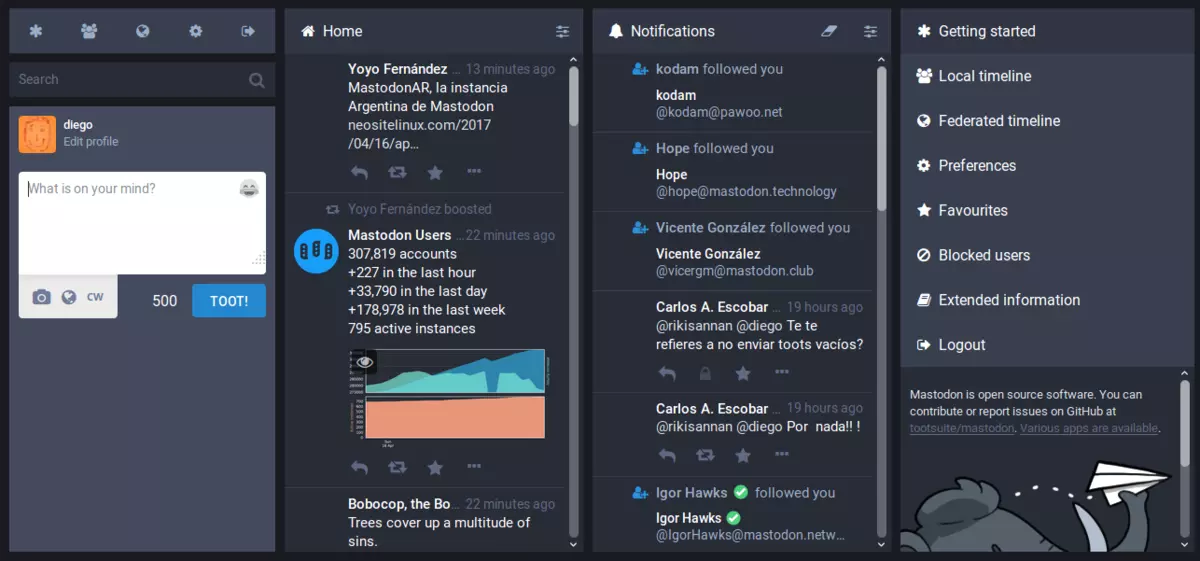
Mastodon test and review

What is Mastodon? Mastodon is an open-source microblogging network very similar to Twitter. You can make 500 characters post messages called toot (tweet), share videos or images, and follow other people. But unlike Twitter, Mastodon is decentralized, meaning the entire Mastodon is not run by a single company pulling all strings.

mastodon

Mastodon can be used directly in your web browser or through a mobile client on a smartphone or tablet. It includes features that seem copied from Twitter-like replies, boosts (retweets), favorites (loves), a timeline view, blocking, and voluntary content warnings that hide sensitive content.

Mastodon also has some great features that Twitter does not have like automated post deletion for the older post of a certain age, requiring approval for follows without restricting your account, and opting out of search engine indexing.

Currently, there are also no ads on Mastodon meaning no ad tracking or ad network surveillance.

How Does Mastodon Work?

Mastodon is a social media network made of nodes called servers or instances each running special software meaning anyone can run their own Mastodon instance (if they have a proper dedicated server). When you have your own instance it can be linked in the federation or remain private, so individuals or companies can have control over individual Mastodon servers.

The software itself is open source based on the social networking protocol ActivityPub which was developed by WWW Consortium.

While using Mastodon, people sign up for accounts with specific instances. Once logged in, you can view a local timeline (of posts from that instance only) or, if the instance is federated with others, see a federated timeline comprised of toots from people in other instances. Mastodon users can send messages to each other using their Mastodon account names that are similar to email addresses in that they feature the server address as well as the user name.

Read More
How to Fix Error 0x80070057

Error Code 0x80070057 - What is it?

Error 0x80070057 is a typical Windows 7 error code. It may occur when you try to back up files by using Windows Backup on Windows 7 and the backup fails.  The error message is often displayed as the following:

“An internal error has occurred: The parameter is incorrect: (0x80070057)”

Besides this, you may also experience this error message when you format a hard disk drive to install Windows 7.

Solution

Restoro box imageError Causes

The error 0x8007005 occurs due to multiple reasons. However, the most common causes for this error code include:
  • The partition that is reserved for the system is damaged
  • Misconfigured registry keys
  • Misconfigured decimal symbol settings

Further Information and Manual Repair

Here are some of the best and easy DIY methods to resolve the error 0x80070057 on your PC.

Solution 1: Change the Decimal Symbol Setting

As mentioned above the error 0x80070057 sometimes can be triggered by misconfigured decimal symbol settings. Therefore, try changing the settings to fix the problem. The error is likely to occur if the decimal symbol is not set to ‘.’ (dot). This is common in languages and locales other than English such as German. Here’s what you need to do to change the decimal symbol setting:
  • First, open the Control Panel, click the clock, then language, and then region.
  • Now click the formats tab and go to the additional settings menu.
  • Here you will find the decimal symbol field, now type "." (dot) and then click OK twice.
  • After that, you must restart your PC to activate the changes.

Solution 2: Create a New Partition and Reinstall Windows 7

If the error 0x80070057 is linked to partition damage, then this method is the best way to resolve it. Here’s what you need to do:
  • Insert the Windows 7 DVD and start the installation.
  • Select your language preference to install. Here you will see a screen of the Microsoft License Agreement. Click on the I accept option to proceed with the installation process.
Then click next.
  • Choose a custom advance option and select the Disk O partition 1 option.
  • Once selected, click delete. When you do this you will be prompted if you want to confirm the deletion, click OK to continue.
  • Now repeat the same however now select Disk O partition 2.
Delete this partition as well. Now click New to create a new partition. Here define the disk size and then click apply. Please note, the size of the default value is the maximum size of the disk. After doing so, select disk 0 partition 2 and then click the formatting tab. Once the formatting is complete, click next to continue Now you will be able to complete the installation of Windows 7 on your PC without any problem.

Solution 3: Add a Registry Key Value

If the underlying cause of the error 0x80070057 is a registry issue, then it is serious as such issues can put your PC at serious risks like system failure, crash, and data loss. To resolve this error and add a registry key value here’s what you need to do: Go to the start menu and type Regedit.exe in the search bar and then press enter. Locate and click the following registry sub-key: HKEY_LOCAL_MACHINESOFTWAREPoliciesMicrosoftSystem. Once you locate it, now go to the edit menu and point to new, and then click DWORD Value. After that, type CopyFileBufferedSynchronousIo and press enter again. Right-click now on the text you just typed and then click Modify. In the Value data box, type 1 and then click ok and exit the registry editor. This will fix the error on a temporary basis but not permanently. However, a long-term solution is to clean and repair the registry.

Solution 4: Restoro

The registry gets cluttered with unnecessary and redundant files like junk files, cookies, internet history, and bad registry keys. If these are not removed timely, they can damage the registry and corrupt DLL files. It often leads to disk fragmentation (disk partition) too. To remove these files immediately, clean and restore the registry and repair the corrupt files, it is advisable to download Restoro.

Why Restoro

  • This is an advanced and highly functional Registry Cleaner. It is deployed with a cutting-edge and intuitive algorithm that scans your entire PC to detect all registry issues in seconds. It cleans the cluttered disk and restores the registry back to normal.
  • It is safe, bug-free, and efficient. This software is easy to use and compatible with all Windows versions.
  • In addition to this, it is also deployed with several other powerful utilities like an antivirus that detects all malicious software and removes them right away. It also functions as a system optimizer and boosts the speed of your PC significantly.
Click here to download Restoro and resolve error 0x80070057 now!
Read More
Malware Guide: How to Remove DownloadAdmin

What is DownloadAdmin/ Updateadmin?

As a digital creation of Blueis, the DownloadAdmin application peruses your computer system for programs/applications that are outdated. This program then makes the necessary updates/installation on your computer, as if it were the Administrator. While most people might consider this application harmful, scrutinizing the Digital Publisher/Creator of the application should be reason enough to remove DownloadAdmin (and any other associated program) from your computer. Why? Blueis is infamous for producing/distributing “adware type software”, according to herdProtect Anti-Malware. Is that not a plausible reason for you to remove applications associated with that publisher? Additionally, DownloadAdmin not only updates your outdated applications, but it installs additional programs - usually utility tools and search toolbars. This is a sly way to promote third-party software and to get ads loaded onto your computer system. Technical details about DownloadAdmin include:
Digital Publisher: Blueis Product Version: 4.0.0.1 Original File Name: DownloadAdmin Entry Point:  0x0000234A

Assessment of DownloadAdmin

For this assessment, the DownloadAdmin file was obtained and installed on a test computer. After the DownloadAdmin/Updateadmin application was installed, it made several modifications to the computer system. These modifications may class the newly installed file as a PUP (potentially unwanted program). Outlined below is what took place after the file was installed.
  • Updated an outdated application installed on the computer

Subsequent to the update made by Updateadmin, I thought the PUP had run its course. However, it was not quite finished. It was after scanning the contents/programs of my Local Drive, I stumbled on an additional program, one that I did not download or install, at least not intentionally. As predicted, the DownloadAdmin application scanned through the computer system (in the blink of an eye), during installation and made adjustments to an application already installed. This program was the Mozilla Firefox. Since Mozilla Firefox was rarely used on the PC in question, the DownloadAdmin application thought it quite appropriate to revive the Mozilla Firefox browser, by replacing it with the latest or more contemporary version.
  • Installed a search toolbar

While DownloadAdmin did request permission to install an updated version of my Browser, it provided no warning about installing a search toolbar. This is quite shady and deceptive. In addition to updating the Internet Browser, DownloadAmin also installed the SearchProtect toolbar (Conduit). This toolbar is no stranger to the market as I’ve encountered it on several occasions during my assessment of malware.

Should you remove DownloadAmin?

That decision is totally yours to make. However, here are some reasons why most people would consider that program unwanted
  • It updates your outdated programs

In most cases, at least those I’ve seen, if a user has a program installed, they don’t necessarily want a new version of that program. In fact, this PUP could spell trouble since some programs, especially paid, require a license to use the software. When that program is updated/ upgraded, you might have to acquire a new license to get it to work.
  • Unnecessary program

If you’re totally lackadaisical and loathe the idea of doing work yourself, this program might come in handy. Many users will update their computers manually by using Microsoft’s preinstalled/pre-programmed updater in their computer’s Control Panel. This option searches for and installs all the necessary programs to keep your computer safe and secure. The DownloadAdmin program only occupies needed space and resources on your computer. However, what’s good about this program is that it doesn’t operate at the start time so it doesn’t necessarily cause unnecessary lags on your computer.
  • Modifies your search experience

By installing a search toolbar called SearchProtect, Updateadmin modifies or changes the browsing experience you’re accustomed to. SearchProtect hijacks your browser and changes your homepage to their choice while removing yours. This is often hard to reverse since the publisher created this software to remain once installed. To completely remove DownloadAdmin from your computer, click here to download and install Spyhunter
Read More
How Critical is the Toolbar.Dll Error?
Toolbar.Dll is one of the most destructive software you will encounter on your Personal Computer. For every report out there you read about threats to your Windows PC, a significant number speak about Toolbar.Dll. Technically, this is non-essential to the functioning of your computer yet poses great dangers to your computer's security. It can cause massive destruction if not properly resolved.

Solution

Restoro box imageError Causes

As suggested below, the sources of Toolbar.Dll are many and broad: a) Misconfigured System: Nothing causes this malfunction on your own Computer a lot more than having a misconfigured system. You ought to anticipate this malfunction and repair the situation before it gets worse. Especially if you have Toolbar.Dll files on your computer. More often than not the situation can only get worse. b) Broken Windows OS File: the 2nd trigger of Toolbar.Dll, and that is linked to the primary aforementioned one, is a broken Windows OS file. Fix it as soon as you realize its existence. c) Installation Issues: If you poorly install Windows on your PC, you generate a loophole by which Toolbar.Dll malfunction might appear. You essentially provide a massive possibility to the Toolbar.dll error to affect your Computer, if you neglect to finish an install or uninstall procedure. d) Removing Programs and Hardware Incorrectly: When you decide to remove programs and hardware, you need to exercise caution. Should you be rash with this specific procedure, you raise the odds of striking the Toolbar.Dll malfunction on your Personal Computer. e) Incorrect Shut-Down: unless you want to strike this malfunction, ensure that you shut down your Computer procedurally. Regardless of what hurry you might be in, always power down your computer correctly.

Further Information and Manual Repair

In the event you strike the Toolbar.Dll malfunction on your Personal Computer, you shouldn't get frightened. But, prior to starting considering of ways that to fix this malfunction, you should look for the signs, to be able to recognize it. The malfunction exists in your Computer in circumstances where software programs can't load properly. The situation might be repaired in numerous methods, as revealed below:
  • Switch on your computer, and log in as the superuser/admin. Next, select All Programs, subsequently go to Accessories. Under Accessories, choose System Tools. Click on System Restore from the menu.
  • A fresh window will appear. In the new window, find the choice designated "Restore My Pc To An Earlier Time", before you click next.
  • Search for the newest System Restore update from "On This List, Click a Restore Point" before you click Next once more.
  • Pick Next when a verification window appears on the screen. After the complete procedure is done, reboot the pc and the Toolbar.Dll malfunction will soon be no further.
Each of the measures suggested previously, are for advanced pc users. You must obtain the very best software on the web to eliminate this malfunction, in case you are a non-techie. Alternately, contact a tech to help fixing the problem.
Read More
1 2 3 171
Logo
Copyright © 2023, ErrorTools. All Rights Reserved
Trademark: Microsoft Windows logos are registered trademarks of Microsoft. Disclaimer: ErrorTools.com is not affiliated with Microsoft, nor claims direct affiliation.
The information on this page is provided for information purposes only.
DMCA.com Protection Status