Fix 0x800F0825 update error in Windows 10

Windows updates have become a regular occurrence in our digital lives. They are frequent and have become quite necessary. Most of the time they bring us quality content like fixed security, resolved bugs, and even new features but from time to time update itself can be not downloaded properly or it can have some issues when installing. Windows Update Error 0x800F0825 is one of these update errors that will be reported seemingly after applying the update.

Altho annoying error it is nothing system breaking and can be easily resolved.

Hello and welcome everyone, today we will provide you with solutions on how to resolve error 0x800F0825 when trying to complete a Windows update.

Run Windows troubleshooter

Built-in Windows troubleshooter can help a lot in resolving these issues and we will try it as a first solution because of its simplicity and ease of use.

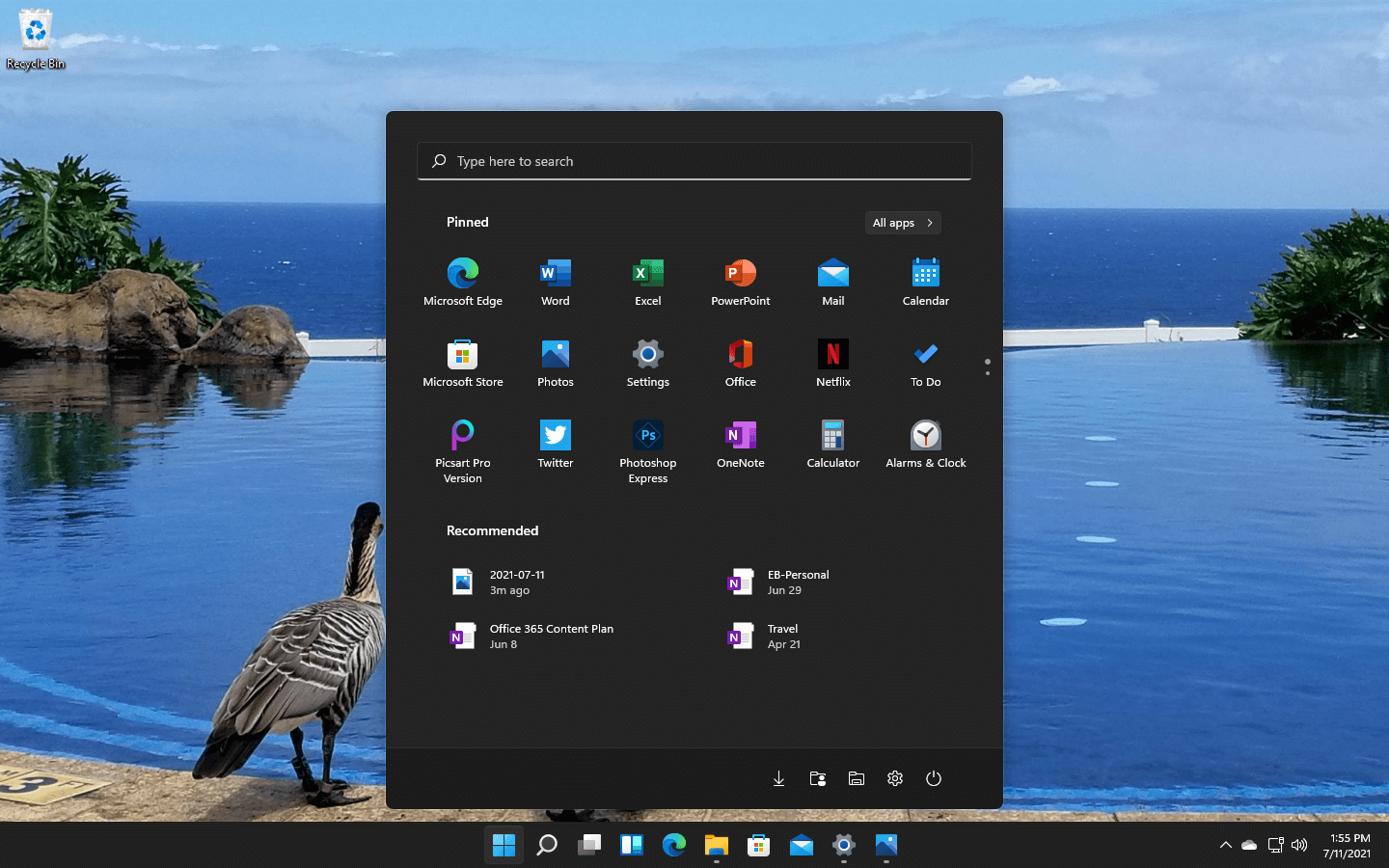
  • Click on START
  • Click on settings
    Windows 10 Start menu with marked settings icon
  • Navigate to Update & Security > Troubleshoot > Additional Troubleshooter > Windows Update
  • Click on Run the troubleshooter
  • Follow onscreen instructions and let the troubleshooter try to solve the issue

Clear contents of SoftwareDistribution & Catroot2 folders

Altho SoftwareDistribution and Catroot2 folders are essential for the update process it can happen that badly downloaded updates or similar corruption can be stored there and thus producing this error.

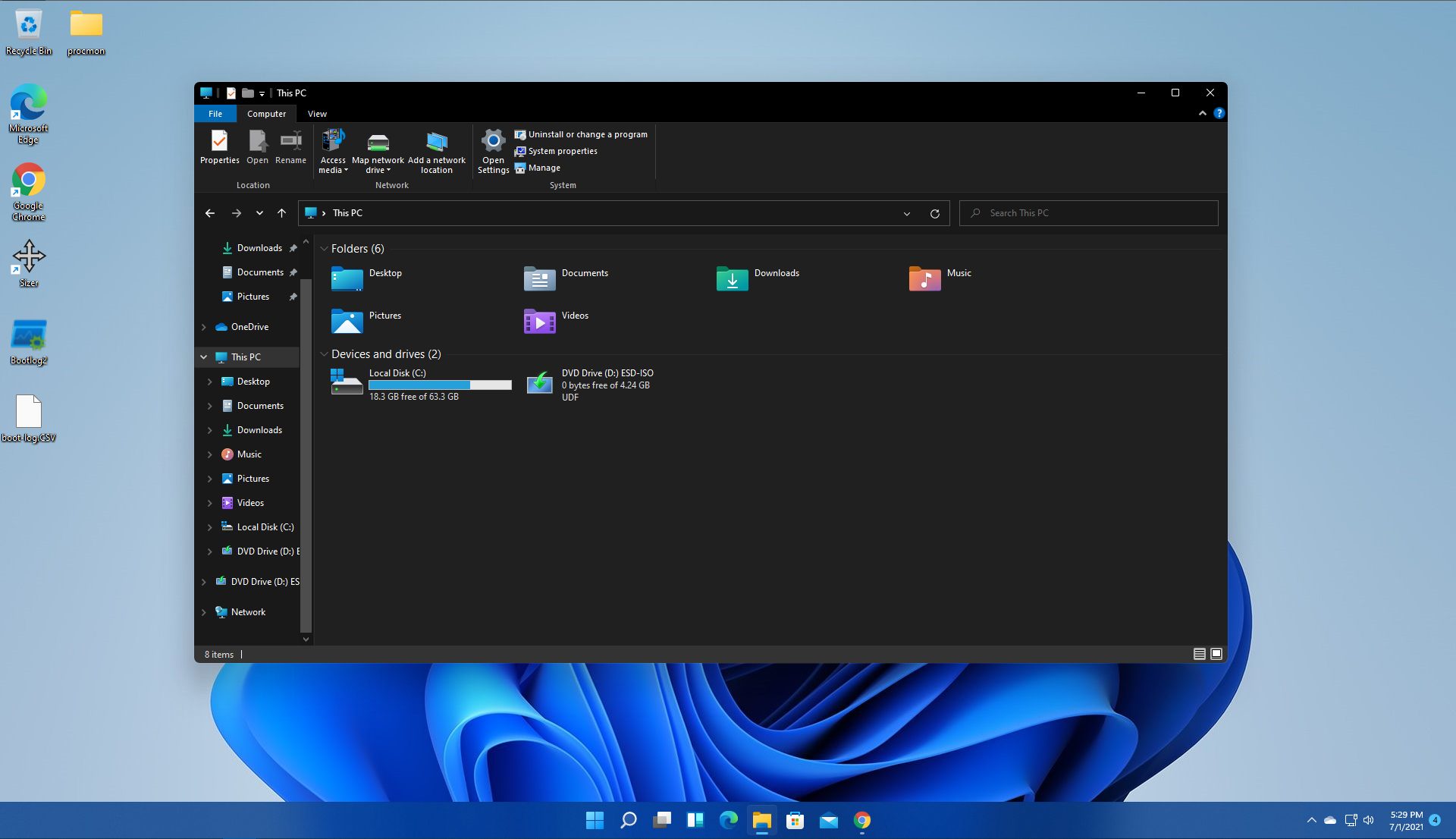
  • Open file explorer and locate these two folders, go inside and delete content inside them
  • Try updating again to see if corruption inside folders was the issue.

Update manually

If the previous two solutions have not produced a result and the error is still present then go to the official Microsoft Update Catalog and download the update manually

The catalog is here.

Search for updates from the Windows Update Catalog In the Search box, type your search terms. You can carry out a full-text search, using a keyword, KB article, MSRC bulletin, driver manufacturer, driver model, driver version, product, and a classification. Select the appropriate version of Windows. Search or click on Advanced Search if you want to refine your search. A list will be displayed. Select the updates that you want to download. Click Add for each selection to add it to the download basket.

  • Download the updates. You may be asked to install an Active-X download control to be able to download files from this site
  • Double-click on the downloaded updates to install them

Administrators can download updates from the Microsoft Download Center or the Windows Update Catalog to deploy to multiple computers
If you are running Windows Server Update Services (WSUS) 3.0, System Center Essentials (SCE), or System Center Configuration Manager (SCCM) you can import updates directly into these applications. Security updates, critical updates, service packs, update rollups, definition updates, and critical drivers can be configured to synchronize with your server automatically. You can still import these updates into your application by using Microsoft Update Catalog; however, depending on how you configure WSUS, SCE, and SCCM, you may not need to import the updates.

Disable system protection

In some rare cases, antivirus or firewall could interfere with both downloads and execution of certain files. If each previous solution failed disable temporarily your security software and try executing the update again.

Do You Need Help with Your Device?

Our Team of Experts May Help
Troubleshoot.Tech Experts are There for You!
Replace damaged files
Restore performance
Free disk space
Remove Malware
Protects WEB browser
Remove Viruses
Stop PC freezing
GET HELP
Troubleshoot.Tech experts work with all versions of Microsoft Windows including Windows 11, with Android, Mac, and more.

Share this article:

You might also like

How to Fix KMODE_EXCEPTION_NOT_HANDLED Error On Windows 10

KMODE_EXCEPTION_NOT_HANDLED – What is it?

Some users installing or upgrading to Windows 10 experienced the theKMODE_EXCEPTION_NOT_HANDLED Blue Screen of Death (or commonly known as BSOD) error. This error can be due to different types of things, ranging from software to driver issues. When you experience this BSOD error while trying to install Windows 10, it will prompt you to restart your computer every single time you experience it. In most cases, you will also not be able to proceed with the Windows 10 set-up.

Solution

Restoro box imageError Causes

The “KMODE_EXCEPTION_NOT_HANDLED” error is normally caused by:

  • Hardware incompatibility
  • A faulty device driver or system service

Further Information and Manual Repair

You won’t be able to successfully upgrade or set up Windows 10 if you continue to encounter this BSOD error. Note that this error will always prompt your computer to restart every time it happens, preventing you from completing the Windows 10 set-up.

If you’re not tech-savvy or not capable of debugging this issue, it’s highly advisable to proceed with the basic troubleshooting techniques available in this link.

After troubleshooting, below you’ll find a few solutions to rectify the issue.

Method 1 – Check The Cause of The BSOD Error

Two common causes of the KMODE_EXCEPTION_NOT_HANDLED issue are hardware incompatibility and faulty device driver or system service.

If you experience this error, check first if any of your newly installed hardware is compatible with Windows 10. You can find the required hardware for Windows 10 from this link

If all your hardware is compatible with Windows 10, you might need to check the device driver or system service. Review the bug check message. If any of the drivers you have is listed in the message, either disable or uninstall them before upgrading or setting up Windows 10.

You might also find it useful to check the System Log available in the Event Viewer for other error messages that can help you figure out the driver or device that’s causing the error. Running hardware diagnostics can also be useful.

Method 2 – Disable (or preferably uninstall) Software Before Upgrading

If you’re upgrading Windows 10 from Windows 7 or Windows 8.1, you might need to disable or uninstall the software first. First, try uninstalling your Antivirus utility before starting the upgrade. Restart a few times before starting the Windows 10 installation. If you’re upgrading using the Windows 10 update, make sure that you disconnect from your Wi-Fi or Internet LAN (Ethernet) connection as soon as the download reaches 100% before attempting to start the set-up. Other users also reported that the cause of the KMODE_EXCEPTION_NOT_HANDLED issue is BitDefender. If this is what happened in your case, it will show in the error message such as KMODE_EXCEPTION_NOT_HANDLED (bdselfpr.sys). Users reported that a common solution for this is renaming the file. In the case of BitDefender, try renaming it to bdselfpr.s__. However, make sure to do this cautiously. Sometimes, renaming a file will even do more damage than good.

Method 3 – Disable/Disconnect From Hardware

If you’re connected to any general USB devices (such a smart card reader), disable it. If your computer is connected to other external devices, disconnect all of them. Examples of this include gaming controllers, printers, external hard disk, USB keys, and other non-essential devices).

Method 4 – Other Troubleshooting Steps

Other troubleshooting steps include:

  • Upgrade using an .ISO file, instead of directly upgrading from Windows Update. When you do this, make sure you’re disconnected from the Internet during installation. If the process started and you forgot to disconnected, it’s best to restart the installation.
  • If you’re connected to a domain while trying to set up Windows 10, disconnect and use a local account.
  • If you’re using a SCSI hard disk, connect a thumb drive with the drivers for your storage device. While Windows 10 is setting up, click on the Custom Advanced Option. Using the thumb drive, use the Load Driver command to load the SCSI drive.
  • Another possible cause of this error is due to BIOS incompatibility. BIOS issues can be solved by upgrading your version of your system BIOS. If you don’t know how to do this, refer to your BIOS manufacturer’s website.

Method 5 – Use A Trusted Automated Tool

If you still experience the error after doing the methods above, you might want to try a powerful and trusted automated tool to fix the job.

Read More
How to Fix Error 0x0000007E

What is 0x0000007E?

 Error 0x0000007E is a Windows Stop error message that is displayed on a blue screen. This may appear when browsing the internet, listening to music on some media player application or while working on an important document on MS Word or Excel.  This message strikes terror as the screen goes blue without any warning.

Solution

Restoro box imageError Causes

The error code 0x0000007E is triggered because of:

Further Information and Manual Repair

If you experience this error on your PC, you don’t have to panic and call a professional. This error is rated as an easy fix. And you can easily resolve the issue even if you don’t have a piece of strong technical knowledge about computers. Here are some quick fixes to repair the error 0x0000007E on your PC in the shortest time and without any hassle:
  • Cause: Faulty Hard Drive

Solution: In the event of a faulty hard drive, it is best to create a backup of all your data and get a new hard drive. However, first, it is advisable to use the Windows tool called Chkdsk (Check Disk) to identify and determine if the hard drive is faulty or not. To do so, click on the start menu and type CMD into the search box. Click on it to run. Now a black box will be displayed on the screen, simply type the command Chkdsk and run it to find out if your hard drive is faulty and damaged. If so, then get a new hard drive.
  • Cause: Hard Drive is full

Solution: Error 0x0000007E may also occur if the hard drive is full. To check the storage space on your hard drive, go to My Computer. If the space is full, then it is advisable to delete some files or uninstall heavy and recently installed programs to free up some space.
  • Cause:  BIOS not updated

Solution: You may come across this blue screen error if your BIOS is not updated. To update your BIOS, restart your computer and press F2 to enter setup.  Now go to SATA Operation and change RAID AHCI to RAID ATA. Save changes and then exit. By doing so, you can update your BIOS and fix the error 0x0000007E immediately. It’s that easy!
Read More
Fix ERR TUNNEL CONNECTION FAILED error
One of the errors you can encounter while browsing the web using your Google Chrome browser is the ERR_TUNNEL_CONNECTION_FAILED error. If you happen to encounter this error, then this post could help you resolve it. This kind of error in Chrome can occur due to incorrect website domain configuration, conflicting browser data, incorrect proxy settings, and DNS connection issues. To resolve the ERR_TUNNEL_CONNECTION_FAILED error in Chrome, here are some suggestions you can check out.

Option 1 – Try disabling the proxy server for your LAN

If your PC was just attacked by some adware or malware as of late, it is possible that it has changed the network settings in the system and might display spam advertisements. Thus, you have to disable the proxy server for your LAN. To do that, refer to these steps:
  • Tap the Win + R keys to open the Run dialog box.
  • Then type “inetcpl.cpl” in the field and hit Enter to pull up the Internet Properties.
  • After that, go to the Connections tab and select the LAN settings.
  • From there. Uncheck the “Use a Proxy Server” option for your LAN and then make sure that the “Automatically detect settings” option is checked.
  • Now click the OK and the Apply buttons.
  • Restart your PC.
Note: If you are using a third-party proxy service, you have to disable it.

Option 2 – Try to reset Winsock, TCP/IP & Flush DNS

Resetting Winsock, TCP/IP, and flushing DNS might help you resolve the ERR_TUNNEL_CONNECTION_FAILED error. To do so, follow these steps:
  • Right-click on the Start button and click on Command Prompt (administrator) so you can pull up an elevated Command Prompt.
  • After that, execute each one of the commands listed below. And after you typed in one after the other, you have to hit Enter.
  1. netsh winsock reset – type in this command to reset Winsock
  2. netsh int ip reset resettcpip.txt – type in this command to reset TCP/IP
  3. ipconfig /flushdns – type in this command to flush the DNS cache
  • Next, restart your PC and check if the problem’s fixed.

Option 3 – Try using a VPN connection

There are instances when the network that your computer is logged on might have blocked your access to the website you are trying to open and so to fix it, you can try to use a VPN connection. Once you’ve connected using VPN, try to open the website again and see if you can now access it.

Option 4 – Try clearing browser data

There are times when some data in the browser is conflicting with the loading of the website and triggers errors like ERR_TUNNEL_CONNECTION_FAILED. And so you can try to clear your browser’s data. This might be a very basic solution but oftentimes it works in fixing this kind of error in Google Chrome. Follow the steps below to clear the data in your browser.
  • Open your Google Chrome browser.
  • After that, tap the Ctrl + H keys. Doing so will open a new panel that allows you to delete the browsing history and other data in your browser.
  • Now select every checkbox that you see and click on the Clear browsing data button.
  • Then restart your Chrome browser and check if you can now open any website or not.

Option 5 – Get rid of any conflicting browser extensions

  • Open Chrome and press Alt + F keys.
  • Go to More tools and click Extensions to look for any suspicious browser extensions or toolbars.
  • Click the Recycle bin and select Remove.
  • Restart Chrome and press Alt + F keys again.
  • Proceed to On Startup and mark Open a specific page or set of pages.
  • To check if the browser hijacker is still active, click Set pages, if it is active, overwrite the URL.
Note: If removing the browser extensions or toolbars didn’t work, you can also try to reset your Google Chrome browser.
  • Open Google Chrome, then tap the Alt + F keys.
  • After that, click on Settings.
  • Next, scroll down until you see the Advanced option, once you see it, click on it.
  • After clicking the Advanced option, go to the “Restore and clean up option and click on the “Restore settings to their original defaults” option to reset Google Chrome.
  • Now restart Google Chrome.
Read More
How to Fix the Low Disk Space Notification on Windows 10
As you know, Microsoft constantly releases new updates with the main goal of fixing bugs as well as deliver users with new and exciting features. However, there are times when the latest update comes with an unwanted bug. One of these bugs is an error message saying, “Low Disk Space. You are running out of disk space on Local Disk (G:). Click here to see if you can free space on this drive.” So if you have recently installed a Windows 10 update, then you’ll most likely see a completely new drive on your computer which will appear right after the installation of the update and you’ll also start seeing the aforementioned error message. It gets irritating as this error message keeps on popping up even if you still have a lot of free space on your other drivers. Obviously, the main reason why this error message pops up all the time is the bug brought along by the Windows Update. This bug unhides the recovery partition drive and allocates it a drive letter which is why you are seeing a new drive in your computer. Thus, you can get rid of the pesky error message by simply removing the letter of the new drive. Just remember that you must not delete anything from the recovery partition drive nor format the drive. Formatting or deleting the recovery partition drive can heavily affect the recovery of Windows since the data on the drive is used by the Windows Recovery Environment or your system’s manufacturer. A lot of users have reported that removing the drive letter has resolved the issue. And if you worry that removing the drive letter will delete the drive, you are mistaken. This solution is basically harmless and is proven effective to make the notifications go away. Carefully follow the instructions below to get rid of the Low Disk Space notification by removing the drive letter.
  • Step 1: Tap the Windows key once.
  • Step 2: Next. In the Windows Start Search, type in “command prompt” and right-click on Command Prompt from the search results and select the “Run as administrator” option or you could simply tap Win + R keys and then input “cmd” and hit Enter to open Command Prompt.
  • Step 3: After opening Command Prompt, type in “diskpart” and tap Enter.
  • Step 4: Next, type in “list volume” and tap Enter. After that, you will see a list of drives.
  • Step 5: Take note of the letter associated with the newly created drive.
  • Step 6: Afterwards, type in “select volume <drive letter>” and tap Enter. Take note that you must replace the <drive letter> with the drive letter you’ve found in Step 5.
  • Step 7: Now type in “remove letter=<drive letter>” and then tap Enter. Once again, replace the <drive letter> with the letter you took note of in Step 5.
Read More
Fix the System Restore Not Working Malfunction.

What's program restore no longer working error?

The element of system restore is vital in the Windows operating system, and on occasions, it might be a genuine lifesaver. If for some reason you discover that the System Restore is not correctly functioning in Win7 or Windows 8 operating system:
  1. The points of system restore are not be being produced by hand or mechanically,
  2. You are unable to create by hand the restore points
  3. The system restore fails, and you're incapable of restoring your personal computer,
The subsequent are a few tricks that could allow you to solve this issue.

Solution

Restoro box imageError Causes

There are lots of variables that will trigger this malfunction in your Personal Computer. The remedy to the issue will depend on its cause. You ought to attempt the next actions in no sequence.

Further Information and Manual Repair

  1. Physically, strive to make Program Restore points. Subsequently, pay attention to the Error Messages(s) you receive. If none, check to see whether a restore point has been created.
  2. Eliminate the protection applications or anti-virus and then try creating a restore point.
  3. Startup the Computer in Safe-Mode. Oftentimes, non-Ms drivers or providers may restrict the smooth working for System Restore. The other viable choice, try a clean boot and see whether system restore is back to normal.
  4. Run file checker.  Quite simply, operate the sfc /scannow from the superuser command line. When the program record test is complete, restart your computer and assess whether system restore is operational.
  5. Run disk check as the administrator. Type chkdsk /f /r and subsequently push Enter. Allow this procedure to finish before attempting a system restore.
  6. Ensure the System Restore function is allowed in the drivers where you need this function allowed. For System Restore point to be saved, you must have free space of around 300 MB on each one of the devices which have the Program Safety perform turned-on.
  7. Ensure that there's adequate space on the drivers where System Restore performs is allowed.
  8. In the search box inside the Start Button, type "Services.msc" (with no quotes) and then push Enter. Ensure that at this time around Process Scheduler Service and the " Volume Shadow Copy " are correctly working, and are set on Automated mode. Make certain you start the System Restore service if it's not set place to automatic mode. Remember that you'll have to restart the computer in this process. Do this and subsequently try again, in case the system needs a reboot.
  9. In the search box, type eventvwr.msc /s subsequently push enter to open the Event Viewer. Double-click on the applications and Services Logs, then assess if you can determine the cause of the error.
  10. Could your network administrator have turned off the System Restore? Contact them. Ask them to re-activate system restore for your computer if they have switched it off.
Read More
Fake Windows 11 installers come with malware
Being in the Microsoft Windows insider program will let you get a hands-on new Windows 11, but some people just want Windows 11 without being in the insider program. Well, people beware! It was detected that some groups have been releasing fake Windows 11 installers with malware into them. There’s one malicious file called 86307_windows 11 builds 21996.1 x64 + activator.exe. Based on the filename, one might guess that it includes Windows 11 build 21996.1, and on top of that, there’s something in it that will automatically activate Windows for you. It comes in at 1.75GB, so for some people, that might seem reasonable. It starts out looking like a normal installer, and then there’s a second installer that calls itself a download manager. If you accept the nonsense agreement that’s included, you get a bunch of malware. This is just one example of malicious installers running amok internet, but there are more of them with different software placed inside. Malware can be anything from adware to a Trojan virus. The adware usually isn’t super dangerous. It’s just malware that’s meant to inject your PC with advertisements. Viruses can be more of an issue, and they can be harder to get rid of if your machine is infected. Windows Defender does a good job of getting rid of this stuff. The only problem is that if you’re downloading Windows 11 from shady sources, you’re probably already set to click through the dozen or so warnings that pop up telling you not to install it. The solution will be to get Windows from a trusted source of roll inside the insider program and get it from Microsoft directly.
Read More
How to remove FindWide

FindWide is a browser add-on for Internet Explorer. This addon Hijacks your home page and internet search provider changing it to search.findwide.com. Alternate versions change the homepage to search.us.com.

This addon monitors your user activity while you are surfing the web. It collects user and browsing data, that it uses to better display targeted ads. While browsing with this addon enabled you will see additional ads, sponsored links, and even sometimes pop-up ads displaying throughout your browsing sessions.

Several anti-virus programs have marked this addon as a Browser Hijacker and is therefore not recommended to keep on your computer.

From the Author: Each search engine has its own method of searching and each will return different results. Findwide.com looks at all of them, decides which are most relevant to your search, eliminates duplicates, and reveals them to you. In the end, you get a list of results more complete than using any one search engine alone.

Help! Malware Blocking Antivirus Installation And Access To The Internet

Viruses could cause plenty of damage to your computer. Some malware is meant to restrict or block things that you wish to do on your personal computer. It may well not permit you to download anything from the net or it will stop you from accessing some or all websites, especially the anti-malware websites. If you’re reading this, you probably have got infected by a virus that prevents you from installing a computer security program like Safebytes Antimalware on your PC. Even though this kind of problem can be tougher to get around, there are some steps you can take.

Download the application in Safe Mode with Networking

If any virus is set to run automatically when Microsoft Windows starts, entering Safe Mode could block the attempt. Since only the bare minimum applications and services launch in safe mode, there are seldom any reasons for conflicts to take place. To launch your Windows XP, Vista, or 7 PCs in Safe Mode with Networking, follow the instructions below. 1) Press the F8 key continuously as soon as your computer boots, but before the big Windows logo comes up. This will bring up the Advanced Boot Options menu. 2) Choose Safe Mode with Networking using arrow keys and press ENTER. 3) When you are into this mode, you will have online access again. Now, utilize your browser to download and install Safebytes. 4) Following installation, do a full scan and let the software get rid of the threats it discovers.

Switch over to an alternate web browser

Certain malware might target vulnerabilities of a specific web browser that obstruct the downloading process. In the event you suspect that your Internet Explorer has been hijacked by malware or otherwise compromised by hackers, the best course of action is to switch over to an alternate internet browser such as Chrome, Firefox, or Safari to download your chosen computer security application – Safebytes Anti-Malware.

Install antivirus on a USB drive

Here’s another solution which is using portable USB anti-malware software that can scan your computer for malicious software without needing installation. Follow these steps to run the anti-malware on the affected computer system. 1) Download Safebytes Anti-Malware or MS Windows Defender Offline onto a clean computer. 2) Plug the Flash drive into the uninfected computer. 3) Double-click the exe file to open the installation wizard. 4) When asked, select the location of the pen drive as the place in which you want to put the software files. Follow the directions to complete the installation process. 5) Transfer the USB drive from the clean PC to the infected PC. 6) Double-click the anti-malware software EXE file on the thumb drive. 7) Press the “Scan” button to run a full computer scan and remove malware automatically.

Protect Your PC & Privacy With SafeBytes Anti-Malware

To help protect your computer or laptop from various internet-based threats, it is very important to install anti-malware software on your computer system. However, with countless numbers of antimalware companies in the marketplace, nowadays it is actually challenging to decide which one you should obtain for your laptop. A few are good ones, some are decent, while some are simply just fake anti-malware software that will harm your PC themselves! You must be careful not to choose the wrong product, especially if you buy a premium program. Among few good applications, SafeBytes Anti-Malware is the highly recommended program for security-conscious people. SafeBytes anti-malware is a trustworthy tool that not only protects your PC completely but is also very easy to use for people of all skill levels. With its cutting-edge technology, this application can help you eliminate multiples types of malware like computer viruses, trojans, PUPs, worms, ransomware, adware, and browser hijackers. SafeBytes anti-malware offers an array of advanced features which sets it apart from all others. The following are some typical features present in this computer software: Real-time Threat Response: Malware programs attempting to enter the system are discovered and stopped as and when detected by the SafeBytes active protection shields. This tool will always monitor your PC for any suspicious activity and updates itself continuously to keep current with the latest threats. Robust Anti-malware Protection: By using a critically acclaimed anti-malware engine, SafeBytes offers multilayered protection that is made to catch and eliminate threats that are concealed deep inside your computer. Web Filtering: Through its unique safety score, SafeBytes alerts you whether a website is safe or not to visit it. This will assure that you’re always certain of your safety when browsing the net. Lowest CPU/Memory Usage: SafeBytes is well-known for its low effect on computer resources and great detection rate of countless threats. It runs quietly and efficiently in the background so you are free to use your computer at full power all the time. Fantastic Technical Support: Support service is accessible 24 x 7 x 365 days via chat and email to answer your queries. To conclude, SafeBytes Anti-Malware is really great for securing your computer against all sorts of malware threats. Once you’ve installed SafeBytes Anti-Malware, you will no longer have to bother about malware or other security concerns. If you’re searching for a comprehensive antivirus program that’s still easy to use, SafeBytes Anti-Malware is just what you need!

Technical Details and Manual Removal (Advanced Users)

If you do not wish to use an automated tool and like to eliminate FindWide manually, you could possibly do so by going to the Windows Add/Remove Programs menu in the Control Panel and deleting the offending program; in cases of browser plug-ins, you can uninstall it by visiting the browser’s Add-on/Extension manager. You might also want to reset your home page and search engine providers and also clear your browser cache and cookies. Finally, examine your hard disk for all of the following and clean your Windows registry manually to remove leftover application entries following uninstalls. But bear in mind, this is often a complicated task and only computer professionals could perform it safely. In addition, some malware is capable of replicating or preventing removal. Carrying out this malware-removal process in Safe Mode is suggested.
Files: C:\Documents and Settings\%USERNAME%\Local Settings\Application Data\TNT2.0.0.1599\Autorun.inf C:\Documents and Settings\%USERNAME%\Local Settings\Application Data\TNT2.0.0.1599\crx.tar C:\Documents and Settings\%USERNAME%\Local Settings\Application Data\TNT2.0.0.1599\ffassist.1.dll C:\Documents and Settings\%USERNAME%\Local Settings\Application Data\TNT2.0.0.1599\GLOBALUNINSTALL.TNT C:\Documents and Settings\%USERNAME%\Local Settings\Application Data\TNT2.0.0.1599\hmac.1.dll C:\Documents and Settings\%USERNAME%\Local Settings\Application Data\TNT2.0.0.1599\iehpr.1.dll C:\Documents and Settings\%USERNAME%\Local Settings\Application Data\TNT2.0.0.1599\iestage2.1.dll C:\Documents and Settings\%USERNAME%\Local Settings\Application Data\TNT2.0.0.1599\IEToolbar.dll C:\Documents and Settings\%USERNAME%\Local Settings\Application Data\TNT2.0.0.1599\IEToolbar64.dll C:\Documents and Settings\%USERNAME%\Local Settings\Application Data\TNT2.0.0.1599\INSTALL.TNT
Read More
Edge DevTools An error occurred while ...
In case you don’t know, Microsoft Edge, the new default browser of Windows 10, is equipped with the essential tools that are needed to help web developers in testing their websites in the Edge browser. However, it is not without its flaws as there are instances when you could also encounter some errors when using DevTools. One of these errors is the “An error occurred while starting the profiling session” error. You can see this error message in the DevTools Memory Panel, worry not for this post will help you resolve it. A memory panel is one that primarily measures your memory resource usage and compares heap snapshots in different states of code execution. The Memory panel also provides profiling of three different types, such:
  • Head Snapshot
  • Record Allocation timeline
  • Record Allocation profiles
Using a memory panel, you can find issues that affect the page performance in the most common scenarios like bloats and memory leaks. There are two steps you need to carry out to fix this error that’s associated with the Memory Panel of Microsoft Edge (Chromium) DevTools. First, you need to access the Microsoft (R) Diagnostics Hub Standard Collector Service. Second, you need to restart this service. For detailed steps, follow the instructions provided below. Step 1: Access the Microsoft (R) Diagnostic Standard Collector Service To access the Microsoft (R) Diagnostic Standard Collector Service, follow these steps:
  • Tap the Win + R keys to open the Run dialog box.
  • Then type “services.msc” in the field and hit Enter or click OK.
  • This will open the Services Manager. Here, look for the Microsoft (R) Diagnostic Service from the Services panel that opens on the right-hand side.
Step 2: Now restart the Microsoft (R) Diagnostic Hub Standard Collector Service
  • After accessing the Microsoft (R) Diagnostic Standard Collector Service, right-click on it and select the Restart option.
  • Once it’s done, exit the Microsoft Edge Developer Tools as well as the tab.
  • Next, open a new tab and navigate to your page and tap the F12 key.
  • Now, try to check if profiling begins.
Read More
What to do if Cortana Search Box turned white
A lot of Windows 10 users prefer the black theme on their computers and when you see anything but black it can get quite annoying. Such as is the case of the Taskbar which, as you know, is usually dark, however, when you take a look at the Cortana search bar, instead of seeing black, you’ll see that it has turned white. To fix this issue, read on as we will provide you some options you can try to set the Cortana search bar back to black. Before you proceed, take note that the options provided below will change all white search boxes to black and that one of these options needs administrative privileges.

Option 1 – Try changing the default App mode

As you know, Windows 10 has two modes, namely the Light and the Dark. Thus, you can switch to the Dark mode so that your Cortana search bar will be black as well. However, remember that it will completely change everything into dark mode so there will be no more Light mode elsewhere.
  • First, you need to click on the Start button and then click on the cog icon to open the Windows 10 Settings.
  • Next, from the Settings Menu, select Personalization and then select Colours from the left pane.
  • Then scroll down until you see the “Choose your default app mode” option and select “Dark”.
After you apply the changes, it will change the Cortana search bar into black instantly. Aside from that, you will also see the User Interface changing into dark mode.

Option 2 – Try changing the Registry value

If you are well-versed in editing registry keys, then you need to try this option. But before you go over the steps below, make sure that you create a System Restore point first so that if anything goes wrong, you can always go back to how it was before the changes were applied.
  • Tap the Win + R keys to open the Run prompt.
  • Then in the field, type in “regedit” and hit Enter to open the Registry Editor. If a User Account Control prompt appears, just click Yes.
  • Now that you’ve opened the Registry Editor, navigate to the following key:
HKEY_CURRENT_USERSoftwareMicrosoftWindowsCurrentVersionSearchFlightingWhiteSearchBox
  • After that, double-click on the “Value” key located on the right pane and set the value to “0” instead of “1” and then click Ok to save the changes made. You should now see a black or grey text box color instead of white.

Option 3 – Try changing the Region

In some forums, a lot of users stated that changing the Region also worked out for them in changing the white Cortana search bar to white. Thus, you need to change the region settings of your computer temporarily. To do so, follow the steps below.
  • Type in “Regional Settings” in the box and then click it as soon as it appears from the search results.
  • Next, make sure to select a region where Cortana is not available.
  • Then select apply to that region. After that, it will change the Cortana search bar color to black.
  • Now sign out and sign back in and revert to the original settings. But the changes you made earlier in Cortana will still remain.
Read More
How to Fix ‘Your Computer is Low on Memory’ Error
Low on Memory is a Windows PC memory leak error. You may come across it out of the blue however, there are various underlying reasons for this PC error. It is like a warning sign that indicates memory/RAM issues on your system. The ‘Your Computer is Low on Memory’ error means that your PC does not have enough memory space for all the activities you are trying to perform. Due to this error, your Windows and programs can also stop working. If this error is not fixed timely it can lead to serious PC threats like valuable data loss and hard disk corruption. Along with this memory error, you may also come to experience other types of signs including PC poor performance, speed issues, out-of-memory notifications, and display problems.

Solution

Restoro box imageError Causes

The ultimate and the underlying cause of low memory error is data overload in the RAM which triggers registry issues. To understand this better, here is a comprehensive explanation. The computer has 2 types of memory, RAM (Random Access Memory) and virtual memory. All programs and activities that you do on your computer are saved by the registry in the RAM. This includes obsolete and unnecessary files too like junk files, cookies, internet history, temporary files, invalid registry entries, and bad registry keys. Due to poor PC maintenance practices, these files accumulate in the RAM, thereby overloading it. Also, all programs on the PC use RAM to run. So, when there isn’t enough RAM for the program you are trying to run on your system, Windows temporarily moves information that would normally be stored in RAM to a file called a paging file which is also referred to as the virtual memory. By moving the information to and from the paging file- the virtual memory, Windows temporarily frees up enough RAM for programs to run smoothly. However, when you start running more programs than the RAM installed on your PC can support, low memory errors begin to occur. It triggers that the computer is out of RAM and is also low on virtual memory.

Further Information and Manual Repair

PC users should know that this is a critical error therefore it is advisable to fix it immediately before the damage sets in. Here are some of the best solutions that you can try to resolve Your computer is low on memory and similar memory leak errors on your system.

1. Run Few Programs at a Time

This is a temporary solution to prevent low memory problems.  By running a few programs at one time you can easily keep this memory error away from popping on your computer screen. However, this can cause you inconvenience if you run several programs together to perform different tasks simultaneously.

2. Increase the Virtual Memory Size

Though Windows automatically attempts to augment the virtual memory size the first time you experience ‘low on memory issues; however this again is a temporary way out of this problem. But if you are looking for a solution that can resolve these memory issues for a long time, then you can try manually increasing your PC’s memory size. Increase it up to a maximum size this is by the way determined by the amount of RAM installed on your system. Nonetheless, the drawback of this solution is that increasing the paging file size can reduce your PC performance. It can make your programs run more slowly.

3. Install More RAM

Another solution to resolve low on memory issues is to install more RAM. To do this first check your system properties to see the size of the RAM already installed on your PC. To do this press the Windows key+ Pause/Break key this will open system properties. If the RAM size is lower than 2 GB then you need to install more RAM. But if it is more then you should look for two things one check the piece of software that is causing the problem and secondly you need to clean the registry and remove the unnecessary files from your RAM and hard disk. This would free up space dramatically and resolve the low memory issue right away.

4. Download and Run Restoro, Registry Cleaner on your System

To clean the registry and wipe out unnecessary and obsolete files overloading your RAM and disk space, you should download Restoro. Restoro is a next-generation and highly functional error cleaner. By running this error cleaner on your system, you can easily scan for junk stored in your RAM and hard disk and remove it in seconds, clearing up ample disk space. This will resolve all your PC memory-related issues. Furthermore, it repairs the damaged files and restores the registry too. It spares you from the hassle of installing more RAM or virtual memory. Since this PC repair tool also functions as a system optimizer, it simultaneously boosts the speed of your system thus resolving speed issues too, all in one go. Restoro is a bug-free and efficient tool. It has a user-friendly interface making it easy for all levels of users to operate and run it on their systems. Furthermore, it is compatible with all Windows versions including Windows 7, 8, XP,  Vista & 10. Click here to download Restoro to resolve Low on Memory issues on your PC in seconds!
Read More
1 2 3 171
Logo
Copyright © 2023, ErrorTools. All Rights Reserved
Trademark: Microsoft Windows logos are registered trademarks of Microsoft. Disclaimer: ErrorTools.com is not affiliated with Microsoft, nor claims direct affiliation.
The information on this page is provided for information purposes only.
DMCA.com Protection Status