Logo

Combine Hard drives with storage spaces

Why combining hard drives with storage spaces? Ok, I will admit it, I am a modern digital hamster when it comes to digital goods. I like to collect stuff and more than anything else I like to have all of that at the tip of my fingers. And how digital goods grow in size themselves (movies on Blu-ray are like 50GB each) and the collection grows in size single hard drive is starting to be completely obsolete when it comes to storage.

Sometimes we will need large storage for these kinds of personal collections, sometimes we will need it for work reasons. Whatever your reason might be Windows 10 is offering us a solution via Storage spaces.

Storage spaces is an integral part of Windows and it is meant as a tool to provide you with a RAID environment without a RAID controller. Of course, combining multiple hard drives via storage paces instead of RAID will not be so fast or stable but for home use of storing a large quantity of data is perfectly enough.

With Storage Spaces you will also have an option to reduce some space for increased security of data loss if by any chance one of your HDD fails.

How to Create a Storage Space

To create storage space in Windows, press ⊞ WINDOWS + R to open the run dialog.

keyboard with windows and r markedIn the run box type in Control Panel and press ENTER
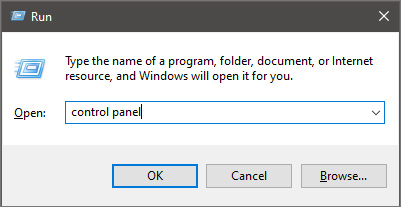
run dialog with control panel typed inIn Control Panel find Storage Spaces and left-click on it.
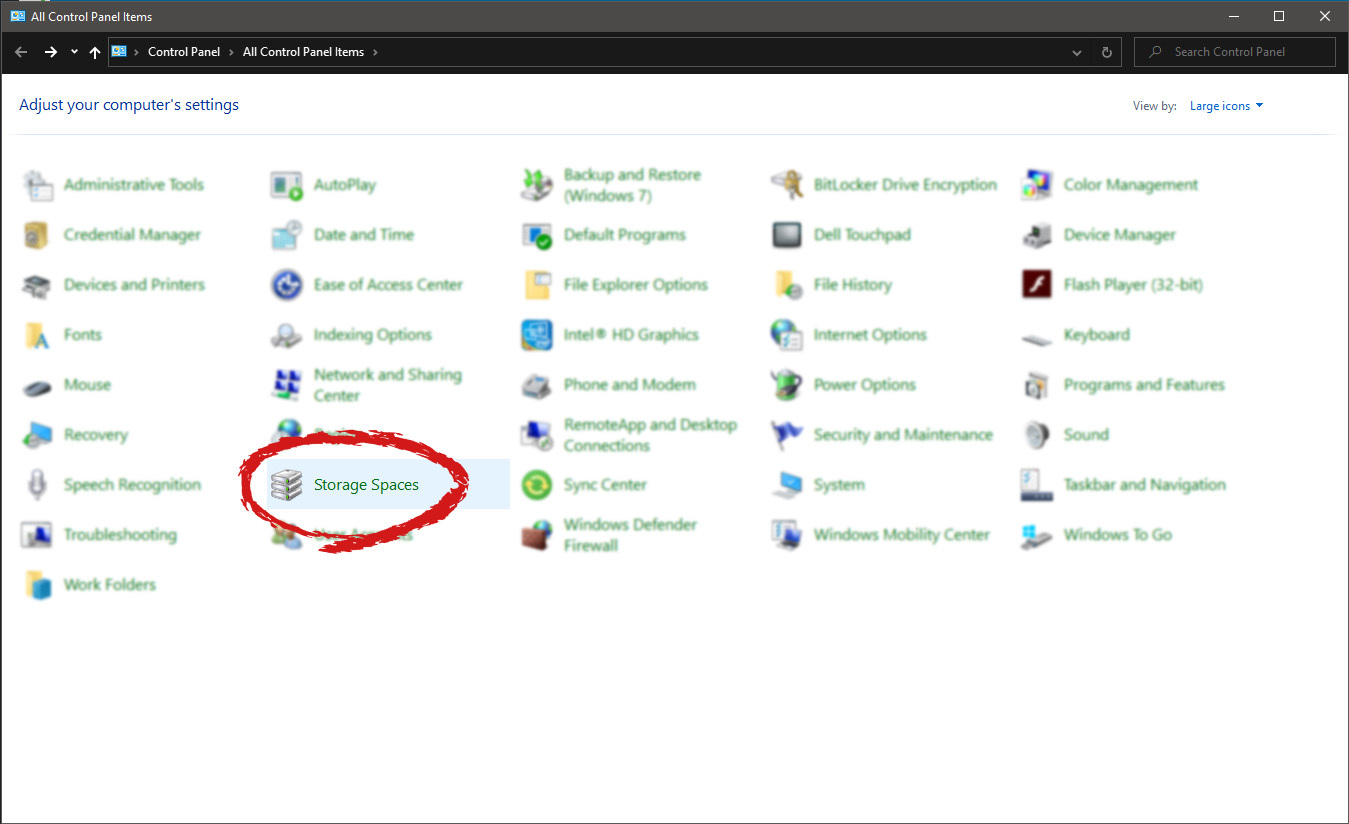
Control panel with storage spaces markedOnce storage spaces open, left-click on Create a new pool and storage space
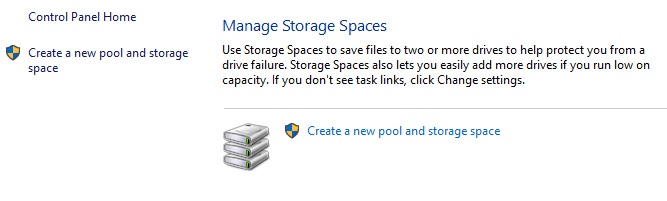
storage spaces manage storage spacesOnce you click on create new, you will be greeted with a list of hard drives you can use for this operation.
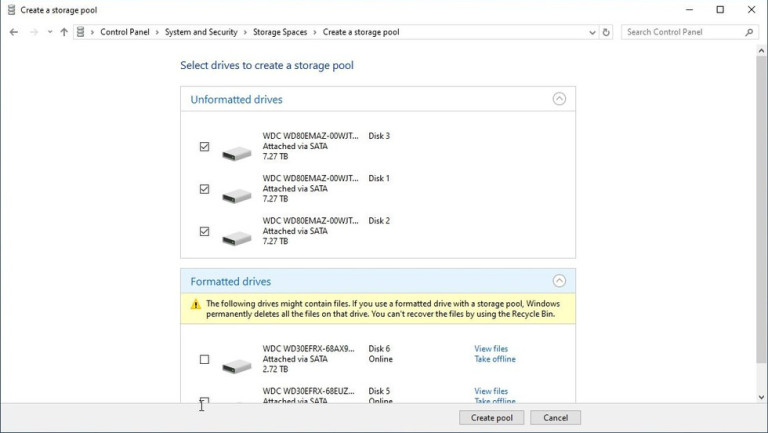
storage spaces select drivesPlease note that all hard drives you choose will be completely erased and formatted and then assign a single drive letter. Click on Create pool.
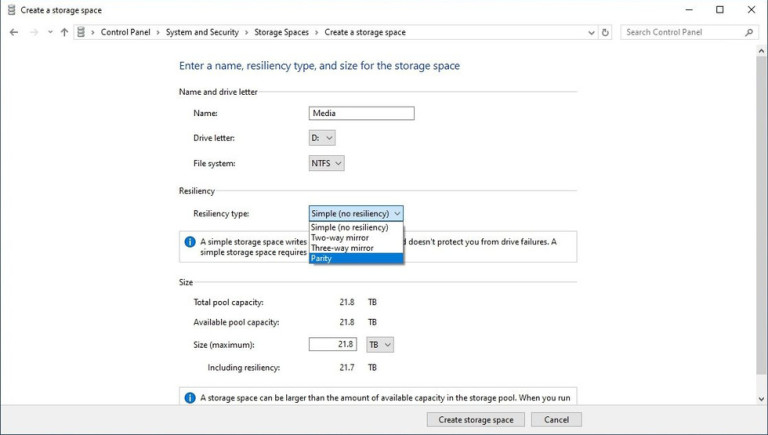
storage spaces resiliency type optionsYou will find yourself in new storage options where you can assign a drive letter, give storage space a name, etc.

Storage spaces types

One thing I would like to focus on here is resiliency type, when you expand the resiliency type drop-down menu you will see 4 options inside. Simple, Two-way mirror, Three-way mirrors, and Parity.

Simple: If you choose Simple as an option, you will have maximum hard drive space but no resiliency at all, meaning that if by any chance any of your hard drives malfunction, you are losing your data from that drive completely.

Two-way mirror: This option will save your data if one of your drives fails but you need at least 2 drives and storage space will be limited since some of it will be a safe backup option for the case of a drive failure. However if one of your drives fails, you can replace it in a second and keep on working as nothing happened.

Three-way mirror: This option similar to the previous one will offer you safe data-keeping from a hard drive failure. this option will save your data even if 2 hard drives malfunction but it will require having 5 of them connected in order to be able to choose this option.

Parity: Maybe the most popular option among people who want to have 2 or 3 drives merged but do not want to lose too much space of the two-way mirror option. It offers some protection and it does not take so much space as two-way does, let us say it is a kind of win-win situation.

Conclusion

I personally go for simple and have an important backup on optical drives but only for reason I could use more space, know that this way is requiring from me to always have a backup in optical media and that I will need to restore all of it back if even one HDD fails which could take time. But if this way is ok with you, go for it, you will have more space to use.


Do You Need Help with Your Device?

Our Team of Experts May Help
Troubleshoot.Tech Experts are There for You!
Replace damaged files
Restore performance
Free disk space
Remove Malware
Protects WEB browser
Remove Viruses
Stop PC freezing
GET HELP
Troubleshoot.Tech experts work with all versions of Microsoft Windows including Windows 11, with Android, Mac, and more.

Share this article:

You might also like

System32 Folder Keeps Popping up at Startup
The System32 folder contains vital configuration and information that are essential to the operating system. It is located inside the “Windows” folder and it consists of important DLL files as well as executable files. You probably have noticed some errors that have the “System32” word in them but that does not necessarily mean that the System32 folder is the one that triggers them as these kinds of errors have only occurred when some important files are corrupted or missing. Some users recently reported that each time they start their computers, the System32 folder will automatically open up in the File Explorer. If you encounter the same problem, read on as this post will guide you on what to do to fix it. This kind of issue is most likely caused by service or application interference – it is possible that there is a third-party application installed in your computer or a Windows service that triggers the System32 to pop up during startup. It is also possible that this is a result of system modification. Thus, you need to identify the third-party program or restore your computer to its previous state.

Option 1 – Put your computer in a Clean Boot State

As pointed out, it is possible that some third-party program or service is the one that’s behind the problem. To isolate this possibility and to identify the culprit, you have to put your computer into a Clean Boot State. To do so, follow the steps below.
  • Log onto your PC as an administrator.
  • Type in MSConfig in the Start Search to open the System Configuration utility.
  • From there, go to the General tab and click “Selective startup”.
  • Clear the “Load Startup items” check box and make sure that the “Load System Services” and “Use Original boot configuration” options are checked.
  • Next, click the Services tab and select the “Hide All Microsoft Services” check box.
  • Click Disable all.
  • Click on Apply/OK and restart your PC. (This will put your PC into a Clean Boot State. And configure Windows to use the usual startup, just simply undo the changes.)
After putting your PC in a Clean Boot State, try creating a system restore point and see if the problem still occurs. Clean Boot troubleshooting is designed to help you isolate the problem. For you to execute a clean boot troubleshooting, you must do a couple of actions (the steps given above) and then restart your PC after every action. You might have to disable one third-party app after the other to really isolate the issue. And once you’ve narrowed down the problem, you can either disable the third-party app that’s causing the problem or remove it. Note that you must switch your PC back into the Normal Startup mode after you’re done troubleshooting the problem. Here’s how you can do it:
  • From the “Start” menu, go to System Configuration.
  • After that, switch to the General tab and click the option for “Normal Startup”.
  • Next, go to the Services tab and clear the checkbox for “Hide all Microsoft services”.
  • Then find and click “Enable all” and if prompted, you have to confirm.
  • Afterward, go to the Task Manager and enable all the Startup programs and confirm the action.
  • Restart your PC when prompted.

Option 2 – Perform System Restore

  • First, press the Win + R keys to open the Run dialog box.
  • After that, type in “sysdm.cpl” in the field and tap Enter.
  • Next, go to the System Protection tab then click the System Restore button. This will open a new window where you have to select your preferred System Restore point.
  • After that, follow the on-screen instructions to finish the process and then restart your computer and check if the problem is fixed or not.

Option 3 – Run System File Checker scan

You might also try running the System File Checker or SFC scan to fix the issue. System File Checker is a command utility built into your computer that helps restore corrupted files and missing files. Refer to the following steps to run it:
  • Hit the Win + R keys to launch Run.
  • Type in cmd in the field and tap Enter.
  • After opening Command Prompt, type in sfc /scannow
The command will start a system scan which will take a few whiles before it finishes. Once it’s done, you could get the following results:
  1. Windows Resource Protection did not find any integrity violations.
  2. Windows Resource Protection found corrupt files and successfully repaired them.
  3. Windows Resource Protection found corrupt files but was unable to fix some of them.
 Restart your computer and see if the System32 folder still pops up at startup or not.
Read More
A Quick Guide to Resolving Photoviewer.dll Error

Photoviewer.dll Error - What is it?

Photoviewer.dll is a shared library for SampleRes.dll and x3daudio1_1.dll in computers installed with Microsoft Windows 7, 8, Vista, and XP including 32 bit and 64 bit operating systems. Photoviewer.dll is associated with 1728000 system files. The Photoviewer.dll error occurs when you upgrade your Windows operating system to a new version like Windows 7 or 8 on which this shared library is used. Once you upgrade the Windows and you right-click on JPG images, the Photoviewer.dll error pops up. This error message is displayed as the following:
  1. Photoviewer.dll missing/not found
  2. Photovewer.dll entry point not found/application can’t initiate

Solution

Restoro box imageError Causes

Photoviewer.dll error can pop up due to several reasons. These include:
  • Modification of .dll files during Windows installation
  • Infection of Trojan virus
  • Photoviewer.dll missing /broken
  • Photo Gallery was earlier your default image editor before you upgraded your system
It is advisable to repair this issue timely to avoid inconvenience and serious PC threats especially if the cause of this issue is viral infection or registry damage.

Further Information and Manual Repair

Here are some of the best ways to help you resolve Photoviewer.dll error on your system:

1. Rebuild the Windows Photo Gallery

If you were previously using Vista and then you upgraded your system to Windows 7, then try this:
  • Go to the Start menu, click on the control panel and go to the folder options.
  • Then select the view tab option. Here you’ll find the Advanced setting window, select the show hidden files and folders tab.
  • Now click Ok to continue. Navigate to the following folder( %user% is the name of the account with the problem) C:\Usersusername\AppData\Local\Microsoft\Windows\Photo Gallery.
  • Then copy files to another location as a backup and delete them from the Windows Photo directory. Once the files have been deleted, try to start Windows Photo Gallery again. If this seems difficult, install Windows Photo Gallery application from the internet on your system.

2. Repair Broken Photoviewer.dll files and Remove Malware

Another way to fix the photoviewer.dll error is to download Restoro. This is an advanced, user-friendly, and multi-functional PC fixer smoothly integrated with a registry cleaner. By running it on your system you can resolve all Photoviewer.dll error causes in seconds. Restoro has an easy-to-use interface and a neat layout. It is safe, efficient, and bug-free. In addition to this, it is compatible with all Windows versions. The registry cleaning utility is deployed with an automated algorithm that scans your entire PC and detects Photoviewer.dll file errors in seconds. It fixes damaged, misconfigured, and broken Photoviewer.dll files, clears up disk space from unnecessary and obsolete files like the files from the uninstalled Windows programs which could be generating Photoviewer.dll error on your system. It repairs the registry and modifies the registry keys to their correct configuration thus repairing the Photoviewer.dll error on your PC. The powerful privacy error detector is integrated with all the properties and characteristics of an anti-virus. It scans for malware and viruses like Trojans and removes them from your system right away. Besides these utilities, other features integrated into this repair tool include a system stability scanner and Active X and class error detector. It resolves Photoviewer.dll error while optimizing your computer’s speed and performance. Click here to download Total System Care on your system to resolve the Photoviewer.dll file error today!
Read More
Word icon is not showing on .doc & .docx
Recently, a number of users reported seeing plain white icons on their “.docx” files instead of the Word icon. This kind of issue is mostly caused by a conflict with the default program settings in Windows which is why you may not see any Microsoft Word icon on your .docx files. So if you suddenly find that the Microsoft Word icon is either blank or missing and does not show properly on .doc and .docx document files of Office on your Windows 10 computer, then you can check out the potential solutions outlined below. Before you proceed, you can try to restart your computer as there are instances when a simple system restart can resolve some issues like this one. However, if it does not help, create a System Restore point first. This is to ensure that you can always undo the changes you are about to make in case something goes wrong. Once you have that covered, proceed to the following options.

Option 1 – Try to configure .docx files to open with “winword.exe”

You can try configuring the .docx files to open with the winword.exe in order to fix the problem.
  • Right-click on a .docx file and select the “Open with…” option.
  • After that, if a prompt appears with a message saying, “How do you want to open this file”, select the “More apps” option to proceed.
  • Next, scroll down and check the checkbox that says, “Always use this app to open .docx files” option.
  • Then click on the “Look for another app on this PC” link and choose the WINWORD.exe application from one of the following paths based on the installed Office version in your computer and click Open:
    • Word 2016 (64-bit): C:/Program Files/Microsoft Office/root/Office16
    • Word 2016 (32-bit): C:/Program Files (x86)/Microsoft Office/root/Office16
  • Now check if you can now see the Word icon on the .doc or .docx files.

Option 2 – Try changing the default Word icon via Registry Editor

  • Tap the Win + R keys to open the Run utility.
  • Then type “Regedit” in the field and hit Enter to open the Registry Editor.
  • Next, navigate to this path located in the left pane: HKEY_CLASSES_ROOTWord.Document.12DefaultIcon
  • From there, double click on the default value at the right pane and based on the Word version you are using as well as the architecture (32 bit or 64 bit) and then copy-paste the corresponding value in the Value data box:
    • For Word 2016 (64-bit) keep it as C:/Program Files/Microsoft Office/root/Office16/wordicon.exe,13
    • For Word 2016 (32-bit) Keep it as C:/Program Files (x86)/Microsoft Office/root/Office16/wordicon.exe,13
  • Once you’re done, tap Enter and then close the Registry Editor.
  • Restart your computer and see if the problem’s fixed.

Option 3 – Try to rebuild the Icon cache

You may want to rebuild the Icon cache as it could also help fix the issue.
  • Tap Win + E to open File Explorer and then click Folder Options and click Views to show Hidden System Files.
  • After that, go to C:Users%username%AppDataLocal folder and look for a file named Iconcache.db and delete it.
  • Next, go to C:Users%username%AppDataLocalMicrosoftWindowsExplorer.
  • From there, look for the following files and delete them.
    • iconcache_32.db
    • iconcache_48.db
    • iconcache_96.db
    • iconcache_256.db
    • iconcache_1024.db
    • iconcache_1280.db
    • iconcache_1600.db
    • iconcache_1920.db
    • iconcache_2560.db
    • iconcache_exif.db
    • iconcache_idx.db
    • iconcache_sr.db
    • iconcache_wide.dd
    • iconcache_wide_alternate.db
  • Restart your computer. This will purge and rebuild the icon cache.

Option 4 – Try fixing Office apps

Fixing the Office apps can help you resolve the Word icon issue. All you have to do is open Settings > Apps. From the app list, look for the Microsoft Office Desktop apps and select it and then click on the Advanced options and click Fix. After that, wait until the process is completed and restart your PC. However, if the problem still persists, repeat the steps again but this time, click on Reset instead of Fix.

Option 5 – Try to repair Office Installation

If the options given above didn’t work, you can try to repair the Office installation and see if it can fix the problem.
  • Open Control Panel and click on Programs and Features.
  • Next, right-click on the Office program that you want to repair which in this case is, Word.
  • Select Change and click Repair > Continue. After that, Office will start to repair Microsoft Word.
  • Wait until the process is done and then reboot your computer.
Read More
How to Repair Windows 10 Error 8024001F

Error Code 8024001F – What is it?

During the Microsoft Windows 10 upgrade, certain users have experienced an issue with error code 8024001F. Users should note that this error is also known as Windows Update 8024001F and 0x8024001F. This error code is relatively common and is usually caused by a faulty internet connection. Thanks to this common reasoning, the error is generally fixed easily, and users are able to restart their Microsoft Windows 10 upgrade. Common symptoms include:
  • A dialog box appears with the Error Code 8024001F when attempting to upgrade to Microsoft Windows 10.
  • Your current version of Windows is unable to recognize the need for an update to Microsoft Windows 10.

Solution

Restoro box imageError Causes

With only three issues causing error code 8024001F, it is relatively easy to determine your particular issue and then follow the steps below to rectify the situation.
  • Your computer is not connected to the internet.
  • The Windows firewall is interfering with the Microsoft Windows 10 update.
  • Your third-party antivirus and firewall software is interfering with the Microsoft Windows 10 update.
  • Your system is infected with the Conficker worm, which is preventing the Microsoft Windows 10 update from processing correctly.
Microsoft Support asks that you contact them directly for further assistance if you are able to rule out these three reasons for error code 8024001F.

Further Information and Manual Repair

Error code 8024001F is easily corrected using one of the following methods. Each of these methods should be convenient and comfortable for a basic computer user at home. If at any time you are unsure or feel you need more assistance, Microsoft Support asks that you contact them directly for more guided support.

Method 1- Access the Troubleshooter

  1. Access the Windows Update Troubleshooter
  2. When the dialog box pops up, click OK.
  3. Click NEXT on the following dialog box.
  4. Windows will then run the Troubleshooter, attempting to detect any known issues with your system.
  5. Depending upon the results you should be able to follow the on-screen prompts which will alleviate the update issue.

Method 2- Correct your internet connections

  1. Closeout of the error code 8024001F dialog box.
  2. Close the Microsoft Windows 10 updater.
  3. Attempt to access the internet through your normal browser.
  4. ** If you can successfully access the internet, then an internet connection is not the cause for this error code.
  5. If you are unable to access the internet verify that you are plugged into your network, both at the router/wall and at your computer jack.
  6. If you use a router, verify that all of the lights are on and active (showing an active internet connection).
  7. Establish an internet connection if possible. If you are unable to establish an internet connection, you may need to contact your internet provider.
  8. If you are able to reestablish an internet connection, then you should have no problem running your Microsoft Windows 10 update.

Method 3- Adjust the Windows Update settings

  1. Log into your current version of Windows as the Administrator (enter a password if prompted).
  2. Click the START button on your keyboard or screen.
  3. Search for the term “admin”, press ENTER
  4. Click the “administrative tools” option
  5. Select the “services” file, re-enter your password.
  6. Open the Windows Update file by right-clicking on the name.
  7. Choose the “properties” option
  8. Under the GENERAL tab, make sure that the “startup type:” is set to AUTOMATIC (DELAYED START)
  9. Under the “Service Status” header, click the START button.
  10. Click OK
  11. Restart the Microsoft Windows 10 update.

Method 4- Scan for the Conficker Worm

  1. Access the web address to be directed to the Microsoft Safety Scanner.
  2. Run this free scanner provided by Microsoft to verify if the Conficker Worm is your issue.
  3. If this worm is causing your error, Microsoft will walk you through the steps necessary to remove the worm.

Method 5- Firewall and Anti-Virus software

  1. If you are using the Windows firewall or a third-party anti-virus and firewall software, disable these programs.
  2. Run the Microsoft Windows 10 upgrade.
  3. After the upgrade is complete, turn your antivirus and firewall software back on.
Users should not have a problem employing the above methods. Start with the simplest solutions first, and then work your way to the more intricate methods. In some cases, depending on why this particular error code was caused, you may have to use a powerful automated tool to have it resolved.
Read More
Fix Windows Update Error Code 0x8024402c
Connecting to Microsoft’s Windows Update servers does not always go smoothly since you could run into a number of errors. One of these errors is the error code 0x8024402c. You can see this error code when you check for Windows Updates. This kind of Windows Update error occurs when the proxy or the firewall settings are incorrectly configured. As a result, the client’s connection to the Windows Update servers fails. There are two things you can do to resolve error code 0x8024402c. First, you can try to fix the Proxy Settings. Second, you can set up Automatically Detect the connection settings. In addition, you can also try to perform System Restore as it could also help in fixing the problem. Performing System Restore might help you in fixing the error code 0x8024402C. Refer to the steps below to use System Restore.
  • Tap the Win + R keys to open the Run dialog box.
  • After that, type in “sysdm.cpl” in the field and tap Enter.
  • Next, go to the System Protection tab then click the System Restore button. This will open a new window where you have to select your preferred System Restore point.
  • After that, follow the on-screen instructions to finish the process and then restart your computer and check if the problem is fixed or not.
If performing System Restore didn’t help in fixing the problem, then try the two given options below.

Option 1 – Try fixing the Proxy Settings

  • In the Cortana search box, search for Internet Explorer and then click on the related search result.
  • After that, tap the Win + T keys on your keyboard and click on Internet Options.
  • Next, navigate to the Connections tab and click on LAN Settings.
  • Then click on the Advanced button and delete all the entries in the list generated in the Exceptions section. And if the Advanced button is disabled because the “Use a proxy server for your LAN (These settings will not apply to dial-up or VPN connections)” option is disabled then you are good to go. Now proceed to the next step.
  • Tap the Win + X keys or right-click on the Start button and select Command Prompt (Admin) or you could also search for “cmd” in the Cortana search box and right-click on Command Prompt from the search results and select the “Run as administrator” option.
  • If a User Account Control appears, click on Yes to proceed. After that, type each one of the commands listed below, and don’t forget to hit Enter after you type each one of them.
    • netsh winhttp reset proxy
    • net stop wuauserv
    • net start wuauserv
  • Now restart your computer and check if the problem is fixed or not by checking for Windows Updates again.

Option 2 – Try setting up Automatically Detect the connection settings

  • Type in “internet options” in the Cortana search box and then click on the related search result.
  • After that, navigate to the Connections tab.
  • Next, click on the LAN Settings button located under the Local Area Network (LAN) settings section.
  • Then uncheck the “Use a proxy server for your LAN (These settings will not apply to dial-up or VPN connections)” option under the Proxy Server section and click OK.
  • Now restart your computer to apply the changes made successfully.
Read More
How to start Windows 10 in safe mode
Booting Windows 10 in safe mode can solve many issues with your computer since Windows will boot just in its basic core and you can safely maintain it, find a solution for issues, etc. Before, entering safe mode was easy and pretty straightforward, during Windows evolution, entering safe mode was somewhat complicated and not being made so directly like once it was but do not worry. Starting Windows in safe mode today is even maybe easier than it was before, it is just not so obvious as it once was. In this article, we will go through several ways how you can boot up Windows in safe mode in order to solve whatever issue is troubling you.
  1. Start safe mode from settings

    Open Settings by pressing the ⊞ WINDOWS + I or by just clicking on the Start button and clicking Settings. Go to Update & Security, then Recovery. In Advanced startup, click Restart now. Once your PC reboots, click Troubleshoot, then Advanced options. Select Startup Settings then Restart.
  2. Go to safe screen from Sign-in screen

    Click the Shift on your keyboard while clicking on the Power button on the bottom right corner of the screen. Once your PC restarts, click on Troubleshoot, then Advanced options. Select Startup Settings then Restart. After the reboot, select or the F4 on your keyboard to run in Safe Mode. If you choose to use Safe Mode with Networking, select or F5.
  3. Start Windows recovery Environment

    Go to the Windows Recovery Environment by doing the following steps: Press on the power button to turn off your device. Press on the button again to turn it on. Once Windows starts, press the power button again for 10 seconds to turn it off. Then press it on again. Upon the reboot, hold on to the power button for 10 seconds to turn it off, then turn it on again. Because you've repeatedly turned on and off your PC, you will be redirected to Windows Recovery Environment. On the pop-up window, click on Troubleshoot, then Advanced options. Select Startup Settings, then Restart. After the reboot, select or the F4 on your keyboard to run in Safe Mode. If you choose to use Safe Mode with Networking, select or F5.
  4. Hold SHIFT while pressing RESTART on the start menu

    On the Windows 10 sign-in screen, hold on the SHIFT on your keyboard. While pressing on the key, click on the Power button, then choose Restart on the pop-up menu. Once your PC restarts, click on Troubleshoot, then Advanced options. Select Startup Settings then Restart. After the reboot, select or the F4 on your keyboard to run in Safe Mode. If you choose to use Safe Mode with Networking, select or F5
  5. Boot from installation media and choose it in the command prompt

    Create a Windows 10 bootable installation media on any external storage media. Once you do this step, wait for the installation to load. Select your preferred language and click on Next. Click on Repair your computer at the bottom left of the menu. Click on Troubleshoot, then Advanced options. Select Command Prompt - Use the Command Prompt for advanced troubleshooting options. Type in the following command on the prompt: bcdedit /set {default} safeboot minimal Hit Enter and wait for it to tell you that "The operation completed successfully". Exit Command Prompt and click on Continue.
  6. Use system configuration tool

    In the Search bar, type in msconfig. Select the Boot tab and under the Boot options, put a check beside Safe boot. Click OK. Reboot PC
  7. Press SHIFT + F8

    Press SHIFT + F8 when turning on Windows. This redirects you to Advanced Boot Options Window, then choose to run Windows on Safe Mode
There you have it, 7 different ways to enter safe mode in Windows 10, we hope that any of these tips proved helpful and that you managed to enter the safe mode and fix your Windows issues.
Read More
Stop the Hotspot from Turning off
As you know, Windows 10 is equipped with a Mobile Hotspot feature that allows users to share the existing internet connections to other devices over Wi-Fi. However, one of the downsides to this feature is that it does not stay on if there are no devices connected to it for over five minutes. In other words, if there are no devices connected to the mobile hotspot for five minutes, it will turn off automatically. Thus, if you want the mobile hotspot to stay turned on, then you’ve come to the right place as this post will walk you through how to stop the Mobile Hotspot from turning off in Windows 10. There are two scenarios tackled in this post wherein the Mobile Hotspot feature turns off automatically and where the hotspot disables when there is no internet connection. To remedy these scenarios, you can try turning off the power saving feature or use a PowerShell command to change the “PeerlessTimeoutEnabled” settings or increase the Mobile Hotspot idle timeout settings. You could also increase the timeout period when a cellular connection is not available or disable the Wi-Fi and network adapter power management options. For detailed instructions, refer to each one of the given options below.

Option 1 – Try turning off the power saving feature

The first solution you can check out is to turn off the power-saving feature. To do so, follow these steps:
  • Open the Settings app and go to Network & Internet and from there, click on the Mobile Hotspot option.
  • Next, toggle the “Share my Internet connection with other devices” option.
  • After that, toggle the “When no devices are connected, automatically turn off mobile hotspot” option.

Option 2 – Execute a command in PowerShell

The next option you can try to keep the mobile hotspot turned on is through a command in PowerShell. To get started, follow these steps:
  • Tap the Win + X keys and select the “Windows PowerShell (Admin)” option.
  • Next, execute the following command to make sure that the Mobile Hotspot stays on even when no devices are connected to it:
powershell -windowstyle hidden -command "Start-Process cmd -ArgumentList '/s,/c,net stop "icssvc" & REG ADD "HKLMSYSTEMCurrentControlSetServicesicssvcSettings" /V PeerlessTimeoutEnabled /T REG_DWORD /D 0 /F & net start "icssvc"' -Verb runAs"
  • After the command is executed, here is what the script is doing in the background:
    • It stops the Mobile Hotspot service (icssvc).
    • It navigates to this registry path (HKEY_LOCAL_MACHINESYSTEMCurrentControlSetServicesicssvcSettings) and creates a DWORD key named “PeerlessTimeoutEnabled” which has a value of 0.
  • It then restarts the Mobile Hotspot Service (icssvc).

Option 3 – Try increasing the Mobile Hotspot idle timeout settings

Another option you can try is to increase the idle timeout settings of the mobile hotspot. In case you don’t know, the default timeout when there’s no active connection is about five minutes. So if you don’t want to keep it on always but want to keep it on longer than five minutes, then this option is for you. All you have to do is change the same key (PeerlessTimeout) as mentioned above, at a different location. In fact, you can change it to a maximum of 120 minutes. To give this a try, follow these steps:
  • Tap the Win + R keys to open the Run dialog box and type “Regedit” in the field and then tap Enter to open the Registry Editor.
  • Next, navigate to this registry path: HKLMSystemControlSet001ServicesICSSVCSettingsPeerlessTimeout
  • From there, change its value to anywhere between 1 up to 120.
  • Once done, exit the Registry Editor and restart your computer.

Option 4 – Try increasing the timeout period when a cellular connection is not available

There are many times when you want to connect devices so it becomes part of the network. And as pointed out, the Mobile Hotspot turns off automatically when there is no internet or mobile data but when you use a registry setting, you can change any value between 1 and 60 inclusive.
  • Tap the Win + R keys to open the Run dialog box and type “Regedit” in the field and then tap Enter to open the Registry Editor.
  • Next, navigate to this registry path: HKLMSystemControlSet001ServicesICSSVCSettingsPublicConnectionTimeout
  • From there, set the value of the “Timeout” key between 1 and 60.
  • After that, close the Registry Editor and restart your PC.

Option 5 – Try to disable the Wi-Fi and Network adapter in Power Management options

As you know, the Wi-Fi adapter and the network devices have properties that will turn off when on battery and when it’s not used for a long time so you can try to disable these options.
  • Tap the Win + X + M keys to open the Device Manager.
  • Next, expand the list of Network devices and select the Wi-Fi adapter.
  • After that, go to the Power Management tab and make sure that anything related to power saving should be turned off. This will ensure that none of the network devices will turn off the Mobile Hotspot or trigger anything that will do that.
Read More
Create BlueTooth shortcut on desktop
If you have a BlueTooth device on your computer, you know that each time you need to receive or transfer the file you need to find the icon in the system tray, right-click on it and choose the desired option. But there is a simpler solution, create a Bluetooth icon on the desktop so it is always easy to access. Open File Explorer by pressing ⊞ WINDOWS + E Go to C:\Windows\System32 Find fsquirt.exe Right-click on it and choose copy Go to the desktop and right-click, choose paste Rename the file to Bluetooth And, you are done!
Read More
How to Fix Sysdata.xml Error Code on Your PC

Sysdata.xml Error Code - What is it?

To develop a good understanding of the Sysdata.xml error code, it is first important to learn what is sysdata.xml file and its function. Sysdata.xml is a type of XML file. The .XML file extension is an Extensible Markup Language file. XML-based formats have now become the default for many office productivity tools including Microsoft Office and LibreOffice. Furthermore, it has also come into common use for the interchange of data over the internet. Sysdata.xml error code usually pops up when .XML based applications are unable to run and crash while loading. This is a type of BSoD (Blue Screen of Death) error code. Common symptoms include:
  • System freeze
  • The screen turns blue
  • Sudden system shut down

Solution

Restoro box imageError Causes

The Sysdata.xml error code is triggered due to multiple reasons such as:
  • Faulty hardware
  • Malware or viral infection
  • Registry issues
No matter what the reason may be, it is advisable to fix this error code right away without any delays. This is a fatal error and can result in a system crash and loss of data. And recovering valuable lost data is the hardest.

Further Information and Manual Repair

Here are some of the effective and easy do it yourself methods to resolve this error on your system:

Method 1: Fix Faulty Hardware

Hardware issues may arise due to many reasons like manufacturing issues or voltage fluctuations. Electrical storms can cause power surges which may affect the hardware causing it to fail. The best way to resolve this is to download the latest drivers for the problematic devices or alter the device configuration in the BIOS setup program.
  • To reconfigure the BIOS simply restart your PC and before Windows starts, press Del Key to access your BIOS.
  • Now find the factory reset option.
  • Select the option and press the button to load your factory defaults.
  • After that save changes and confirm your selection.
  • Reboot your PC to activate the changes.

Method 2: Scan for Viruses

Sometimes viruses and malware can disguise themselves in the .XML files which can cause them to get corrupted. To resolve the issue, it is advisable to download a powerful antivirus and scan your entire PC for viruses. Remove the detected viruses to resolve the Sysdata.xml error on your system.

Method 3: Repair the Registry

If the registry is not cleaned frequently, it loads with unnecessary and obsolete files like the junk files and cookies. These files clutter and damage the registry and eventually corrupt it and the important files like .XML files stored in it. To resolve the issue it is recommended to download Restoro. It is a user-friendly and powerful PC Fixer embedded with a registry cleaner. It scans your entire PC for registry-related errors and removes them immediately. It cleans the cluttered registry and restores the damaged files thereby repairing the issue right away. Click here to download Restoro.
Read More
Fix AMD driver crashing Windows 10
Graphic cards are essential to our computers but from time to time in the race to make better GPU and to grab a large portion of the market bad drivers get released and can create really unwanted and unpleasant experiences, from Windows freezes to the black screen of death, to AMD driver Windows crashing down and many more. This article will cover basic troubleshooting with AMD drivers and offer you solutions on how to fix them.
  1. Rollback the previous version of the driver.

    Installing the new driver version is the reason for this particular error, so naturally rolling back the previous version which was stable and did not cause issues will solve the problem. To roll back the previous version of drivers follow the next steps: Open Start menu and click on settings, go to system and choose Apps and features Find: AMD Catalyst Install Manager, right-click on it, and choose to uninstall Go to AMD official website and download the previous driver version, install it on your computer Turn off automatic driver updates and reboot your system
  2. Reinstall the driver

    Sometimes it is not a bug in the released driver, it is a corruption of files because of file transfer or any other specific reason. The reinstalling driver will fix an issue if this is the case. To reinstall the driver Press ⊞ WINDOWS + X and choose Device Manager Expand Display adapters, right-click on AMD device and choose to uninstall Go to the official AMD website, download the latest driver and install it Reboot your system
  3. Disable browser extensions

    Some users have reported that error occurs only when they are watching videos online, if this is your case, go to your browser options and disable extensions to see if this will remove the problem.
  4. Remove Lucid Virty MVP

    If by any chance have this relic installed on your system, go to Applications and remove it. It is an old program shipped with old drivers and it is usually present in your Windows that was upgraded from 8.1 to 10. Uninstall it and see if this fixes your issue.
  5. Clean your graphic card

    Sometimes this error can happen due to excessive dust on your GPU, if you have the expertise, clean it or take it somewhere to be cleaned.
Read More
1 2 3 171
Logo
Copyright © 2023, ErrorTools. All Rights Reserved
Trademark: Microsoft Windows logos are registered trademarks of Microsoft. Disclaimer: ErrorTools.com is not affiliated with Microsoft, nor claims direct affiliation.
The information on this page is provided for information purposes only.
DMCA.com Protection Status




