Logo

How to Fix the Socket Error 10060

Socket Error 10060 - What is it?

Socket Error 10060 is a typical Outlook Express error. This error often occurs when the connection to the server fails. It specifically refers to a timeout while communicating with the email providers servers.

The vast majority of all emails use SMTP for outgoing mail. Socket error 10060 in most instances is related to the SMTP settings for the user’s email.

The error message is sometimes displayed in the following format:

Outlook Express Socket Error10060 - The connection to the server failed Account:’ your account’

Another thing you must know about this error is that it only stops the user from sending emails. This means that you can only receive emails, not send them.

Solution

Restoro box imageError Causes

The cause of this error code is hard to narrow down typically because there are many causes that can trigger the socket error code 10060. Some of the most common causes of this error code are:

  • Issues in email settings
  • Authentication settings
  • Firewall settings
  • Malware

Though this is not a critical error code it is advisable to fix it immediately without any delays.

This error can hamper your communication via email and slow down your work productivity especially if you use Outlook for communication across the organization.

Further Information and Manual Repair

Here are some of the many methods to fix and resolve this error code. To help you resolve this issue, we have selected and listed down the best, quick, and easy do-it-yourself methods. Try them and repair Socket error code 10060 all by yourself without any professional assistance.

Method 1 - Check the Names of POP3 and SMTP Servers

To begin with, first check the names of the POP3 and SMTP servers to ensure that they are correct. Then check the outgoing SMTP port. Contact your email provider to determine the correct settings.

Sometimes email providers change this value more than any other in their individual settings. Get it verified. Change the settings if needed.

Method 2 - Outgoing SMTP Server Requires Authentication

Sometimes the error code may occur due to authentication issues. If this is the reason then, don’t worry it is easy to fix. Simply go to the settings options and check the box ‘My server requires authentication’.

Once you check the box, try sending the email again. This is most likely to resolve the socket error 10060 on your PC.

Method 3 - Disable Firewall

Your Firewall security may sometimes be the reason for socket error 10060 too. Therefore if after trying method 1 and 2, the error still persists, then it is advisable to disable firewall.

Once you disable it, try sending an email using your Outlook account. If it works, the error is resolved.

Method 4 - Scan for Malware

There is a possibility that the Socket error 10060 is popping on your PC due to malware infection. If so, then it is advisable to download Restoro.

This is a highly functional and a user-friendly PC fixer deployed with a powerful antivirus and several other scanners. Run it on your PC to scan for malware. It detects and removes all types of malware including Trojans, viruses, adware, spyware, and more in seconds.

Click here to download Restoro to resolve socket error 10060 on your system today.

Do You Need Help with Your Device?

Our Team of Experts May Help
Troubleshoot.Tech Experts are There for You!
Replace damaged files
Restore performance
Free disk space
Remove Malware
Protects WEB browser
Remove Viruses
Stop PC freezing
GET HELP
Troubleshoot.Tech experts work with all versions of Microsoft Windows including Windows 11, with Android, Mac, and more.

Share this article:

You might also like

How to Fix Media disconnected error message on Windows 10
A computer with no internet connection is like a mobile phone that can’t call nor text though you can still use it for other things. So if you are having problems with your computer’s internet connection, worry not as there are some basic things you can try before you go over the actual troubleshooting. Just make sure that you really have working internet. To verify it, try connecting your other devices. Aside from that, you must also make sure that your computer is connected properly over cable or connected to the router over the Wi-Fi. Once you have all these things covered, now’s the time to start troubleshooting the problem with the help of the instructions prepared below. To be more specific, this guide will walk you through what you can do when you encounter a particular internet connection problem where you get the Media State Media disconnected error message on your Windows 10 computer.

Before you troubleshoot the problem, you need to first check the internet connection status on your computer. To do that, follow these steps:

  • Type in “cmd” in the Cortana search box.
  • From the search results, right-click on Command Prompt and select “Run as administrator” from the context menu.
  • After opening Command Prompt with administrator privileges, type in the ipconfig /all command and hit Enter.
  • After you enter the command, you will see a list of all the connected media like the Ethernet, Wi-Fi along with its status, and more. From there, you need to check everything closely. I notice a message that says, “Media State . . . . . Media disconnected”, then your internet connection is indeed having issues.
Refer to the options below to fix the Media State Media disconnected error message on your Windows 10 PC.

Option 1 – Try resetting WINSOCK and IP Stack

  • Type in “cmd” in the Cortana search box.
  • From the search results, right-click on Command Prompt and select “Run as administrator” from the context menu.
  • After opening Command Prompt, type in each one of the commands listed below
    • netsh winsock reset catalog – This command will reset the WINSOCK entries.
    • netsh int ipv4 reset reset.log – This command will reset the IPv4 TCP/IP stack.
    • netsh int ipv6 reset reset.log – This command will reset the IPv6 TCP/IP stack
  • Once you’ve executed the commands listed above, restart your PC to successfully apply the changes made.

Option 2 – Check if your Network Adapter is disabled

If you’ve disabled the network adapters on your computer, then it’s most likely the reason why you’re getting the Media State Media disconnected error message. Thus, you need to enable it back.
  • Open Settings and go to Network and Internet > Select Ethernet > Change adapter options.
  • From there, right-click on the adapter and enable it.

Option 3 – Check the Wi-Fi Properties

Though this case is not common, Wi-Fi sharing has actually caused issues for some users. That’s why you need to check the Wi-Fi properties. Go to Network Connections and right-click on Wi-Fi and select Properties. From Properties, go to the Sharing tab and select the first option and click OK.

Option 4 – Try updating the Network driver

  • Tap the Win + R keys to open the Run dialog box and then type in devmgmt.msc and tap Enter or click OK to open the Device Manager.
  • Expand the section for the outdated device drivers.
  • And then select the Network driver or any other outdated driver(s) and right-click on it/them.
  • From the drop-down menu, select the Update Driver option and follow the on-screen instructions to install the latest version of the driver.
  • Then also click on the option, “Search automatically for updated driver software.
  • Restart your PC after the installation.
Note: If updating the Network driver didn’t work, you can go to the website of your PC manufacturer and look for the support section where you can download the drivers for your computer. You just need to take note of your PC’s correct model and model number so you can find the appropriate driver.
Read More
Windows Updates failed to install, 0x80073701
Recently, a number of users reported an error while trying to update their computers. This particular Windows Update error has an error code of 0x80073701. If you are one of the users who encounter this error, then read on as this post will guide you on how exactly you can fix it. Here’s the exact context of the error:
“Updates failed. There were problems installing some updates, but we’ll try again later. 2019-07 Cumulative Update for Windows 10 Version 1903 for x86-based Systems (KB4507453) – Error 0x80073701”
The Windows Update Error 0x80073701 also comes with a code “ERROR_SXS_ASSEMBLY_MISSING” which indicates that some system files are missing on your computer that caused the update installation failure error. Although this Windows Update error does not cause any severe issues, it is still being reported in the section of Windows Update where it is marked as “Update failed”. There are several potential solutions you can check out to resolve this error. You can try to run the DISM tool or the SFC or System File Checker scan. You could also try to run the Windows Update troubleshooter. For more information, make sure to follow the options given below.

Option 1 – Restart your computer and try installing the Updates again

Restarting your computer can also help in fixing the Windows Update failed to install error 0x80073701. There are cases where the issue resolves on its own as it could just be some simple network or PC error.

Option 2 – Try to run the DISM tool

Running the DISM Tool helps in repairing the Windows System Image as well as the Windows Component Store in Windows 10. Using this built-in tool, you have various options such as the “/ScanHealth”, “/CheckHealth”, and “/RestoreHealth”.
  • Open the Command Prompt as admin.
  • Then type in this command: exe /Online /Cleanup-image /Restorehealth
  • Do not close the window if the process takes a while as it will probably take a few minutes to finish.
After you run this tool, a log file is created at C:WindowsLogsCBSCBS.log. On the other hand, if the Windows Update client is already broken, you will be prompted to use a running Windows installation as the repair source or use a Windows side-by-side folder from a network share, as the source of the files. Although the chances of this happening is less, if it turns out to be the case, you need to run an advanced command in the DISM tool to repair a broken Windows Update. Just repeat the process above but use the following command instead:
DISM.exe /Online /Cleanup-Image /RestoreHealth /Source:C:RepairSourceWindows /LimitAccess

Option 3 – Try to run the System File Checker

System File Checker or SFC is a built-in command utility that helps in restoring corrupted files as well as missing files. It replaces bad and corrupted system files to good system files that might be causing the error 0x80073701. To run the SFC command, follow the steps given below.
  • Tap Win + R to launch Run.
  • Type in cmd in the field and tap Enter.
  • After opening Command Prompt, type in sfc /scannow
  • The command will start a system scan which will take a few whiles before it finishes. Once it’s done, you could get the following results:
  1. Windows Resource Protection did not find any integrity violations.
  2. Windows Resource Protection found corrupt files and successfully repaired them.
  3. Windows Resource Protection found corrupt files but was unable to fix some of them.
  • Restart your computer.

Option 4 – Try running the Windows Update Troubleshooter

Running the built-in Windows Update troubleshooter could also help you resolve the Windows Update error 0x80073701. To run it, go to Settings and then select Troubleshoot from the options. From there, click on Windows Update and then click the “Run the troubleshooter” button. After that, follow the next on-screen instructions and you should be good to go.
Read More
DDR5 what we know so far about it
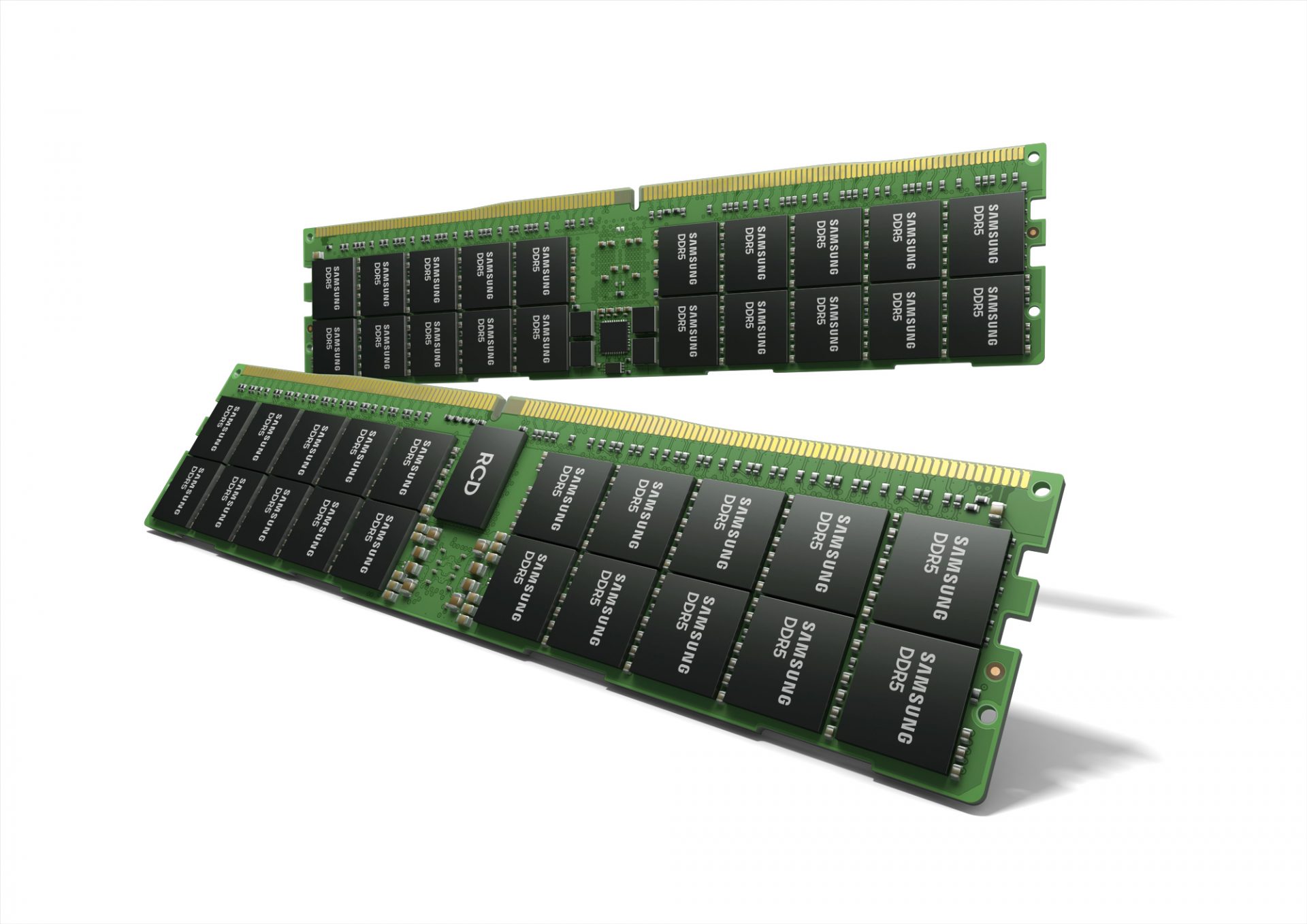
DDR5 memory moduleNext-generation of RAM, DDR5 supposed to hit shelves around late summer or fall in 2021if everything goes as planned. Its goal is to increase speed and efficiency, wants to pack more memory in a single stick, and have better power management.

Hardware requirements for DDR5

Using the latest memory technology will require other hardware to follow certain standards and the first ones that will need to follow are CPUs and Motherboards. Intel is already prepared with its Alder Lake CPUs that suppose to come out also later this year. AMD on other hand has not stated anything at the time of this writing but it is a bet that their next generation that will come in 2022 will have full support. It is speculated that bot companies and their respective CPUs will have both support for DDR4 and DDR5. A story about motherboards is a little different. Motherboards will support DDR4 or DDR5 memory banks, not both, so make sure that your motherboard will support the memory you plan on getting.

Capacity of memory

The goal and aim for the DDR5 memory stick are to reach a whopping 126GB per stack. This will be done by using a dual in-line module or DIMM enabling larger capacity. That being said, the first modules that we will see are more likely to be 16GB as standard and 8GB as low entry ones.

Power consumption of DDR5 memory

The standard voltage that DDR4 operates under is 1.2V. DDR5 wants to lower this to 1.1V without sacrificing speed. Voltage regulation on modules themselves will be now integrated on memory banks instead of leaving that to motherboards which will help to detect memory errors directly on the memory bank.

Speed of memory

The most common speed of DD4 memory banks is 2,666MHz, more expansive ones go from 3,600 to 4,000MHz. DD5 aims to raise this bar to 4,800MHz and offers greater speed.

Should you get it right away?

Hardware is ever-evolving, we have PCIe 3.0 to PCIe 4.0, and taking into account that sometimes the newest tech can cause some unexpected behavior it is always the best strategy to wait for a little. Price for the newest tech has also been in its heist just when it is released and seeing how DDR5 will benefit mostly servers mostly since even today memory, processors, and other available equipment can tackle all daily tasks.
Read More
How to remove ConvertDocsOnline from Your PC

ConvertDocsOnline is a Browser Extension for Google Chrome developed by Mindspark Inc. This extension offers users a quick and easy way to convert documents without any additional applications installed on their computer, it also has quick access links to popular websites that the average user might find interesting. While all this may look appealing and nice, this extension injects itself into your browser.

While installed, ConvertDocsOnline will monitor your browsing activity and record visited websites, clicked links, downloads, and even viewed products. All this information is later used/sold to Mindsparks Ad network to better serve user-targeted ads.

Browsing the internet with this extension installed will result in ad placement throughout your browsing sessions. These ads might appear as normal links (sponsored content), ad links, or even pop-up ads.

ConvertDocsOnline has been marked as a Browser Hijacker by several Anti-Virus scanners and is therefore recommended for optional removal from your PC.

About Browser Hijackers

Browser hijackers (sometimes referred to as hijackware) are a type of malware that changes web browser settings without the user’s knowledge or permission. These types of hijacks are increasing at an alarming rate around the globe, and they can be truly nefarious and sometimes dangerous too. There are plenty of reasons why you may have a browser hijack; however commercial, marketing, and advertising are definitely the primary reasons for their creation. In most cases, browser hijacking is used for earning advertising revenue that comes from forced ad mouse clicks and site visits. It might appear naive, but the majority of these sites are not legitimate and may pose a significant threat to your online safety. In a much worst case, your internet browser could be hijacked to download malicious software that can do a lot of damage to your PC.

Symptoms of browser hijacker malware

Symptoms that a web browser is a hi-jacked include: 1. the browser’s homepage is modified 2. your internet browser is constantly being redirected to adult websites 3. the default online search engine and/or the default browser settings are altered 4. you see many toolbars in your internet browser 5. you might find endless pop-up adverts on your computer screen 6. your web browser gets slow, buggy crashes very often 7. you can’t navigate to certain web pages, such as computer security software-related websites.

How they infect computer systems

Browser hijackers can enter a PC in some way or other, for example via downloads, file sharing, and e-mail also. Many browser hijackings come from add-on software, i.e., toolbars, browser helper objects (BHO), or plug-ins added to browsers to give them extra functionality. Browser hijackers sneak to your computer in addition to free software downloads also that you unwittingly install alongside the original. Examples of popular browser hijackers are Fireball, CoolWebSearch. GoSave, Ask Toolbar, RocketTab, and Babylon Toolbar. The existence of any browser hijacker on your computer could drastically diminish the web browsing experience, record your internet activities that lead to critical privacy issues, degrade overall computer efficiency, and result in application instability also.

Removing browser hijackers

Certain hijackers could be removed by simply uninstalling the related freeware or add-ons from the Add or Remove Programs in the Windows control panel. But, many hijacking codes are certainly not very easy to get rid of manually, since they go deeper into your operating system. Beginner PC users should not try for the manual form of removal methods, as it calls for thorough system knowledge to perform fixes on the system registry and HOSTS file. Browser hijackers can be effectively removed by installing and running anti-malware software on the affected PC. To get rid of any browser hijacker from your laptop or computer, you should download this particular certified malware removal application – SafeBytes Anti-Malware. Along with the antivirus tool, a system optimizer, like SafeBytes’s Total System Care, will help you in getting rid of all related files and modifications in the computer registry automatically.

Virus Blocking Access To Safebytes Website And Preventing Anti-Malware Downloads - What You Should Do?

All malware is bad and the level of the damage will vary greatly in accordance with the type of infection. Some malware types modify browser settings by including a proxy server or modify the PC’s DNS configuration settings. In such cases, you’ll be unable to visit some or all of the websites, and thus unable to download or install the necessary security software to remove the malware. If you are reading this now, you may have probably realized that a malware infection is the cause of your blocked net traffic. So how to proceed when you want to install antivirus software such as Safebytes? Do as instructed below to remove malware through alternate ways.

Get rid of viruses in Safe Mode

The Windows operating system includes a special mode known as “Safe Mode” where just the bare minimum required programs and services are loaded. If the malicious software is set to load immediately when PC boots, switching into this particular mode can prevent it from doing so. In order to enter into Safe Mode or Safe Mode with Networking, press the F8 key while the PC is starting up or run MSConfig and look for the “Safe Boot” options under the “Boot” tab. Once you are in safe mode, you can try to download and install your antivirus software application without the hindrance of the malware. Now, you can actually run the antivirus scan to eliminate computer viruses and malware without hindrance from another malicious application.

Switch to an alternate internet browser

Some malware only targets certain internet browsers. If this is your situation, make use of another internet browser as it can circumvent the malware. If you’re not able to download the anti-virus program using Internet Explorer, this means the virus could be targeting IE’s vulnerabilities. Here, you need to switch to a different internet browser like Firefox or Chrome to download the Safebytes Anti-malware program.

Install antivirus on a USB drive

Another option would be to make a portable anti-malware program on your USB stick. Adopt these measures to run the anti-malware on the infected PC. 1) On a clean PC, download and install Safebytes Anti-Malware. 2) Plug the pen drive into the clean PC. 3) Double click on the downloaded file to open the installation wizard. 4) When asked, choose the location of the pen drive as the place where you would like to store the software files. Follow the instructions on the computer screen to finish up the installation process. 5) Now, transfer the thumb drive to the infected PC. 6) Double-click the anti-malware program EXE file on the pen drive. 7) Run Full System Scan to detect and clean-up up all kinds of malware.

Review of SafeBytes Anti-Malware

If you are planning to purchase anti-malware for your desktop, there are plenty of brands and utilities for you to consider. Some are good ones, some are decent, while some are simply just bogus anti-malware applications that can ruin your personal computer themselves! You have to pick a tool that has got a good reputation and detects not only computer viruses but other sorts of malware also. When thinking about trustworthy programs, Safebytes Anti-Malware is certainly the strongly recommended one. Safebytes is one of the well-established PC solutions companies, which provide this all-inclusive anti-malware software. Using its cutting-edge technology, this application will assist you to get rid of multiples types of malware including computer viruses, trojans, PUPs, worms, ransomware, adware, and browser hijackers.

SafeBytes anti-malware takes computer protection to a whole new level with its advanced features. These are some of the highlighted features included in the tool.

Real-time Active Protection: SafeBytes gives real-time active monitoring and protection against all known viruses and malware. It’ll monitor your PC for suspicious activity continuously and safeguards your PC from illegal access. Robust, Anti-malware Protection: Built upon a highly acclaimed anti-virus engine, this malware removal tool has the capacity to find and get rid of several stubborn malware threats such as browser hijackers, PUPs, and ransomware that other typical antivirus applications will miss. Extremely Speed Scanning: SafeBytes Anti-Malware has got a multi-thread scan algorithm that works up to 5 times faster than any other anti-malware software. Web Protection: Through its unique safety score, SafeBytes informs you whether a site is safe or not to access it. This will make sure that you’re always certain of your safety when browsing the world wide web. Light-weight: SafeBytes is really a lightweight tool. It uses up an extremely small amount of processing power as it operates in the background so you’re free to use your Windows-based PC the way you want. 24/7 Assistance: Support service is available 24 x 7 x 365 days through chat and email to answer your concerns. SafeBytes can keep your personal computer protected from most advanced malware threats automatically, thus keeping your online experience secure and safe. Malware issues will become a thing of the past once you put this software program to use. You’ll get the best all-around protection for the money you spend on SafeBytes AntiMalware subscription, there is no doubt about it.

Technical Details and Manual Removal (Advanced Users)

To eliminate ConvertDocsOnline manually, go to the Add/Remove programs list in the Control Panel and choose the program you want to get rid of. For internet browser extensions, go to your web browser’s Addon/Extension manager and select the add-on you intend to remove or disable. You might also want to reset your home page and search engine providers, as well as delete browsing history, temporary files, and internet cookies. In order to ensure the complete removal, manually check your hard drive and Windows registry for all of the following and remove or reset the values as needed. But bear in mind, this can be a tricky task and only computer professionals could carry it out safely. Furthermore, certain malicious programs are capable to defend against its removal. It is advised that you carry out the removal process in Safe Mode.
Files: %LOCALAPPDATA%\ConvertDocsOnlineTooltab %LOCALAPPDATA%\Google\Chrome\User Data\Default\Local Extension Settings\pebplbnpogfdllkijjlabbjbbngdadjl %UserProfile%\Local Settings\Application Data\Google\Chrome\User Data\Default\Local Extension Settings\pebplbnpogfdllkijjlabbjbbngdadjl %LOCALAPPDATA%\Google\Chrome\User Data\Default\Extensions\pebplbnpogfdllkijjlabbjbbngdadjl %UserProfile%\Local Settings\Application Data\Google\Chrome\User Data\Default\Extensions\pebplbnpogfdllkijjlabbjbbngdadjl Registry: HKEY_LOCAL_MACHINE\Software\Google\Chrome\PreferenceMACs\Default\extensions.settings, value: pebplbnpogfdllkijjlabbjbbngdadjl HKEY_LOCAL_MACHINE\Software\Microsoft\Internet Explorer\DOMStorage\convertdocsonline.dl.myway.com HKEY_LOCAL_MACHINE\Software\Microsoft\Internet Explorer\DOMStorage\convertdocsonline.dl.tb.ask.com HKEY_CURRENT_USER\SOFTWARE\Wow6432Node\ConvertDocsOnline HKEY_CURRENT_USER\SOFTWARE\ConvertDocsOnline HKEY_LOCAL_MACHINE\Software\[APPLICATION]\Microsoft\Windows\CurrentVersion\Uninstall..Uninstaller ConvertDocsOnlineTooltab Uninstall Internet Explorer

Read More
Fix System doesn’t have any USB boot option
Lately, some users reported getting an error that says, “System doesn’t have any USB boot option, Please select other boot option in Boot Manager Menu” when they tried to reinstall the Windows 10 operating system on their PCs or boot from an installation media. If you have the same problem, then this post should help. This kind of error is applicable to multiple devices by various OEMs and is mostly due to the Secure boot being enabled, or the Legacy or CSM support being disabled. It could also be that the bootable USB device was not correctly made and so on. Whatever the cause may be, here are some suggestions you need to check out to resolve the “System doesn’t have any USB boot option, Please select other boot option in Boot Manager Menu” error and reinstall Windows 10 successfully.

Option 1 – Disable the Secure Boot in the BIOS

Disabling the Secure Boot in the BIOS settings is definitely recommended to resolve the error. To disable Secure Boot, here’s what you have to do:
  • First, boot your computer into Windows 10.
  • Next, go to Settings > Windows Update. From there, check if there is anything that you have to download and install if you see any available updates. Usually, OEMs send and update the list of trusted hardware, drivers, and operating systems for your computer.
  • After that, go to the BIOS of your computer.
  • Then go to Settings > Update & Security > Advanced Startup options. If you click on Restart Now, it will restart your computer and give you all the advanced options.
  • Next, select Troubleshoot > Advanced Options. As you can see, this screen offers you further options including System restore, Startup repair, Go back to the previous version, Command Prompt, System Image Recovery, and UEFI Firmware Settings.
  • Select the UEFI Firmware Settings which will take you to the BIOS.
  • From there, go to the Security > Boot > Authentication tab where you should see Secure Boot. Note that every OEM has its own way of implementing the options so it varies.
  • Next, set Secure Boot to Disabled and set Legacy Support to On or Enabled.
  • Save the changes made and exit. Afterward, your computer will reboot.

Option 2 – Try to reset the BIOS or the UEFI Settings

If updating the BIOS didn’t help in fixing Error 0199, you can try to reset the BIOS instead.
  • Start your computer and tap the F10 key during the booting process to enter the BIOS. If it does not work, you can try tapping the F1 or F2 key as well as the Del key.
  • Once you’re already in the BIOS, tap the F9 key to get the prompt to RestoreLoad default configuration now for the BIOS.
  • Next, click on Yes and then follow the next on-screen instructions that appear to set the BIOS back to its default settings.
  • Once you’re done restoring the default settings of the BIOS, restart your computer and then check if it now boots properly.

Option 3 – Make a proper bootable USB Drive/Stick

To make a proper bootable USB drive, you need to use the Windows Media Creation tool. The Media Creation tool in Windows allows you to use the ISO installation file to make a bootable device that you can use to install Windows on your PC. Note that this is kind of different from the usual installation process as it could erase your computer’s current settings and data on the primary drive. Thus, before you proceed, you need to backup all your data into some removable drive and then use the Media Creation Tool to make a bootable drive.
  • After making the bootable drive, you need to plug it into your computer and then reboot.
  • Next, tap the F10 or Esc key to open the boot options.
  • Now set the boot priority of the removable drive the highest. Once the setup comes forth, follow the next onscreen instructions and install Windows without any problems.

Option 4 – Try enabling Legacy or CSM boot support

If the Legacy or CSM boot support is disabled, then it’s no wonder why you’re getting an error. Thus, you need to enable it by following these steps:
  • Open Settings and go to Update & Security > Advanced Startup options.
  • Next, click on Restart Now to reboot your computer.
  • After that, select Troubleshoot > Advanced Options where, you will see more options such as System Restore, Startup Repair, Go back to the previous version, Command Prompt, System Image Recovery, and UEFI Firmware Settings.
  • From there, enable Legacy Support and then save the changes and exit. This will restart the computer.
  • Once your computer has restarted, check if the error is now fixed.
Read More
Microsoft Surface Go 2 review

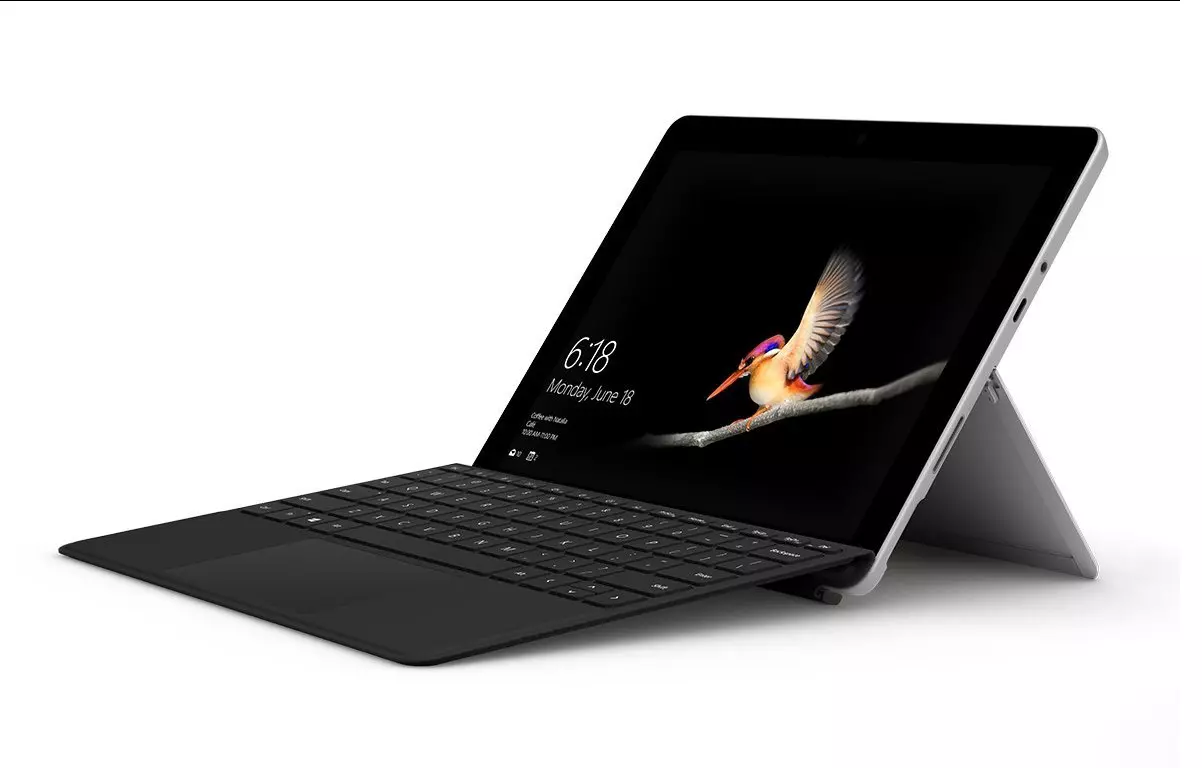
The new upgraded Surface Laptop Go 2 is the new iteration of the affordable original Surface Laptop Go aimed to offer good performance at a lower price of under $1000. The new version is not anything vastly different from the original but it comes with much-needed upgrades.

microsoft surface go 2 laptop

The biggest and main upgrade is the CPU, the Surface Laptop Go 2 is packing now Intel Core i5 1135G7, an Intels 11th generation CPU that should increase battery life. The laptop is also coming with an improved WEB camera and the cheapest one comes now with 128GB of storage instead of 64GB. Price went up from $550 to $599 which is not a big increase considering what was upgraded.

The bad news of new models is that sadly they are still packing only 4GB of RAM, that's really not enough for most applications released in 2022 and the screen is having a relatively low resolution of 1536 X 1024.

Microsoft is still offering all the color variations as in its first offering but added as well a new Sage color that is muted green in tint.

When we look at hardware it seems a little weak but for this price, there is not much competition in the field, and after all this line of models is aimed to provide good performance for an affordable price. If you really need something better you will go with a standard Surface or MAC book instead.

The new laptops are available to pre-order at Best Buy and Microsoft’s online store, and they’ll start shipping on June 7.

Read More
Guide to Fixing PFN_LIST_CORRUPT Blue Screen

PFN_LIST_CORRUPT Blue Screen - What is it?

PFN_LIST_CORRUPT is a blue screen of death error code. It occurs when the PFN (Page Frame Number) list becomes corrupt. The Page Frame Number is basically used by your hard drive to determine your location of each one of your files on the disk. This error may occur when starting up the program or while using it. Blue screen of death errors occurs without any warnings. The program disrupts all of a sudden and the computer screen turns blue.

Solution

Restoro box imageError Causes

PFN_LIST_CORRUPT Blue Screen error may occur due to multiple reasons. Some of the common reasons include:
  • Hardware problems
  • Device driver issues
  • Registry problems
  • Viral Infection
It is recommended to resolve the PFN_LIST_CORRUPT Blue Screen of Death error immediately without any delay virtually because this error can be quite fatal to your PC. It can pose serious threats to your system like system freeze, crash, failure, and valuable data loss. Furthermore, if the error is related to viral infection, it can expose you to privacy issues, data breaches, and cybercrime too.

Further Information and Manual Repair

This is a critical PC error but easy to resolve. You don’t need any technical expertise to fix this error on your PC. Here are some quick and easy methods to resolve PFN_LIST_CORRUPT Blue Screen error:

Method 1: Install Compatible Device Drivers

Sometimes when new hardware is added to the PC, you need to install updated versions of the device drivers to ensure there are no incompatibility issues. Incompatibility between the hardware and device drivers may generate PFN_LIST_CORRUPT Blue Screen of death error on your screen. To resolve, it is advisable to download and install the latest updated versions of the device drivers from the manufacturer’s website.

Method 2: Scan for Viruses

PFN_LIST_CORRUPT Blue Screen of Death error may occur due to viral infection too. Viruses and spyware enter your PC when you log on to unreliable websites and download programs from there or open phishing emails on your PC. These viruses corrupt and damage programs and files resulting in such errors. To fix the issue, you need to install a powerful antivirus and ensure all kinds of viruses and spyware are detected and removed from your system.

Method 3: Clean and Restore the Registry

PFN_LIST_CORRUPT Blue Screen error indicates poor PC maintenance. When you don’t clean and remove unnecessary and obsolete files like junk files, bad registry keys, cookies, internet history, temporary files, and invalid entries from the registry, the registry overloads and gets damaged. These files accumulate taking up a lot of disk space and also corrupt system files. If these files are not removed timely, it results in registry issues like a blue screen of death errors and run-time errors. To remove these files and clean the registry, you need to install a powerful registry cleaner. Whether the underlying cause for PFN_LIST_CORRUPT Blue Screen of Death error on your PC is viral infection or registry issues, to resolve the BSOD error code in seconds download Restoro. This is a cutting-edge and multi-functional PC fixer deployed with both an antivirus and a registry cleaner. Additional features include a system optimizer too. It is user-friendly and easy to operate. You can download it on all Windows versions without any hassle. It is safe and bug-free. The registry cleaner feature scans and removes all unnecessary files, cleans and repairs the registry while the antivirus utility simultaneously removes all kinds of malicious software including spyware, viruses, Trojans, and malware. Click here to download Restoro now and resolve the PFN_LIST_CORRUPT Blue Screen of Death error immediately!
Read More
How to Fix Error 126

Error 126 - What is it?

Error 126 is a Windows PC error that mostly occurs either during program installation or removal. It is commonly experienced by Vista, XP and Windows 7 users. When the error 126 is generated, it usually terminates the program installation process, immediately. It is advisable to take corrective error repair measures immediately to ensure that you are easily able to install your desired program and you don’t encounter the error again.

Solution

Restoro box imageError Causes

There are multiple reasons for the occurrence of the error code 126 including. The reasons are listed below:
  • Dll file corruption
  • Missing or damaged dll files
  • Corrupt and misconfigured system files
  • Improper program installation
  • Viral infection
  • Corrupt registry
  • Improper hardware

Further Information and Manual Repair

To resolve the error 126 on your PC, you don’t always have to hire a technician or be a computer programmer yourself. Though this error is critical the good news is that it is very easy to resolve. You can fix the error even if you are not technically sound. Try the solutions that we have listed below to help you resolve error 126 immediately:

Solution 1: Disable Firewall Protection

Sometimes Firewall protection may stop you from installing new programs on your PC successfully and this may display the error 126 on your PC. In such a scenario, disable Firewall protection and then try installing the desired program again. See if it works.

Solution 2: Restore Points

Sometimes dll files can go missing due to program removals and you may come across the error 126. To resolve it, restore points. This will help you restore your PC back to the way it was functioning before you removed a program and will also help you recover the lost and missing dll files.
  • This can be done, by clicking the start menu.
  • Now go to all programs, then accessories, and then system tools.
  • Here you will see the ‘System Restore’ option. Simply click on it.
  • This will help you open a new window. Here select the option ‘Restore My Computer to an Earlier Time’ point.
  • As you select it, it will show you a list of restore points.
  • Choose the latest restore point you see in the list and click ‘Next’ to continue. Now confirm to finish restoration.
  • Restart your PC to activate the changes.

Solution 3: Scan for Viruses

The underlying cause for the error could also be related to viruses on your PC. To remove the viruses, you will have to download a powerful antivirus and scan your entire PC. Please note, anti-viruses are notorious for slowing down system performance, so you might have to compromise on the speed of your PC.

Solution 4: Run a Hardware Diagnostic

To find out which hardware is causing the error message to pop up, you will have to run a hardware diagnostic. For this, simply go to the start menu, type Memory Diagnostic in the search bar. Now access this tool and click on Diagnose your Memory problems. As you click on it, it will ask you to perform the check by either restarting the PC immediately or on the next restart. Select the immediate one to get going. The system will carry a scan on the memory and show you the list of problematic errors detected during the scan. To resolve this error then all you have to do is replace the piece of faulty hardware. Nonetheless, if no faulty hardware is detected, this means the error is related to the registry.

Solution 5: Clean and Restore the Registry

The error 126 is also sometimes generated due to poor PC maintenance which leads to registry issues. The registry basically saves and stores all the data and activities performed on the PC. This also includes junk files, invalid registry entries, bad keys, temporary files, internet history, and cookies. This accumulates a lot of disk space. If not removed, they damage the registry and corrupt other important files like system and dll files, thereby generating PC-related error codes like error 126. The best way to resolve this error on your PC in seconds is to download Restoro on your PC. This is an advanced and multi-functional PC repair tool embedded with multiple powerful utilities including an intuitive registry cleaner, an antivirus, and a system optimizer. The registry cleaning feature detects all registry issues and errors. It wipes out all the unnecessary and obsolete files cluttering the system, fixes the damaged dll files, and restores the registry back to normal. Simultaneously, the antivirus utility scans for all privacy errors and malicious software infecting your system. This includes malware, adware, spyware, and Trojans. The system optimizer feature ensures your PC performance does not slow down. It boosts the speed of your PC to its optimum level. This PC fixer is safe, user-friendly, and efficient. It can be downloaded on any Windows version. Click here to download Restoro on your system and resolve error 126 right away!
Read More
Completely Remove MixGames from Your Windows PC

mixGames is an Extension for Google Chrome that adds “Games:” functions to Google Chrome. In our testing, this function did not work and only redirects you back to the extension page. There are two variations of mixGames: mixGames Search, which changes the Chrome homepage to one managed by their own advertising-driven search; and mixGames Start, which changes the homepage in Chrome. These extensions utilize Searchalo to change search engine functions from the default or user-set preferences to Yahoo, injecting additional advertising. Due to the browser function modifications, mixGames is classified as potentially unwanted and is flagged for detection and optional removal by some Antivirus programs.

About Browser Hijackers

Browser hijacking is a common type of online fraud where your web browser configuration settings are altered to allow it to do things you do not intend. They are created to disrupt web browser programs for a variety of reasons. These are typically used to force hits to predetermined sites, manipulating web traffic to generate ad revenue. Nevertheless, it isn’t that innocent. Your internet safety is jeopardized and it is also extremely annoying. What’s more, hijackers can make the entire infected system fragile – other dangerous malware and viruses would use these opportunities to get into your system very easily.

Indications of browser hijack

There are various symptoms that could indicate a browser hijacking: 1. the browser’s home page is modified 2. new bookmarks pointing to pornographic websites are added to your favorite pages 3. the main web browser settings are modified and unwanted or unsafe resources are added to the trusted websites listing 4. you’re getting new toolbars you have never noticed before 5. your browser will display constant pop-up windows 6. your internet browser starts running sluggishly or exhibits frequent errors 7. you cannot go to certain sites like home pages of antivirus software.

Exactly how browser hijacker finds its way onto your computer

Browser hijackers infect computers by numerous means, including through a file-share, a drive-by download, or an infected e-mail attachment. Many internet browser hijackings come from add-on programs, i.e., browser helper objects (BHO), toolbars, or plug-ins added to web browsers to give them extra capabilities. A browser hijacker can be installed as a part of freeware, demoware, shareware, and fake programs. A good example of a well-known browser hijacker is the latest Chinese malicious software known as “Fireball”, which has infected 250 million computer systems globally. It works as a hijacker but can be turned into a full-functioning malware downloader later on. Browser hijacking can cause severe privacy problems and even identity theft, disrupt your web browsing experience by taking command over outbound traffic, substantially slows down your personal computer by depleting a lot of resources, and result in system instability at the same time.

How you can fix a browser hijack

Some hijackers can be easily removed by uninstalling the free software they were included with or by eliminating any extension you’ve recently added to your browser. But, the majority of hijacking codes aren’t easy to remove manually, since they go deeper into your operating system. Besides, browser hijackers can modify the Windows registry therefore it can be quite hard to restore all of the values manually, especially if you’re not a very tech-savvy individual.

How To Install Safebytes Anti-Malware On An Infected PC

All malware is bad and the consequences of the damage will vary according to the specific kind of malware. Certain malware types modify web browser settings by including a proxy server or change the computer’s DNS settings. In such cases, you will be unable to visit certain or all internet sites, and therefore unable to download or install the required security software to remove the infection. If you are reading this, you may have affected by a virus that stops you from downloading a computer security application like Safebytes Anti-Malware. Do as instructed below to remove malware by alternate methods.

Get rid of viruses in Safe Mode

In Safe Mode, you could modify Windows settings, uninstall or install some applications, and remove hard-to-delete viruses. In the event the malware is blocking internet access and affecting your computer, running it in Safe Mode allows you to download anti-malware and run a diagnostic scan while limiting possible damage. To get into Safe Mode or Safe Mode with Networking, press the F8 key while the PC is starting up or run MSConfig and find the “Safe Boot” options in the “Boot” tab. Once you are in Safe Mode, you can try to download and install your antivirus software program without the hindrance of the malware. Following installation, run the malware scanner to get rid of standard infections.

Switch over to an alternative browser

Some malware only targets specific internet browsers. If this sounds like your situation, make use of another internet browser as it could circumvent the computer virus. The ideal way to avoid this issue is to pick a web browser that is well known for its security features. Firefox contains built-in Malware and Phishing Protection to keep you secure online.

Create a portable USB antivirus for removing malware

Another option would be to make a portable antivirus program on your USB flash drive. Do these simple steps to clean up your affected computer using a portable antivirus. 1) On a clean computer, download and install Safebytes Anti-Malware. 2) Plug the USB drive into the uninfected computer. 3) Double-click the executable file to open the installation wizard. 4) Choose the drive letter of the pen drive as the location when the wizard asks you where you want to install the antivirus. Follow activation instructions. 5) Transfer the flash drive from the clean PC to the infected PC. 6) Double-click the EXE file to run the Safebytes program from the pen drive. 7) Run Full System Scan to detect and get rid of all types of malware.

Protect Your Computer & Privacy With SafeBytes Anti-Malware

These days, an anti-malware tool can protect your computer from different kinds of online threats. But how do choose the best one among several malware protection software that’s available on the market? You may be aware, there are lots of anti-malware companies and tools for you to consider. Some are well worth your money, but most aren’t. You have to be very careful not to choose the wrong application, especially if you purchase a paid software. Among few good applications, SafeBytes Anti-Malware is the highly recommended program for the security-conscious user. SafeBytes anti-malware is a powerful, very effective protection software intended to assist users of all levels of IT literacy in identifying and removing harmful threats out of their personal computers. Using its outstanding protection system, this software will quickly detect and remove the majority of the security threats, which include browser hijackers, viruses, adware, ransomware, PUPs, and trojans. SafeBytes anti-malware takes PC protection to a whole new level with its enhanced features. The following are some of the best ones: World-class AntiMalware Protection: Using its enhanced and sophisticated algorithm, this malware removal tool can identify and eliminate the malware threats hiding in your computer effectively. Active Protection: SafeBytes delivers complete and real-time security for your PC. It’ll constantly monitor your pc for hacker activity and also provides users with superior firewall protection. Website Filtering: Through its unique safety rating, SafeBytes alerts you whether a site is safe or not to visit it. This will assure that you’re always certain of your online safety when browsing the web. Faster Scan: This tool has one of the fastest and most efficient virus scanning engines in the industry. The scans are very accurate and take a short amount of time to complete. Low Memory/CPU Usage: SafeBytes is really lightweight software. It consumes an extremely small amount of processing power as it works in the background therefore you will not see any computer performance problems. 24/7 Assistance: You can get totally free 24/7 technical support from their computer experts on any product queries or computer security issues.

Technical Details and Manual Removal (Advanced Users)

If you do not wish to use malware removal software and like to remove mixGames manually, you may accomplish this by going to the Windows Add/Remove Programs menu in the control panel and removing the offending program; in cases of browser extensions, you could uninstall it by going to the browser’s Add-on/Extension manager. It is also suggested to factory reset your browser settings to their default state. Lastly, examine your hard disk for all of the following and clean your Windows registry manually to remove leftover application entries following an uninstallation. But bear in mind, this is a complicated task and only computer experts can perform it safely. In addition, certain malware is capable of replicating or preventing deletion. Completing this task in Safe Mode is recommended.
Registry: HKEY_CURRENT_USERSoftwareMicrosoftInternet ExplorerMain Default_Page_URL HKEY_LOCAL_MachineSoftwareClassesmixGame HKEY_CURRENT_USERSoftwareMicrosoftWindowsCurrentVersionRun .exe HKCUSoftwareMicrosoftWindowsCurrentVersionInternet Settingsrandom HKEY_LOCAL_MACHINESOFTWAREMicrosoftWindowsCurrentVersionrunrandom HKEY_CURRENT_USERSoftwareMicrosoftWindowsCurrentVersionInternet Settings CertificateRevocation = ’0
Read More
Fix Error Code 0x80072EE7 in Windows
Installing or updating Google Chrome does not always go smoothly as there are times when it also encounters some errors like the error code 0x80072EE7. This kind of error in Chrome is most likely caused by the Windows Firewall or third-party Firewall (if you’re using one) that blocks the installation or update process. Aside from this known culprit, there are also other factors to consider such as corrupted or incompatible installation files or it could also be caused by some issue with your internet connection. If you face this kind of problem when installing or updating Chrome, you will see the following error message on your screen:
“An error occurred while checking for updates: Unable to connect to the Internet. If you use a firewall, please whitelist GoogleUpdate.exe. (error code 7: 0x80072EE7 — system level).”
Whatever the cause of this error is, you need to use the options prepared below to fix it.

Option 1 – Whitelist the “googleupdate.exe” in Firewall

If the issue is really caused by the Firewall, you need to whitelist the googleupdate.exe program to fix the error. To do that, follow these steps:
  • Tap the Win + E keys to open the File Explorer.
  • Next, copy and paste the following location in the address bar and tap Enter to go there.
Control Panel/All Control Panel Items/Windows Defender Firewall/Allowed apps
  • After that, click on the Change Settings button, and from the given list, look for Google Chrome.
  • Now check both Private and Public connections for it and then click on OK and see if it fixes the error or not.

Option 2 – Disable the proxy server for LAN

If the problem has something to do with your internet connection, then you can try disabling the proxy server for LAN and see if that helps.
  • Tap the Win + R keys to open the Run dialog box.
  • Then type “inetcpl.cpl” in the field and hit Enter to pull up the Internet Properties.
  • After that, go to the Connections tab and select the LAN settings.
  • From there. Uncheck the “Use a Proxy Server” option for your LAN and then make sure that the “Automatically detect settings” option is checked.
  • Now click the OK and the Apply buttons.
  • Restart your PC.
Note: If you are using a third-party proxy service, you have to disable it.

Option 3 – Check your VPN

If you are using a VPN application, then this option should apply to you, if not, skip this option and proceed to the next one. There are times when VPN software causes some issues like this error. If that’s the case, you can try to disable your VPN temporarily and see if the error is resolved or not and if turns out that your VPN is the culprit, you have to uninstall it and install a new one or its latest version. To uninstall it, follow the steps below.
  • Tap the Win + R keys to open the Run dialog box
  • Then type “appwiz.cpl” in the field and hit Enter to open the Programs and Features in Control Panel.
  • From there, look for the VPN service you are using, select it and then click on Uninstall to remove it.
  • After that, restart your computer and try to install the latest version of the program again. It should work now. If not, proceed to the next available option below.

Option 4 – Try to run the Chrome Cleanup tool

You might want to run Google Chrome’s built-in Malware Scanner & Cleanup tool as it could also help in getting rid of any unwanted ads, pop-ups, and even malware, as well as unusual startup pages, toolbars, and anything else that might overtake the network and could affect the performance of the browser.

Option 5 – Reset Google Chrome

Before you proceed, make sure that the Chrome browser is not running anywhere in the background via Task Manager. Once you’ve made sure that it’s no longer running, refer to these steps:
  • Tap the Win + R keys to open the Run dialog box.
  • Then type “%USERPROFILE%AppDataLocalGoogleChromeUser Data” in the field and tap Enter to open this location.
  • From there, look for the Default folder and then tap the Shift + Delete button and if a confirmation prompt appears, click on Yes.
  • After deleting the Default folder, open Google Chrome and click on the three vertical dots icon located in the top-right corner to open the menu.
  • Next, click on Settings and scroll down and then click on Advanced to open the Advanced Settings.
  • Then scroll down until you see the “Reset and clean up” section and click the “Restore Settings to their original defaults” option.
  • After that, you will see a confirmation box and from there, click on the Reset settings button to reset your Google Chrome browser.
Read More
1 2 3 171
Logo
Copyright © 2023, ErrorTools. All Rights Reserved
Trademark: Microsoft Windows logos are registered trademarks of Microsoft. Disclaimer: ErrorTools.com is not affiliated with Microsoft, nor claims direct affiliation.
The information on this page is provided for information purposes only.
DMCA.com Protection Status