Logo

A Guide to Fixing Error 0x80004005

Error 0x80004005 - What is it?

Error 0x80004005 is a typical Outlook error. This error code occurs either when sending emails or receiving them. The error message may be displayed in either of the following formats:

‘Sending and receiving reported error "0x80004005": The operation failed.’

‘This message could not be sent. Try sending the message again or contact your network administrator. The client operation failed. Error is [OX80004005- 0X0004B9-OXOO501].’

Error Causes

There are several causes for the error 0x80004005 such as:

  • The Script Blocking Feature Enabled While Using Norton Antivirus
  • Spyware
  • Viruses
  • Registry problems-Missing or corrupt registry keys

It is advisable to repair and resolve error 0x80004005 immediately as it may cause a great deal of inconvenience to you.

This error may hamper your ability to receive and send emails from your Outlook account and lower your productivity too as you may be unable to communicate with your peers.

Further Information and Manual Repair

To fix error 0x80004005, you don’t have to wait for the network personnel or be a technical expert yourself. This may be a critical error but the good news is that it is easy to resolve.

Here are some effective methods and quick fixes to resolve the error 0x80004005 instantly.

Method 1: Disable Script Blocking Feature in Norton Antivirus

After installing Norton Antivirus on your PC, if you start experiencing the Outlook error 0x80004005, then the best way to resolve it is to simply disable the script blocking feature.

However, the downside of this is that by disabling this feature your PC will become vulnerable to viruses and malware.

Method 2: Disable the New-Mail Notification Feature in MS Outlook

If you don’t have Norton Antivirus downloaded on your PC, then try method 2. This method involves disabling the new-mail notification feature in MS Outlook. The error code 0x80004005 is often resolved by switching off this feature. Try it to see if it works.

To disable the new-mail feature all you have to do is open your Outlook account and then go to the Tools menu, then go to Options and then select the ‘Preferences’ tab.

After that click on the ‘Emails Options’ tab and then simply uncheck the check-box against ‘Display a notification message when new mail arrives’.

To confirm changes press OK.

Method 3: Scan for Viruses

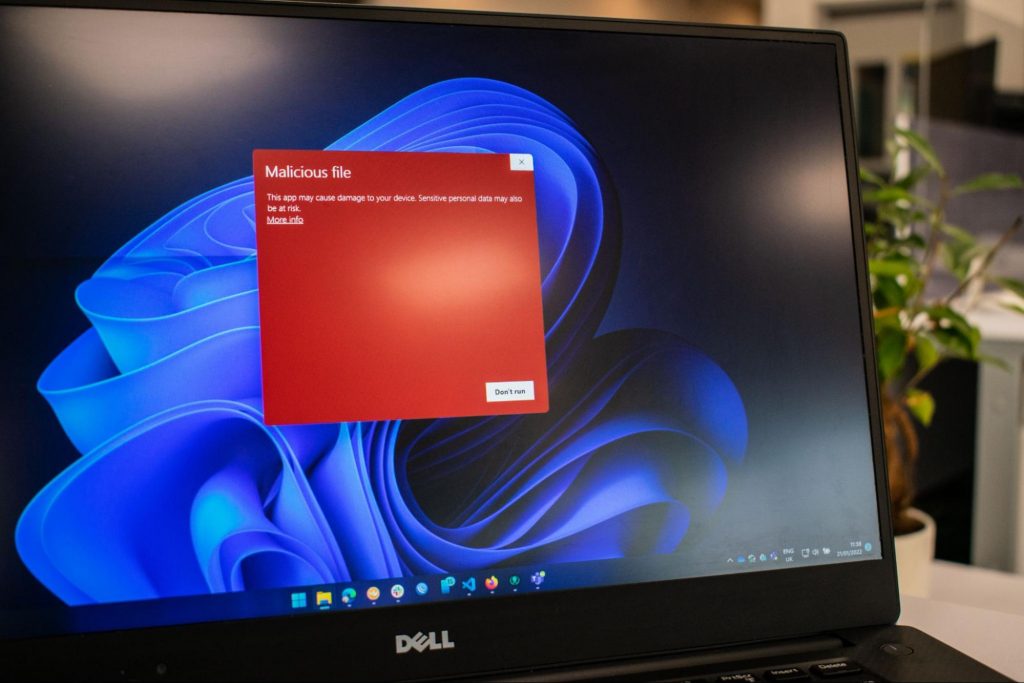
The error 0x80004005 may also be triggered due to viral infection or spyware. Such malicious software enters your PC through phishing emails and while downloading files and attachments. You may not be aware of this but your PC may be infected by viruses.

It is important you remove them immediately as they can expose you to serious risks including privacy issues, identity thefts, data breaches, and more.

Do You Need Help with Your Device?

Our Team of Experts May Help
Troubleshoot.Tech Experts are There for You!
Replace damaged files
Restore performance
Free disk space
Remove Malware
Protects WEB browser
Remove Viruses
Stop PC freezing
GET HELP
Troubleshoot.Tech experts work with all versions of Microsoft Windows including Windows 11, with Android, Mac, and more.

Share this article:

You might also like

Apple gaming is coming!!!

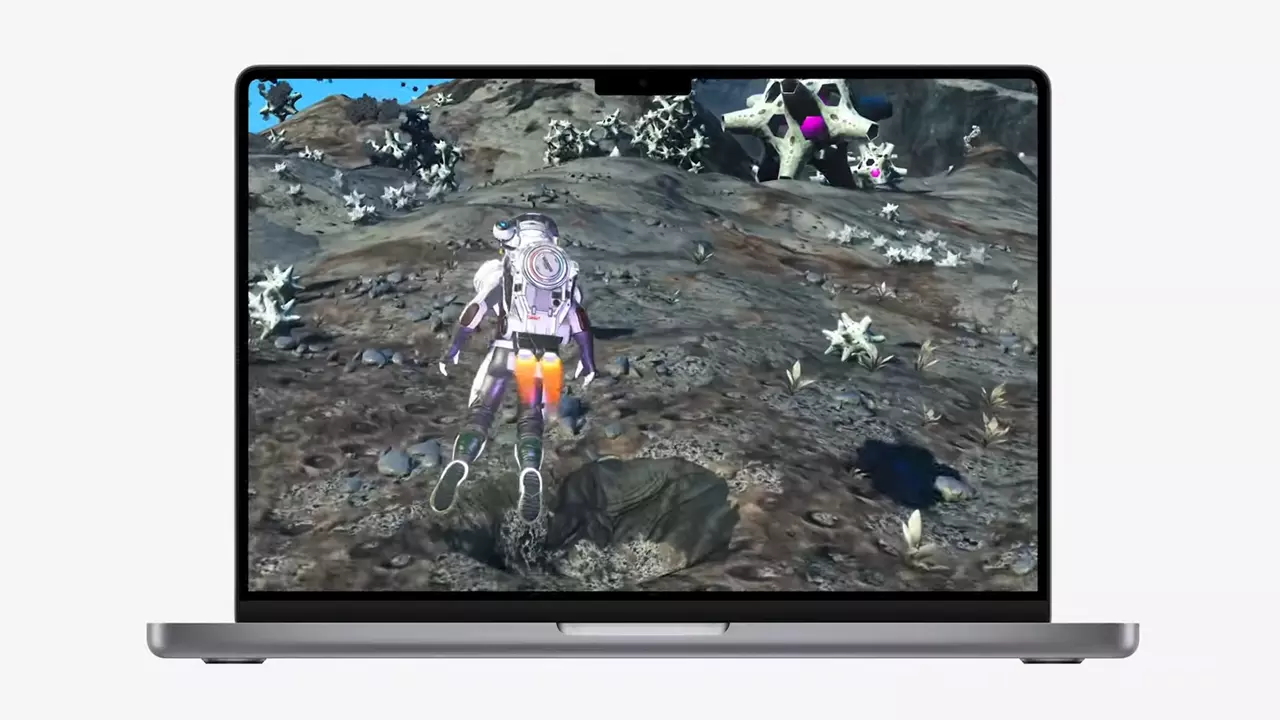
New Apple's upscaling technology called MetalFX will place iOS and macOS devices back into the gaming world. Apple had great games back in the old days and some all-time hits like the prince of Persia have been made first for apple but along the way, it just lost it.

Same as NVIDIA's DLSS and Intel's XeSS systems, Apple MetalFX also uses AI algorithms to upscale the resolution of output game frames. So, for example, the GPU inside your MAC might render the game at 1080p, but through MetalFX and AI upscaling it will look like a 4K image but have a good frame rate since it is rendered in base resolution.

apple metalfx

The ability to make AI strike a good balance between performance and image quality is a key to technology in today's modern gaming and having this technology will help developers a ton to be able to achieve great results on Apple hardware.

The First MetalFX Games

So far three official games that will use this technology and be released natively for Appl hardware are Resident Evil 8 Village, GRID legends, and No Man's Sky. All three games have been confirmed and Resident Evil 8 Village is already sent for review people are impressed since the game can run smoothly on all Apple devices, even ones with an M1 CPU.

Apple is back into gaming

When you say Apple gaming is probably the last thing that comes to your mind but truth be told Apple makes more money from games than Microsoft, Nintendo and Sony combined. Also, Apple itself was a big player once regarding computer games as well, Myst and Prince of Persia are games that were made and have been released for Apple first. Bungie was also founded by Apple developers and Halo was originally announced as a Mac game.

Apple has been trying and pushing gaming on its platform since it kind of died down. Today all Sony, Nintendo, and Microsoft controllers work without any issues with all Apple products. Apple also has its own gaming subscription service, Apple Arcade, and its Apple TV is packed with GPU that can rival Xbox ones.

MetalFX API ties and brings it all together, it is designed to get the most performance from the hardware by minimizing overhead.

Now, computers and laptops do not hold any large numbers if we look at the user base, and that could deter developers but if we look at iPad and iPhone things are different there, much different. How same CPU power these devices and how MetalFX is available across all products it is clear that there is a market for games there. No Man's Sky is coming to iPad using these technologies and bringing full computer experience to tablets.

Read More
Tutorial for Removing RegCleanPro From Windows

RegClean Pro is a program developed by Systweak Inc. RegClean Pro cleans such invalid registry errors using its advanced scan engine. It not only fixes invalid registry entries, it also defragments the registry, keeping it streamlined for smoother system performance.

RegClean Pro defines auto-start registry entities that allow the program to run each time the system is restarted, it also adds various Scheduled tasks in Windows Task Manager in order to launch the application at various times. This application has been found bundled up with various other potentially unwanted applications, also several anti-virus programs have detected this application for optional removal.

About Potentially Unwanted Applications

What is a Potentially Unwanted Program (PUP)?

Have you ever detected an unwanted program on your computer system and pondered how it got there since you’re confident that you didn’t consciously download or never gave authorization to be installed? Potentially Unwanted Programs (PUP), also known as Potentially Unwanted Applications (PUA), are programs that you never wanted in the first place and sometimes come bundled with freeware software. Once installed, the majority of these applications can be hard to eliminate and become much more of a nuisance rather than a benefit. The term PUP was coined to outline this crapware as something other than malicious software. Similar to malicious software, PUPs cause problems when downloaded and placed on your PC, but what makes a PUP different is you grant consent to download it – the fact is very different – the software installation bundle actually tricks you into accepting the installation. No matter whether it is viewed as malware or otherwise, PUPs are nearly always harmful to a computer owner as they will bring on spyware, adware, keystroke logging, along with other nasty “crapware” features on the PC.

What do PUPs do on your PC, precisely?

PUPs come in many forms. Commonly, they will be seen in adware bundlers which are known to use aggressive and misleading advertising. Most bundlers install multiple adware applications from various vendors, each of which has its own EULA policy. Safebytes Anti-Malware totally eliminates this threat and safeguards the computer against unwanted programs or adware infection. They will also come in the form of web browser extension add-ons and toolbars. They may keep track of your online movements, redirect your search results to risky sites where spyware and adware can be downloaded, hijack your search page, and slow your web-browser down to a crawl. PUPs lie in the gray part of the software spectrum. Also in the large majority of the cases, people won’t be aware that they are installing an unwanted program. Even if the PUPs really aren’t inherently malicious, these software programs still do practically nothing good on your computer system – they will take valuable resources, slow your PC, weaken your computer security, making your PC more vulnerable to viruses.

How you can stop PUPs

• Read carefully before accepting the license agreement as it might have a clause about PUPs. • Do not accept standard, express, default, or any other installation settings which are recommended. Always select “custom” installation. • Install an advert blocker/pop-up blocker; Deploy anti-malware products like Safebytes Anti-Malware. These types of software programs could establish a wall between the computer and online criminals. • Be alert if you download and install freeware, open-source software, or shareware. Never install applications that seem suspicious or malicious. • Use official product websites for downloading software. Stay away from download portals altogether as most websites compel users to download the software using their own download manager, which is often bundled with some sort of unwanted programs.

Can't Install Safebytes Anti-malware due to the presence of Malware? Do This!

Practically all malware is bad, but certain types of malicious software do more damage to your computer or laptop than others. Some malware sits in between the computer and the internet connection and blocks a few or all websites which you want to check out. It might also prevent you from the installation of anything on your PC, particularly anti-virus programs. If you’re reading this article right now, you’ve perhaps recognized that virus infection is a reason for your blocked internet traffic. So what to do when you want to install an anti-malware application like Safebytes? There are a few actions you can take to circumvent this issue.

Download the software in Safe Mode with Networking

In Safe Mode, you are able to change Windows settings, uninstall or install some software, and remove hard-to-delete viruses and malware. If the virus is set to load immediately when the computer boots, switching to this mode may prevent it from doing so. To get into Safe Mode or Safe Mode with Networking, press the F8 key while the computer is booting up or run MSConfig and look for the “Safe Boot” options under the “Boot” tab. After you restart into Safe Mode with Networking, you can download, install, as well as update anti-malware software from there. Following installation, run the malware scanner to eliminate most standard infections.

Switch to an alternate web browser

Certain viruses might target vulnerabilities of a particular web browser that block the downloading process. If you seem to have a trojan attached to Internet Explorer, then switch to an alternate web browser with built-in security features, such as Chrome or Firefox, to download your preferred anti-malware program – Safebytes.

Install and run anti-malware from a USB drive

Another method is to download and transfer an anti-malware application from a clean PC to run a virus scan on the infected system. Follow these steps to run the antivirus on the infected computer. 1) On a clean PC, download and install Safebytes Anti-Malware. 2) Plug in the USB drive into the uninfected PC. 3) Double click on the downloaded file to open the installation wizard. 4) Choose a USB flash drive as the place when the wizard asks you where you wish to install the application. Follow activation instructions. 5) Remove the USB drive. You may now use this portable antivirus on the infected computer. 6) Double-click the antivirus software EXE file on the pen drive. 7) Run Full System Scan to identify and clean-up up all types of malware.

A Look at the Best Anti-Malware Program

These days, anti-malware software can protect your PC from different types of internet threats. But exactly how to decide on the right one among various malware protection application that is available out there? As you might be aware, there are numerous anti-malware companies and products for you to consider. Some are worth your money, but most aren’t. You have to purchase a product that has obtained a good reputation and detects not only viruses but other sorts of malware too. Amongst few good programs, SafeBytes Anti-Malware is the highly recommended program for the security-conscious end user. Safebytes is among the well-established computer solutions firms, which provide this all-inclusive anti-malware software program. With its cutting-edge technology, this application will let you eliminate several types of malware like computer viruses, trojans, PUPs, worms, adware, ransomware, and browser hijackers. SafeBytes has great features when compared to other anti-malware programs. The following are some of the features you will like in SafeBytes. Real-time Protection: Malware programs trying to enter the computer are identified and stopped as and when detected by the SafeBytes active protection shields. They are very efficient in screening and getting rid of various threats because they’re constantly revised with new updates and alerts. World-class AntiMalware Protection: This deep-cleaning anti-malware software goes much deeper than most anti-virus tools to clean out your computer. Its critically acclaimed virus engine locates and disables hard-to-remove malware that conceals deep within your personal computer. Internet Security: SafeBytes checks and gives a unique safety ranking to each and every site you visit and block access to web pages known to be phishing sites, thus protecting you against identity theft, or known to contain malware. Fast Scan: Safebytes Anti-Malware, with its advanced scanning engine, offers ultra-fast scanning which can immediately target any active on-line threat. Lightweight: This program is not “heavy” on your computer’s resources, so you will not notice any performance problems when SafeBytes is operating in the background. Premium Support: For any technical issues or product support, you can get 24/7 professional assistance via chat and email.

Technical Details and Manual Removal (Advanced Users)

If you wish to manually remove RegCleanPro without the use of an automated tool, it may be possible to do so by removing the program from the Windows Add/Remove Programs menu, or in cases of browser extensions, going to the browsers AddOn/Extension manager and removing it. You will likely also want to reset your browser. To ensure the complete removal, manually check your hard drive and registry for all of the following and remove or reset the values accordingly. Please note that this is for advanced users only and may be difficult, with incorrect file removal causing additional PC errors. In addition, some malware is capable of replicating or preventing deletion. Doing this in Safe Mode is advised.

The following files, folders, and registry entries are created or modified by RegCleanPro

Files: File %APPDATASystweakRegClean ProVersion 6.1ExcludeList.rcp. File %APPDATASystweakRegClean ProVersion 6.1German_rcp.dat. File %APPDATASystweakRegClean ProVersion 6.1log_06-13-2013.log. File %APPDATASystweakRegClean ProVersion 6.1results.rcp. File %APPDATASystweakRegClean ProVersion 6.1TempHLList.rcp. File %COMMONDESKTOPRegClean Pro.lnk. File %COMMONPROGRAMSRegClean ProRegClean Pro entfernen.lnk. File %COMMONPROGRAMSRegClean ProRegClean Pro.lnk. File %COMMONPROGRAMSRegClean ProRegister RegClean Pro.lnk. File %PROGRAMFILESRegClean ProChinese_rcp.ini. File %PROGRAMFILESRegClean ProCleanSchedule.exe. File %PROGRAMFILESRegClean ProCloud_Backup_Setup.exe. File %PROGRAMFILESRegClean ProCloud_Backup_Setup_Intl.exe. File %PROGRAMFILESRegClean Proisxdl.dll. File %PROGRAMFILESRegClean ProRCPUninstall.exe. File %PROGRAMFILESRegClean ProRegCleanPro.dll. File %PROGRAMFILESRegClean ProRegCleanPro.exe. File %PROGRAMFILESRegClean Prosystweakasp.exe. File %PROGRAMFILESRegClean Proxmllite.dll. File %WINDIRTasksRegClean Pro_DEFAULT.job. File %WINDIRTasksRegClean Pro_UPDATES.job. Directory %APPDATASystweakRegClean ProVersion 6.1. Directory %APPDATASystweakRegClean Pro. Directory %COMMONPROGRAMSRegClean Pro. Directory %PROGRAMFILESRegClean Pro. Registry: Key Distromatic at HKEY_CURRENT_USERSoftware. Key Systweak at HKEY_CURRENT_USERSoftware. Key Systweak at HKEY_LOCAL_MACHINESOFTWARE.
Read More
Step By Step Guide to Fixing Regsvr32.exe Error On Windows

What is Regsvr32.exe Error?

Regsvr32 (Microsoft Register Server) is a command-line utility in Microsoft Windows Operating System. This is used for registering and unregistering OLE controls such as ActiveX controls and DLLs in the Windows Registry. This is executed as Regsvr32.exe.  The filename extension .exe is the abbreviation for executable.   It is installed in the %systemroot%System32 folder in Windows XP and new Windows versions. The Regsvr32.exe is an error that occurs when you attempt to run Regsvr32.exe to register a 32 bit DLL (Dynamic Link Library) on a 64-bit version of Windows. The error message is displayed as the following:
  • Filename.dll is not an executable file and no registration helper is registered for this file type.
  • Unrecognized flag: /invalid_flag
  • No DLL name specified
  • Dll_Name is not an executable file and no registration helper is registered for this file type.
  • The module "%1" failed to load.

Solution

Restoro box imageError Causes

There are multiple causes for the Regsvr32.exe error code. These include:
  • Invalid entry (command) path
  • Active X control errors
  • Missing or Damaged .dll files
  • Viral infection (Trojans) (.exe can easily get infected by viruses)
  • Registry issues
If you come across the Regsvr32.exe error code, it is advisable to repair it immediately before the damage sets in. Since this may occur due to viral infection, it can pose privacy and data security risks to your PC.

Further Information and Manual Repair

Here are solutions that you can implement to resolve the Regsvr32.exe error code on your system:
  1. If an invalid entry point is the cause of the error, then simply open an elevated command prompt. If the 32-bit DLL is in the %systemroot%System32 folder, then move it to the %systemroot%SysWoW64 folder. After that run the following command: %systemroot%SysWoW64regsvr32 <full path of the DLL>. This will help resolve the Regsvr32.exe error.
  2. If the cause of the error is a viral infection, then you will need to run a powerful antivirus to detect and remove viruses from your system to resolve the Regsvr32.exe error on your system.
  3. Nonetheless, if the causes for Regsvr32.exe are either Active X controls or registry corruption, then you will need to scan your computer with different tools to resolve each issue separately.
This can be time-consuming and too many program installations at one time can also slow down your system’s performance. This means you’ll also have to compromise on your PC’s speed.

Repair Regsvr32.exe Error With Restoro

To avoid all this hassle yet repair the Regsvr32.exe error, download Restoro. This is a multi-functional and innovative PC repair tool deployed with multiple utilities in one program including features like a registry cleaner and an Active X controls error fixer. It also functions as a system optimizer. It is a one-stop solution for all your PC-related errors including the Regsvr32.dll error. It is safe, efficient, and user-friendly. It is compatible with all Windows versions. When the RAM overloads it leads to damaged dlls and registry corruption. The registry cleaner utility repairs the damaged dll files and the corrupt registry. It wipes out all the unnecessary files cluttering the RAM including the junk files, invalid registry entries, and temporary files. Restoro also has an Active X controls scanning utility. This utility can be of great use if the Regsvr32.exe error is triggered by Active X control-related issues. Click here to download Restoro and resolve Regsvr32.exe on your computer right away.
Read More
How to remove TotalRecipeSearch from your PC

TotalRecipeSearch is a browser extension for Google Chrome developed by Mindspark. This extension allows access to popular cooking websites. From the Author: Discover 1000s of tasty recipes – for FREE! Find creative, new meal ideas all in one convenient place!

When installed, this extension changes your default search engine and home page to MyWebSearch.com. While active it will monitor user activity, recording browsing data, visited websites and clicked links. This data is later used to display targeted ads throughout your browsing sessions.

While browsing the internet you will see additional unwanted ads, sponsored links, and even pop-up ads injected into your search results and websites. This extension has been marked as a Browser Hijacker by several anti-virus programs and it is targeted for removal.

About Browser Hijackers

Browser hijacking means a malicious code has taken power over and modified the settings of your web browser, without your consent. Practically most browser hijackers are made for advertising or marketing purposes. Typically, it will drive users to particular sites which are aiming to boost their ad income. Though it might appear naive, all browser hijackers are damaging and thus always classified as security risks. They not only mess up your web browsers, but browser hijackers could also modify the computer registry, making your computer susceptible to other malicious programs.

How to determine if your browser is hijacked

The typical signs that indicate having this malware on your computer are: 1. you see unauthorized changes to your web browser’s homepage 2. when you key in a URL, you find yourself regularly directed to some other web page than the one you meant 3. the default web browser settings have been changed and/or your default web engine is altered 4. you are finding browser toolbars you have never witnessed before 5. your web browser will display constant pop-up ads 6. websites load slowly and at times incomplete 7. you are blocked to access those sites of security solution providers.

How does a browser hijacker infect a computer?

Browser hijackers can enter a computer in some way or other, for example via downloads, file sharing, and email as well. They also come from add-on applications, also called browser helper objects (BHO), web browser plug-ins, or toolbars. Browser hijackers sneak into your computer in addition to free software downloads also that you unwittingly install alongside the original. Popular examples of browser hijackers include CoolWebSearch, Conduit, RocketTab, OneWebSearch, Coupon Server, Snap.do, Delta Search, and Searchult.com. The existence of any browser hijacker malware on your system might significantly diminish the browsing experience, monitor your internet activities that lead to critical privacy concerns, develop system stability problems and ultimately cause your PC to slow down or to an almost unusable condition.

How you can fix a browser hijack

Certain hijackers could be removed by simply uninstalling the corresponding free software or add-ons from the Add or Remove Programs in the Windows Control Panel. But, the majority of hijackers are very tenacious and need specialized tools to remove them. Novice PC users should not try for the manual form of removal, as it calls for comprehensive computer knowledge to carry out repairs on the computer registry and HOSTS file. Professionals always recommend users to get rid of any malware including browser hijacker by using an automatic removal tool, which is better, safer, and quicker than the manual removal technique. SafeBytes Anti-Malware discovers all types of hijackers – including TotalRecipeSearch – and eliminates every trace quickly and efficiently. Along with the anti-malware tool, a system optimizer, like SafeBytes’s Total System Care, will help you in deleting all linked files and modifications in the computer registry automatically.

Help! Malware Preventing Anti-Malware Installation And Access To The Internet

Malware could potentially cause plenty of damage to your PC. Certain malware variants alter browser settings by adding a proxy server or modify the PC’s DNS settings. In these instances, you will be unable to visit some or all of the internet sites, and thus unable to download or install the necessary security software to clear out the computer virus. So what you should do if malware prevents you from downloading or installing Safebytes Anti-Malware? Refer to the instructions below to get rid of malware through alternate methods.

Download the application in Safe Mode with Networking

In the event the malware is set to load at Windows start-up, then booting in Safe Mode should prevent it. Only minimal required applications and services are loaded when you start your PC into Safe Mode. To launch your Windows XP, Vista, or 7 PCs in Safe Mode with Networking, please do as instructed below. 1) At power-on/startup, hit the F8 key in 1-second intervals. This should bring up the Advanced Boot Options menu. 2) Use the arrow keys to choose Safe Mode with Networking and hit ENTER. 3) Once you get into this mode, you should have an internet connection again. Now, use your web browser normally and navigate to https://safebytes.com/products/anti-malware/ to download Safebytes Anti-Malware. 4) Following installation, do a full scan and allow the software program to remove the threats it detects.

Obtain the antivirus software in a different web browser

Web-based viruses could be environment-specific, targeting a particular browser or attacking particular versions of the web browser. The best way to overcome this problem is to choose a browser that is well known for its security features. Firefox comprises built-in Malware and Phishing Protection to keep you safe online.

Install and run anti-malware from your flash drive

To effectively get rid of the malware, you need to approach the issue of installing anti-virus software on the infected computer system from a different angle. Adopt these measures to employ a flash drive to fix your corrupted PC. 1) Use another virus-free computer system to download Safebytes Anti-Malware. 2) Plug the Flash drive into the clean computer. 3) Run the setup program by double-clicking the executable file of the downloaded application, with a .exe file format. 4) Select the flash drive as the location for saving the software file. Follow the directions to finish the installation process. 5) Transfer the thumb drive from the clean PC to the infected computer. 6) Double-click the EXE file to open the Safebytes software from the pen drive. 7) Click on “Scan Now” to run a scan on the affected computer for viruses.

Features and Benefits of SafeBytes Anti-Malware

If you are looking to download anti-malware software for your computer, there are various tools in the market to consider however, you cannot trust blindly anyone, regardless of whether it is a paid or free software. A few are good ones, some are decent, while some are simply just fake anti-malware programs that can damage your personal computer themselves! You need to be careful not to pick the wrong application, especially if you buy a paid software. When thinking about the highly regarded applications, Safebytes AntiMalware is certainly the highly recommended one. SafeBytes can be described as a highly effective, real-time anti-spyware application that is designed to assist everyday computer users in protecting their computers from malicious threats. This program can easily identify, remove, and protect your PC from the most advanced malware threats such as adware, spyware, trojan horses, ransomware, parasites, worms, PUPs, and other possibly damaging software programs.

SafeBytes anti-malware comes with a myriad of advanced features that sets it apart from all others. Listed below are some of the features you might like in SafeBytes Anti-Malware.

Real-time Threat Response: SafeBytes provides an entirely hands-free real-time protection and is set to check, prevent and destroy all computer threats at its very first encounter. They’re highly effective in screening and getting rid of different threats since they’re regularly improved with the latest updates and alerts. Anti-Malware Protection: Built on a highly acclaimed anti-virus engine, this malware removal application can detect and get rid of many stubborn malware threats like browser hijackers, potentially unwanted programs, and ransomware that other typical anti-virus software will miss. Fast Scan: This software program has one of the fastest and most effective virus scanning engines in the industry. The scans are highly accurate and take a little time to complete. Internet Security: SafeBytes inspects the hyperlinks present on a web page for possible threats and notifies you whether the site is safe to browse or not, through its unique safety rating system. Very Low CPU and RAM Usage: SafeBytes provides complete protection from online threats at a fraction of the CPU load because of its advanced detection engine and algorithms. Fantastic Technical Support: Skilled technicians are at your disposal 24/7! They will immediately fix any technical issues you may be experiencing with your security software. Put simply, SafeBytes has formulated a meaningful anti-malware solution that is aimed to protect your computer against various malware. Now you may realize that this software does more than just scan and eliminate threats from your computer. So when you want sophisticated forms of protection features & threat detections, buying SafeBytes Anti-Malware could be worth the dollars!

Technical Details and Manual Removal (Advanced Users)

To remove TotalRecipeSearch manually, navigate to the Add or Remove programs list in the Control Panel and choose the offending program you want to get rid of. For web browser plug-ins, go to your web browser’s Addon/Extension manager and choose the plug-in you want to remove or disable. It’s also advised to factory reset your web browser to its default condition to fix corrupt settings. If you opt to manually delete the system files and Windows registry entries, utilize the following checklist to ensure that you know exactly what files to remove before carrying out any actions. Please keep in mind that only experienced computer users should try to manually edit the system files simply because removing any single critical registry entry results in a major problem or even a system crash. Also, certain malware is capable of replicating itself or preventing deletion. Doing this malware-removal process in Safe Mode is suggested.
Files: %PROGRAMFILES%\TotalRecipeSearch_14\bar.bin\AppIntegrator.exe %PROGRAMFILES%\TotalRecipeSearch_14\bar.binSrcAs.dll %PROGRAMFILES%\TotalRecipeSearch_14\bar.binbar.dll %UserProfile%\Local Settings\Application Data\TotalRecipeSearch_14 %LOCALAPPDATA%\TotalRecipeSearch_14 %USERPROFILE%\Desktop\TotalRecipeSearch.exe %PROGRAMFILES%\TotalRecipeSearch_14\bar.binmedint.exe %PROGRAMFILES%\TotalRecipeSearch_14 %LOCALAPPDATA%\Google\Chrome\User Data\Default\cnbegpgknjllkedcnkfailmjbiahbfba %UserProfile%\Local Settings\Application Data\Google\Chrome\User Data\Default\cnbegpgknjllkedcnkfailmjbiahbfba %PROGRAMFILES%\TotalRecipeSearch_14\bar.binHighIn.exe %PROGRAMFILES%\TotalRecipeSearch_14\bar.binbarsvc.exe %PROGRAMFILES%\TotalRecipeSearch_14\bar.binbrmon.exe %USERPROFILE%\Local Settings\Application Data\TotalRecipeSearchTooltab %LOCALAPPDATA%\TotalRecipeSearchTooltab Registry: HKEY_CURRENT_USER\Software\AppDataLow\Software\TotalRecipeSearch_14 HKEY_CURRENT_USER\Software\TotalRecipeSearch_14 HKEY_LOCAL_MACHINE\SOFTWARE\Classes\TotalRecipeSearch_14.DynamicBarButton HKEY_LOCAL_MACHINE\SOFTWARE\Classes\TotalRecipeSearch_14.DynamicBarButton.1 HKEY_LOCAL_MACHINE\SOFTWARE\Classes\TotalRecipeSearch_14.FeedManager HKEY_LOCAL_MACHINE\SOFTWARE\Classes\TotalRecipeSearch_14.FeedManager.1 HKEY_LOCAL_MACHINE\SOFTWARE\Classes\TotalRecipeSearch_14.HTMLMenu HKEY_LOCAL_MACHINE\SOFTWARE\Classes\TotalRecipeSearch_14.MultipleButton HKEY_LOCAL_MACHINE\SOFTWARE\Classes\TotalRecipeSearch_14.MultipleButton.1 HKEY_LOCAL_MACHINE\SOFTWARE\Classes\TotalRecipeSearch_14.PseudoTransparentPlugin HKEY_LOCAL_MACHINE\SOFTWARE\Classes\TotalRecipeSearch_14.PseudoTransparentPlugin.1 HKEY_LOCAL_MACHINE\SOFTWARE\Classes\TotalRecipeSearch_14.Radio HKEY_LOCAL_MACHINE\SOFTWARE\Classes\TotalRecipeSearch_14.Radio.1 HKEY_LOCAL_MACHINE\SOFTWARE\Classes\TotalRecipeSearch_14.RadioSettings HKEY_LOCAL_MACHINE\SOFTWARE\Classes\TotalRecipeSearch_14.SettingsPlugin HKEY_LOCAL_MACHINE\SOFTWARE\Classes\TotalRecipeSearch_14.SettingsPlugin.1 HKEY_LOCAL_MACHINE\SOFTWARE\Classes\TotalRecipeSearch_14.SkinLauncher HKEY_LOCAL_MACHINE\SOFTWARE\Classes\TotalRecipeSearch_14.SkinLauncher.1 HKEY_LOCAL_MACHINE\SOFTWARE\Classes\TotalRecipeSearch_14.SkinLauncherSettings HKEY_LOCAL_MACHINE\SOFTWARE\Classes\TotalRecipeSearch_14.SkinLauncherSettings.1 HKEY_LOCAL_MACHINE\SOFTWARE\Classes\TotalRecipeSearch_14.ThirdPartyInstaller HKEY_LOCAL_MACHINE\SOFTWARE\Classes\TotalRecipeSearch_14.UrlAlertButton HKEY_LOCAL_MACHINE\SOFTWARE\Classes\TotalRecipeSearch_14.UrlAlertButton.1 HKEY_LOCAL_MACHINE\SOFTWARE\Classes\TotalRecipeSearch_14.XMLSessionPlugin HKEY_LOCAL_MACHINE\SOFTWARE\Wow6432Node\Microsoft\Internet Explorer\Low Rights\ElevationPolicy\03f3147c-cea6-4aae-b0ae-8d8abe7a8080 HKEY_LOCAL_MACHINE\SOFTWARE\Wow6432Node\Microsoft\Internet Explorer\Low Rights\ElevationPolicy\435e56d9-92df-4d38-bdff-fe316064953c HKEY_LOCAL_MACHINE\SOFTWARE\Wow6432Node\Microsoft\Internet Explorer\Low Rights\ElevationPolicy\4a80a60d-bdef-4d70-bccc-d0dad25ff951 HKEY_LOCAL_MACHINE\SOFTWARE\Wow6432Node\Microsoft\Internet Explorer\Low Rights\ElevationPolicy\8cab2773-5453-4778-90d9-6672805b41ca HKEY_LOCAL_MACHINE\SOFTWARE\Wow6432Node\Microsoft\Internet Explorer\Low Rights\ElevationPolicy\b723e5aa-0f63-47df-971c-ae8ea0f8393a HKEY_LOCAL_MACHINE\SOFTWARE\Wow6432Node\Microsoft\Internet Explorer\Toolbar, value: a0154e07-2b48-475c-a82a-80efd84ea33e HKEY_LOCAL_MACHINE\SOFTWARE\Wow6432Node\Microsoft\Windows\CurrentVersion\explorer\Browser Helper Objects\ab56dfde-0c14-45b3-9df6-7b0eba617870 HKEY_LOCAL_MACHINE\SOFTWARE\Wow6432Node\Microsoft\Windows\CurrentVersion\explorer\Browser Helper Objects\df22384f-cf68-4d19-969f-10423715528b HKEY_LOCAL_MACHINE\SOFTWARE\Wow6432Node\Microsoft\Windows\CurrentVersion\Ext\PreApproved\96b8a0ef-0d9d-4a92-b548-376db4bbb58b HKEY_LOCAL_MACHINE\SOFTWARE\Wow6432Node\Microsoft\Windows\CurrentVersion\Ext\PreApproved\A4503EC3-1111-4B62-8F46-0D88508F8A7B HKEY_LOCAL_MACHINE\SOFTWARE\Wow6432Node\Microsoft\Windows\CurrentVersion\Ext\PreApproved\b38fbaed-ded1-4ba6-ba2e-f2515fd49442 HKEY_LOCAL_MACHINE\SOFTWARE\Wow6432Node\Microsoft\Windows\CurrentVersion\Ext\PreApproved\e8106344-16d4-41d1-9a2a-0521a59199ea HKEY_LOCAL_MACHINE\SOFTWARE\Wow6432Node\Microsoft\Windows\CurrentVersion\Ext\PreApproved\fd79f359-e577-46db-aa74-d6e6b8b45ba8 HKEY_LOCAL_MACHINE\SOFTWARE\Wow6432Node\Microsoft\Windows\CurrentVersion\Run, value: TotalRecipeSearch Search Scope Monitor HKEY_LOCAL_MACHINE\SOFTWARE\Wow6432Node\Microsoft\Windows\CurrentVersion\Uninstall\TotalRecipeSearch_14bar Uninstall Firefox HKEY_LOCAL_MACHINE\SOFTWARE\Wow6432Node\MozillaPlugins\@TotalRecipeSearch_14.com/Plugin HKEY_LOCAL_MACHINE\SOFTWARE\Wow6432Node\TotalRecipeSearch_14 HKEY_LOCAL_MACHINE\SOFTWARE\Microsoft\Internet Explorer\Low Rights\ElevationPolicy\0384459a-9d5e-4ae1-b154-8eac39721c97 HKEY_LOCAL_MACHINE\SOFTWARE\Microsoft\Internet Explorer\Low Rights\ElevationPolicy\03f3147c-cea6-4aae-b0ae-8d8abe7a8080 HKEY_LOCAL_MACHINE\SOFTWARE\Microsoft\Internet Explorer\Low Rights\ElevationPolicy\435e56d9-92df-4d38-bdff-fe316064953c HKEY_LOCAL_MACHINE\SOFTWARE\Microsoft\Internet Explorer\Low Rights\ElevationPolicy\4a80a60d-bdef-4d70-bccc-d0dad25ff951 HKEY_LOCAL_MACHINE\SOFTWARE\Microsoft\Internet Explorer\Low Rights\ElevationPolicy\8cab2773-5453-4778-90d9-6672805b41ca HKEY_LOCAL_MACHINE\SOFTWARE\Microsoft\Internet Explorer\Low Rights\ElevationPolicy\b723e5aa-0f63-47df-971c-ae8ea0f8393a HKEY_LOCAL_MACHINE\SOFTWARE\Microsoft\Windows\CurrentVersion\explorer\Browser Helper Objects\df22384f-cf68-4d19-969f-10423715528b HKEY_LOCAL_MACHINE\SOFTWARE\Microsoft\Windows\CurrentVersion\Ext\PreApproved\2502086b-5a46-4d05-8d5b-a1e77ab8bb32 HKEY_LOCAL_MACHINE\SOFTWARE\Microsoft\Windows\CurrentVersion\Ext\PreApproved\76f3207c-3a0a-461b-b958-5653c5718243 HKEY_LOCAL_MACHINE\SOFTWARE\Microsoft\Windows\CurrentVersion\Ext\PreApproved\96b8a0ef-0d9d-4a92-b548-376db4bbb58b HKEY_LOCAL_MACHINE\SOFTWARE\Microsoft\Windows\CurrentVersion\Ext\PreApproved\A4503EC3-1111-4B62-8F46-0D88508F8A7B HKEY_LOCAL_MACHINE\SOFTWARE\Microsoft\Windows\CurrentVersion\Ext\PreApproved\b38fbaed-ded1-4ba6-ba2e-f2515fd49442 HKEY_LOCAL_MACHINE\SOFTWARE\Microsoft\Windows\CurrentVersion\Ext\PreApproved\e8106344-16d4-41d1-9a2a-0521a59199ea HKEY_LOCAL_MACHINE\SOFTWARE\Microsoft\Windows\CurrentVersion\Ext\PreApproved\fd79f359-e577-46db-aa74-d6e6b8b45ba8 HKEY_LOCAL_MACHINE\SOFTWARE\MozillaPlugins\@TotalRecipeSearch_14.com/Plugin HKEY_LOCAL_MACHINE\SYSTEM\CurrentControlSet\Services\TotalRecipeSearch_14Service HKEY_CURRENT_USER\Software\Microsoft\Internet Explorer\DOMStorage\totalrecipesearch.dl.myway.com HKEY_CURRENT_USER\Software\Microsoft\Internet Explorer\DOMStorage\totalrecipesearch.com

Read More
Clipboard history in Windows 10
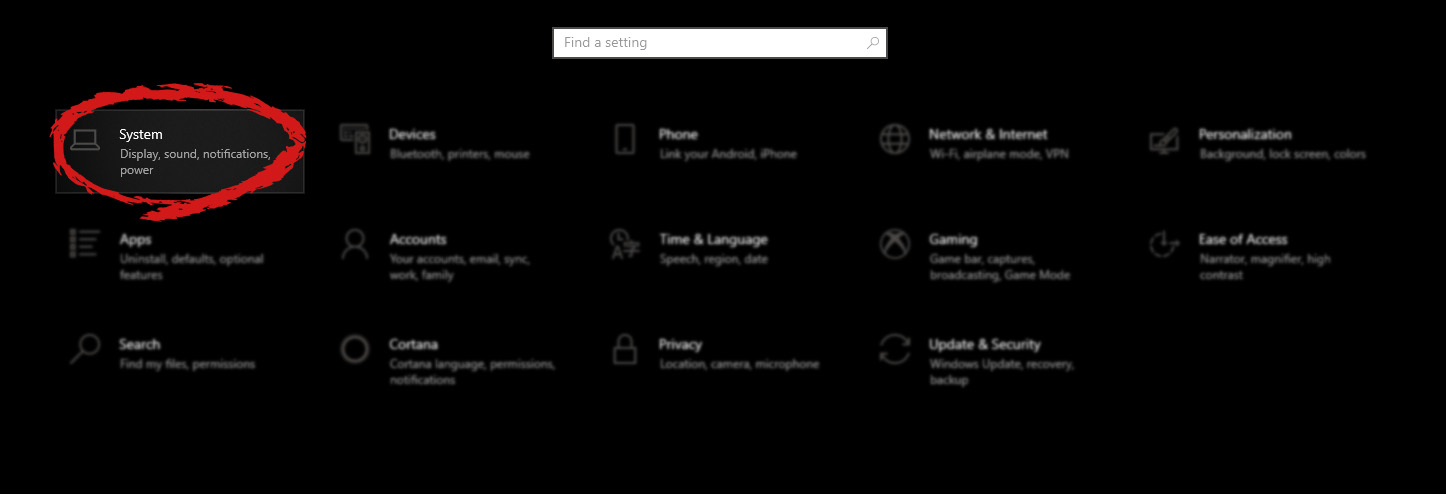
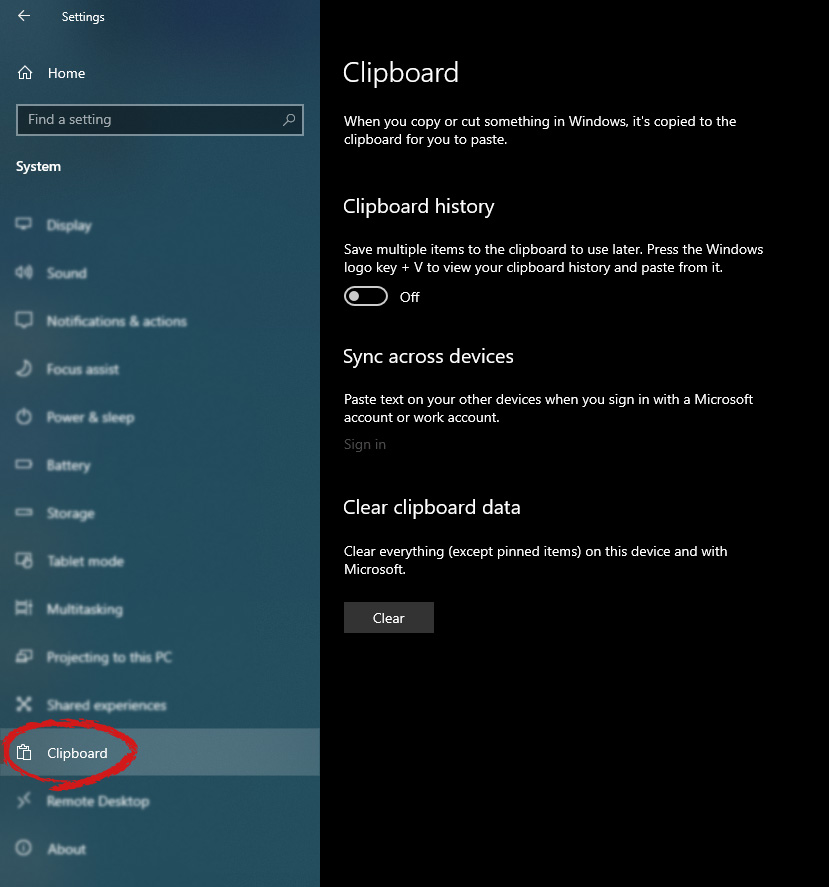
Copy & Paste is an essential part of Operating and working on a computer. We copy and paste a lot of different stuff through our workday, moving stuff from application to application. In an earlier article today we have explored troubleshooting and how to repair copy-paste stopped responses, this time we are going to focus on a little feature of Windows 10 called Clipboard history. Clipboard history is a built-in feature in Windows 10 which lets you store multiple copies of different types and then selectively pasting them into another application. Let's say you have multiple copies of different text from different websites and you then paste everything or just some into a Word processor. If this feature sounds interesting to you then let's turn it on. Press the start button and then on settings. Windows 10 Start menu with marked settings iconIn settings window click on System Windows settings with System section selectedin system dialog click on the clipboard and on the right screen turn ON CLipboard history. Windows settings for Clipboard
Read More
How to Fix Error Code 0xc0000142

What is Error 0xc0000142?

Error 0xc0000142 can occur in any of the Windows versions and usually occurs when an application fails to properly initialize.

This error can be critical for a computer as it signifies that the system is unstable. Error 0xc0000142 can cause slow performance in a PC, system freeze, startup and shutdown issues, blue screen and errors in installation.

Solution

Restoro box imageError Causes

Windows/Application Error 0xc0000142 can occur because of a number of reasons.

When a computer is an overload with data, or when system files get broken or missing, this error can occur and will result in startup and shutdown issues as well as the blue screen. Another reason, and one which is quite common, is improper computer maintenance.

This will cause a PC to perform slow, system freezes, and installation errors. This error displays ‘failed to initialize’ on either a Windows error box or the blue screen of death.

Further Information and Manual Repair

Error 0xc0000142 can occur at any time, but there are many ways to resolve it. For instance:

1) Clean the Registry

A corrupted registry is one of the major reasons why this error occurs. The registry is used by Windows to store information and settings on the computer, which is why it has a large database.

This database contains emails, wallpapers, saved passwords and much more in ‘file path references’. These allow Windows to run the common files in your system. A registry cleaner can fix any errors in the registry database.

2) Malware Scan

Viruses can cause certain applications to not function properly. Hence, download a strong antivirus and run a deep scan on your system and remove any potential infections and spyware.

3) Reinstall Applications

Non-critical applications in a computer are those that are installed by the user. If error 0xc0000142 displays in any of your installed programs, then you should reinstall these programs. Often applications have damaged or corrupted files which can slow them down. To resolve this, follow these steps:

  • From Start, click on Control Panel
  • Go to Add/Remove Programs and uninstall the programs
  • Restart your PC and reinstall the program

The third step is not recommended in case the error is caused by cmd.exe

4) Repair Windows

If the error is still on display despite following the previous steps, then you can repair Windows. This process allows Windows to retain all your data and information by simply replacing the program files and settings with fresh ones. This can stop error 0xc0000142 by allowing the programs access to use necessary files smoothly and effectively.

If you cannot resolve the error in any of these steps, then there is another way to do so if you have a computer that runs the Microsoft Internet Security and Acceleration (ISA) Server 2000. Follow these steps in order to resolve it:

  • Make sure that in Program Files and Microsoft ISA Server, a Clients folder exists. The ISA Server service will run on this folder
  • Confirm that Administrators and SYSTEM have Full Control assigned in the Program Files/Microsoft ISA Server/Clients folder
  • Confirm that Msplat.txt file is in the Clients folder. You can copy this file from other ISA Server computers if it is missing
  • If the Clients folder is damaged or is missing, or if you can’t copy the Msplat.tct file from another ISA Server computer, then reinstall the ISA Server 2000
Read More
Fix Could not find the Recovery Environment
If you suddenly find the Windows Recovery Environment not working and you see an error message saying, “Could not find the recovery environment”, then you’ve come to the right place as this post will guide you on how you can fix it. In times when you can’t boot into the Windows Recovery Environment, there could be several reasons behind it. However, have you ever wondered where exactly the Windows Recovery Environment is in your computer? Windows initially places the Windows RE Image file in the installation partition during Windows Setup so if you have installed Windows in the C drive, you can find the Windows RE at the C:/Windows/System32/Recovery or C:/Recovery folder. Keep in mind that this folder is hidden and later on, the system copies the image file into the recovery tools partition to make sure that one can boot into recovery if there are any issues with the drive partition. The “Could not find the recovery environment” error mostly occurs if the Windows Recovery Environment is disabled or if the “Winre.wim” file is corrupted. Thus, to fix this error, you need to refer to the given suggestions below.

Option 1 – Try to enable Windows Recovery Environment

  • In the Windows Start Search, type “PowerShell” and from the search results that appear, right-click on Windows PowerShell and then select the “Run as administrator” option to open it with admin privileges.
  • Next, type the “reagentc /info” command and tap Enter to execute it.
  • After that, if the output states that Status is enabled, then you’re all set.
  • Now type the “reagentc /enable” command and tap Enter to enable the Windows Recovery Environment. You will see a success message at the end signifying that Windows RE is available.

Option 2 – Try to fix the corrupted or missing “Winre.wim” file

If the Winre.wim file is either corrupted or missing, you need to get a new copy of this file from another computer where the Windows RE is working. Once you’re able to get a new copy of the Winre.wim file, you have to set the image path to a new location. For more details, refer to these steps:
  • First, type “Powershell” in Windows Start Search and right-click on Windows PowerShell from the results, and select Run as administrator.
  • Next, execute the given command below to change the path of the WIM file to the new location. Note that the steps should be used when the file path of the Windows Recovery Environment is different from the usual spot.
Reagentc /setreimage /path C:RecoveryWindowsRE
  • As mentioned, if the file is corrupted, you just have to get a new copy from another PC but before you do that, make sure that the WINRE on that computer is disabled (just enable it later on) and then place it in the C:/Recovery path and then set its path again using the command given above and then verify its path by executing the following command.
reagentc /info command
Note: Since the Recovery folder is hidden as well as the WINRE folder in it and you won’t be able to access them using the Windows File Explorer, you need to use the Windows PowerShell or Command Prompt so that you can access them.

Option 3 – Try checking and fixing the WinRE Reference in the Windows Boot Loader

The Windows Boot Loader is the one that determines if it has to load the Windows Recovery Environment. It could be that the boot loader is pointing to an incorrect location which is why you’re getting the error. To resolve it, you have to check and fix the WinRE Reference in the boot loader. How? Follow these steps:
  • In the Windows Start Search, type “PowerShell” and from the search results that appear, right-click on Windows PowerShell and then select the “Run as administrator” option to open it with admin privileges.
  • After that, execute the “bcdedit /enum all” command.
  • Next, look for an entry in the Windows Boot Loader identifier set as Current and look for “recoverysequence” in that section and take note of the GUID.
  • Ensure that the device and the osdevice items show the path for the Winre.wim file and that they are the same. If not, you need to point the current identifier to the one which has the same.
  • Once you’ve found the new GUID, execute this command: bcdedit /set {current} recoverysequence {GUID_which_has_same_path_of_device_and_device}
  • Now check if the error in the Recovery Environment is fixed or not.

Option 4 – Try creating a Recovery Media

You could also try creating a Recovery Media to resolve the error in the Windows RE. All you have to do is download the Windows 10 ISO file using the Media Creation tool and then create a recovery drive. Once you’re done, check if it fixes the problem or not.
Read More
How to Fix Windows 10 Error 80240020

Error Code 80240020 – What is it?

Users who receive Error Code 80240020 when attempting to install and/or upgrade to Microsoft Windows 10, are receiving the error because the Windows 10 installation folder is either corrupted or unfinished. As a result of this error code, your download and the subsequent update will not process correctly. Users who receive this code do not have to do anything specific, as it might mean that they are attempting to update before their system is ready. These users can simply wait for their computer to prompt them for the update, and then follow the on-screen instructions for the update. However, if a user is seriously wanting to update to Microsoft Windows 10 prior to the prompt, there are ways around error code 80240020. Common symptoms include:
  • A dialog box appears with the Error Code 80240020
  • Microsoft Windows 10 upgrade is unsuccessful or freezes in the process of updating and displays the error code message.

Solution

Restoro box imageError Causes

This error is only caused by one type of issue, and that is unfinished or corrupted files being present in the Windows 10 installation folder.
  • Files that are unfinished in the Windows 10 installation folder are a result of the download not processing correctly, therefore the update is not successful because your computer does not have the files that it needs.
  • Files that are corrupted in the Windows 10 installation folder are a result of either a faulty download or preexisting corrupted files that need to be purged.
Until your system is ready to download the new Microsoft Windows 10 upgrade, you will be unable to install the upgrade. As stated, you have the option of waiting for your system to prompt you to download (which means that your system has made the necessary changes to its own files and is ready for the upgrade), or you can use the following steps to correct the issue yourself.

Further Information and Manual Repair

Users and Microsoft Tech Support personnel have discovered three methods to correct error code 80240020. Each of these methods should be attempted by someone who is comfortable with computer software and programs. Anyone who is not comfortable with software should either contact Microsoft Support or wait for their computer to prompt them for the Microsoft Windows 10 upgrade.

Method 1:

  1. Back up the Registry of your operating system.
  2. Find the Registry Key: [HKEY_LOCAL_MACHINESOFTWAREMicrosoftWindowsCurrentVersionWindowsUpdateOSUpgrade]
  3. Note: this Registry Key should already exist, if it does not exist, create it.
  4. Create a brand new DWORD Value that is named AllowOsUpdate
  5. Set the Value to 0x00000001.
  6. Close and reopen your Control Panel.
  7. Restart the Microsoft Windows 10 upgrade.

Method 2:

  1. Download the Microsoft Windows 10 ISO (installation device) from the following website: http://www.microsoft.com/en-us/software-download/windows10
  2. Users must select the appropriate ISO, either 32 bit or 64 bit, depending upon their individual computer.
  3. Extract the ISO file to a separate USB device or burn the program to a compact disc.
  4. Run the Microsoft Windows 10 upgrade directly from the software that you have thus created.

Method 3:

  1. Access the files on your computer via MY COMPUTER
  2. Under the C: drive, access the WINDOWS folder
  3. Select the SOFTWARE DISTRIBUTION folder, followed by the DOWNLOAD folder.
  4. Delete any files within this download folder.
  5. If you are unable to delete these files, open the command prompt (CMD) as the administrator, and type “net stop wuauserv” into the CMD prompt window. Press ENTER. This should allow you to delete the files from step 4.
  6. Once the files are deleted, open and run the CMD as the administrator and type “wuauclt.exe /updatenow”. Press ENTER.
  7. Access the WINDOWS UPDATE folder from your control panel, the update and download should resume without further interference from the user.
As with any other error codes, if the above methods do not rectify the issue, it may be necessary to download and install a powerful automated tool to rectify error code 80240020.
Read More
Fix Cannot load Management Console
TPM, also known as Trusted Platform Module, is a specialized chip used for security as well as encryption of users’ private data like Fingerprint, Facial data, and many more. TPM also comes with a Management Console and if you are not able to load the Management Console and you got the “Cannot load Management Console” error instead, read on as this post will guide you in fixing the problem. This type of issue usually happens when you clear or disable the TPM using the settings in the BIOS and so when you run the Trusted Platform Module Management console, you encounter the error. To fix the “Cannot load Management Console” error in your Windows 10 computer, here are some options you should check out.

Option 1 – If TPM is cleared in the BIOS:

If the Trusted Platform Module is cleared in the settings of the BIOS, you have to close and restart the TPM Management console or TPM.msc once again. It could be that the TPM Management has to reload the changes again after you’ve made them which is why you encounter the “Cannot load management console” error.

Option 2 – If TPM is disabled in the BIOS:

If you opted to disable TPM using the BIOS settings or you have turned it off by accident, then you have to enable it back and you have two options to do that – you can either enable TPM from the BIOS or using the Windows PowerShell. For more details, refer to the instructions below.

Enabling TPM from the BIOS:

  • You need to first reboot your PC and then go to the BIOS.
  • From there, look for TPM under the security options and in case the TPM management option has been disabled or greyed out, refer to the sub-steps given below to make it active again
    • Enable the Admin password in the BIOS.
    • Then go back to the TPM settings and check if the TPM management is already available.
  • After that, you should now be able to enable TPM. Remember that it’s always a good idea to have an ADMIN password for your BIOS as it makes sure that no one can change the settings in your computer BIOS and Security level options.

Enable TPM via Windows PowerShell:

  • This second option is a lot easier compared to the first one if you have admin privileges. So once you’ve opened the Windows PowerShell with admin privileges, you need to run the following command:
    • $tpm = gwmi -n rootcimv2securitymicrosofttpm win32_tpm
    • $tpm.SetPhysicalPresenceRequest(6)
  • After you execute the commands given above, you need to restart your computer.
  • Now, once your computer has restarted, you need to accept any BIOS prompts and then check if the “Cannot load management console” error is now fixed.
Read More
Types of Malware Attacks & How to Battle Them

Afraid of the growing threats online? As you should be. But we’re here to show you what kinds of malware are out there and what you can do to keep them at bay.

Malware definition

Malware comes from the term malicious software. It’s software designed to attack and exploit devices and networks to the advantage of the hacker who made it.

Malware can be transmitted in different ways. Most commonly this happens via infected USB drives, downloadable files or malicious websites. Depending on the type and ultimate goal, the consequences of a malware attack can range from negligible to catastrophic.

Credit: Ed Hardie on Unsplash

What kinds of malware are there?

1. Virus

A virus is typically spread via infected files, websites or links. It’s one of the oldest malware types and one of the most difficult to get rid of. That’s because, once activated, it replicates itself - hence the name. 

It can perform different kinds of attacks, depending on what the creator wants to achieve. The main characteristic of a virus is that it really doesn’t show itself until you activate the host. So that’s a scary thought for sure.

2. Adware

Sometimes an ad blocker isn’t enough to fight off unwanted ads. And some of them can, unfortunately, be malicious. They may redirect you to infected sites or prompt downloads of risky files. Even just opening a malicious site can lead to data theft.

So, definitely be careful when clicking around. Even if an ad seems completely legitimate, you can never be too sure.

3. Ransomware

Through ransomware, cybercriminals gain access to a user’s data and use it to extort them for money. Basically, the user is threatened with data deletion or even exposure if a ransom isn’t paid by a specific deadline.

This is a particularly nerve-wracking type of malware. If it targets an individual, it preys upon their sense of anxiety, fear, guilt and even shame. If it targets a business (which is a lot more common), it preys upon not only that business’s profit but also every single one of their customers and their data.

4. Trojans

This type of malware disguises itself very well as a legitimate-looking program. Once you download it, hackers can get full access and control of your device, data and network. They can even be hidden in games, apps and attachments. They cannot self-replicate, though, so we guess that’s… good news?

5. Worms

Worms can replicate, just like viruses, but you don’t need to actually activate the infected program for them to get going. They can be used for various purposes, ranging from data deletion to file encryption to support a ransomware attack.

Credit: Growtika on Unsplash

6. Spyware

Spyware refers to malicious software that stays hidden on your computer and monitors your activity. The best-known type is keyloggers. This can be used to steal sensitive data like passwords and banking information.

7. Rootkits

Rootkits are among the most dangerous types of malware. They allow administrative access and full control of a device, which lets hackers continue hijacking all your data and monitoring your activity without your knowledge.

8. Botnets

Botnets are networks made up of bots - computers that cybercriminals have infected with malicious software. Bots and botnets give hackers remote access to users’ devices and allow them to spy on your camera, take screenshots, memorize passwords and launch Distributed Denial of Service attacks. This one truly makes your hair stand on end.

What can you do about it?

You know the old adage - better safe than sorry. And trust us, malware attacks are such a pain in the you-know-what that you really don’t want to be sorry.

Luckily, there are simple solutions that can shield you from most digital threats these days. What you want to be looking at is a solid antivirus program. Well, technically, you need an antimalware program, but since the latter evolved from the former, we still mostly refer to them as antivirus software.
The majority of antimalware programs these days don’t just shield you from potential risks online, but include additional features as well. For example, some Bitdefender antivirus packages also include parental control and a VPN. And Bitdefender is not just for PCs either - it offers protection for your beloved iPhone or Android as well. You can throw in a password manager in there too, for an additional layer of security.

Credit: Dan Nelson on Unsplash

If you aren’t too concerned about all these various threats or feel like you don’t need extra security, you can at least take a step to protect your information from being exposed to lurking cybercriminals as you’re browsing. This can be done through a good VPN like Surfshark, which hides your identity in the digital space and prevents your data from being tracked.

Choosing the right protective software is especially important if you have children with access to the Internet, since they’re unfortunately even more vulnerable to malicious attacks. If you aren’t sure what the right kind of antimalware program is right for you, you can reach out to us and we’ll be happy to help keep your entire household or office digitally secure.

The bottom line

The truth is that there’s no way to be 100% protected in the online world. Hackers are constantly coming up with new ways to infiltrate our devices. But malware-battling software evolves along with them and there’s still plenty you can do to keep risks away. Stay safe!

Read More
1 2 3 171
Logo
Copyright © 2023, ErrorTools. All Rights Reserved
Trademark: Microsoft Windows logos are registered trademarks of Microsoft. Disclaimer: ErrorTools.com is not affiliated with Microsoft, nor claims direct affiliation.
The information on this page is provided for information purposes only.
DMCA.com Protection Status