Logo

DailyLocalGuide Removal Guide

DailyLocalGuide is a Browser Extension developed by Mindspark for Google Chrome. This extension hijacks your default search engine, the home page, and new tab, setting them to MyWebSearch.com.

From the Author:

The Software and Services are sponsored by third-party advertisements and commercial offers and may also contain links to third parties websites, advertisements, products, offers, applications, and more. By downloading and using the Software you give your consent to display to you such Third Party Content (by using display ads, pops, coupons, price comparison, in-line text, and content recommendations) through Our or Our business partners’ technology.

While installed, this extension gathers user browsing activity and sends it back to ad servers. This information is later used to better target ads. When browsing the internet with DailyLocalGuide installed you will see additional injected ads and sponsored content throughout your browsing sessions.

About Browser Hijackers

Browser hijacking is actually a type of unwanted software program, commonly a web browser add-on or extension, which causes modifications in web browser’s settings. They are made to interfere with browser functions for a variety of purposes. It redirects you to the sponsored websites and inserts ads on the browser that helps its creator generate revenue. Nonetheless, it isn’t that innocent. Your online safety is compromised and it is also very irritating. When the malware attacks your computer, it starts to mess things up a whole lot that slows your system down to a crawl. In the worse case, you may be forced to tackle serious malware threats too.

Symptoms of browser hijacker malware

Symptoms that your web browser is hijacked include: your home page is reset to some unfamiliar website; you see new unwanted favorites or bookmarks added, typically directed to advertisement-filled or pornography websites; the essential web browser settings are modified and unwanted or unsafe sites are added to the trusted sites list; you find unsolicited new toolbars added; your internet browser will display endless pop-up ads; your web browser starts running slowly or presents frequent glitches; you have prohibited entry to particular webpages, for example, the website of an antivirus software manufacturer like SafeBytes.

Exactly how they get into the computer

Browser hijackers infect computer systems in numerous ways, including through a file-share, a drive-by download, or an infected e-mail. They can also be deployed through the installation of an internet browser toolbar, add-on, or extension. Some internet browser hijackers spread in user’s computers using a deceptive software distribution method called “bundling” (often through freeware and shareware). Popular examples of browser hijackers include Conduit, CoolWebSearch, Coupon Server, OneWebSearch, RocketTab, Searchult.com, Snap.do, and Delta Search.

Browser Hijacker Malware – Removal

Some browser hijacking could be simply stopped by discovering and removing the corresponding malware program from your control panel. However, most browser hijackers are hard to eliminate manually. Irrespective of how much you attempt to get rid of it, it can keep returning over and over. Apart from that, manual removal expects you to do many time-consuming and complicated actions that are hard to accomplish for novice computer users.

An anti-malware program is extremely effective with regards to finding out and eliminating browser hijackers that normal anti-virus software has missed. SafeBytes Anti-Malware detects all types of hijackers – such as DailyLocalGuide – and eliminates every trace quickly and efficiently.

What To Do If You Cannot Install Safebytes Anti-Malware?

Malware can cause many different types of damage to PCs, networks, and data. Certain malware types modify internet browser settings by including a proxy server or modify the PC’s DNS configuration settings. When this happens, you’ll be unable to visit certain or all websites, and therefore unable to download or install the required security software to eliminate the computer virus. If you’re reading this, you probably have affected by malware that prevents you from installing a computer security application such as Safebytes Antimalware on your PC. There are some solutions you can try to get around with this particular problem.

Remove malware in Safe Mode

The Windows OS has a special mode referred to as “Safe Mode” where just the minimum required programs and services are loaded. In case the malware is set to load immediately when the computer starts, switching into this mode may well prevent it from doing so. To start the computer into Safe Mode, hit the “F8” key on your keyboard right before the Windows boot screen shows up; Or right after normal Windows boot up, run MSConfig, check Safe Boot under Boot tab, and then click Apply. Once you’re in Safe Mode, you can attempt to install your antivirus program without the hindrance of the malicious software. Right after installation, run the malware scanner to remove most standard infections.

Obtain the security software in an alternate internet browser

Some viruses might target vulnerabilities of a particular browser that obstruct the downloading process. If you appear to have malware attached to Internet Explorer, then switch over to a different internet browser with built-in safety features, such as Firefox or Chrome, to download your favorite antivirus program – Safebytes.

Create a portable antivirus for eliminating viruses

Here’s another solution which is utilizing a portable USB anti-virus software that can check your system for malicious software without the need for installation. Adopt these measures to employ a USB drive to fix your corrupted computer.
1) Download the anti-malware on a virus-free computer.
2) Plug the Flash drive into the uninfected computer.
3) Double-click the Setup icon of the antivirus software to run the Installation Wizard.
4) Choose a USB flash drive as the location when the wizard asks you where you intend to install the application. Follow the directions to finish the installation process.
5) Transfer the USB drive from the clean computer to the infected PC.
6) Run the Safebytes Anti-malware directly from the flash drive by double-clicking the icon.
7) Run Full System Scan to identify and clean-up up all types of malware.

Highlights of SafeBytes Anti-Malware

Do you wish to install the best anti-malware program for your laptop? There are numerous applications available that come in free and paid versions for Windows systems. A few of them are excellent, some are decent, while some will destroy your computer themselves! You have to look for a product that has got a good reputation and detects not just computer viruses but other sorts of malware also. With regards to commercial antimalware tool options, many people go with well-known brands, like SafeBytes, and they are very happy with it.

SafeBytes anti-malware is a trustworthy tool that not only secures your computer permanently but is also very user-friendly for people of all ability levels. With its outstanding protection system, this software will automatically detect and remove most of the security threats, which include browser hijackers, viruses, adware, ransomware, PUPs, and trojans.

SafeBytes anti-malware offers an array of advanced features which sets it apart from all others. These are some of the highlighted features included in the product.

World-class AntiMalware Protection: Safebytes is based on the very best virus engine within the industry. These engines will detect and remove threats even during the initial phases of a malware outbreak.

Real-Time Protection: SafeBytes gives round-the-clock protection for your personal computer restricting malware attacks in real-time. This tool will continuously monitor your computer for suspicious activity and updates itself regularly to keep abreast of the constantly changing threat scenarios.

Internet Security: SafeBytes provides an instant safety rating about the web pages you’re going to check out, automatically blocking harmful sites and making sure that you are certain of your safety while browsing the world wide web.

Fast Scan: SafeBytes Anti-Malware possesses a multi-thread scan algorithm that works up to 5x faster than any other protection software.

Lightweight: SafeBytes is really a lightweight application. It uses up a very small amount of processing power as it operates in the background so you’re free to use your Windows-based computer the way you want.

Premium Support: You can get high levels of support around the clock if you are using their paid version.

Overall, SafeBytes Anti-Malware is a solid program as it has loads of features and can detect and eliminate any potential threats. Once you’ve downloaded and installed this software, you will no longer have to bother about malware or other security worries. If you need advanced forms of protection features & threat detections, buying SafeBytes Anti-Malware could be well worth the money!

Technical Details and Manual Removal (Advanced Users)

If you wish to perform the removal of DailyLocalGuide manually rather than employing an automated software tool, you can follow these measures: Navigate to the Windows Control Panel, click the “Add or Remove Programs” and there, select the offending program to uninstall. In cases of suspicious versions of browser plugins, you can actually remove it via your web browser’s extension manager. You will likely also want to reset your internet browser to its default configuration settings.

If you decide to manually remove the system files and Windows registry entries, utilize the following checklist to ensure that you know exactly what files to remove before carrying out any actions. But bear in mind, this is often a tricky task and only computer professionals could accomplish it safely. Furthermore, some malware keeps replicating which makes it tough to remove. Carrying out this malware-removal process in Safe Mode is suggested.


Files:
Directory %LOCALAPPDATA%\DailyLocalGuideTooltab.
Directory %LOCALAPPDATA%\Google\Chrome\User Data\Default\Extensions\hkeaafmlcginkhibjjdijabnpfobeibe
Directory %LOCALAPPDATA%\Google\Chrome\User Data\Default\Local Extension Settings\hkeaafmlcginkhibjjdijabnpfobeibe
Directory %LOCALAPPDATA%\Google\Chrome\User Data\Default\Sync Extension Settings\hkeaafmlcginkhibjjdijabnpfobeibe

Registry:
key DailyLocalGuide at HKEY_CURRENT_USER\Software\
key DailyLocalGuideTooltab Uninstall Internet Explorer at HKEY_CURRENT_USER\Software\Microsoft\Windows\CurrentVersion\Uninstall\

Do You Need Help with Your Device?

Our Team of Experts May Help
Troubleshoot.Tech Experts are There for You!
Replace damaged files
Restore performance
Free disk space
Remove Malware
Protects WEB browser
Remove Viruses
Stop PC freezing
GET HELP
Troubleshoot.Tech experts work with all versions of Microsoft Windows including Windows 11, with Android, Mac, and more.

Share this article:

You might also like

Fix High CPU usage by IAStorDataSvc in Windows
If your Windows 10 computer is currently experiencing high CPU usage because of the IAStorDataSvc, read on as this post will show you what you can do to resolve the issue. The high CPU usage of IAStorDataSvc is because of the Intel Rapid Storage Technology. It appears as a Service that may not only result in high CPU usage but also high disk and memory usage, as well as slow computer performance and overheating of your PC. This problem usually occurs on HP computers and on any computers that are using the Intel Rapid Storage Technology. You might also notice that your fan runs at high speed each time this issue occurs with the average CPU usage spiking up to 50%. Take note that this service is used to speed up file access. However, if you are not using an SSD on your computer, then it’s not really necessary for you to have the IAStorDataSvc installed. To resolve this issue, here are some options you can try.

Option 1 – Update or reinstall or remove the IAStorDataSvc driver

Before you proceed, you need to decide first if you want to update, reinstall or remove the IAStorDataSvc driver. To make things easier for you, you can try downloading the latest driver from the Intel Download Centre and then install it on your computer. If it works, good, but if not, you might want to consider removing the driver completely and just let the Windows Update look for the right driver for your computer after you restart it. There are times when the drivers installed are incompatible with the latest Windows update which results in issues like high CPU usage.
  • Tap the Win + X + M combination on your keyboard to open the Device Manager.
  • After that, look for the Intel Rapid Storage Technology driver, right-click on it and then select Uninstall.
  • Now restart your computer for the changes to take effect.
Note: You might also have to go to the list of installed programs and uninstall a program that is listed as “Intel Rapid Storage Technology driver”. To do so, refer to these steps:
  • In the Cortana Search box, type “control panel” and from the search results that appear, click on Control Panel.
  • After opening Control Panel, select Programs > Programs and Features which will open the list of installed programs on your computer.
  • From there, look for Intel Rapid Storage Technology and uninstall it.

Option 2 – Try to disable the IAStorDataSvc via Services Manager

  • Tap the Win + R keys to open the Run dialog box.
  • Then type “services.msc” in the field and hit Enter to open Services.
  • Next, look for the Intel Rapid Storage Technology services from the list of services and then double-click it.
  • Then change its Startup type to “Disabled”.
  • After that click on the Apply button and then OK to save the changes made.
  • Now exit the Services window and check if the problem’s resolved.
Read More
Connecting a Wireless Printer to a Windows PC
Although it’s easy to set up wired printers in most cases and they have their charm, you don’t have to be around the printer if you are connected to the same network. So in this post, you will be guided on how you can install and set up a wireless printer on your Windows 10 computer. The idea here is to ensure that your Wi-Fi printer and your Windows 10 computer are connected on the same network and to do that, you need to carry out the following steps:
  • You have to connect the printer to the Wi-Fi network.
  • You have to add the printer or scanner to Windows 10.
  • You have to install the printer software.
  • You have to change the default printer.
  • And troubleshoot the printer.

For more details, follow the instructions below.

Step 1: Connect your printer to the Wi-Fi network. In this step, you need to turn on your printer and look for the option to connect to a Wi-Fi network. Note that the step to connect to the Wi-Fi network depends on what kind of printer you use as well as its OEM since there will be a user interface or a Wi-Fi button that will get the job done for you. Once your printer is connected to the Wi-Fi network, you need to keep it turned on until the setup is completed. Step 2: Next, add a printer or scanner to Windows 10
  • Since you’re already connected to the Wi-Fi network, you now have to go to Settings > Devices > Printers & scanners.
  • From there, click on the Add a printer or scanner option.
  • After that, the scanning process will begin as Windows 10 looks for the printer and once it finds it, it will display the printer in the result.
  • Choose the Wi-Fi printer from the results and click on the Add device option. Once you click this option, Windows will install the drivers via Windows 10 update. Note that this process will apply to all the printers – connected, wireless, and so on.
Step 3: You have to install a printer software In this step, you need to use the driver software from the OEM even though the default printer software works since in most cases, the driver software from OEM works better compared to the default ones and offers much better functionality like ink-saving modes, and many more. Step 4: You now have to change the default printer After installing the printer software, you now have to set or change the default printer in your computer. If you have not installed any printer, the default printer in Windows is the one that saves the files. Now since you have already installed your printer, all that’s left for you to do is to change the default printer of Windows 10 to the one you installed earlier. To do that, follow these sub-steps:
  • Go to Settings and navigate to Devices > Printers & scanners.
  • From there, check the checkbox labeled, “Let Windows manage my default printer” if there are many printers. This will recommend you to use the most used printer. But if you don’t want to switch to the most used printer, then uncheck the checkbox.
  • Once done, click on the printer you want to set as the default one and go to Manage, and then click on the Set as default button.
Step 5: If you have any issues with your newly installed printer, then you need to troubleshoot it One of the first basic troubleshooting you can perform to resolve the printer issue is running the Printer Troubleshooter. This built-in troubleshooter can detect and automatically fix the problem for you. To use it, follow these steps:
  • Tap the Win + R keys to open the Run dialog box.
  • Next, type “exe /id PrinterDiagnostic” in the field and click OK or hit Enter to open the Printer Troubleshooter.
  • Then click the Next button and follow the next on-screen instructions to fix the issue with the printer.
Read More
Bluetooth flaw, Android and Windows in danger
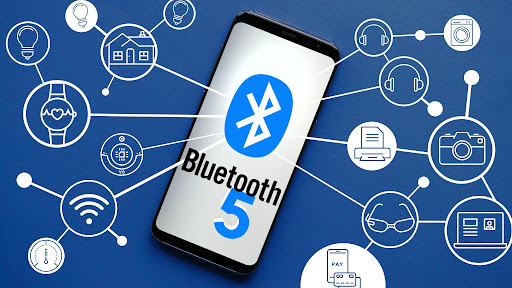
bluetoothResearchers have discovered 16 vulnerabilities in Bluetooth connections that could be exploited and make from minor to some serious damage to your device. The flaw can be used on chips manufactured by Intel, Qualcomm, and Texas Instruments while connecting to external devices like speakers, headphones, keyboards, mice, etc.
Who is affected?

Mentioned chips are used by many in a vast range of devices including big players with their products like Microsoft Surface laptops, Dell desktops, Samsung Phones, Google Pixel, and OnePlus handsets. The Bluetooth bug affects a wide range of devices, including smartphones, laptops as well as smart home gadgets. In total, more than one billion devices that rely on Bluetooth are believed to be impacted.

What is the damage?

The amount of damage possible with this flaw depends on the type of device with the chipset. Some devices can only be crashed after a specially crafted packet is sent to the flawed chip. If that's the case with your gadget, it can be easily resolved with a simple restart. With other devices, hackers can take advantage of the Bluetooth Classic flaw to remotely run malicious code. That could allow malware to be installed remotely. Researchers say vendors were informed about these issues months ago before the findings were published. The good news is this should have given plenty of time for the relevant patches to be pushed out that remedy the flaws. However, you'll need to make sure that you're running the latest version of the operating system to be protected by the patch crafted by the manufacturers.

Android Bluetooth threat

The researchers emphasize the lack of basic tests in Bluetooth certification to validate the security of Bluetooth Low Energy (BLE) devices. The BrakTooth family of vulnerabilities revisits and reasserts this issue in the case of the older, but yet heavily used Bluetooth classic (BR/EDR) protocol implementations. We would also advise users to disable Bluetooth on devices that do not need it. This way you can prevent attackers from sending you malformed LMP packets. Since BrakTooth is based on the Bluetooth Classic protocol, an adversary would have to be in the radio range of the target to execute the attacks. So, in a safe environment Bluetooth can be enabled.
Read More
Fix Microsoft Store error 0x80072F30
If you got the Microsoft Store error code 0x80072F30 while trying to open Microsoft Store, then it indicates that the Store fails to connect to the internet or is not able to launch successfully for some reason. It could be that the Windows Update Service has stopped or the Windows Store cache might be corrupted or it could just be due to a poor internet connection. Whichever the cause is, you have to fix this error so that you can use Microsoft Store again and you won’t be getting the following error message every time you open the app:
“Check your connection, Microsoft Store needs to be online, It looks like you are not, error code 0x80072f30.”
The error code 0x80072F30 is related to the Windows Store which prevents it from opening properly. To resolve this problem, you can try fixing the problem with the help of the options given below. Follow each one of them carefully.

Option 1 – Check your internet connection

The first and most obvious thing you can do is to check your internet connection. This may only be a basic tip but it sure works like a charm in most cases. And if you have another internet connection available, you can also try connecting to that and see if you can pull up Microsoft Store or not. 1] Change your internet connection: A basic tip, but sometimes works like a charm. You may want to check if your internet connection has an issue, or you can also try opening a website and see if you can open it and if possible try connecting to a different internet connection and see if the Microsoft Store opens for you. We also suggest you try changing your DNS and see if it helps.

Option 2 – Check the date and time as well as the time zone of your PC

A lot of services and apps rely on the Date, Time, and Time Zone of your PC which is why if they are not configured correctly, a request from the client machine will be rejected from the server and the same thing happens with the Microsoft Store.
  • First, go to Settings > Time and Language.
  • From there, check if it is set to Automatic or not – if it is, switch the toggle button off to set the Time and Time zone manually.
  • Then select the right time zone manually.
  • On the other hand, if the Time and Time zone is set manually, you have to switch the toggle button on to set Time and Time zone automatically.
  • Restart your PC and afterward try opening Microsoft Store again and check if the problem’s fixed or not.

Option 3 – Run the Network Adapter Troubleshooter

Since Windows 10 is packed with various troubleshooters – one of which is the Network Adapter Troubleshooter – you can use it to troubleshoot the problem. To use it, follow these steps:
  • Open the Search bar on your computer and type in “troubleshoot” to open the Troubleshoot settings.
  • Next, scroll down and select the “Network Adapter” option from the right pane.
  • Then click on the Run Troubleshooter” button.
  • After that, your computer will check for any possible errors and will pinpoint the root cause of the problem if possible.

Option 4 – Try to reset the Microsoft Store cache

Just like browsers, Microsoft Store also caches as you view apps and games so it is most likely that the cache is no longer valid and must be removed. To do so, follow the steps below.
  • Right-click on the start button and click on Command Prompt (administrator).
  • Next, type in the command, “exe” and tap Enter. Once you do, the command will clear the cache for the Windows Store app.
  • Now restart your PC and afterward, try opening Microsoft Store again.

Option 5 – Check the Windows Update Service status

You might also want to check the status of the Windows Update Service since the proper functioning of this app depends on the Windows Update Service. It could be that there is some issue with the service which is why you’re getting the error code 0x80072F30 while trying to open Microsoft Store.
  • Tap the Win + R keys to open the Run dialog box.
  • Then type “services.msc” in the field and hit Enter to open Services.
  • Next, look for Windows Update Service from the list of available services in Windows.
  • Once you see it, check if its status is STOP or Pause and then change the status to Automatic.
Read More
Windows laptop turns off when unplugged
If your Windows 10 laptop suddenly turns off when you unplug its power cord, then you’ve come to the right place as this post will guide you on how you can fix this issue. One of the most common causes for this kind of issue is that there is some problem with your laptop’s battery. It is possible that it might have gone bad or has been damaged. However, this couldn’t be the case especially if the laptop is new. The problem could have something to do with the system settings, connections, laptop hardware, and so on. To fix it, there are various suggestions you can check out such as follows:

Option 1 – Perform a hard reset on your laptop

This option works in most cases when the laptop with a removable battery is charging slowly as it is plugged in constantly. Refer to the steps below to do a hard reset on your laptop.
  1. Switch off the power of your laptop.
  2. Disconnect your laptop’s charger and then remove the battery.
  3. Tap and hold the power button for at least 30 seconds – doing so will discharge the capacitors of the motherboard and reset the memory chips that were active constantly.
  4. Plug the battery back and then charge the laptop again.
Check if the problem is fixed, if not, proceed to the next option below.

Option 2 – Try to change the Power Options

  • Tap the Win + R keys to open the Run utility.
  • Then type “powercfg.cpl” and tap Enter to open the Power Options window.
  • Next, go to your selected power plan and click the “Change plan settings” option to open a new page.
  • From there, click on the “Change advanced power settings” option. This will open a new window where you can see various power consumption options.
  • Now on the next window that appears, click on “Change advanced power settings”. This will open another window where you have to expand the Processor power management > Maximum processor state.
  • Then change the value for On battery mode to 25% and enable Adaptive brightness.
  • Now shut down your computer and try to boot it with the power cord unplugged.

Option 3 – Try to run the Power troubleshooter

The next thing you can do is to run the Power troubleshooter. To do so, follow these steps:
  • Go to Settings and navigate to Update & Security > Troubleshoot.
  • After that, look for the “Power” option from the given list of built-in troubleshooters and click on it.
  • Next, click on the “Run the troubleshooter” button to run the Power troubleshooter.
  • Once the troubleshooter is done identifying the problems, follow the next on-screen instructions to resolve the problem.

Option 4 – Try to run the Power Efficiency Diagnostics Report

You could also try to run the Power Efficiency Diagnostics Report to fix the problem. This tool is helpful and will help you analyze the status of the battery but note that this can be quite overwhelming especially if you’re not well-versed in this matter.

Option 5 – Try to uninstall or reinstall the Battery driver

You might also want to uninstall or reinstall the battery driver as it can also resolve the problem. But before you start, you have to shut down your computer and remove the power chord as well as the battery. Once you’re done, follow these steps:
  • Plug the power cord and restart your computer.
  • Once your computer has restarted, tap the Win + R keys to open the Run utility and type “devmgmt.msc” in the field and tap Enter to open the Device Manager.
  • After that, look for the “Batteries” driver from the list of drivers and expand it.
  • Then right-click on the “Microsoft ACPI-Compliant System” driver and click on the “Uninstall device” option.
  • Once it’s done, restart shut down your computer and remove the power cord and then attach the battery.
  • Now attach the power chord again and restart your computer to automatically install the driver.

Option 6 – Try to update the BIOS

Updating the BIOS can help you fix the problem but as you know, BIOS is a sensitive part of a computer. Even though it is a software component, the functioning of the hardware depends on it largely. Thus, you must be careful when modifying something in the BIOS. So if you don’t know much about it, it’s best if you skip on this option and try the other ones instead. However, if you are well-versed in navigating the BIOS, then follow the steps below.
  • Tap the Win + R keys to open the Run dialog box.
  • Next, type “msinfo32” in the field and press Enter to open System Information.
  • From there, you should find a search field on the bottom where you have to search for the BIOS version and then press Enter.
  • After that, you should see the developer and version of the BIOS installed on your PC.
  • Go to your manufacturer’s website and then download the latest version of BIOS on your computer.
  • If you are using a laptop, make sure that you keep it plugged in until you have updated the BIOS.
  • Now double click on the downloaded file and install the new BIOS version on your computer.
  • Now restart your computer to apply the changes made.
Note: If updating the BIOS didn’t help, you might want to consider resetting it instead.
Read More
How to Obliterate PyLocky Ransomware

What is PyLocky ransomware? And how does it execute its attack?

PyLocky ransomware is a file-locking malware created in order to lock important files and demand ransom from victims in exchange for data recovery. This new ransomware uses the .lockymap extension in marking the files it encrypts. It starts to execute its attack by dropping the following malicious payload in the system:
Name: facture_4739149_08.26.2018.exe SHA256:8655f8599b0892d55efc13fea404b520858d01812251b1d25dcf0afb4684dce9 Size: 5.3 MB
After dropping its malicious payload, this crypto-malware connects the infected computer to a remote server where it downloads more malicious files and places them on system folders. It then applies a data gathering module used to gather data about the user and the computer. The malicious files that were downloaded earlier along with the data obtained are used for another module called stealth protection. This allows PyLocky ransomware to execute its attack without detection from any security or antivirus programs installed in the system. It also modifies some registry keys and entries in the Windows Registry such as:
  • HKEY_CURRENT_USERControl PanelDesktop
  • HKEY_USERS.DEFAULTControl PanelDesktop
  • HKEY_LOCAL_MACHINESoftwareMicrosoftWindowsCurrentVersionRun
  • HKEY_CURRENT_USERSoftwareMicrosoftWindowsCurrentVersionRun
  • HKEY_LOCAL_MACHINESoftwareMicrosoftWindowsCurrentVersionRunOnce
  • HKEY_CURRENT_USERSoftwareMicrosoftWindowsCurrentVersionRunOnce
Once all the modifications are carried out, PyLocky ransomware will begin encrypting its targeted files using a sophisticated encryption cipher. Following the encryption, it adds the .lockymap extension to each one of the encrypted files and releases a ransom note named “LOCKY-README.txt” which contains the following content:
“Please be advised: All your files, pictures document and data has been encrypted with Military Grade Encryption RSA ABS-256. Your information is not lost. But Encrypted. In order for you to restore your files, you have to purchase a Decrypter. Follow these steps to restore your files. 1* Download the Tor Browser. ( Just type in google “Download Tor“ 2‘ Browse to URL: http://4wcgqlckaazungm.onion/index.php 3* Purchase the Decryptor to restore your files. It is very simple. If you don’t believe that we can restore your files, then you can restore 1 file of image format for free. Be aware the time is ticking. Price will be doubled every 96 hours so use it wisely. Your unique ID : CAUTION: Please do not try to modify or delete any encrypted file as it will be hard to restore it. SUPPORT: You can contact support to help decrypt your files for you. Click on support at http://4wcgqlckaazungm.onion/index.php”

How does PyLocky ransomware spread over the web?

PyLocky ransomware spreads using malicious spam email campaigns. Creators of this threat embed an infected attachment to spam emails and send them using a spambot. Crooks may even use deceptive tactics to trick you into opening the malware-laden immediately which is something you must not do. Thus, before opening any emails, make sure that you’ve thoroughly checked them. To successfully obliterate PyLocky ransomware from your computer, refer to the removal guide laid out below.
  • Step 1: Launch the Task Manager by simply tapping Ctrl + Shift + Esc keys on your keyboard.
  • Step 2: Under the Task Manager, go to the Processes tab and look for the process named facture_4739149_08.26.2018.exe and any suspicious-looking process which takes up most of your CPU’s resources and is most likely related to PyLocky ransomware.
  • Step 3: After that, close the Task Manager.
  • Step 4: Tap Win + R, type in appwiz.cpl and click OK or tap Enter to open Control Panel’s list of installed programs.
  • Step 5: Under the list of installed programs, look for PyLocky ransomware or anything similar, and then uninstall it.
  • Step 6: Next, close the Control Panel and tap Win + E keys to launch File Explorer.
  • Step 7: Navigate to the following locations below and look for PyLocky ransomware’s malicious components such as facture_4739149_08.26.2018.exe and LOCKY-README.txt as well as other suspicious files, then delete all of them.
%TEMP% %WINDIR%System32Tasks %APPDATA%MicrosoftWindowsTemplates %USERPROFILE%Downloads %USERPROFILE%Desktop
  • Step 8: Close the File Explorer.
  • Step 9: Tap Win + R to open Run and then type in Regedit in the field and tap enter to pull up Windows Registry.
  • Step 10: Navigate to the following path:
HKEY_CURRENT_USERControl PanelDesktop HKEY_USERS.DEFAULTControl PanelDesktop HKEY_LOCAL_MACHINESoftwareMicrosoftWindowsCurrentVersionRun HKEY_CURRENT_USERSoftwareMicrosoftWindowsCurrentVersionRun HKEY_LOCAL_MACHINESoftwareMicrosoftWindowsCurrentVersionRunOnce HKEY_CURRENT_USERSoftwareMicrosoftWindowsCurrentVersionRunOnce
  • Step 11: Delete the registry keys and sub-keys created by PyLocky ransomware.
  • Step 12: Close the Registry Editor and empty the Recycle Bin.
Try to recover your encrypted files using the Shadow Volume copies Restoring your encrypted files using Windows Previous Versions feature will only be effective if PyLocky ransomware hasn’t deleted the shadow copies of your files. But still, this is one of the best and free methods there is, so it’s definitely worth a shot. To restore the encrypted file, right-click on it and select Properties, a new window will pop up, then proceed to Previous Versions. It will load the file’s previous version before it was modified. After it loads, select any of the previous versions displayed on the list like the one in the illustration below. And then click the Restore button.
Read More
5 ways to open task manager in Windows 11
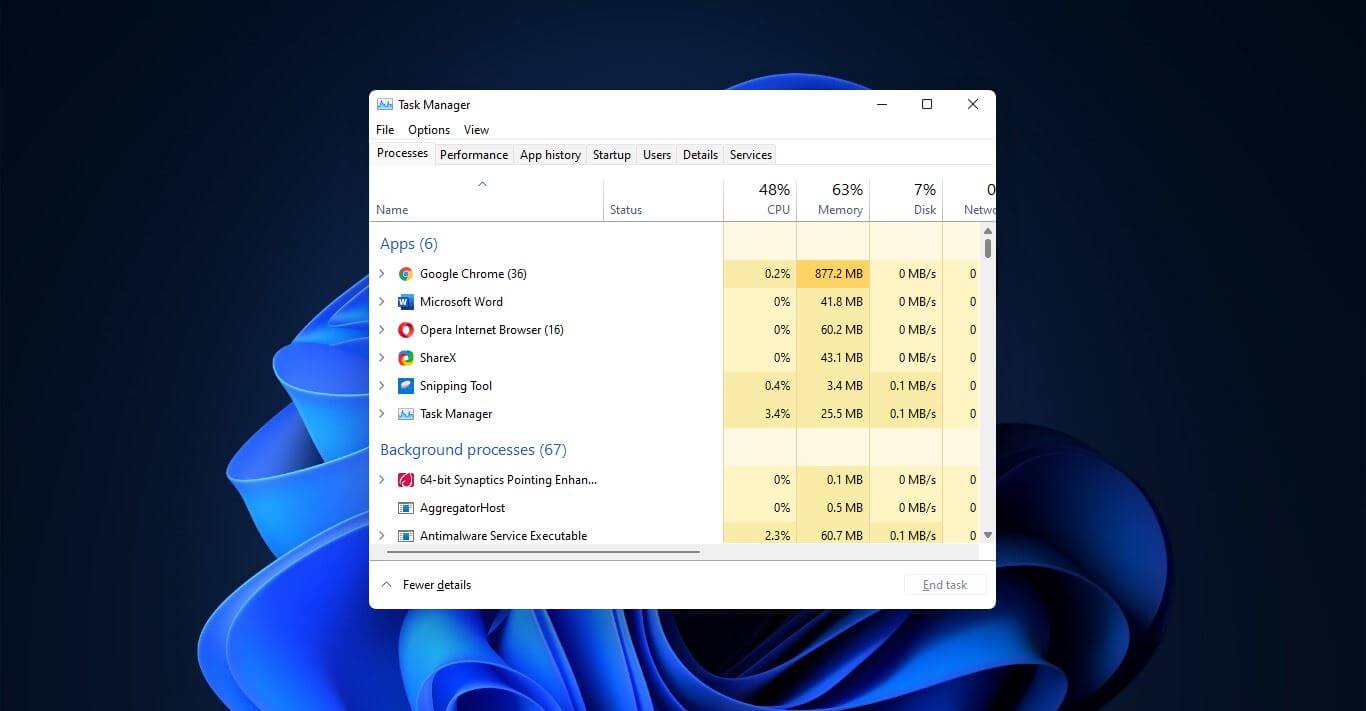
Something we are used to doing in a certain way inside Windows 10 is slightly changed in Windows 11. One of those things is how you open task manager, well kind of. task managerOption to right-click on the taskbar and launch task manager is gone but do not worry there are other same and simple ways you can launch it.

  1. Press CTRL + SHIFT + ESC or CTRL + ALT + DEL
  2. Right-click on the START button
  3. Type task manager in start search on top in the start menu
  4. Type taskmgr in command prompt
  5. Press ⊞ WINDOWS + R to open run dialog and type in taskmgr
And that’s it, now depending on your situation, you might use different methods to evoke task manager.
Read More
0x800ccc79 Error Code - A Quick Fix

0x800ccc79 Error - What is it?

0x800ccc79 error is an error message that you may come across when sending emails through Outlook Express from Microsoft. This error message is accompanied by a notification that is displayed as ‘email was not delivered’ or ‘the server doesn’t support SSL connection’.

Solution

Download Available to Recover all Lost Outlook data

Restoro box imageError Causes

This error code 0x900ccc79 is triggered due to the following causes:
  • Problems related to email servers
  • Changes in the configuration settings
  • Corrupted Windows Registry

Further Information and Manual Repair

When you receive the error 0x800ccc79 it may hamper your ability to send emails. Therefore it is advisable to fix it to ensure your emails are sent and received without any difficulty.

This Outlook error 0x800ccc79 is quite easy to repair. By following the quick fix 0x800ccc79 error code solutions given below you can resolve this error in just a couple of minutes.

Here’s what you need to do to fix this error right away:

Cause: Configuration issues

Solution: If the error occurs due to Outlook Express being configured to use the SSL protocol while sending and receiving emails via the web, then to resolve it, you need to allow Outlook Express to bypass the Secure Socket Layer settings.

To do so, click on ‘tools’ and then on ‘Accounts’. Now select the email account that you want to modify.

Now select the ‘Properties’ tab and then click on ‘Advanced Settings’.

Here search for the following text message ‘This server requires a secure connection’. Once you locate it, uncheck all the checkboxes given next to this option. After that save the changes and restart Outlook Express to see bring the changes into effect.

Cause: Missing or Corrupt Registry Entries

Solution: If the error 0x800ccc79 occurs due to missing or corrupt registry entries, then the best way to fix this error is to download and install a good registry cleaner on your PC.

The registry cleaner will help you clean your corrupt and damaged Windows registry entries and get rid of this error right away. It is suggested you download the registry cleaner tool from a reliable website to avoid any malware or virus downloads simultaneously.

Once you download the registry cleaner on your system, click on scan. The cleaner will scan your computer completely for registry errors and show you the results in a list form.

After the scanning is complete, click on repair to fix the errors.

So, next time, if you or anyone at your office comes across the Outlook Express error 0x800ccc79, you can try these solutions and fix the error immediately without waiting for the network personnel to come and resolve it.

Read More
Can't Connect to Blizzard Battle.net App
Blizzard is one of the most beloved game company which brought some of the most and greatest titles in PC gaming. Blizzard has released its own launcher in which you can launch games, sadly sometimes launcher does not want to work and fails to connect. If this happens to you be sure to:
  1. Reset your network devices to make sure your router hasn't become flooded with data.

    Power cycling your modem and router allows them to reset and re-establish a connection to your ISP. Follow these steps to completely power cycle the devices in your network connection:Note: If your modem has a battery backup, you will need to take the battery out or use the reset button on the modem.
    1. Shut down all computers connected to the modem/router.
    2. Power down and unplug the modem and the router if you're using one.
    3. Allow to sit for 60 seconds unplugged.
    4. Plug in and turn on the modem and router, and allow them to completely boot up until the front panel connection lights on the modem show a steady connection.
    5. Start the computer and allow it to completely boot up.
  2. If you're using a wireless connection, optimize your internet connection to rule out a connection issue.

    If you're experiencing issues with your low-speed or wireless internet connection, follow the steps below to troubleshoot the problem.
    1. Try plugging your computer directly into your modem.
    2. Shut down other programs that access the internet, such as other games or download programs.
    3. Satellite, mobile phone, and WiMax internet connections are not stable connections and may cause further connection issues when playing Blizzard games. If possible, consider switching to a more stable connection.
  3. Update your drivers and operating system to resolve any compatibility issues.

    Out-of-date drivers and operating systems can cause a variety of issues and are one of the first things to check when a game is having problems. The instructions below will help you check and update your drivers.
    • Even new computers can have out-of-date drivers and operating systems because updates are released routinely.
    • Some games and programs might run fine on a system with old drivers, but outdated drivers can still create technical issues with specific games or programs.
    • Check our supported video cards articles to make sure your hardware is compatible:
    Refer to the steps below to update drivers and software for your operating system.
  4. Release and renew your IP and flush your DNS to resolve any network conflicts.

    1. While on the desktop, press Windows Key and type CMD.
    2. Right-click Command Prompt and select Run as administrator.
    3. Type ipconfig /release in the command prompt.
    4. Wait a few seconds for a reply that the IP address has been released.
    5. Type ipconfig /renew in the command prompt.
    6. Wait a few seconds for a reply that the IP address has been re-established.
    7. Type ipconfig /flushdns in the command prompt.
    8. Close the command prompt and attempt to make a connection.
  5. Close all other applications to resolve software conflicts and free up resources.

    Before trying the steps below, close unnecessary programs and restart your computer. Identify Problematic Startup Items
    1. Press Ctrl+Shift+Esc to open the Task Manager.
    2. Click More Details.
    3. Select the Startup tab.
    4. Right-click on each item and select Disable.
    5. Restart the computer.
    If this resolves the issue, enable the startup application one at a time to determine which one is causing the problem. You will need to restart between each application you enable. Note: To re-enable startup applications, follow steps 1-4 and select Enable.
  6. Delete the Battle.net Tools folder to automatically rebuild outdated or corrupt files.

    1. Close Blizzard processes.
      1. Press Ctrl + Shift + Esc to bring up the Task Manager.
      2. Click the Processes tab.
      3. Select all Agent, Blizzard Battle.net desktop app, and game processes, and click End Process.
    2. Navigate to the folder containing the Battle.net directory:
      1. Press Windows Key + R to open the Run dialogue.
      2. Type C:\ProgramData\ into the Open field and press Enter.
    3. Delete the Battle.net folder.
    4. Run Battle.net and update the game to see if the issue persists.
    If the error persists after you try these steps, another program may be causing the problem. Restart your computer and delete the Battle.net folder one more time.
    Note: The above steps may cause the Blizzard Battle.net desktop app to forget game install locations. If your games can’t be found, you will see Install on the Blizzard Battle.net desktop app game tab instead of Play. To find your installation, click Locate this game or run the game launcher.
Read More
How to Fix Windows 10 Error 0x80240016

Error Code 0x80240016 - What is it?

Error Code 0x80240016 is an error that appears when the Windows Update tool is unable to complete its operation. While it most commonly occurs in Windows 10, versions of this error are also present in past Windows systems, as well. The steps to resolve the error are the same for each of these systems. Common symptoms include:
  • Inability to complete the Windows Update process
  • Sluggishness or freezing
  • Crashing of your programs
  • The message that states “IMAP_LOGINFAILURE”
There are a number of different issues that can cause Error Code 0x80240016, so it is important to follow the steps below to address each of them in turn. While basic users can implement several of the methods, some of the methods may require advanced skills or knowledge. If needed, always get in touch with a qualified Windows repair professional to assist you in the process of error resolution.

Solution

Restoro box imageError Causes

Error Code 0x80240016 happens when the system believes that another installation is already occurring on your device while the Windows Update tool is attempting to run the installation of its own updates. While there may not always be an actual installation going on that prohibits Windows Update from running, several programs can leave traces of background activity that prevent Windows from proceeding as necessary.

Malicious software can also cause your system to believe that files are in use, so several of the methods to fix the error can address this particular set of issues.

Further Information and Manual Repair

There are a number of different background issues that can cause Error Code 0x80240016 to appear on your machine. Follow the steps below to address each aspect of the error code, making sure to restart your computer after each attempt. If you have difficulty in completing these steps, contact a qualified technician to assist you.

Here are the top methods to resolve Error Code 0x80240016:

Method One:  Use the Troubleshooting Tool in Windows Update

The first step to addressing Error Code 0x80240016 is to open up the Windows Update tool and click on the option to run the Troubleshooting Wizard. This can identify many of the issues associated with the error. If this tool makes any changes, make sure to restart your computer after it finishes.

Method Two:  Run the Registry Repair Tool

The registry repair tool can be a great resource for Error Code 0x80240016. Use it to run a scan on all of your registry entries and to repair any that may be extraneous, faulty, or missing. This step may take some time, so be prepared to wait a while for it to finish. Always restart your computer after running the registry repair tool so that any necessary changes can fully take effect and be recognized by your device.

Method Three:  Scan Your Computer for Malicious Software

Use the Microsoft Security Essentials tool to perform a scan of your computer to see if any malicious software has changed or corrupted your system files. Once all the files had been scanned and problems have been addressed, you can restart your computer to see if the error has been successfully resolved. You can also download a powerful automated tool to rectify Windows 10 error code 0x80240016.

Method Four:  Update Your Drivers and Perform Updates for Your Software and Operating System

Another method that can help to address Error Code 0x80240016 is to open up your driver settings from the control panel and scan to see if any updates are needed. If there are updates waiting to be installed, go ahead and perform those updates first, then restart your computer.

Next, check your Windows Update tool to see if there are any program or system updates that need to be performed. Allowing updates to stack up can cause a number of errors on your system, so it is important to keep your updates in check. Restart your computer after you finish this process.

Method Five:  Backup Your Files, Then Reinstall Your Operating System Version

If none of the above methods have completely fixed the problem, you may need to reinstall your operating system. Before doing so, make sure that you have a backup copy of any important programs and files so that you don’t lose anything during the fresh installation.

Read More
1 2 3 171
Logo
Copyright © 2023, ErrorTools. All Rights Reserved
Trademark: Microsoft Windows logos are registered trademarks of Microsoft. Disclaimer: ErrorTools.com is not affiliated with Microsoft, nor claims direct affiliation.
The information on this page is provided for information purposes only.
DMCA.com Protection Status